Campaigns
Creating your Campaign
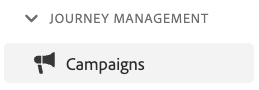
Navigate to "Campaigns"
Click on “Create Campaign”
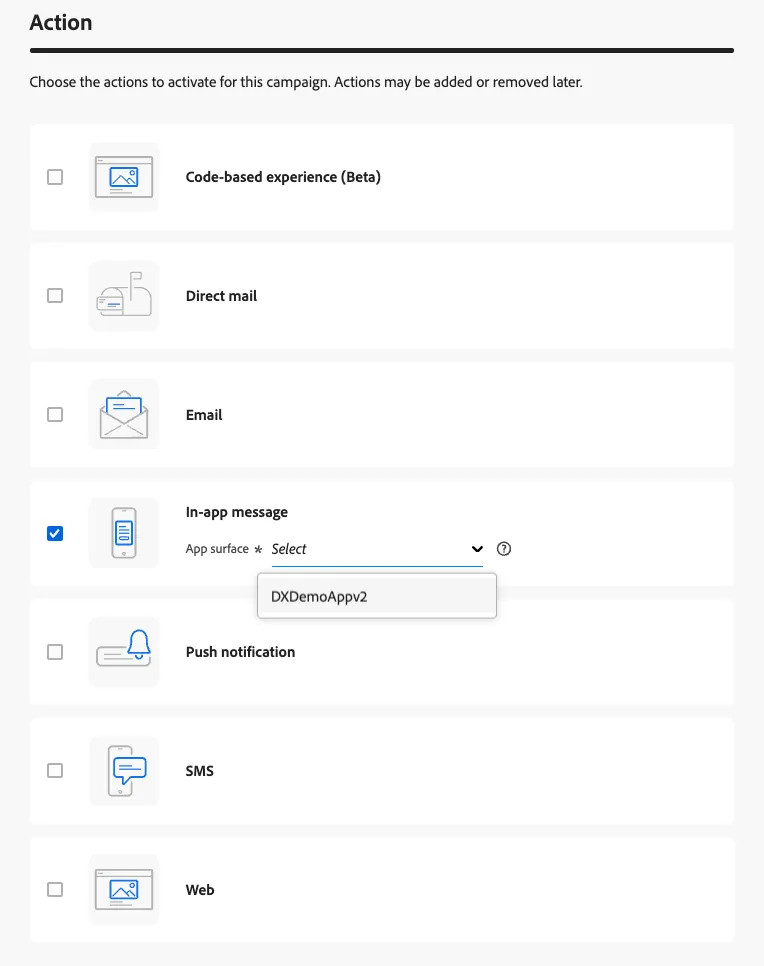
Click on "In-App Message" under Actions and then choose the "DXDemoAppv2" from the message surface dropdown. Then click Create.
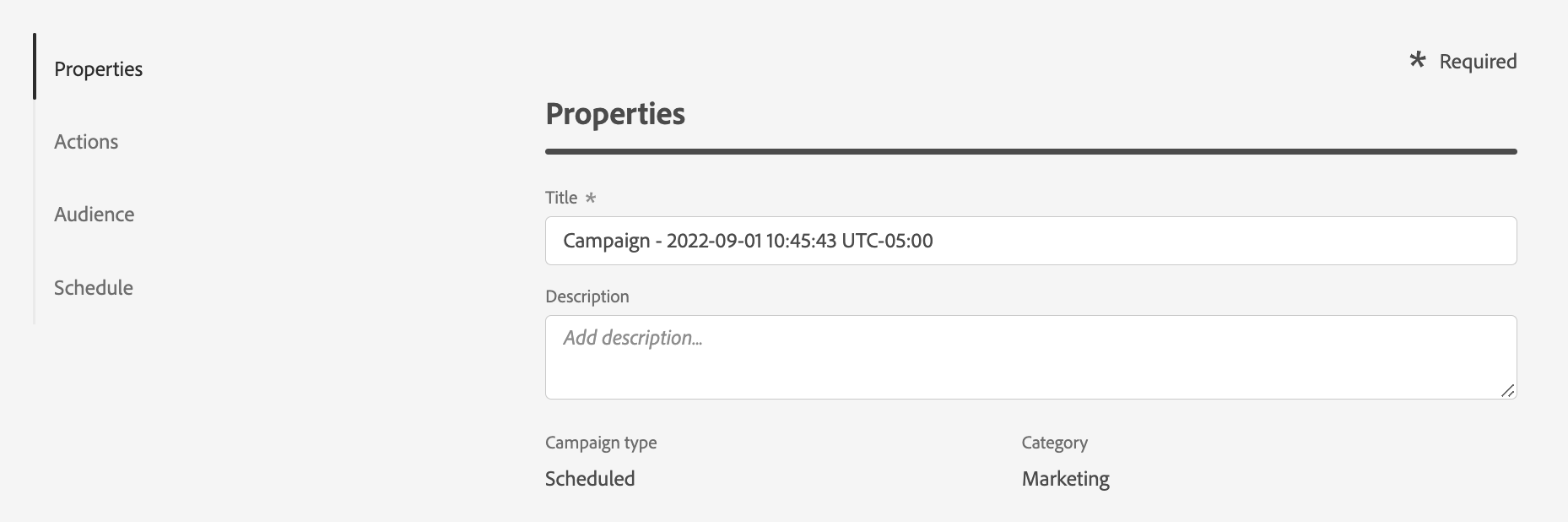
Provide a title: RSP Offer - INITIALS, and category (Marketing)
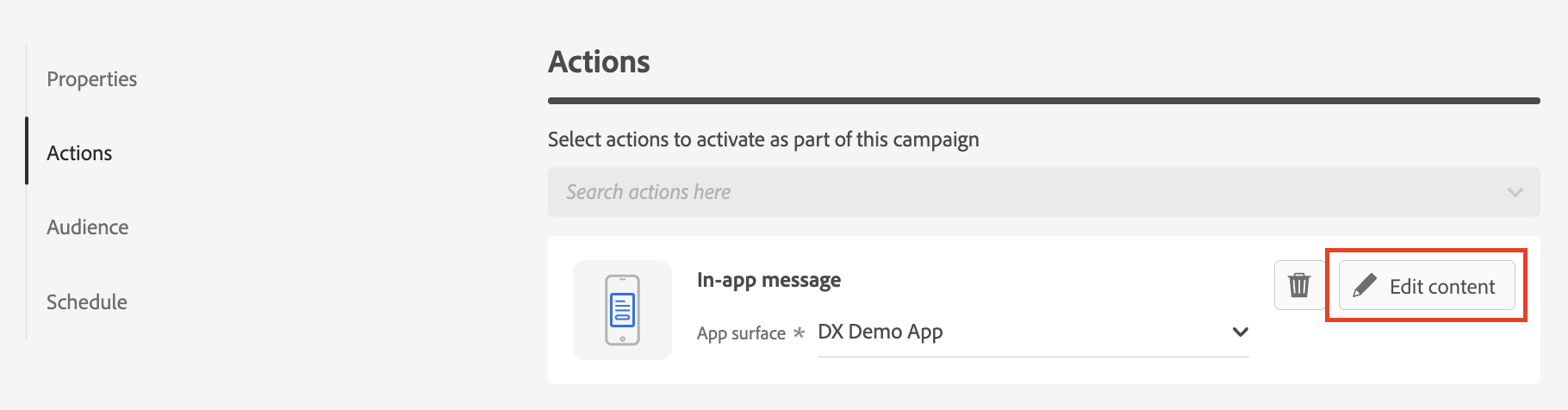
Under Actions, click 'Edit Content'
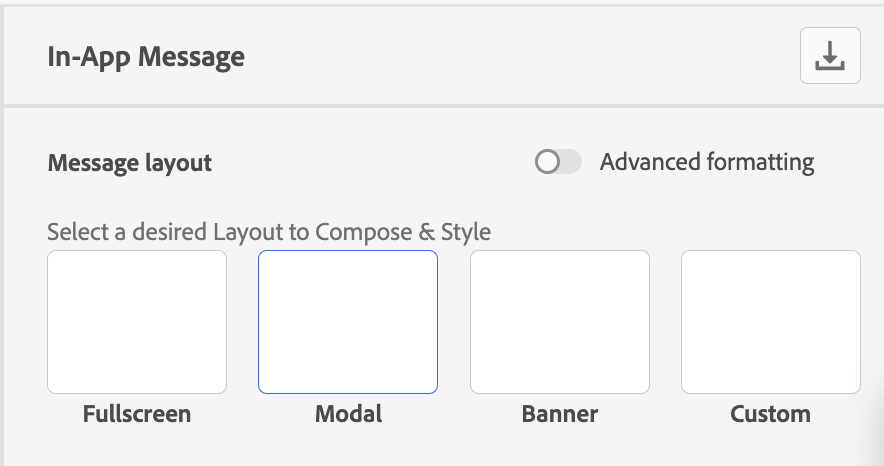
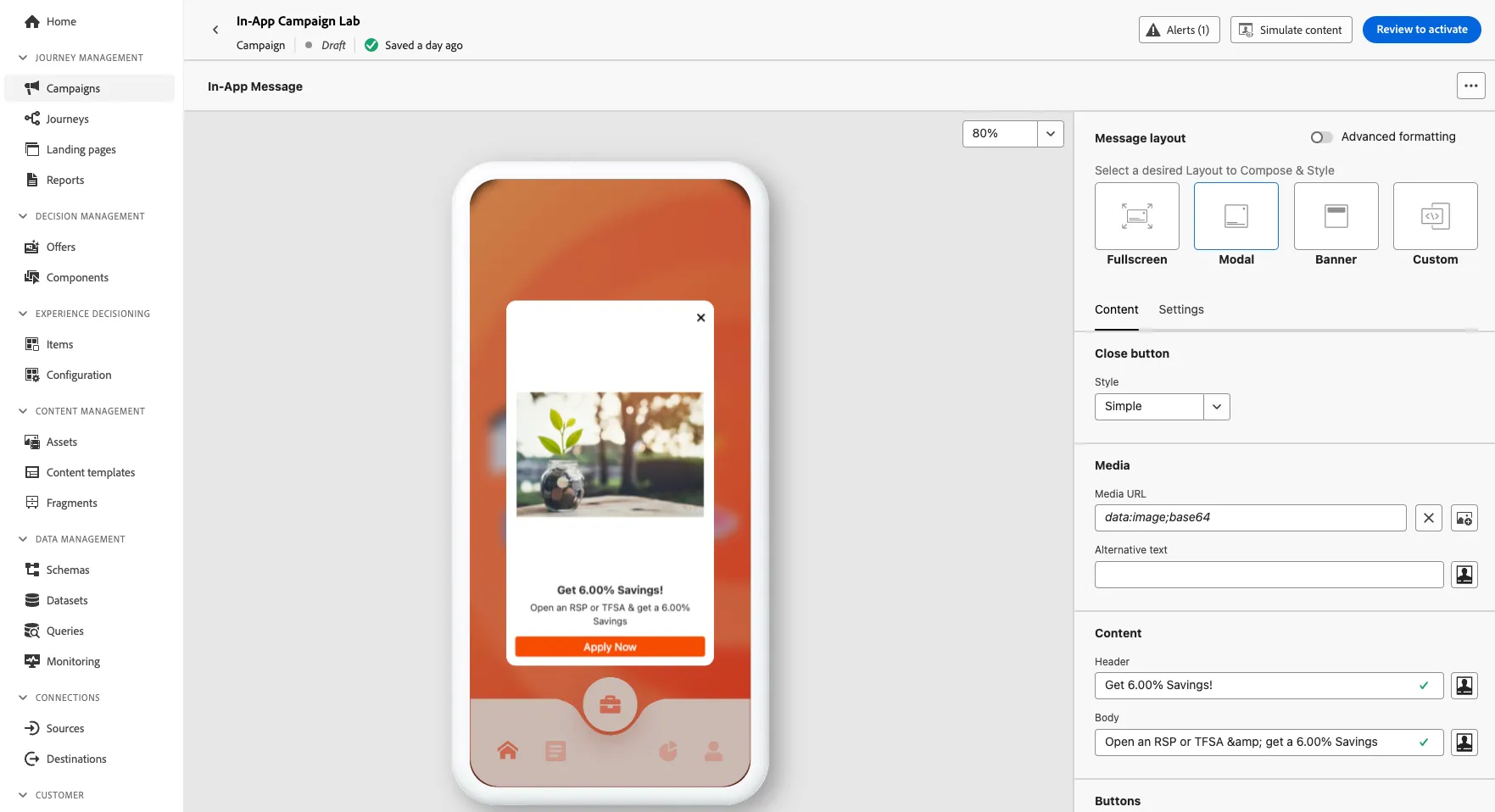
Within the Message Designer, select "Modal" as the Message layout format
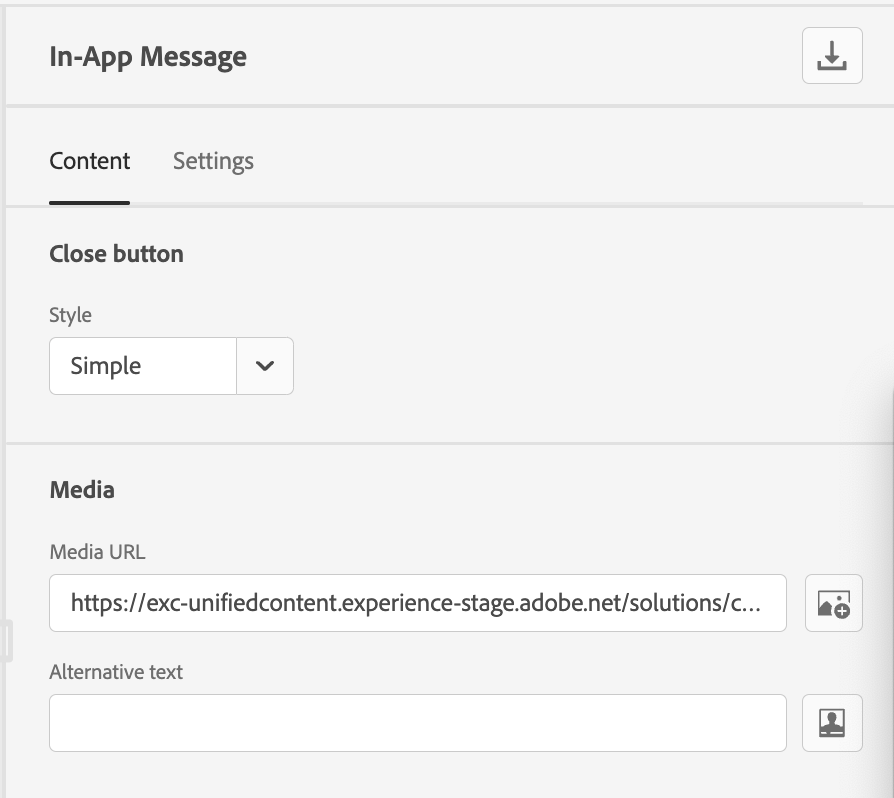
Choose a button style and Media image from Asset Essentials.
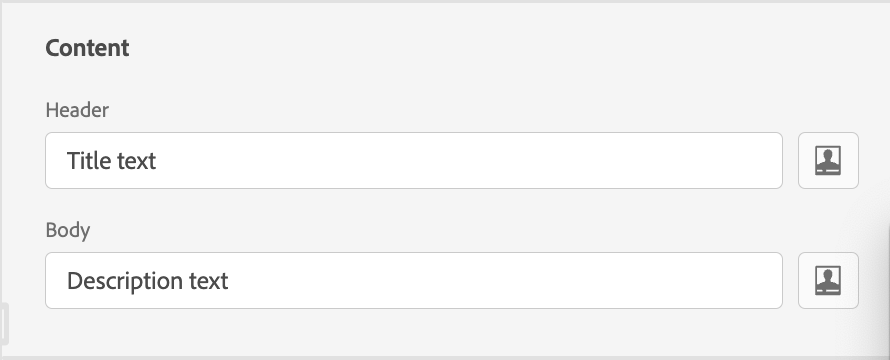
Provide the Header and Body copy, add personalization as needed.
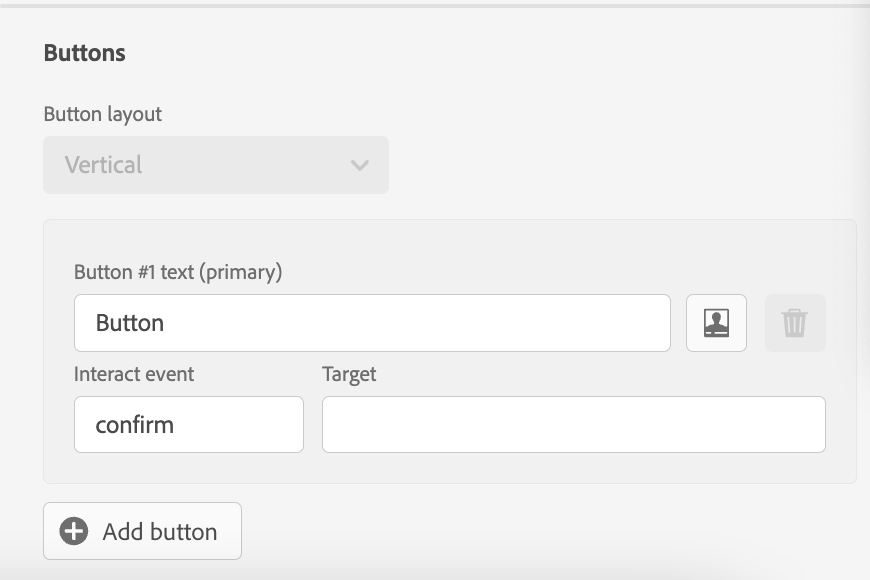
Add the button along with its label and interaction event.
Review and confirm your message design
- Under Identity Type. Click on CRMID.
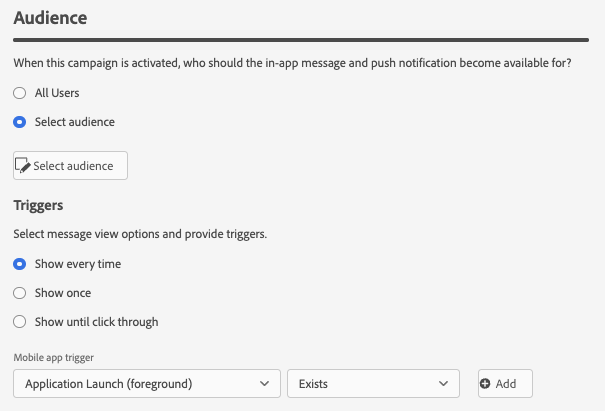
Under Audience, either leave 'All App Users' or 'Select Audience' to use a previously defined segment. Select appropriate Trigger condition for displaying the message.
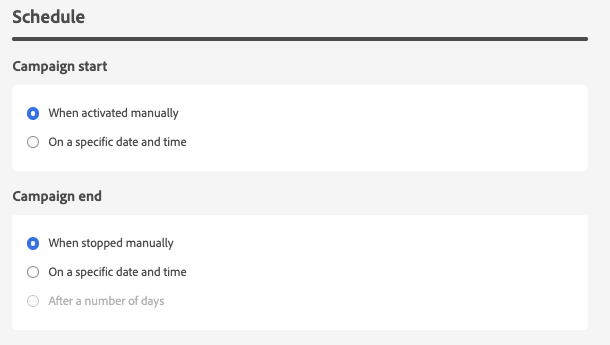
Define Start and End schedule for the Campaign
Click Review to Activate
Review your Campaign.
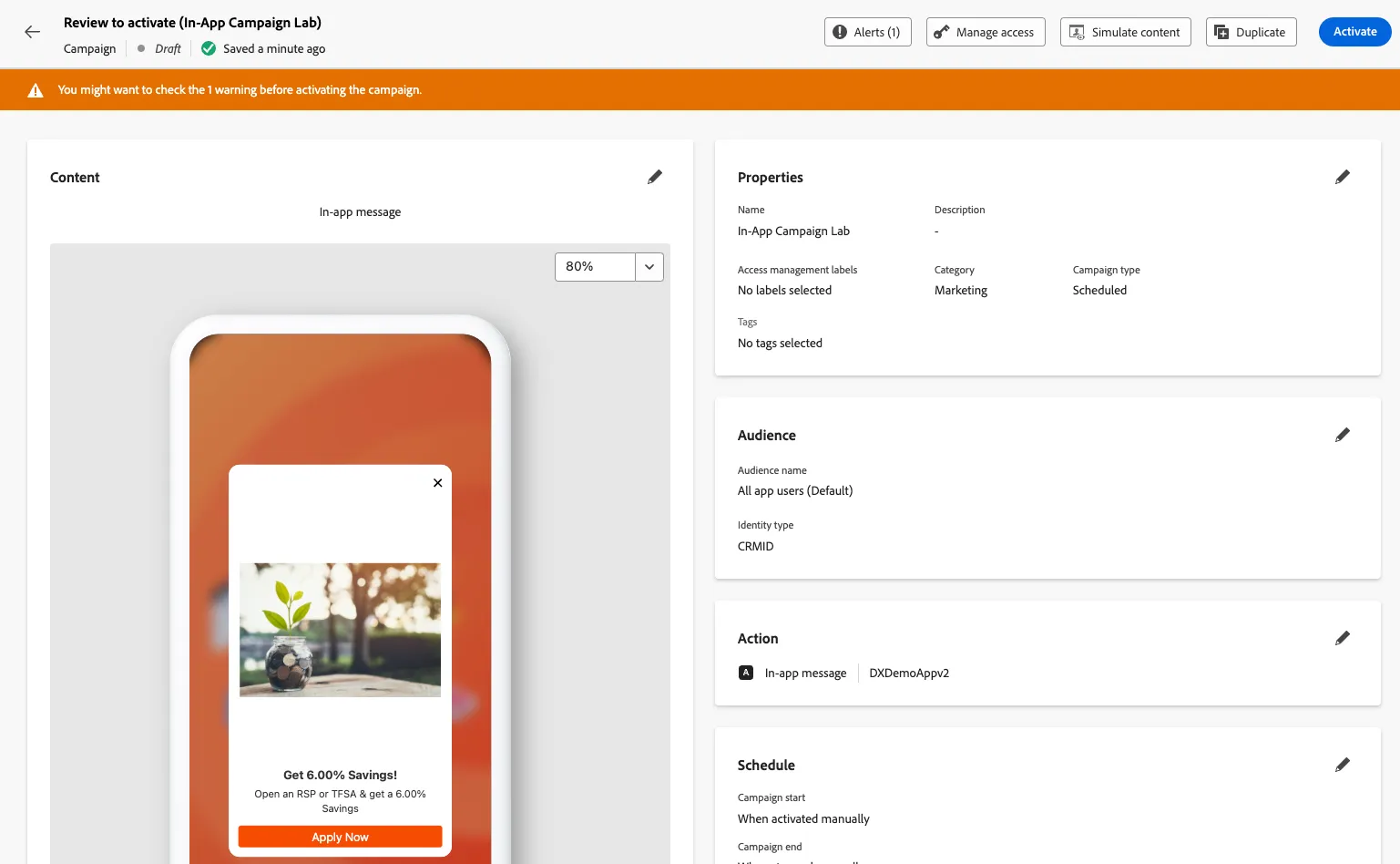
- You can always edit in the future.
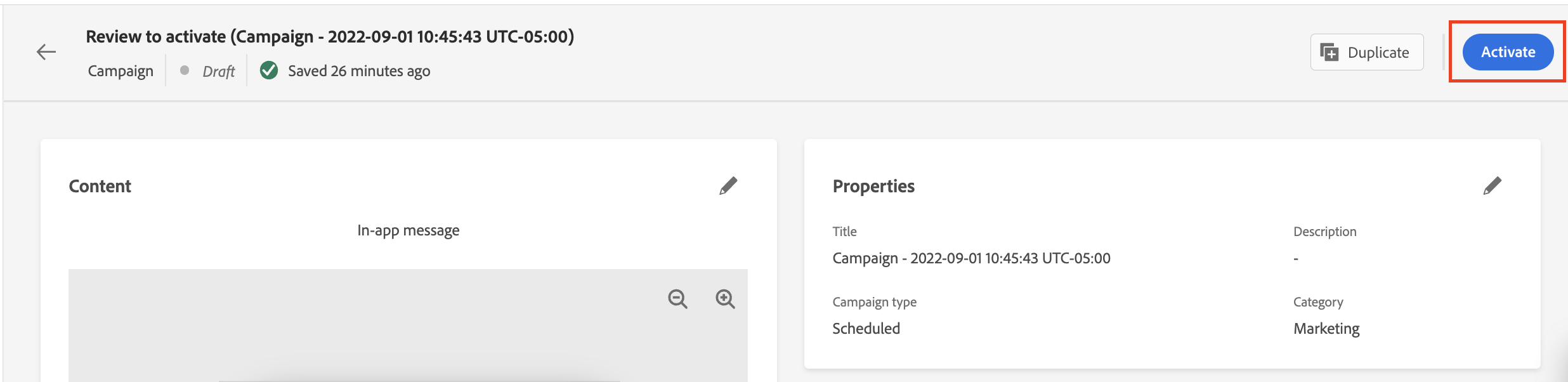
After confirming all settings, click "Activate"
- End of lab.