Measure
Experience Overview
You’re an analyst tasked with identifying key insights for the Coca-Cola Real Magic campaign. Use Customer Journey Analytics to generate key performance metrics on-the-fly with simple prompts. Get actionable insights in record time with AI Assistant.
The Booth Experience
Data Analysis AI Assistant in Adobe Customer Journey Analytics is currently a beta feature that will launch as Data Insights Agent with expected release in June 2025.
Due to the nature of generative AI, you may experience different results from the output listed in this demo guide.
If you experience any unexpected results, you can move on to the next step to complete the task.
Step 1: Launch AI Assistant
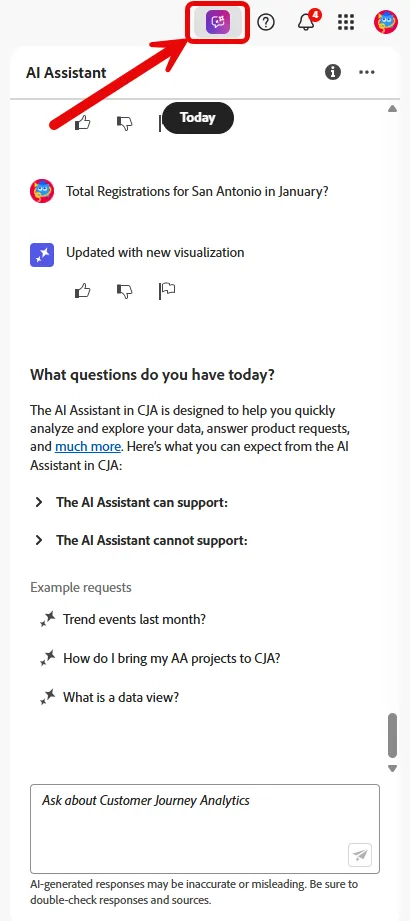
To launch AI Assistant, select the AI Assistant icon from the top header of the page in the Customer Journey Analytics UI.
Step 2: Ask a question
In the text box provided, ask a specific natural-language question to the AI Assistant in order to find out how many Email Opens there were in the month of January.
What were opens for January by day?
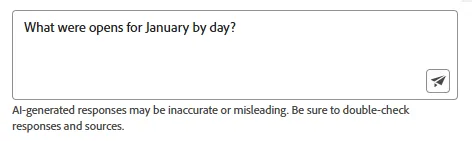
Click the icon on the bottom right of the AI Assistant text box and observe the rendered Line chart that appears in a new panel within Analysis Workspace.
Step 3: Ask a follow up question to add a metric
In the text box provided, ask a follow up natural-language question to add Email Clicks to the rendered Line chart from the previous question.
Add clicks
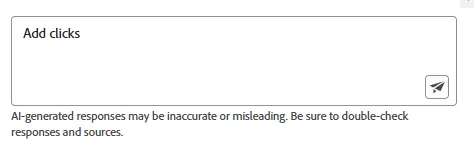
Click the icon on the bottom right of the AI Assistant text box and observe the Email Clicks metric was added to the rendered Line chart.
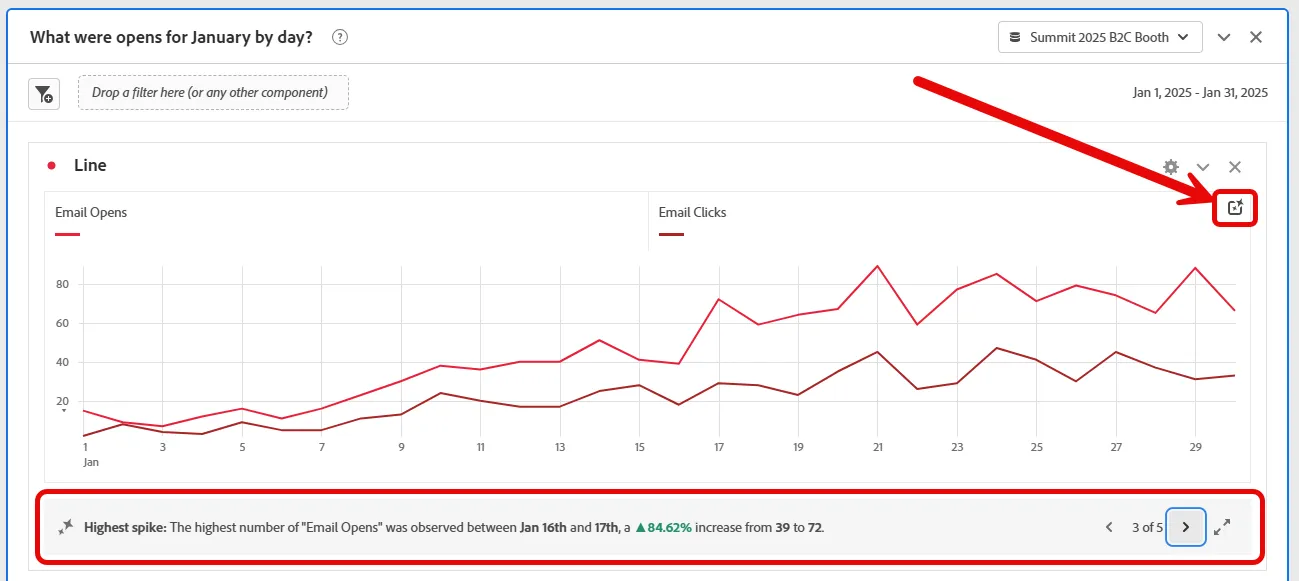
Step 4: Use Intelligent Captions to identify a spike
Click the Intelligent Captions icon in the upper right of the Line cart to get summary insights from the rendered visualization.
Click the right > icon to scroll to identify the Highest Spike
Step 5: Ask a question to find top performing cites
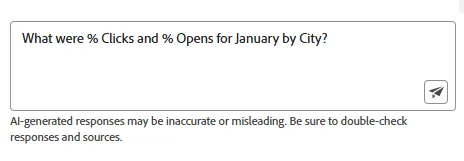
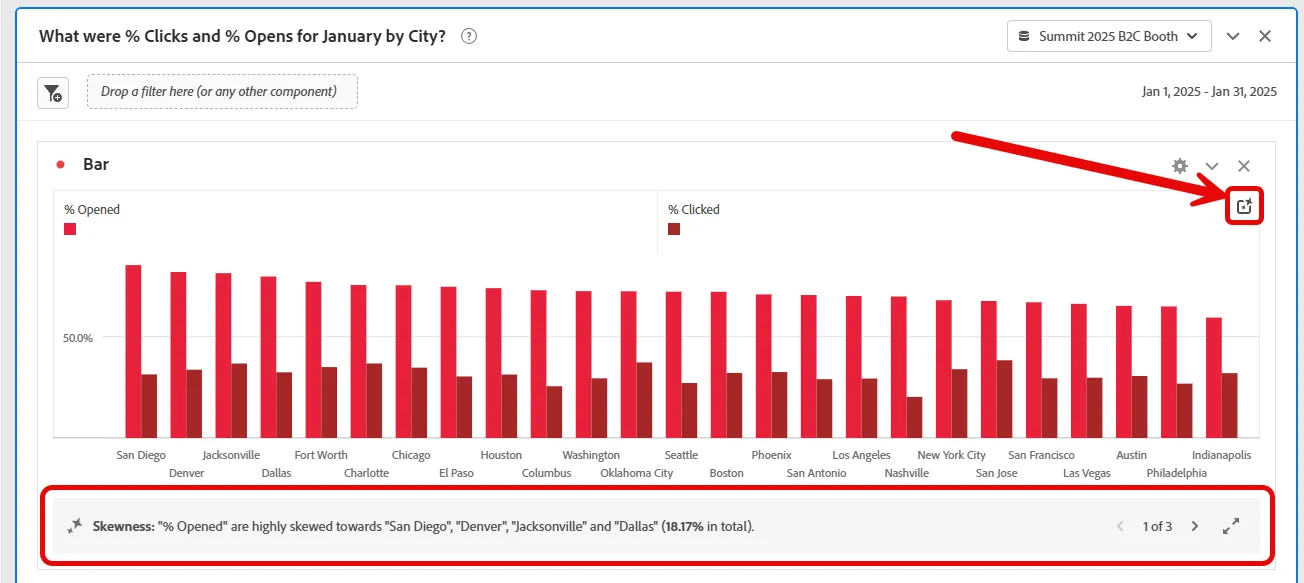
Now we want to know which cities had the greatest open and click percentages. In the AI Assistant text box enter another question.
What were % Clicks and % Opens for January by City?
Observe the new rendered Bar chart in a new panel, and launch Intelligent Captions to find any skewness.
Step 6: Ask a question to find Registrations in a specific city
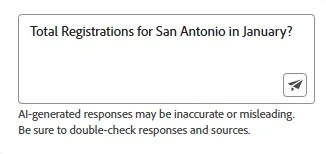
Now we want to know how many registrations there were in a specific city. In the AI Assistant text box enter another question.
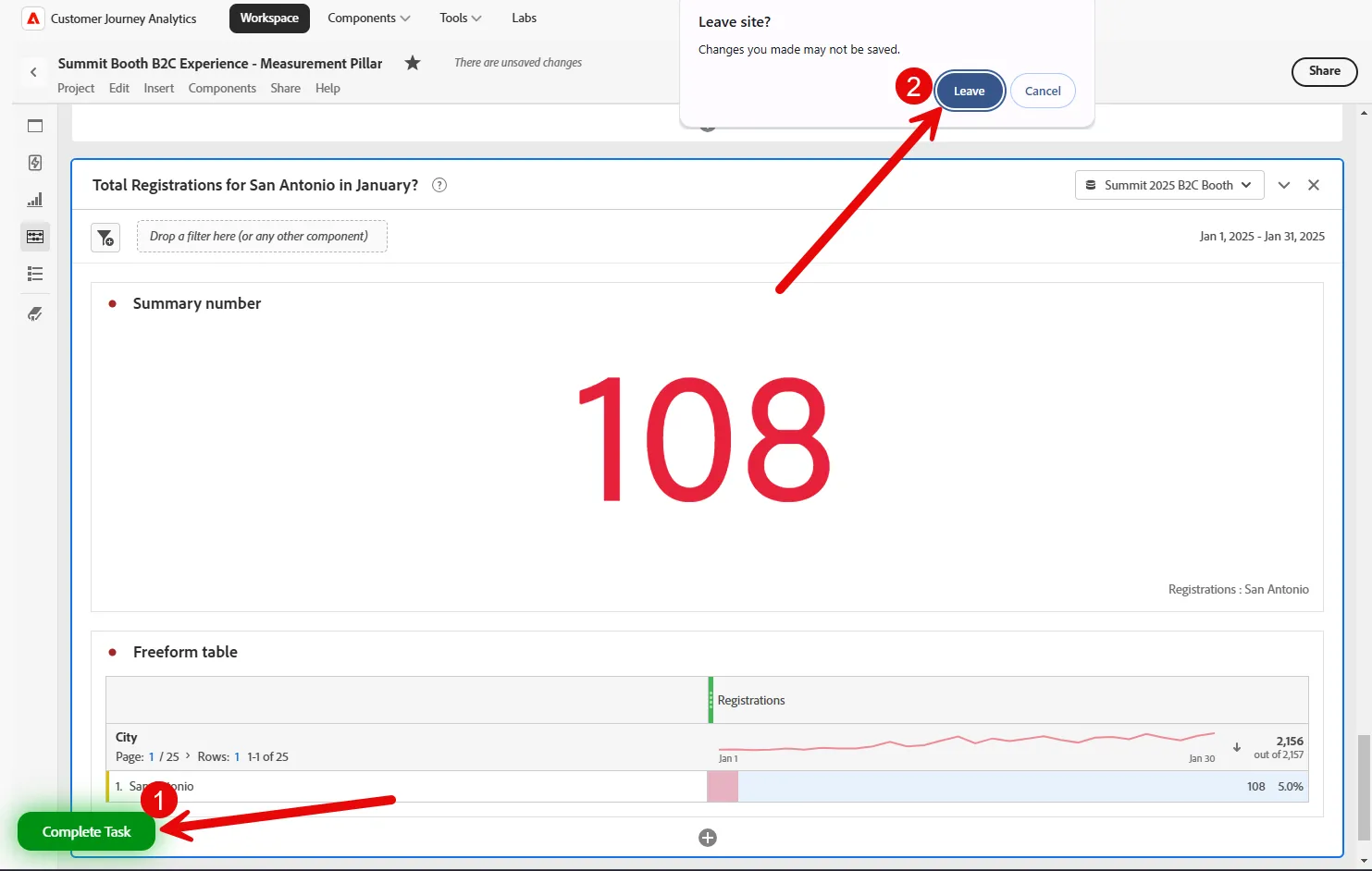
Total Registrations for San Antonio in January?
Observe the new rendered Summary number in a new panel with Registrations for San Antonio.
Step 7: Task Complete
You successfully completed the Measure task by using the Data Analysis AI Assistant in Adobe Customer Journey Analytics to generate key performance metrics on-the-fly with simple prompts!
Click the green Complete Task button on the bottom left of the screen and also click the Leave button if prompted.
You should now see the completion screen.