Adding an exit criteria
1 min
Exercise 7: Adding an exit criteria
There's many ways a customer can purchase a Meal Deal, and they could do so at any point in the journey.
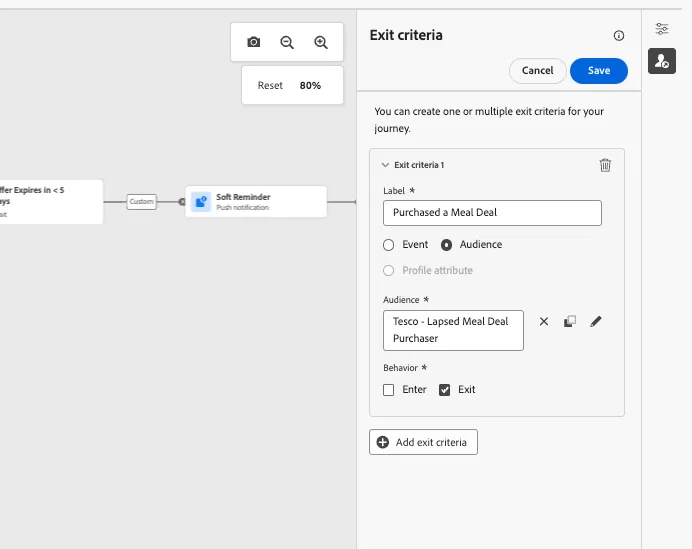
In these cases, we wouldn't want them to receive any further communication from this journey. This is where Exit criteria come into play. With this feature you can define real-time triggers that cause the profile to be removed from the journey.
- On the right side of the canvas you'll find a small vertical hotbar. Click on the -icon to Show exit criteria.
- Click on Add exit criteria.
- Set the label to Purchased a Meal Deal.
- Choose Audience as the exit criteria.
- Click on the Audience input field or on the -icon. A window will open
- Select the audience Tesco - Lapsed Meal Deal Purchaser and click Save.
- Set the behavior to Exit, this is the default value.
- Click Save.