Send a reminder Push Message
3 min
Exercise 6: Push Message - Soft Reminder
At this stage of the story, our customers meal deal offer is expiring in 5 days. If the customer has not acted (purchased a meal deal), we'll send a gentle nudge as a push notification.
We're going to send them a push-notification containing their meal deal offer, letting them know the offer is still valid. This pushes a short message to the profile's smartphone that they can easily interact with. When they click on the push they'll be taken to the mobile app directly.
- From the actions tab, choose Action and drag it onto the canvas following the Wait condition.
- Choose Push Action Types
- Click Add.
- Click on the activity to open the detailed view.
- Set the label to Soft Reminder.
- Click on Configure Action
- Select pushMessages from the push notification drop down
- Click on Edit content to start designing your push.
- Set the title to Been a while! Fancy your usual meal deal today?
- To change the body, click on the icon beside the text box. A window will open allowing you to write advanced expressions.
- In the expression editor,
- Select Decision policy from the left menu.
- Select Add decision policy
- Set the name of the decision policy to:Your name meal Deal Offer Decision
- Click Next.
- Under Strategy sequence, select +Add > Selection Strategy.
- Select the Meal Deal Win Back Selection Strategy from the list.
- Click Save to close the window.
- Click Next and review your decision policy. Click Create.
Now we want to use this decision policy in the Body of our push message. To do this,
- Select +Insert syntax from the Decision policies menu
- This will inject an expression that will loop through each item (offer) returned by this decision policy.
- Search for Offer Name
- Click on the + icon next to the attribute to add this to your expression. It should read:
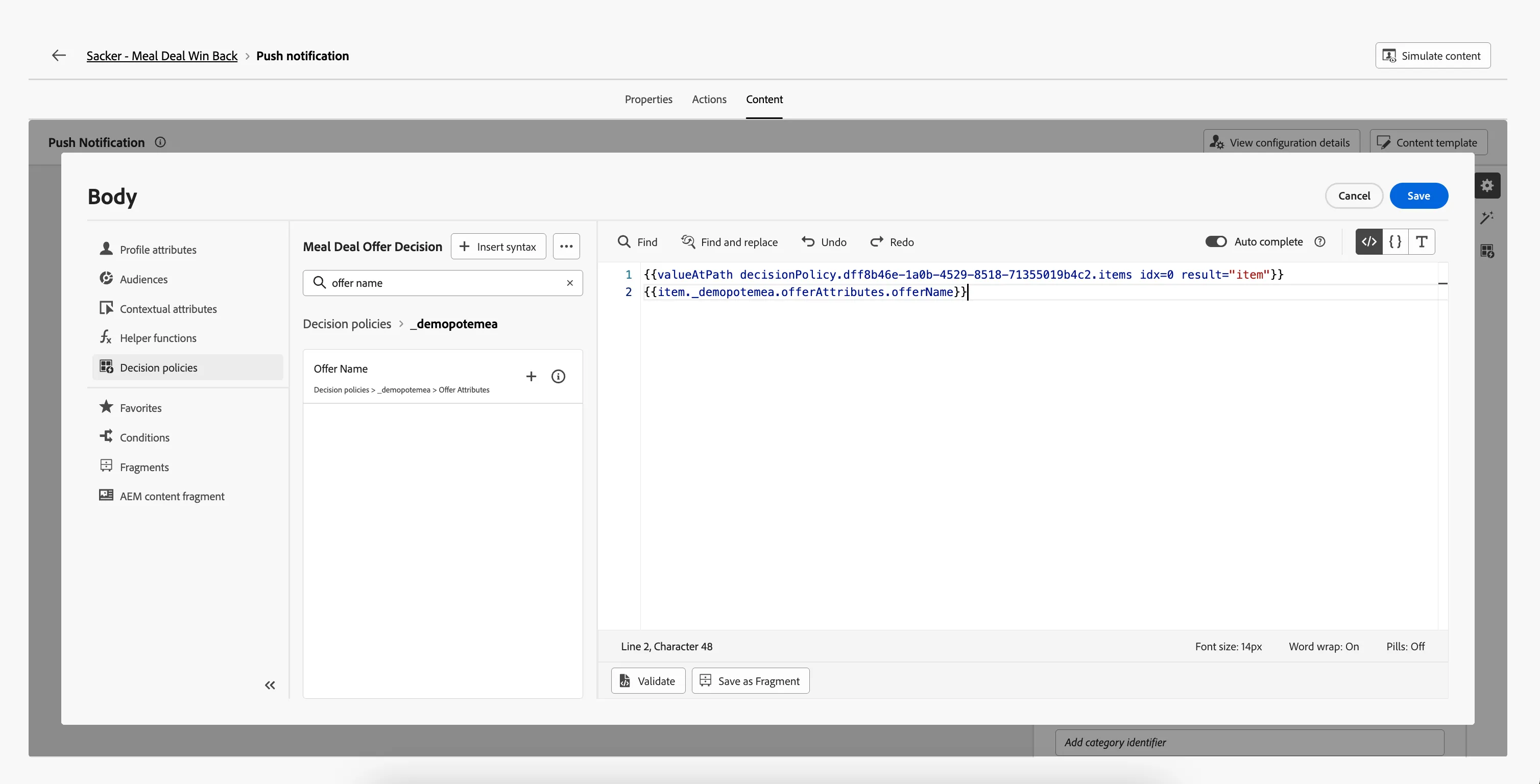
- Click Save.
- Your screen should look like the image below:
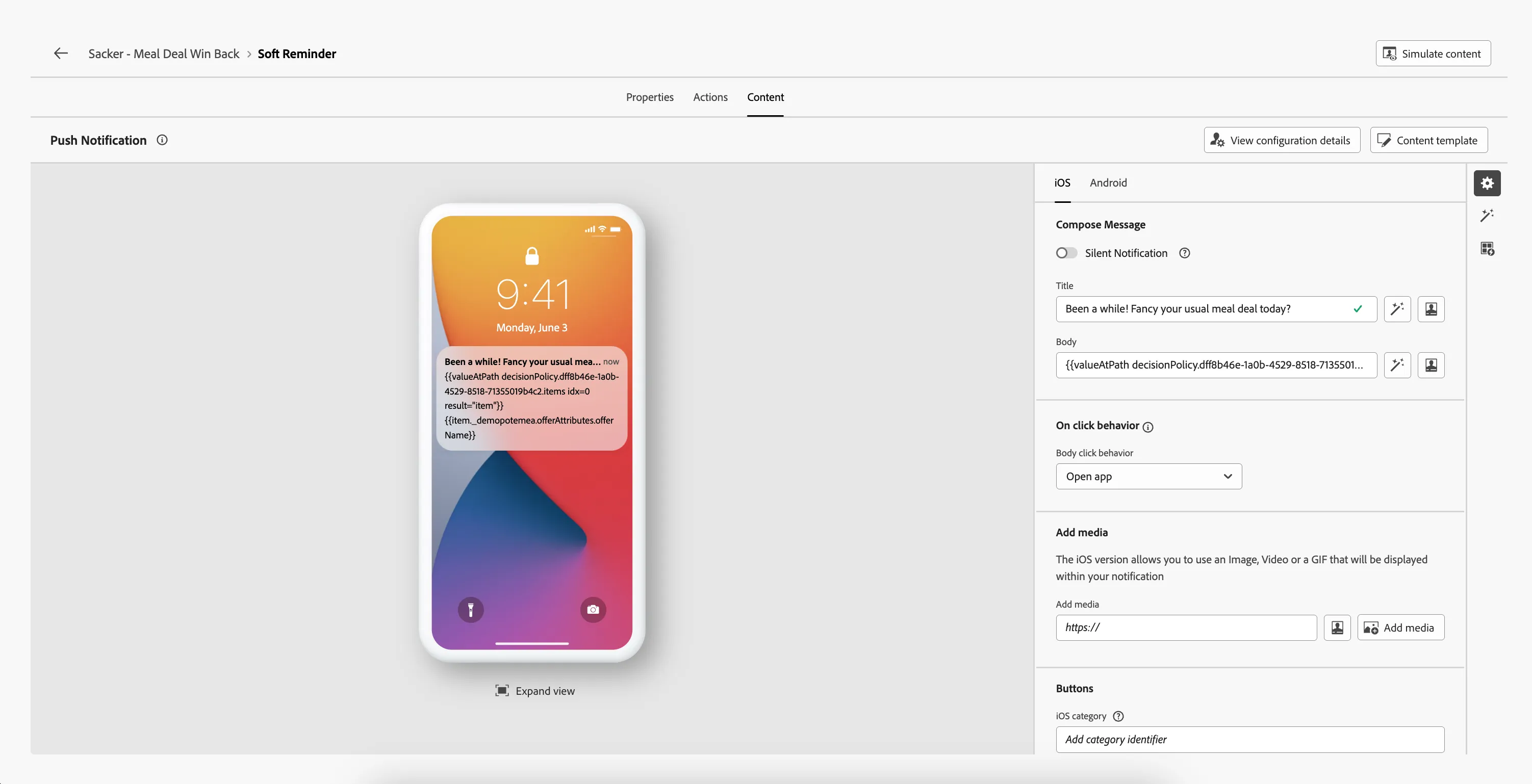
- Navigate out of the designer by clicking the arrow in the top left. Your screen should now look like the image below.
- Click Save to close the Push message detail panel.
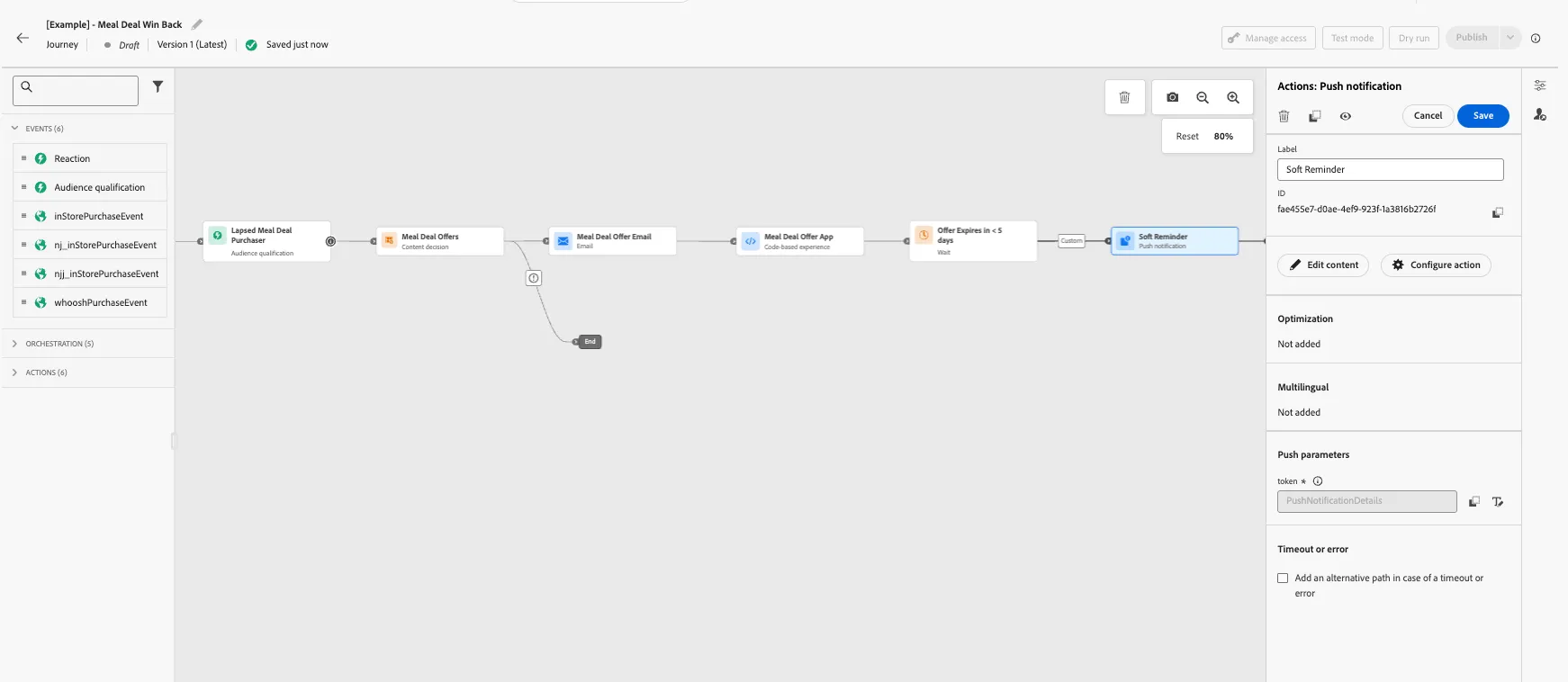
You've successfully orchastrated a Push message to be sent to qualifying customers. Let's now add an exit criteria and test our complete journey!