Create lapsed purchaser Audience
Objective
Identify customers who previously purchased a Meal Deal but have not done so recently. This is the trigger for the win-back journey.
A lapsed purchaser is defined as someone who:
- Bought meal deals regularly last month
- Has not bought a meal deal in the past 7 days.
Audience Overview
To log into the Adobe Experience Platform, check the Welcome! section.
To get an overview of the available audiences in Adobe Experience Platform:
- In the menu on the left side, click on Audiences. You will see a dashboard overview with information on a specific audience.
- Click on Browse in the tab bar. You will see an overview of all existing Audiences.
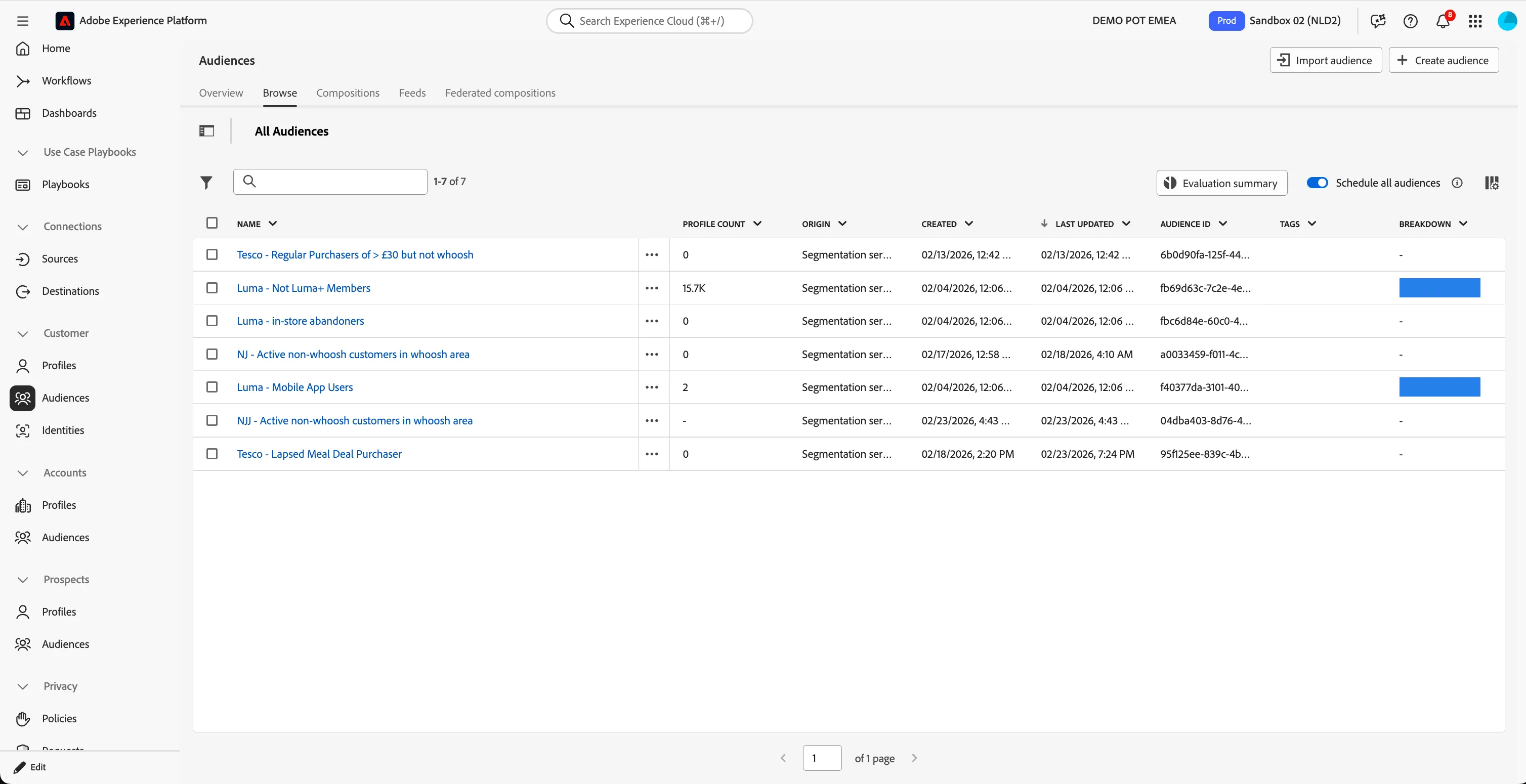
Create a lapsed meal deal purchaser audience
We aim to define a rule that will include our lapsed purchasers.
We want to target these customers in our "win back" journey with personalised communications and offers.
If you prefer to skip building this audience, you can use Tesco - Lapsed Meal Deal Purchaser and continue to the next step, Create the offer strategy.
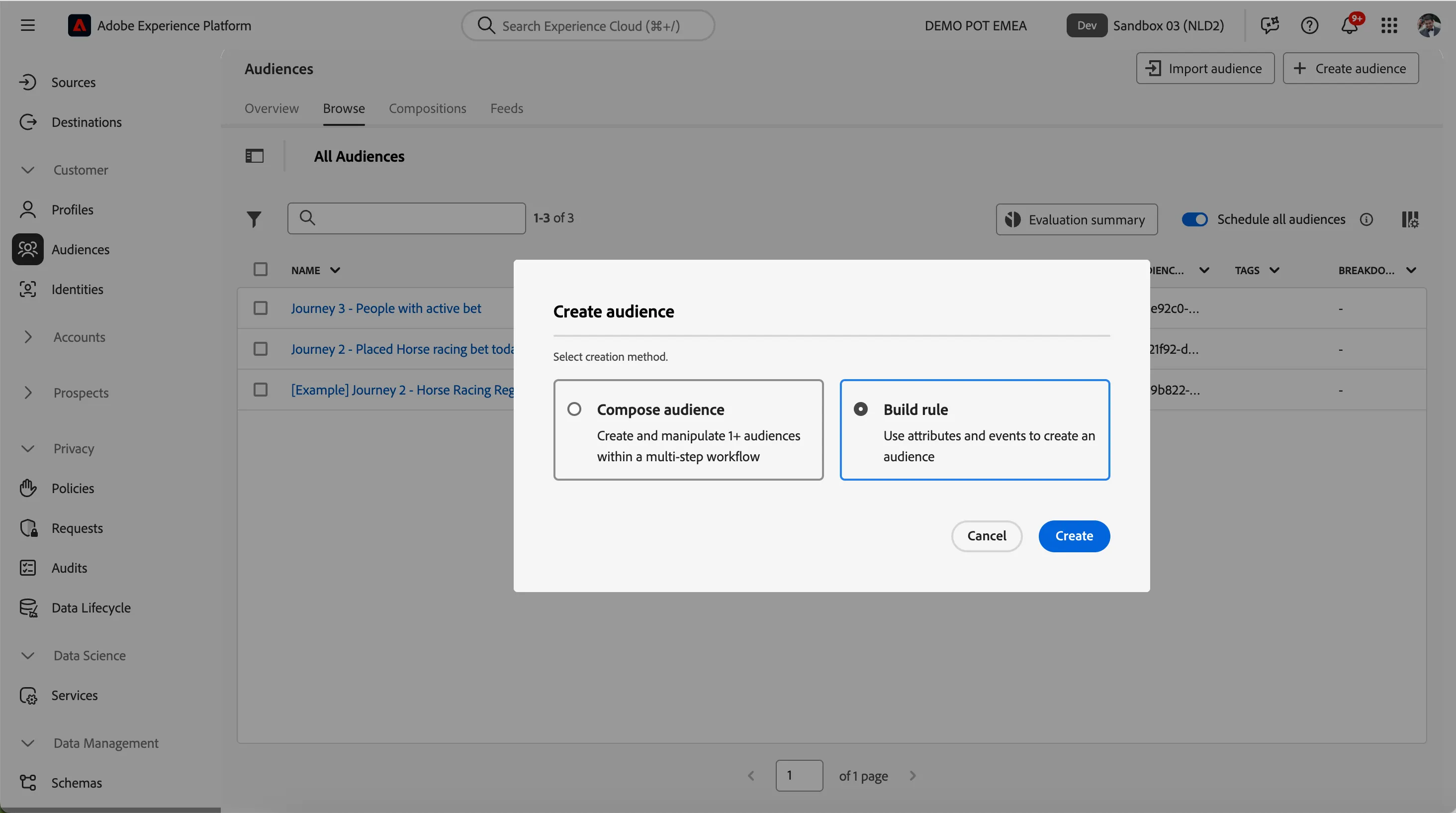
- Click on + Create Audience. This will open the Create Audience popup.
- Select Build Rule as the creation method.
- This will open the Rule Builder. You will immediately notice the Attributes tab selected beneath Fields, as well as the XDM Individual Profile selector under BROWSE ATTRIBUTES.
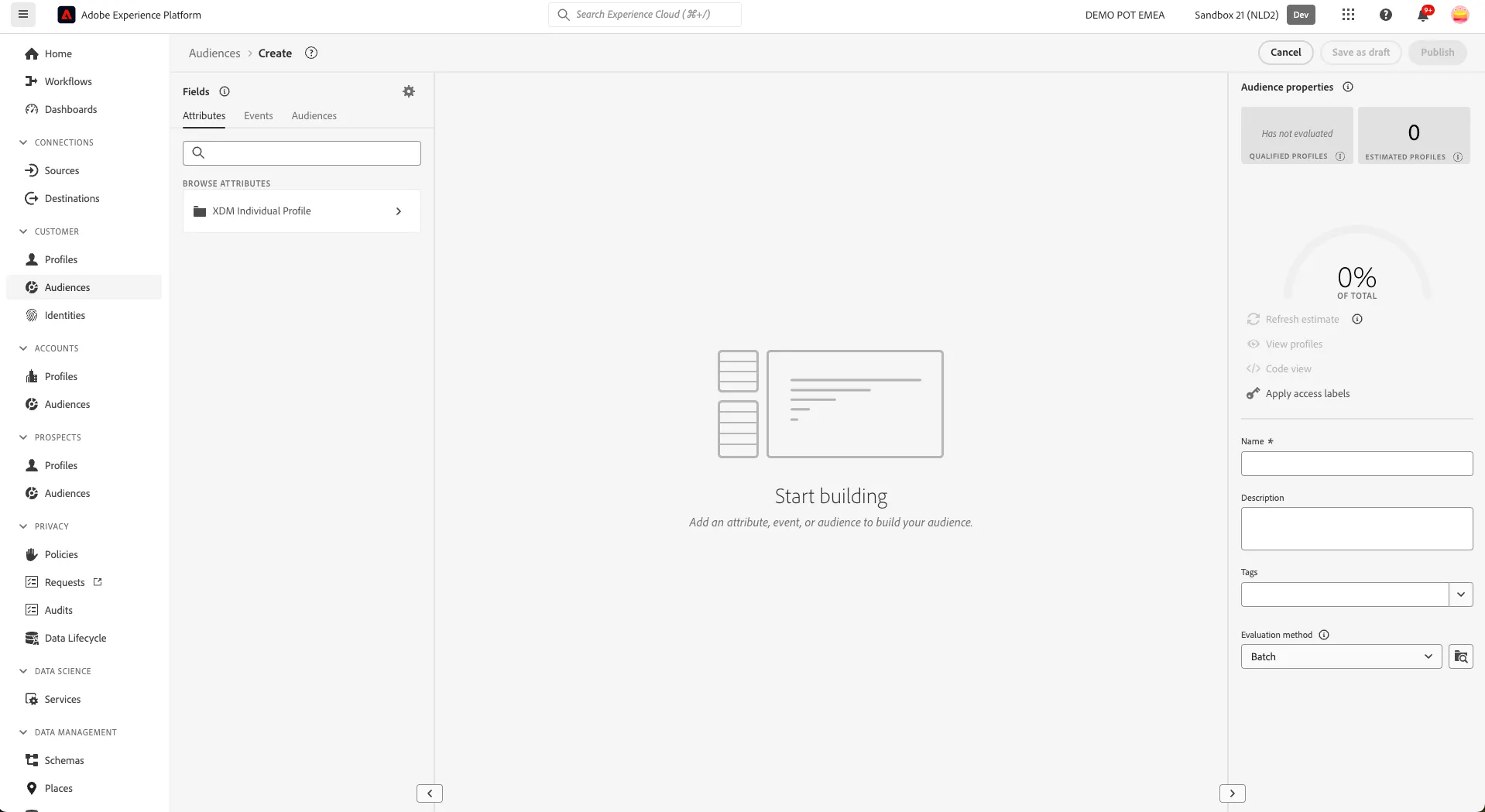
Let's build an audience for our lapsed meal deal customers:
- Select the Events tab in the Fields section (next to Attributes).
- In the text search field, type purchases. You will see one event in the list below EVENT TYPES , Purchases.
- Drag the Purchases event onto the canvas where it says Start Building.
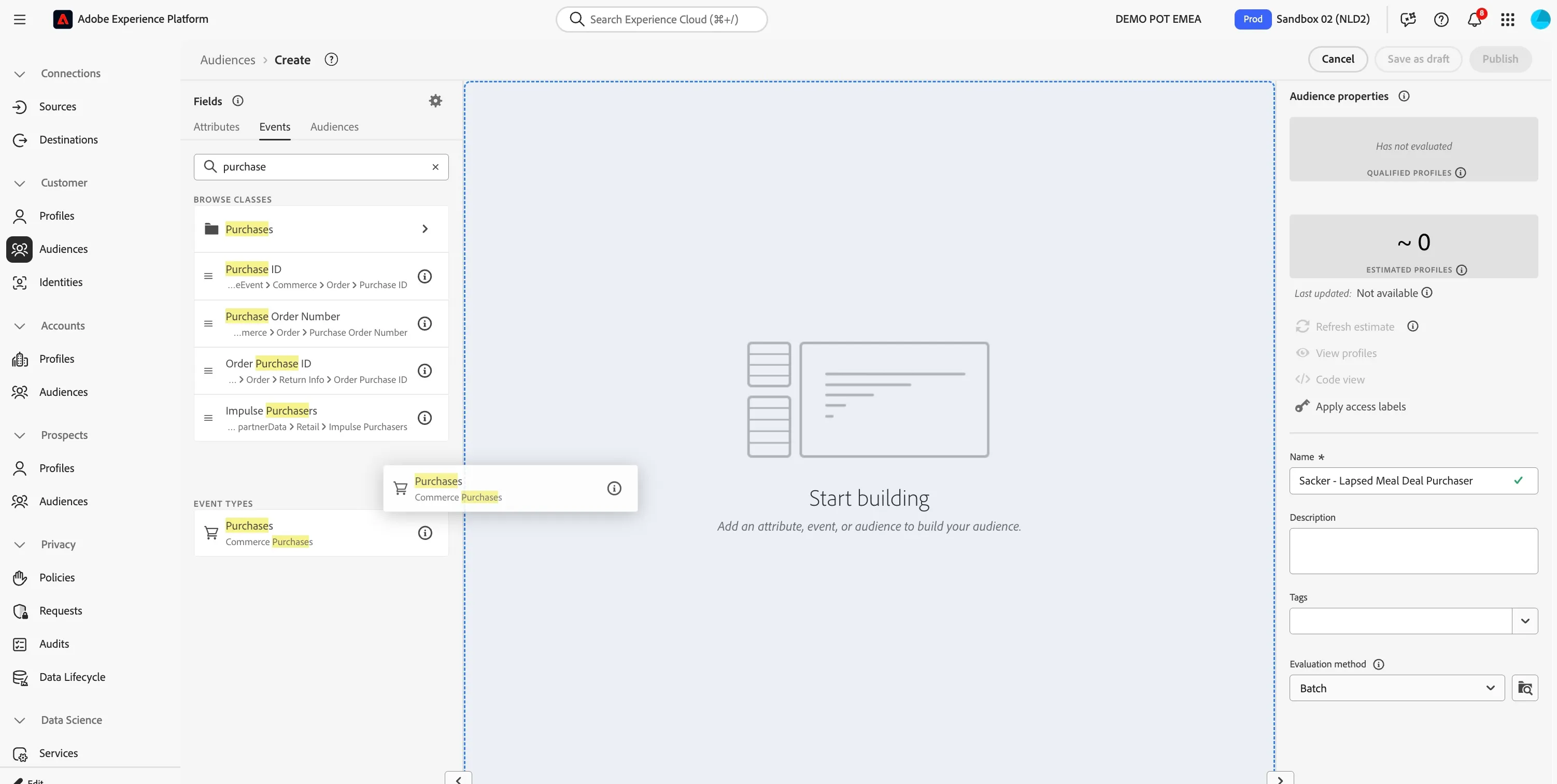
- Select the purchase event on the canvas to open the Event Rules tab
- Return to the main Events tab.
- In the text search field, type category. You will see 2 events in the list, subCategory and mainCategory.
- Drag the mainCategory event onto the canvas in the Event Rule where is says Add event field.
- In the rule, select equals from the dropdown and enter Meal Deal in the text field.
Your Audience should now include:
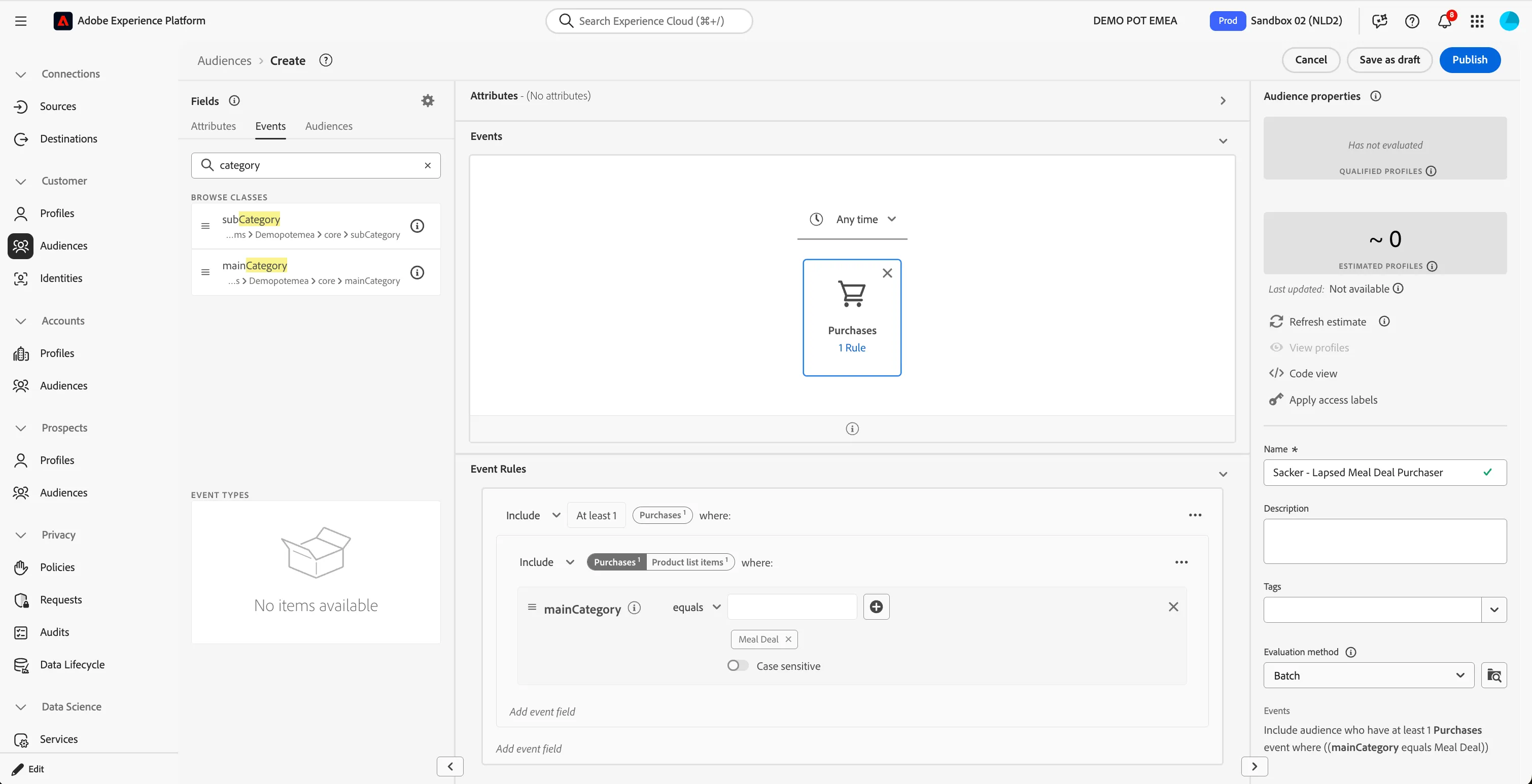
The rule now includes all customers who have purchased a meal deal.
However, a lapsed purchaser is defined as someone who:
- Bought meal deals regularly last month
- Has not bought a meal deal in the past 7 days.
Lets refine our rule further.
First, let's define "regularly". We approximate a weekly habit by requiring at least 9 purchases in the past month (~3 per week).
To define the amount of times the purchase event occured:
- In the Event Rules section, select the condition Include At least 1 , and increase this to At least 9.
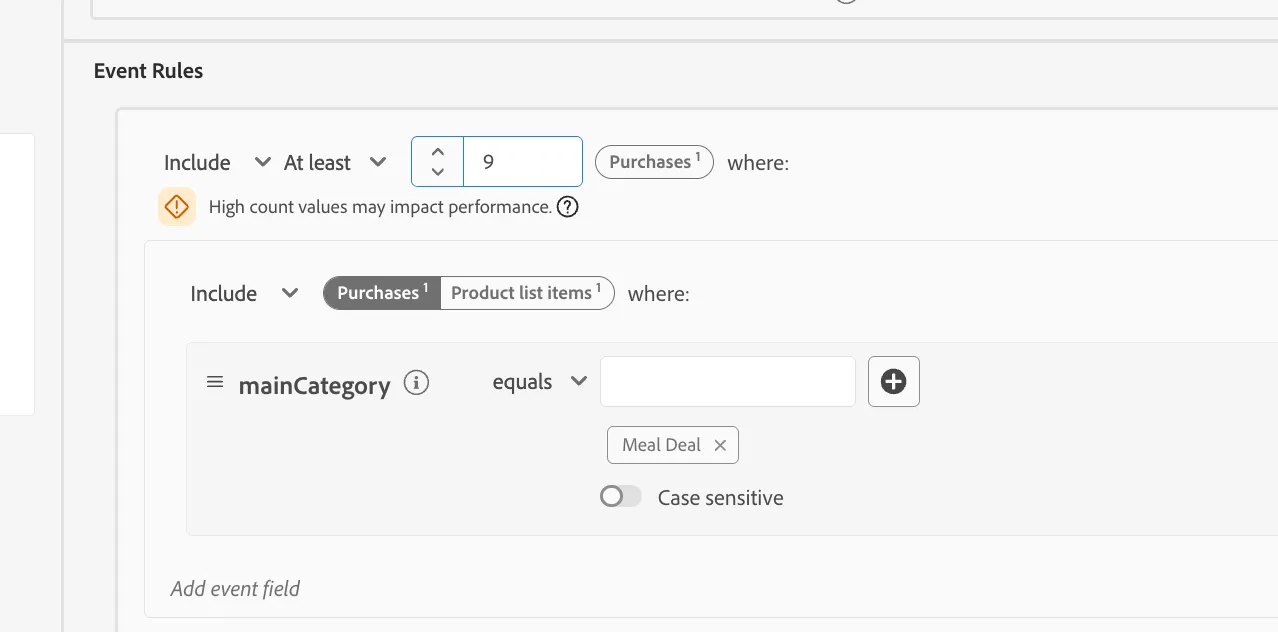
To apply a time rule:
Time rules let us compare past behaviour vs recent behaviour to detect a change in habit.
- In the Event Rules section, select the three dots in the top right.
- Toggle Apply time rule
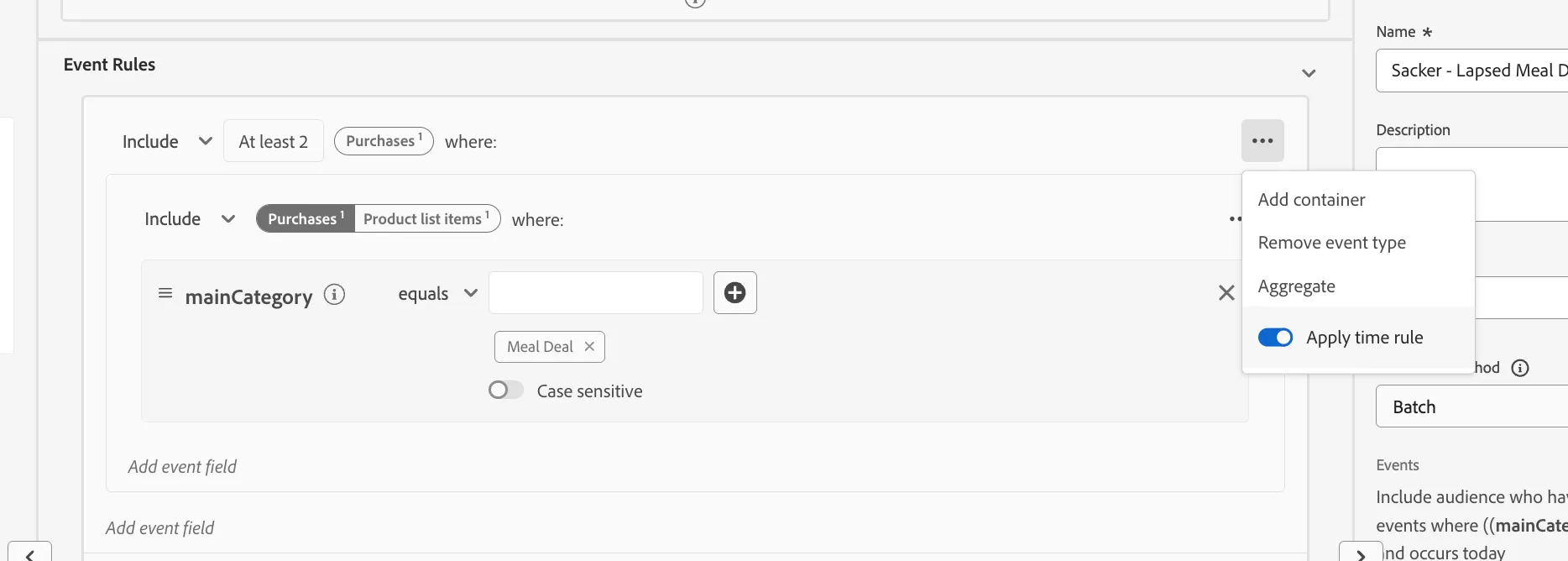
- At the bottom of the Event Rule, change the time rule from Today to In Last 1 month using the drop downs.
The rule now includes all customers who have purchased at least 9 meal deals over the past month.
Reminder, a lapsed purchaser is defined as someone who:
- Bought meal deals regularly last month (now correctly defined in the rule)
- Has not bought a meal deal in the past 7 days (to be defined)
We now want to exclude recent purchasers so we only keep customers whose habit has stopped.
To exclude the customers who purchased in the last week:
- Return to the main Events tab.
- In the text search field, type purchases. You will see one event in the list below EVENT TYPES , Purchases.
- Drag the Purchases event onto the canvas underneath the existing purchase event to create an And condition.
- Click on this new purchase event to open the Event Rules section.
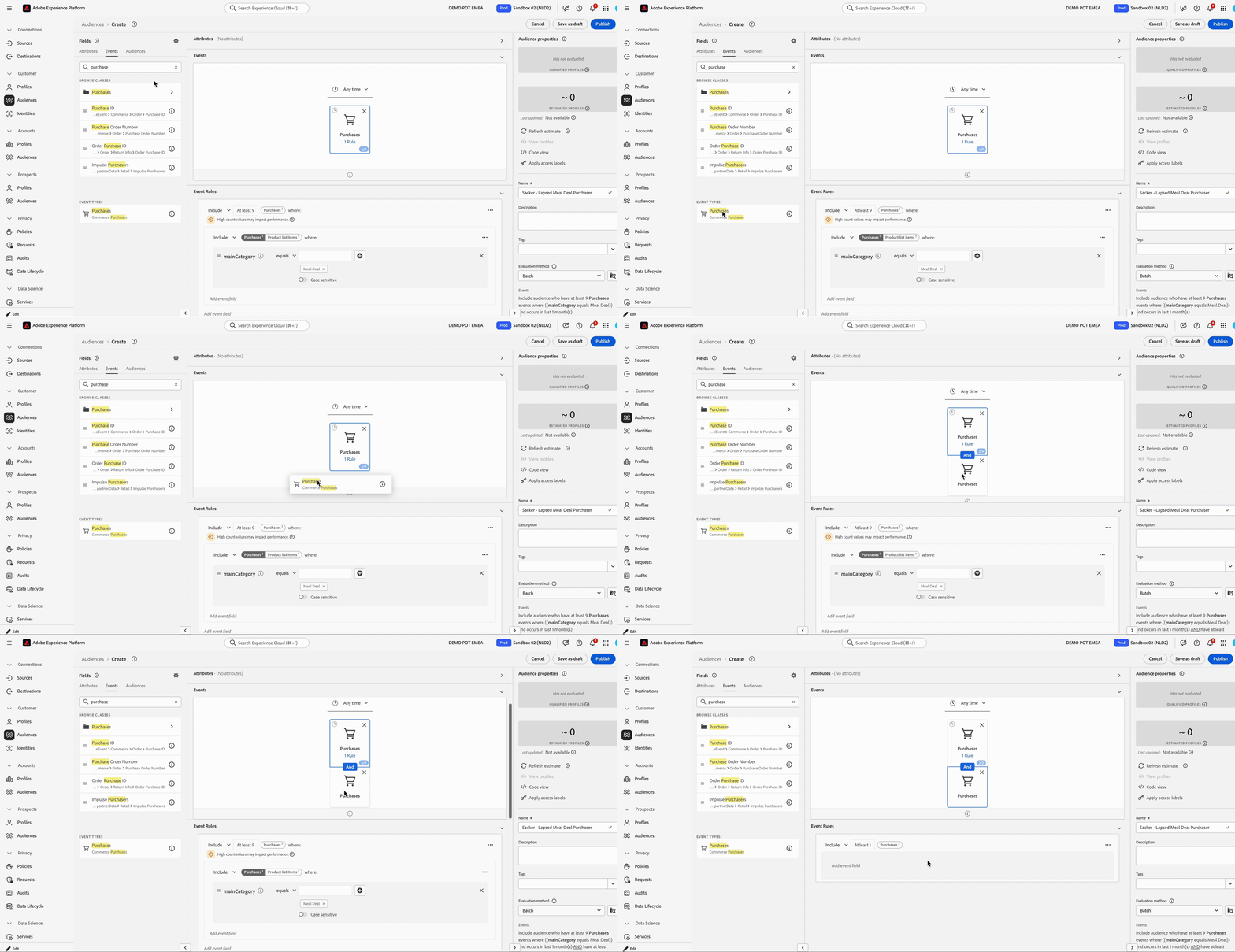
- Return to the main Events tab.
- In the text search field, type category. You will see 2 events in the list, subCategory and mainCategory.
- Drag the mainCategory event onto the canvas in the Event Rule where is says Add event field.
- In the rule, select equals from the dropdown and enter Meal Deal in the text field.
To apply a time rule:
- In the Event Rules section, select the three dots in the top right.
- Toggle Apply time rule
- At the bottom of the Event Rule, change the time rule from Today to In Last 1 week using the drop downs.
Lastly, we want to exclude these customers:
- In the Event Rules section, select the condition Include At least 1 , and change this to exclude using the drop down.
Your Audience should now include:
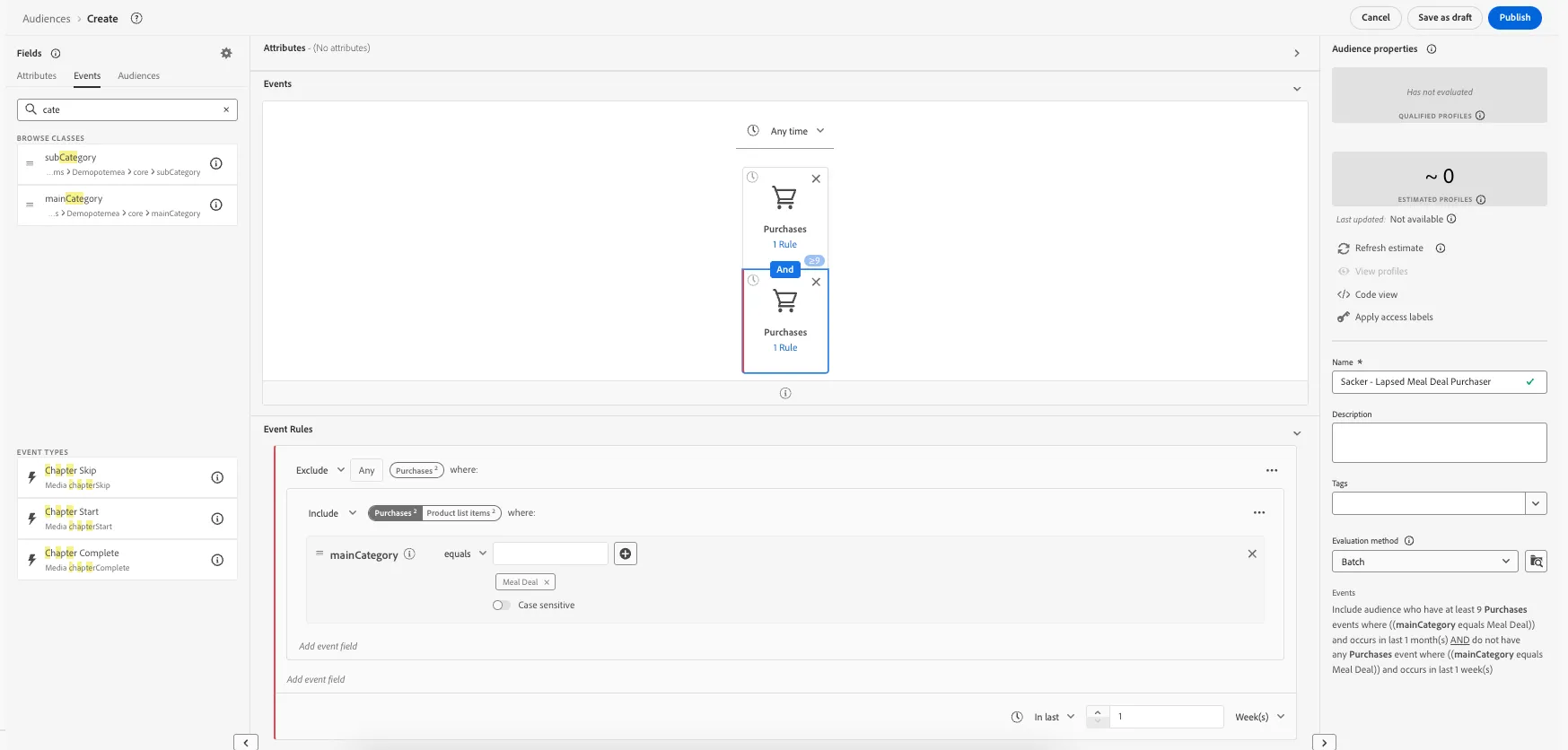
This Audience will now include all customers who have regularly purchased meal deals in the last month, but haven't purchased in this past week.
Let's save the audience now.
- Enter the name as [Your Name] - Lapsed Meal Deal Purchaser.
- Select Evaluation method as Batch. Note: We use batch because this audience depends on historical behaviour rather than a single real-time event.
- Click on the Publish button at the top right to publish the audience.
You have now successfully created an audience using the Adobe Experience Platform Audience Builder.