[Optional] Customer AI Model
Why Are We Using AI?
So far, we identified customers who have already stopped purchasing Meal Deals and added them to a win-back journey.
However, reacting after a habit is lost is expensive, we want to intervene earlier.
Customer AI allows Tesco to identify shoppers whose behaviour suggests they are about to stop buying Meal Deals, even though they have not lapsed yet. This enables preventative engagement instead of recovery marketing.
We will now build a model that detects customers at risk of breaking their Meal Deal habit.
With Customer AI, these insights are delivered automatically and are updated continuously as your data evolves.
What the Model Predicts
The likelihood a customer will purchase a Meal Deal in the next 30 days.
Customers with a low likelihood score are considered at risk of lapsing and can be targeted earlier with incentives.
This complements the existing rule-based lapsed purchaser audience:
Audience Type | Detection Method | Purpose |
|---|---|---|
Lapsed Purchasers | Behaviour rules | Win back lost habit |
At-Risk Purchasers | AI prediction | Prevent habit loss |
Create the Meal Deal Risk Model
To log into the Adobe Experience Platform, check the Welcome! section.
- In the left rail, click on Data Science and choose Services.
- On the Services overview page, click Open on the Customer AI product card.
Create a new Model
- Click Create Instance.
- Enter a name for your model - E.gYour Name Meal Deal Risk Model.
- Optionally, add a description: "Scores each customer profile by likelihood a customer will purchase a Meal Deal in the next 30 days".
- Choose Conversion as the Propensity Type from the drop down options.
- Click Save and continue.
Select the Data
Select the datasets containing customer purchase events. These datasets include transaction behaviour used to train the model to recognise changing purchase patterns over time.
We align datasets using a shared customer identifier so behaviour across channels contributes to one prediction.
- Select the following datasets from the list:
- Website Events: Demo System - Event Dataset for Website (Global v1.1)
- Mobile App Events: Demo System - Event Dataset for Mobile App (Global v1.1)
- POS Events: Demo System - Event Dataset for POS (Global v1.1)
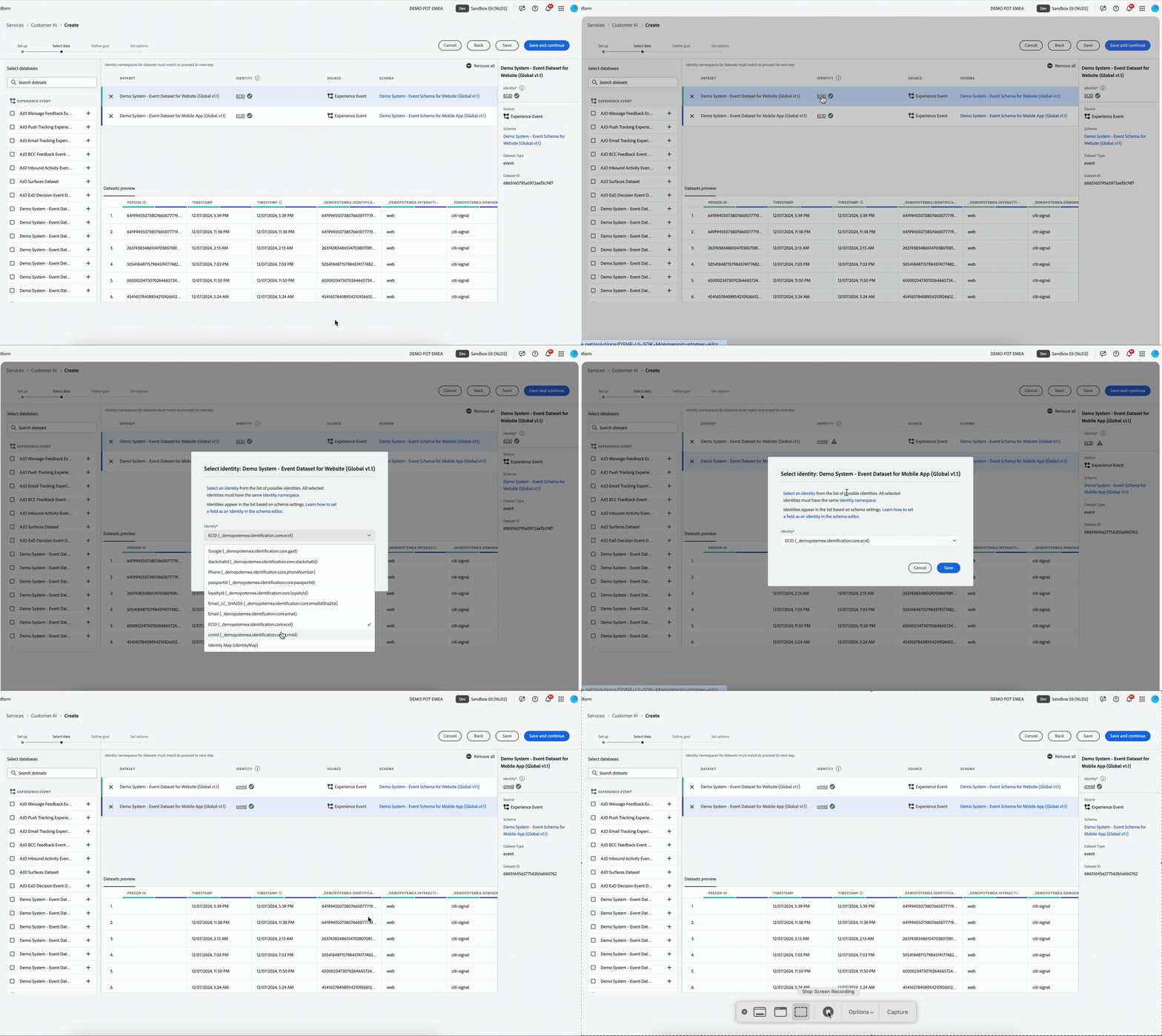
- You can join multiple datasets to one another based on the identity map (field). You must select an identity type (also known as an “identity namespace”) and an identity value within that namespace. In out example we'll use the CRM ID, present in all three datasets.
- Click the Identity (ECID) of the first dataset, a popup will open.
- Select crmId (_demopotemea.identification.core.crmId) from the Identity drop down.
- Click Save.
- Repeat for your other datasets to ensure the identities of all datasets match.
Click Save and continue.
Define the Goal
Choose the event that represents a successful behaviour: Meal Deal Purchase
This tells the model what behaviour we want to predict. The model will learn patterns that occurr befor customers stop buying meal deals.
- In the Define your Goal drop down, select Combined Datasets.
- In the same box, type eventType, and select this from the dropdown options.
- Set the eventType value to equals commerce.purchases
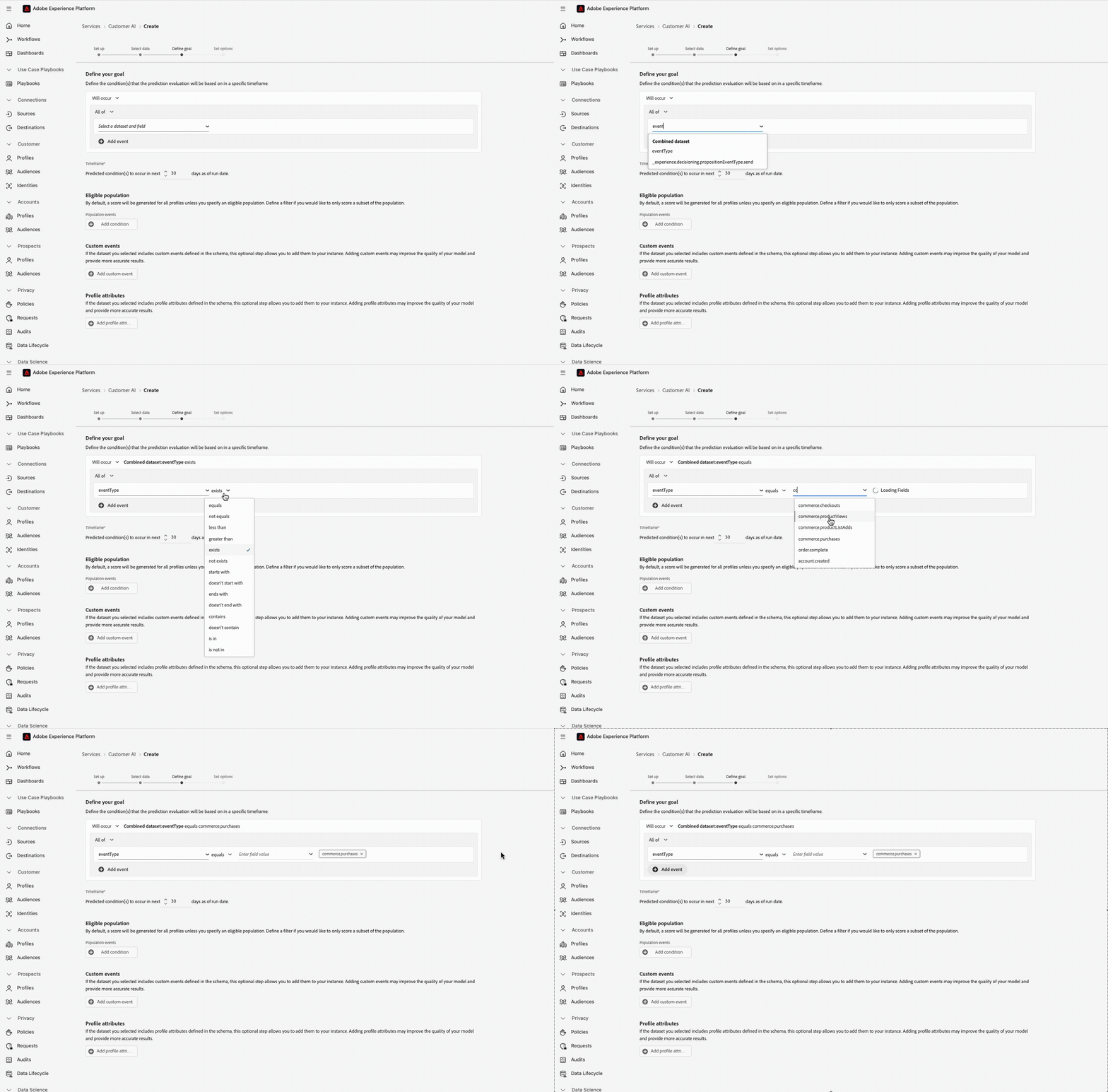
Our Goal now represents a purchase event. This is all purchase events, so we need to refine this further to represent only Meal Deal purchase events.
To only include the meal deal purchases in the model:
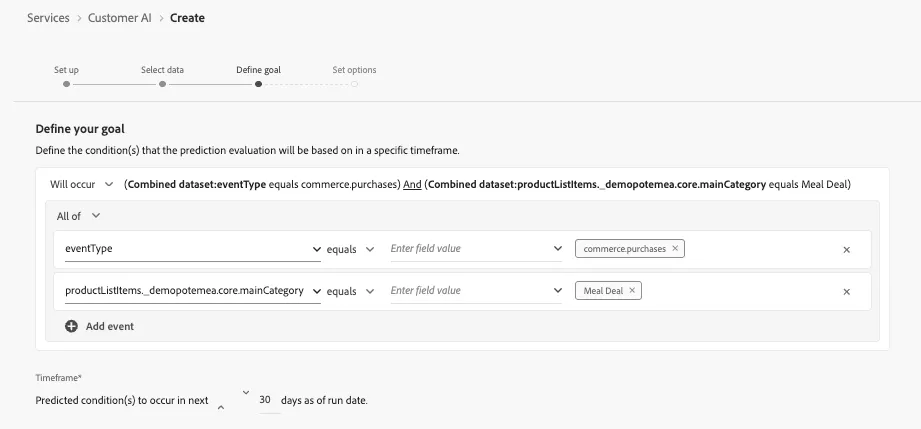
- Select +Add event from underneath your first condition.
- In the new dropdown, type productListItems._demopotemea.core.mainCategory, and select this from the dropdown options.
- Set the value to equals Meal Deal
Your final goal condition should look like:
Leave the Default setting for the rest of the options on the Define your goal step.
For information only:
- The Timeframe, e.g. 30 days. The model will evaluate whether a customer is likely to purchase a Meal Deal within the 30 days.
- By default, propensity scores are generated for all profiles unless an eligible population is specified. You can specify an eligible population by defining conditions to include or exclude profiles based on events. e.g. only those who have purchased a meal deal previously.
- This If you have additional information in addition to the standard event fields used by Customer AI to generate propensity scores, a custom events option is provided. Using this option allows you add additional events that you deem influential which may improve the quality of your model and help to provide more accurate results
- You can define important Profile dataset fields (with timestamps) in your data in addition to the standard event fields used by Customer AI to generate propensity scores. Using this option allows you to add additional profile attributes that you deem influential which may improve the quality of your model and provide more accurate results
For more information about how to improve the accuracy of Customer AI models, visit the Adobe Experience League.
Schedule Scoring
Customer AI periodically evaluates profiles and writes scores back to Real-Time Customer Profile. Scores are calculated between 0 and 1 and displayed as grouped ranges in the interface.
Lower score = higher risk of breaking the habit of purchasing meal deals.
- Review the set options screen.
- Leave the default model scoring frequency
- It will initate a scoring run when you first create your model
Do not click Finish here, instead you can Save and exit.
Model training can take several hours. For the purposes of this lab, a pre-trained model is already available and will be used in the next step.
Once complete, you’ll see model performance metrics (e.g., accuracy, precision).
Review & Activate Scores
- Navigate back to the Services Overview page. On the Services overview page, click Open on the Customer AI product card.
- You'll see a previously created Service Instance.
- Click the Meal Deal Risk Model.
You'll see the following:
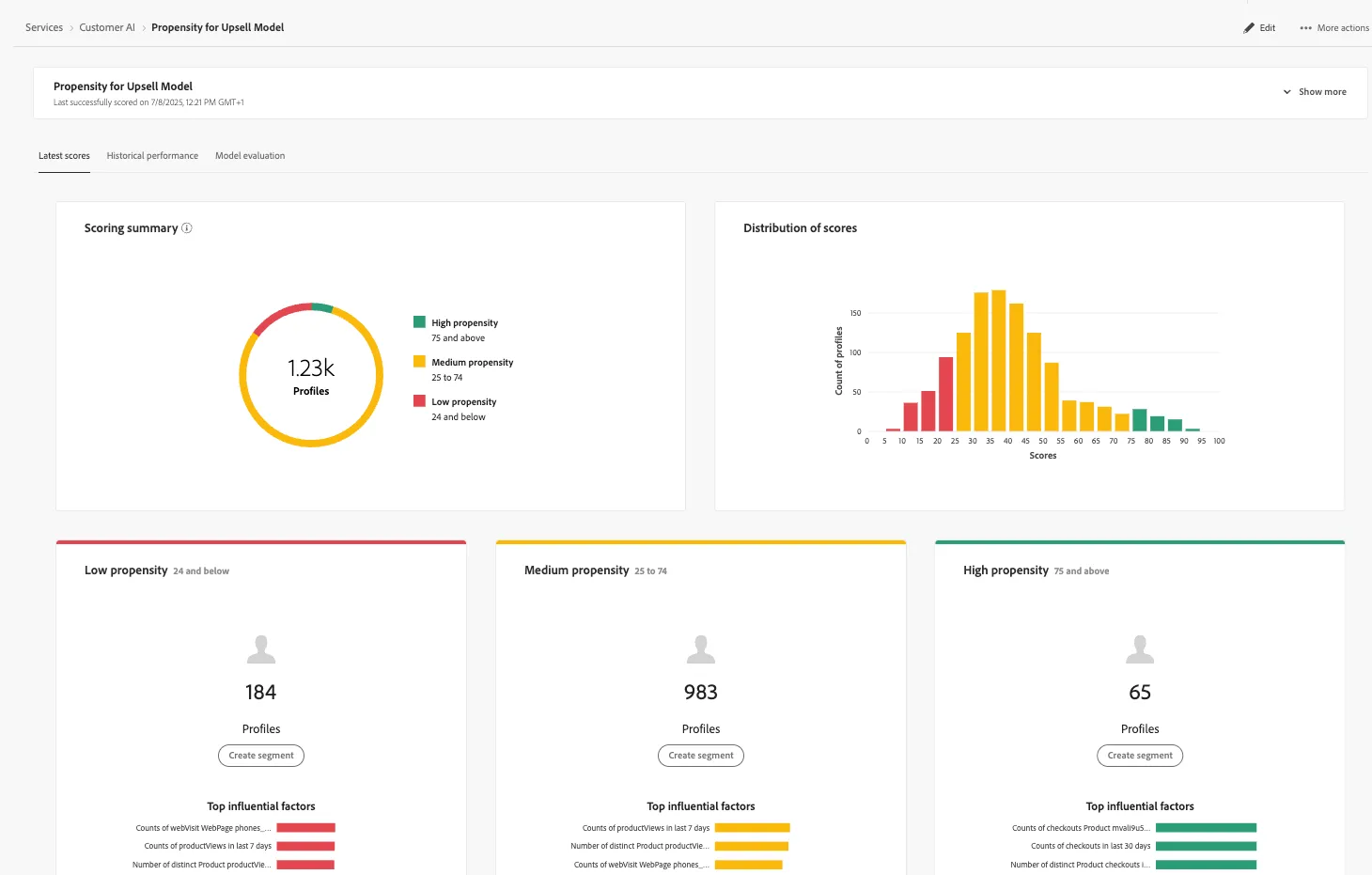
This model was set up ahead of the Lab, to show the output of our Customer AI model.
- The Performance Summary tab shows the actual conversion rates for each propensity bucket.
- Scoring summary displays the total number of profiles scored and categorizes them into buckets containing high, medium, and low propensity. Lower bucket = higher lapse risk
- The Distribution of Scores card gives you a visual summary of the population based on the score. The colors that you see in the Distribution of Scores card represent the type of propensity score generated. Hovering over any of the scoring distributions provides the exact count belonging to that distribution.
- For each score bucket, a card is generated that shows the top 10 influential factors for that bucket. The influential factors give you additional details on why your customers belong to various score buckets.
- Hovering over any of the top influential factors further breaks down the data. You are provided an overview as to why certain profiles belong to a propensity bucket. Depending on the factor, you may be given number, categorical, or boolean values. The example below displays categorical values by region.
Scores are written back automatically to the profile after each scoring run, and can now be used for:
- Audience creation
- Activation to Destinations (e.g., email, ads)
Create an Audience of High Risk Profiles
Now that your model is trained and scores are available on customer profiles, let's create an Audience of customers with a high likelihood to stop purchasing meal deals.
- In the left rail, click on Customers and choose Audiences.
- Select + Create Audience
- Choose Build Rule
- Click Create.
- Name your audience: [Your name] At risk of Meal Deal Lapse.
- Ensure you are on the Attributes tab in the Fields section.
- In the text search field, type CustomerAI. Click into the CustomerAI folder to see the models.
- Select the Meal Deal Risk Model.
- You'll see a Score attribute. Drag the Score attribute onto the canvas where it says Start Building.
- Set the condition to:
- Score is less than or equal to 0.3
- Click Publish.
Your final Audience definition should look like:
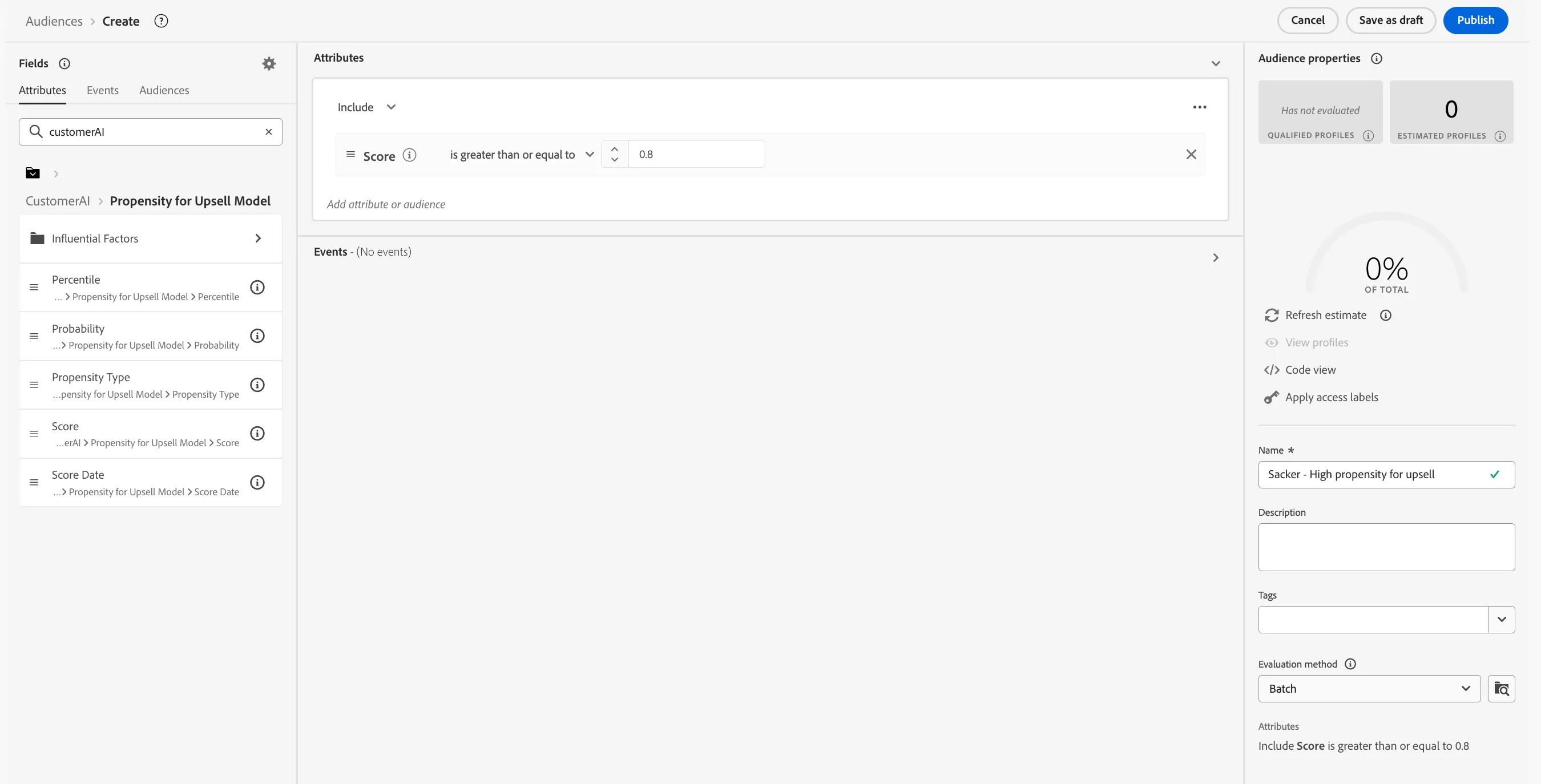
Once the audience is evaluated, it's ready to be activated to Destinations, used in Adobe Journey Optimizer, or monitored for ongoing performance.
Success! By the end of this exercise, you should now:
- Have a trained and activated Customer AI model for predicting meal deal lapse.
- See scores available on individual profiles.
- Be able to use scores to build Audiences
For more information on the AI Model used in this example, visit the Adobe Experience League.