Define meal deal offers
Why Are We Using Decisioning?
So far, we identified customers who are likely to stop buying Meal Deals. The next question is, what should we offer them?
Sending the same discount to everyone would be simple. Some customers prefer Sushi, others sandwiches, some are more sensitive about the price point.
Instead of sending a generic promotion, we'll choose the most relevant meal deal for each customer based on their preferences.
Decisioning allows Adobe Journey Optimizer to select the best offer in real-time based on customer preferences.
What We Will Build
We will configure a decision that selects one Meal Deal offer from a collection of possible offers.
Decisioning will:
- Look at all available meal deals offers
- Check which ones the customer is eligible for
- Rank them based on preferences
- Surface the best option to the customer in the Journey
What This Means in Practice
Two customers enter the same win-back journey:
Customer A
- Frequently buys sushi
- Low price sensitivity → Receives premium sushi meal deal offer
Customer B
- Buys sandwiches
- High price sensitivity → Receives regular sandwich meal deal discount
Same journey, different experiences.
Configure the Meal Deal Decision
We will create a Decision that selects the most relevant Meal Deal offer for each customer using their preferences.
By the end of this exercise you will:
- Create an offer in the Catalog
- Group meal deal offers into a collection
- Create a Ranking Formula to boost relevant offers
- Create a Selection Strategy that chooses the best offer
Step 1: Understand the Offer Catalogue
Tesco has multiple Meal Deal combinations available. Examples include:
- Regular sandwich meal deals
- Sushi meal deals
- Premium salad or wrap upgrades
Each of these exists as an individual offer in Adobe Journey Optimizer. These offers are grouped into a collection so the system can choose between them.
Exercise 1: Create your Offer
To log into Adobe Journey Optimizer, check the Welcome! section.
In our case, an offer describes a single lunch combination the customer can receive.
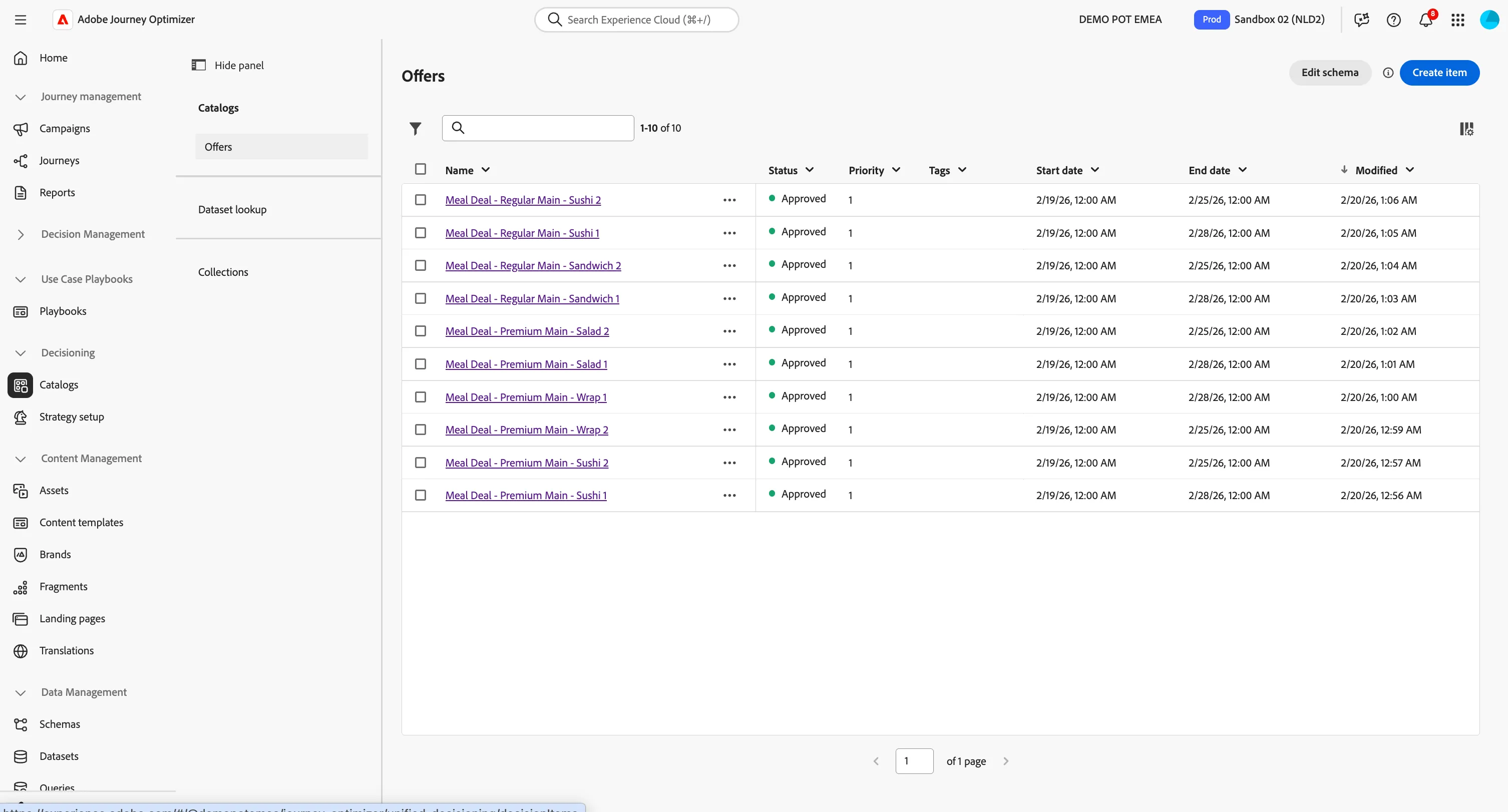
To get an overview of all Offers in the Catalog:
- In the menu on the left side, under Decisioning, click on Catalogs.
- Select Offers. You will see all existing Offers in the Catalog.
- Select Create Item.
- Name your offer: Your Name - Meal Deal - Premium Main - Sushi 1
- Select a start date and end date from the date pickers for which your offer is valid.
- Leave the priority setting as the default.
- Select the Tag Meal Deal Win Back from the drop down.
These are the Standard Attributes of an offer, you'll notice below there is also a list of Custom Attributes.
The custom attributes of the offer allow decisioning to understand what kind of meal it is. These are specific attributes tailored to your needs that you can assign to an offer.
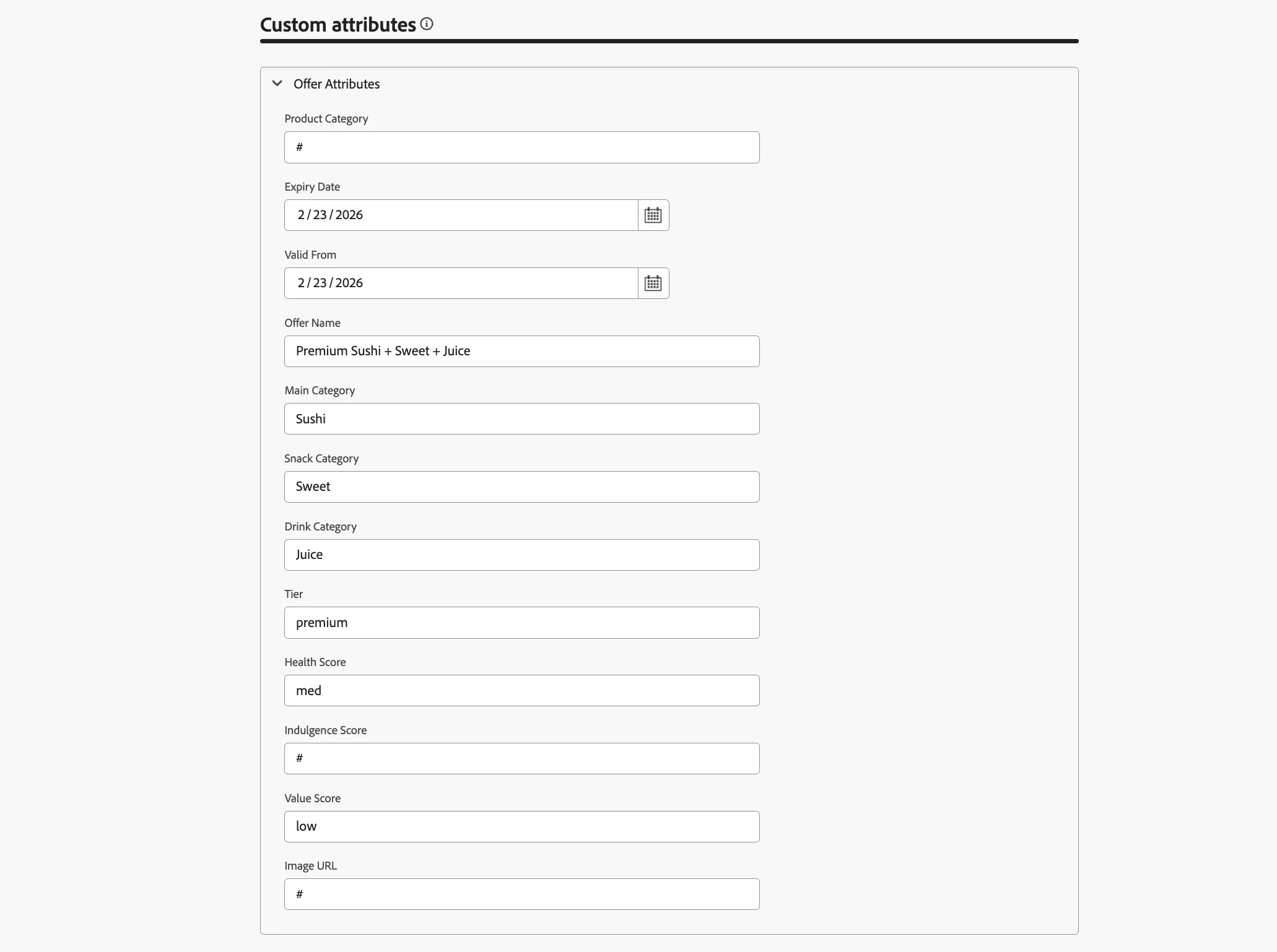
- Add the following Custom Attributes:
- Offer name: Premium Sushi + Sweet + Juice
- Main Category: Sushi
- Snack Category: Sweet
- Drink Category: Juice
- Tier: Premium
- Value Score: Low
- Health Score: Med
- Set all other custom attributes to #
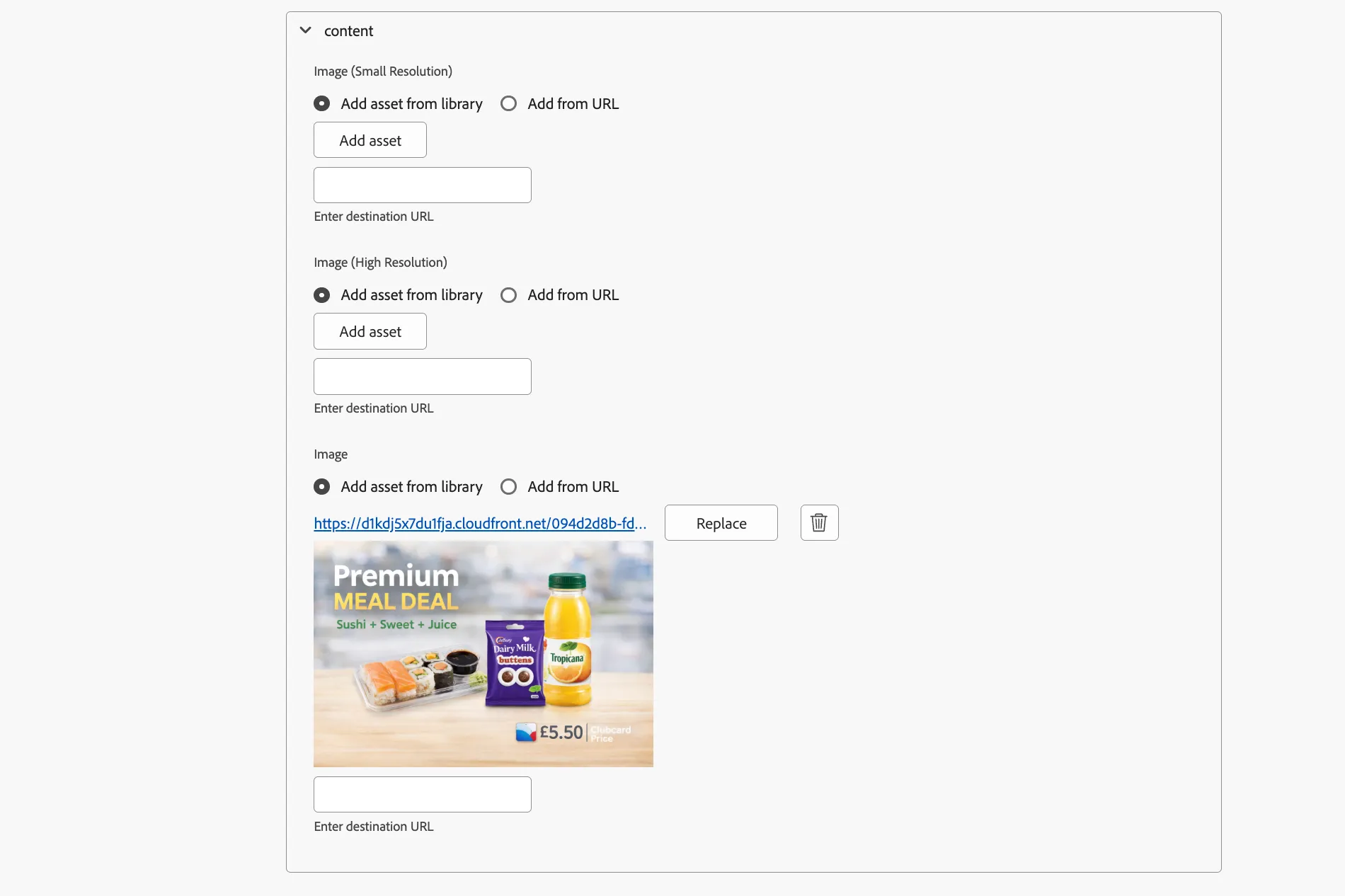
- Expand the content panel, we will now select an offer image from our Asset Library.
- For the image attribute, select Add asset from library.
- Click Add asset to open the Asset Selector.
- Navigate to the Hands-on Lab folder > Tesco > Meal Deals.
- Select the Premium Sushi + Sweet + Juice.png offer image.
- Click Next.
Your offer should be configured as:
Leave the Eligibility and Capping settings as default. We will not configure this now.
- Click Next.
- On the Summary page, click Save.
- To approve your offer for use, click Approve in the top right corner.
Your Offer is now ready to be used!
Exercise 2: Create the Offer Collection
We will now create a Collection of "Meal Deal Win Back" Offers that we will use in our Selection Strategy.
- In the menu on the left side, under Decisioning, click on Catalogs.
- Select Collections.
- Select Create Collection.
- Name your Collection: Your Name - Meal Deal Win Back Offers
- In the Collection Rules, under Number of items, select Click to create a decision item...
- In the the attribute window, select Tags.
- Click Save to close the window.
- Set the rule to Tags contains Meal Deal Win Back
You should see the number of items increase to include all offers with this Tag.
- Click Create.
The final Collection configuration:
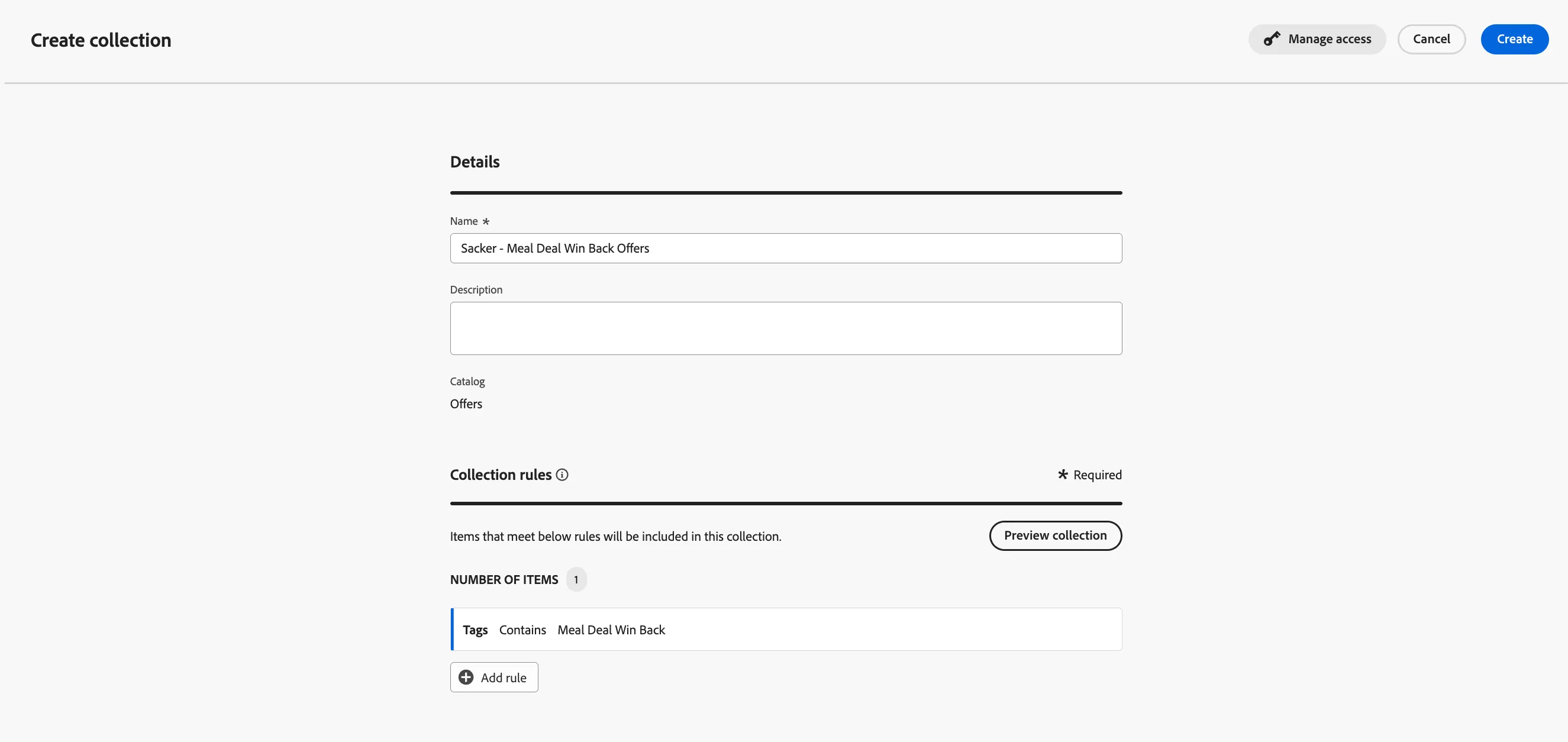
You've now configured a Collection, all Meal Deal combinations/offers now exist in one selectable "menu".
Step 2: Ranking Offers Using Customer Preferences
Not every customer values the same thing. Some customers prefer premium options vs lower prices, or specific food types.
We use profile attributes to rank offers:
Attribute | Meaning |
|---|---|
Item Affinity | Preferred meal, snack, or drink type |
Price Sensitivity | Likelihood to respond to premium vs value |
The ranking formula increases the score when the meal type matches the customer's preferred food and adjusts the score based on their sensitivity to price.
[Optional] Exercise 3: Create the Ranking Formula
We will create a Ranking Formula to rank offers using customer preferences stored on the profile.
- In the menu on the left side, under Decisioning, click on Strategy setup.
- Under Ranking Methods, select Ranking Formulas.
- Select Create Formula.
- Name your Forumla: Your Name - Offer Ranking by Item Affinity and Price
- Click </> Switch to code editor in the top, right of the screen.
- Copy and past the following expression into the editor. The formula increases the score of offers matching customer preferences:
if( offer._demopotemea.offerAttributes.mainCategory = _demopotemea.individualCharacteristics.grocery.mealDealPreferences.mainPreference, offer._experience.decisioning.decisionitem.itemPriority + 40, offer._experience.decisioning.decisionitem.itemPriority) AND if( offer._demopotemea.offerAttributes.snackCategory = _demopotemea.individualCharacteristics.grocery.mealDealPreferences.snackPreference, offer._experience.decisioning.decisionitem.itemPriority + 20, offer._experience.decisioning.decisionitem.itemPriority) AND if( offer._demopotemea.offerAttributes.drinkCategory = _demopotemea.individualCharacteristics.grocery.mealDealPreferences.drinkPreference, offer._experience.decisioning.decisionitem.itemPriority + 15, offer._experience.decisioning.decisionitem.itemPriority) AND if((offer._demopotemea.offerAttributes.tier = "regular") and (_demopotemea.individualCharacteristics.grocery.mealDealPreferences.priceSensitivity = "high"), offer._experience.decisioning.decisionitem.itemPriority + 30, offer._experience.decisioning.decisionitem.itemPriority) AND
if((offer._demopotemea.offerAttributes.tier = "premium") and (_demopotemea.individualCharacteristics.grocery.mealDealPreferences.priceSensitivity = "low"), offer._experience.decisioning.decisionitem.itemPriority + 30, offer._experience.decisioning.decisionitem.itemPriority)
This formula is comparing the preferences on the customer profile with the custom attributes of the offer, if they match it will boost that offer for that profile.
Attributes being factored are the meal, drink & snack prefrences, as well as the price sensitivity.
- If customer is not price sensitive > boost premium meal deals.
- If customer prefers sushi > boost sushi combinations, prefers wraps > boost wrap combinations, prefers fizzy drinks > boost fizzy drinks combinations, etc.
Offers will now score differently per customer
Step 3: Selection Strategy
A selection strategy is reusable, and consists of a collection associated with an eligibility constraint and/or a ranking method to determine the offers to be shown when selected in a Decision Policy.
The strategy:
- Takes all Meal Deal offers in the collection
- Applies eligibility rules
- Applies the ranking formula
- Returns the top ranked offer
Exercise 4: Create the Selection Strategy
The Selection strategy decides which offer the customer will see
- In the menu on the left side, under Decisioning, click on Strategy setup.
- Select Selection strategies.
- Select Create selection Strategy.
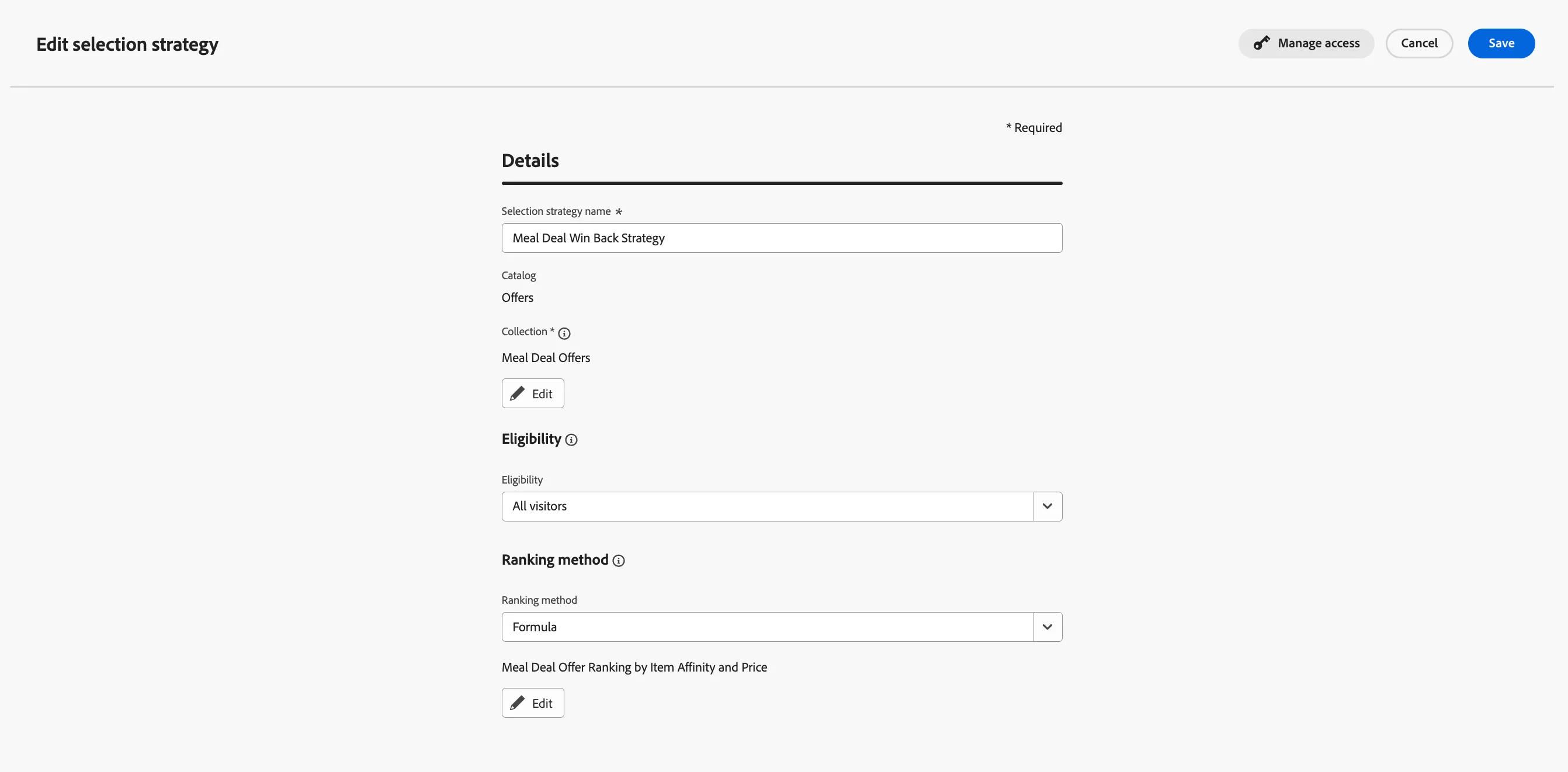
- Name your selection strategy: Your Name - Meal Deal Win Back Strategy
- Select the Meal Deal Offers Collection
- Leave the Eligibility as All visitors.
- Note: Eligibility removes offers from consideration entirely, while ranking orders the remaining ones.
- Select the Ranking Formula you created in exercise 3.
- If you didn't create a Ranking formula, you can use Meal Deal Offer Ranking by Item Affinity and Price
- Click Save.
The final selection strategy configuration:
This connects the offer catalog and the ranking so that decisioning can choose the best meal deal offers for each customer!
You have now configured a system that selects a different meal deal for each customer automatically.
How will this be used next?
This decision will now be called inside our journey message so each customer is shown a personalised offer in real-time. The journey will request one offer from this strategy at send time.