Start the Journey
Build the Meal Deal Win-Back Journey
Journey Objective
Tesco wants to recover customers who stopped buying Meal Deals by:
- Sending a personalised lunch offer
- Showing the same offer across channels
- Nudging if unused
- Creating urgency before expiry
This journey reacts to a broken shopping habit and encourages customers to return.
Customer Experience Overview
A customer who stops buying meal deals will experience:
- Receives a personalised Meal Deal email
- Sees the same offer in the mobile app
- Gets a reminder if offer is unused
- Receives a final urgency message the day before offer expiry
Exercise 1: Journey Qualification
We start the journey when a customer stops purchasing Meal Deals regularly. Lets configure a journey that will trigger when a customer qualifies for our Lapsed Meal Deal Purchasers audience.
To log into Adobe Journey Optimizer, check the Welcome! section.
To get an overview of all journeys in Adobe Experience Platform:
- In the menu on the left side, under Journey Management, click on Journeys. You will see a overview with all existing journeys.
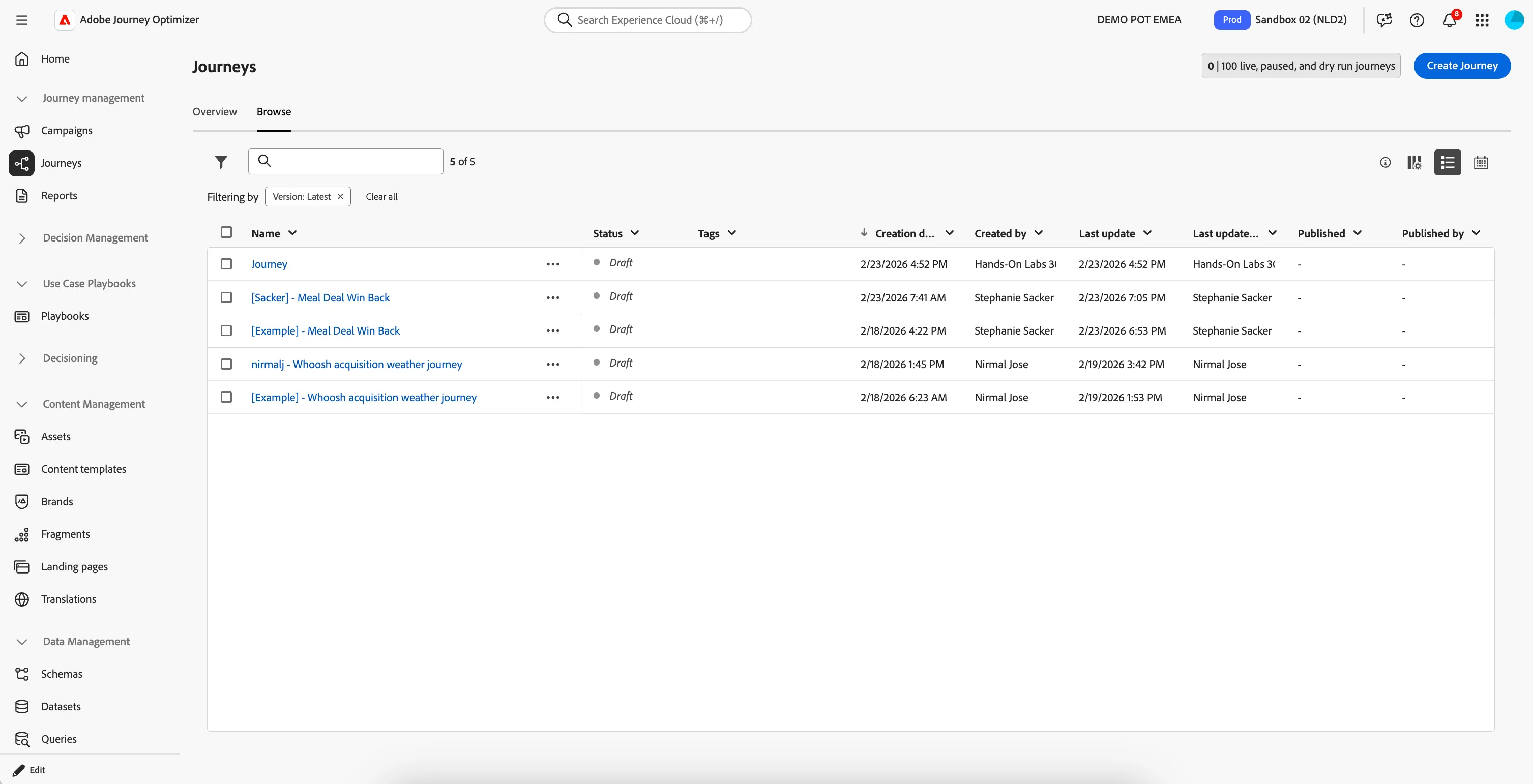
Click on Create Journey. You'll be taken to the Journey canvas with the journey properties opened.
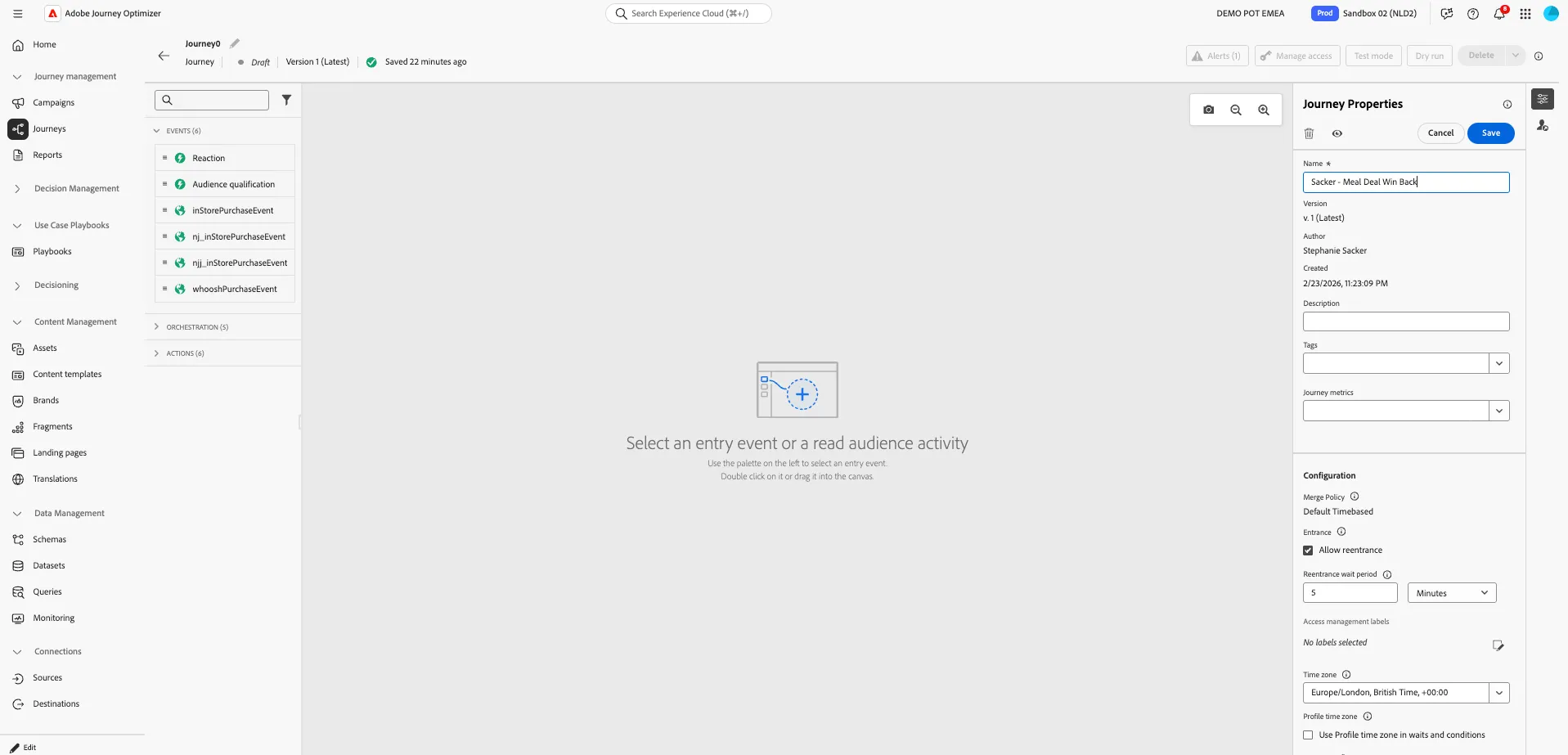
- Set the name to [your name] - Meal Deal Win Back.
- For the other properties we'll keep the default values.
- Your screen should look like the image below. Click Save to save and close the properties.
Audience Qualification
We start the journey when a customer stops purchasing Meal Deals regularly.
For this we need an audience qualification trigger, when a customer qualifies for the Lapsed Meal Deal Purchaser audience, they will enter the journey.
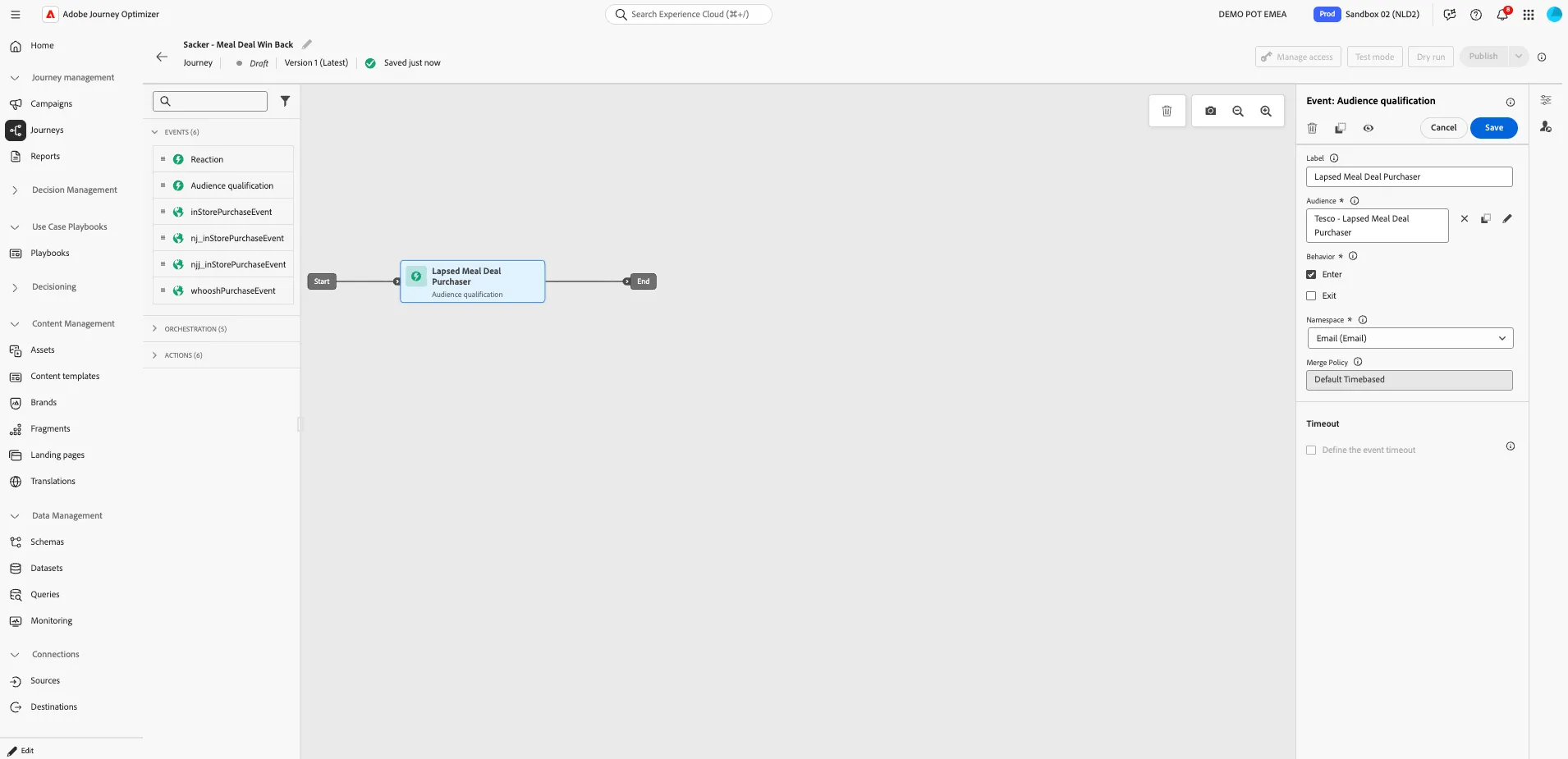
- From the Event tab, choose Audience Qualification and drag it onto the canvas.
- Set the Label to Lapsed Meal Deal Purchaser.
- Click on the -icon, a pop-up window will open. Search for the audience you created in at the start of this Lab. It should be called [your name] - Lapsed Meal Deal Purchaser. If you didn't create an audience, you can use Tesco - Lapsed Meal Deal Purchaser instead. Check the box for audience and click Save.
- Set Namespace to Email (Email).
- Your screen should look like the image below. Click Save.
You've created the Journey and the Trigger that will qualify our customers into this Journey. Proceed to the next step where we will retreive a decision.