Creating an Audience
In this exercise, you’ll create an audience by making use of Adobe Experience Platform’s Audience Builder UI.
Audience Overview
To log into the Adobe Experience Platform, check the Welcome section
To get an overview of available audiences in Adobe Experience Platform:
- In the menu on the left side, click on Audiences in the customer section. You will see a dashboard overview with information on a specific audience.
- Click on Browse at the tab bar. You will see an overview of all existing audiences.
Create an Audience for Active non-whoosh customers in whoosh area
We want to create a rule that will select all customers that are in whoosh delivery possible area and have purchased atleast 2 times for more than £40 in other methods than whoosh. Tesco want to target these customers with a personalised email based on the weather condition.
Add attributes
- Click on + Create Audience. This will open the Create Audience popup.
- Select Build Rule as the create method. This will open the Rule Builder.
To show all the attributes in the schema
- Click on the icon of the fields section to show the options.
- Select Show full XDM Schema option.
- Click on the icon of the fields section to close the options menu.
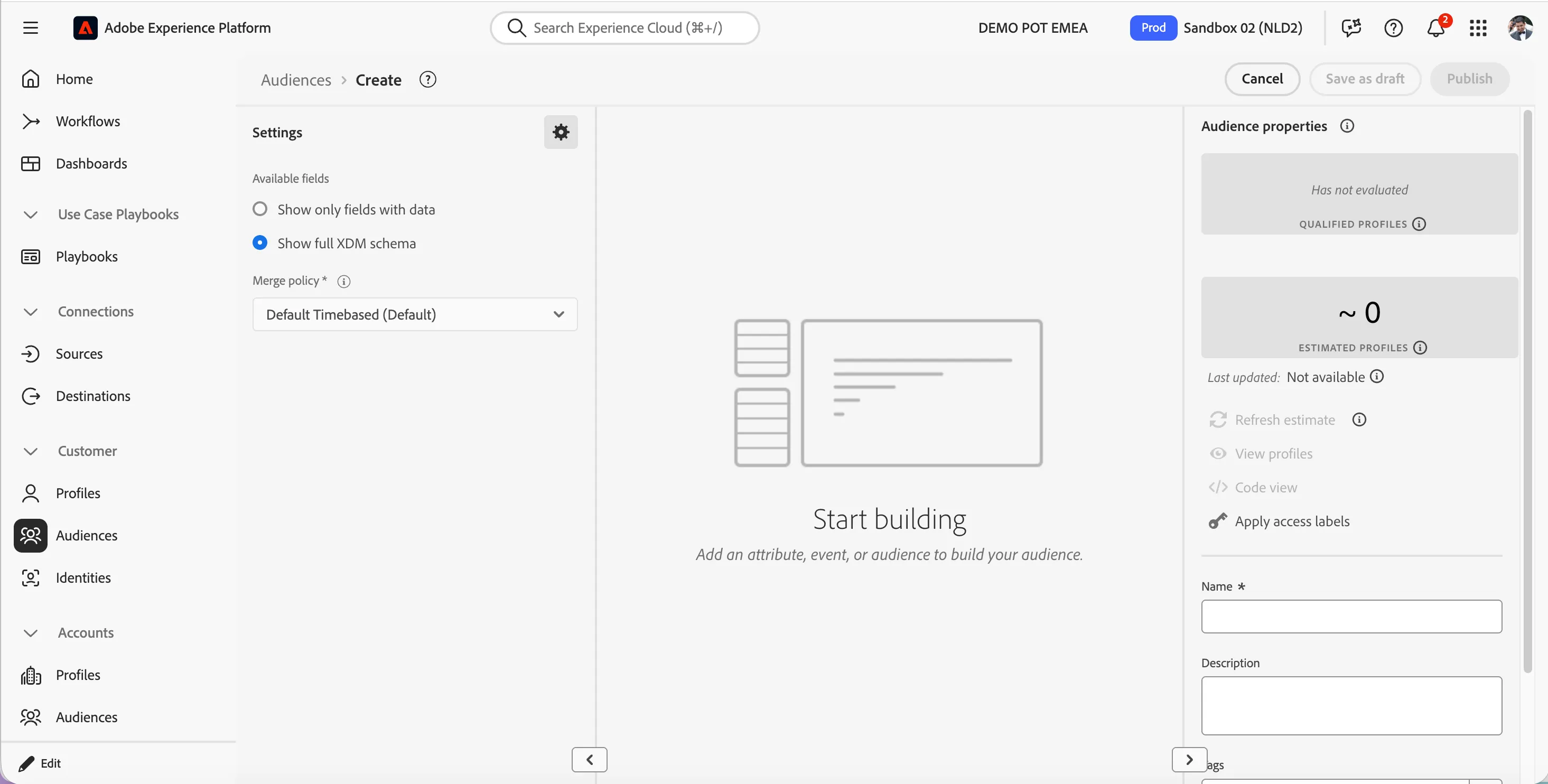
To define our audience:
- Ensure you are Attributes tab in the Fields section.
- Search for whoosh in the search bar.
- Drag the Nearest Whoosh Store Id attribute onto the canvas.
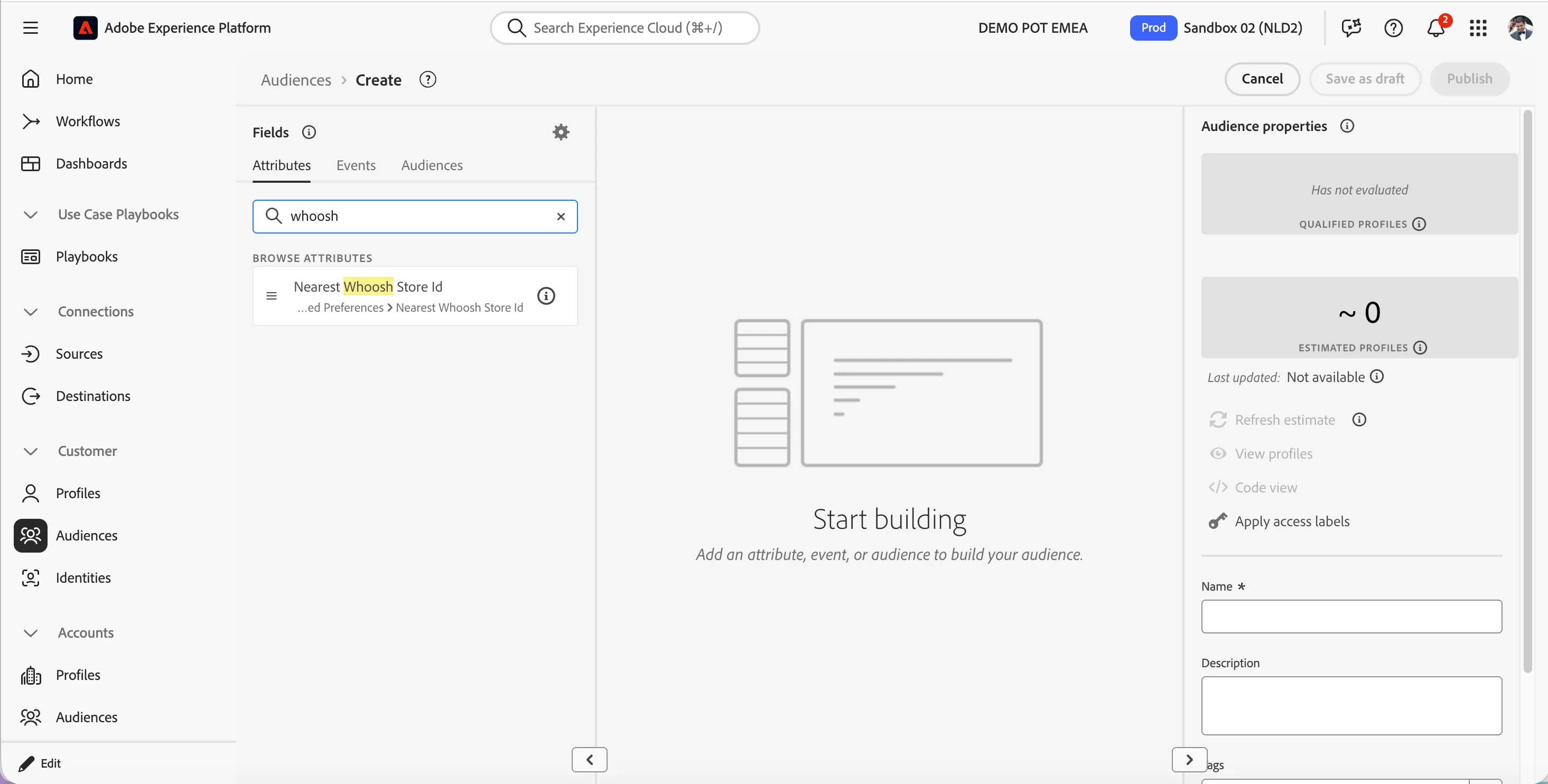
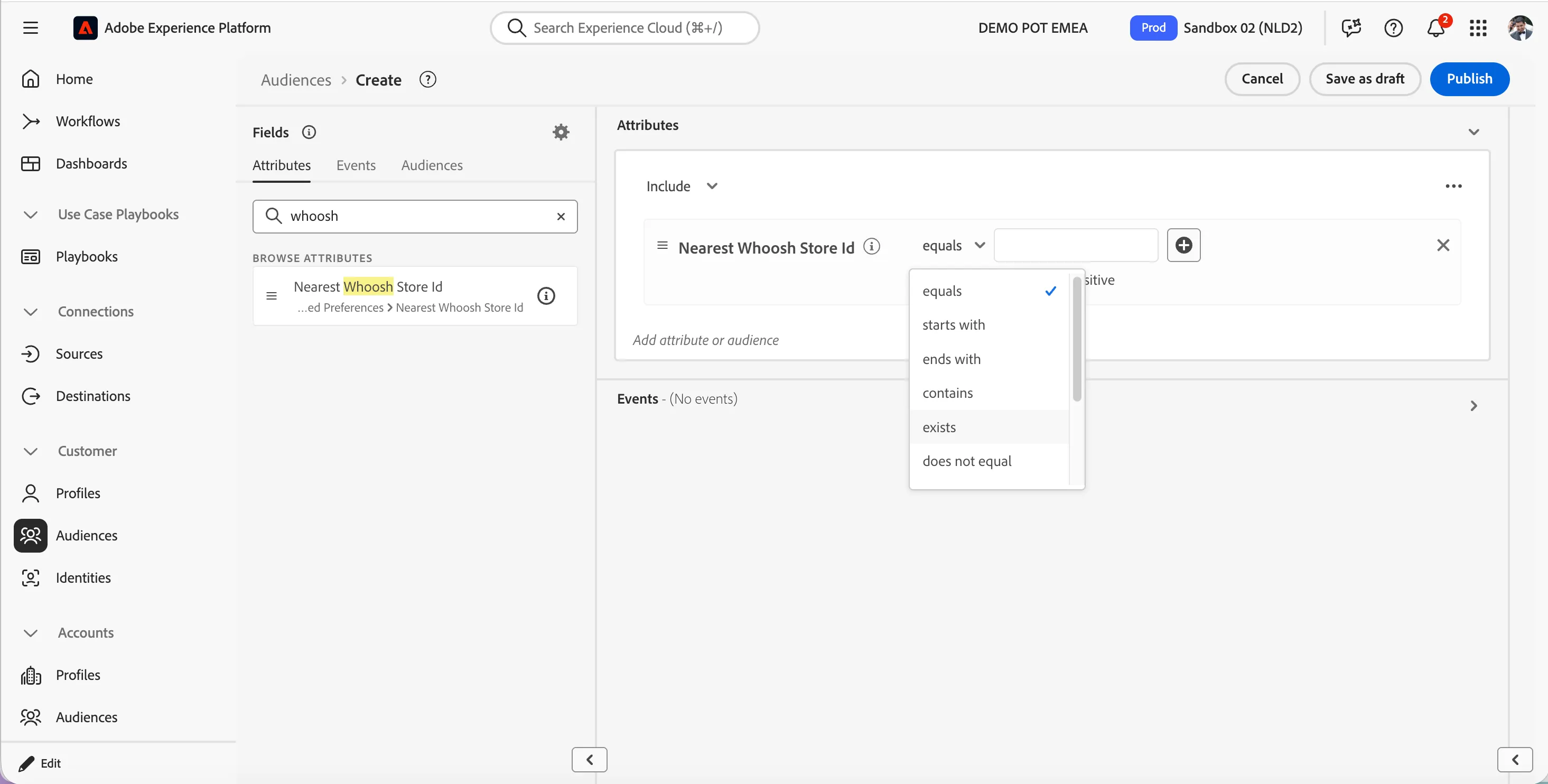
- Click on the condition equals and select exists to make the condition as if nearest whoosh store id exists on the profile.
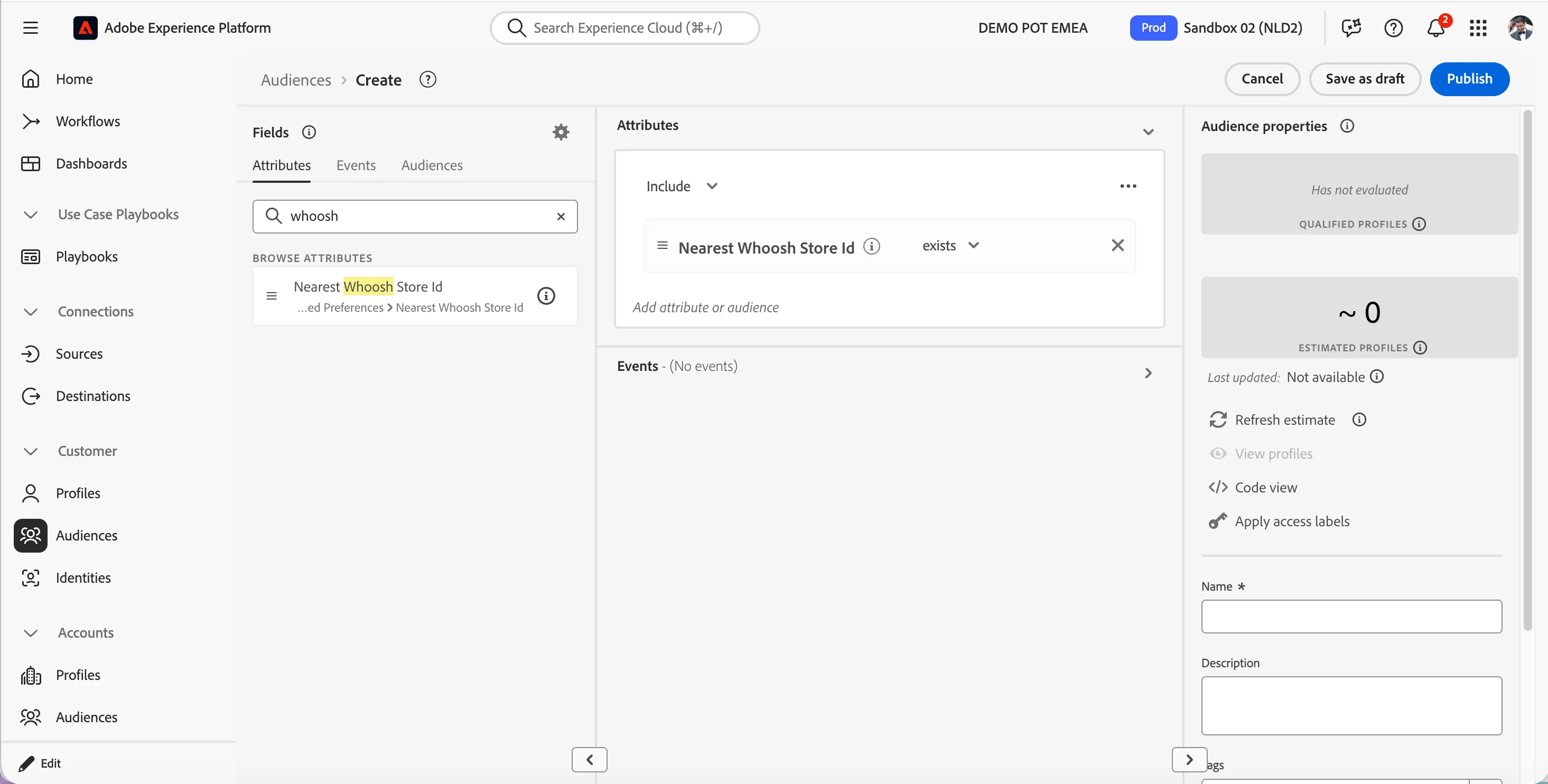
- Now the audience definition criteria should like below. This captures all the profiles who are in an active whoosh delivery possible area.
Add events
Now we need filter out active customers who do atleast 2 purchases a month via non-whoosh delivery mechanisms.
- Select the Events tab in the Fields section.
- Search for purchases.
- Drag and drop Purchases (Commerce Purchases) Event type onto the canvas.
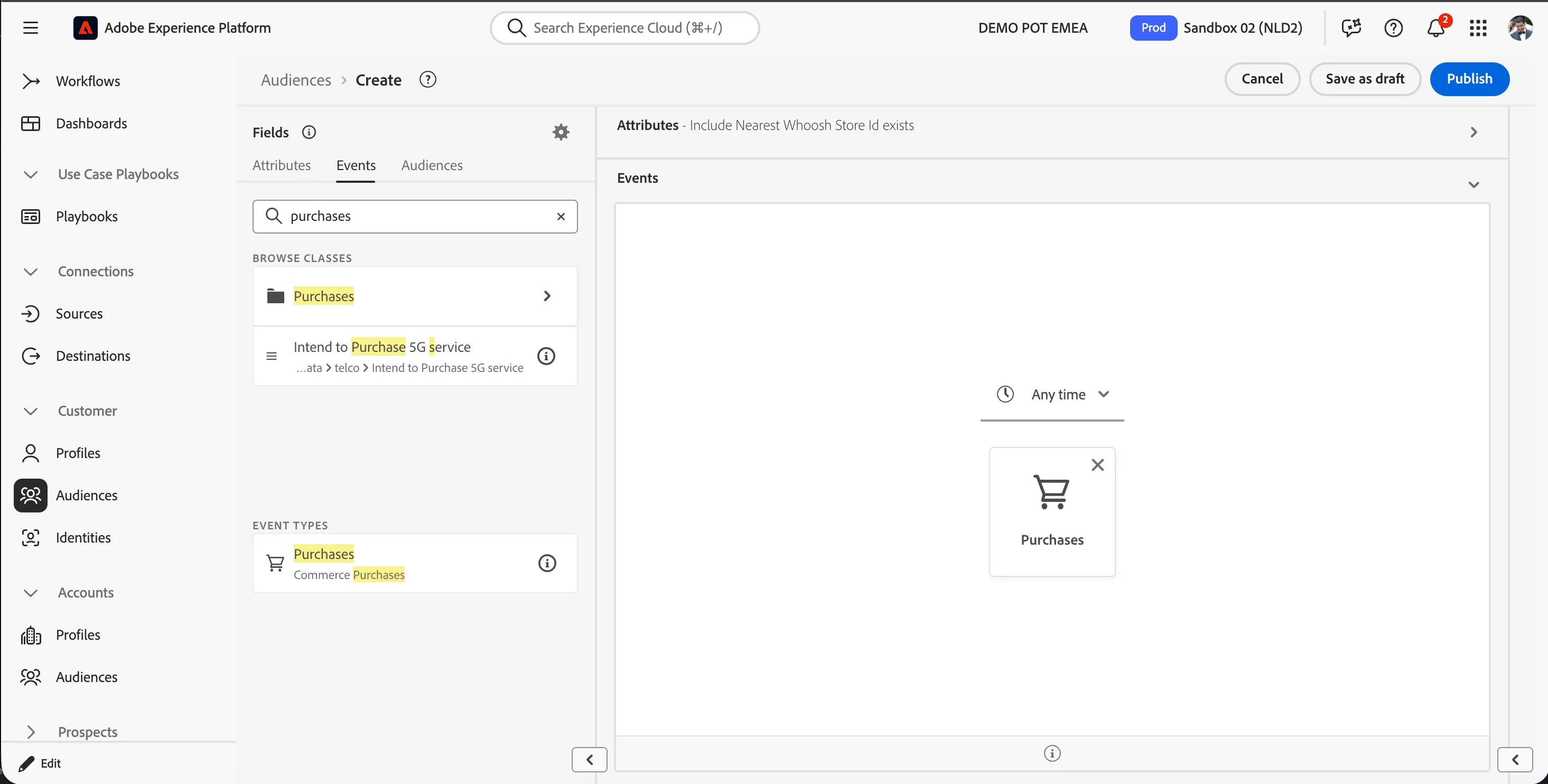
- Click on Purchases tile in the canvas to open the event rules tab.
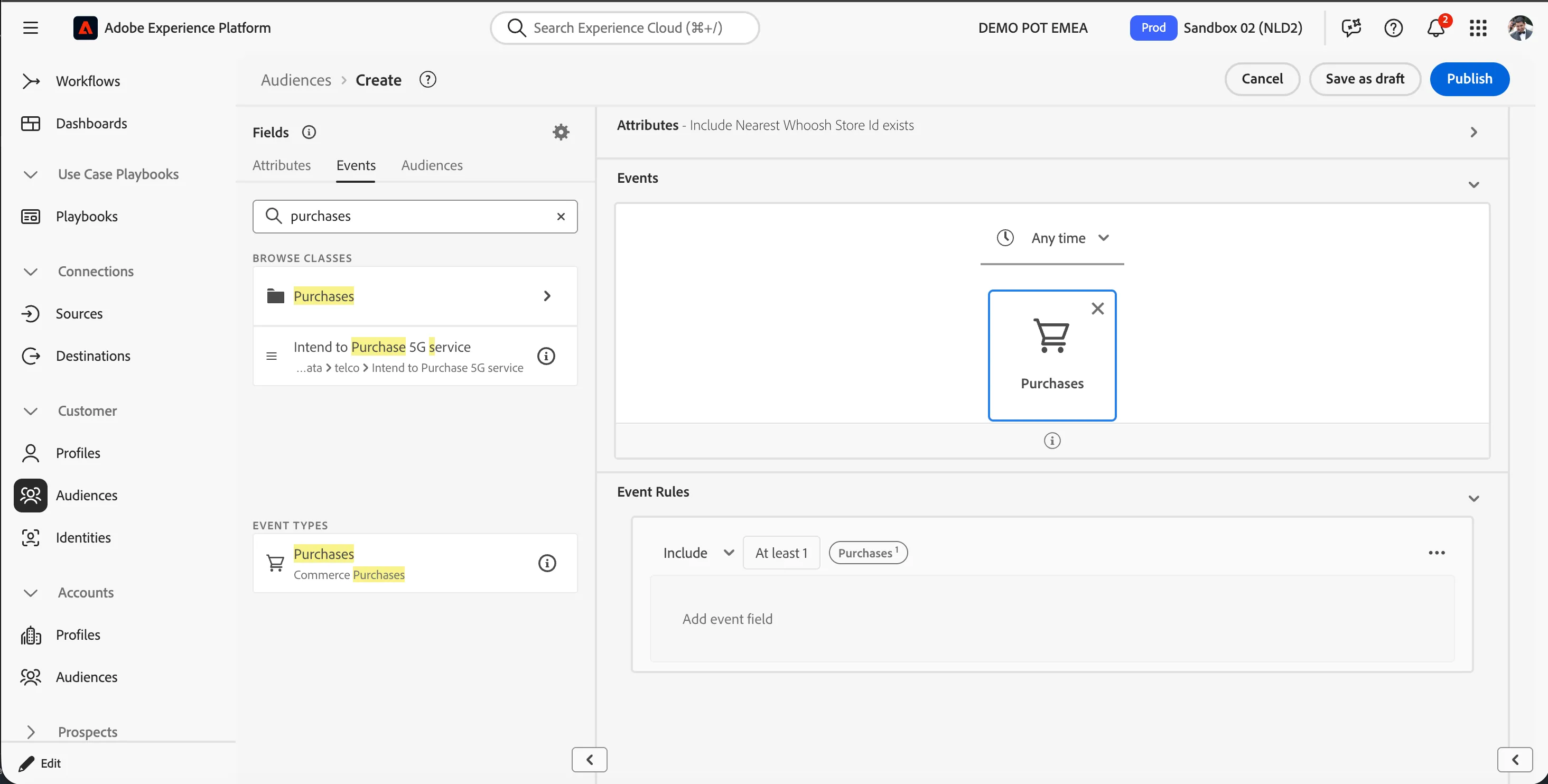
- Search for fulfilment.
- Drag Fulfilment Type from Tesco Order Details Group in to the event rules.
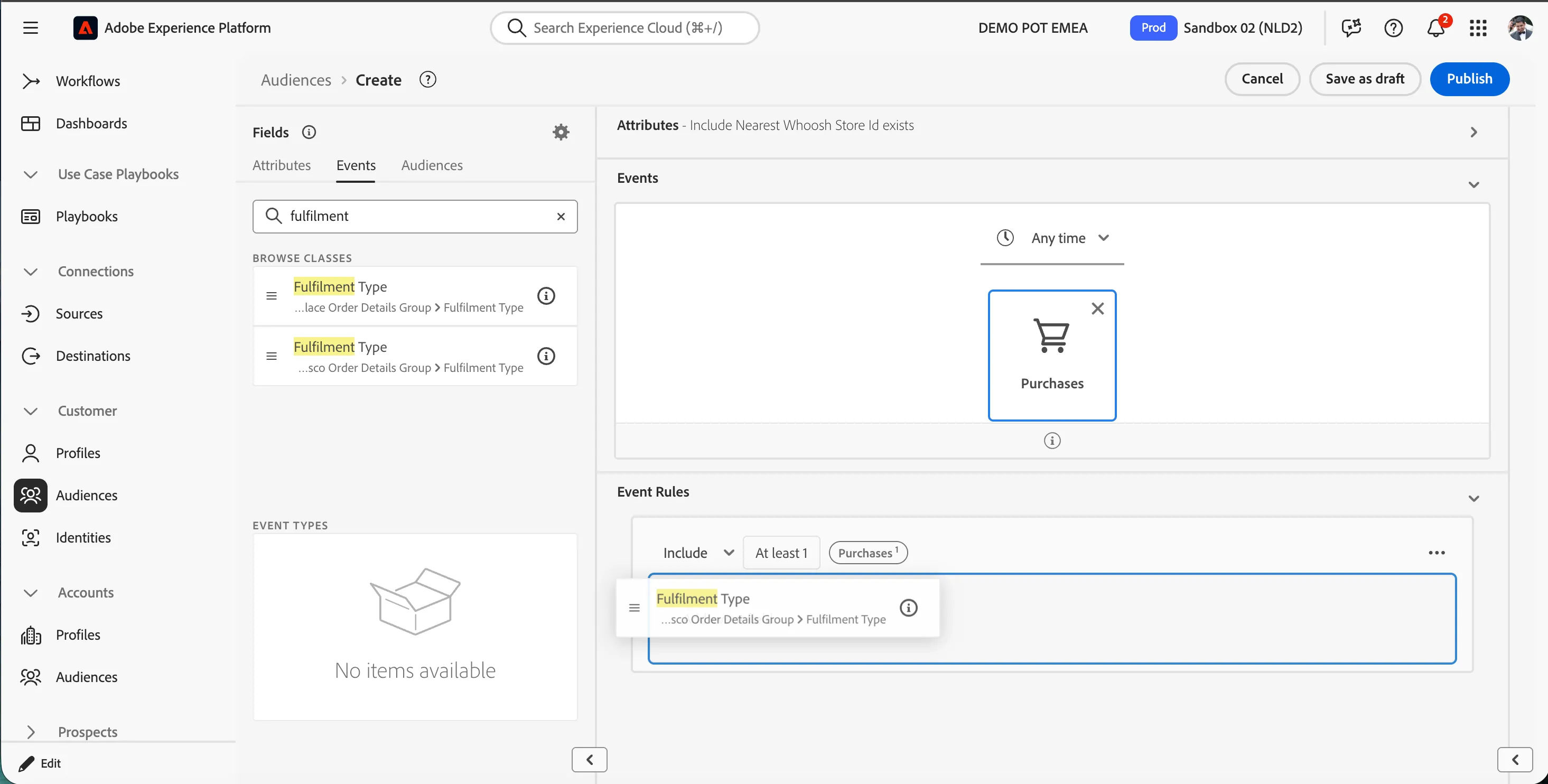
- Select Whoosh from the options menu inside the event rules. Change the condition from equal to does not equal to make the rule as fulfilment type not equal to whoosh.
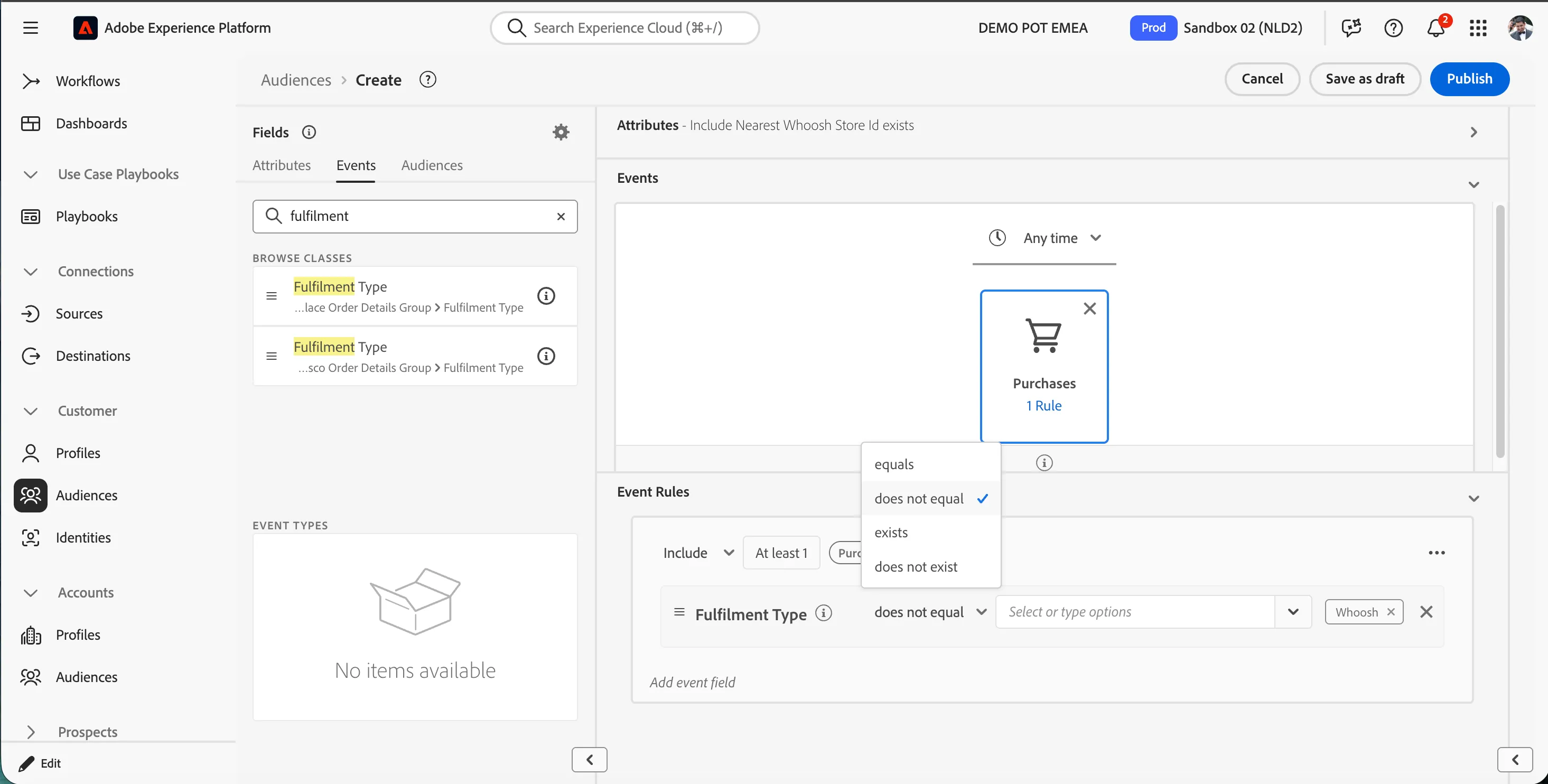
Now we want to add a second condition to look for profiles who have made purchases for more than £40 pounds to filter out only whoosh eligible purchases.
- Ensure you are on the Events tab in the Fields section. Clear the search.
- Search for totalprice.
- Drag Total Price after Discounts from Tesco Order Details Group as a condition below the fulfilment type condition.
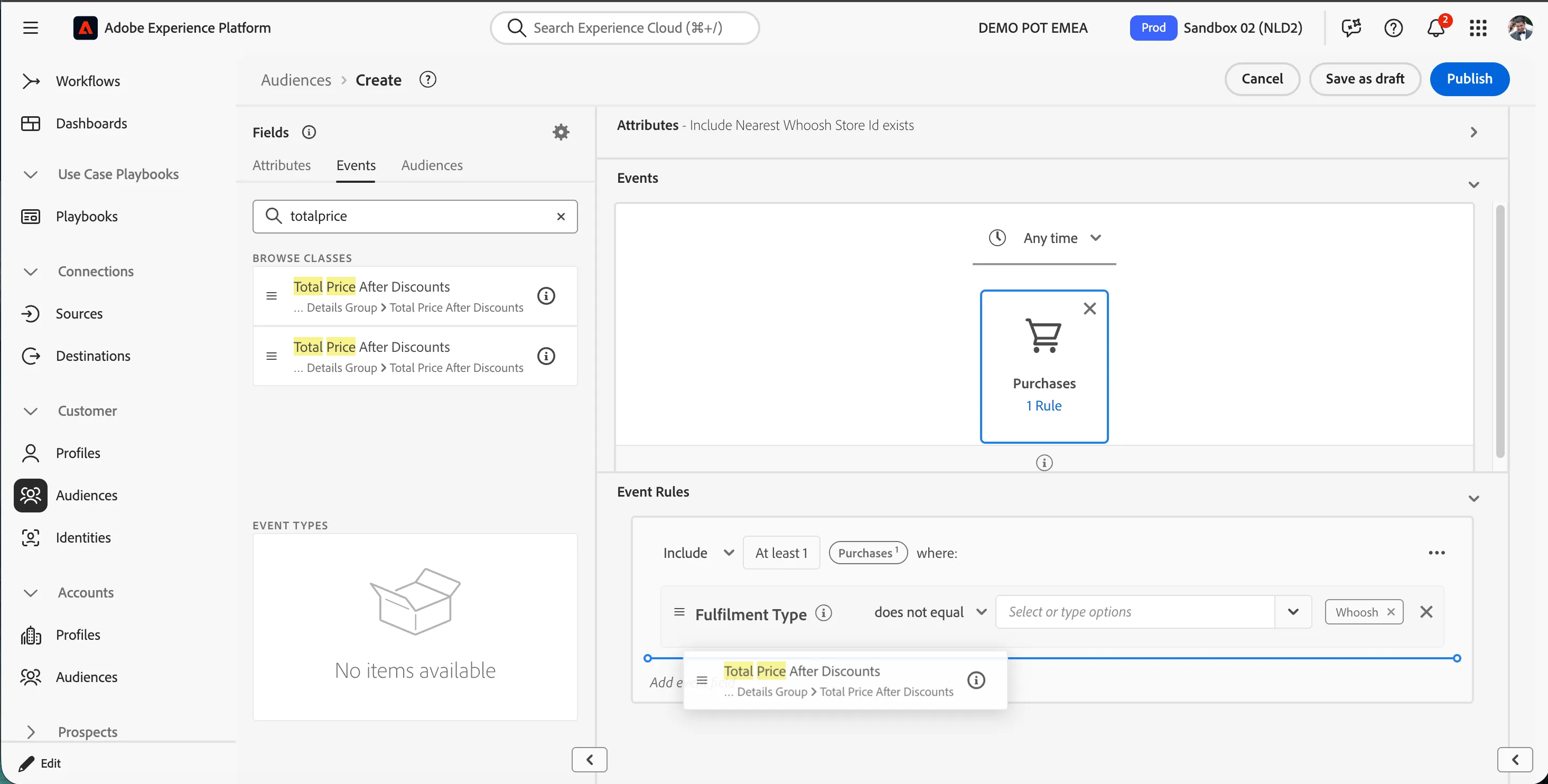
- Enter the value as 40. Change the condition from equal to greater than or equal to to make the rule as total price after discounts is greater than or equal to 40.
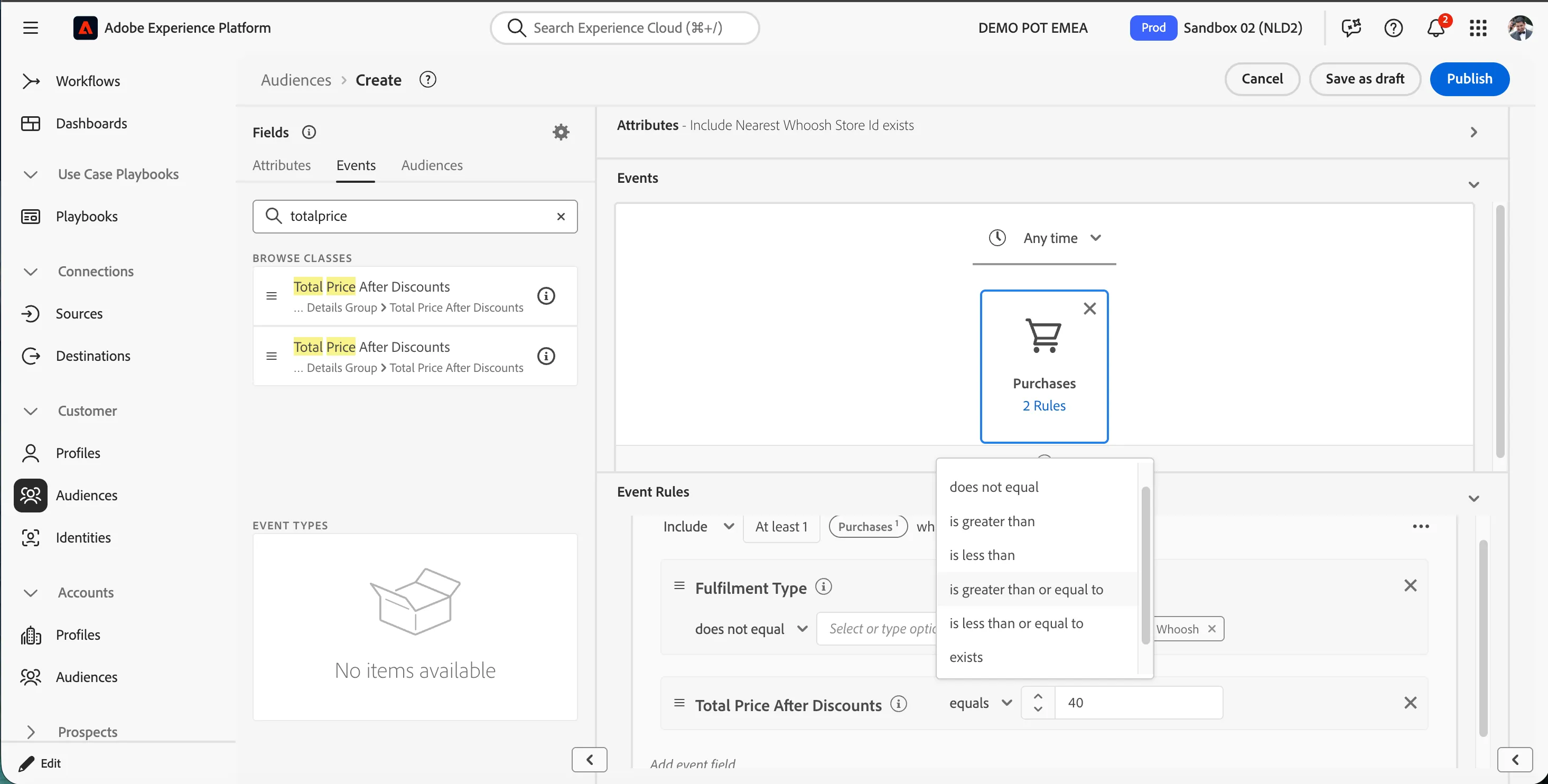
Your audience definition should look like:
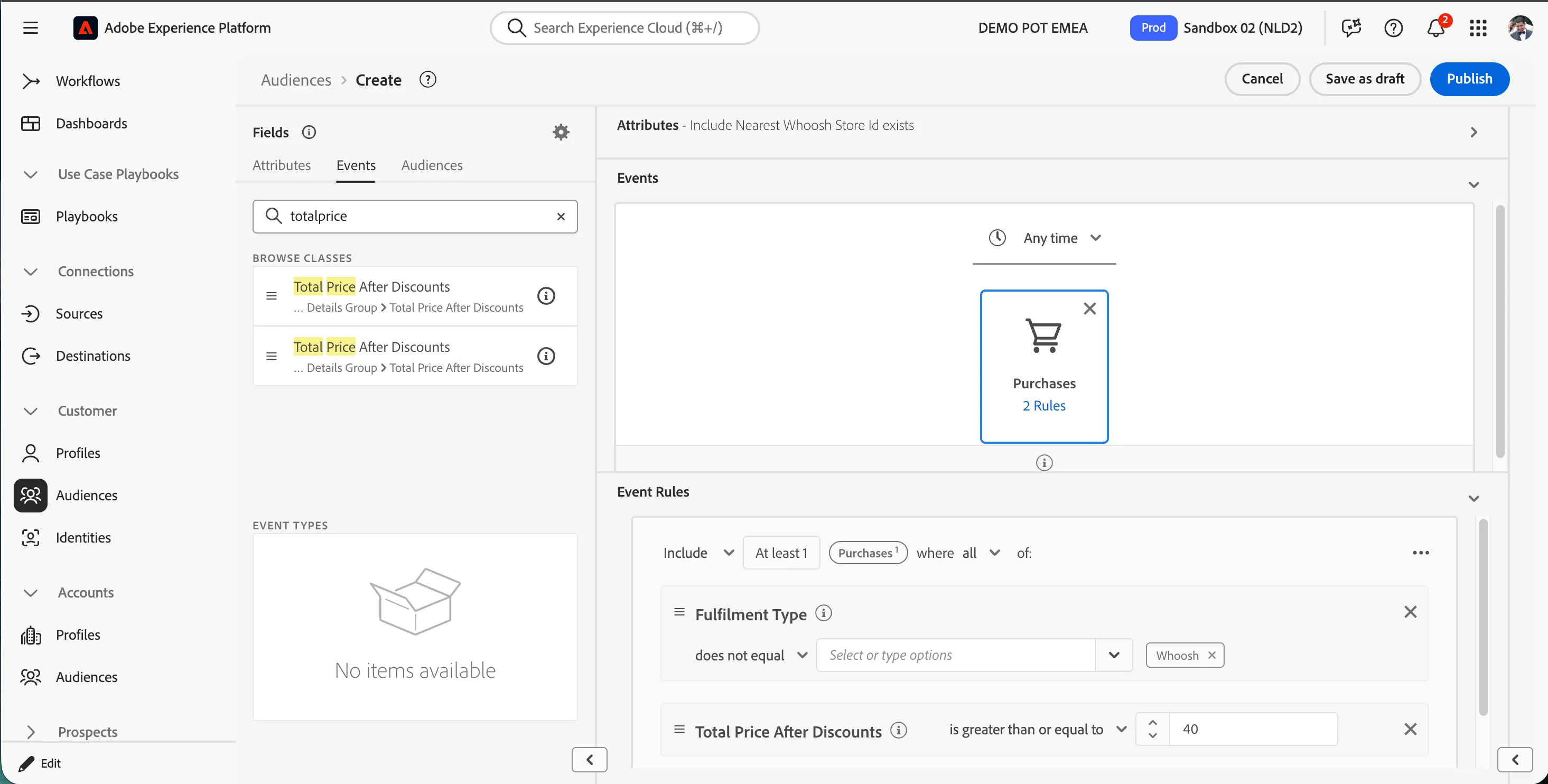
Add time window and count restrictions
Now we need add the rules for checking whether the customer is making atleast 2 purchases in the last 30 days.
- Click on At least to show the field to update the number of purchases. Update it to 2.
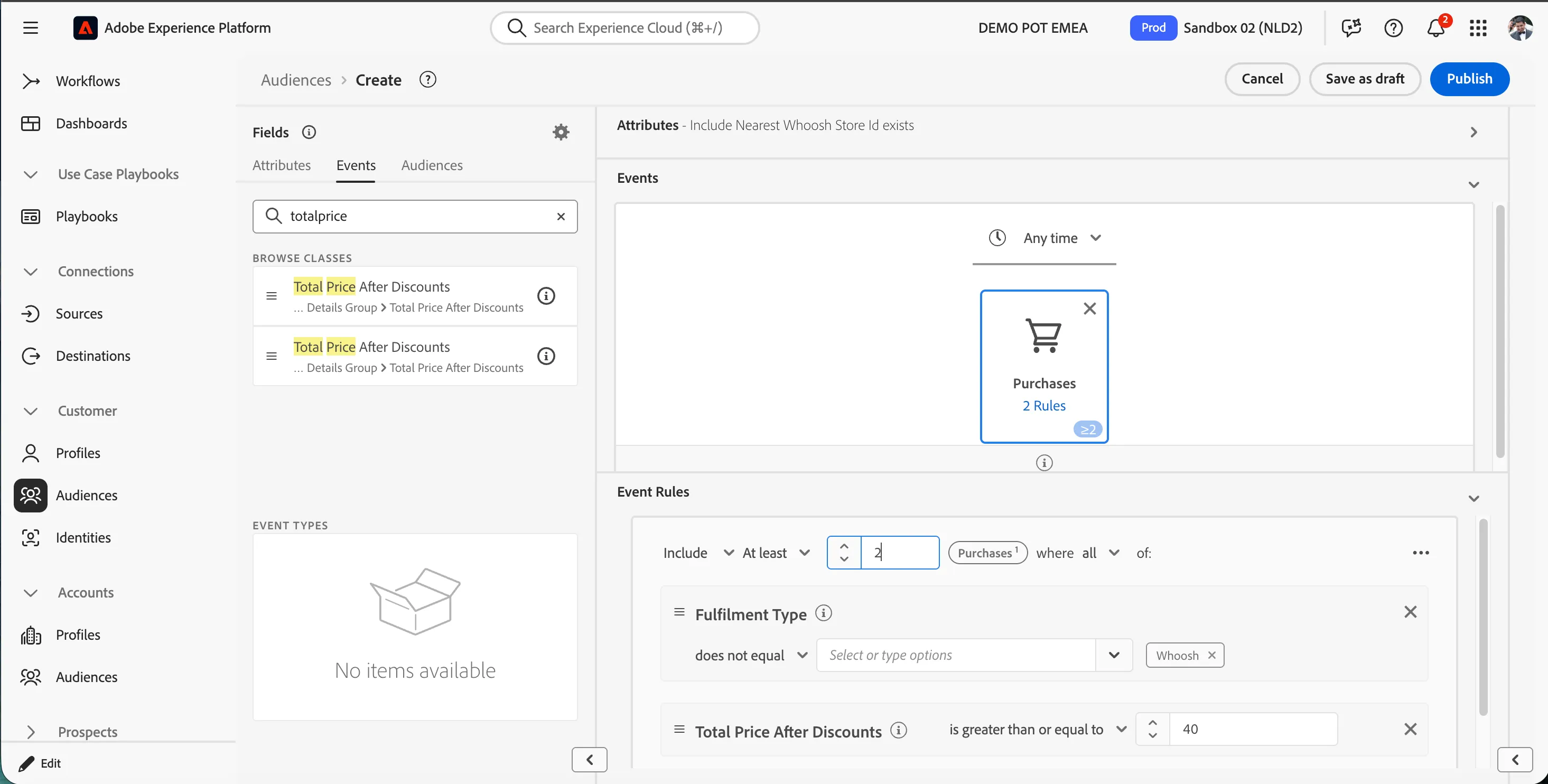
- Click on Any time above the event tile and select In last. Update it to 30 Days.
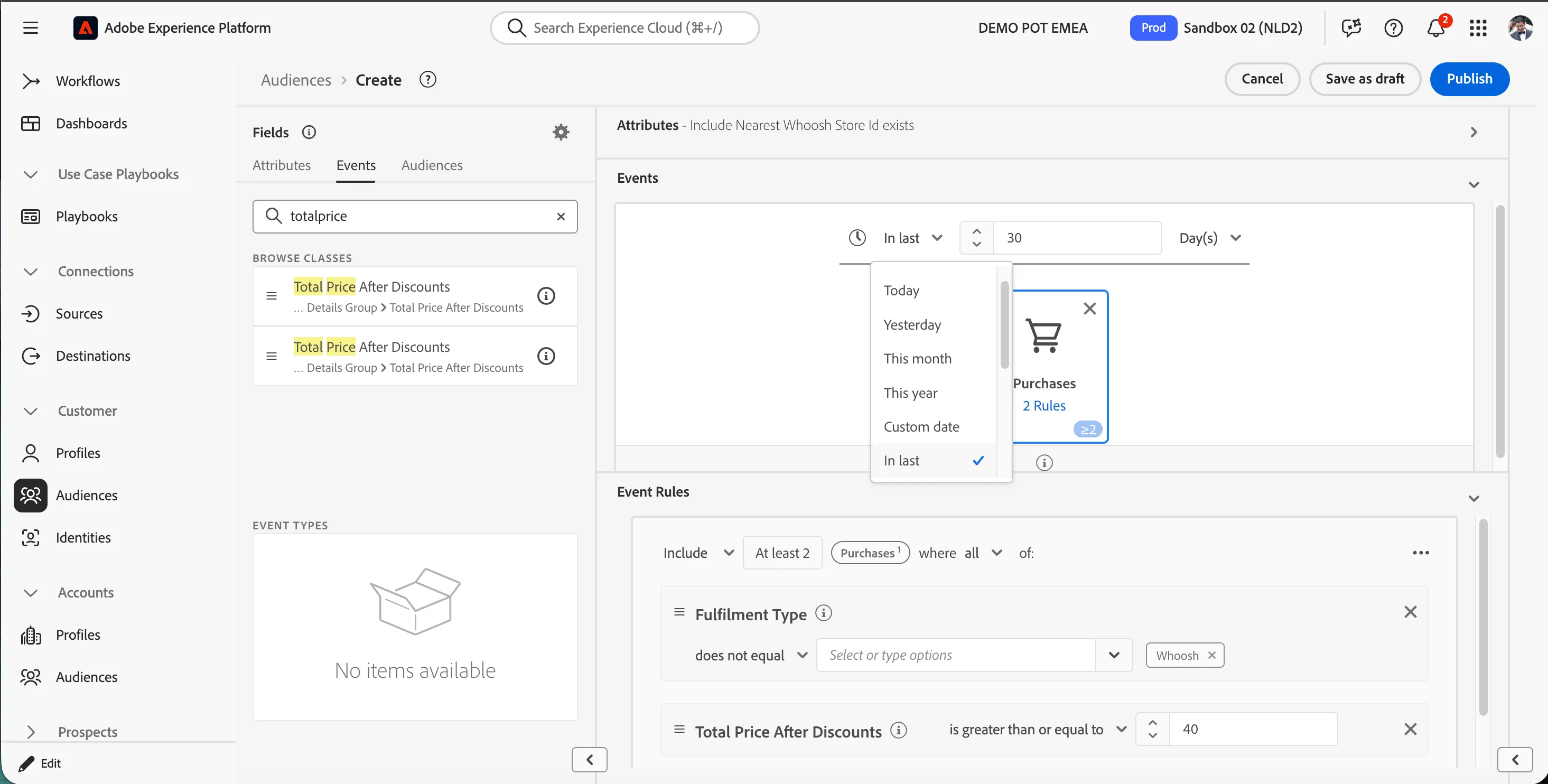
Your audience definition should look like:
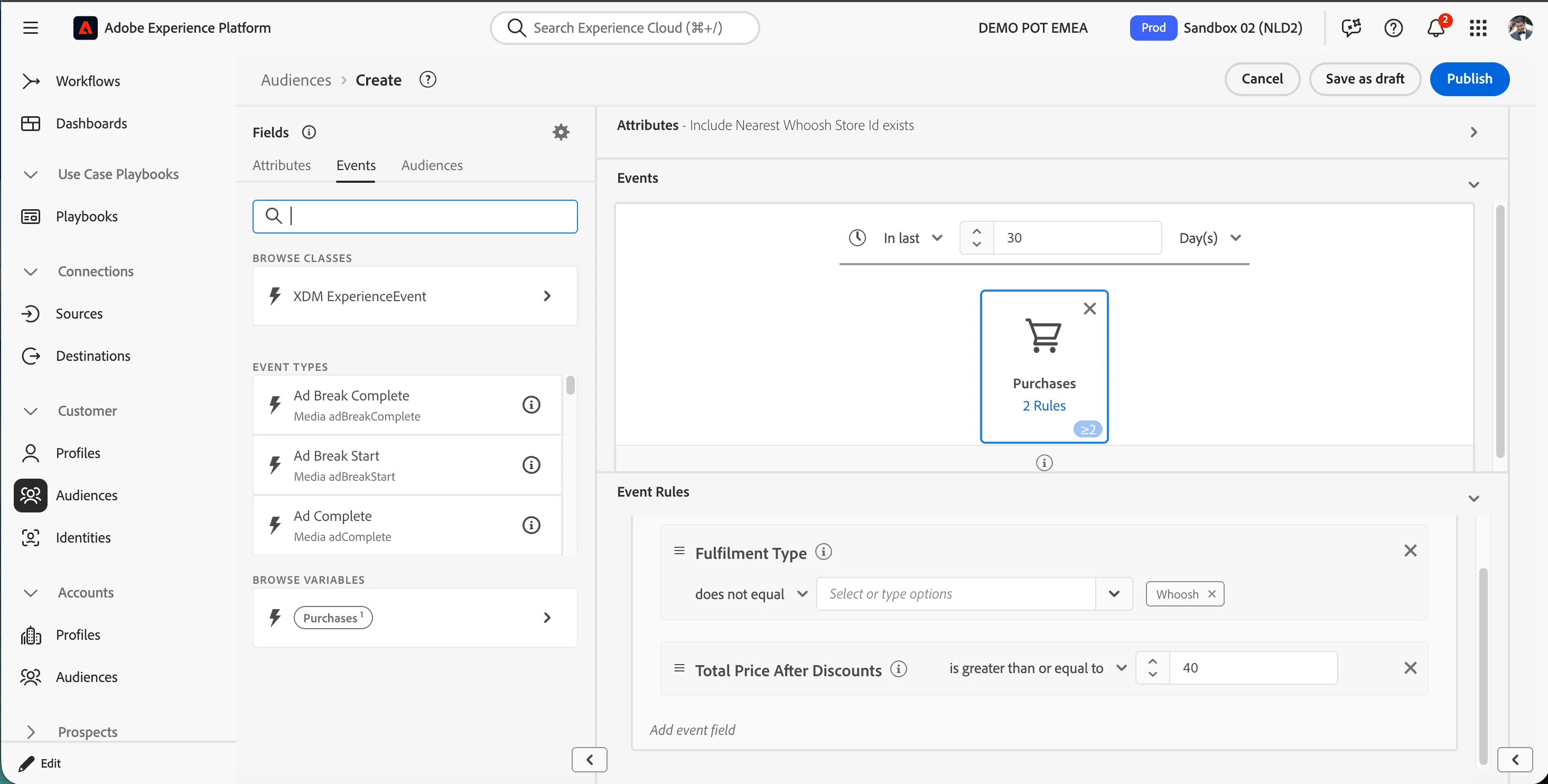
Publish the audience
Let's publish our audience.
- Enter a Name for your audience using the following naming convention,[your name] - Active non-whoosh customers in whoosh area e.g. NJ - Active non-whoosh customers in whoosh area.
- (optional) Enter a Description.
- Select Batch from the Evaluation method dropdown list.
- Click on Publish.
You will be taken to the Audience summary screen, outlining your audience definition.
You have successfully created an Audience for all customers that are in whoosh delivery possible area and have purchased atleast 2 times for more than £40 with other methods than whoosh.