Creating the journey
In this exercise, you'll be creating and testing a journey using the components you've created in the previous exercises. Go to Adobe Journey Optimizer by clicking on the 9 dots on the top right and select Journey Optimizer.
To log into the Adobe Experience Platform, and open Adobe Journey Optimizer, check the Welcome section.
Journey overview
To get an overview of all journeys in Adobe Journey Optimizer:
In the menu on the left side, under Journey Management, click on Journeys. You will see a overview with all existing journeys.
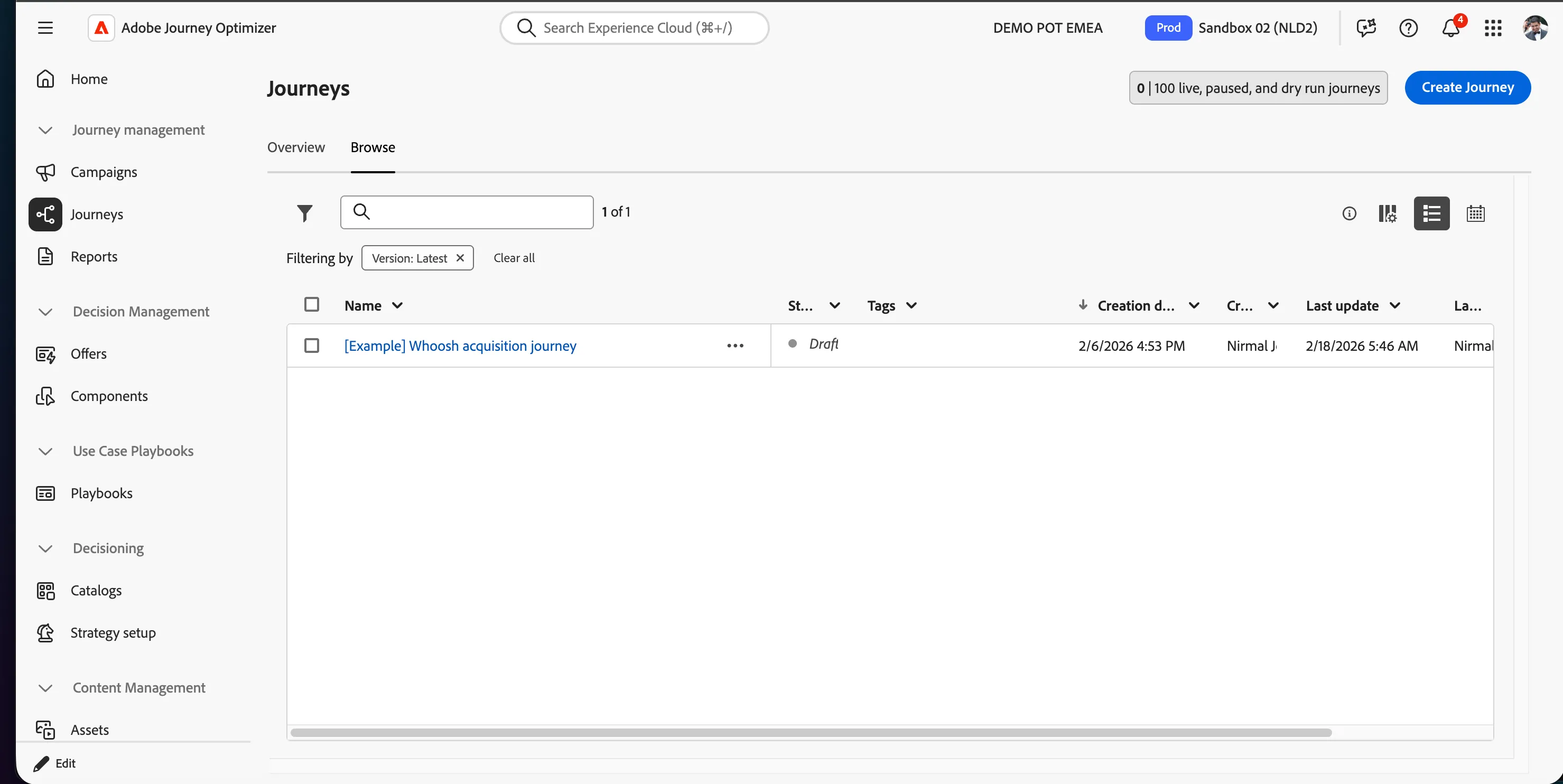
Creating a journey
We'll be creating a journey that will send an email to people that have a added the products to the cart but didnt purchase the product yet. We need to ensure we exclude the people who has purchased as well.
Click on Create Journey. You'll be taken to the Journey canvas with the journey properties opened.
- Set the name to [your name] - Whoosh acquisition weather journey
- For the other properties we'll keep the default values.
Your screen should look like the image below. Click Save to save and close the properties.
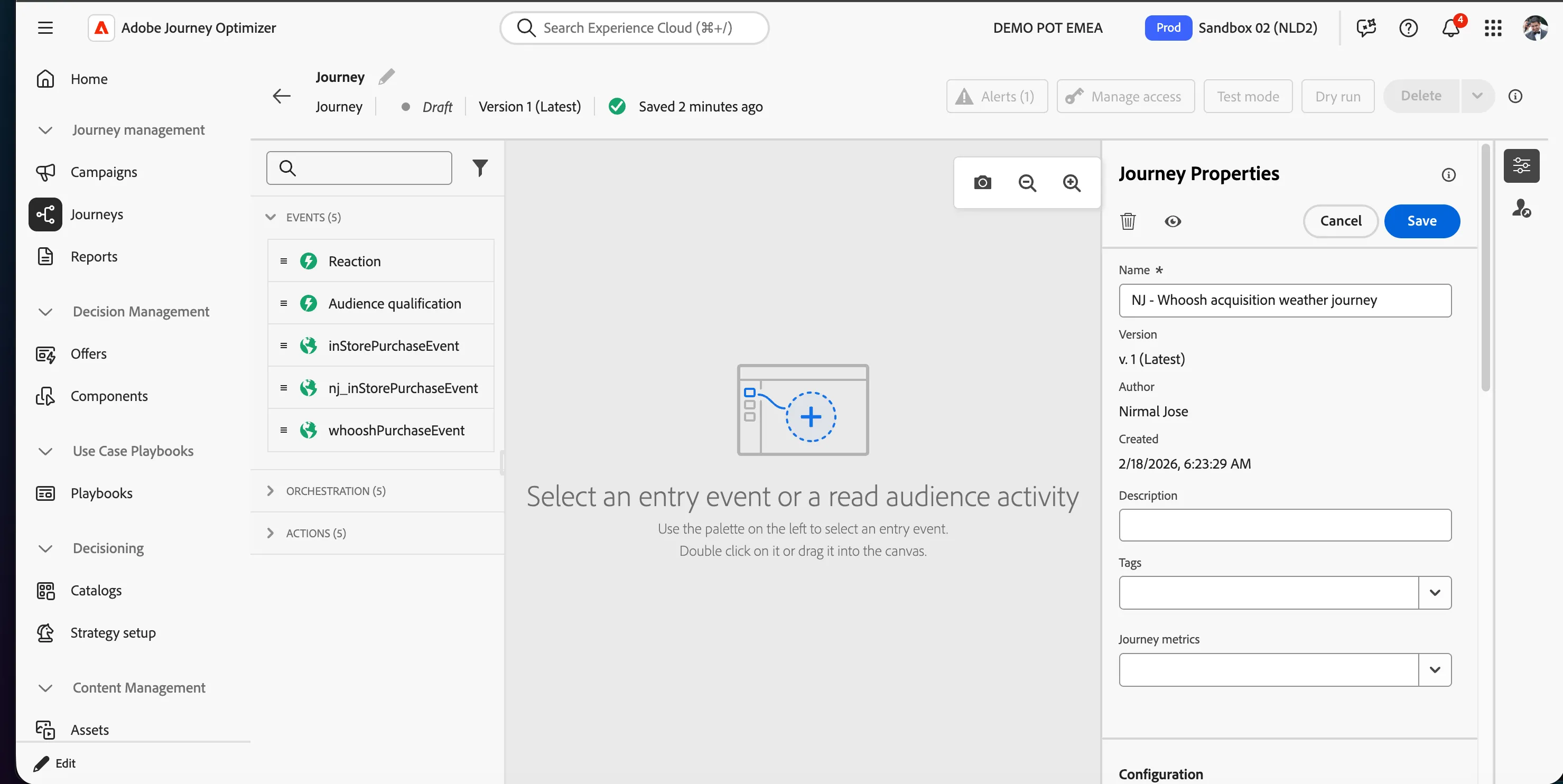
You're now in the journey canvas. This is where you'll be creating your journey's logic. In the left menu you have activities. There's three types of activities:
Events are the triggers that can start or continue your journey.
Orchestration is the logic of your journey. It looks at conditions, audiences, but can also be used to make your workflow wait or end.
Actions are the results of your journey. This can be messages, profiles updates or API calls.
Audience Qualification
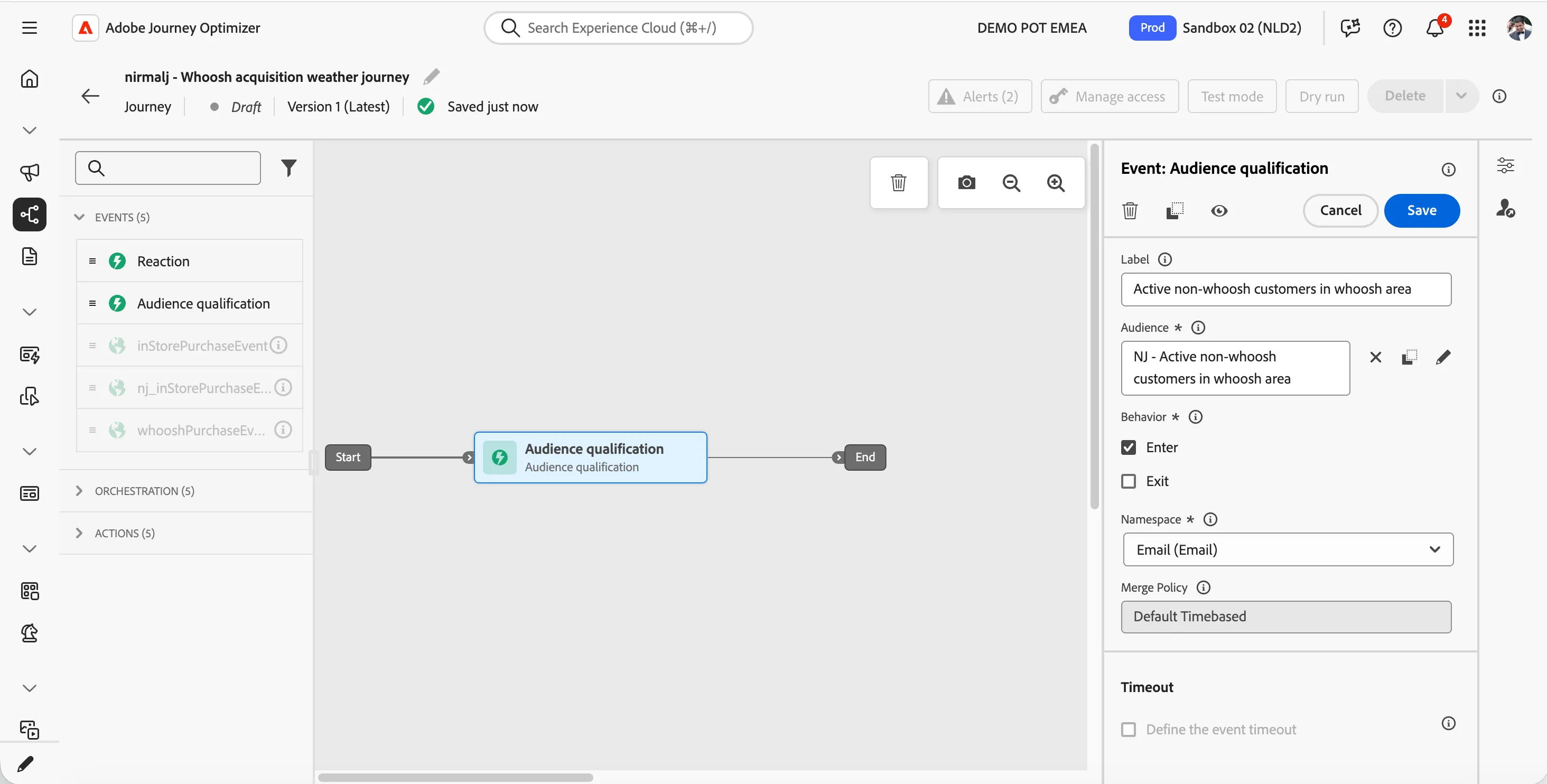
- We're starting our workflow of with an audience entry trigger. From the events tab, choose Audience Qualification and drag it onto the canvas.
- Click on the activity to open the detailed view.
- Set the label to Active non-whoosh customers in whoosh area.
- Click on Audience to open a window, select your audience [your name] - Active non-whoosh customers in whoosh area from the list and click Save. If you didn't create the audience, you can use Tesco - Active non-whoosh customers in whoosh area.
- Set the behavior to Enter. This means the journey will start as soon as the customer qualifies for the audience.
- Set the namespace to Email (Email).
- Your screen should look like the image below. Click Save.
Fetching the current weather using custom action
We want to get the current weather in customers locaton using the custom action.
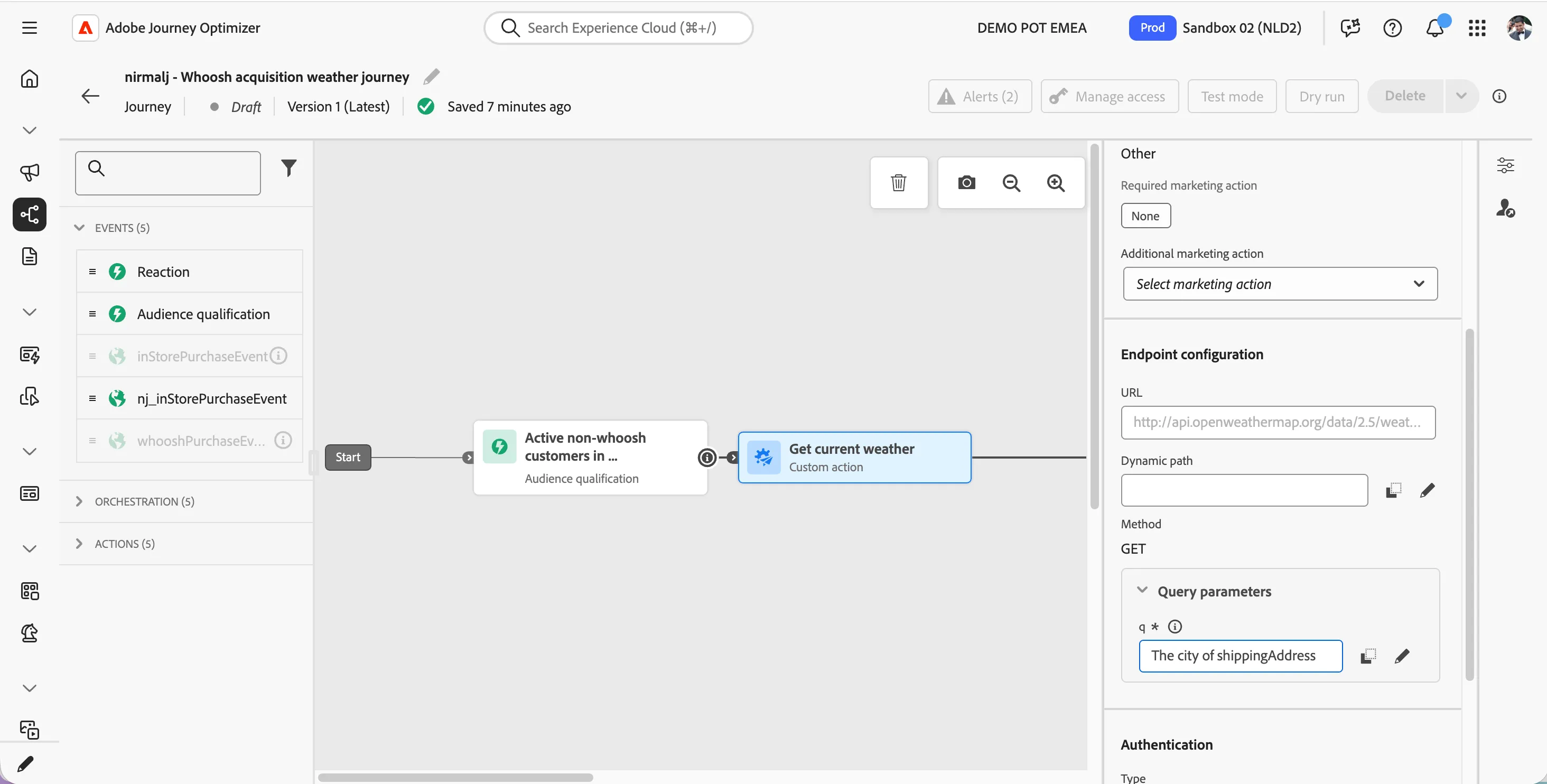
- From the actions tab, choose Yourname_weatherAPI and drag it onto the empty circle on the canvas. If you did not create an action, use the weatherAPI action.
- Update Label as Get current weather.
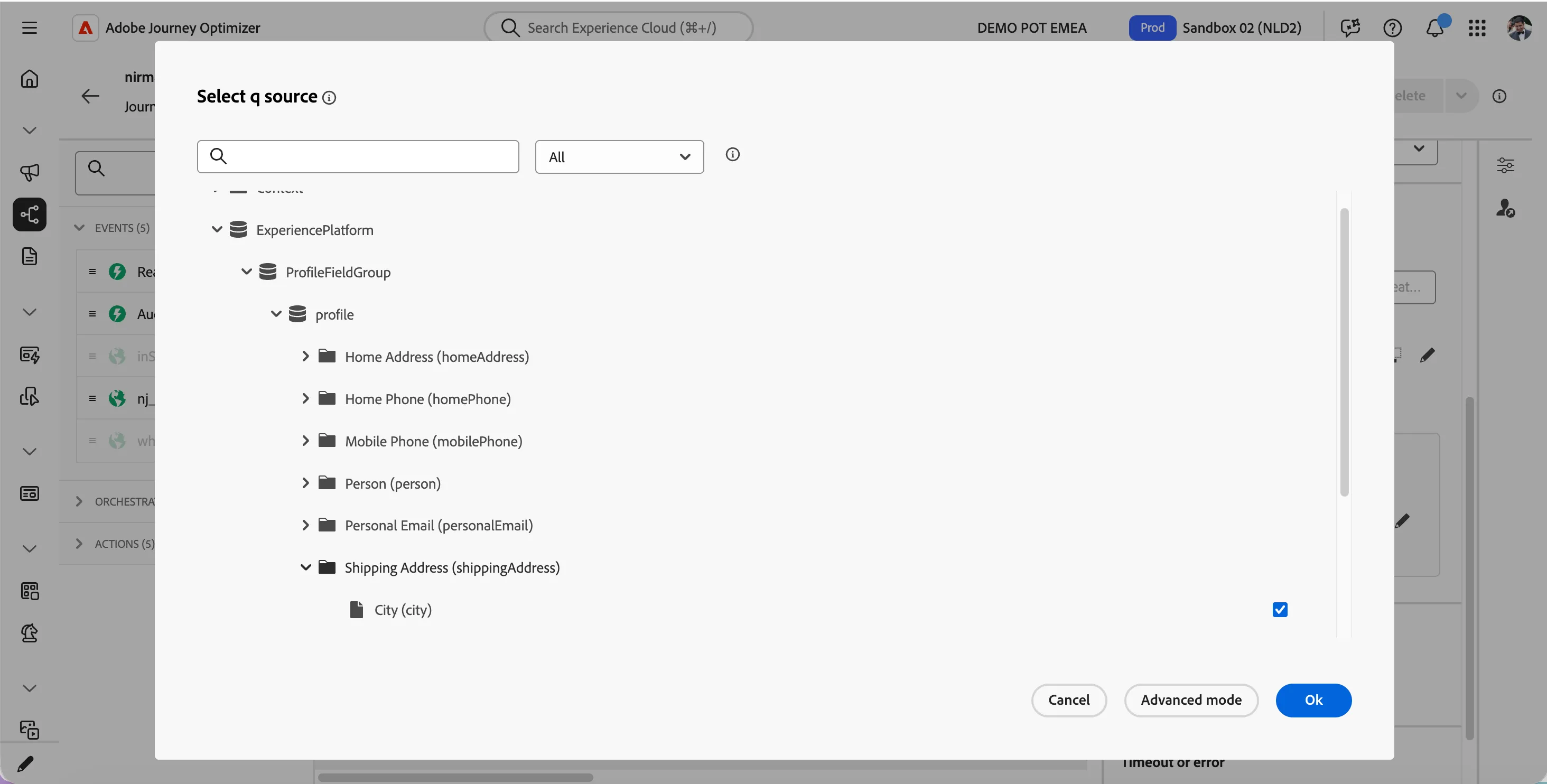
- Click on the query parameters section, click on field next to q or click on -icon next to it. This should open up the configuration popup.
- Expand Experience Platform > ProfileFieldGroup > Profile > Shipping Address (shippingAddress) > City (city) and select it by enabling the checkbox. This will pass the current shipping address city of the customer from the profile attributes to the API endpoint to retrieve the weather in the city. Click OK.
- The configuration should look like below. Scroll up and click Save on the top right to save the configuration for the custom action.
Condition check - good or bad weather
We want to send different messages based on whether the customer shipping addres city is having a good weather or bad weather. For this we will use an optimize step in the journey.
We are making a generic condition of >15ºC is good weather and <15ºC is bad weather to get the customer to go through any of the journey paths. In real-world scenario, you will have more stringent conditions and another path for non-targeted weather conditions.
- From the orchestration tab, choose Optimize and drag it onto the empty circle on the canvas.
- Click on the activity to open the detailed view.
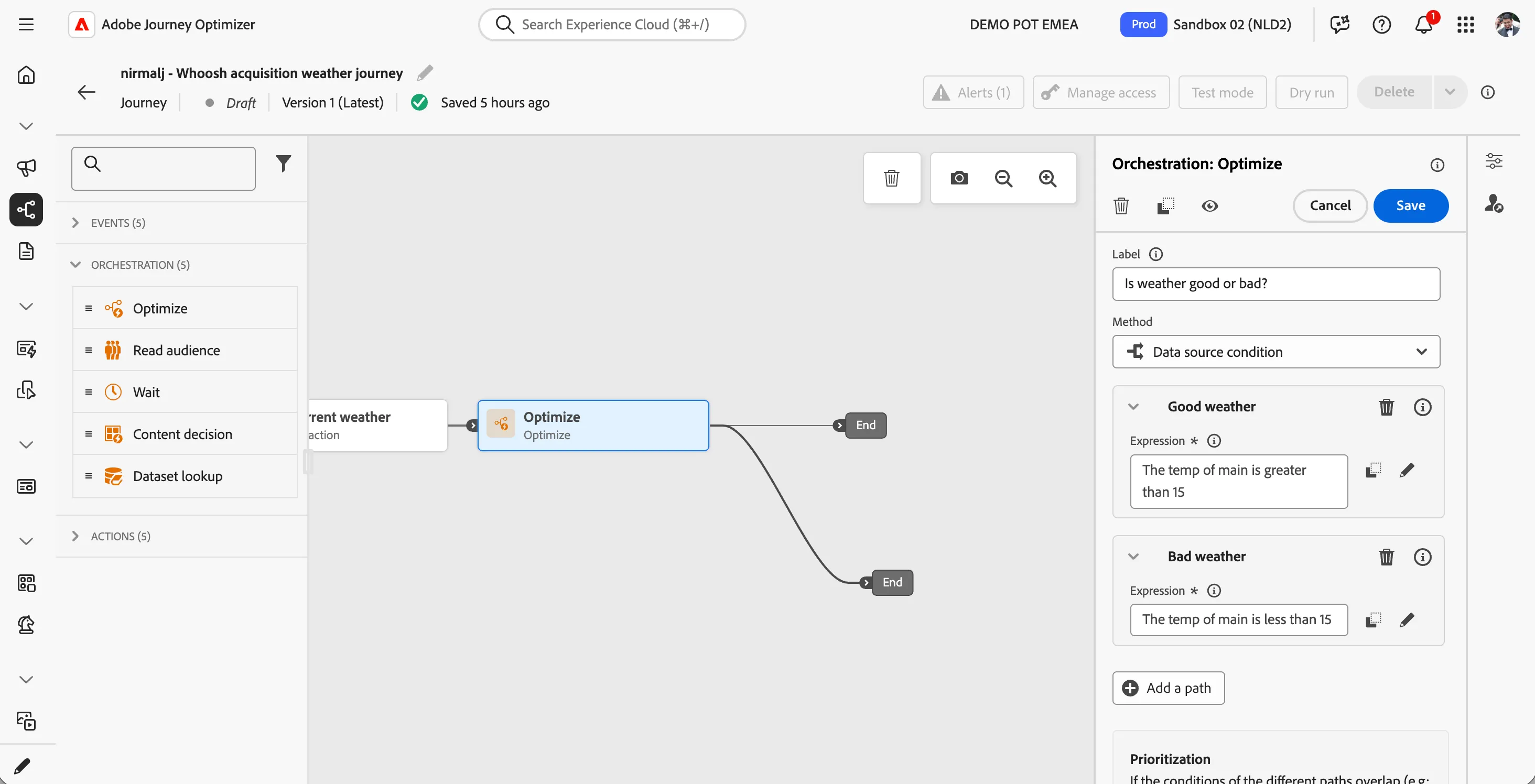
- Set the label to Is weather good or bad?.
- Click on Path1 and change the label to Good weather.
- Click on expression field to open a window.
- Click on Advanced mode button.
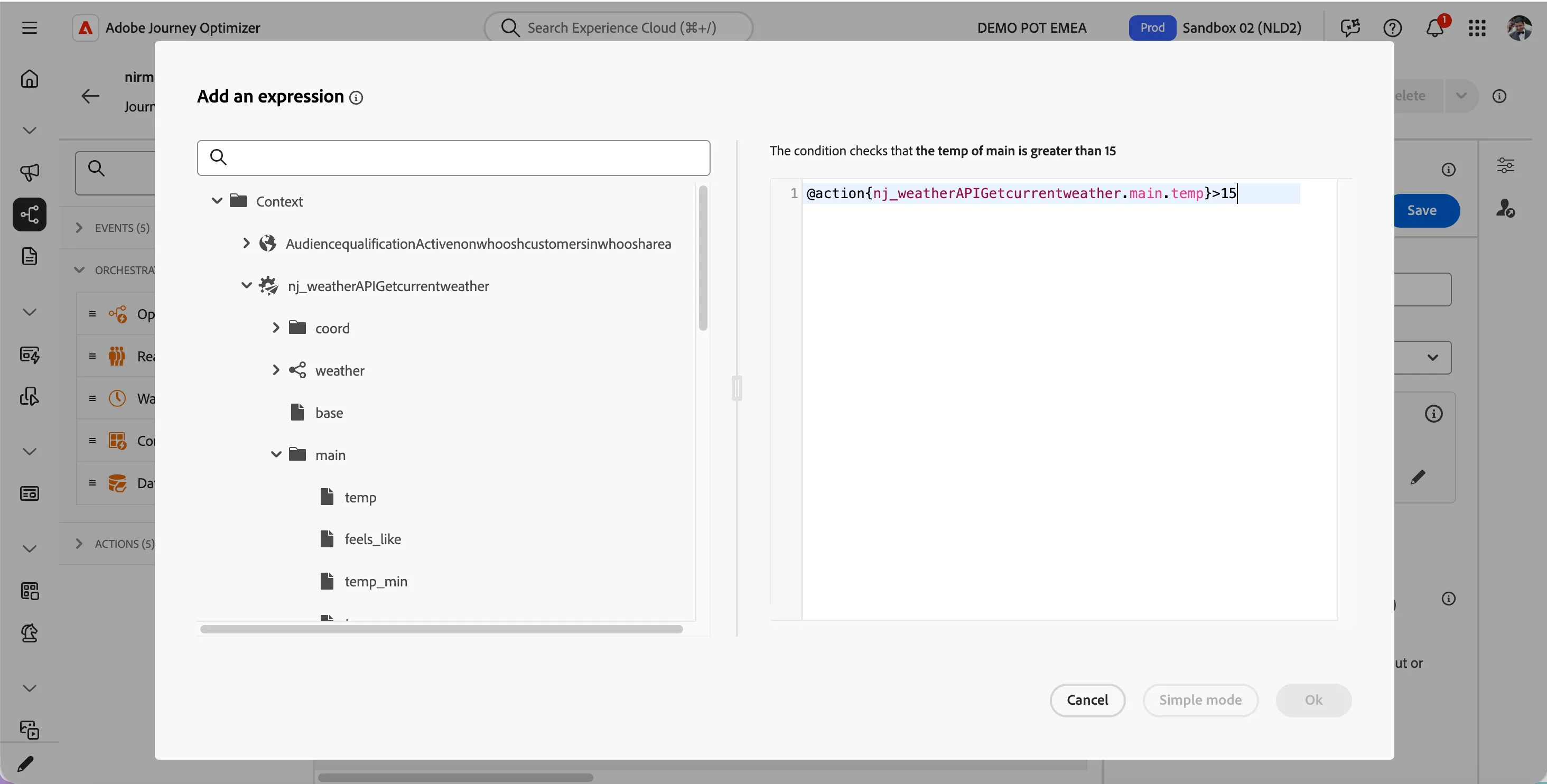
- Navigage to Context > yourname_weatherAPIGetcurrentweather > main > temp and click the -icon next to it to add it to the canvas.
- This will add the variable on to the canvas. Type in >15 at the end of the config to make the condition to check if the variable is greater than 15. Click OK to confirm.
- Click on Add a new path.
- Click on Path2 and change the label to Bad weather.
- Click on expression field to open a window.
- Click on Advanced mode button.
- Navigage to Context > yourname_weatherAPIGetcurrentweather > main > temp and click the -icon next to it to add it to the canvas.
- This will add the variable on to the canvas. Type in <15 at the end of the config to make the condition to check if the variable is less than 15. Click OK to confirm.
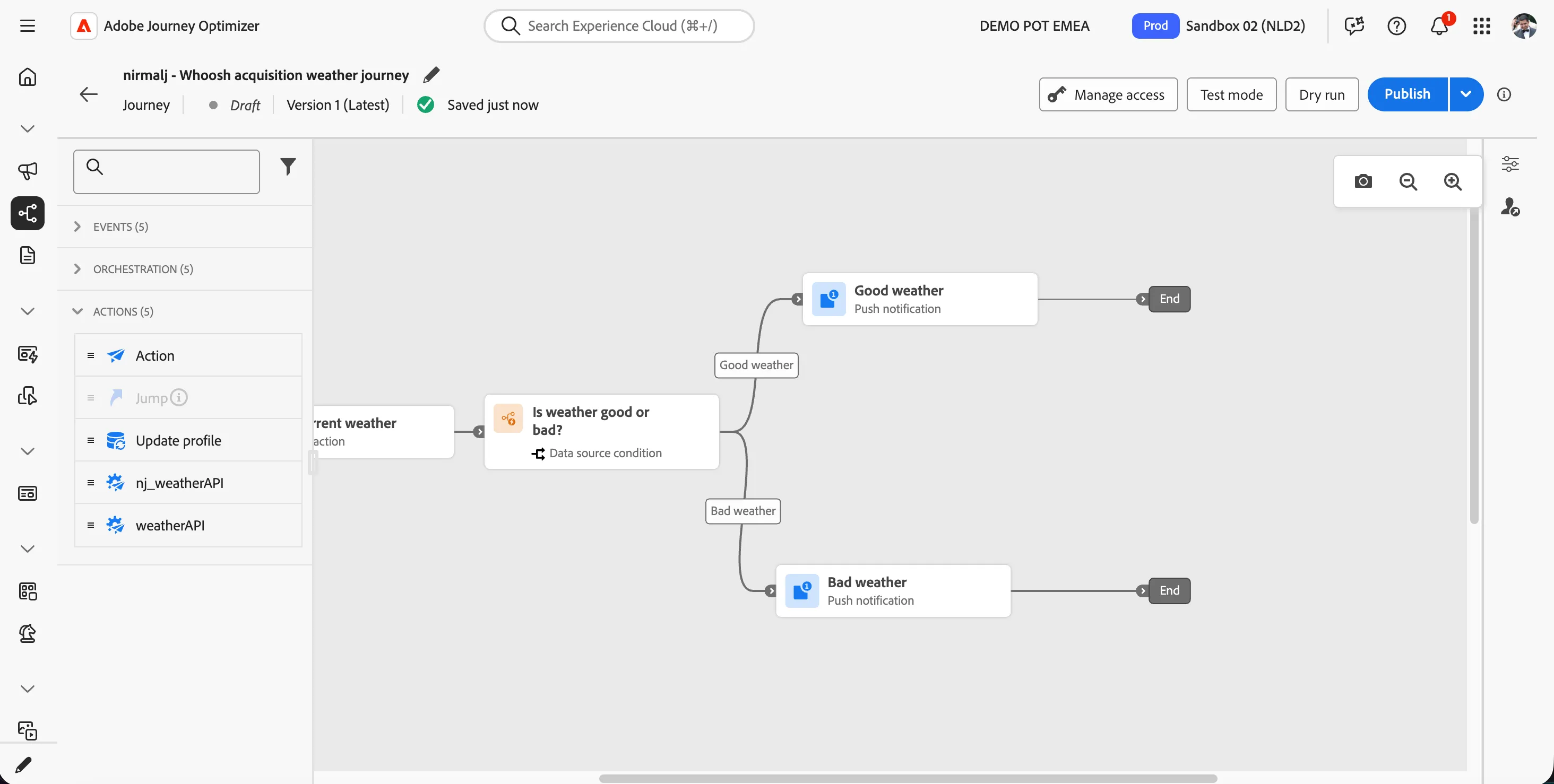
- Click on Save button to save the condition. The screen should look like below.
Push #1 - Good weather
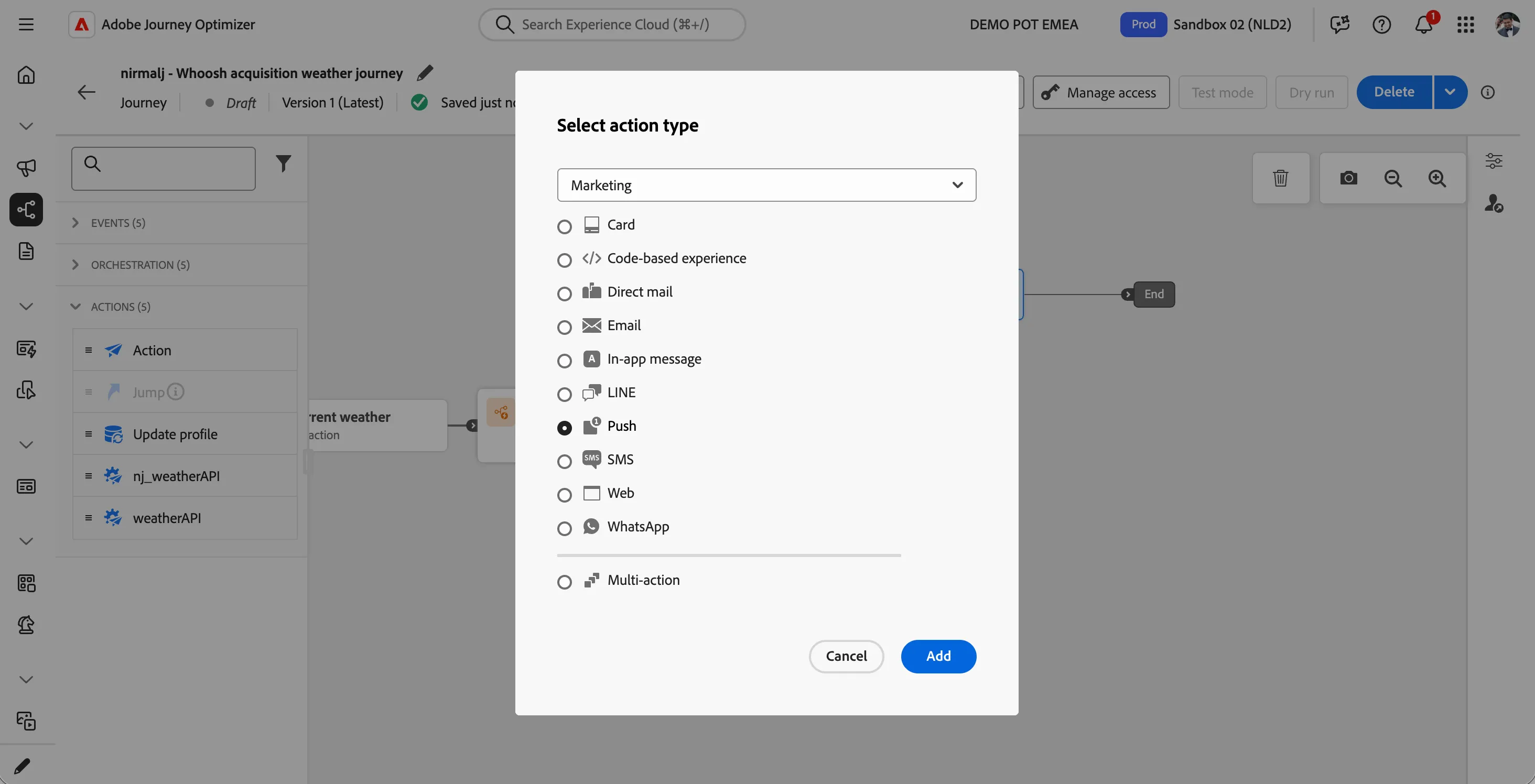
- From the actions tab, choose Action and drag it onto the empty circle at the Good weather path.
- Select Push as the action type and click on Add button.
- Click on the activity to open the detailed view.
- Set the label to Good weather
- Click on Configure Action button.
- Select the configuration as pushMessages.
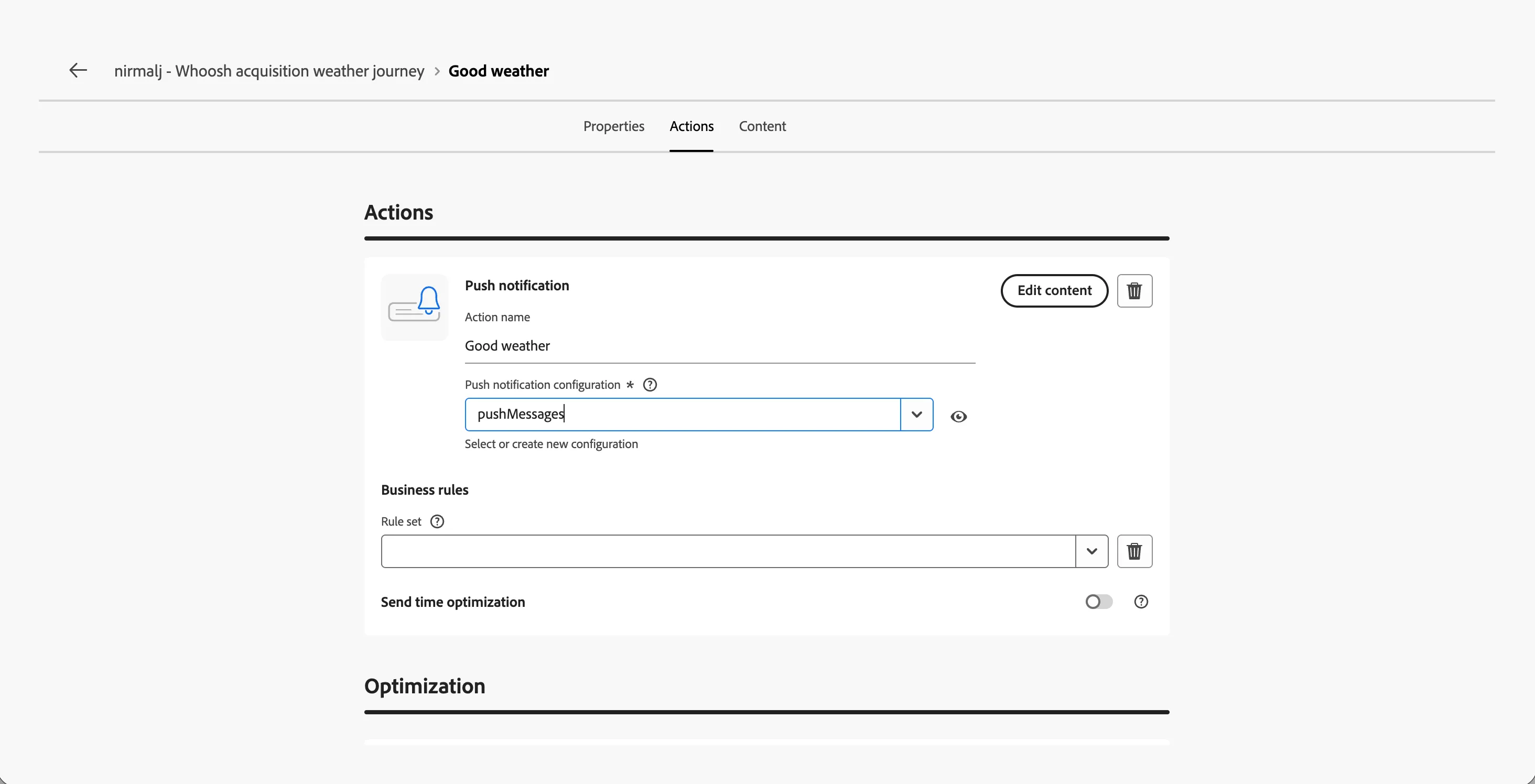
- Click on Edit content to start designing your message.
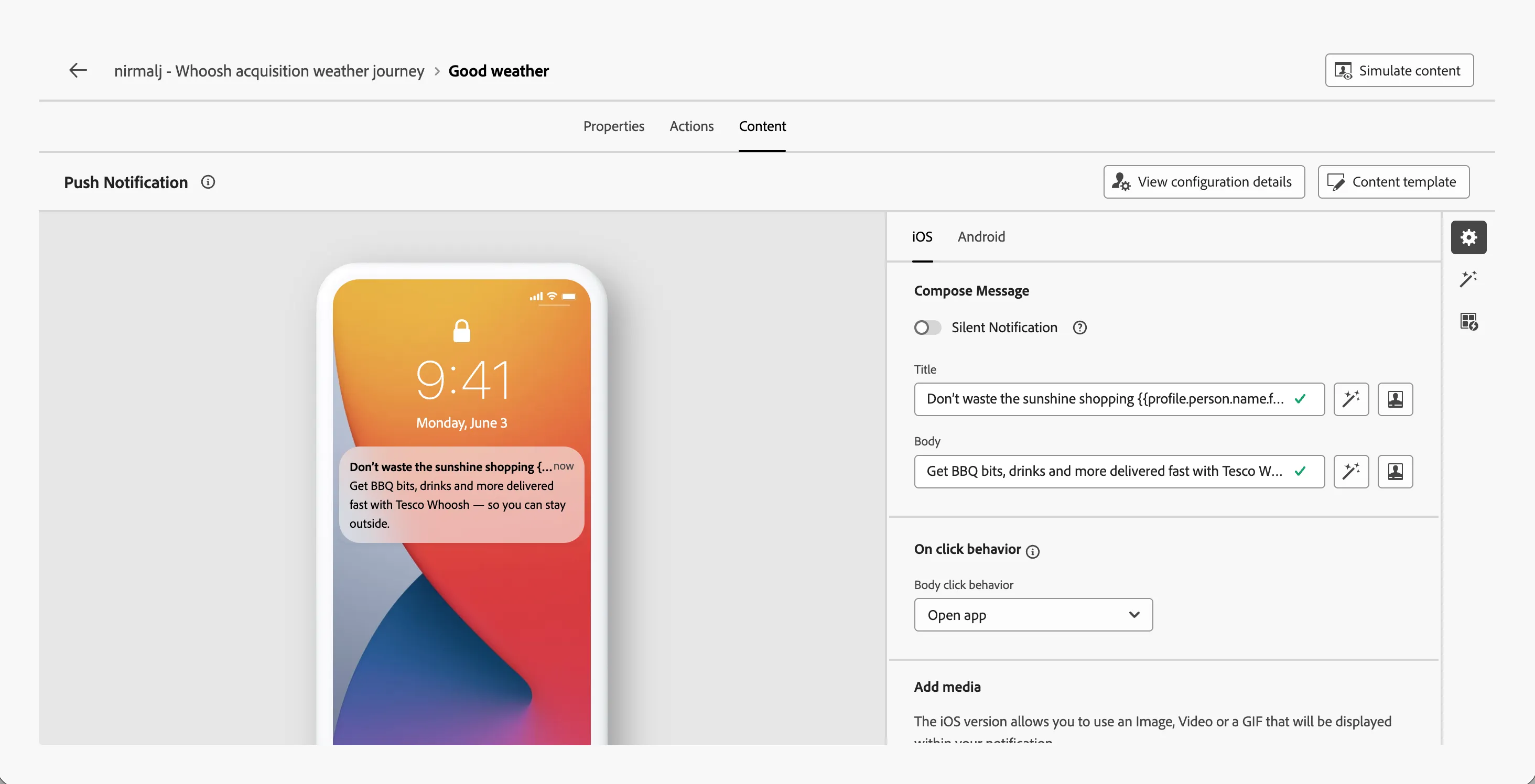
- Click on to create a Title line. Set it to Don’t waste the sunshine shopping FIRSTNAME.
- Remove the text FIRSTNAME and search for first name in the profile attributes.
- Find the field First name (... attributes > person > Full name) and click on the icon to add it to your subject line. It should now beDon't waste the sunshine shopping {{profile.person.name.firstName}}
- Click Save.
- Set the body to Get BBQ bits, drinks and more delivered fast with Tesco Whoosh — so you can stay outside
- Navigate out of the designer by clicking the -icon on the top left of your screen. Click on Save to save the push action details.
Push #2 - Bad weather
- From the actions tab, choose Action and drag it onto the empty circle at the Bad weather path.
- Select Push as the action type and click on Add button.
- Click on the activity to open the detailed view.
- Set the label to Bad weather
- Click on Configure Action button.
- Select the configuration as pushMessages.
- Click on Edit content to start designing your message.
- Click on to create a Title line. Set it to Stay Dry FIRSTNAME. We’ll Whoosh It 🚀
- Remove the text FIRSTNAME and search for first name in the profile attributes.
- Find the field First name (... attributes > person > Full name) and click on the icon to add it to your subject line. It should now be Stay Dry {{profile.person.name.firstName}}. We’ll Whoosh It 🚀
- Click Save.
- Set the body to Skip the trip to store. Get your Tesco favourites delivered fast with Whoosh — straight to your door.
- Navigate out of the designer by clicking the -icon on the top left of your screen. Click on Save to save the push action details.
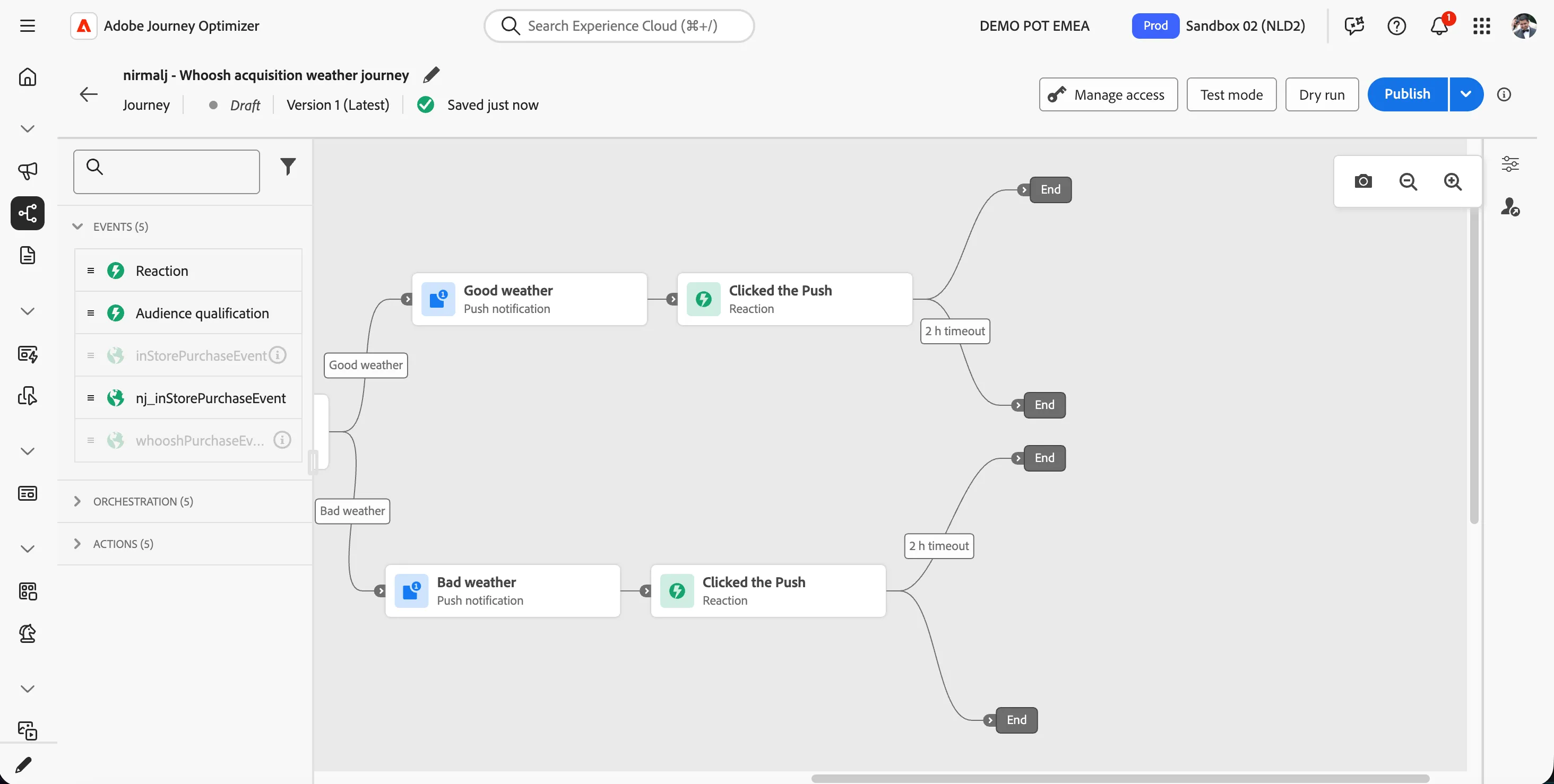
Now the journey should look like below.
Checking reactions to the good weather push #1
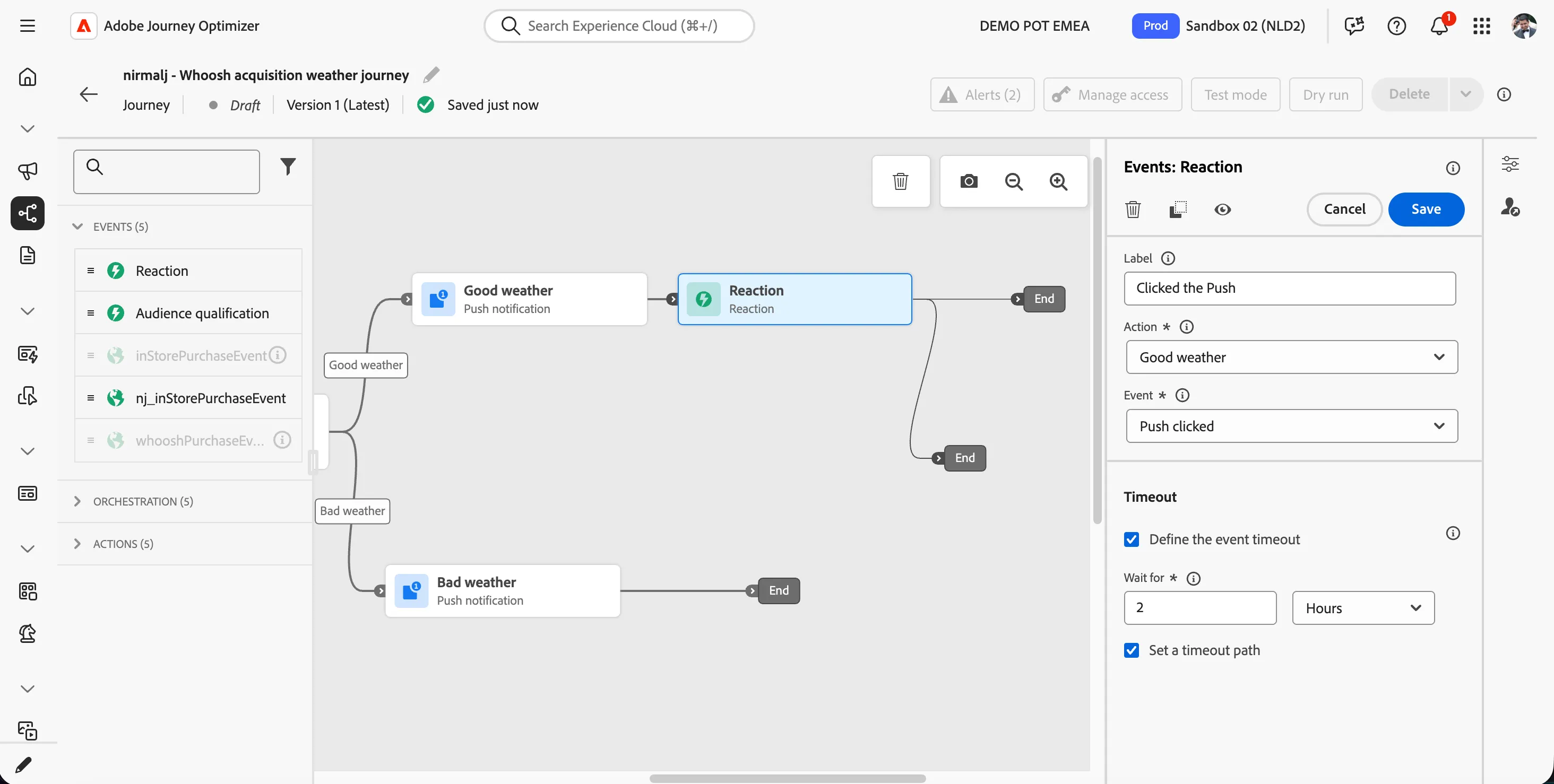
- From the events tab, choose Reaction and drag it onto the path next to Good weather push notification.
- Set the label as Clicked the Push.
- Ensure Action is Good weather and Event is Push Clicked.
- Check the checkbox for Enable the event timeout.
- Set the wait time as 2 Hours.
- Click Save to save the reaction step.
Checking reactions to the bad weather push #2
- From the events tab, choose Reaction and drag it onto the path next to Bad weather push notification.
- Set the label as Clicked the Push.
- Ensure Action is Bad weather and Event is Push Clicked.
- Check the checkbox for Enable the event timeout.
- Set the wait time as 2 Hours.
- Click Save to save the reaction step.
- Swap the paths alignment to make the timeout path comes on the top and success path goes to the bottom as below.
Create whoosh Benefits Email
In the next steps you will be building the email to remind the benefits of whoosh to the customer.
Building the Email
- From the actions tab, choose Action and drag it onto the empty circle at the 2 h timeout in Good weather path.
- Select Email as the action type and click on Add button.
- Set the label as Whoosh Benefits Reminder.
- Click on Configure action button.
- Select Email configuration as marketingEmailMessages.
- Click on Edit content button.
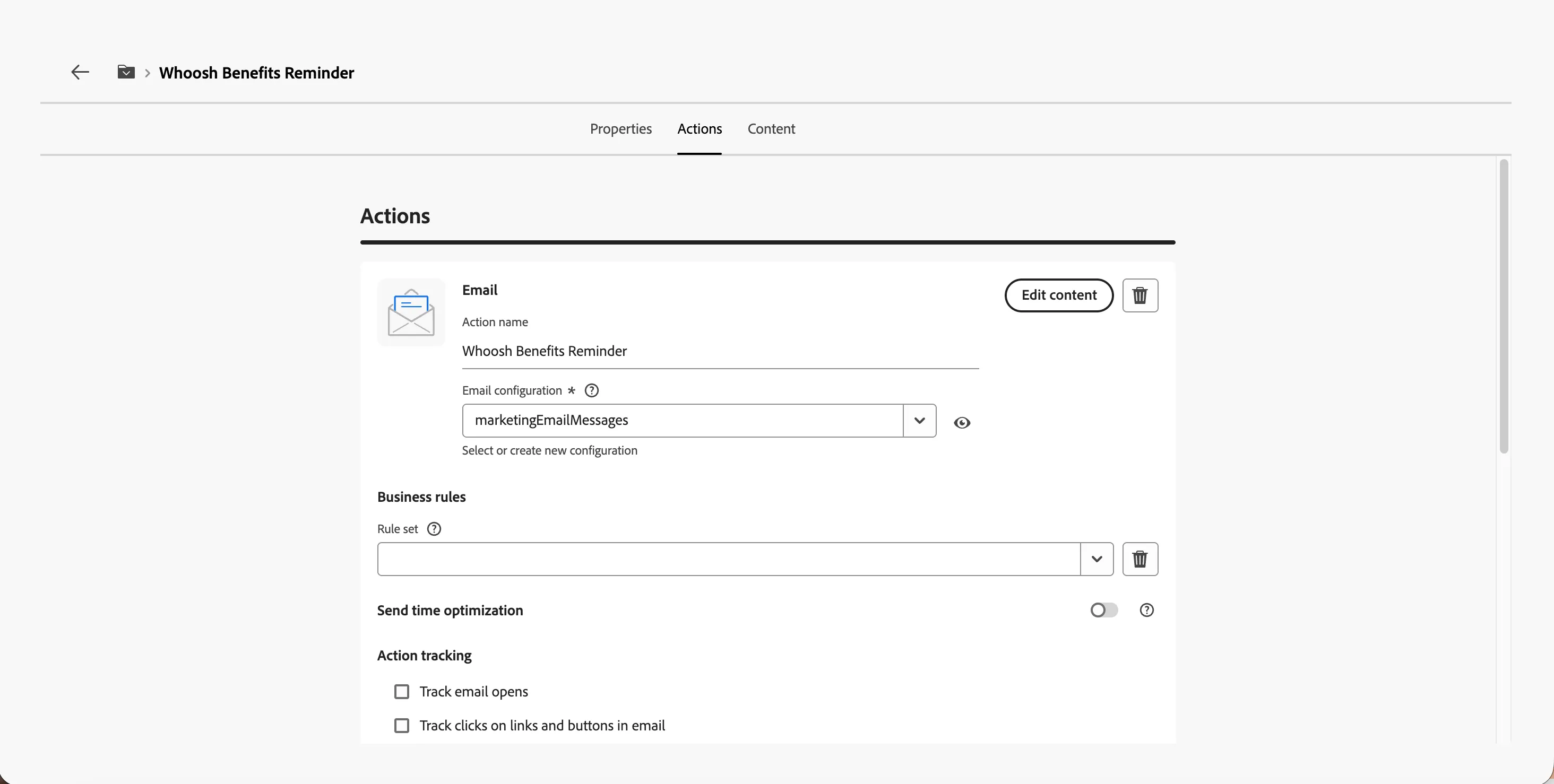
The Email Designer
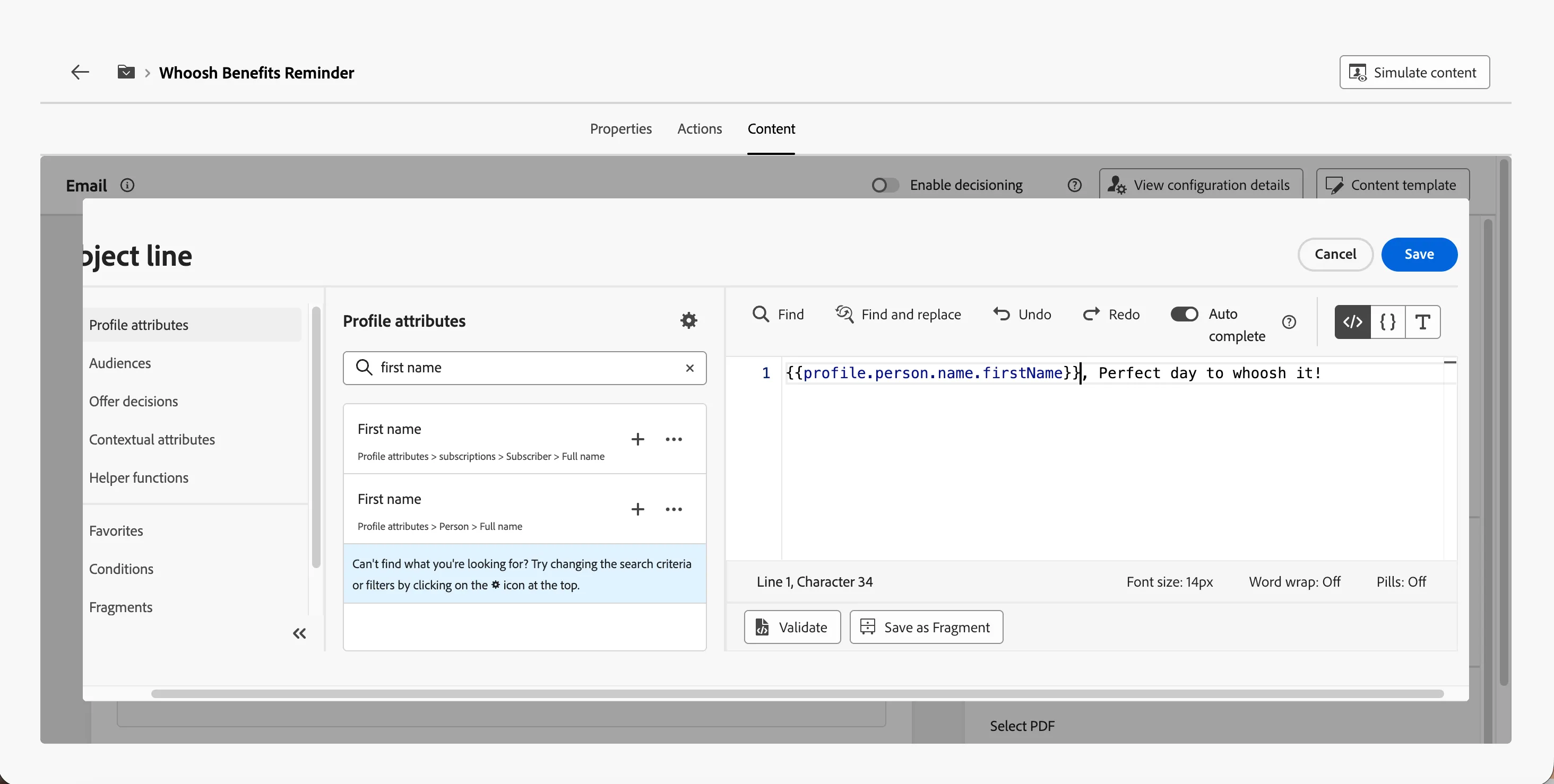
- Click on to create a subject line. Set it to FIRSTNAME, Perfect day to whoosh it!
- Remove the text FIRSTNAME and search for first name in the profile attributes.
- Find the field First name (... attributes > person > Full name) and click on the icon to add it to your subject line. It should now beHi {{profile.person.name.firstName}}, Perfect day to whoosh it!
- Click Save.
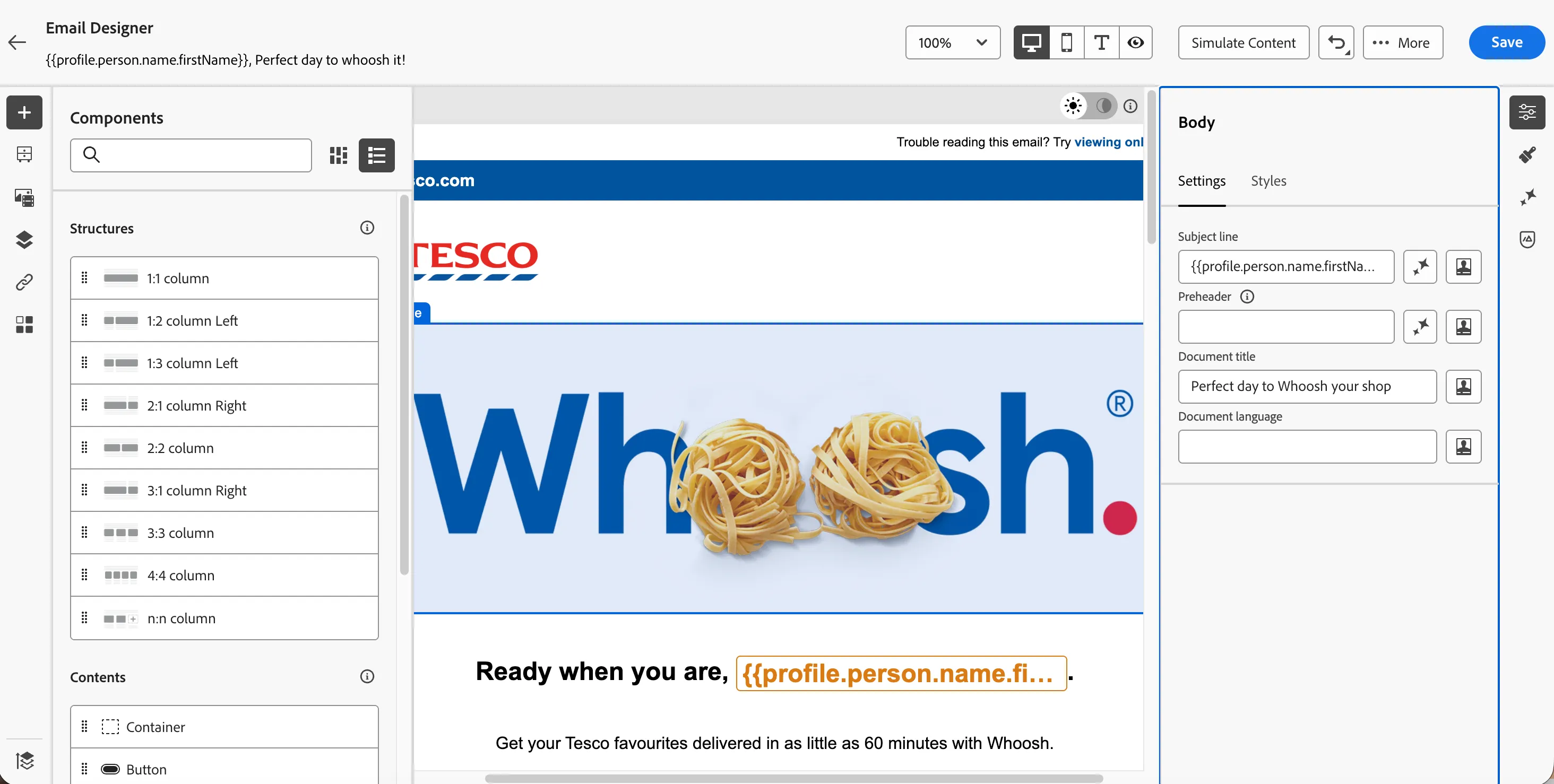
- Click on Edit email body and under Saved templates, choose Whoosh template. It will show you a preview of the template. Click on Use this template.
- The email designer will now open. It should look like the image below. Click Save in the top right.
Adding an A/B Test for Email
We want to test a different variant of an email to understand which type of content is performing better. For this we will use experimentation in adobe journey optimizer.
- Click on icon of the top left to go back to Email configuration summary.
- Click on Create Experiment button in the Optimization section in Actions tab.
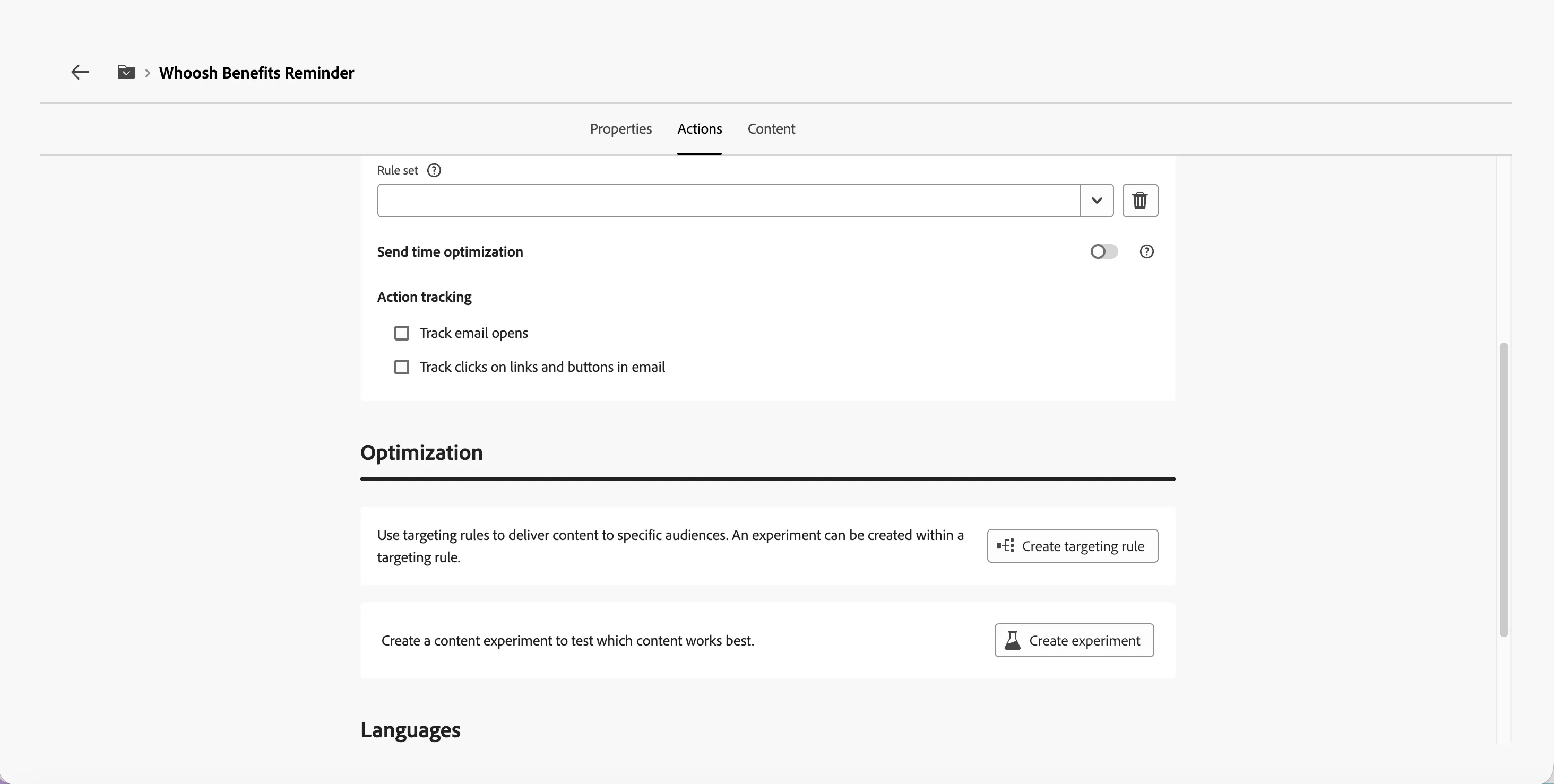
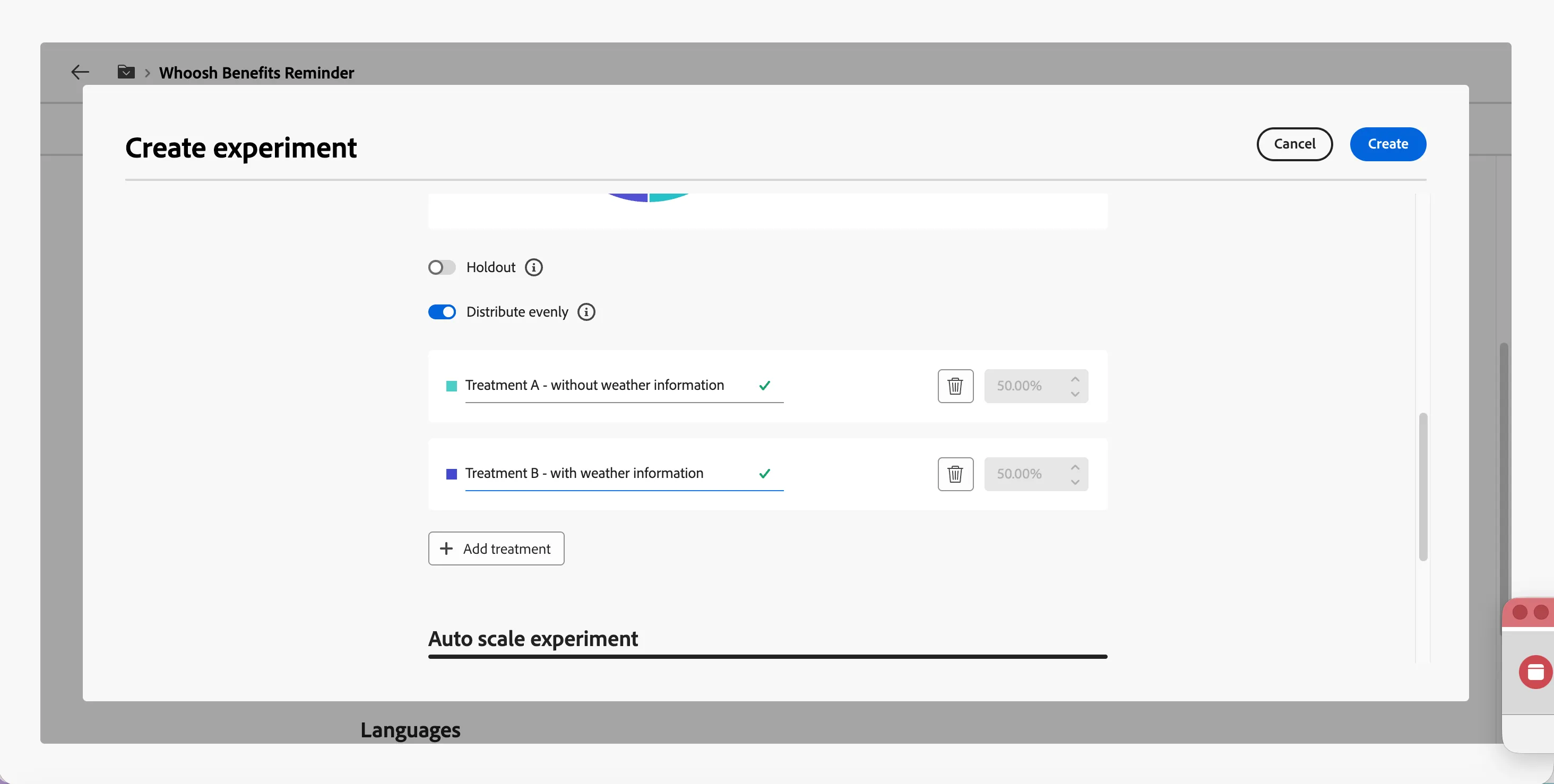
- In the experiment configuration
- Set the name as Experimentation with or without weather data.
- Keep the success metric as Unique clicks.
- Scroll down to Distribution section. Rename Treatment A to Treatment A - without weather information.
- Click on Add treatment to add another treatment. Rename Treatment B to Treatment B - with weather information.
- Click Create to create the experiment.
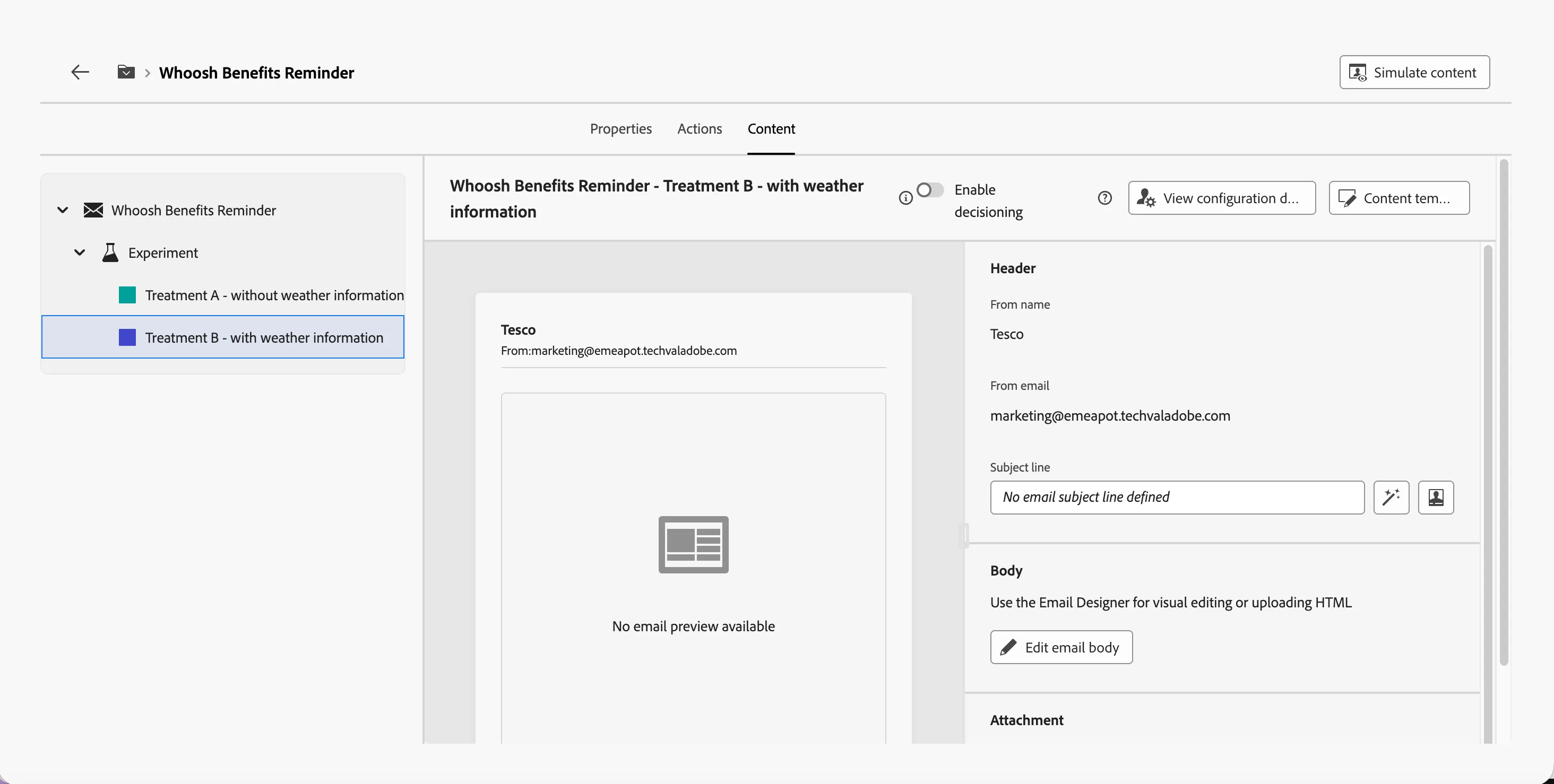
- Click on Content tab to go to the content of the emails. Select Treatment B - with weather information to configure the content of the experiment.
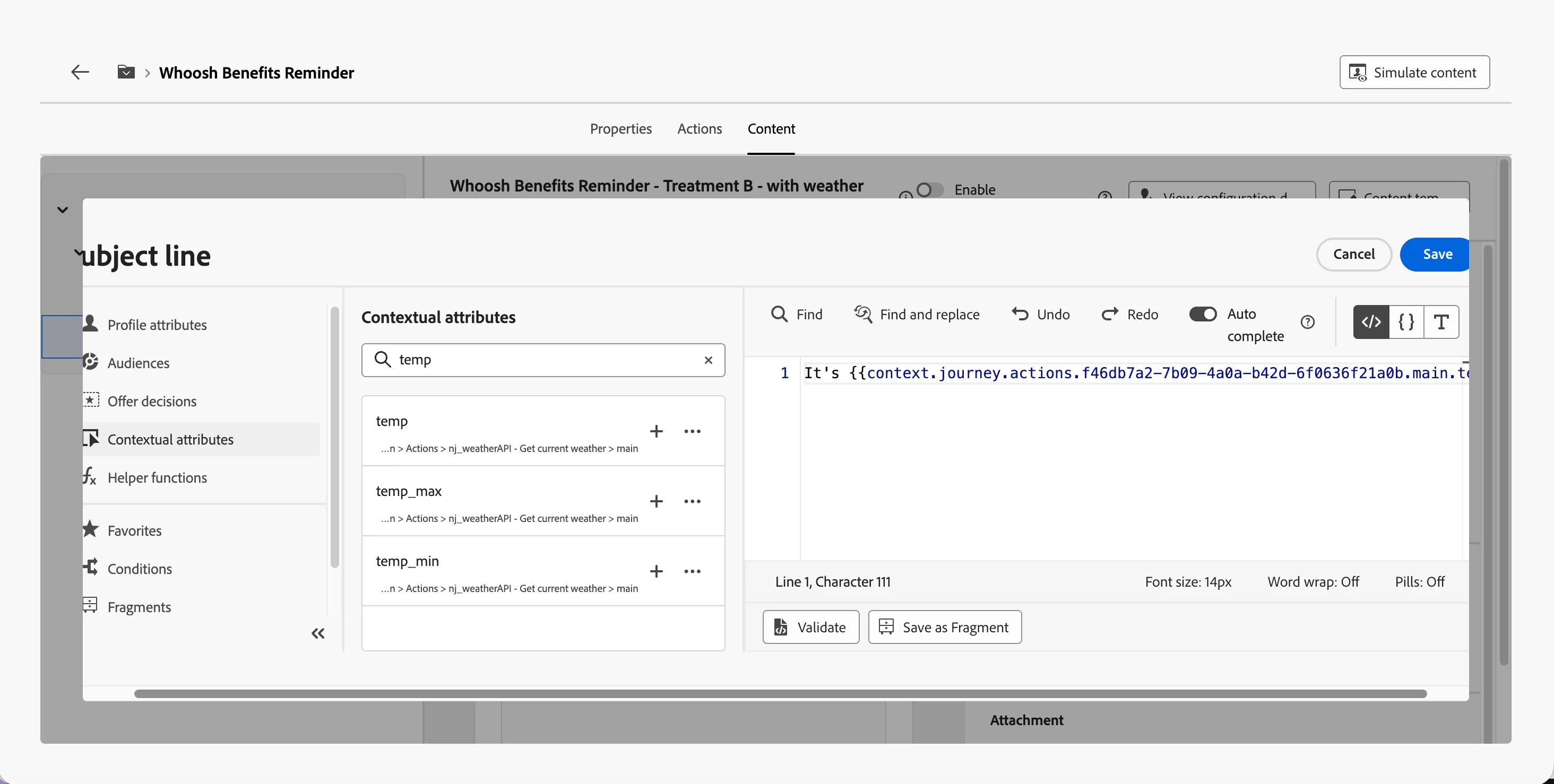
- Click on to create a subject line. Set it to It's TEMPERATURE ºC outside, why not whoosh it?
- Remove the text TEMPERATURE and search for temp in the contextual attributes.
- Find the field temp (...n > Actions > yourname_weatherAPI - Get current weather > main) and click on the icon to add it to your subject line. It should now be It's {{context.journey.actions.f46db7a2-7b09-4a0a-b42d-6f0636f21a0b.main.temp}} ºC outside, why not whoosh it? Please note, the action id will be different for your custom action
- Click Save.
- Click on Edit email body and under Saved templates, choose Whoosh template - weather variant. It will show you a preview of the template. Click on Use this template.
The email designer will now open. It should look like the image below. Click Save in the top right.
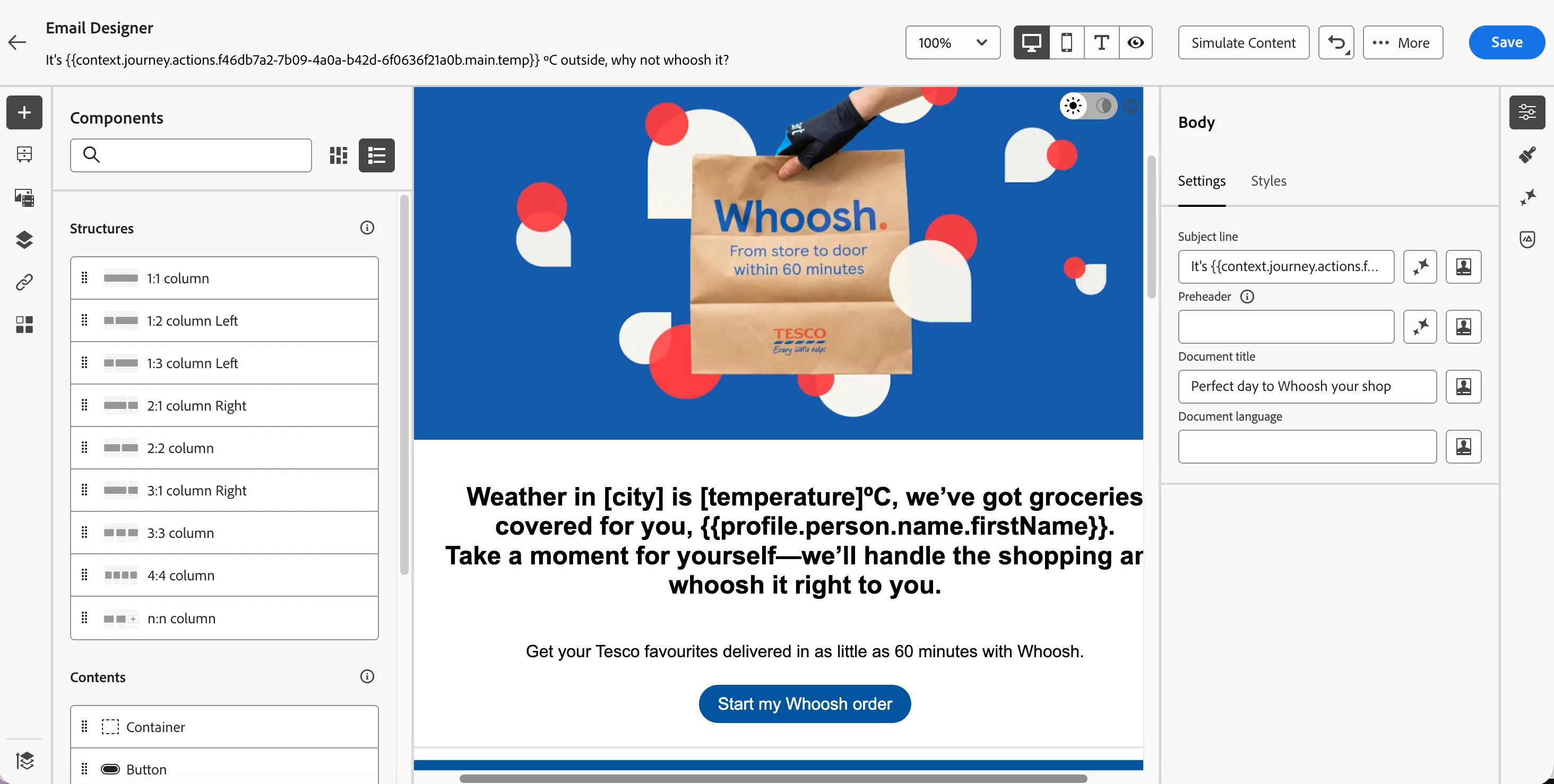
In order to update the personalised text in the email,
- Select the title text block by clicking on it. This should highlight the text block in blue border and a ribbon menu will appear.
- Click on personalzation button to open the personalisation popup.
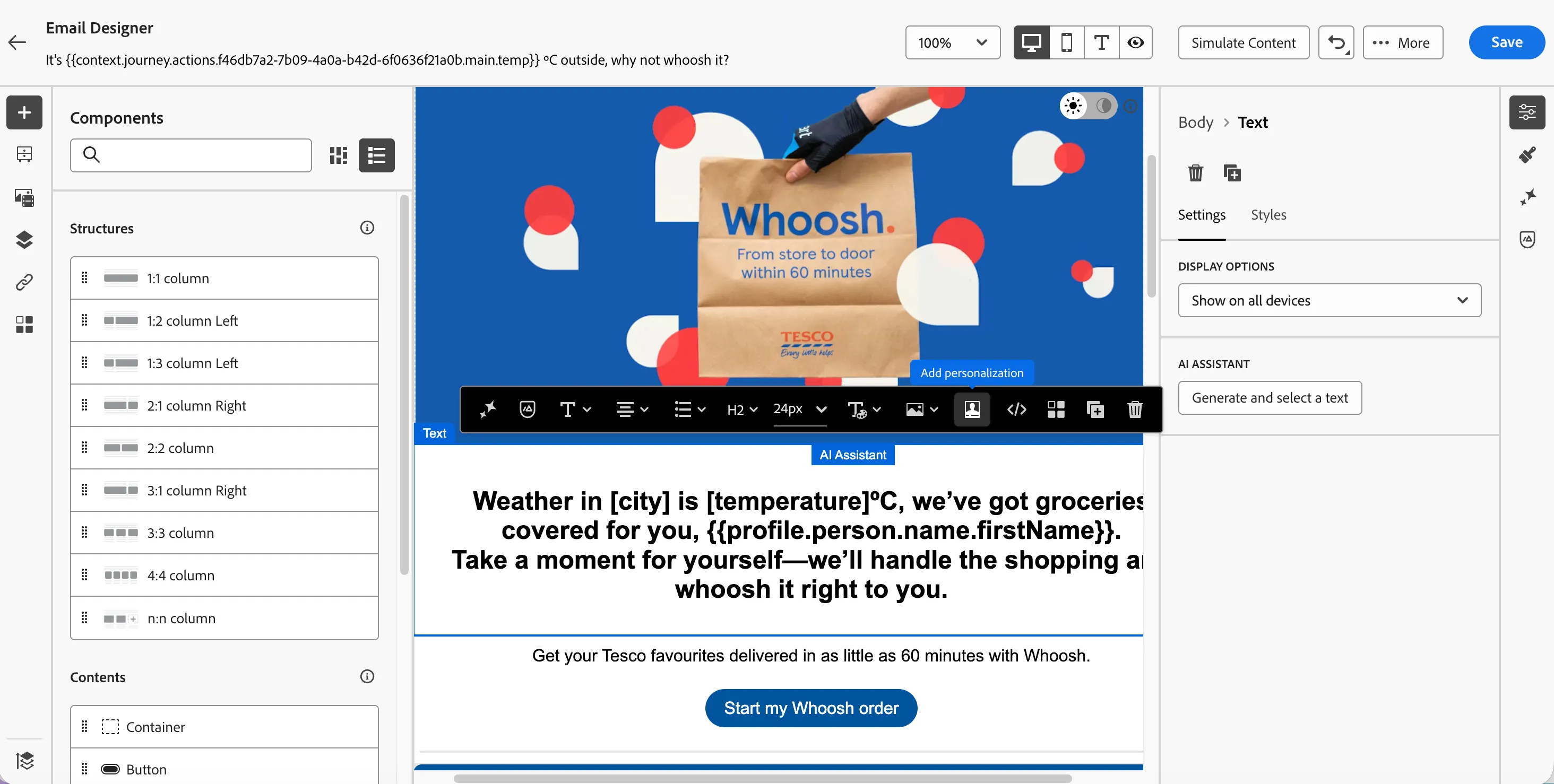
- In the personalistion popup,
- Set it to Weather in CITY is TEMPERATURE ºC, we’ve got groceries covered for you, {{profile.person.name.firstName}}. Take a moment for yourself—we’ll handle the shopping and whoosh it right to you.
- Remove the text CITY and navigate to Contextual attributes > Journey Orchestration > Actions > yourname_weatherAPI - Get current weather > name. Click on -icon next to to it to add it othe canvas.
- Remove the text TEMPERATURE and search for Contextual attributes > Journey Orchestration > Actions > yourname_weatherAPI - Get current weather > main > temp. Click on -icon next to to it to add it othe canvas.
- Once added it will be like Weather in {{context.journey.actions.f46db7a2-7b09-4a0a-b42d-6f0636f21a0b.name}} is {{context.journey.actions.f46db7a2-7b09-4a0a-b42d-6f0636f21a0b.main.temp}} ºC, we’ve got groceries covered for you, {{profile.person.name.firstName}}. Take a moment for yourself—we’ll handle the shopping and whoosh it right to you. Please note the action IDs will be different for your custom actions
- Click Save.
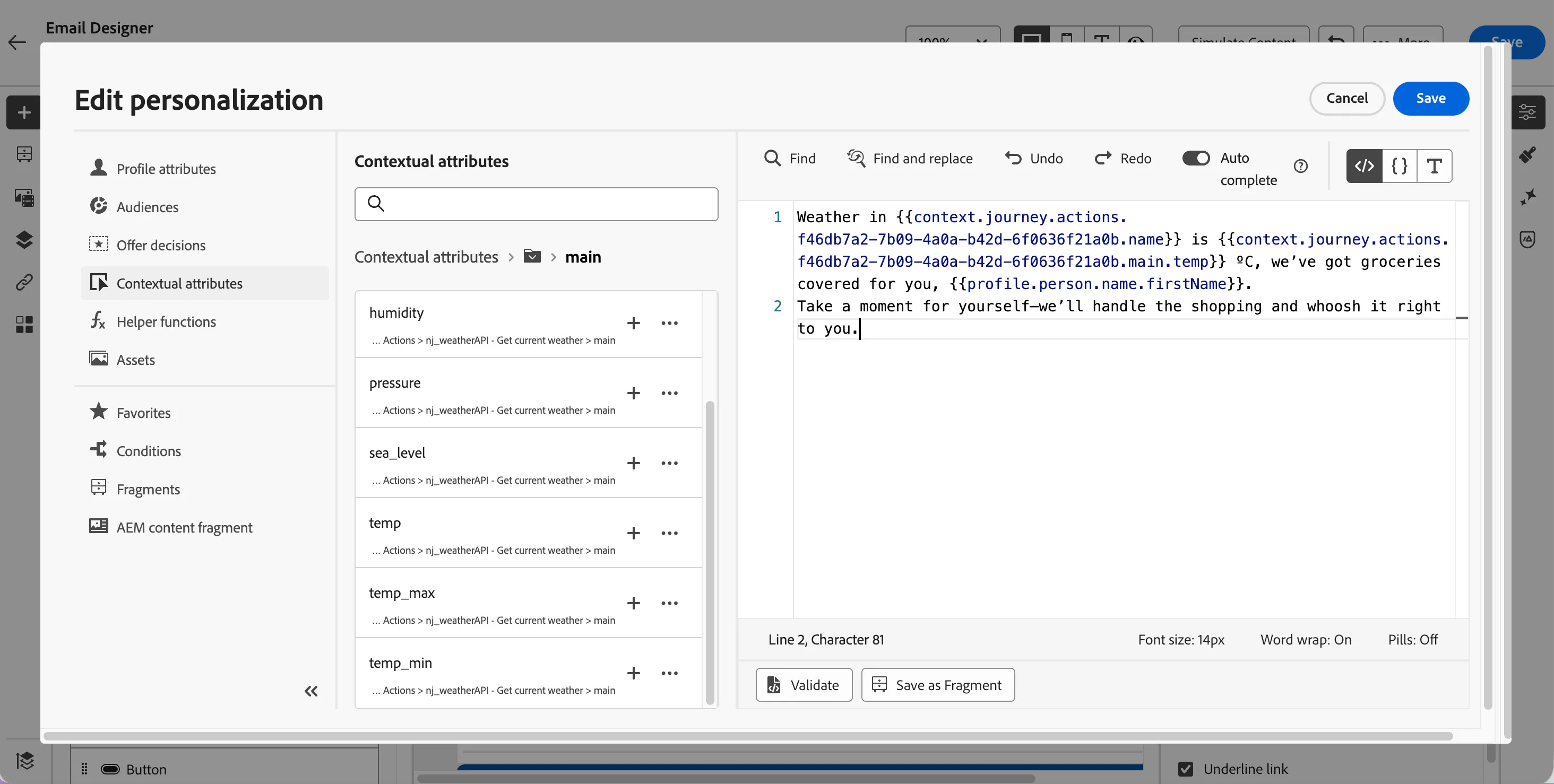
- Click Save on top right of the email designer as well to save the changes to the email.
- Click on icon of the top left to go back to Email configuration summary.
- Click on icon of the top left to go back to journey canvas.
- Click on Save on the Action panel to save the Email.
Merging timeout paths
- Drag the Whoosh Benefits Reminder Email step to the empty circle in the Bad weather 2 h timeout path.
- The path will auto merge and for timeout paths, the customers will receive the email.
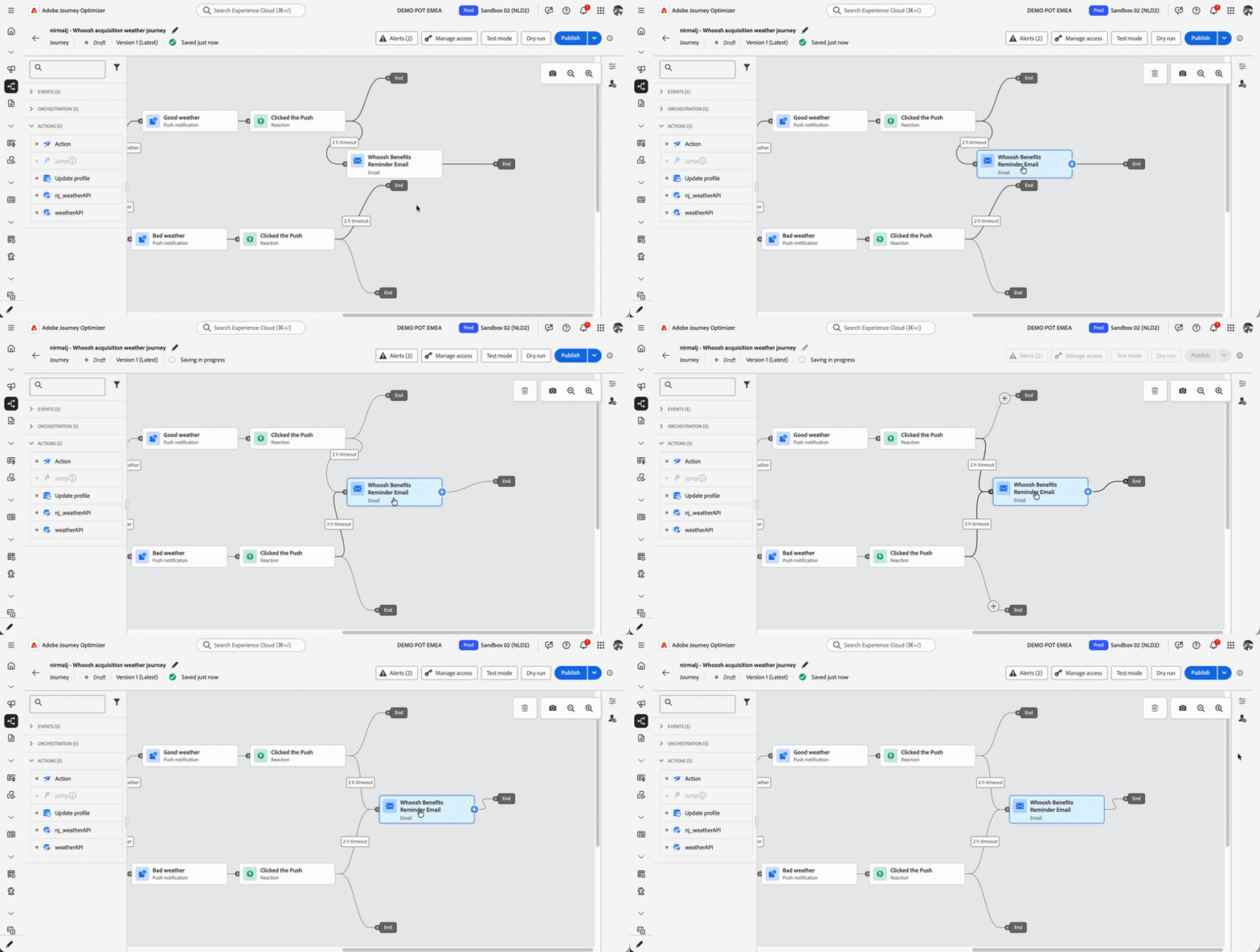
Create a personalised Homepage experience
We want to remind the customer about the whoosh delivery when they first land back on the website. We want to use web-based experience action to personalise the homepage banner.
- From the actions tab, choose Action and drag it onto the icon after the Whoosh benefits reminder email.
- Select Web as the action type and click on Add button.
- Click on the activity to open the detailed view.
- Set the label to Homepage banner for Whoosh benefits.
- Click on Configure action button.
- Set the web configuration to webChannel. This is the channel configured we have pre-configured with the demo site details.
- Click on Edit content to start designing your web experience.
- click on Edit web page from the right side pane.
- Click on the main banner image to show the editing options available. From the options click Choose Image. This will open the Assets popup.
From here you can get images from various sources or you can generate image using firefly. We'll use an image stored in AEM Assets.
- Click Select Assets from the options on the left of the window.
- Search for whoosh and select whoosh-banner.png.
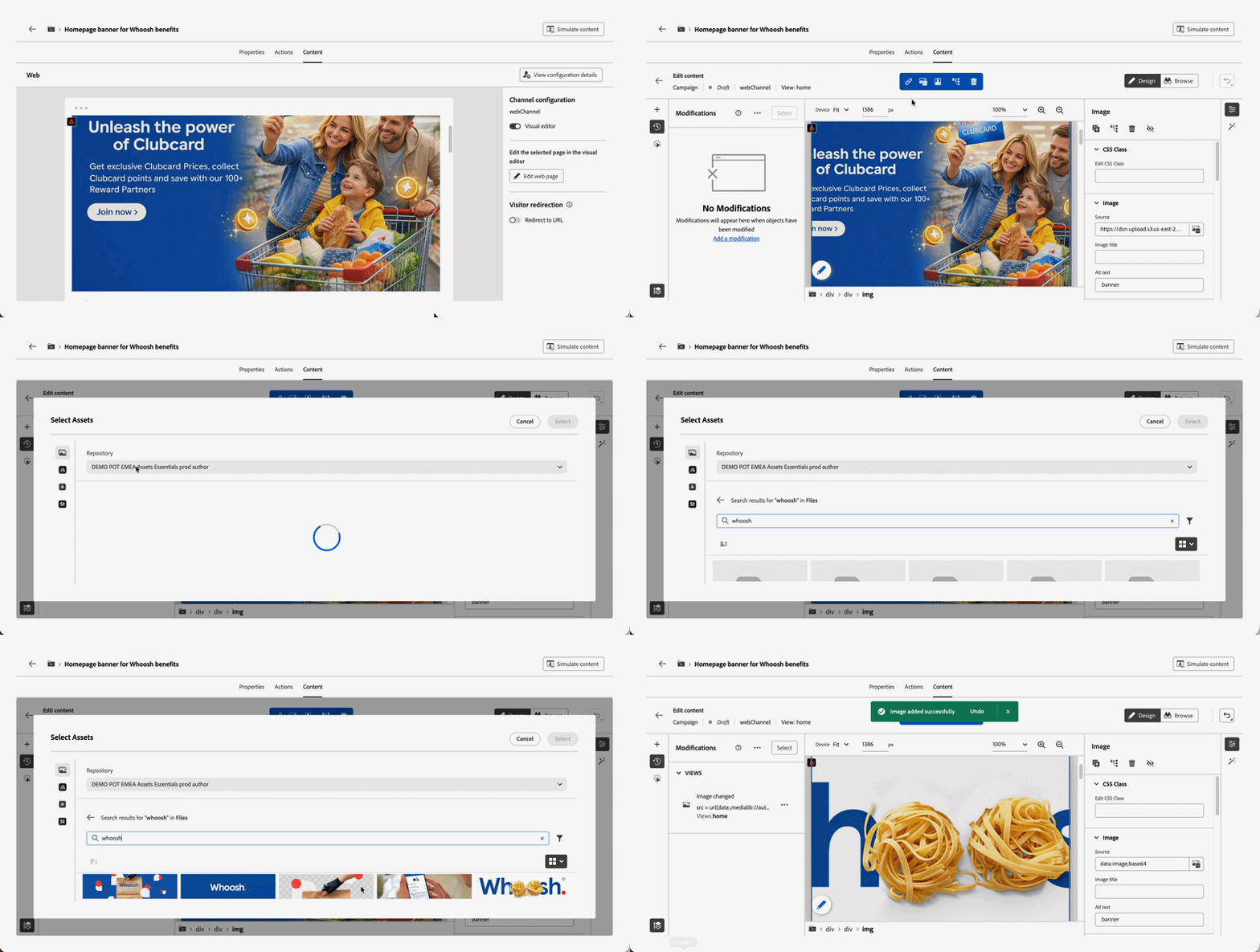
Your Homepage banner should now look like:
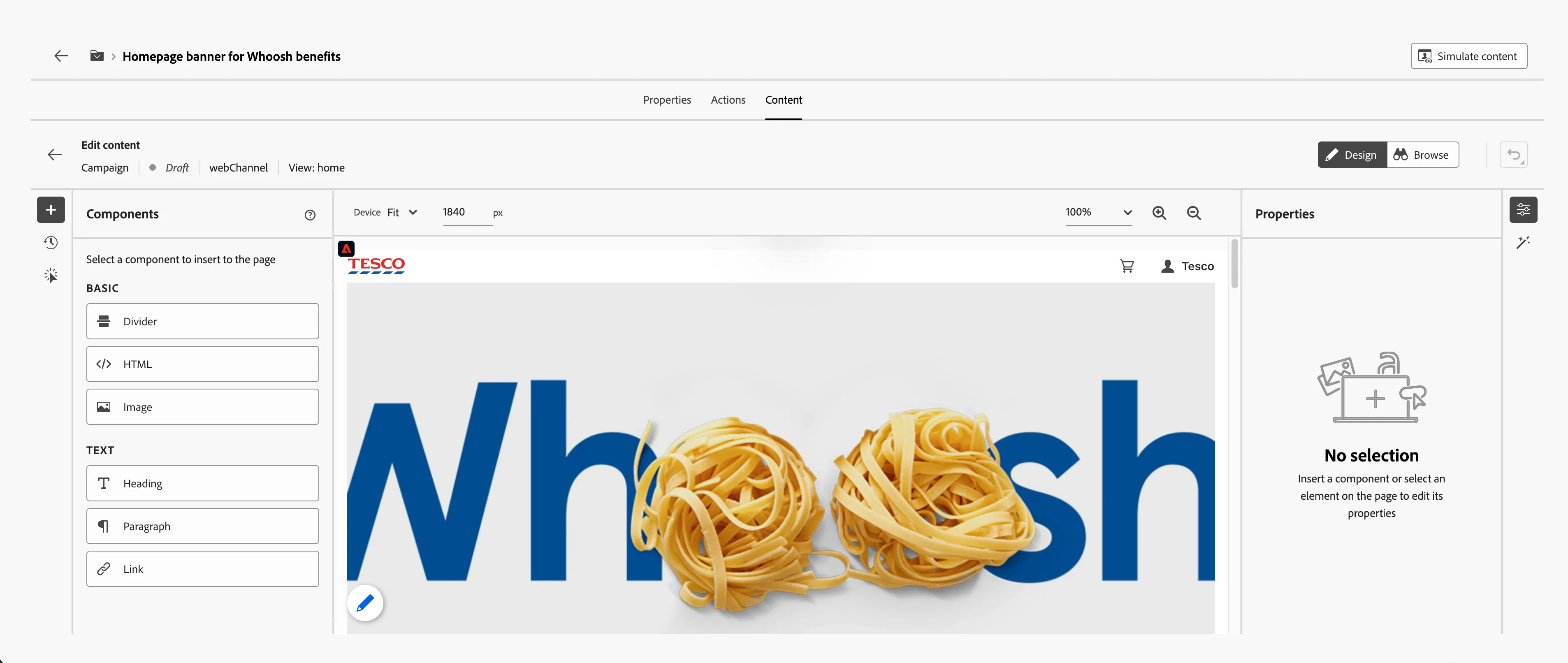
- Click on icon of the top left to go back to web configuration summary.
- Click on icon of the top left to go back to journey canvas.
- Click on Save on the Action panel to save the web personalisation experience.
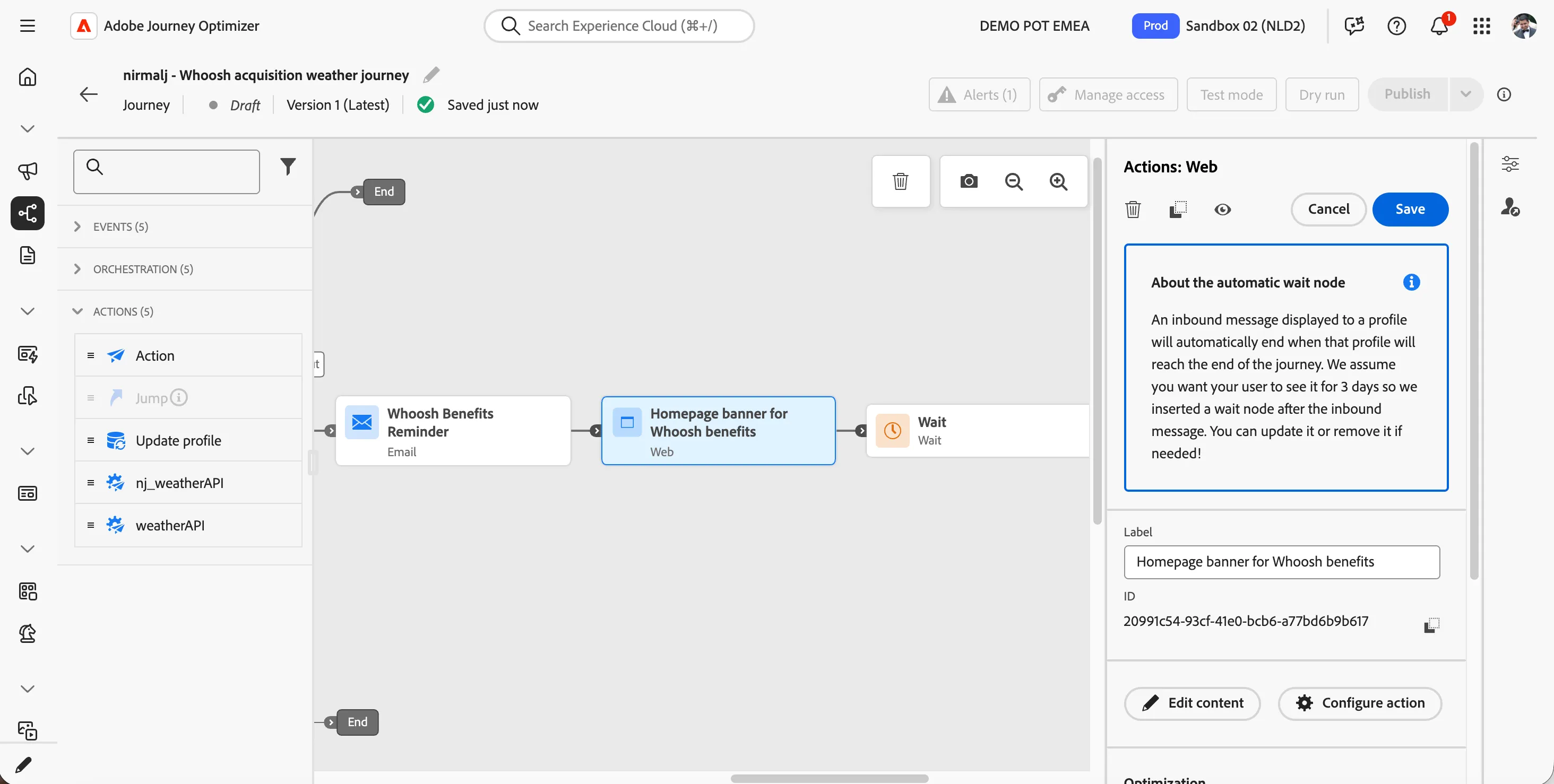
As you can see on the journey, there is a wait node added automatically after the web experience action. For our usecase, we can delete the wait node.
- Click on the wait node.
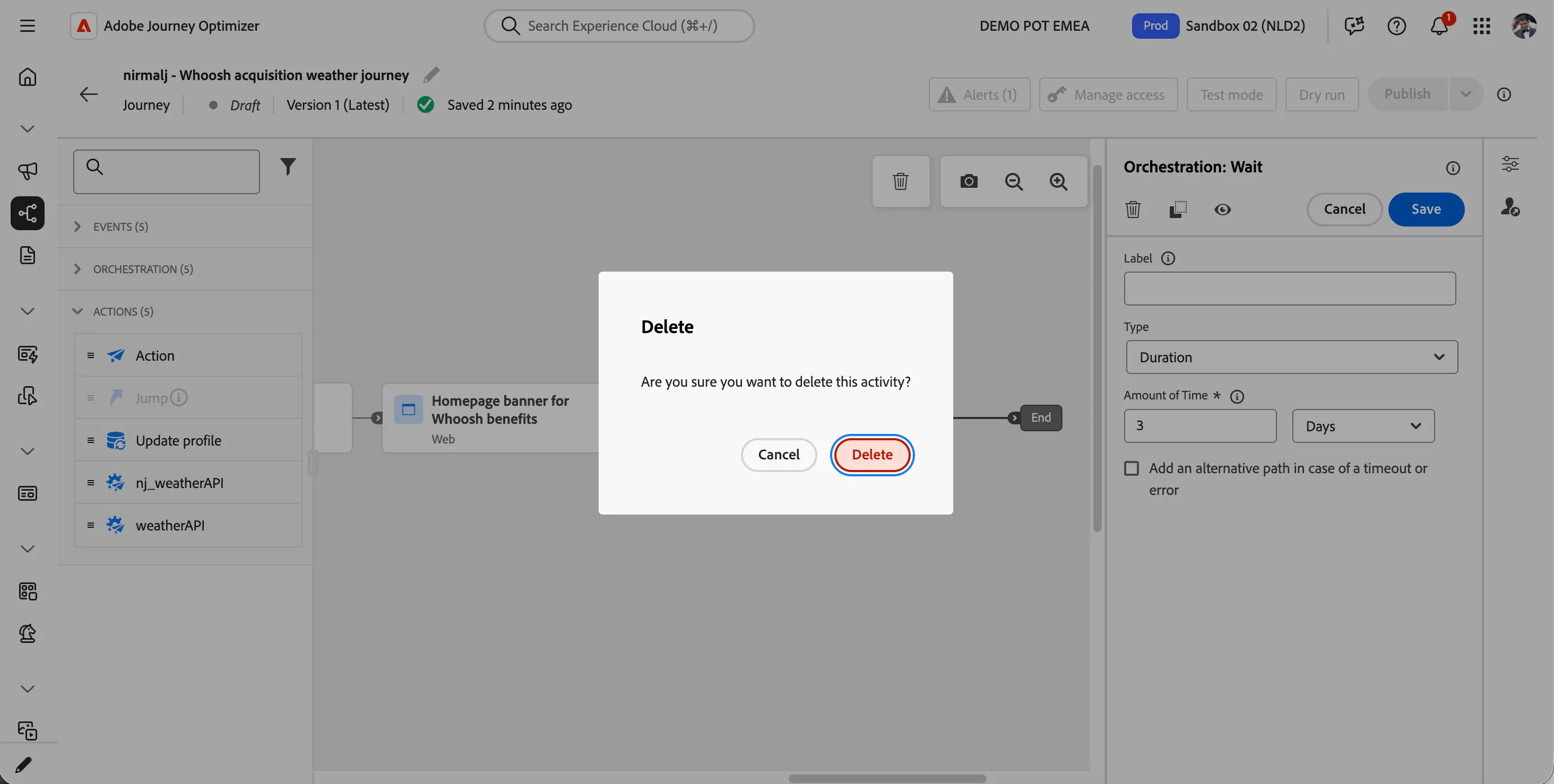
- Click on Delete icon, the top left icon of the Action panel for wait node.
- Confirm Delete to delete the node.
Check whether they did an in-store purchase
Now that the customer has received an email reminder, we will wait for a product purchase event. If they purchase the product we will exit the product.
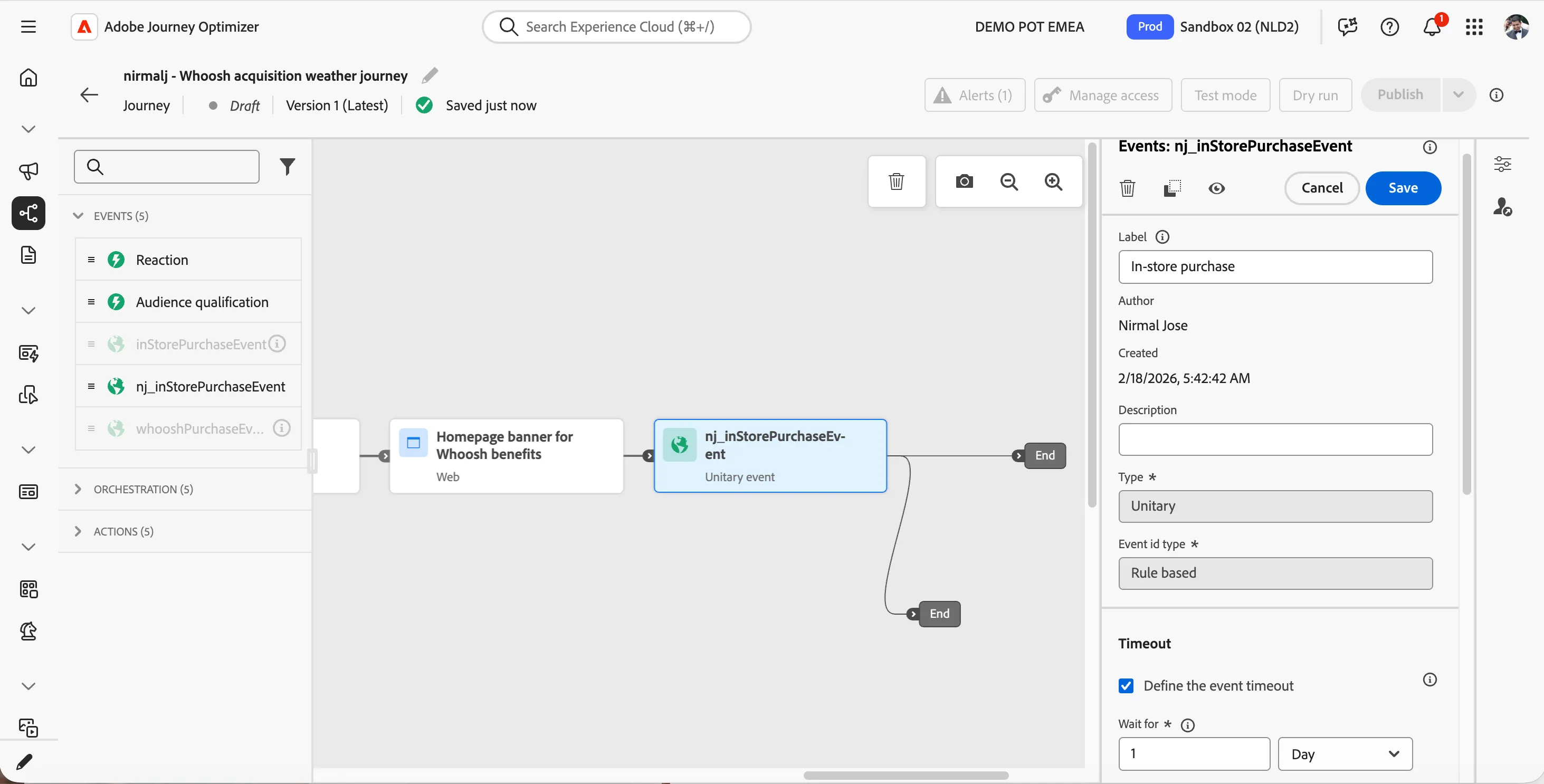
- Drag and drop yourName_inStorePurchaseEvent from Events tab and drag it into -icon as the next step to personlised web experience.
- Set the label as In-store purchase.
- Check the Define the event timeout checkbox to enable the time out flow.
- Click Save.
Condition check - was last purchase Whoosh Eligible?
We want to remind the customers once more about Whoosh delivery if the in-store order value is eligible for whoosh. For this we will use an optimize step in the journey.
- From the orchestration tab, choose Optimize and drag it onto the empty circle on the canvas next to In-store purchase.
- Click on the activity to open the detailed view.
- Set the label to Last purchase qualify for Whoosh?.
- Click on Path1 and change the label to Yes.
- Click on expression field to open a window.
- Click on Advanced mode button.
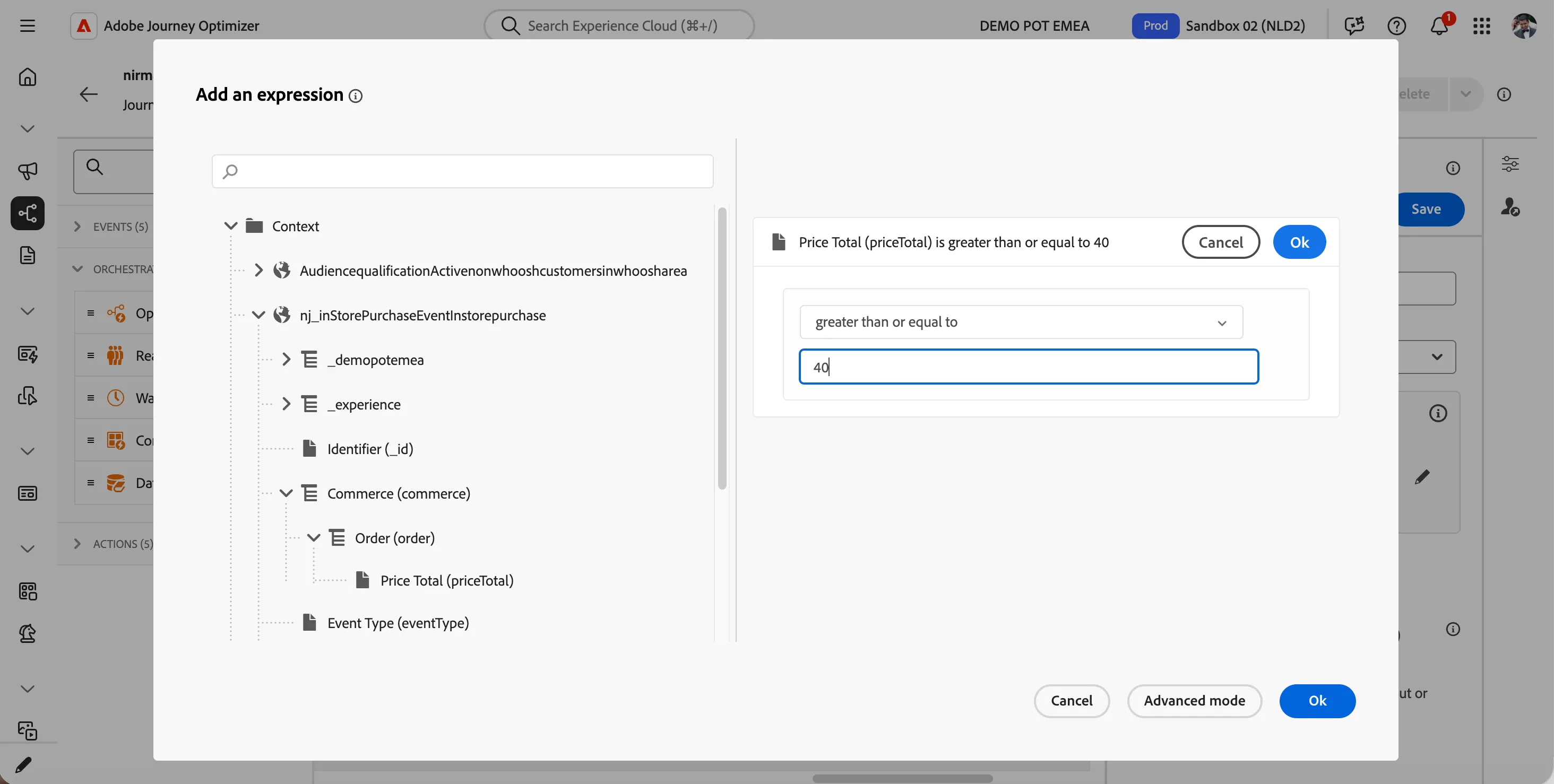
- Navigage to Context > yourname_inStorePurchaseEventInStorePurchase > Commerce (commerce) > Order (order) > Price Total (priceTotal) and drag and drop it to the canvas.
- Set the condition to greater than or equal to 40. Click OK on the condition and again OK at the bottom to save the expression
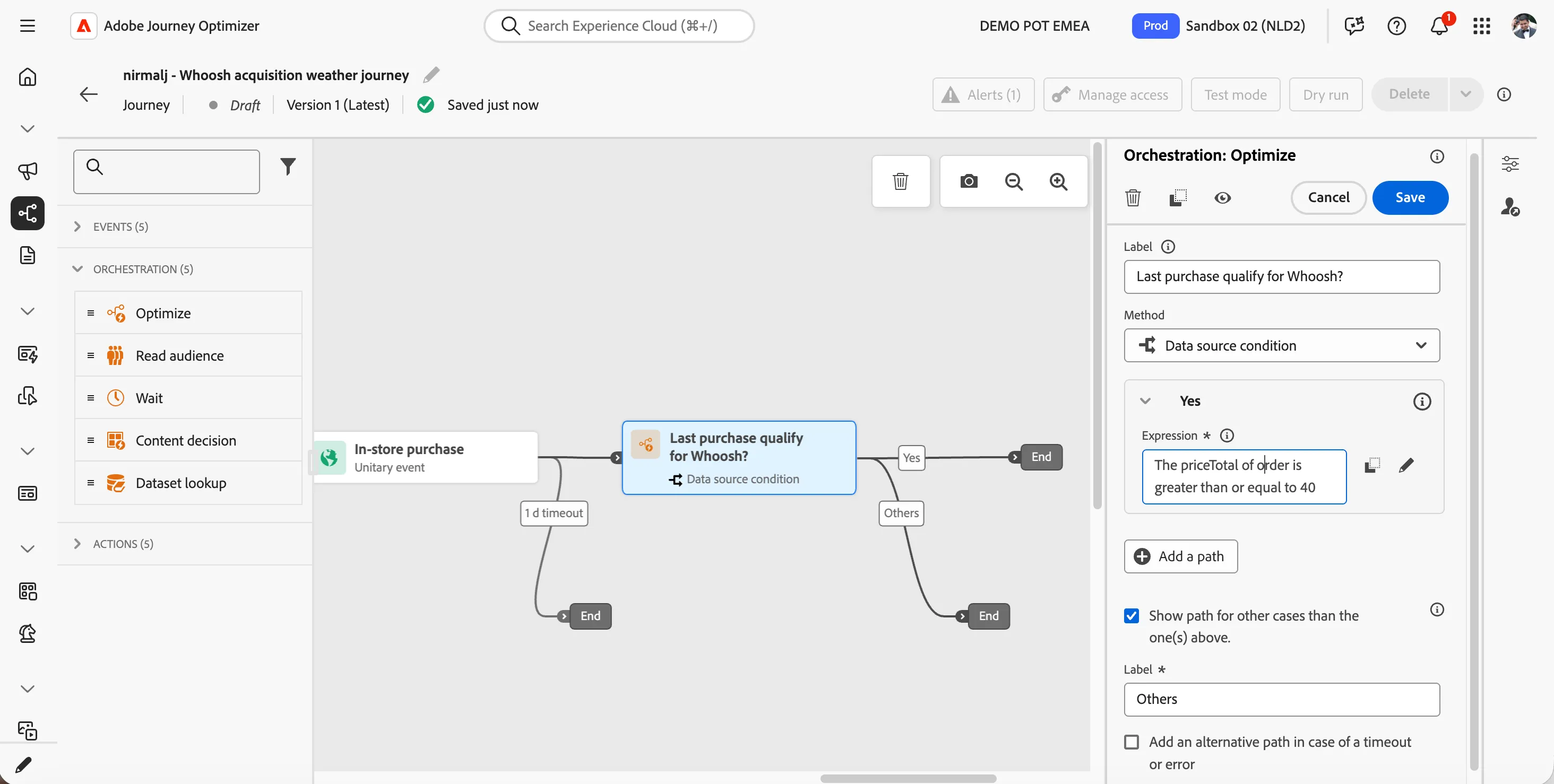
- Enable Show path for other cases than the one(s) above by checking the checkbox. Keep the label as Others.
- Click on Save button to save the condition. The screen should look like below.
Last order could have been Whoosh Email
In the next steps you will be building the email to remind that the last in-store order could have been whoosh.
- From the actions tab, choose Action and drag it onto the empty circle at the Yes path.
- Select Email as the action type and click on Add button.
- Set the label as Last order Whoosh Reminder.
- Click on Configure action button.
- Select Email configuration as marketingEmailMessages.
- Click on Edit content button.
- Click on to create a subject line. Set it to FIRSTNAME, you can whoosh it next time
- Remove the text FIRSTNAME and search for first name in the profile attributes.
- Find the field First name (... attributes > person > Full name) and click on the icon to add it to your subject line. It should now be{{profile.person.name.firstName}}, you can whoosh it next time
- Click Save.
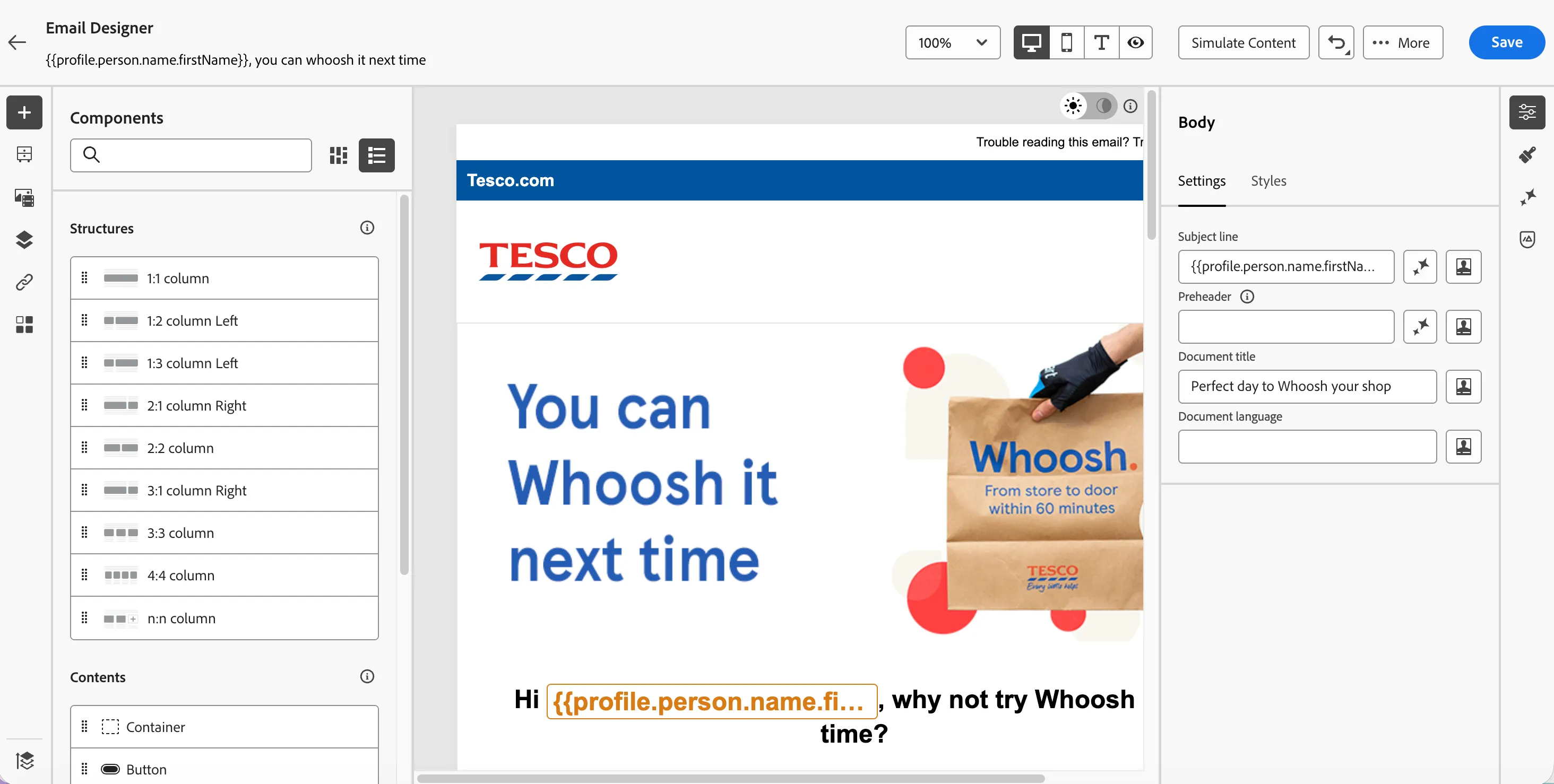
- Click on Edit email body and under Saved templates, choose Whoosh template - Next time. It will show you a preview of the template. Click on Use this template.
- The email designer will now open. It should look like the image below. Click Save in the top right.
- Click on icon of the top left to go back to Email configuration summary.
- Click on icon of the top left to go back to journey canvas.
- Click on Save on the Action panel to save the Email.
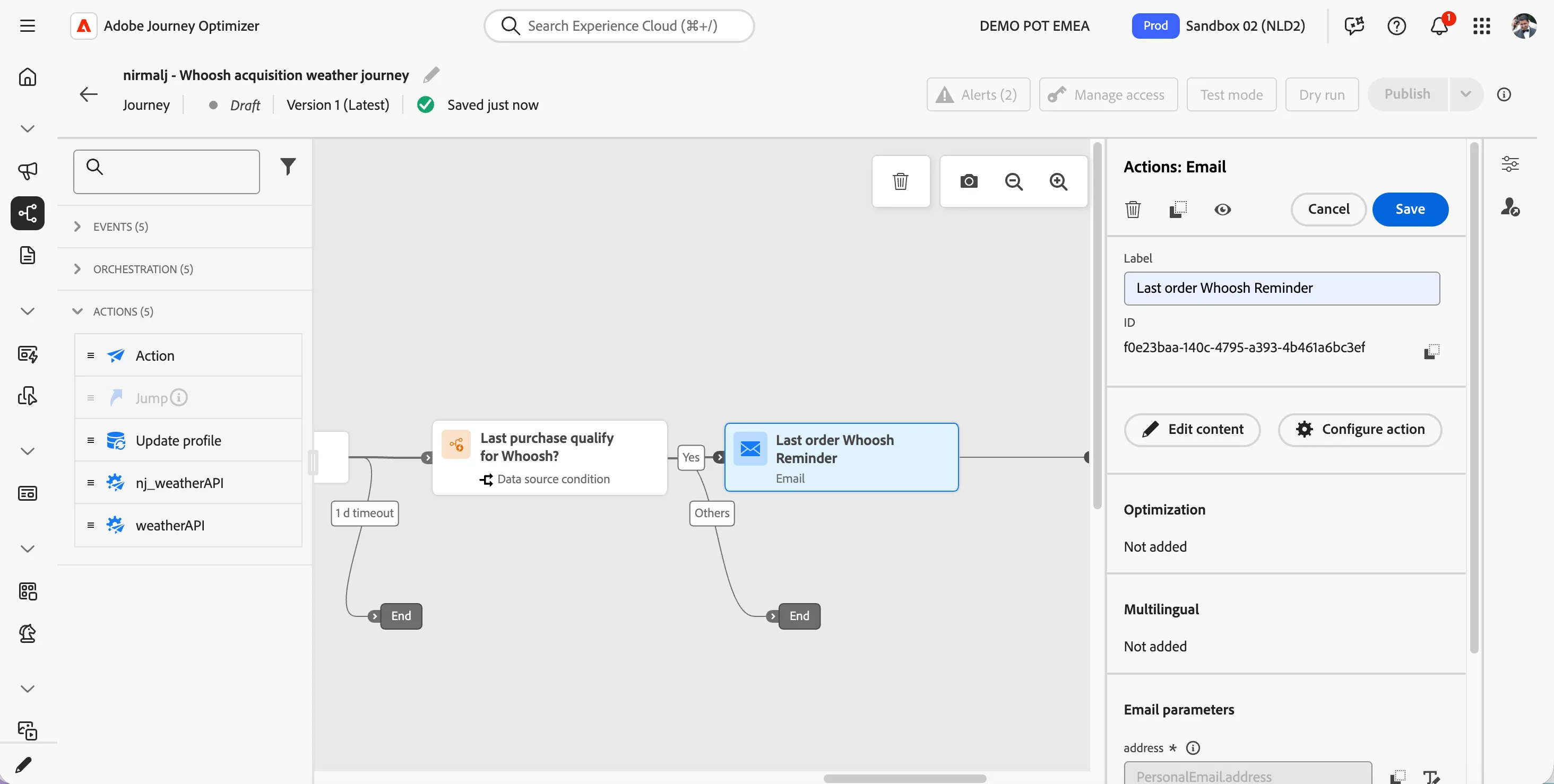
Adding an exit criteria
At any point of time if a customer place a whoosh order, we want the customer to come out of the journey. The feature is called exit criteria in Adobe journey optimizer.
- Click on Exit criteria icon.
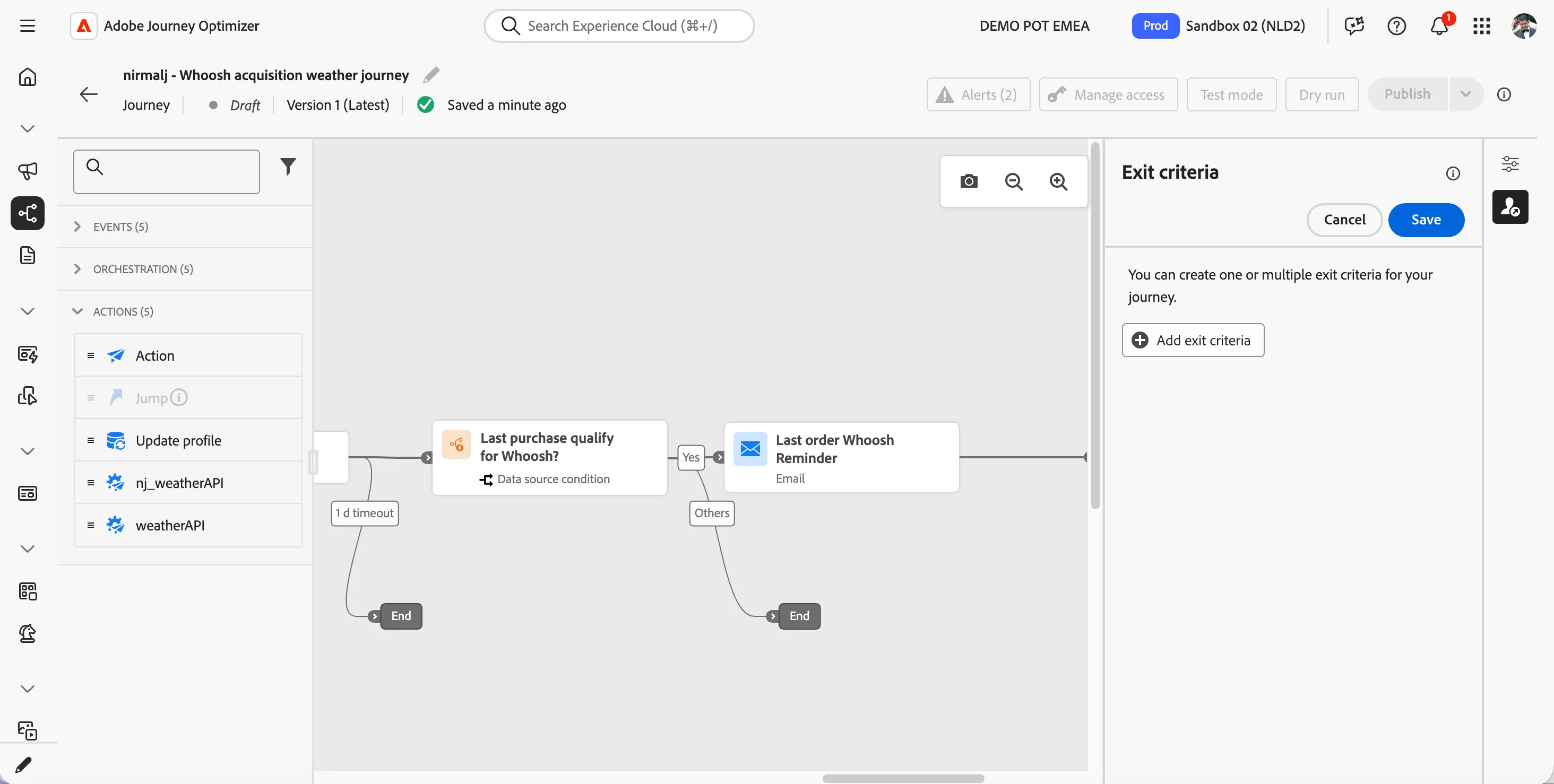
- Click on Add exit criteria button to add once criteria. You can add multiple exit criterias as needed.
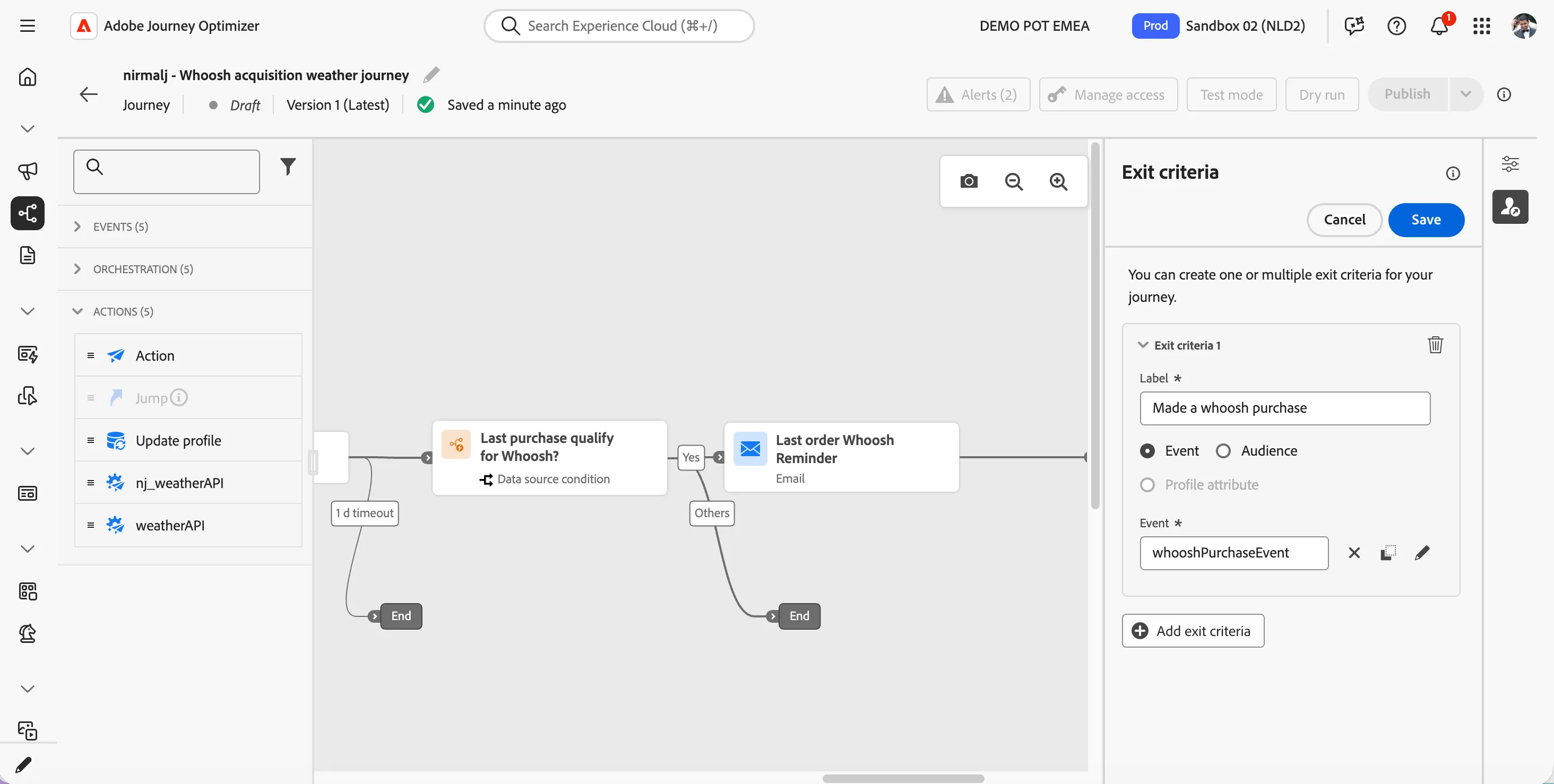
- Set the label as Made a whoosh purchase.
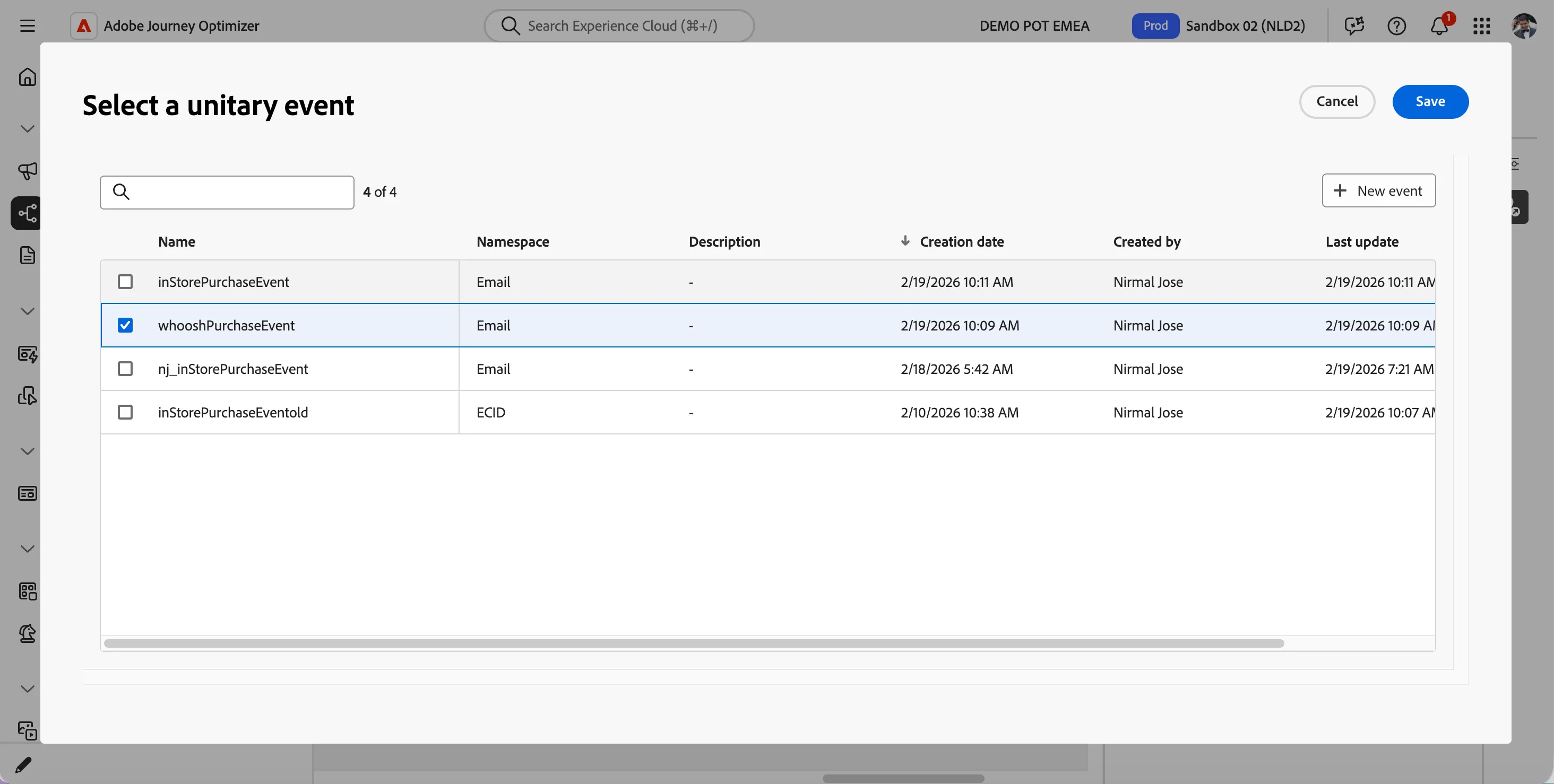
- Click on the event field or -icon next to it to open the unitary event selector.
- Select whooshPurchaseEvent from the list and click Save.
- Click Save on the Exit Criteria panel to save the criteria.
You have now successfully created the application journey using the Adobe Journey Optimizer. Next, we are going to test our journey using Test Mode.