Configuring an event
4 min
To open Adobe Journey Optimizer, click on nine dots on the top bar and select Adobe Journey optimizer. Check the Welcome section.
Event overview
To get an overview of all events in Adobe Journey Optimizer:
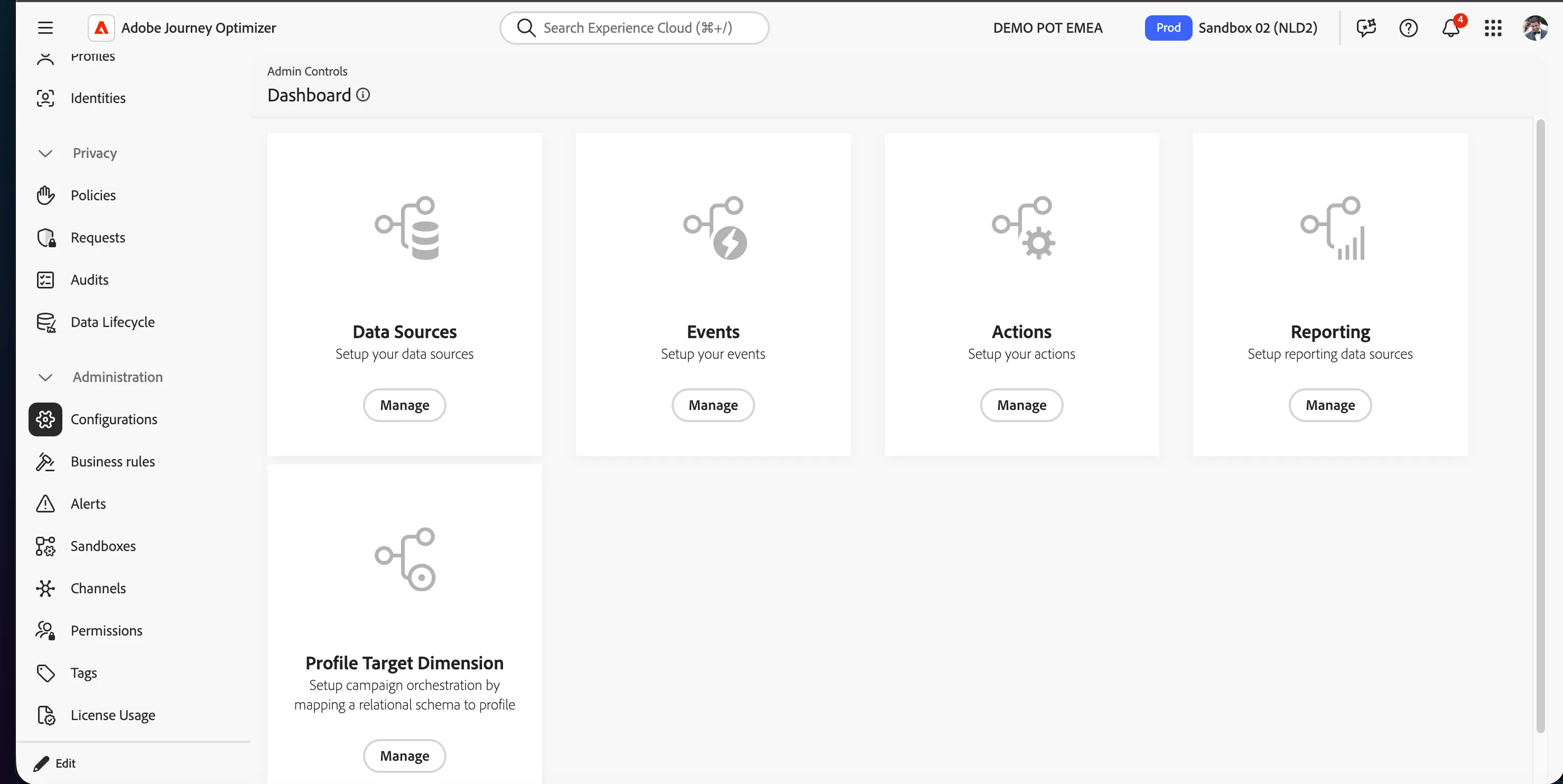
In the menu on the left side, under Administration, click on Configurations. You will see a set of tiles. Click on Manage in the Events tile to get an overview with all existing events.
Configuring an event
We'll be configuring an event that we can use in our journey. The event should trigger whenever a customer books a flight.
To configure a new event, click Create Event. A menu will open on the right side.
- Set the name to yourname_inStorePurchaseEvent.
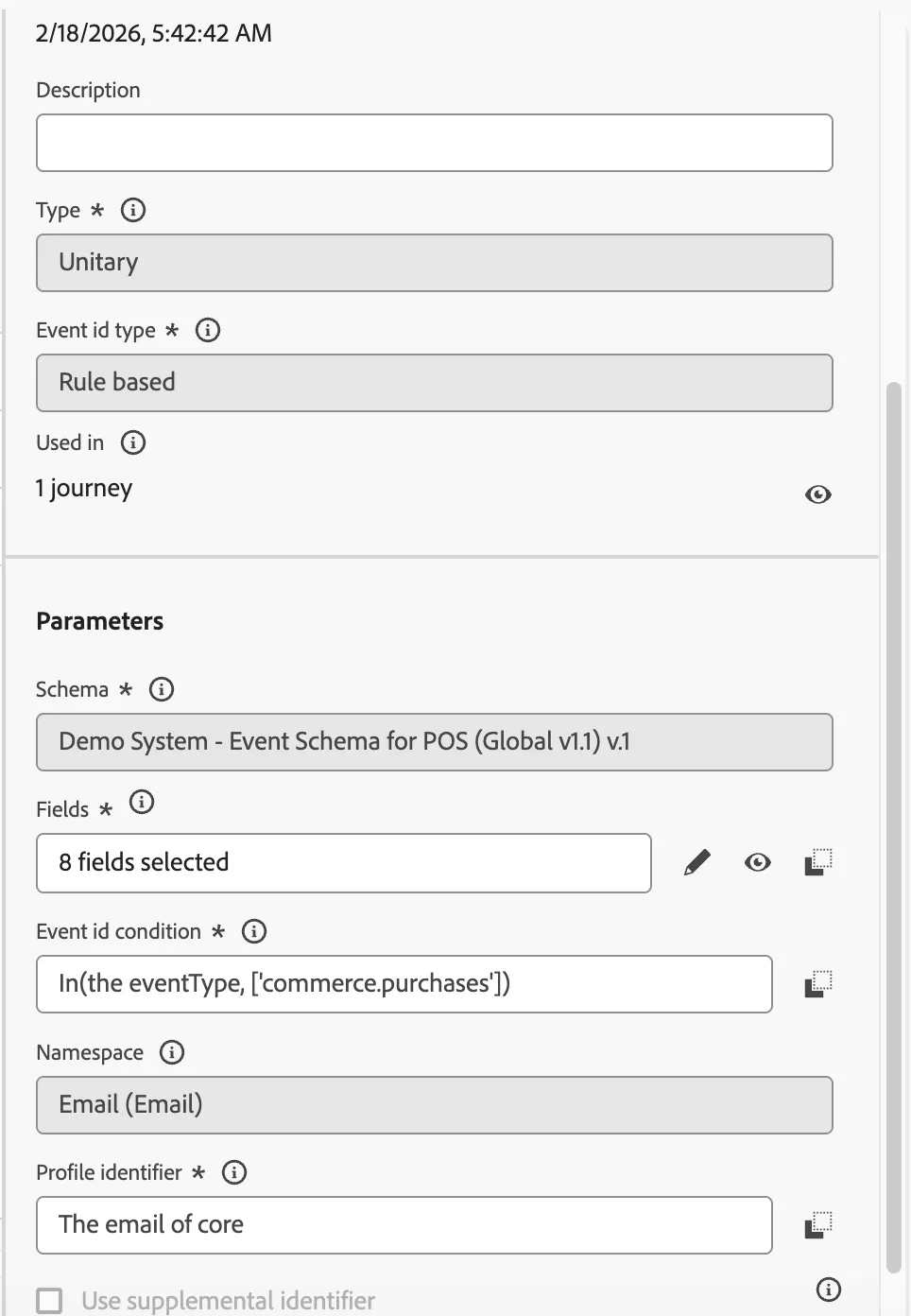
- Keep Type as Unitary and Event id Type as Rule based.
- For schema, click on Select a schema and choose Demo System - Event Schema for POS (Global v1.1) v.1 in the dropdown.
- For fields, click on 4 fields selected, a pop-up window will open. In this window we can select the data fields we want to have available for the event.
- Scroll down or (use the search field) to find Event Type (eventType) and check the checkbox.
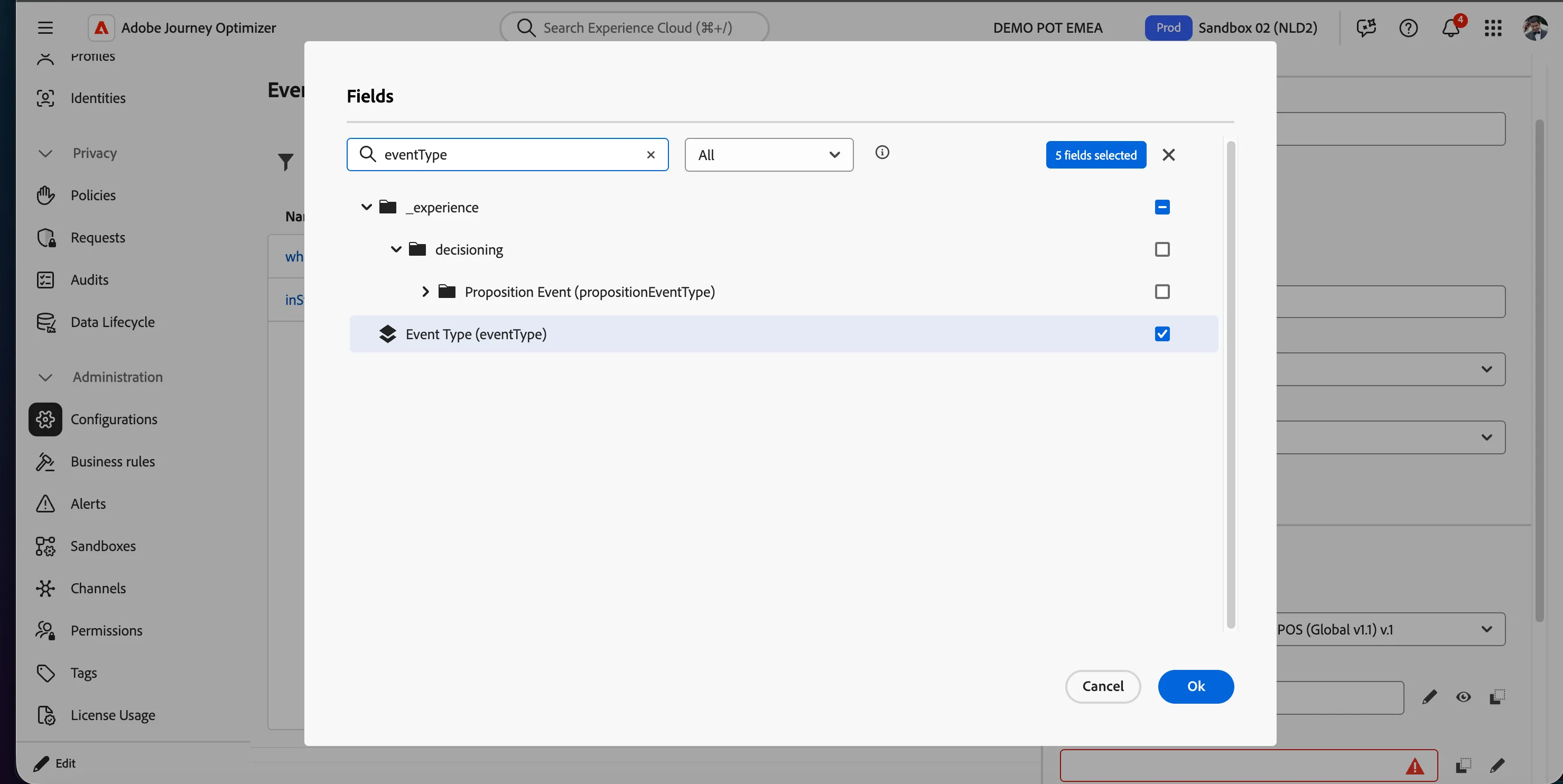
- Scroll down (or use the search field) to find Event Type (eventType) and check the checkbox.
- Clear the search field to show full list if you used in previous step.
- Scroll down (or use the search field) to find price Total (priceTotal) from Commerce > Order and check the checkbox.
- Clear the search field to show full list if you used in previous step.
- Scroll up to the folder _demopotemea > identification > core and check the following fields:
- ecid (ecid)
- email (email)
- Click Ok. The window will close and you should now see 8 fields selected.
- For the event ID condition, click on -icon. Another pop-up window will open.
- Drag the Event Type (eventType) from the left menu onto the right side.
- You'll be prompted to choose a value. Look for commerce.purchases. Check this value.
- Scroll back up and click Ok.
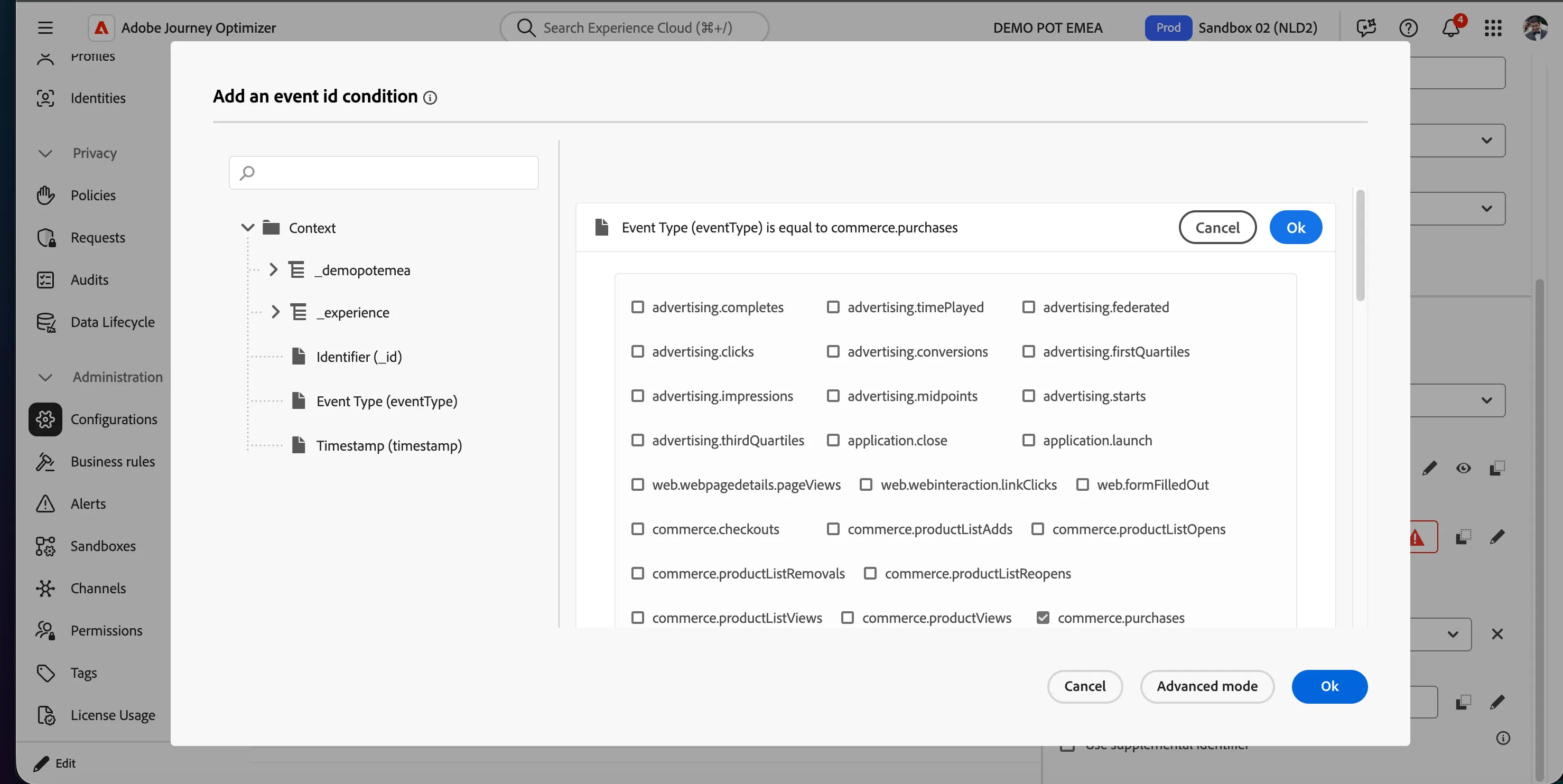
- The rule should now say Event Type (eventType) is equal to commerce.purchases. Click Ok to save and close the pop-up window.
- Check if the namespace is set to Email (Email).
- Check if the profile identifier is set to The email of core. If this is not set, select Context > _demopotemea > identification > core > email.
- Your screen should look like the image below. Click on Save at the top right corner.
You have successfully created an event for an In Store purchase is made by a customer.