Create Journey
We will first create the Journey flow, then add the content for each message. You can choose to create the journey manually or leverage the agent to create it for you.
In this exercise, we will use Adobe Agent to create a draft of the journey.
This feature is still in Exploration and is not generally enabled. Results may differ from what is shown below.
Open the AI Assistant into full screen, and enter the following prompt:
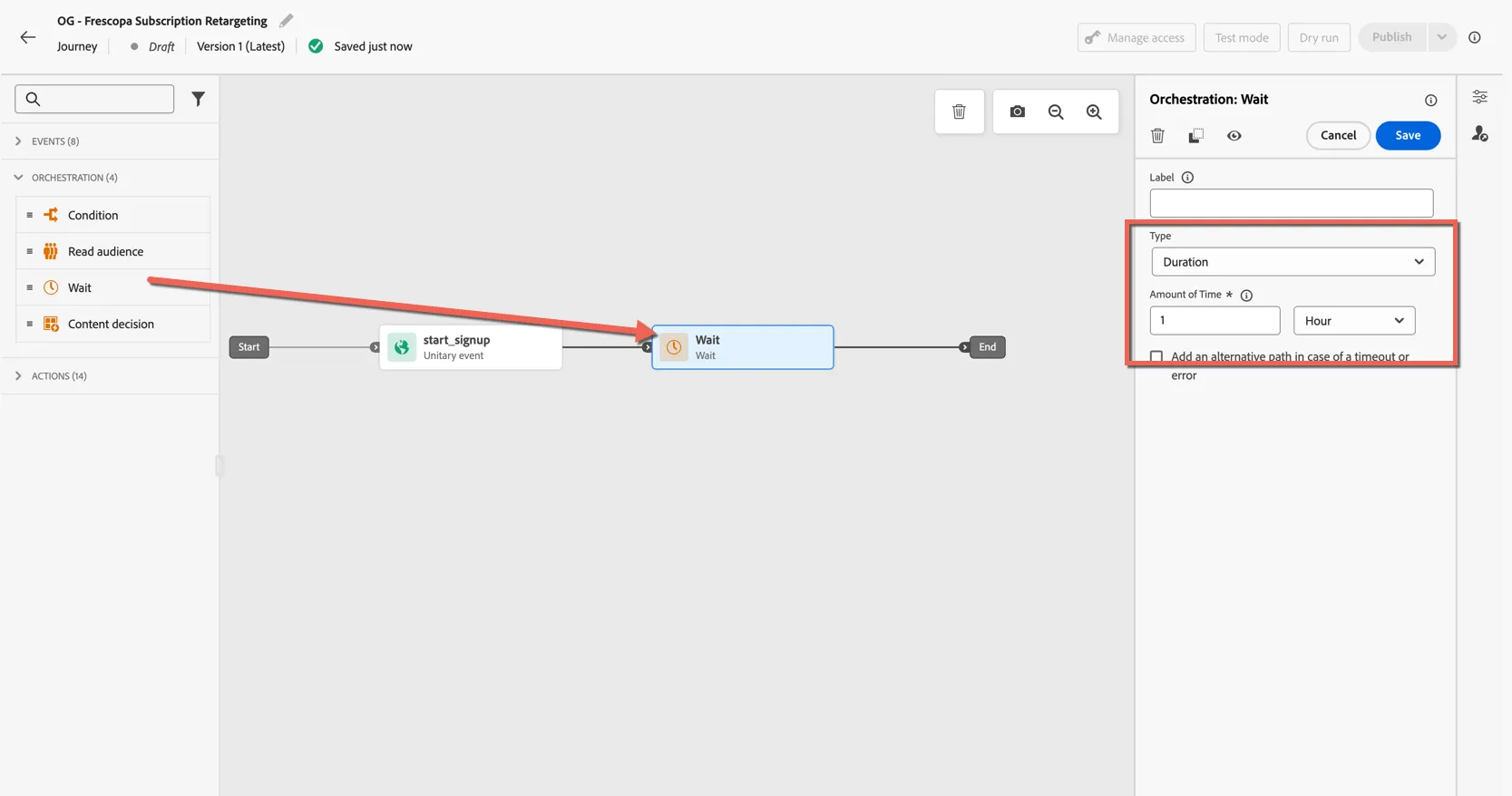
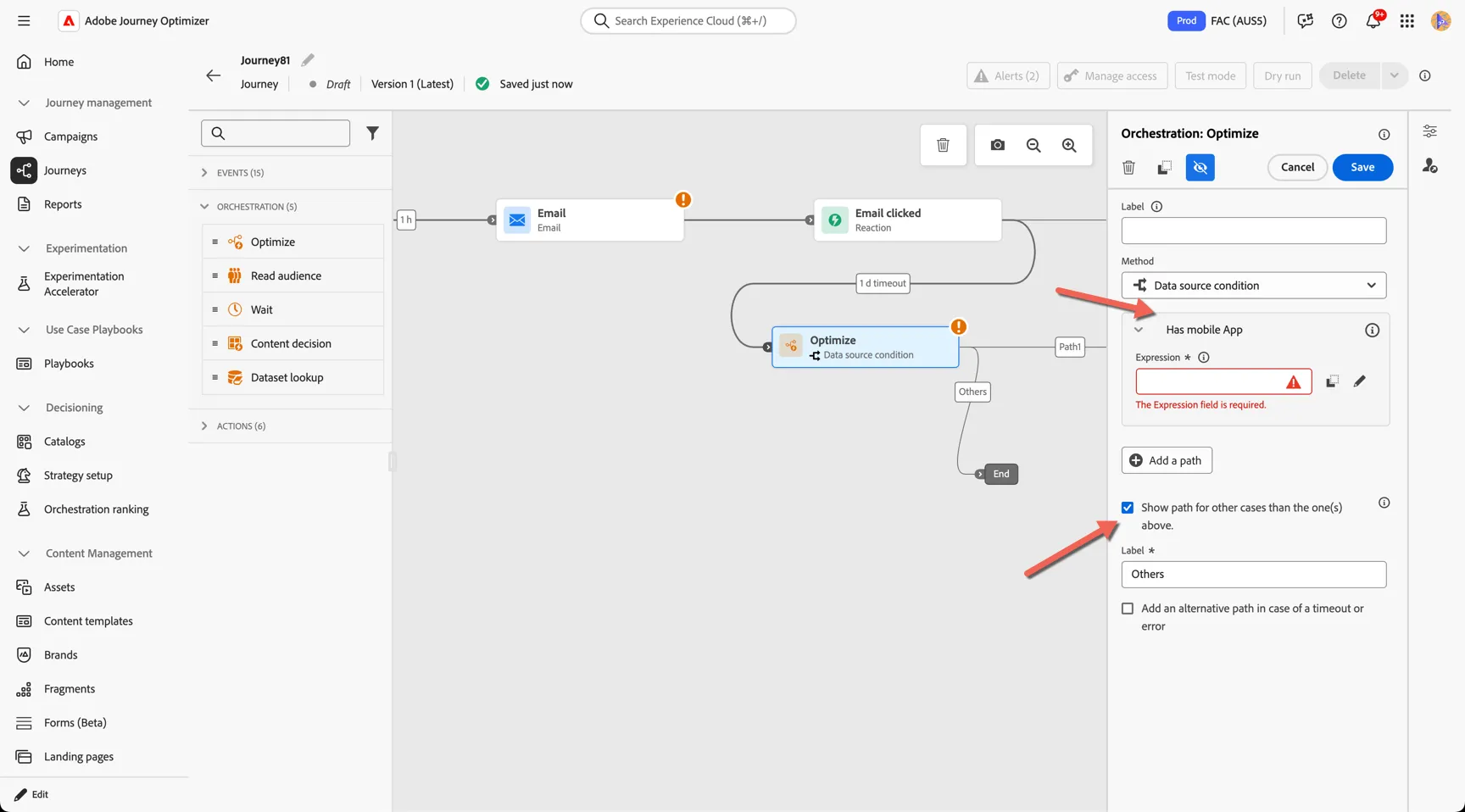
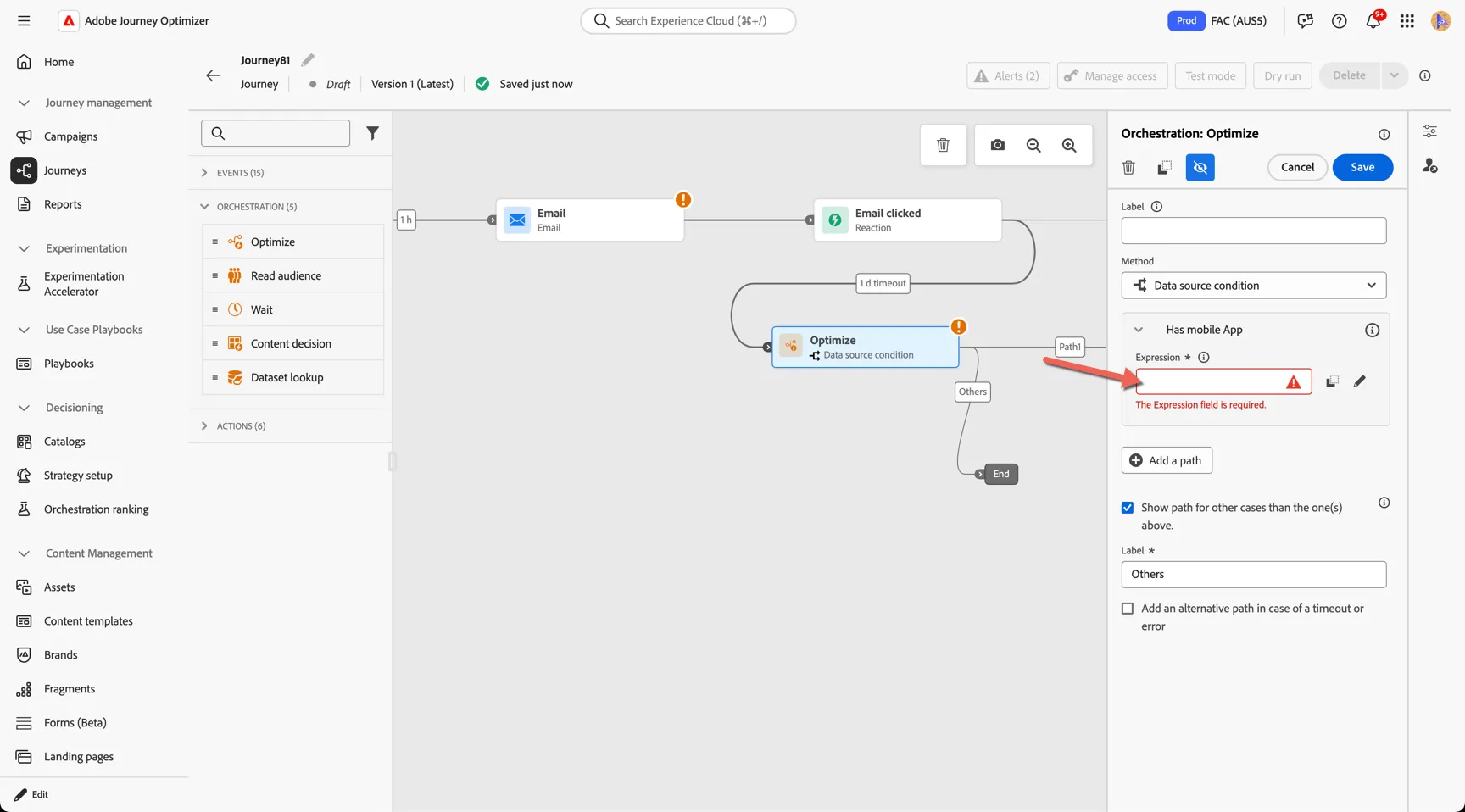
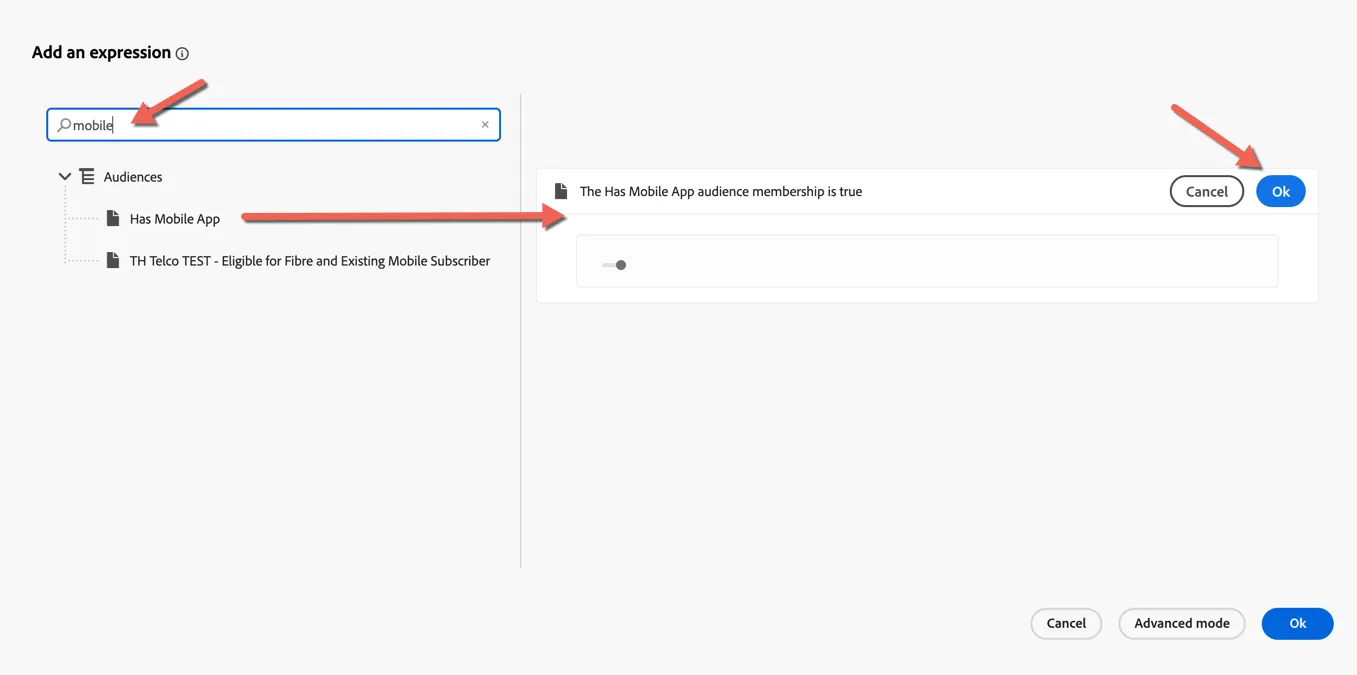
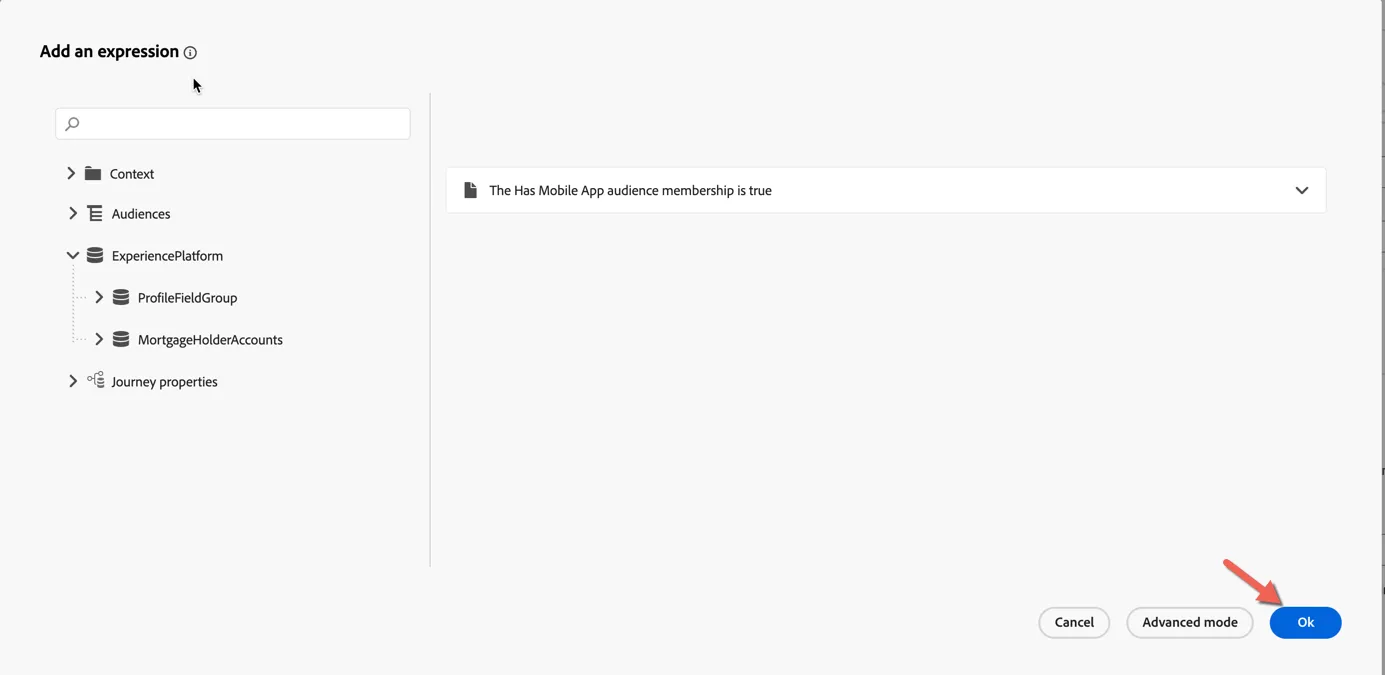
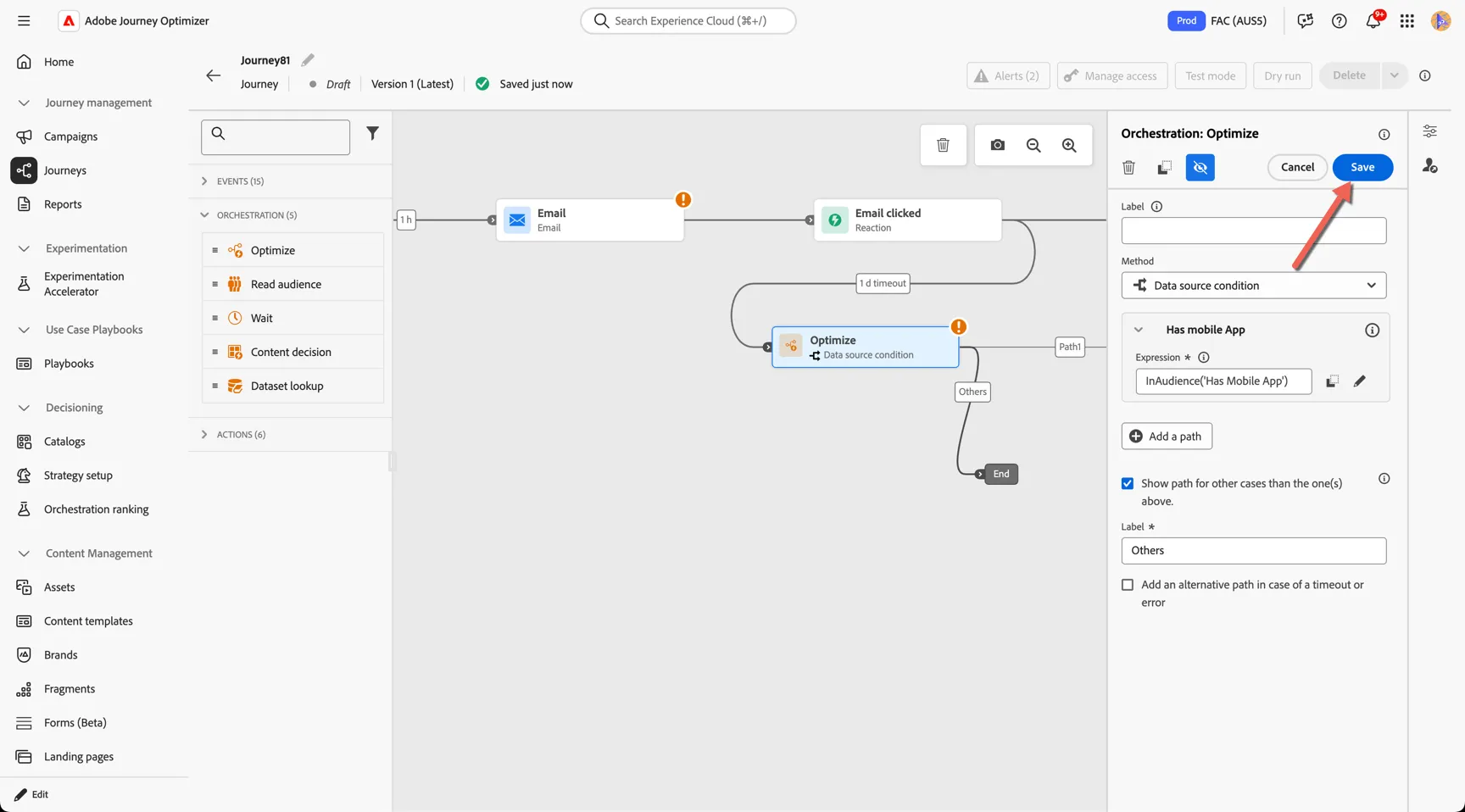
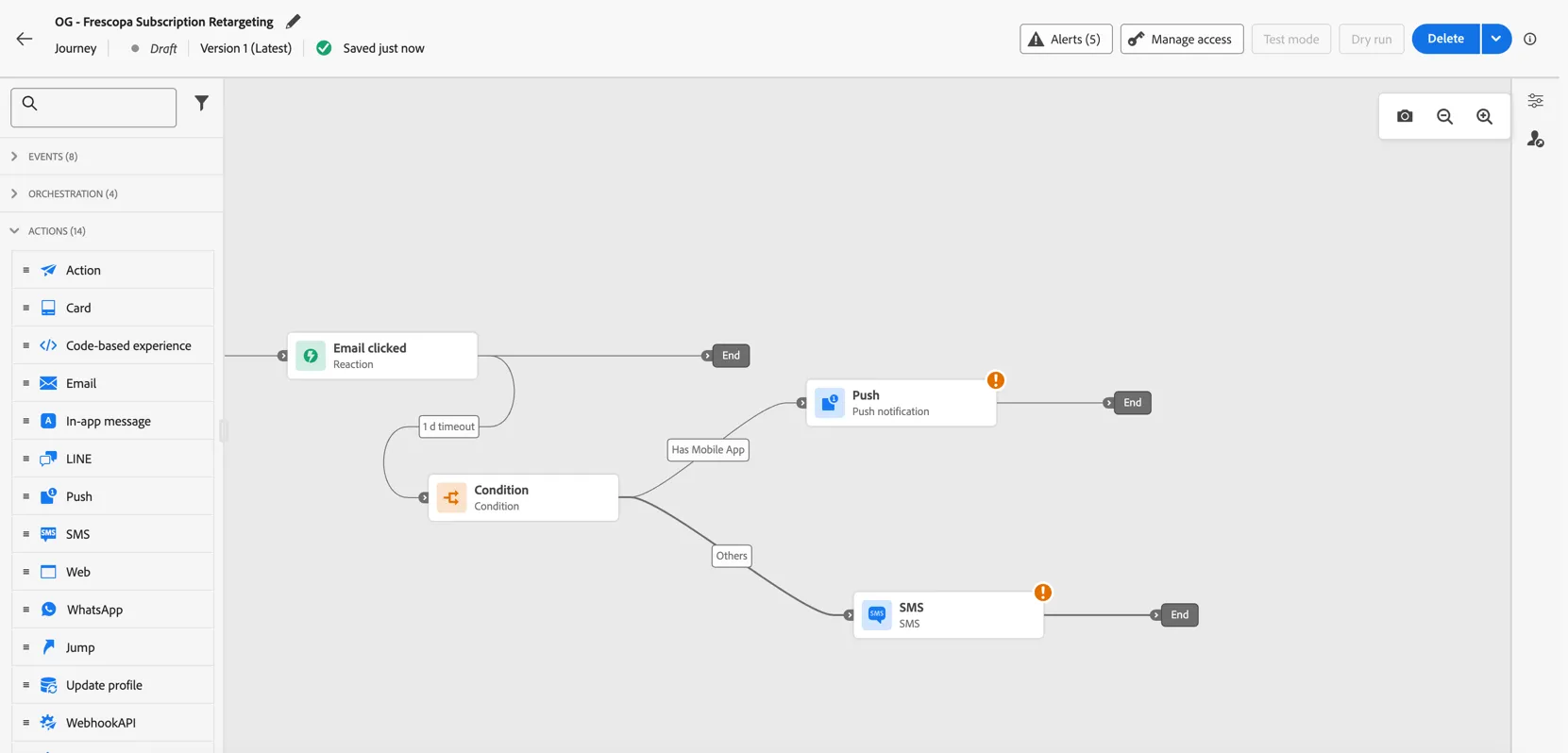
Create a new trigger based journey for people who've started the signup. Wait 1 hour and send them an email, wait for 2 more days, check if they belong to the audience "Has mobile App". If yes, send them a push, if not, send them an SMS.
The agent will analyze your request, and propose a plan to create this journey.
When asked Would you like to proceed with this plan? Type yes to start the process.
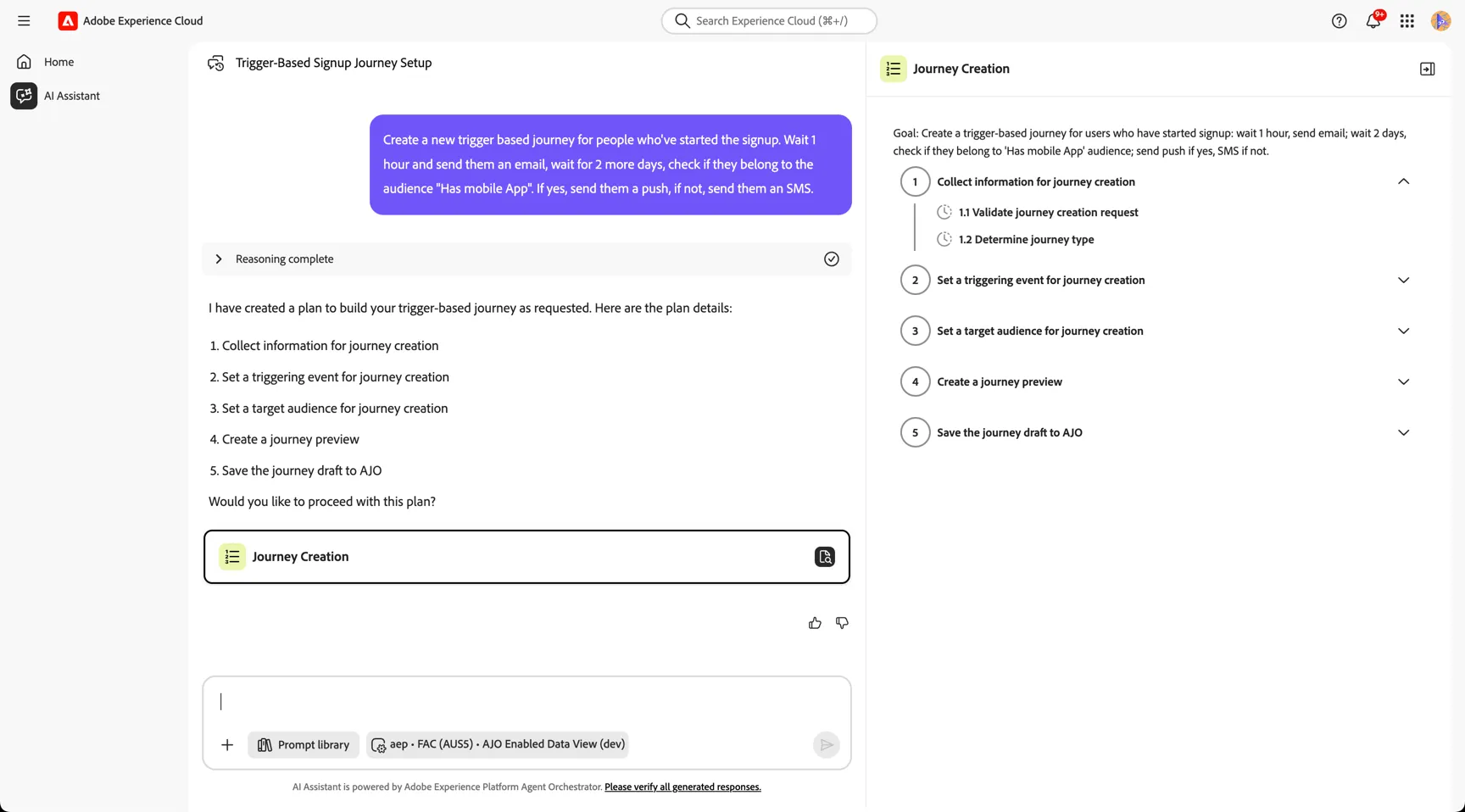
The agent will then go ahead with the plan and go to step 2, which is selecting the trigger. Type yes to progress
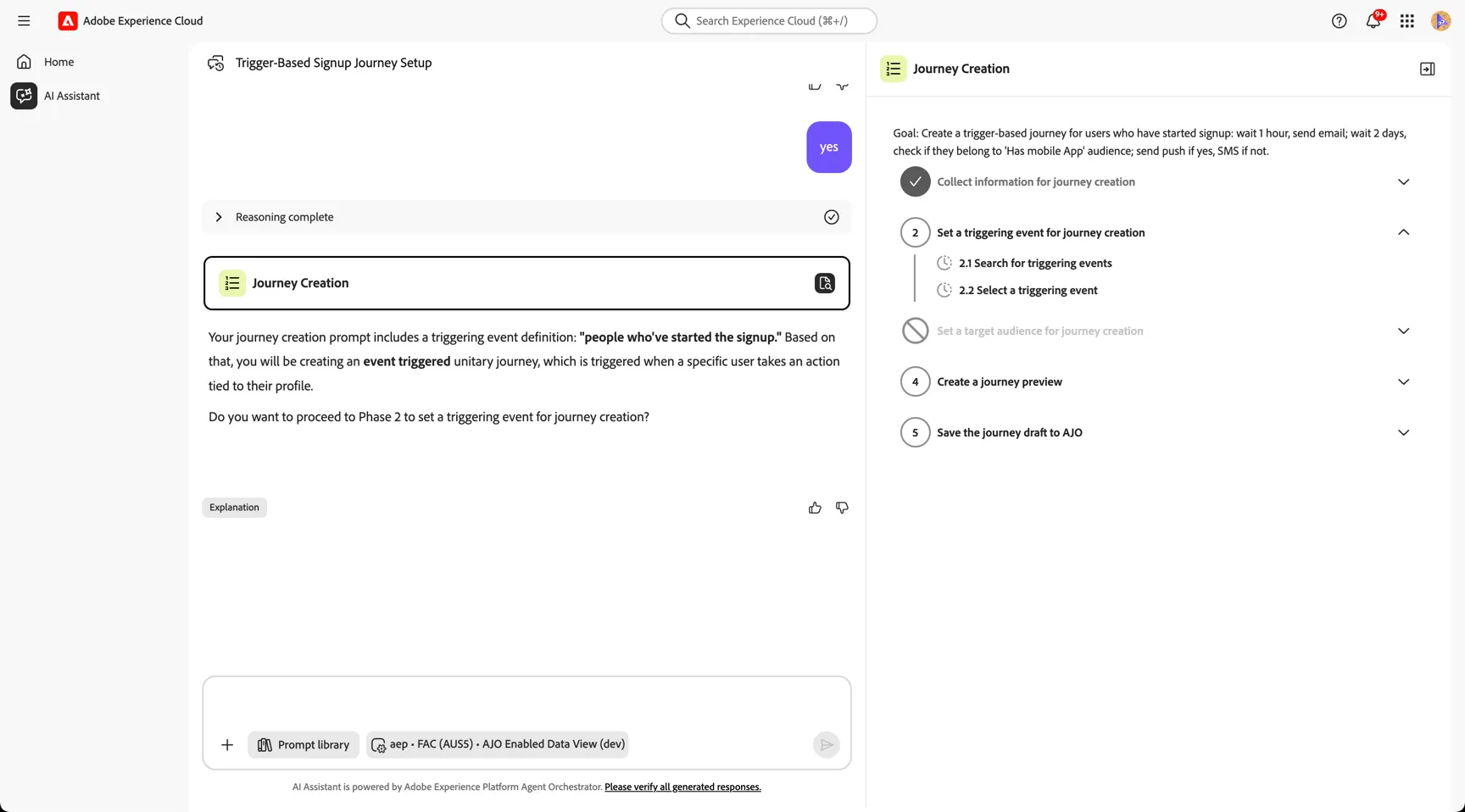
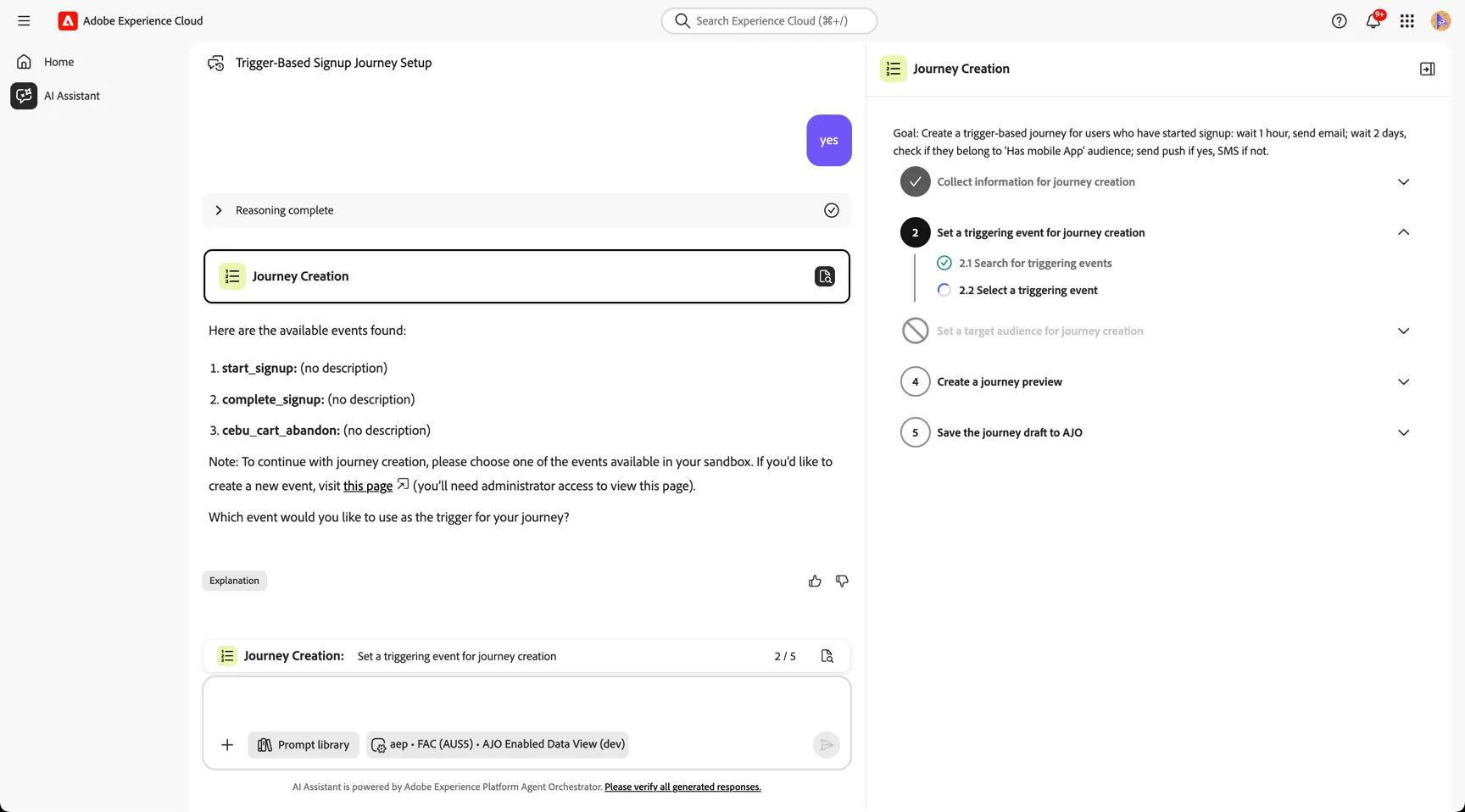
If there are multiple event option for your journey, the Agent may asked you to confirm.
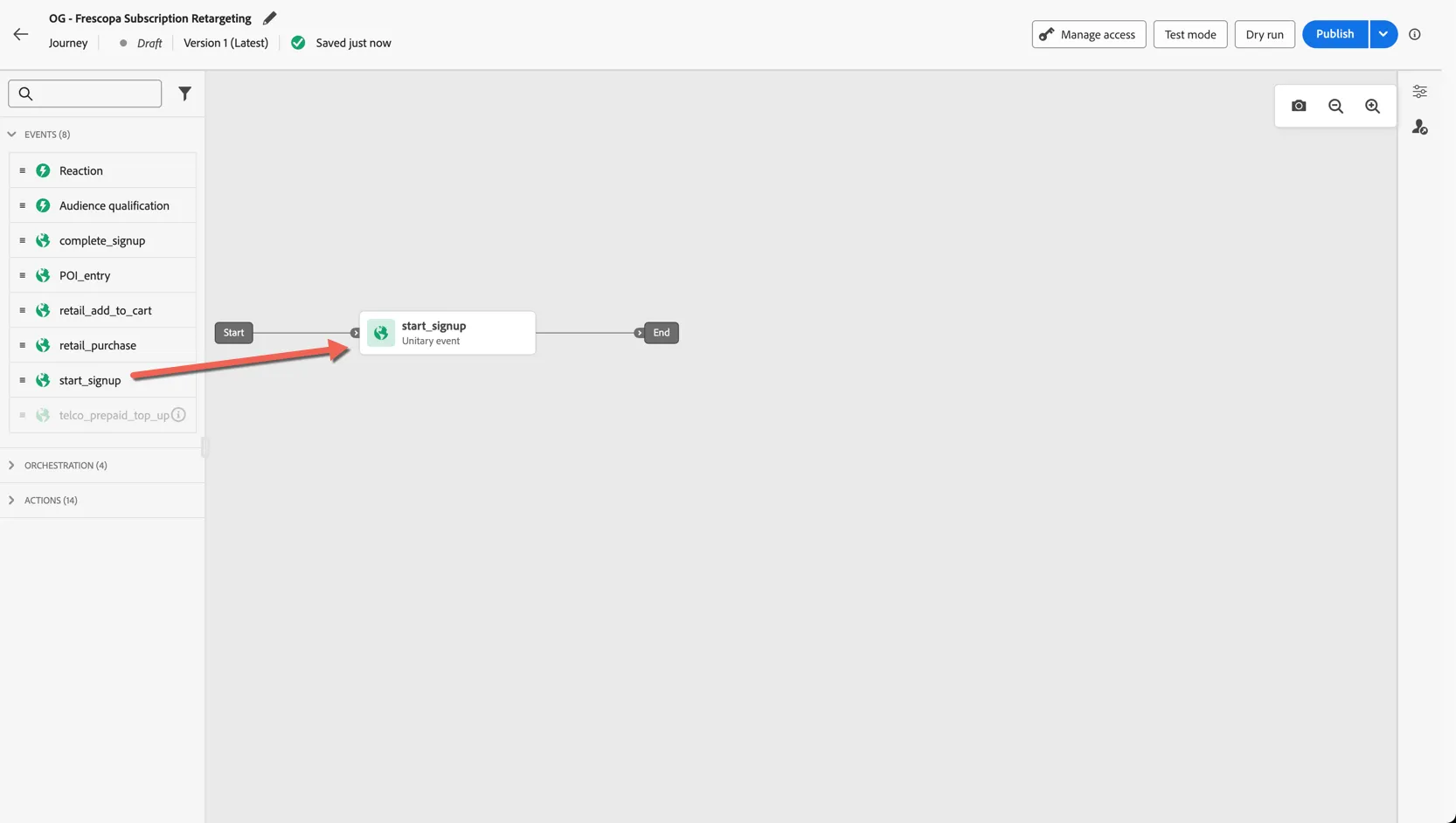
We will select start_signup event. Just type 1, then enter.
The agent should understand that there is no need to select audience, so it will not execute step 3. It will create create the journey, and show a preview.
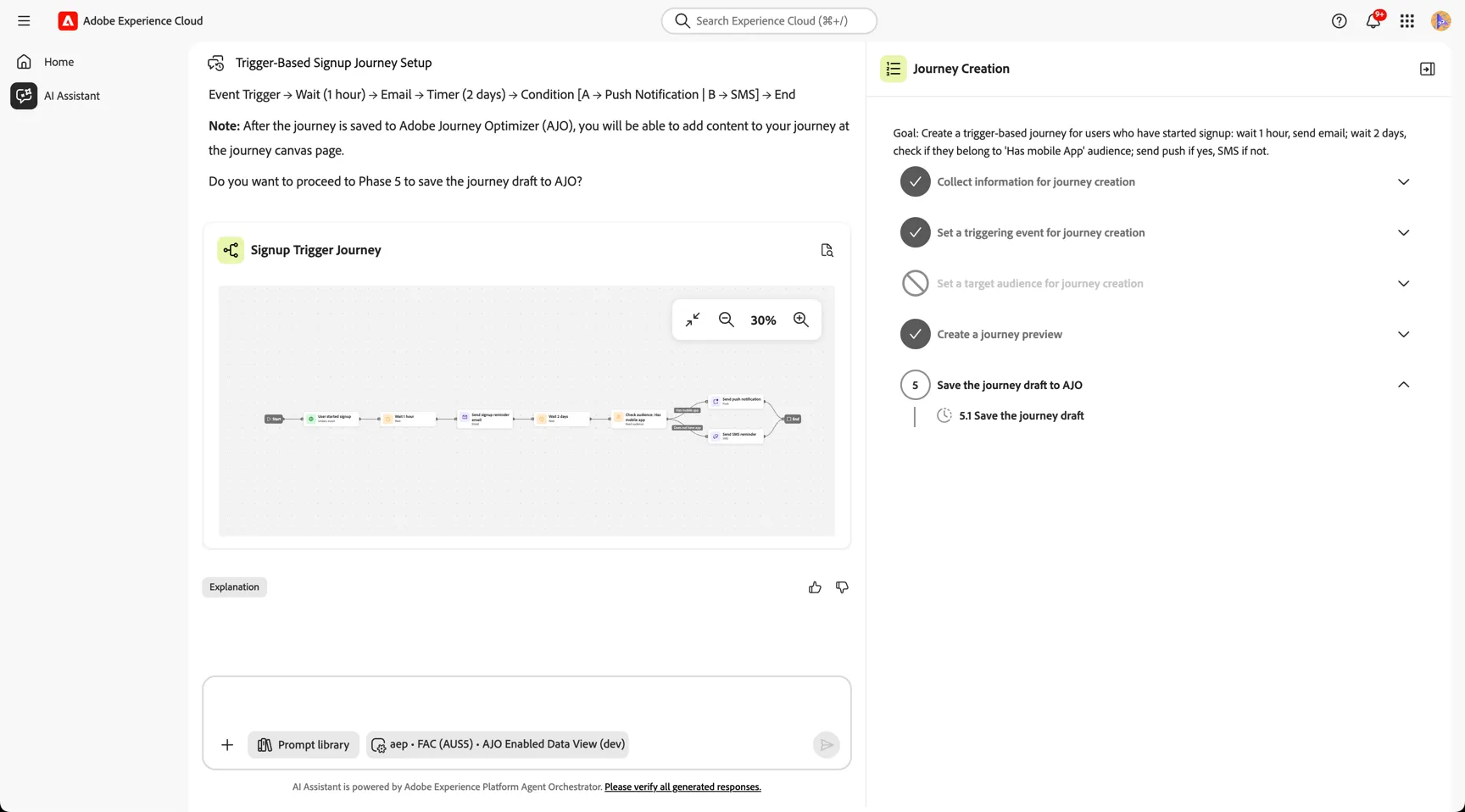
Type yes to proceed.
Lastly you can review the details and update the journey properties before approving the journey. Click to Review.
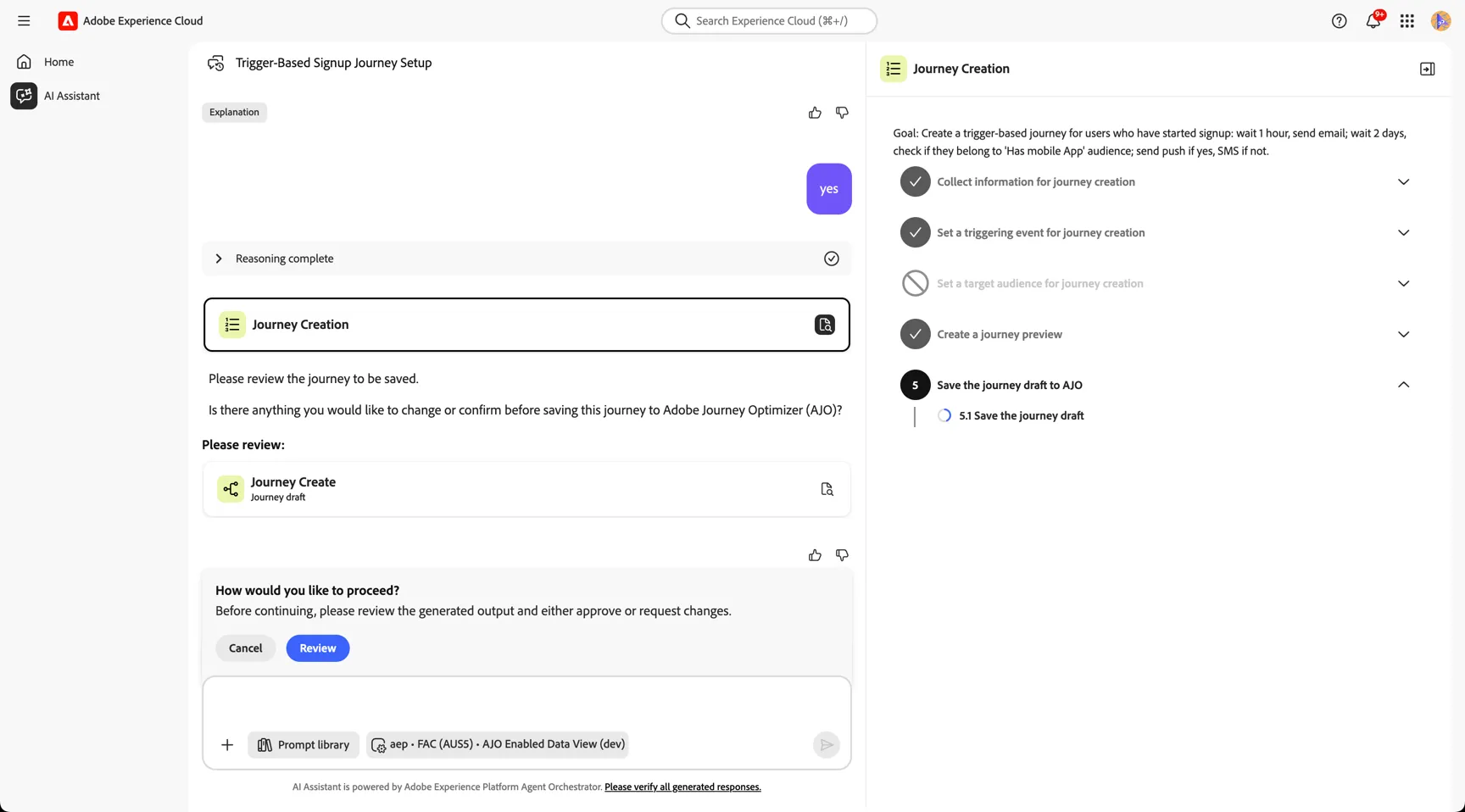
Change the name of the journey by Signup Trigger Journey - YOUR NAME, and click on Save.
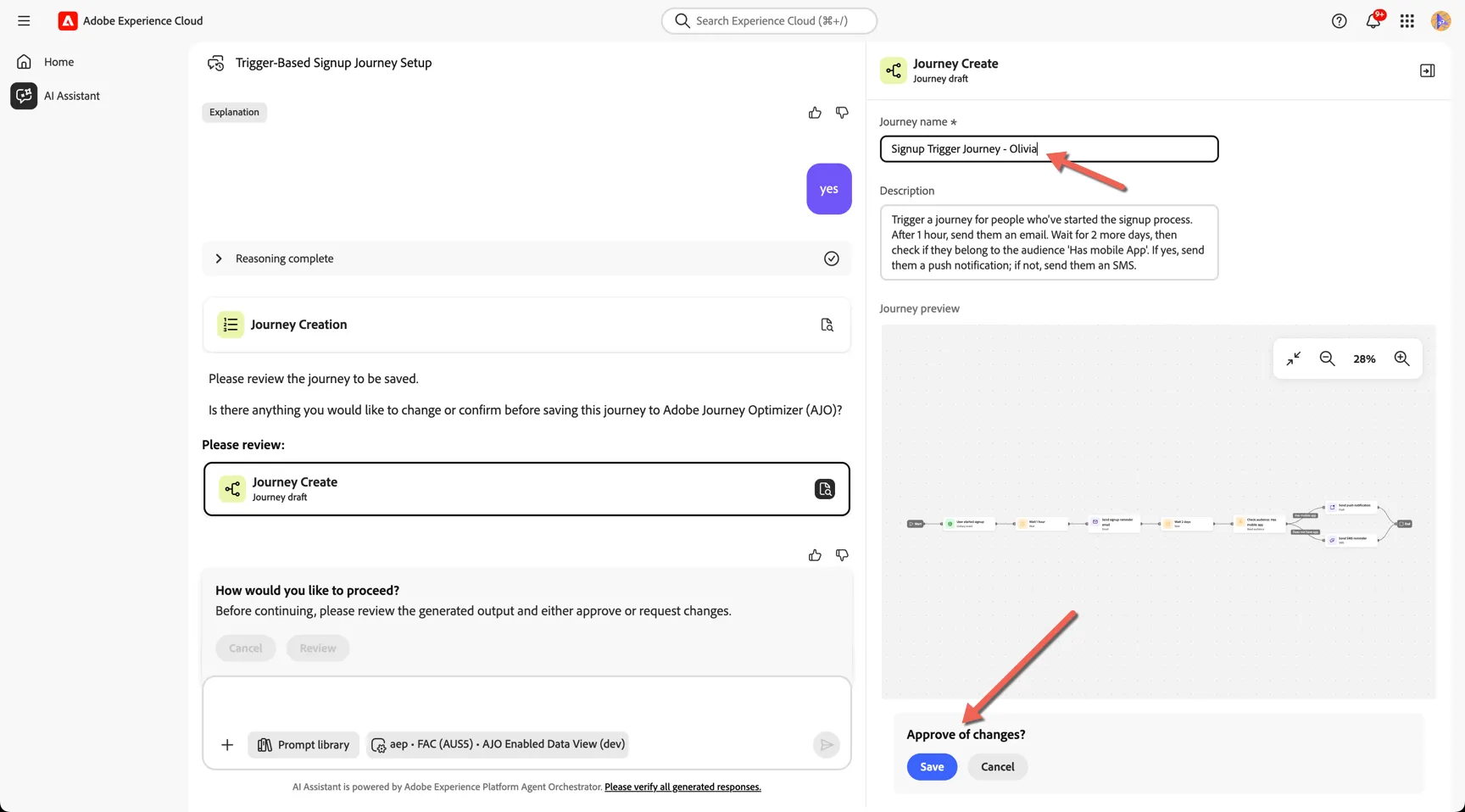
Your draft journey is now ready. You can click to view it directly from the assistant.
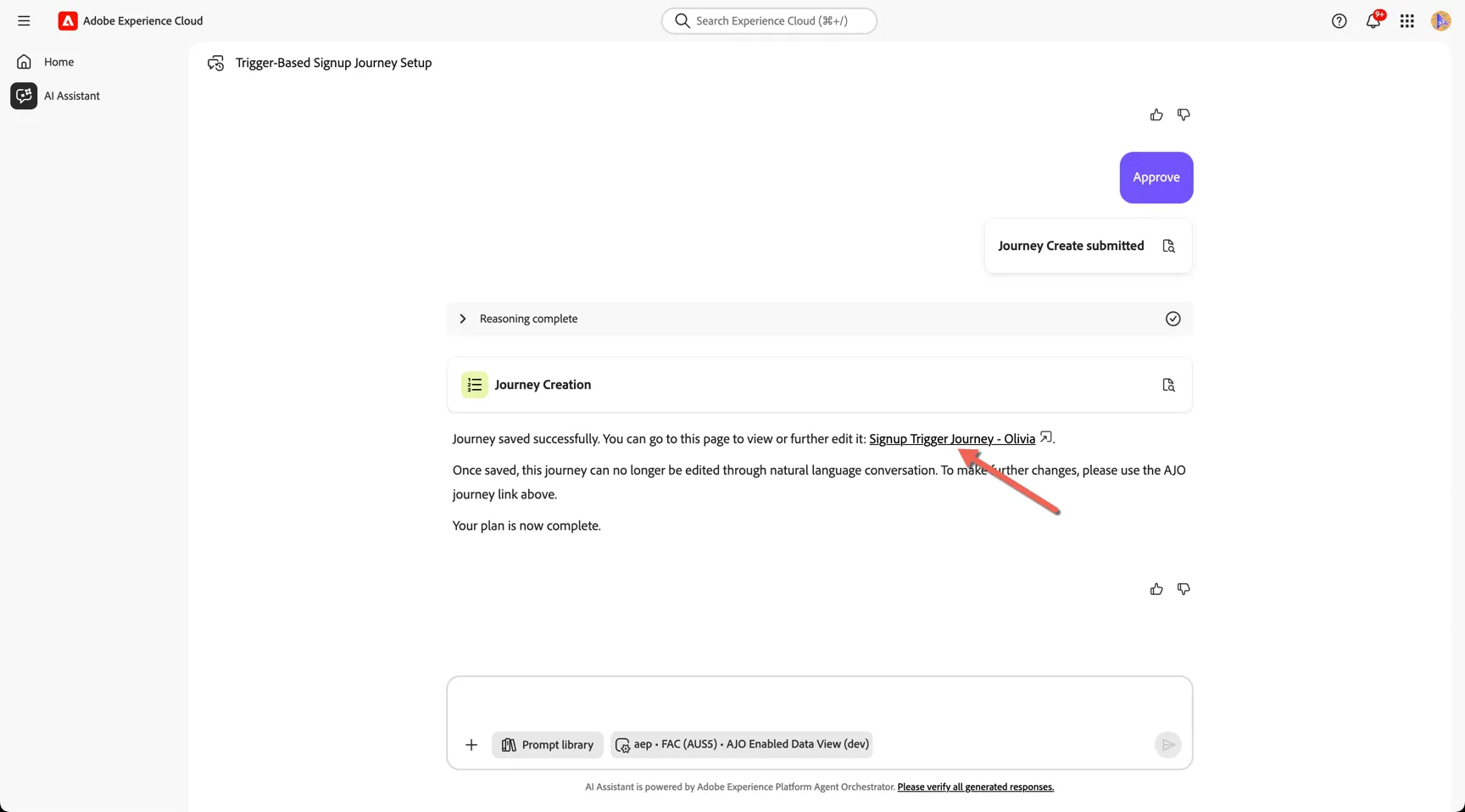
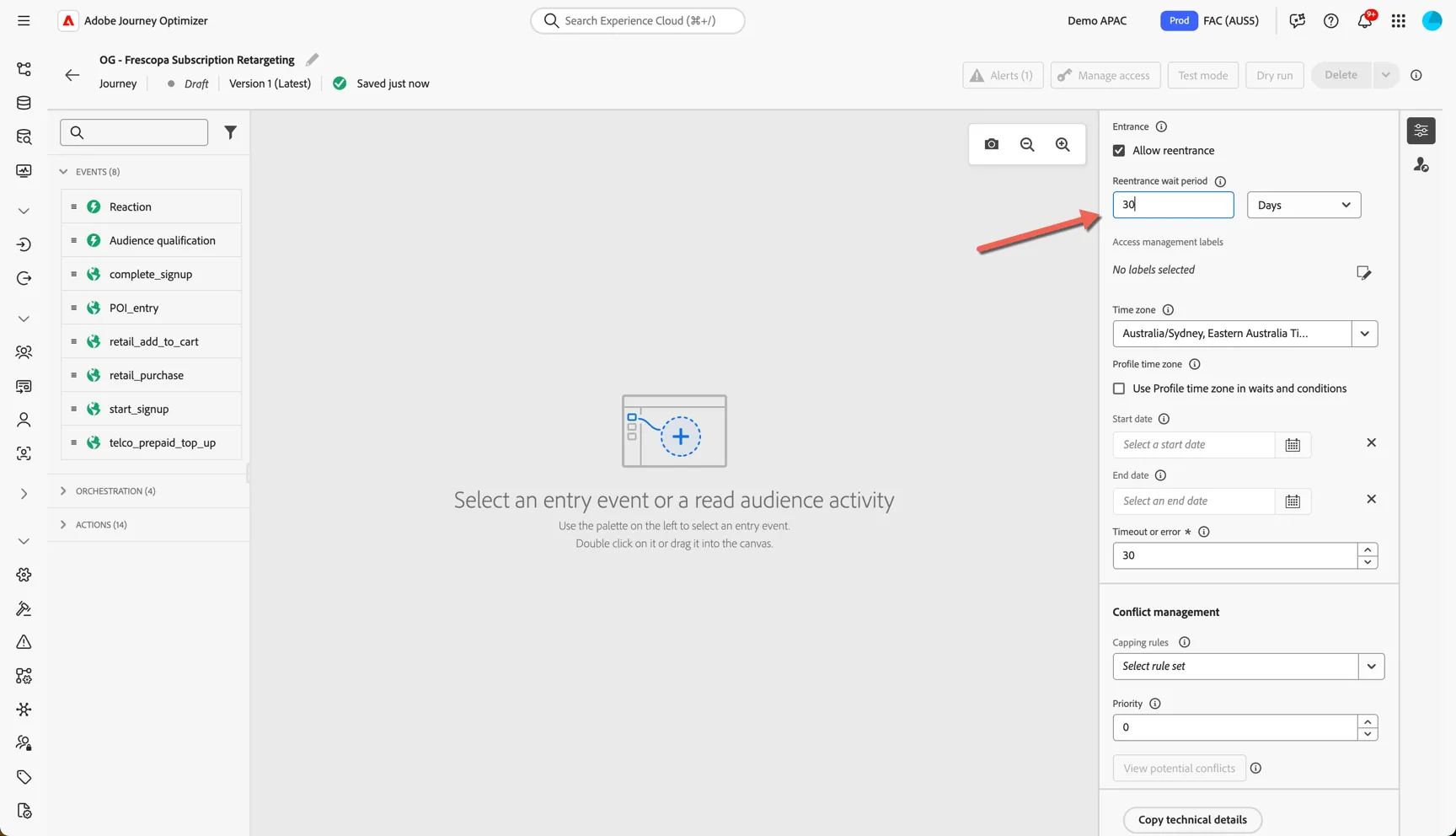
You can now update any additional criteria required for your journey such as success metrics, re-entrance rules and exit criteria.
For this retargeting journey we want to remove profiles from the journey once they complete the desired action, in this case completing their subscription. Click on the profile icon to the right of the journey to open the exit criteria panel. Click the button to add the exit criteria.
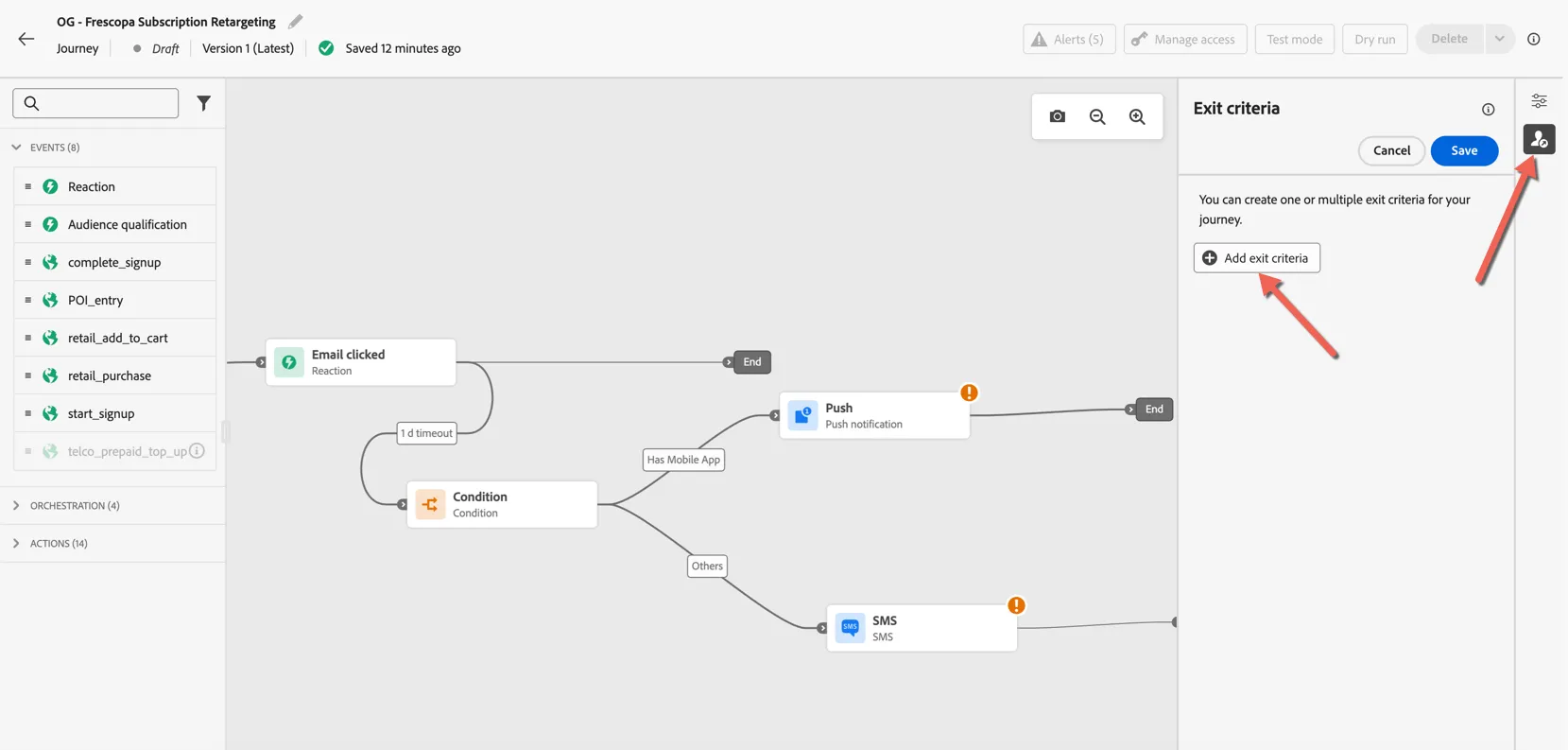
You can use events and/or audiences as exit criteria, for this example we'll use the Active Subscriber audience.
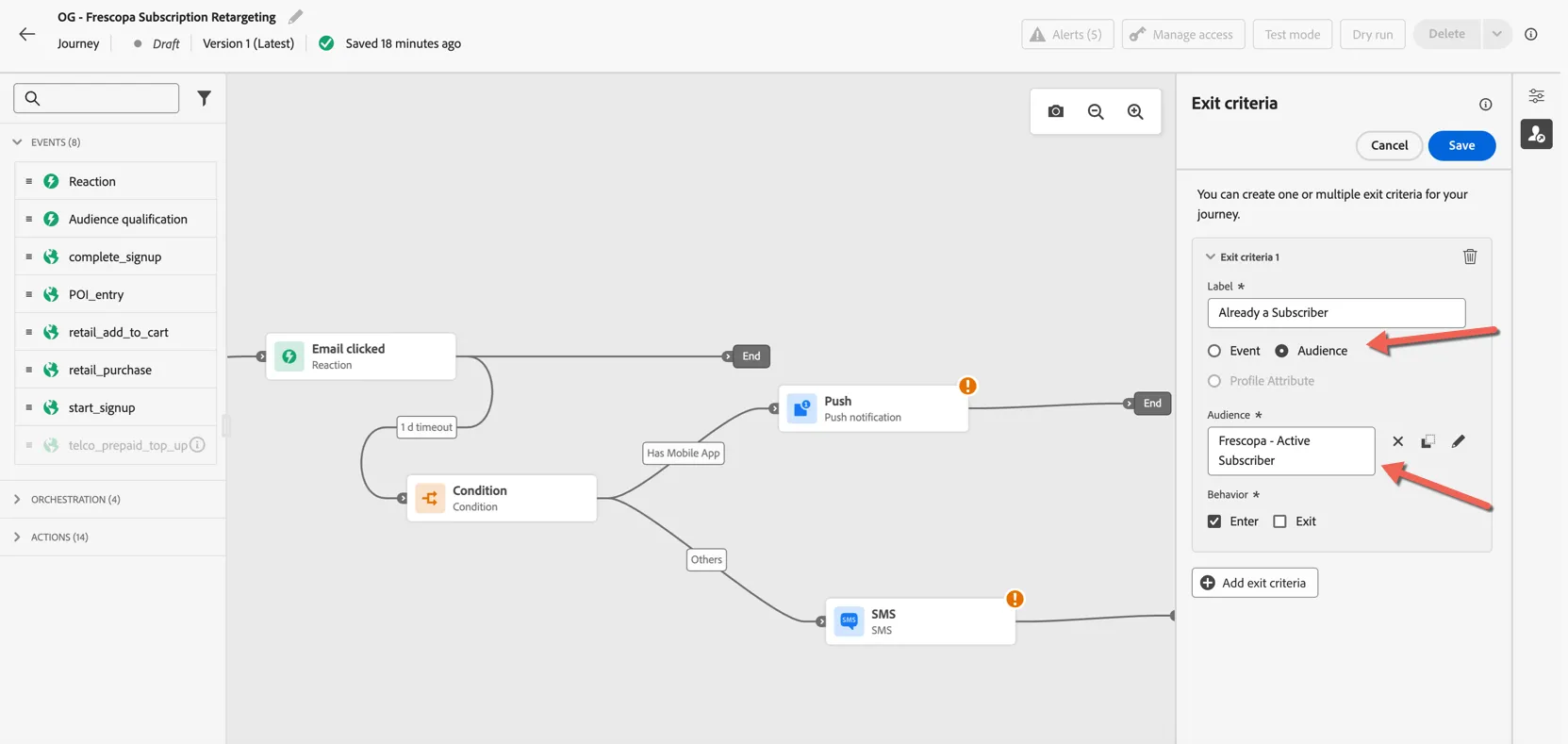
Click Save to complete your journey logic.
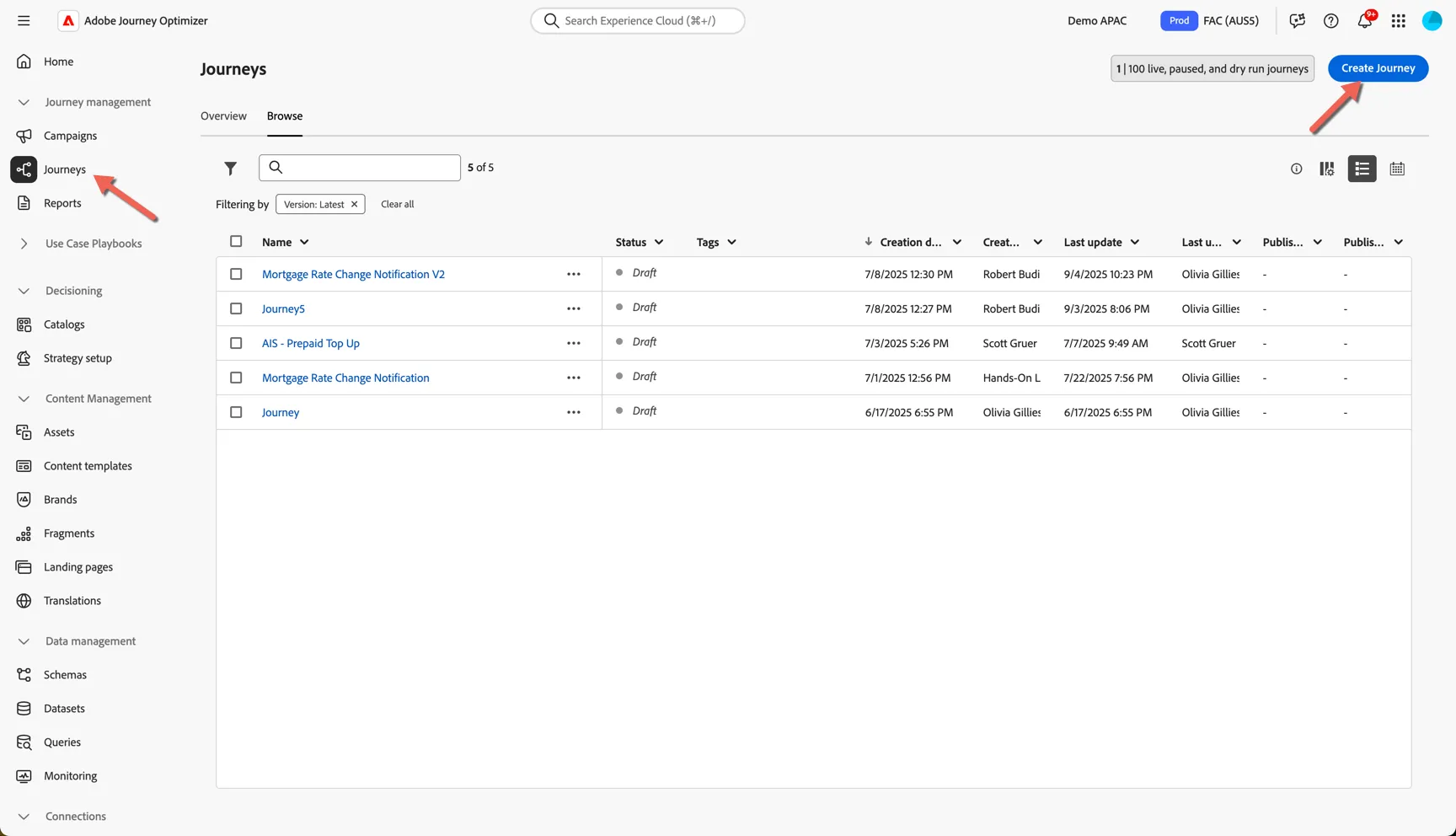
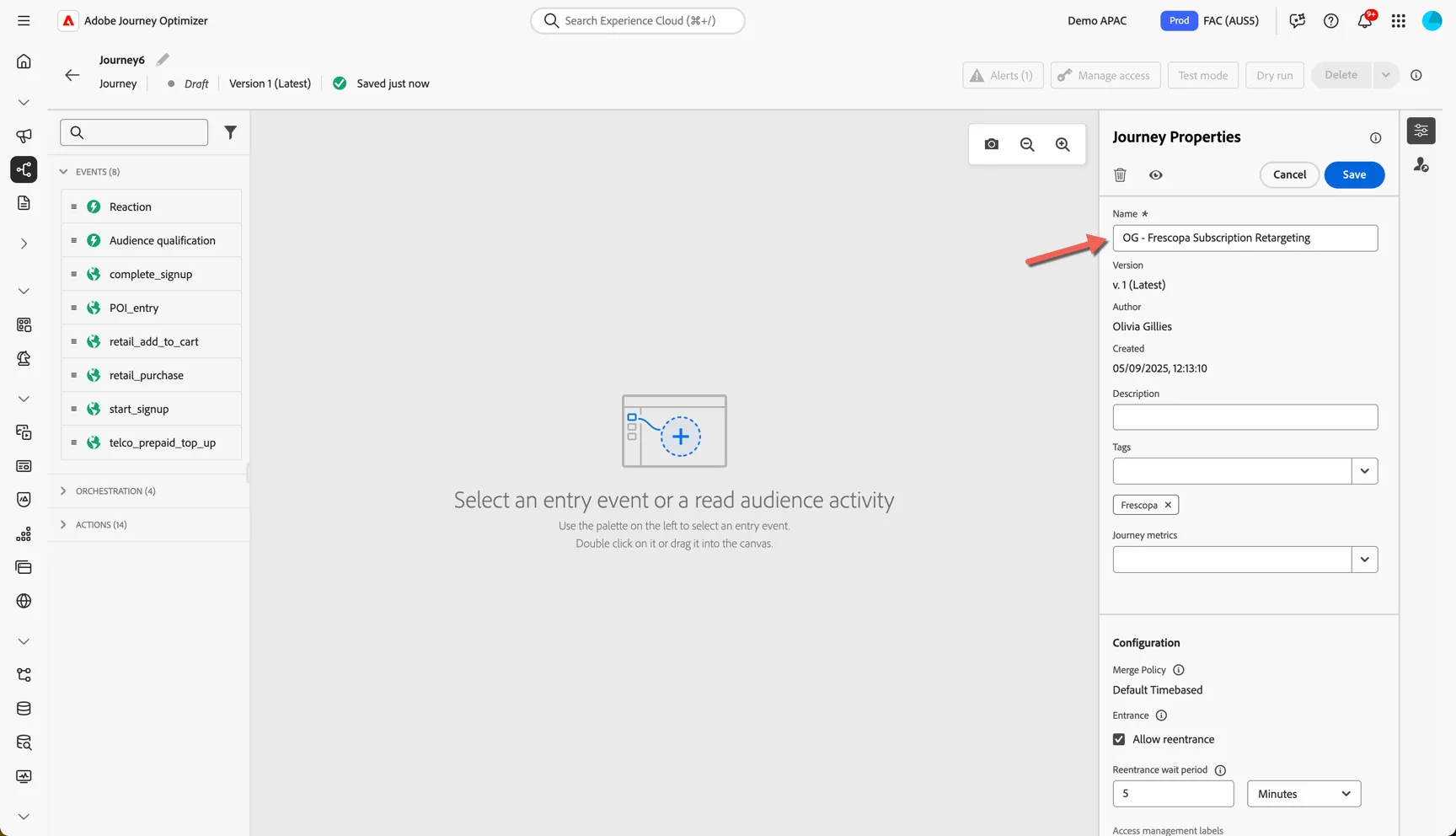
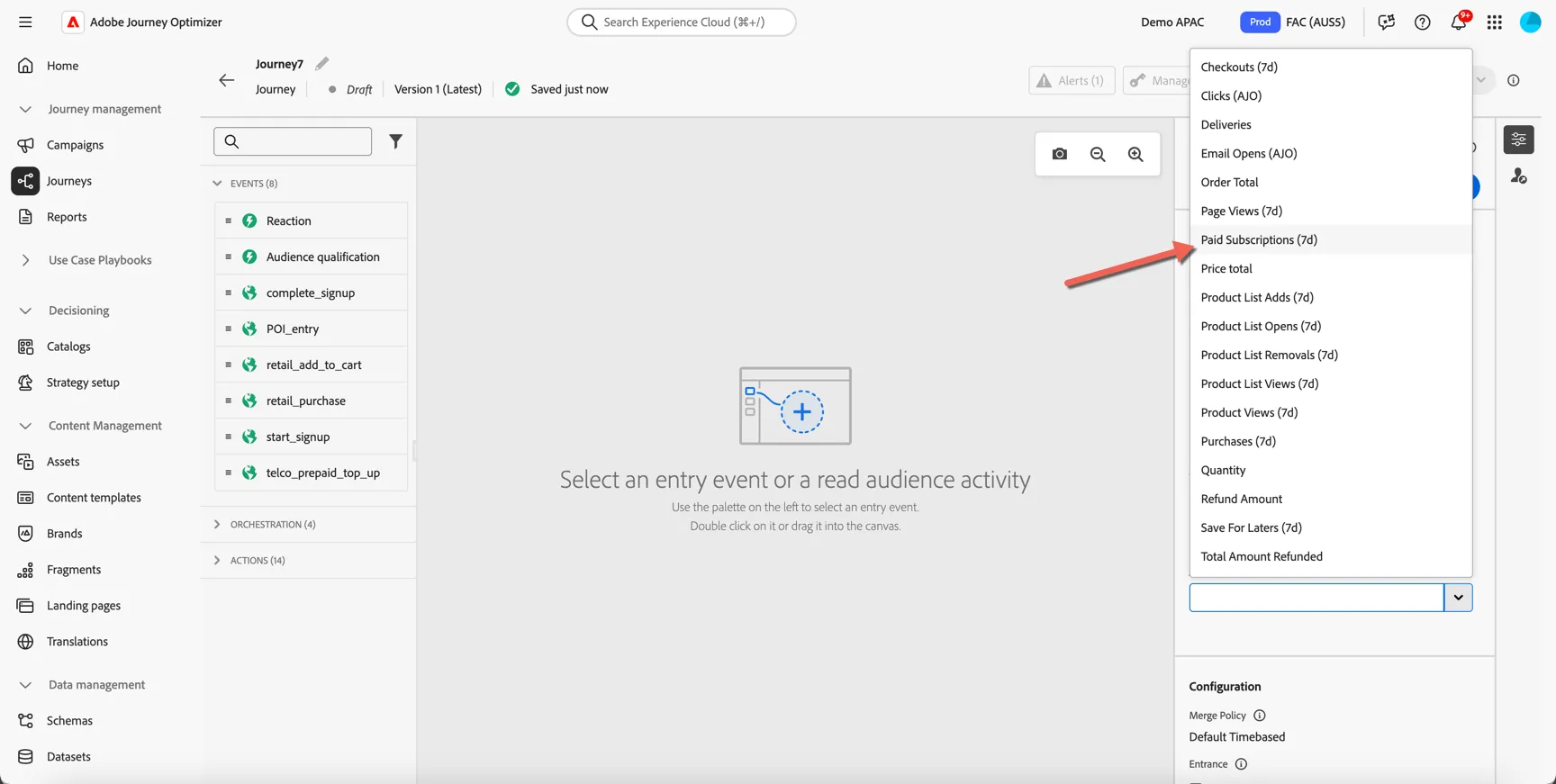
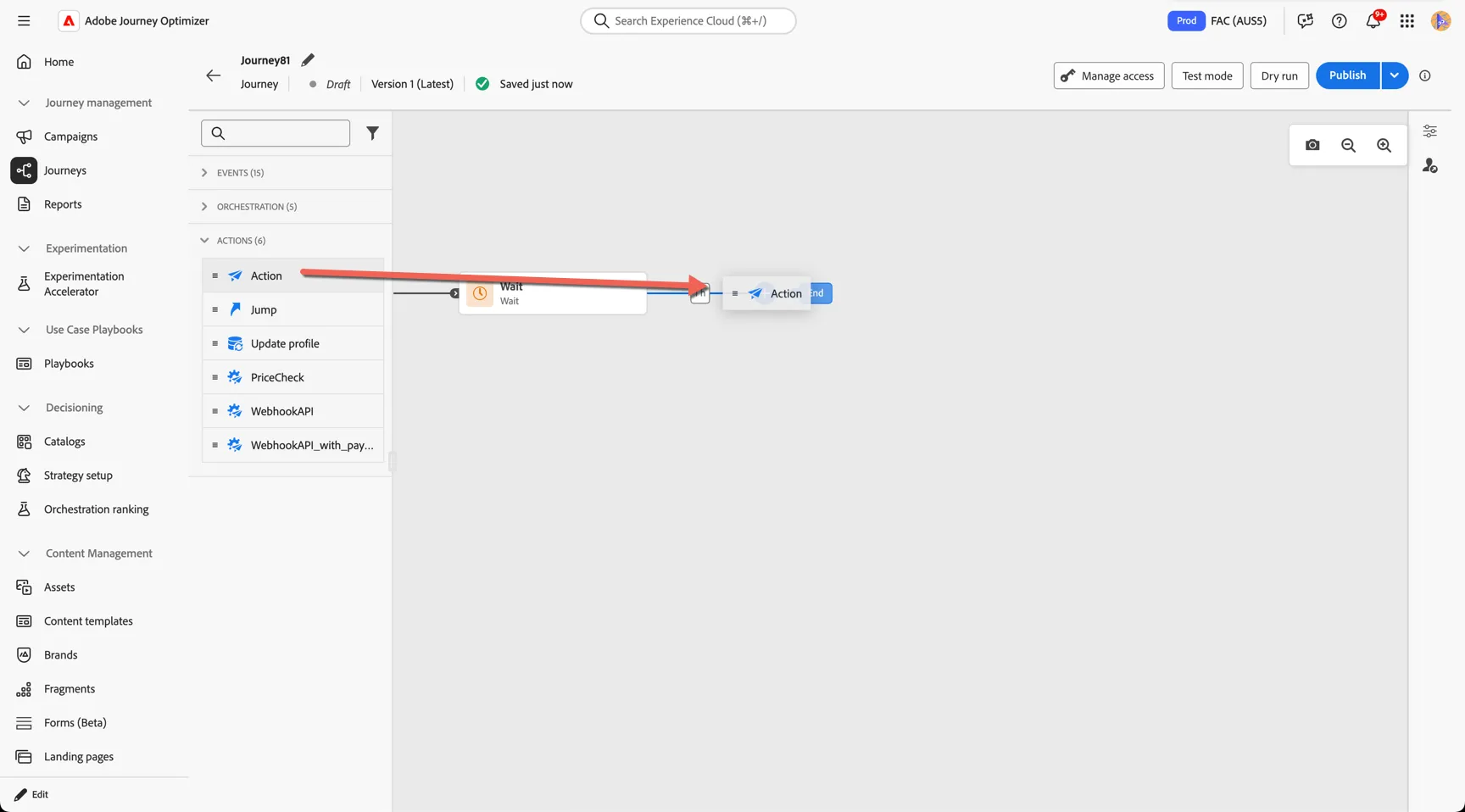
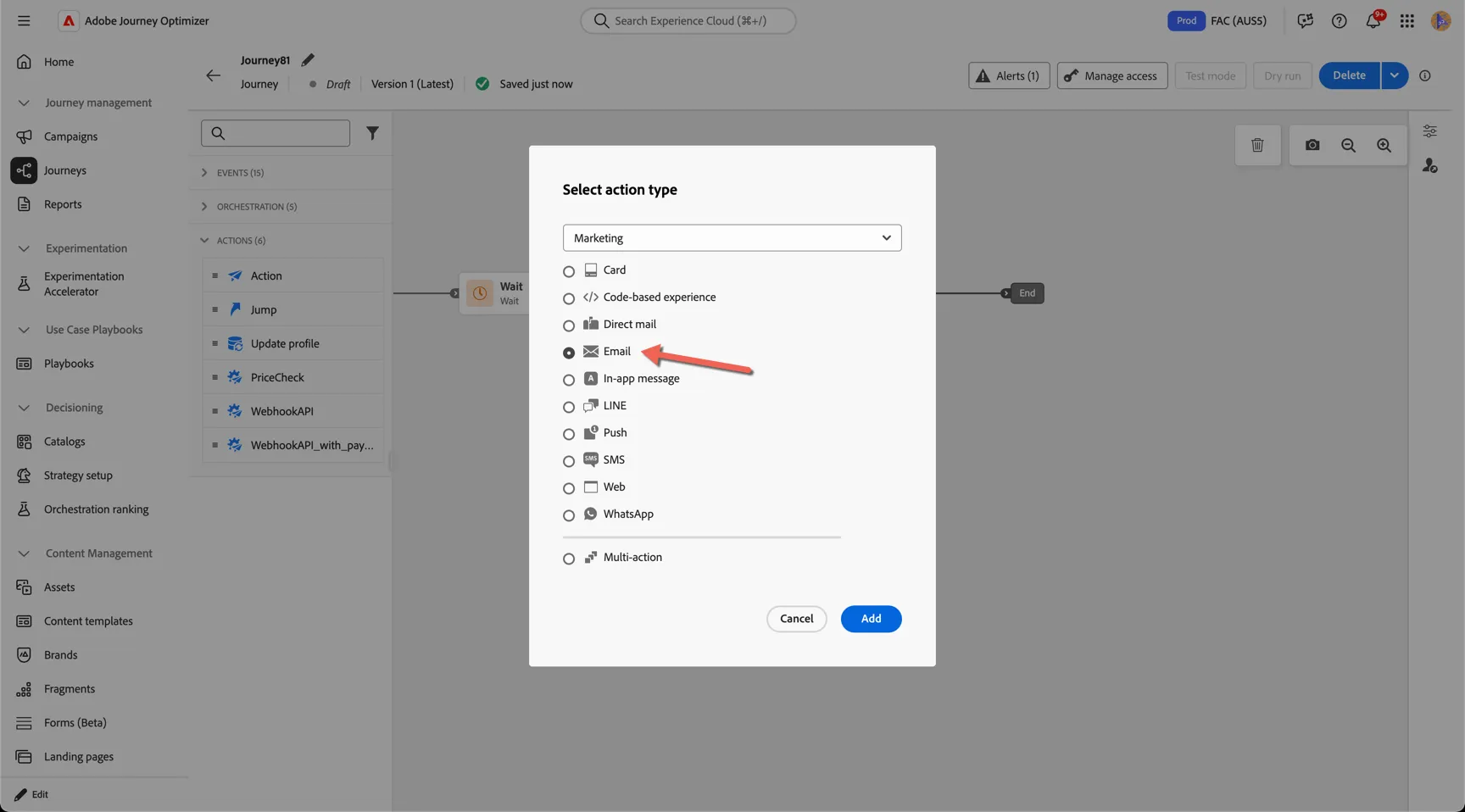
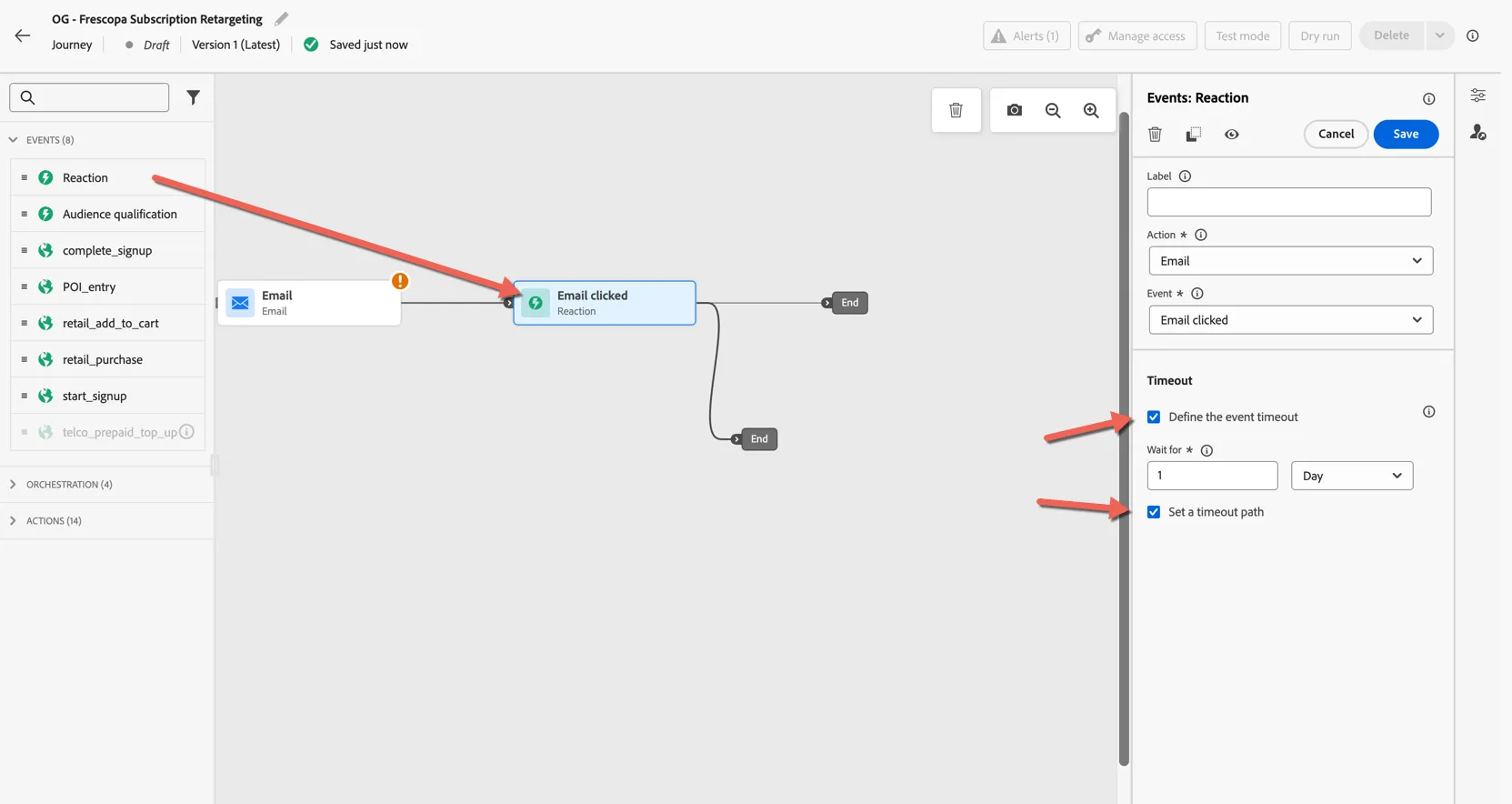
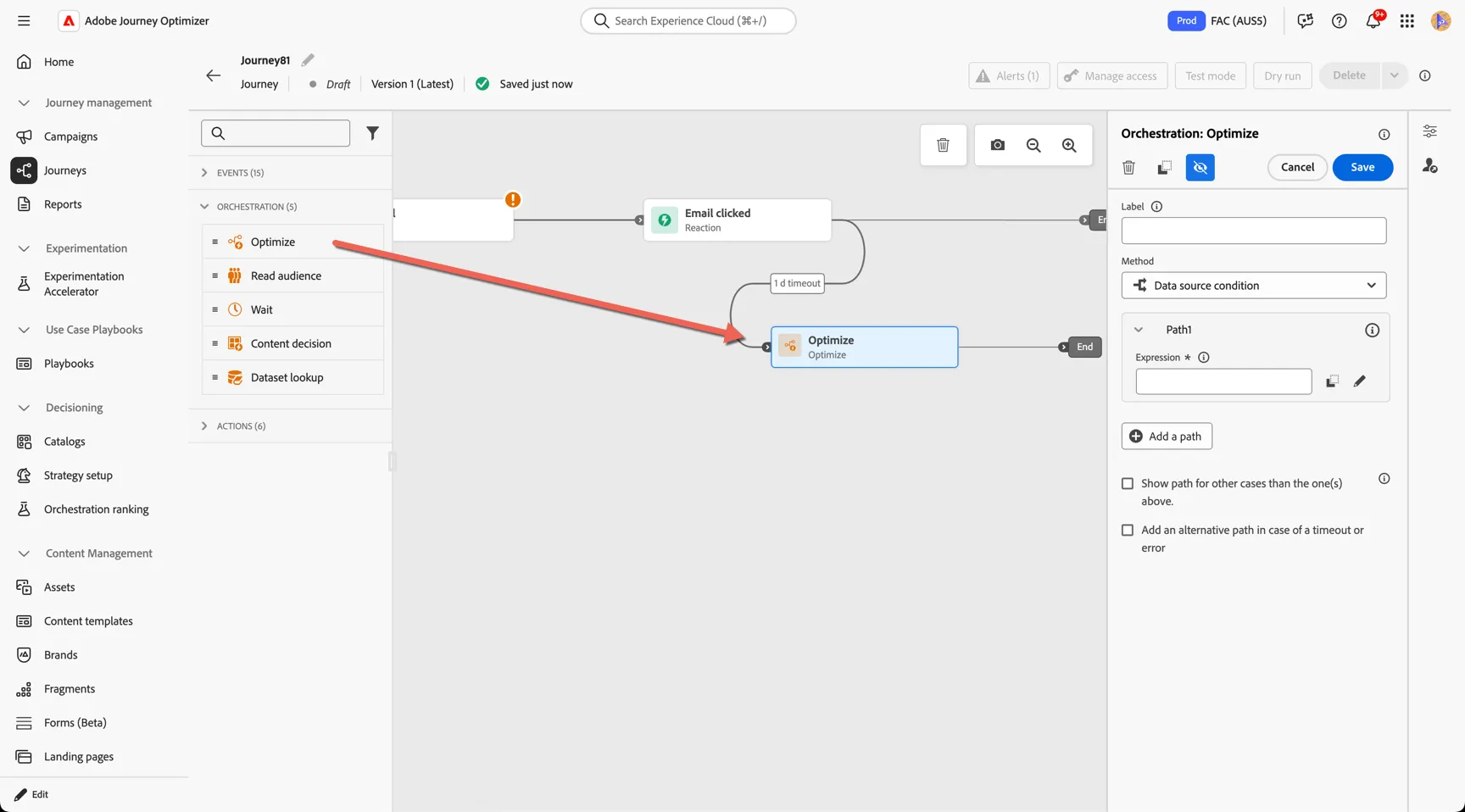
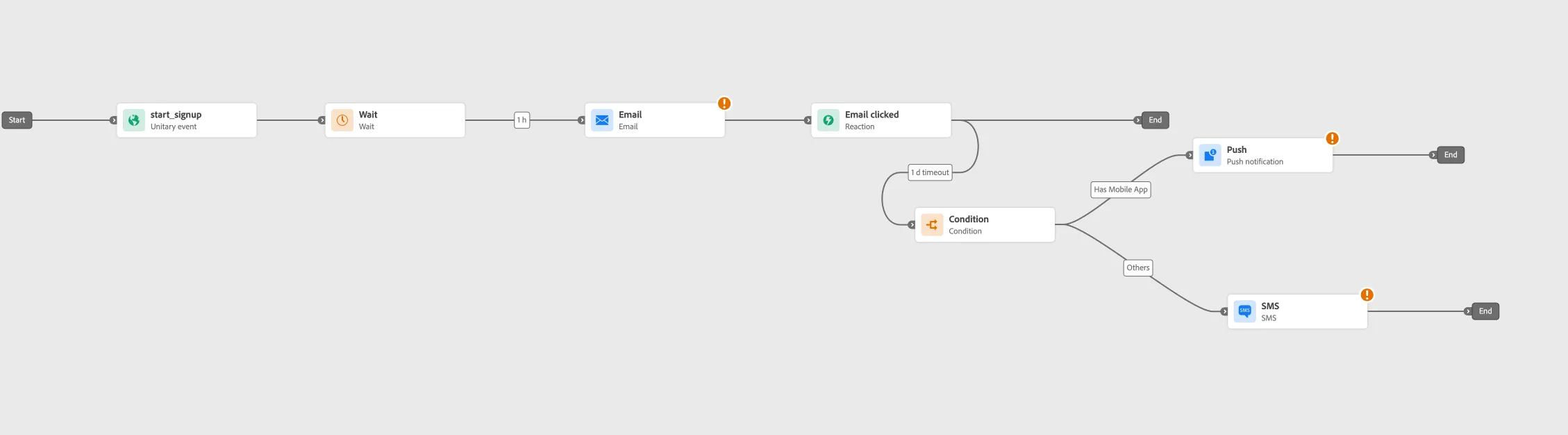
Congratulations you've created your first journey. Move to the next exercise to add content for each of the messages.