Federated Audience Composition
Scenario
Frescopa retain only recent transaction history in the real-time profile, older data is archived in their Snowflake data warehouse. The marketing team at Frescopa want to promote their new subscription packages to customers who have purchased coffee more than 3 times in the last 2 years. With Federated Audience Composition the marketing operations team can query this data within Snowflake using Adobe's visual editor rather than needing to make a request to the data team.
The data model used in the exercise references Luma not Frescopa but the concepts are the same, these are both retail centric relational data models.
Create a Federated Composition
Using federated audience composition we can ask Snowflake to run queries and transfer to Adobe only the resulting list of customer ids, keeping sensitive data secure and minimising duplication across systems.
We build the query (or series of queries) that will run in Snowflake through what we call a federated composition.
For this exercise, we will create a composition that calculates the count of orders per profile then filters the list to return to Adobe only those with a count higher than 3.
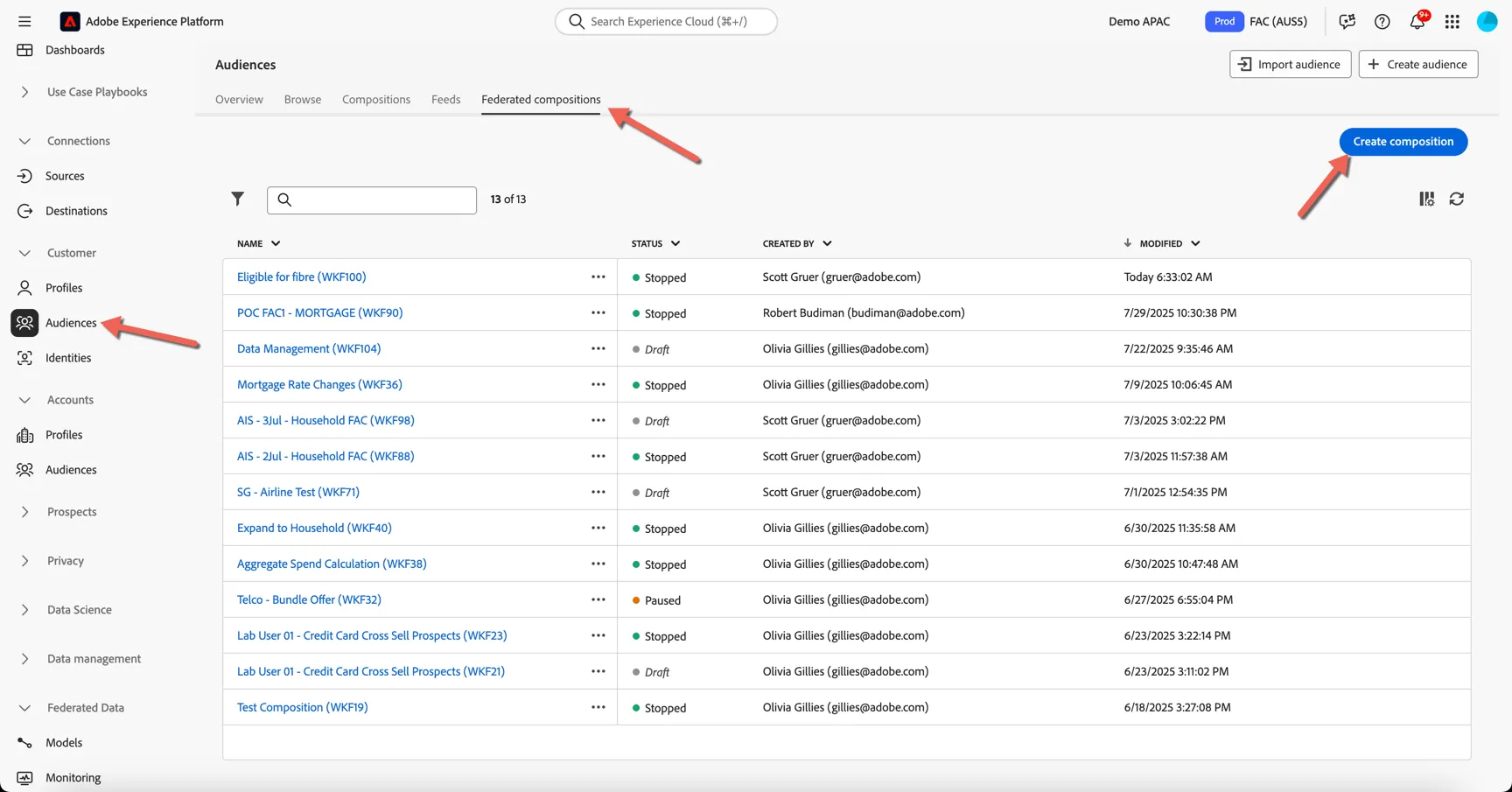
Return to Audiences and move to the Federated compositions tab. Click to Create Composition.
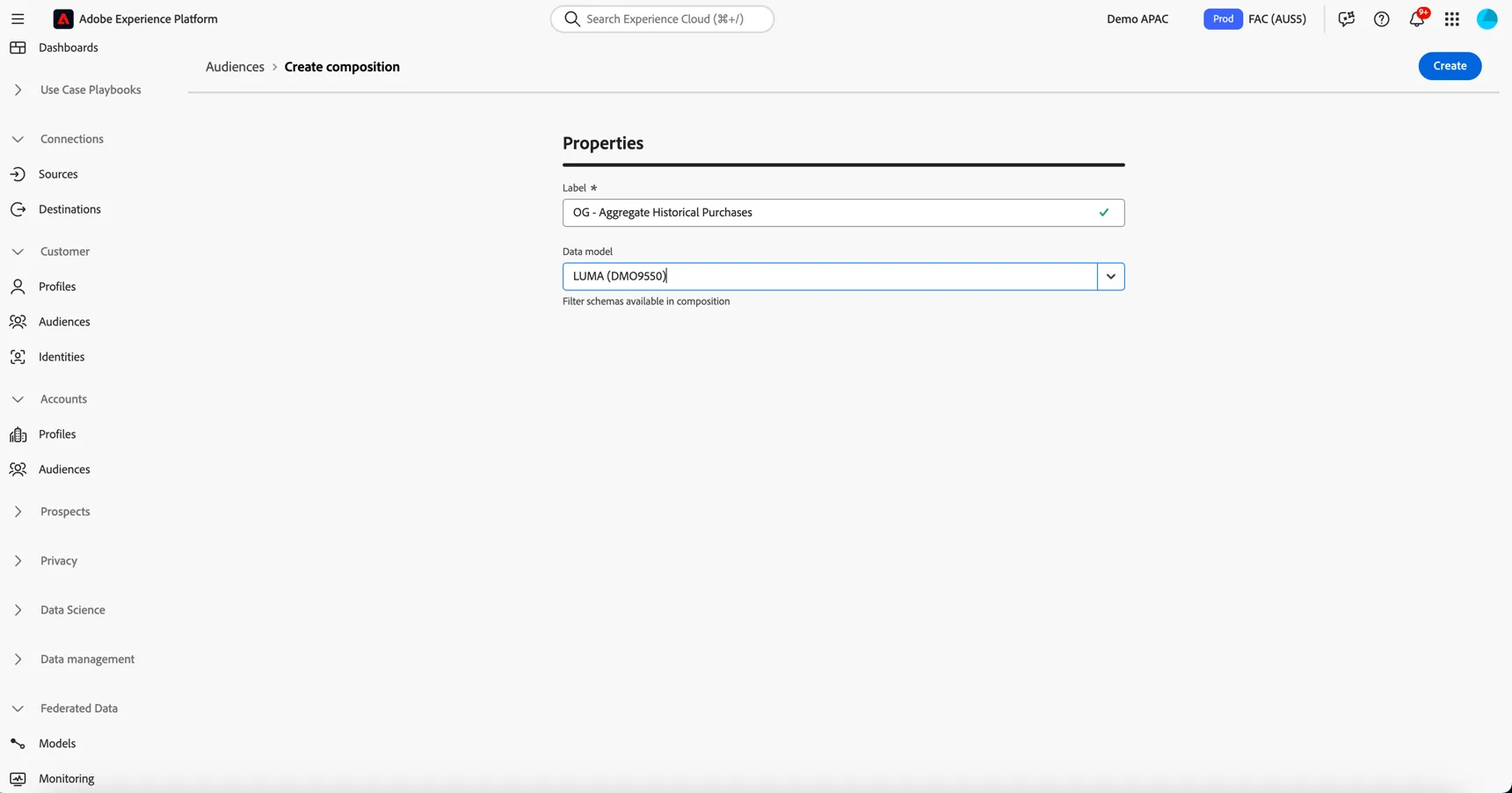
On the properties screen, give your composition a name (add your initials or something unique so you can recognise it again) and select the LUMA data model. Then click Create.
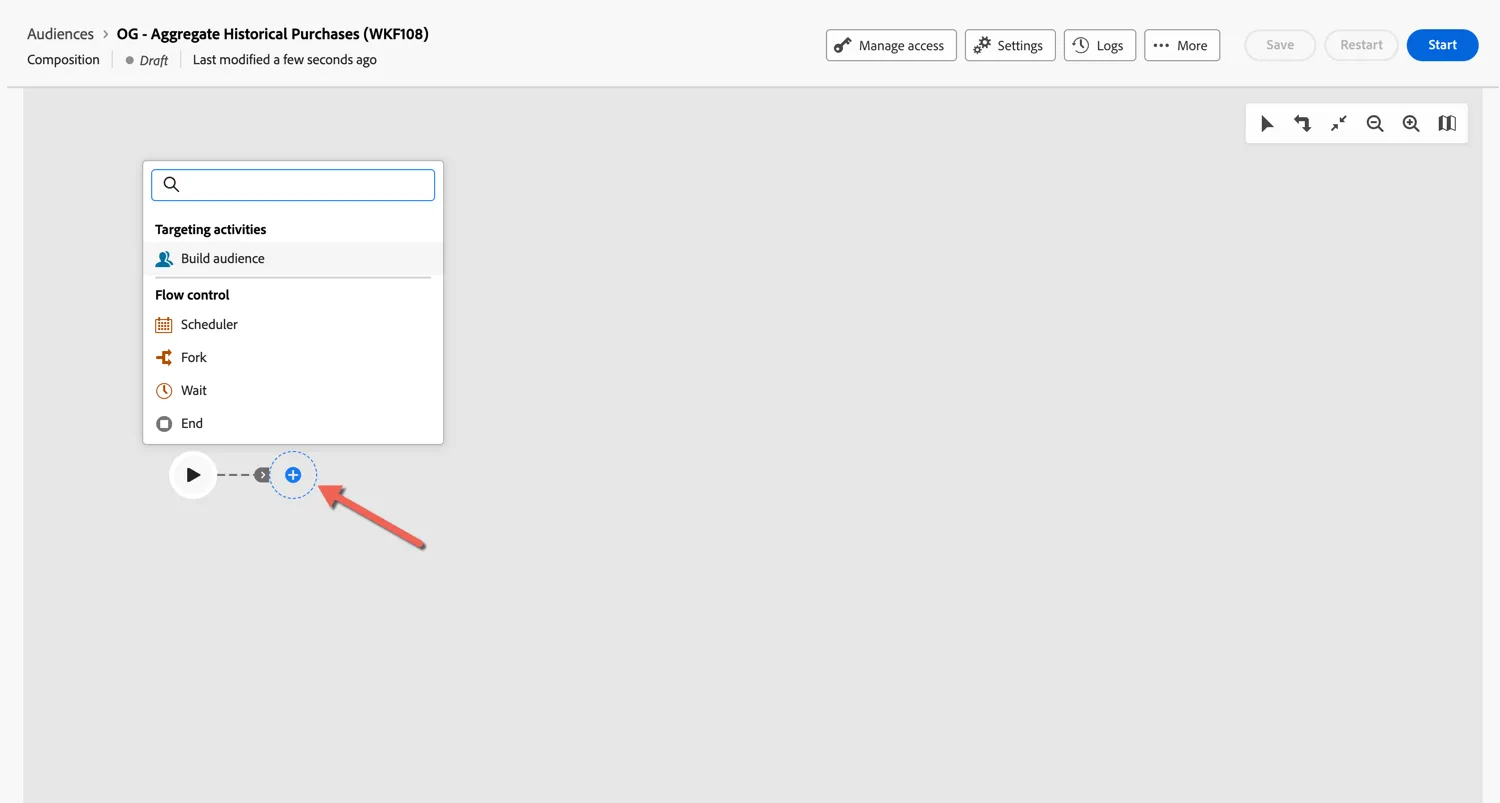
The composition canvas is where we will build the queries that we want to run in the remote database.
Add a query
Click on the plus to start building your composition, select the Build audience targeting activity.
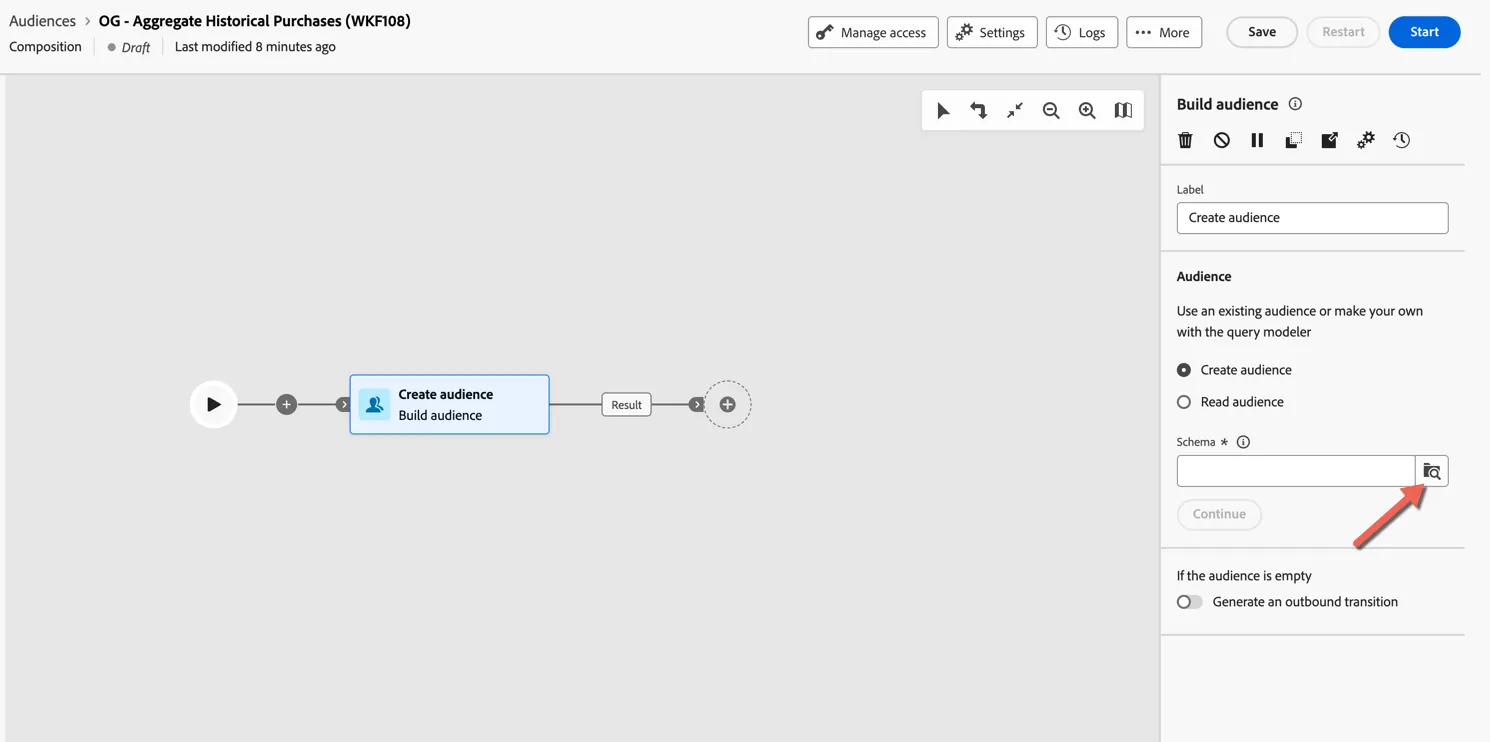
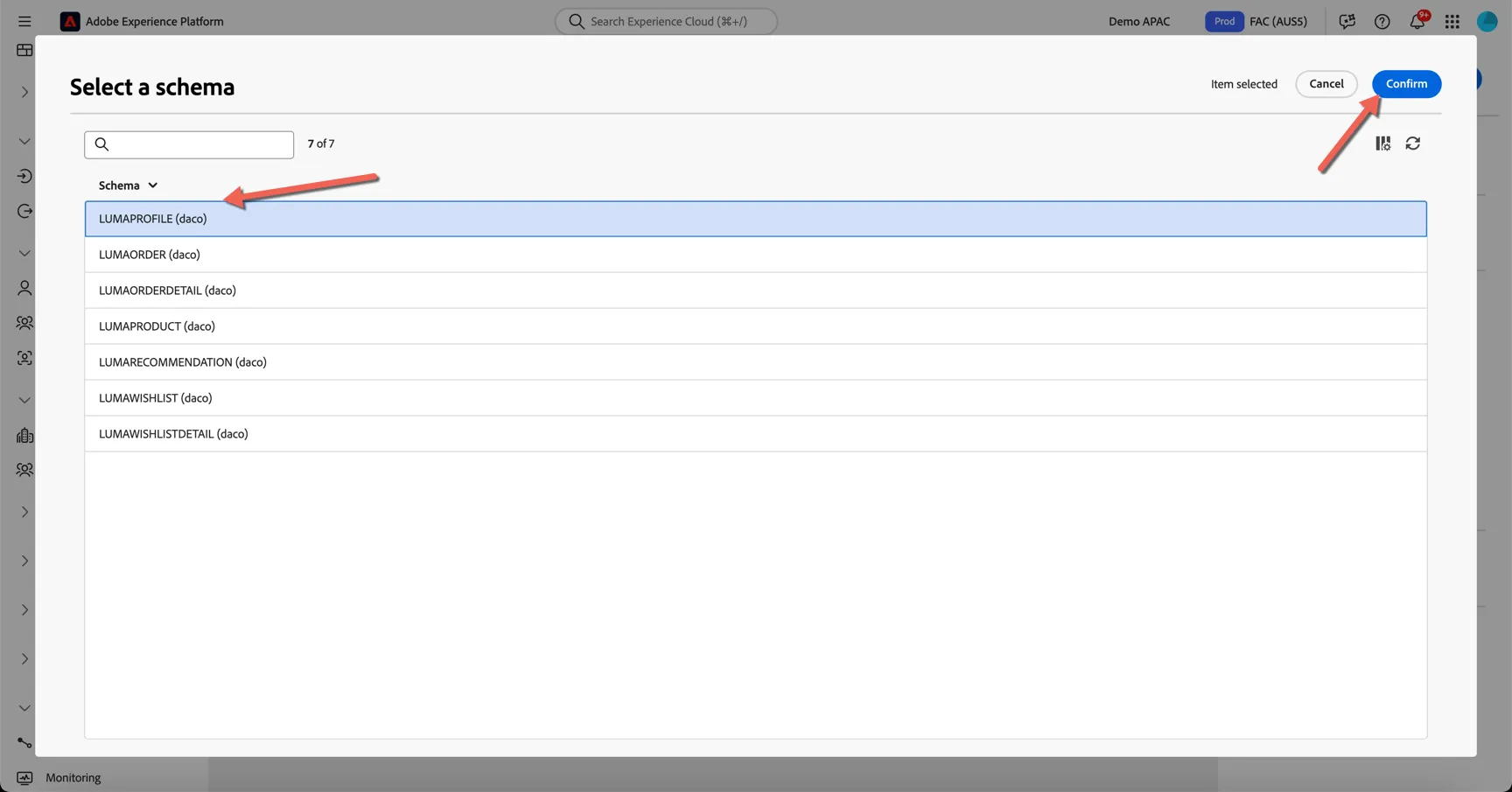
The activity properies appear on the right. The first thing we need to do is select which schema (ie. table) we want to query. Click on the schema list.
Select the LUMAPROFILE schema and click Confirm.
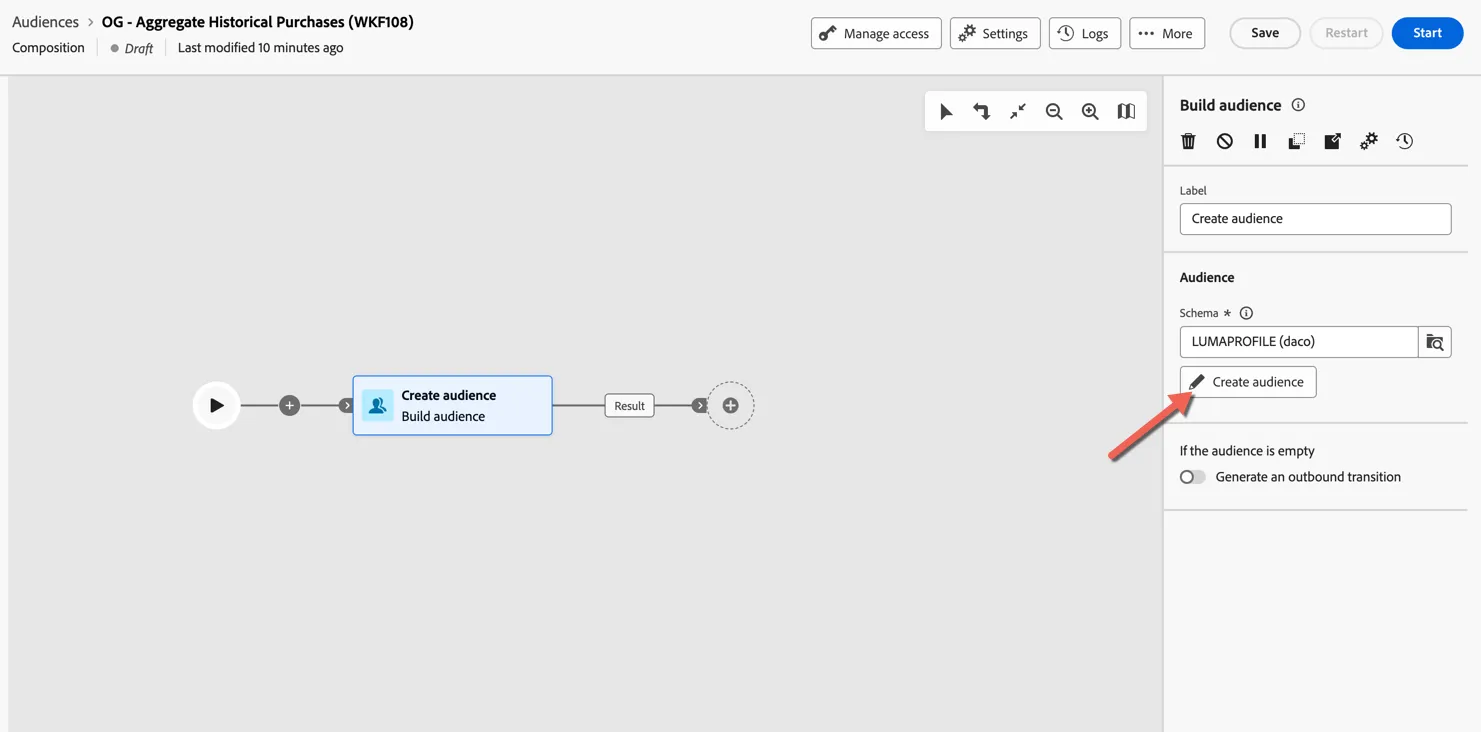
Click on Create audience to finish configuring our query.
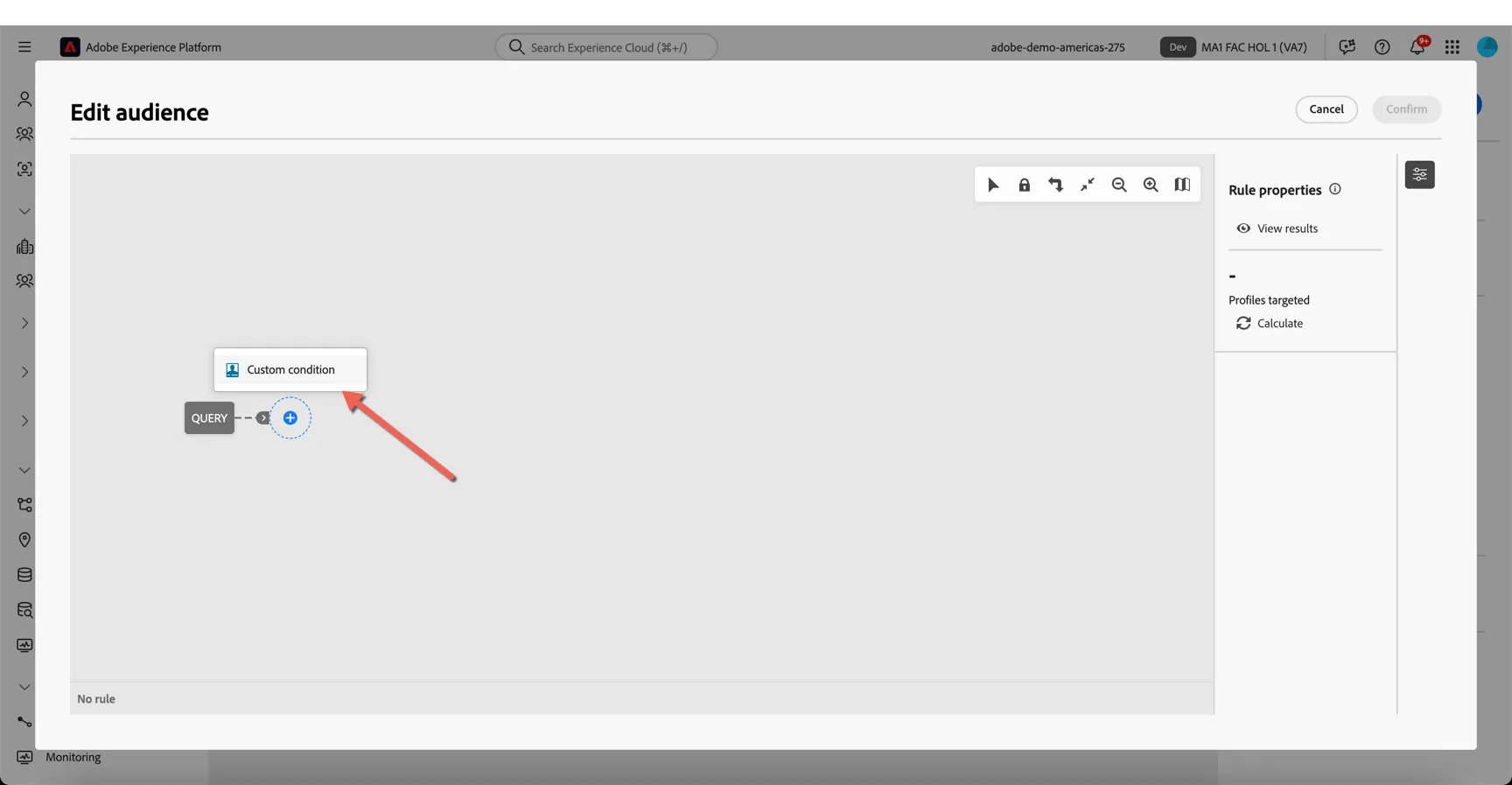
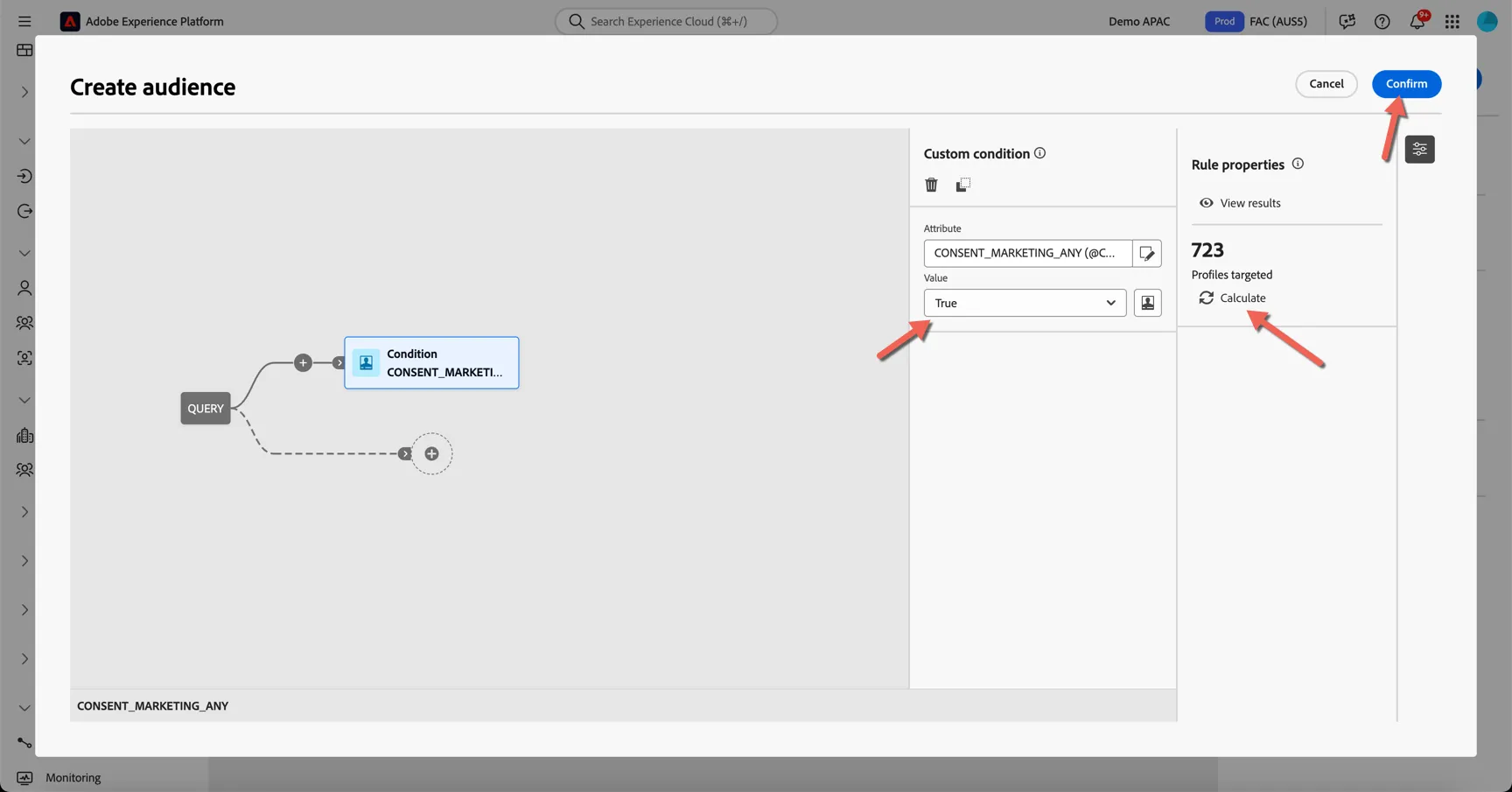
In the query builder, click the + icon to add a custom condition.
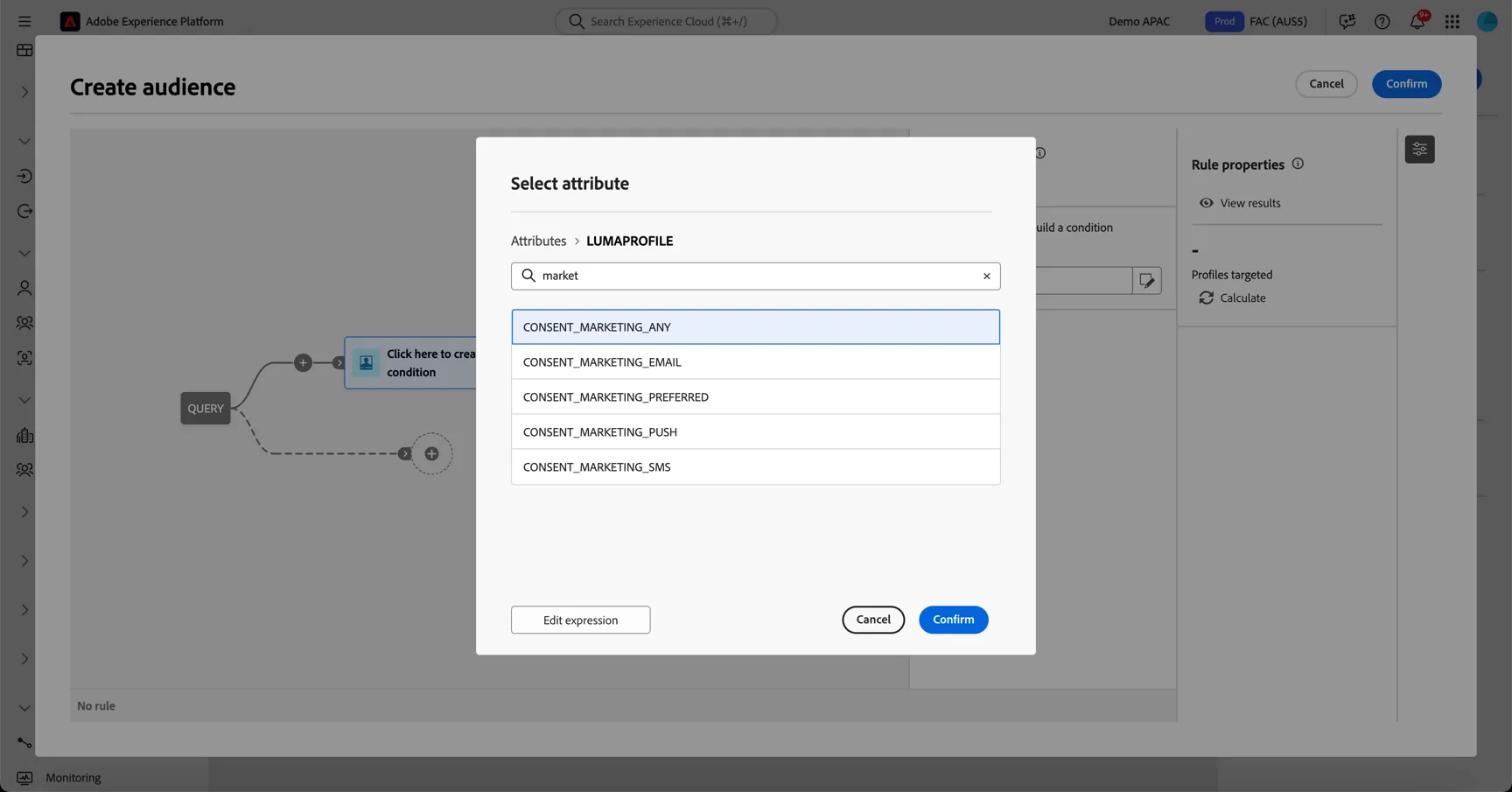
This gives you access to all of the columns in the table. Select the column you want to query, in this case CONSENT_MARKETING_ANY and click Confirm.
Change the condition from False to True. You can even get a count of how many profiles will be targeted by clicking on the calculate button. Click Confirm to return to the canvas.
Aggregrate Data
Next we want to calculate how many orders each of these profiles have done. For this we will use an enrichment activity. Click on the plus at the end of the composition and select Enrichment.
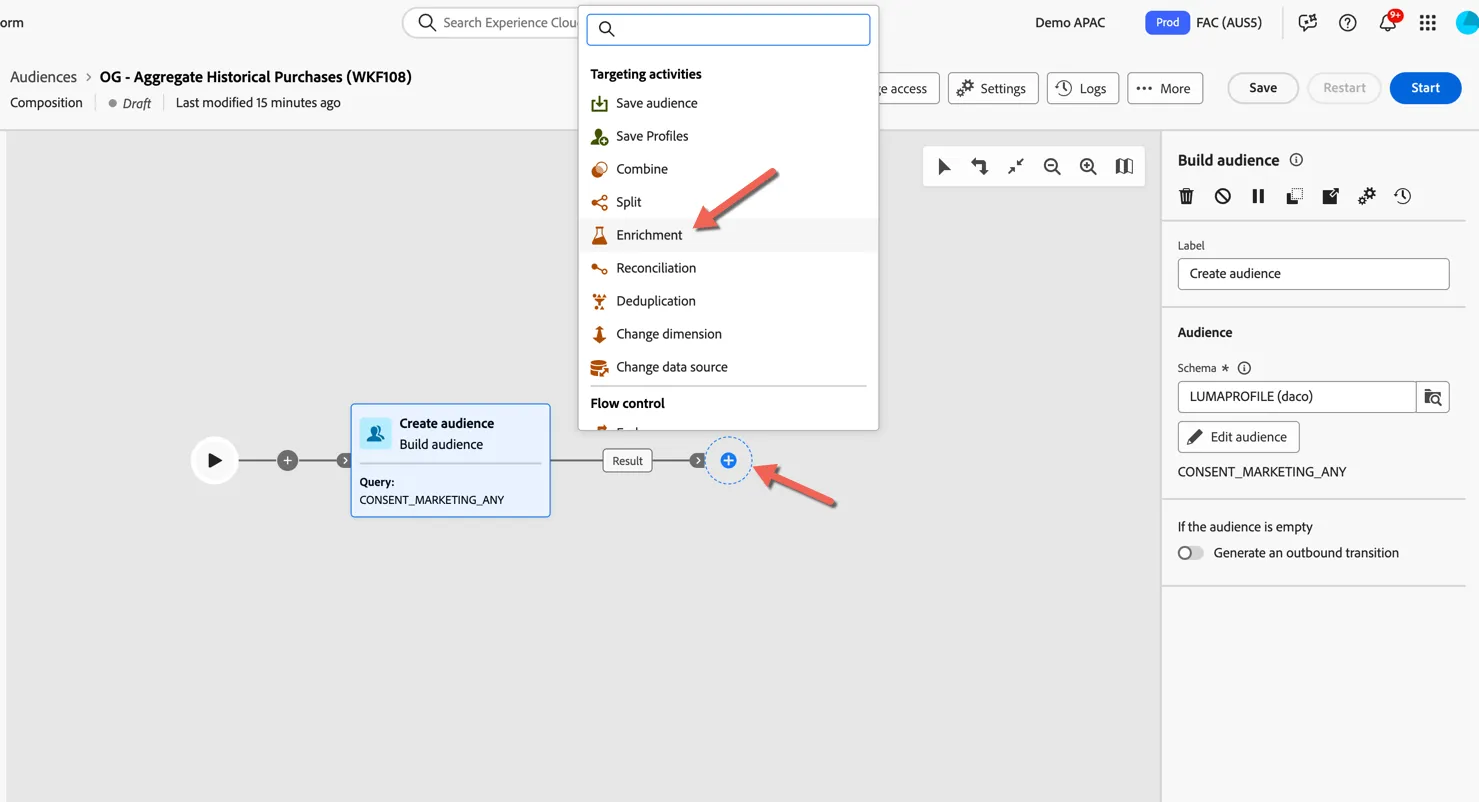
Click to add enrichment data.
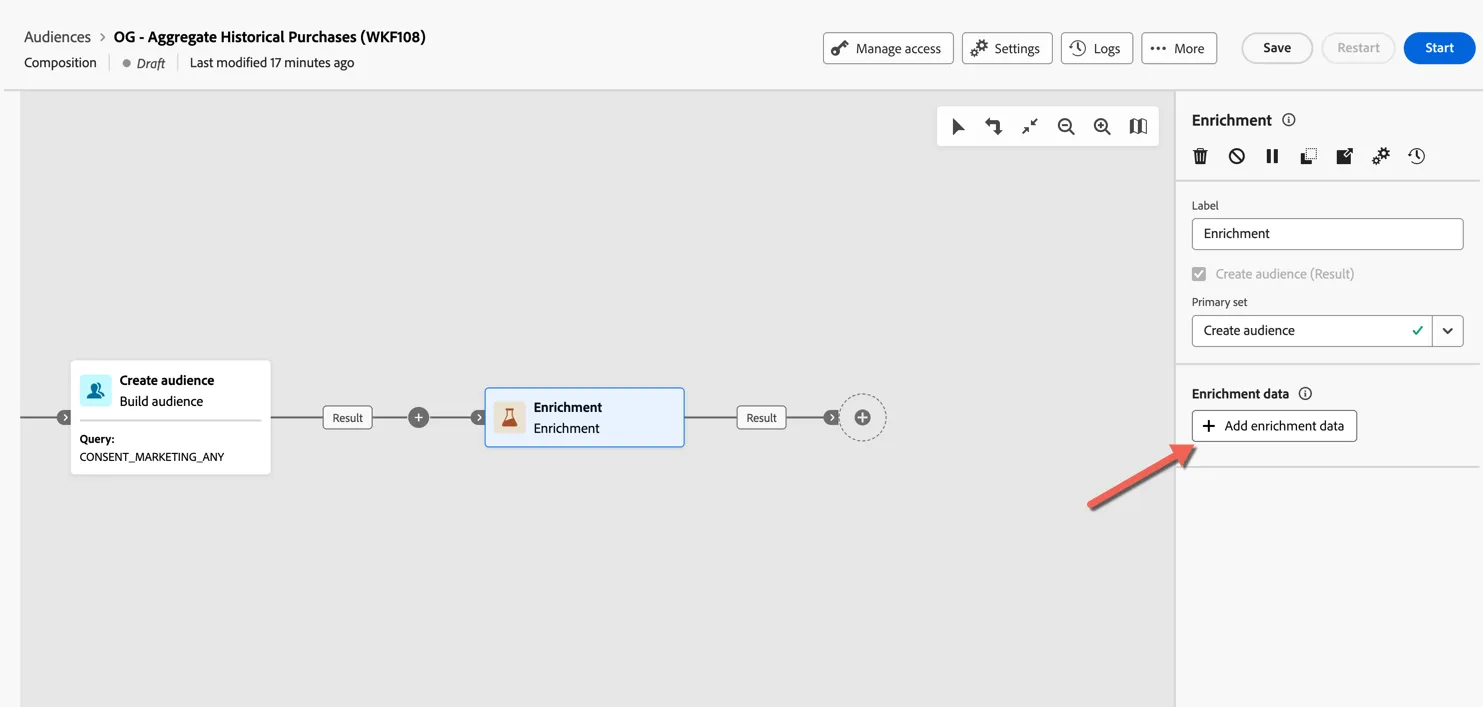
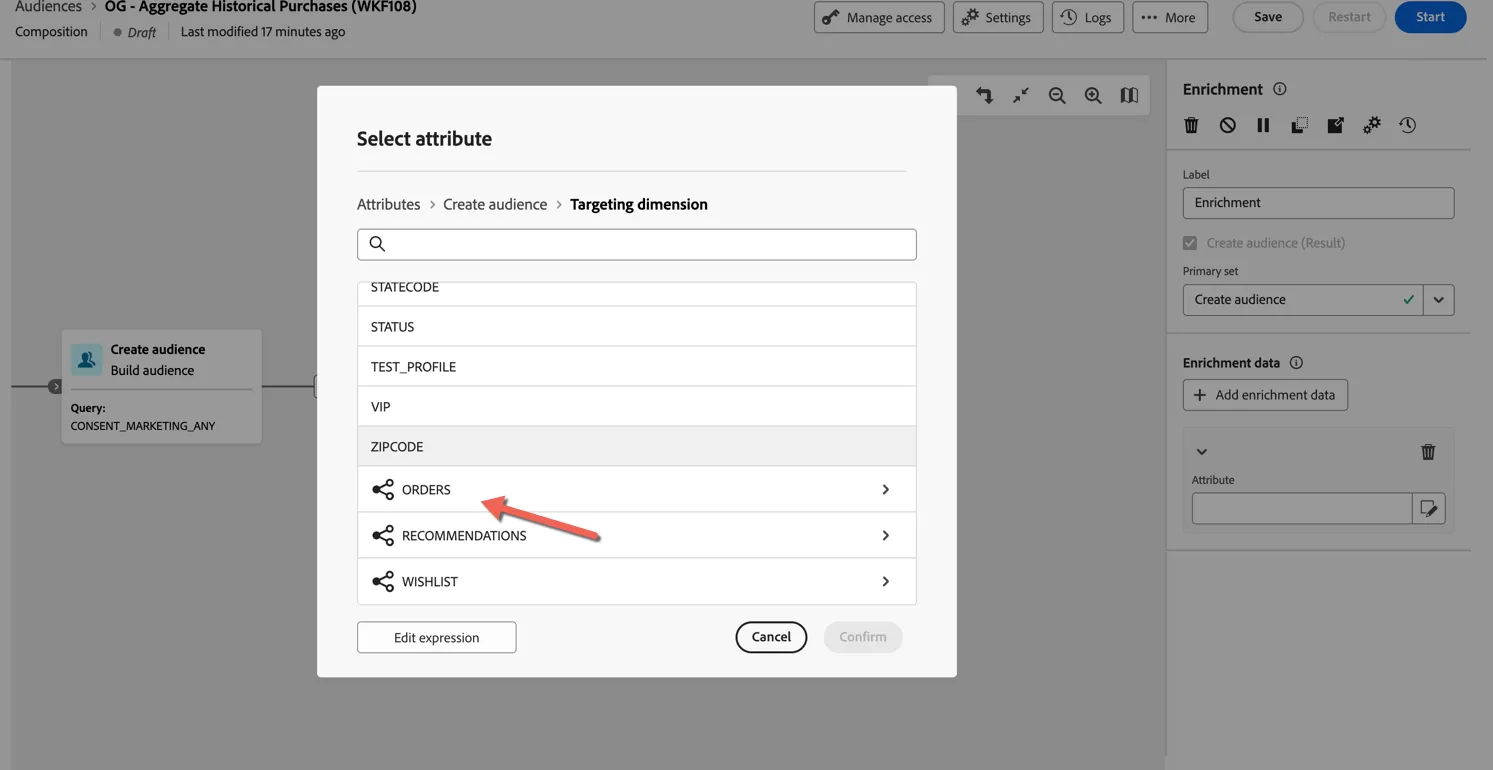
We want to enrich our query with data from another table - the orders table. The data model was configured to understand this link, click into the Targeting dimension to see the linked tables.
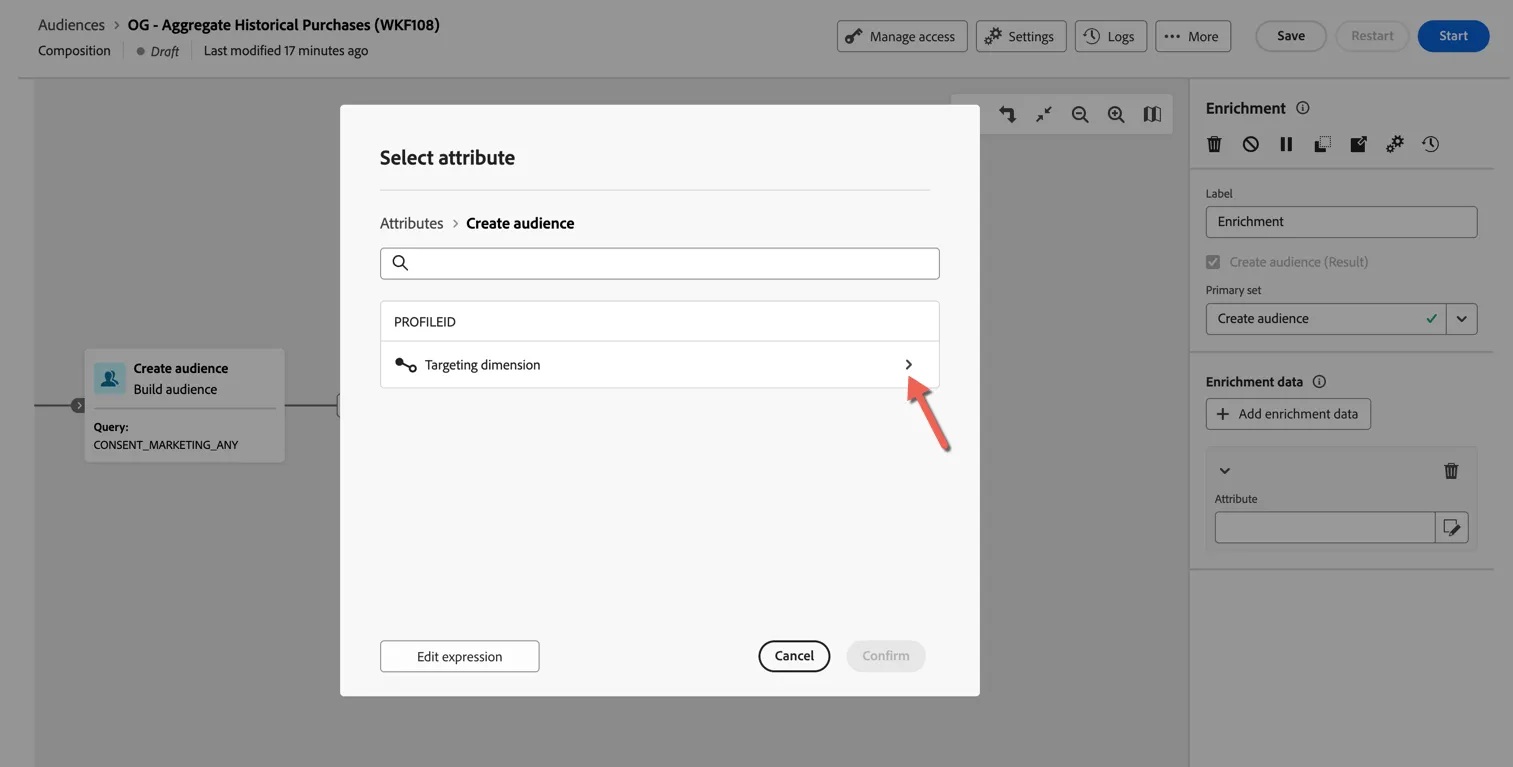
Scroll to the bottom of the attribute list and you'll see the linked schemas, the icon on the left represents whether it is a one to one relationship or a one to many relationship. Select the orders schema.
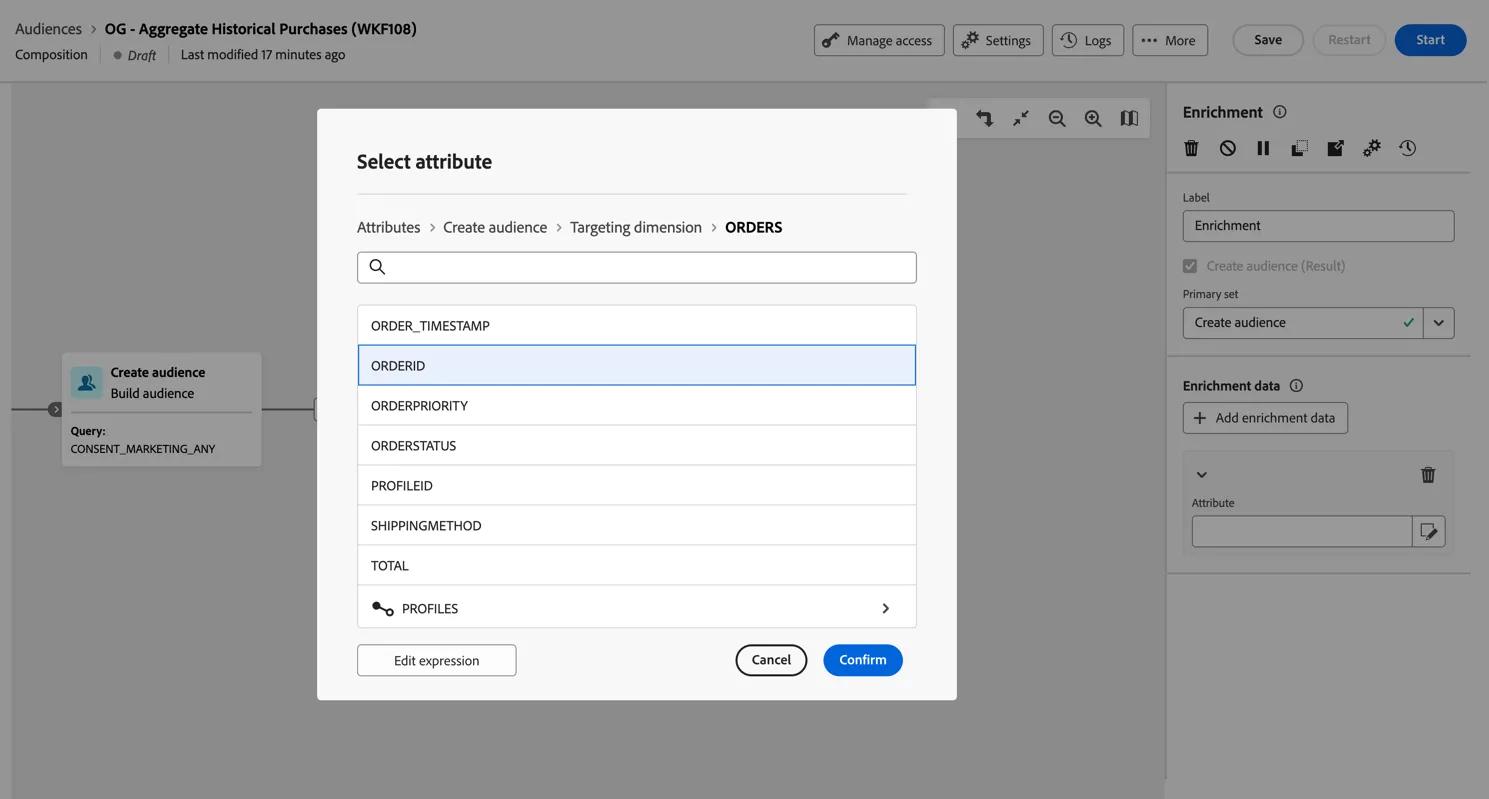
You need to select one of the attributes from the orders table that we'll use to count the records. Select the orderid for this purpose. Each order should have a unique id so counting this will give us a correct calculation. Click Confirm.
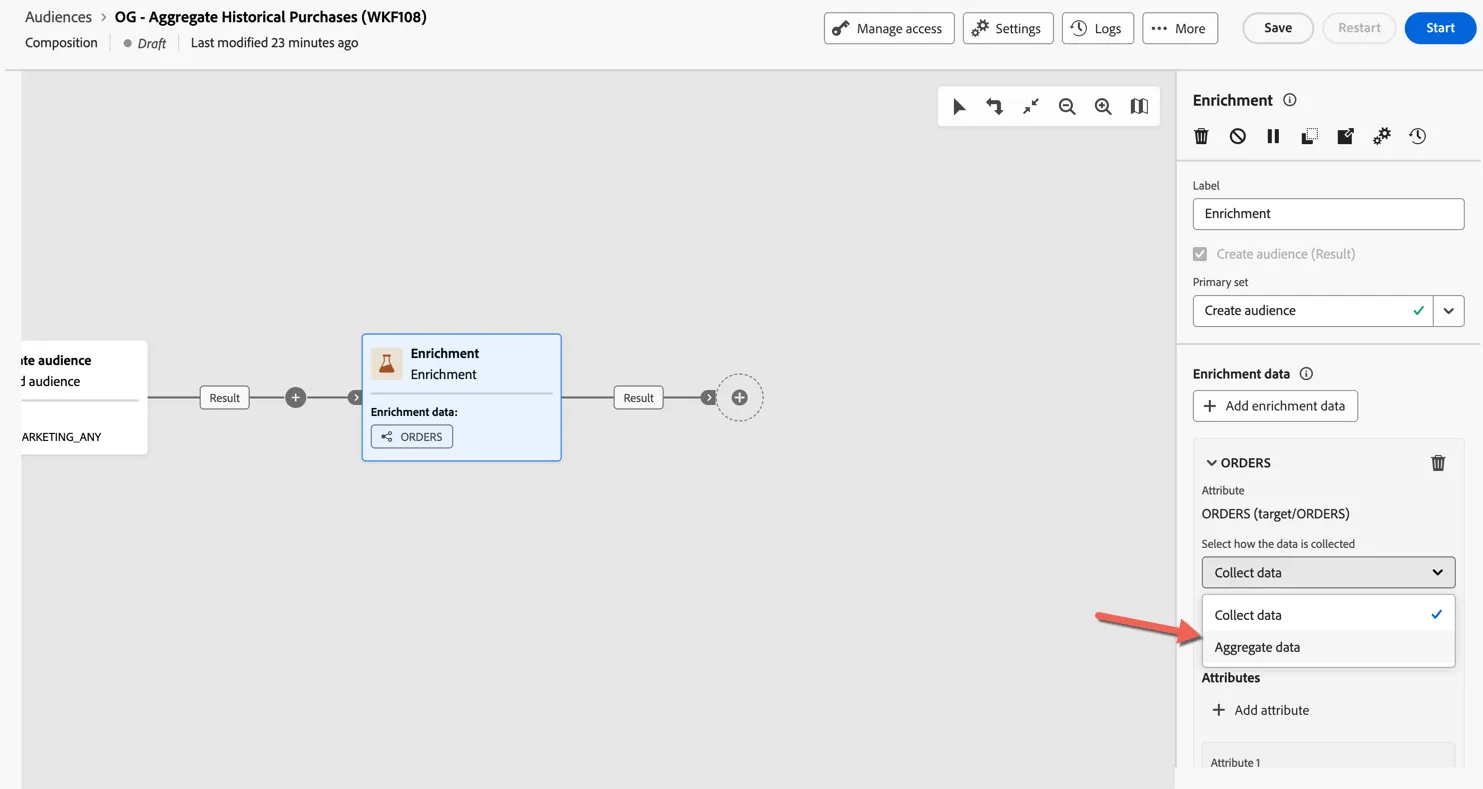
In the enrichment properties change how the data is collected to Aggregate data.
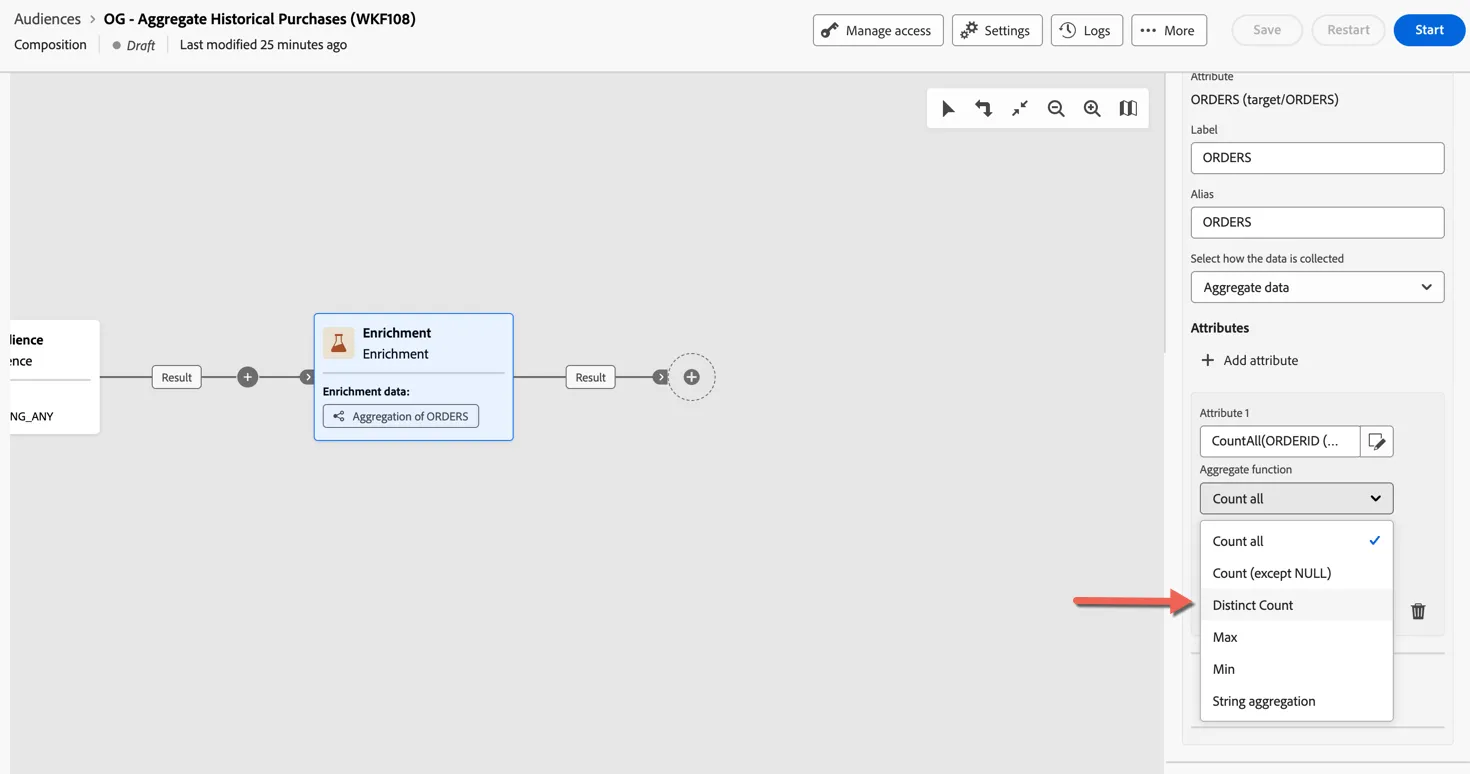
Update the aggregation function to use Distinct Count.
Filter results
Next we want to filter the results to only include profiles where the count is greater than 3. We will use a split activity to create this filter. Click the plus to add to your composition and select Split.
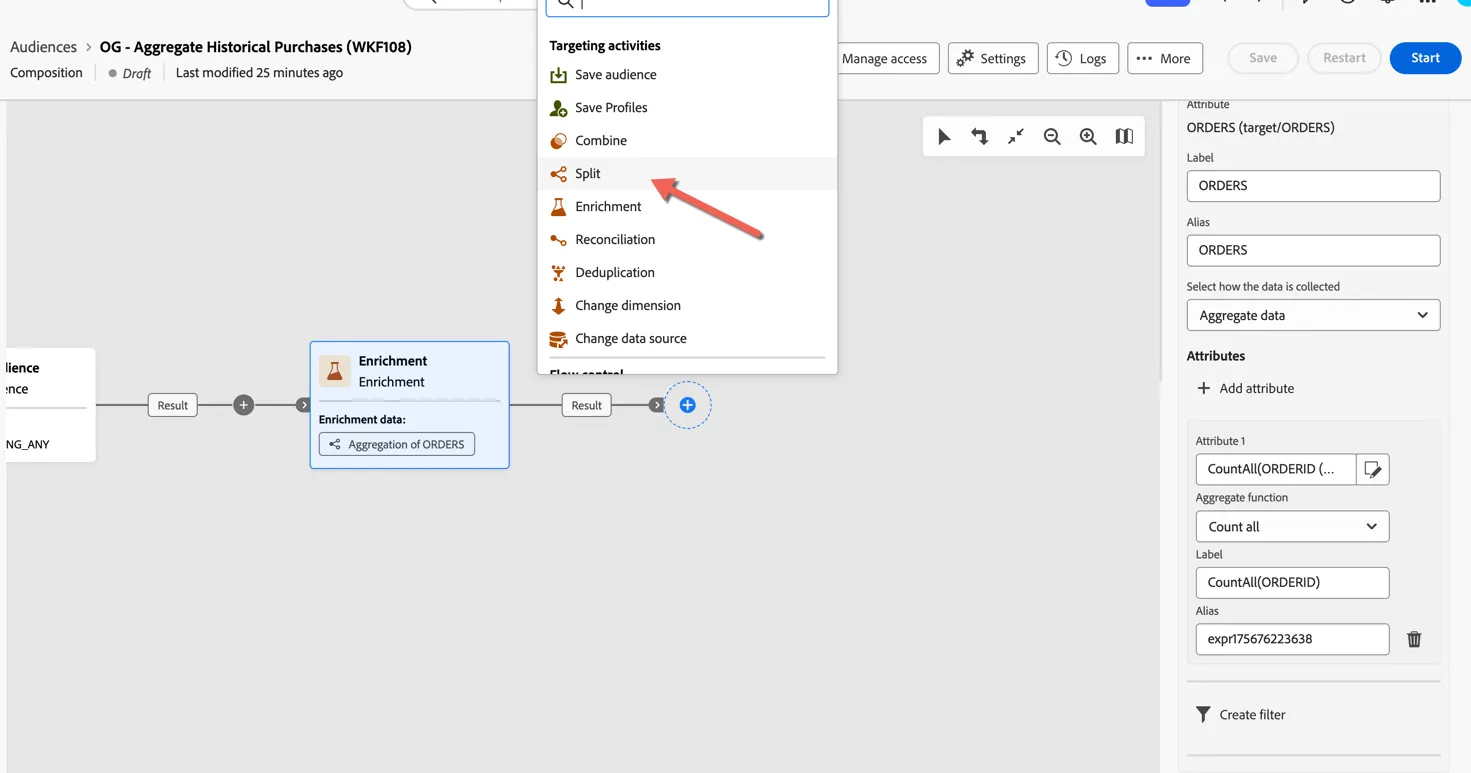
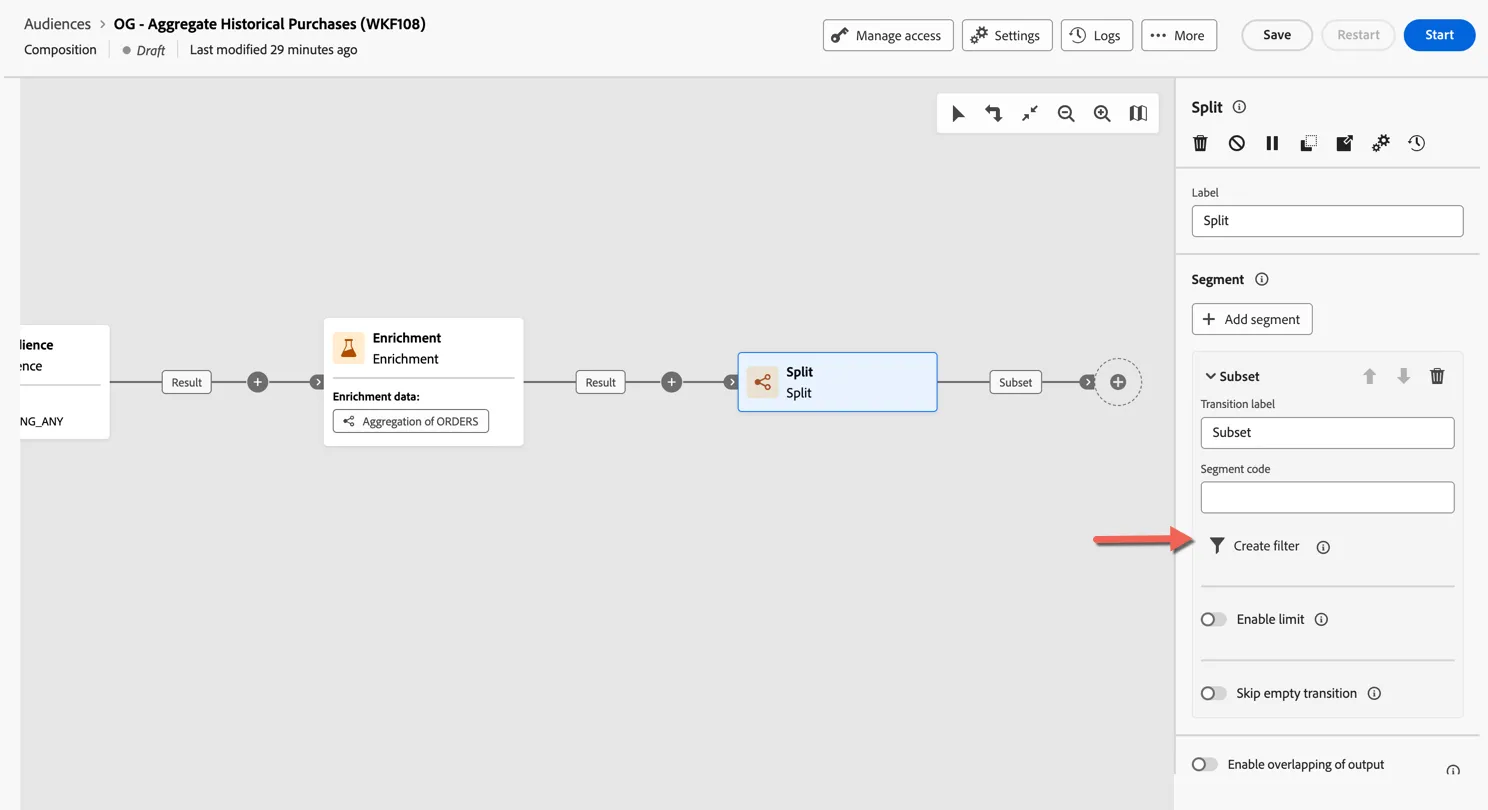
The split activity let's you split the results into multiple subsets. For this use case we only require one subset. Click to expand on the default subset in the properties, we're going to add a filter condition to this.
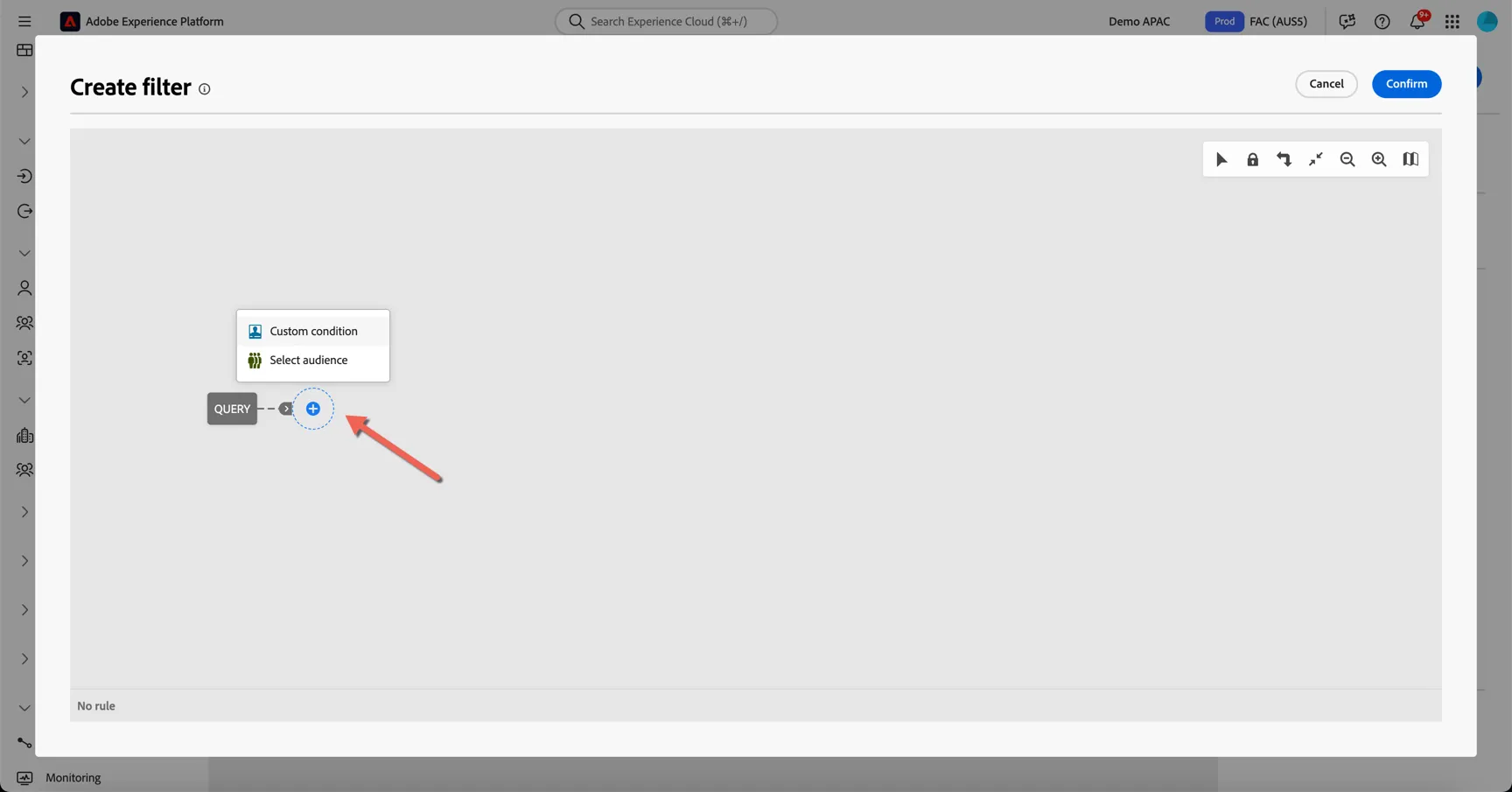
In the query builder click the plus to add a custom condition.
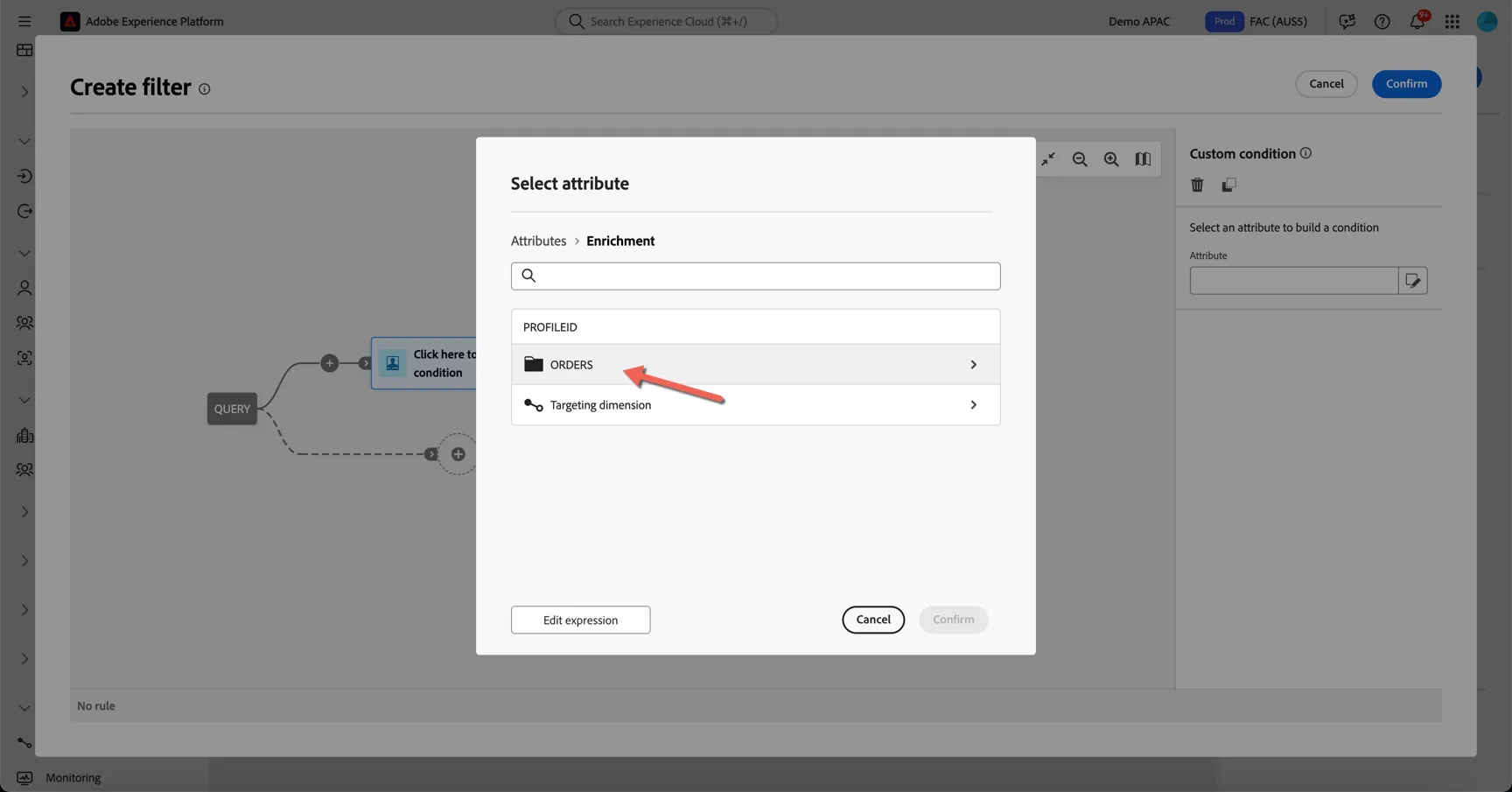
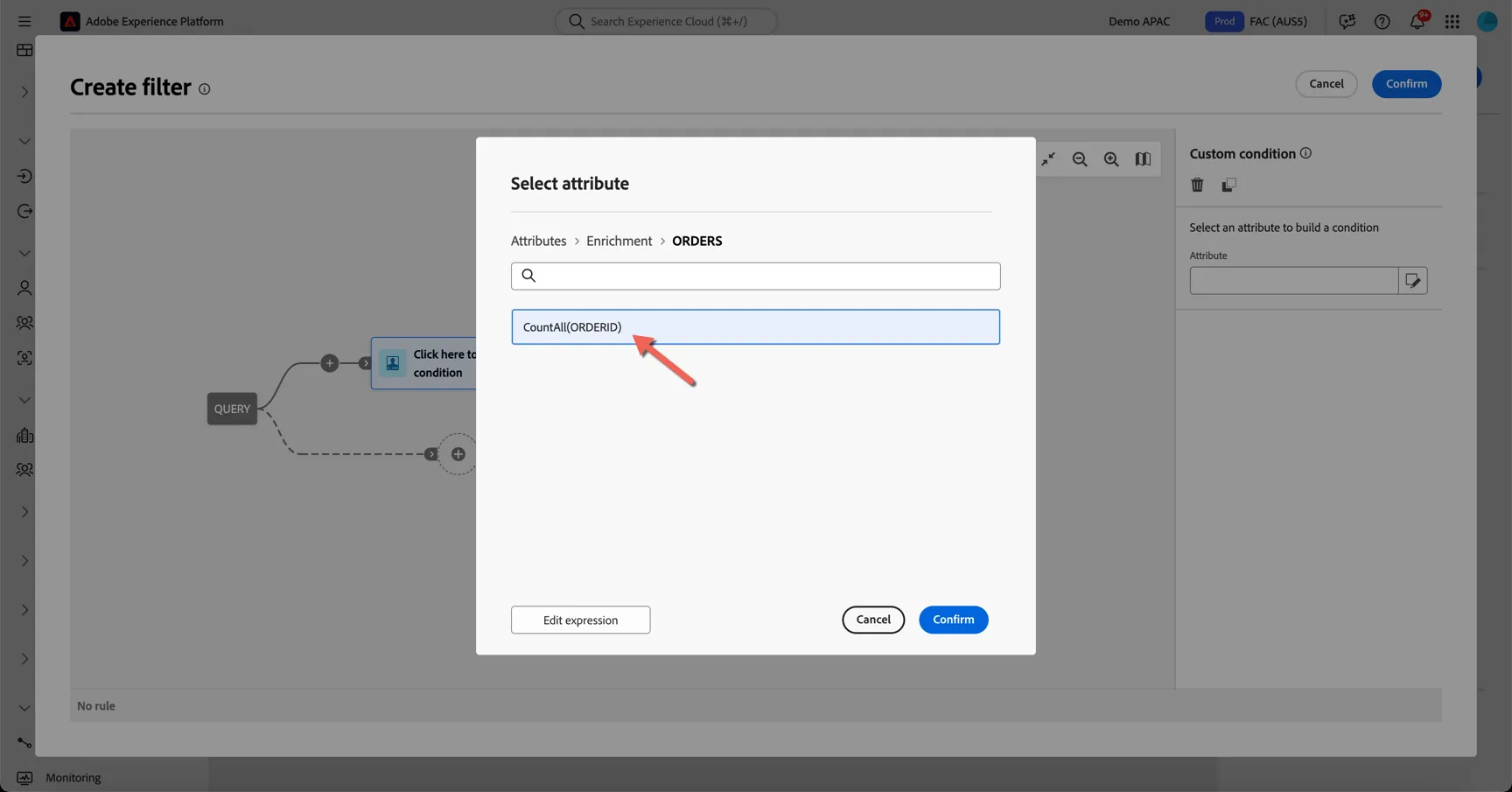
In the attribute selector we can see a new folder called ORDERS. This was added by the enrichment, click into ORDERS.
You will see the count attribute that the enrichment added. Select it and click Confirm.
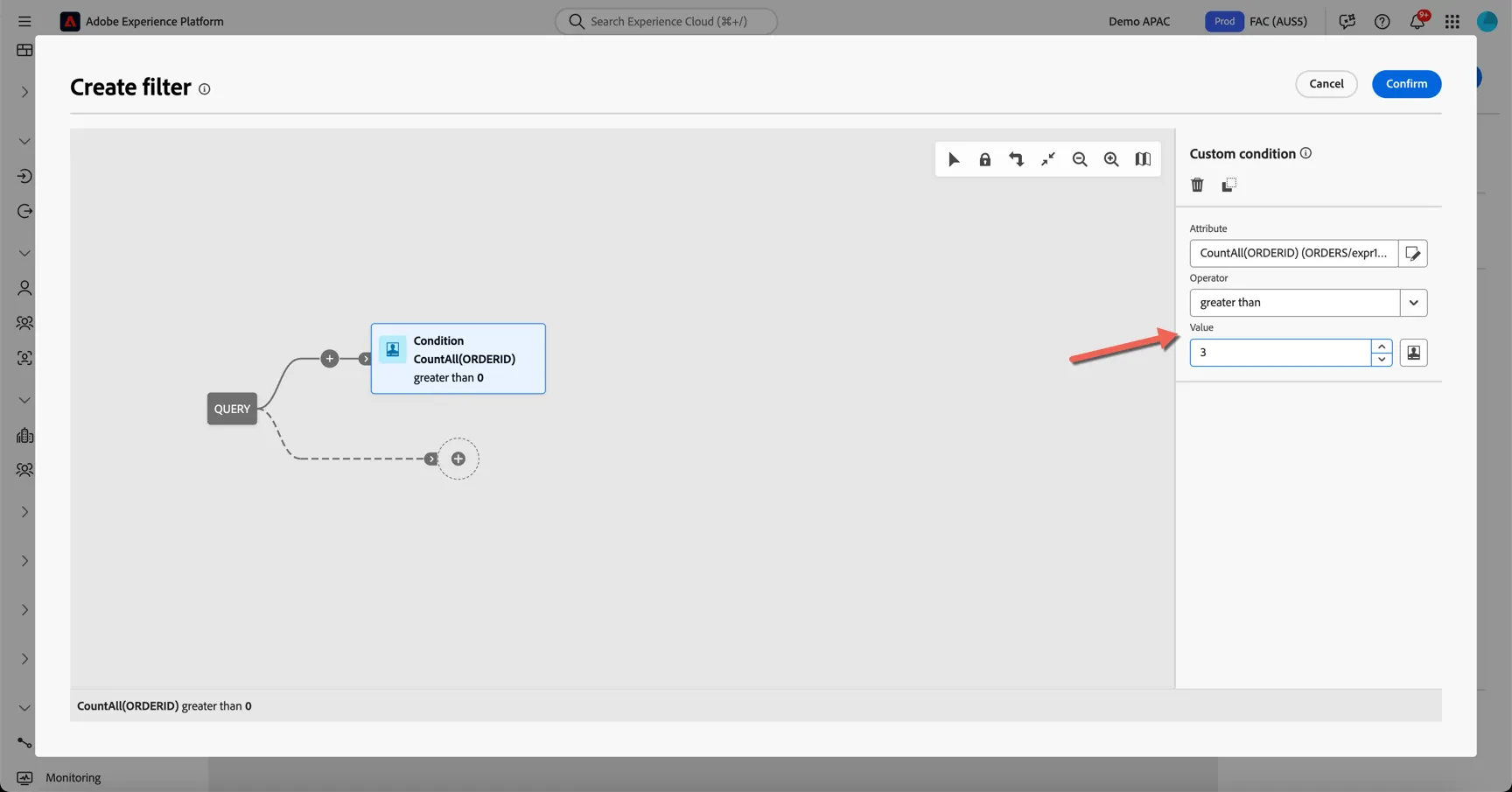
Update the custom condition properties to look for values greater than 3. Click Confirm to return to your composition.
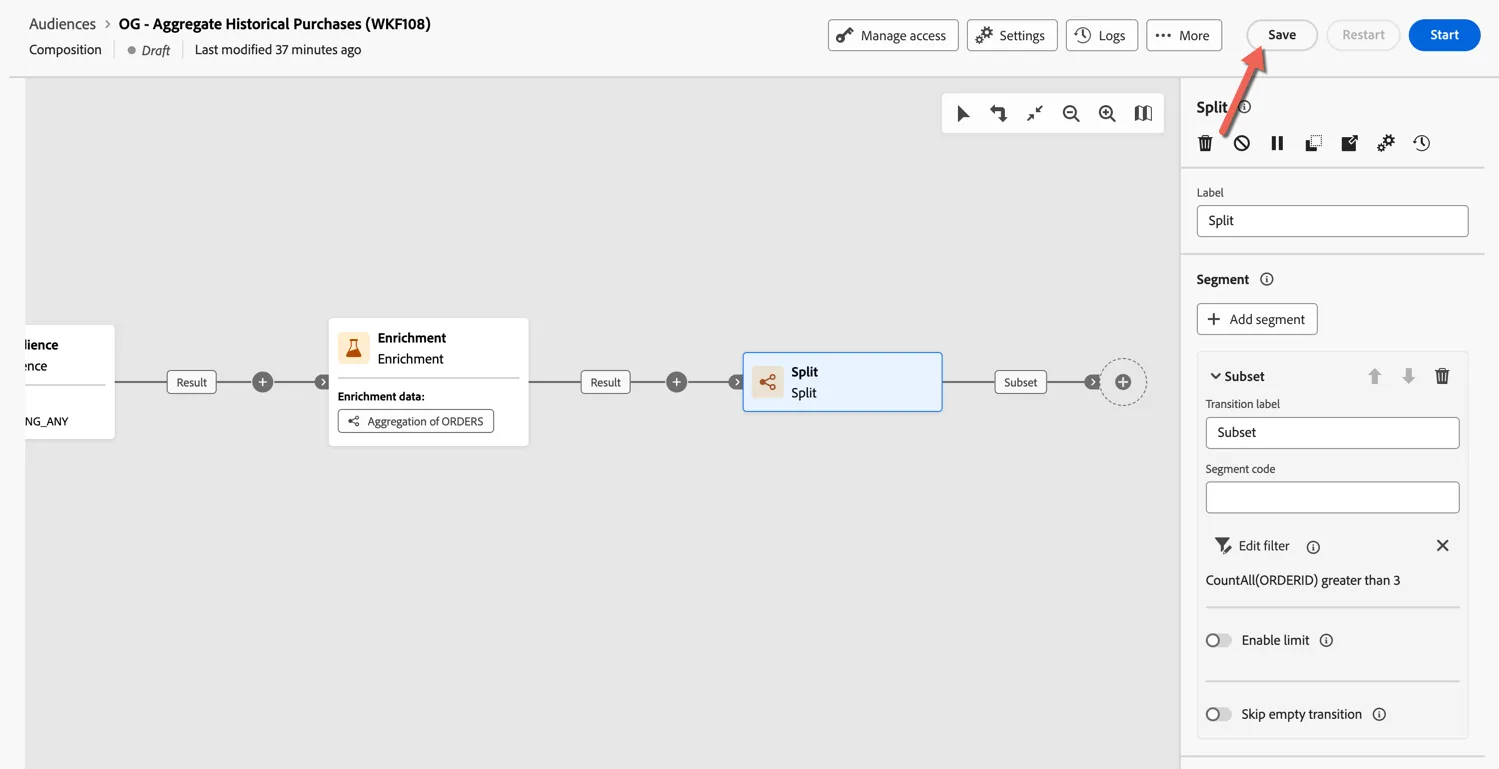
With our query logic complete, let's test it out. Click to Save your composition.
Preview Audience
Now click to Start the composition.
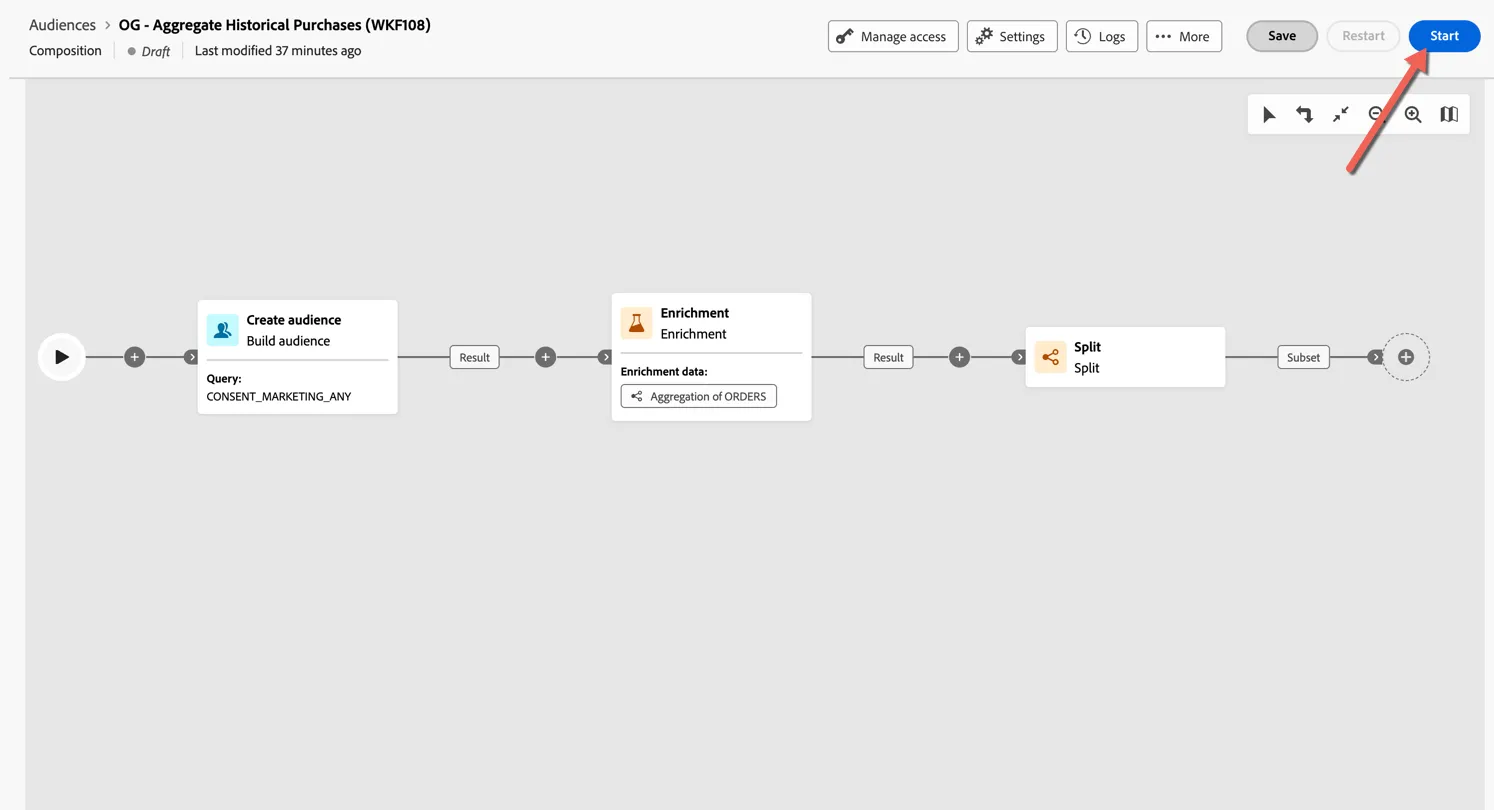
Your composition will run, executing queries in Snowflake only. No data has transfered to Adobe Experience Platform at this stage! You can see the resulting counts from each step in the composition, we can see that 111 of our 723 profiles were added to our subset.
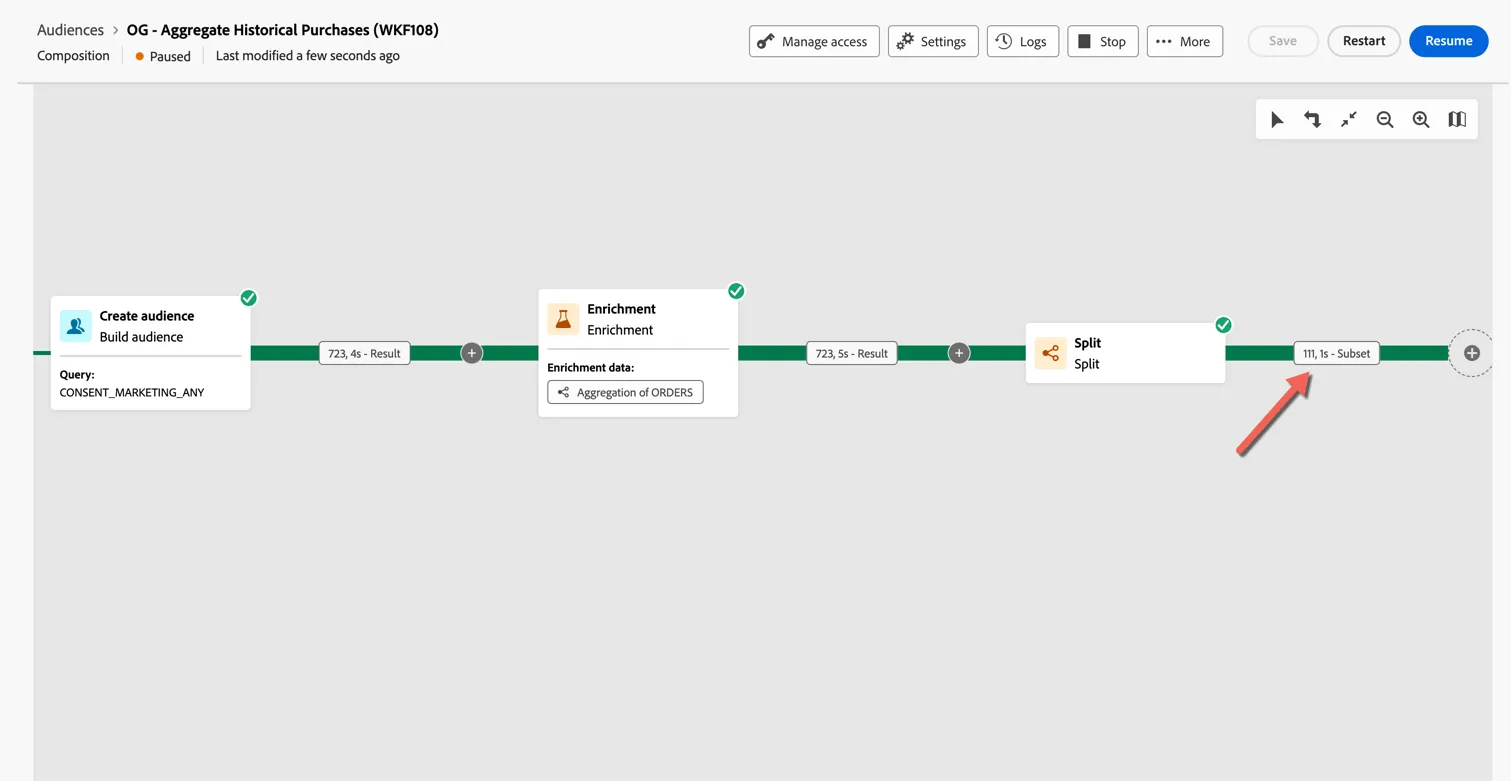
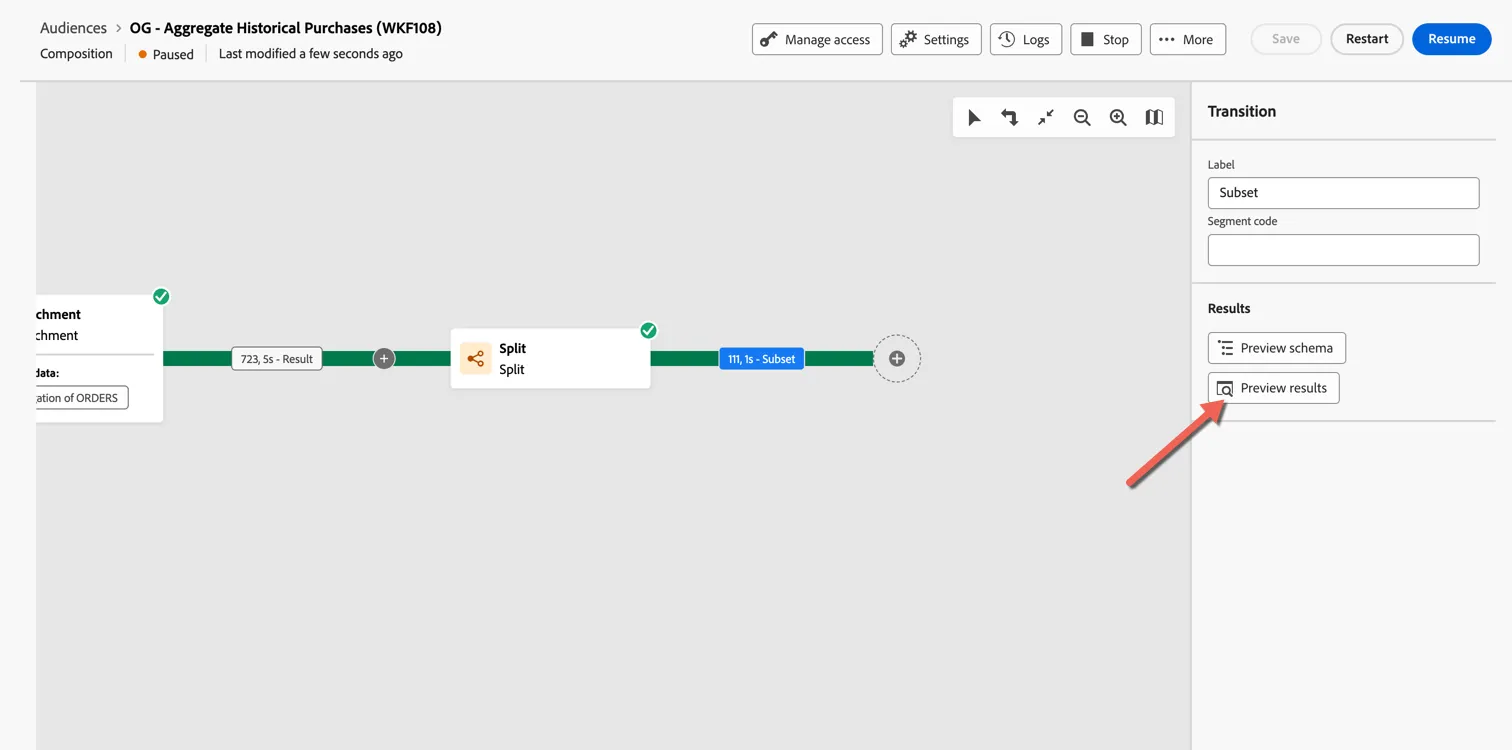
You can even view preview the results directly. Click on the last transition and select Preview results.
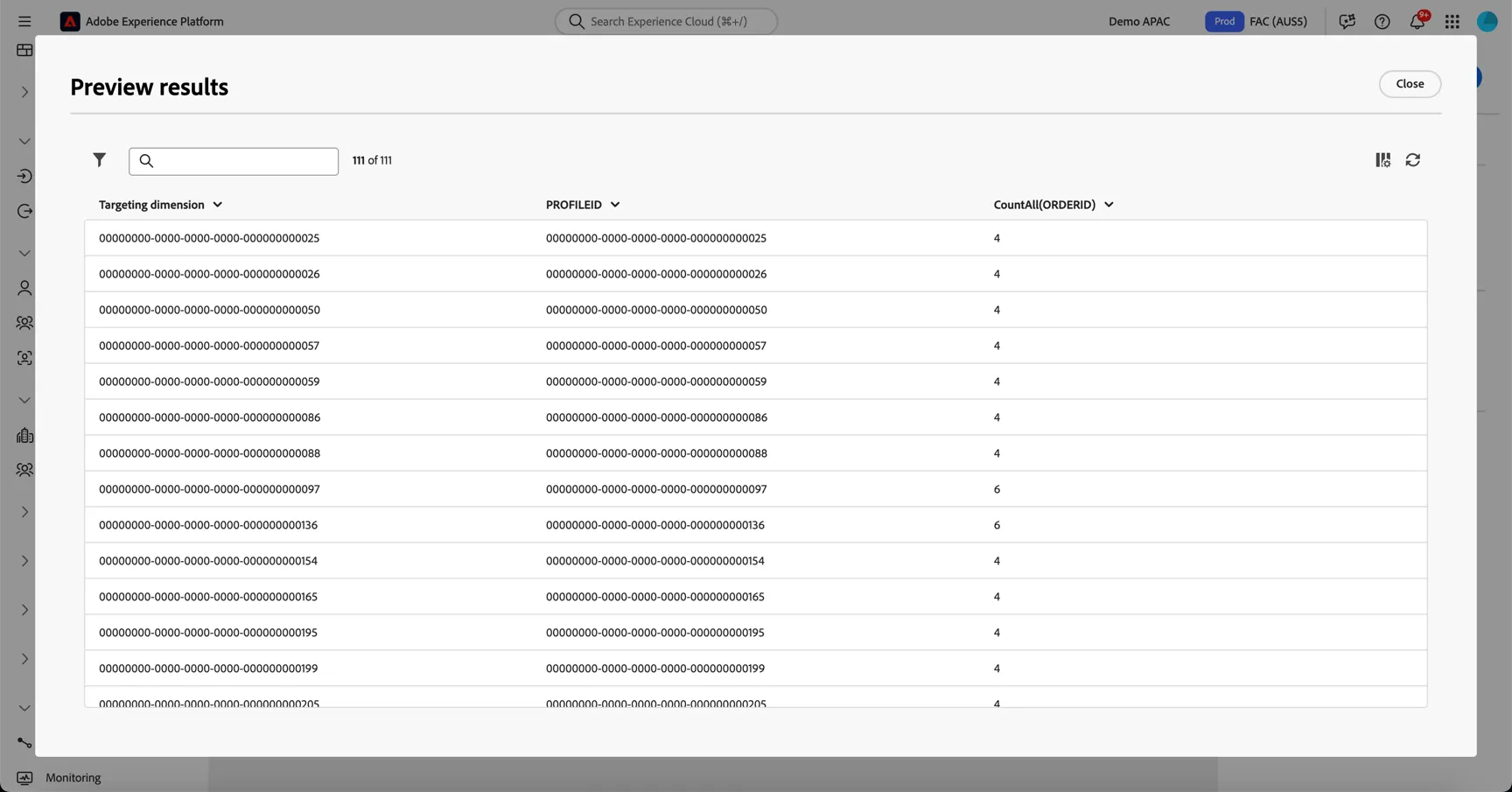
We can see that all of the rows have an order count higher than 3.
Save as new audience
Now that we're happy our composition logic is correct, we can go ahead with transferring the results of the query to Adobe Experience Platform as an audience.
Add a Save audience activity to the end of your composition.
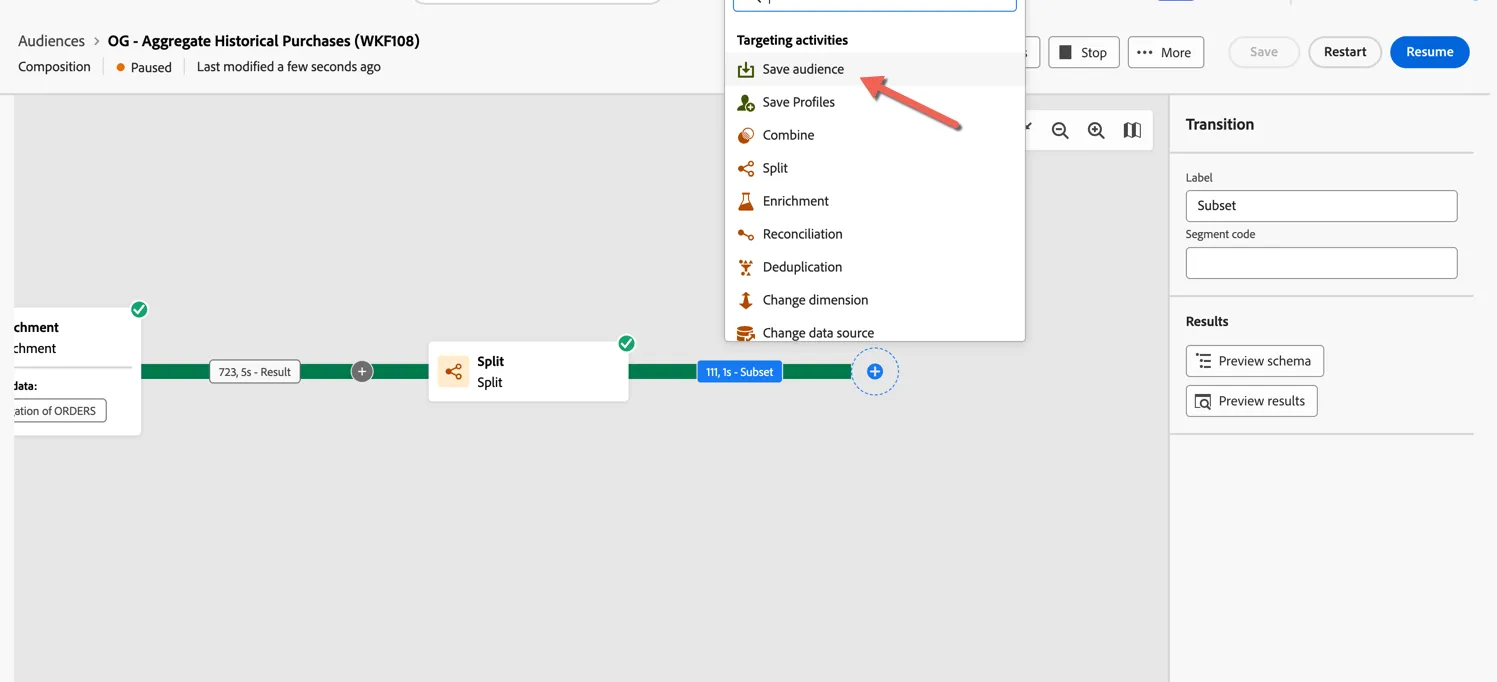
Give your audience a name, make it something unique that you will be able to recognise!
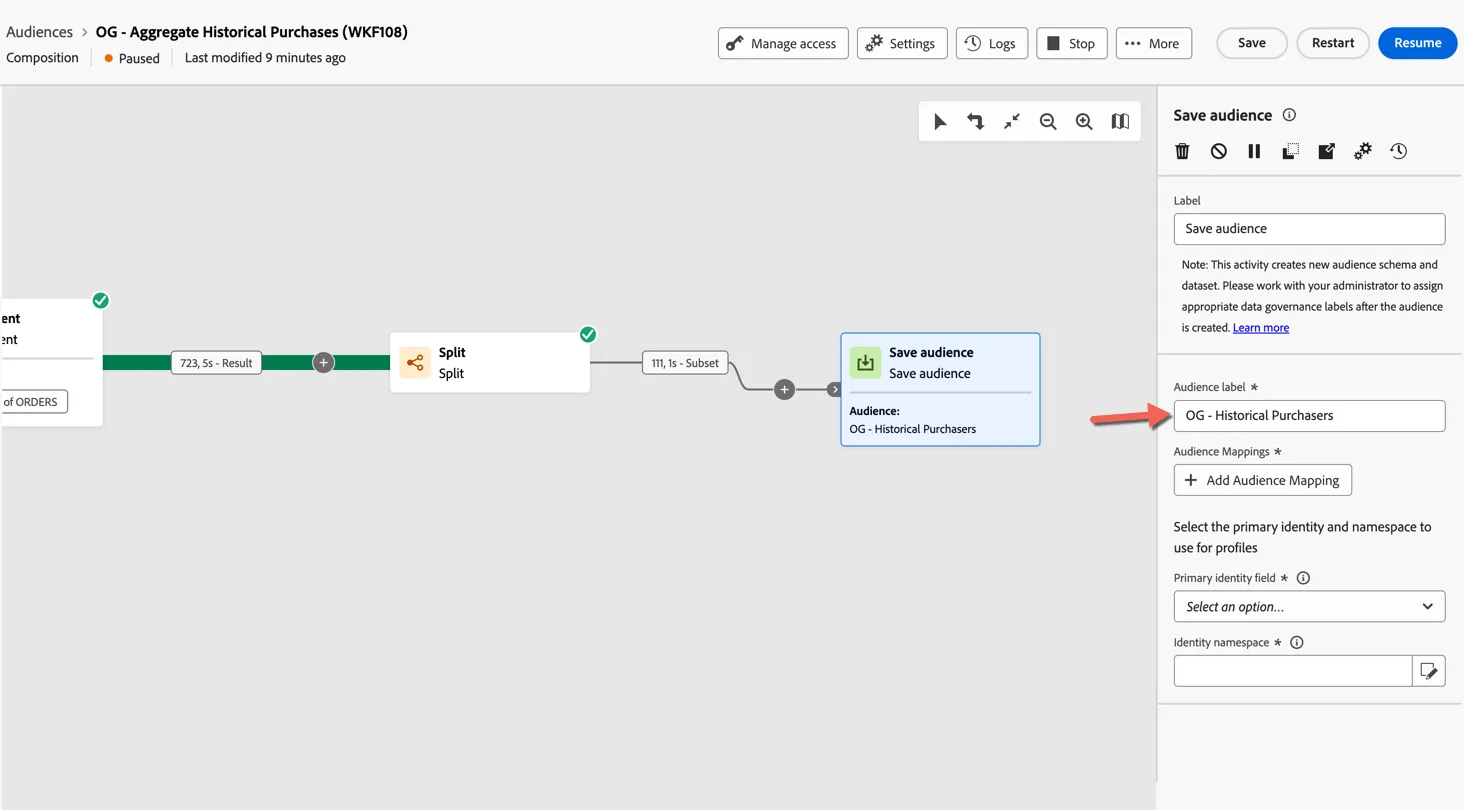
Click to Add Audience Mapping - this is how we controls what data is transferred to Adobe Experience Platform from Snowflake. At least 1 attribute is required to be transferred - the profile identifier being used to match profiles in Snowflake with those already in Adobe Experience Platform.
Select the PROFILEID attribute and click confirm.
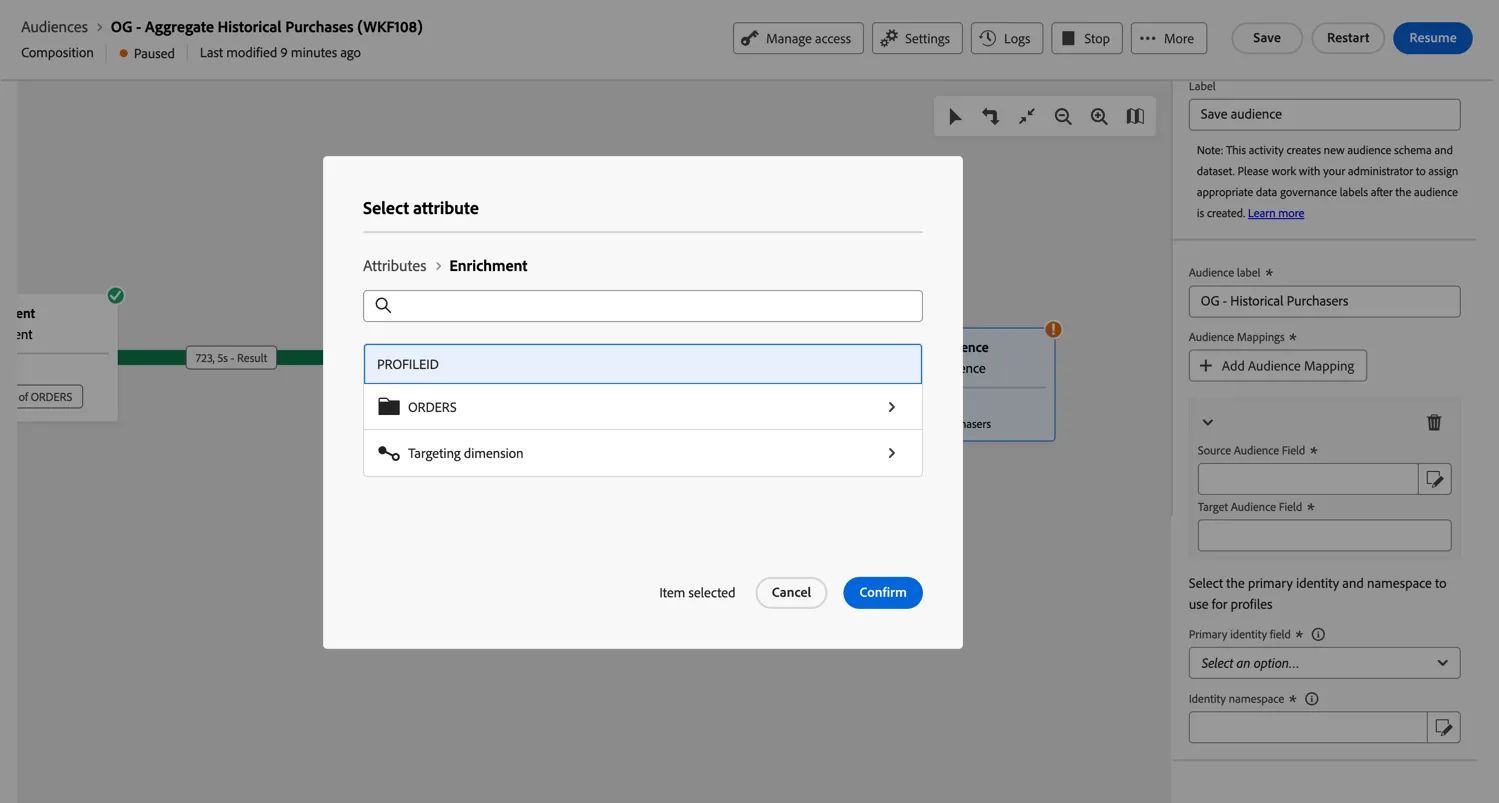
Additional attributes can be added if needed to enable personalisation use cases, for example, you could return product recommendations for inclusion in an email.
Lastly, we need to configure which Identity from Adobe's Identity Service to use for matching the data. Select PROFILEID as the attribute we will use from Snowflake and Demo System - CRMID as the identity namespace to match this to.
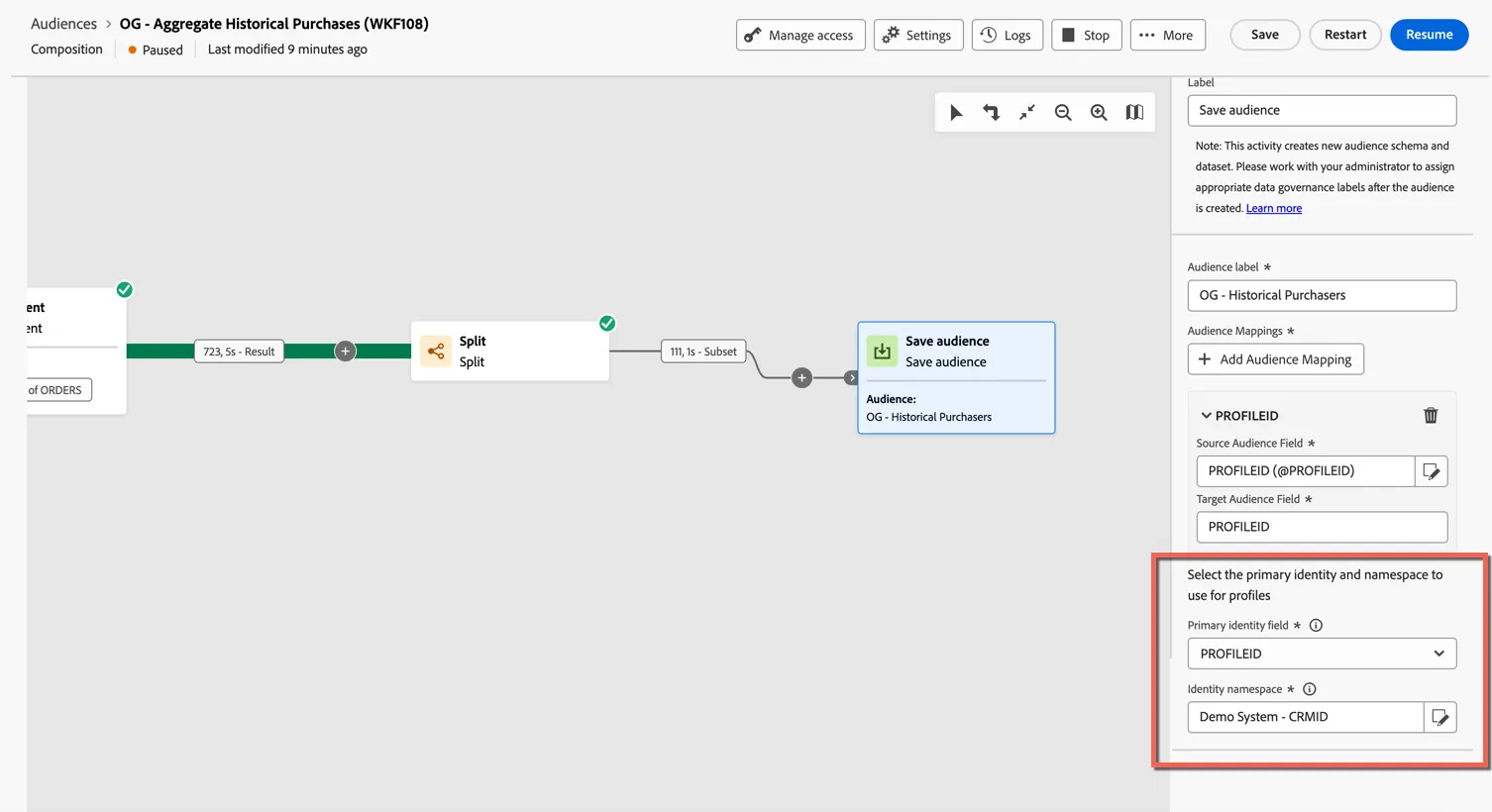
We've now completed the configuration.
Run Composition
Click to Restart the composition
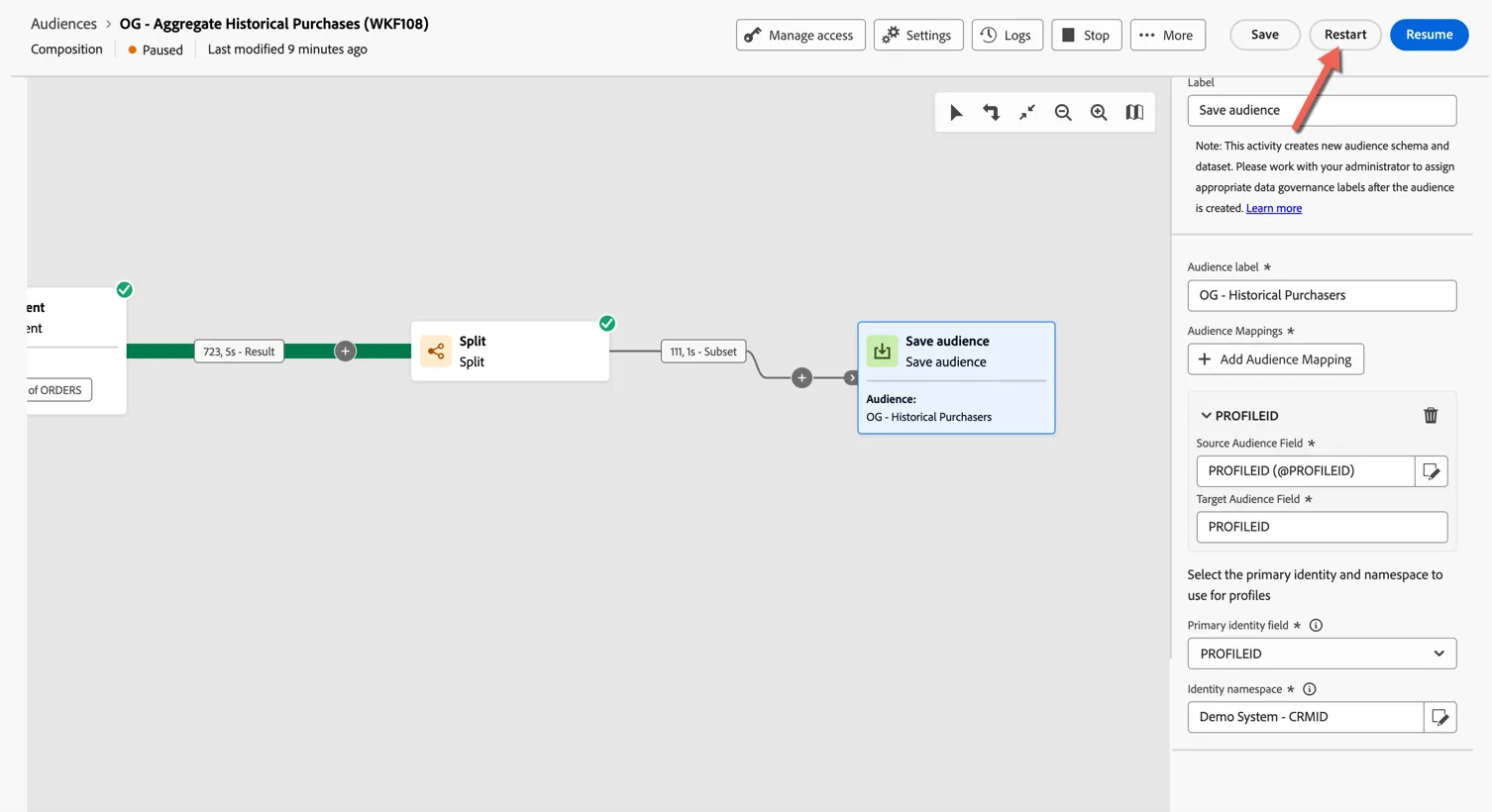
Click to confirm the restart action.
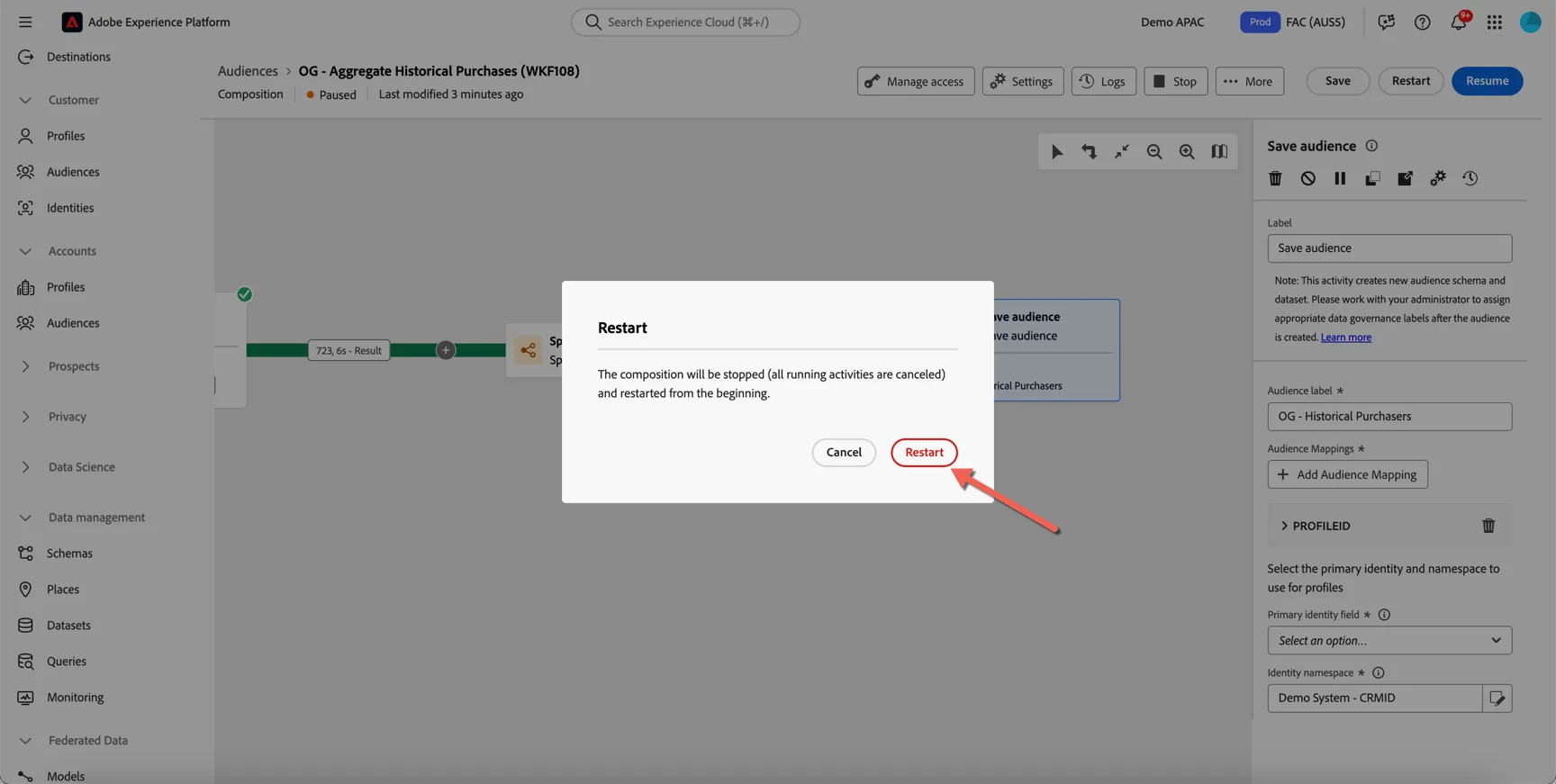
Your composition will start momentarily.
View Federated Audience
Return to the audience portal and you'll see the newly created audience with the label.
The audience will only appear if the Save Audience activity in the composition has finished executing. You might need to search for it if the audiences are not sorted in descending order of creation.
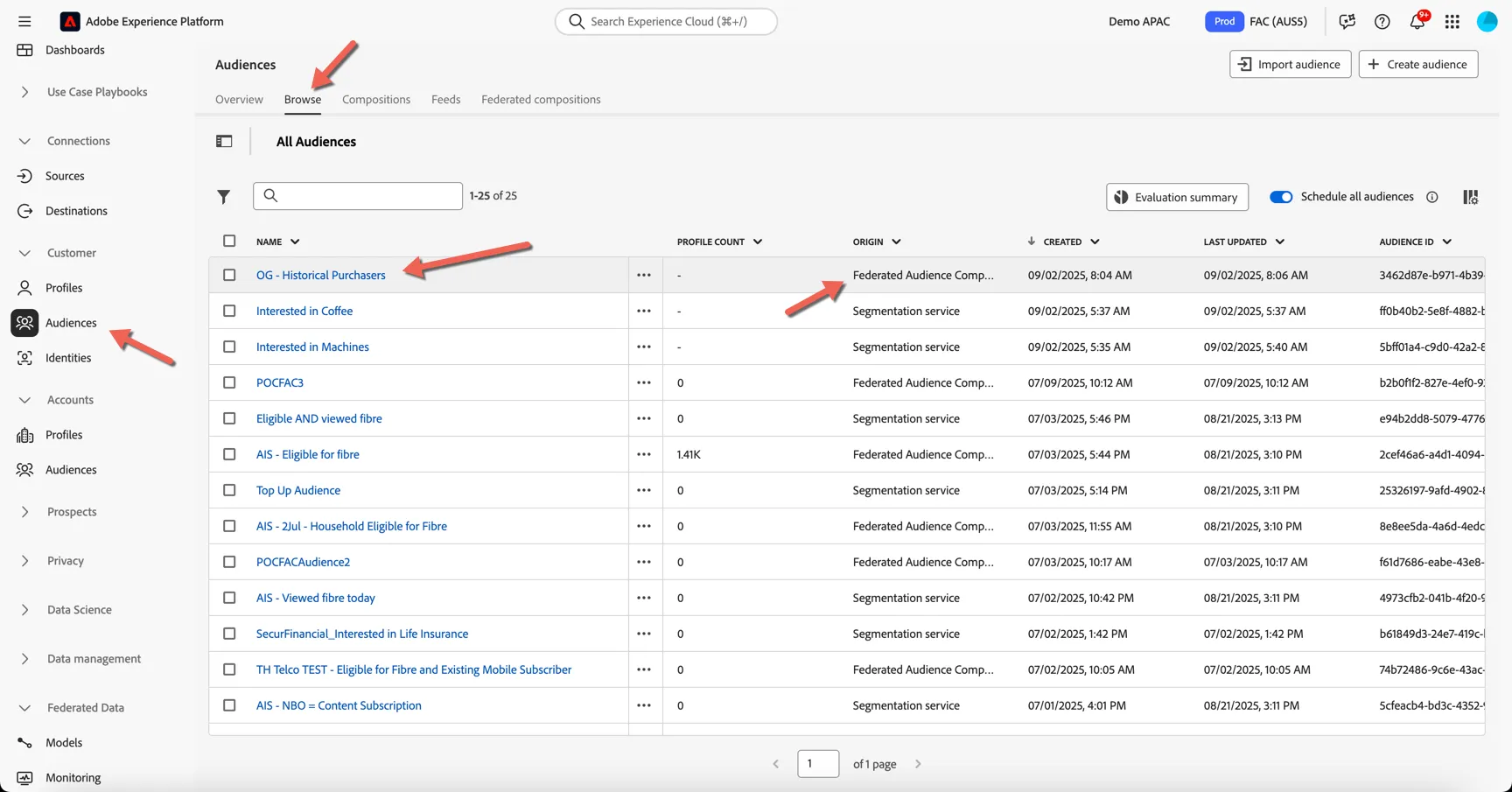
The audience is now ready to be activated and used across channels.
Summary
Federated Audience Composition allows marketers and data teams to build and activate audiences directly from enterprise data warehouses without copying or ingesting the underlying data.
FAC addresses growing enterprise needs for:
- Data governance: Reduces duplication and risk by avoiding unnecessary data movement.
- Speed and flexibility: Enables faster audience activation using existing infrastructure.
- Composable architecture: Aligns with modern data strategies that blend ingestion and federation