Creating the journey
In this exercise, you'll be creating and testing a journey.
Journey overview
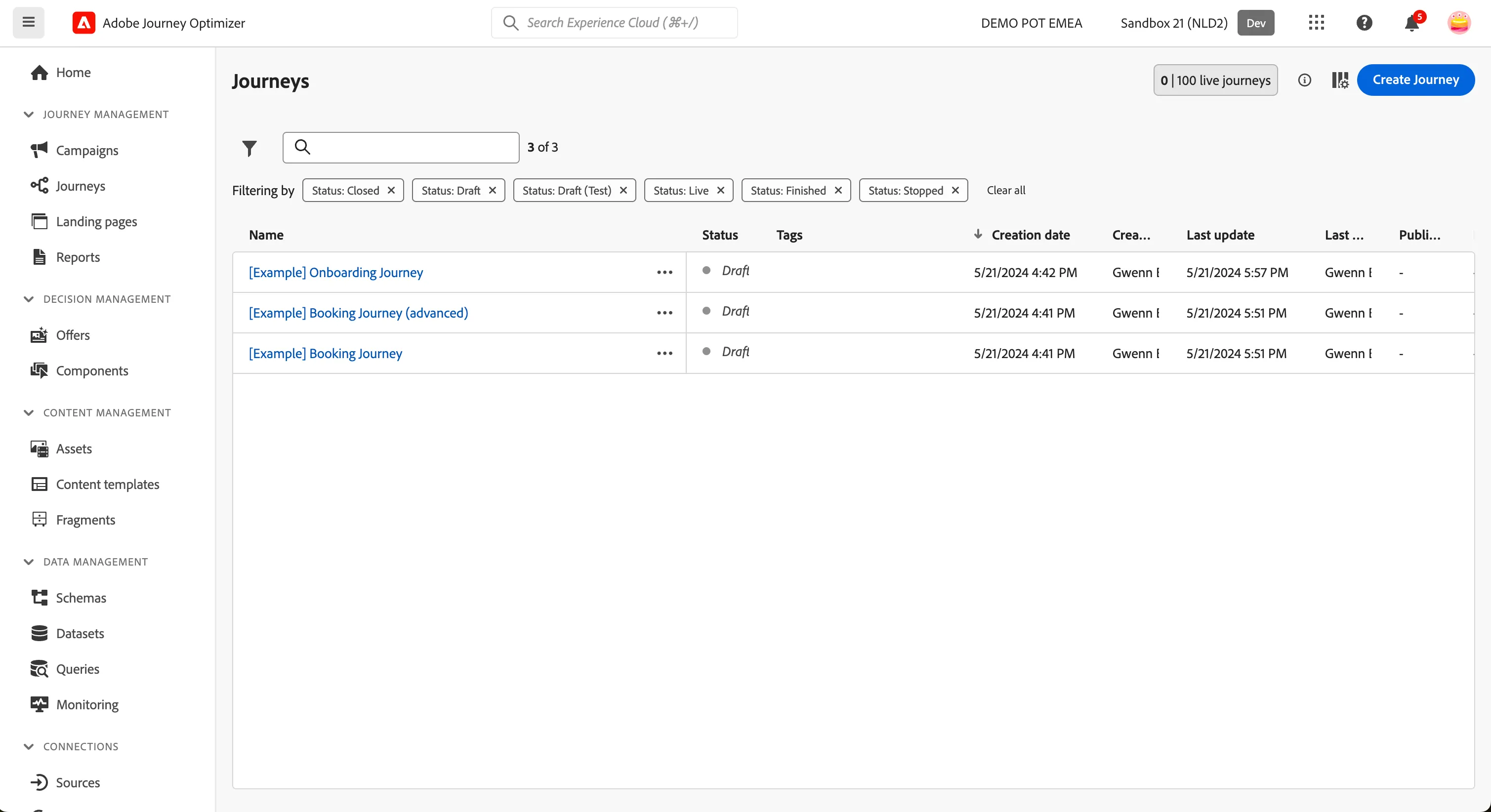
To get an overview of all journeys in Adobe Journey Optimizer:
- To open the Adobe Journey Optimizer UI click on the nine-dots icon in the top right corner and select Journey Optimizer.
- In the menu on the left side, under Journey Management, click on Journeys. You will see a overview with all existing journeys.
Creating a journey
We'll be creating a journey that will send a one-shot email to customers in the Consideration stage, to promote the peer insight content. Then the journey will update the customer record in Salesforce with the information about the email sent.
Click on Create Journey. You'll be taken to the journey canvas with the journey properties opened.
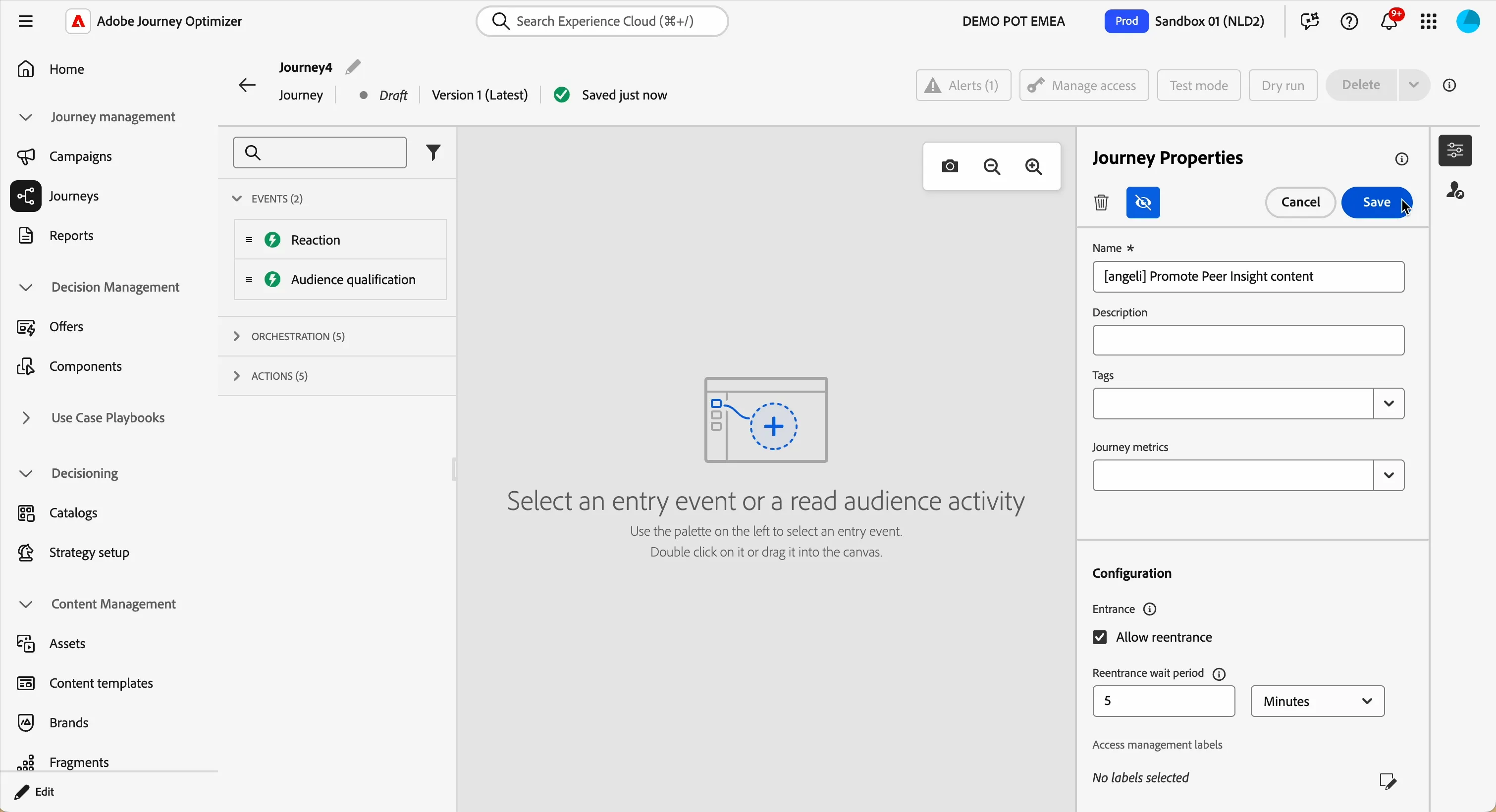
- Set the name to [your name] Promote Peer Insight content.
- For the other properties we'll keep the default values.
- Your screen should look like the image below. Click Save to save and close the properties.
You're now in the journey canvas. This is where you'll be creating your journey's logic. In the left menu you have activities. There's three types of activities:
Events are the triggers that can start or continue your journey.
Orchestration is the logic of your journey. It looks at conditions, audiences, but can also be used to make your workflow wait or end.
Actions are the results of your journey. This can be messages, profiles updates or API calls.
Read audience
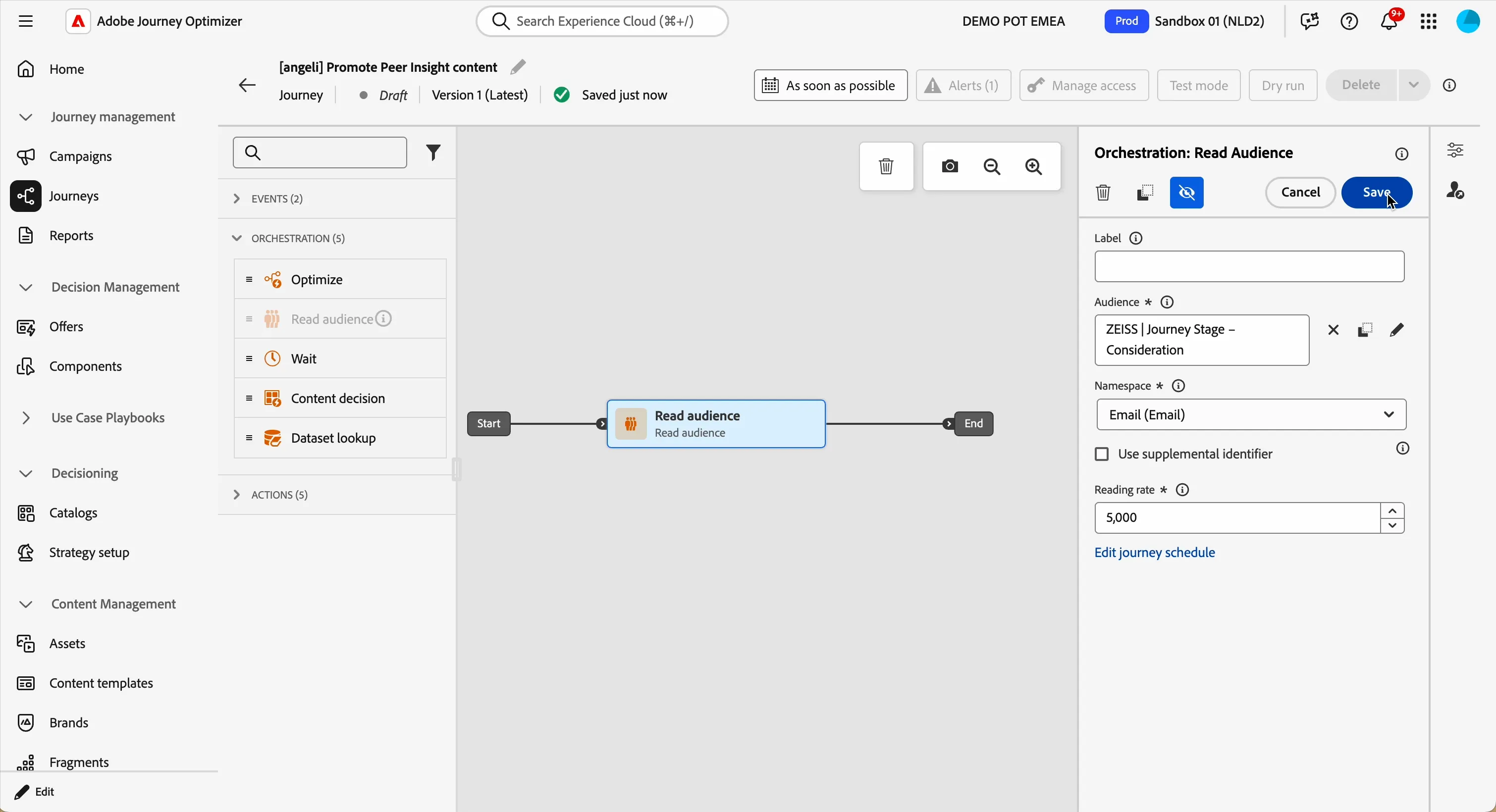
- We're starting our workflow by reading all the profiles qualified for an audience. From the Orchestration tab, choose Read audience and drag it onto the canvas.
- Click on the text box Audience, a window will appear.
- Select the audience ZEISS | Journey Stage - Consideration.
- From the Namespace dropdown, select Email.
- Click Save.
When you configure a Read Audience journey, you must select both an Audience and an Identity namespace because they serve two different purposes. The Audience defines who is eligible to enter the journey (the list of profiles based on segment membership). The Identity namespace defines which identity will be used to execute and track the journey (for example, Email, ECID, or CRM ID). Only profiles that have a value in the selected namespace can actually enter the journey. That identity will then be used consistently for messaging, reporting, and capping throughout the entire journey.
As the journey commences, the engine will read all profiles within the selected audience and subsequently push each one to the next node.
Email - Peer insight
In the next steps you will be building the email for your journey.
- From the actions tab, choose Actions and drag it above the line before the end node, where a circle with "+" inside will appear.
- Select Email and then click Add.
- Click on the activity to open the detailed view.
- Set the label to Email - Peer insight.
- Click on Configure action.
- From the Email configuration dropdown, select config-email-marketing.
- Click on Edit content to start designing your email.
- Click on to create a subject line. Set it to FIRSTNAME, deepen your expertise with ZEISS Peer Insights.
- Remove the text FIRSTNAME and search for first name in the profile attributes.
- Find the field First name (... attributes > person > Full name) and click on the icon to add it to your subject line. It should now be {{profile.person.name.firstName}}, deepen your expertise with ZEISS Peer Insights.
- Click Save.
- Click on Edit email body.
- Under Saved templates, choose ZEISS | Template - Text and Image. It will show you a preview of the template.
- Click on Use this template.
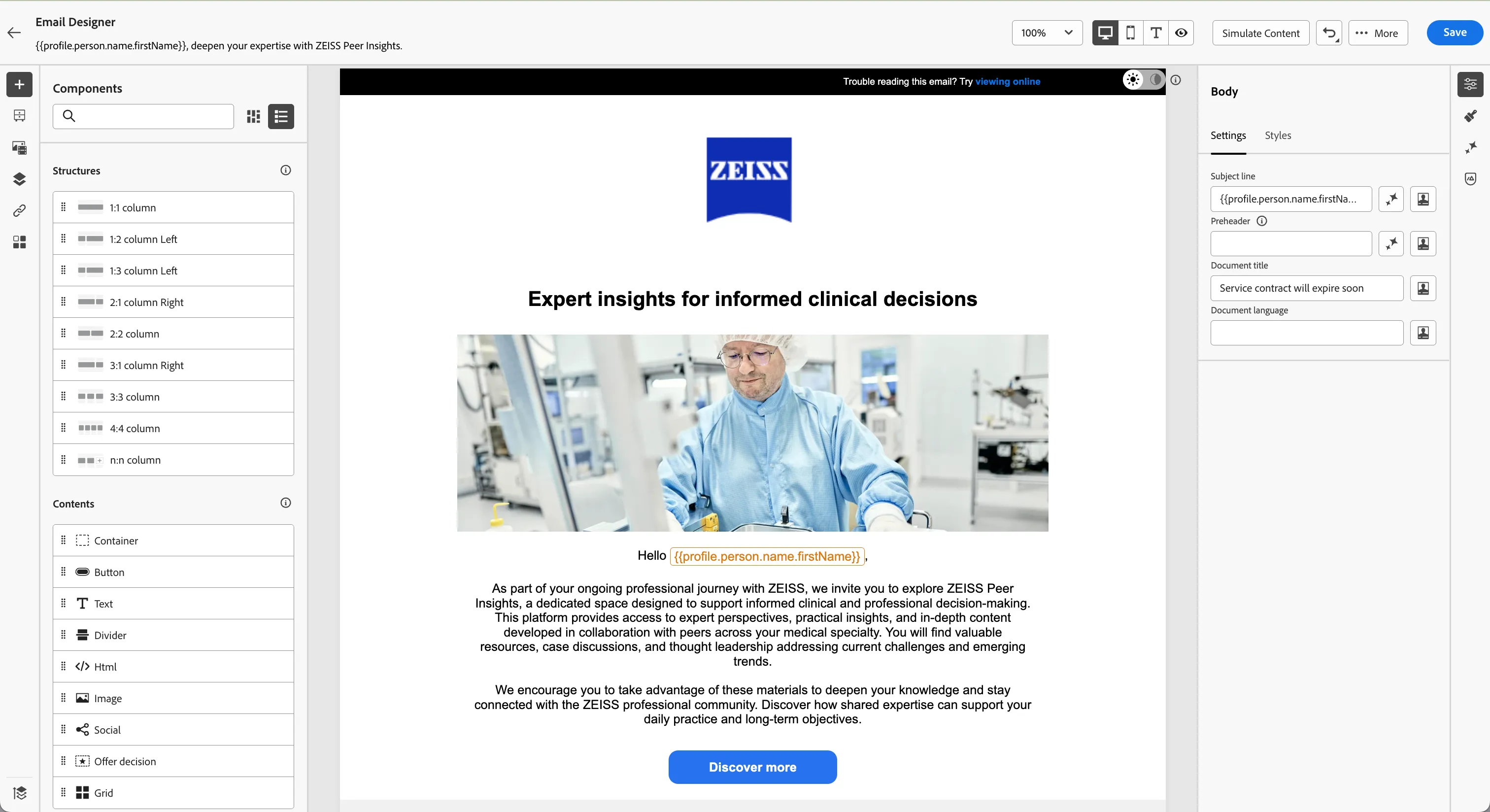
- The email designer will now open. It should look like this:
IMAGE
In the left menu you have Components.
Structure components are the building blocks of your email, they will determine the layout of your email.
Content components are the different forms of content that you can place inside your structure components, like text, buttons and images.
- Click the Subject Header component and change the text to:
- Expert insights for informed clinical decisions
- Let's put in a header image. Click on Browse in the header component of the email template. This will open the Assets Essentials interface. Navigate to Hand-on labs > Zeiss and select the image email-default.jpg and click Select in the top right.
- Click the Body component and remove the text FIRST NAME and click on the icon to add personalization to your email.
- In the Profile attributes section find the field First name (... attributes > person > Full name) and click on the icon to add it to your text. Click Save. Your component should look like this:

The template contains a generic text that must be replaced with the appropriate content:
- Click on the Lorem ipsum... text box, select the content and replace with this text:
As part of your ongoing professional journey with ZEISS, we invite you to explore ZEISS Peer Insights, a dedicated space designed to support informed clinical and professional decision-making.
This platform provides access to expert perspectives, practical insights, and in-depth content developed in collaboration with peers across your medical specialty. You will find valuable resources, case discussions, and thought leadership addressing current challenges and emerging trends.

We encourage you to take advantage of these materials to deepen your knowledge and stay connected with the ZEISS professional community. Discover how shared expertise can support your daily practice and long-term objectives.
Now we are going to customise the CTA:
- click the Button component, the menu on the right will show the settings.
- Change the label to Discover more.
- Change the link to https://www.zeiss.com/meditec/en/myzeiss/peer-insights.html
To protect the work you've done so far, click Save on the top right corner.
Add offer
The template includes an empty section that can be customized according to the communication requirements. In this email we want to promote an upcoming webinar, based on the customer behaviour.
The offers have already been created and configured to be displayed only under certain conditions. We only need to include and setup the Offer decision component.
In body of the email:
- Click on the text Section header and replace with What's going on at Zeiss.
- From the Contents section in the left menu, drag and drop Offer decisions component in the section where is written Drag a new component here.
- Click on Add.
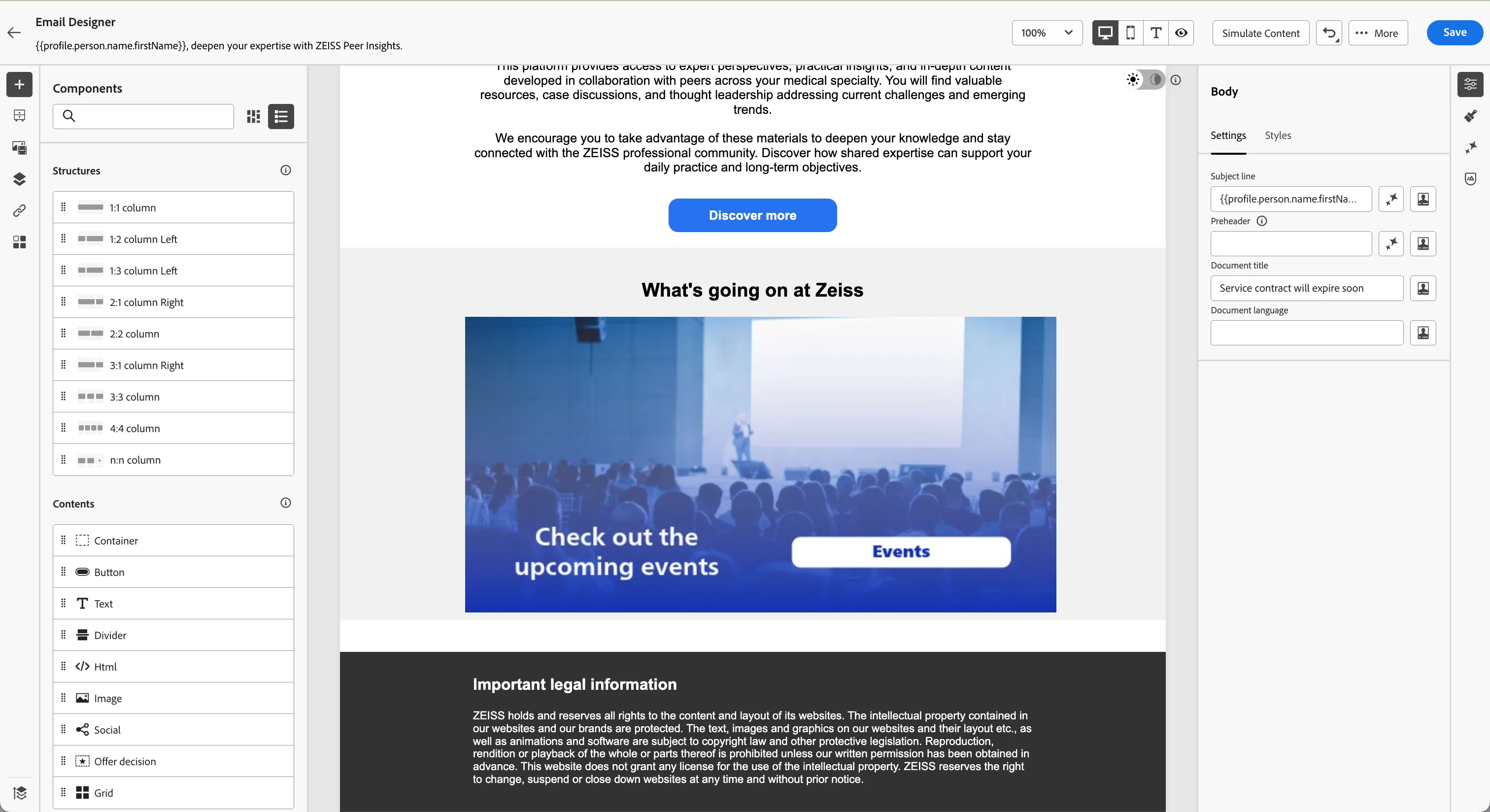
- Click on Select Offer Decision, on the Placements drop down select email-image.
- From the list select [Example] Webinars and then click Add.
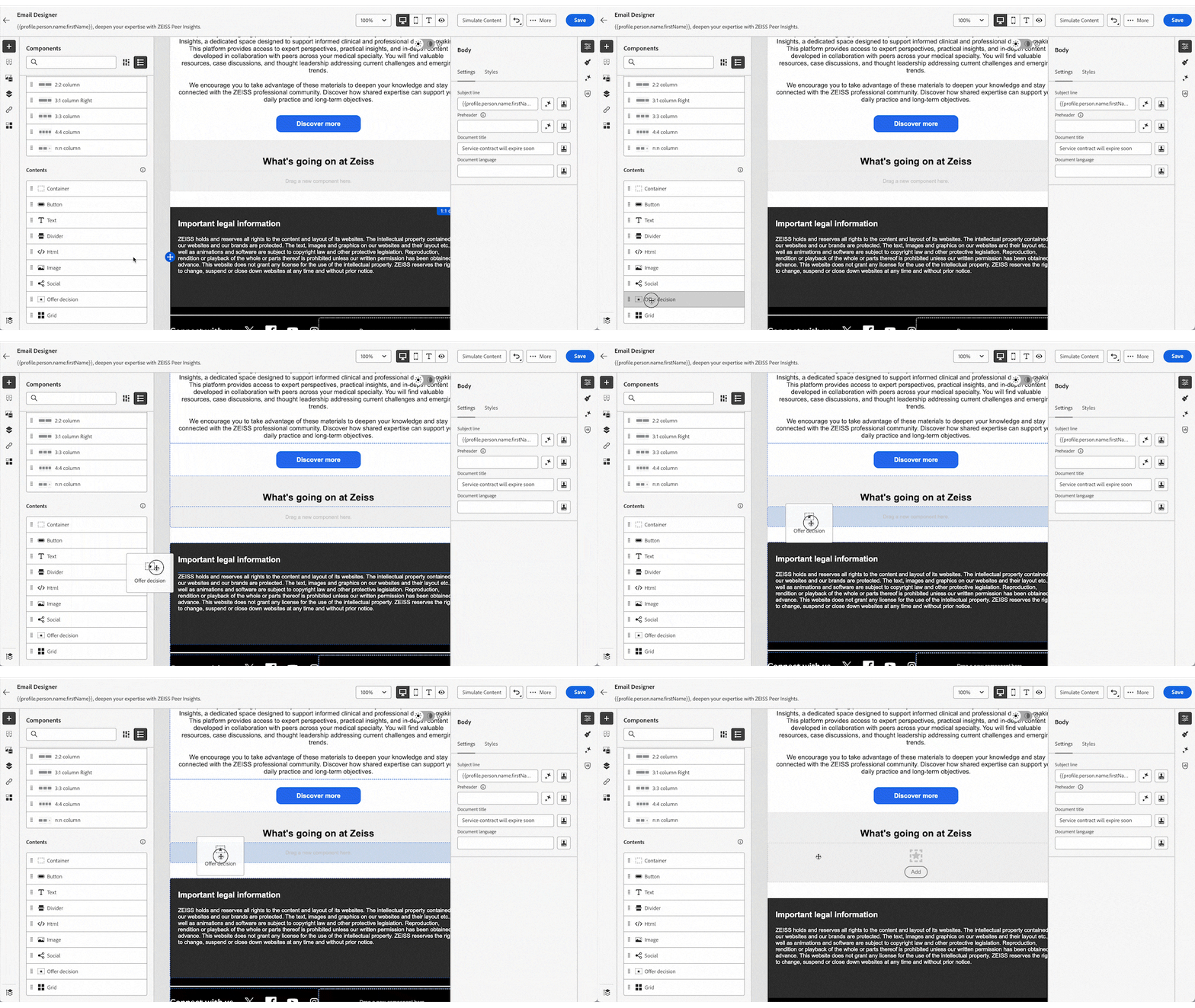
Decisions are containers for your offers that will leverage the Offer Decision Engine in order to pick the best offer to deliver, depending on the target of the delivery. In the box you'll see the preview of the 3 offer available, plus the Fallback, displayed in case the customer is not eligible for any other offer.
To protect the work you've done so far, click Save on the top right corner.
Add conditional content
In this exercise, you will configure conditional content within the email to adapt specific elements based on customer profile attributes. Conditional content allows marketers to tailor the communication experience without creating multiple versions of the same message, ensuring relevance and consistency across different medical specialties.
Let's personalise the hero in the email:
- select the image by clicking on the hero image at the top of the body. A blu border will appear around the image.
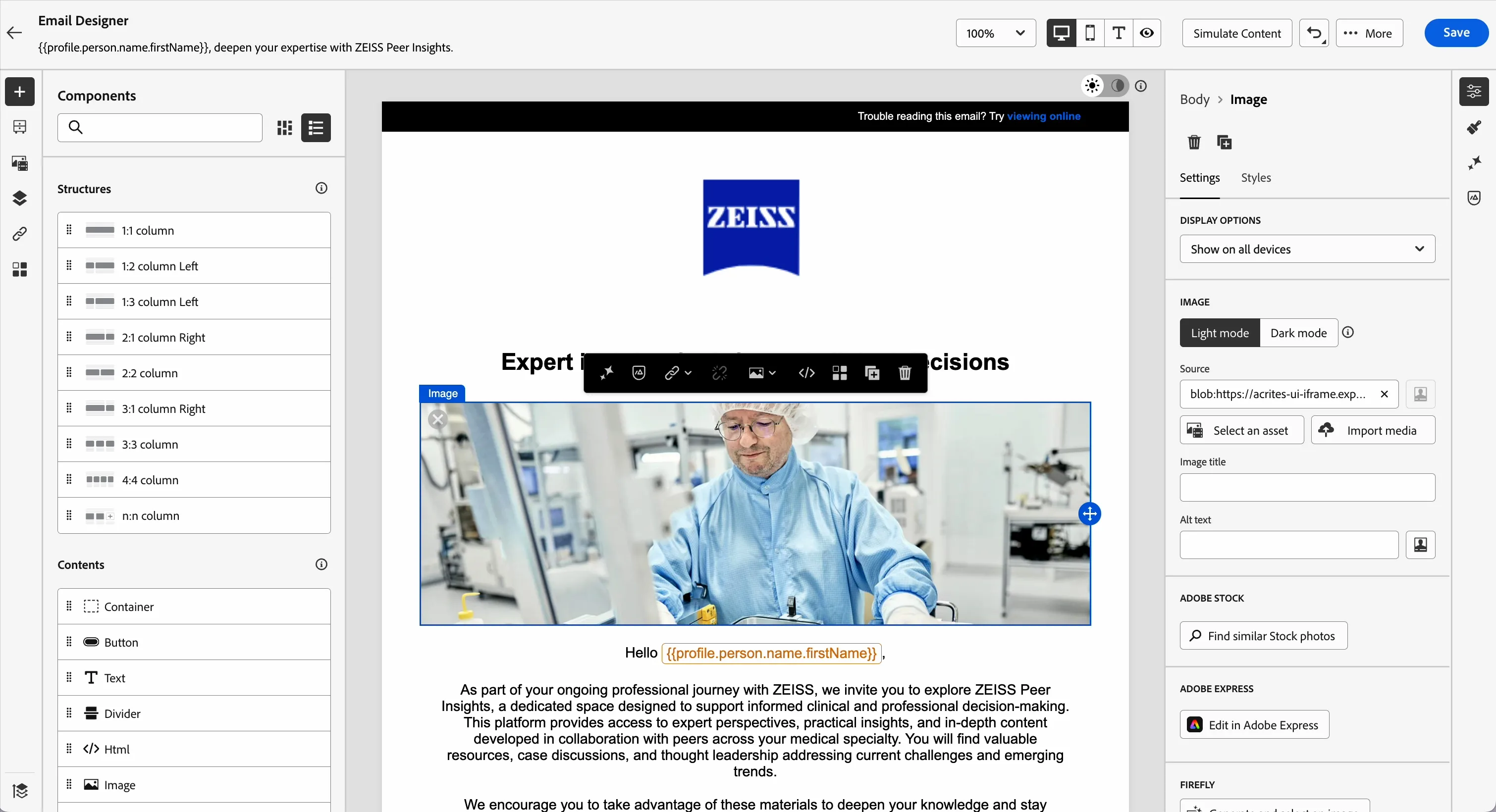
- In the pop-up menu, click on the -icon to enable Conditional content. The left menu will change to the Conditional Content settings and display your content variants.
- We're not changing the default variant as we want this to display as the current content.
- Select Variant - 1 and hover over it with your cursor. Click on the -icon and choose Rename. Set the name of this variant to Speciality - Dentistry.
- Hover over the variant again and click on the condition-icon. A window will open. Select the Speciality - Dentistry condition and click Select.
Condition You can create your own rules and save preset rules here to be used in future conditional content conditions. In our example we prepared a condition that is based on a profile attribute.
- Select your variant Speciality - Dentistry. It'll have a blue border. Then go into the content settings on the right panel and change the picture:
- Click on Select an asset; this will open the Assets Essentials interface.
- Navigate to Hand-on labs > Zeiss and select the image email_dentistry.jpg.
- Click Select in the top right.
Your content block should now look like this:
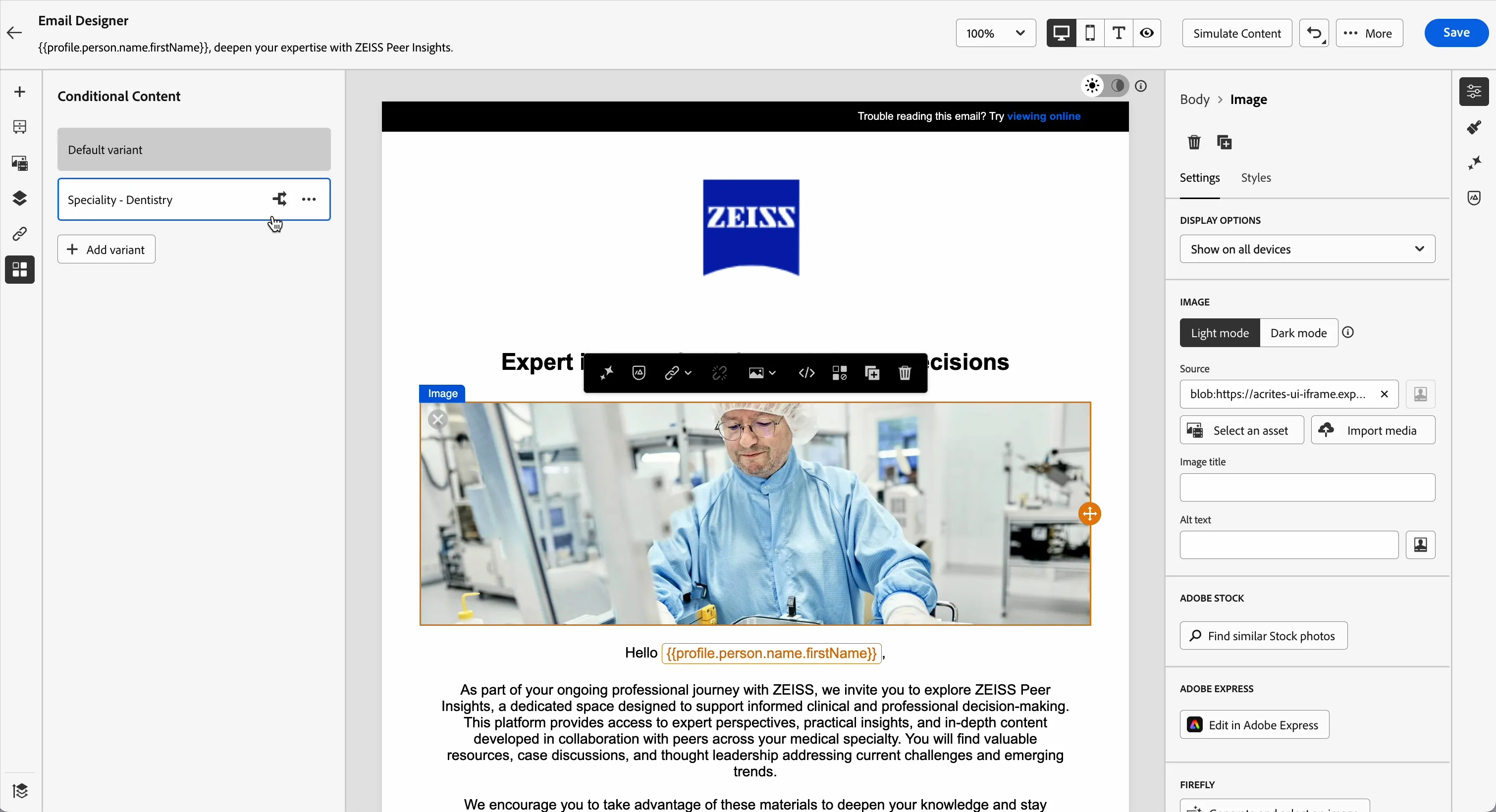
You can now swap between both content variant and see the difference.
You can create more variants by clicking on + Add variant and repeating the previous actions.
To protect the work you've done so far, click Save on the top right corner.
To come back to the journey canvas:
- click the back arrow on the top left corner near Email Designer.
- If prompted, click Save & Close.
- Click the arrow on the left, near the journey title.
- Click Save.
Your email is now ready. Let's move to the next step.
Update profile in Salesforce
In this exercise, you will configure a custom action to simulate an update to Salesforce after a customer communication has been sent. This step illustrates how journey orchestration can extend beyond messaging, ensuring that customer interactions are consistently reflected across connected enterprise systems.
In this lab, you will not see real integration with the Salesforce CRM system; instead, you will see a simulation via webhook.
From the Actions, drag the item SFprofileUpdate and drop on the line after the email node. On the right you'll see the settings panel: change the label to: Update profile in Salesforce.
As next step you need to configure the parameters required for the API call. Some of them will be hard coded, as they are related to this journey only; others will be taken from the customer profile, as they change for each customer.
In Request parameters, click on the text box with the label email:
- in the window that appears browse the attributes under Experience Platform, along this path: ProfileFieldGroup > profile > _demopotemea > identification > core > email.
- Click the check box related to this field.
- Click Ok.
In the text box now you should see The email of core.
Click on the text box with the label crmId:
- in the window that appears browse the attributes under Experience Platform, along this path: ProfileFieldGroup > profile > _demopotemea > identification > core > crmId.
- Click the check box related to this field.
- Click Ok.
In the text box now you should see The crmId of core.
Click on the text box with the label last_comm:
- in the window that appears click on Advance Mode.
- Type "Peer Insights invitation email".
- Click Ok.
This is a fixed string, not a customer related info, that's why we used the Advanced Mode and added the string manually.
Click on the text box with the label last_comm_dateTime:
- in the window that appears click on Advance Mode.
- Browse through the Functions list and click on Function > Date > now > now(): dateTime. This is the timestamp when the action is executed.
- Click Ok.
Instead of a fixed string, for this field we used a function.
Click on the text box with the label journey:
- in the window that appears browse the attributes under Experience Platform, along this path: Journey properties > Journey version > journeyVersionName.
- Click the check box related to this field.
- Click Ok.
In this case we used a contextual information about the journey, not the profile.
Click on the text box with the label channel:
- in the window that appears click on Advance Mode.
- Type "email".
- Click Ok.
Click Save.
You have now completed the configuration of an end-to-end journey. This journey demonstrates how customer maturity, profile attributes, and behavioral signals can be combined to orchestrate relevant, personalized communications. By bringing together audiences, messaging, decisioning, and external actions, you can ensure consistent and meaningful engagement across the entire customer journey.