Lab 3: Service Contract Renewal
Focus area Adobe Journey Optimizer
Features Orchestrated Campaign
Ad Hoc Targeting
Data driven email activation
Multiple messages per profile
Difficulty Easy
Use case description
As a Marketer, I want to inform customers about their expiring service contracts and provide an option to contact us for renewal: automated notifications will be sent 30 days before expiration, followed by a reminder 10 days before expiration, and a final call on the contract end date.
Resources
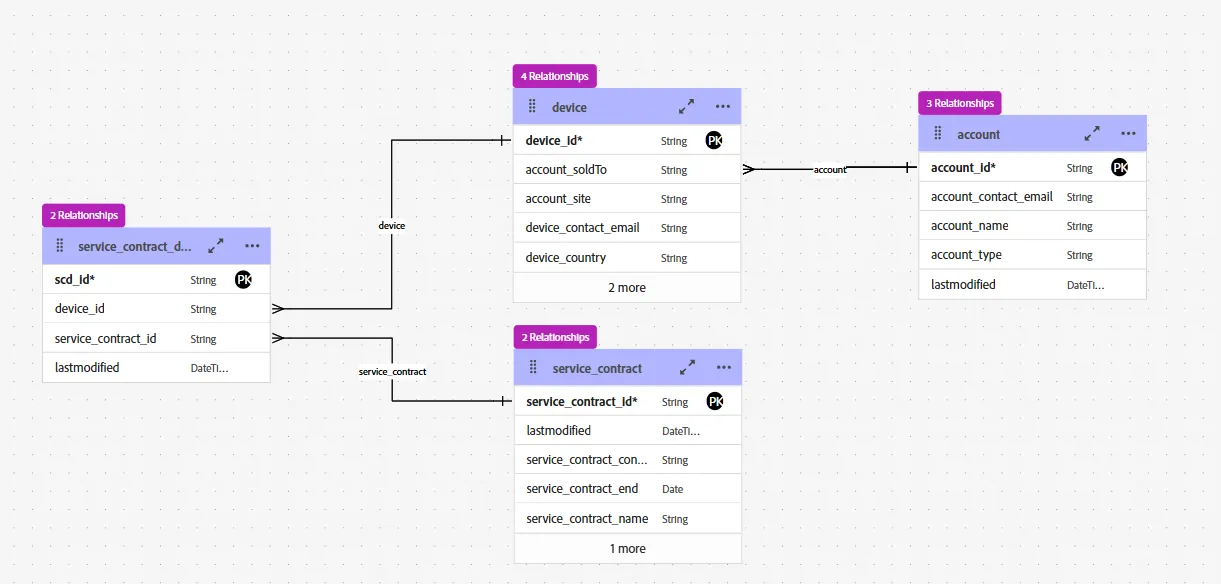
Relational data model Data engineers have designed a relational data model and populated it with sample data.
There are 3 main entities: Account, Device and Service Contract
Each entity has been described with a Relational schema.
The relationships between entities have been defined with these cardinalities:
- 1 account is linked to 0..N device(s)
- 1 device is linked to a 0..N service_contract
- 1 service_contract is linked to 0..N device
The Entity Relational Diagram is visible in Data management > Schemas > Relationships
Email template
A Web Agency has provided an email template named [Example] Contract Expiration Alert Message available in the Content template library in Content Management > Content template > All template folder.
Solution Design
Orchestrated Campaign is the solution that let you create easily an audience by manipulating multiple entities like contract and recipient. This process let you discover, manipulate, filter the data and calculate aggregate in an iterative way (start/resume/stop/restart the flow).
Orchestrated Campaign is the only solution that let you deliver one email per contract, that means that a profile with multiple expiring contracts will receive multiple emails.
The following steps will describe:
- how to create segments of expiring contracts
- how to deliver one email per contract
- how to transform a segment in an audience
This solution has been designed to illustrate capabilities of the product.The implementation details could change in real life conditions.
Step 1 - Ad Hoc Targeting
Goal Filter the contracts
Create 3 segments:
- Contracts that will expire in 30 days
- Contracts that will expire in 10 days
- Contracts that will expire today
Highlight
Build audience, Distribution of values, Enrichment, Split
One way to do it is to follow these steps:
- Create a new Orchestrated Campaign
- Build an audience of contracts
- Calculate the number of days before the expiration
- Split the records in 3 segments
Create a new Orchestrated Campaign
- In the menu on the left side, under Campaigns, click on Orchestration
- Click on the Create campaign button
- Select Orchestration - Marketing and click on Confirm
- Set the name to [your name] Service Contract Renewal
- Click on Save
Filter contracts
- Click on the + icon to display the list of activities
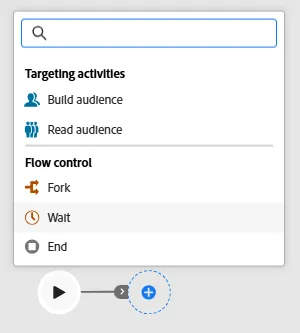
- Select the Build audience activity
- Set the Targeting dimension to service_contract
- Click on Create audience button
- Click on Add condition
- Select service_contract_name, click on the ... button and click on Distribution of values
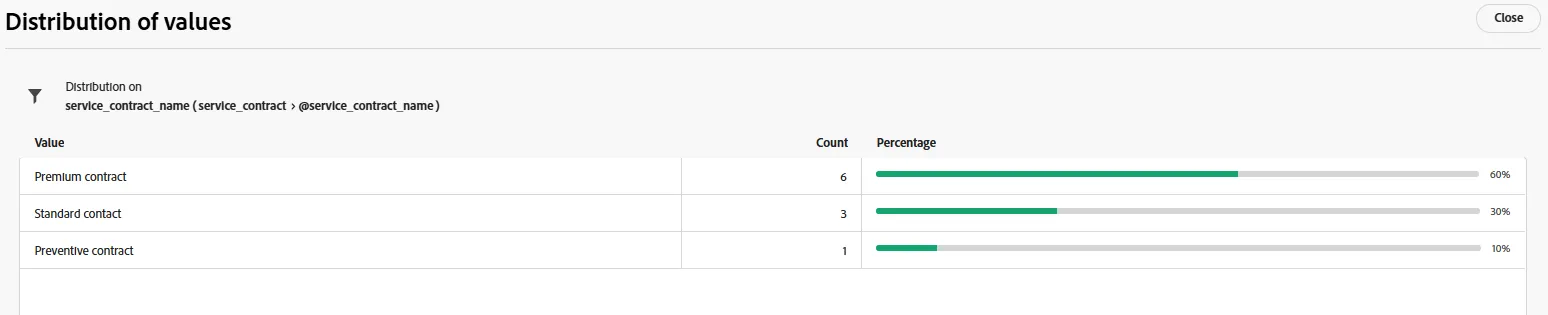
- Close and just set the filter condition to service_contract_name is not empty
- Click on Calculate to get a count of records
- Click on Confirm
- Click on Start to start queries in a simulation mode
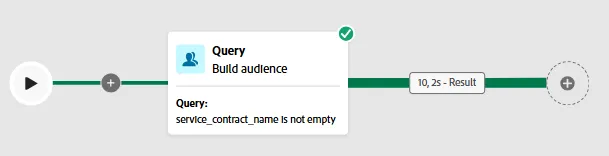
- Click on the Result box in the green transition link and click on Preview results button to see the results
Calculate the number of days before the expiration
- Click on the + icon to display the list of activities
- Select Enrichment
- Click on the + Add enrichment data button
- Click on Edit expression button
- Click on Fx (Helper functions) icon and set this expression
DaysDiff([target/@service_contract_end], GetDate())
- Click on Confirm button
- Click on Resume button to let the engine execute the Enrichment activity

- Click on the Result box in the green transition link and click on Preview results button to see the results
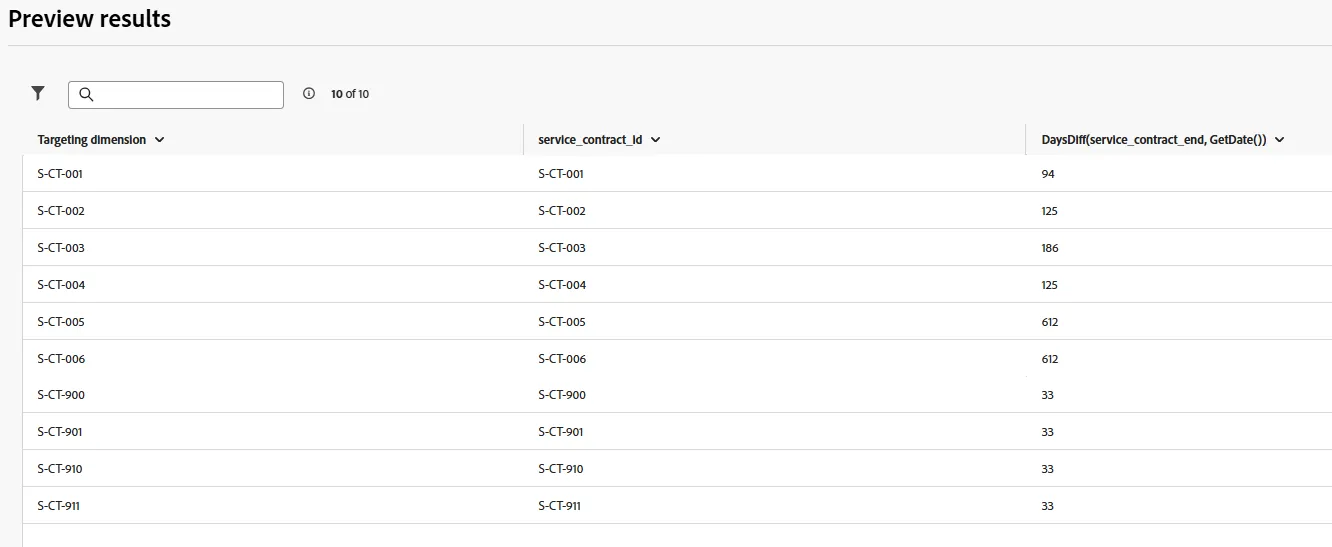
Split the records in 3 segments
- Click on the + icon to display the list of activities
- Select the Split activity
- Define 3 segments and filter with the calculated field
- Contracts that will expire in 30 days
- Contracts that will expire in 10 days
- Contracts that will expire today
- Enable the Generate complement option
- Click on Resume button
- Depending on the day, the results below will change
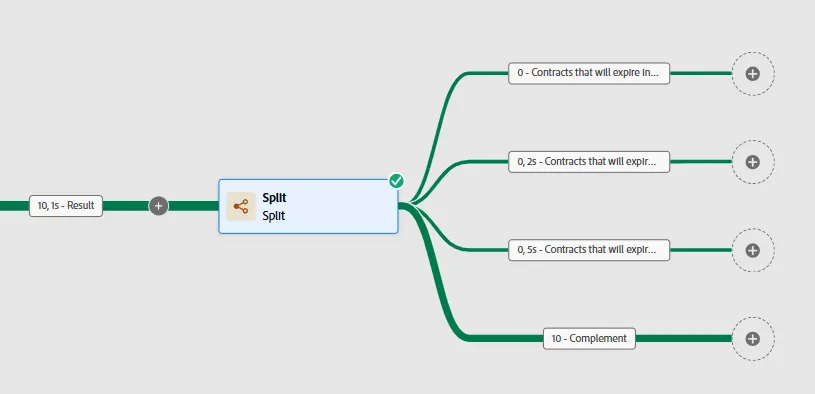
To illustrate capabilities of the product, different conditions have to be set up in order to get records in the segments.
- As an exercise, change the filters to get more records in the segments and enable the overlapping option; for instance:
- 1st segment:
- 2nd segment:
- 3rd segment:
- Check the box Enable overlapping of output populations
- Click on Resume button to get these results
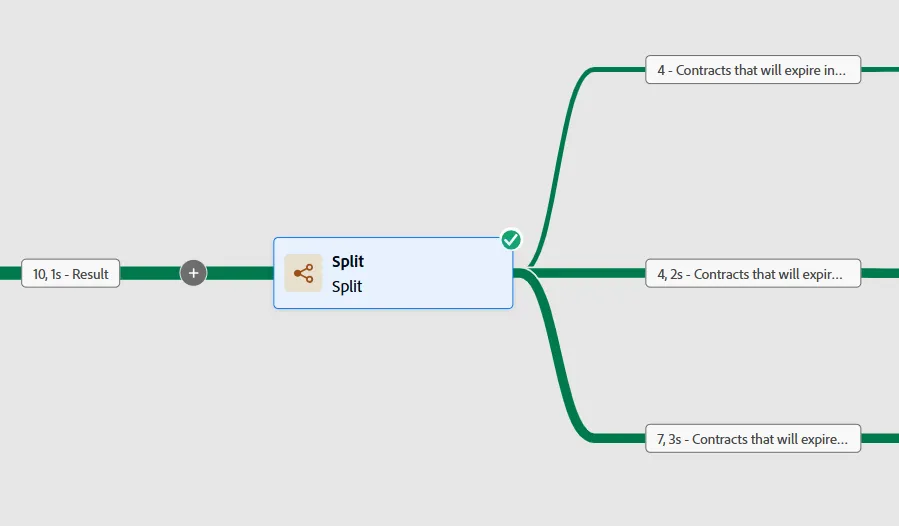
Step 2 - Send one email per contract
Goal Send messages to recipients, not contracts
Send 1 email per contract - 1 recipient can receive multiple messages
Add personalization data in the email like many devices per contract
Highlight
Enrichment of the target with a collection of device, Change dimension, Email personalization
Enrichment of the target
- On the first segment, click on the + icon to add an Enrichment activity
- Add the fields that will be used to personalize the email
- service_contract_end
- service_contract_name
- all the devices covered by the contract
- It's possible to add these devices in the target by collecting many records this way
- Select the path Targeting dimension > service_contract_device > device > device_description
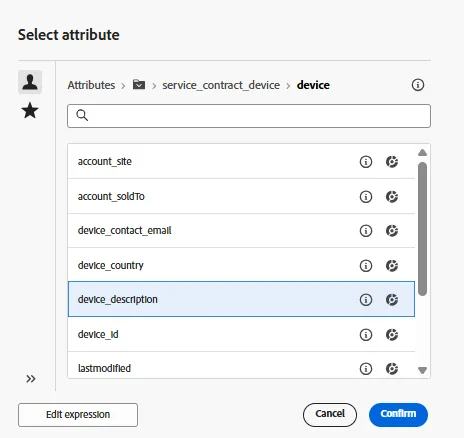
- Keep the option Collect data and set the length to 5
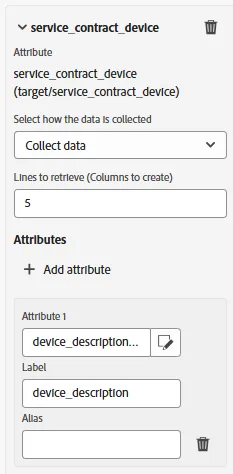
- Click on Resume and get a preview of the results
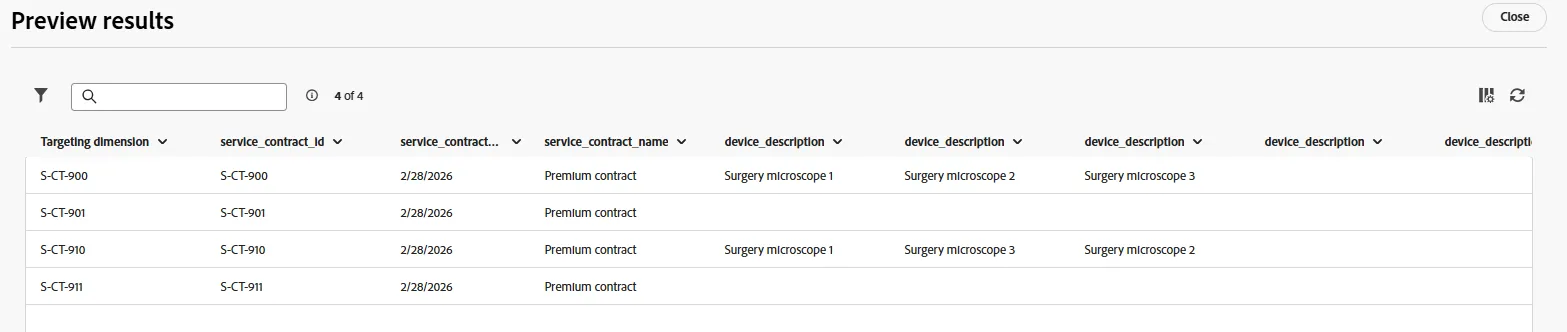
- 5 new columns have been added in the target; these 5 columns match 5 devices
The target contains both email addresses and personalization data.
Email messages will be delivered to all the recipients that are in this list.
Email messages will be personnalized with all the data that have been added in this list.
Change the targeting dimension
Notes about "Change dimension"
The Change dimension activity allows you to change the targeting dimension as you are building an audience. It shifts the axis depending on the data template and the input dimension. For example, you can switch from the contracts dimension to the clients dimension.
This step is required to prepare the target in order to let the product deliver messages (email, push, SMS). The engineers are working to improve this process by maybe removing this step.
- Click on the + icon to add an Change dimension activity
- Select Recipient as the new target dimension
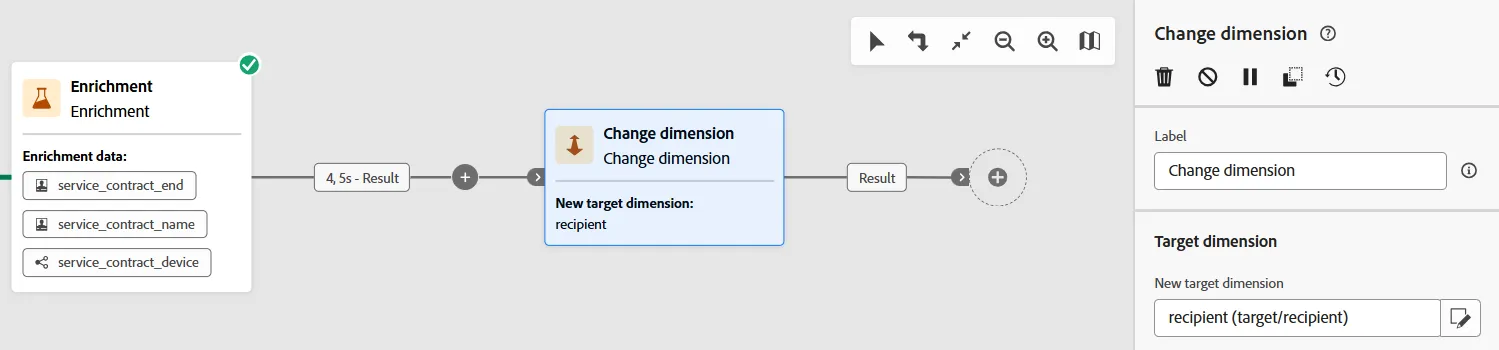
- Click on the Resume button and get a preview of the results
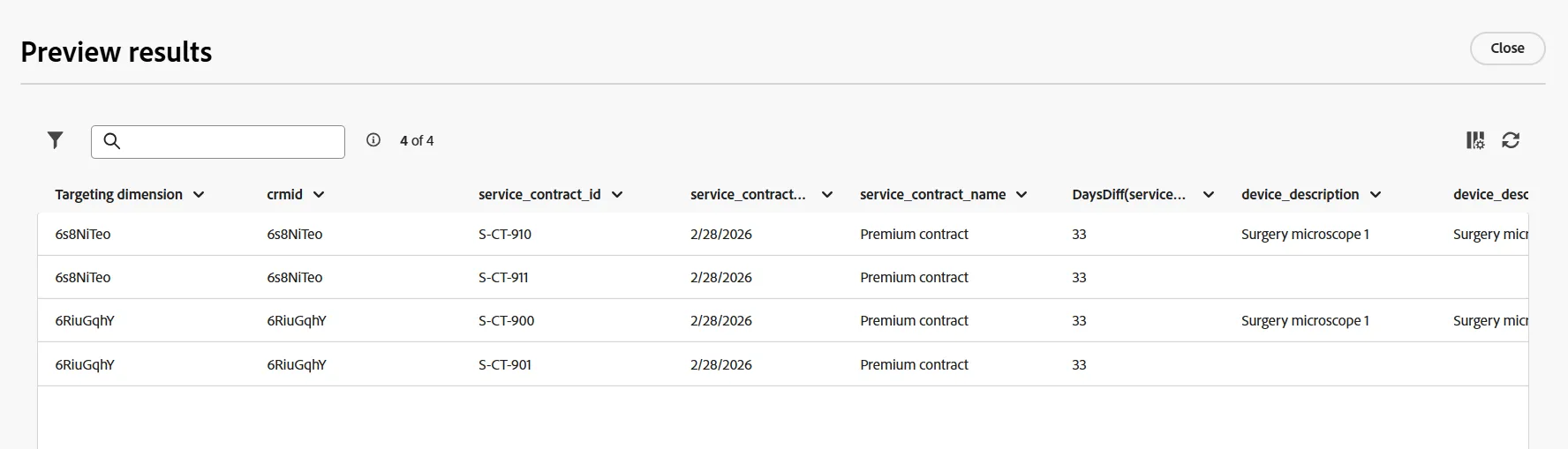
The new targeting dimension is now Recipient
The first column of the target is the crmId field that has been tagged as the identity field in the schema, used to make a reconciliation with profiles in the Real-time Profile Store.
Personalize an email message
- Click on the + icon to add an Email activity
- Click on Edit email button
- In the Actions tab, select the surface named config-email-marketing-service_contract
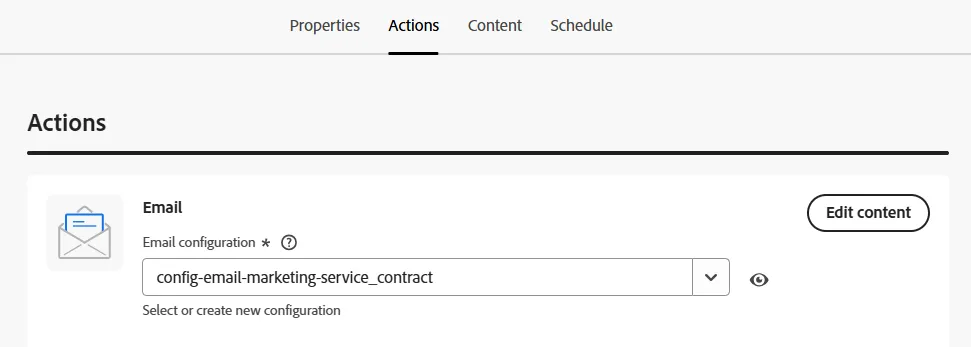
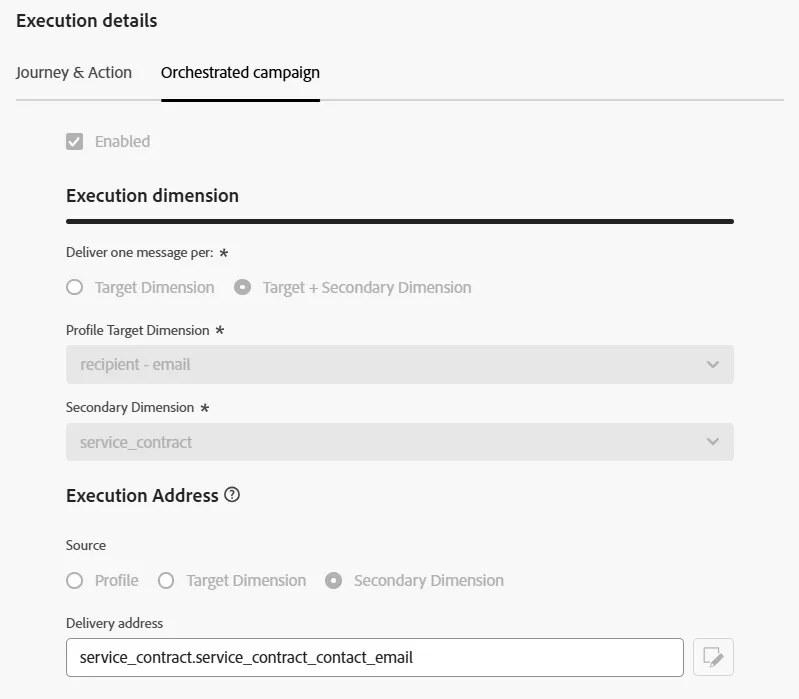
Channel configuration
The config-email-marketing-service_contract channel has been set to deliver one email per contract. This design disable a deduplication on the recipient email address.
It's possible to configure this channel to deliver the message by using the email address set in the contract.
- Click on Edit content button
- Click on Content template button, then Apply content template
- Select the template named [Example] Contract Expiration Alert Message
- Click on Confirm button to apply the template
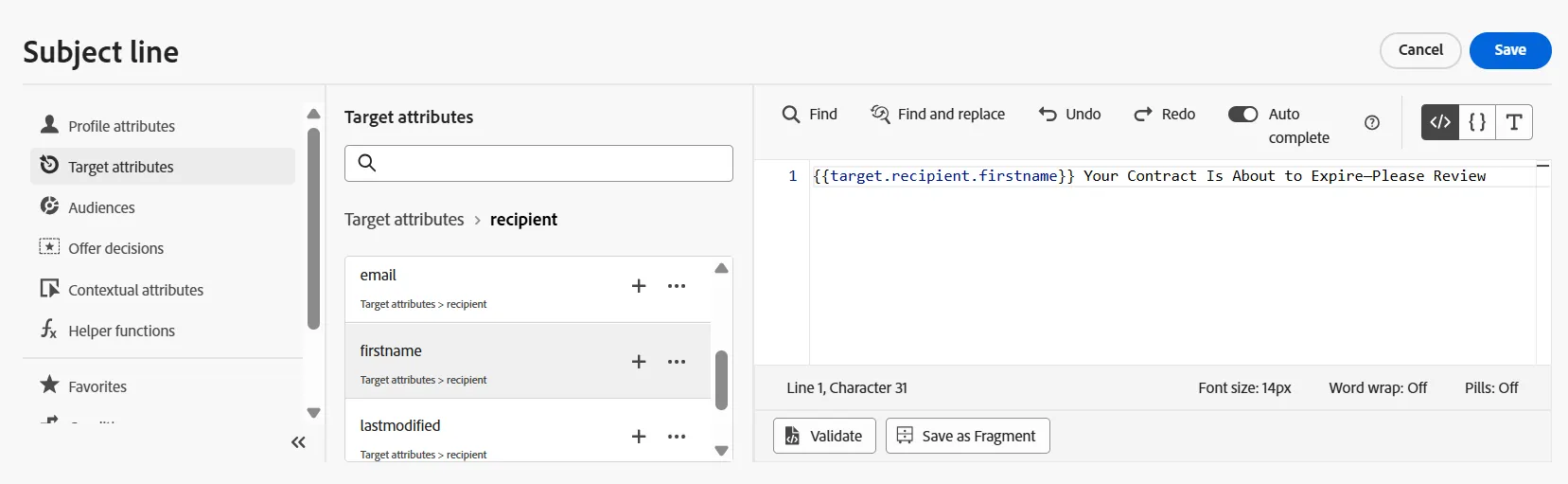
- Edit the subject line to replace [FIRST_NAME] by a personalization field

- Edit the subject line to replace [FIRST_NAME] by a personalization field located in Target attributes > recipient > firstname
- Click on Save
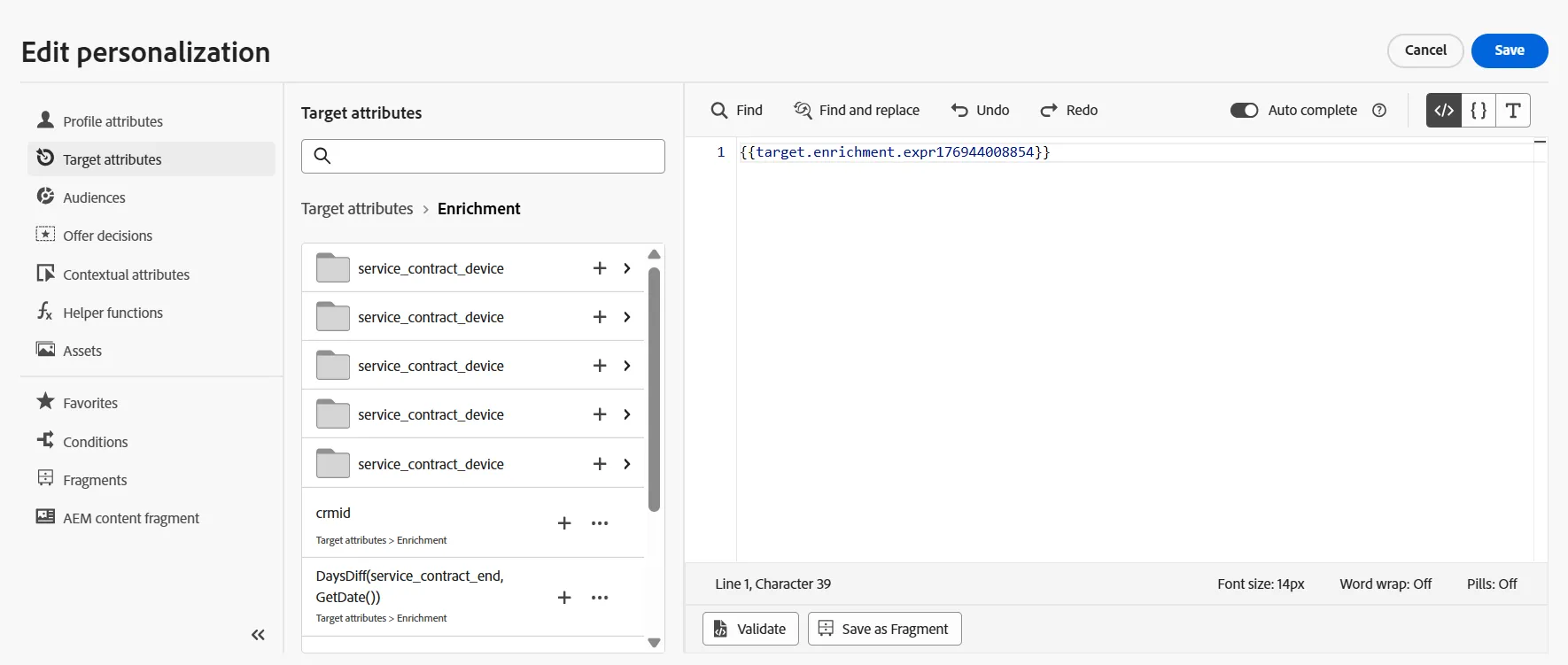
- Click on Edit email body and replace personalization fields with Target attributes
- For instance, for the expiration days, the path is Target attributes > Enrichment > DaysDiff(service_contract_end, GetDate())
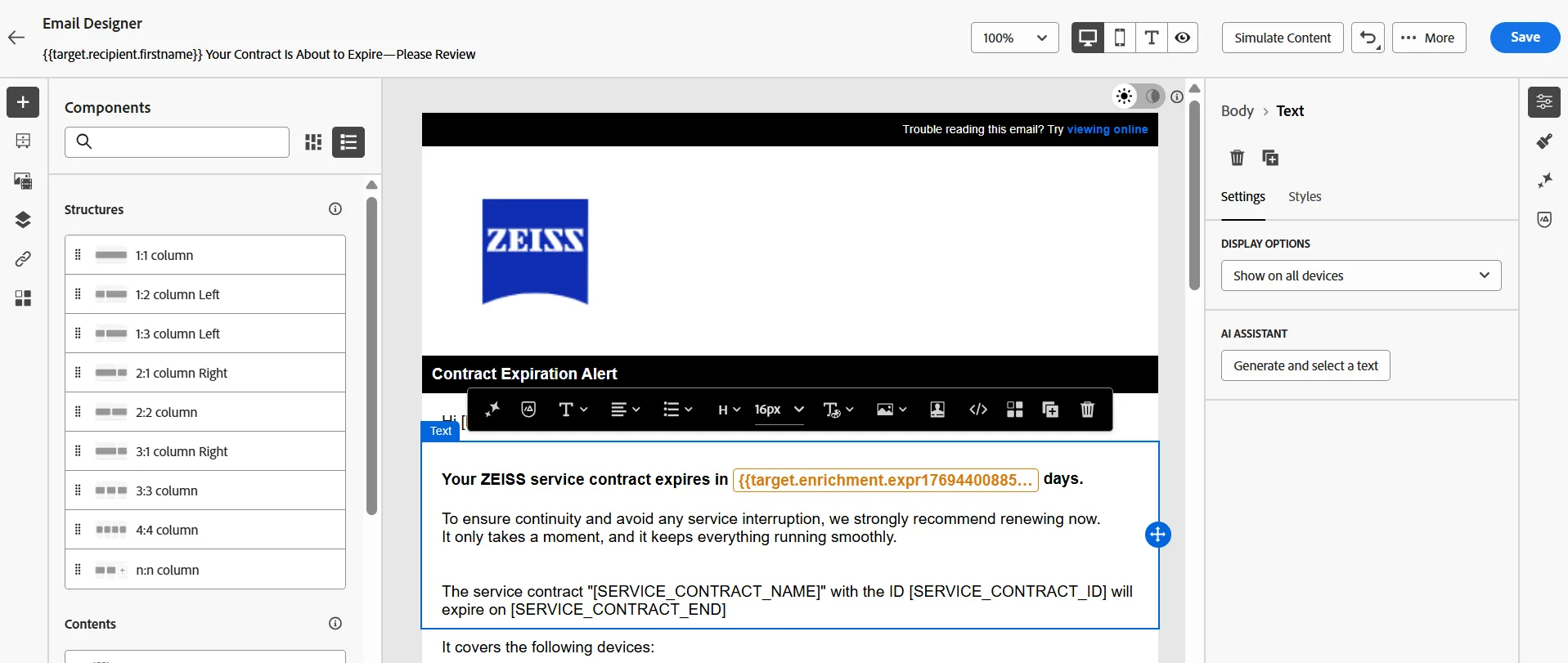
- Repeat the personalization task with devices (1..5)
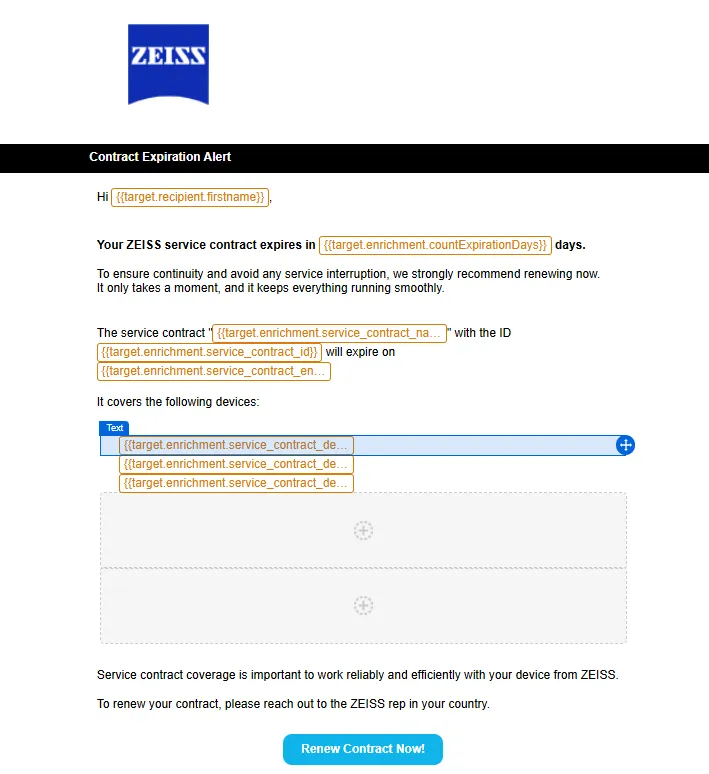
The email is personalized with data added in the Target, attributes from the targeting dimension and attributes from the secondary dimension (service_contract)
Follow the same process to deliver a reminder email to recipients that belongs to the second segment. It's possible to Copy/Paste the activities to save time.
Step 3 - Save the Target as an Audience
Goal Save the Target as an Audience
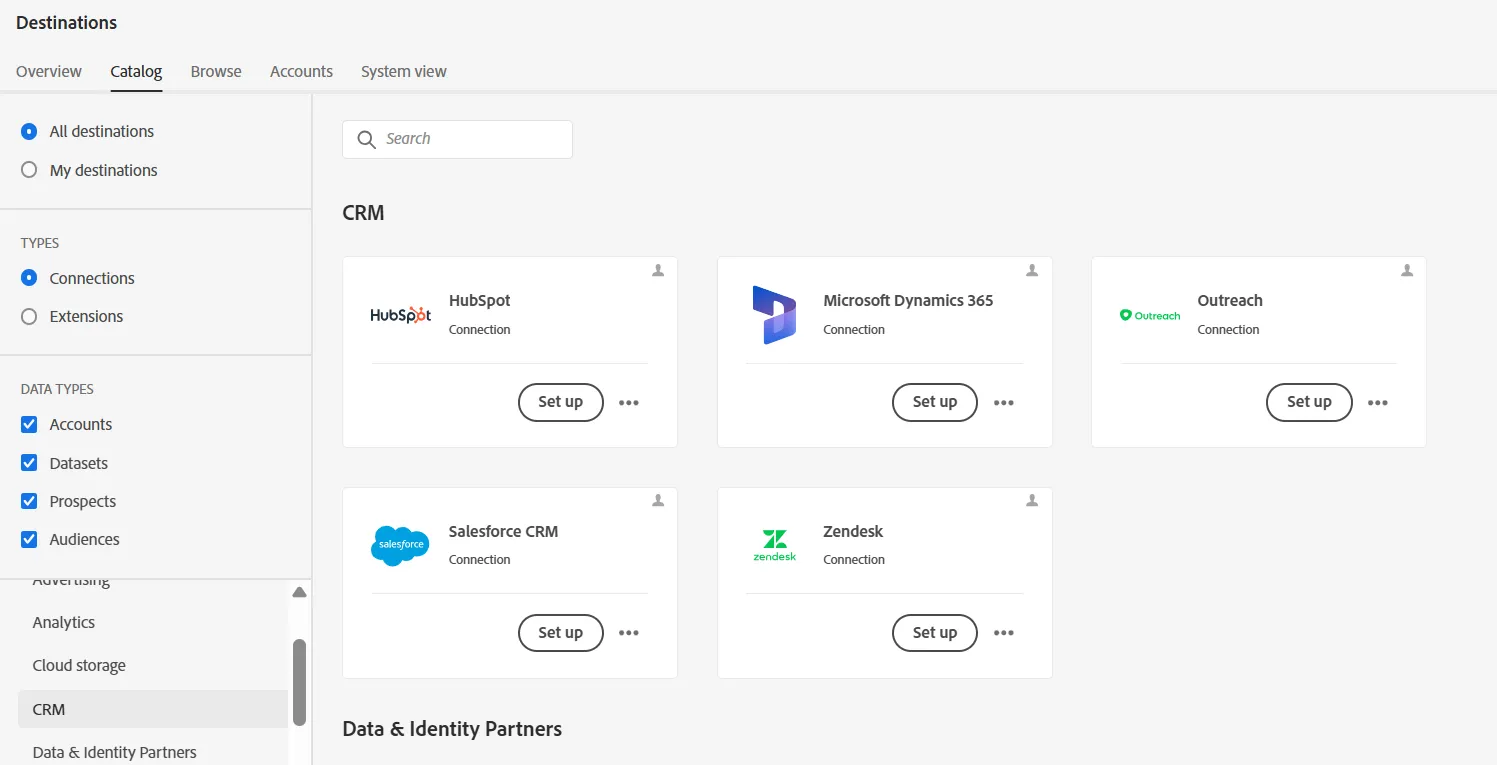
An Audience can be activated to CRM destination, as usual in AEP RT-CDP
Features
Enrichment, Deduplicate, Save audience
Enrichment of the target
- Go to the third segment and click on the + icon to add the Enrichment activity
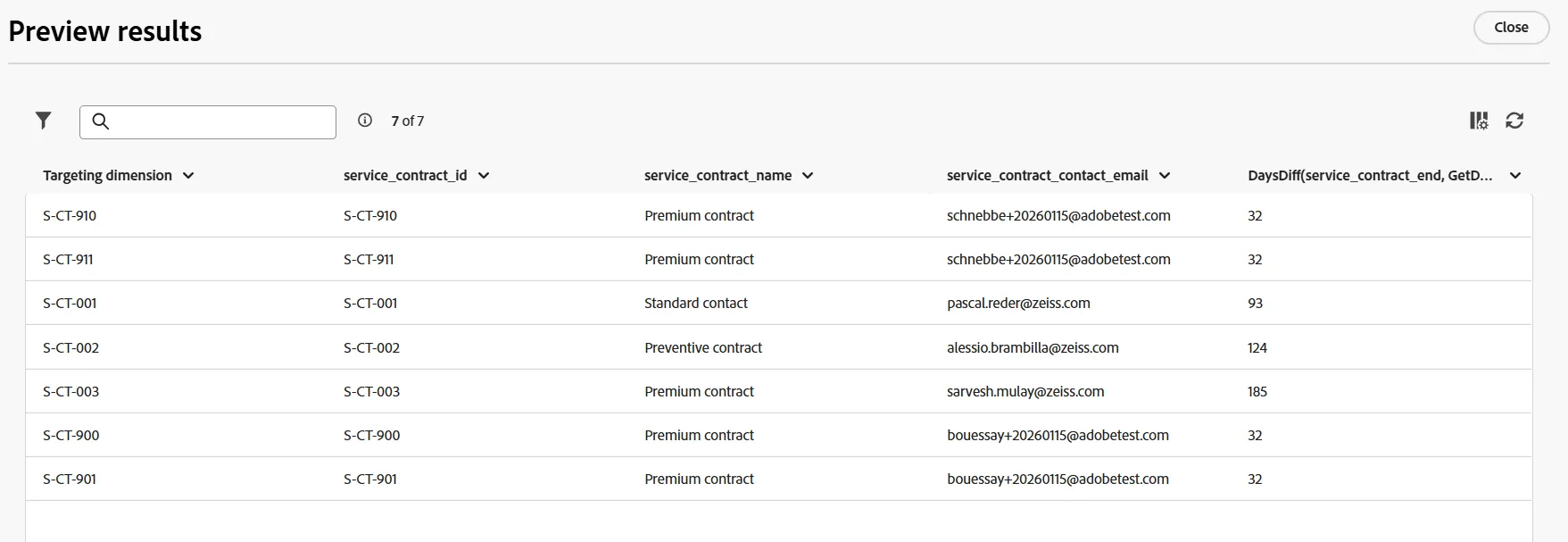
- Add the service contract name
- Add the service_contract_contact_email
- Preview the results and look at the duplicated emails
Deduplication
- Add the Deduplication activity
- Add the attribute service_contract_contact_email as a field to identify duplicates
- Set the deduplication this way
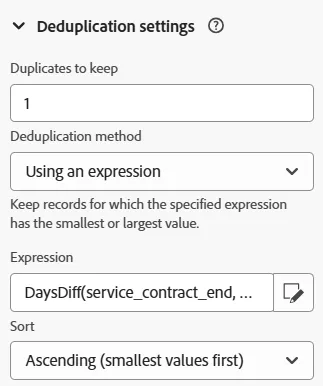
- Click on Resume , preview results and check that duplicates have been removed
Save the audience
- Add the activity Change dimension to shift from Contracts to Recipient targeting dimension
- Add a Save audience activity
- Set the name to [your name] Contract will expire today
- Set the profile mapping field to: recipient - crmid
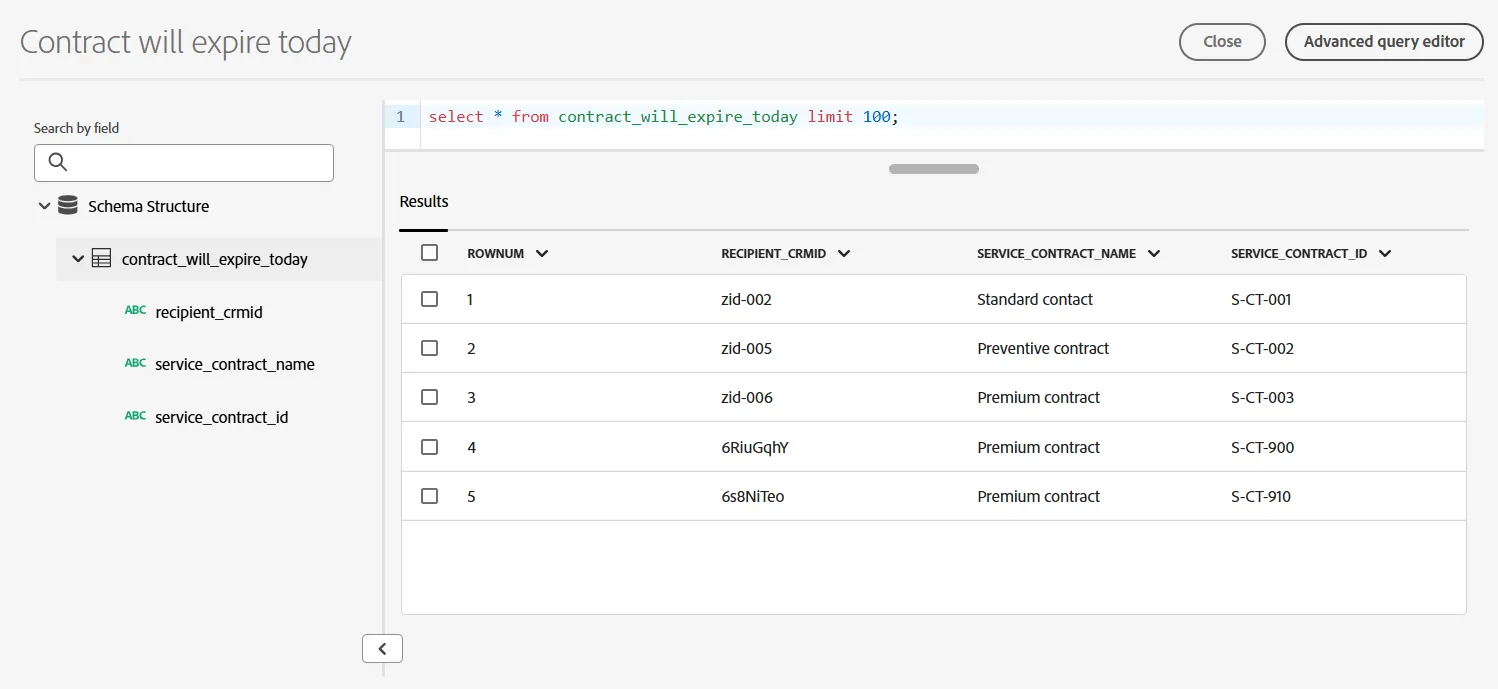
- Add these attributes (audience mapping):
- service_contract_name
- service_contract_id
The Target cannot be saved as an Audience in the simulation mode. The Orchestrated Campaign flow has to be published in order to save the audience. The next paragraph describes the audience that will be created by the Orchestrated Campaign engine.
- In the menu on the left side, under Customer, click on Audiences
- Click on the audience named Contract will expire today
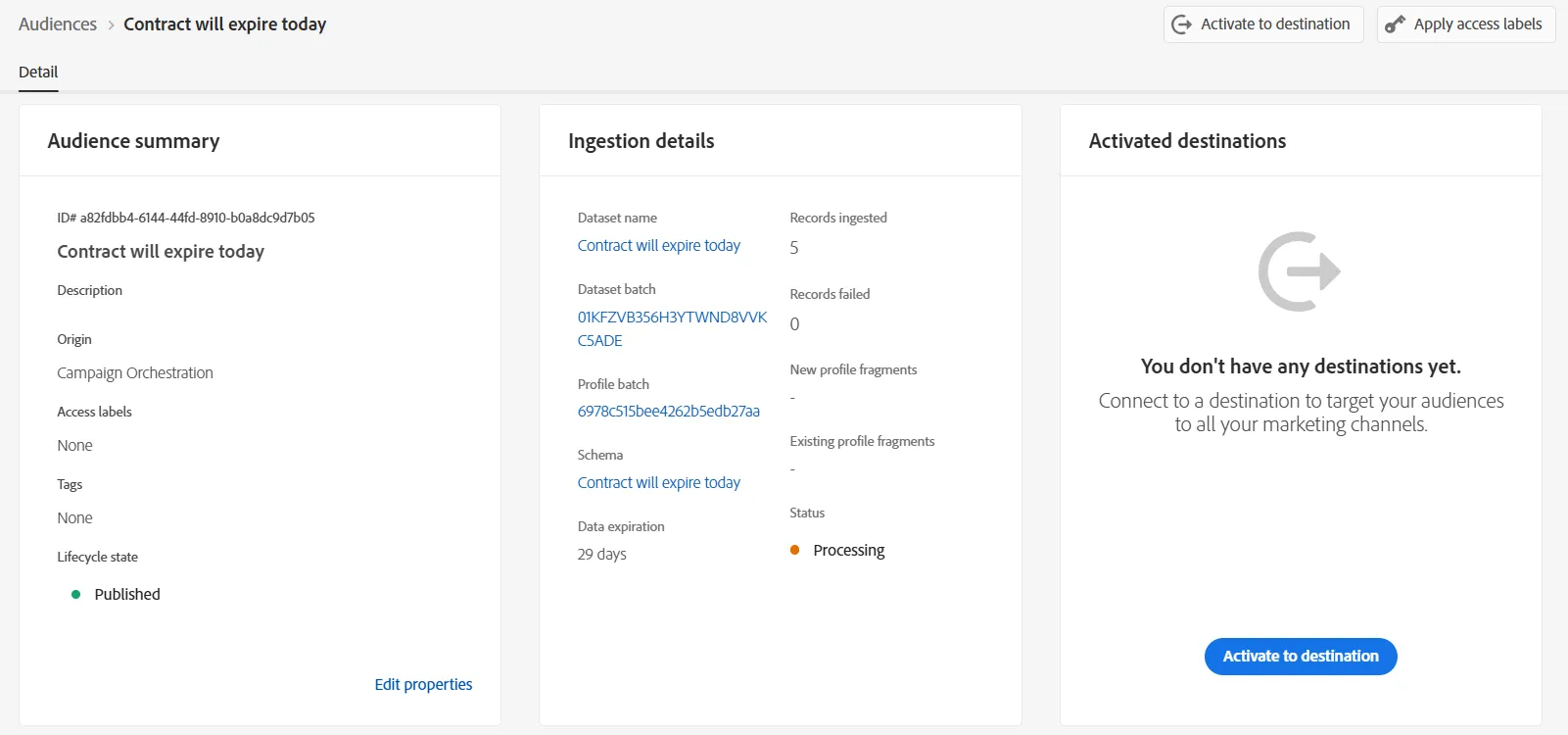
- Click on the dataset name and click on the Preview dataset button
CRM destinations
- In the menu on the left side, under Connections, click on Destinations
- Go to the Catalog tab and select the CRM categories to see all the supported CRM destinations
Step 4 - Schedule and Publish
Goal Schedule the execution of the Orchestrated Campaign flow
Publish the messages templates
Publish the exportation of data (Save audience)
Highlight
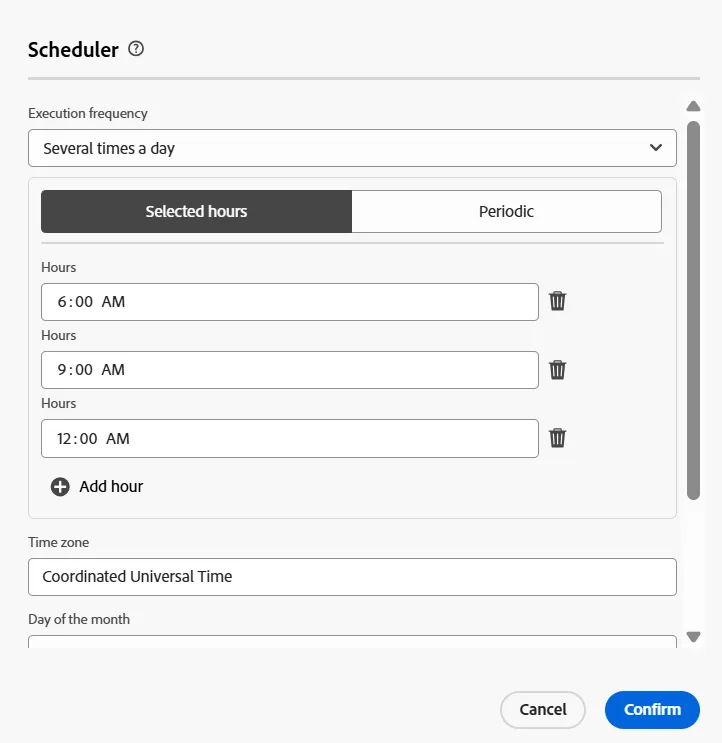
It's possible to execute the flow several times per day
Publish is a restricted feature and requires a permission.
Schedule
- Click on the As soon as possible button
- Schedule the execution of the flow several times per day
Publish permission
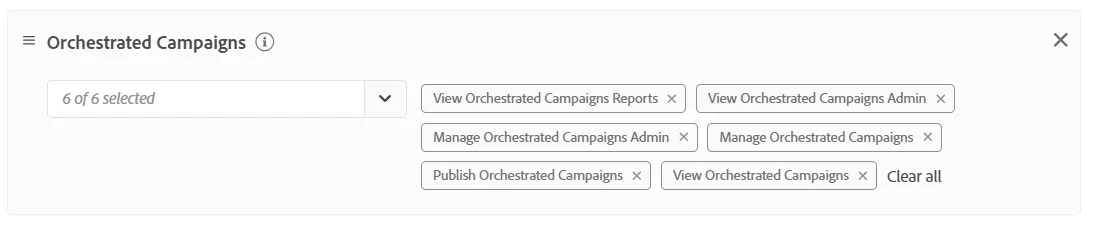
- The Publish button is restricted to the operators who have the Publish Orchestrated Campaigns permission
Congratulations on successfully completing the exercise!
This lab focussed on these topics:
- Multi-Entity & Relational Data Modelling/Processing
- Orchestrated Campaign Logic
- Audience Creation & Ad-hoc Analysis
- Data-Driven Email Activation & Templates