Lab 4: Device upgrade and cross sell
Focus area Adobe Journey Optimizer
Features Orchestrated Campaign - Ad Hoc Targeting
Activation to Social Media destination
Data driven email activation
Personalization of web site
Difficulty Easy
Use case description
As a Marketer, I have to make the promotion of the new ARTEVO 850, which is a device that belongs to the Cataract Workflow products. I want to identify contacts linked to accounts or clinics that already own ARTEVO 750 or ARTEVO 800 device and to inform them than the new improved ARTEVO 850 has been released, with an email message, a social media campaign and also with a personnalized web banner on ZEISS web site.
I also want to include cross-selling offers of additional products related to Cataract Workflow like IOL MASTER 7000, CIRRUS 6000 or ATLAS 500 devices in the email message.
Ressources
- Data engineers have designed a relational data model with devices owned by accounts
- A Web agency has provided:
- a Web banner to make the promotion of ARTEVO 850
- an email with a placement to display cross selling products
Solution Design
One possible solution design is:
- Use Orchestrated Campaign to create an audience of accounts who already owns an ARTEVO device
- Enrich this audience with all the devices already bought by the customer in order to propose a Cross Selling product that the customer doesn't have
- Activate this audience to social network like Meta
- Use a Regular Journey to activate this audience to email and web channel
- Place a Cross Selling product inside the email
- Design a regular journey is a good practice to manage in the same way inbound and outbound channels:

Currently, inbound channels like Web channel or Content Card are available only with a regular journey, not with an Orchestrated Campaign.
In this design, the email is delivered by a regular journey; it's also possible to deliver the email with the Orchestrated Campaign flow as done in previous lab.
This lab highlights a tip to leverage enrichment attributes of an audience, inside an email: it's possible to personnalize the email by defining conditions based on the attributes provided by the audience, for instance to select the best cross-selling product interesting for the profile.
Step 1 - Ad Hoc Targeting
Goal Create the audience "Profiles interested by ARTEVO 850".
Enrich the audience with other devices already owned by the account.
Higlight Build audience, Enrichment of the audience with an aggregation of devices
One way to do it is to follow these steps:
- Create a new Orchestrated Campaign
- Build an audience of devices
- Change dimension from device to recipient
- Enrich the audience of recipients with an aggregation of device, except ARTEVO ones
- Save the audience
Create a new Orchestrated Campaign
- In the menu on the left side, under Campaigns, click on Orchestration
- Click on the Create campaign button
- Select Orchestration - Marketing and click on Confirm
- Set the name to [your name] ARTEVO 850 launch
- Click on Save
Filter devices
- Click on the + icon to display the list of activities
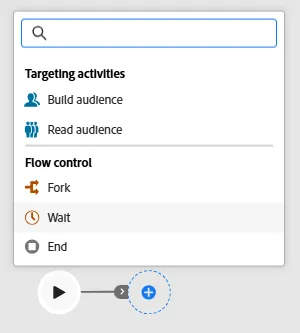
- Select the Build audience activity
- Set the Targeting dimension to device
- Click on Create audience button
- Click on Add condition
- Define these 2 criteria:
- Click on Calculate to get a count of records
- Click on Confirm
- Click on Start to start queries in a simulation mode
Enrichment step
- Add an Enrichment activity
- Add enrichment data device_description and device_contact_email
- Click on Resume

Change dimension
- Add an Change dimension activity
- Set the new target dimension to recipient
- Click on Resume
- Click on Preview results

Enrichment - Aggregation of devices
- Add an Enrichment activity
- Add enrichment data
- Select the attribute in the path Targeting dimension > Device > device_description
- Set the option named 'Select how the data is collected' to Aggregate data
- Select the aggregate function to String aggregation
- Set the alias to other_devices
- Click on Create filter
- Set the filter to device_description does not contain ARTEVO
- Click on Resume
- Click on Preview results

Save the audience
- Add a Save audience activity
- Set the Audience label to[Your name] Profiles interested by ARTEVO 850
- Add Audience Mapping this way
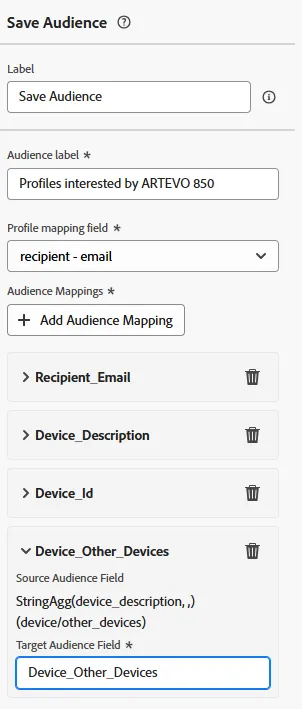
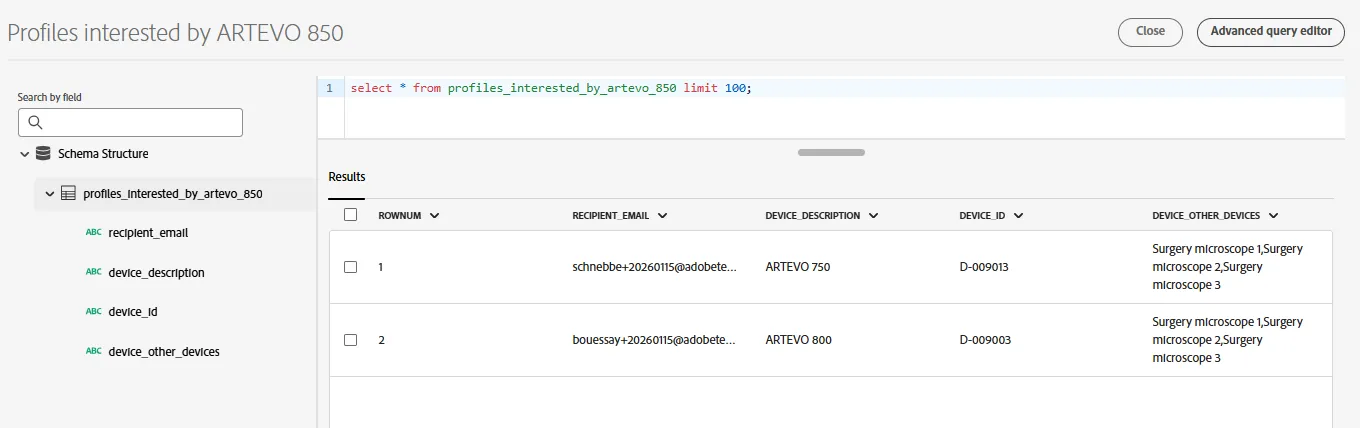
- In the left menu, go to Customer > Audiences folder and search for the audience named Profiles interested by ARTEVO 850
- Click on this audience, click on the Dataset name, and click on Preview dataset
Step 2 - Activate to Social Media - Meta case
Goal Activate this audience in Social Media space - Meta case
Higlight Activation of an audience
This is a READ ONLY section: the next paragraphs will give you the information to learn how the activation process works.
Activate profiles for your Facebook campaigns for audience targeting, personalisation, and suppression based on hashed emails.
You can use this destination for audience targeting across Meta's family of apps that are supported by Custom Audiences, including Facebook, Instagram, Audience Network, and Messenger. Selection of the app that you want to run campaign against is indicated at the placement level in Facebook Ads Manager.
Facebook Custom Audiences supports the activation of identities:
- GAID - Google Advertising ID
- IDFA - Apple ID for Advertisers
- phone_sha256 - Phone numbers hashed with SHA256 algorithm
- email_lc_sha256 - Email addresses hashed with SHA256 algorithm
- extern_id - Custom user IDs
Export Type = Segment Export
Facebook requires that no personally identifiable information (PII) is sent in clear. Therefore, the audiences activated to Facebook can be keyed off hashed identifiers, such as email addresses or phone numbers.
Activate Audiences to the Facebook Destination
- In the left rail, click on Connections and choose Destinations, then go to Catalog. You’ll then see the Destinations Catalog.
- In Destinations, select Social, click the Activate Audiences on the Facebook Custom Audiences card.
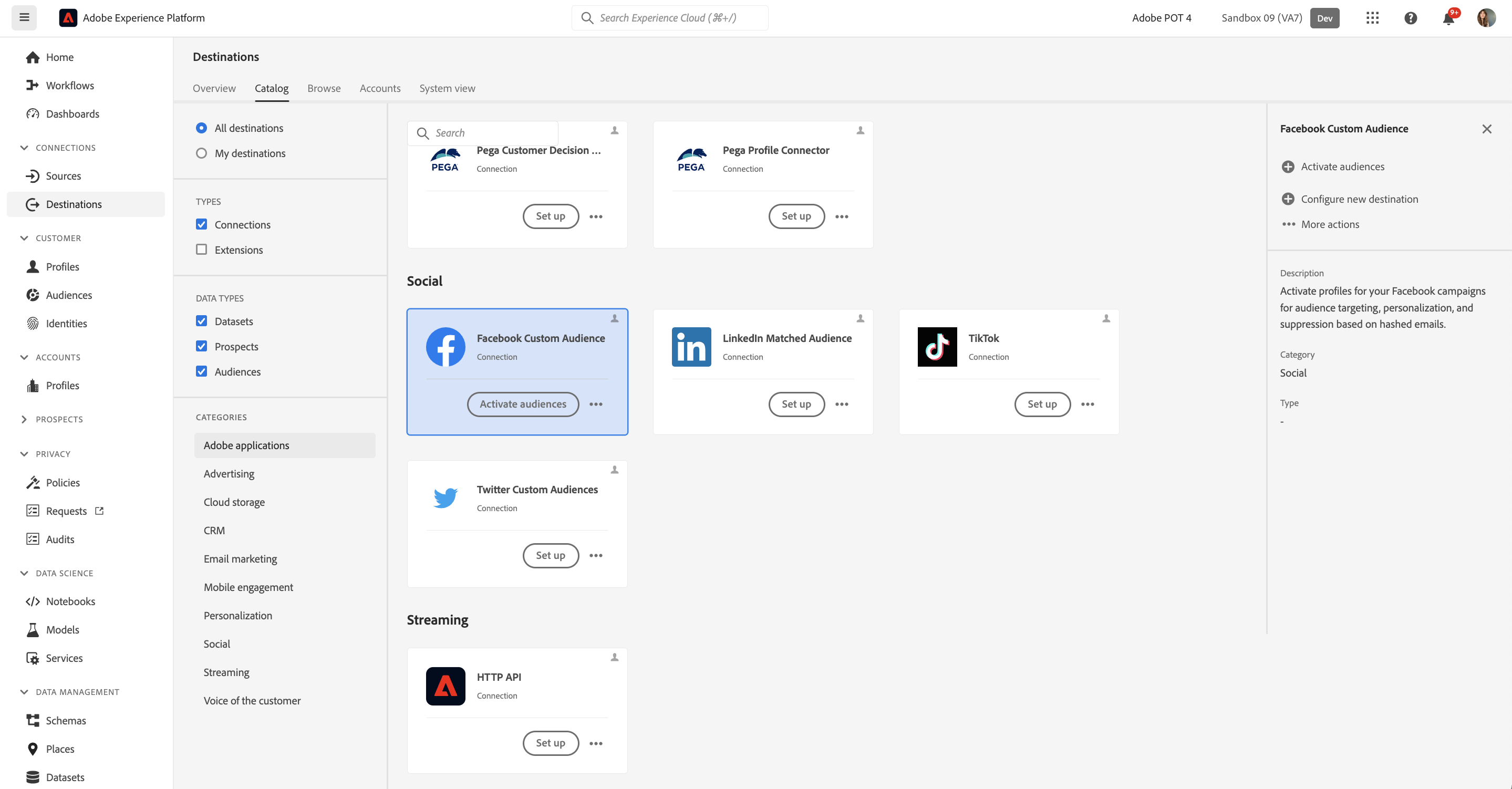
- Select your Destination and click Next.
For this Lab we have already configured the Facebook Destination for our demo account. You can reuse this Account to map your audiences in the Lab: Facebook Demo Destination
In the list of available audiences
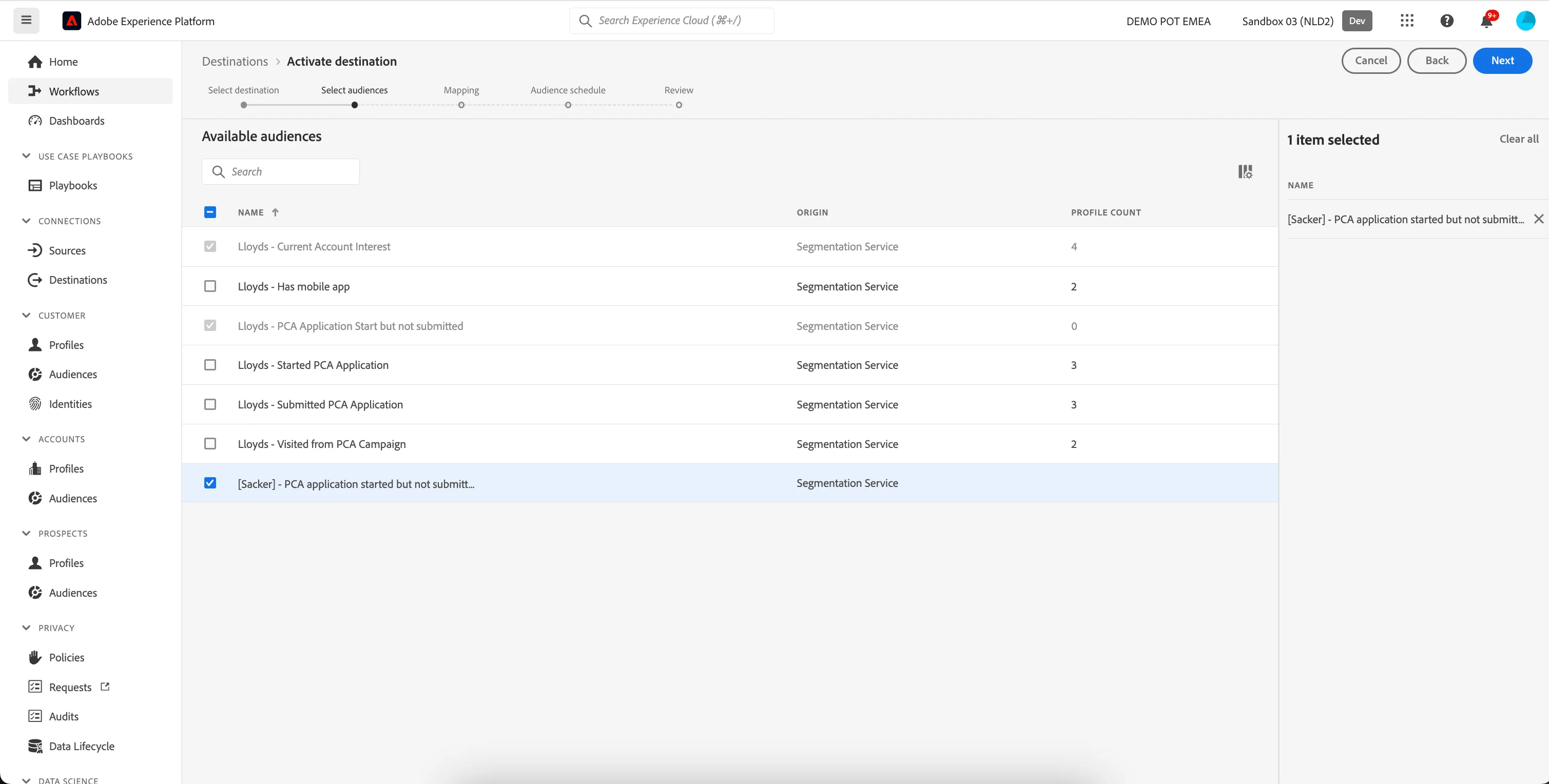
- Select on of the Audiences you created in the previous exercise for mapping.
- Click Next.
For the Facebook Custom Audience Destination, you need to specify your mapping identifiers between Adobe Experience Platform and Facebook. These will be used to match the profiles in your audiences between platforms.
For this lab we want to use the Hashed Email ID as the mapping identifier.
This mapping is already in place for the Bootcamp Facebook Destination, the below steps 1-7 are for information only.
- On the mapping step select Add new mapping.
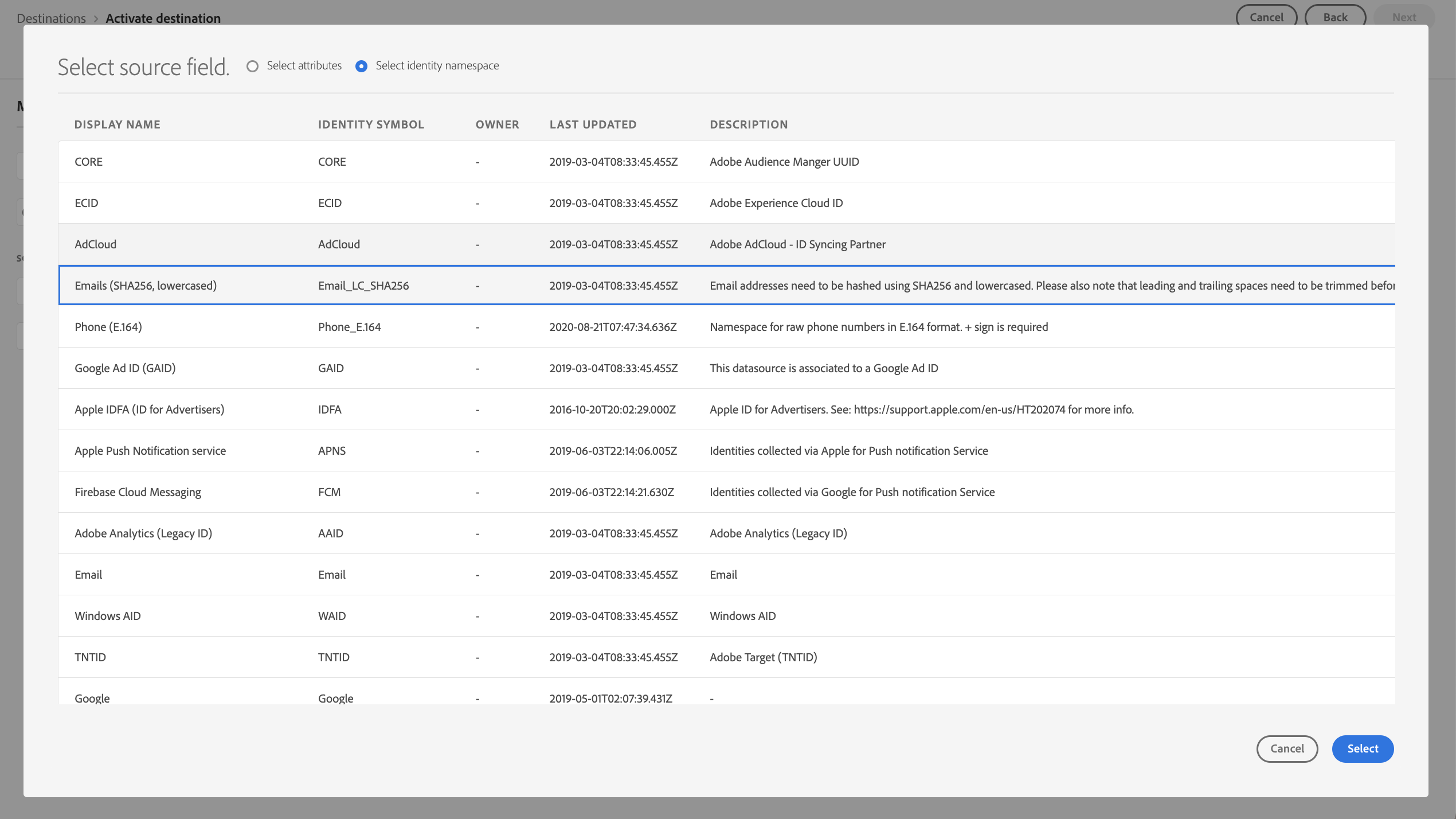
- We will first specify a Source Field, by selecting the arrow next to the input box. This opens our XDM schema where we can choose to select from attributes or Identity namespaces.
- Select the checkbox Select identity namespace and click the Emails (SHA256, lowercased) namespace from the list of identities.
- Click Select.
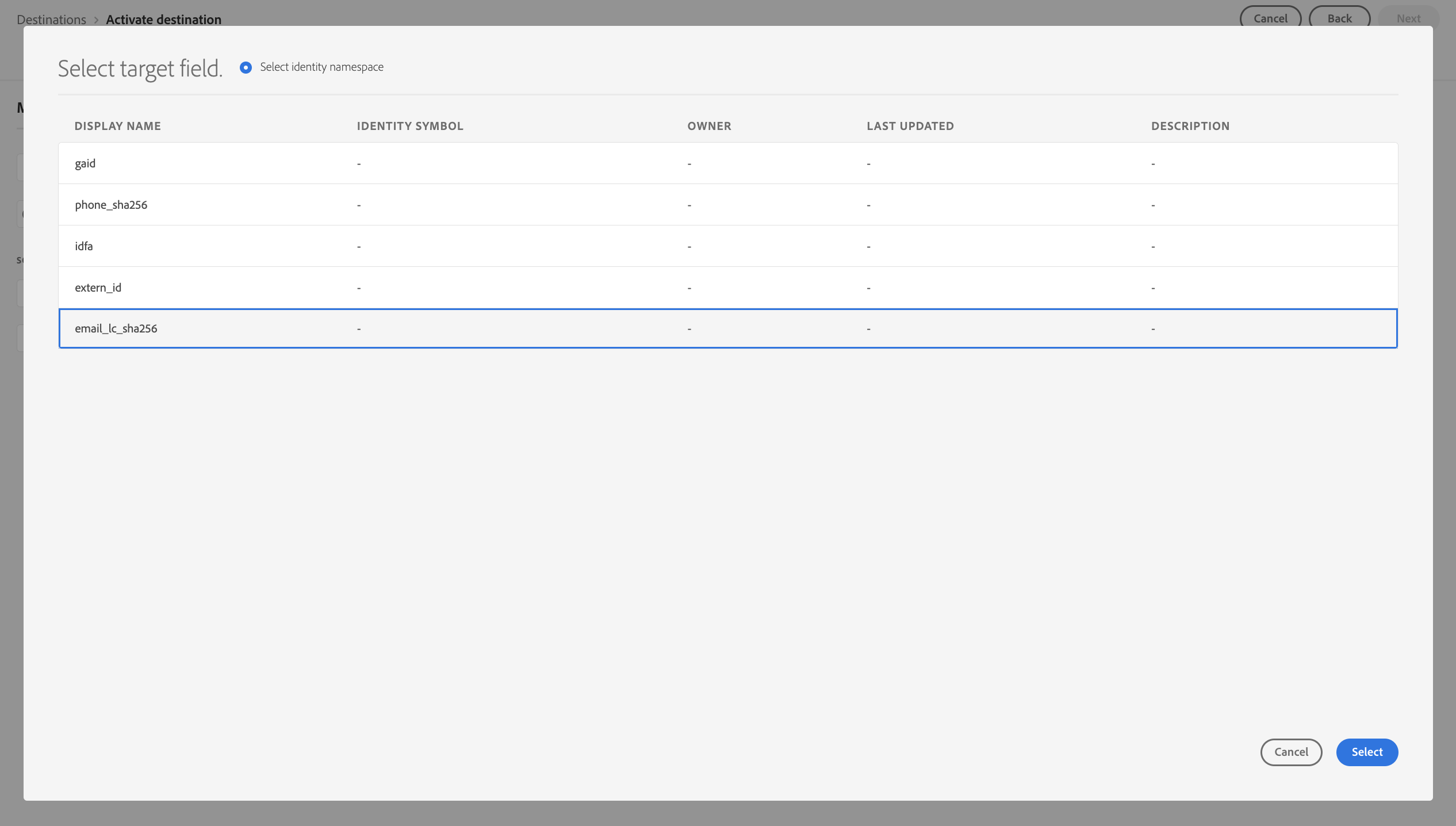
Then, we do the same for the Target Field.
- Select the Hashed email ID (email_lc_sha256) from the Facebook options.
- Click Select.
Your mapping should now look like:
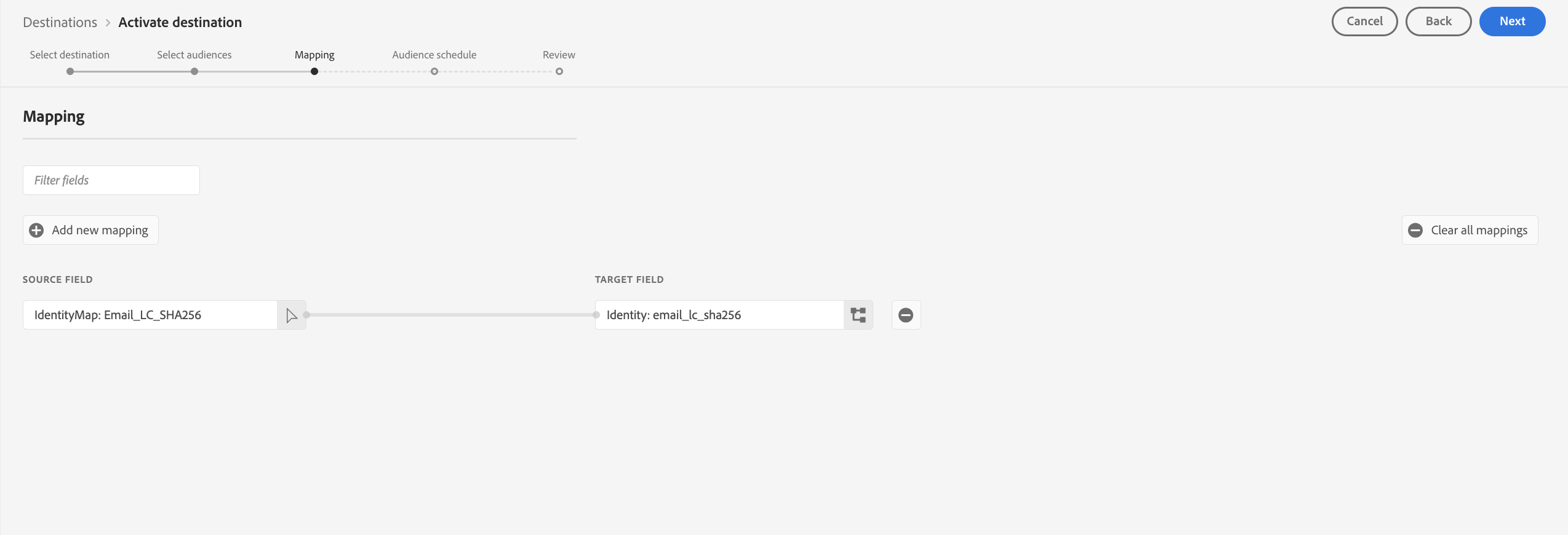
- Click Next.
On the Audience Schedule step,
- Select Directly from customers in the Origin of Audience drop down option.
- Click Next
- Finally, on the Review page, click Finish.
Your audience is now activated to Facebook
Exported Data
For Facebook, a successful activation means that a Facebook custom audience would be created programmatically in Facebook Ads Manager. Audience membership in the audience would be added and removed as users are qualified or disqualified for the activated audiences.
The integration between Adobe Experience Platform and Facebook supports historical audience backfills. All historical audience qualifications get sent to Facebook when you activate the audiences to the destination.
Step 3 - Activate to email and place X Sell offers
Goal Make the email promotion of the new ARTEVO 850 device and optimize the cross-selling products to include in the message.
Higlight Email personalization
Optimize the profile journey
Create a regular Journey with Email
- In the menu on the left side, under Journey management click on Journeys
- Click on the Create Journey button
- Set the name to [your name] ARTEVO 850 upgrade and Cross Selling
- Click on Save
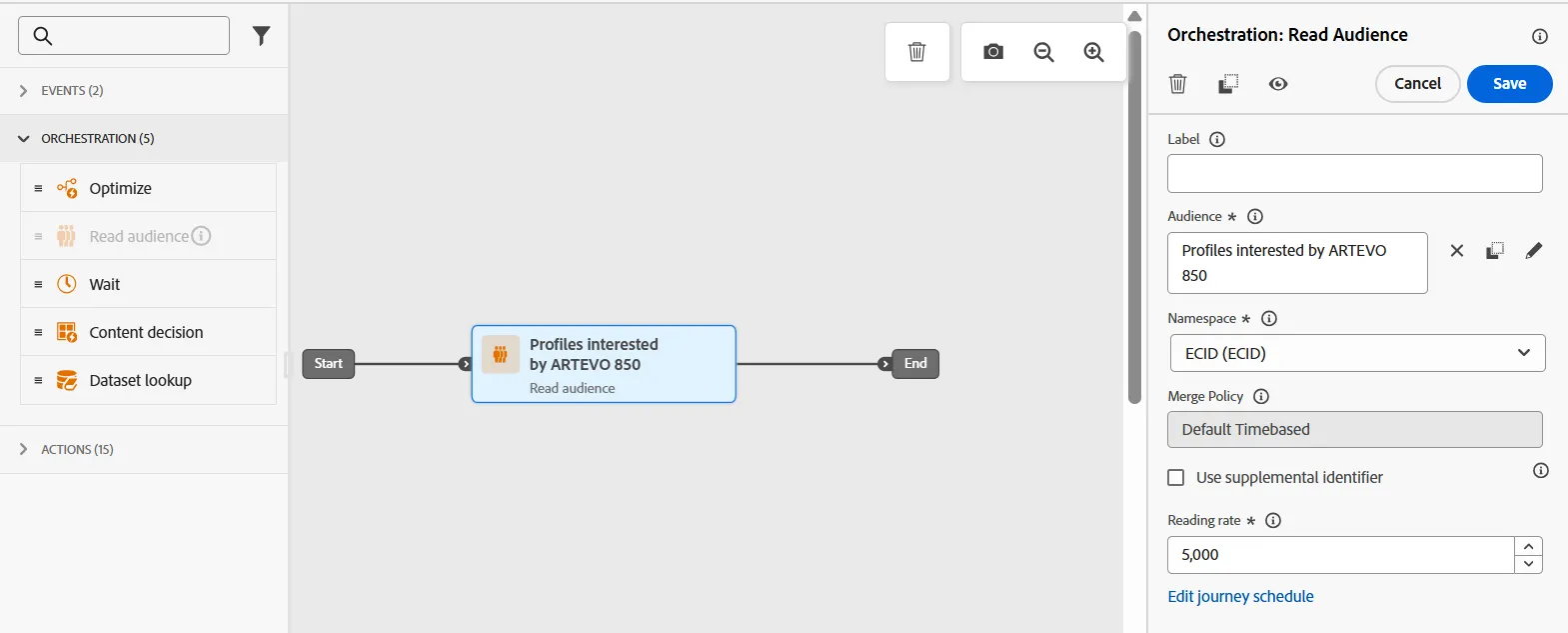
- Add a Read audience activity
- Select the audience named Profiles interested by ARTEVO 850
- Set the namespace to ECID
- Add an Email activity
- Set the name to ARTEVO 850 Promotion
- Set the Category to Marketing
- Set the Email configuration to config-email-marketing
- Click on the button Edit content
- Click on the button Content template, Apply content template
- Select the template named [Example] ARTEVO 850 Promotion
- Set the subject line to New ARTEVO 850 is available!
- Click on the button Edit email body
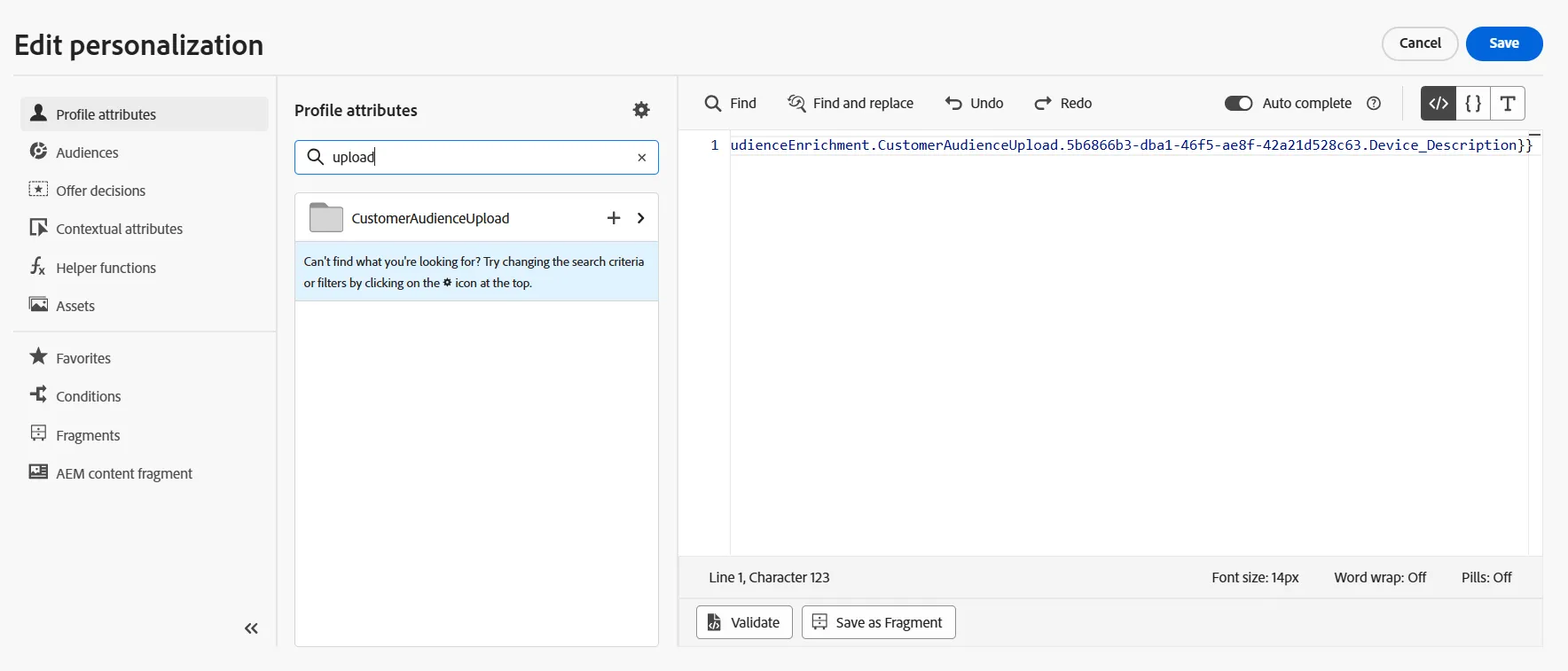
- Edit personalization
- Replace [FIRST_NAME] by {{profile.person.name.firstName}}
- Replace [DEVICE_NAME] by {{profile._demopotemea.audienceEnrichment.CustomerAudienceUpload.....Device_Description}}
Tip
Search for the word upload to find audience enrichment attributes
Set up rules to display the cross-selling offer
- Look at the placement used to display the cross-selling product
- The orange border of the block means that conditional content has been enabled
- In the left panel, multiple variants have been defined
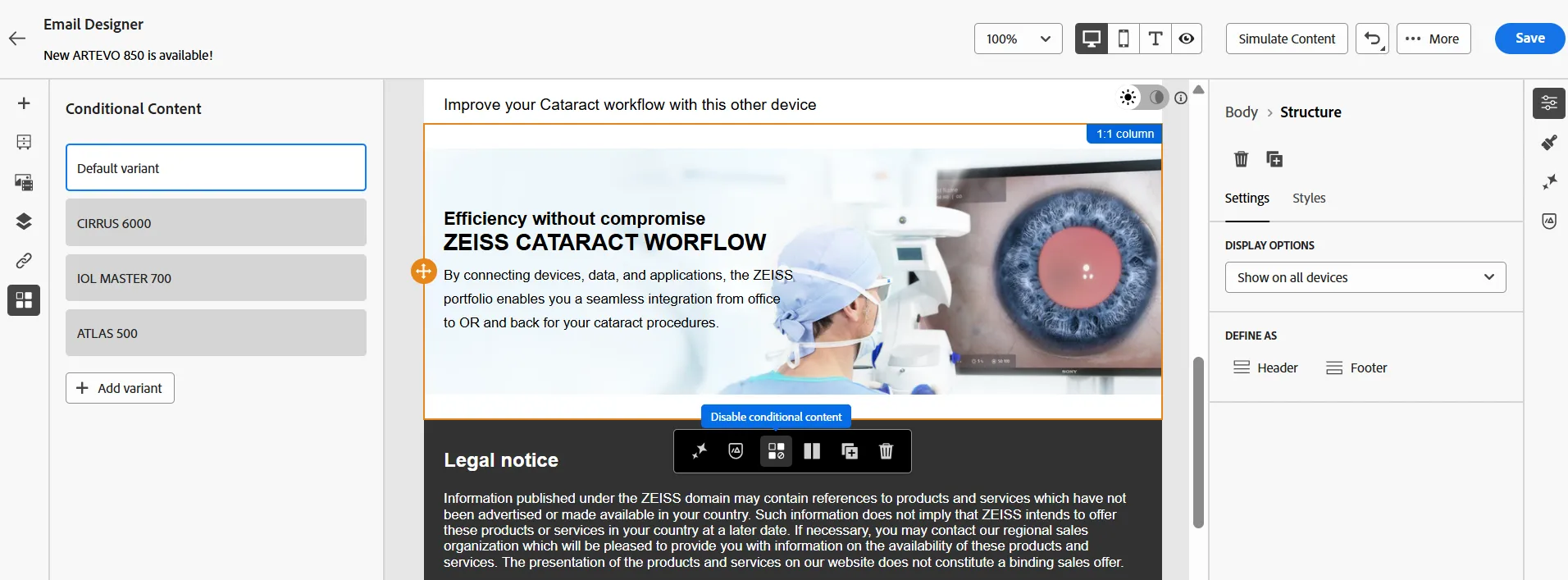
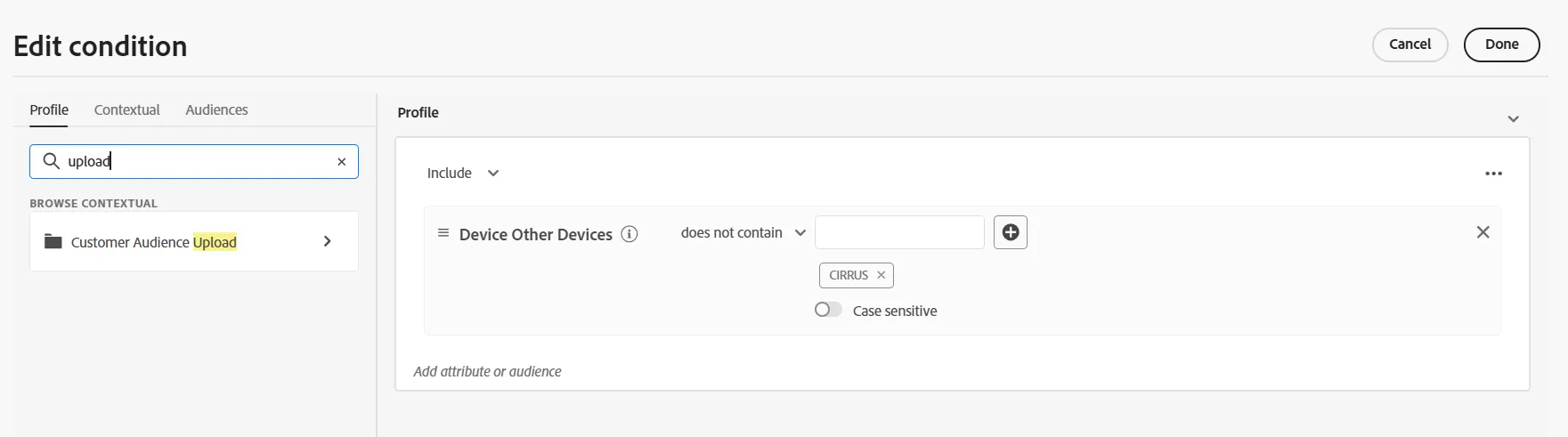
- Select the CIRRUS 6000 variant
- Click on Edit condition
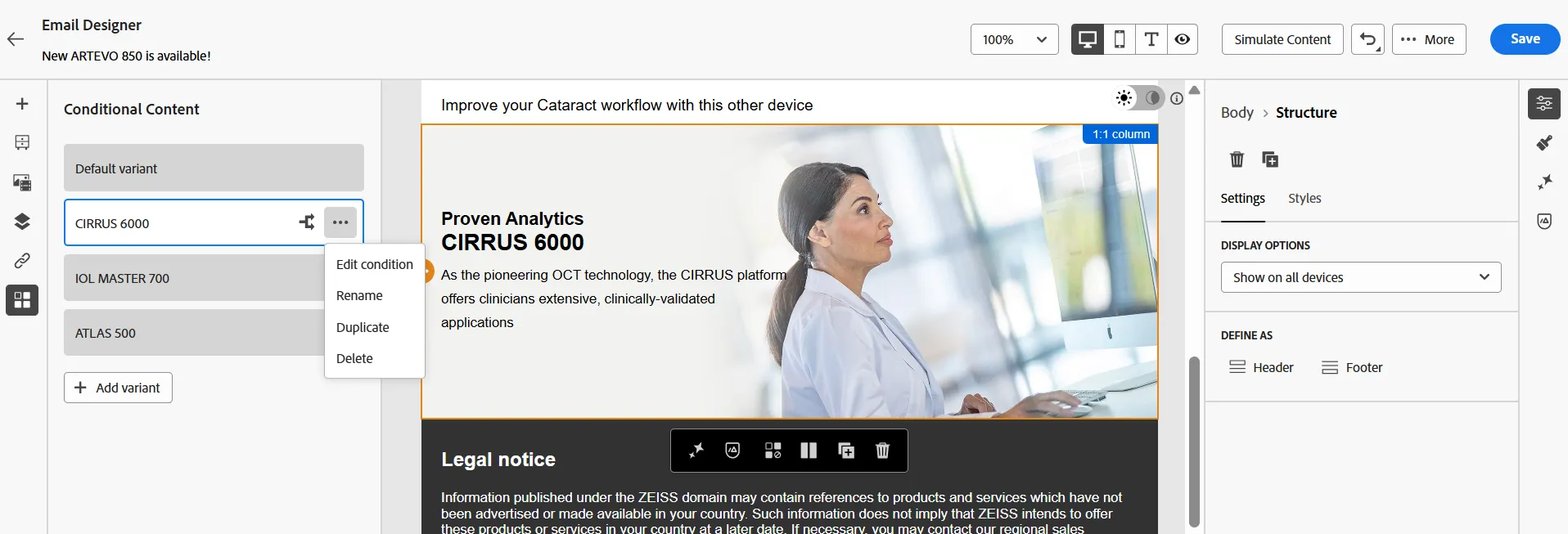
- The condition is based on the value of an attribute provided by the audience
- That means: display the CIRRUS 6000 block if the customer doesn't already own a CIRRUS device
Your audience is now activated to an Email.
The email is personalized with audience and profile attributes.
Step 4 - Activate to Web
Goal Profiles who have received the ARTEVO 850 promotion email will visit the ZEISS web site. The goal is to personalize the web site by changing the hero banner with an ARTEVO 850 ad.
Higlight Web personalization
Add a Web activity in the same journey
- Add a Web activity
The Web activity is automatically added with a Wait activity. The journey has to be configured to define how long the Web banner will be displayed. By default, the Wait activity is proposed; it's also possible to define this period by using an Event or an Audience Qualification activity instead of a Wait.

- Set theWeb configuration to config-web-homepage
- Click on the Edit content button
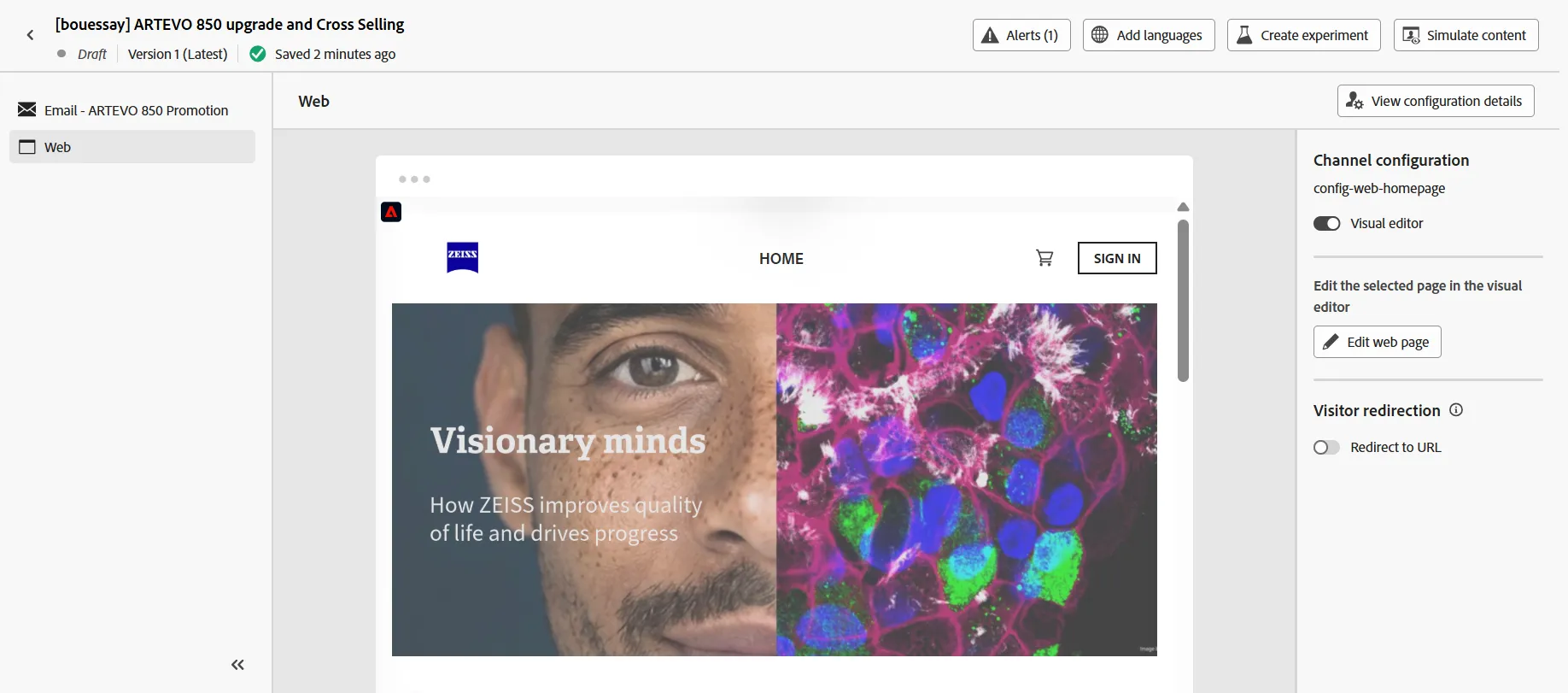
- Click on the button Edit web page
- Replace the main image by the ARTEVO 850 banner
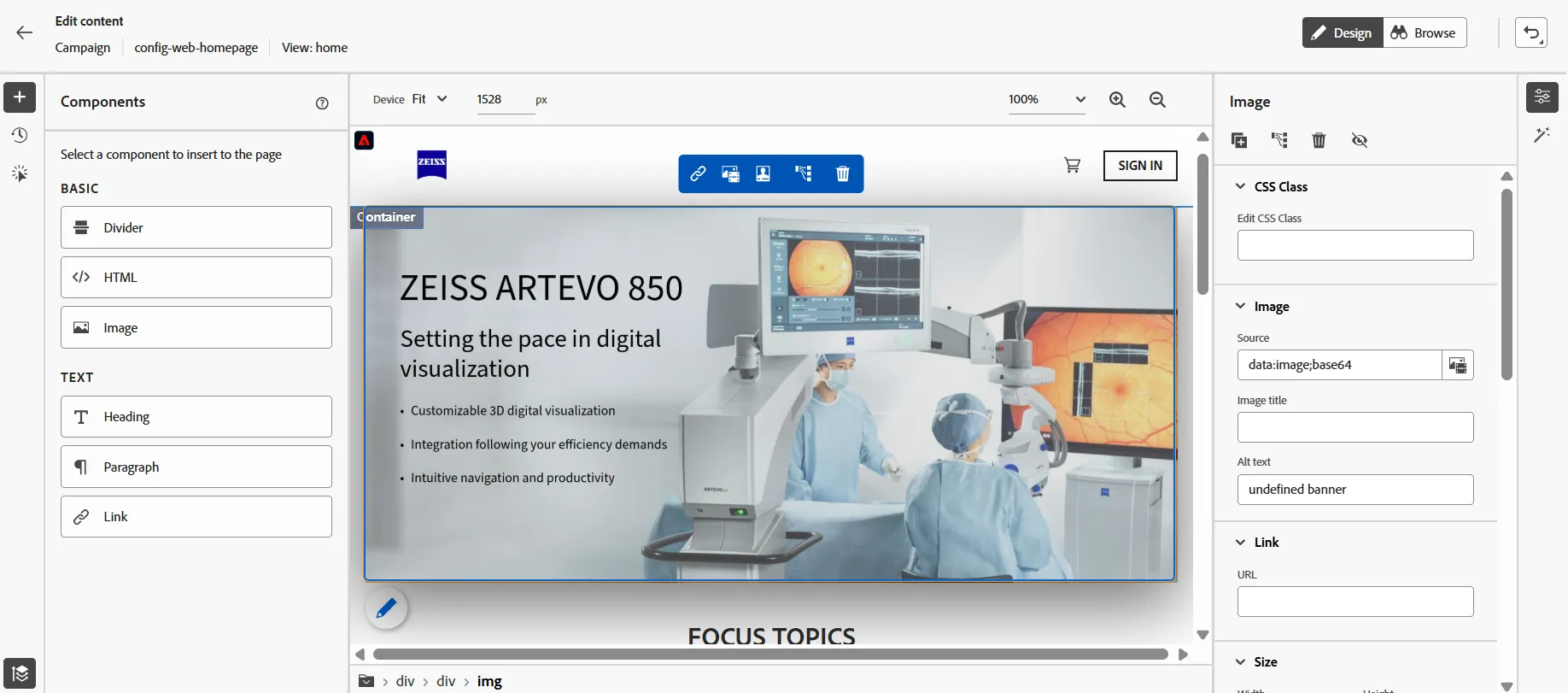
The web site is now personalized, it will display ZEISS ARTEVO 850 ad for all the visitors who belong to this audience.