Campaigns and Experiments
5 min
This lab will walk through the steps to create a Campaign in Adobe Journey Optimizer.
NOTE: Some exercises may vary during the actual Hands on Lab versus what is listed in the Archbee Page, due to industry setup and / or Presenter preferences.
- Navigate to Campaigns
- Click on “Create Campaign”
- Under Properties, leave: Scheduled and click create
- Provide a name: Loyalty Customers Campaign - {your initials}
- Select Actions tab and click the button: "Add Action" and select "In-App"
- Select In-App Message Configuration: "InAppMessaging"
Add Experiment (A/B Test)
In the same Actions Tab, scroll down...
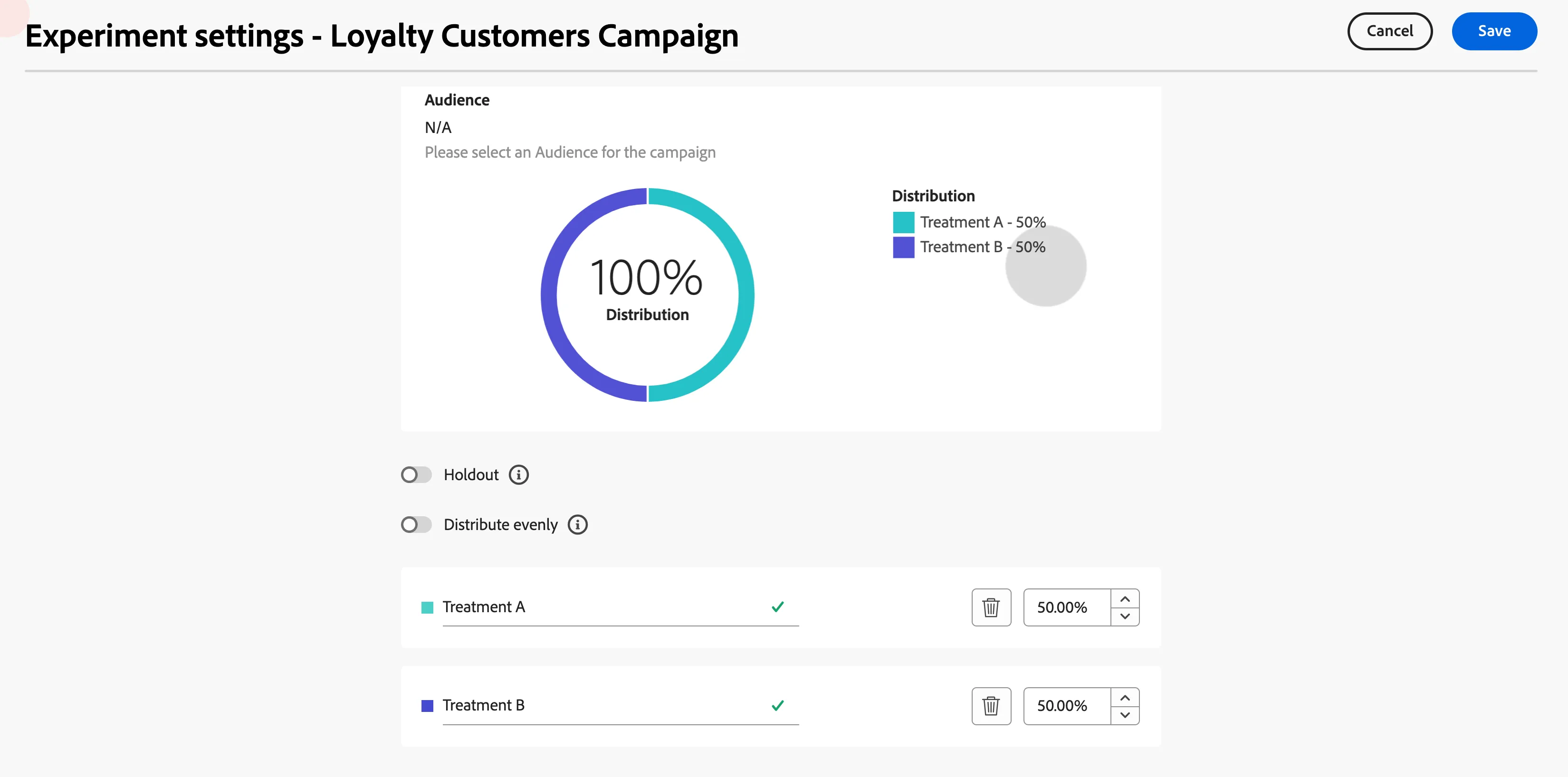
- Click the button "Create Experiment".
- Add A Treatment
- Click Auto Scale and click Create
Add Content
Scroll up the actions tab...
- Click on Edit Content
- Let's create our first in-App version by clicking on Content Template
- Click on Apply Content Template
- Select Content Template A (InApp)
- Click Confirm.
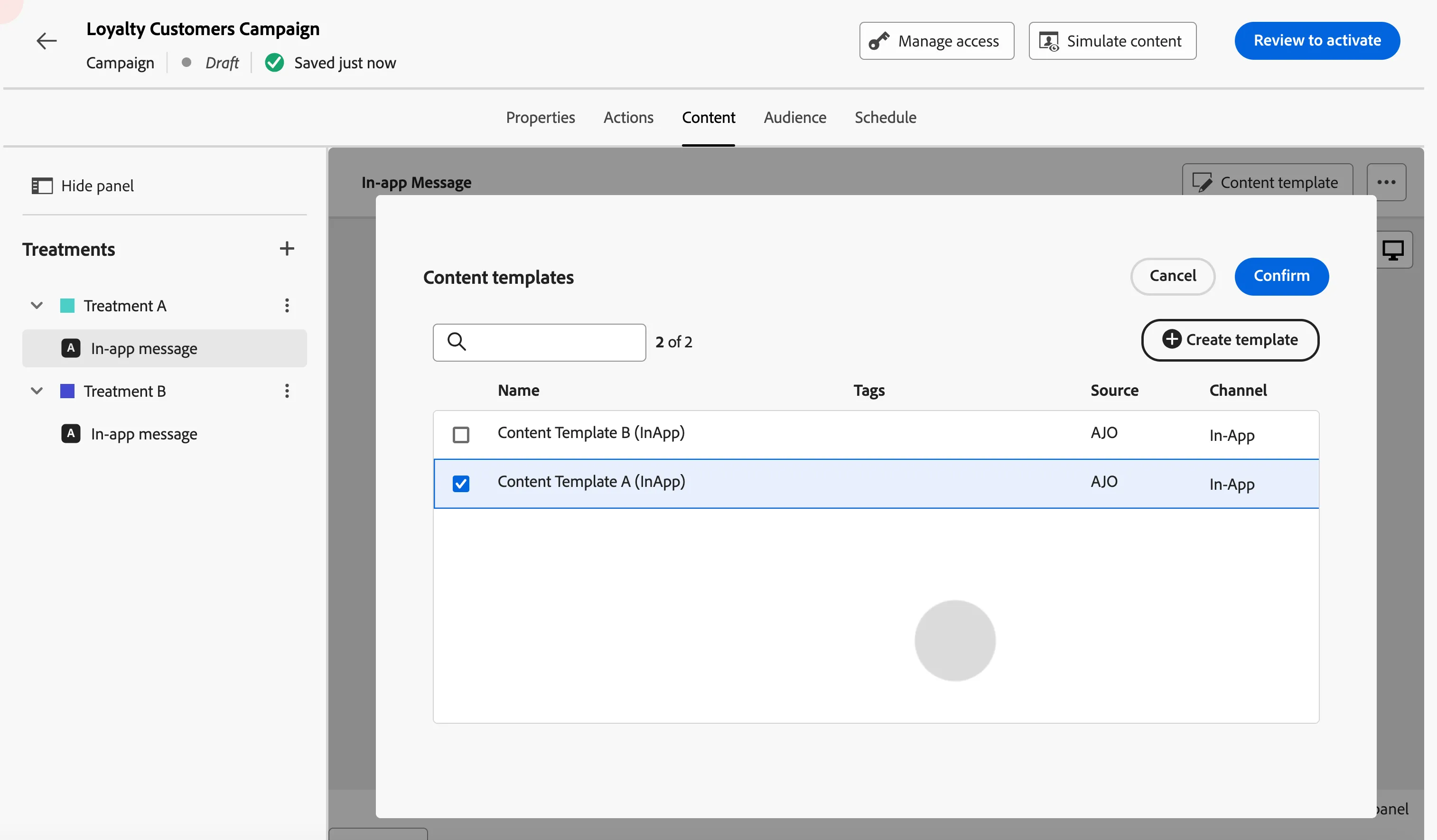
Repeat the above steps but select your Treatment B > In-App Message and select Content Template B (InApp). The idea is to give 2 versions for our experiment. Once done, click on Audience Tab to select our target population.
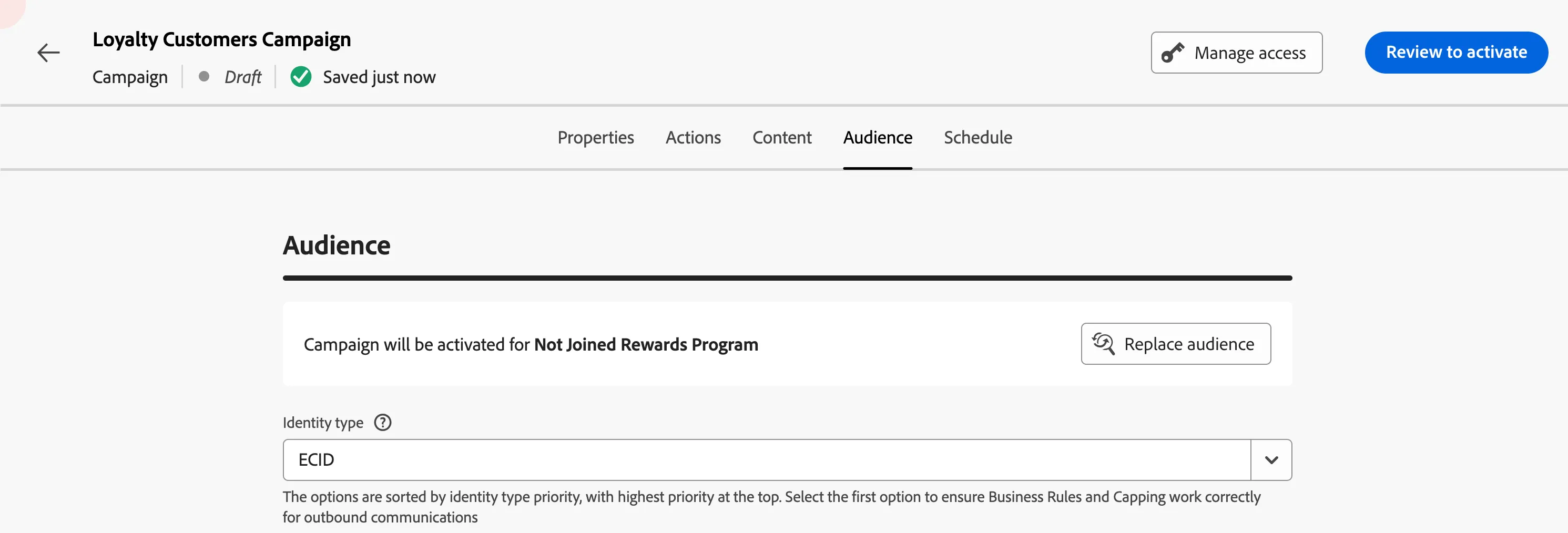
Select your Audience
Create Schedule
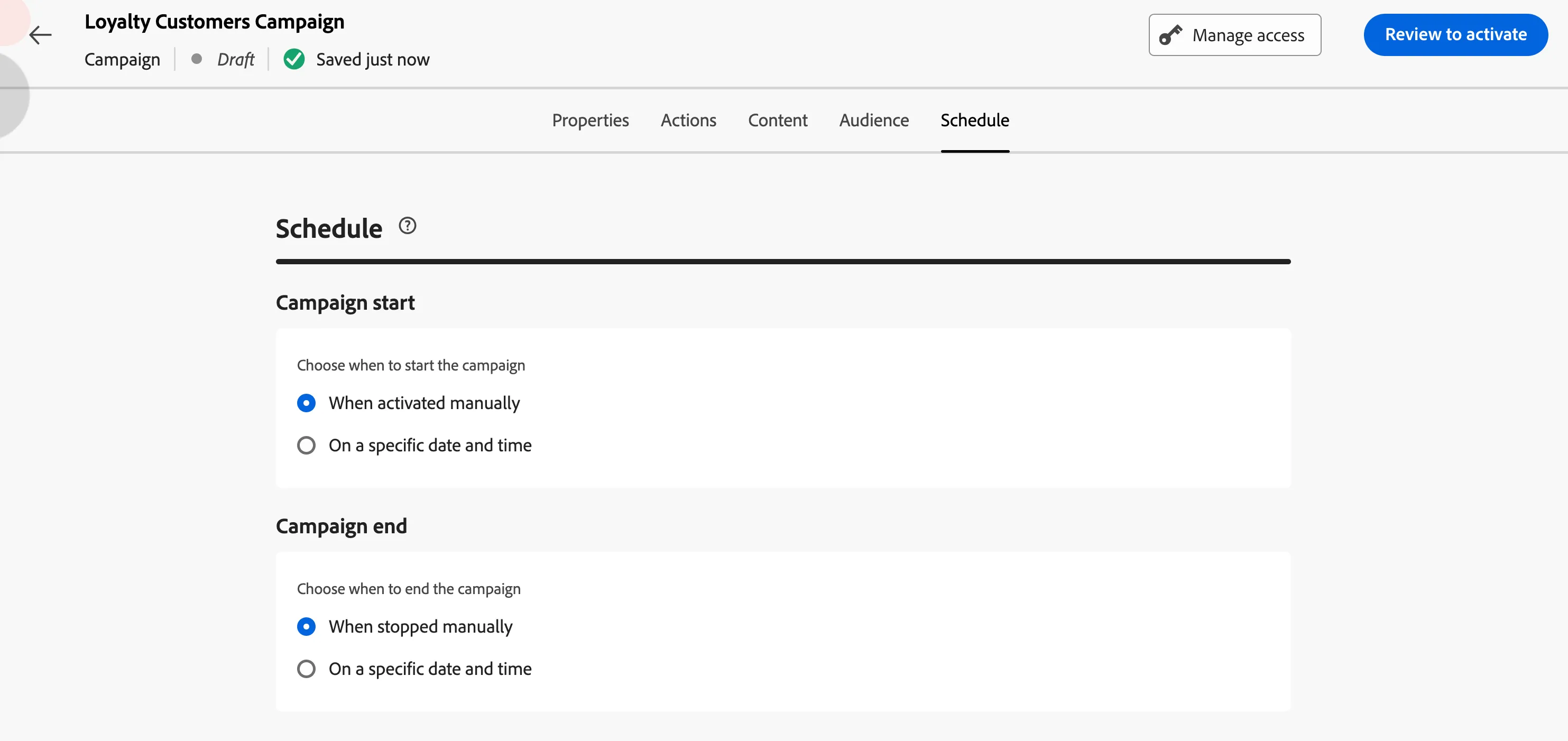
Click Review to activate once you reach this point. This concludes the lab.