Configure Custom Action
2 min
This lab will demonstrate how to use the custom action we just created. Keep in mind that this excercise relies on Event Based Journeys to be completed before tackling this part.
Add your Custom Action
- Open your journey canvas.
- Disconnect the push node from the condition node by click-grabbing the point of the connecting line between them and simply move it out to disconnect. (Figure 3)
- On the condition node Push path, drag and drop your custom action node.
- Add an alternative path in case of a timeout or error in our action.
- Click Save.
- Connect the Push back after the custom action.
- Select the Category Marketing and PushNotifications as the configuration.
- Edit Content.
- Click on Content Template and Apply Content Template
- Select UC2 - Abandonment Cart - Push Template.
- Click on properties. In the body field, click on the personalization icon.
- Attributes: Contextual Attributes
- Click on the Folder: Journey Orchestration > Actions > Your Action.
- Click on the Plus sign next to the payload attribute name.
- Fix the way the token got introduced so it reads at the bottom of the message.
- Click Save. Then X on the properties.
- Only those who have our app will now recieve a unique promo code.
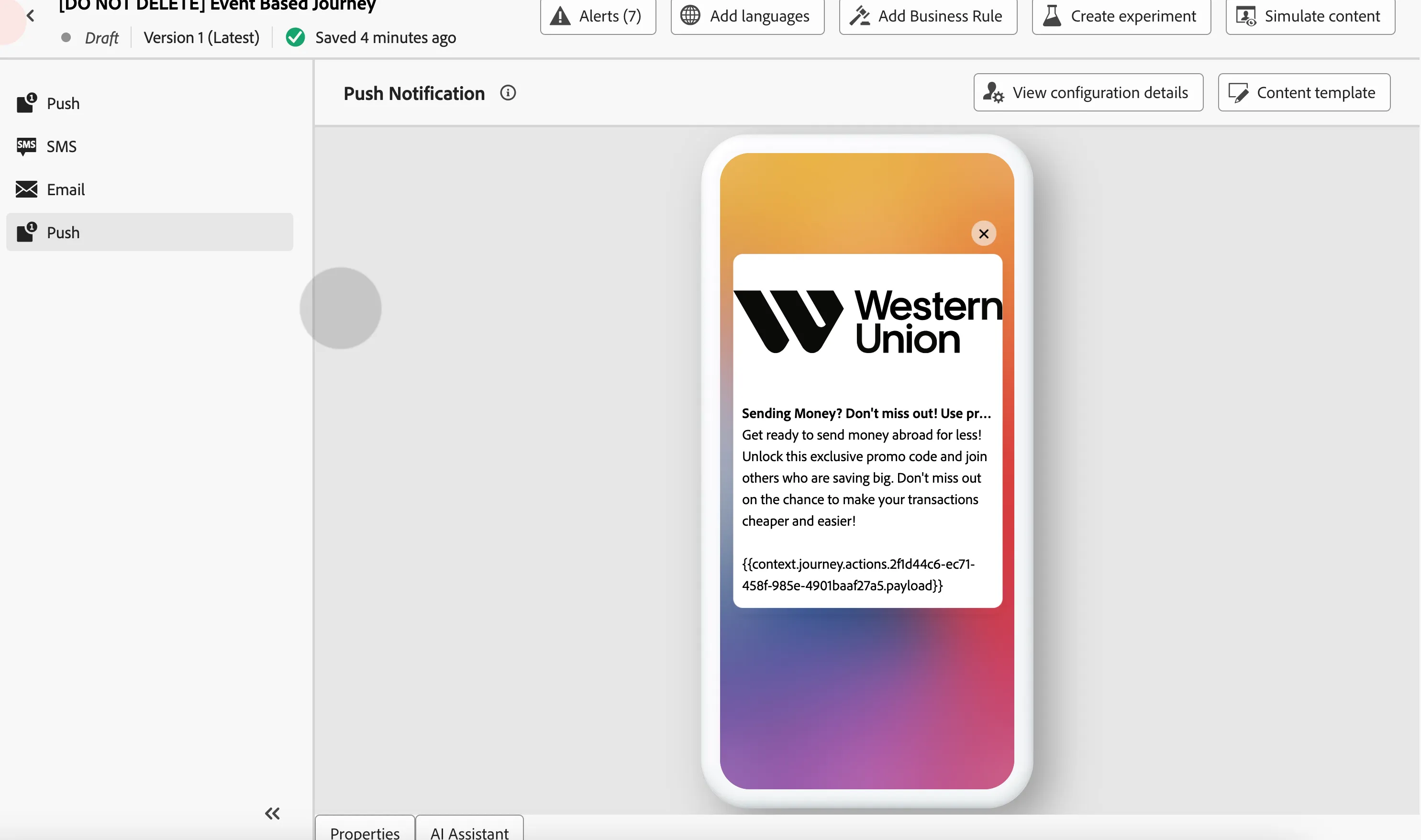
Figure 1
And your journey should look like this:
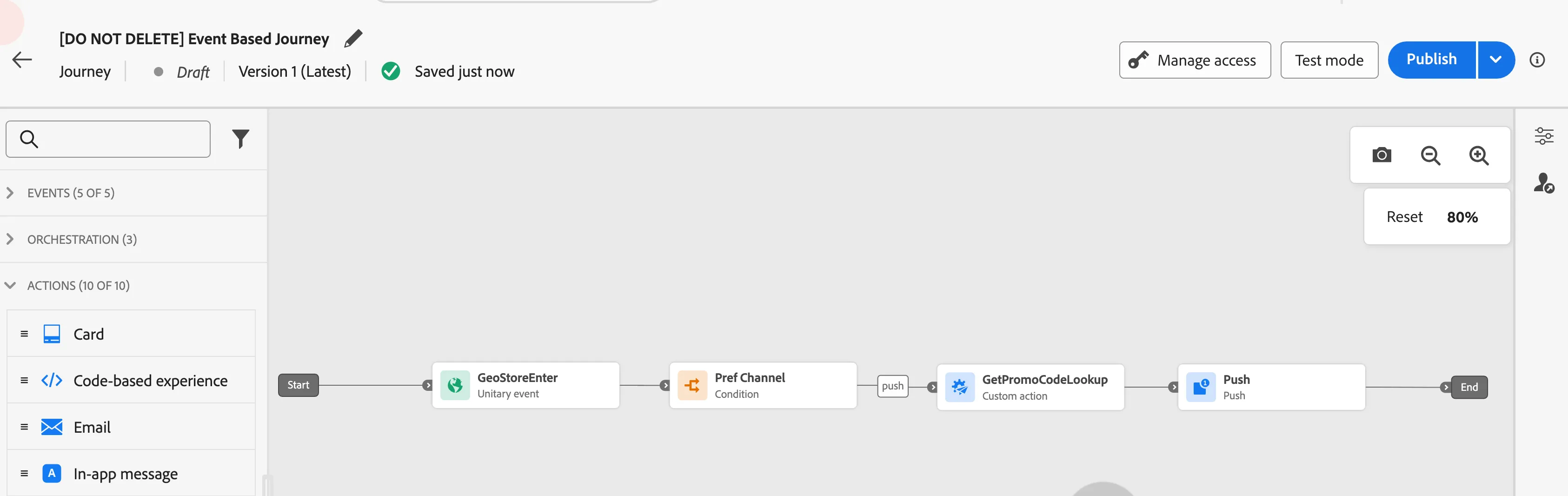
Figure 2
Congratulations. You have completed this lab.
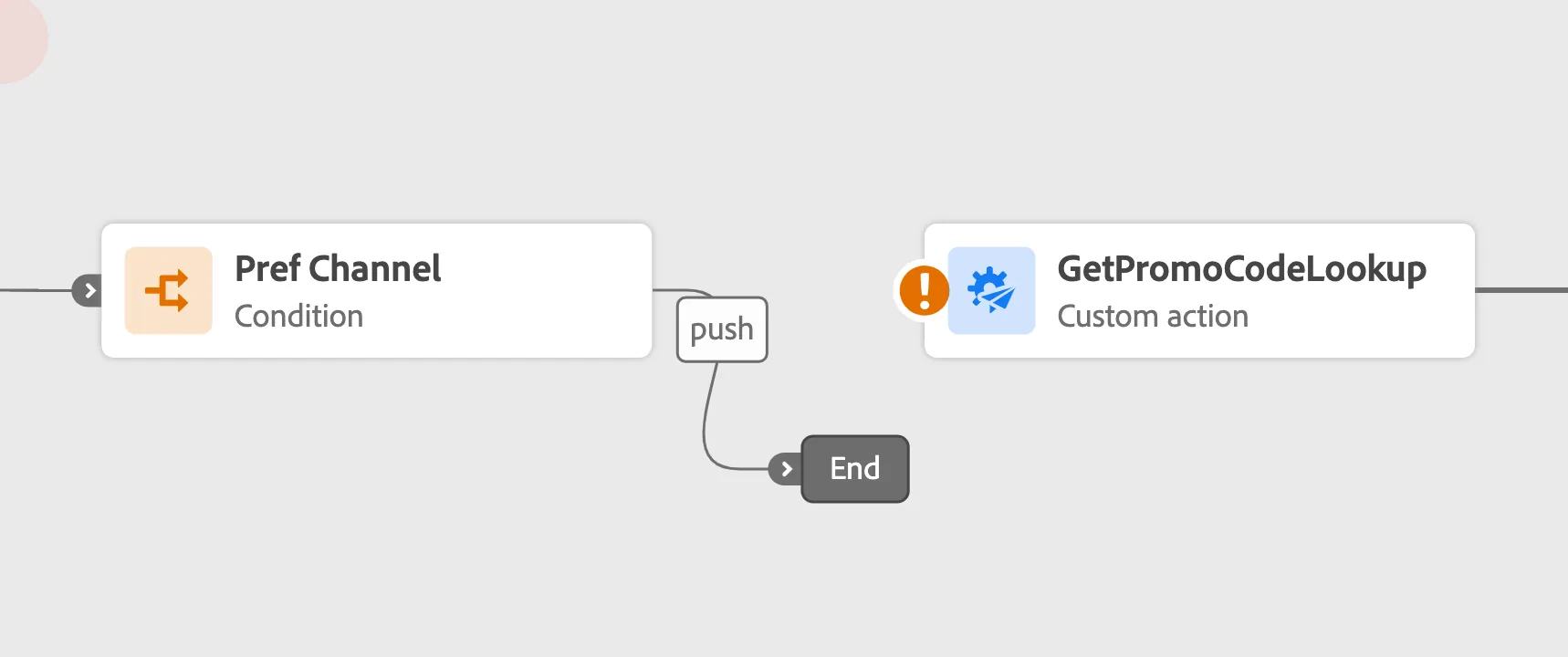
Figure 3