Asset Lifecycle
Description
Jamie has finished creating campaign assets for WKND’s latest product launch. Before her designs can reach customers, they must pass through brand, creative, and legal reviews. Instead of juggling email threads and ad-hoc approvals that often cause delays and confusion, Jamie uses WKND’s Creative approval workflow template in Workfront. This structured, automated process moves her designs through each required review stage, ensuring design quality is validated, brand guidelines are upheld, and compliance requirements are met for every market.
At the same time, Jamie streamlines asset management by filling out custom metadata fields during submission in Workfront. She captures details such as usage rights, campaign name, and image subject, ensuring the metadata is accurate and consistent across systems. Once the asset is approved, the metadata travels with it into Adobe Experience Manager Assets, enabling faster publication across WKND’s global channels without re-entering data or chasing missing details.
Asset Upload
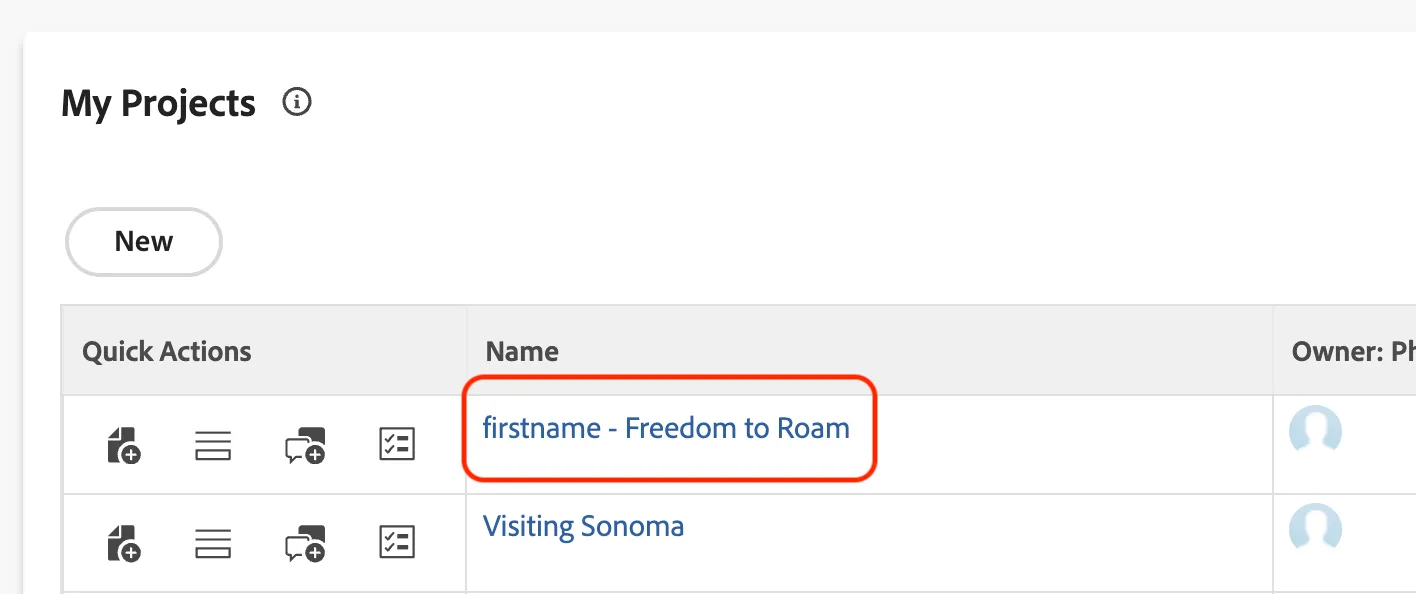
- Click on your firstname - Freedom to Roam project in your My Projects widget on your Workfront homepage.
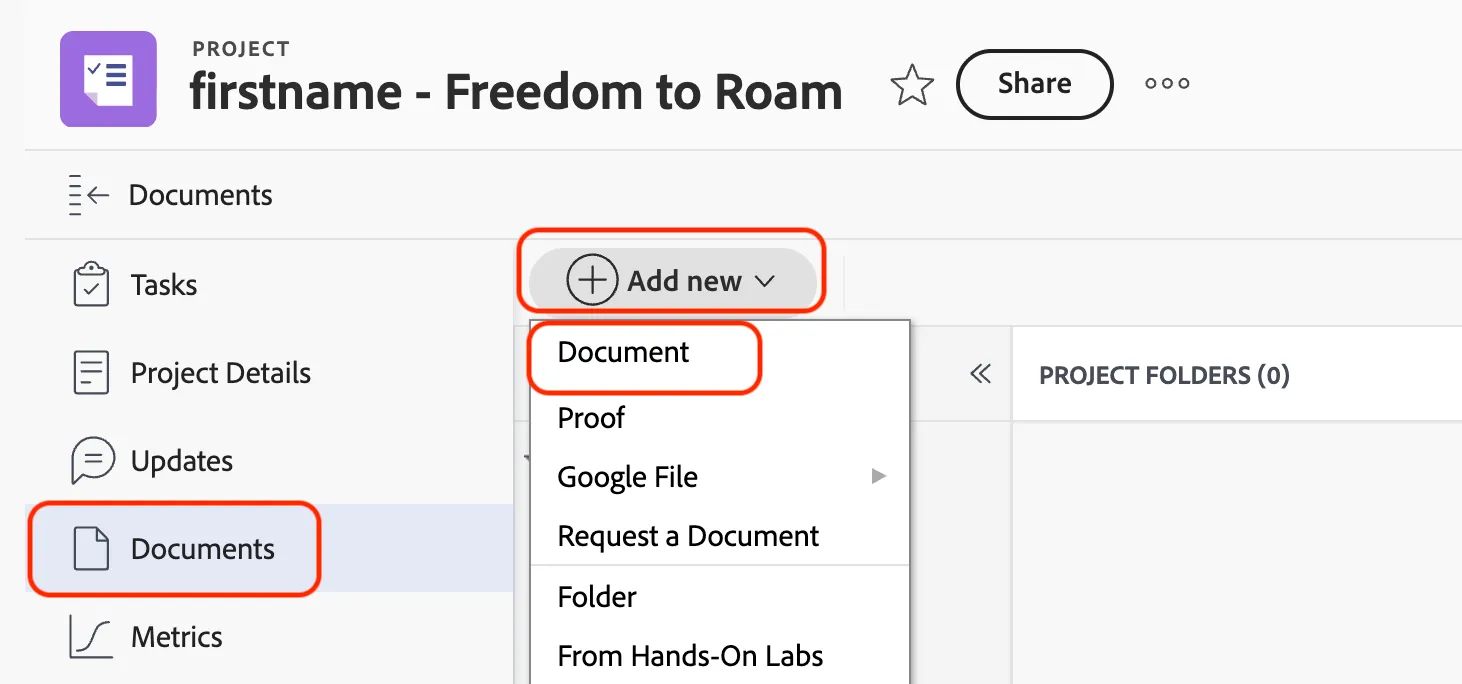
- Click on Documents in the sidebar of your project.
- Click on the Add new button and select Document.
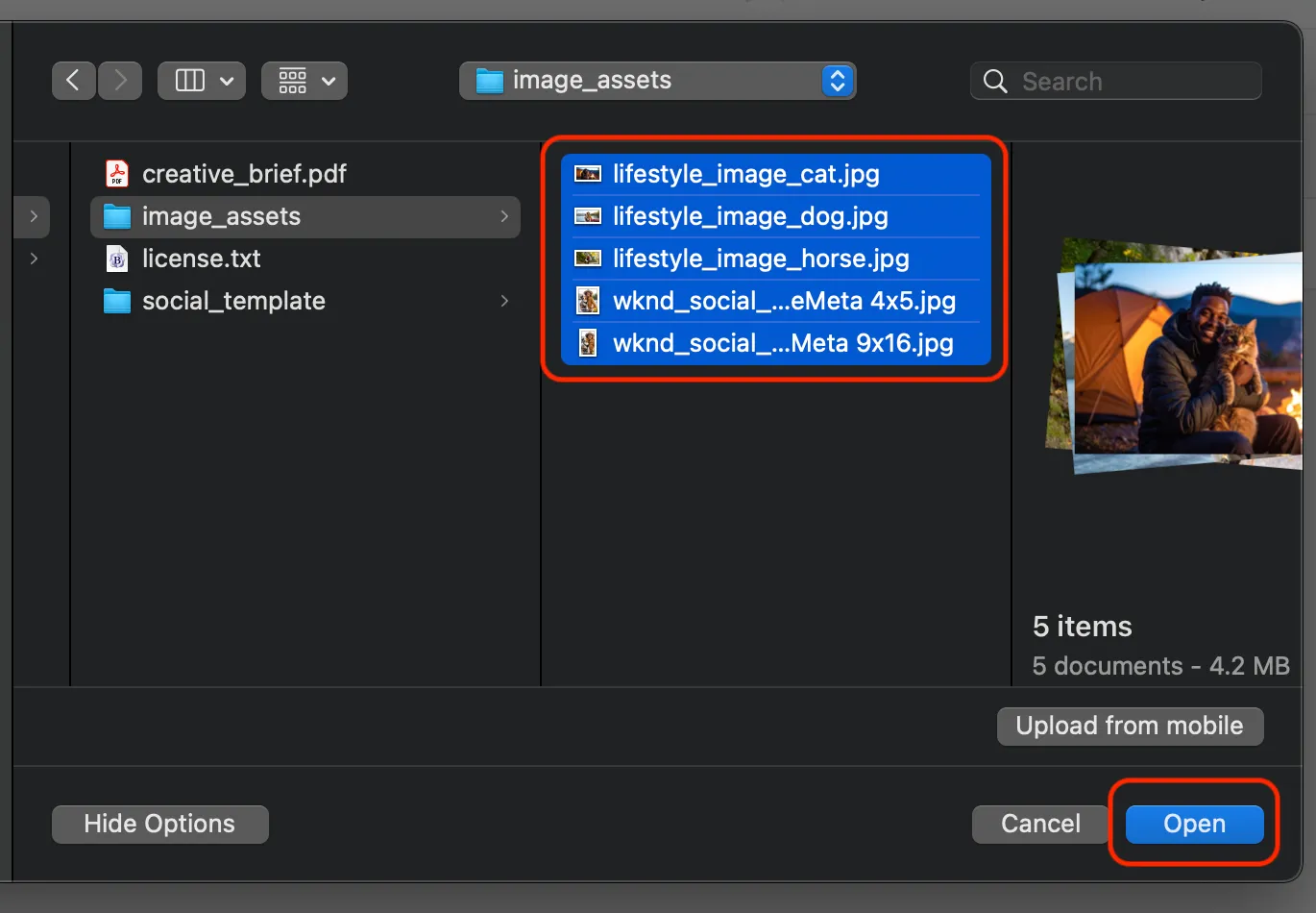
- Select the image assets and click Open to upload them to your Workfront project.
- Drag and drop one of the lifestyle images into the Documents area over the original and look for the Drop here to upload a new version indicator.
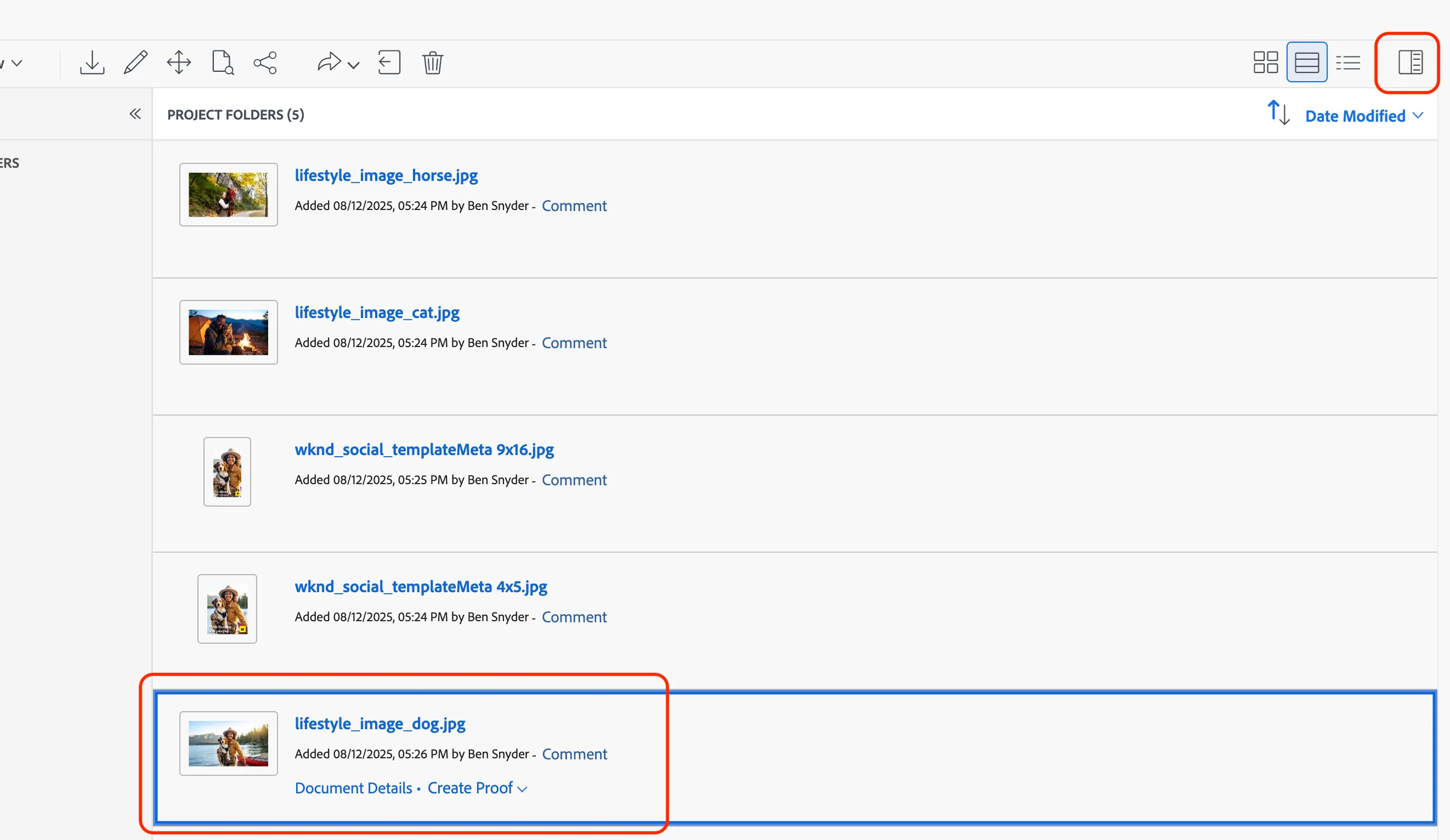
- With that image selected in the Documents area click the Open Summary button to see multiple versions now exist.
Approval Workflows
- Hover your cursor over one of your social images to display options including the option for Create Proof.
- Click on Create Proof and choose Advanced proof.
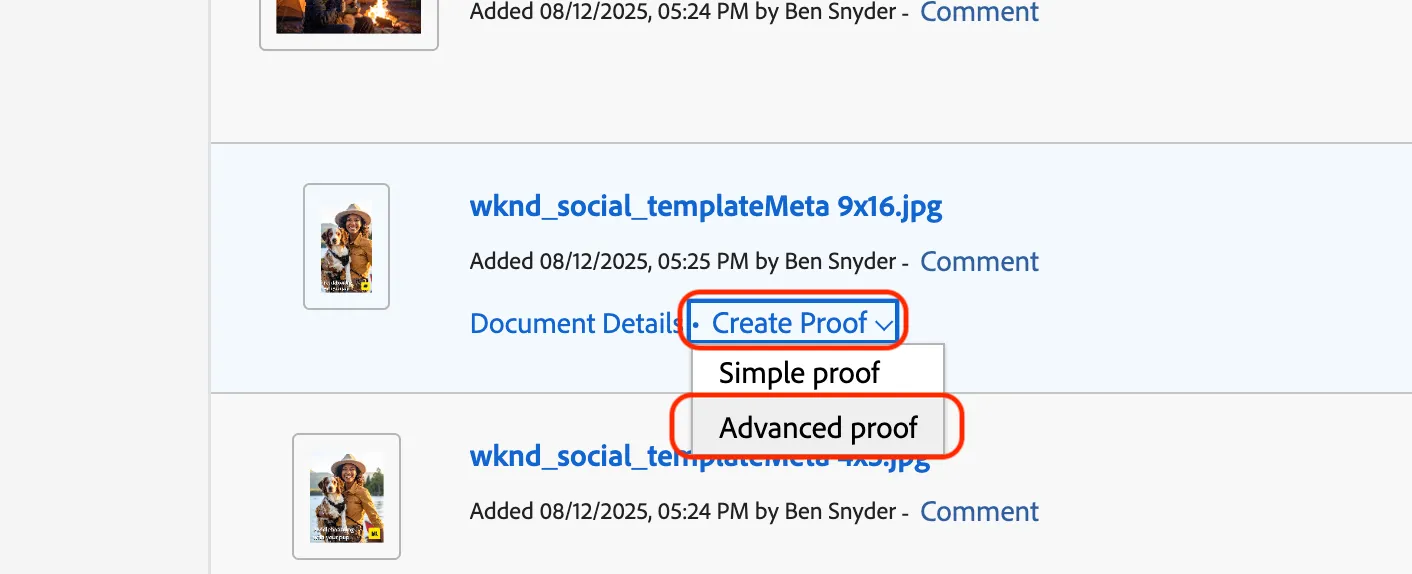
- In the Workflow area of the Proof Upload window, click "Automated.”
- Select the workflow template called WKND Creative from the dropdown menu. (templates are created by system administrators)
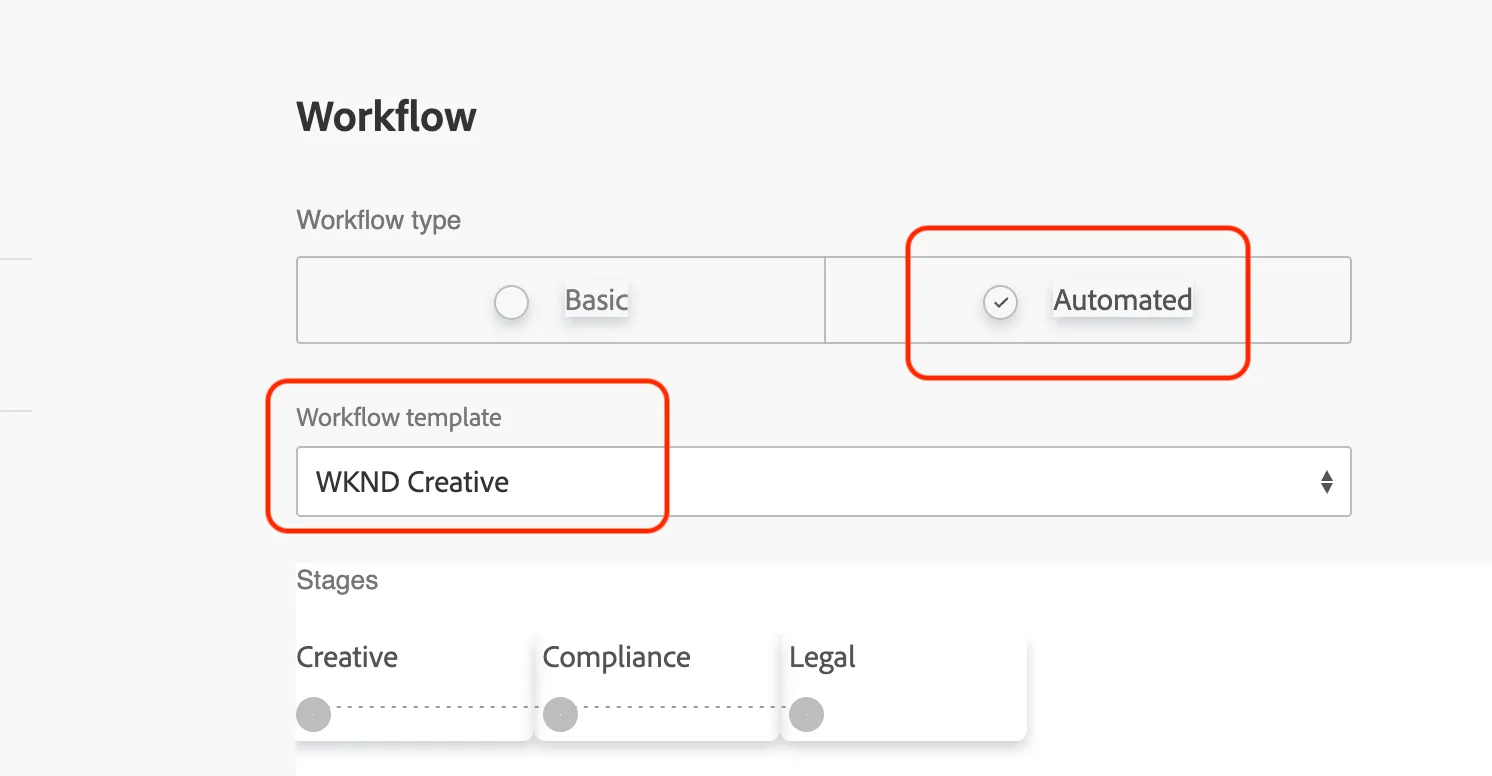
- Review template settings to ensure they match your campaign requirements.
Workflow templates include predefined recipients with appropriate proof roles (Reviewer, Approver, Reviewer & Approver, Author, Moderator). Templates also specify email alert preferences and stage activation triggers for each approval level.
- Click the Create Proof button at the bottom left of the screen.
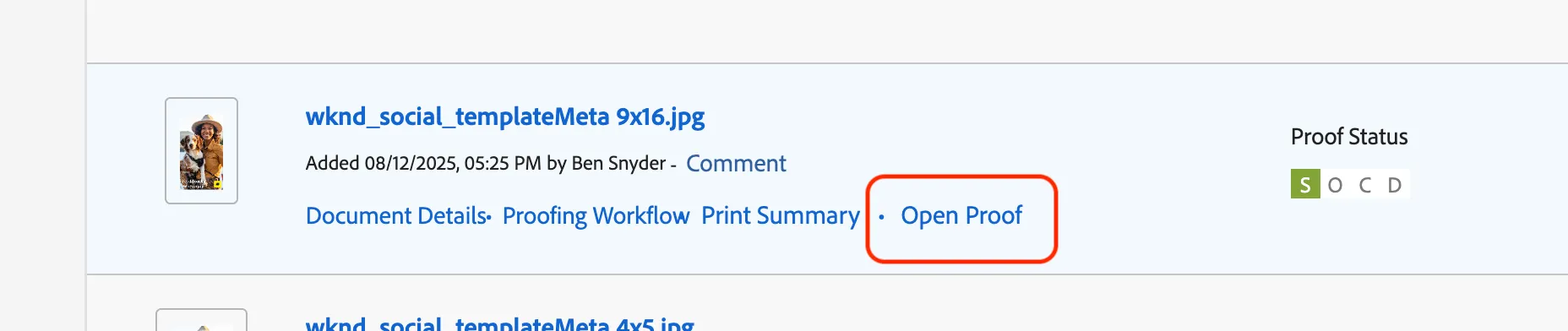
From the Document list you will now see a proof being generated for you with the image that was selected.
- With the proof generated hover over your image and click on Open Proof.
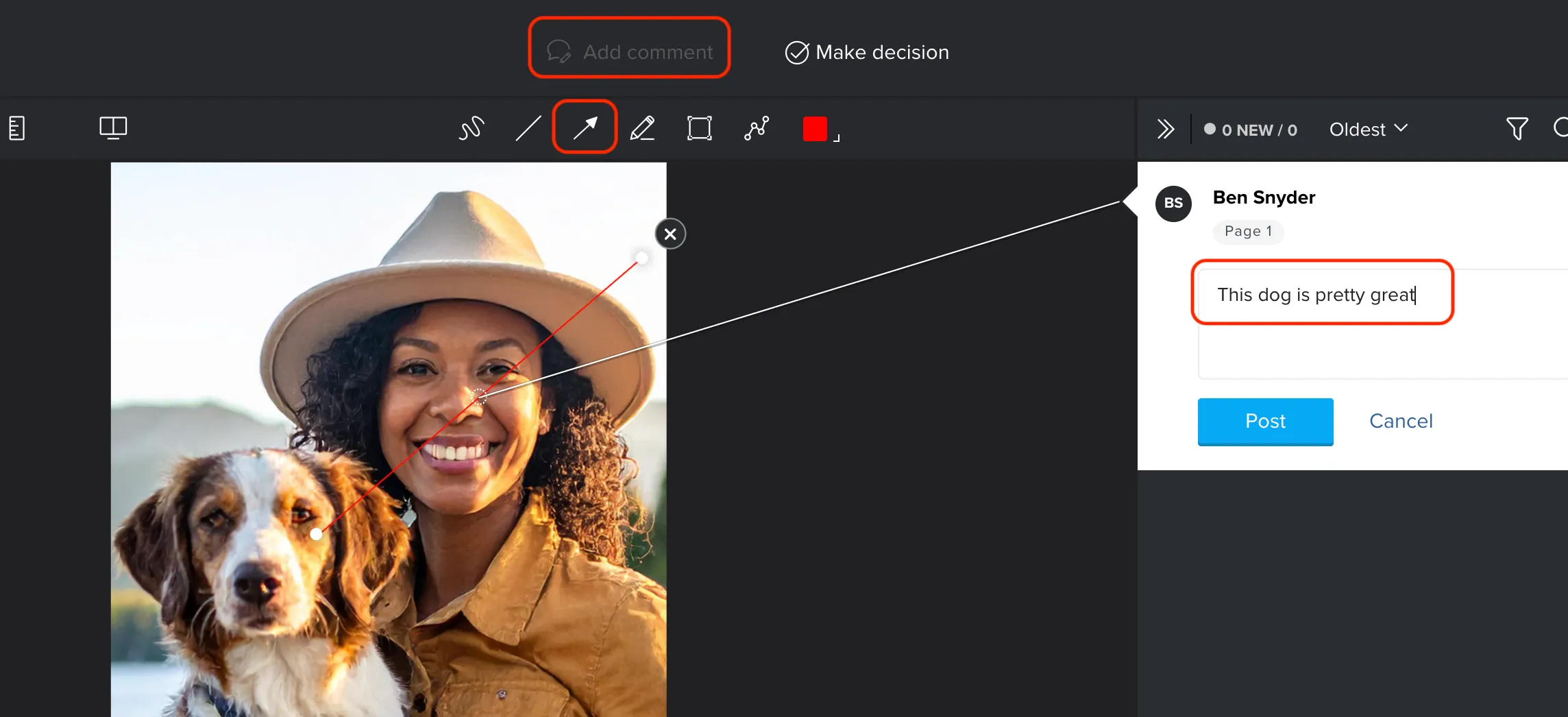
- Click the Add comment button.
- Click the Arrow button to draw to a section in the image.
- Type a comment into the box on the right and click the Post button.
- Click the Make decision button.
- Click Approved and then Make decision.
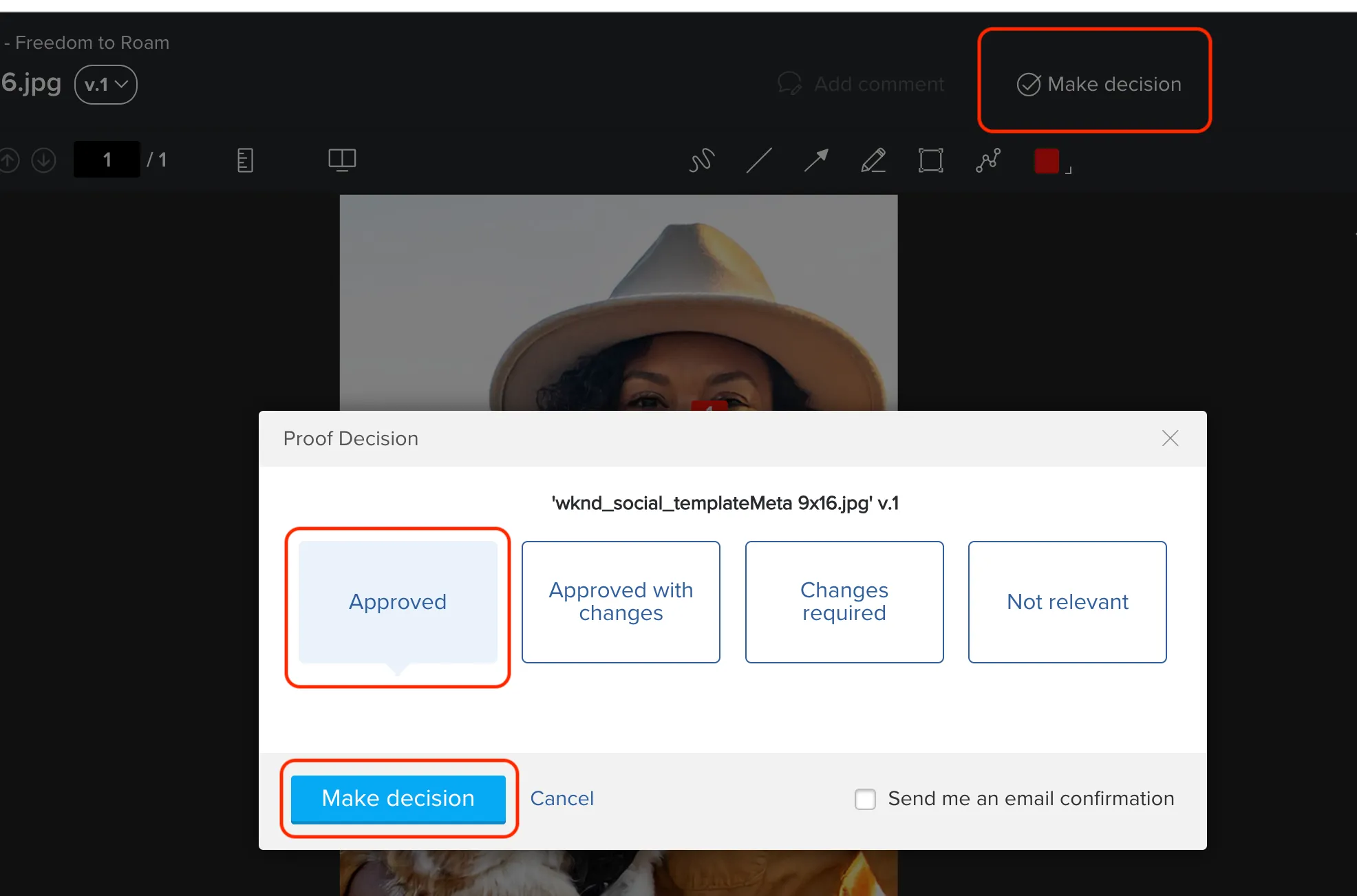
- Close this browser tab to navigate back to Workfront.
Linked Folder
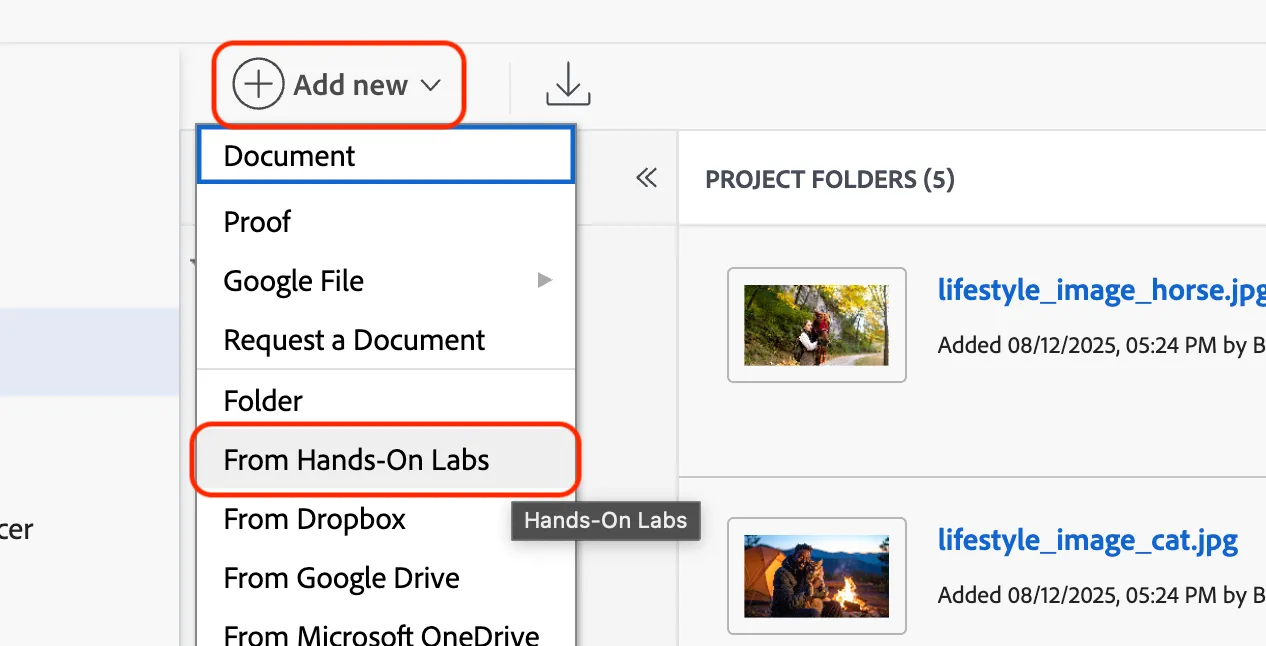
- Click on the Add new button.
- Select the From Hands-on Lab option in the dropdown menu.
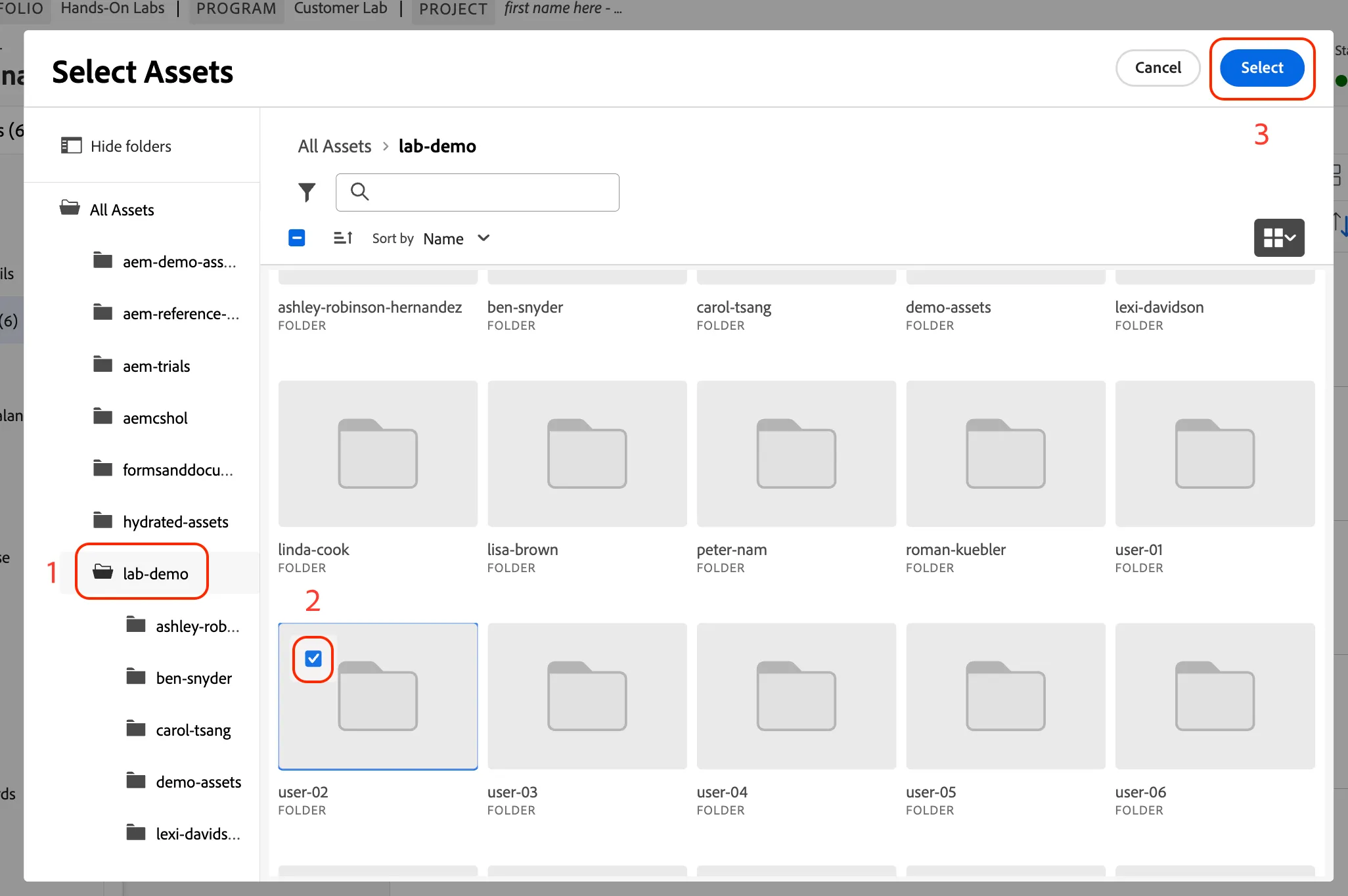
- Click on Lab Demo folder in the sidebar. (1)
- Click the selection box for your Lab Login folder. (2)
- Click the Select button. (3)
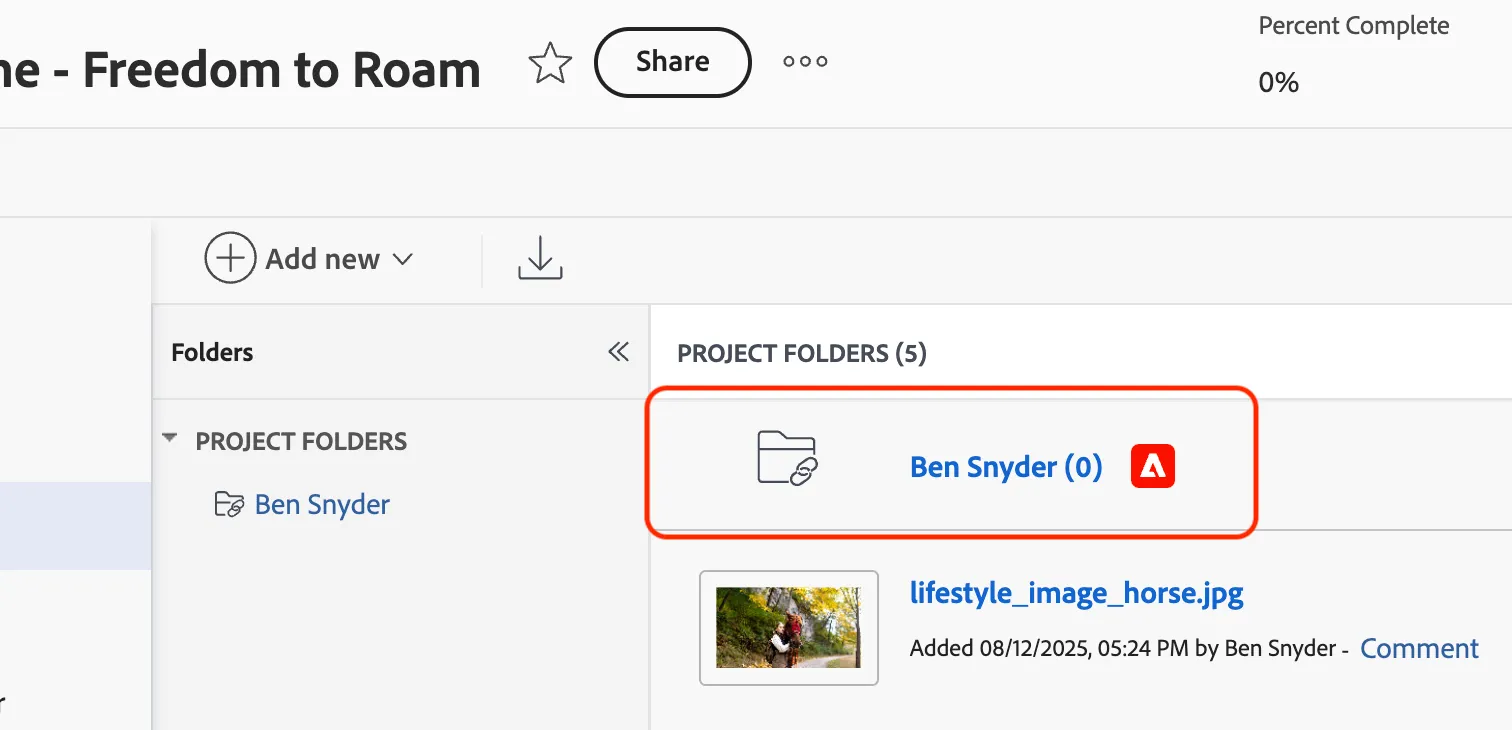
The native integration has provided the ability to link to a folder within AEM Assets, and as assets are added they are sent to AEM along with metadata that has been mapped between the systems by an administrator. Assets are then stored in AEM, and a link referenced back into Workfront.
- Check that your linked folder from AEM is now listed in your Workfront project with an Adobe logo inline.
Metadata Updates
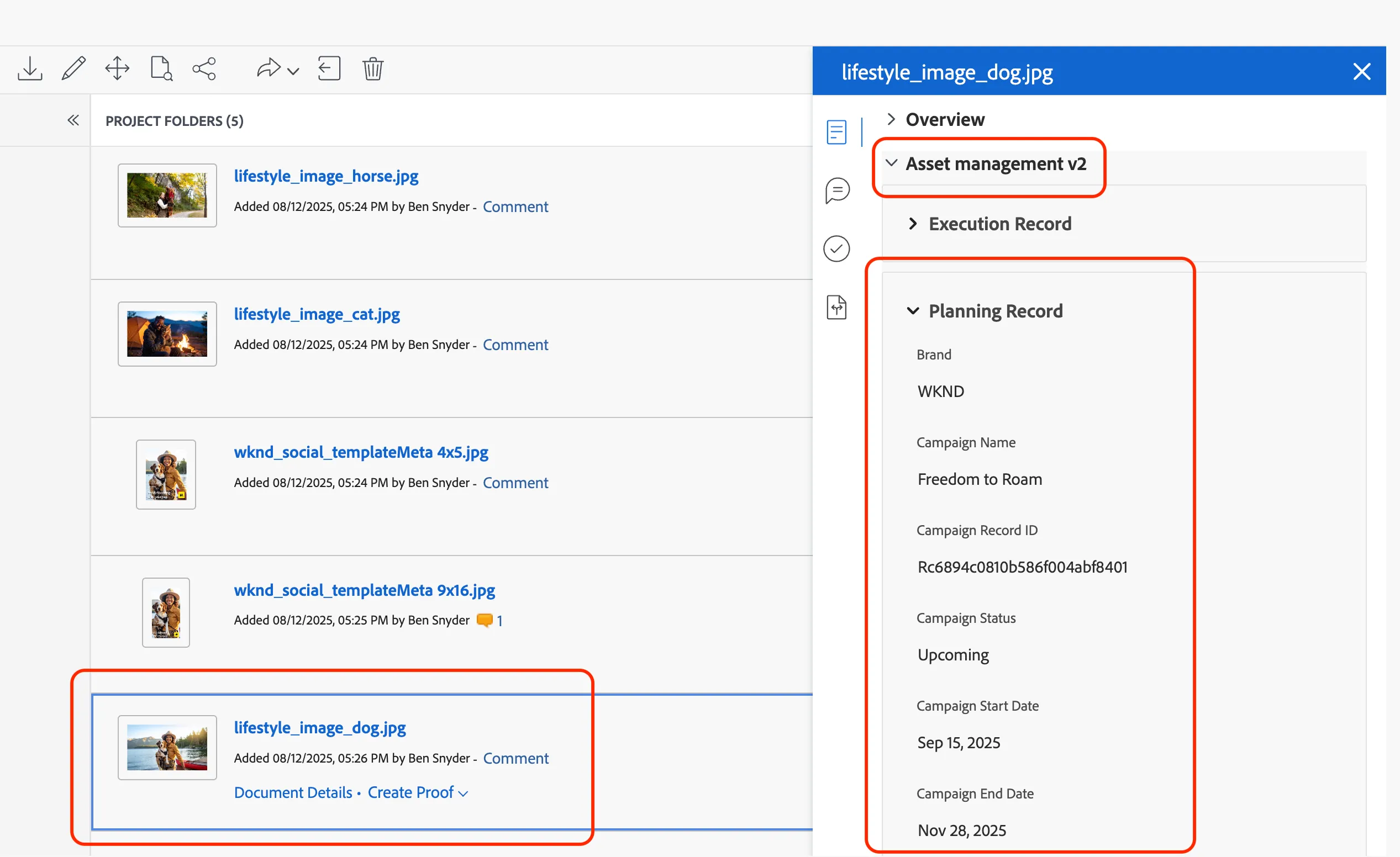
- Click to select your image in your project, and click the Open Summary button.
- Click on the disclosure triangle next to the Asset Management v2 custom form.
- Review the fields on this form to see many of them have been auto populated by an automation to pull in Planning and Execution records to add to the document metadata.
- Drag your image to your linked folder and send it to AEM.
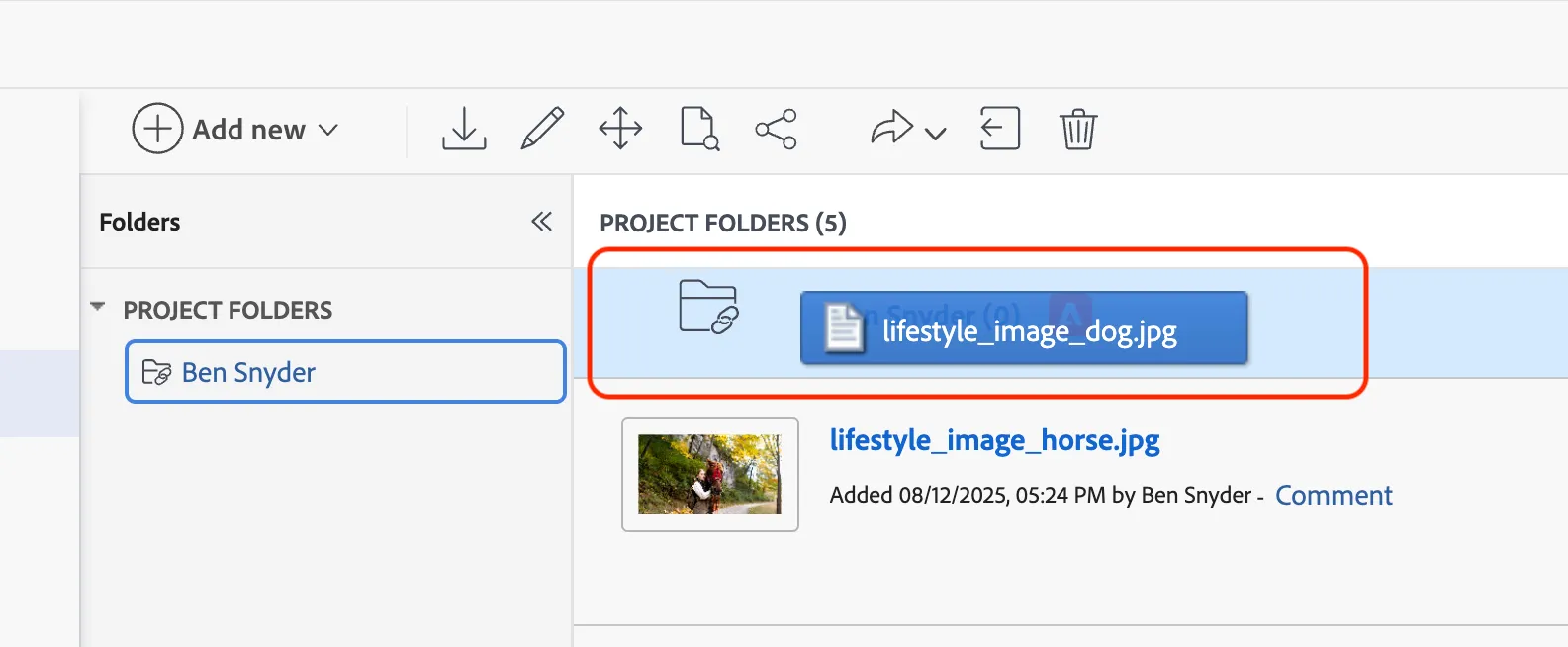
These assets will go through processing automation in AEM and may take a moment to show image previews inside of Workfront.