Exercise 1 - Media Optimization
To optimise your advertising strategy and maximise value, it's crucial to exclude audiences who have already converted (known students) to ensure that your acquisition campaigns focus on reaching new prospects, minimising media waste and driving more effective results
By removing your data silo's and creating a unified student profile in Adobe Experience Platform you can quickly share suppression audiences with advertising and social platforms.
In this exercise you will learn as a marketer:
- How to view a unified student profile in Adobe Experience Platform
- How to view the identity graph and how it has evolved over time
- How to create an audience of current students
- How audiences are activated to Advertising and Social Destinations
The Real-time Customer Profile
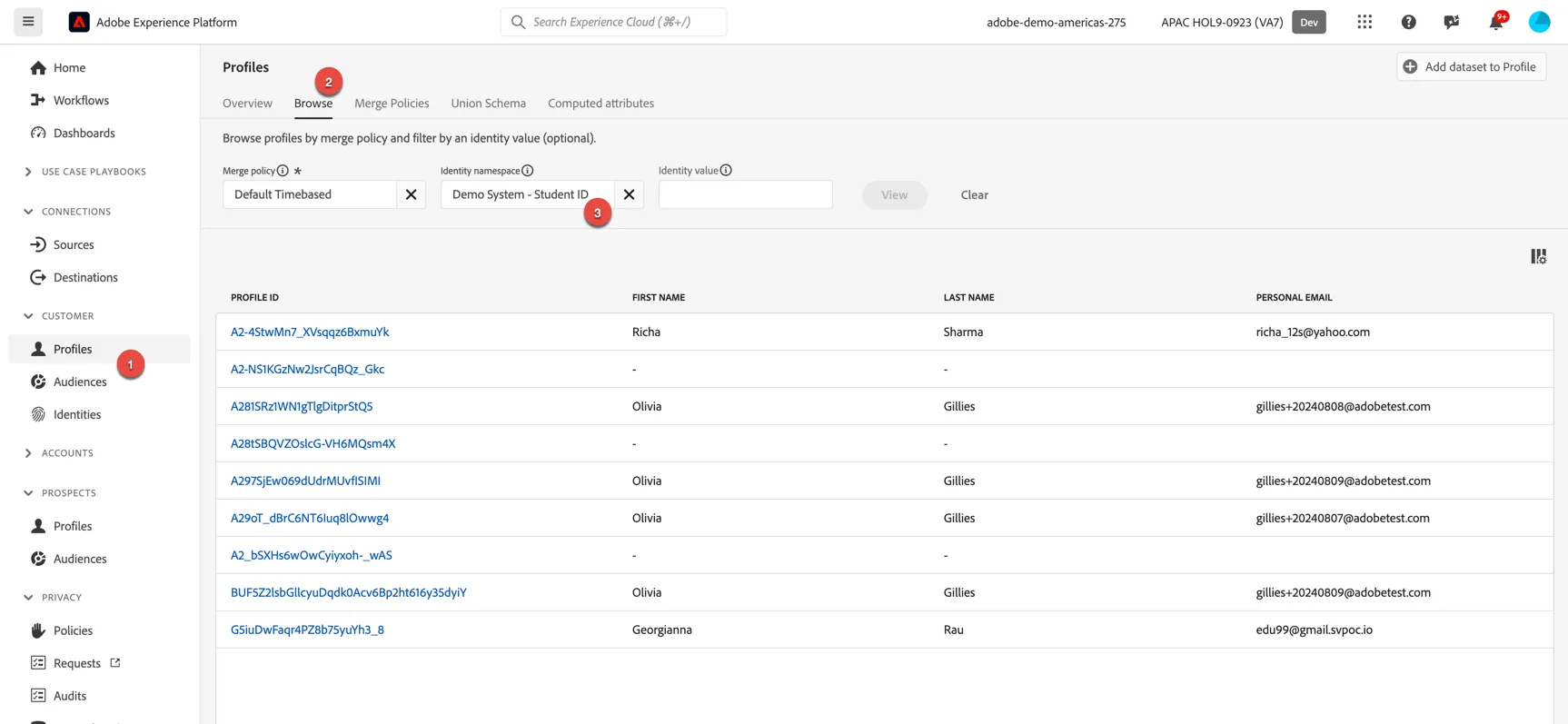
To view one of the pre-loaded profiles in Adobe Experience Platform, navigate to Customer -> Profiles.
On the Profiles tab, click on Browse. For the field Identity Namespace, select Demo System - Student ID:
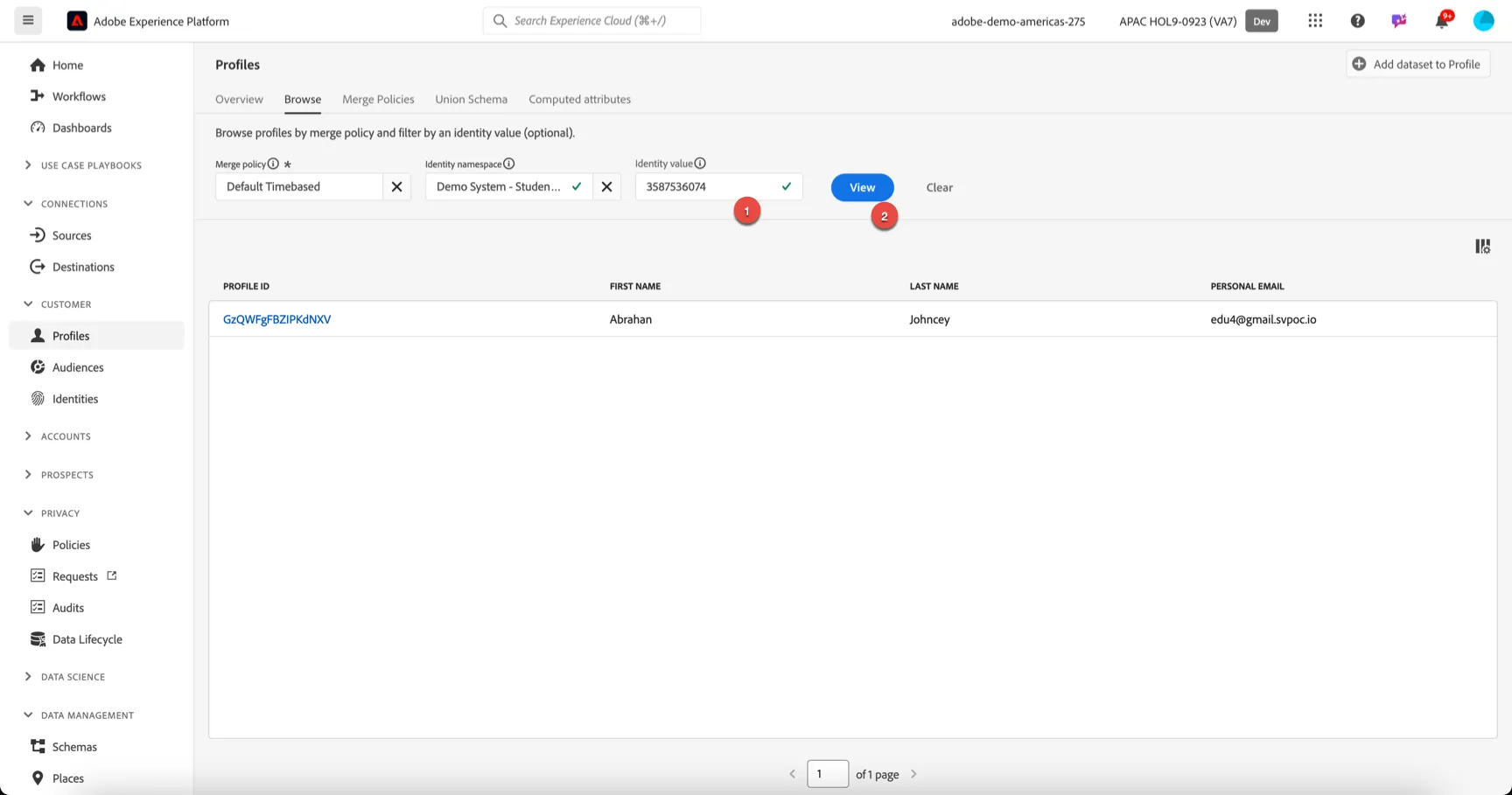
For the field Identity Value enter 3587536074, then click View
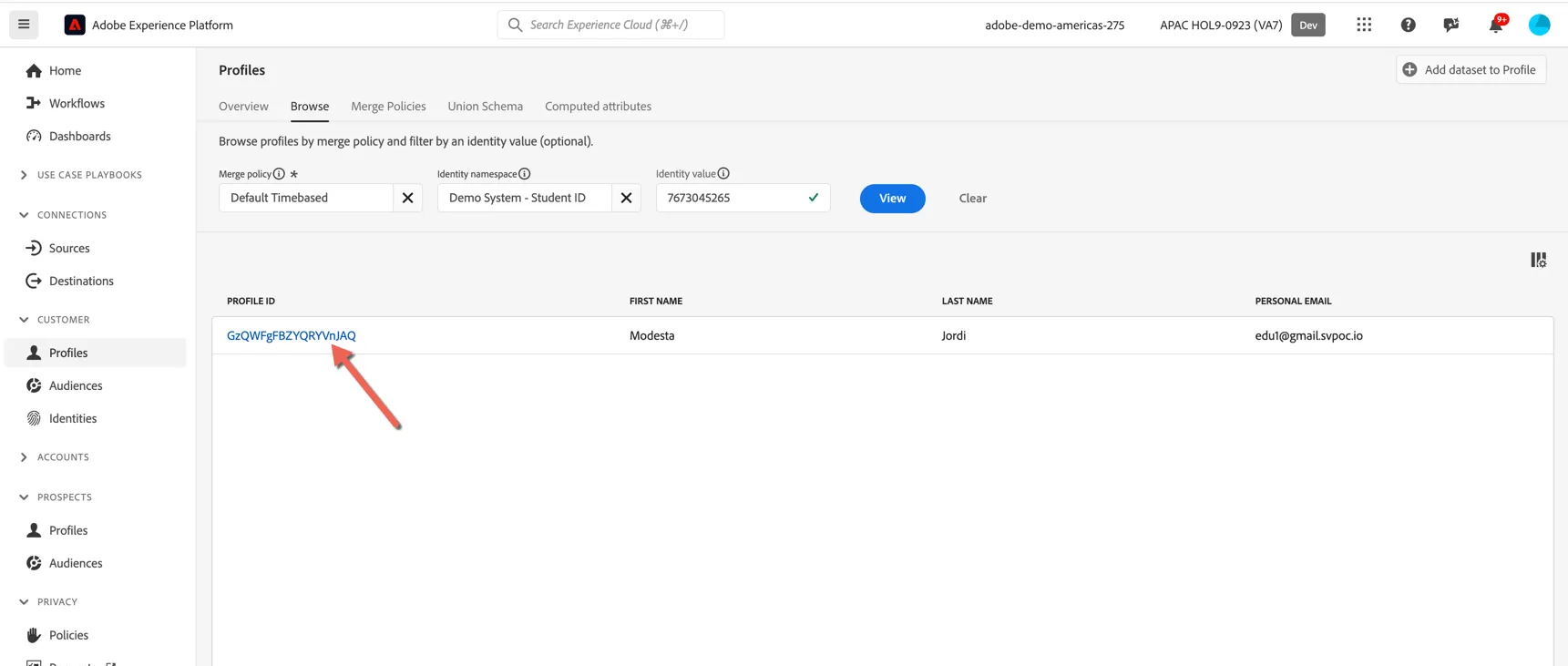
Click on the value in the Profile ID column to view the profile.
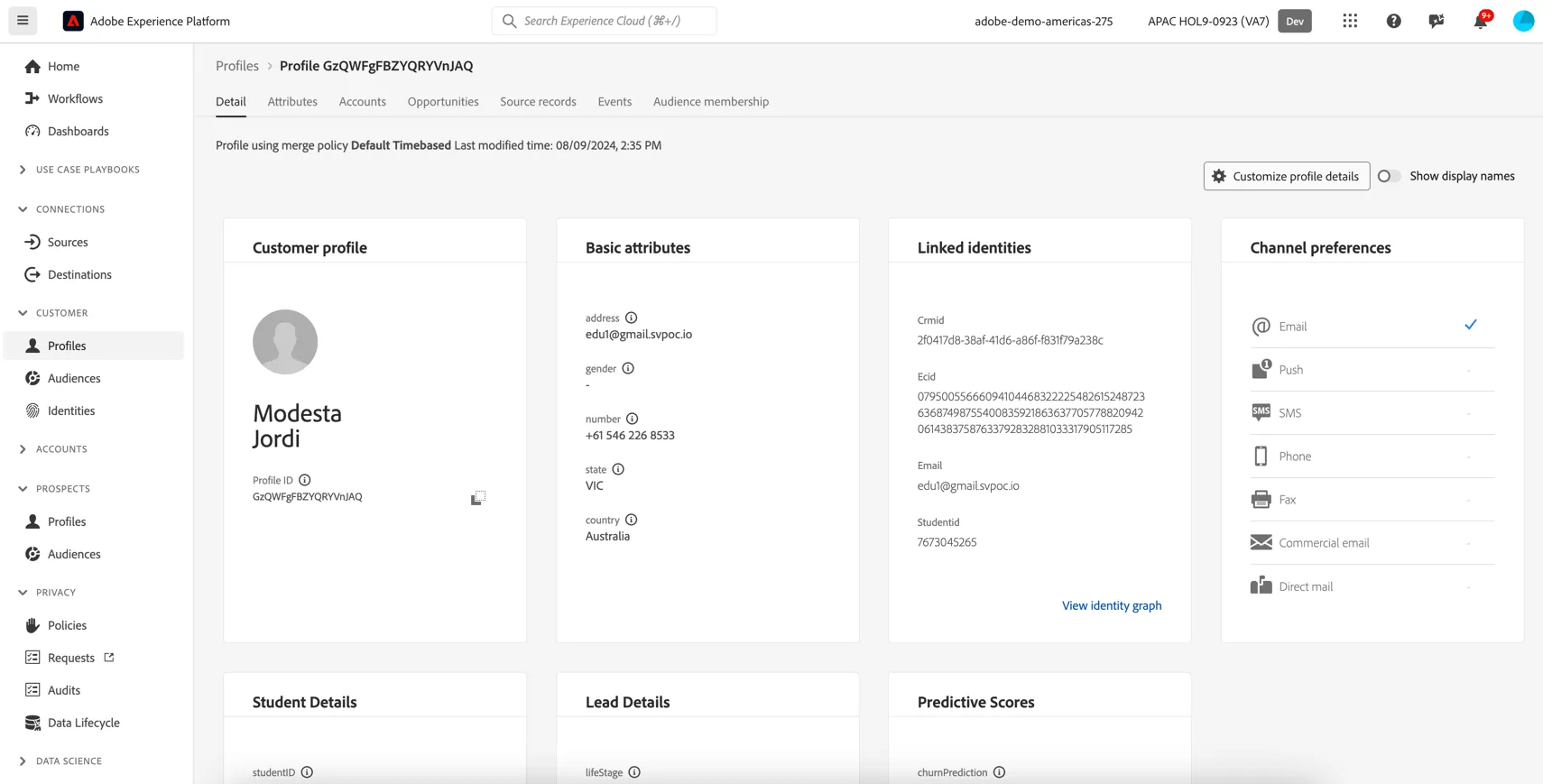
The profile data can come from multiple source systems, in this case we can see data unified across Salesforce CRM, a Student Information Database, Website and Mobile app.
The Detail tab shows a configurable dashboard listing some of the attribute information for the profile.
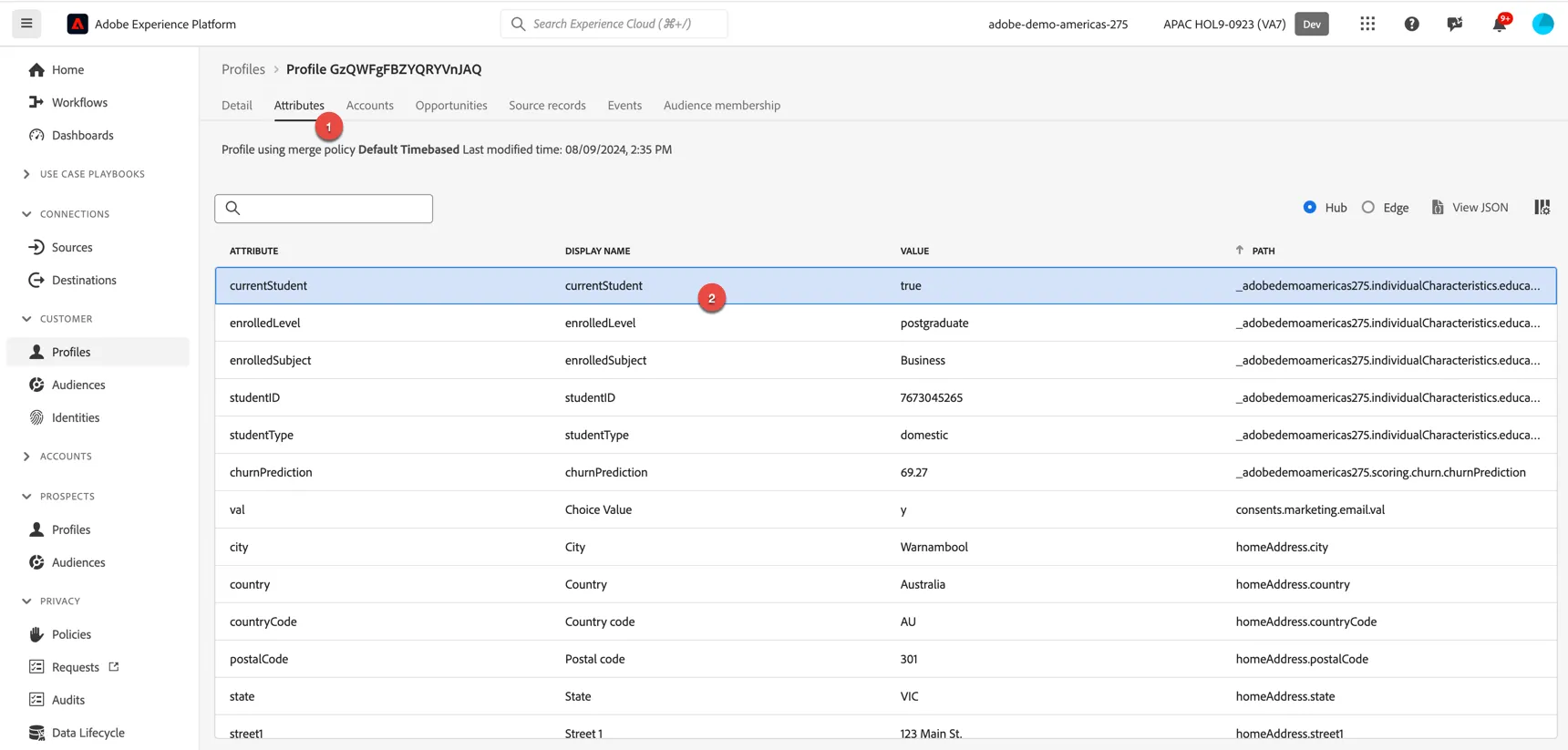
For a full list of all attributes associated with this profile, click on the Attributes tab. Here you can see we have an attribute for currentStudent which is set to true for this profile.
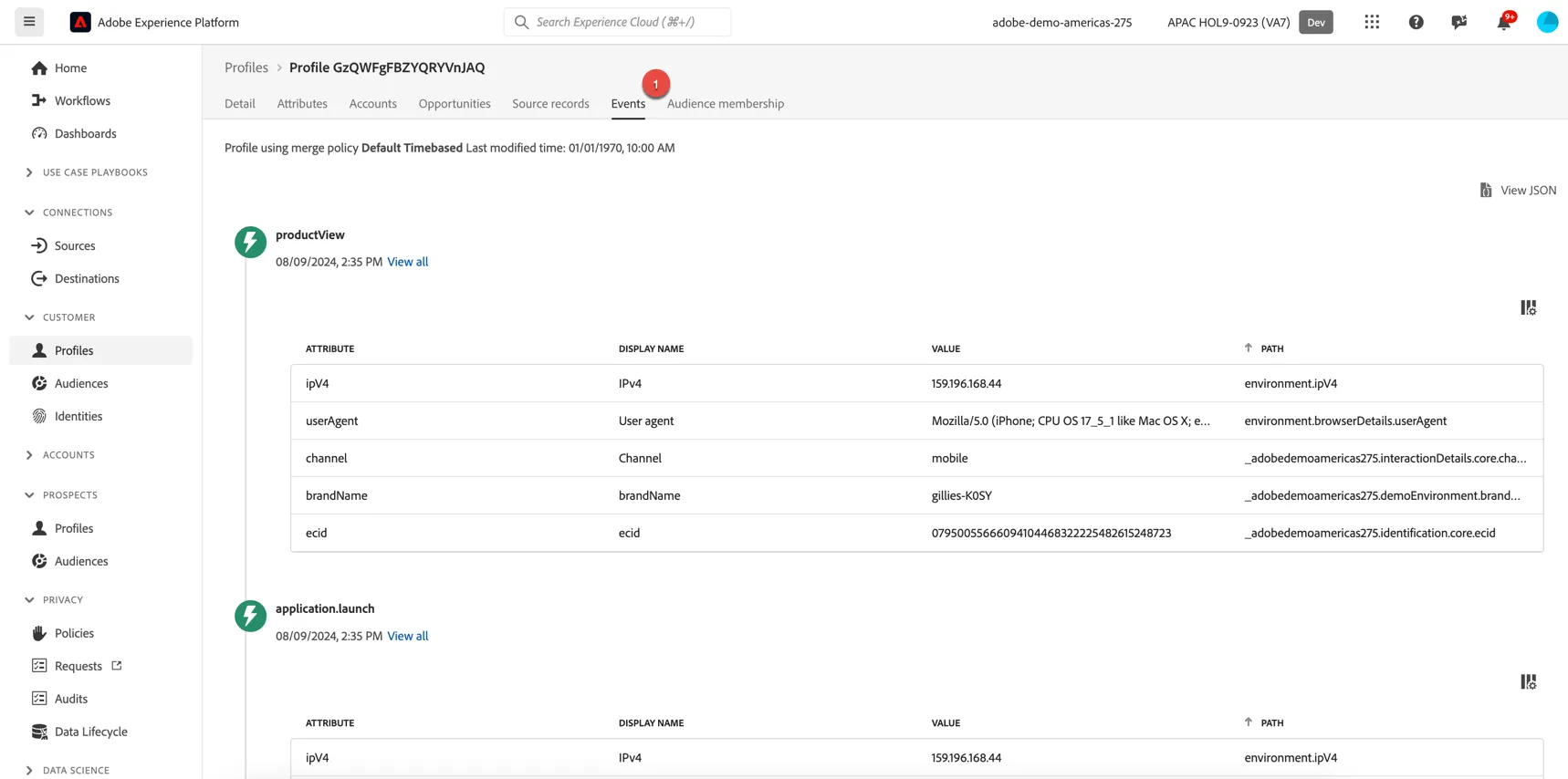
Clicking onto the events tab, you can see the recent history showing how the profile has been interacting across channels.
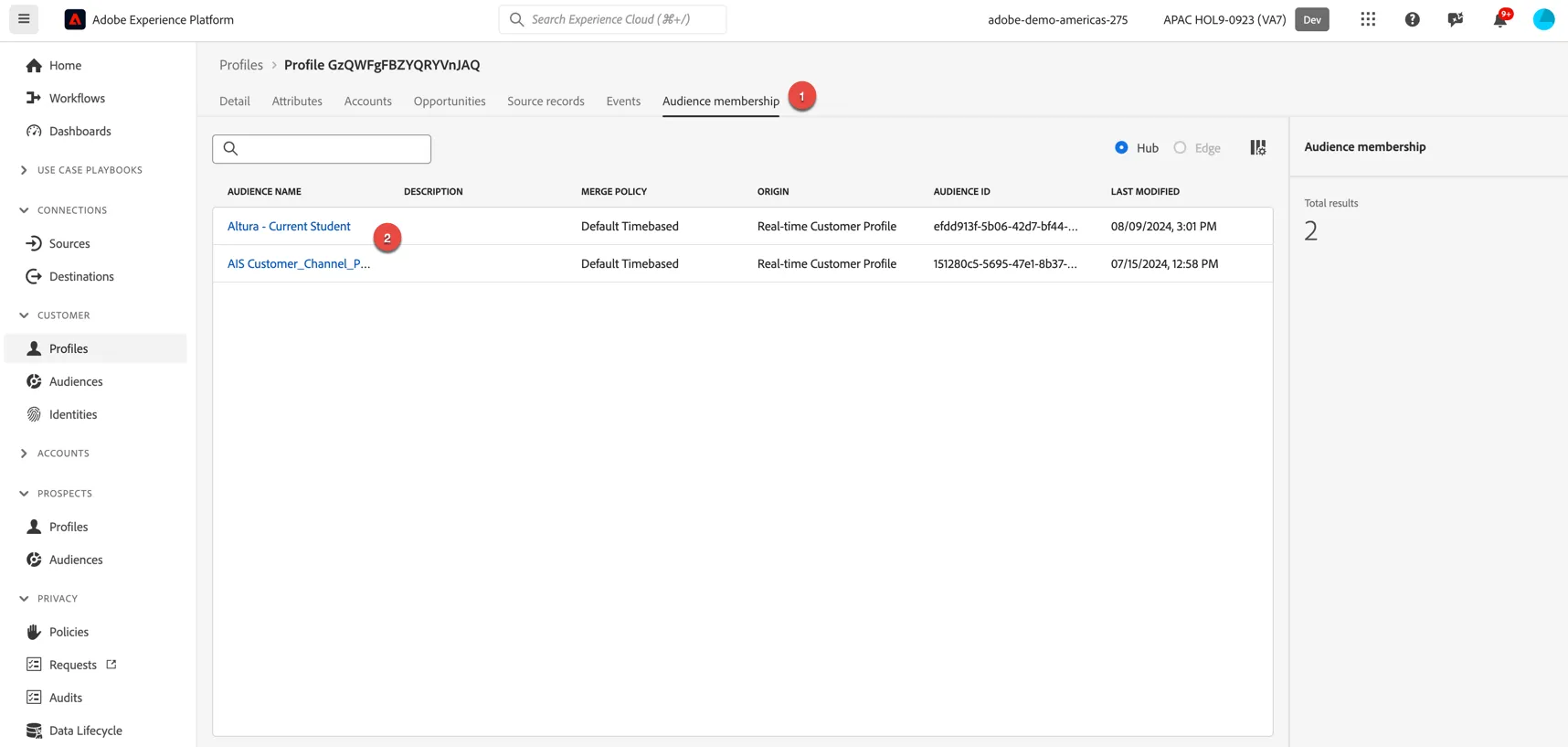
The Audience Membership tab shows which audiences the profile is currently a member of. You can see they are a member of the Altura - Current Student Audience.
Visualise the Identity Graph
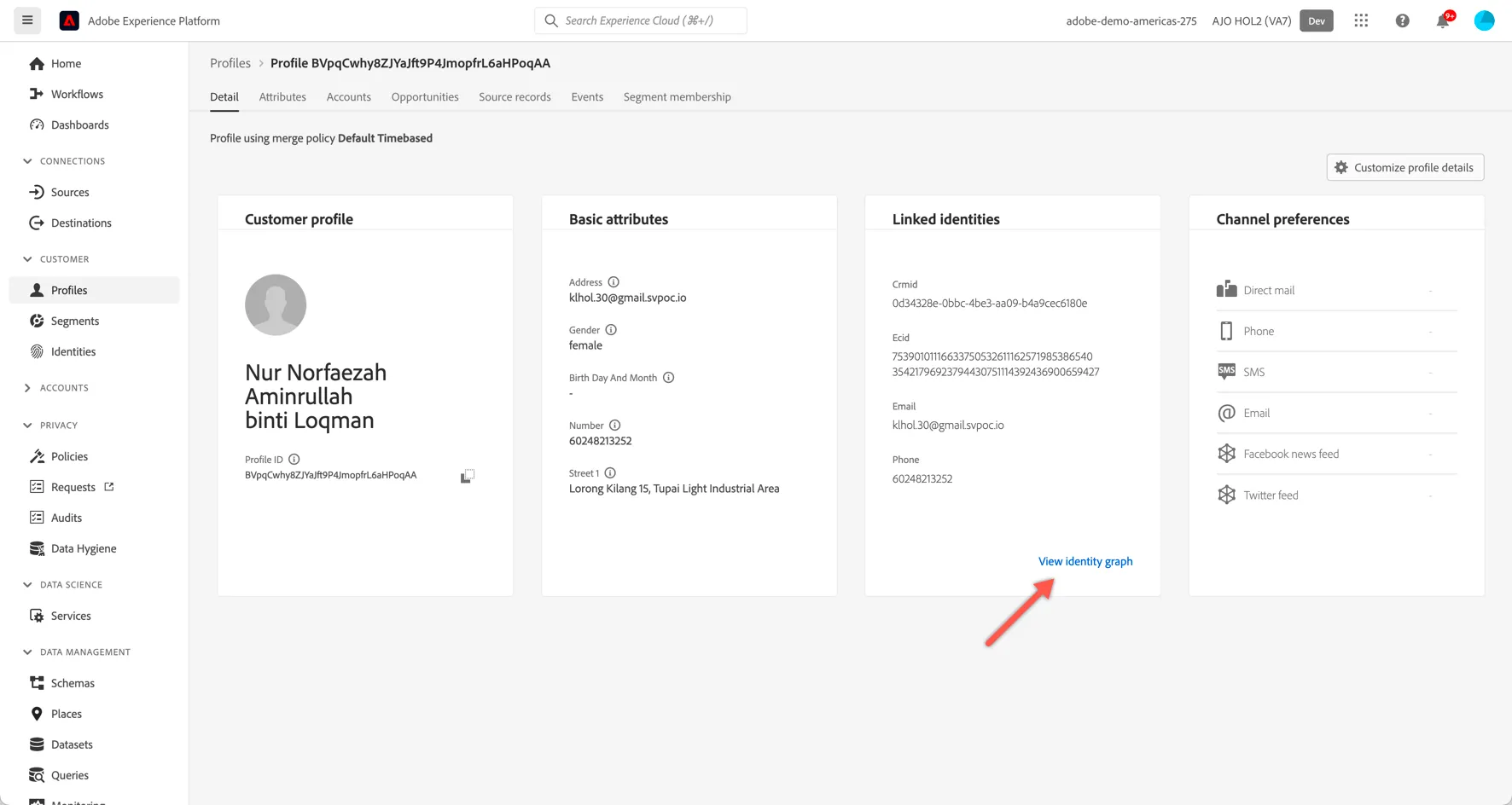
Return to the Details tab of your profile and click on the View Identity Graph link:
Explore how the identities have been linked (1), how the graph has grown over time (2) and which datasets (ie. source systems and/or channels) each of the identity values have originated from (3).
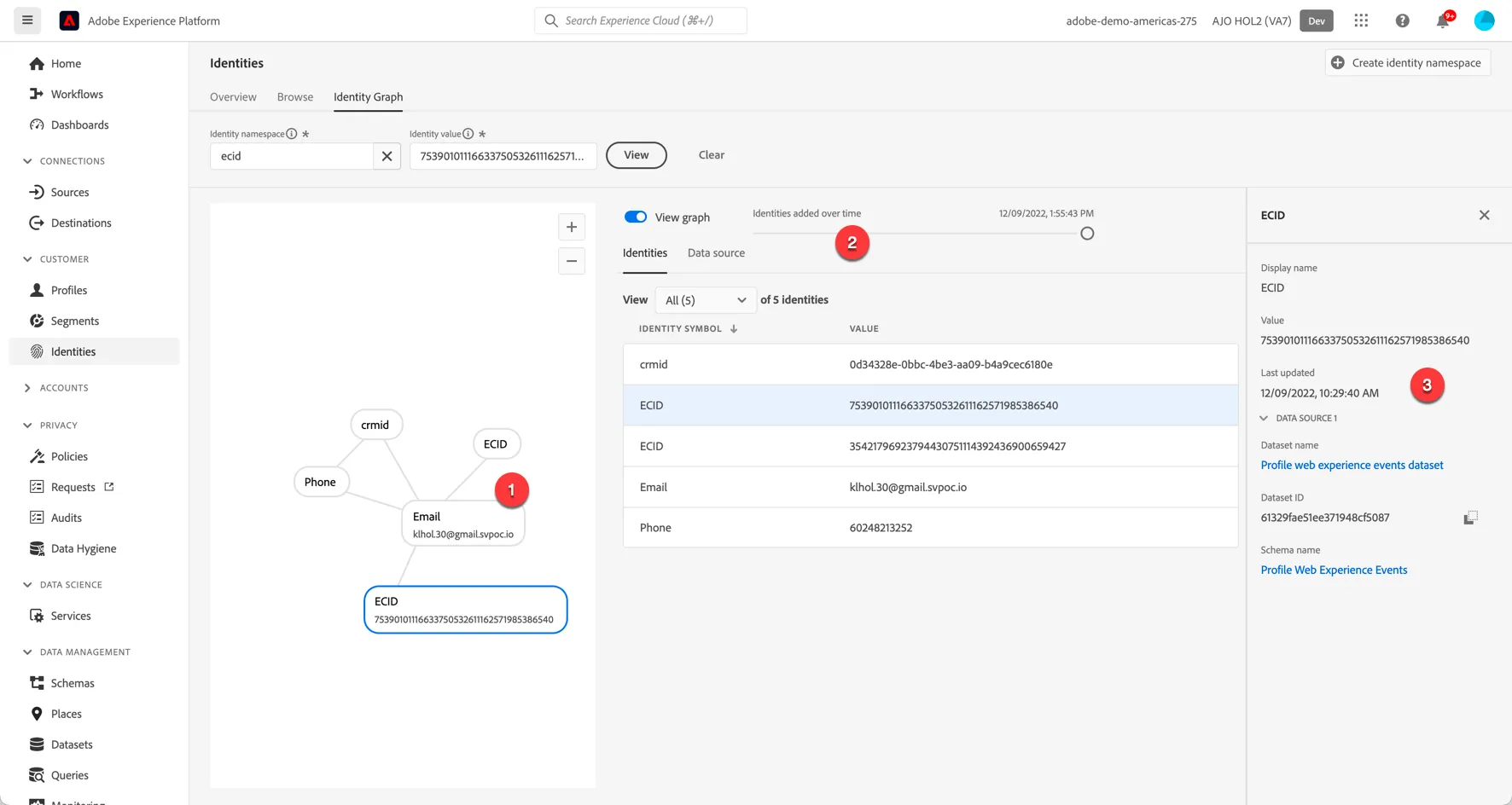
You have now successfully viewed a customer's identity graph in Adobe Experience Platform.
Create a simple audience
In this step we'll create an audience of current students, this will be activated across multiple media destinations.
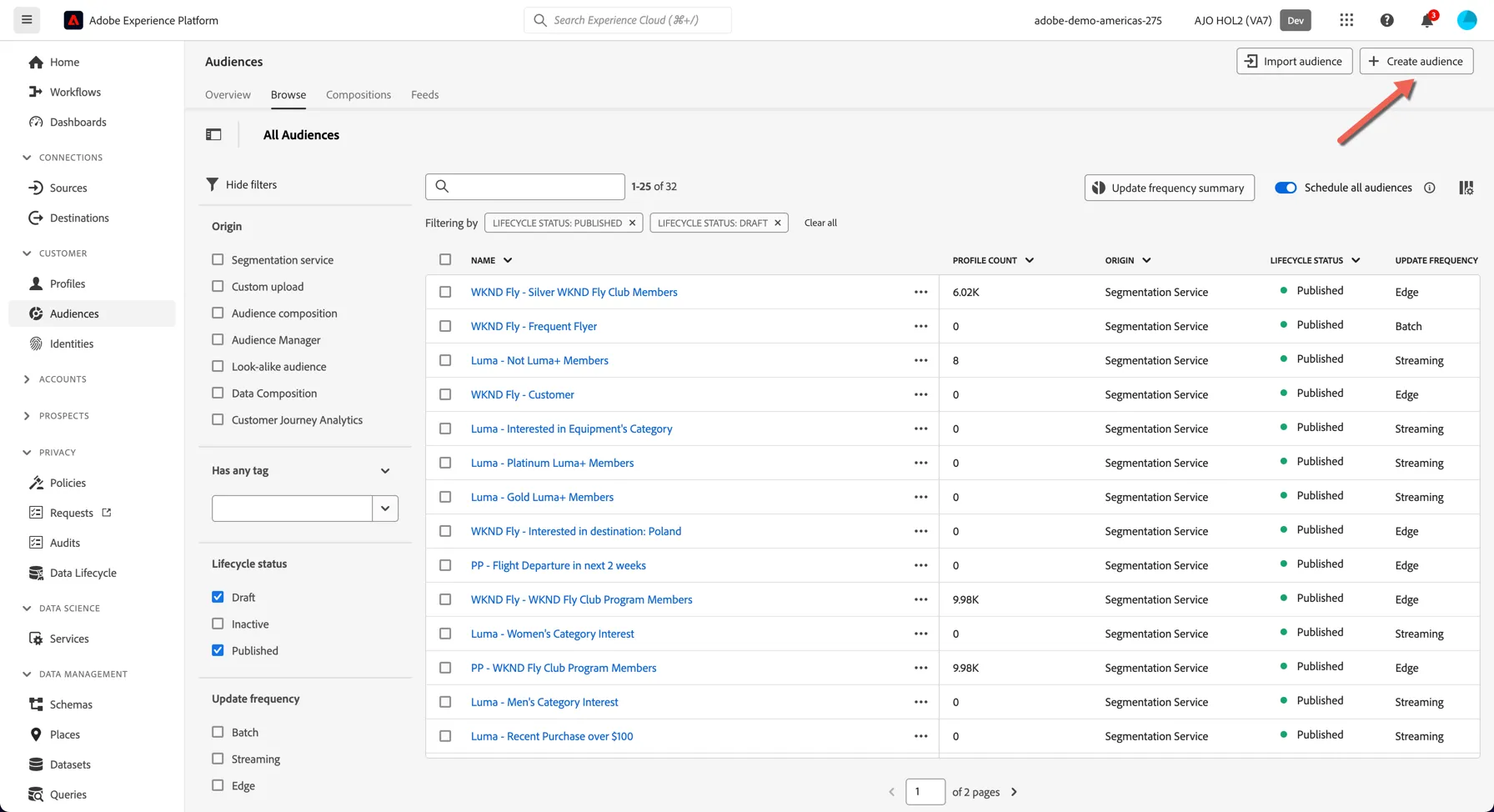
Browse to the Audiences page in the left hand navigation and click to Create Audience.
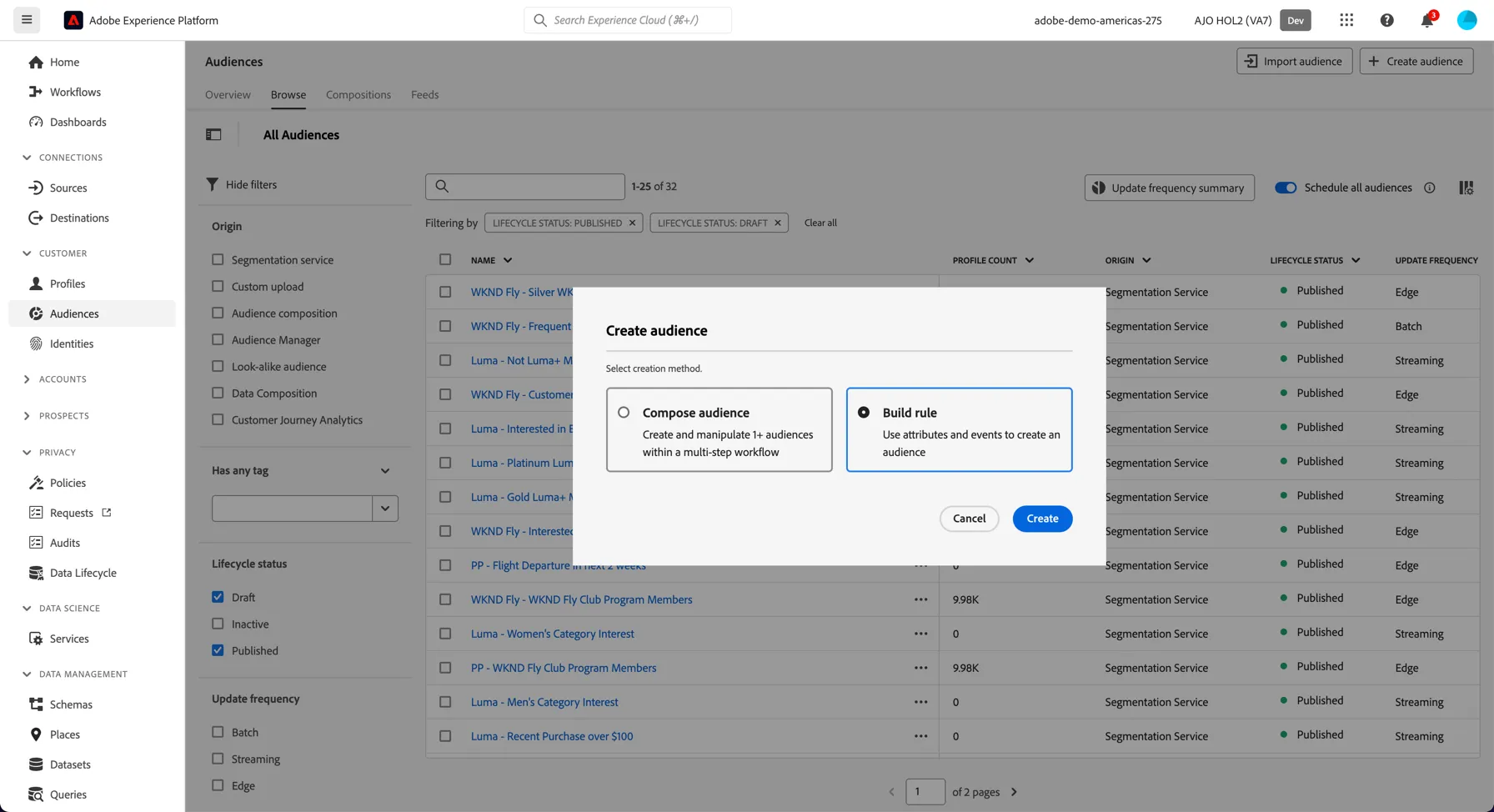
Select to build a rule based audience:
In the audience builder you have access to all of the profile attributes and events.
Search for the currentStudent attribute and drag it into the canvas.
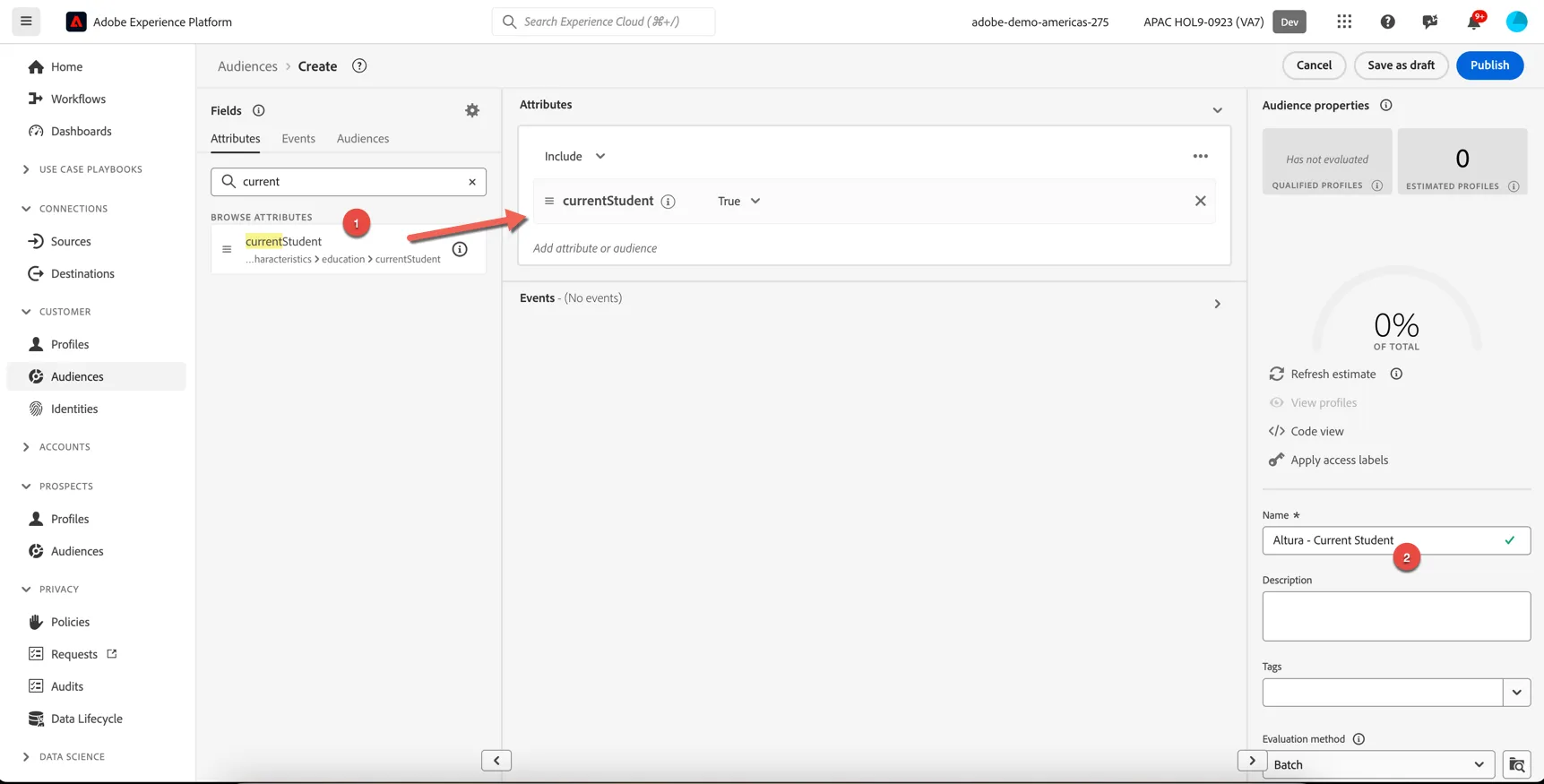
Your audience count will show 0, the counts shown on the audience details screen are calculated overnight after the nightly batch job.
Activate to advertising and social
Activation to social and advertising destinations will be delivered as a demo.