Exercise 3 - Lead Nurturing
By registering for open day on the website we can convert the anonymous profile into a known profile and start nurturing the lead across channels.
You will experience as a future student:
- Registering for open day on the site
You will learn as a marketer:
- How pseudonymous profiles become known and targetable across channels
- How to manage content in Adobe Journey Optimiser
- How to build and test a journey triggered from an inbound event
Register for Open Day
Return to the browser window with your website open from use case 1
- Click on the Register Now button in the banner that is displayed on the home page. (if you didn't complete exercise 2, go to https://dsn.adobe.com/web/gillies-5VKJ/openDay)
- Enter your details and complete the registration. If you don't wish to provide your real email address, use any address ending in @gmail.svpoc.io, emails to this domain will be routed to our webmail server and can be displayed at the front of the class.
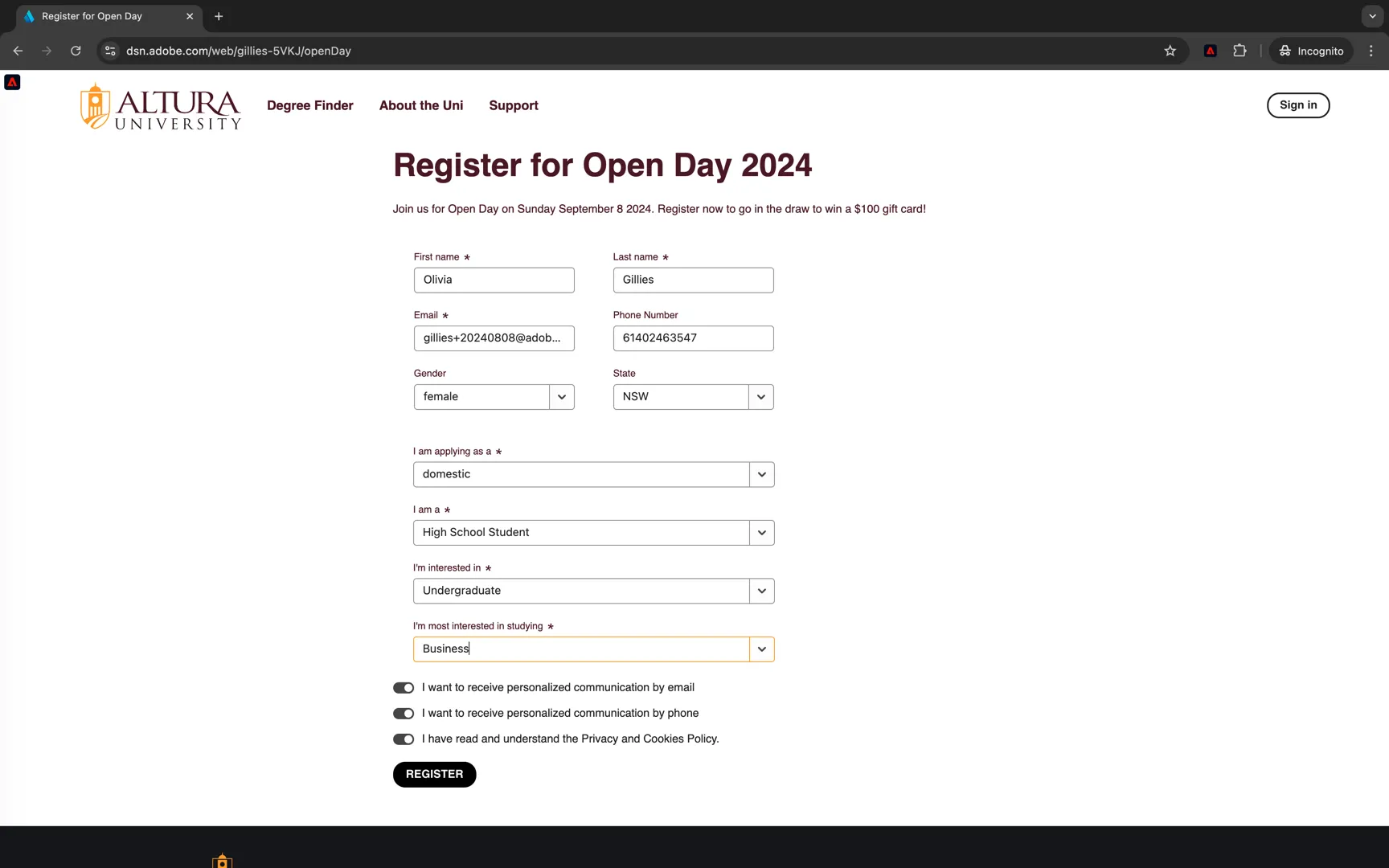
Submitting the form has sent an event to Adobe CDP containing both the ECID and the EMAIL identities. These identities will now be stitched in the identity graph.
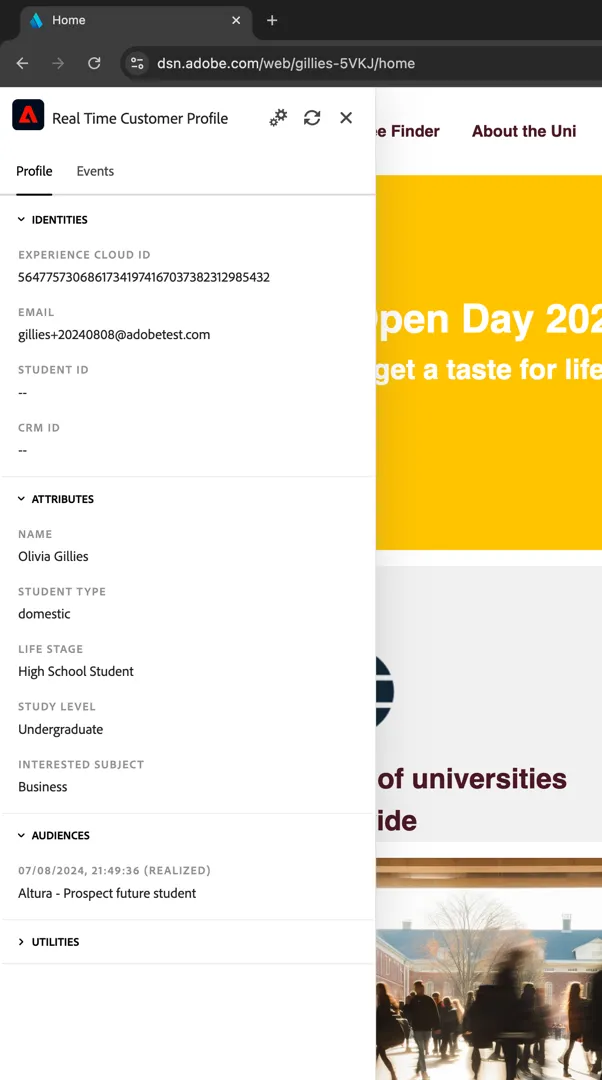
The profile has also qualified into some additional audiences. Refresh the profile viewer on the site or refresh your profile within Adobe Experience Platform UI to see the updates.
In-the-moment Journeys
The registration event received by Adobe Experience Platform when the registration form is submitted can also be used to trigger a journey in Adobe Journey Optimizer. The journey entrance is triggered by the experience event and the messages sent from the journey can use any of the pre-existing profile attributes or contextual attributes submitted with the event for personalisation.
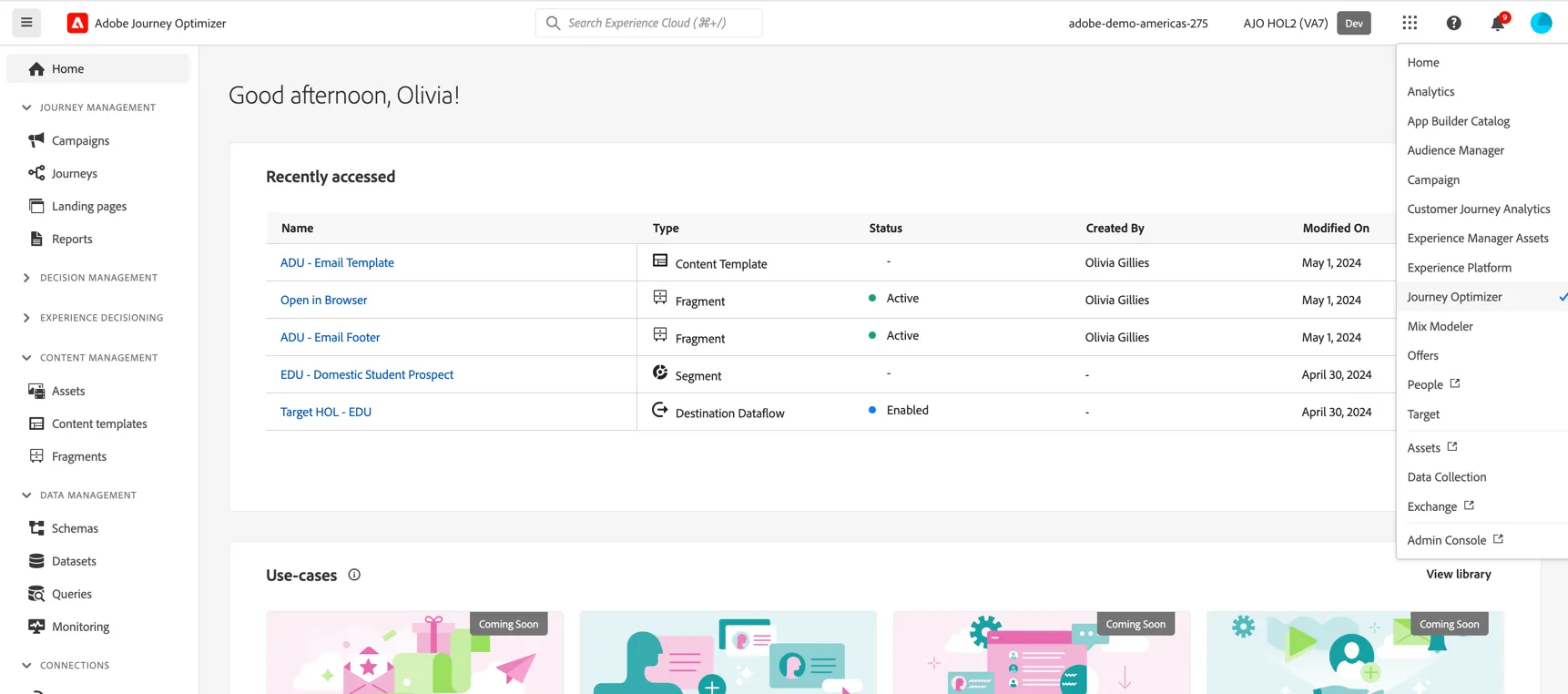
For the next few exercises we will use Adobe Journey Optimizer. Switch the UI using the product switcher in the top right.
Make sure the selected sandbox remains as APAC HOL9-0923.
Content Managment
Assets
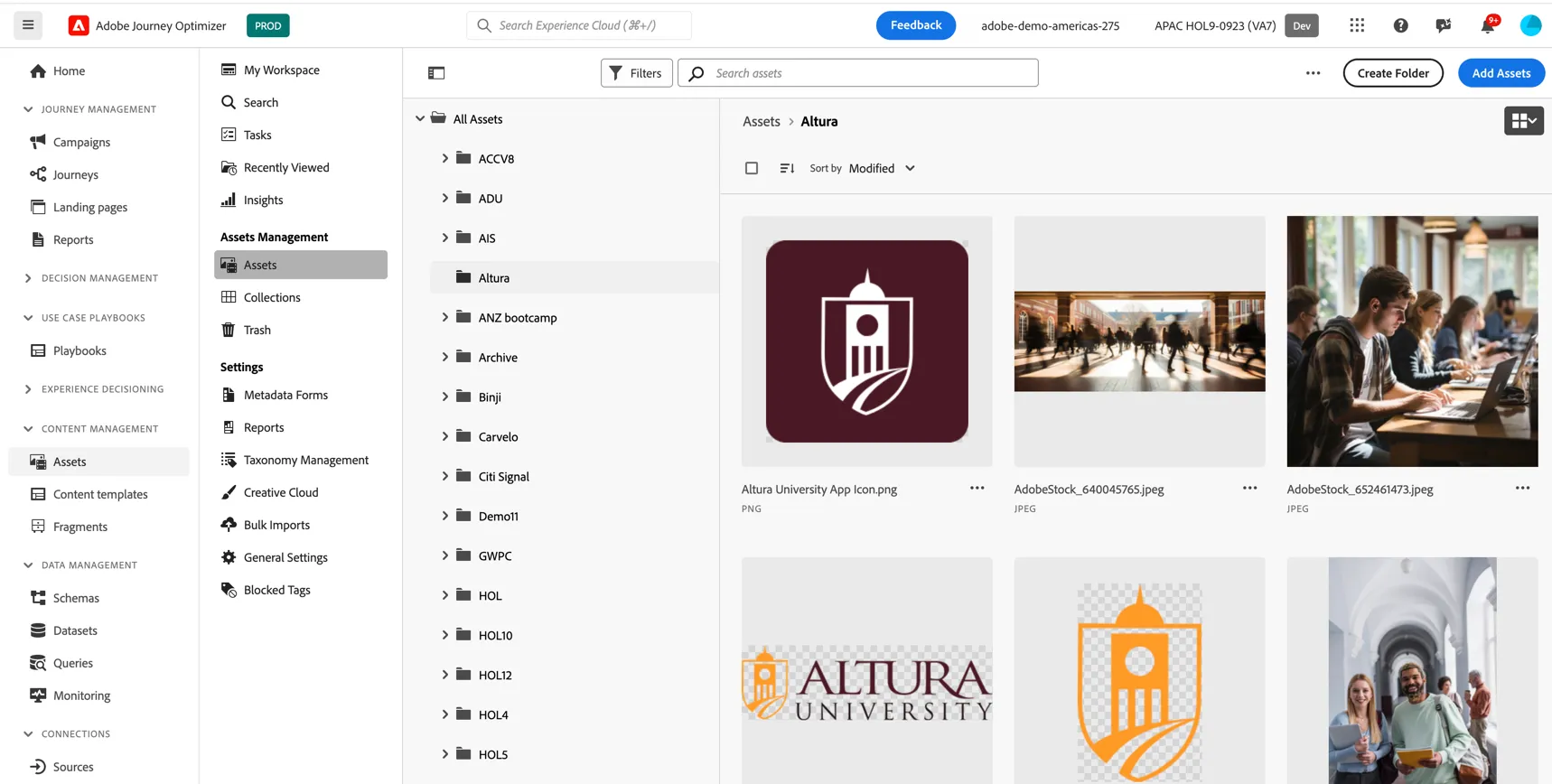
Click to open the Asset explorer under Content Management in the left hand navigation. Here you can manage the assets in your Adobe Experience Manager instance.
Click on the Altura folder to see the assets available. You can add new assets from your local machine if you want.
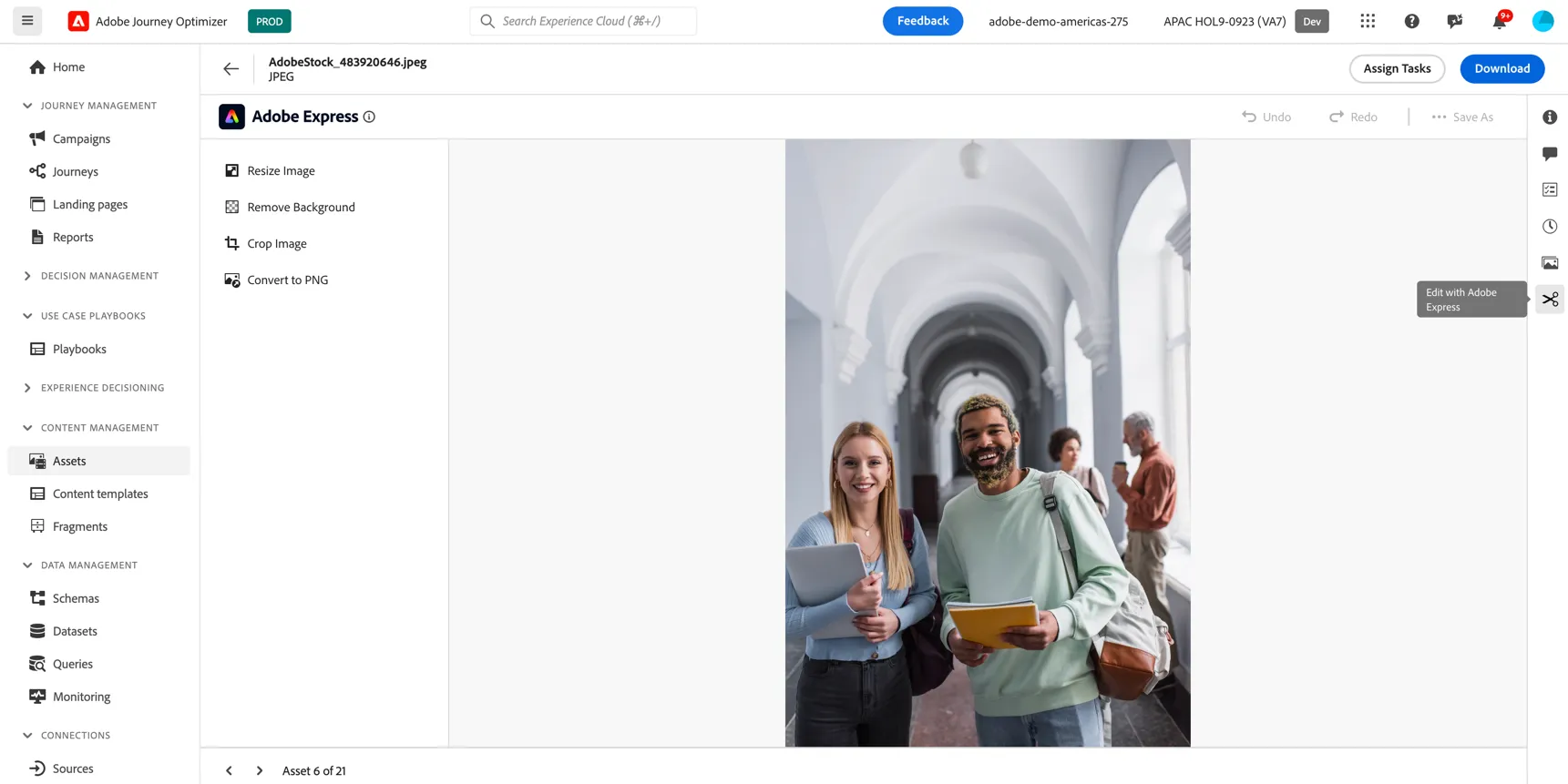
Select an asset and click on details. Here you can see information about the asset, including smart tags, versions, comments and tasks. You can even edit the asset directly in the Journey Optimizer UI using Adobe Express.
Build a Journey
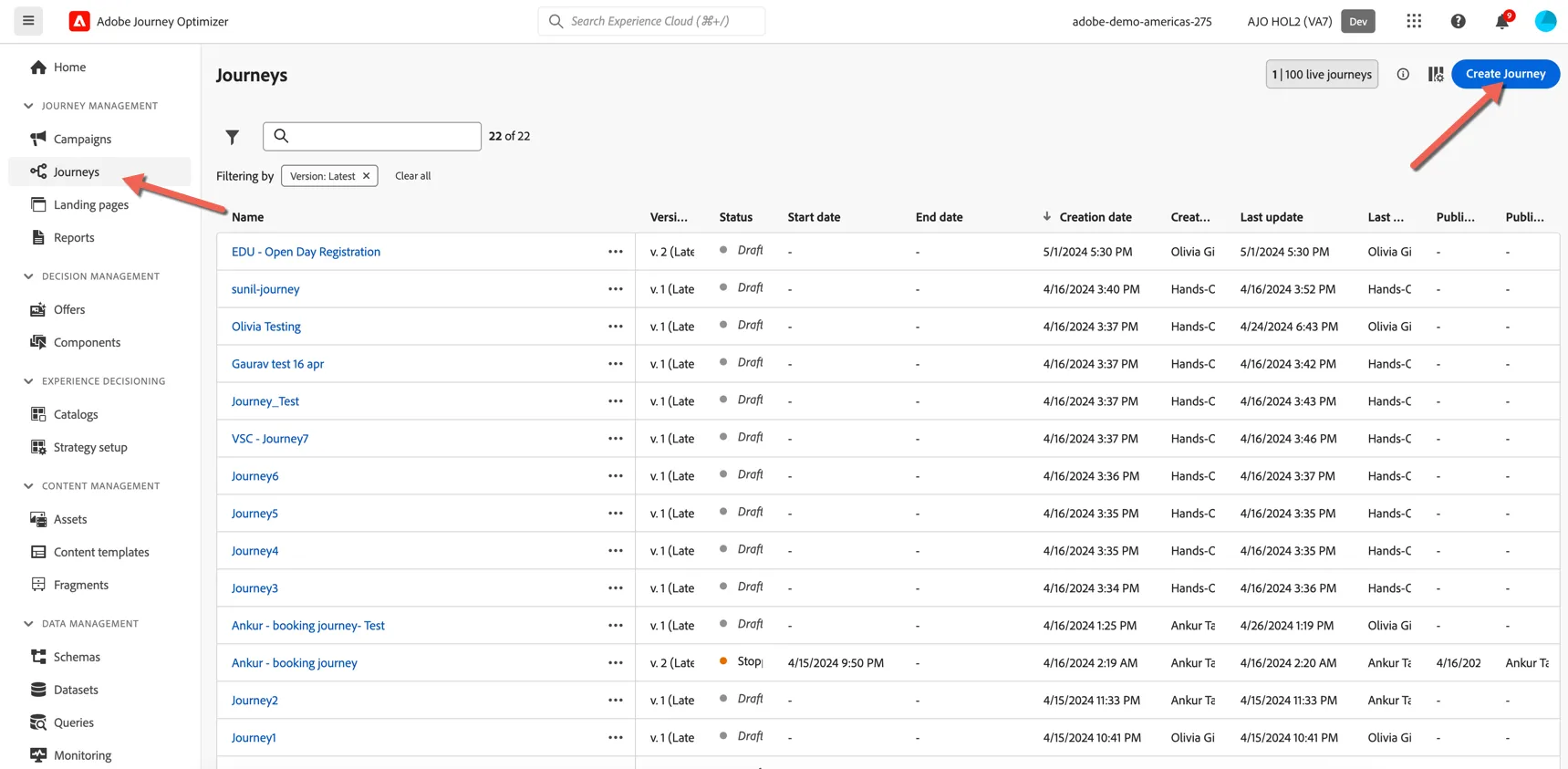
To create a new journey, click on Journeys in the left hand navigation under Journey Management. Click the Create Journey button on the right hand side.
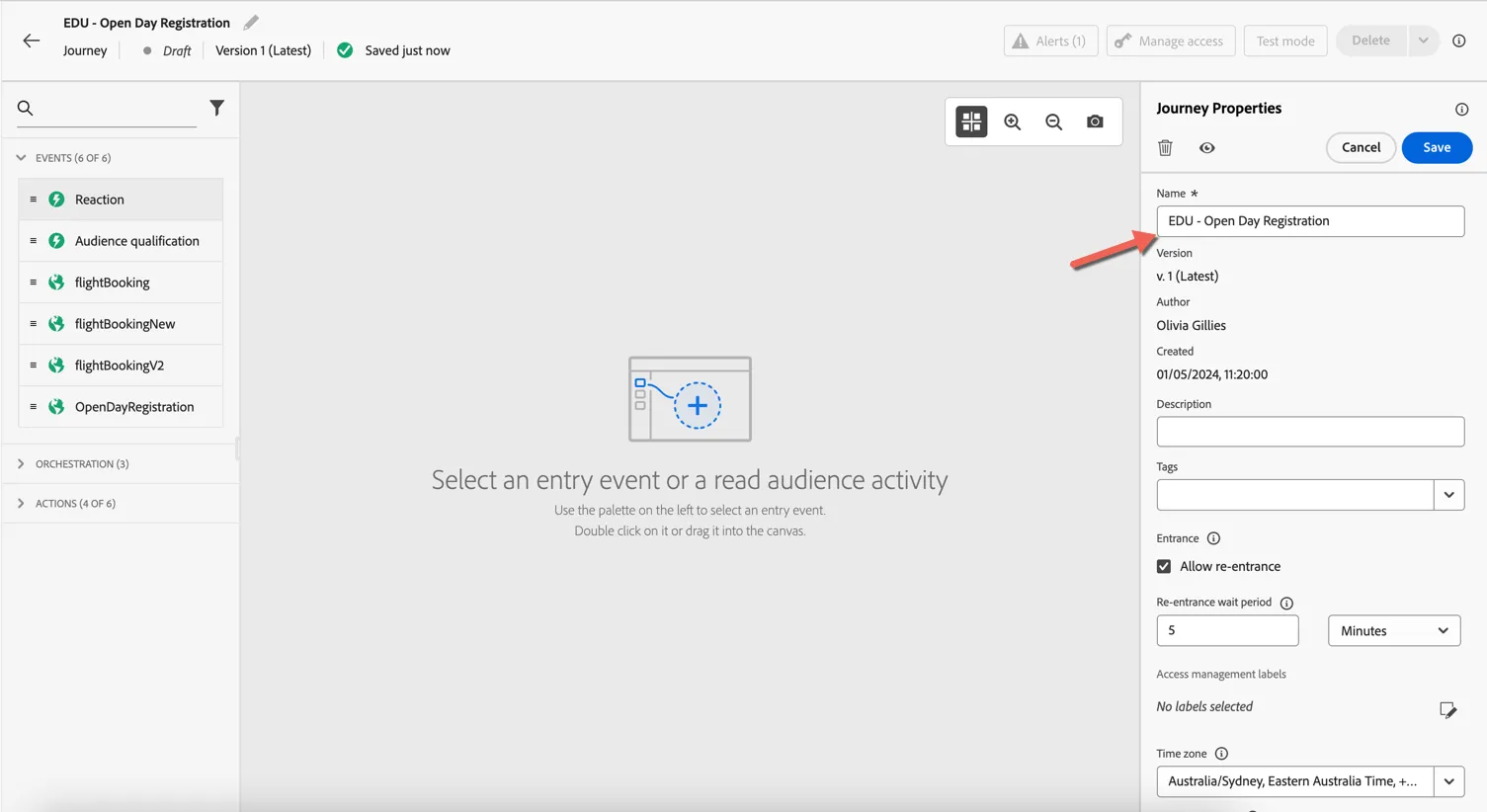
Give your journey a name - something unique so you can distinguish it from your collegues in the class.
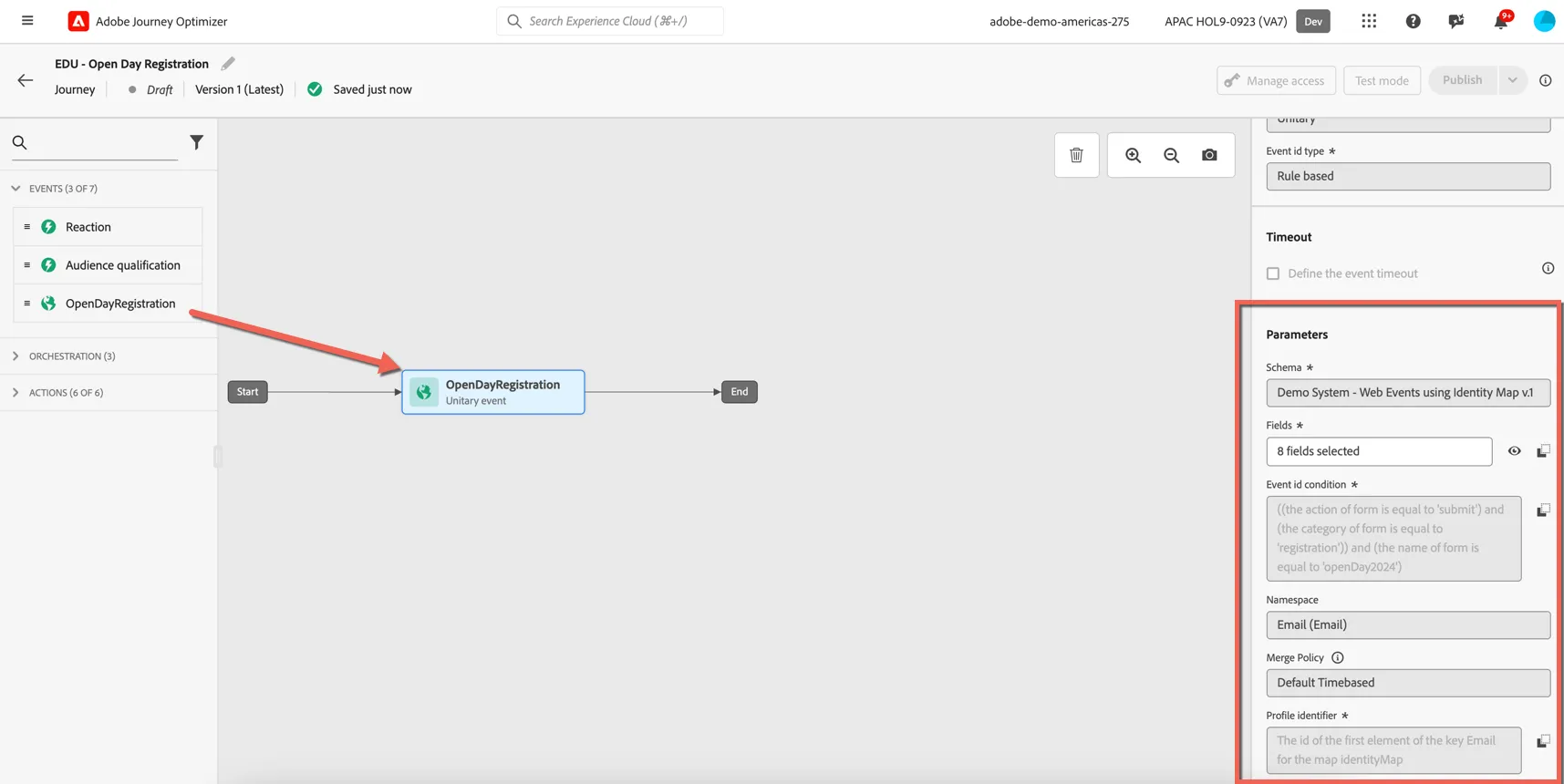
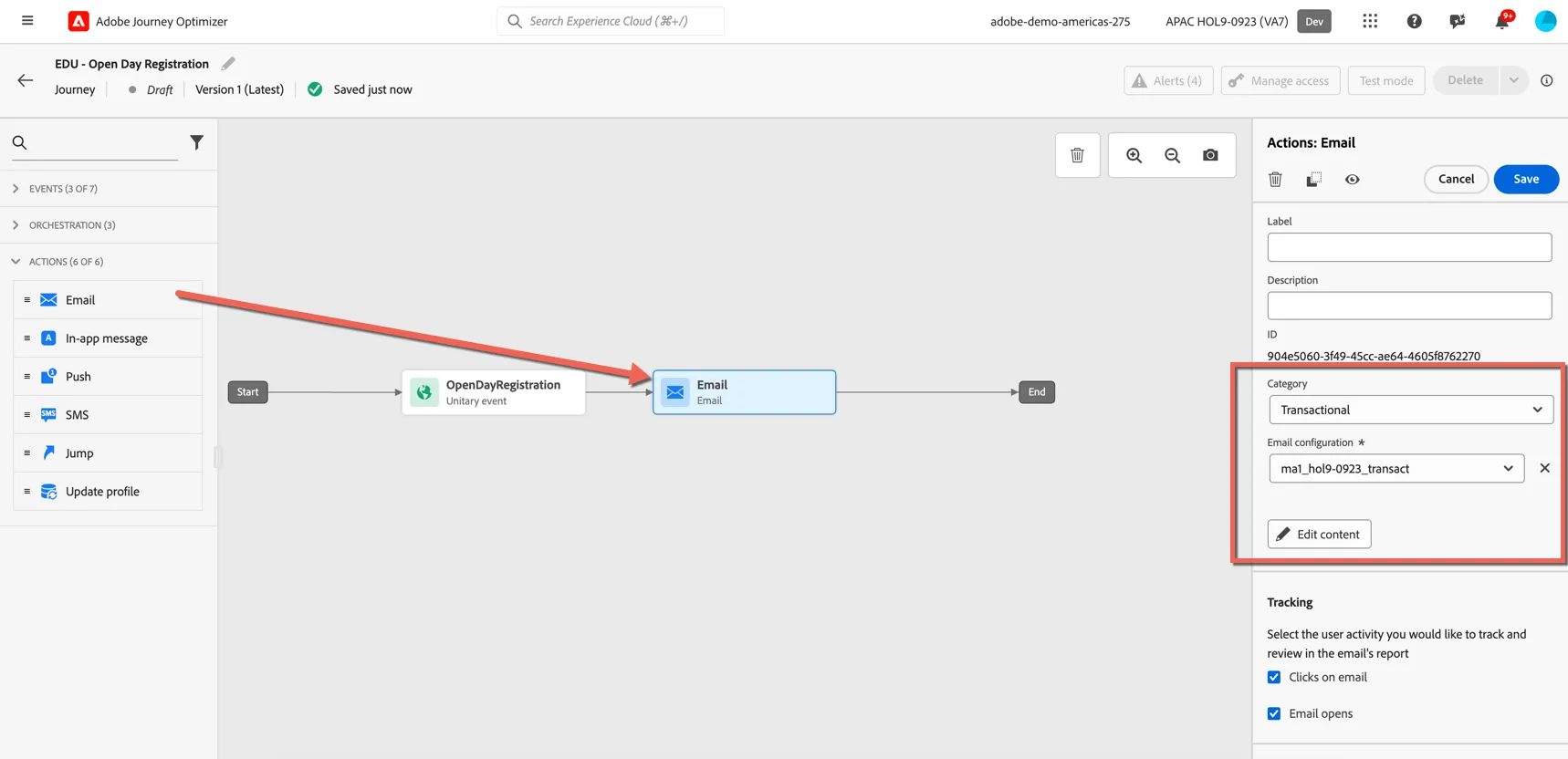
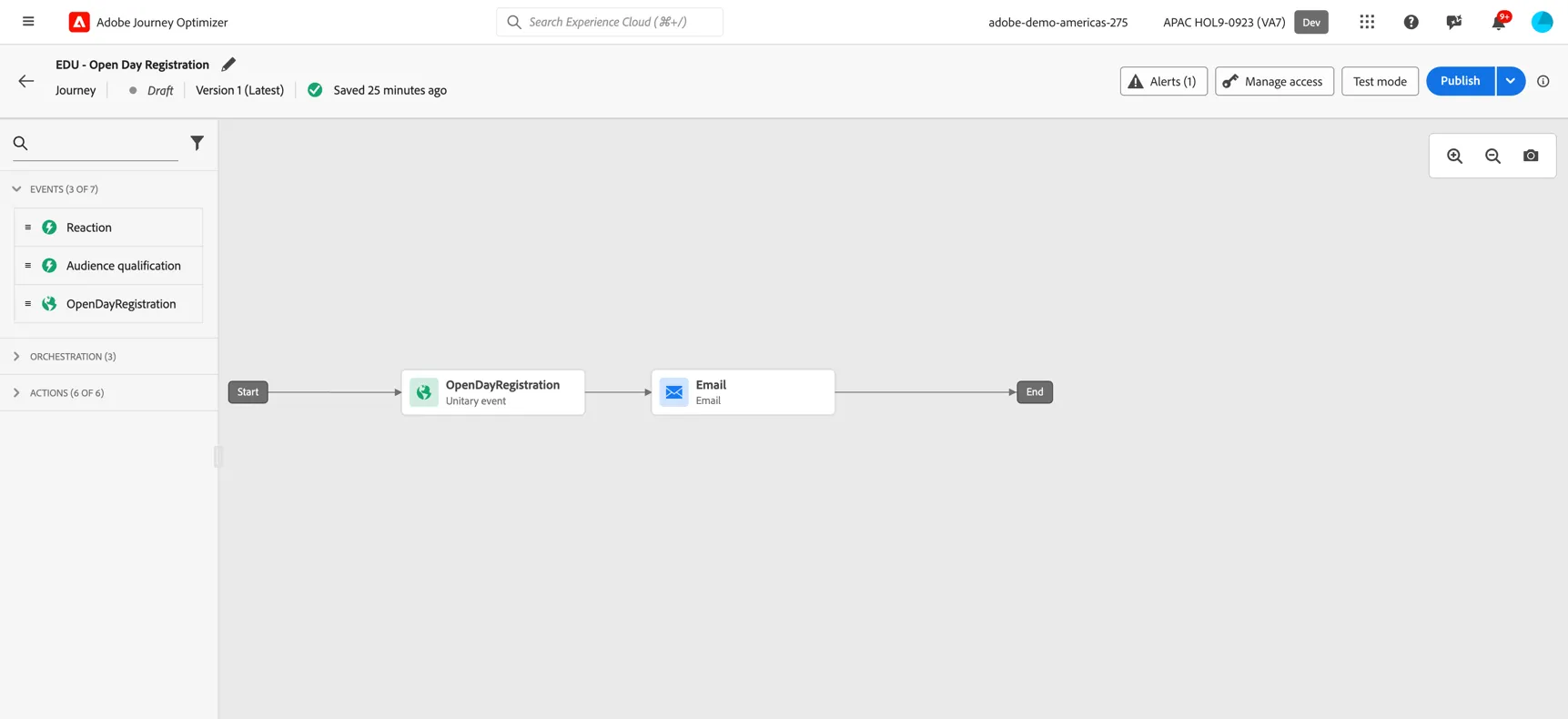
We're going to trigger the journey from an event. Every event that is received via streaming ingestion by Adobe Experience Platform can trigger a journey, but to limit the number of options shown in the journey builder only events that have been defined as journey events will appear. The openDayRegistration journey event has been pre-configured for you. Drag the event into the canvas. You can see how it was defined in the properties on the right hand side.
Next we want to add an Email action. Drag it into the canvas and connect it after the event. Set in the Email properties the Category to Transactional and the Email configuration to the first option.
The category controls whether optin for email channel is required or not. Marketing messages require optin while transactional messages can be sent in reaction to a customer initiated action.
The Email configuration controls the email headers such as the from address, sending IP and additional configurations such as seed addresses to be included in the delivery.
Then click on Edit Content to update the content of the email.
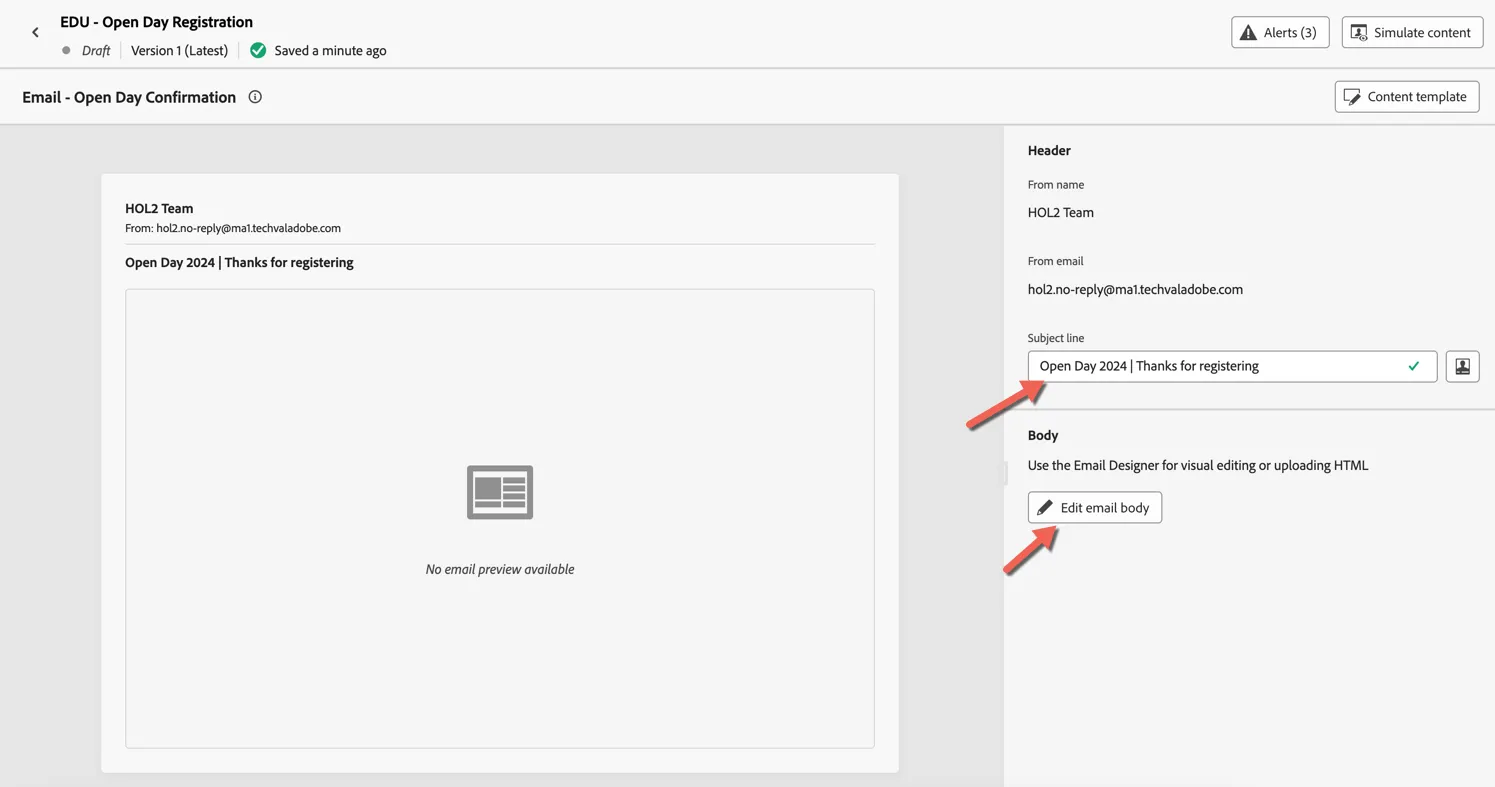
Add a subject line and click Edit email body to configure the body of the email.
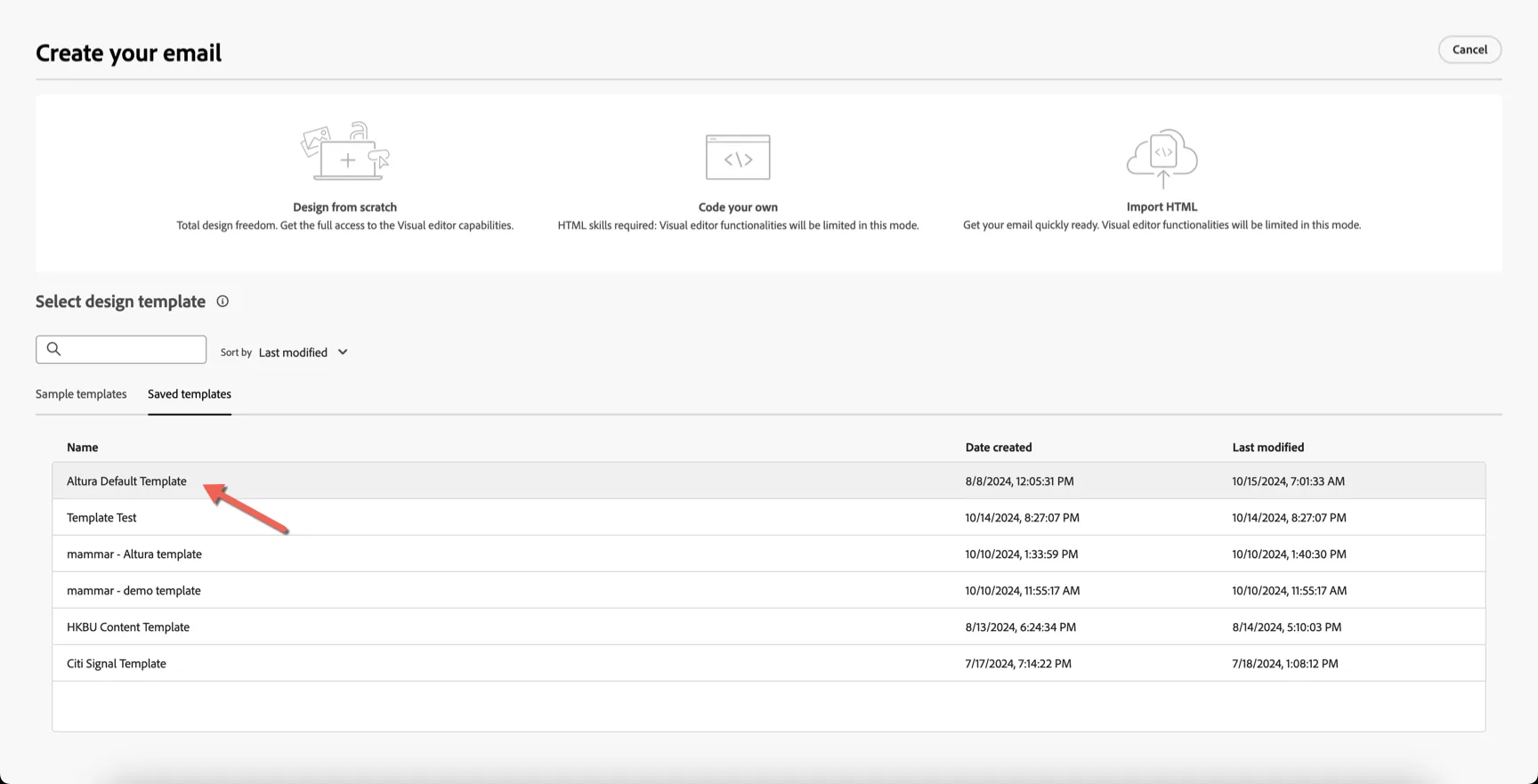
Choose to start from the Altura Default Template.
Once the preview has loaded. Select to Use this template.
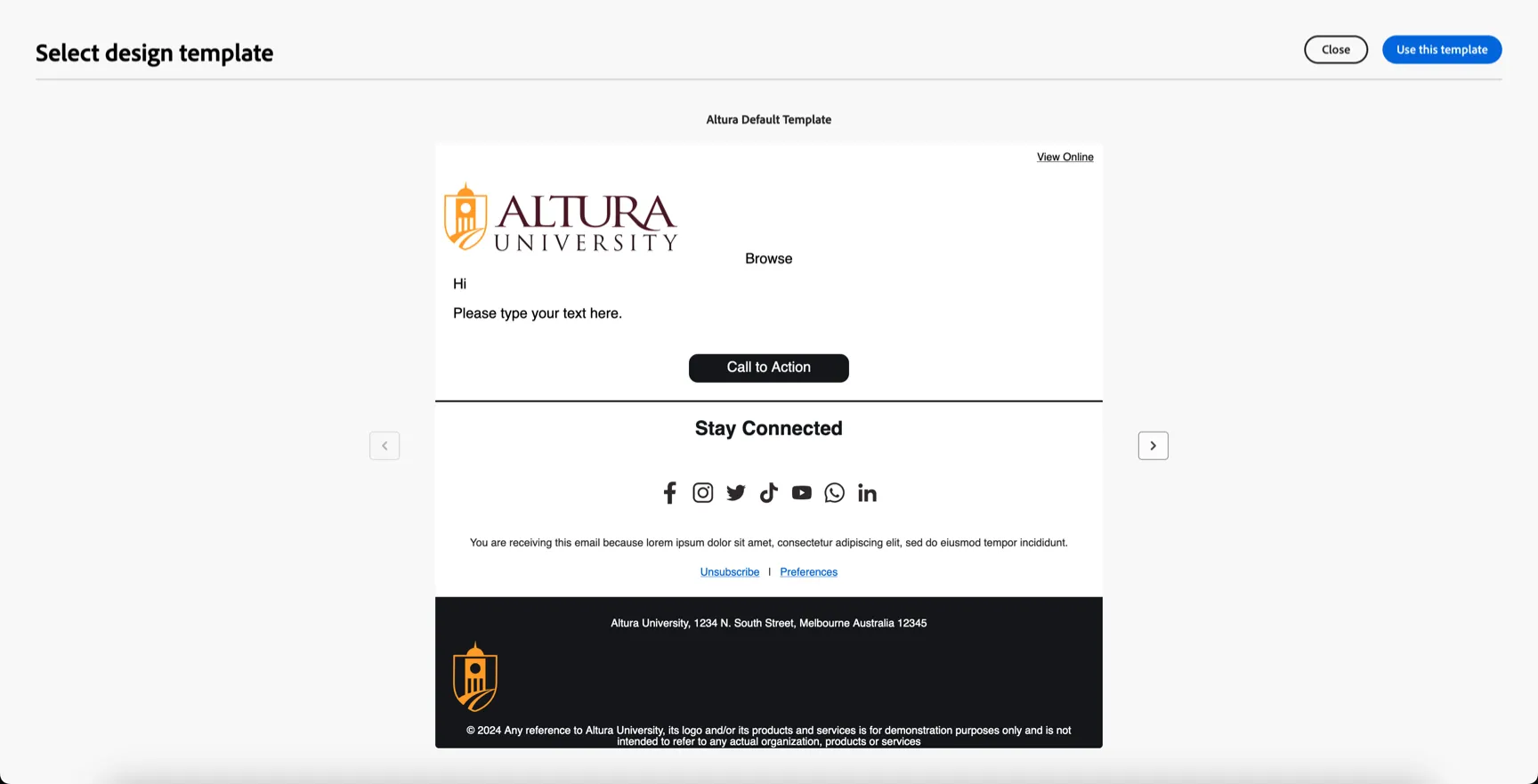
Let's update the content now.
For the image banner, we can select an existing asset from the Asset repository or we can use Adobe's generative AI to create an image based on text prompts. Click on the image component and then stars icon to open the AI Assistant.
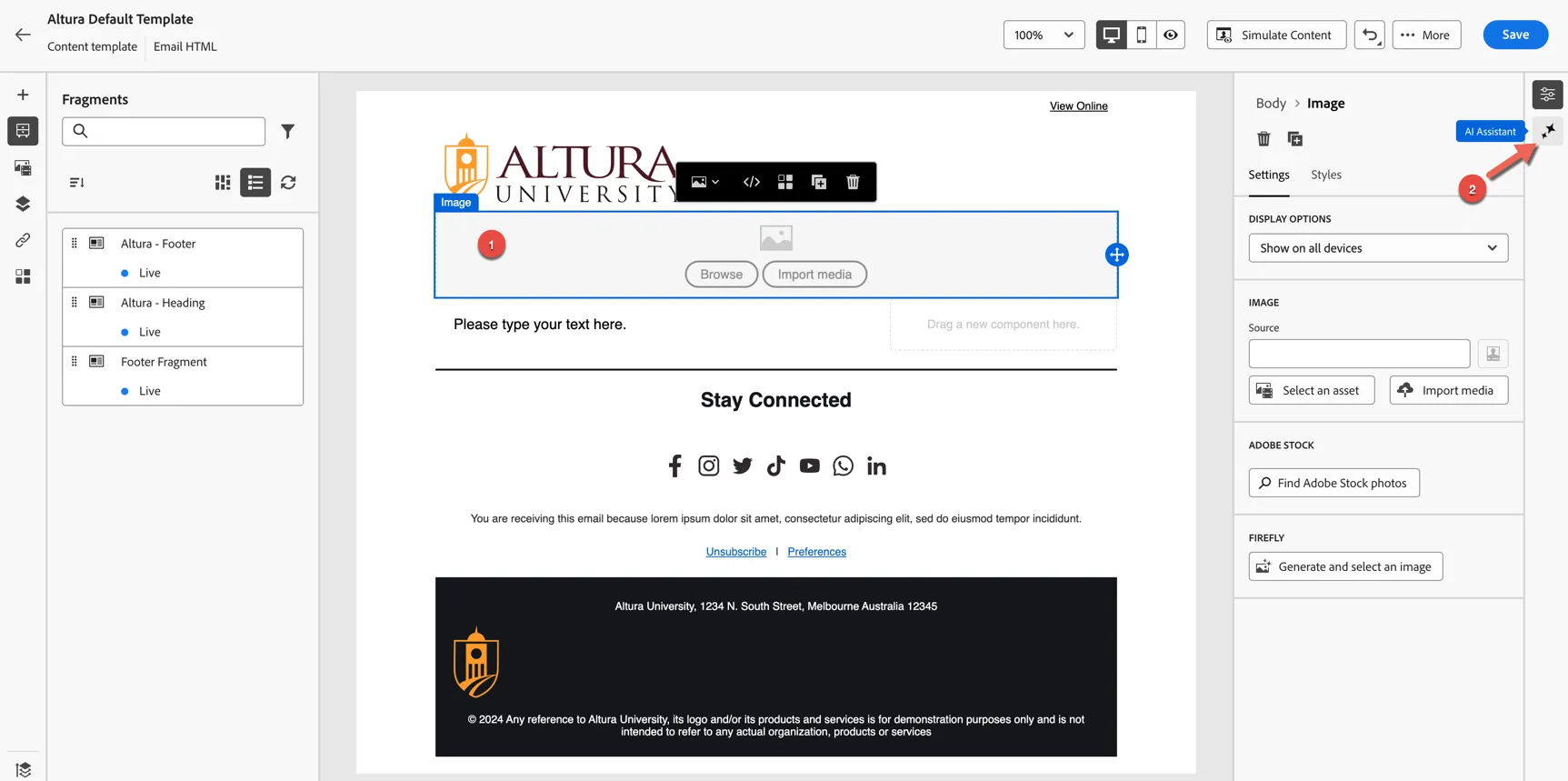
Add a text prompt for your banner and set the parameters for height and width to 200x800 respectively. Set the other options as desired.
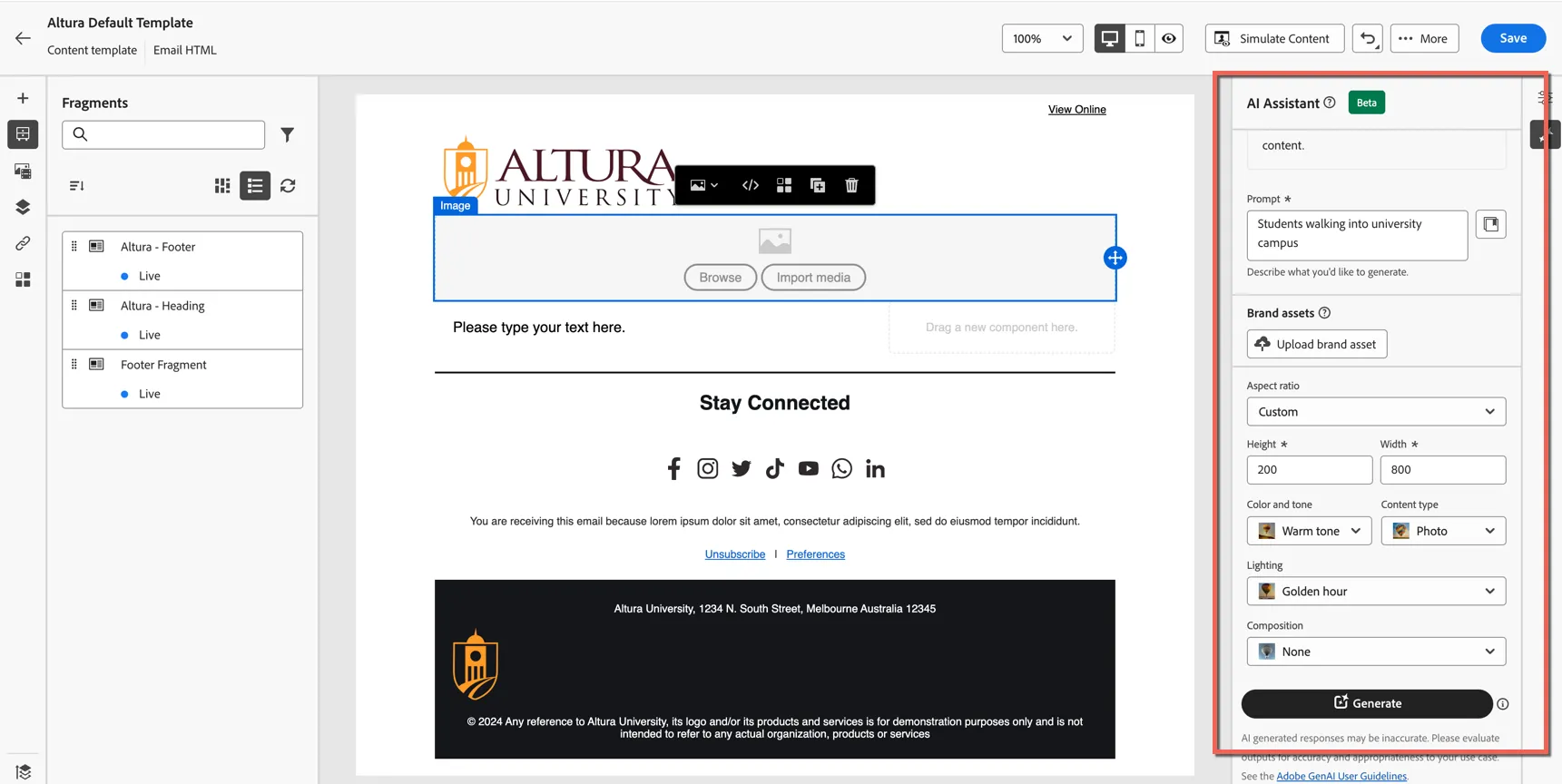
Click Generate. It will take a minute to generate some image options. Click the Preview button to open the viewer.
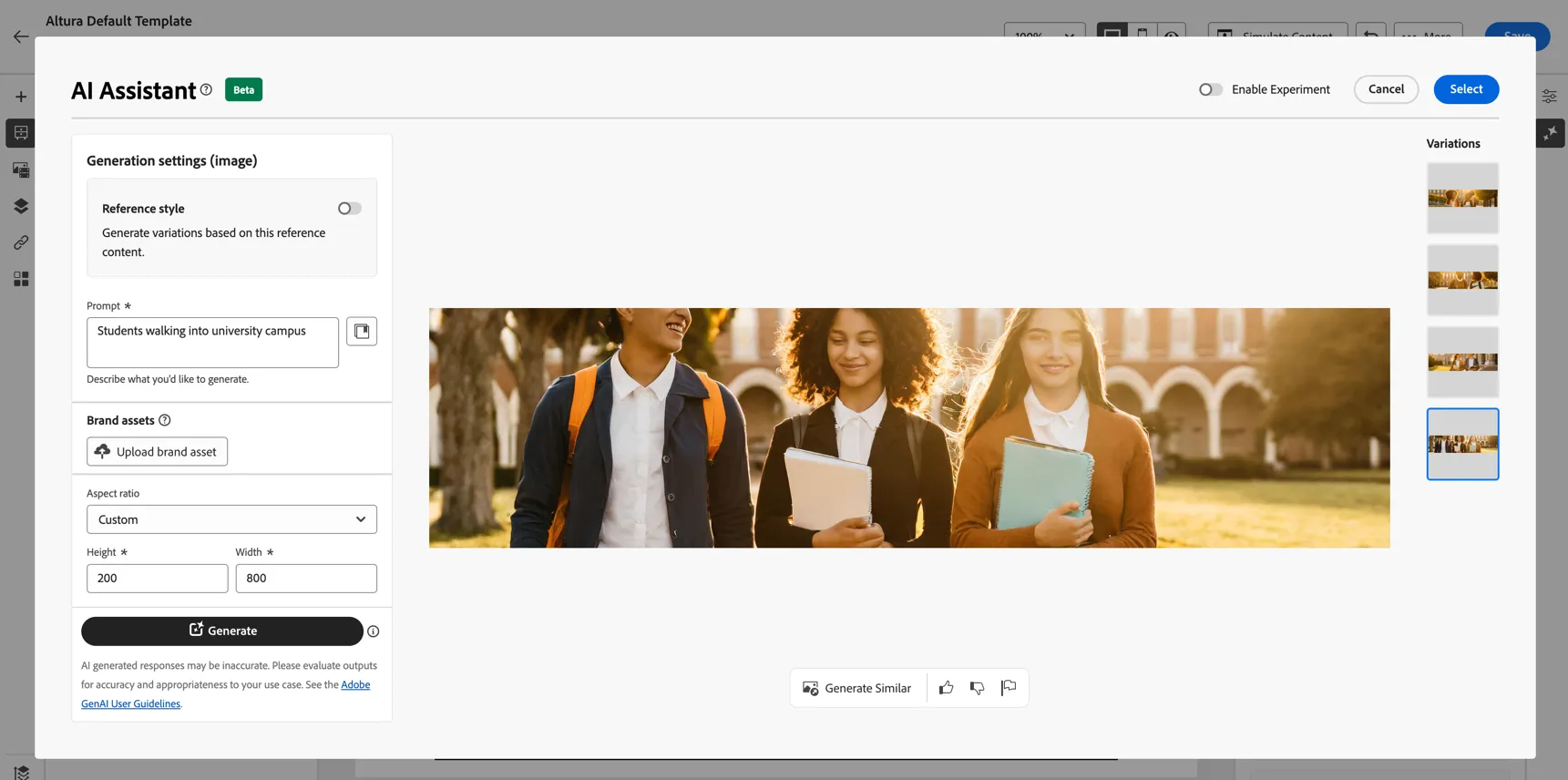
Here you can review the images generated and choose whether to modify the prompt or continue with one of the images selected.
Once you're decided which image to use, click select
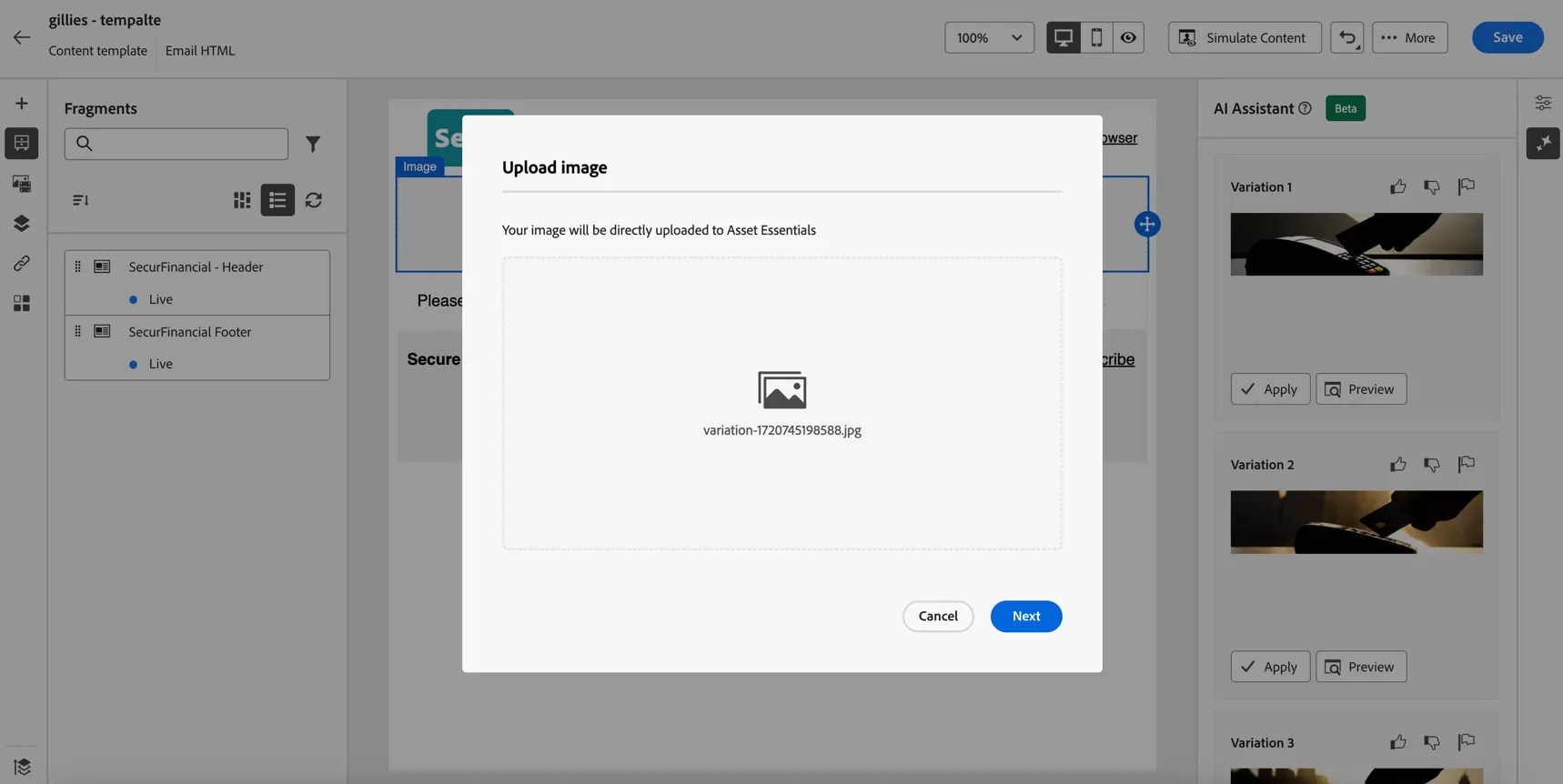
Click Next to upload the image to the asset repository. Select to store the image in the Altura folder.
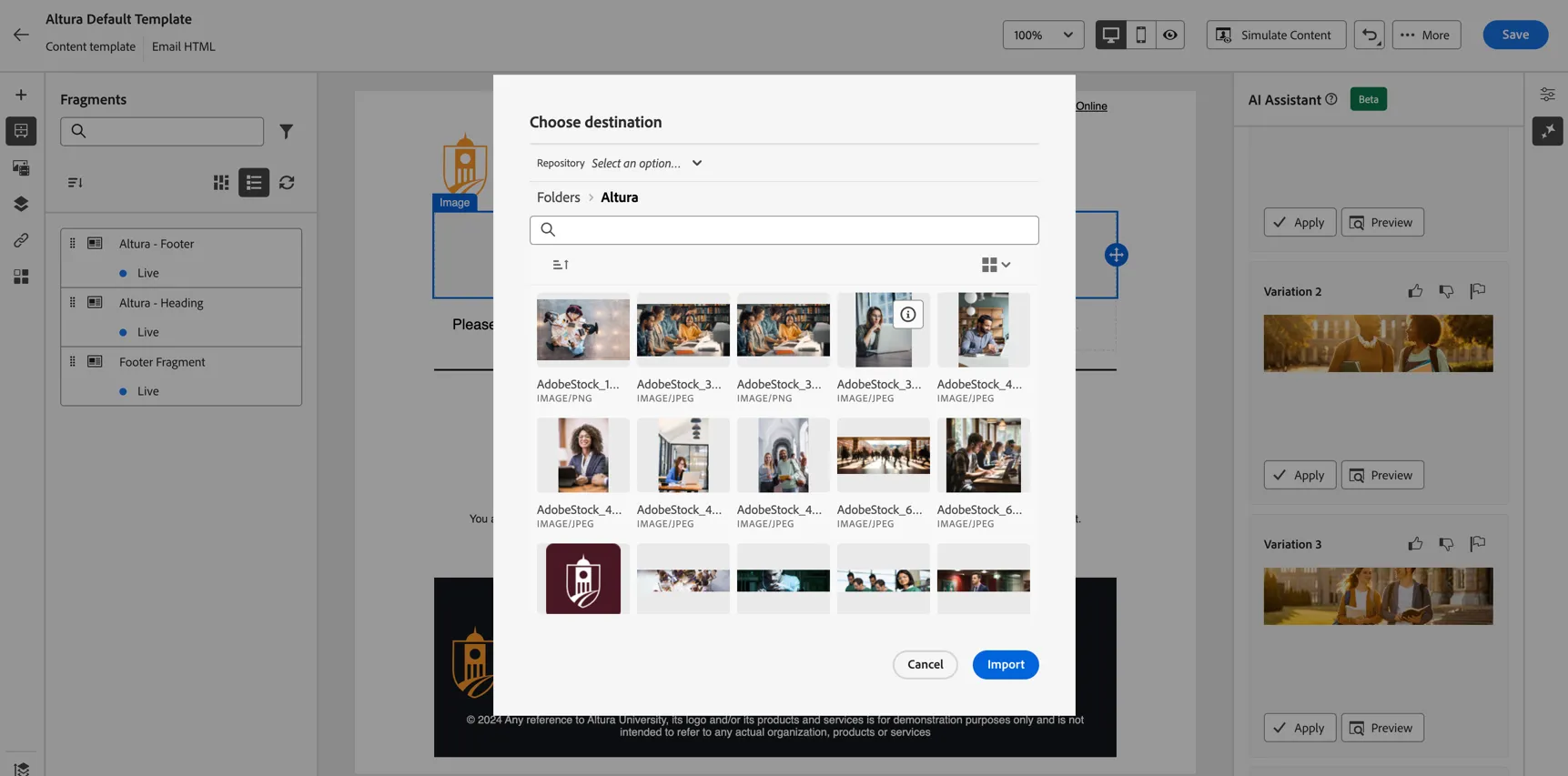
Click Import to add your image to the content.
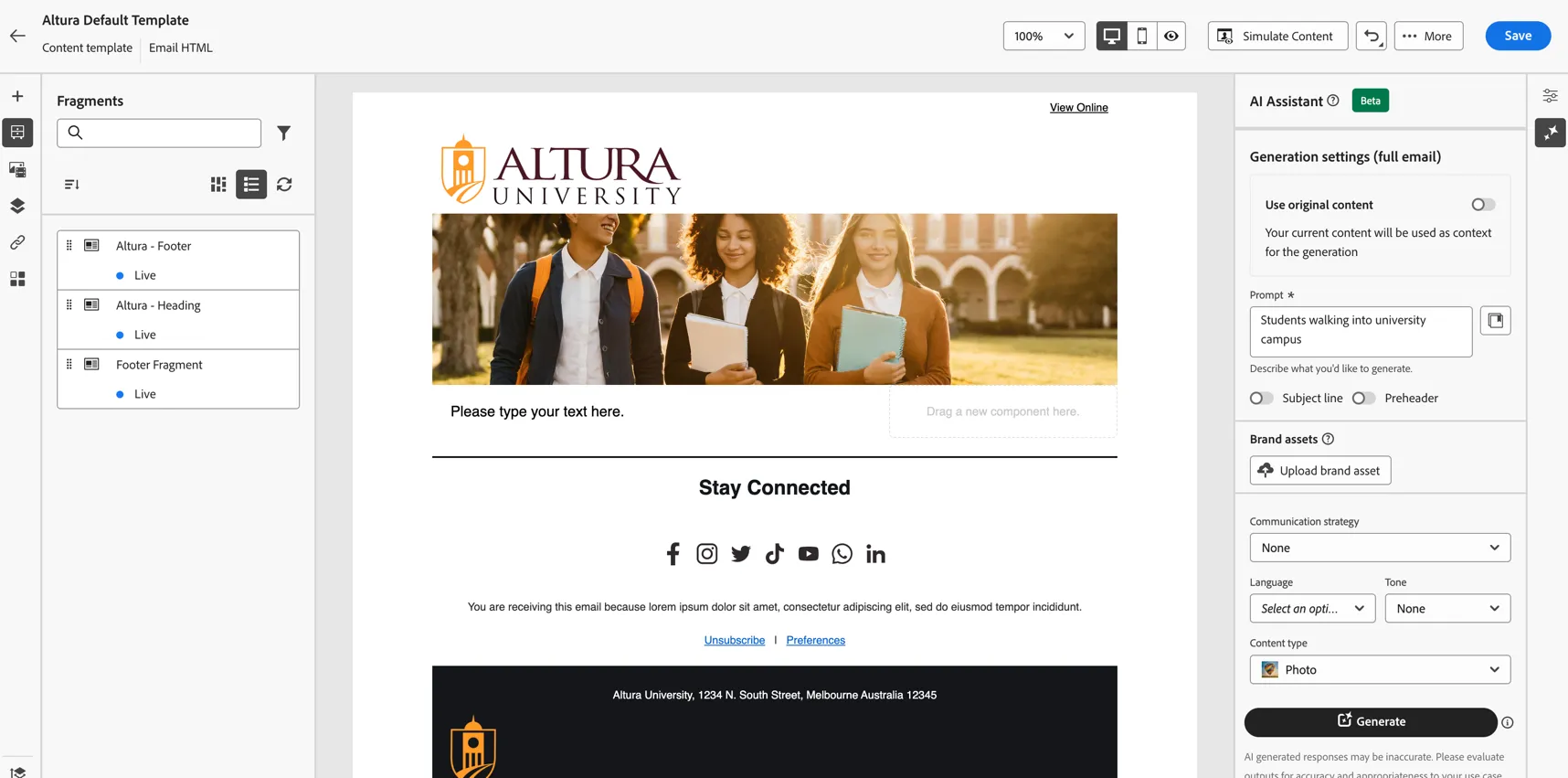
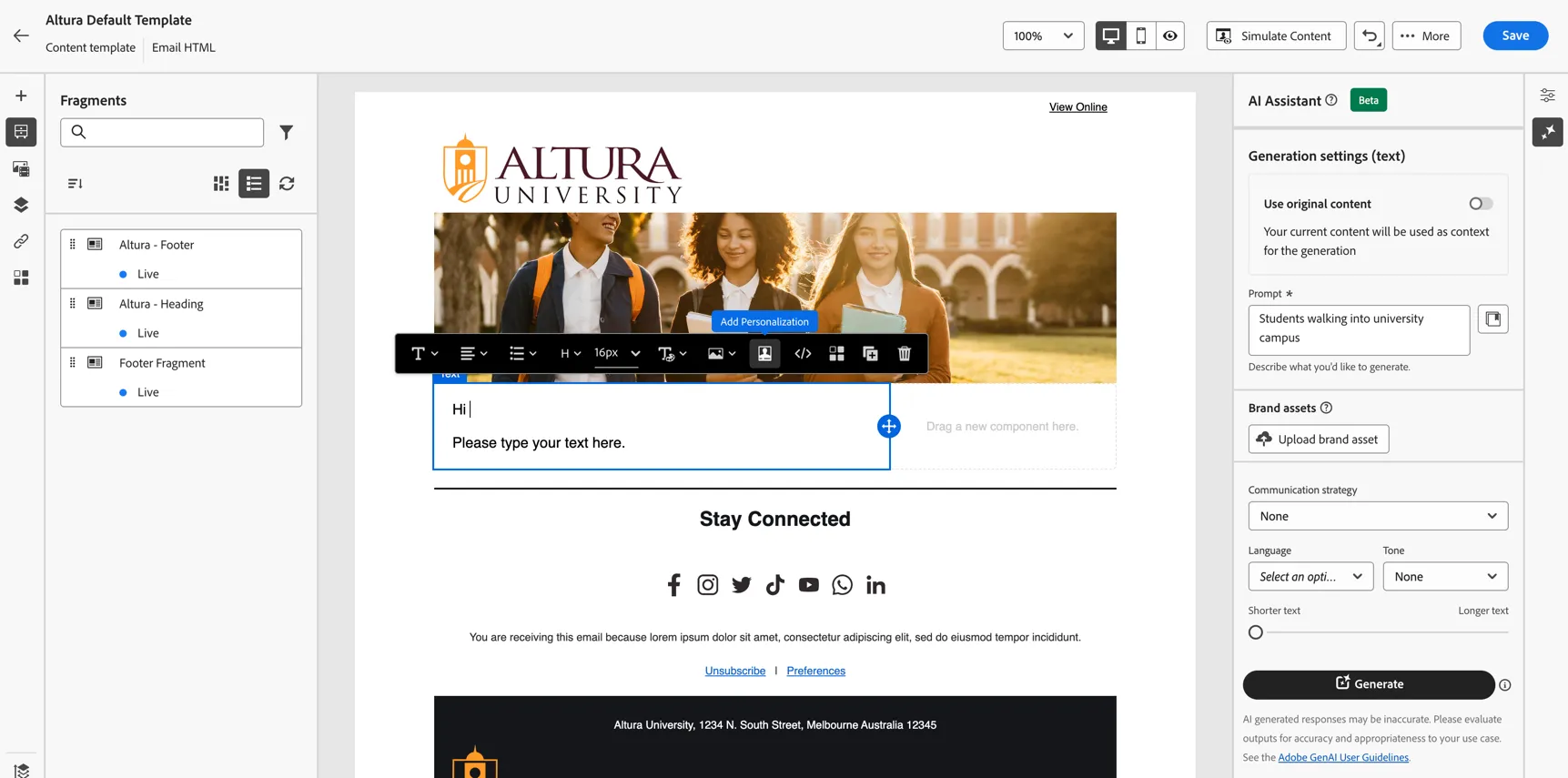
Now, let's personalize the content by adding the customer firstname. Click in the text content and select to Add Personalisation.
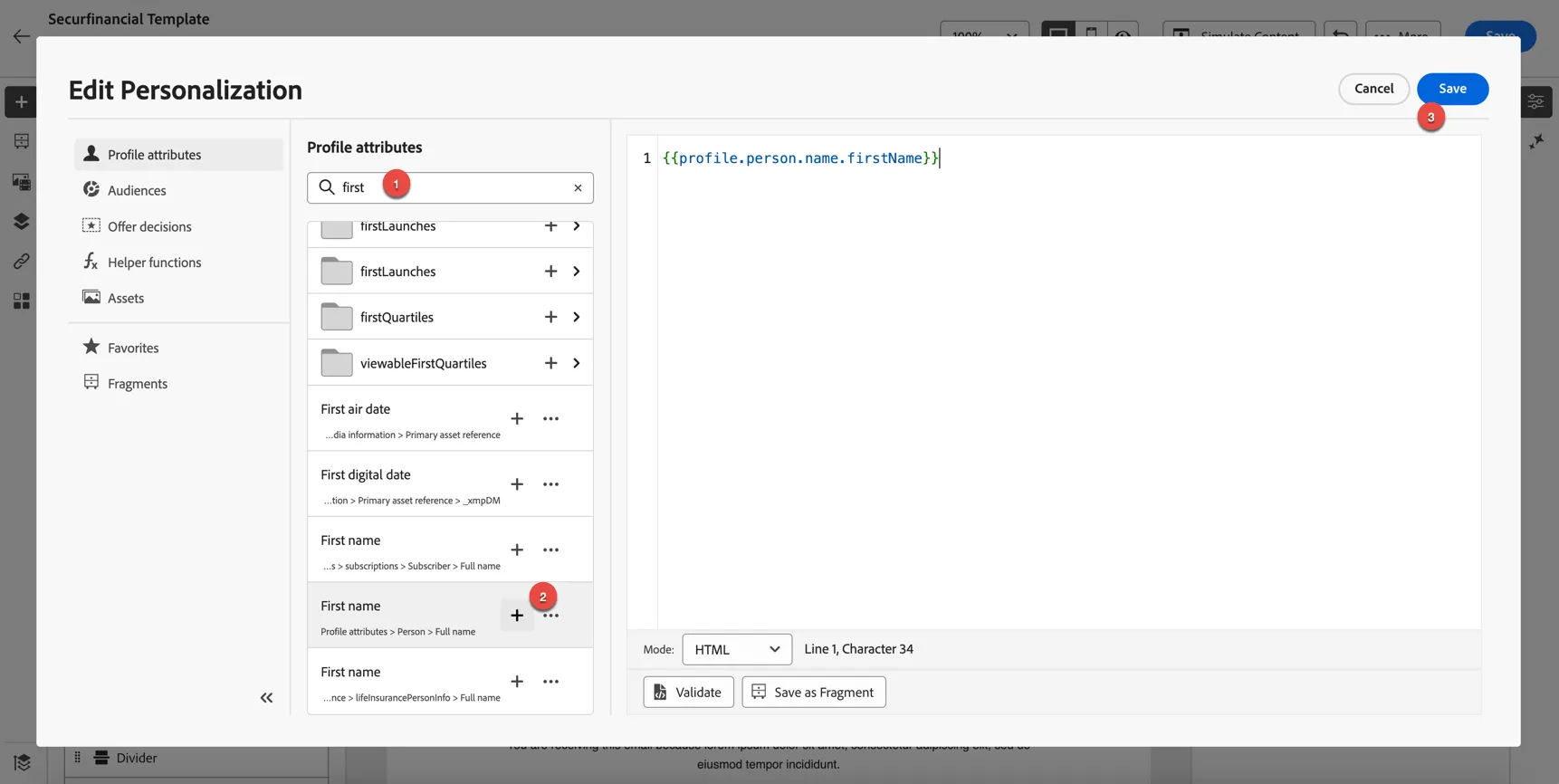
In the personalisation editor, in the Profile Attributes tab, search for first. You'll see a few different first name fields, this is due to the schema design in our sandbox. select the First Name field with Profile Attributes > Person > Full Name underneath. This is the schema field we want to use. Click the + icon to insert the field. Then click Save.
The personalisation field is now inserted into your content.
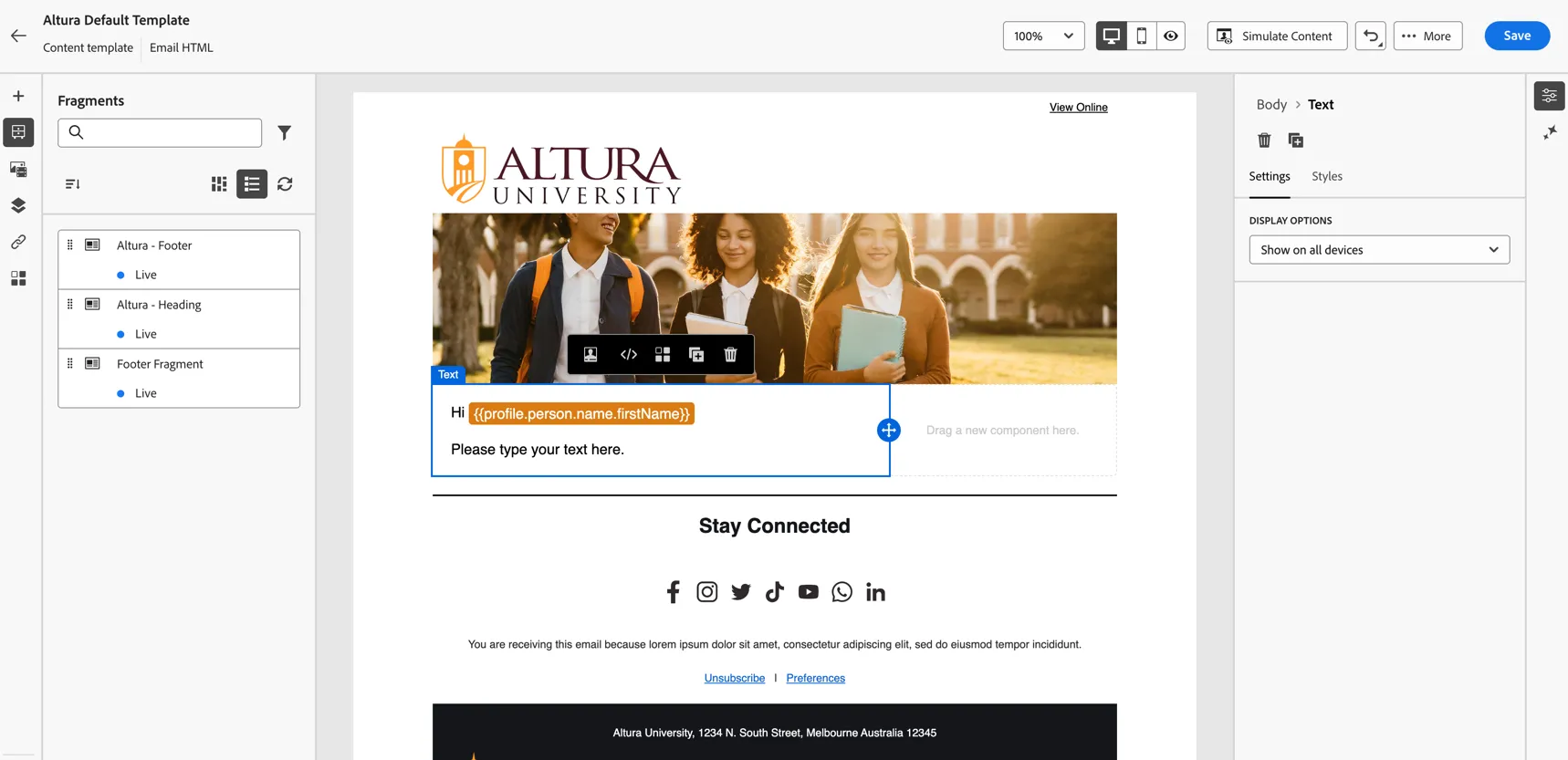
Add a paragraph to thank them for registering, such as:
Thank you for registering for Open Day 2024! Get ready to dive into interactive sessions, exclusive tours, and engaging workshops!
To get the most out of your day we recommend to download the app where you can build a personal plan, skip the check in queues for sessions and get notified of offers and installations as they happen throughout the day.
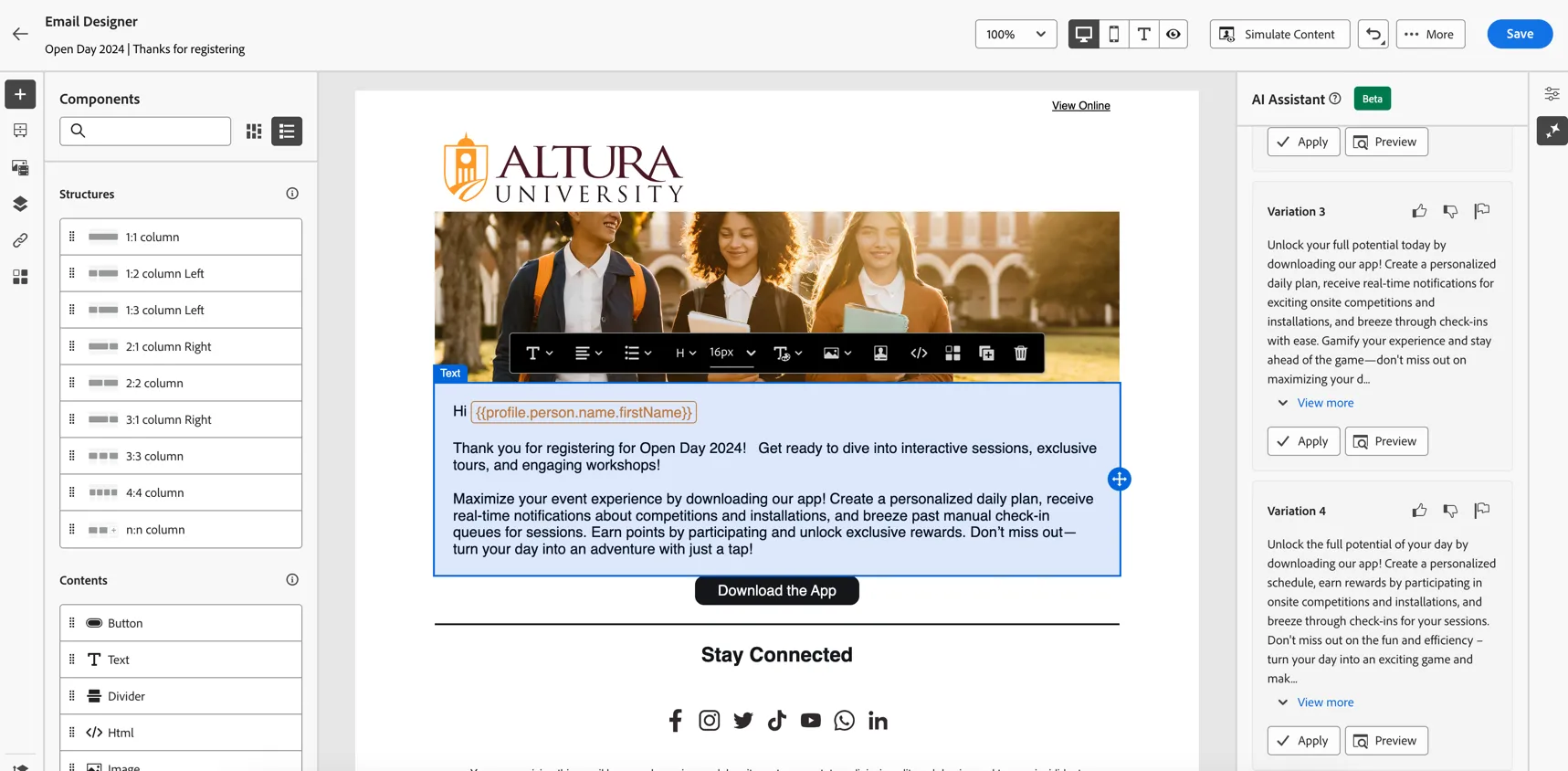
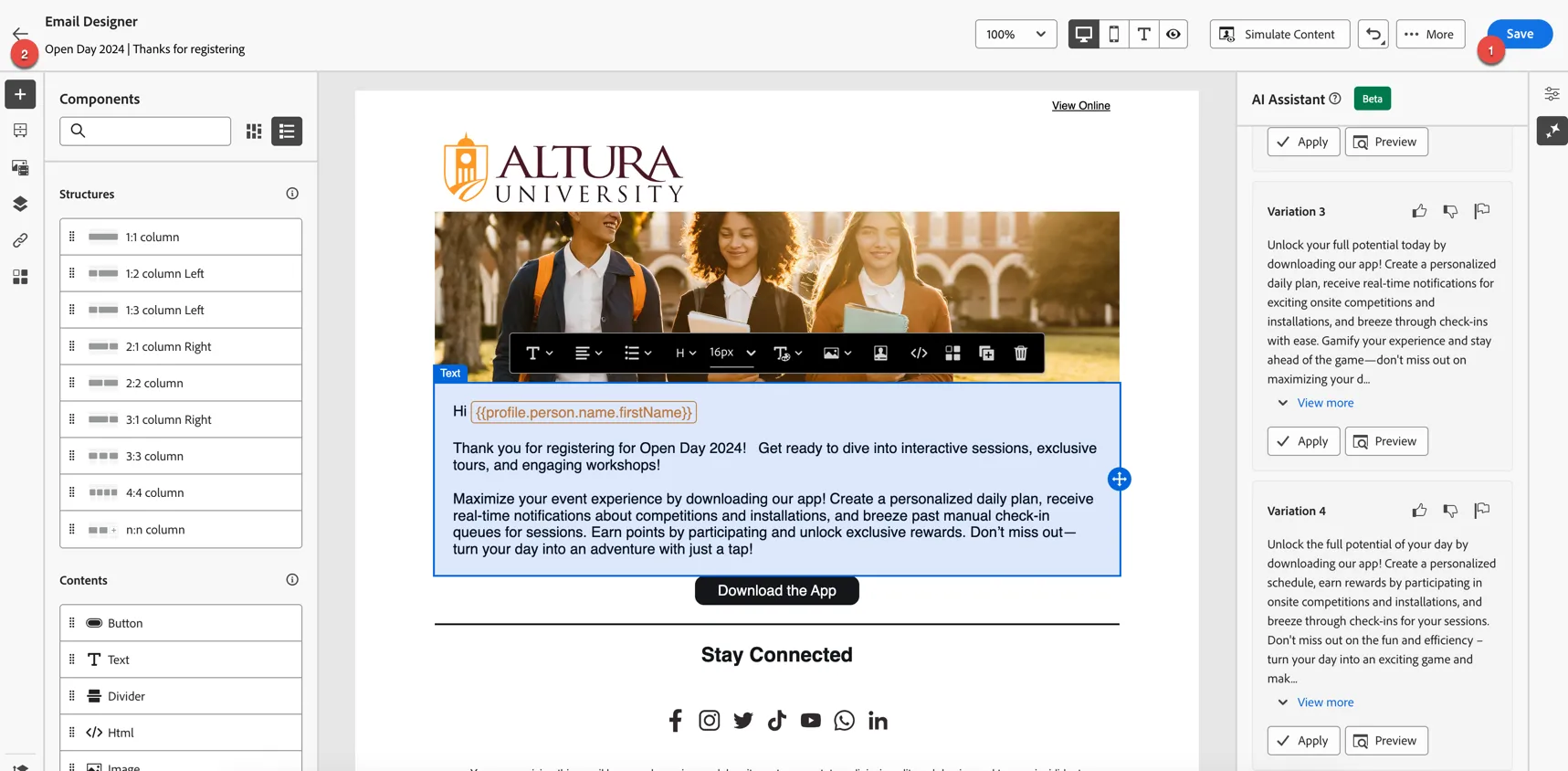
Once you're happy with the content, click Save then return to the journey using the Arrows on the top left.
Your journey should look like this:
Test your journey
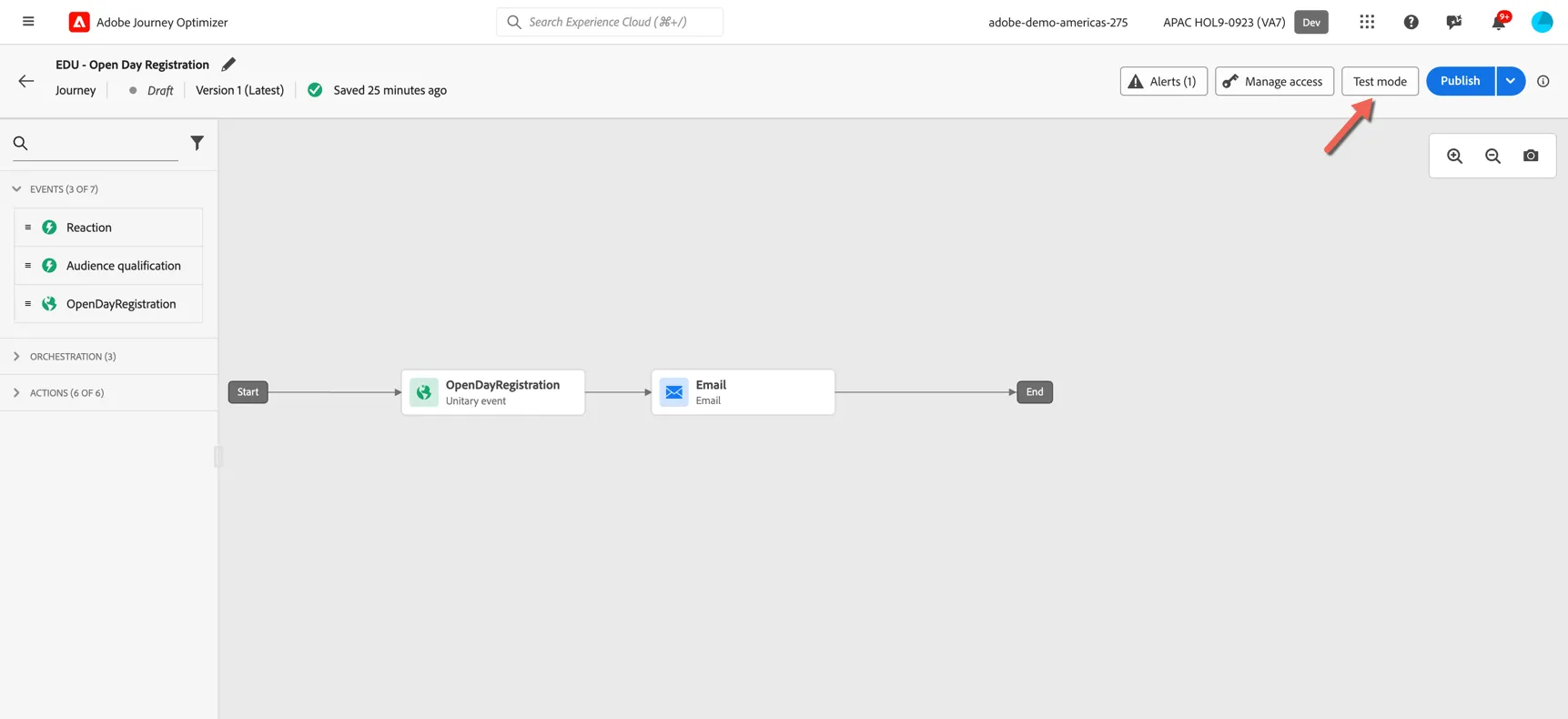
Before setting your journey live you can test it directly through the UI. Click on the button to activate Test mode.
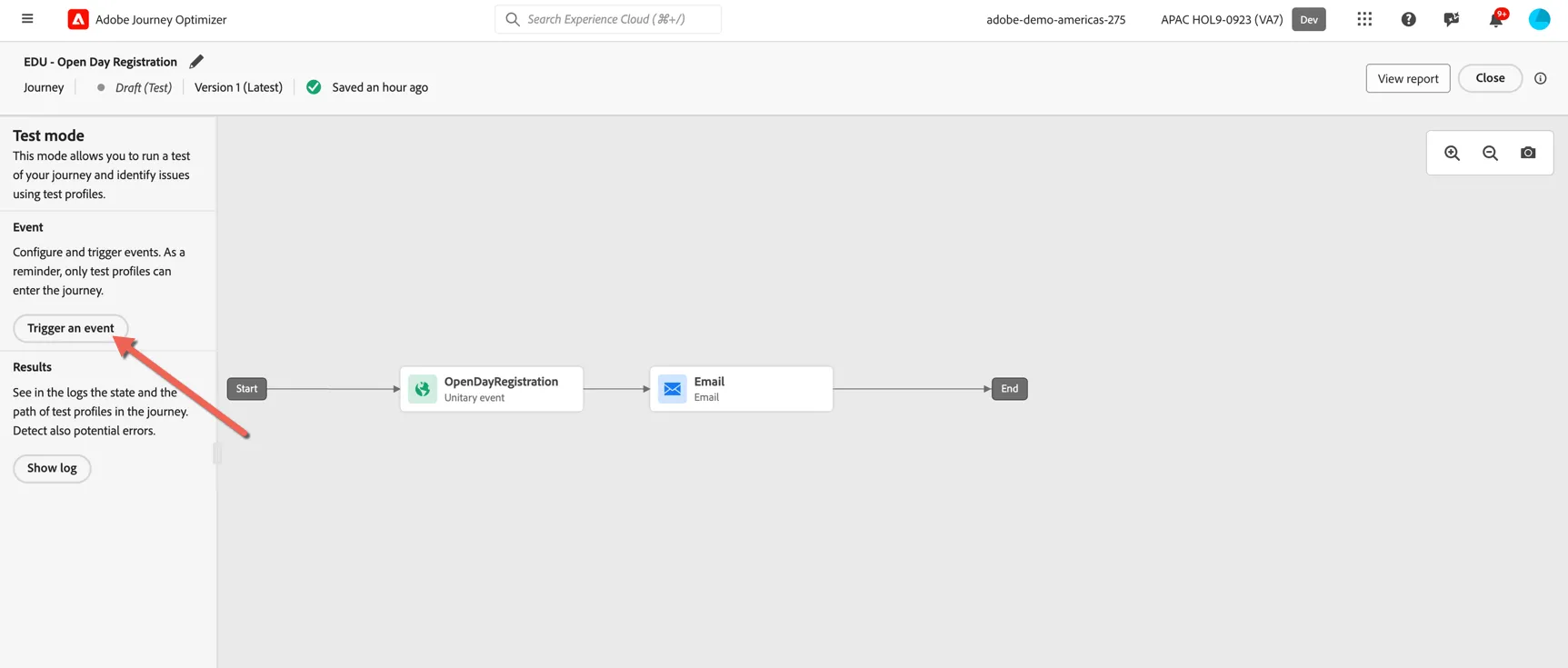
Once in test mode you can simulate an inbound event by clicking on the Trigger an event button.
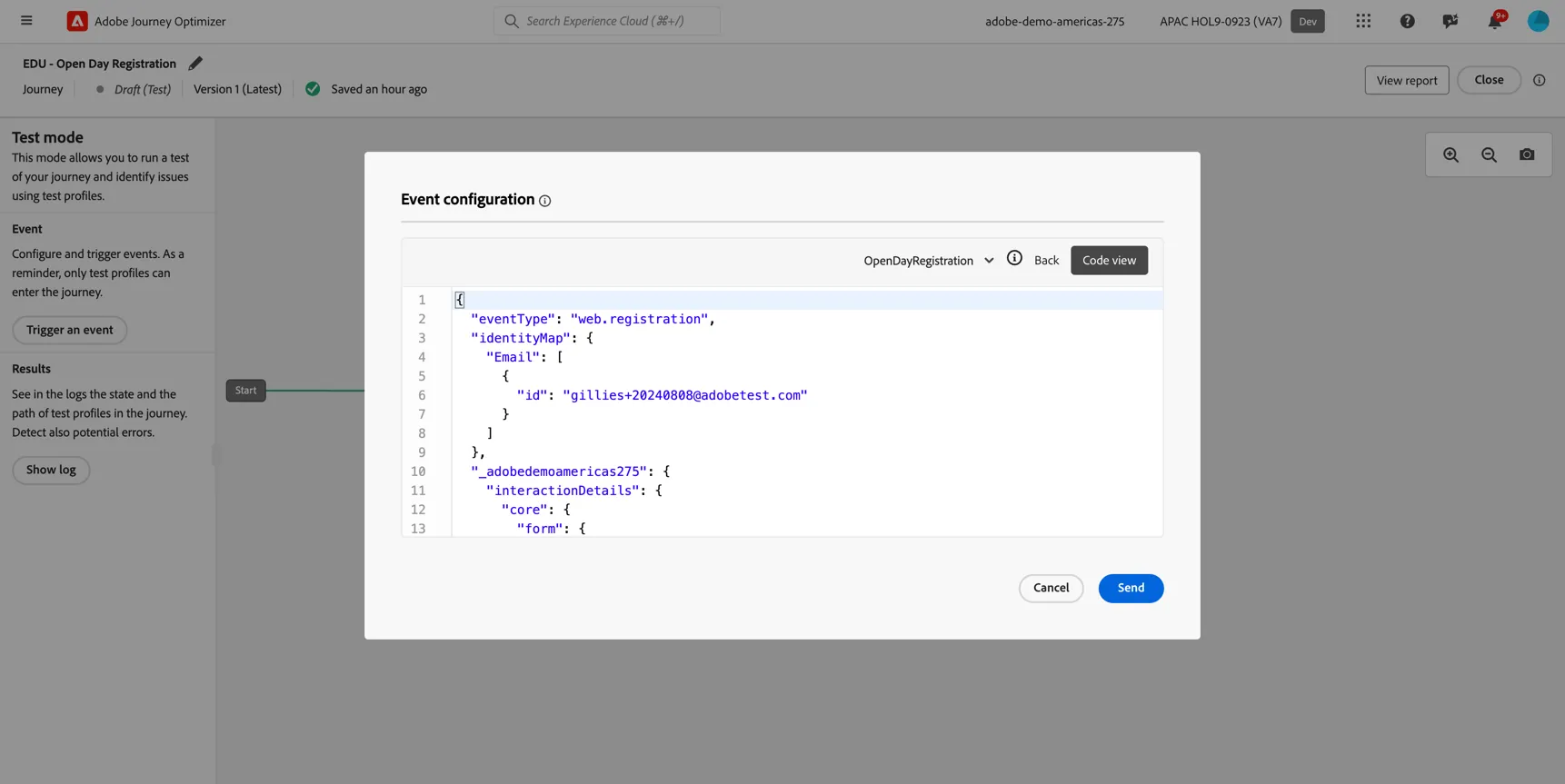
For the event simulation, change to Code view and copy the following event JSON into the window. Swap the Email -> id to match the email you used to register.
{
  "eventType": "web.registration",
  "identityMap": {
		"Email": [
			{
				"id": "[email protected]"
			}
		]
	},
	"_adobedemoamericas275": {
		"interactionDetails": {
			"core": {
				"form": {
					"action": "submit",
					"category": "registration",
					"name": "openDay2024"
				}
			}
		}
	}
}
Click Send to trigger the test.
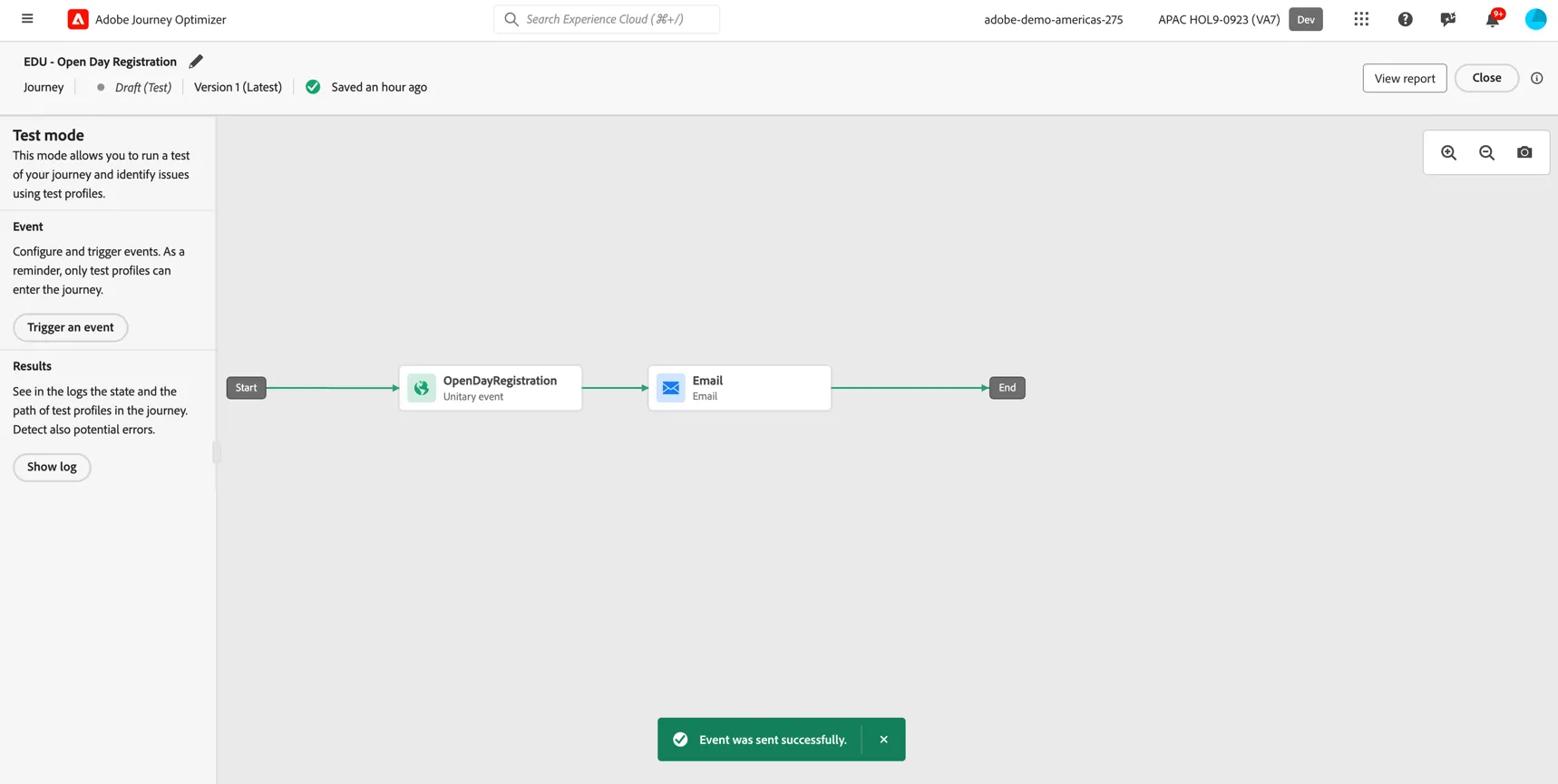
You'll see the line in the journey turn green and you should get a notification saying the event was sent succcessfully.
Check your email (if you used your own email address) or look to the front of the class for your email to appear!
Congratulations you've built your first journey. Watch now while we extend this journey beyond the initial touchpoint.