Campaigns
As a marketer, you will begin by creating a campaign around a product launch for the WKND Brand for The Slot Canyon Active Shorts
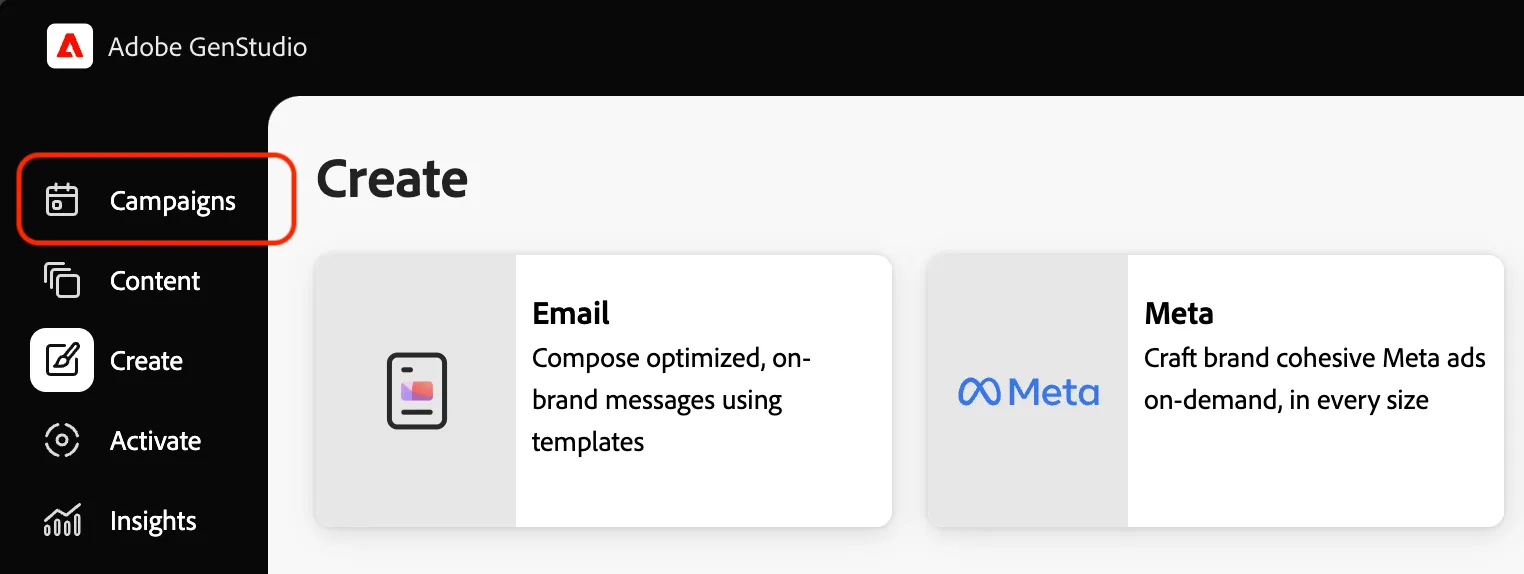
- Begin by navigating to the Campaigns area in the left sidebar
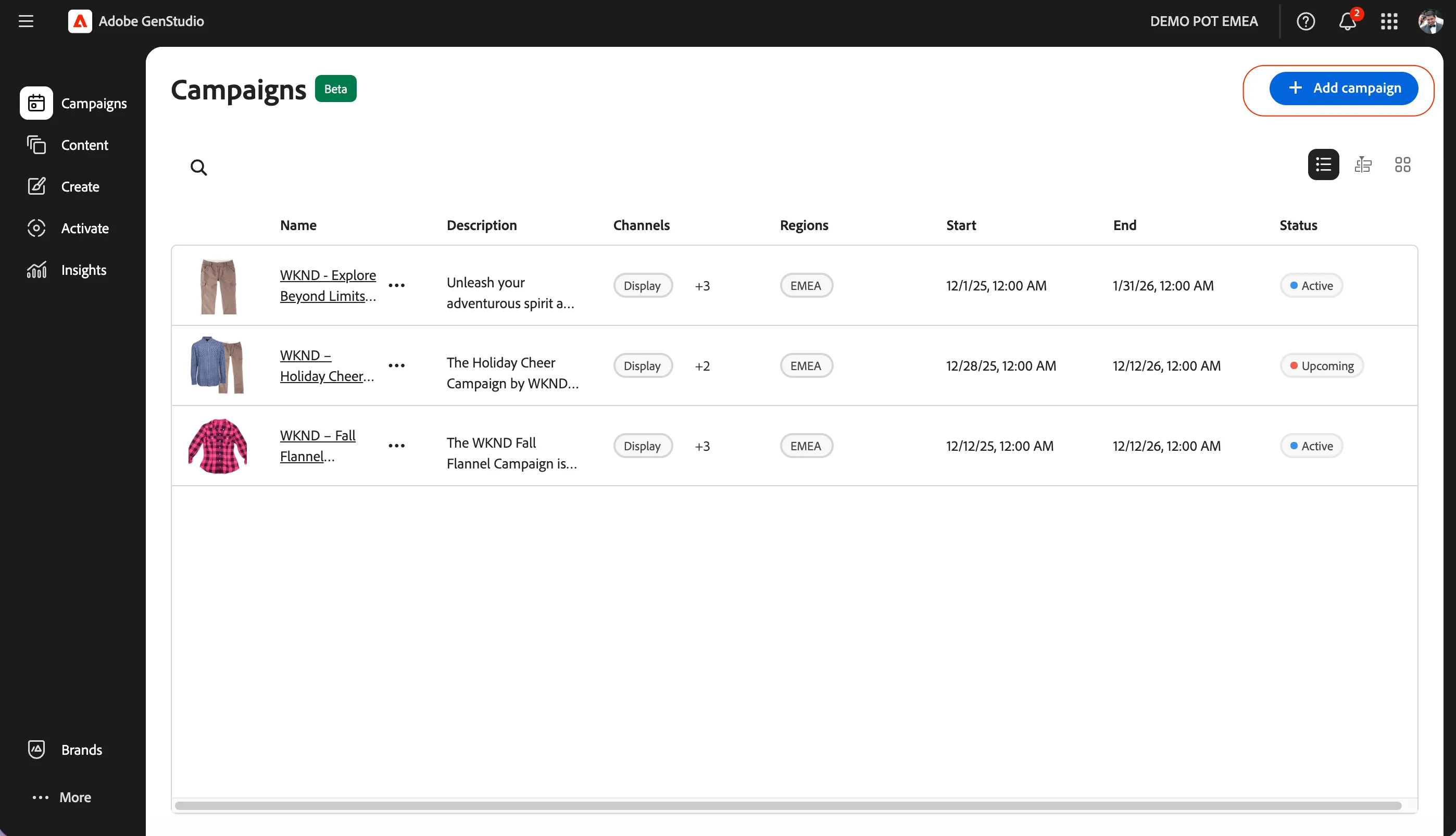
- Click on the Add Campaign button on the top right to create a new campaign.
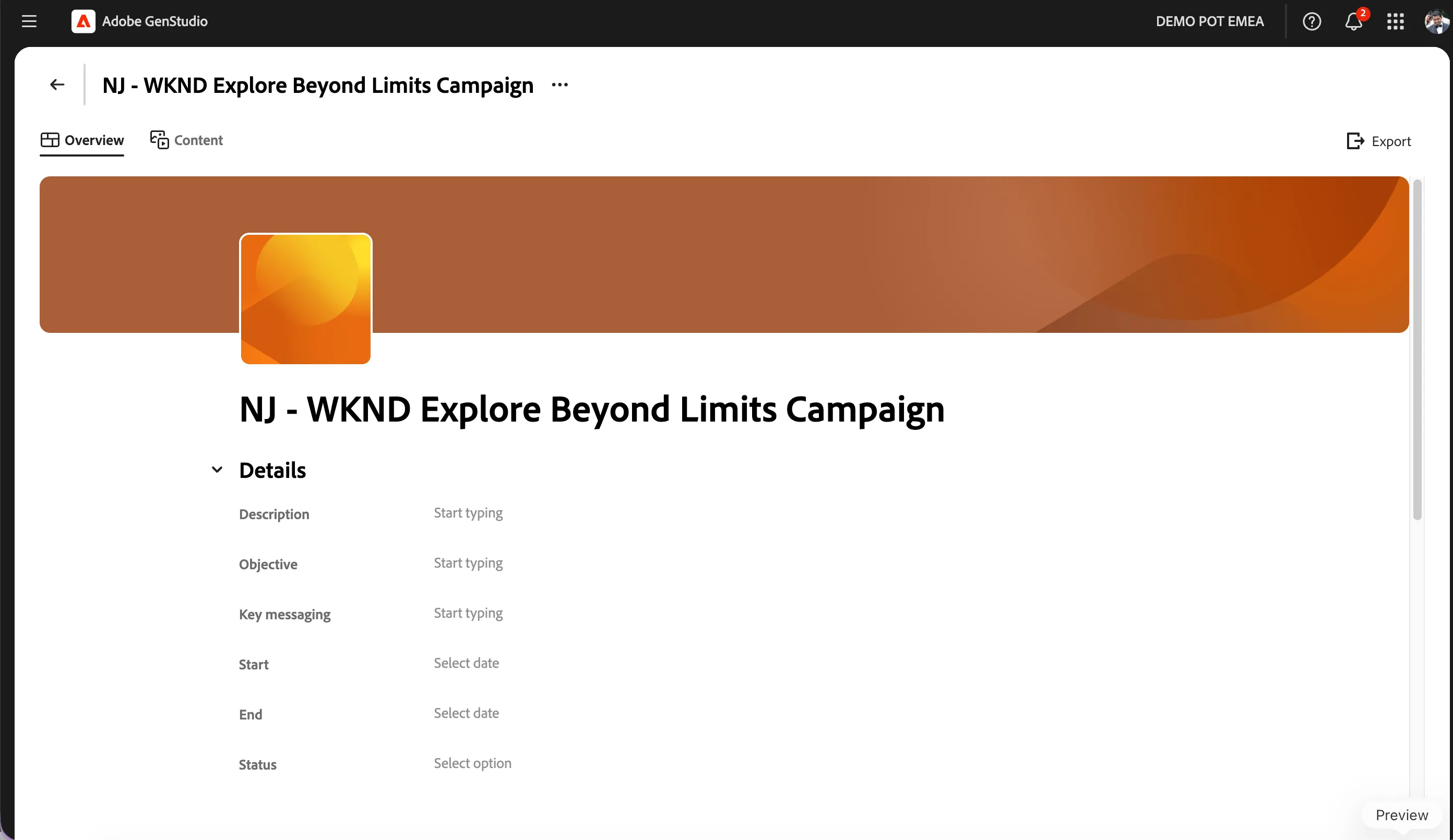
After your campaign is created, give it a unique Name such as [your initials] - WKND Explore Beyond Limits Campaign eg. NJ - WKND Explore Beyond Limits Campaign
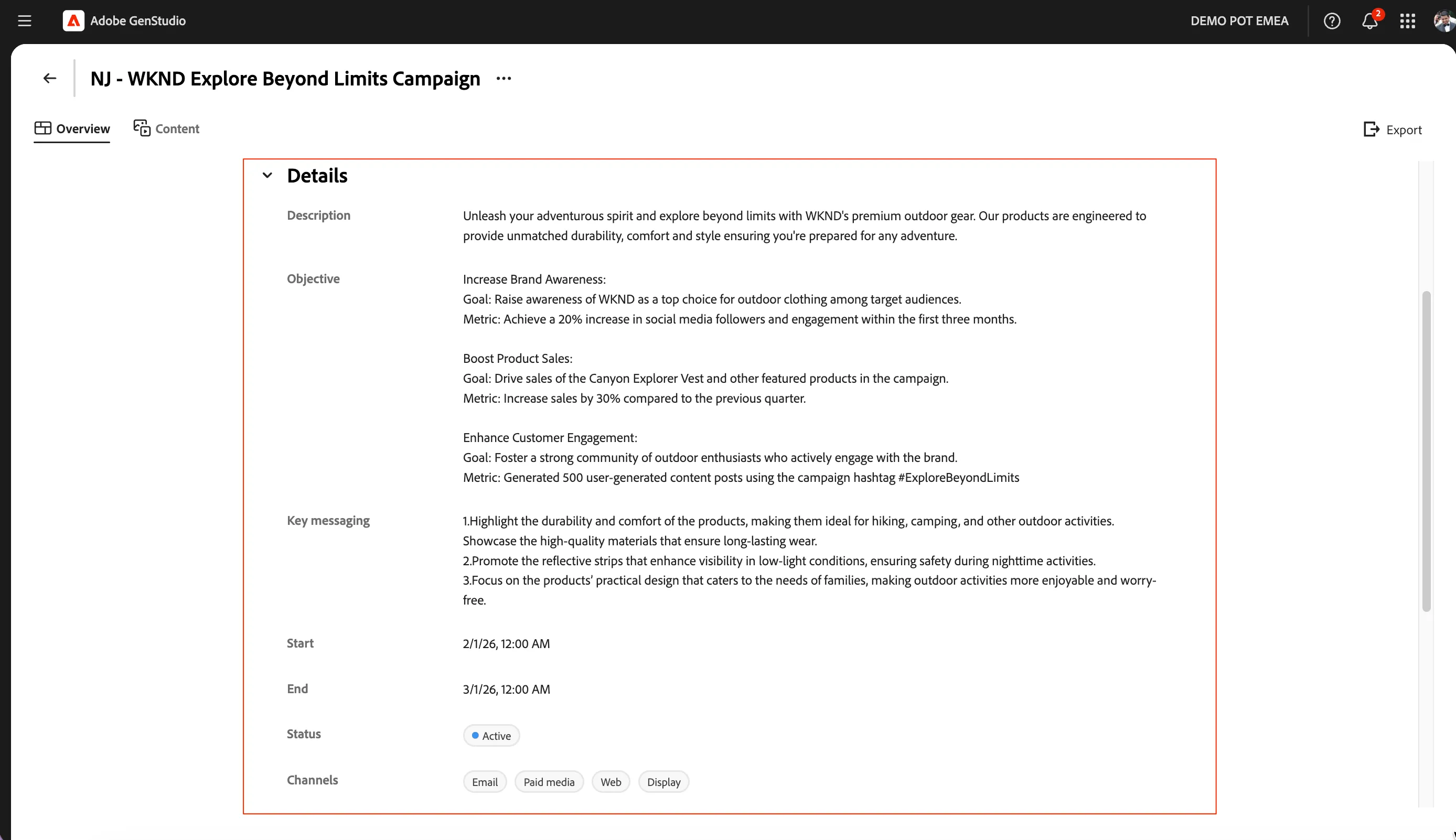
Now fill in the other details about the campaign. Please feel to update as per your campaign process or use as below
Description :
Objective :
Key messaging :
Start Date : Select today date eg. 02/05/2026
End date : Select any future date eg. 03/31/2026
Status : Select Active
Channels : Select All by clicking Email, Paid media, Web & Display
Region: Select EMEA
The changes you make are Auto saved. It should look something like below.
Scroll down to the references section. You can add Product(s) and Persona(s) here.
Click on + Connect next to Products and select The Slot Canyon Active Shorts and/or other products.
Click on + Connect next to Personas and select Adventurere and/or other personas.
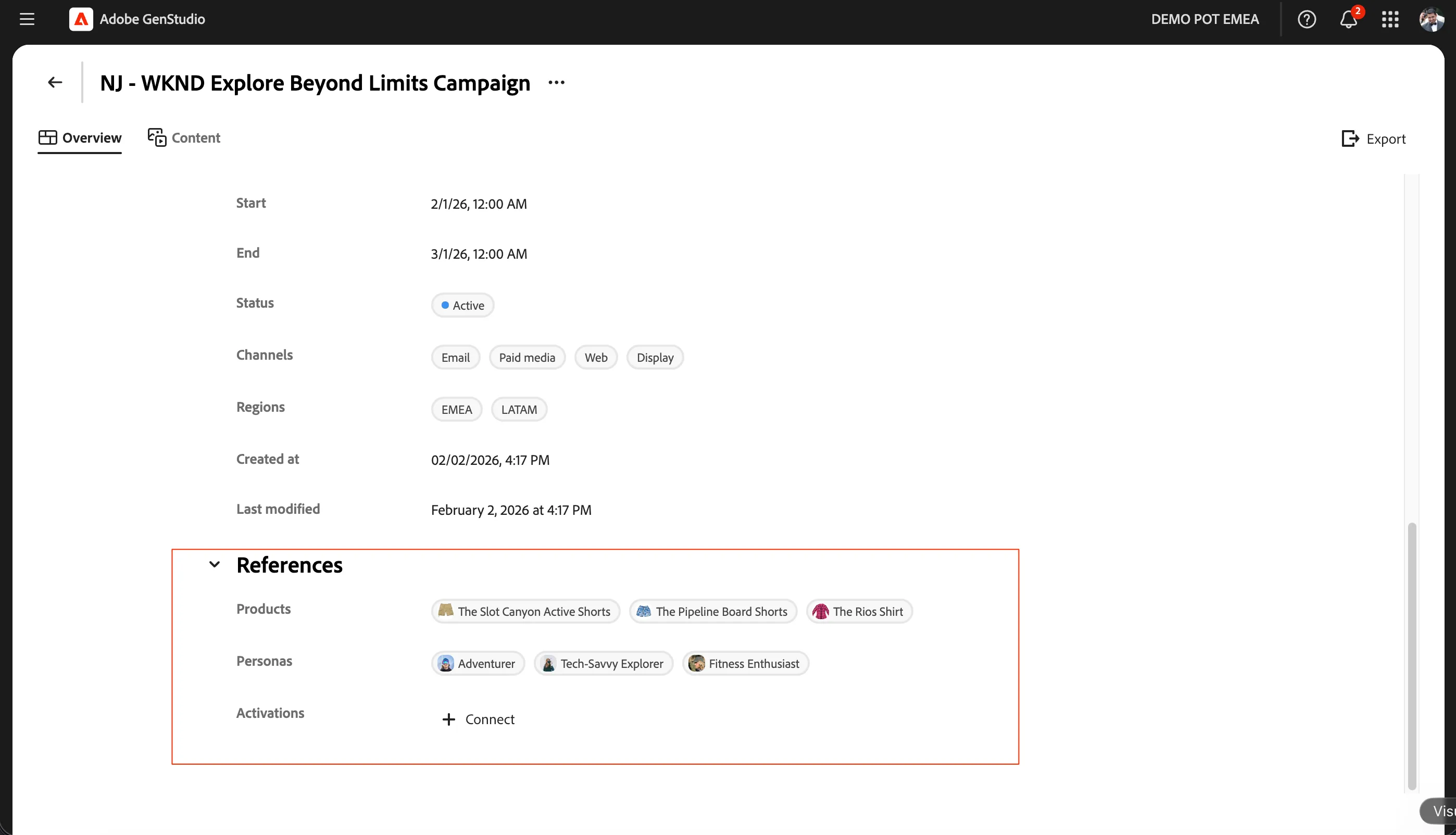
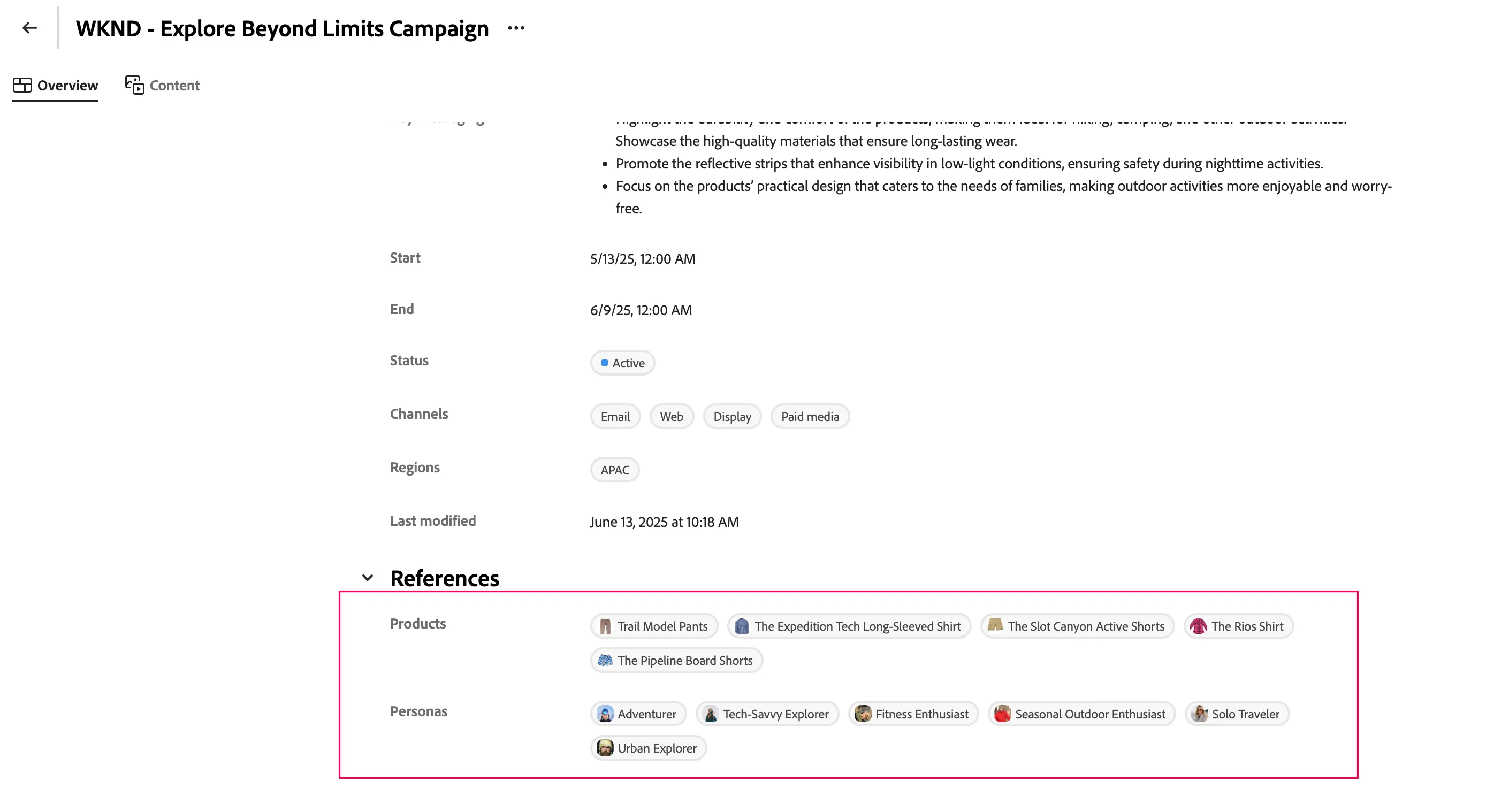
- Scroll down and check the product and persona for this Campaign. You can click on it to see the detail.
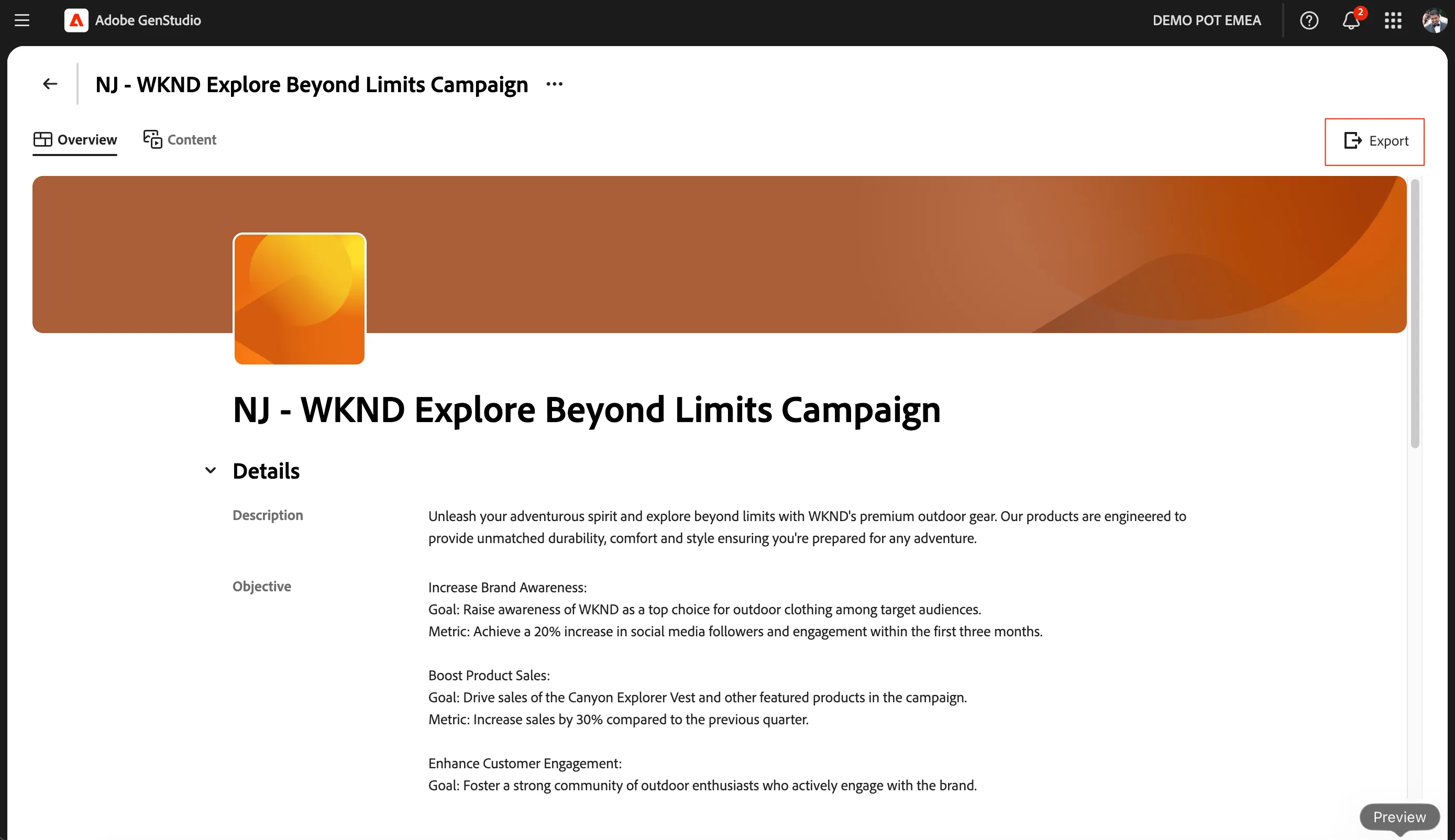
It is also possible to export a Word/PDF version of the Campaign by clicking on Export button in the upper right corner. This will provide a document that is marketer friendly.
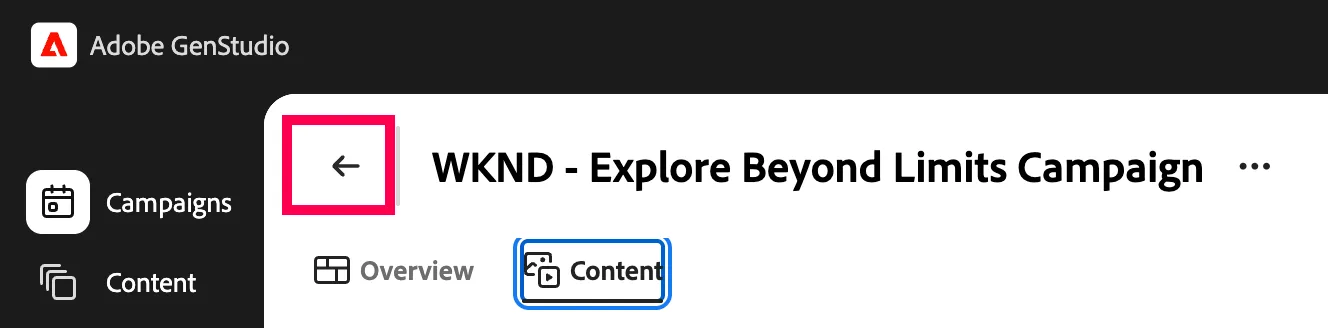
- Click the icon to exit the campaign details
- Click on the Calendar view for another way to review campaigns.
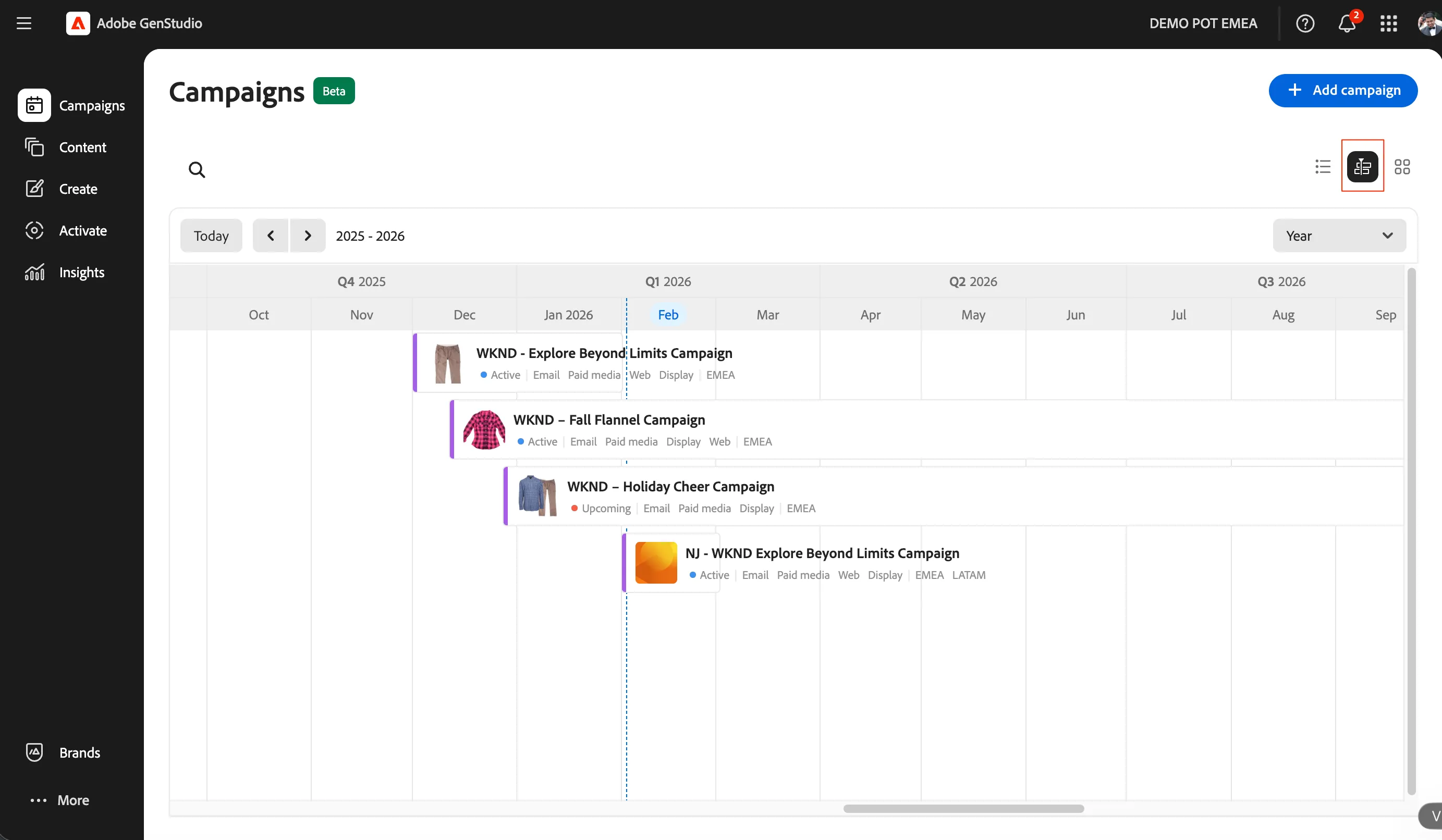
Having the information at hand for a campaign is a great starting point, but now attach some assets which we will be using the campaign.
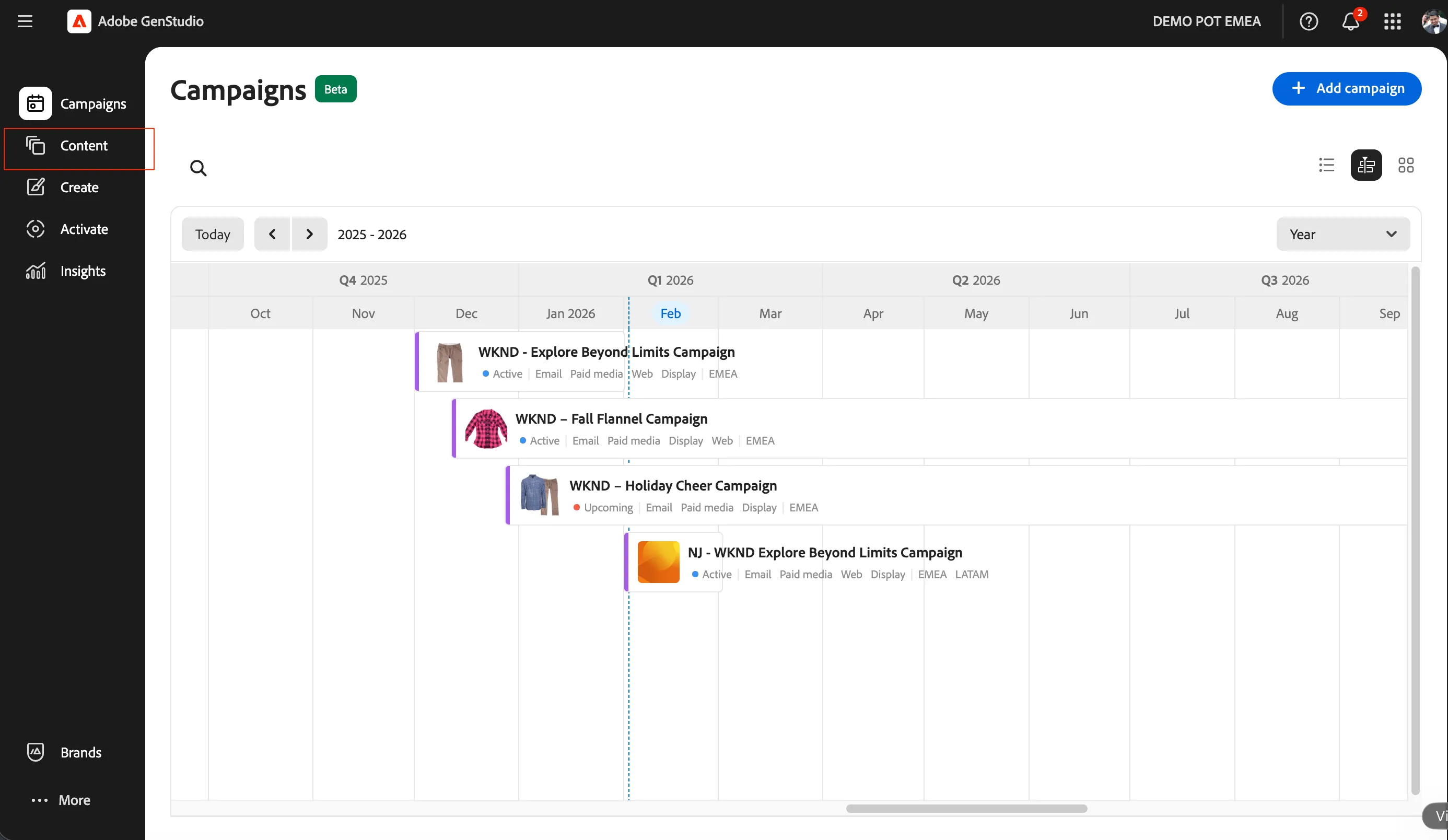
- Click on Content tab in the left navigation to manage all your assets, approved experiences and templates.
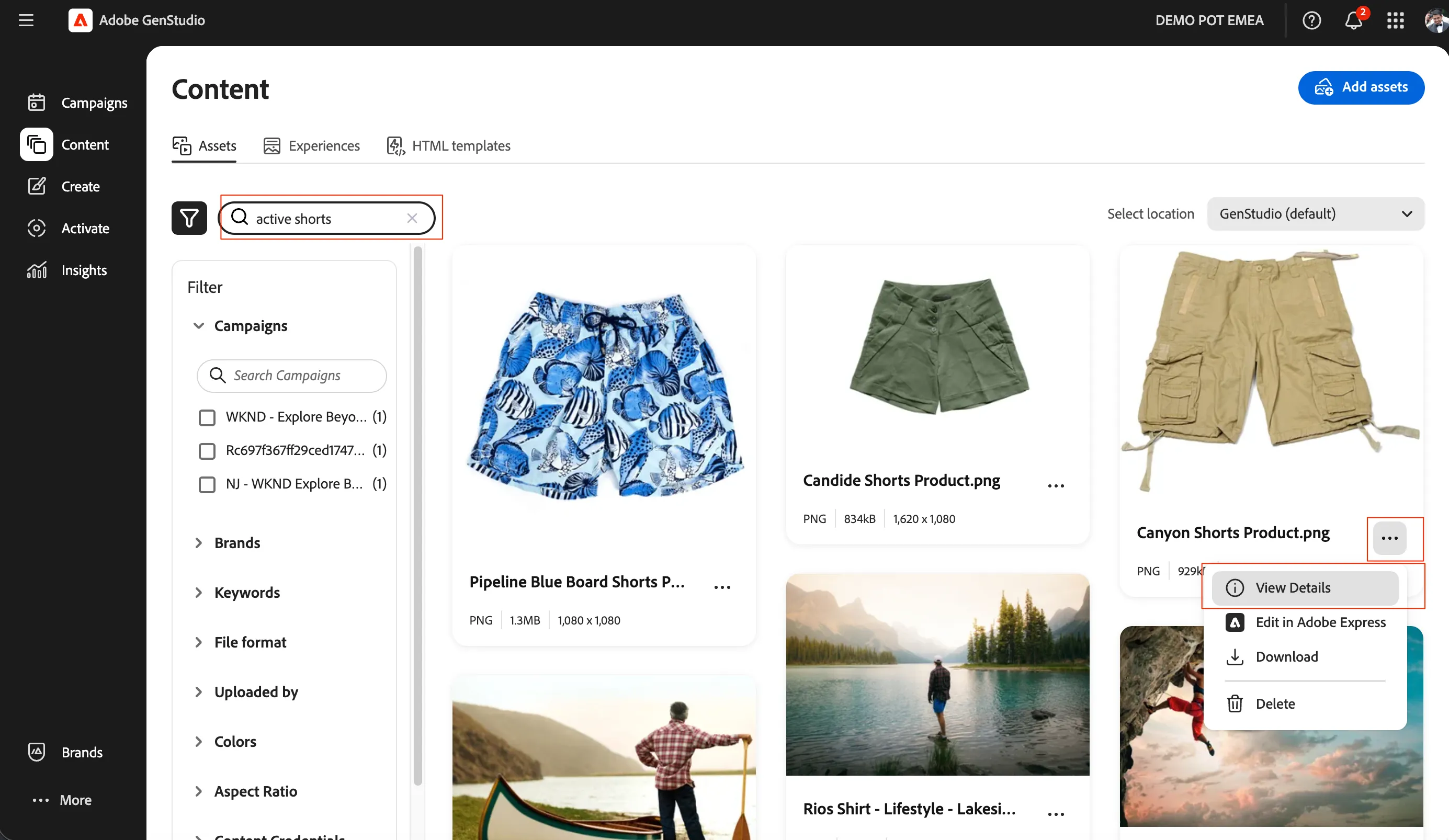
- Since we are looking to market Active Shorts, we can search for all the variations of the Active Shorts using the search bar.
- Once you find your desired asset, click on the icon next to the title and then View Details to review and edit the asset.
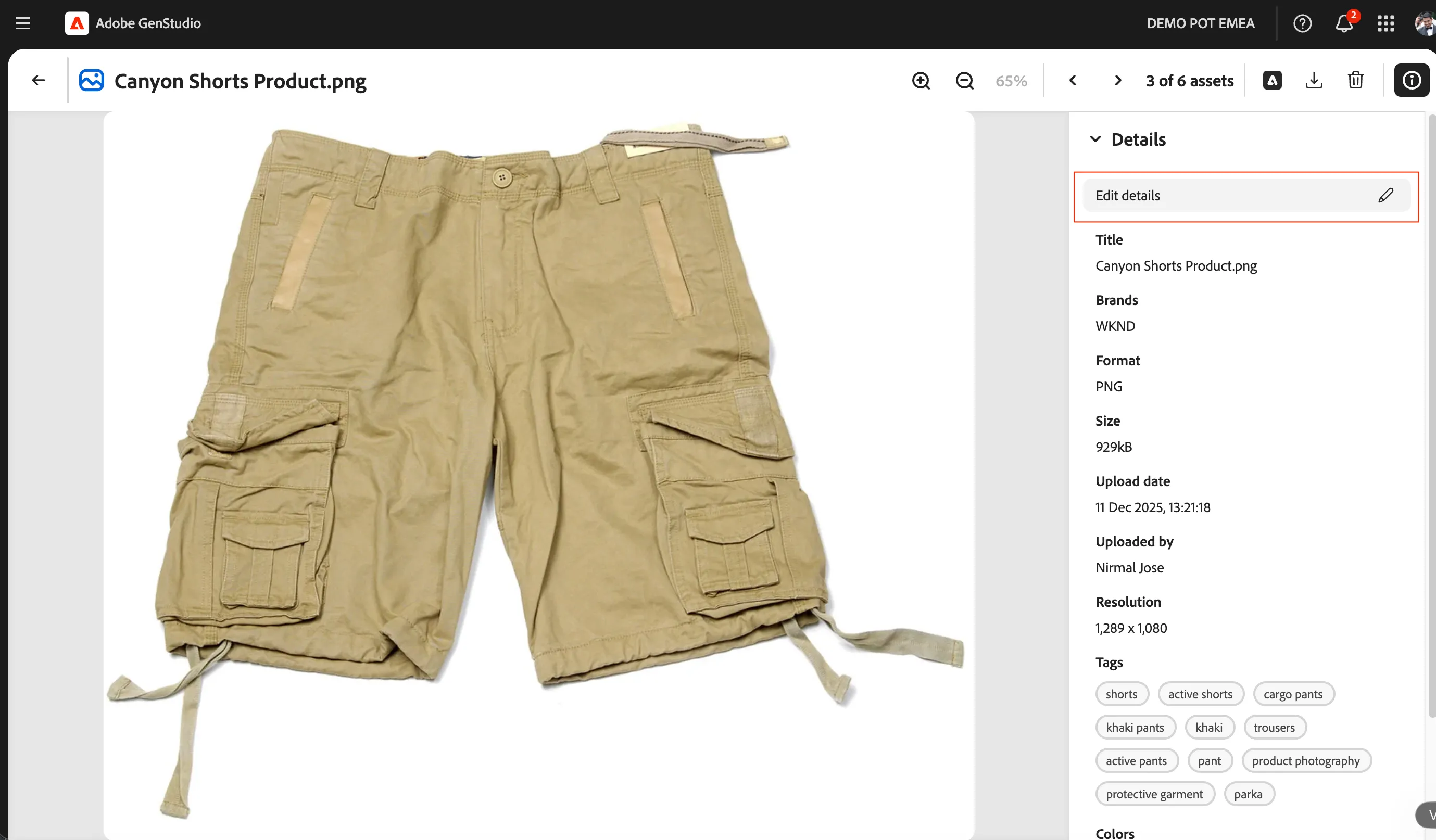
- Click on Edit Details to edit the metadata for the asset.
- Under the Campaigns field select the name of your campaign you created previously. Optionally, you can put in other metadata for tracking your asset better.
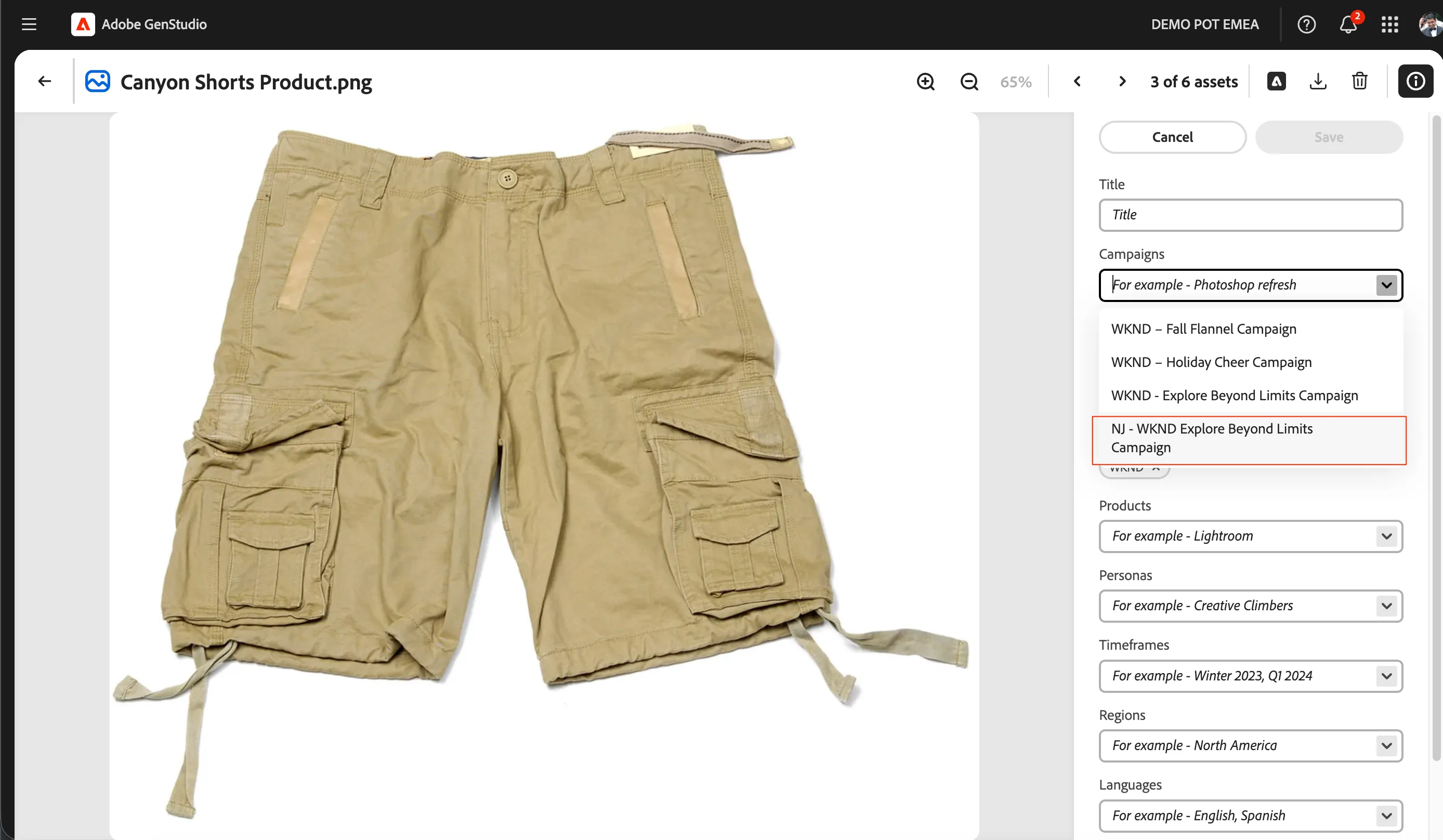
- Click on Save to save the metadata update of the asset. Once done, the associated campaign will be visible in the metadata.
- Click on icon to go back.
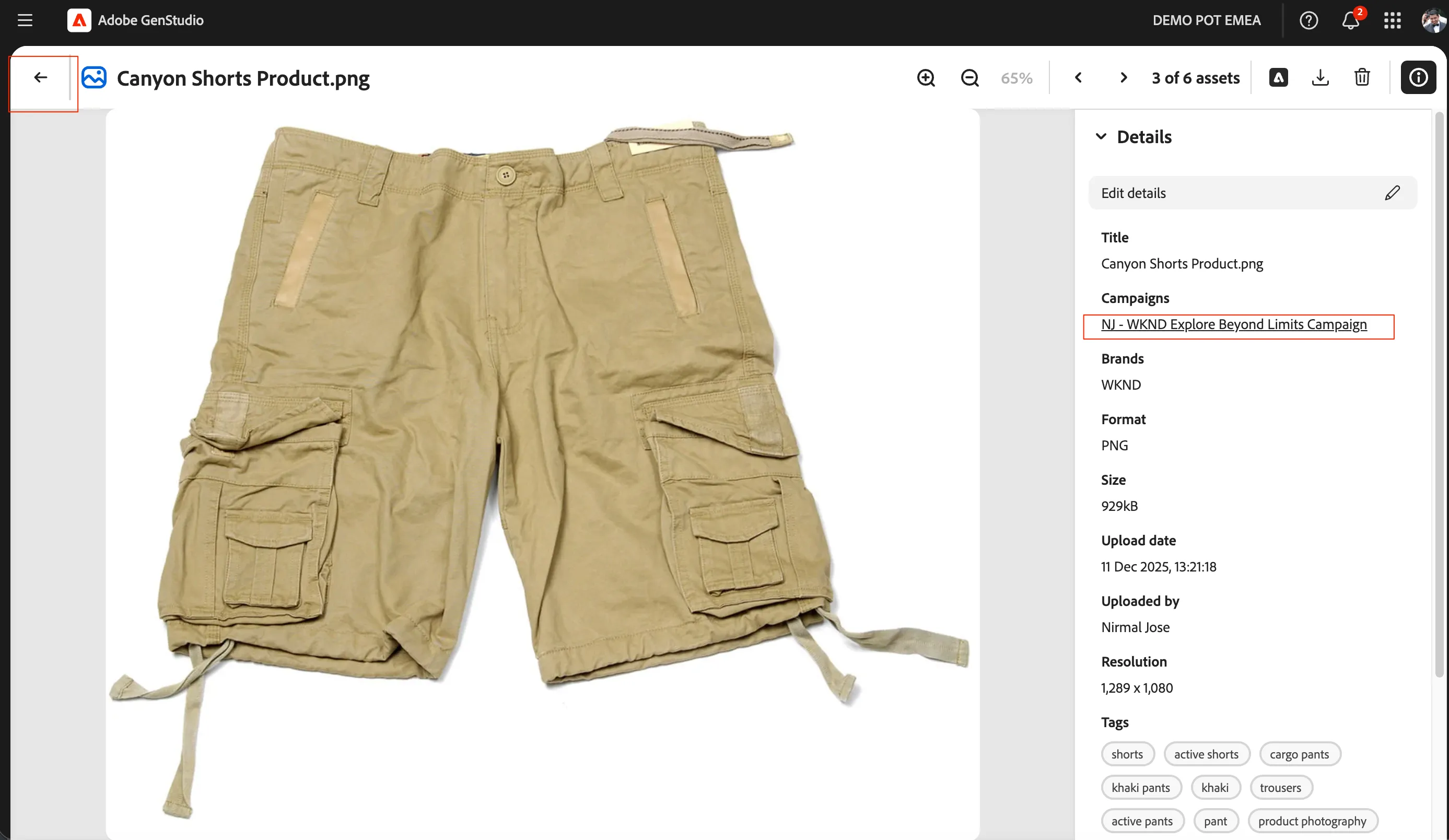
Now, the asset is tagged for the campaign. Lets go back to the campaign once again.
- Click on campaign menu item from left hand navigation menu.
- Click on the campaign you created [your initials] - WKND Explore Beyond Limits Campaign eg. NJ - WKND Explore Beyond Limits Campaign
- Click on Content tab.
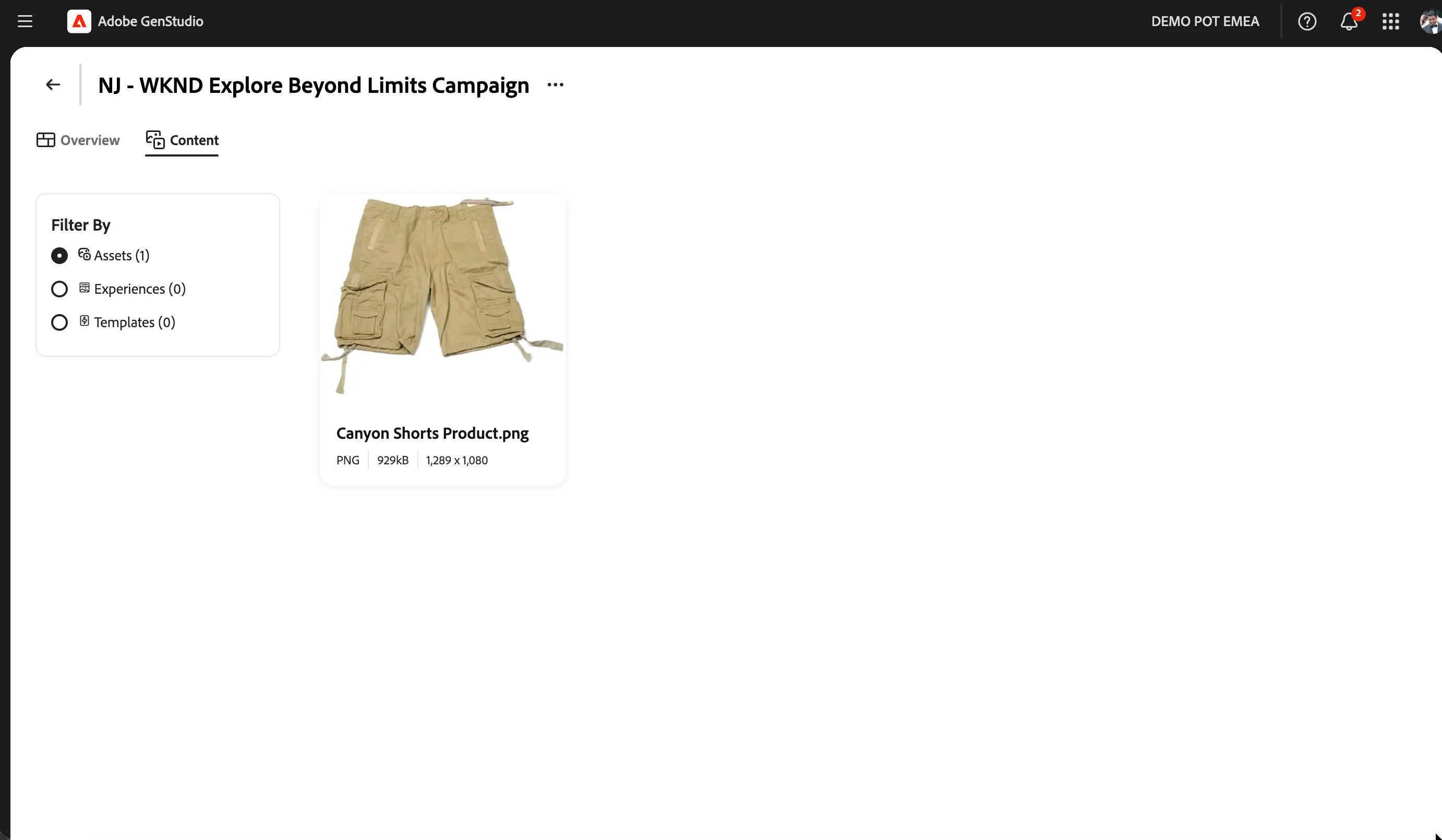
You have now successfully created a campaign and have associated some approved assets to the campaign.