
Journey Building
7 min
In this exercise we'll create an account journey targeting your High Value Retail accounts with a nurturing email campaign.
Our journey will:
- Regionalize communications based on the account location
- Personalize messaging and communciation channel based on role within the buying group
- Listen for follow up activity on the website and update the buying group status accordingly
The final journey will look like this:

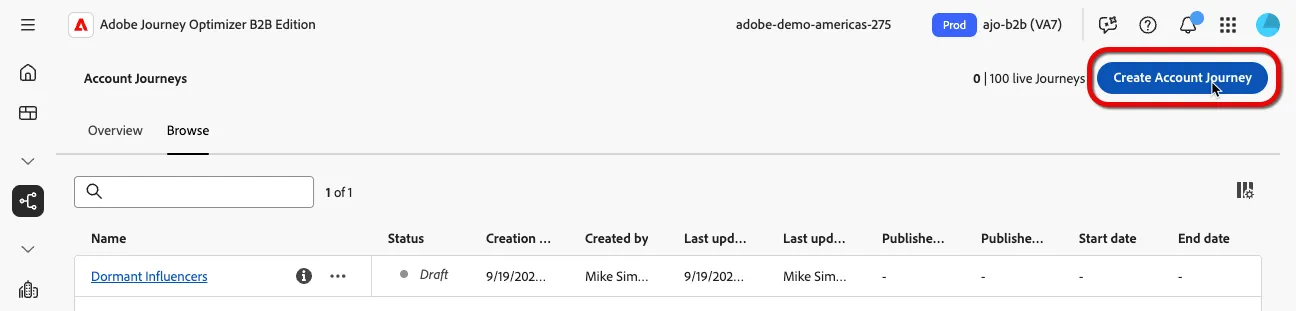
- From the menu, select "Account Journeys" on the left navigation bar and click "Create Account Journey".
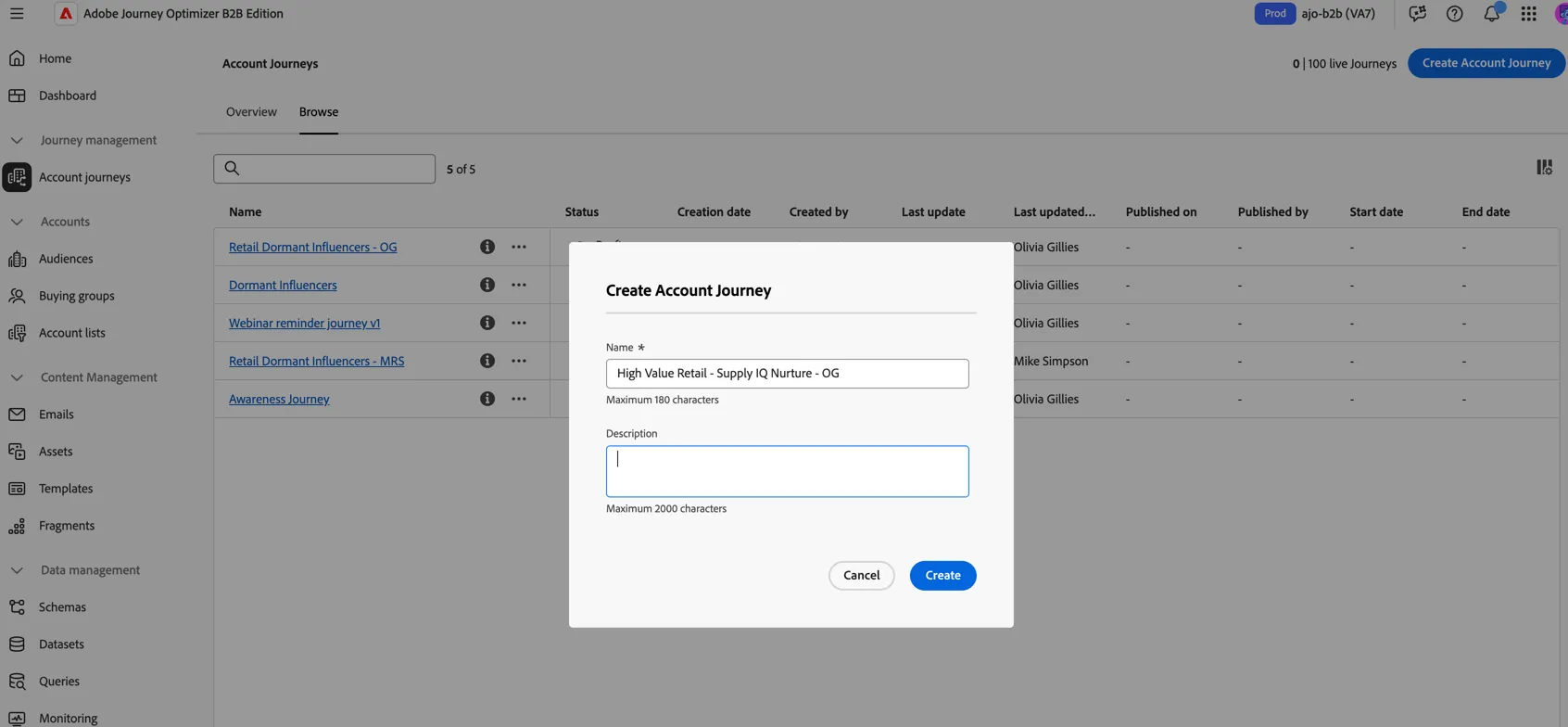
- Name your journey "High Value Retail - Supply IQ Nurture - <your initials>" and click to Create
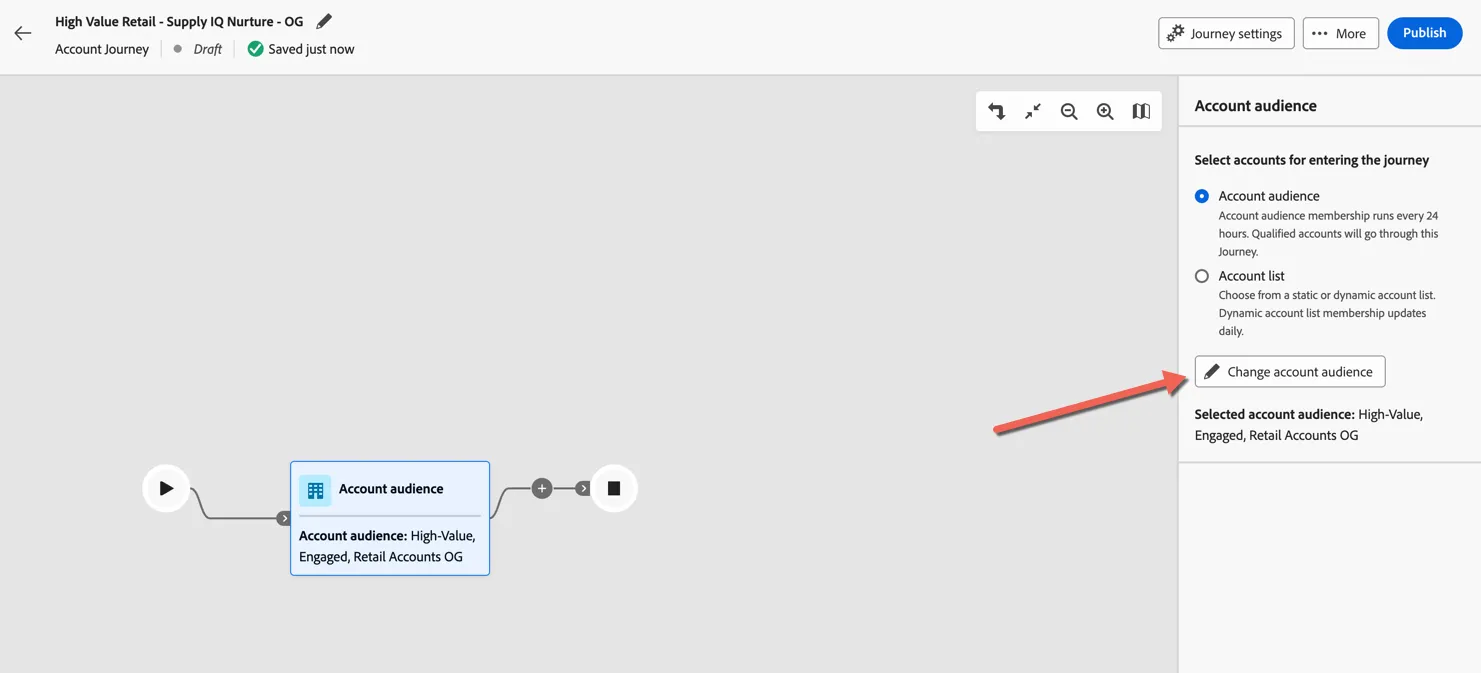
- Select the account audience you created earlier to start the journey
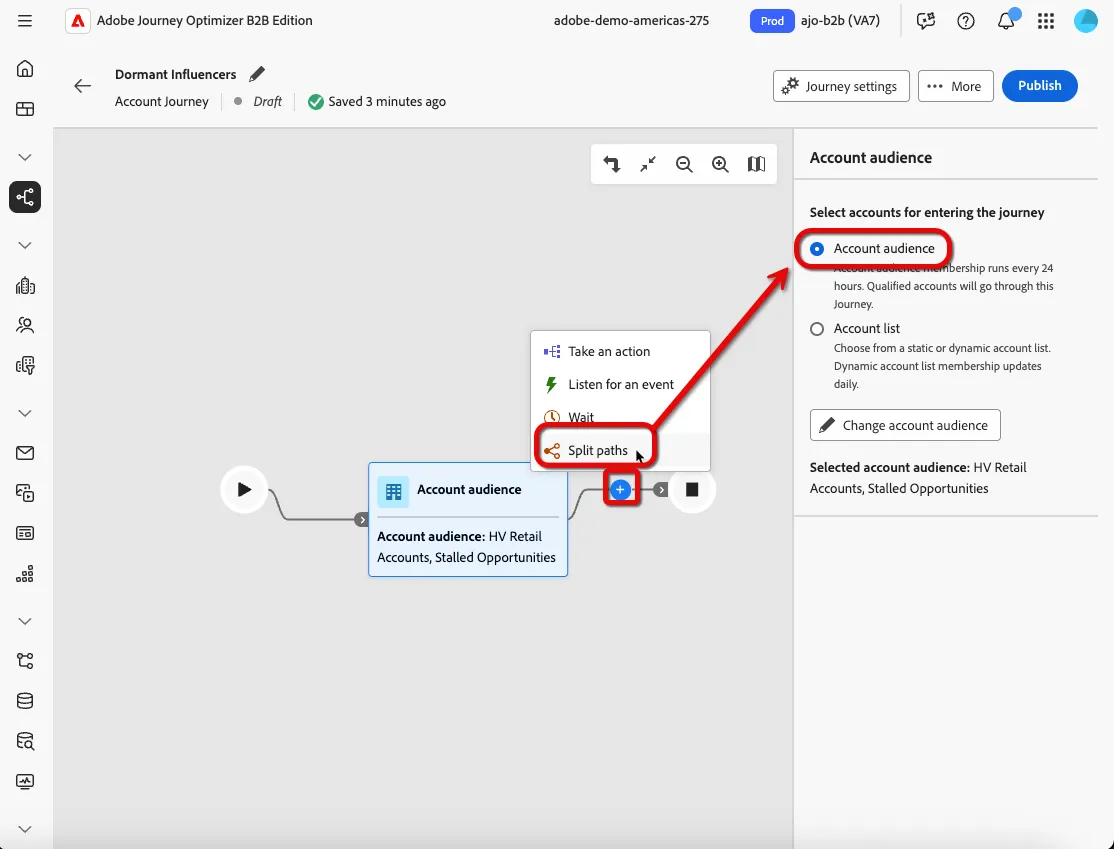
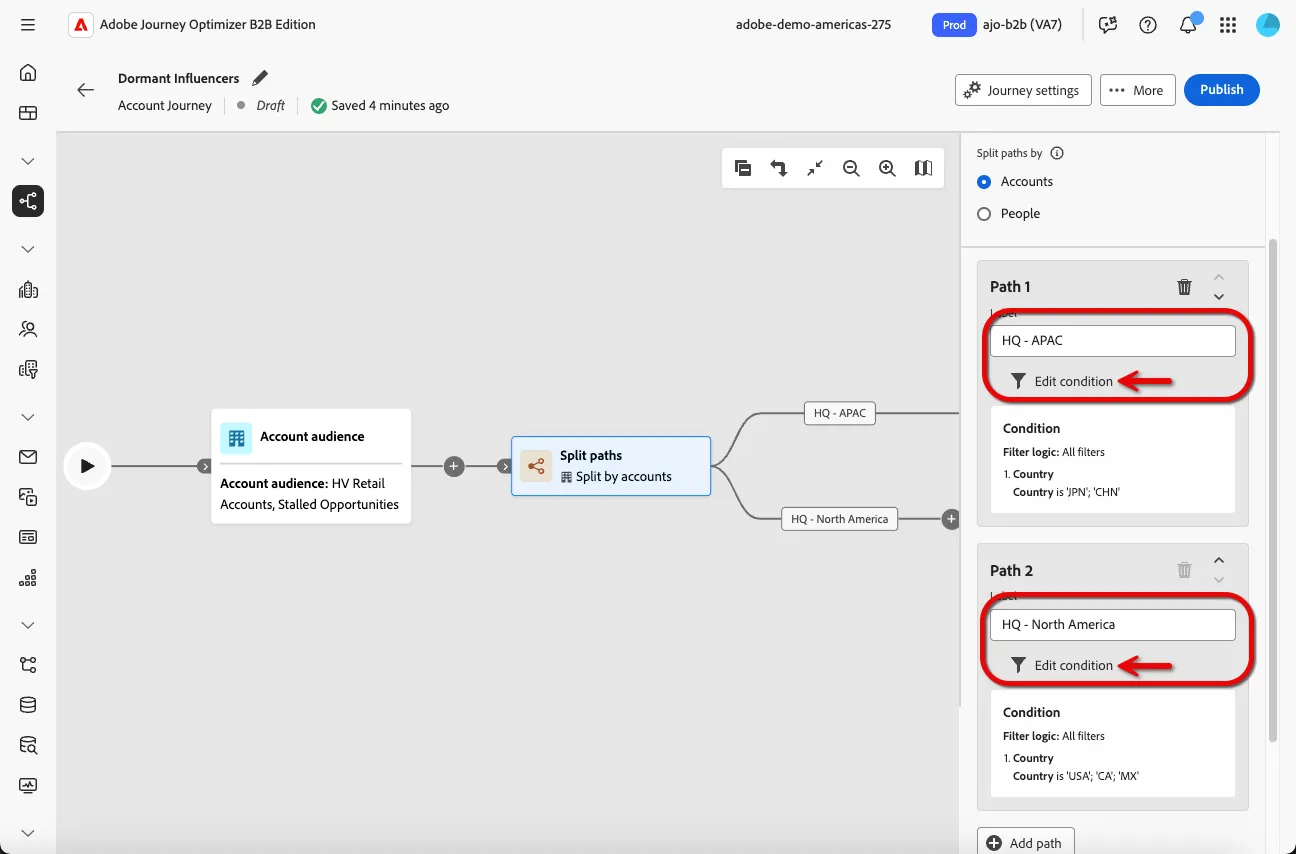
- Add a Split Paths node and select the Split paths by Accounts radio button
- Create two paths for different market regions
- North America
- Asia Pacific
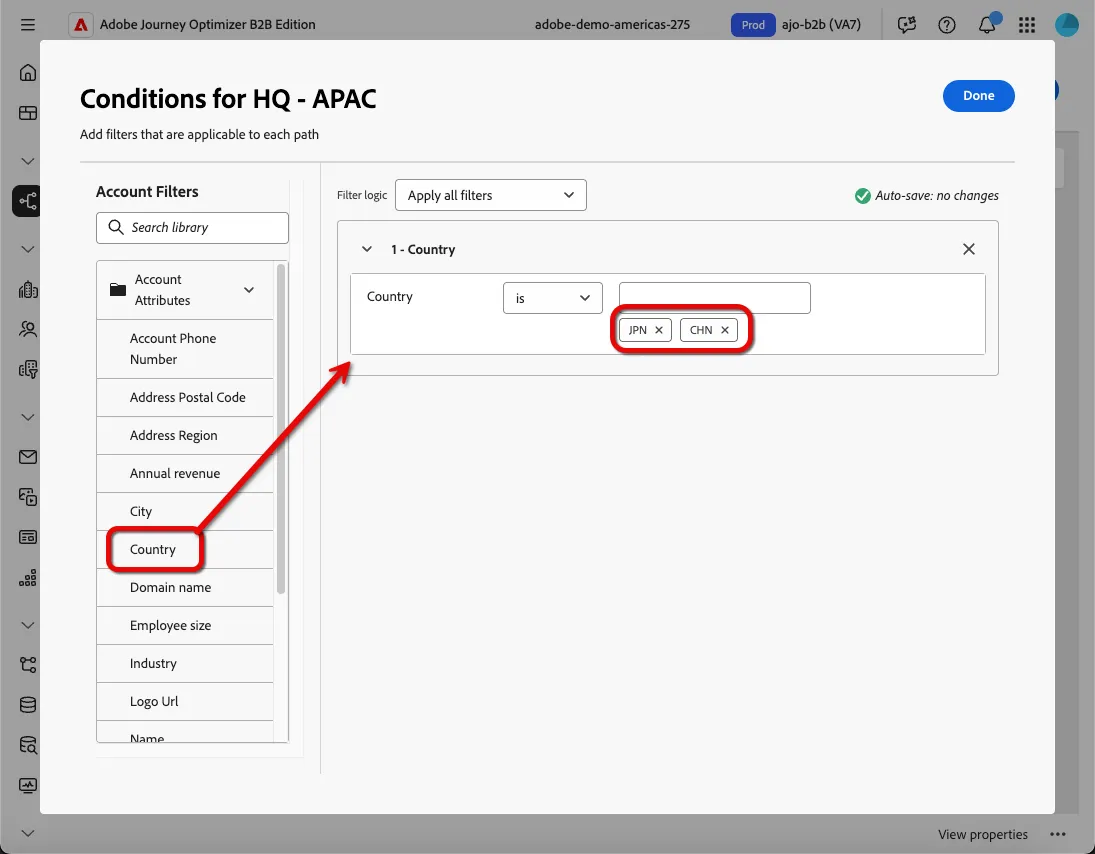
- Add the filter Country to each path condition and add the following country codes to their corresponding region
- APAC: JPN and CHN
- North America: USA, CA, MX
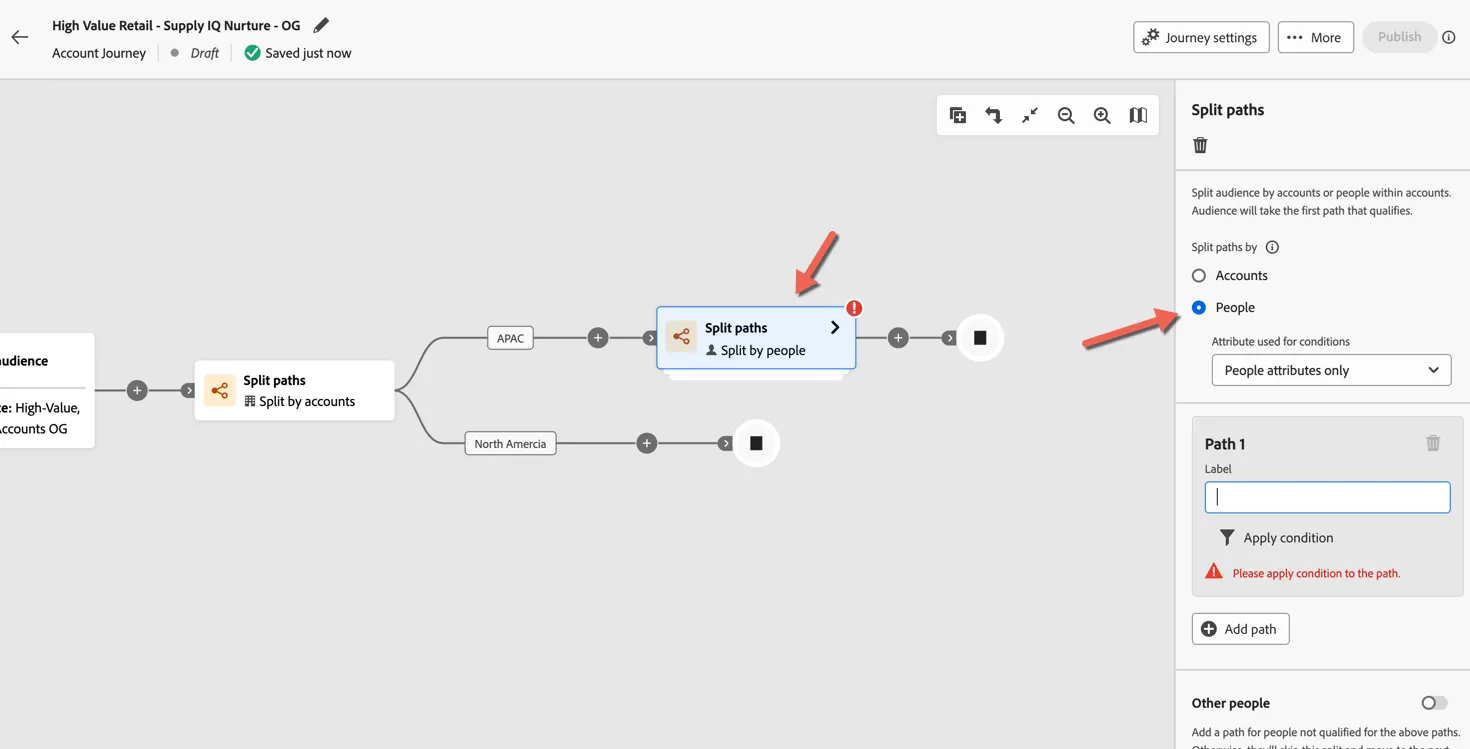
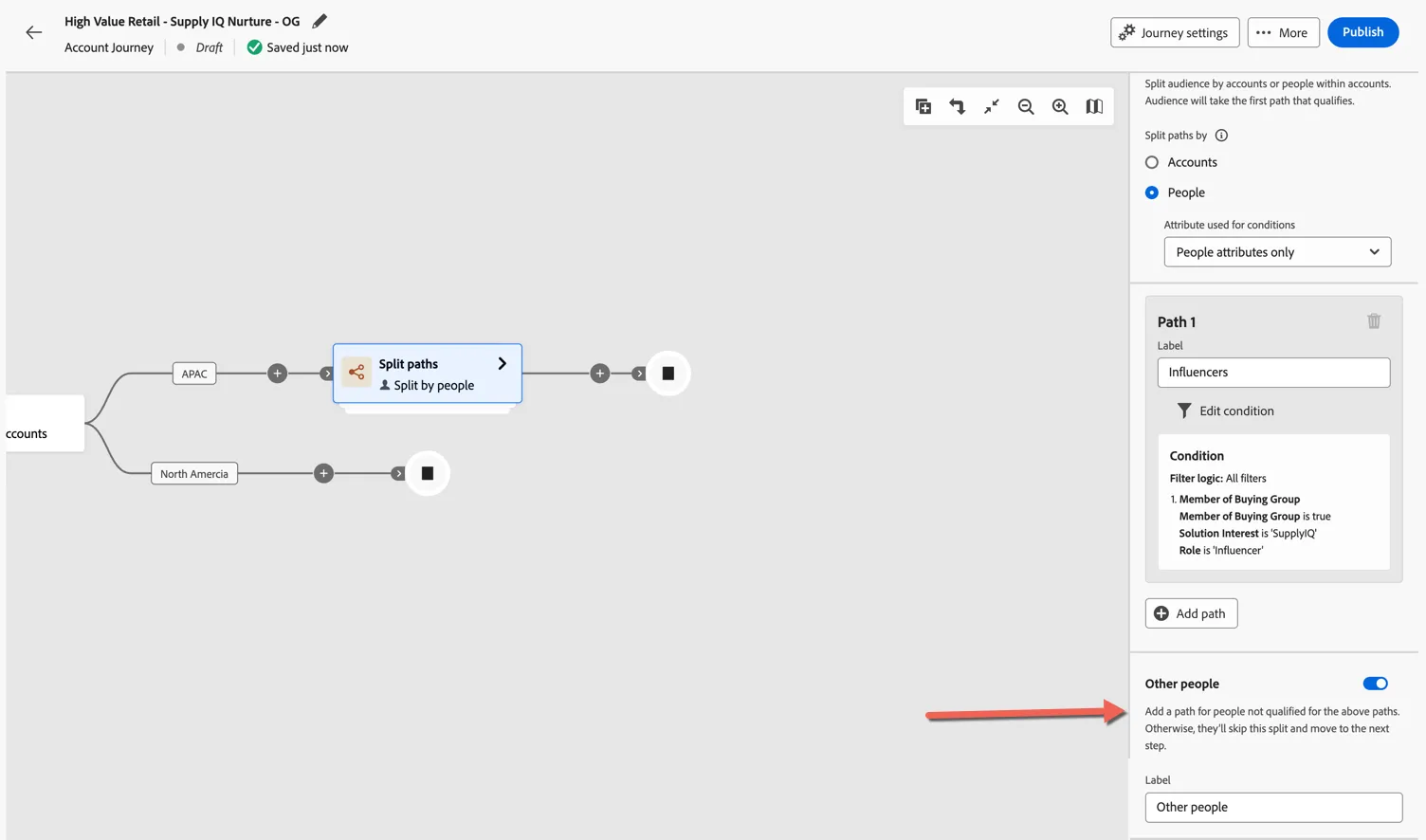
- Split paths again for the APAC branch and select the People Audience radio button.
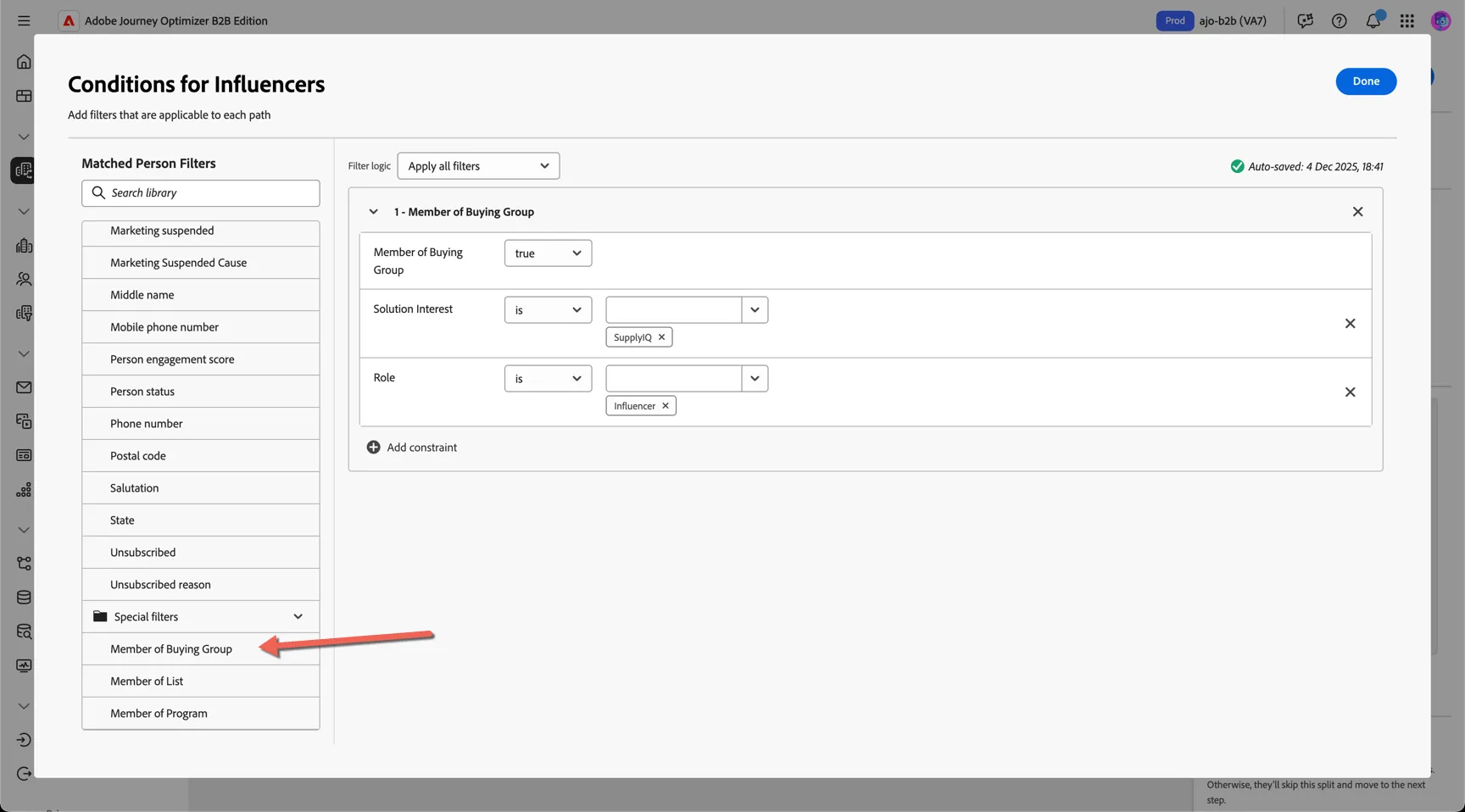
- Name the first path Influencers and click Edit condition option. Select the Special Filter condition Member of Buying Group and select:
- Member of buying Group: true
- Solution Interest: SupplyIQ
- Role: Influencer
- Flip the Other people toggle
- Open the split by clicking on the arrow and add a Take an Action node to the new Influencers path and the Other People Path.
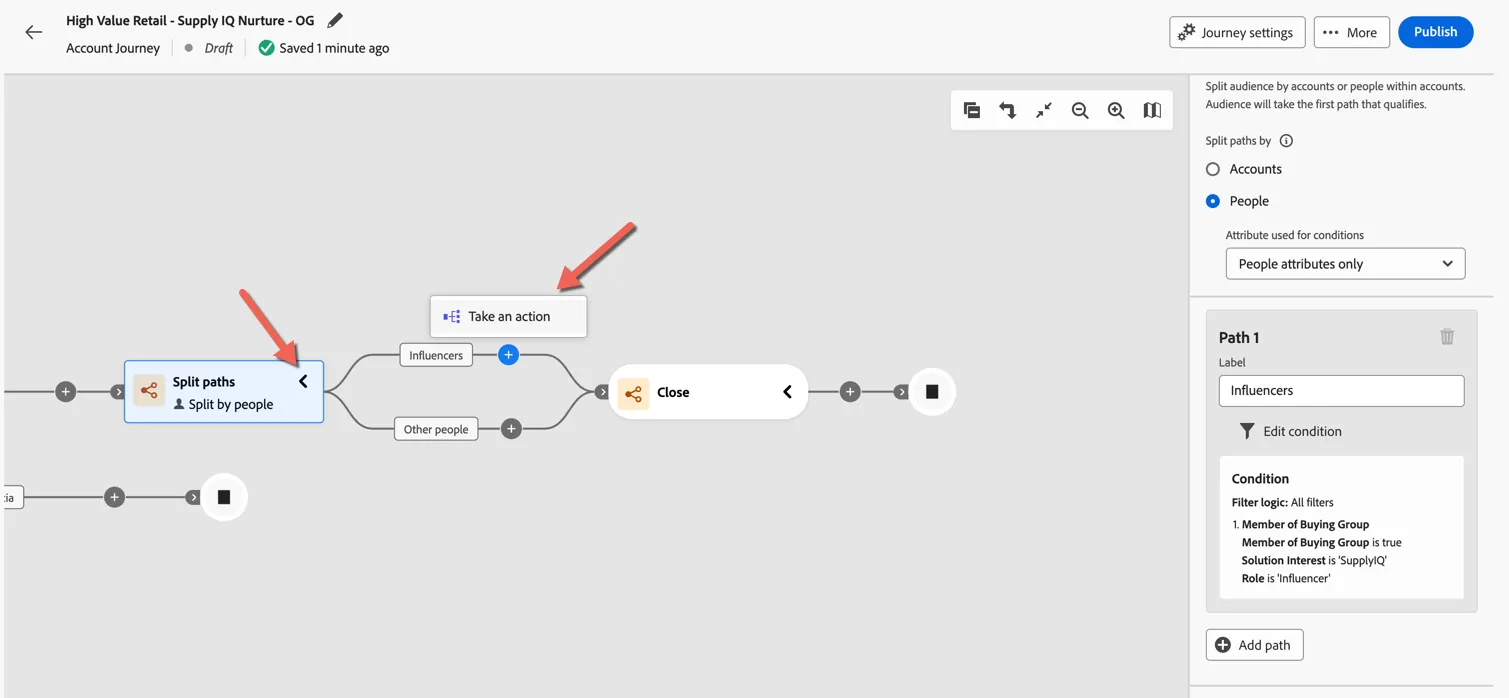
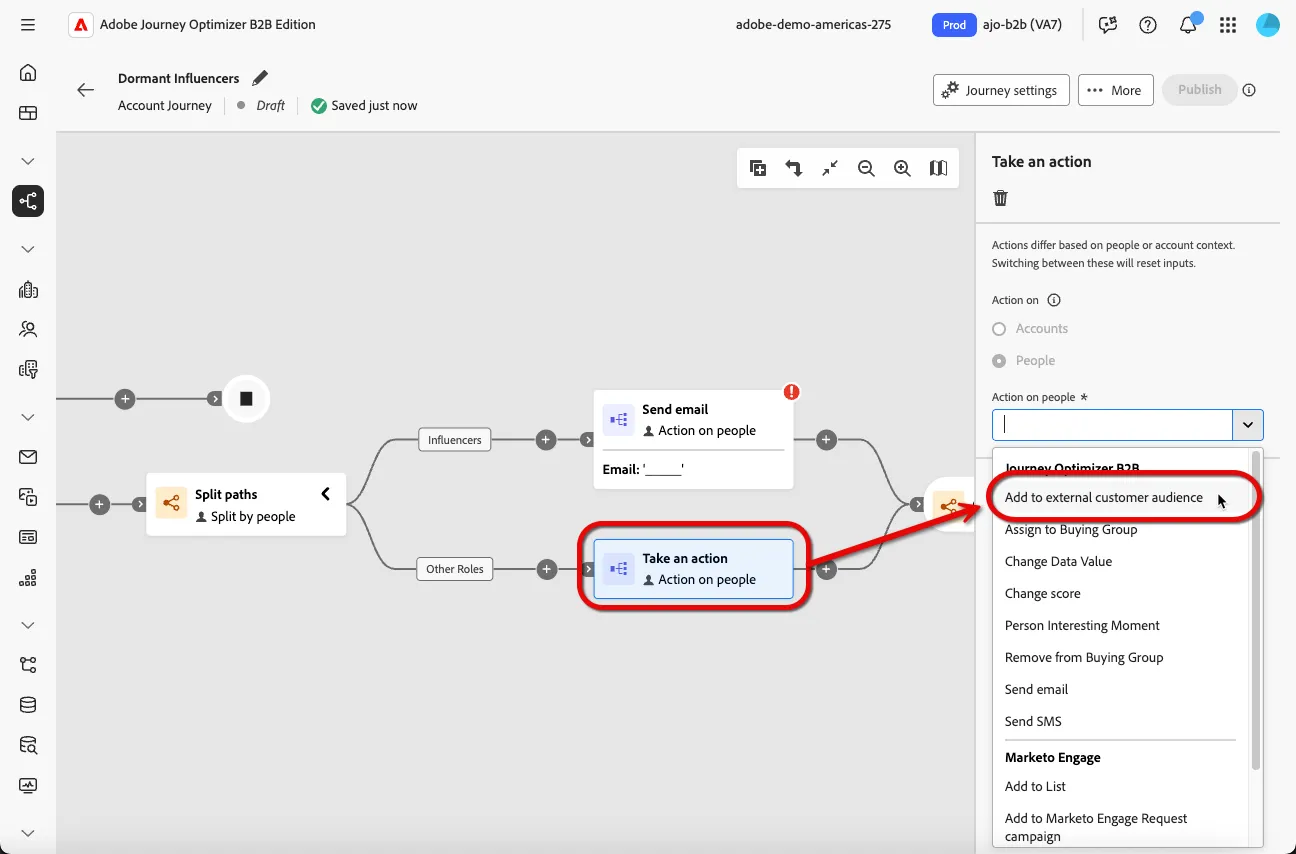
We're going to send the influencers a personalized email - but we'll send the other roles to an external customer audience for targeting on Paid and/or Social Media sites like LinkedIn.
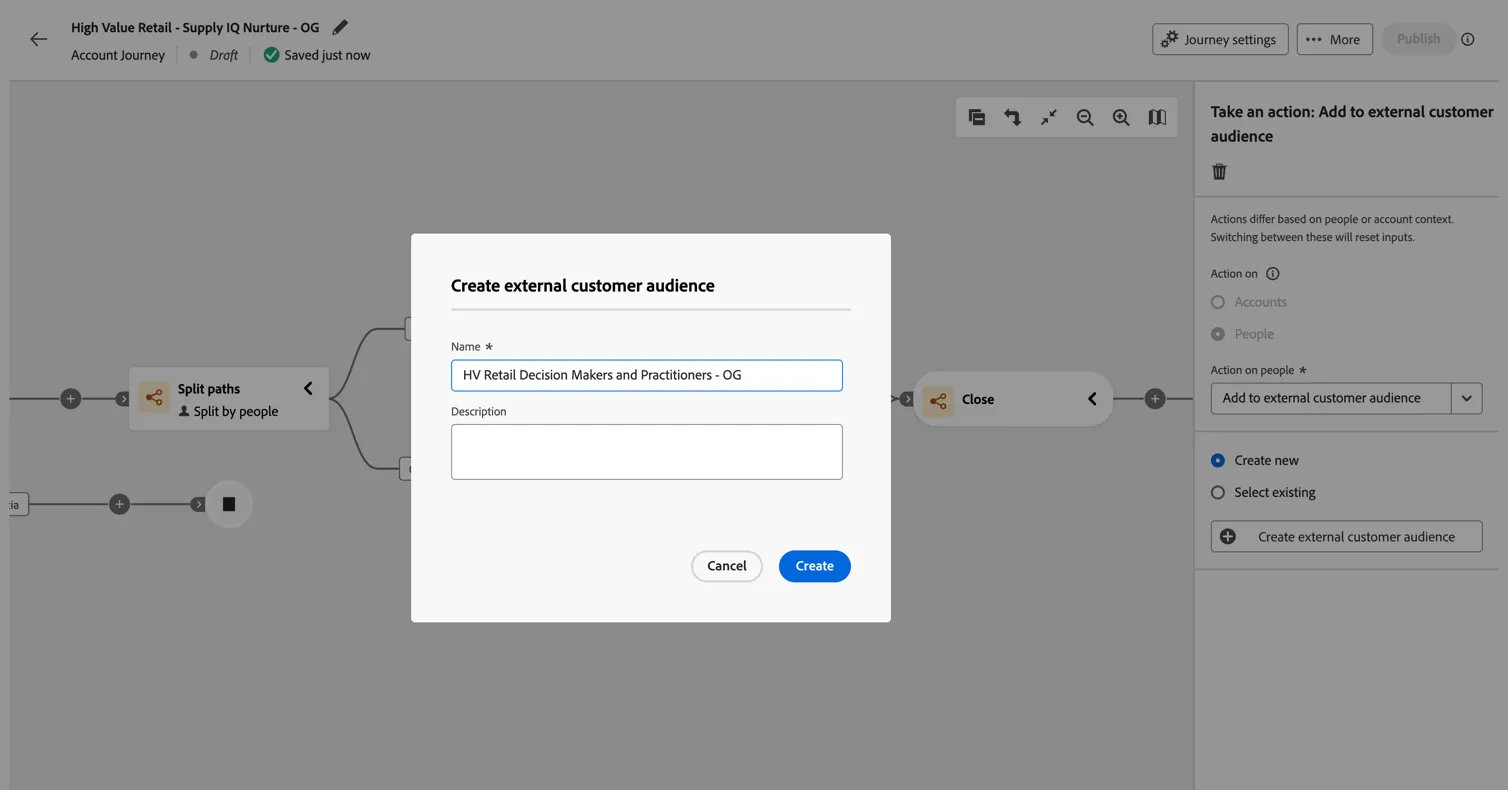
- Add an Add to external customer audience node to the Other Role path. Create a new external audience and name it HV Retail Decision Makers and Practitioners - {your initials}.
- Return to the action for Influencers and select the Send email action
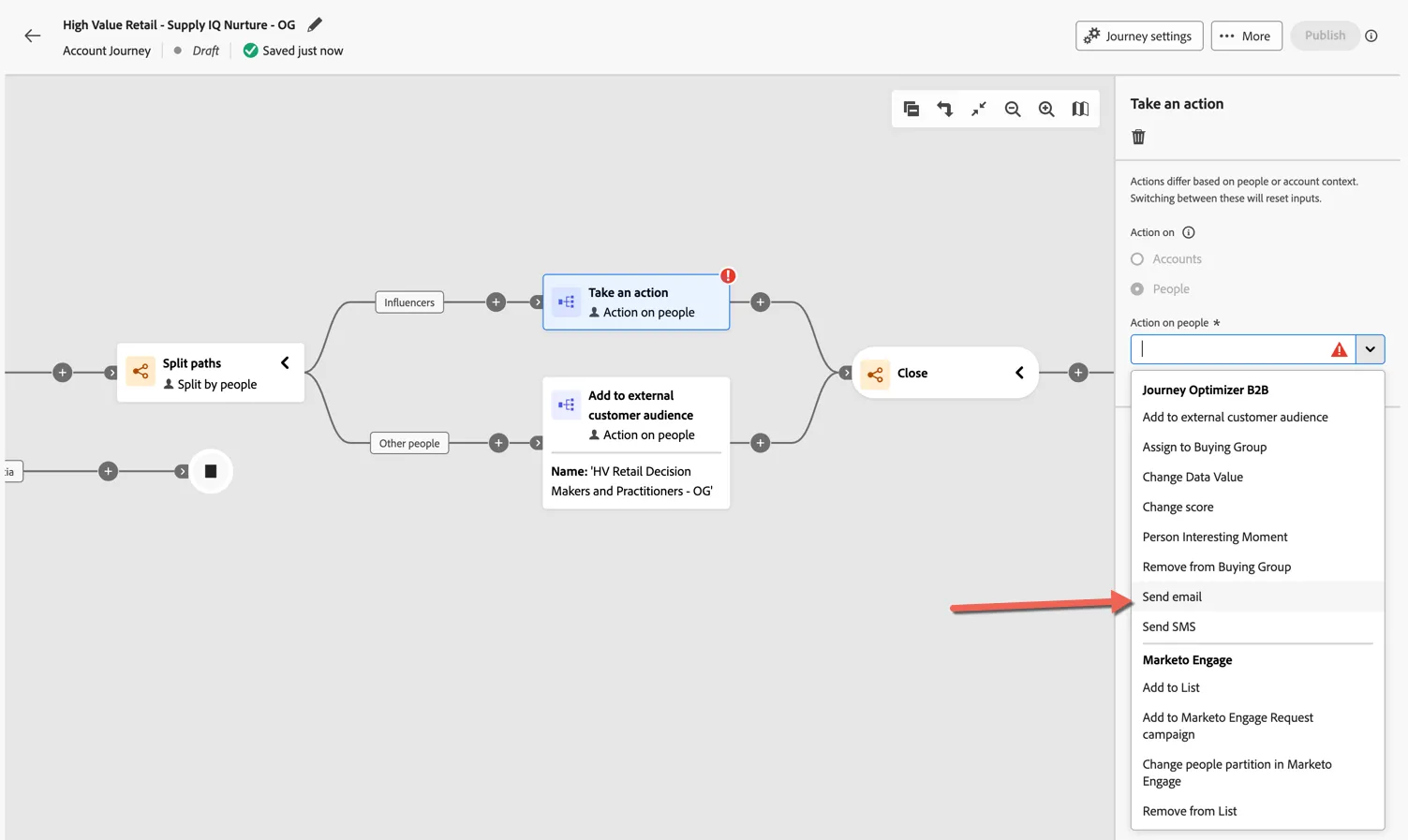
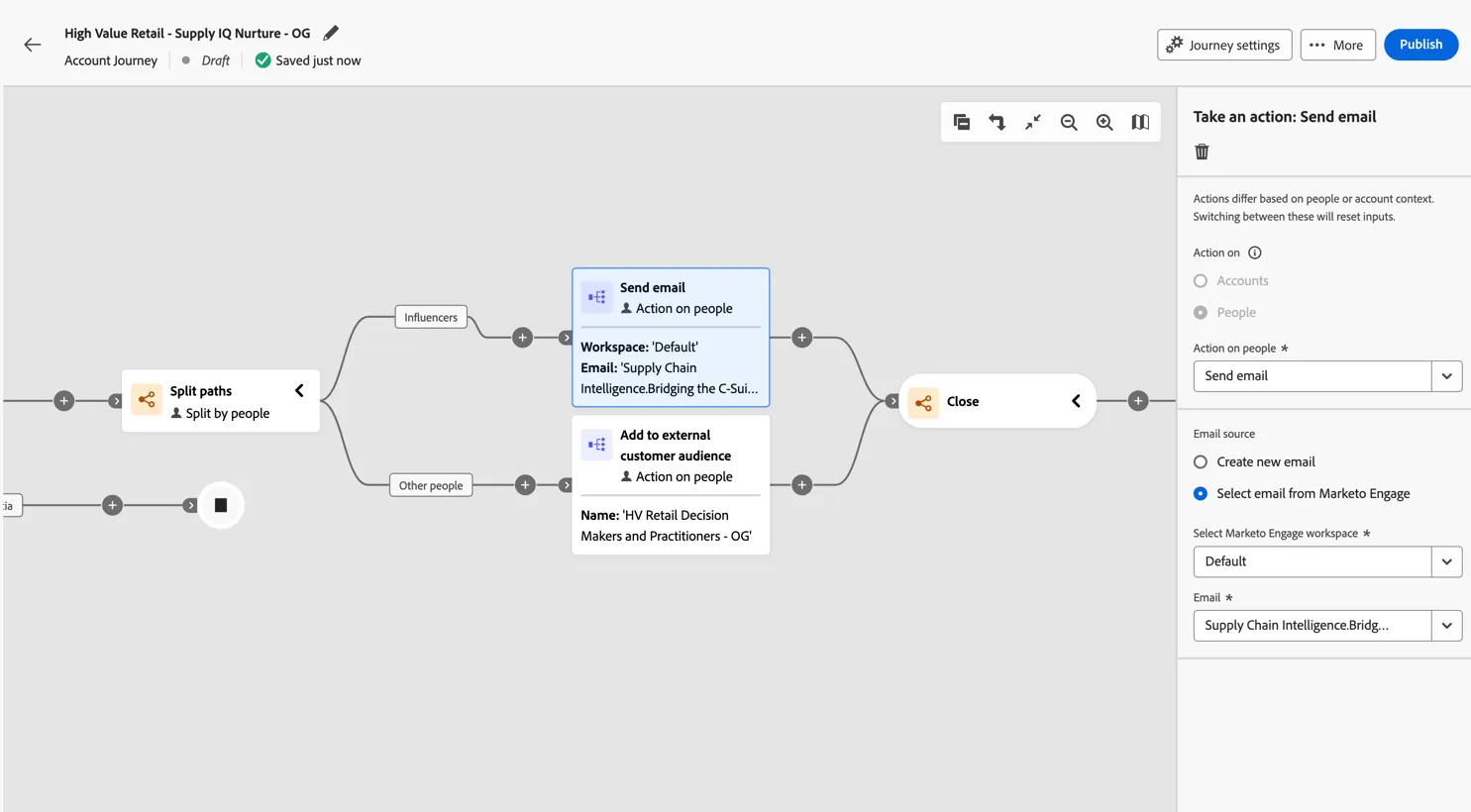
- You can choose to create a new email directly within Journey Optimizer or you can use an existing email created and managed in Marketo Engage. For now, select the existing email Bridging the C-Suite Disconnect
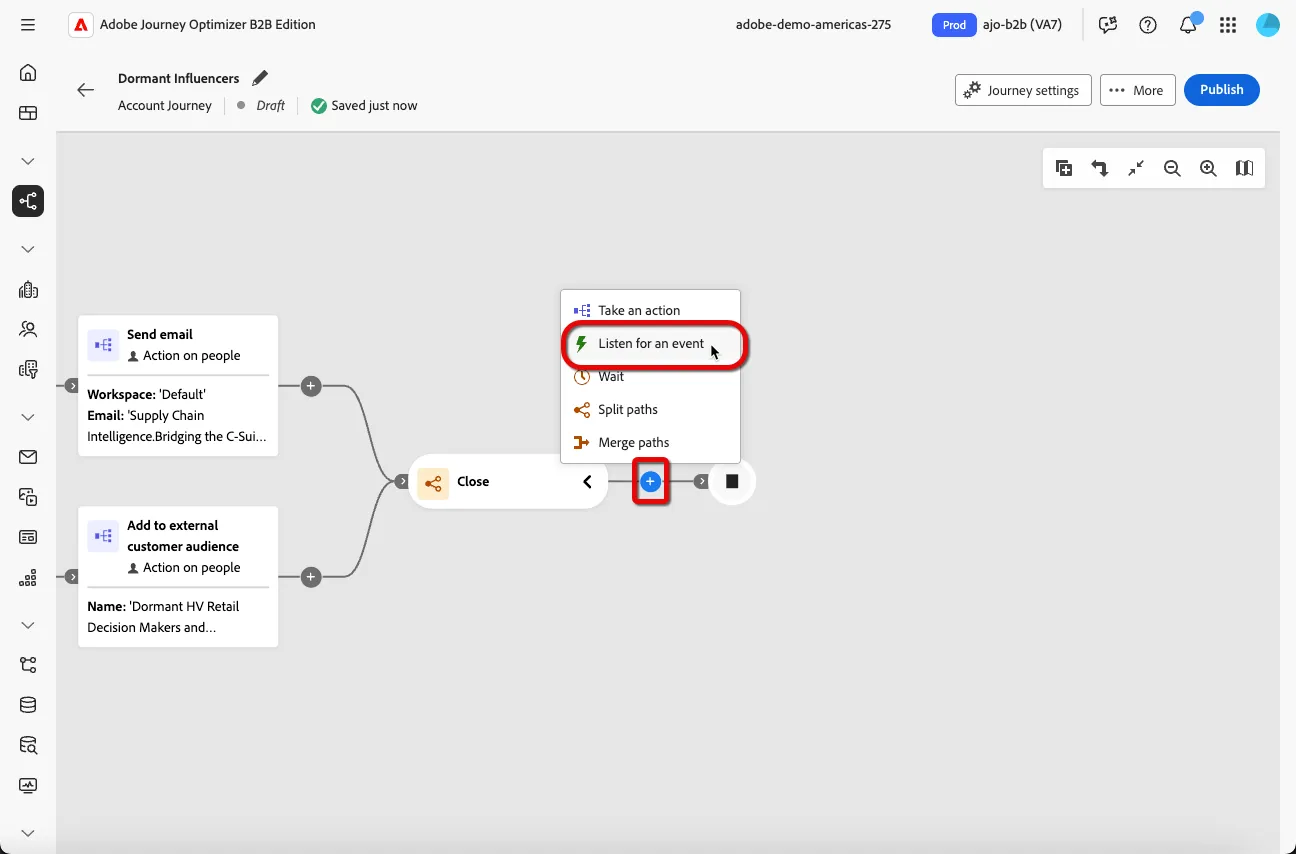
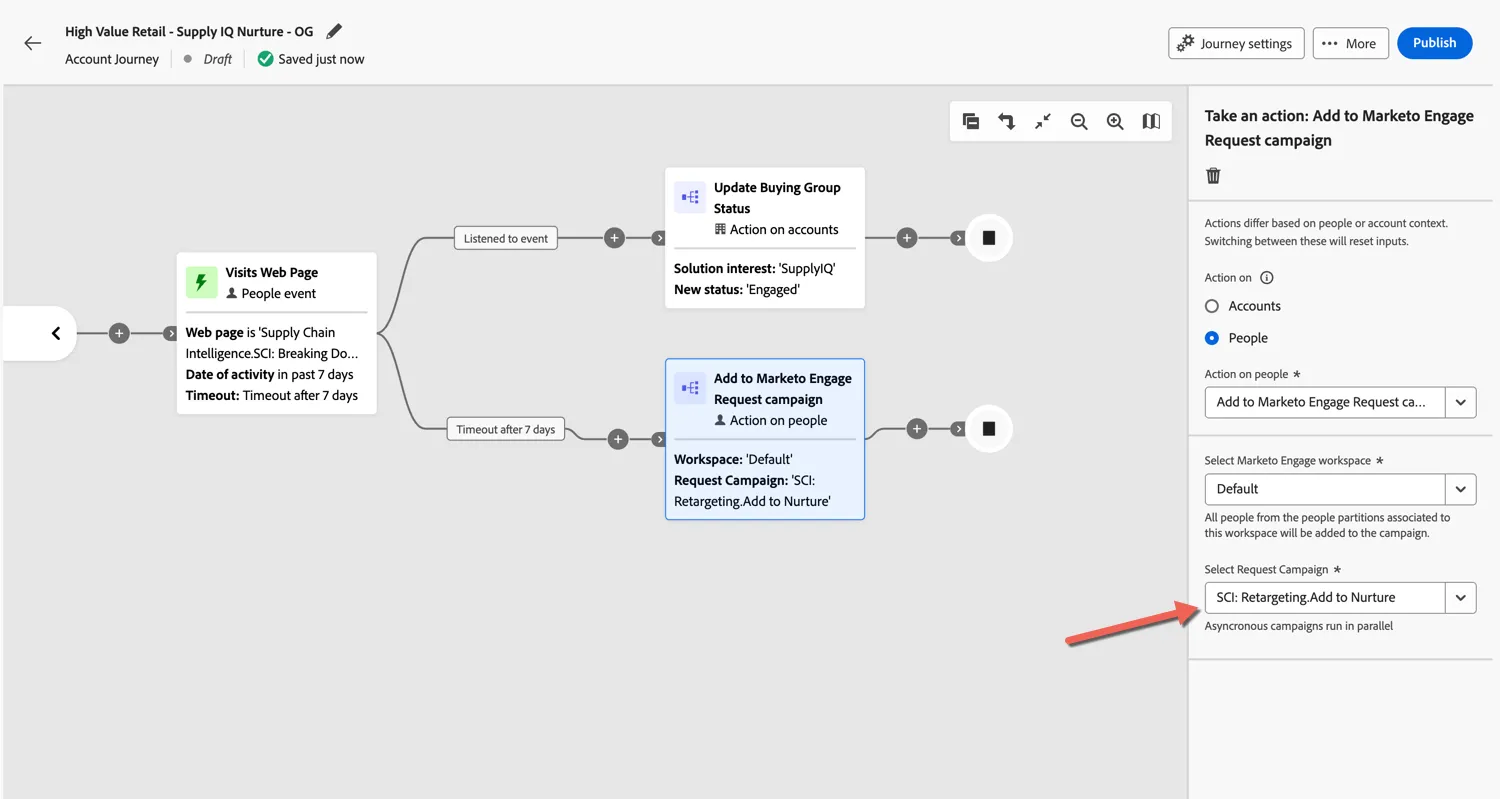
- Next we want to see who reacts to our email and if they visit our landing page or take specific actions we will promote the buying group to a new stage. Add the Listen for an event action to the merged path.
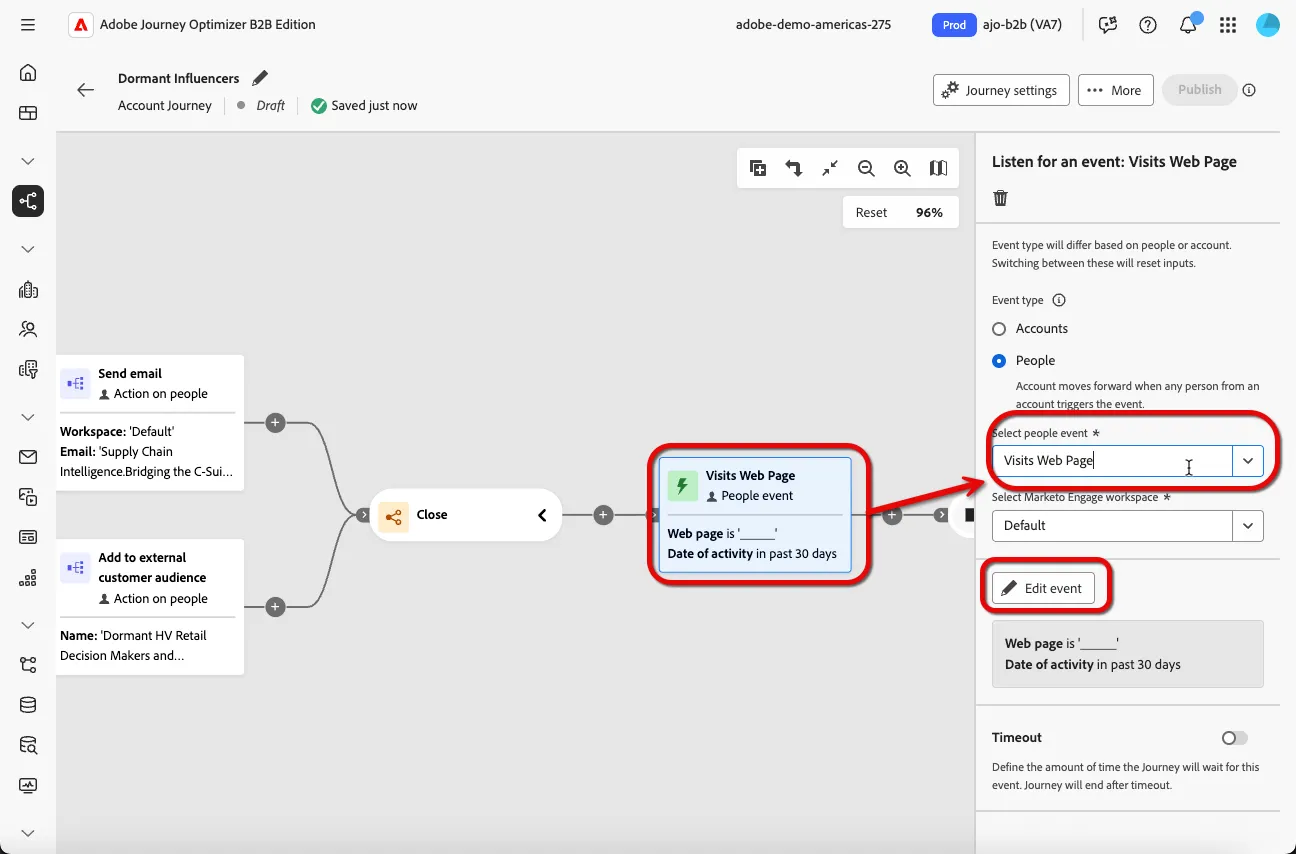
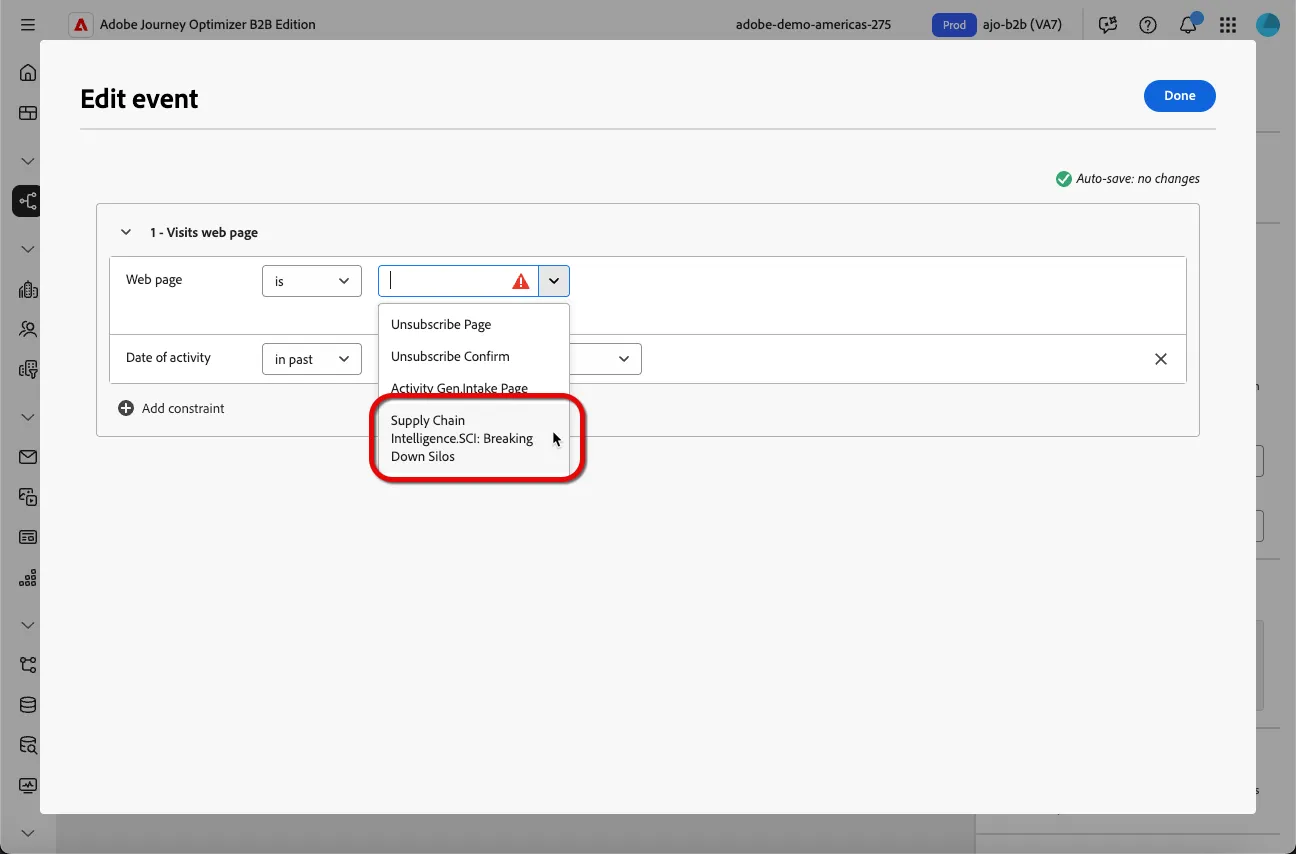
- Select the People event type radio button and select the Visits Web Page event. Click the Edit event button.
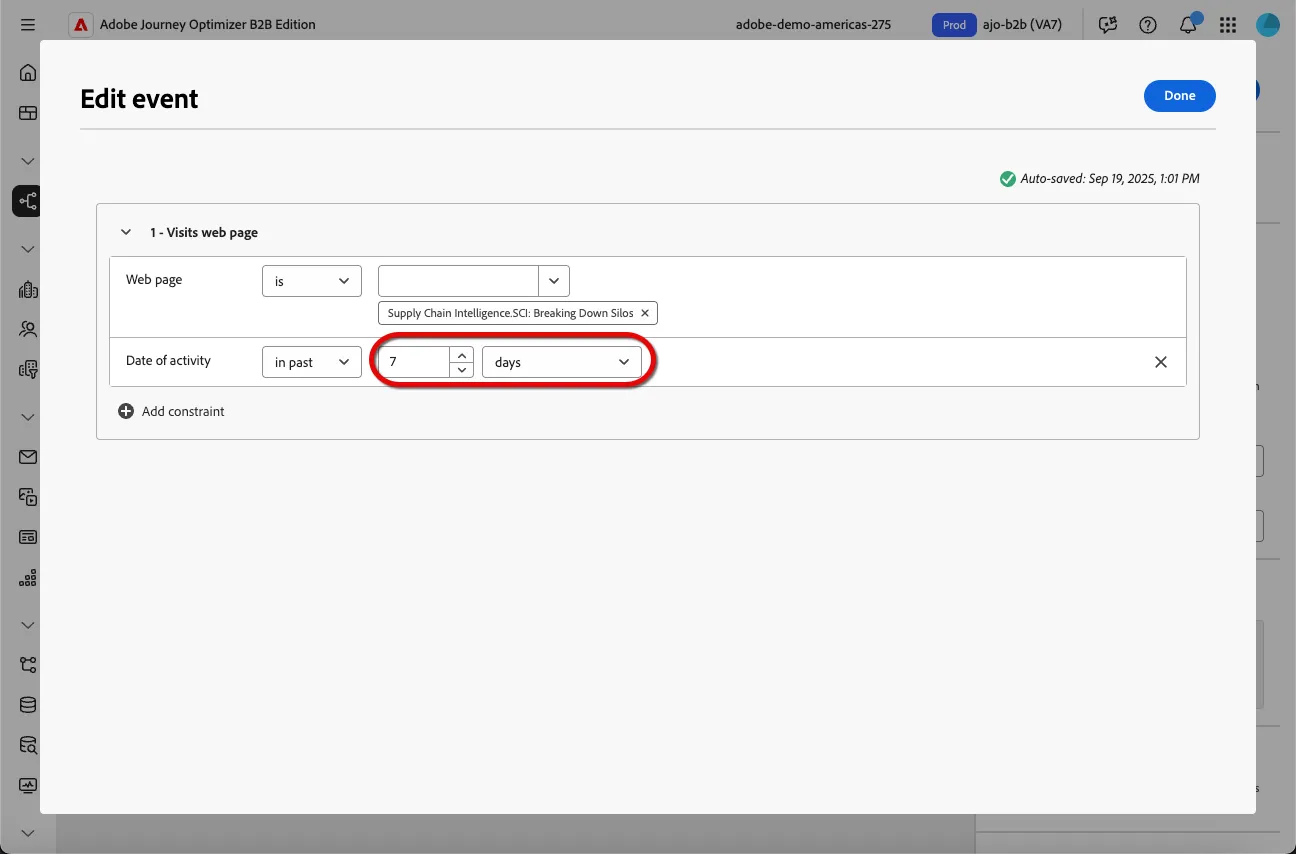
- Select the SCI: Breaking Down Silos web page and change the Date of activity lookback to 7 days.
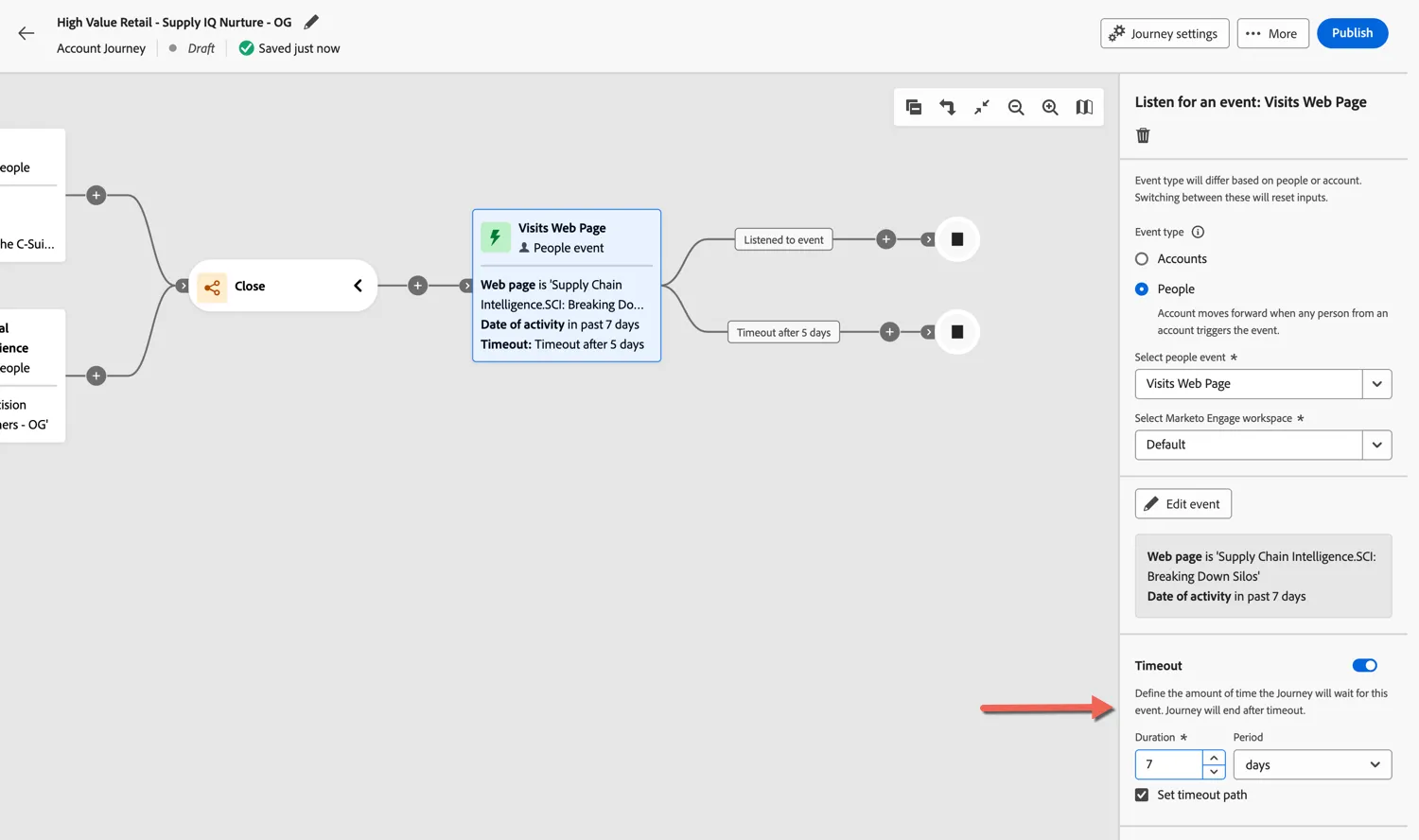
- Add a Timeout of 7 days to our event
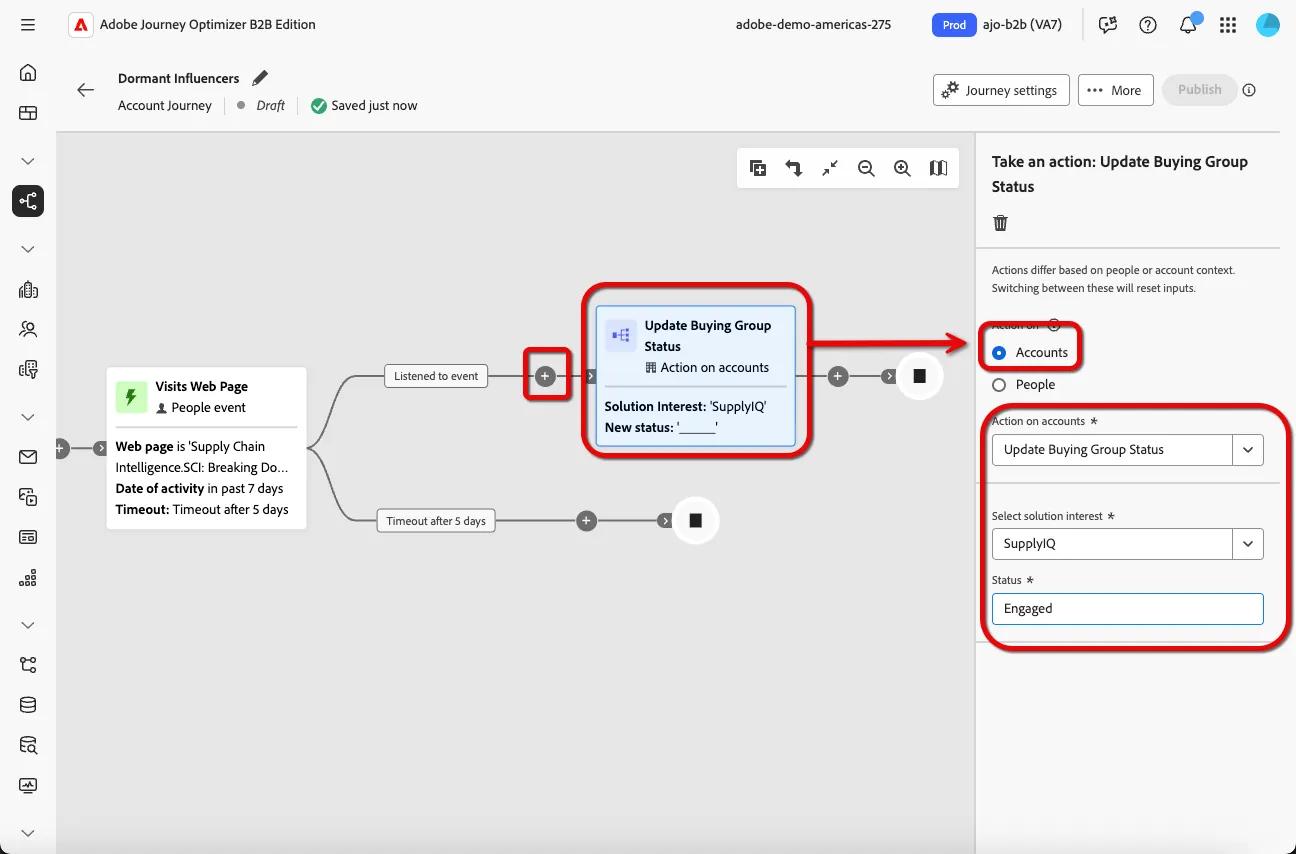
- Add a Take an Action node to the Listened to event path. Select the Account radio button and select the Update Buying Group Status action from the dropdown. Select the SupplyIQ solution interest and enter the status Engaged.
- Add a Take an Action node to the Timeout path. Select the People radio button, select the action Add to Marketo Engage Request Campaign, and select the SCI: Retargeting campaign
Congratulations you've created your first Account Journey!