
Roles Templates
2 min
In this exercise we'll create a Roles Template to identify the people that make up your buying group, templates might be different depending on the solution interest.
- From the menu, select "Buying Groups" on the left navigation bar, select "Roles templates" from the section titles and click "Create template".
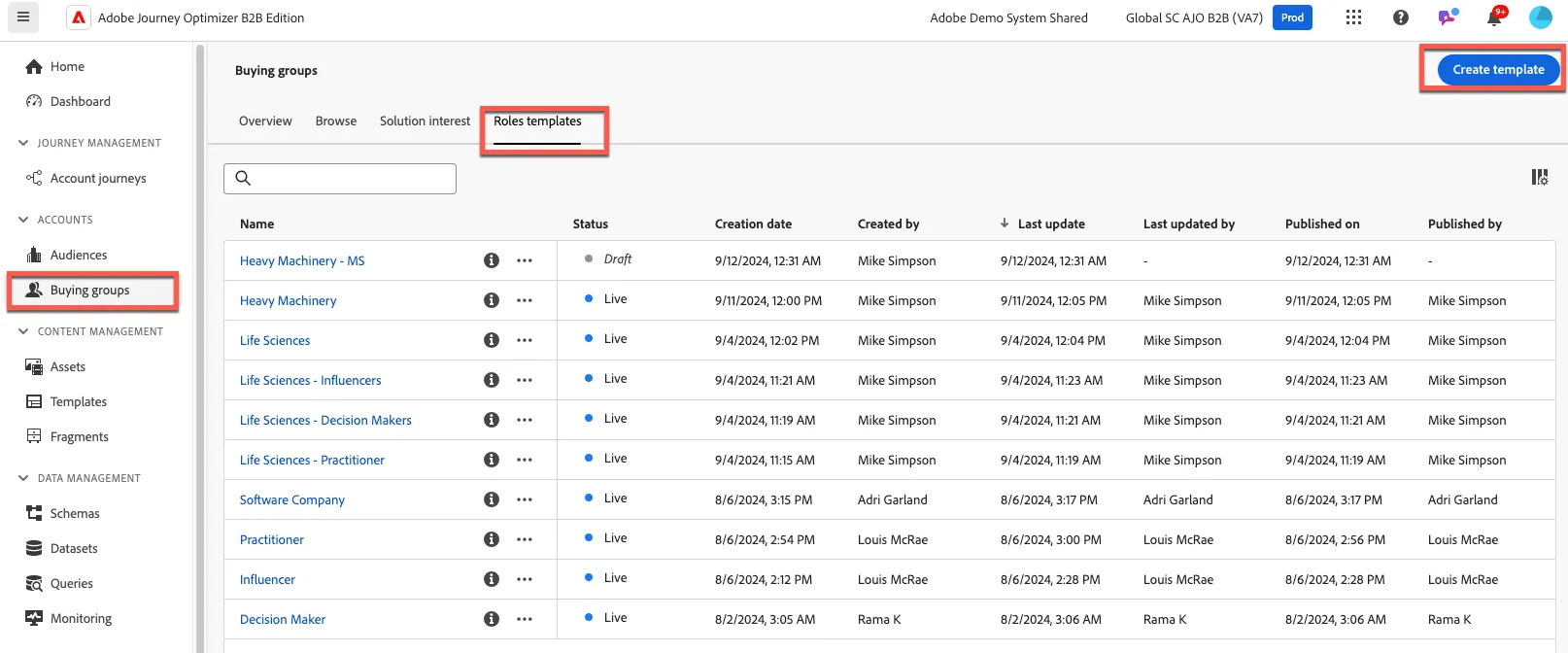
- Name your Roles Template "Sales Aligned Roles - {your initials}"
- Click the "Add another role" button twice to add two more roles.
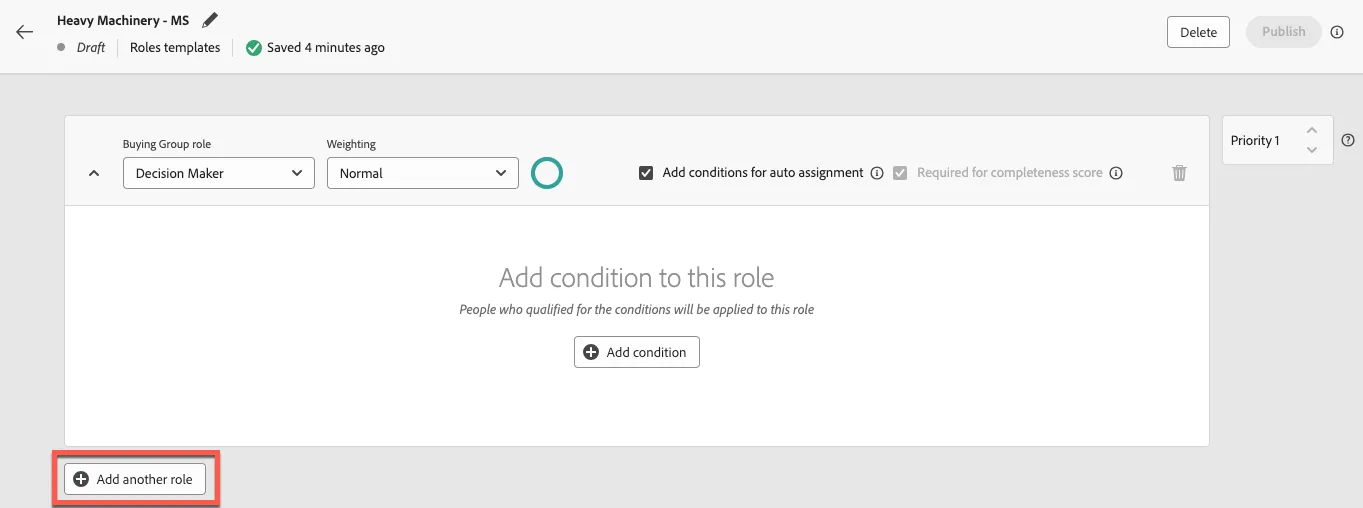
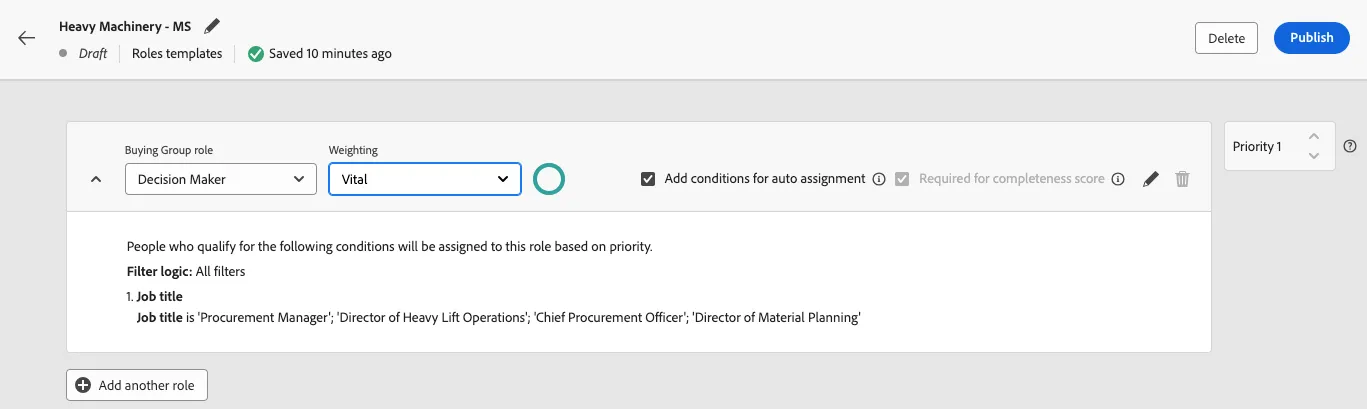
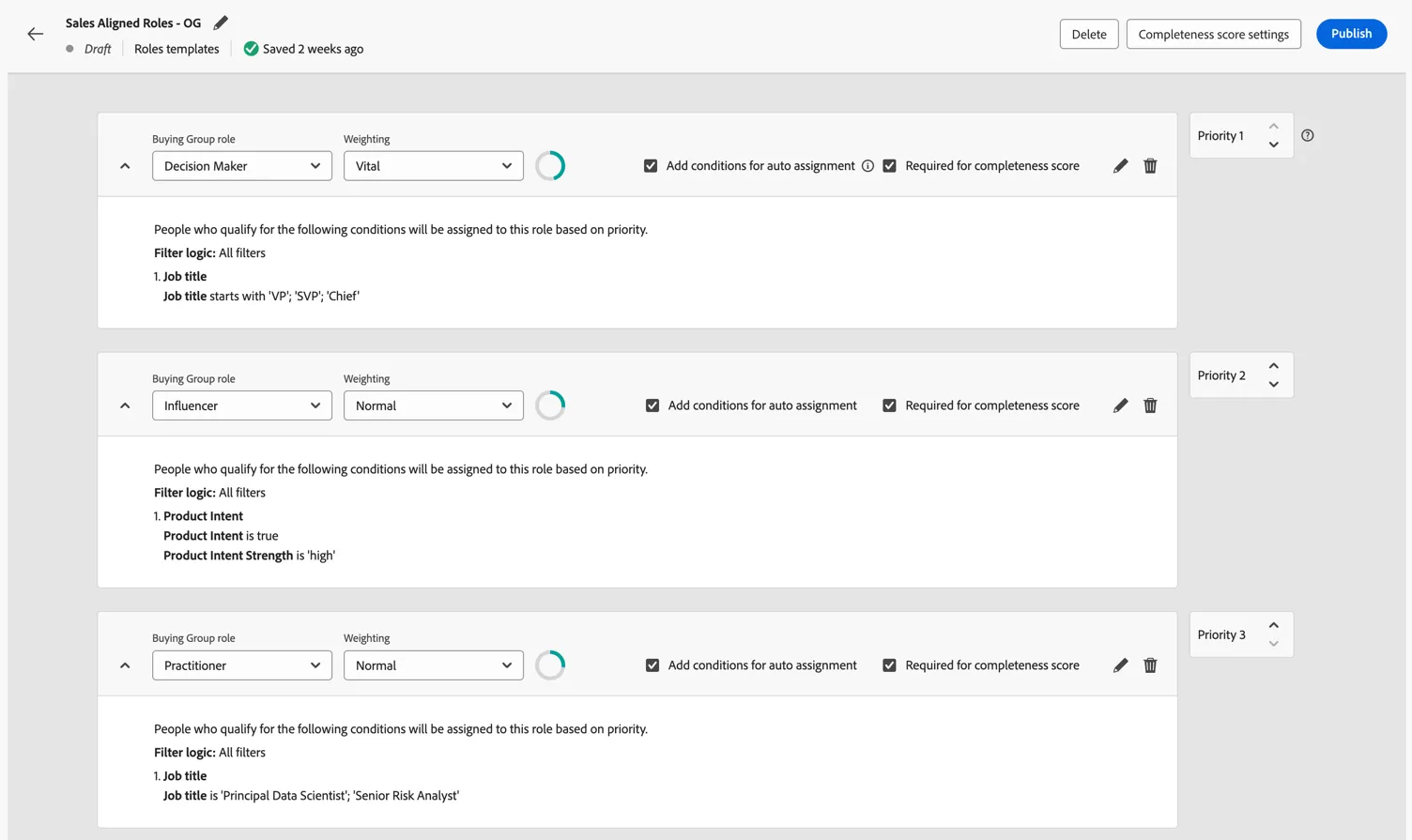
- For the first role, leave the role as the default "Decision Maker" and click "Add condition", pull the "Job title" person attribute into the canvas, expand the condition, and add the following job titles:
- VP
- SVP
- Chief
Change the operator to "starts with" and click "Done"
Change the weighting of the role to "Vital".
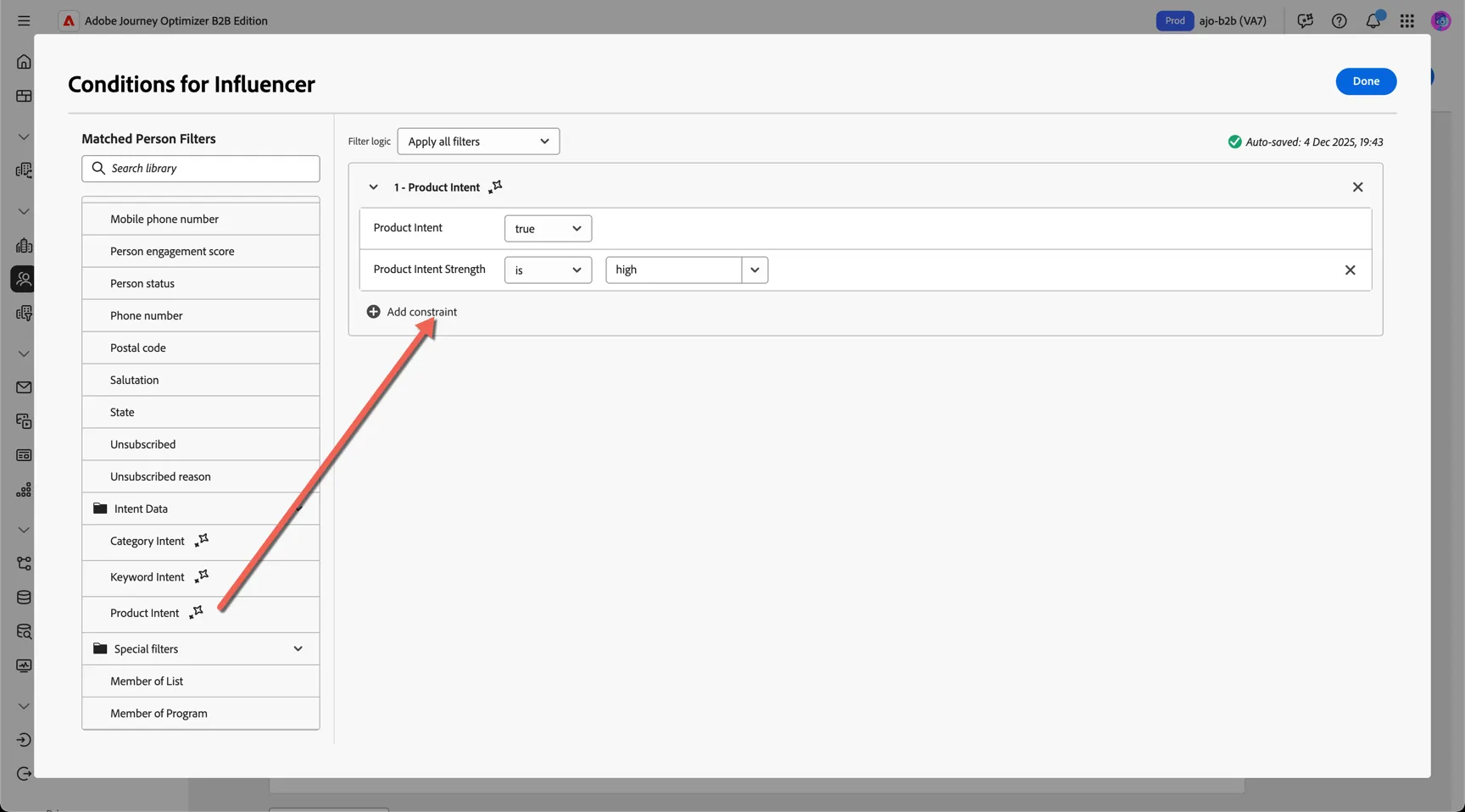
- For the second role, leave the role as the default "Influencer" and click "Add condition", from the Special Filters menu, drag the Product Intent attribute into the canvas. This attribute is AI Generated based off the customer activity leveraging the Intent Keywords defined for your organization. Add a condition that Product Intent Strength is High.
- For the third role, leave the role as the default "Practitioner" and click "Add condition", pull the "Job title" person attribute into the canvas, expand the condition, and add the following job titles:
- Senior Risk Analyst
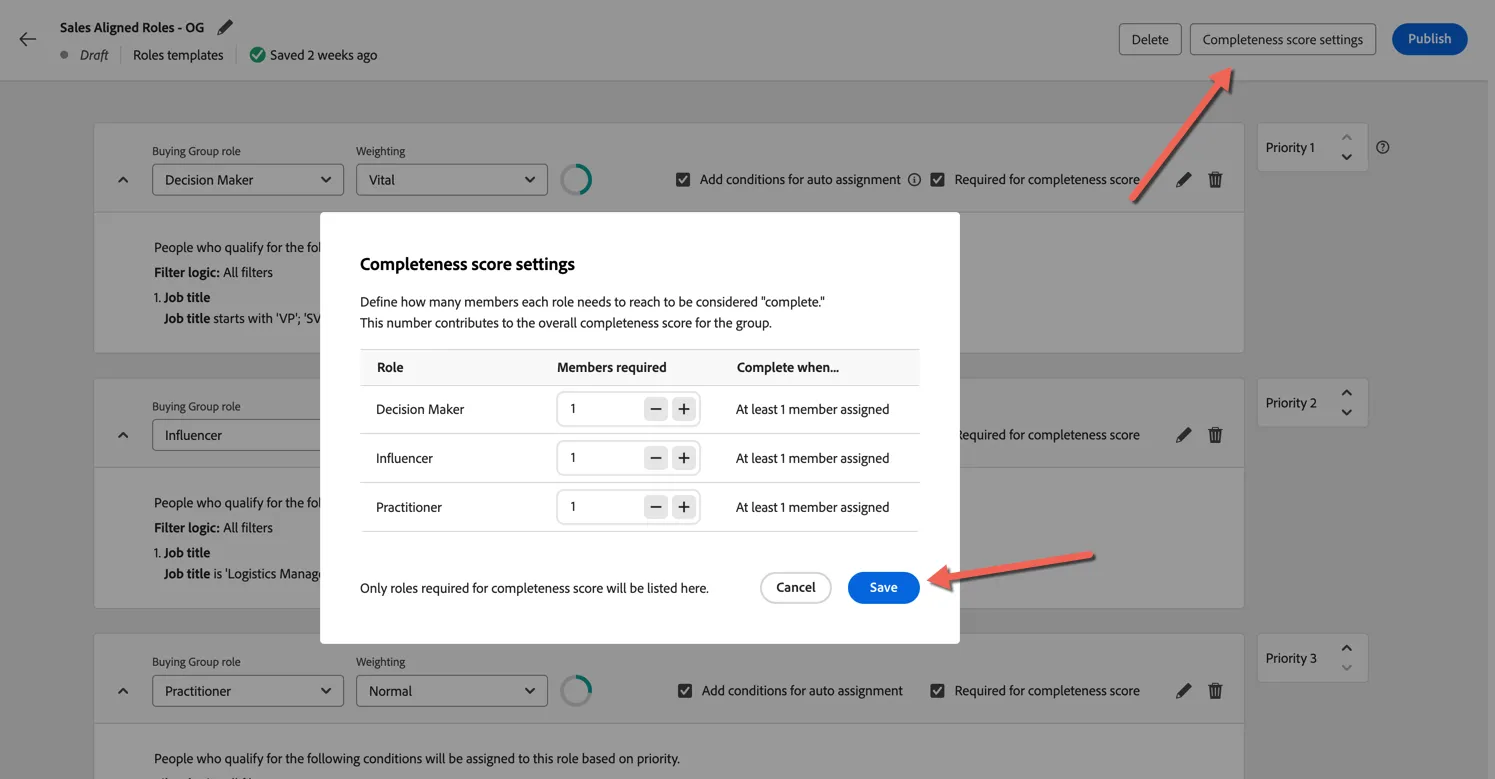
- Click on Completeness score settings to view the number of people required in each role for the buying group to be considered complete. For example you might want more than 1 influencer to be engaged before you promote the buying group to Sales.
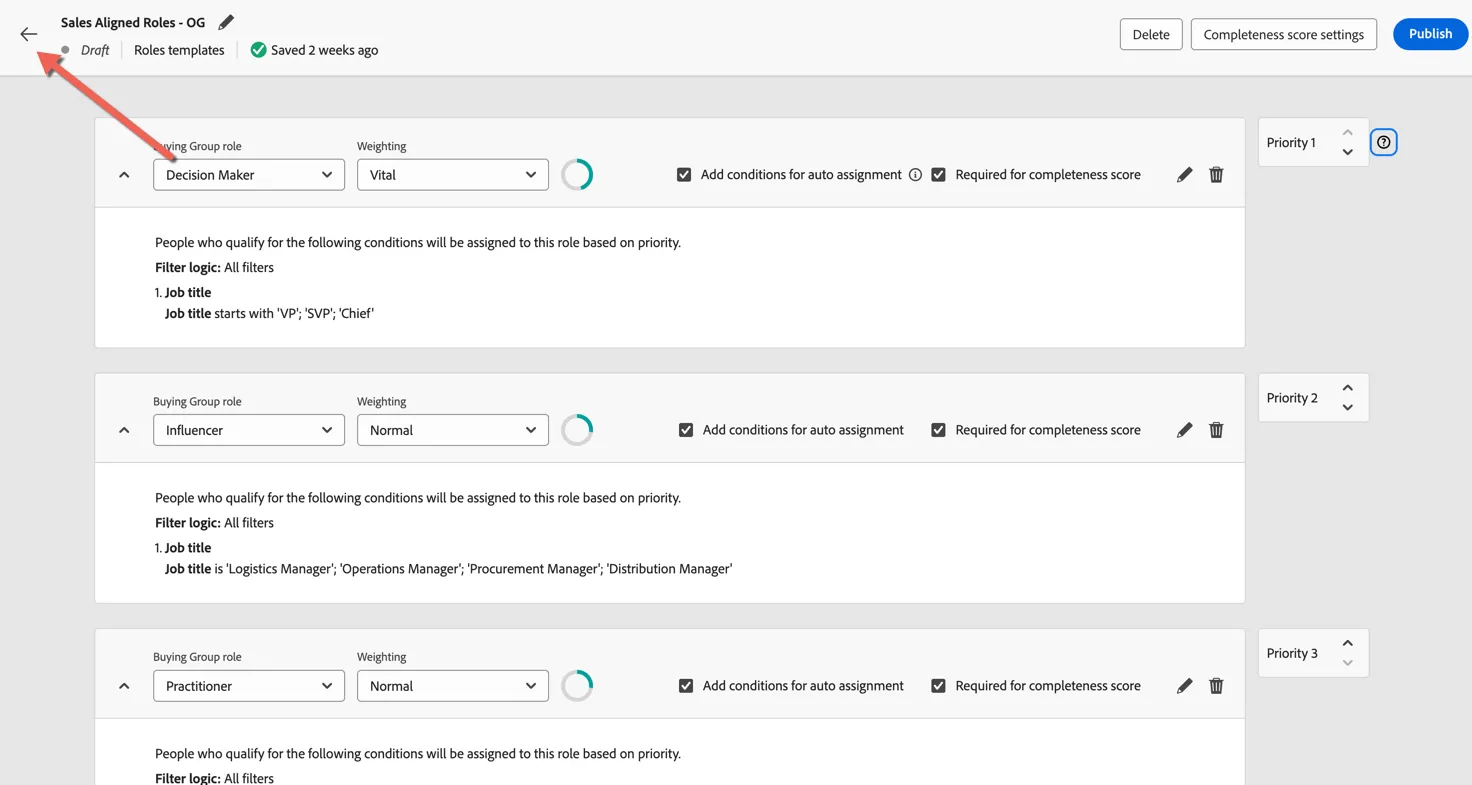
- Click on the arrow top left to return to the browse page. There is no need to publish the template for the lab.
Congratulations you've created your first roles template!