Lab 1: Research & Analysis
Objective
In this lab you will leverage Customer Journey Analytics to understand how customers are engaging across channels and identify friction points in your customer journeys in order to plan for upcoming campaigns.
Access
Switch to Customer Journey Analytics using the solution switcher:
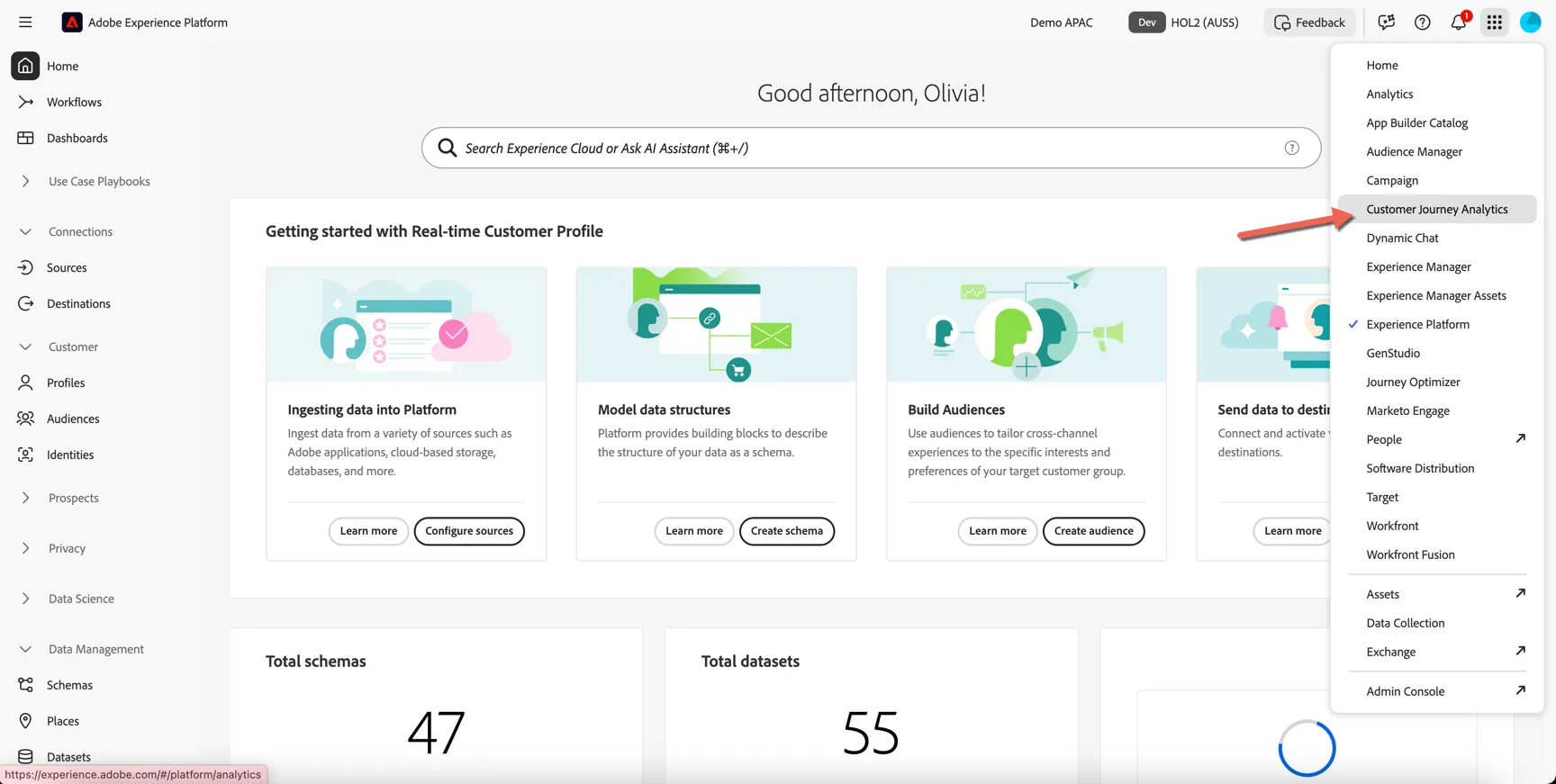
CJA Introduction
First we'll start by creating a new project from a pre-built template. This will provide you with some initial insights while giving you an isolated area to explore the data further.
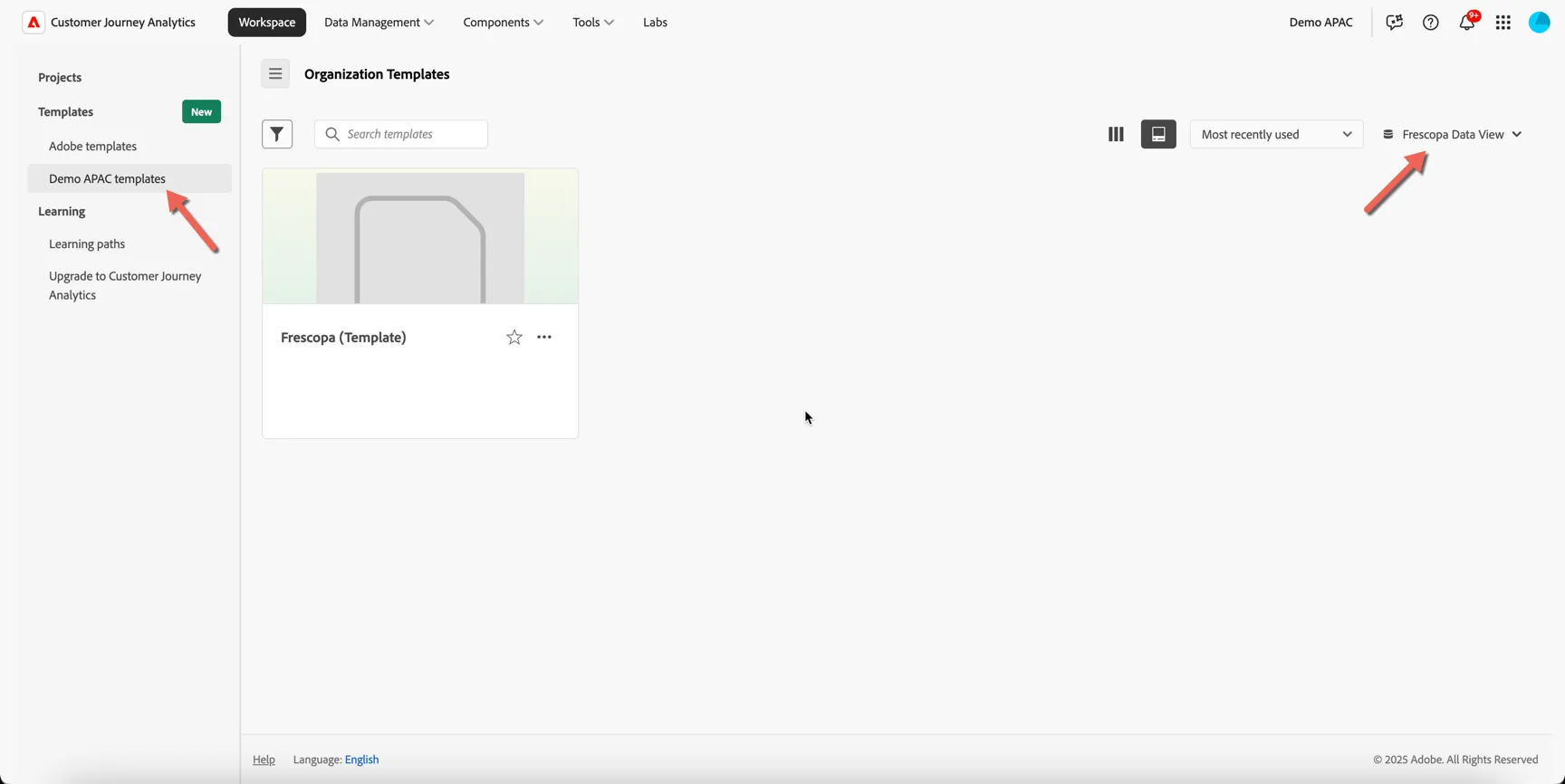
Under Workspace -> Templates -> Demo APAC templates and select the Luma Data View on the right side.
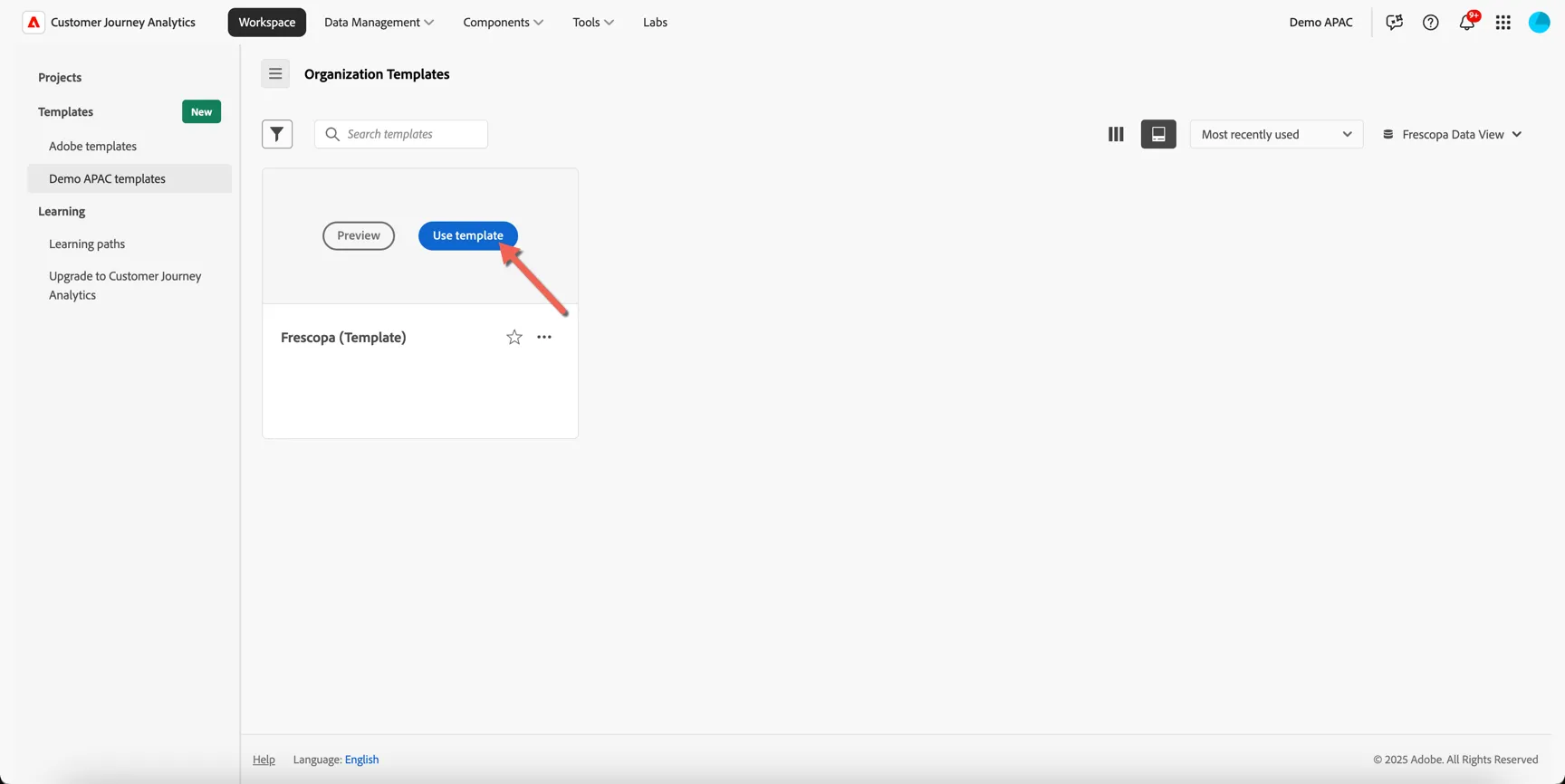
Hover over the Luma (Template) card and click to Use template
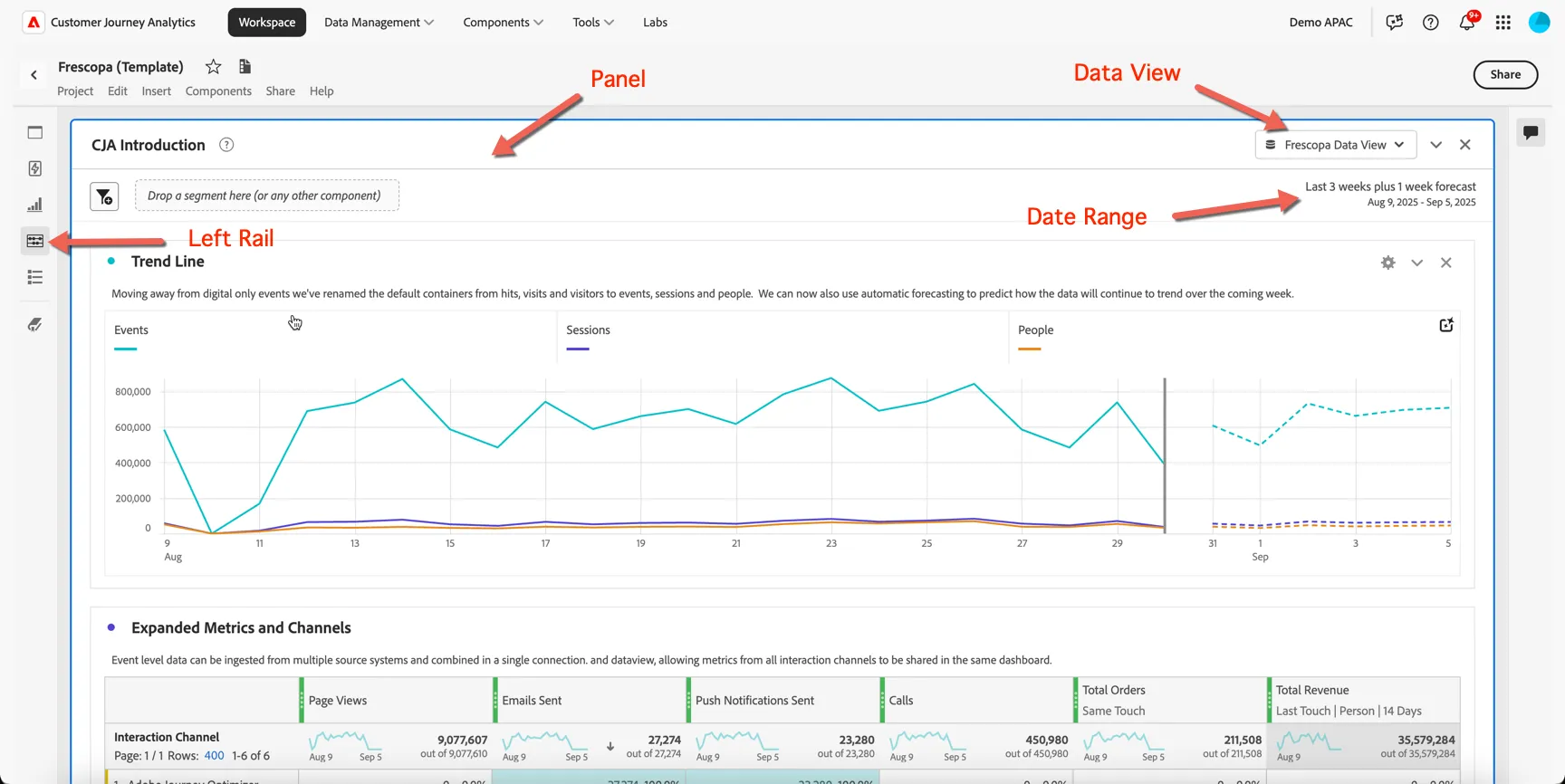
Take note of the following UI components:
Panel - Each dashboard/project is made up of one or more panels
Data View - Controls what data is available to the report - keep in mind this includes multiple datasets that can span multiple channels and data sources.
Date Range - The date range controls what data is displayed in the panel
Left Rail - Provides access to all of the components required to build your reports. You will find menu's for panels, components, visualisations, guided analyses and a table of contents for the current dashboard.
For this exercise we will walk through the first panel together.
You can see in the first Trend Line visualisation the new containers used by CJA: Events, Sessions and People. If you're familiar with Adobe Analytics you can think of these as being equivalent to Hits, Visits and Visitors - but remember in Customer Journey Analytics we're grouping data based on a person identifier, not a device (or cookie).
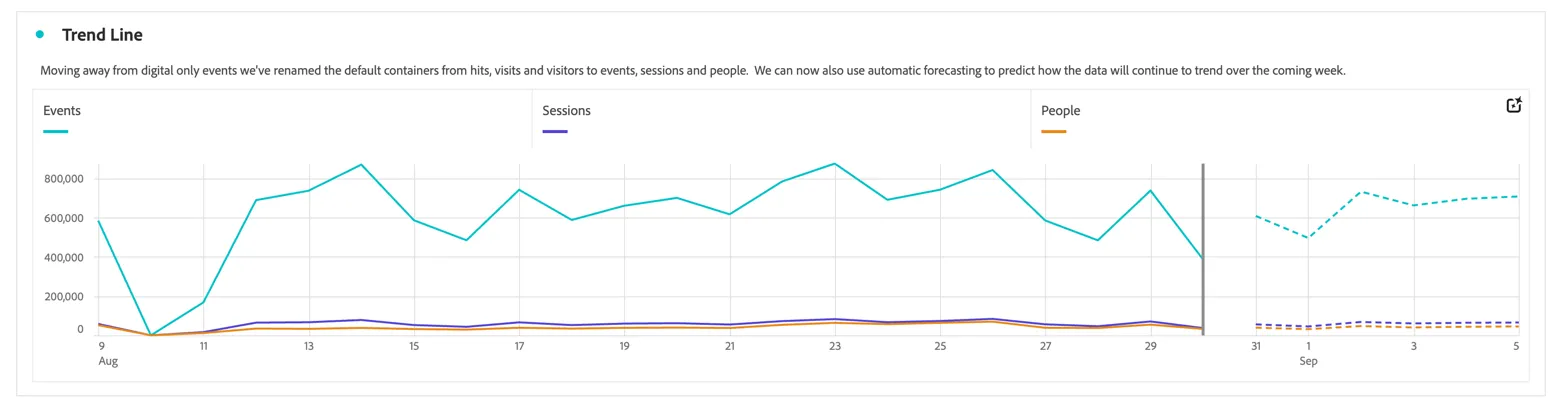
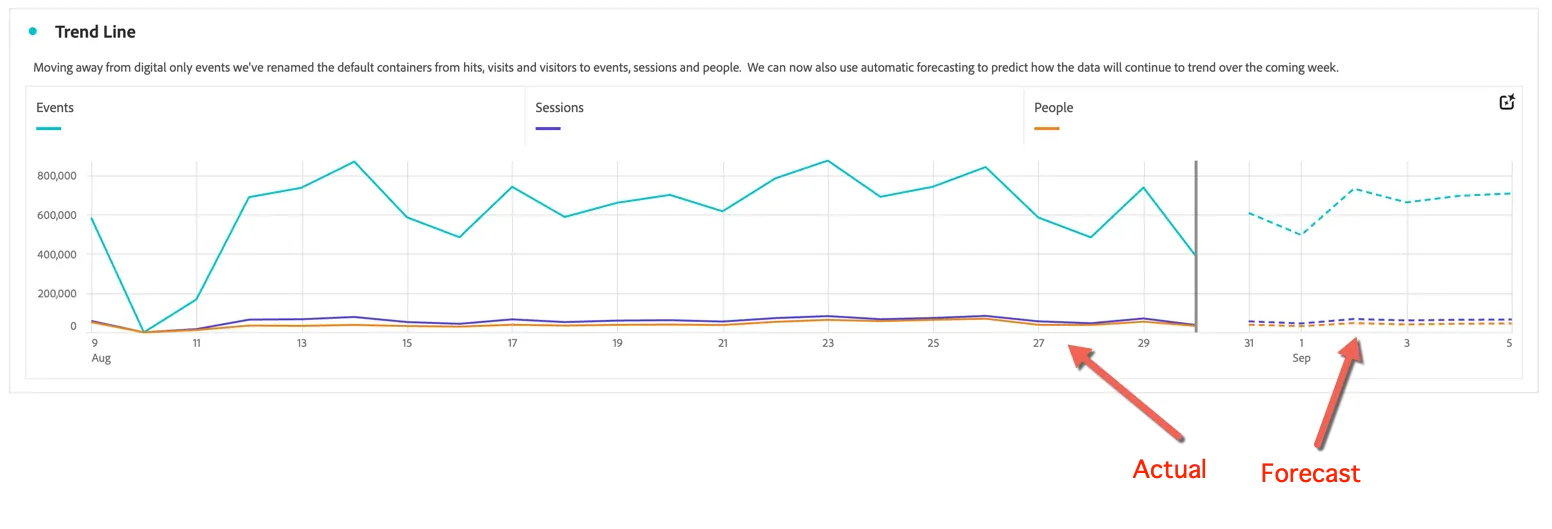
Based on the forward looking date range defined for this panel, Customer Journey Analytics has provided some automatic forecasting to predict how the data will continue to trend over the coming weeks. You can leverage forecasting for:
Planning: By analyzing trends and predicting future outcomes, you can identify potential opportunities and threats and adjust your strategies accordingly.
Budgeting: By forecasting future revenue and expenses, you can ensure that teams have adequate funds to cover their costs and invest in growth opportunities.
Risk management: By anticipating future events and trends, you can take proactive steps to mitigate risks and minimize potential losses.
Resource allocation: By predicting future demand, you can ensure the necessary resources are available to meet customer needs and avoid stock-outs or overstocking.
Performance evaluation: By comparing actual results to forecasted results, you can identify areas for improvement and make necessary adjustments.
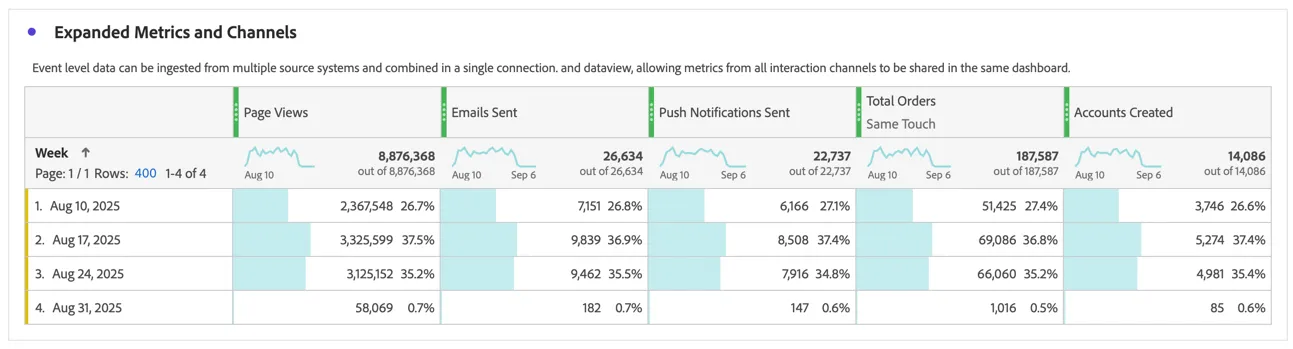
Since the event data ingested to CJA comes from multiple sources not just your website and app we can combine many different types of metrics into the same dashboard. Scroll down to the expanded metrics table.
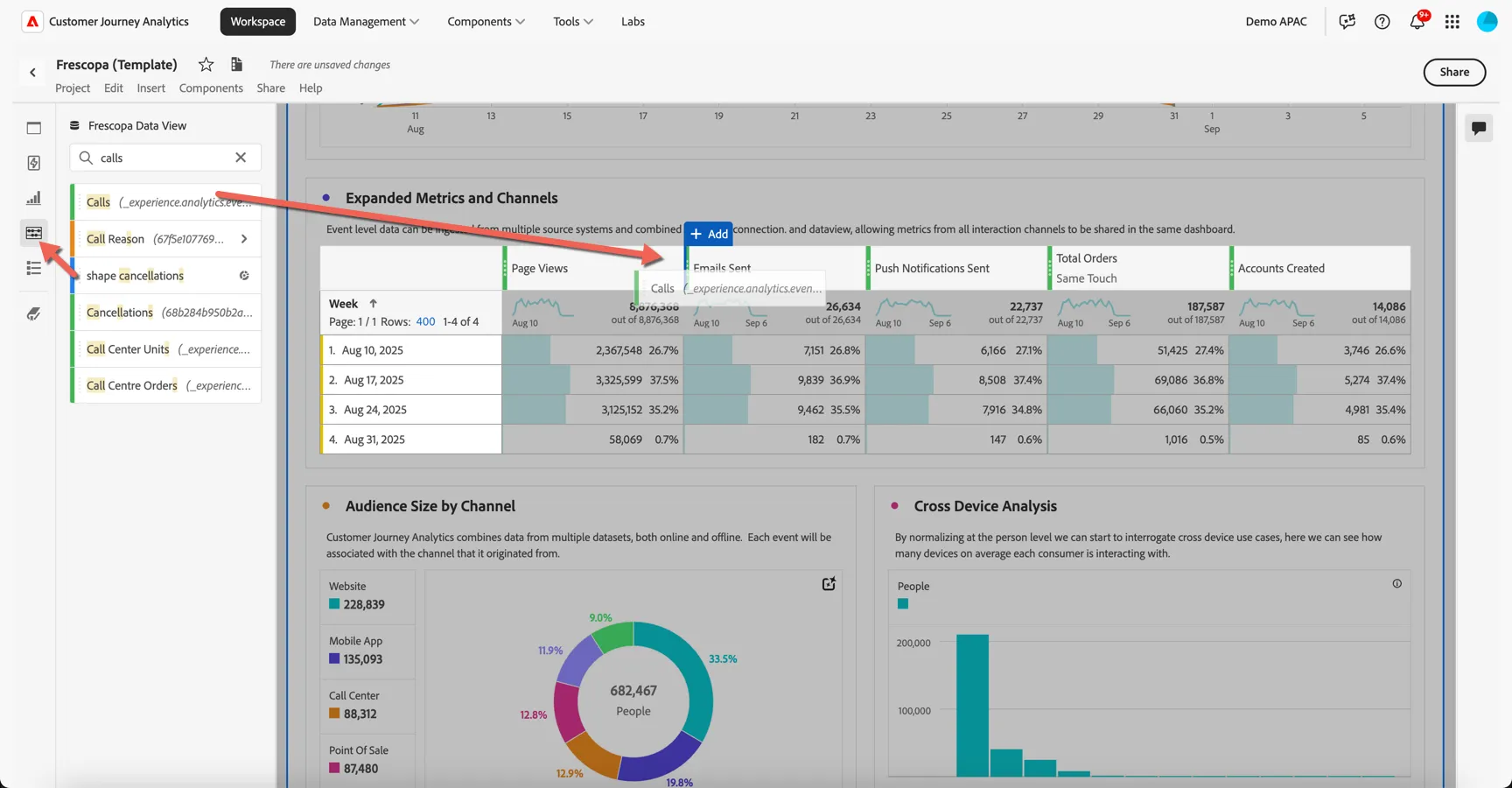
Open the components menu and drag the calls metric to add it to your tables columns.
Each of these metrics come from one or more source systems. Search for interaction channel in the components menu and drag it onto the table to replace the week dimension.
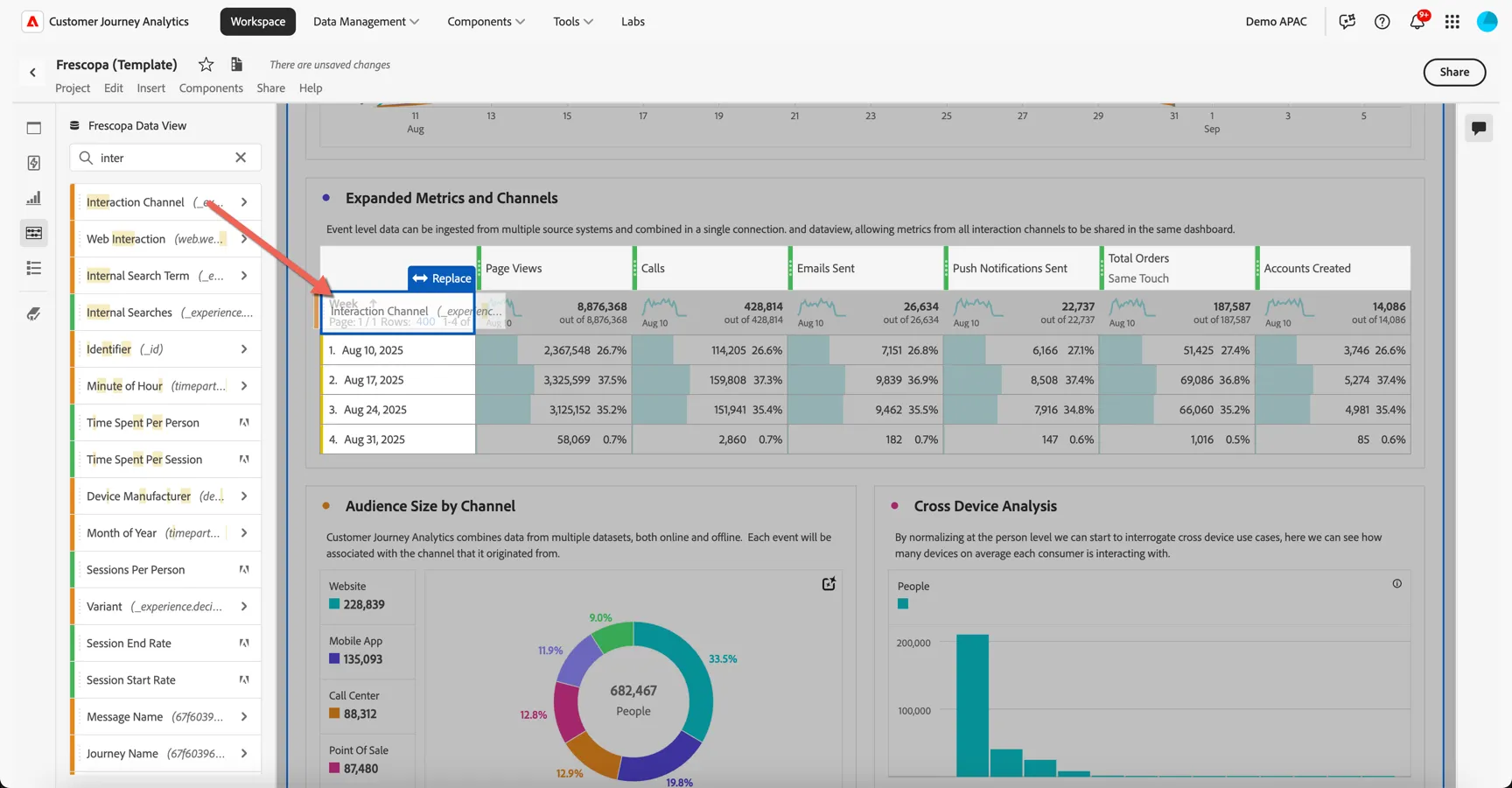
Some metrics will be specific per channel, for example the Calls metric comes from the Call Center dataset, others will be shared across multiple source systems, for example the business metrics for Total Orders and Accounts Created.
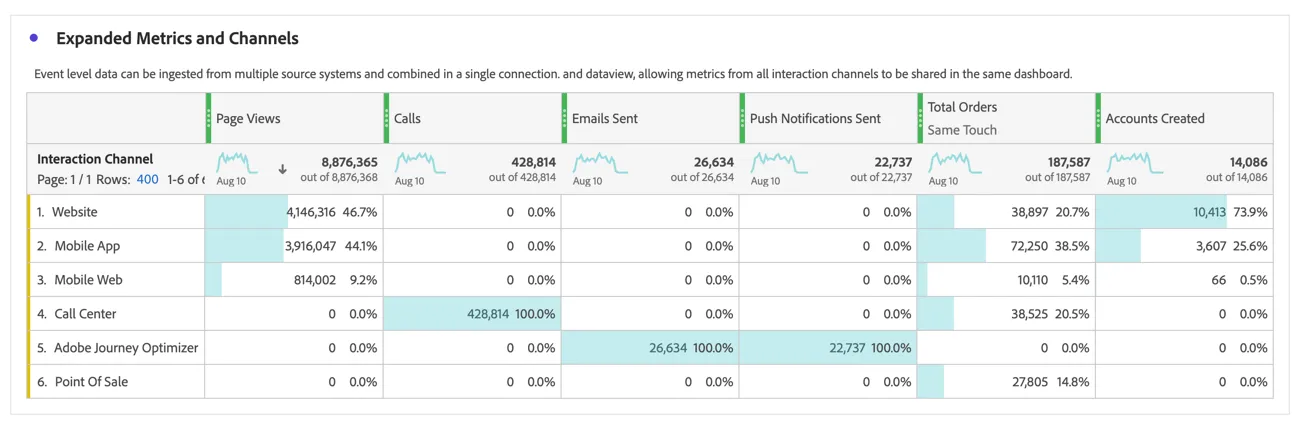
Like Adobe Analytics, Customer Journey Analytics does not use sampling. It processes all ingested data at query time, allowing for full-fidelity analysis across massive datasets without approximation.
There are also no cardinality limits allowing for any unique value to appear and be counted.
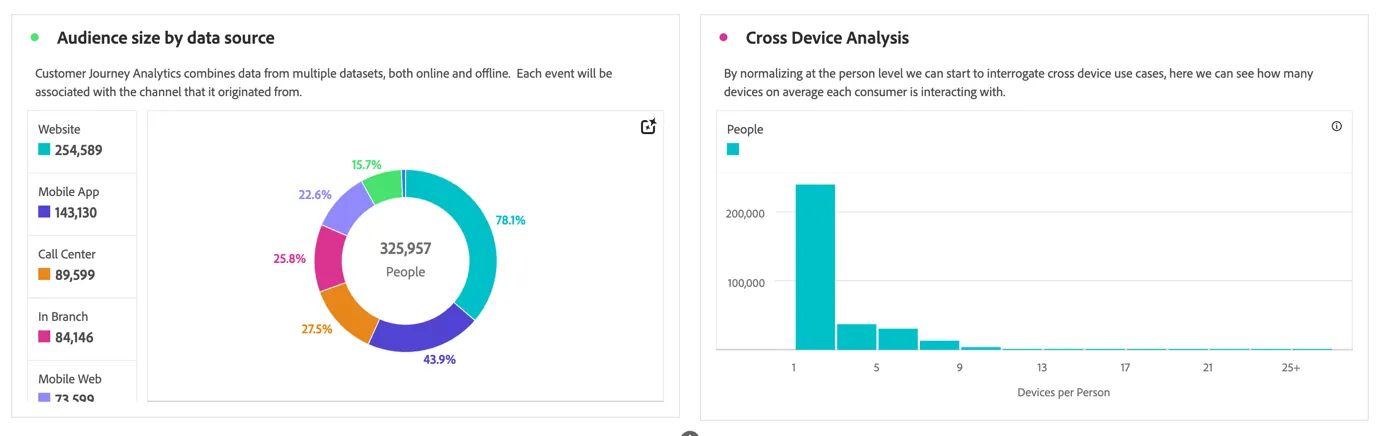
Since each of these source datasets are stitched at the person level, we can start to analyze things like audience size per channel and devices per person.
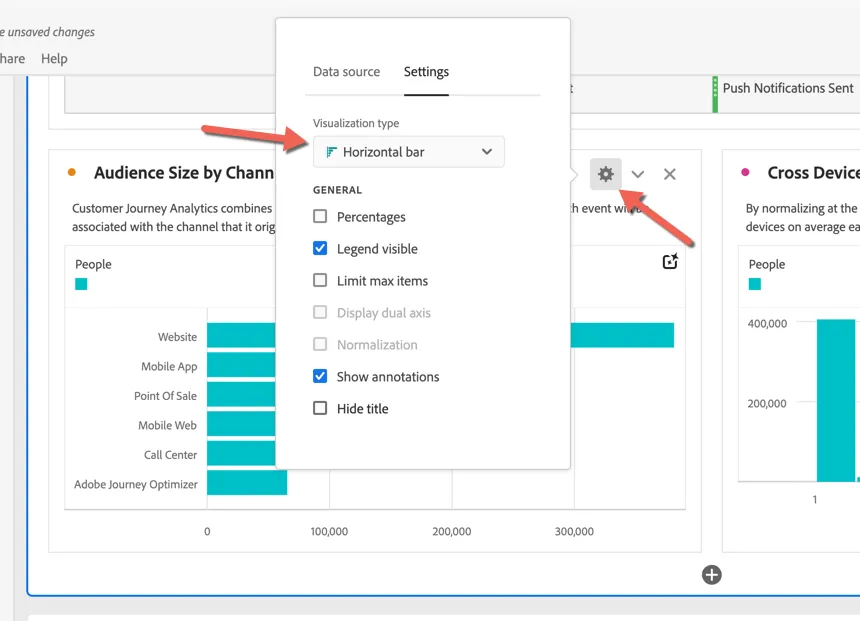
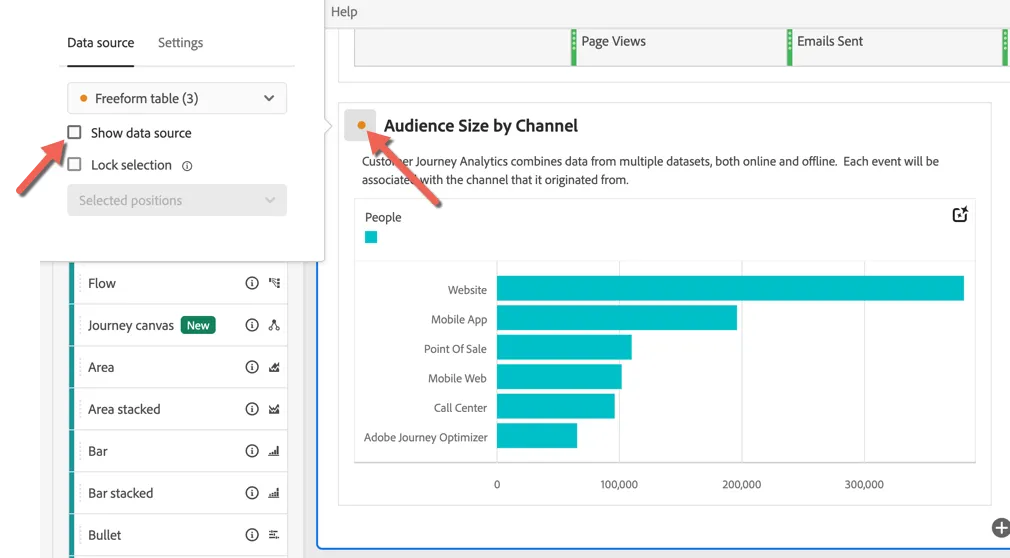
You can update the visualisation type by clicking on the cog icon.
Each visualisation is tied to a freeform table which can hidden or visible. Click the icon left of the heading to toggle this on and off.
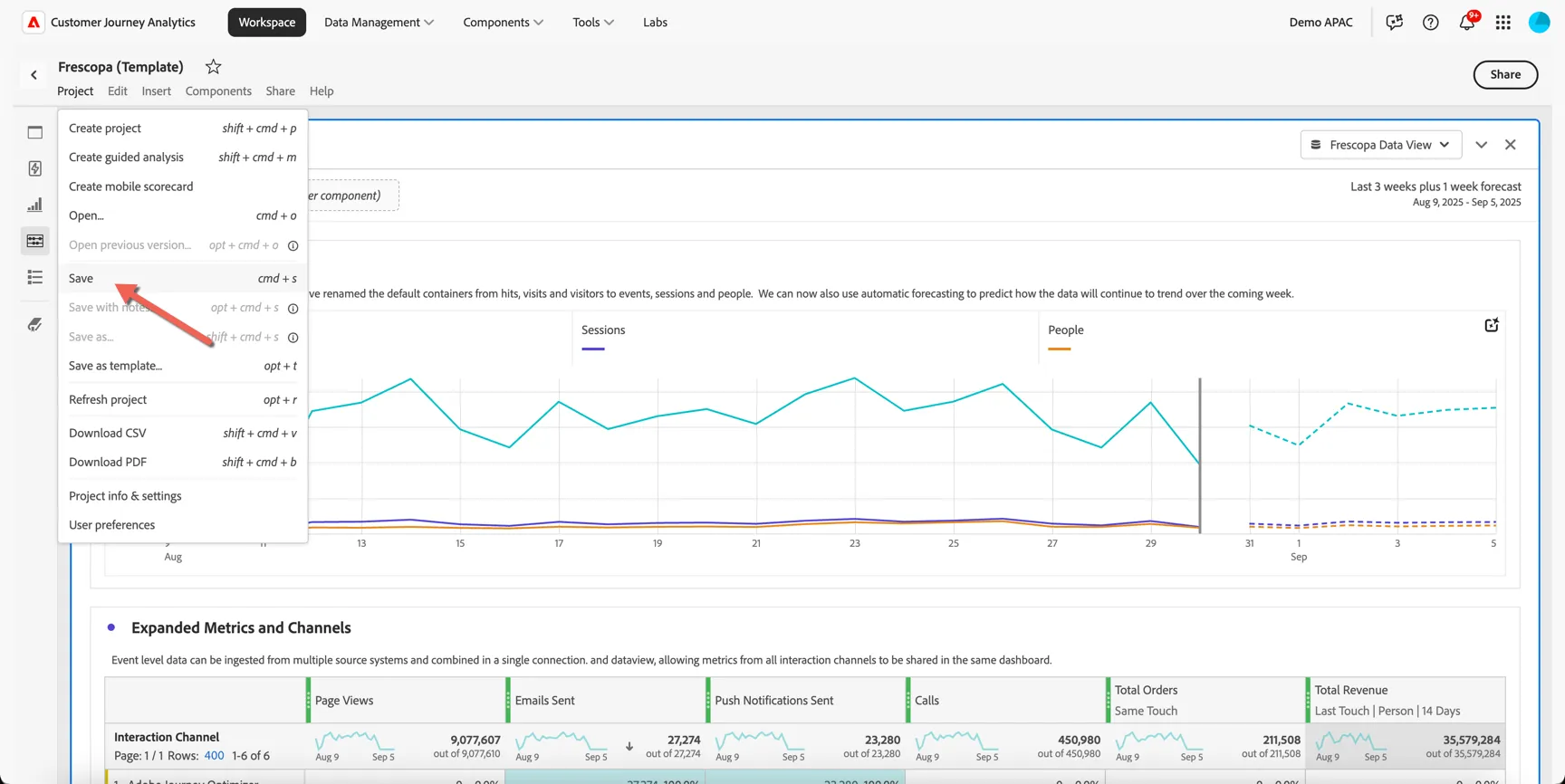
Before we continue, let's save our dashboard. Click Project -> Save.
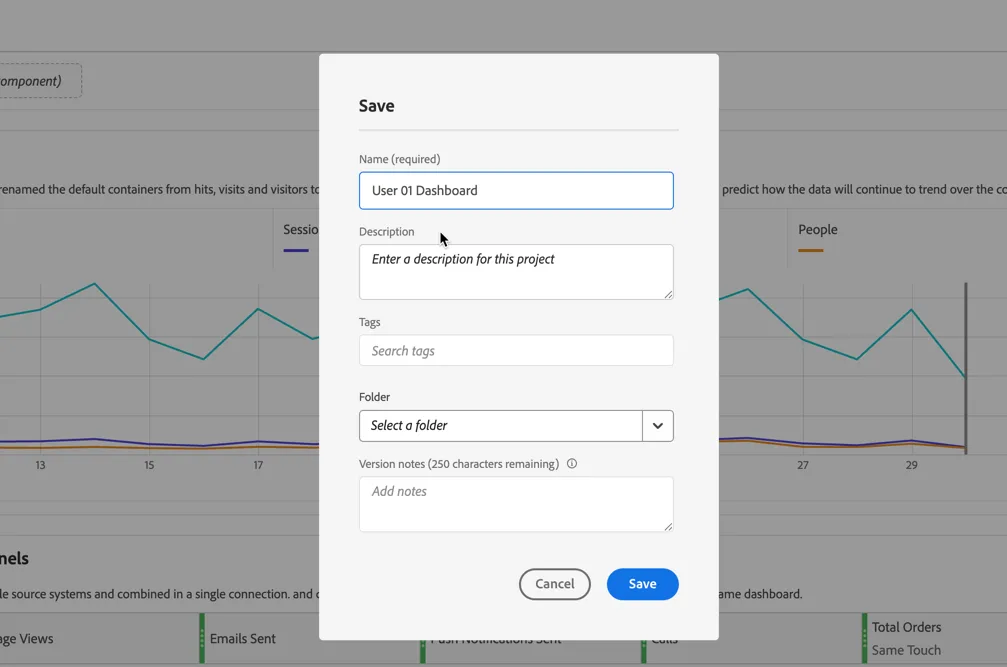
Give your project a unique name by including your lab number or name. Then click Save.
Now we've covered some basics, let's take a closer look at Luma's recent results and check whether we can see any changes to customer behaviour since the competitor launched last month.
Data Insights Agent
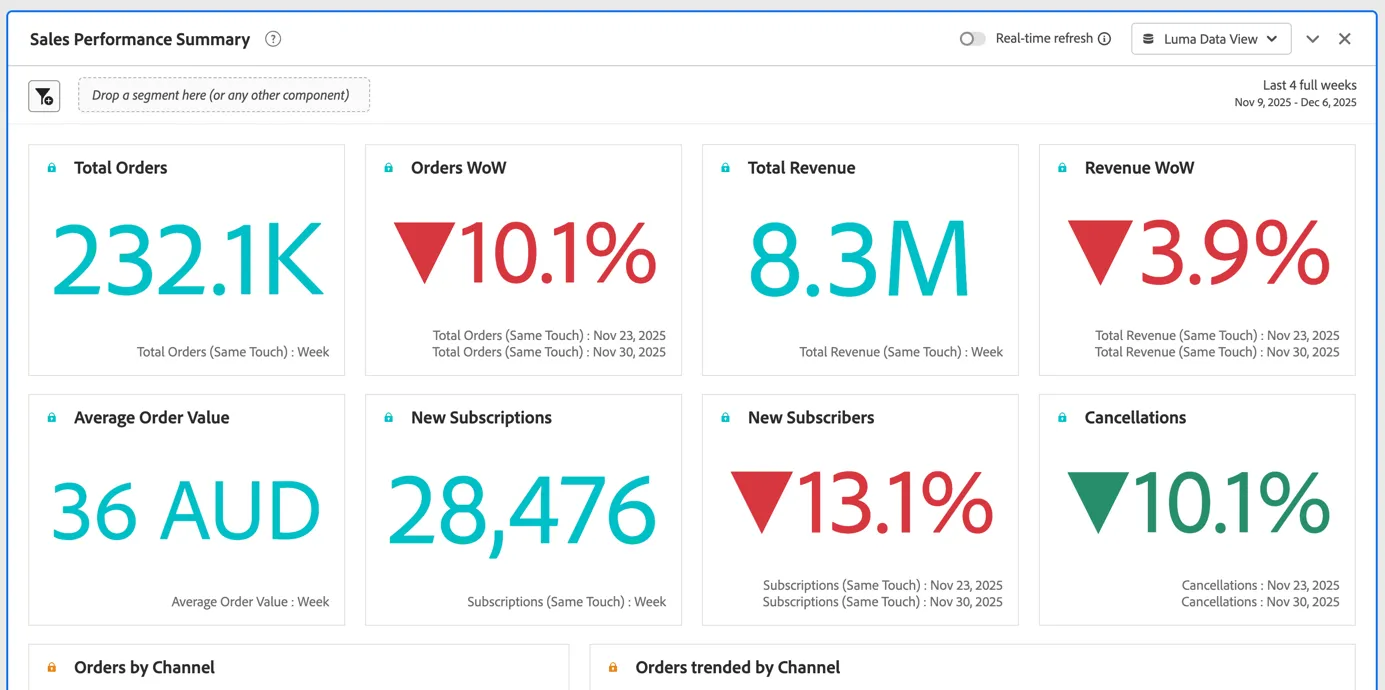
Scroll down to the next panel Sales Performance Summary to see some of Luma's key performance metrics summarized.
We can see from this report that orders and revenue are trending down week on week, but the total number of people has increased, it would seem we're successfully driving traffic but having trouble converting that traffic.
Let's use CJA's Data Insights Agent to analyse how the offline (ie. in store) sales are performing and whether there have been any recent changes.

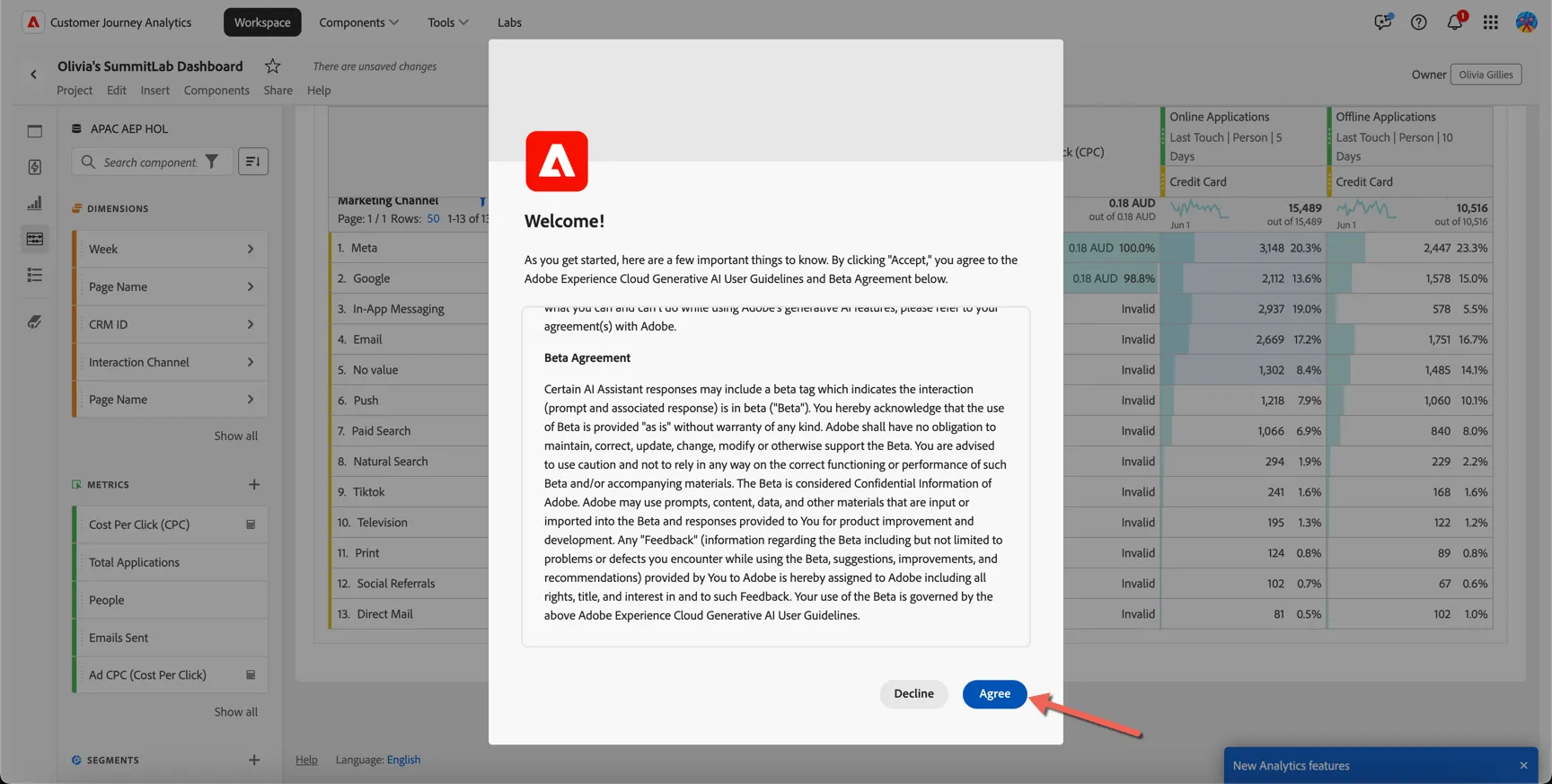
You might be asked to accept the Generative AI User Guidelines and Beta Agreement, you can safely do this in our demo environment.
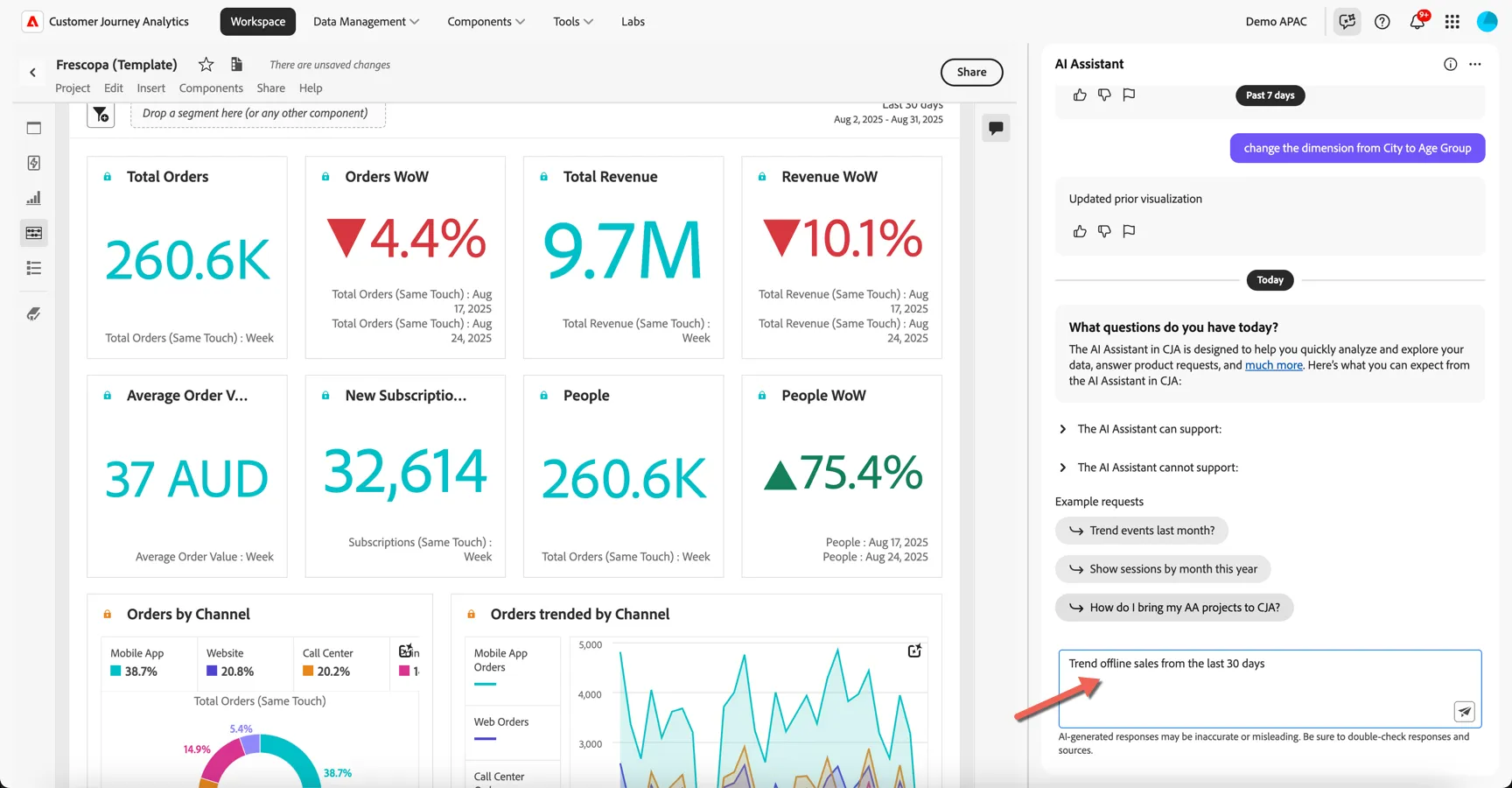
Ask AI Assistant to: trend offline sales from the last 30 days and hit enter.
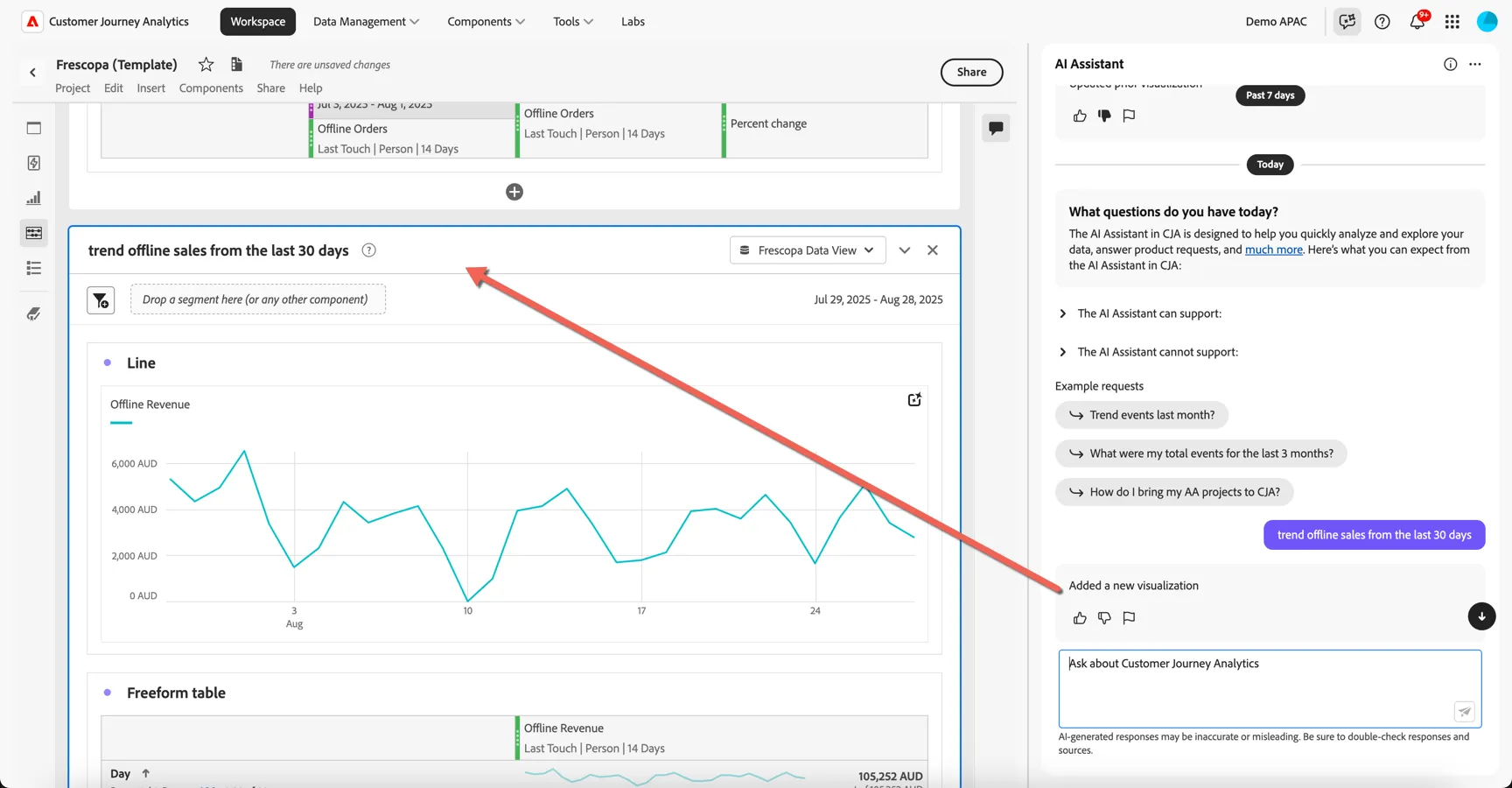
The assistant has added a new panel to our project and added a line visualisation and freeform table.
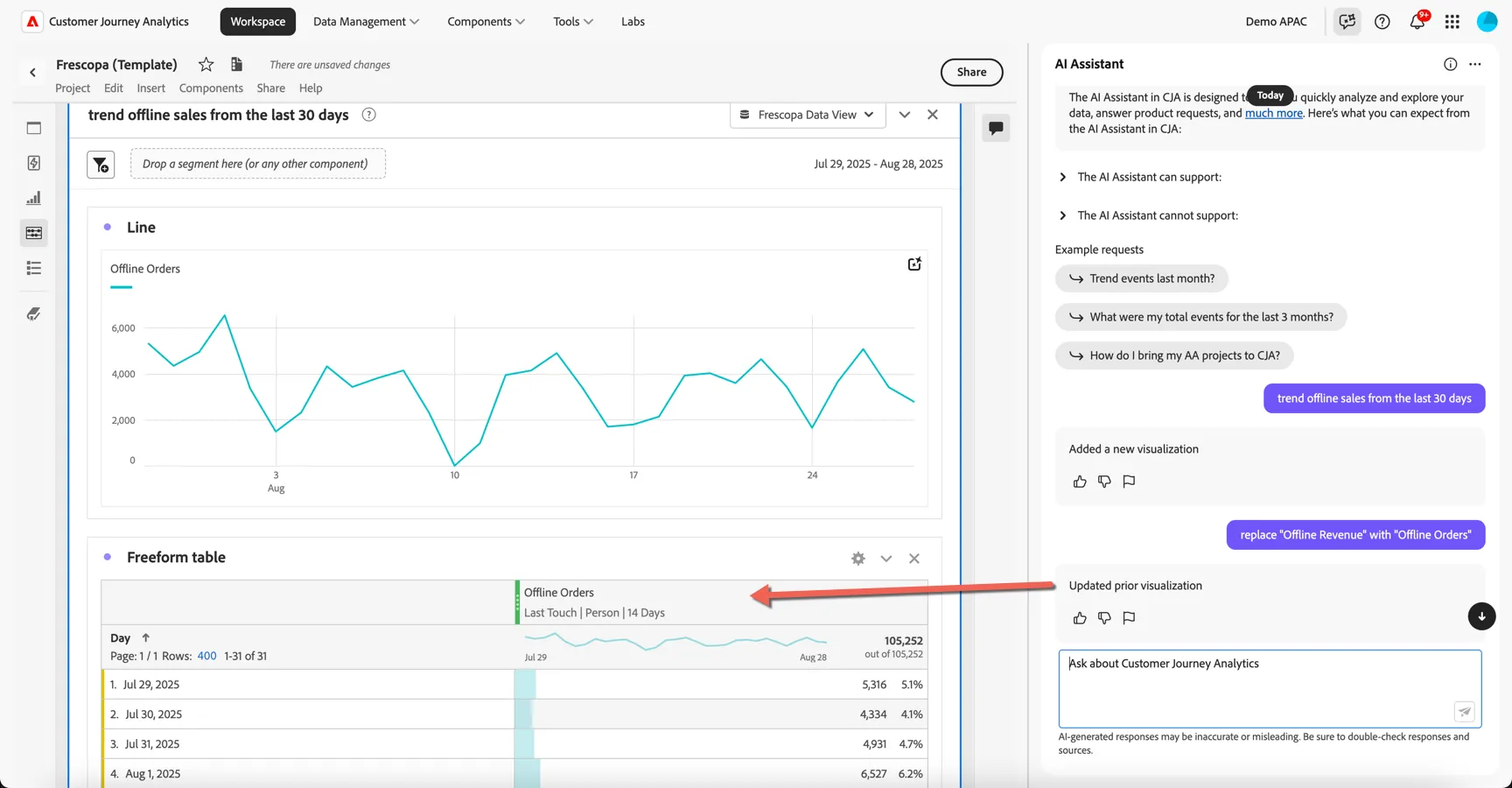
I actually want to look at order numbers though not revenue.
- Ask AI Assistant to: replace "Offline Revenue" with "Offline Orders"
The data in the generated visualisation is updated to use offline orders metric not revenue. This metric represents our instore orders.
We're looking for changes in recent purchasing behavior so let's see how the orders compare to last month.
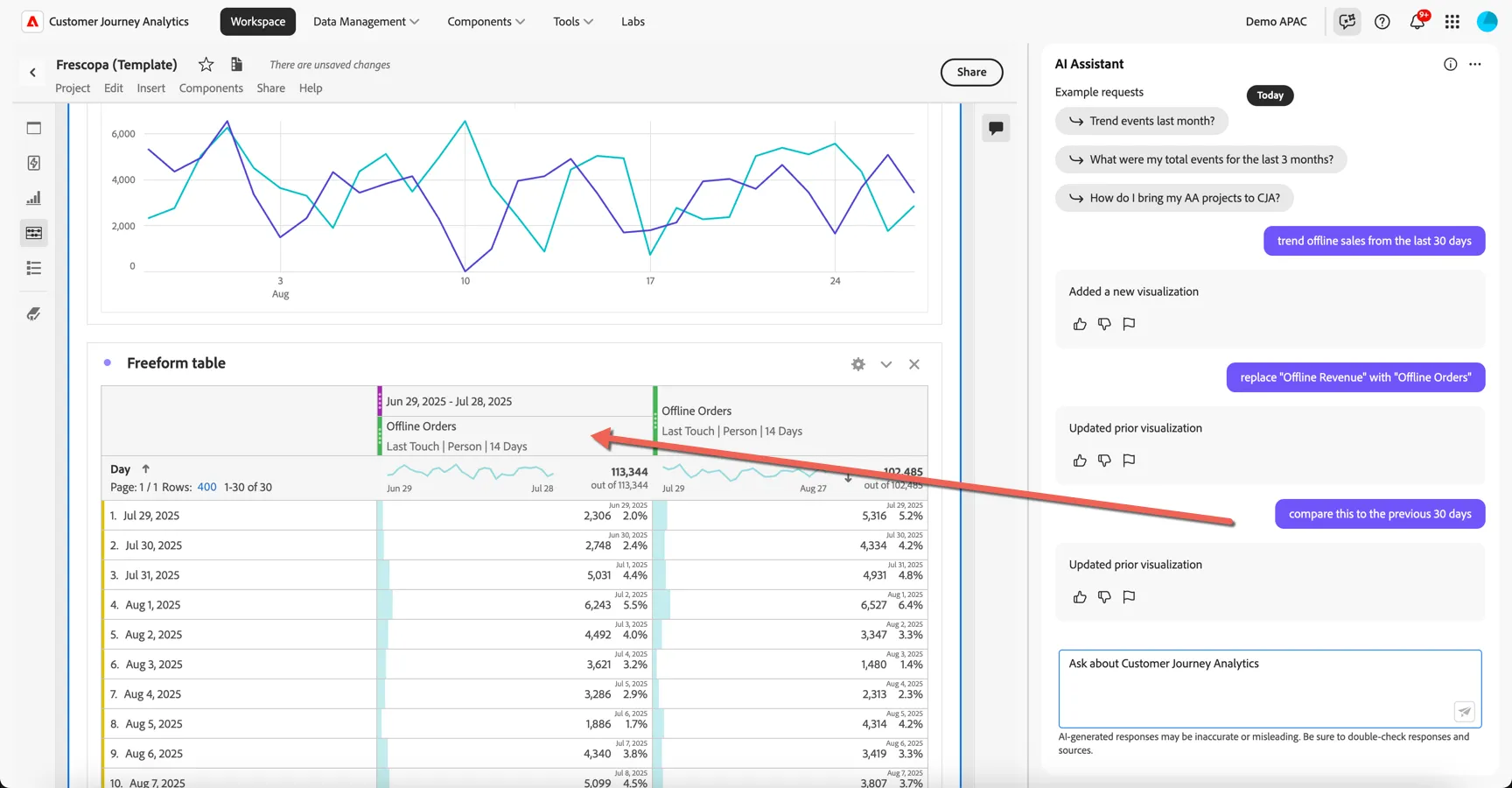
- Ask AI Assistant: compare this with the previous 30 days
The visualisation has been updated with a new column showing the previous time period.
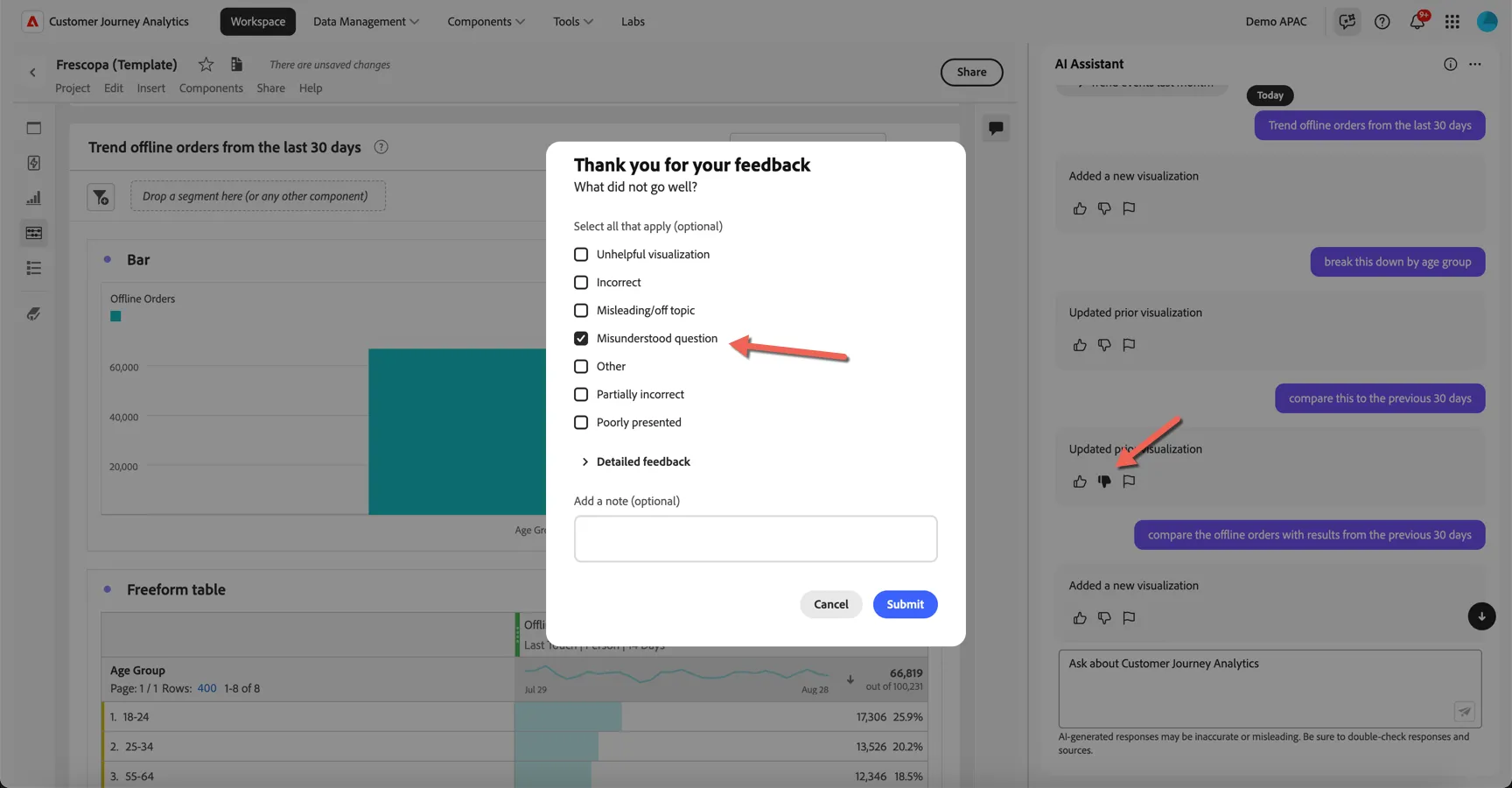
The agent is still learning and might not get the answers right every time, if you see a result that's unexpected, use the thumbs up and thumbs down feedback buttons to provide context on what went wrong and help us to improve the accuracy of the agents results.
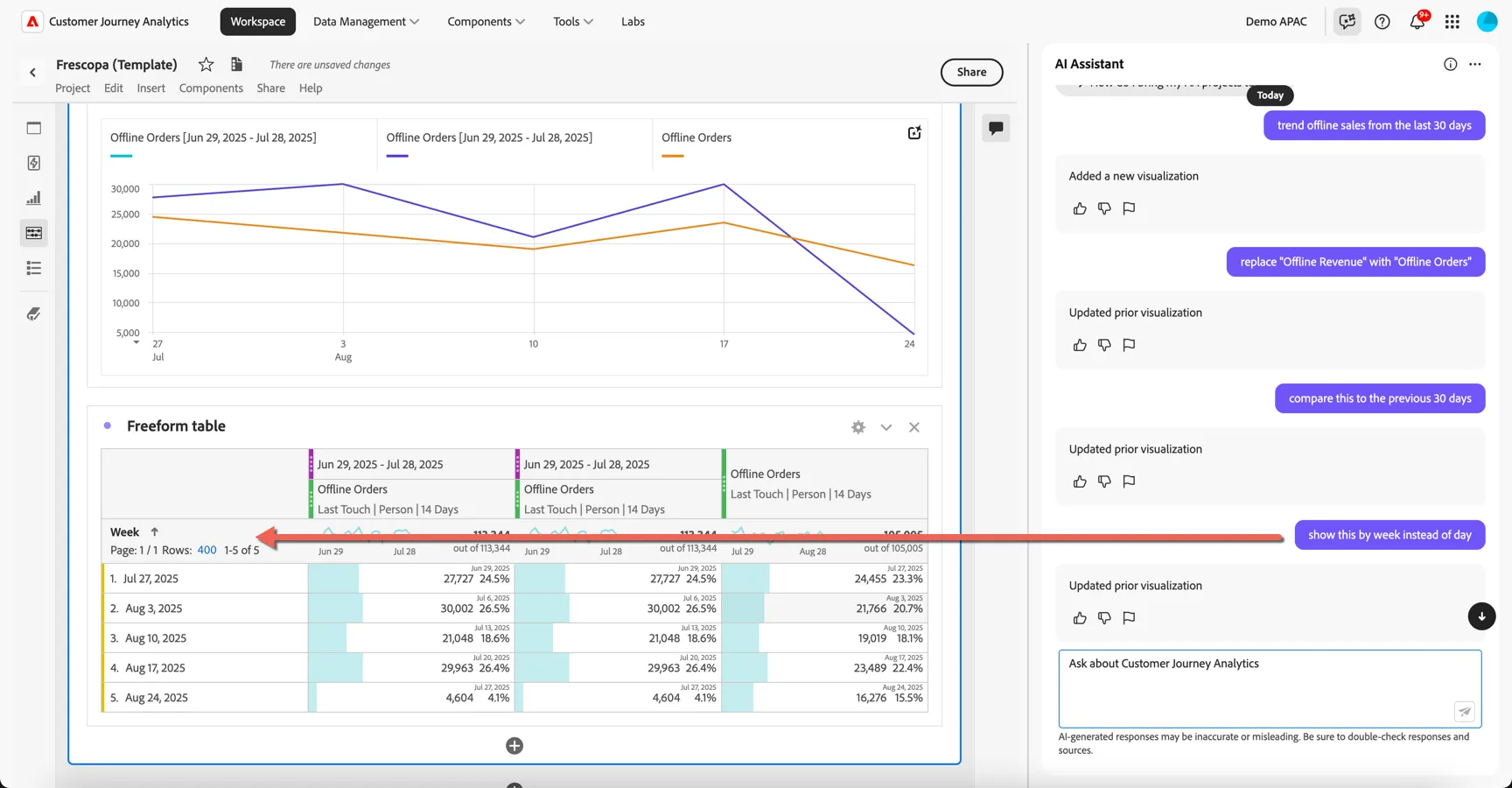
I want to reduce the granularity in my table from daily to weekly.
- Ask AI Assistant to show this by week instead of day
Let's check now whether these numbers vary depending on the location of the customer.
- Ask AI Assistant to change week to city
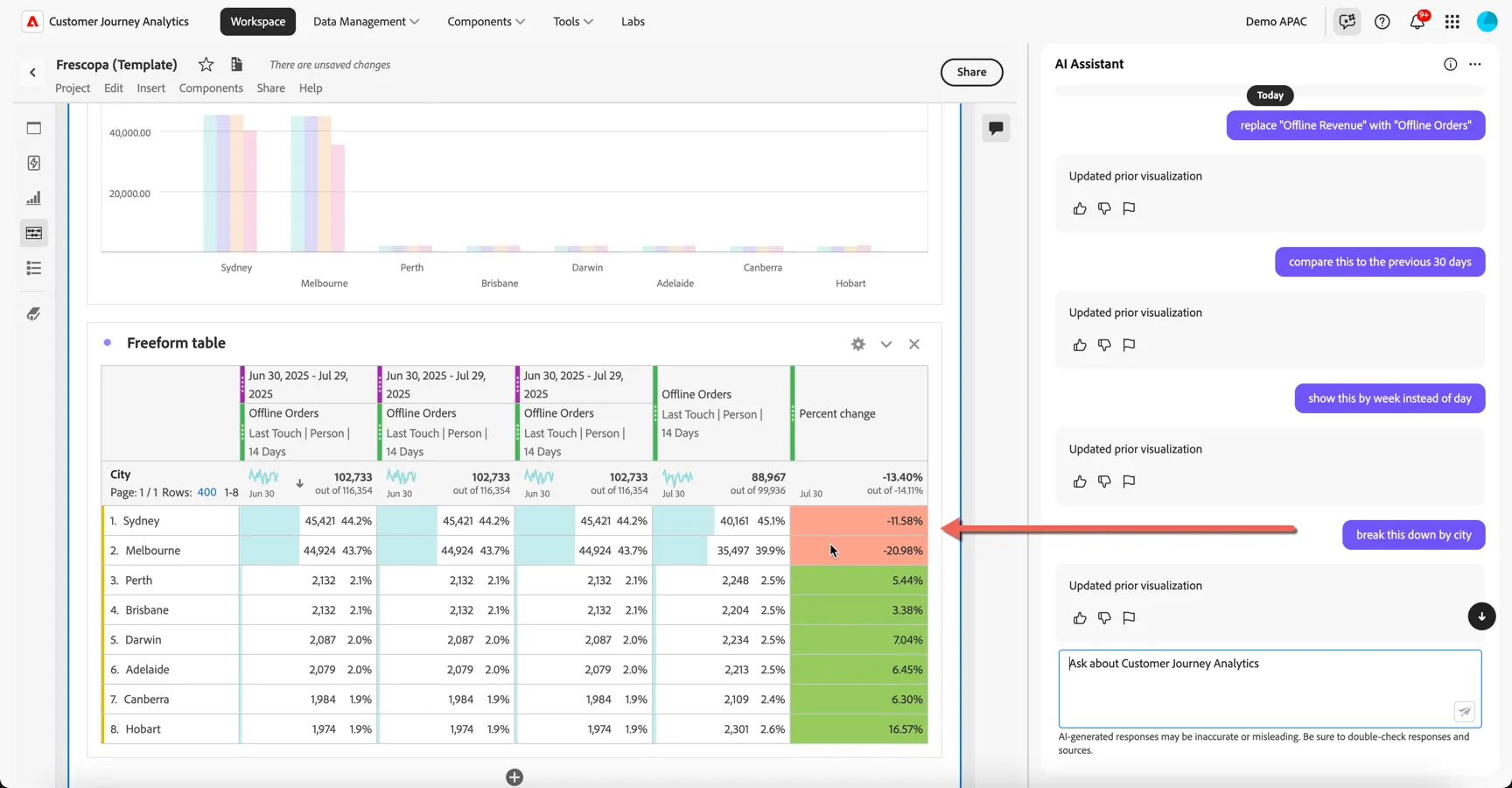
We can see that yes, offline orders are down month on month in Sydney and Melbourne.
With Data Insights Agent, business users can use natural language prompts to quickly and efficiently answers questions about their data. It builds relevant visualizations in Analysis Workspace using components and data from the currently active data view. This can save time and effort building out new visualisations.
Analysing the Journey
Now that we've generated some quick insights using the Data Insights Agent, let's take a look at the how customers are behaving across channels.
Scroll back up to the panel labeled Analyse the journey across channels.
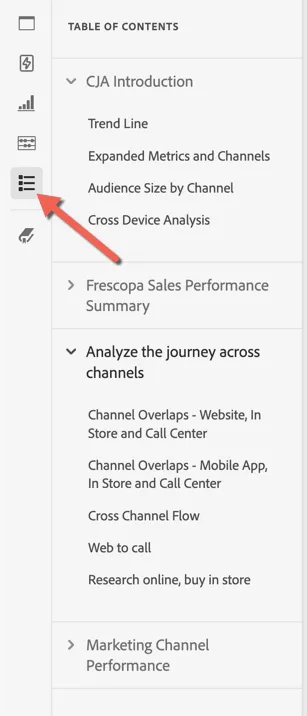
Hint: you can use the table of contents on the left rail to find and change panels quickly.
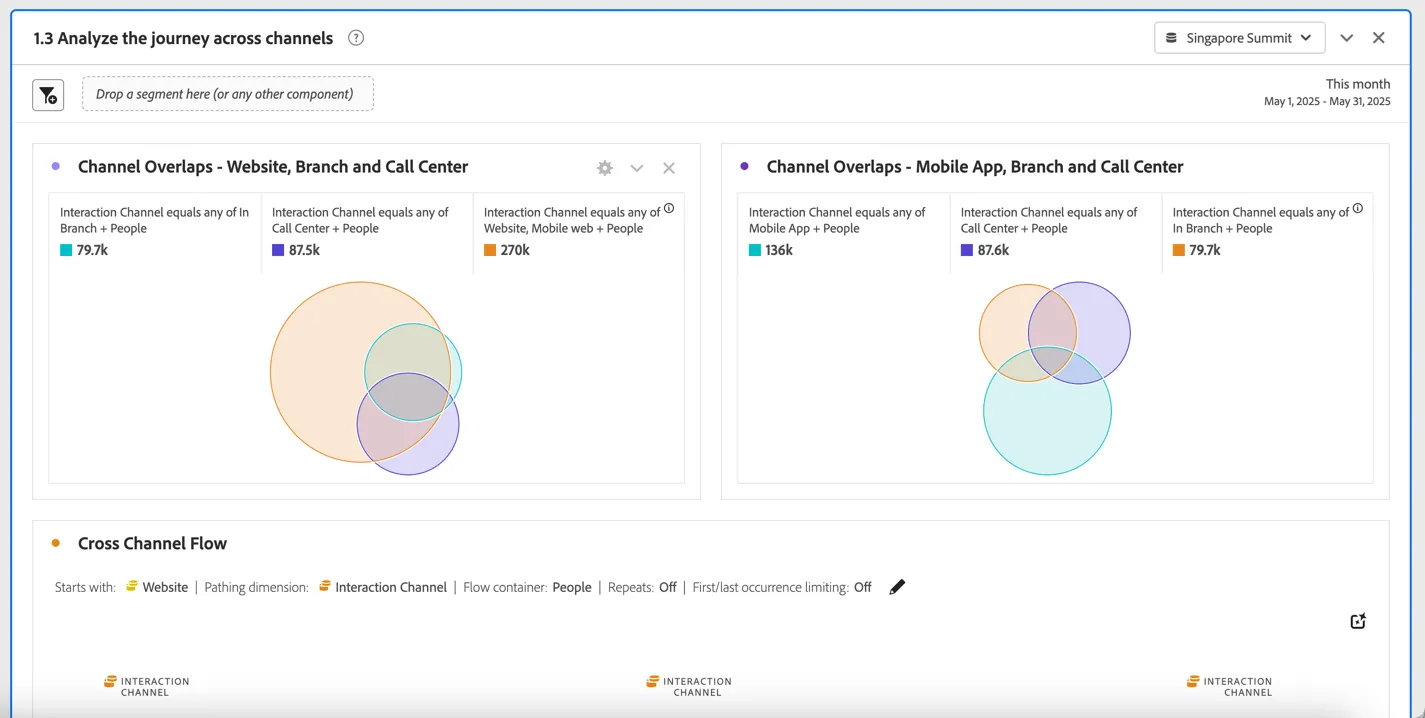
Here we can see the overlap of people interacting across channels. The Channel Overlap venn diagrams show the overlap of customers engaging on the website or mobile app while also calling the call center or visiting a store.
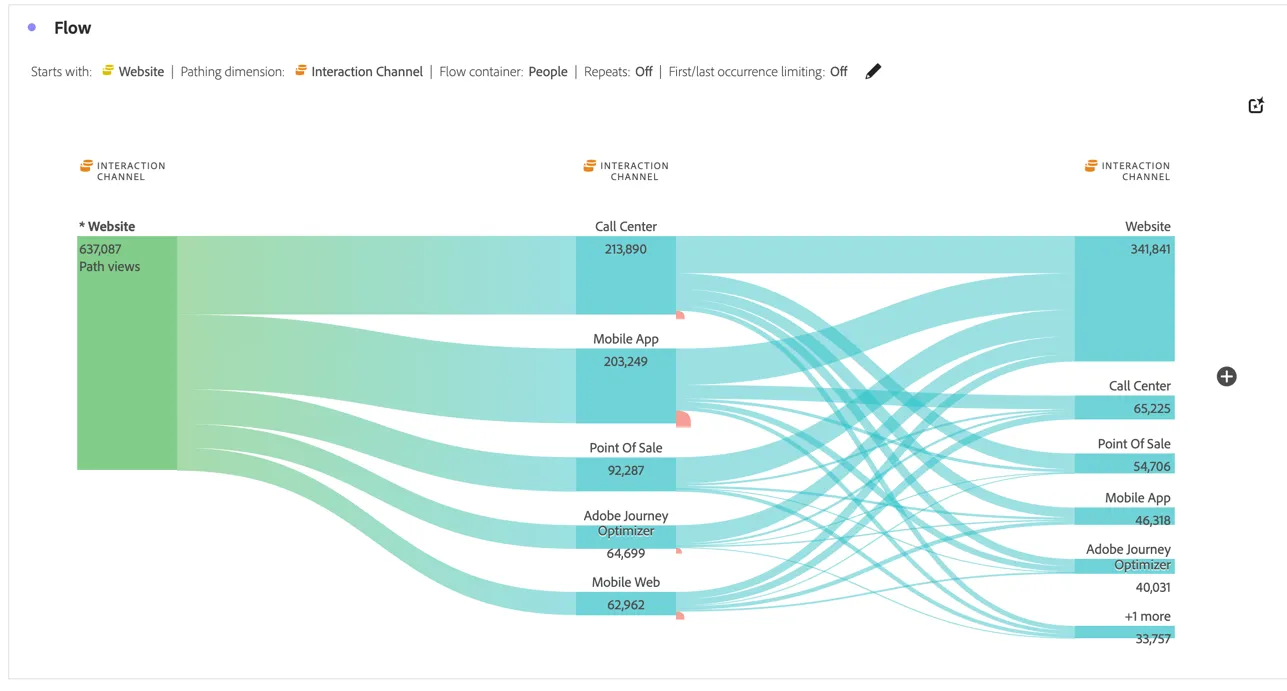
The Flow visualisation is a powerful way to understand customer journeys through your website or app. Now with CJA you can leverage the same visualisation to discover the journey your customers are taking across all of your channels.
Intelligent Captions provide high level takeaways allowing you to share your findings easily with other users. Click on the icon in the top right to generate the captions. Use the arrow icons on the right to expand and collapse the captions.
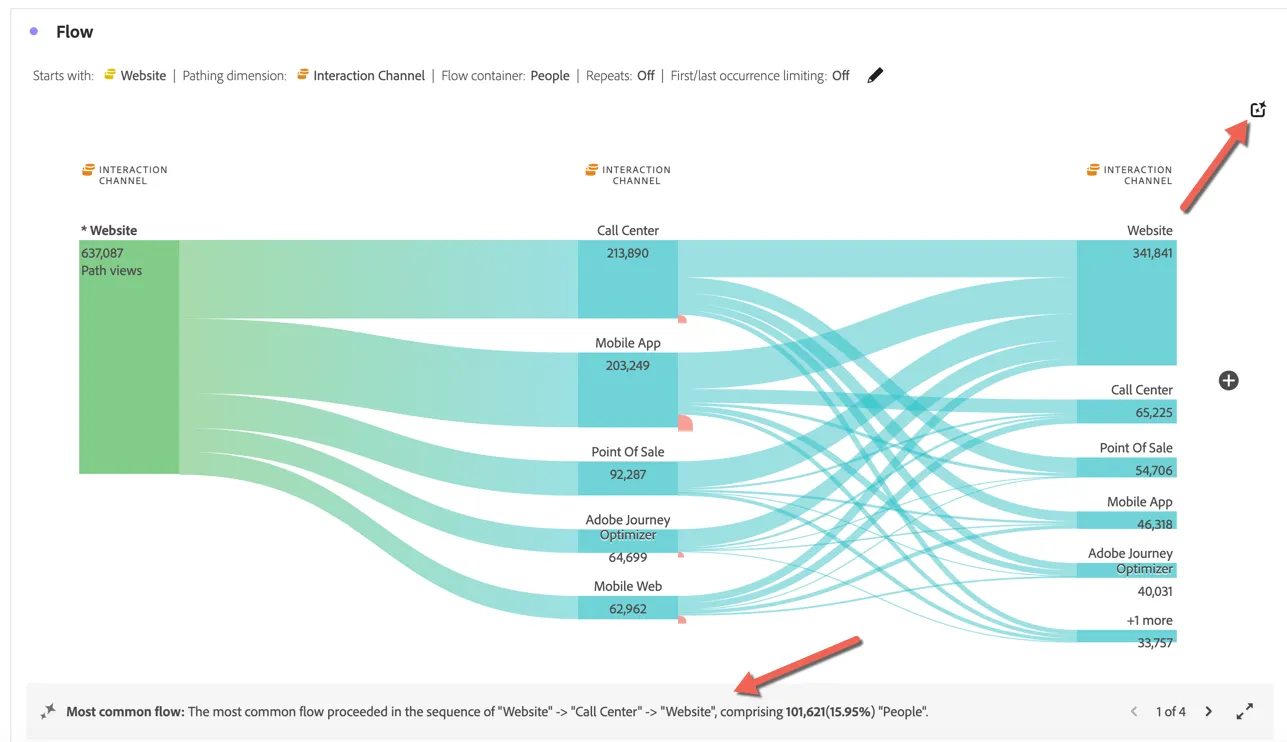
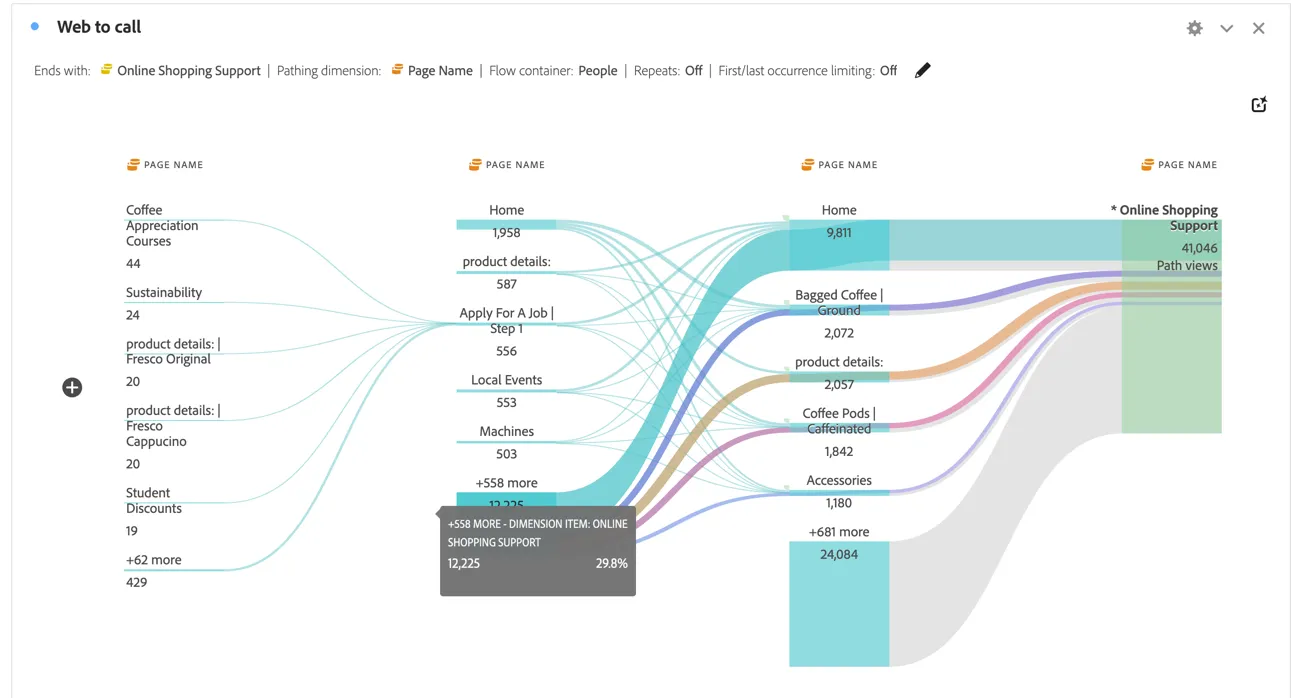
We can see that a lot of customers are calling the call center after visiting the website, let's explore this further and look at what pages customers are viewing on the site before making a call. This can help us find opportunities to optimize the website in order to deflect calls to the call center.
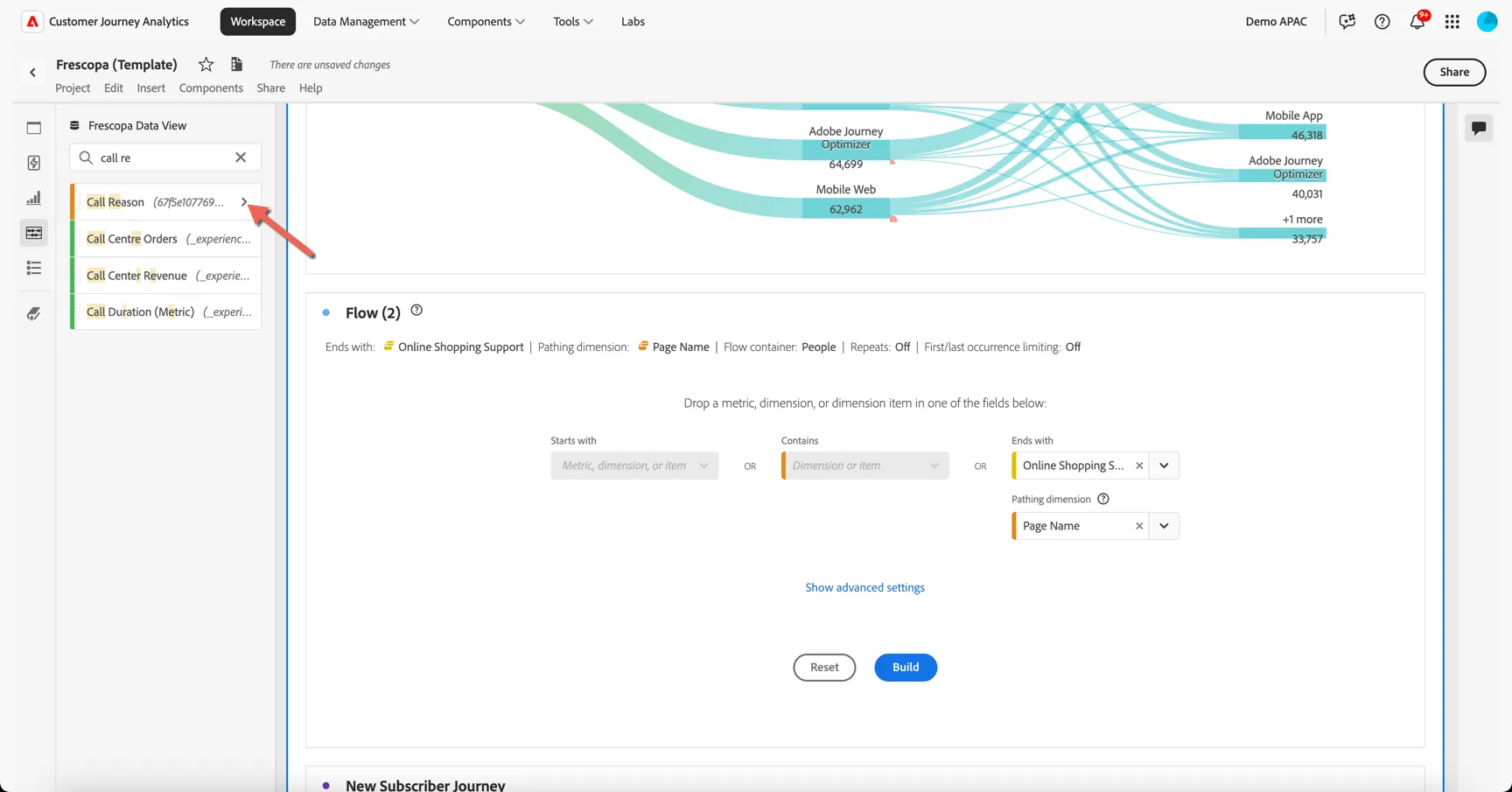
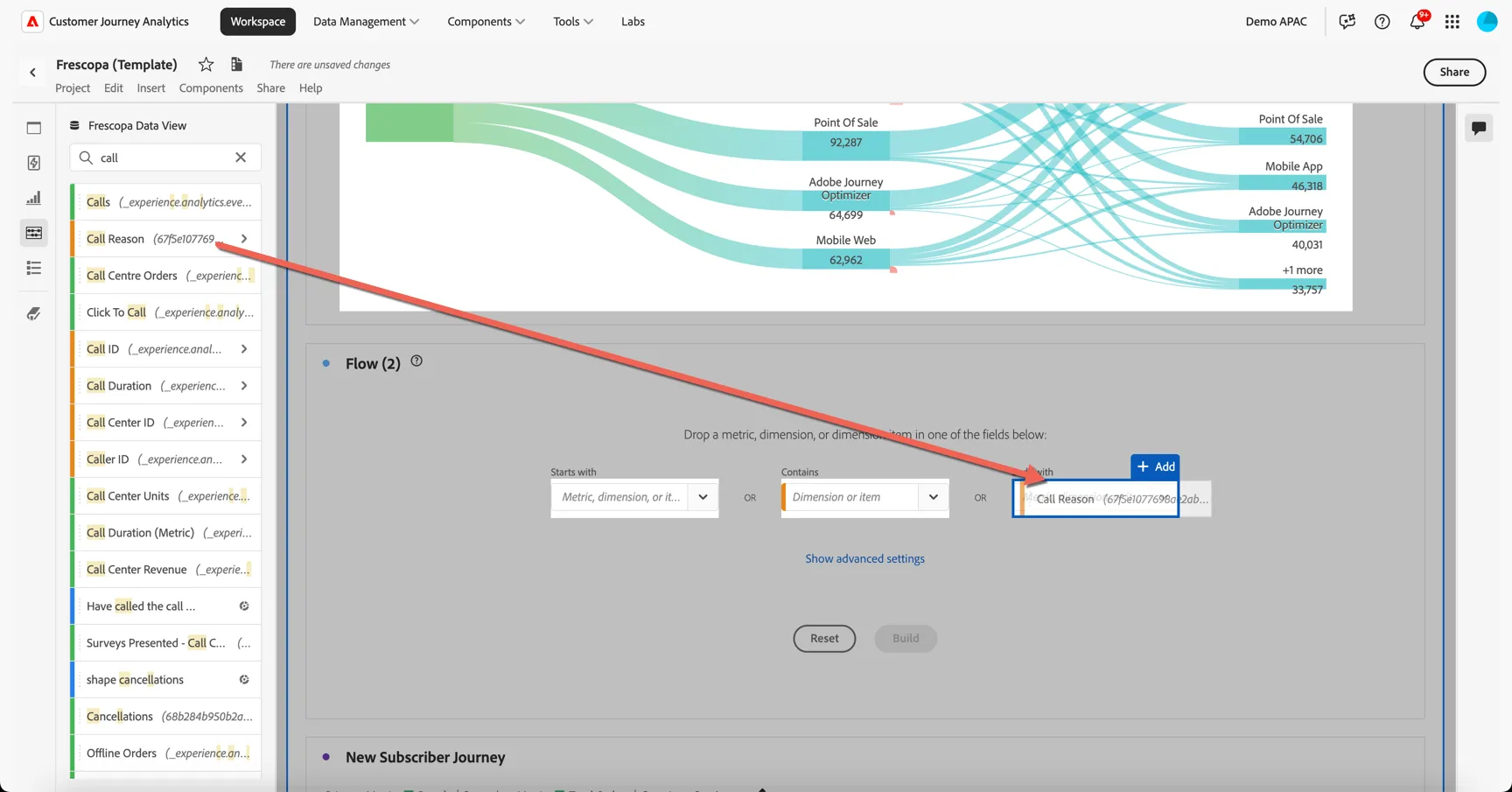
Drag a flow visualisation into your panel and search for the Call Reason. Click the arrow to see the individual values for this dimension.
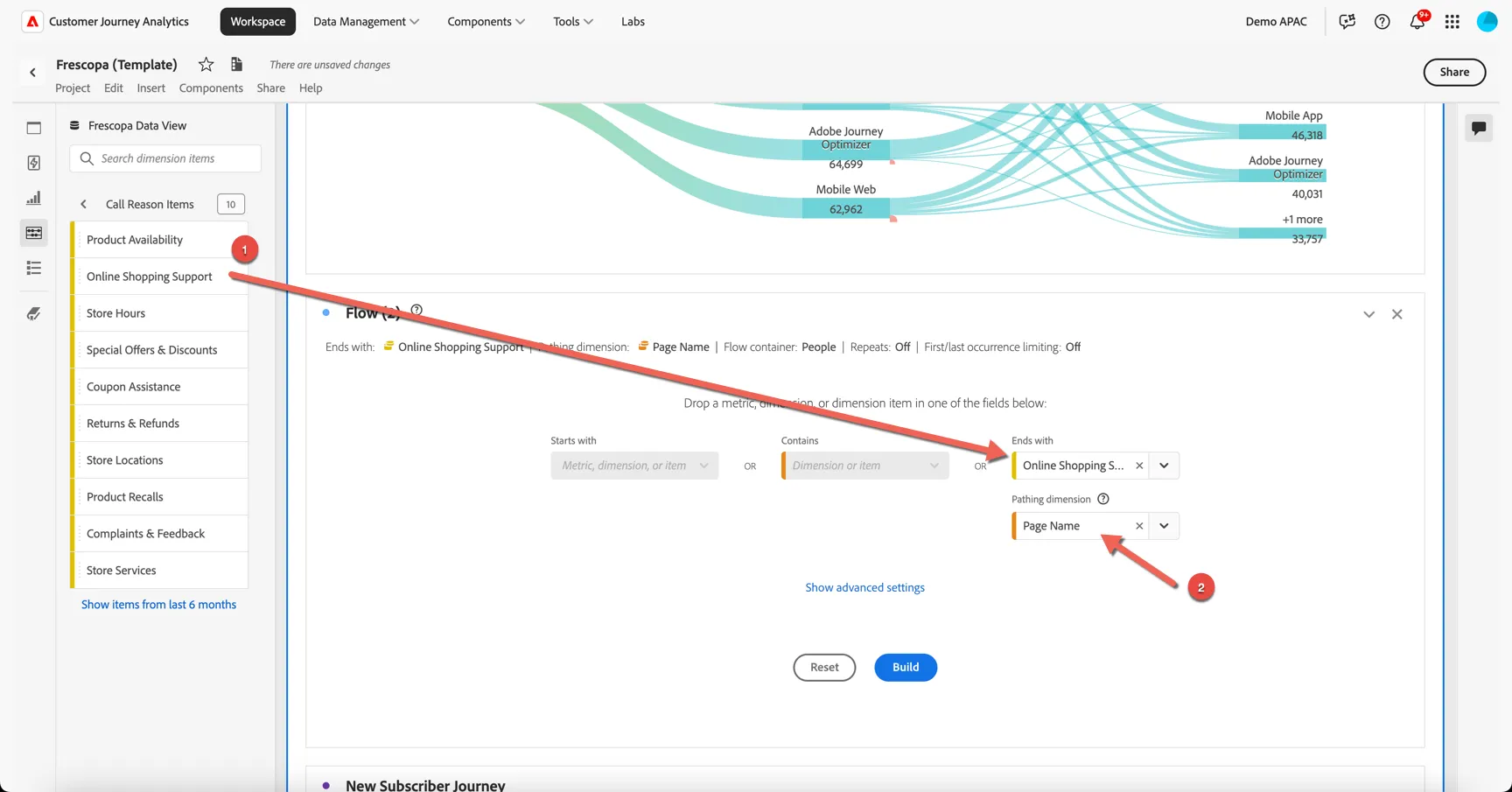
Drag the Online Shopping Support reason into the Ends With drop down in the freeform and change the pathing dimension to Page Name.
Click Build
We can now see which pages a customer is viewing on the site in the lead up to a call.
We know a lot of customers research online but buy instore. Scroll down to the Fallout visualisation. We can see the number of people viewing product pages online before completing an offline order.
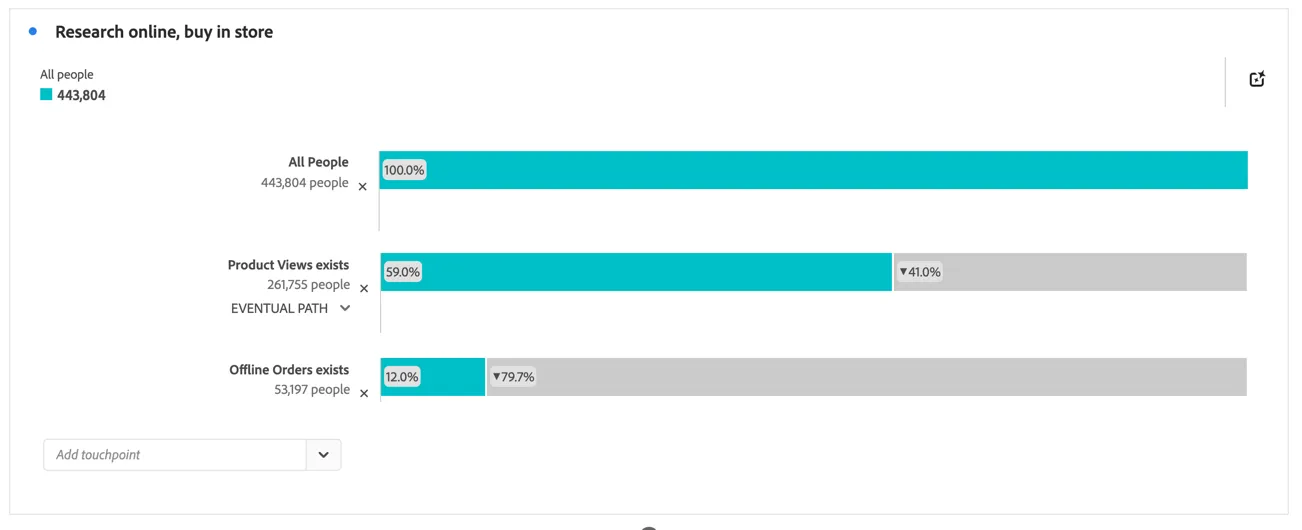
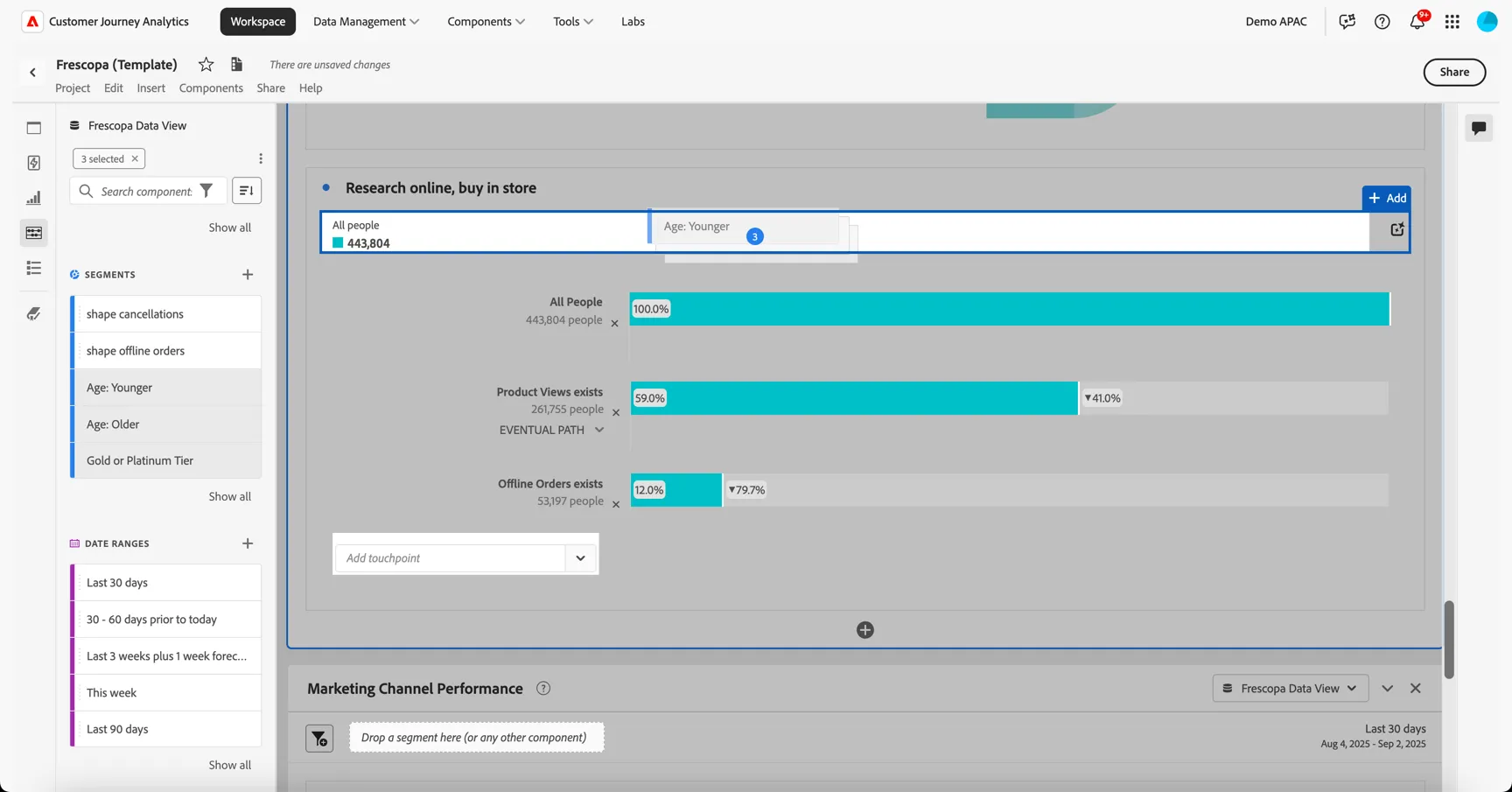
Let's take a look at how this behavior compares across segments. Drag the Age: Younger, Age: Older and Gold or Platinum Tier segments and add them to the fallout.
Interestingly we can see that this behaviour is more common with a younger demographic, and our gold and platinum tier members. A targeted online only offer might help to promote online sales.
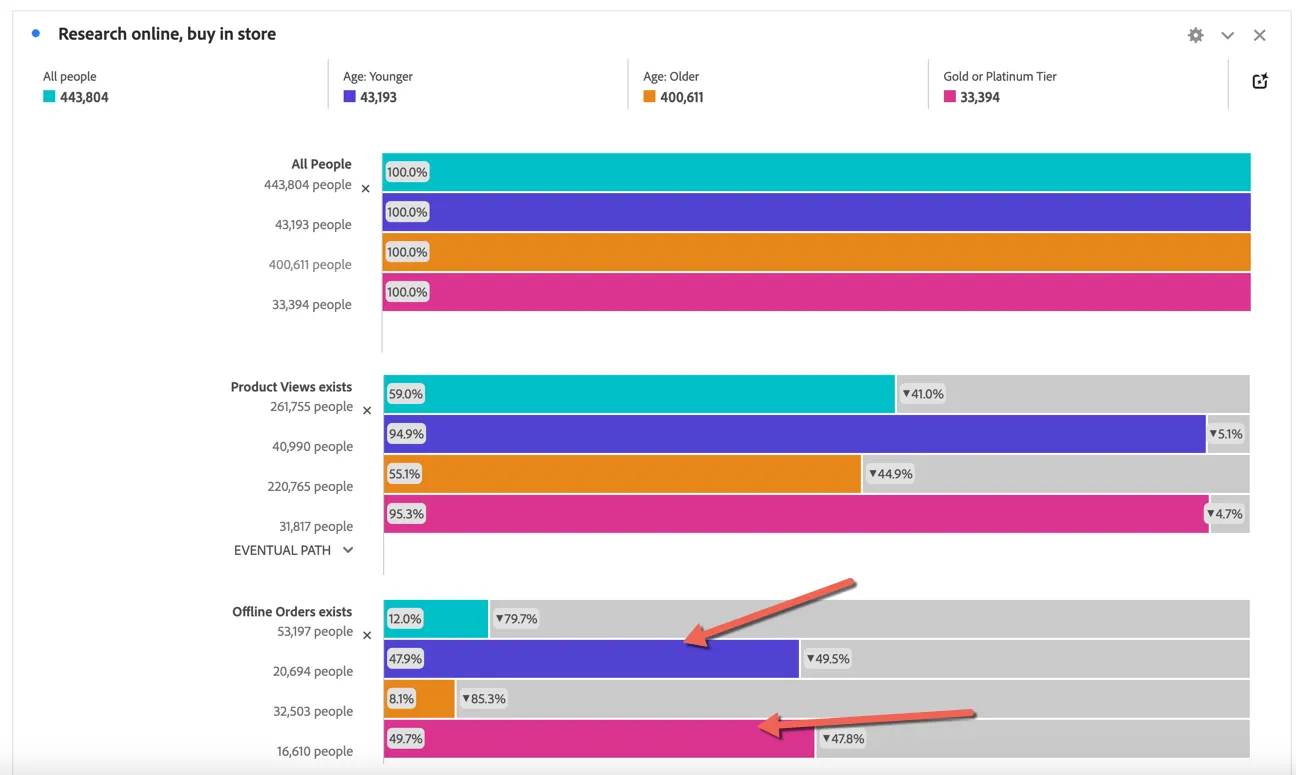
With these kind of visualisations and connected customer data we can run analysis of fallout and fallthrough that accommodates complex user journeys crossing any number of channels, dimensions and metrics.
Create Audience
Based on the analysis above, Luma decide to run a targeted online promotion for customers who tend to research online but buy instore to encourage online purchasing.
As an analyst you can create an audience directly from the dashboard for use by Adobe CDP and Journey Optimizer.
Right click on the last step of the fallout chart and select Create Audience from selection
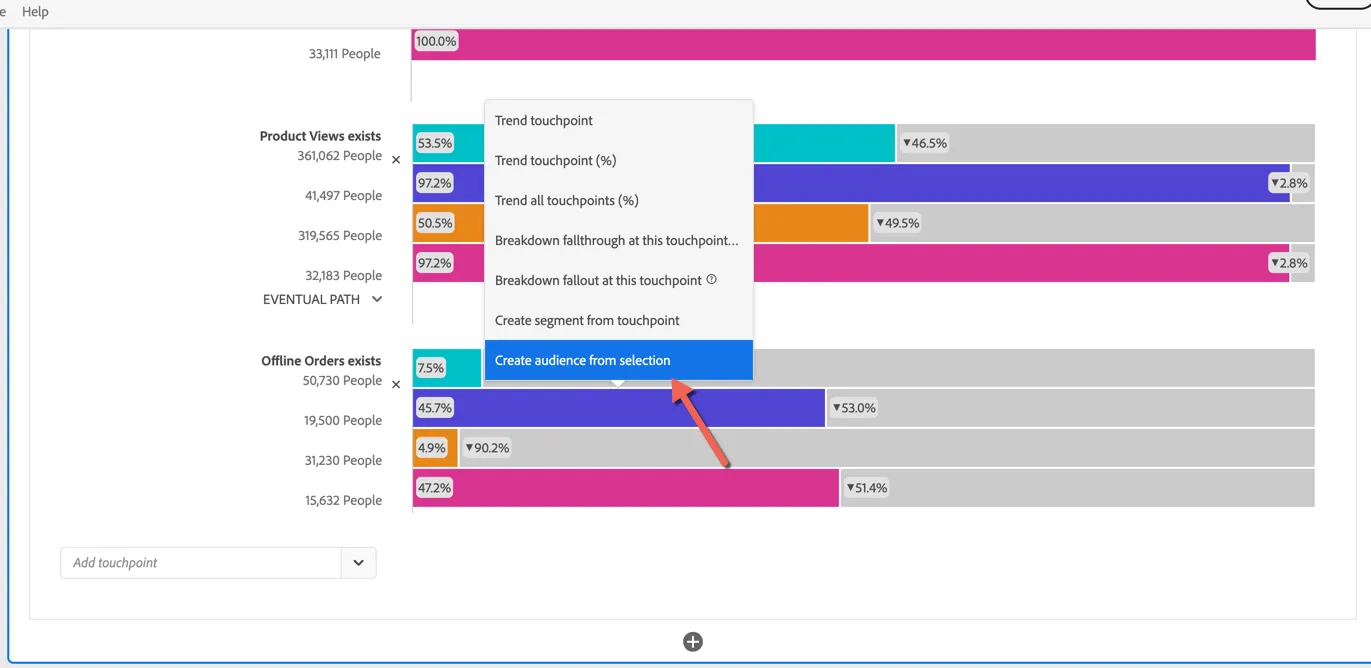
By default it selects just the primary path from the fallout, drag the Age Younger segment into the conditions to filter it further.
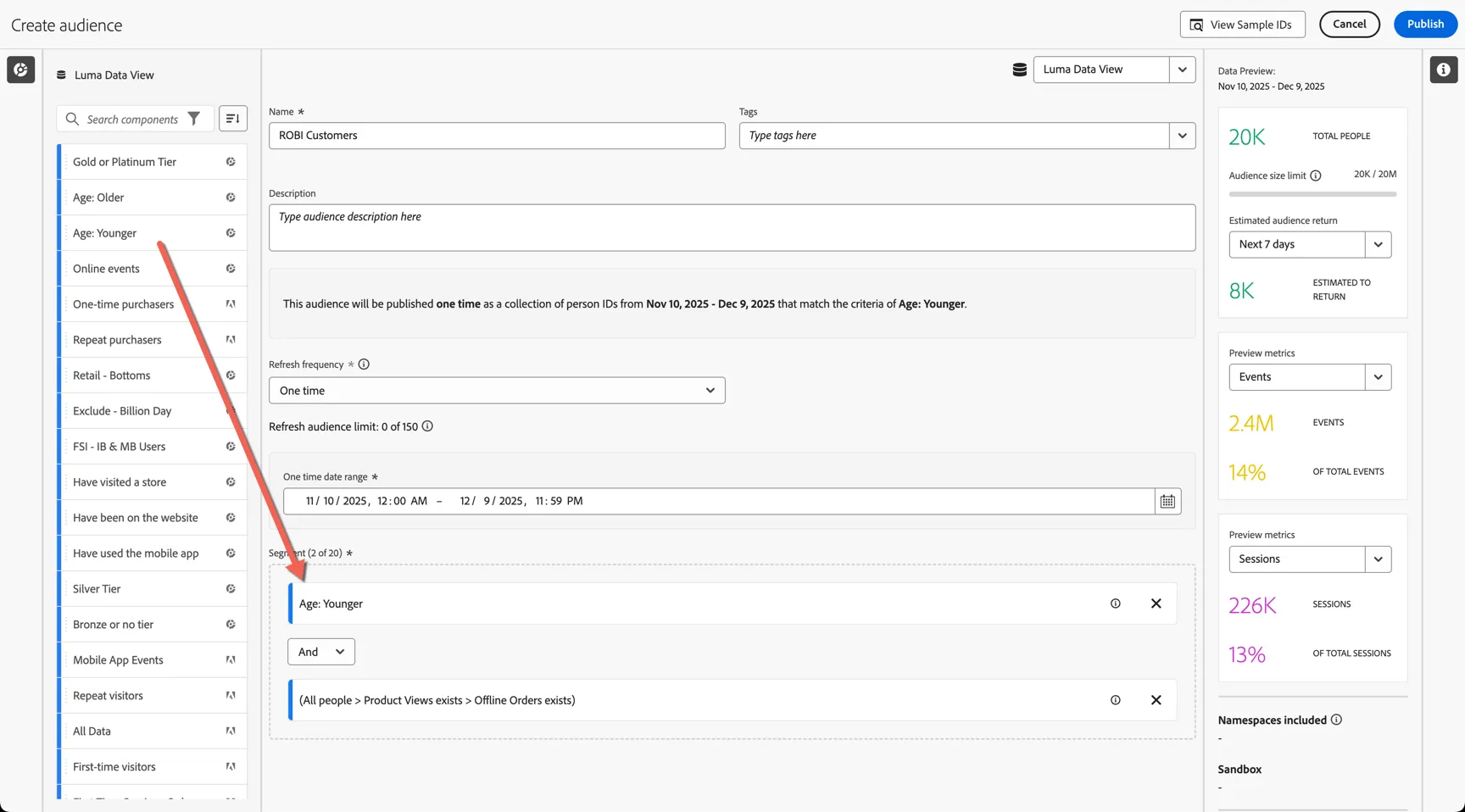
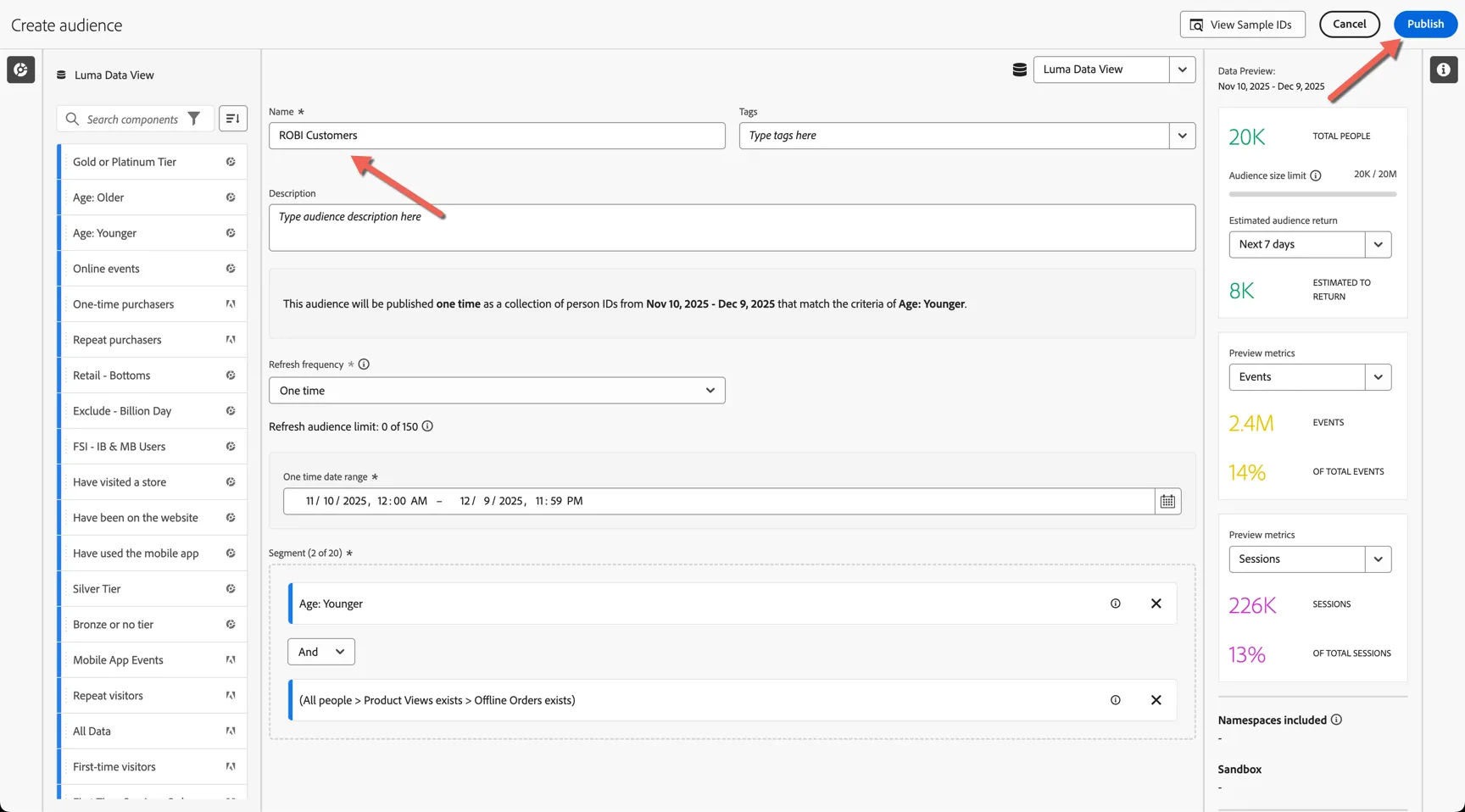
Give your audience a name and click publish to share the audience.
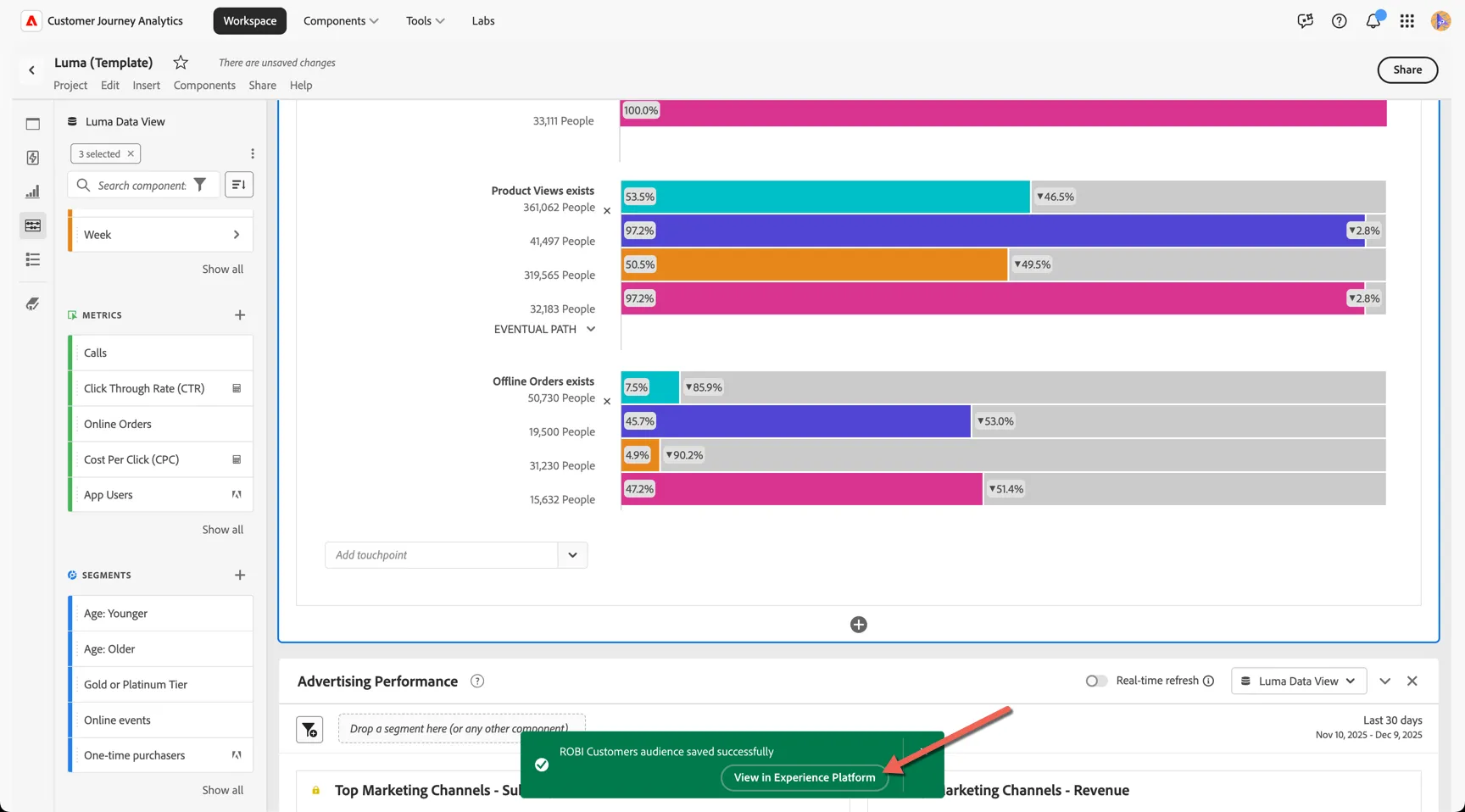
The audience is now ready for activation via Adobe CDP and Journey Optimizer. Click to view the Audience in Adobe Experience Platform.
Bonus Exercises
Marketing Attribution
Let's take a quick look now at how our marketing channels have been performing.
Scroll down to the last panel in your dashboard. We can see here a quick visualisation to show the top performing channels for both new subscriptions and total revenue.
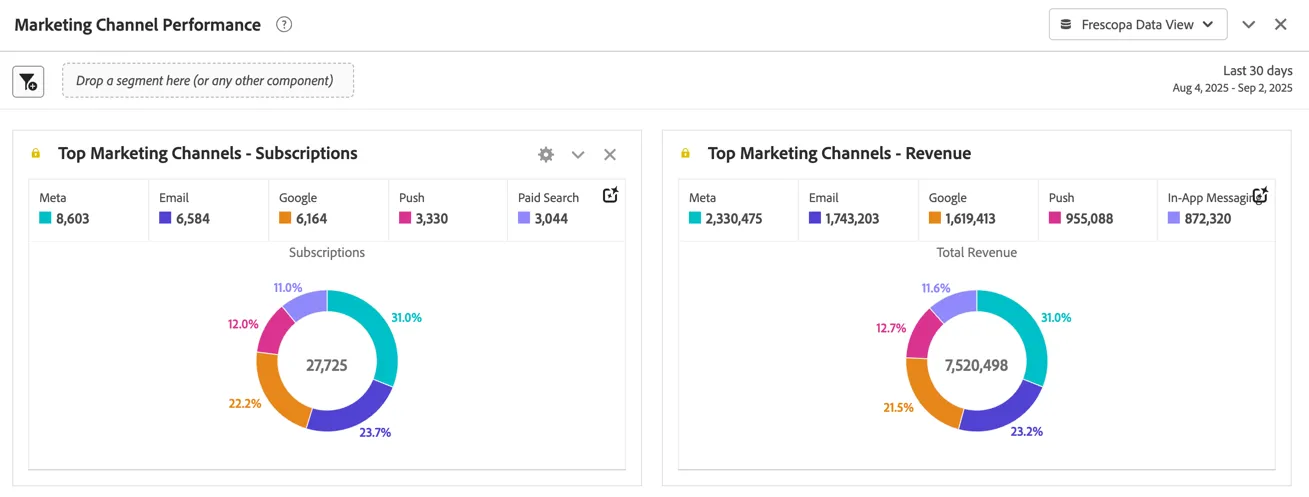
The "Marketing channel" dimension differs from the "Interaction Channel" dimension we used earlier. The marketing channel represents the channel the customer came from when landing on the website or app. It is typically derived from campaign parameters attached to digital ads or marketing messages like emails.
If you scroll down to the data table which enables these visualisations, you can see we also have summary data from Meta and Google to understand how many impressions, clicks and the cost for these paid channels for the reporting period. This data is collected as daily aggregates and can be tied to the person level event metrics through shared Campaign Id's collected when a customer clicks through from an Ad.
With this summary level data we can start to report on advertising metrics like cost per click, return on ad spend and cost per aquisition across not only online but offline channels as well.
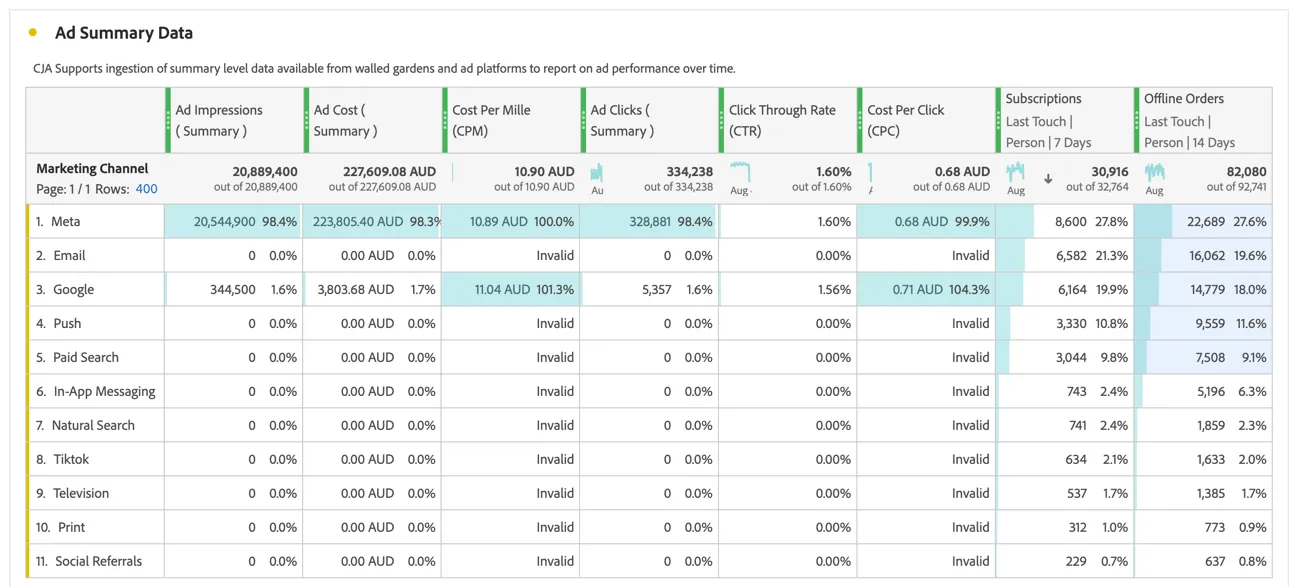
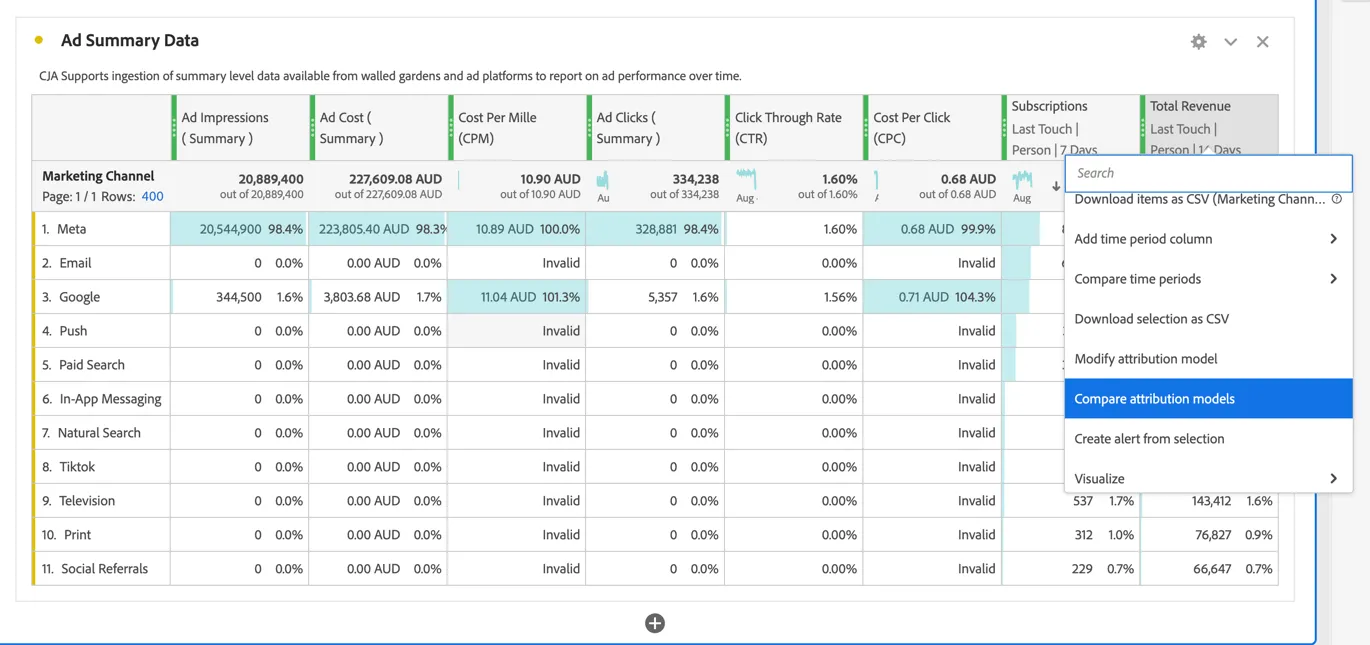
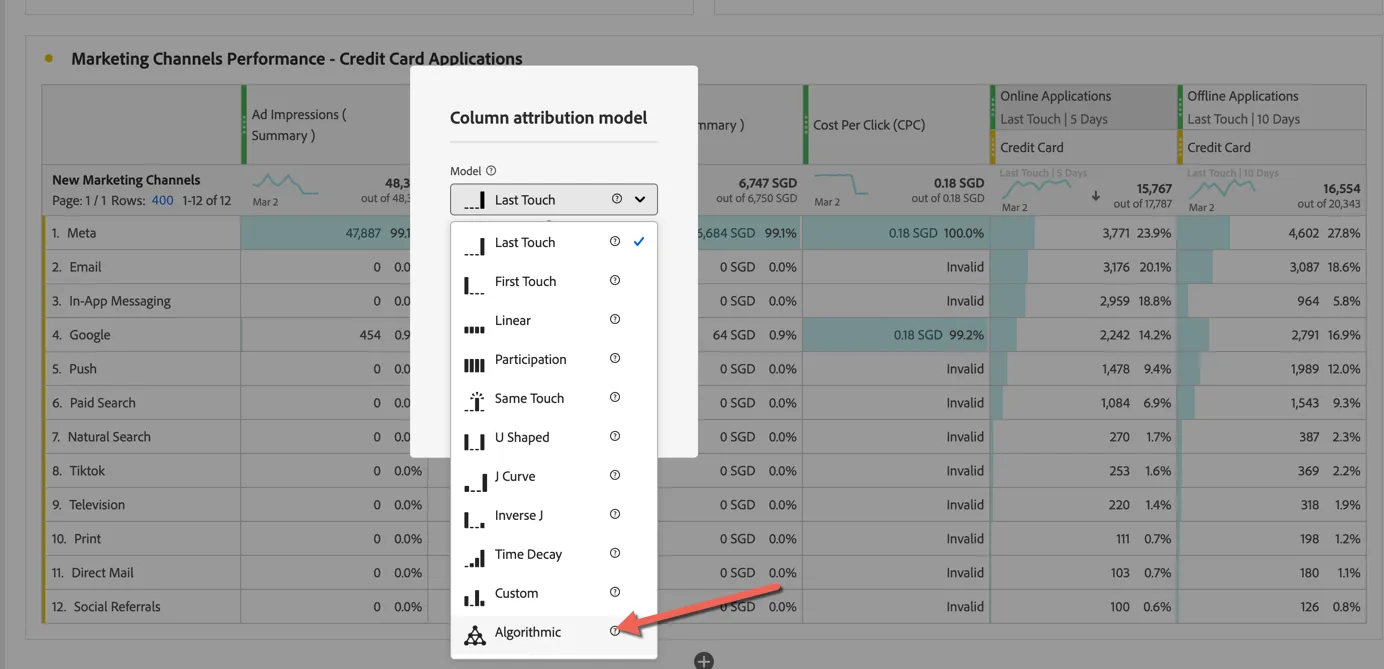
Currently Luma is using a last touch attribution model, this means they assign 100% of the credit for the conversion to the last channel that the customer came from, but what if the customer sees more than one marketing message? CJA supports 11 different attribution models, including Algorithmic attribution which uses machine learning and statistical modelling to distribute credit across multiple touchpoints. Right click on the Total Revenue column and select Compare attribution model.
Select Algorithmic
Update the lookback window the 14 days and click Apply
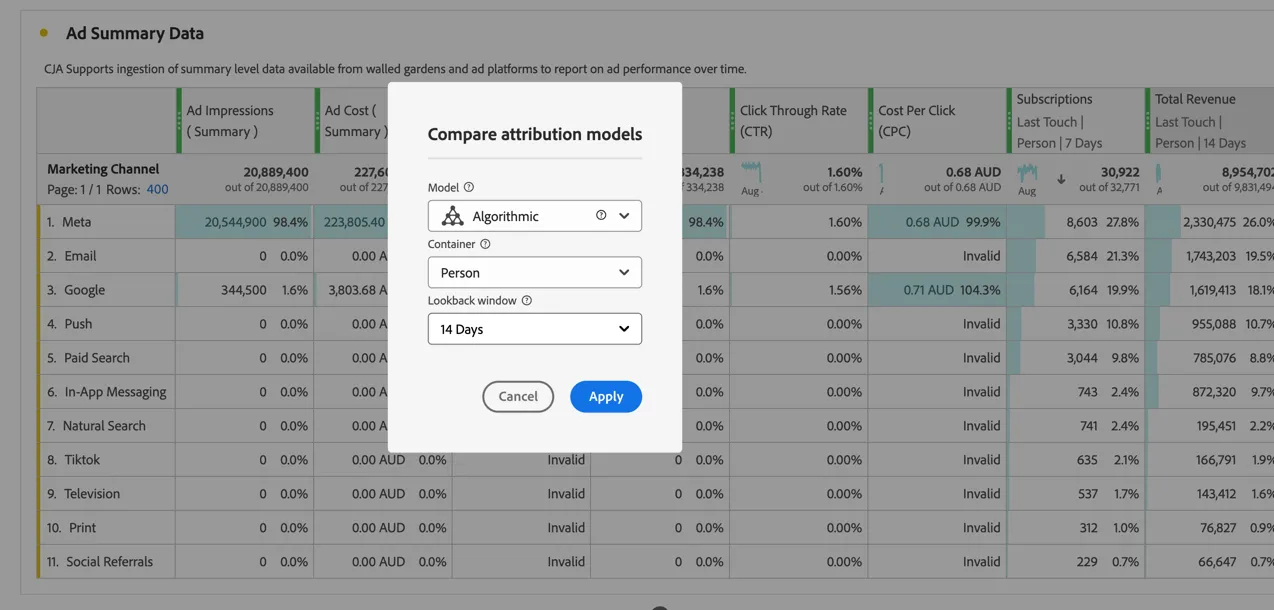
We can see the credit applied to our top 3 channels have all been reduced and greater weight applied to channels we otherwise might have deprioritized.
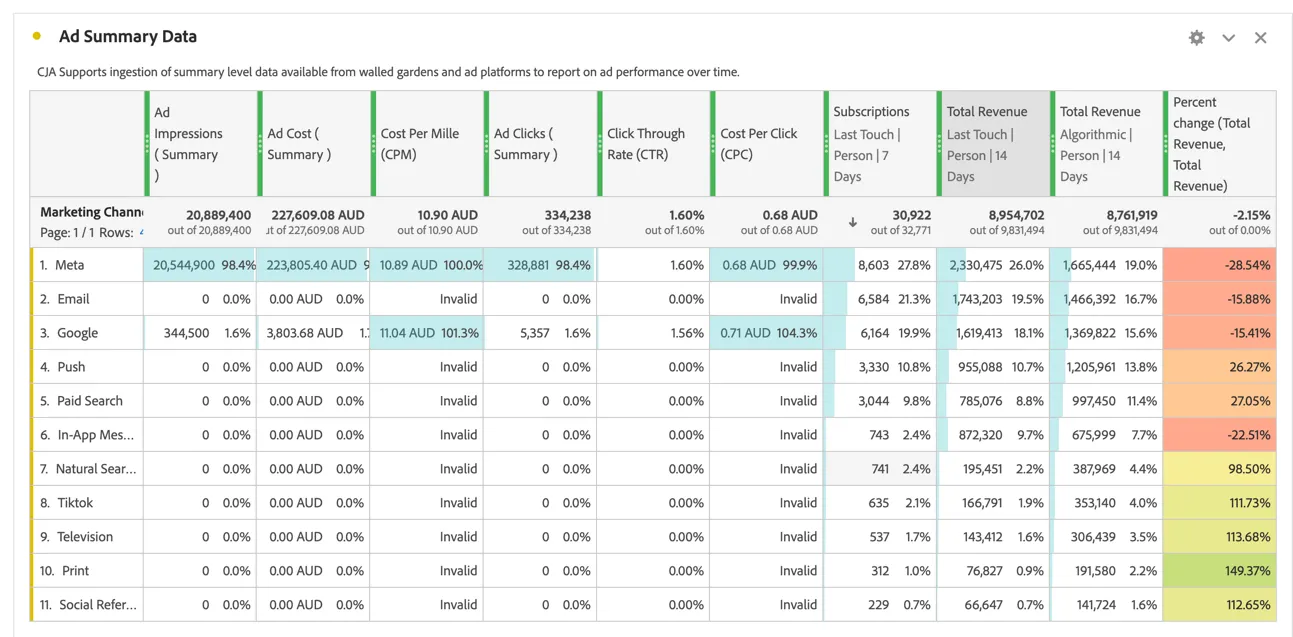
Adobe's Attribution IQ allows customers to understand the full impact of their marketing efforts whether the conversion happens online or offline.
Experimentation Panel
In this exercise you'll learn how to use Adobe's Experimentation panel. The Experimentation panel lets analysts compare different user experiences, marketing, or messaging variations to determine which is best at driving a specific outcome.
- From the left rail, select Panels.
- Drag-and-drop the Experimentation panel into the canvas
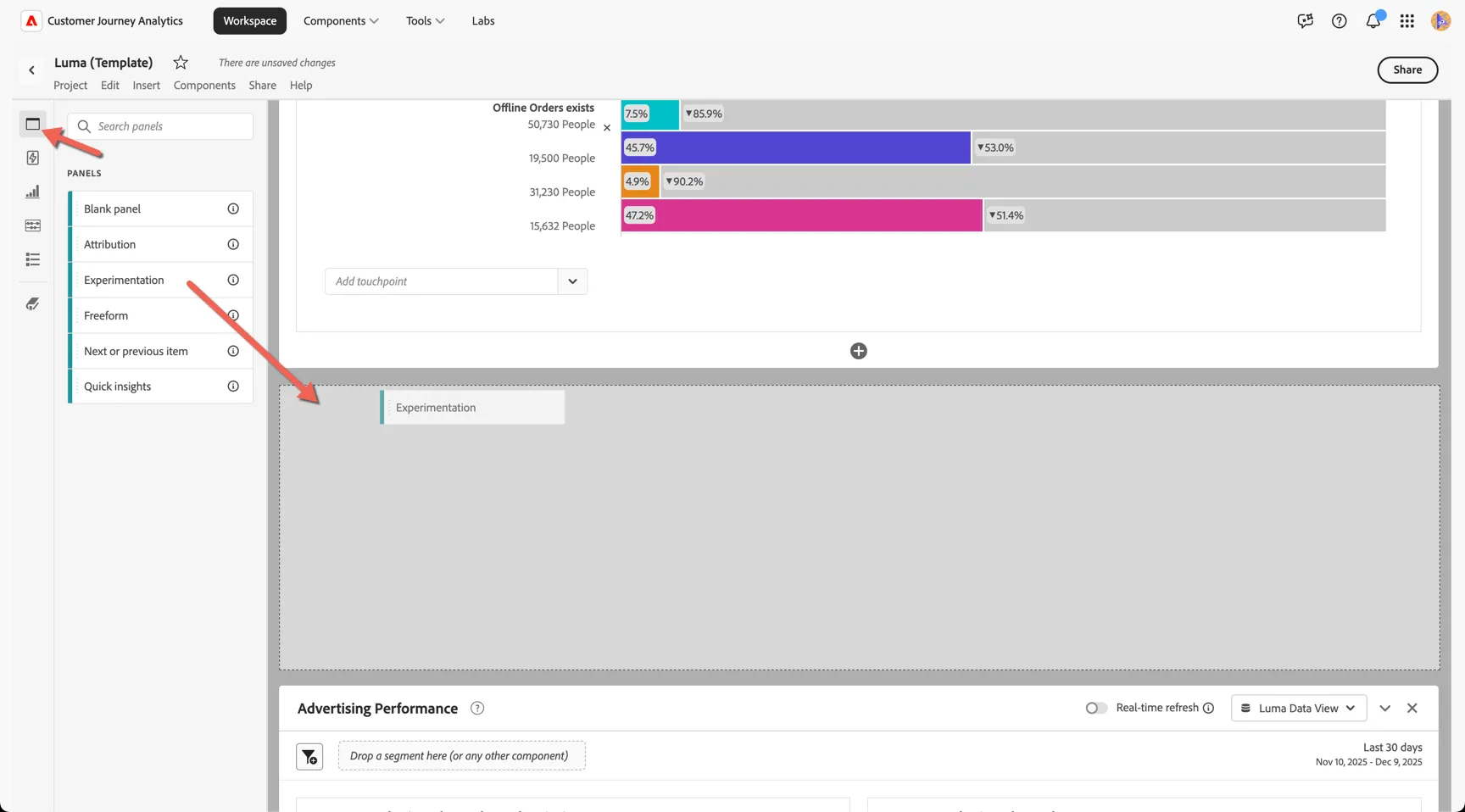
Select Home Page Banners from the list of experiments and select Default Imagery as the control variant. We want to measure the experiments impact on online orders, so set this as the Success Metric.
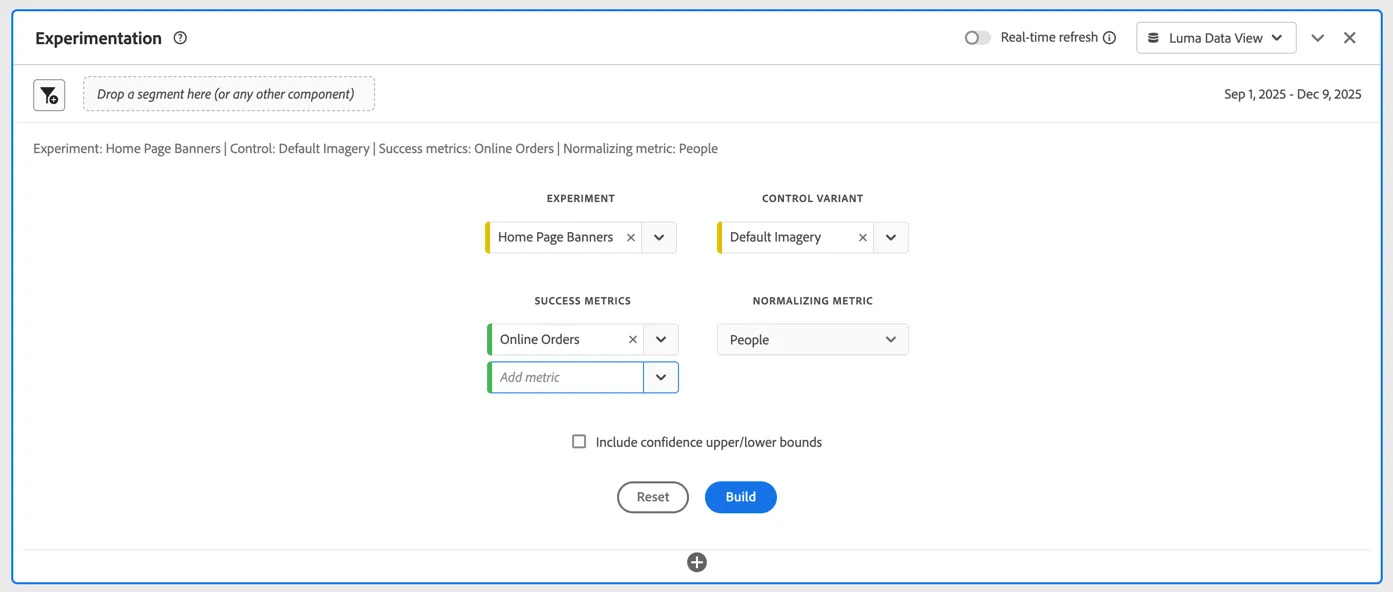
Click Build to show the results.
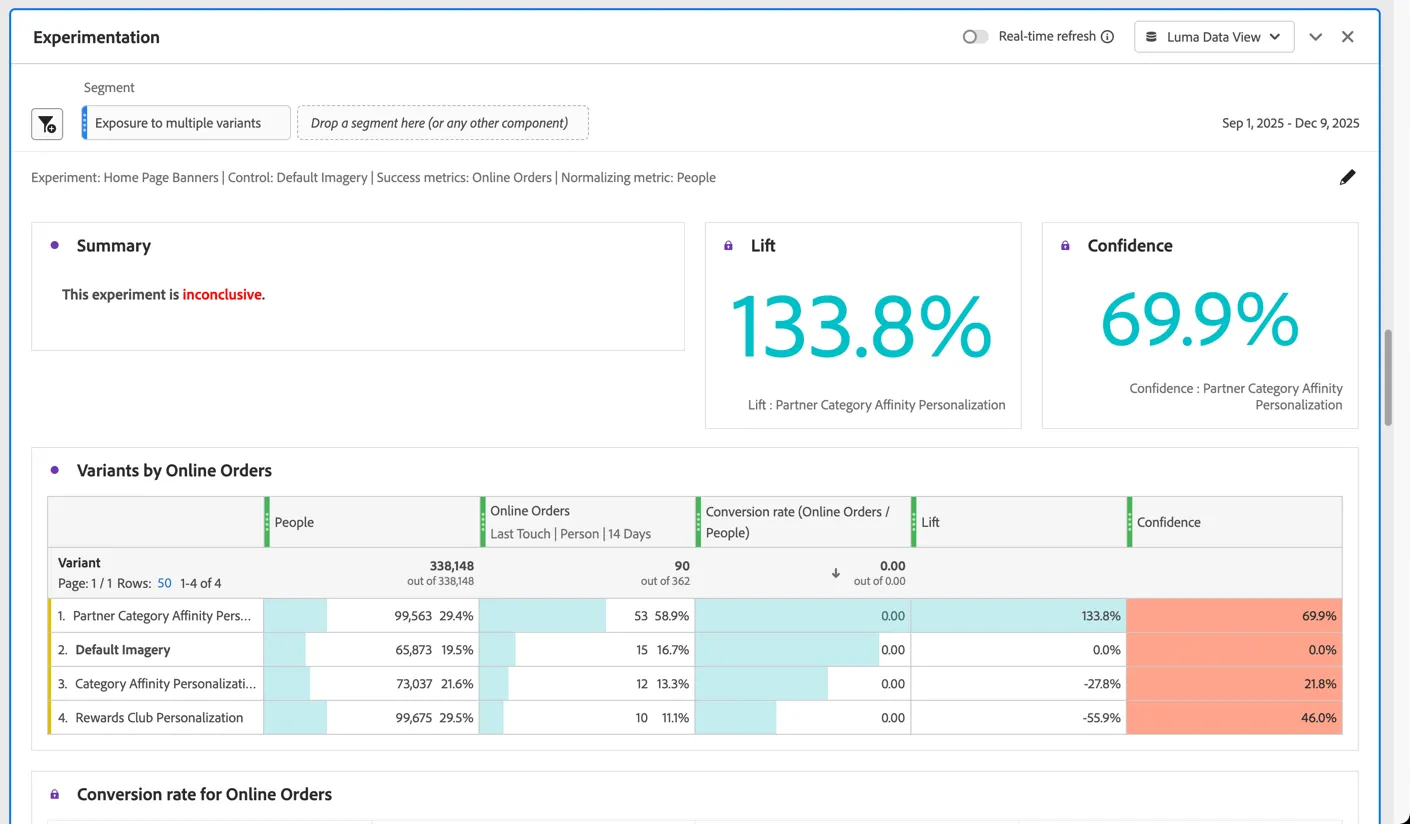
We can see the experiment results are currently inconclusive. While the Partner Category Affinity Personalisation variant showed a significant lift of 133.8%, its confidence level was only 69.9%, which is below the typical threshold for statistical significance. Other variants, such as Default Imagery and Rewards Club Personalisation, demonstrated negligible or negative lift with low confidence scores. This suggests that although one variant appears promising, more data or further testing is needed before making any definitive changes.
Read more about Interpreting the Results of your experiment
Summary
Customer Journey Analytics empowers organisations to see the full customer journey across every channel - online and offline. CJA unifies fragmented data into a single, intuitive interface, enabling even non-technical users to uncover deep, actionable insights with drag and drop ease. With Data Insights Agent we're democratising access even further building reports through natural language prompts. Whether you're optimising campaigns or troubleshooting customer pain points, CJA delivers clarity, agility, and precision that traditional analytics tools simply can't match.