Lab 2: Asset Management
Objective
In this lab you'll learn how Adobe Experience Manager Assets is used to manage the product images for Adobe Commerce and the creative for your marketing campaigns.
Through automation, access controls and built in approval processes, you can ensure users have streamlined access to approved imagery directly from the applications they're working in.
Access
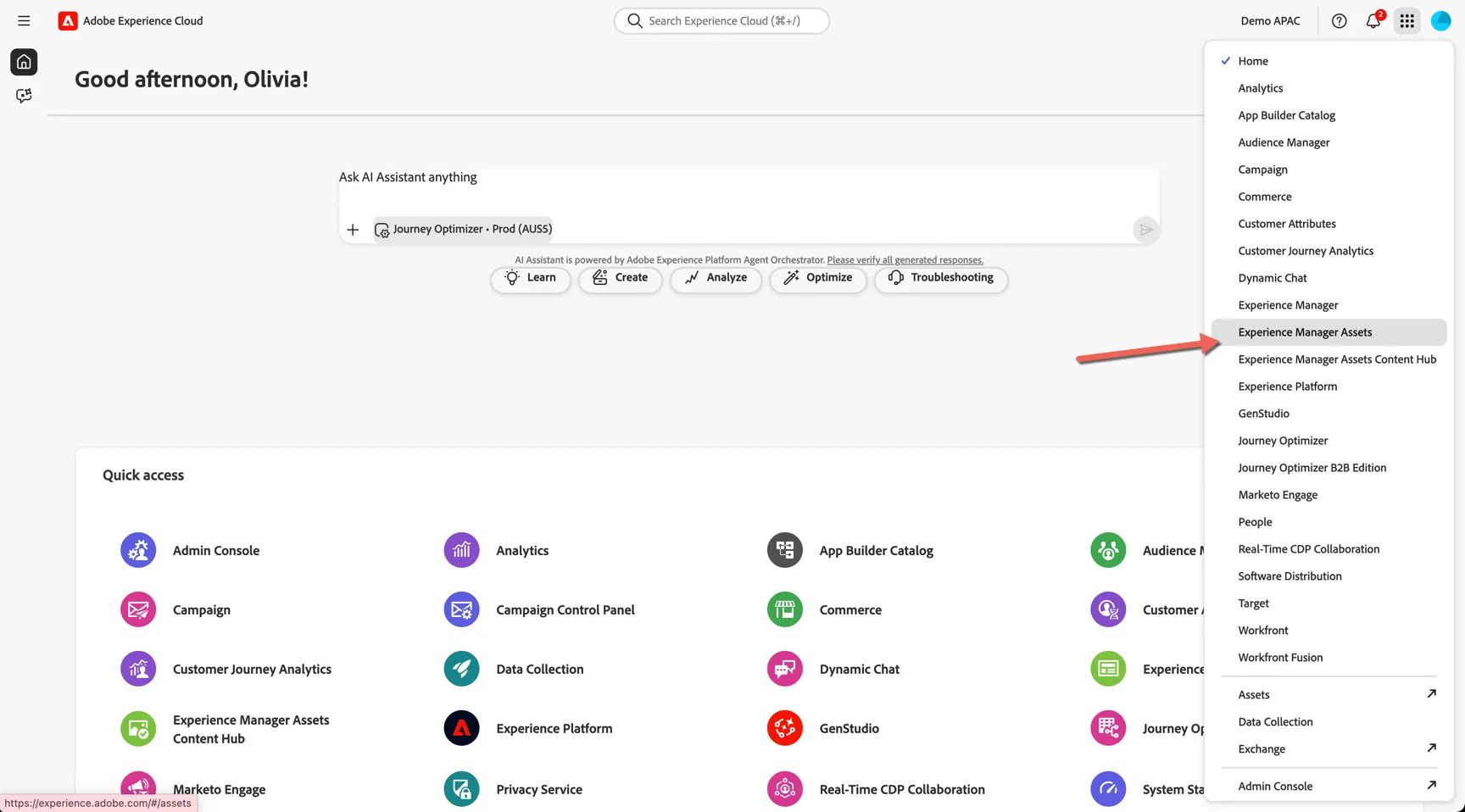
Switch to Adobe Experience Manager Assets using the solution switcher:
Select Repository
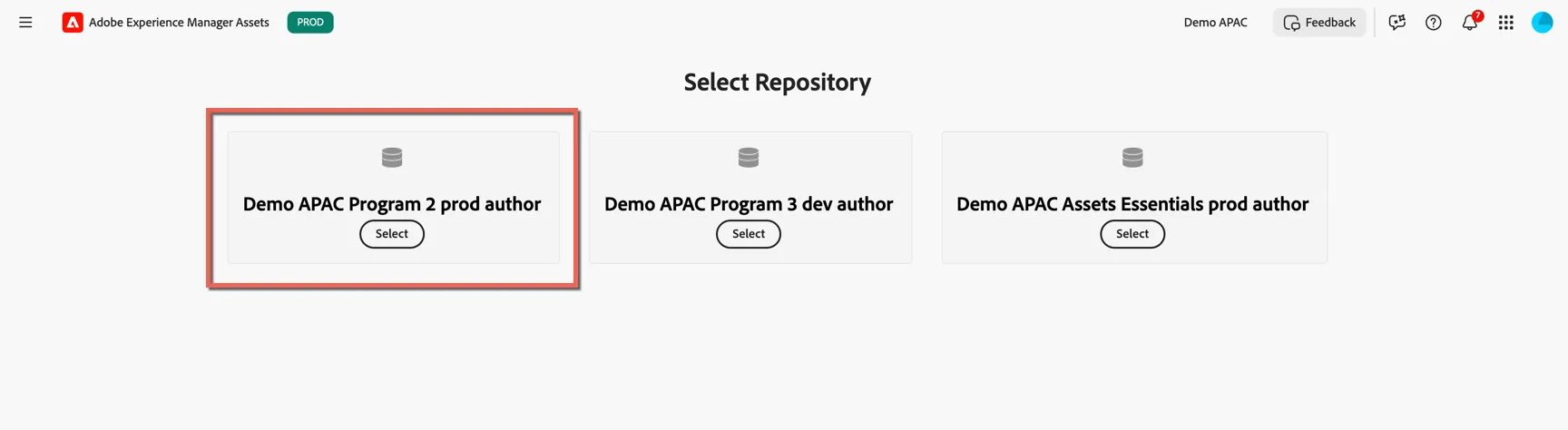
Each AEM environment has multiple repositories, access to each repository is managed by user access controls. For the lab we will use the Demo APAC Program 2 prod environment and we'll leverage 2 repositories: author and delivery
The author environment is where unapproved assets will live, once approved, they are automatically transfered to the delivery repository.
- Select the Demo APAC Program 2 prod author repository.
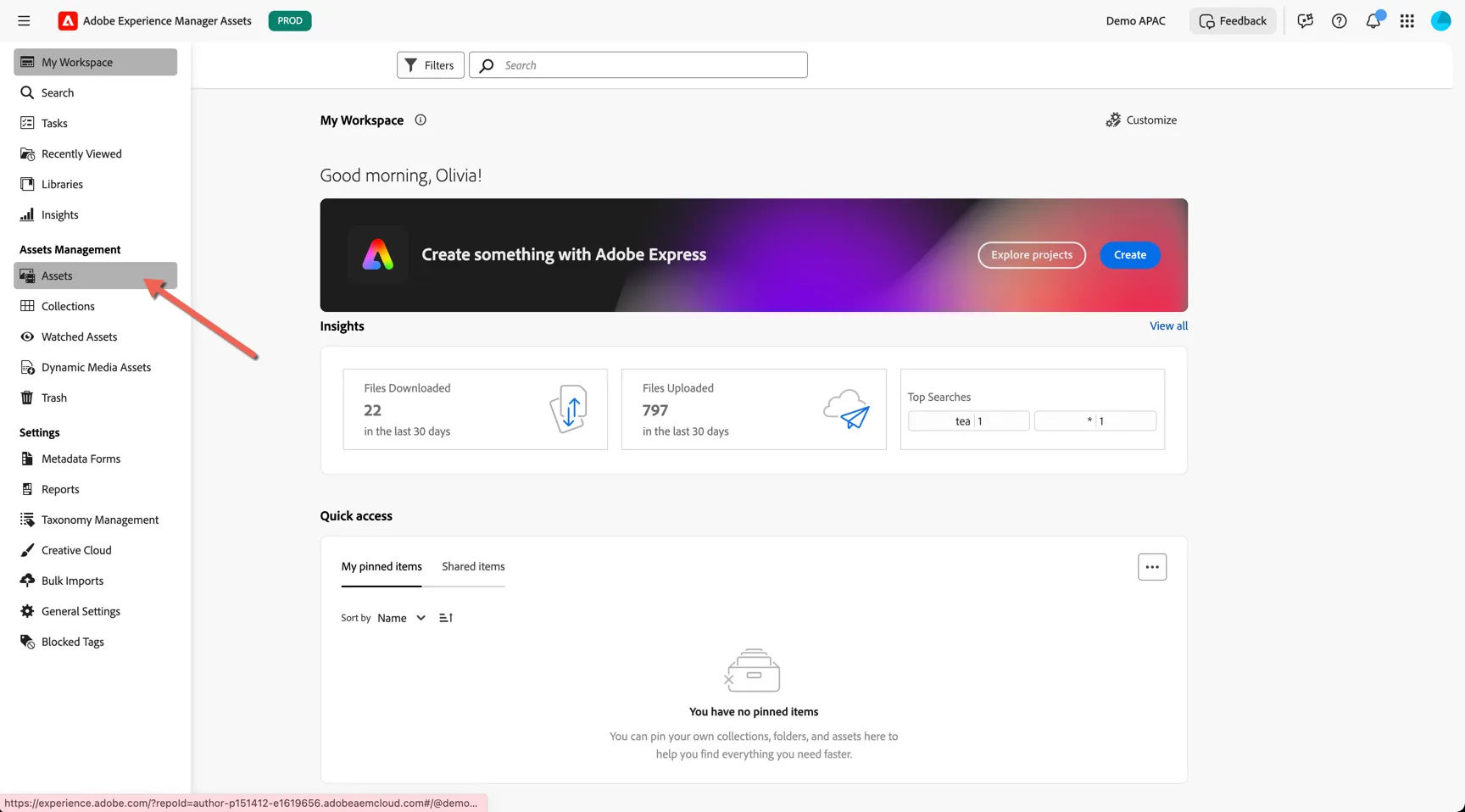
- From the navigation on the left select Asset Management -> Assets
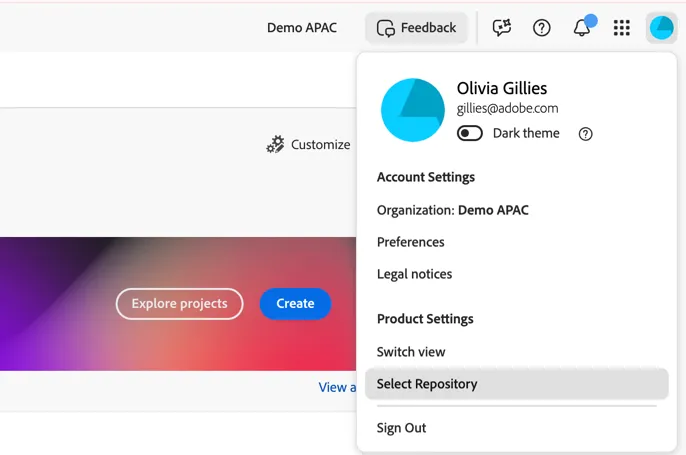
You can switch repositories at any time by clicking on your profile icon in the top right corner:
View Product Assets
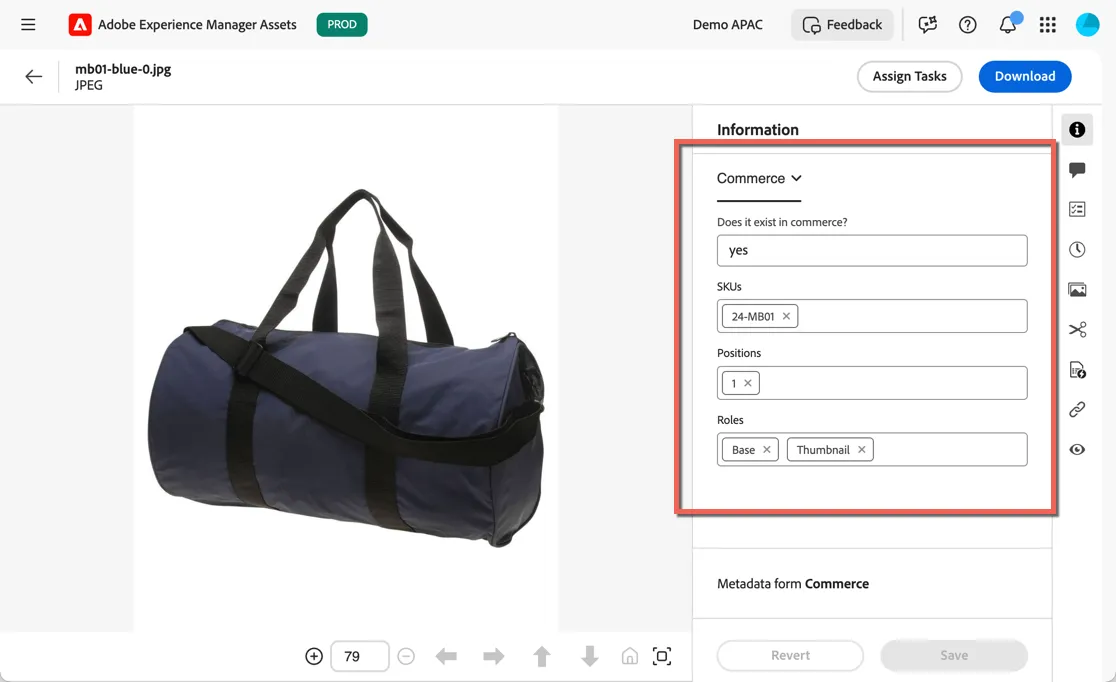
Product imagery for your website and mobile app are managed through the asset repository and approved assets are automatically synchronized with the Adobe Commerce Product Catalog using commerce based meta data attached to the image.
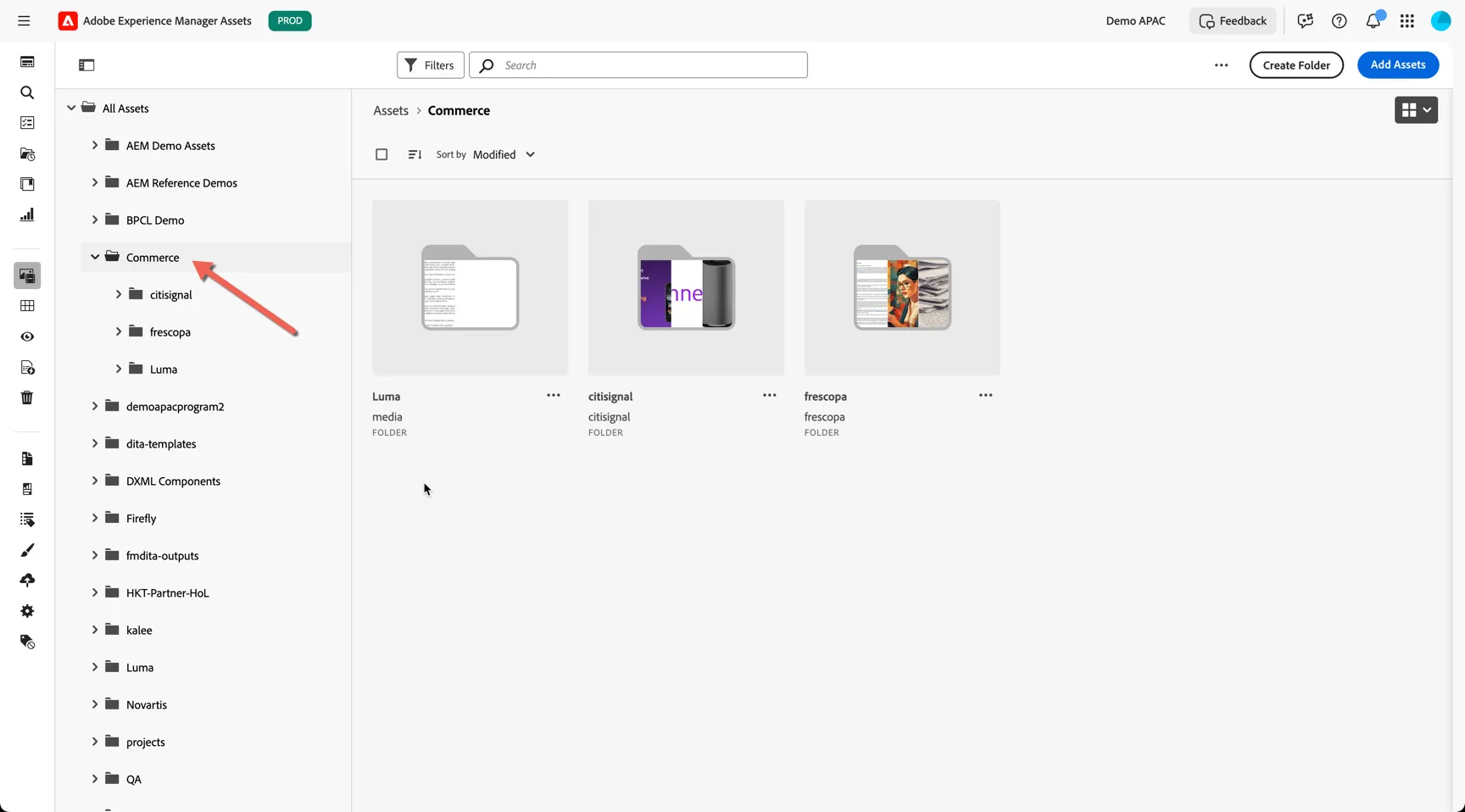
- Click into the Commerce folder
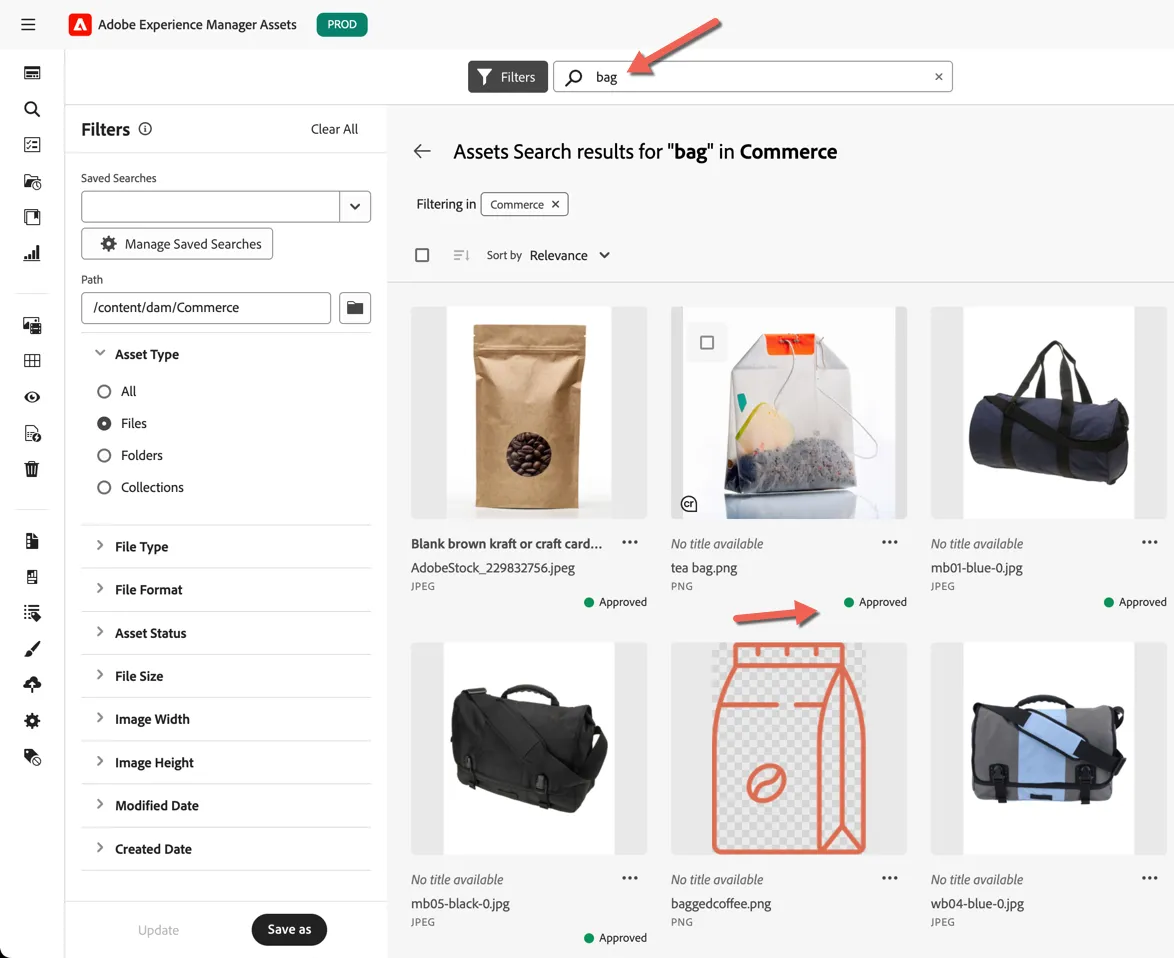
- Search for bag and click enter. You'll notice approved assets are flagged.
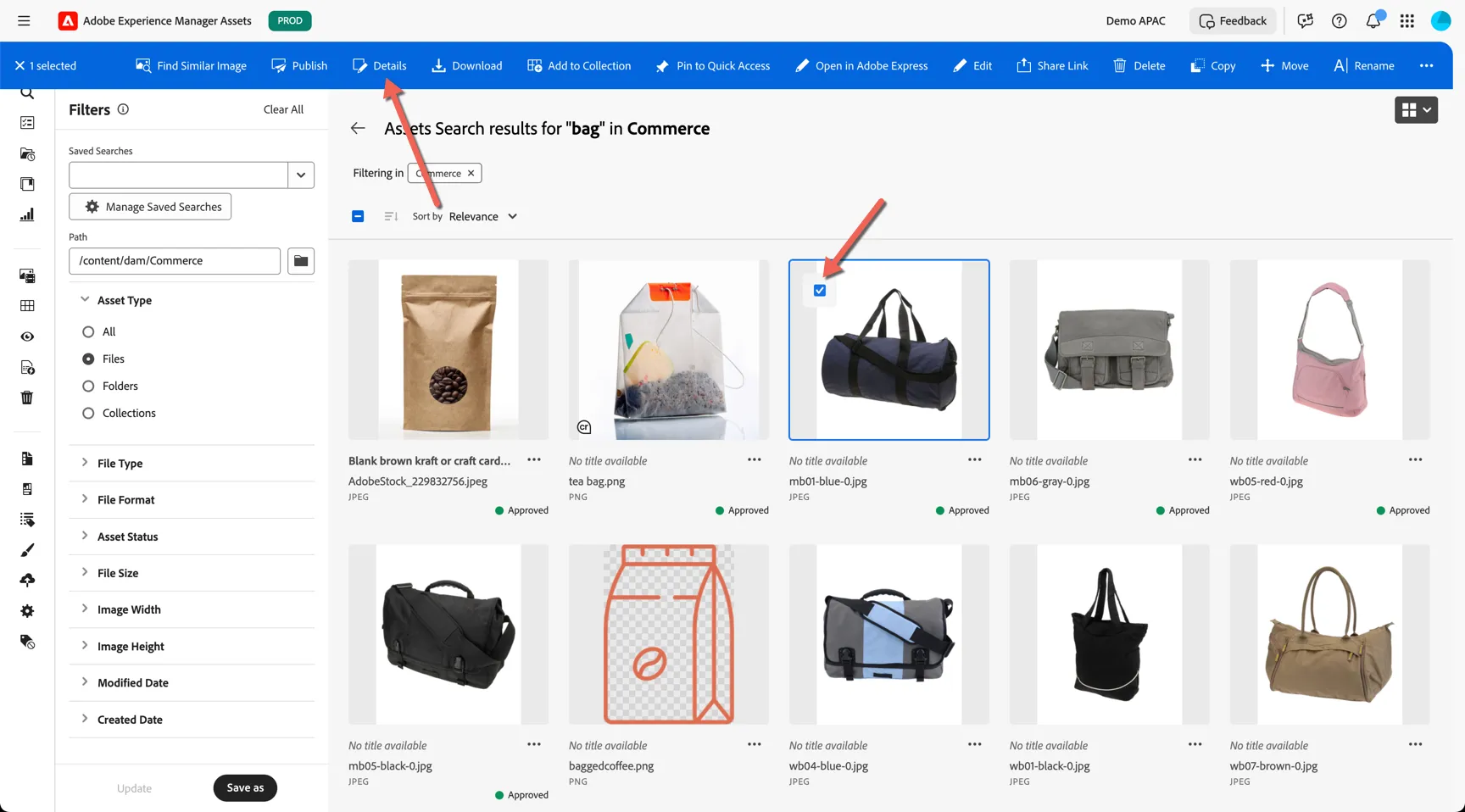
- Click on the mb01-blue-0.jpg and select to view details.
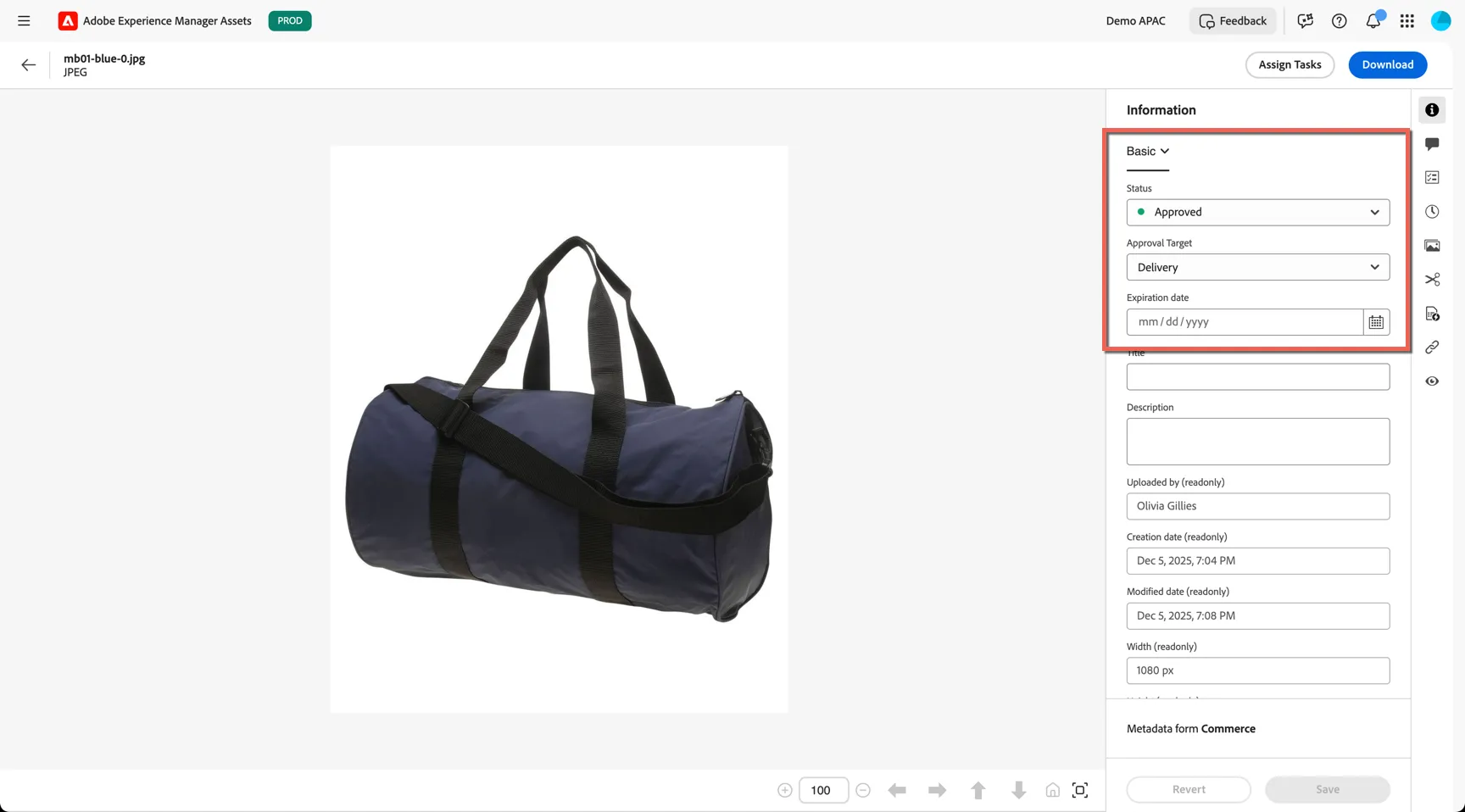
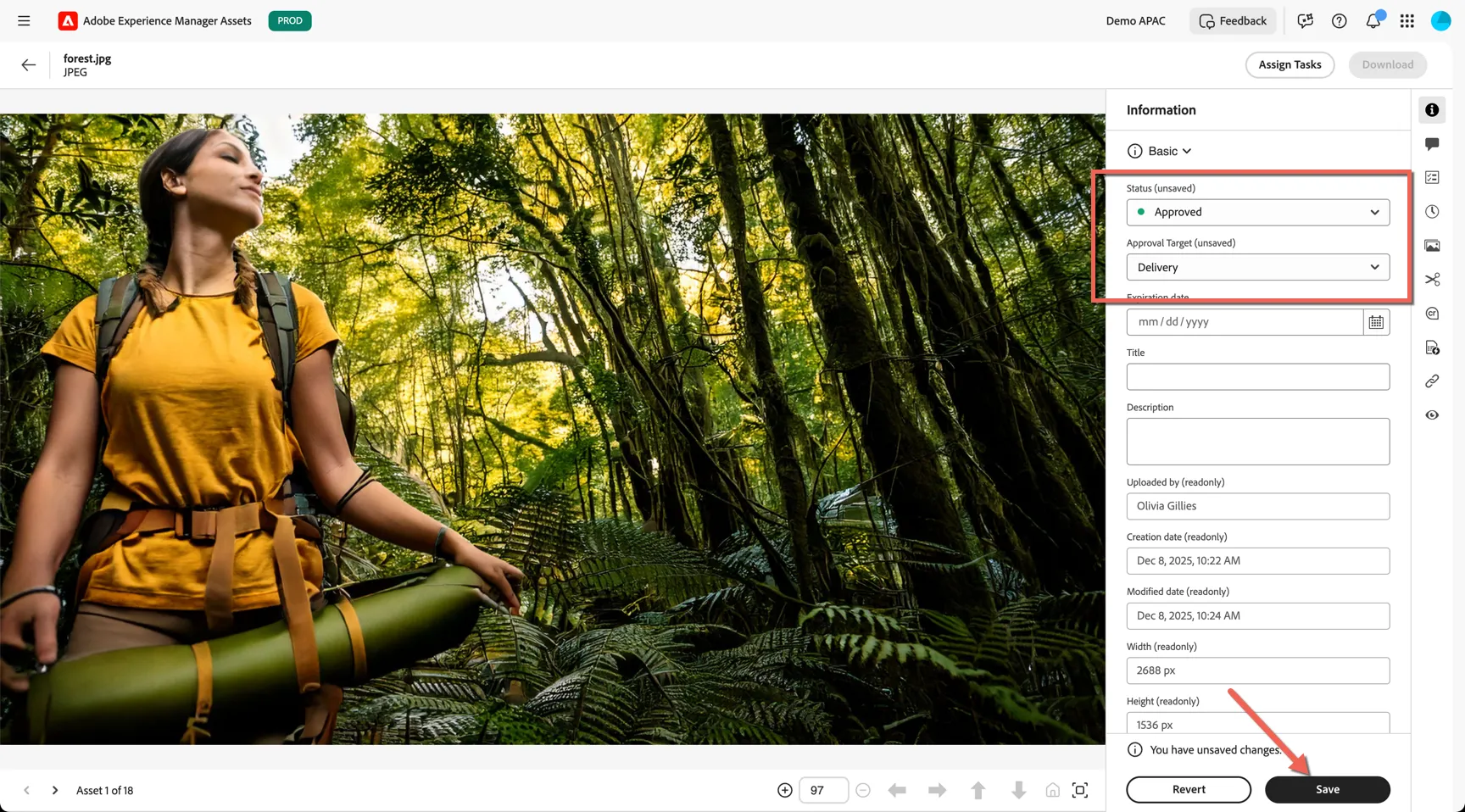
- You can see the Approval status and target in the Basic metadata on the right.
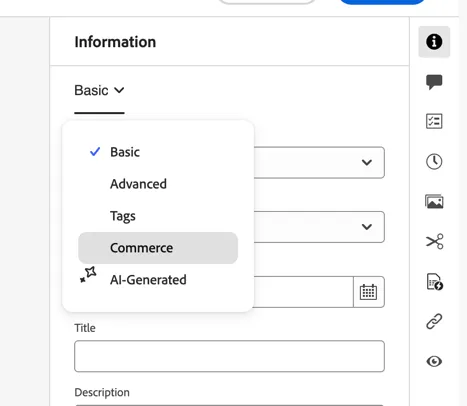
- Change to the Commerce meta data tab by using the drop down.
- Here you can see the metadata which is used by Commerce to know which product and which role (or roles) and positions the image should be used.
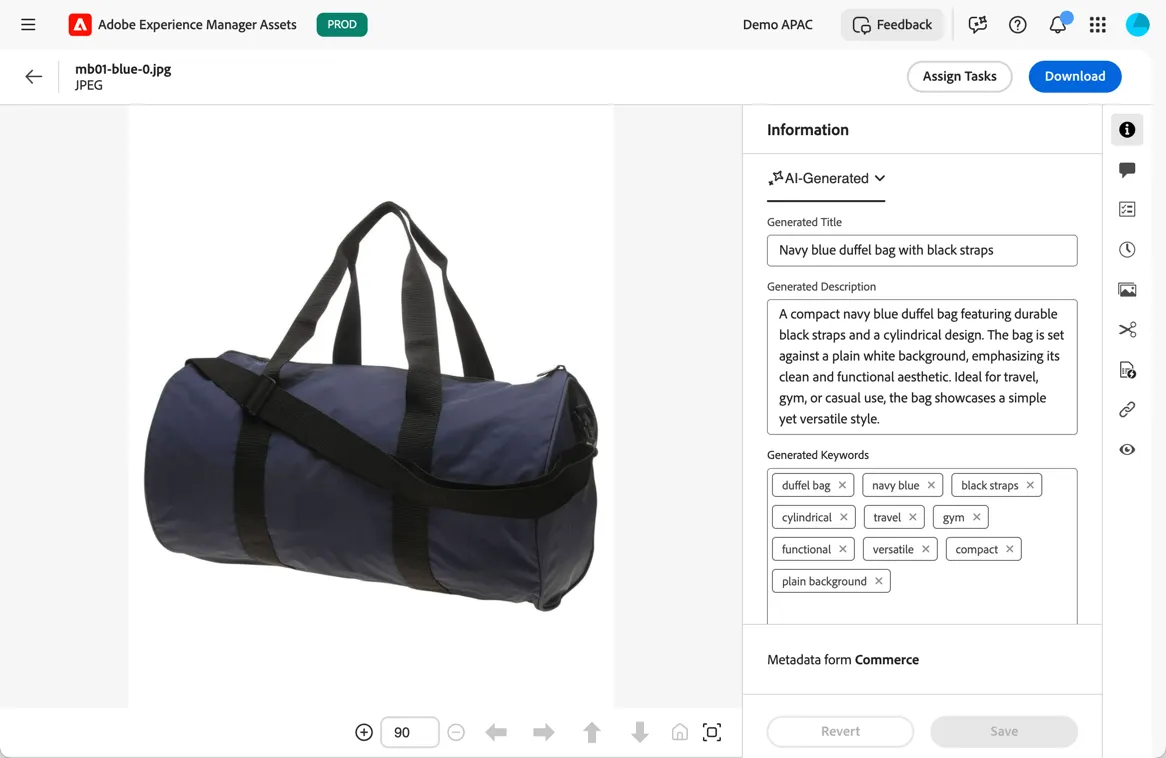
- The AI-Generated tab shows the automated AI tags attached to the image.
Import Banner Image
If you have a image handy on your laptop you can import it into the asset repository.
- Click into the luma folder and click to Add Assets
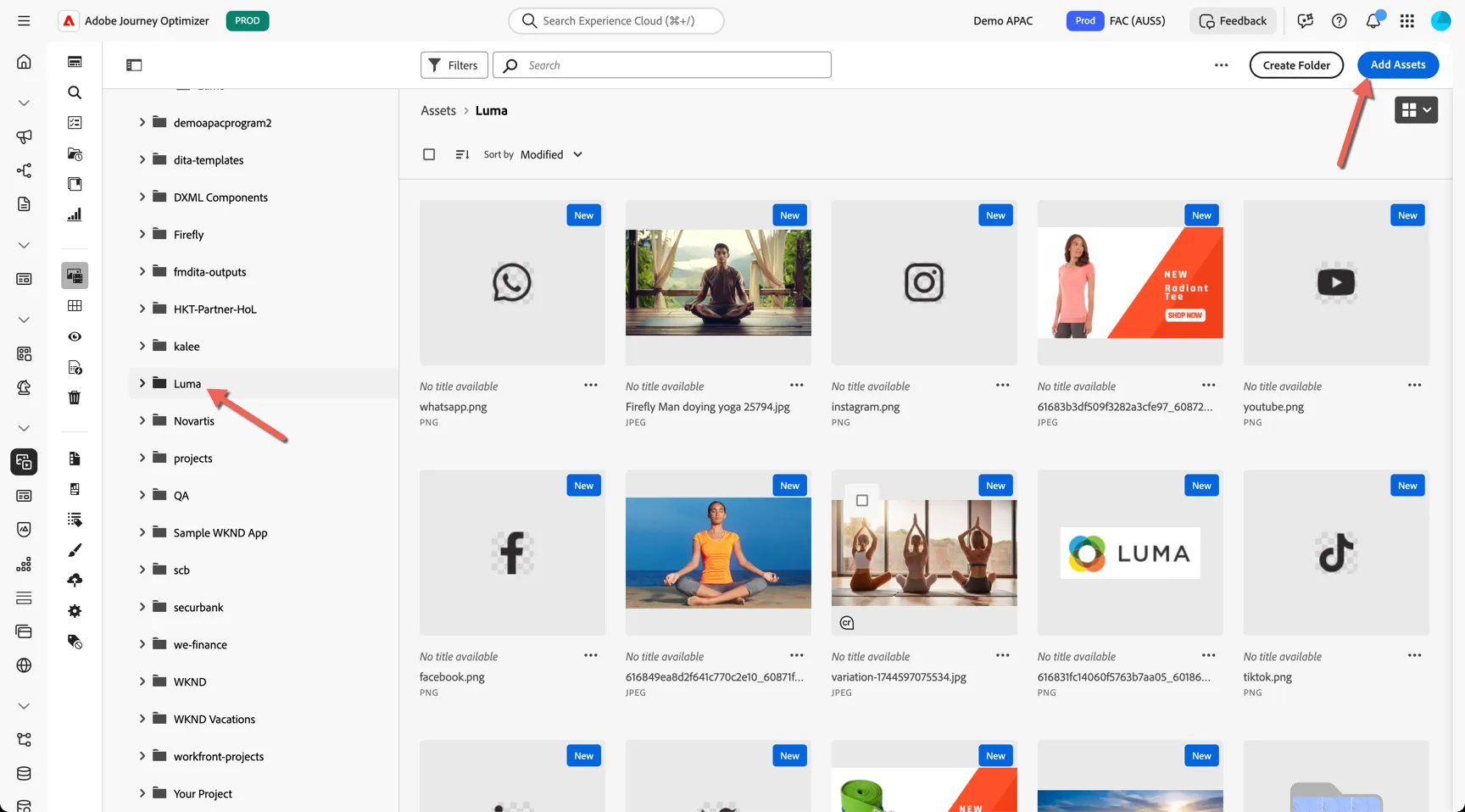
- Drag an image from your laptop into the folder.
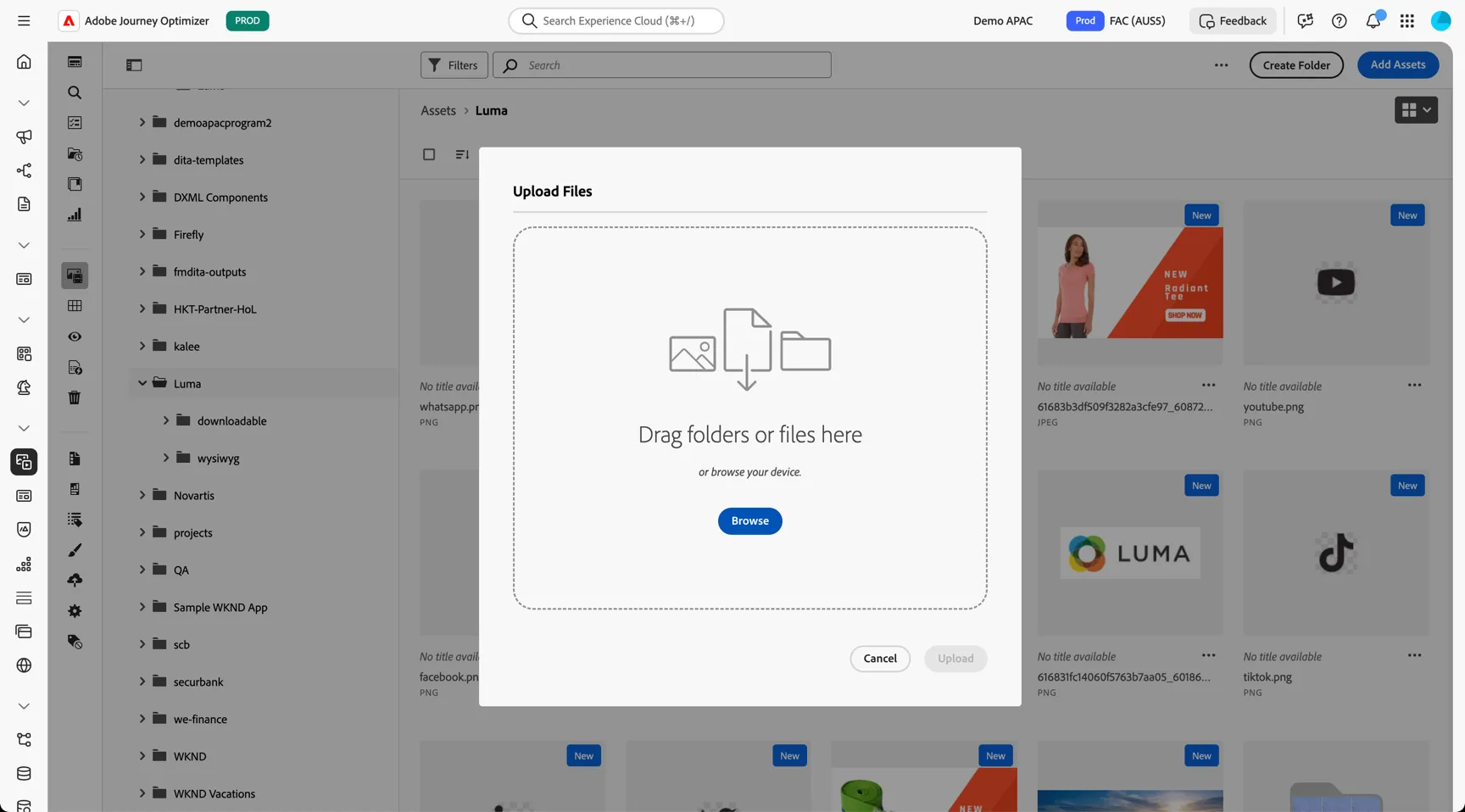
- Once uploaded the automated processing will start. Wait for a minute or so for the processing to complete.
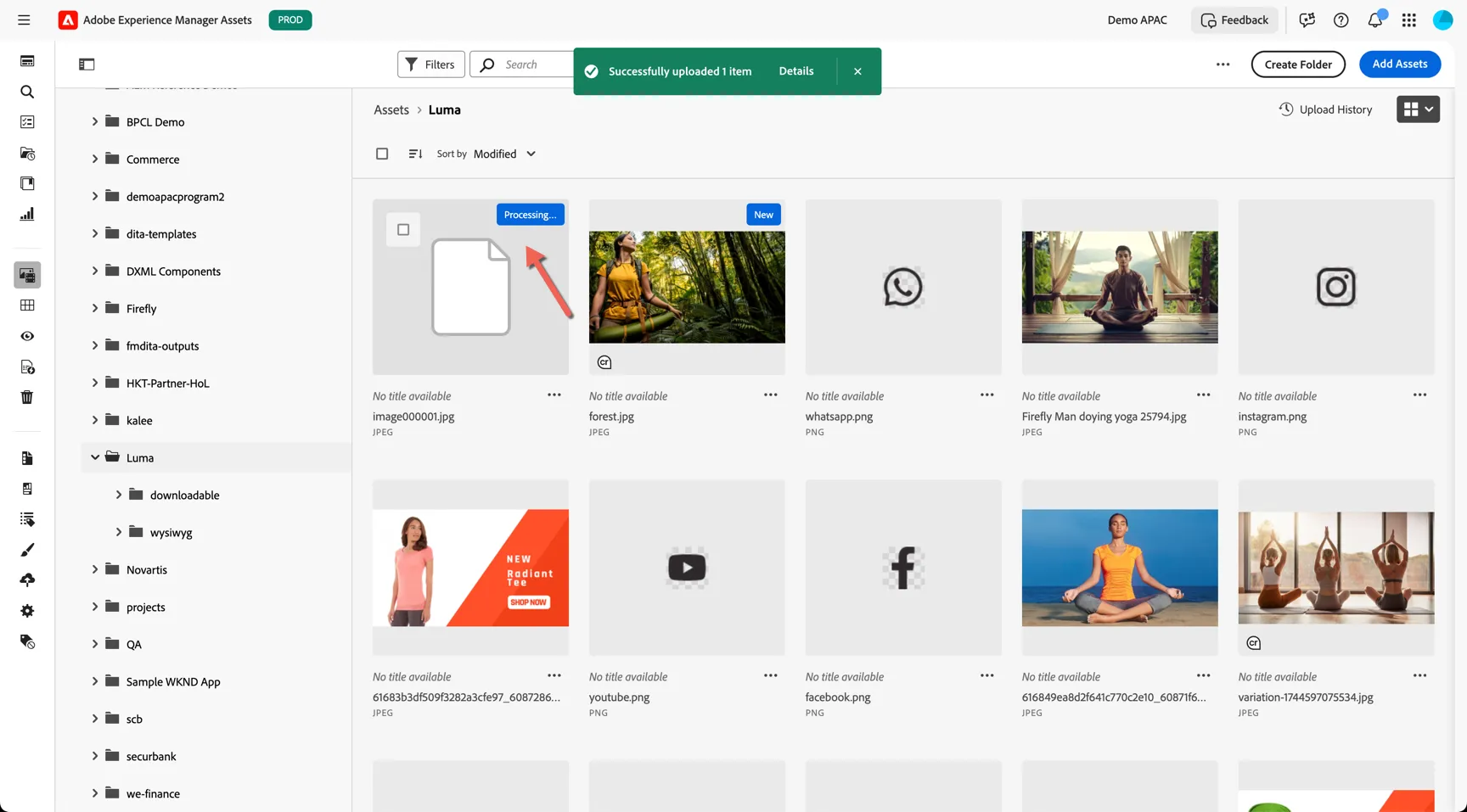
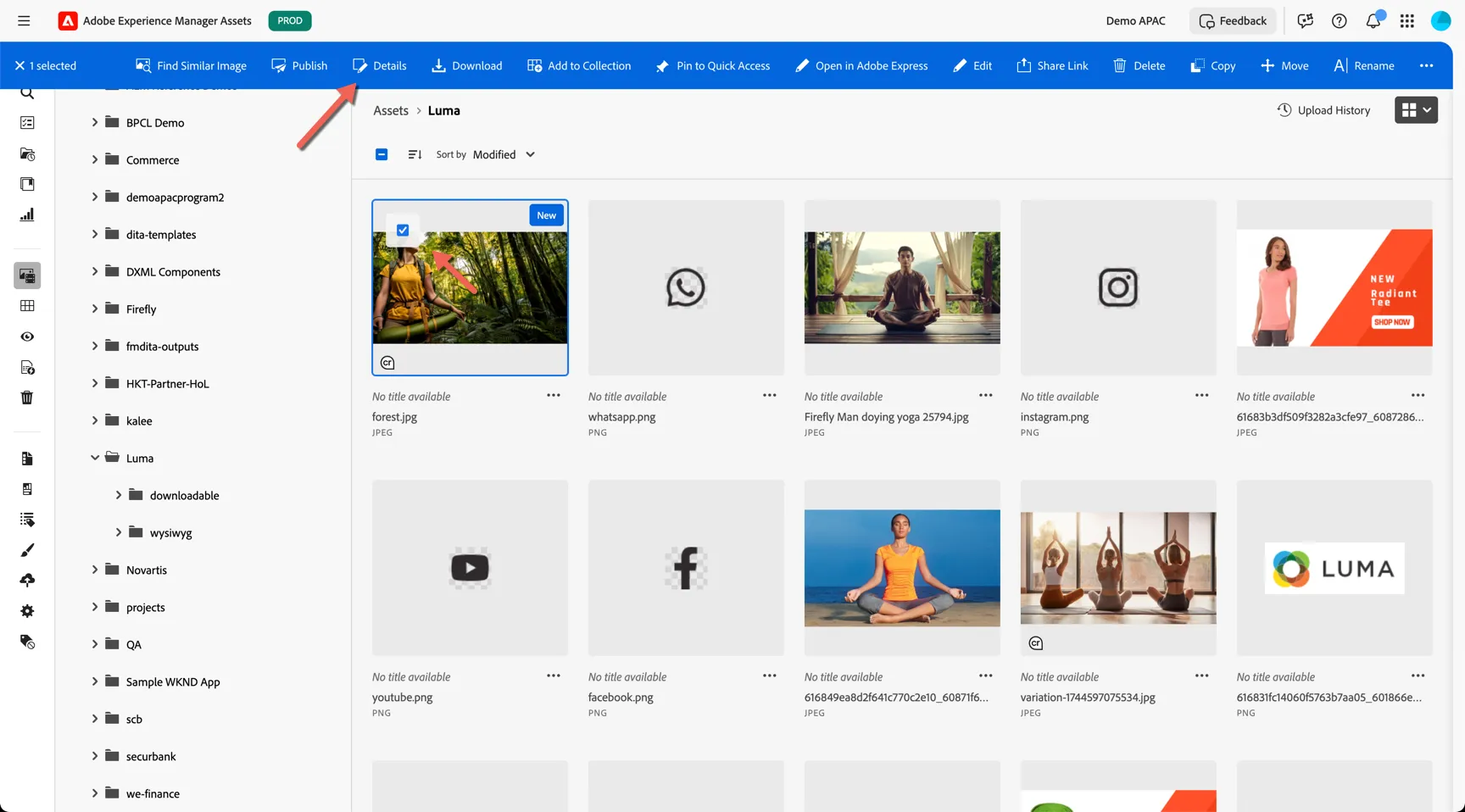
- Once the status moves to New from Processing. Click to view the details
- Click to the dynamic media tab and you'll see how the Smart Cropping has automatically created different renditions of the image for use across channels.
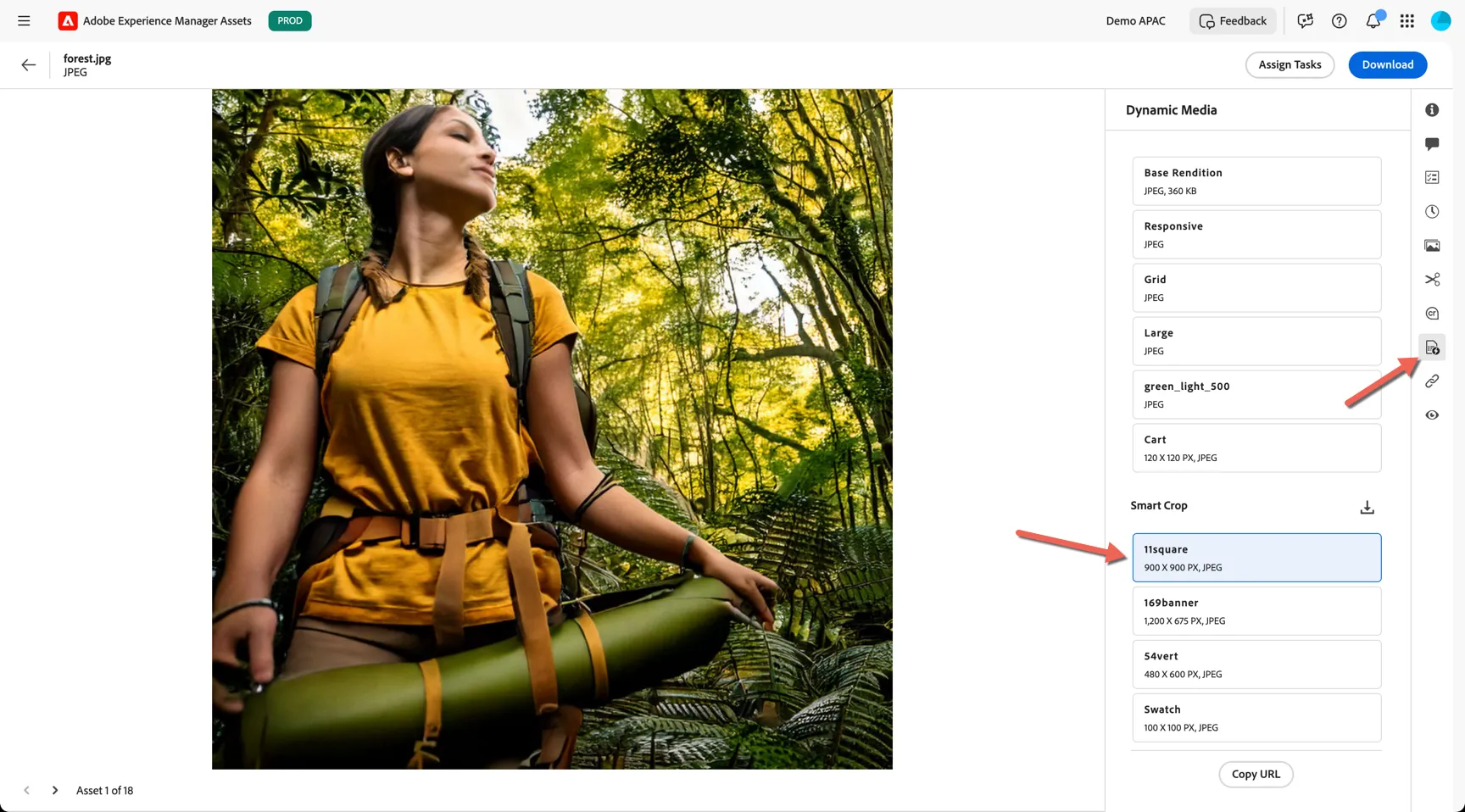
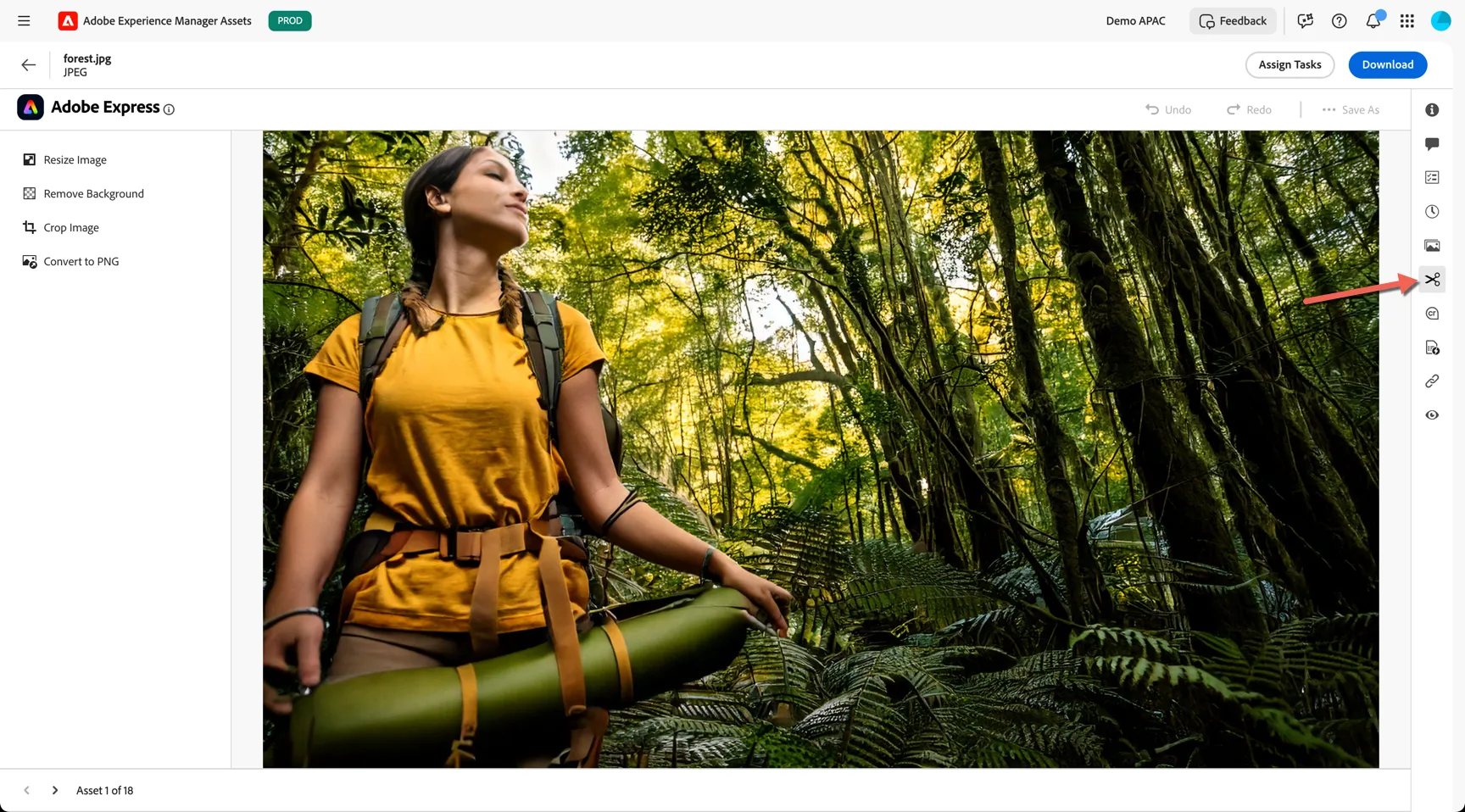
- Should further edit be required, you can click the scissor icon to edit with Adobe Express directly from the repository.
- Change the status of your asset to Approved and Approval Target of Delivery. Save the asset.
Next we'll use your image in a personalised web campaign.