Lab 3: Website Personalisation
Objective
In this lab you'll learn how Adobe Journey Optimizer can personalize and optimize website experiences. This use case can be managed by either Adobe Target or Adobe Journey Optimizer. We've decided to focus today on Adobe Journey Optimizer but you also have access to Adobe Target if you want to set up an experience there.
Adobe Journey Optimizer operates off the same events, profiles and audiences as Real-time CDP and CJA, no need to wait for ETL processes to share data. As part of the digital operations team you will set up a web campaign to promote online only discounts to our target audience. You'll add experimentation to A/B test the impact of different creative imagery on conversions.
Access
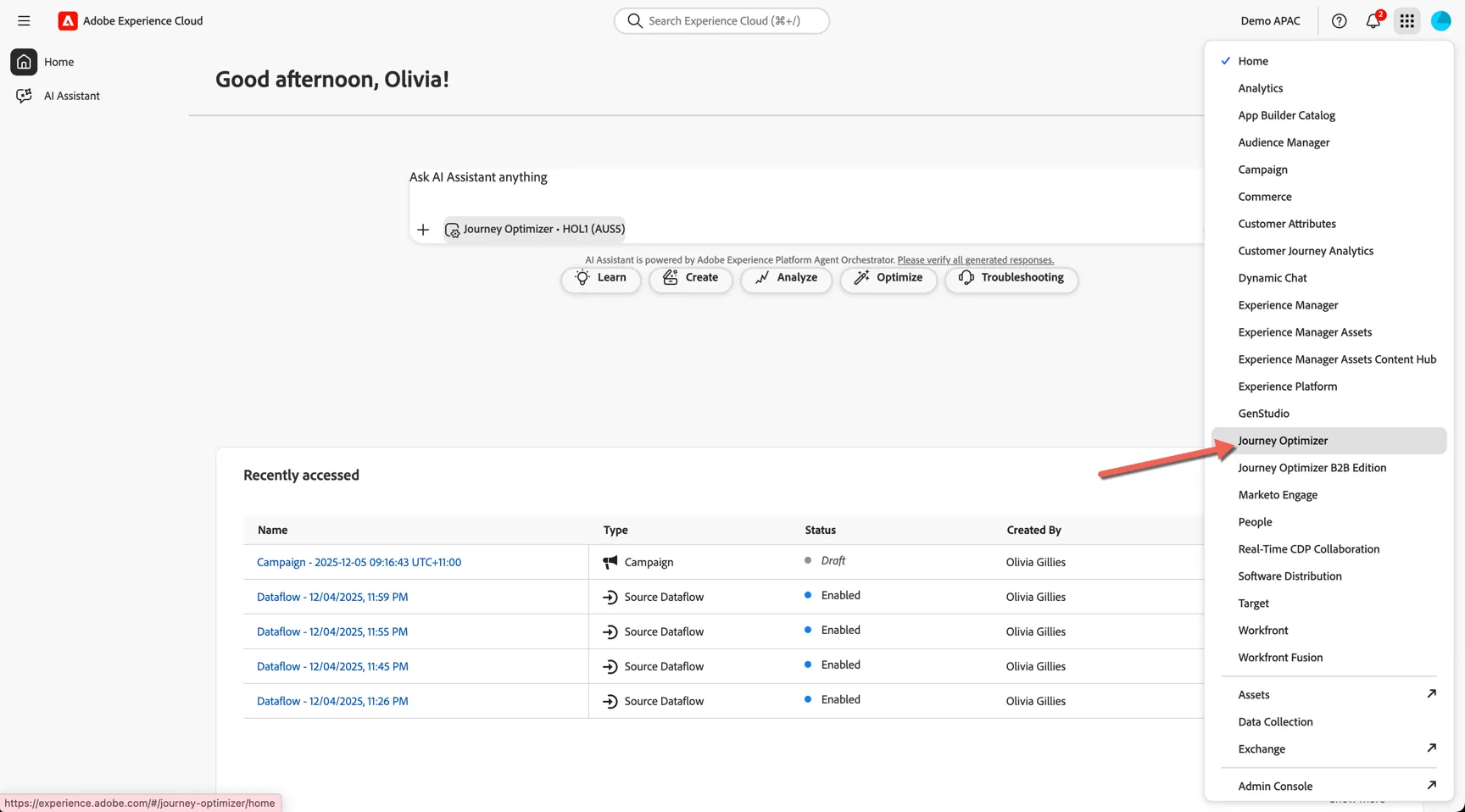
Switch to Journey Optimizer using the solution switcher:
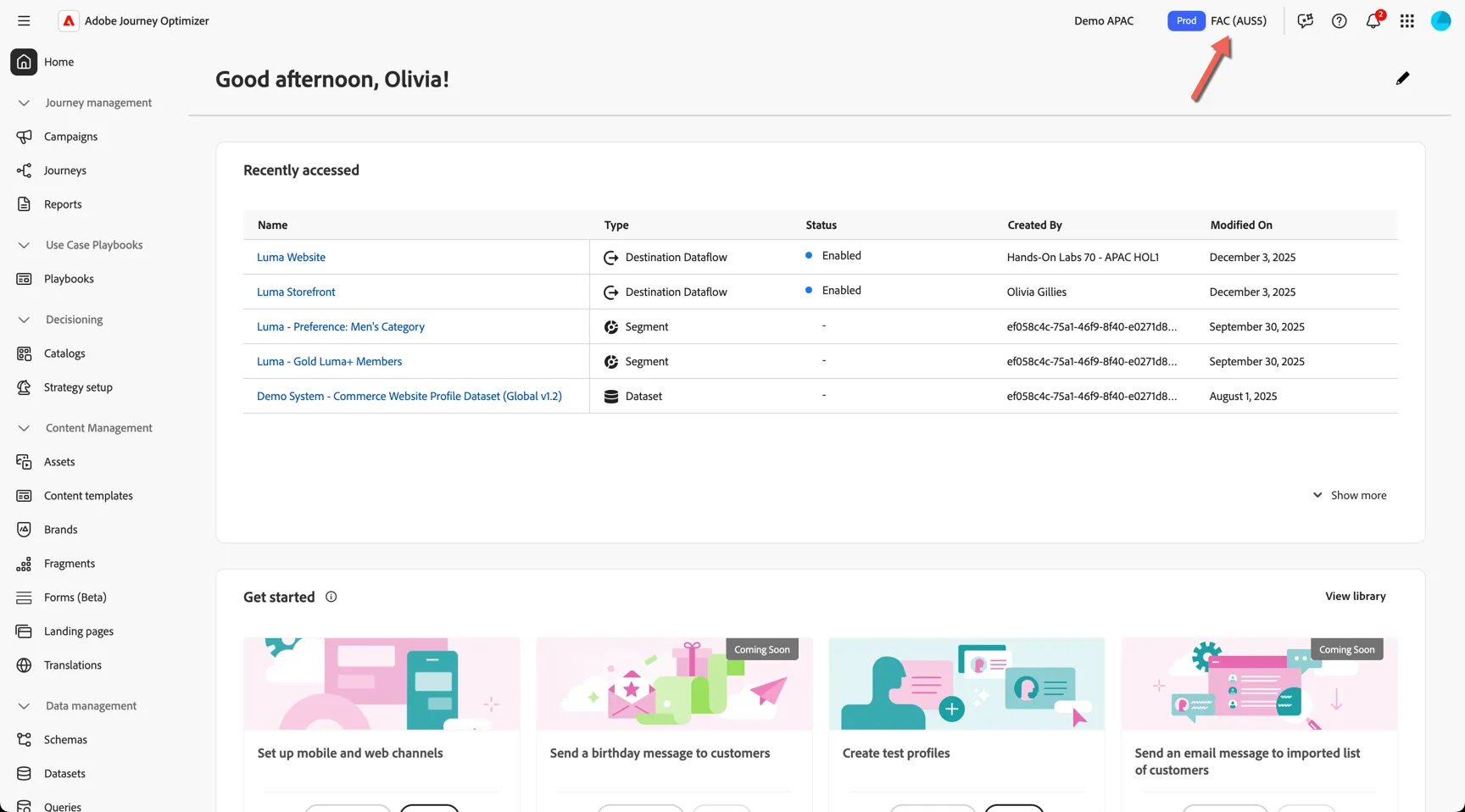
Check that you are in the FAC sandbox
Create Web Campaign
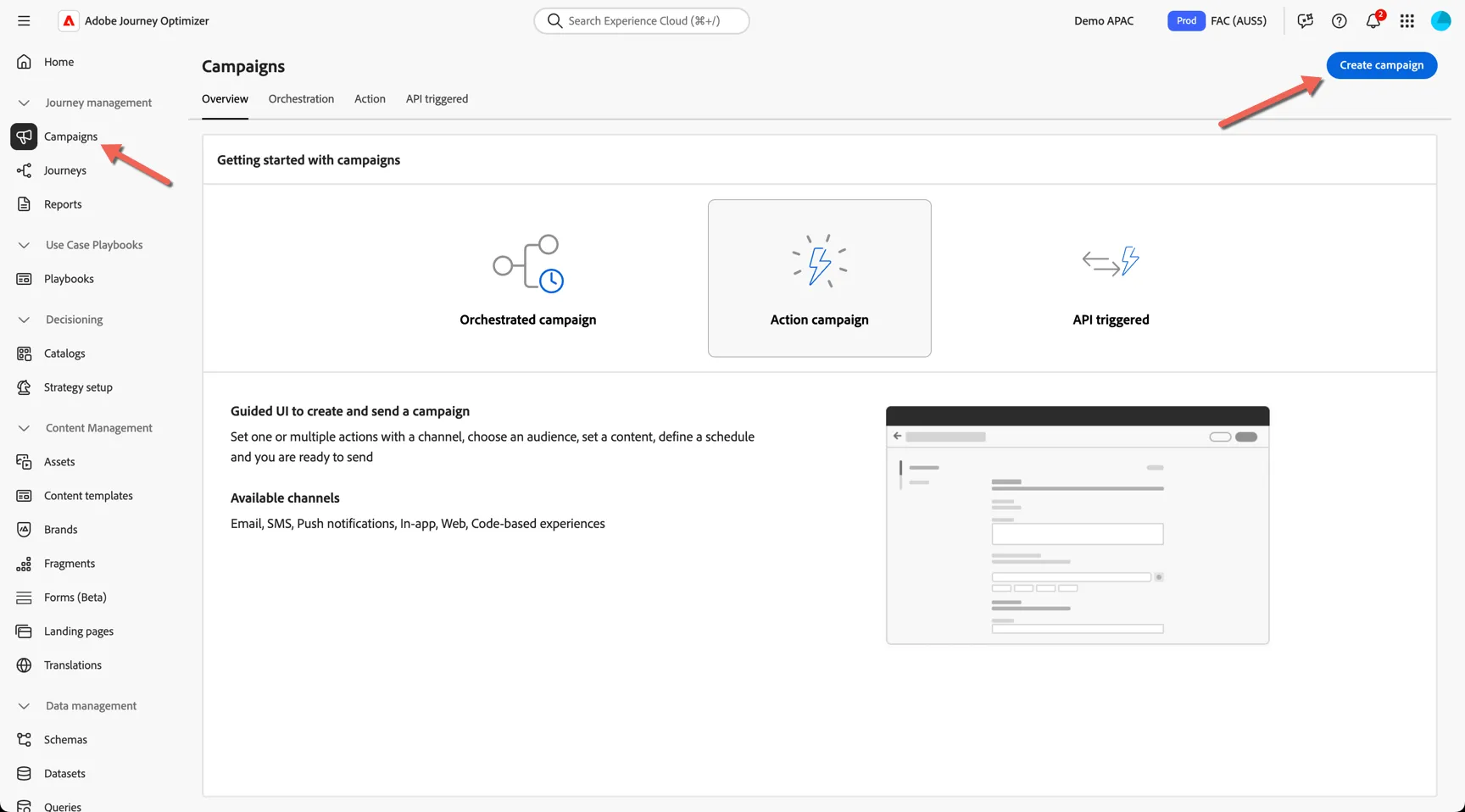
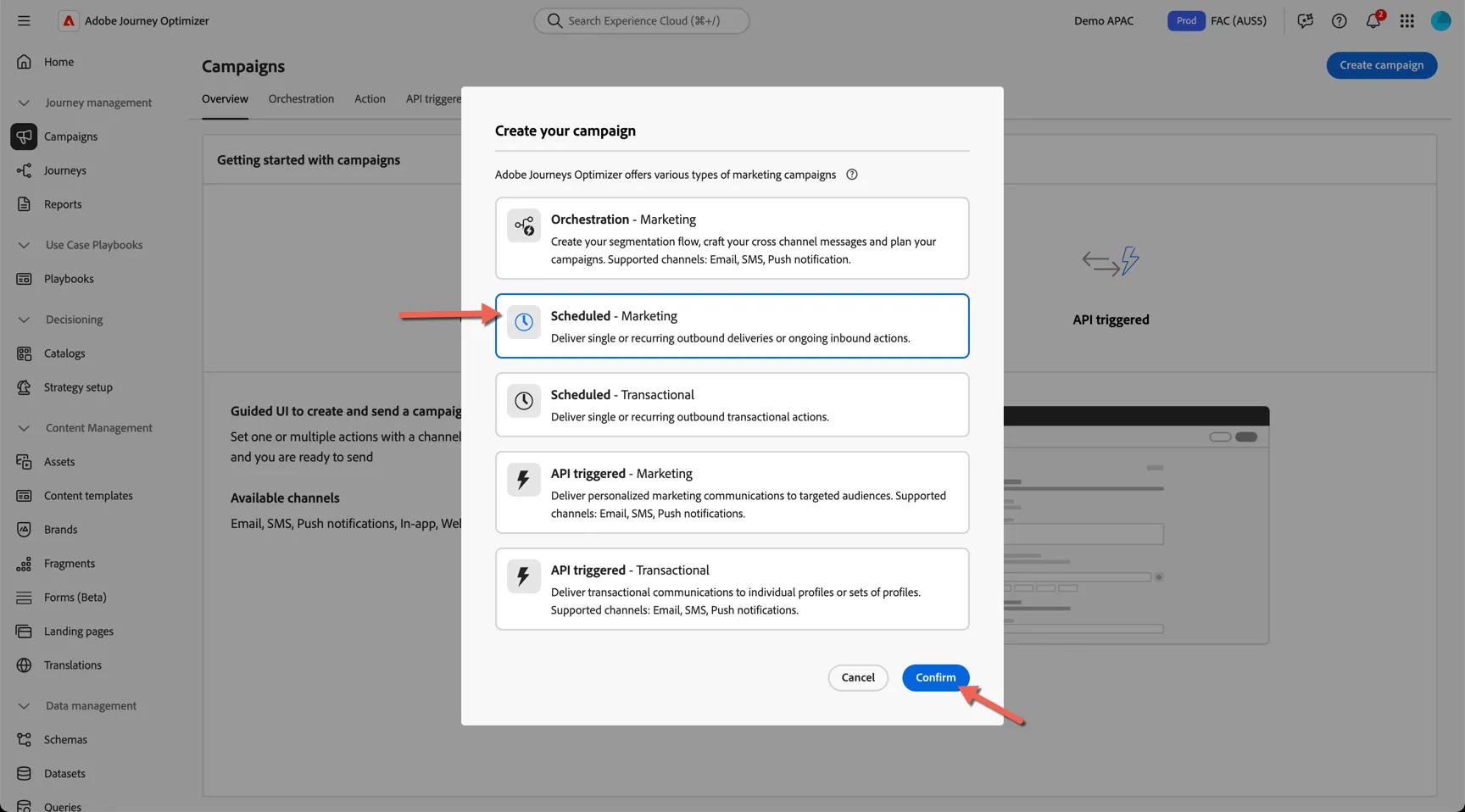
- Navigate to Journey Management -> Campaigns. AJO supports multiple campaign types, we will be create a single action campaign for this use case. Click to Create Campaign.
- Choose the Scheduled - Marketing option and click Confirm
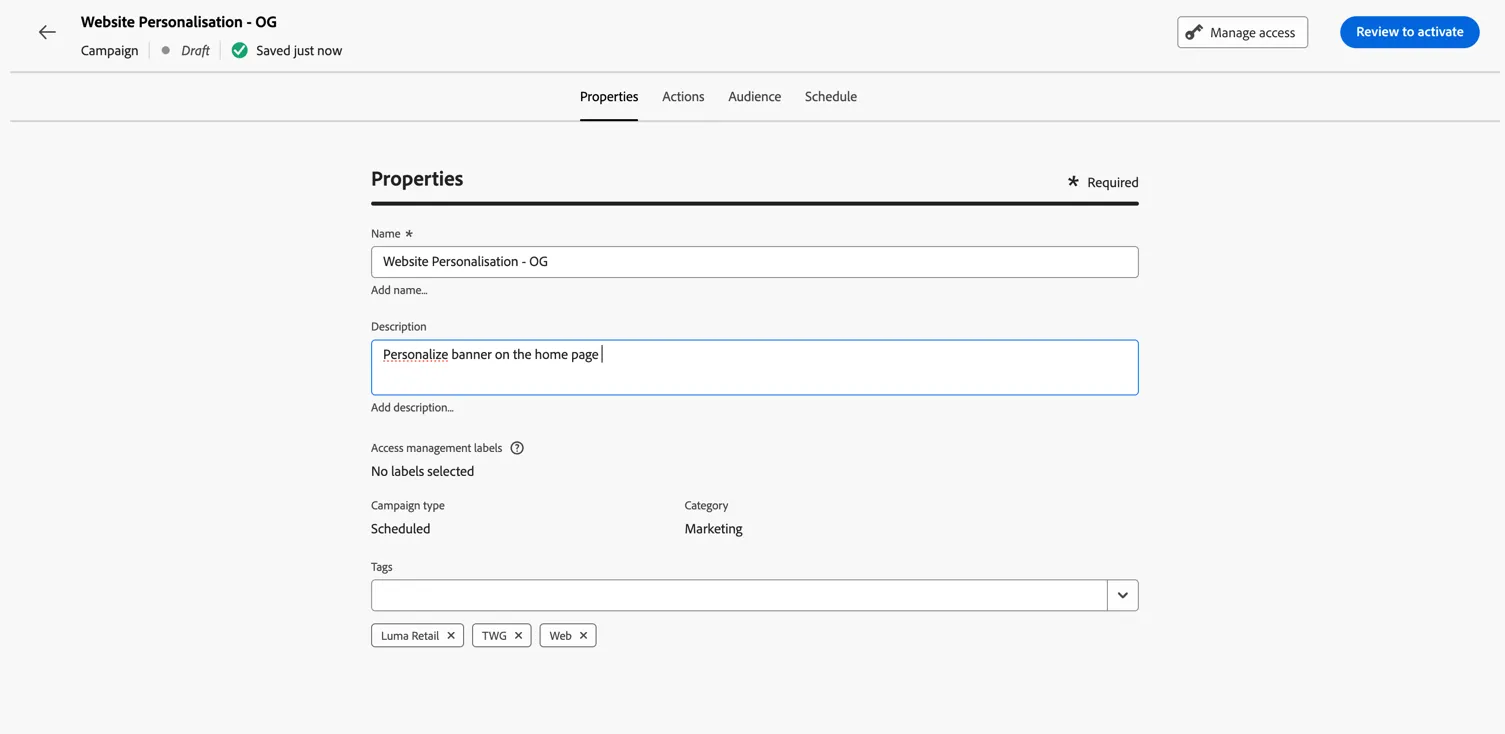
- Name your campaign. Add your initials or lab number at the end so you can recognize it later. You can add a description and tags to help with organization but these are optional.
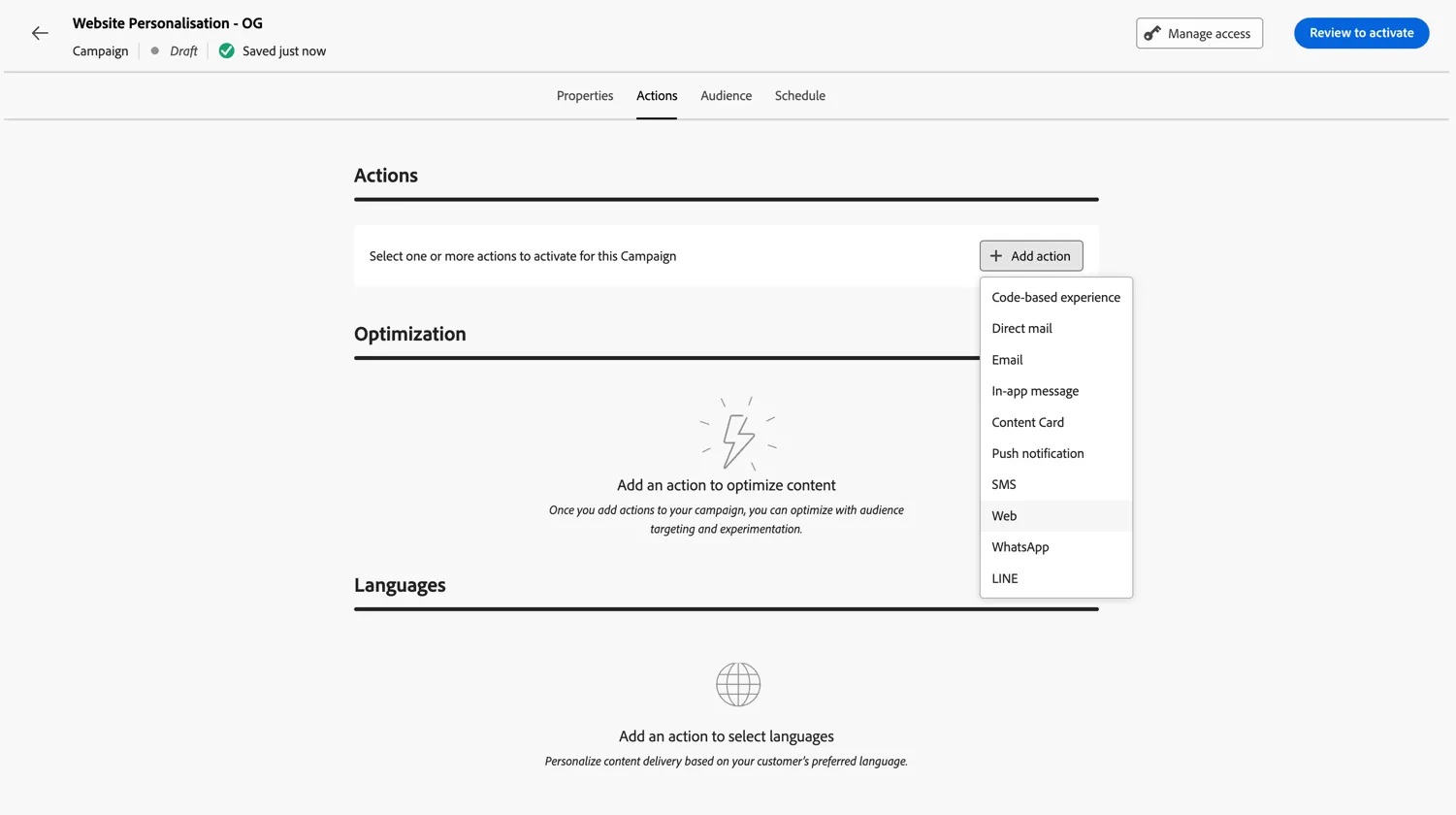
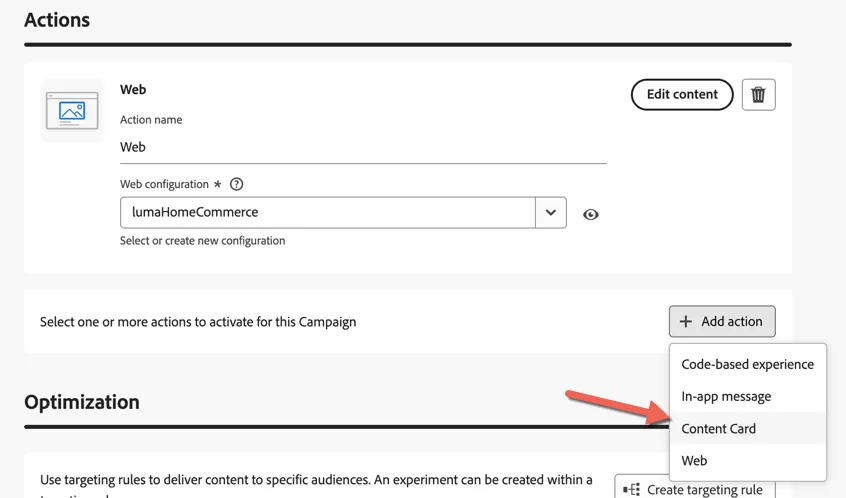
- Click to Add action and select Web
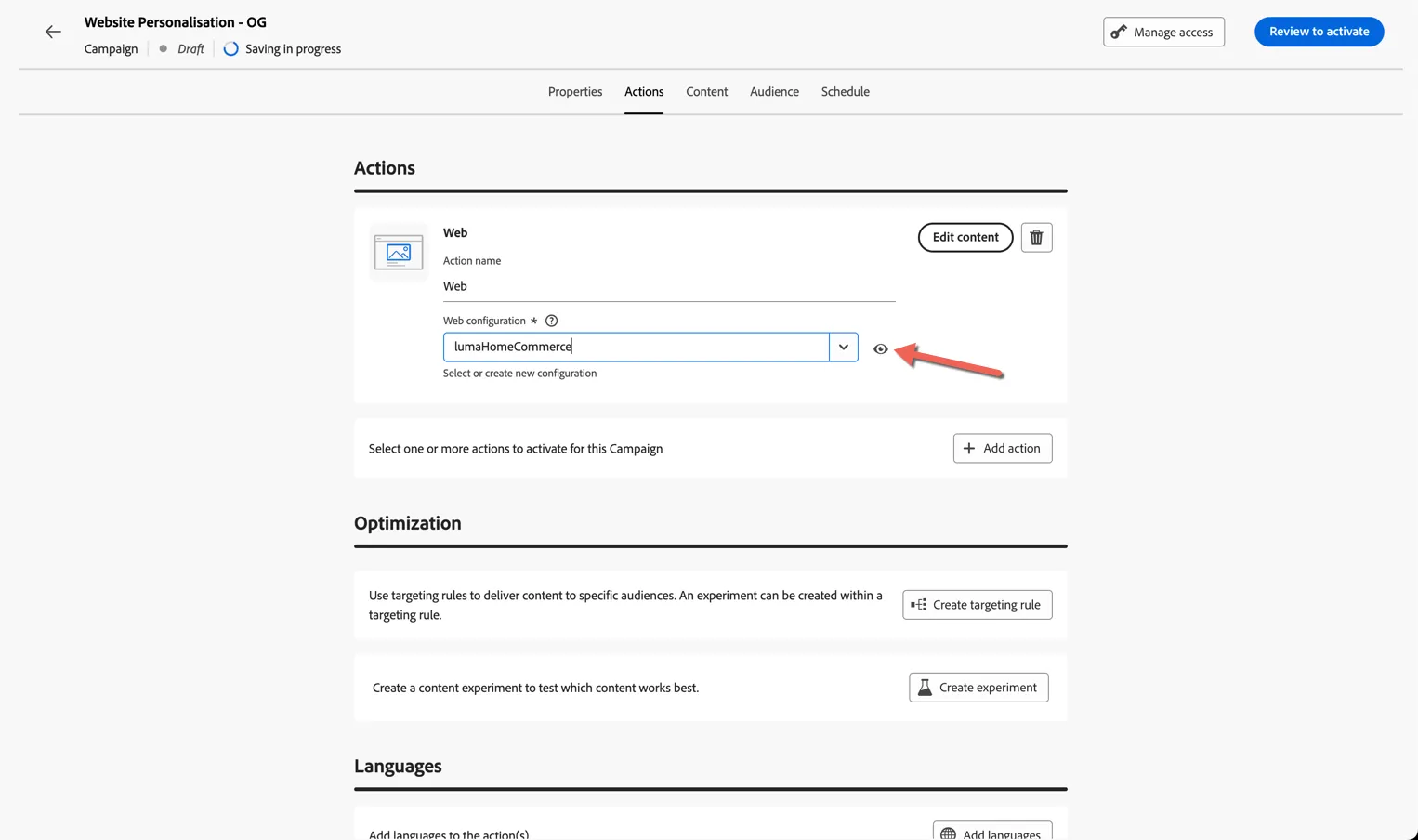
- Select the lumaHomeCommerce web configuration - this is a predefined object which defines the website location or locations where the experience will appear. You can see the details of the config by clicking the eye icon.
Note - Inbound Action Campaigns can support multiple channels. So you could add a similar experience to your mobile app using a Content Card or In App message within the same campaign definition if you add a second action. We will skip this for the lab.
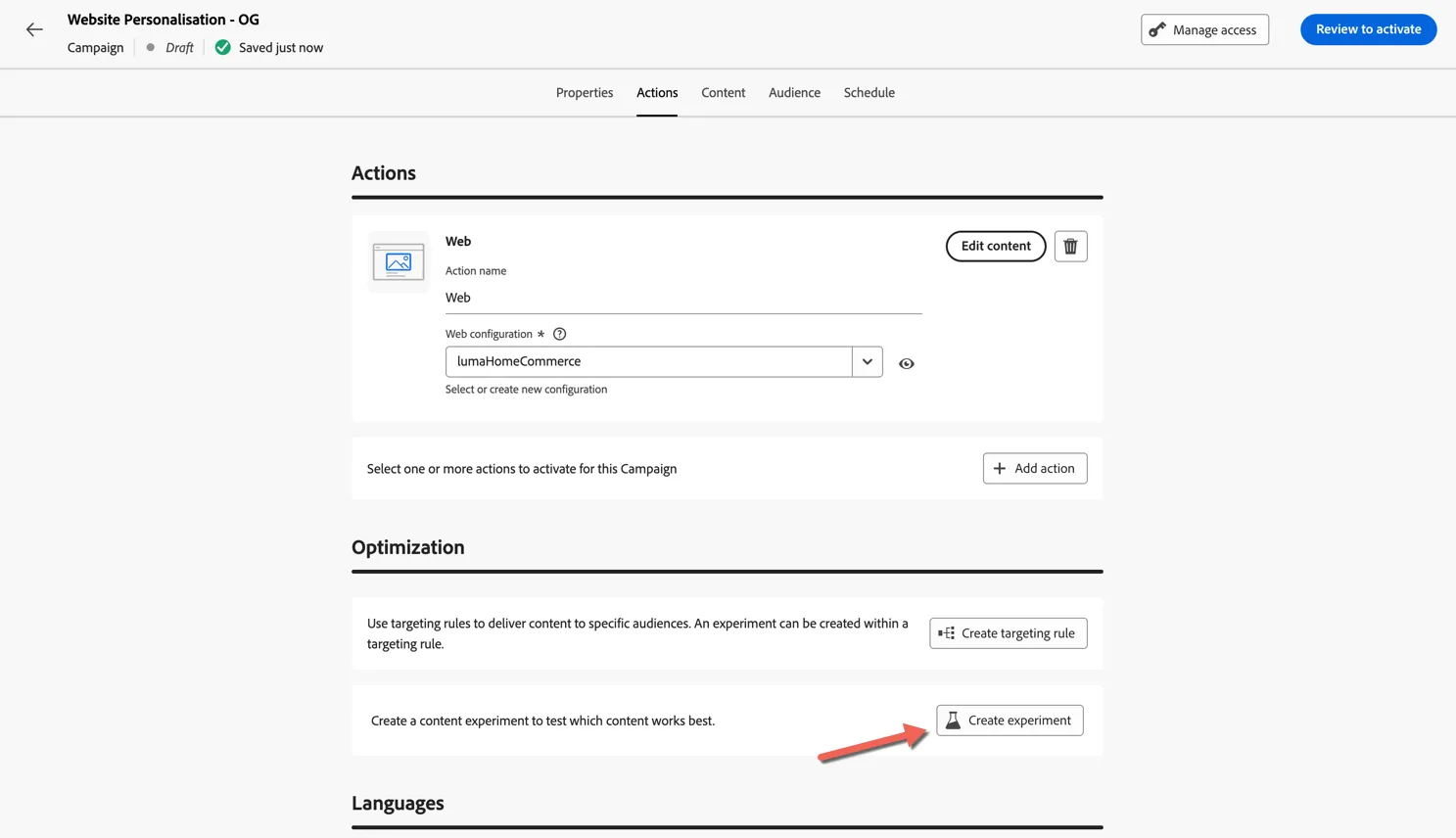
Now we want to test different versions of our creative, so we'll go ahead and create an experiment within this campaign.
Create Experiment
- Now we want to test different versions of our creative, so let's click to Create experiment.
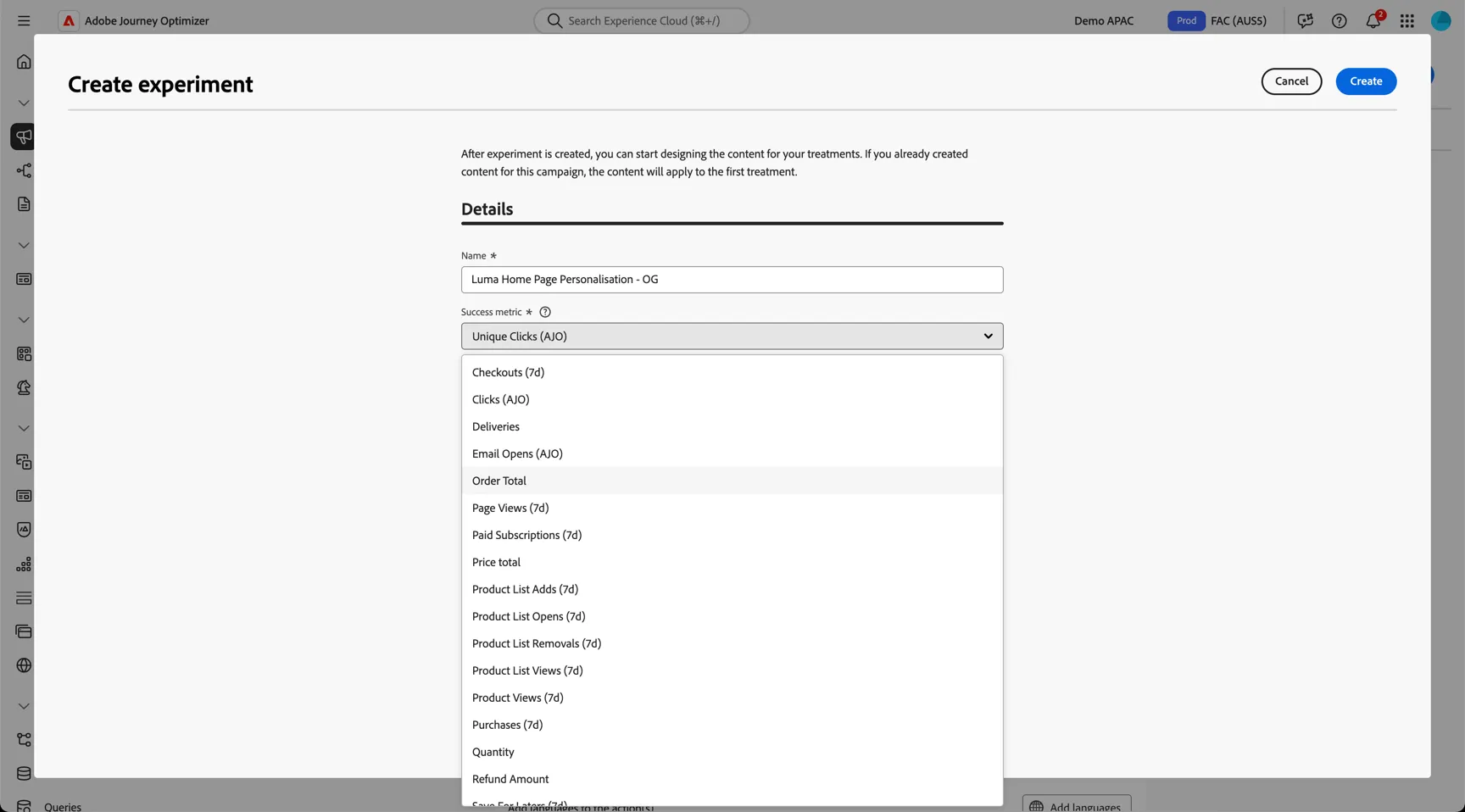
- Give your experiment a name like Luma Home Page Personalisation add your initials so you can recognise it later - this experiment name will be leveraged by reporting. We then need to define the Goal or Success Metric for the campaign. This can be simple metrics like clicks or conversion metrics like Purchases (7d).
Journey Optimizer provides commerce conversion metrics out of the box but with Customer Journey Analytics license you can choose to optimize for any metric defined within your data view.
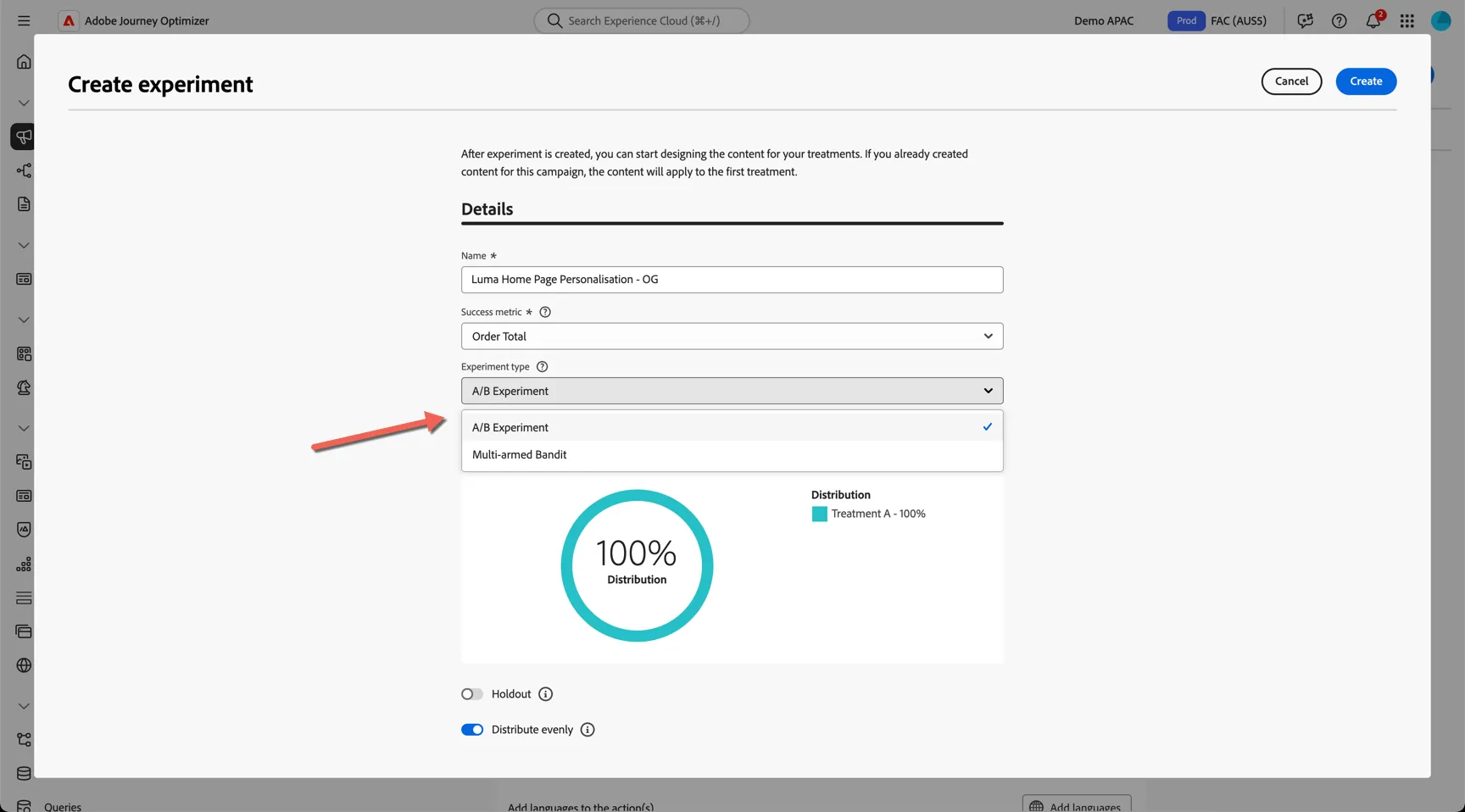
- Next we need to choose the experiment type, for this lab we will select A/B experiment.
A/B Experiment Splits traffic as you define between treatments and measures performance until results are statistically significant. Best for learning which treatment performs better in a controlled comparison.
Multi-armed Bandit Shifts traffic toward higher-performing treatments as data is collected, balancing speed and optimization. Useful when you want to maximize conversions during the experiment.
You can even Bring your own Multi-armed Bandit.
- Click to add a second treatment or variant to our experiment and decide if you want to apply a holdout (ie. control) group or not.
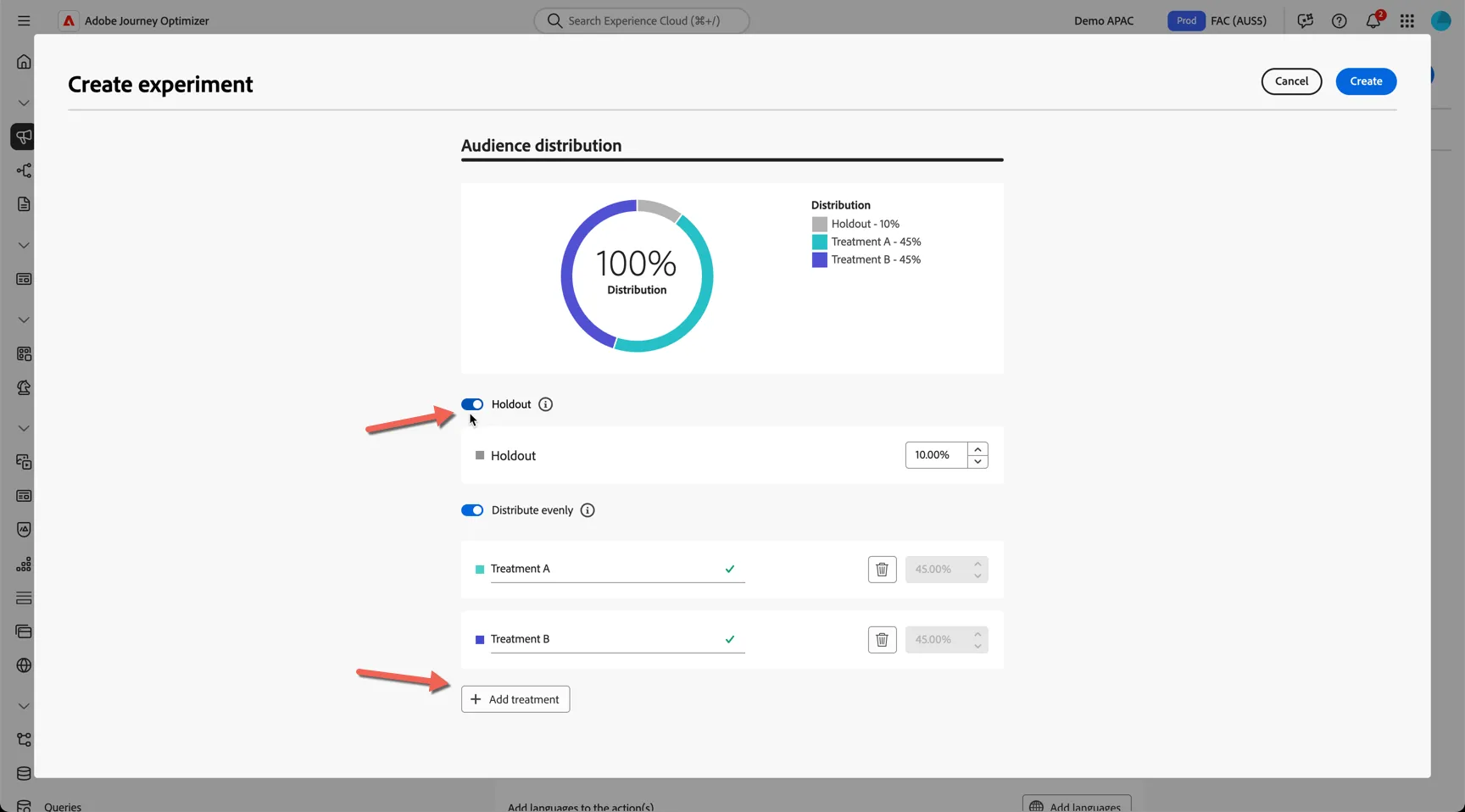
- Lastly you can choose to Auto Scale the experiment to present the winning version once a statistical winner has been found.
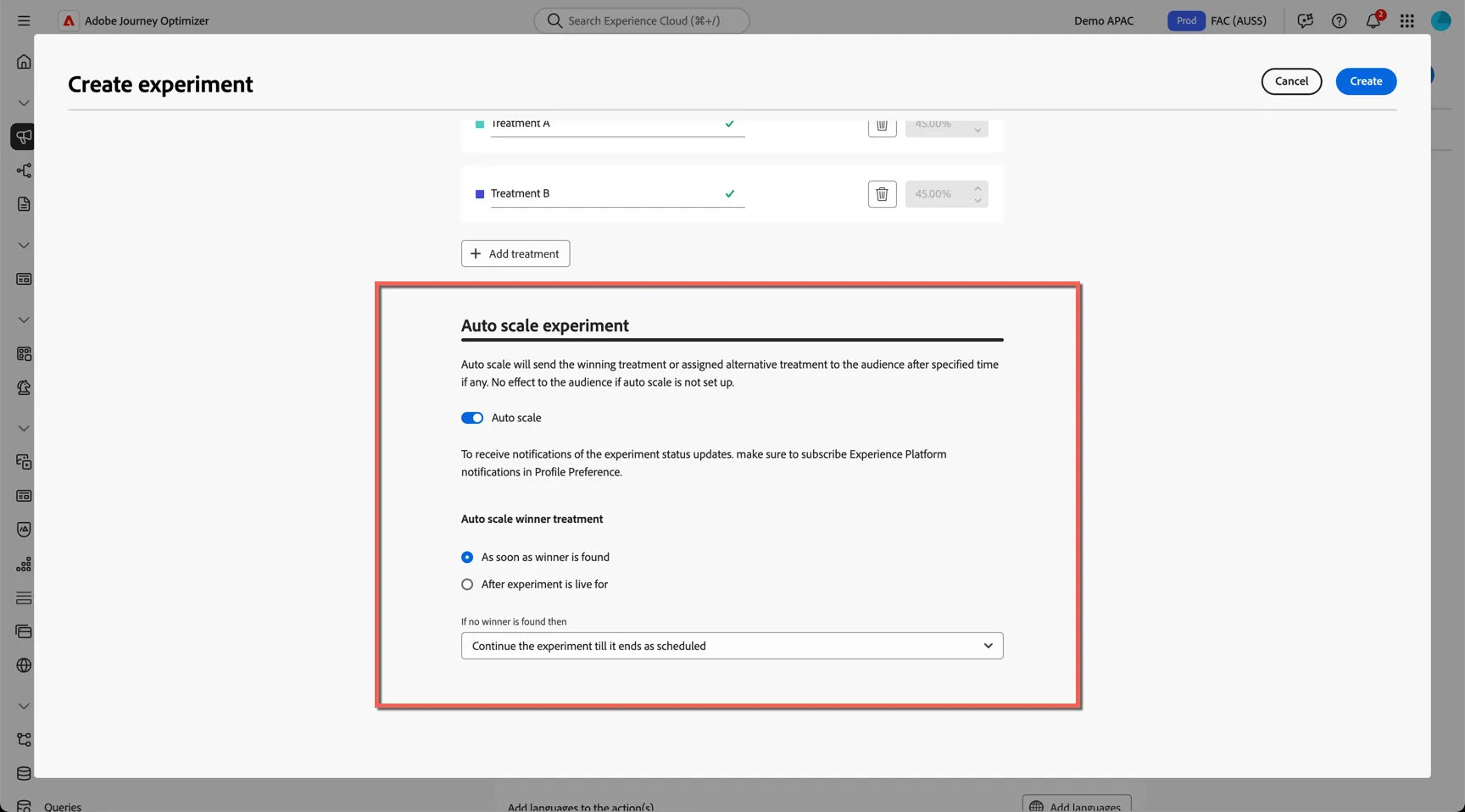
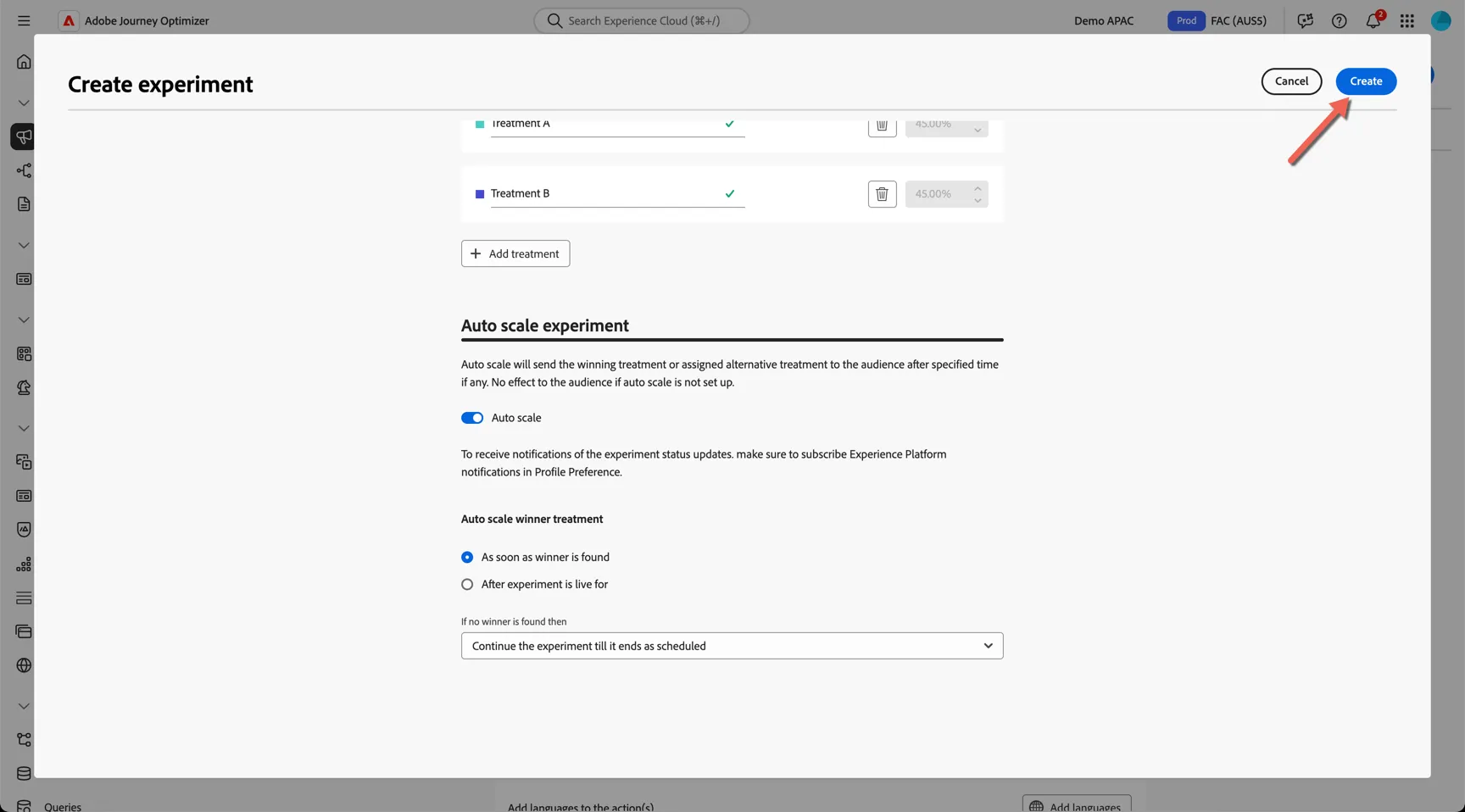
- Click Create to create the experiment and return to the Campaign configuration.
Define Content
Next we'll add our updates for each of the treatments.
- Click to the Content tab and click to edit web page
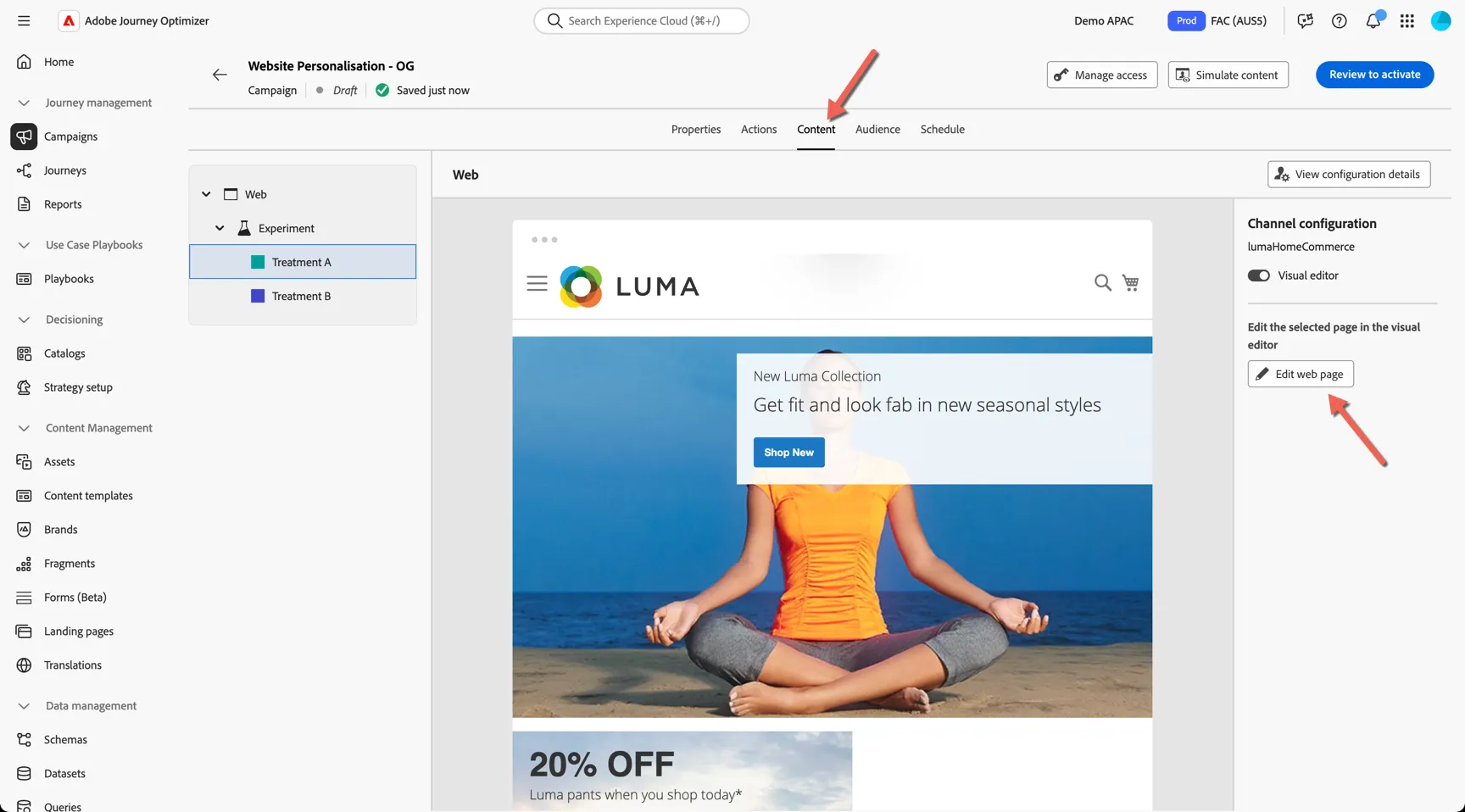
- Use the visual editor to update the text within the main banner.
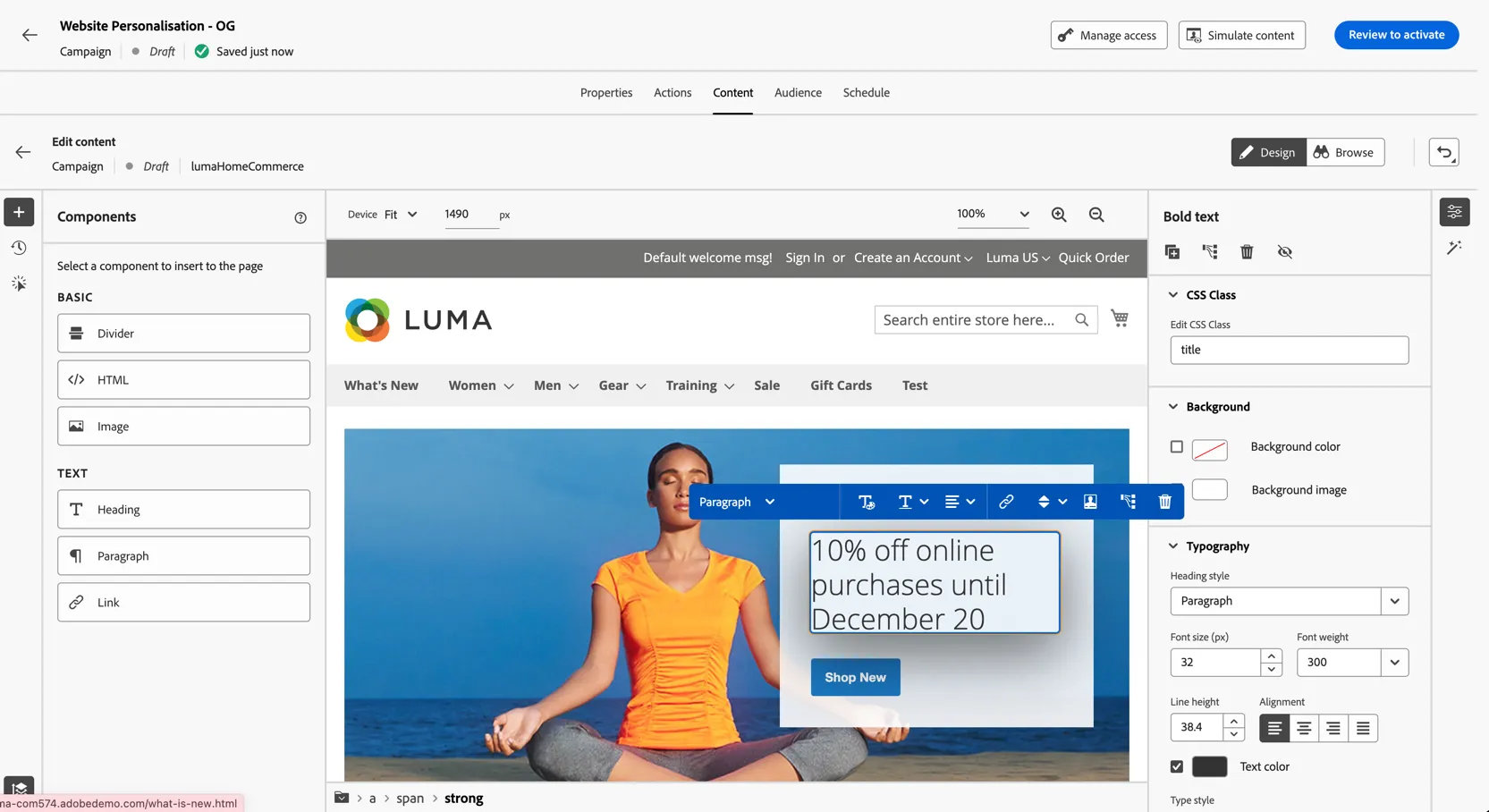
- Next we need to configure the elements that will be tracked. Click on the shop new button then use the element list at the bottom of the editor to select the anchor <a> tag wrapping the span.
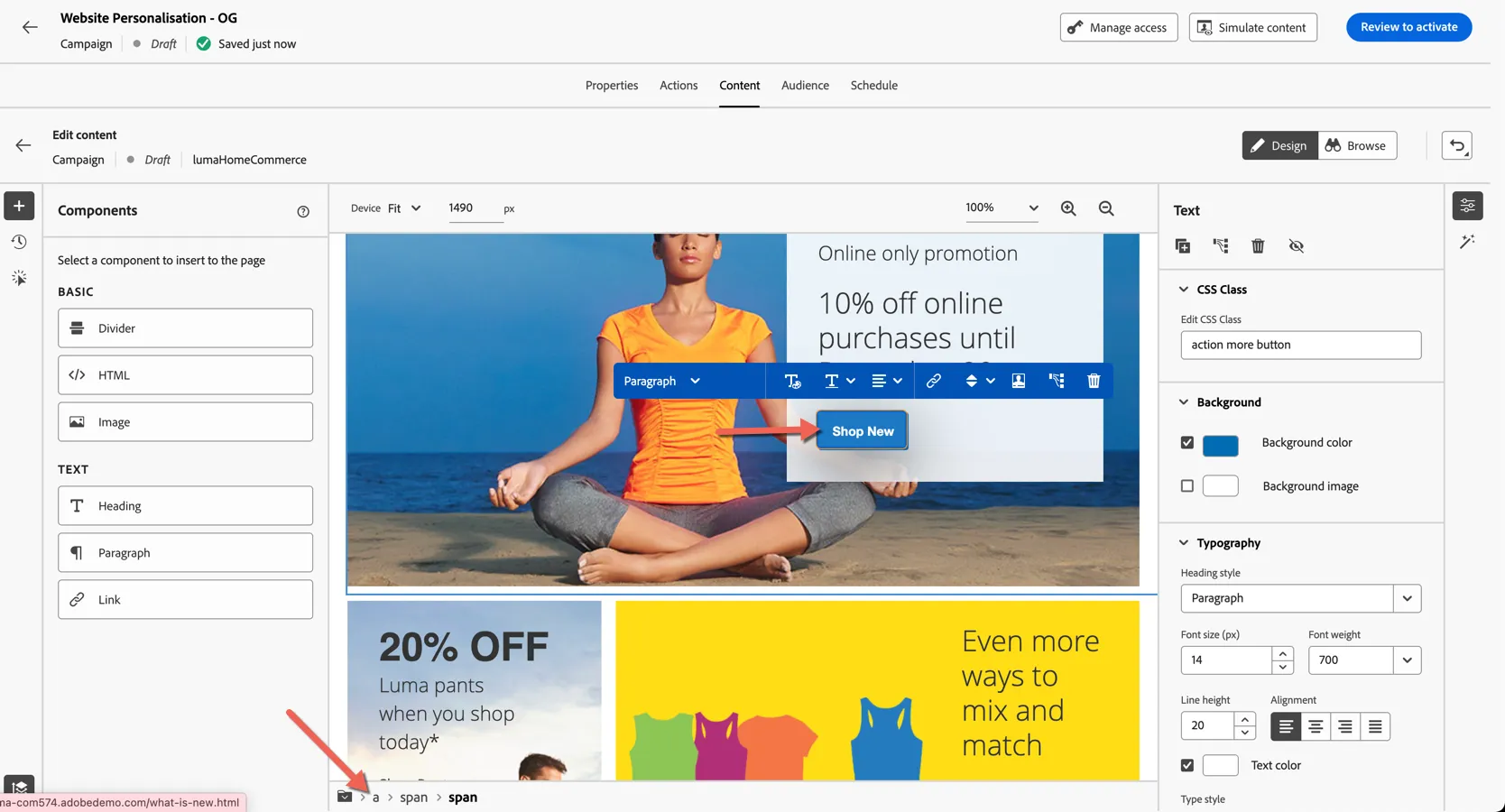
- Select the second icon in the link setting on the right to add Click Tracking to the element - this will ensure a new experience event is added to profiles interacting with the modified content. This is used by the reporting and can be used to further segment your customers.
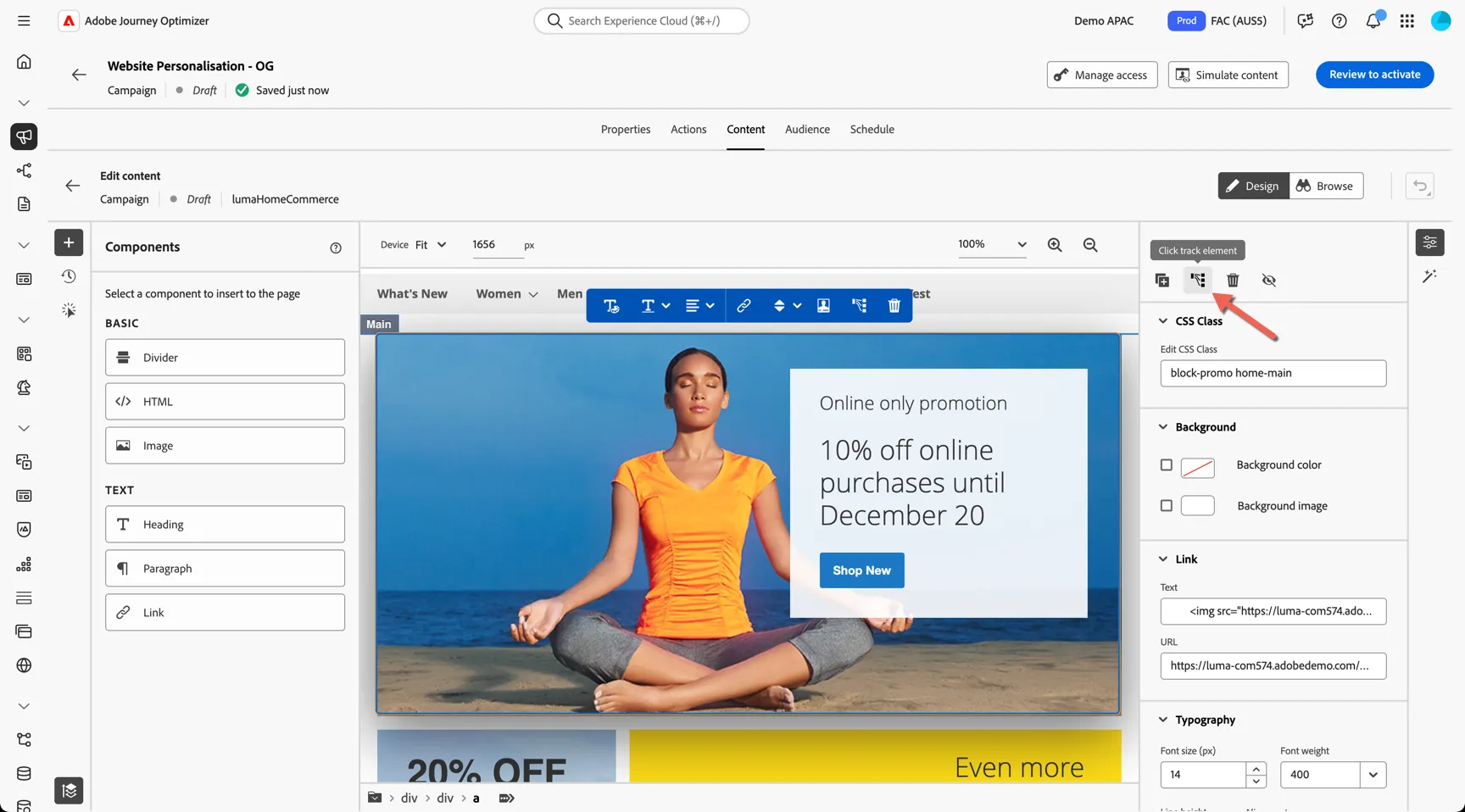
- You can see the list of modifications you've made to the page using the tabs on the left.
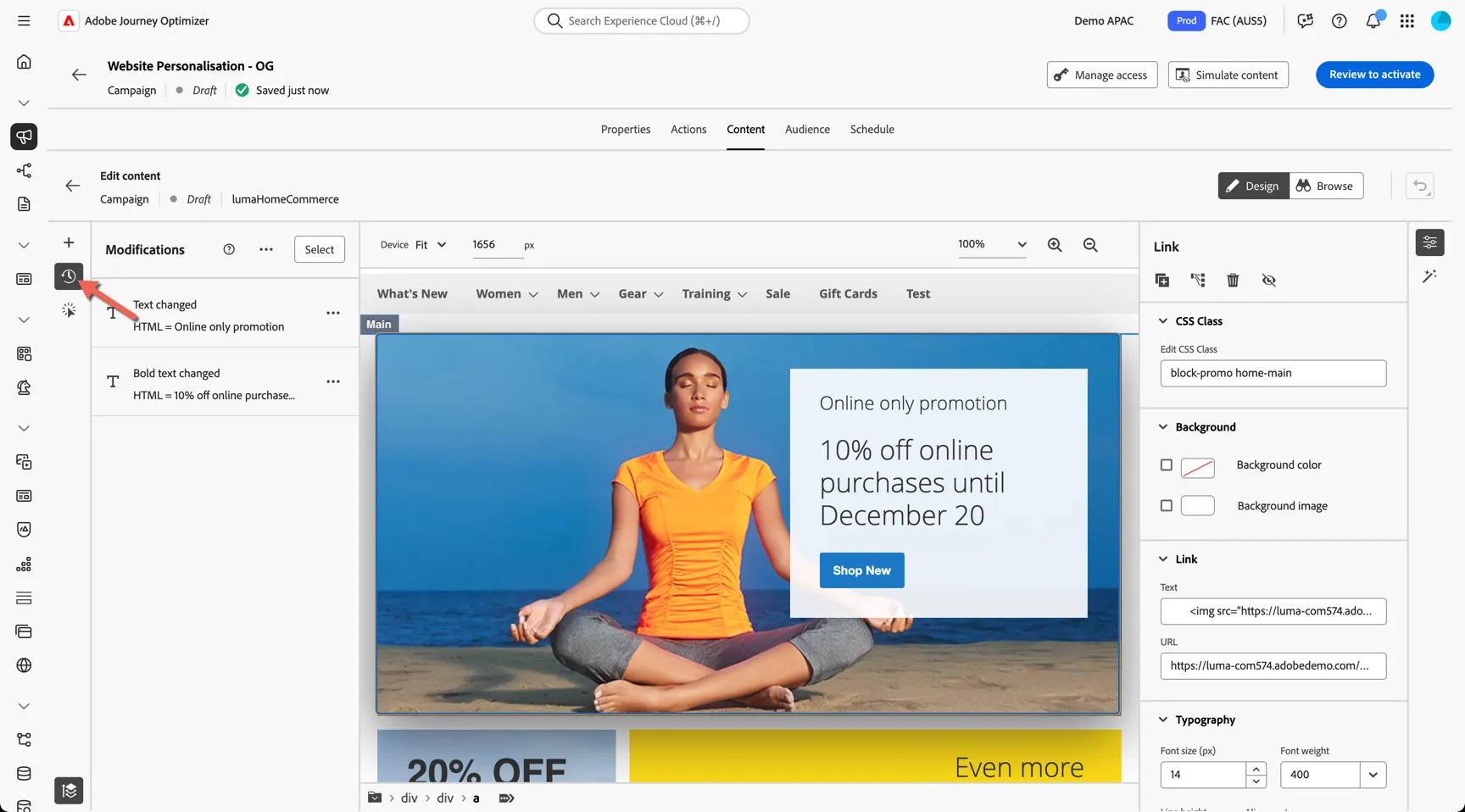
- Click on the arrow to exit the editor
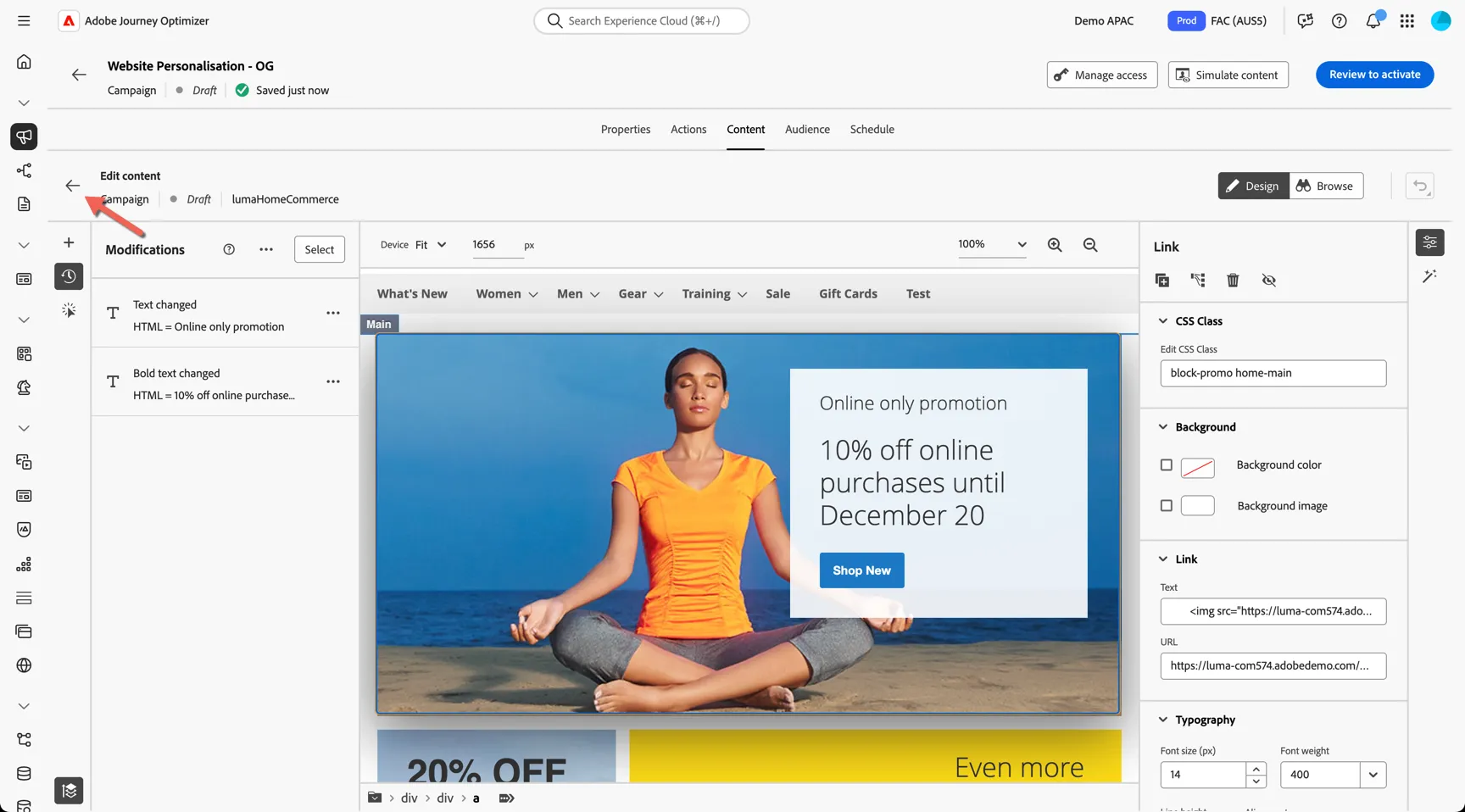
- Select Treatment B and click to Edit Web Page to configure the second variation.
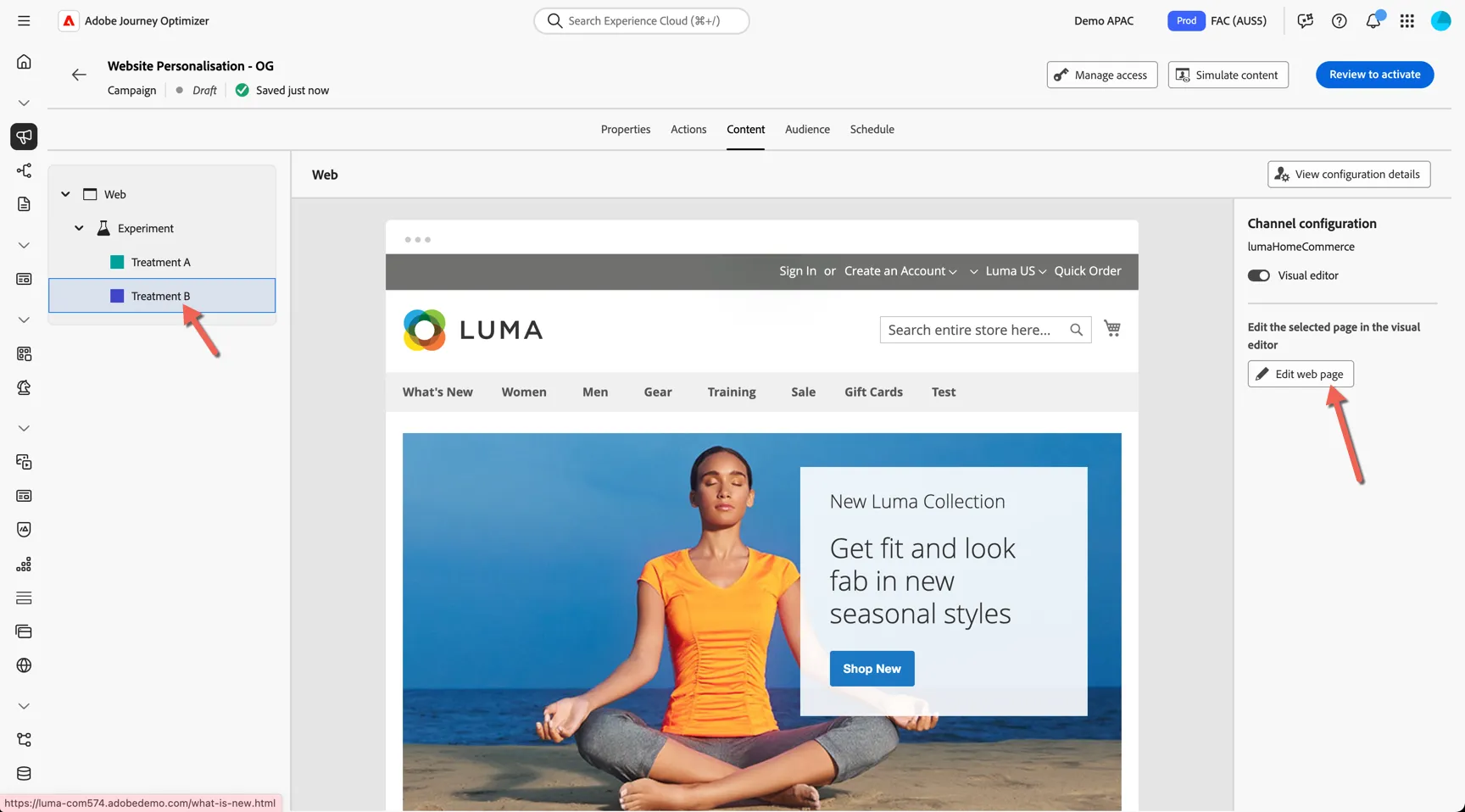
- In this variant we'll update the banner image as well. Add the same text updates, then select the banner image and click to edit the source.
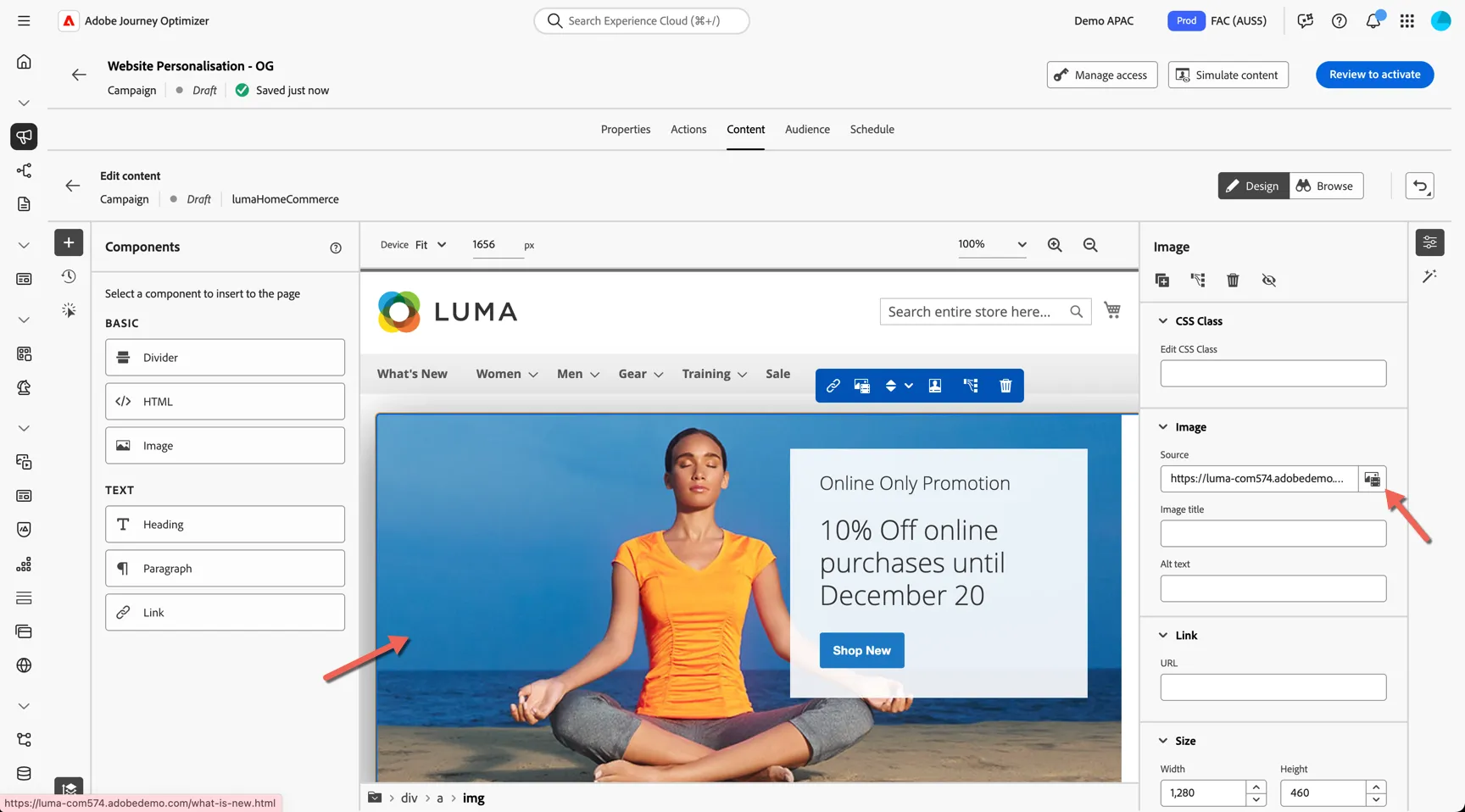
- You can use Generative AI to create a new image or select an existing image from Adobe Stock (if licensed) or from your Asset Repository. For this exercise we'll select the banner you added to the asset repository earlier. Click on the top navigation icon to access the repository.
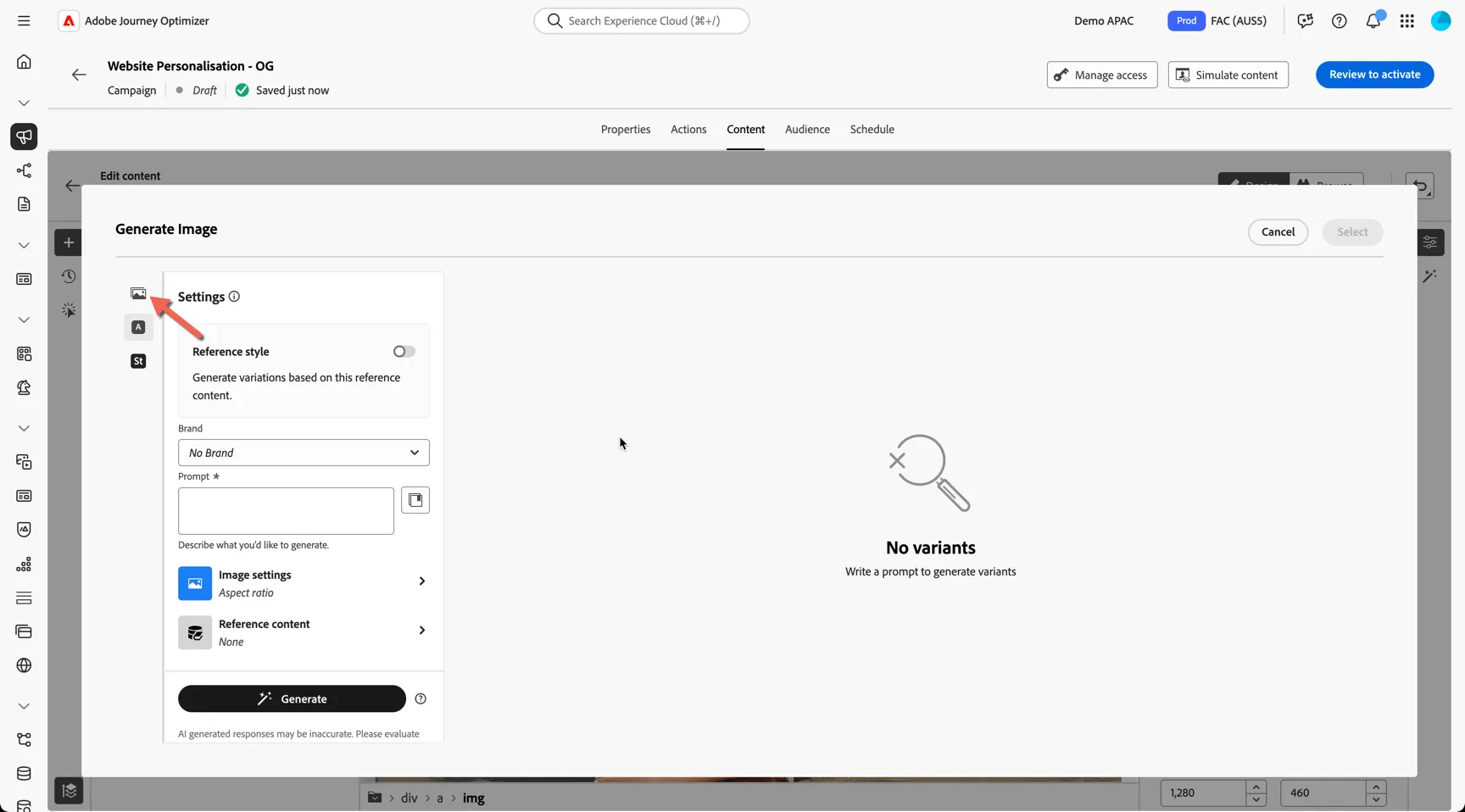
- Make sure you're in the right repository Demo APAC Program 2 prod delivery - this is where you'll find the "approved" assets. You have access to both repositories but marketers might be restricted to accessing this repository only.
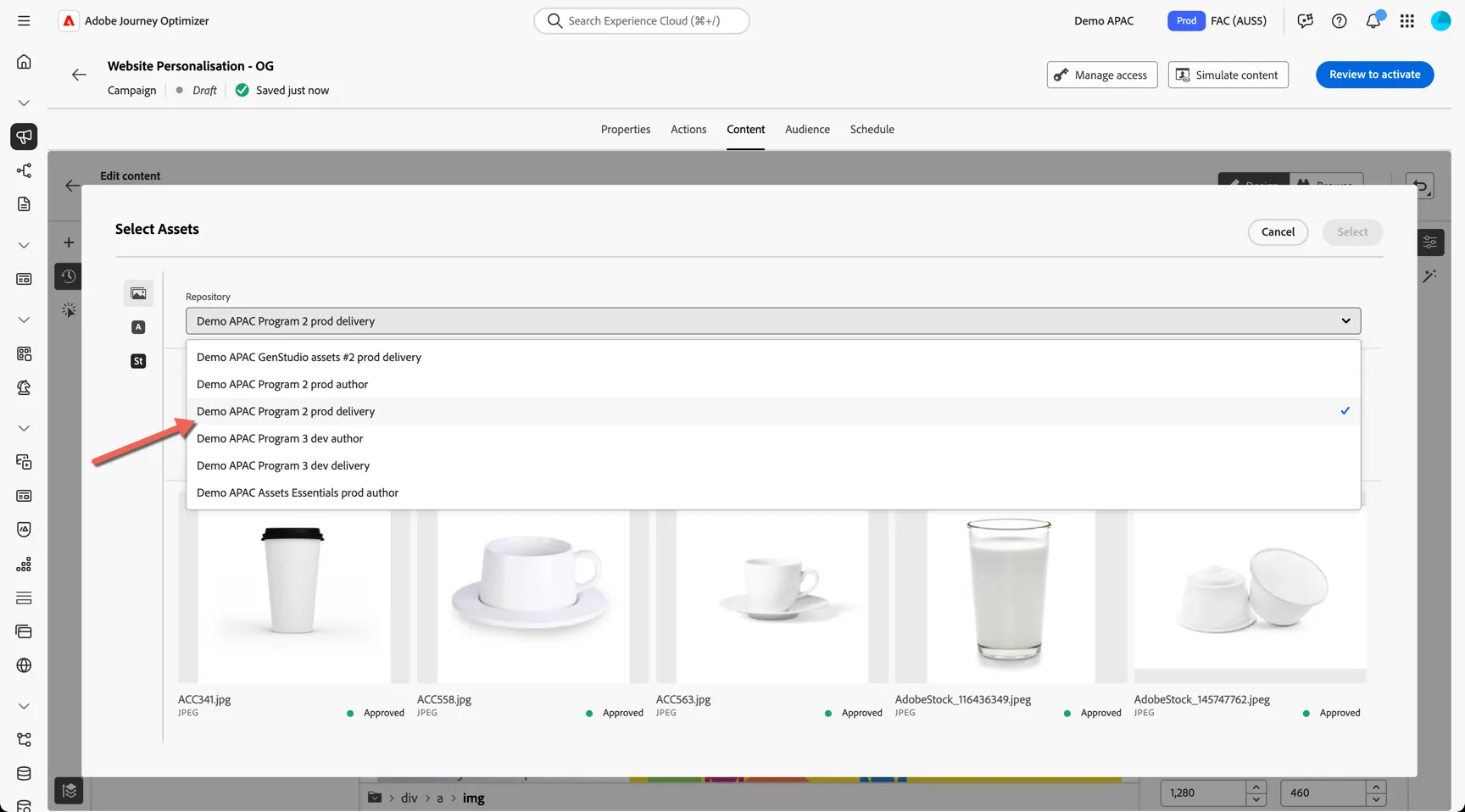
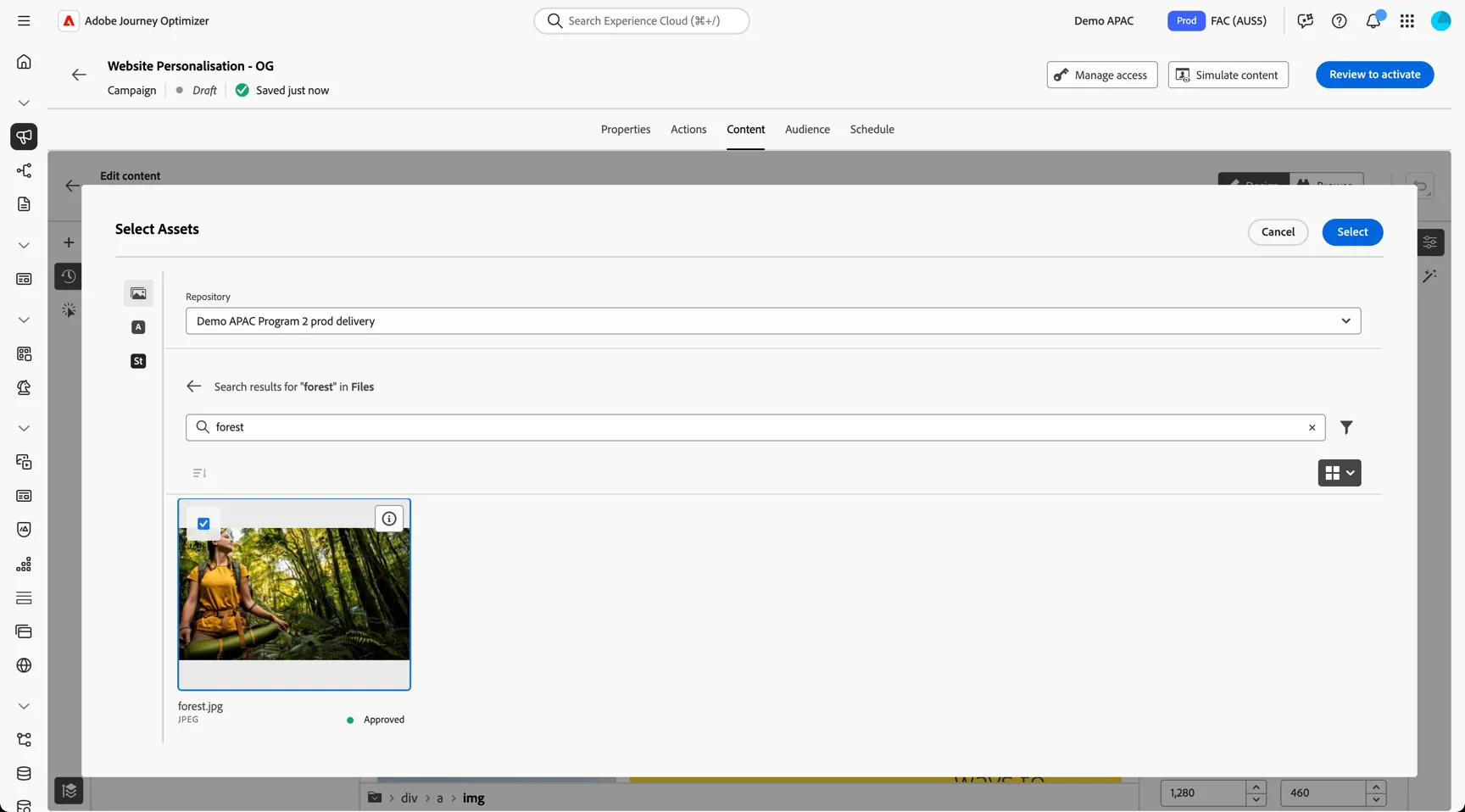
- Search for your image using one of the AI generated keywords. Click select to add it to the campaign.
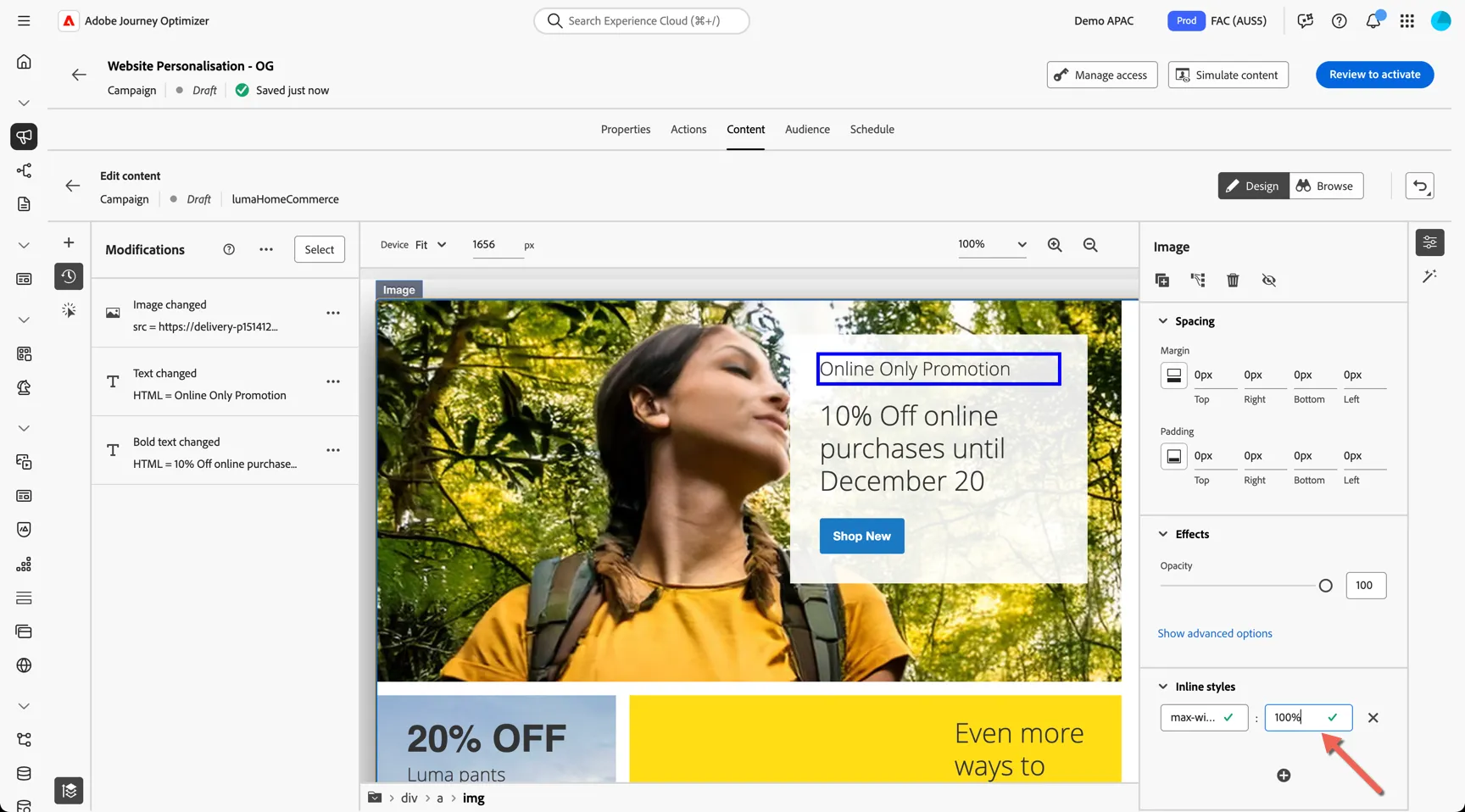
- Scroll to the bottom of the image properties on the right panel and set the inline styles to have max-width : 100%
- Click on the arrow to exit the editor
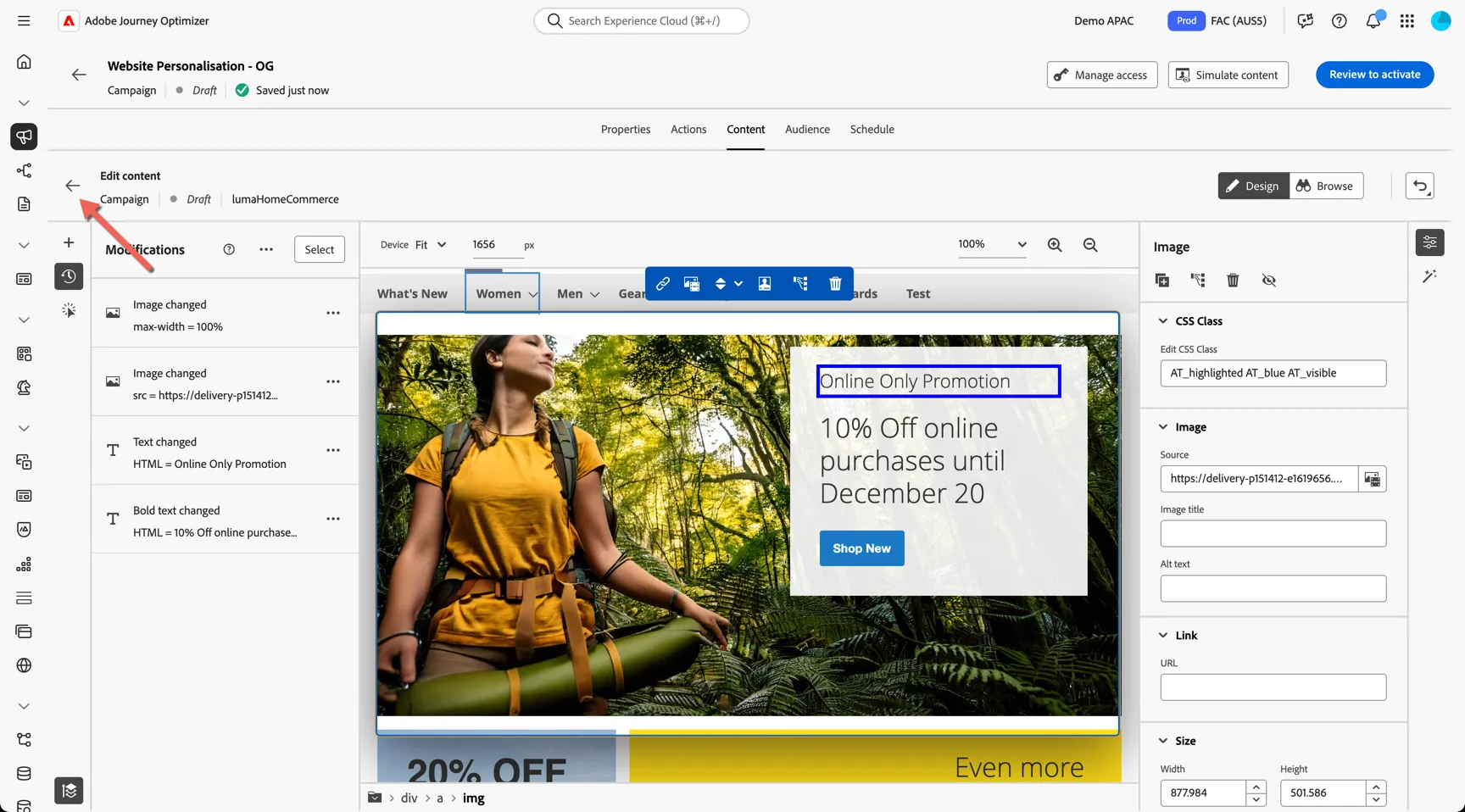
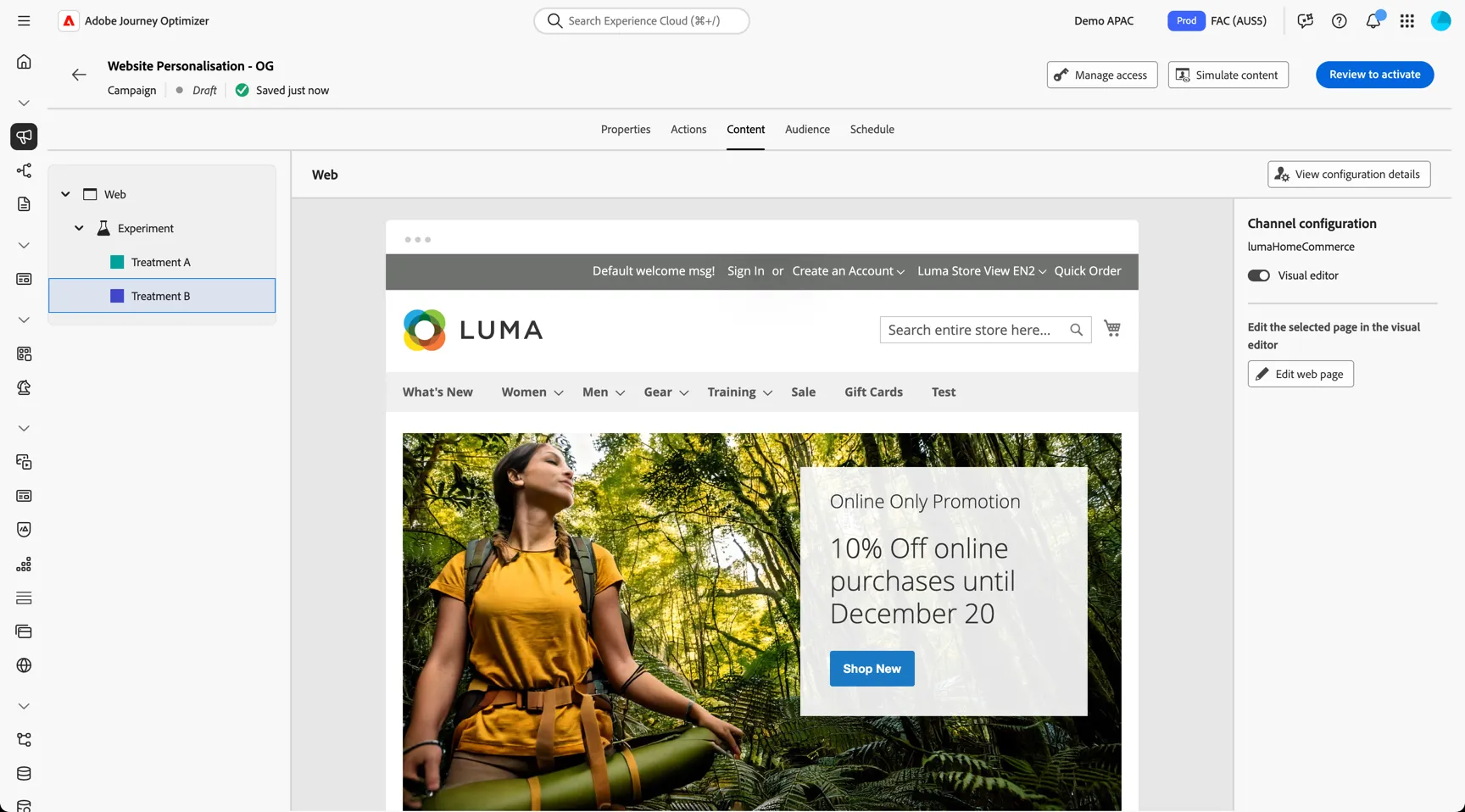
- You can preview the different experiences here
Select Audience
Web experiences can be targeted to all visitors or specific audiences. We want this experience to only show to customers we've identified to be eligible for the promotion.
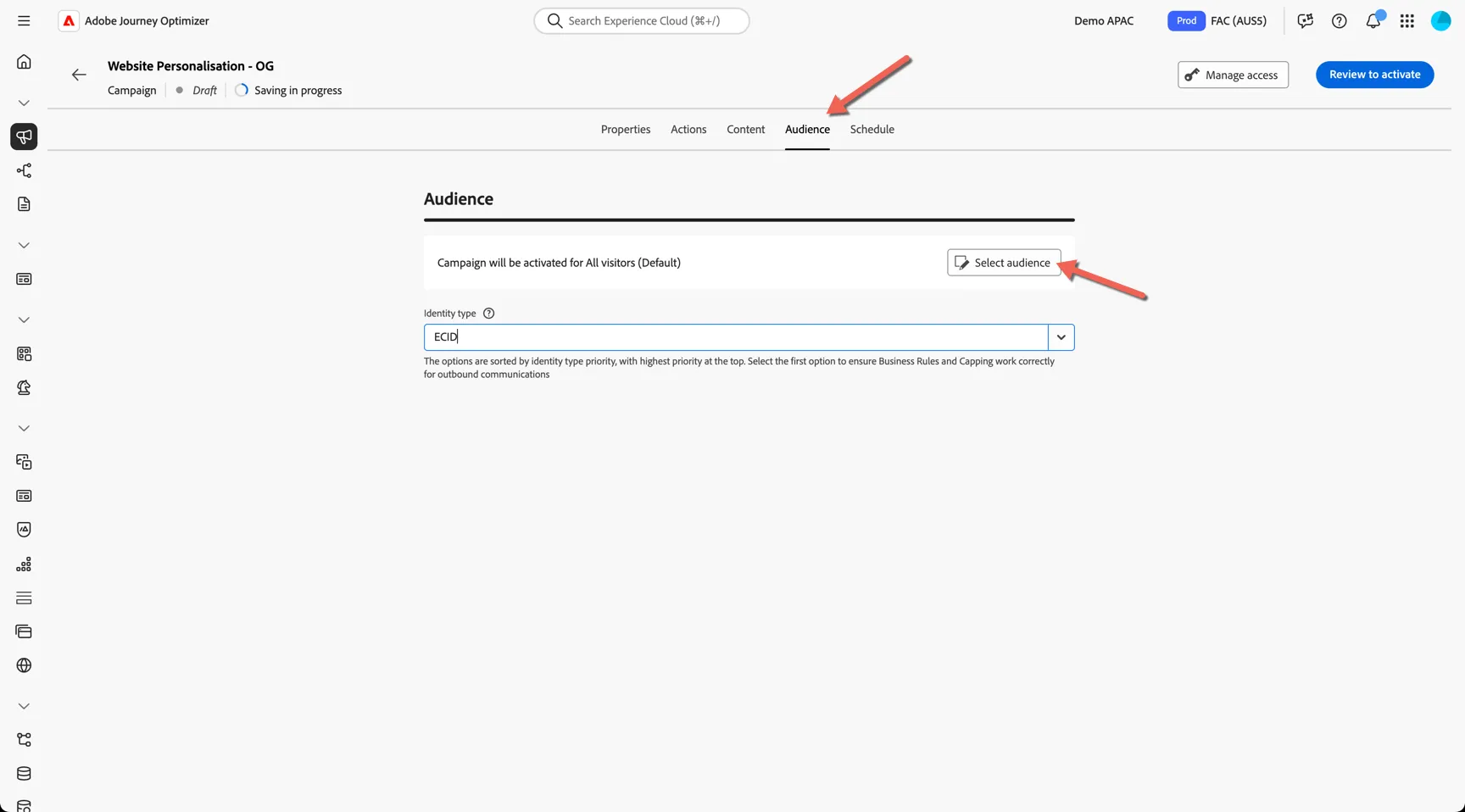
- Change to the Audience tab and click to Select audience
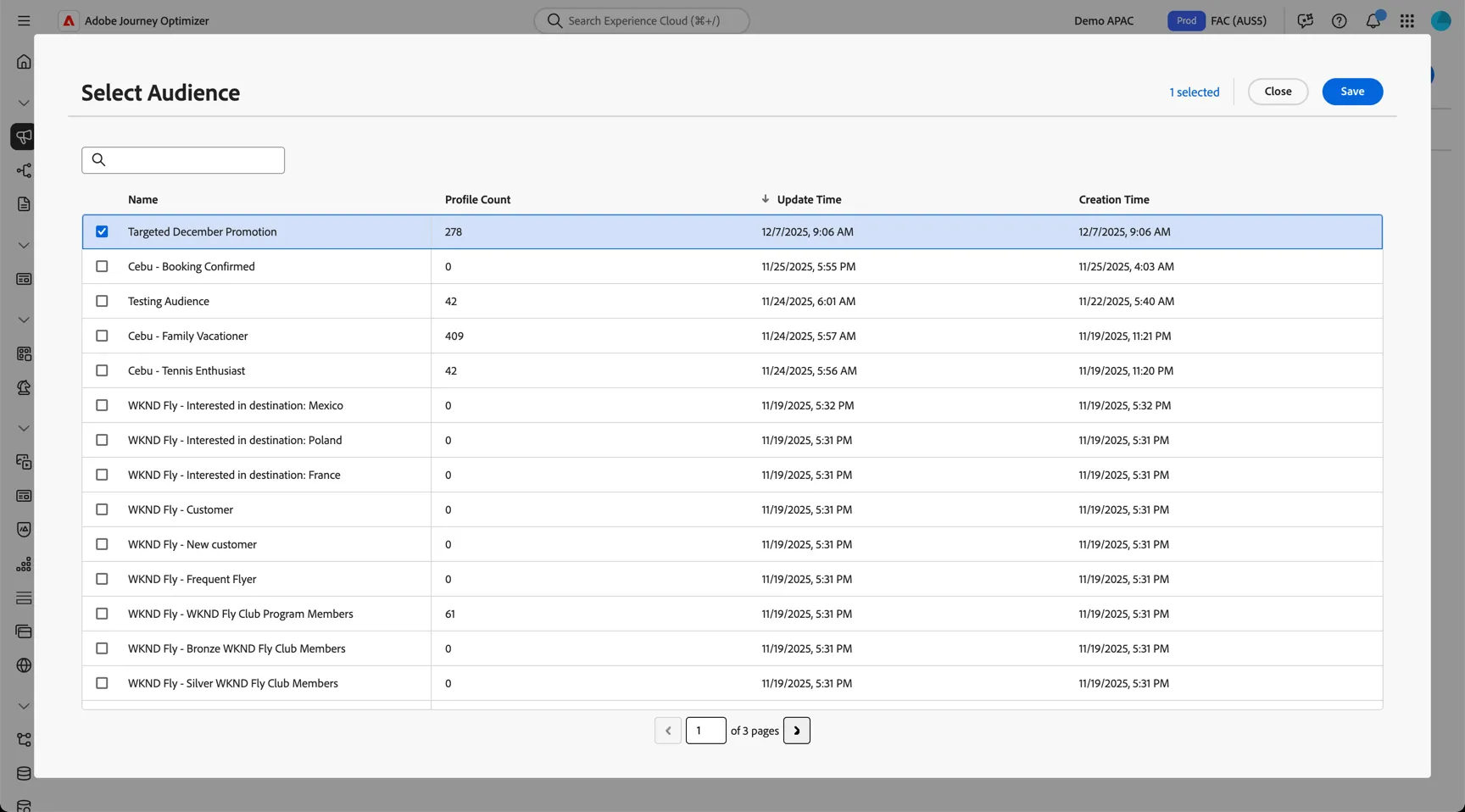
- Select the AEP Audience we created earlier in the lab.
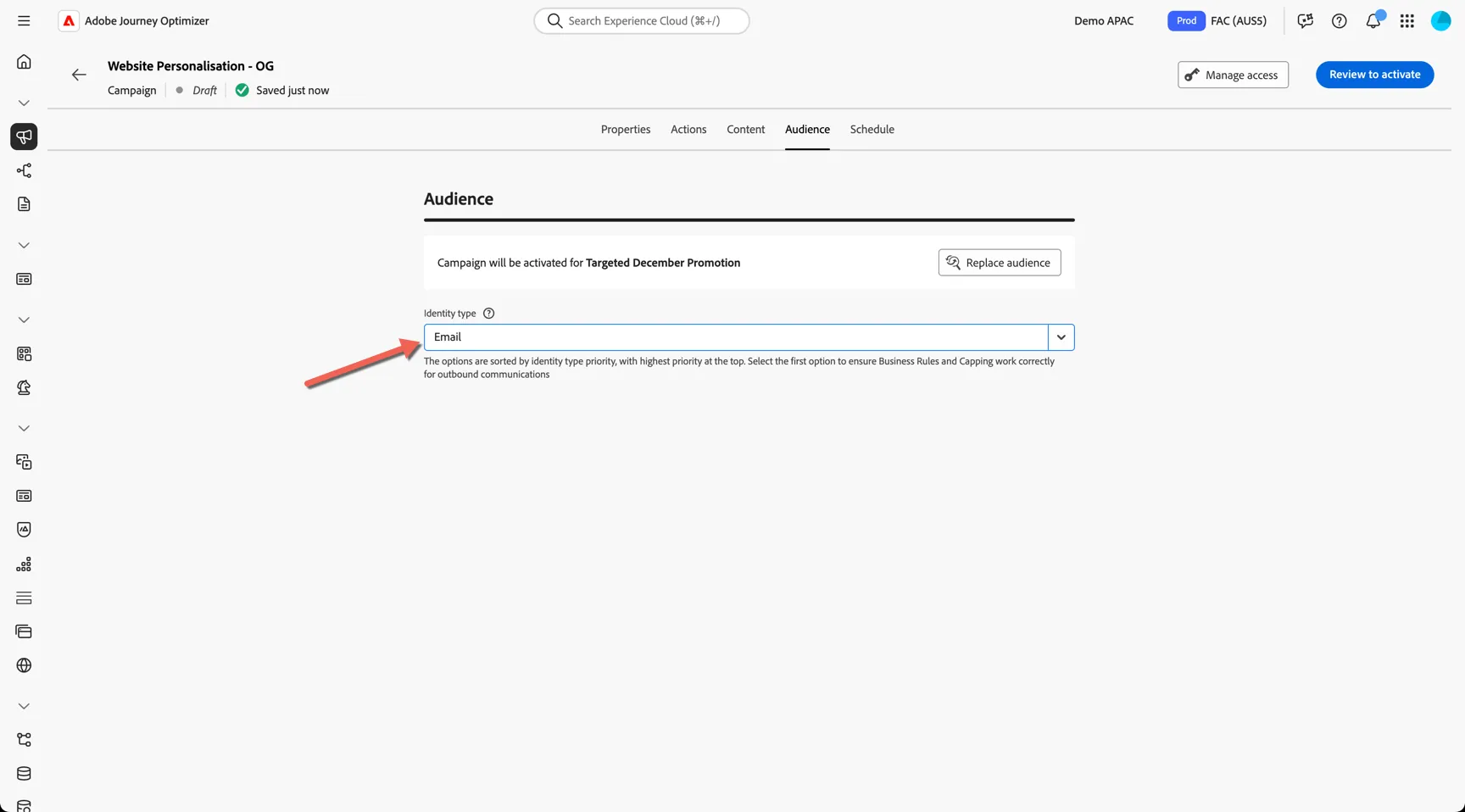
- We will limit the experience to known customers so change the identity type to Email.
Schedule
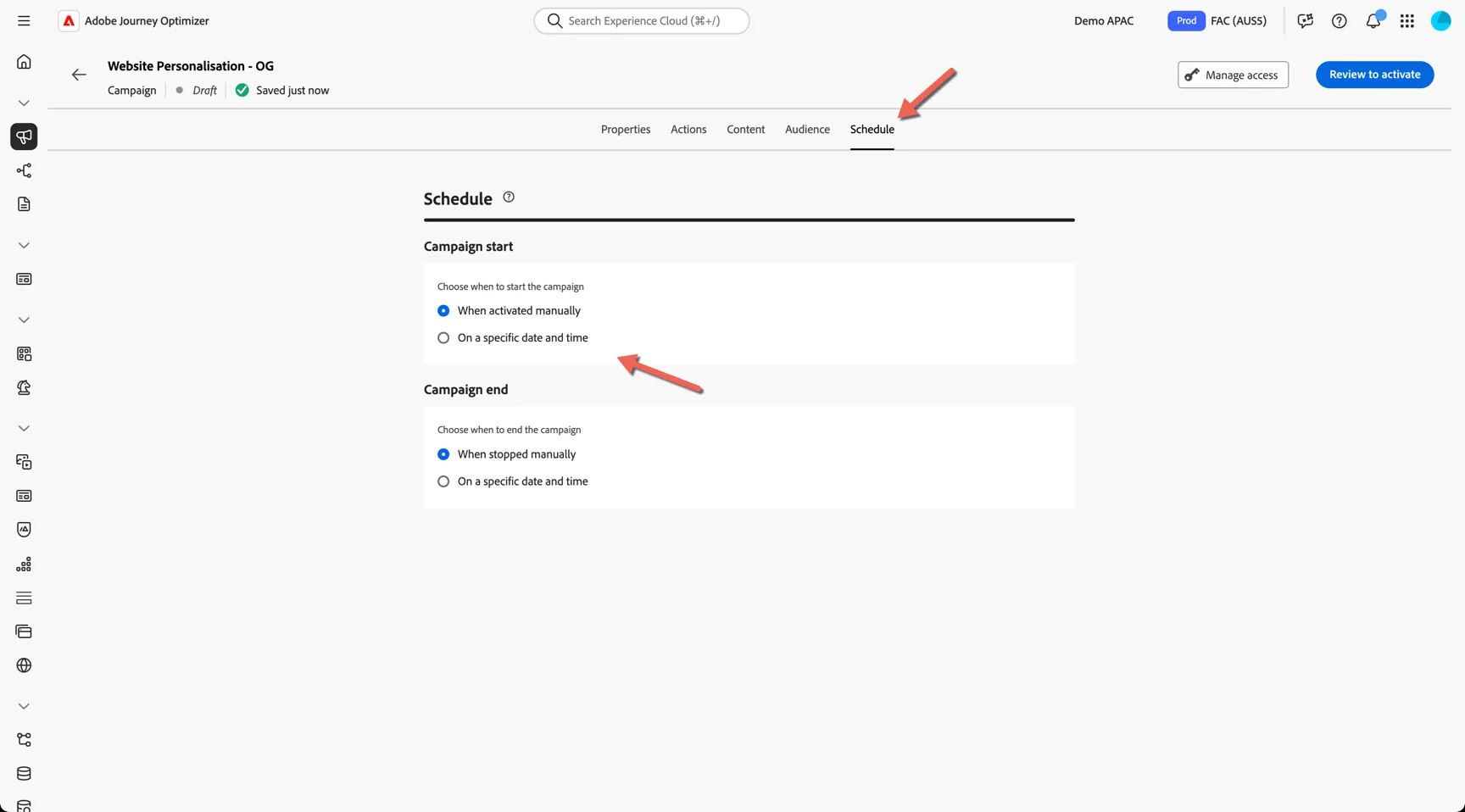
Lastly you can schedule when the campaign should be active by switching to the Schedule tab. You can leave these as default for now.
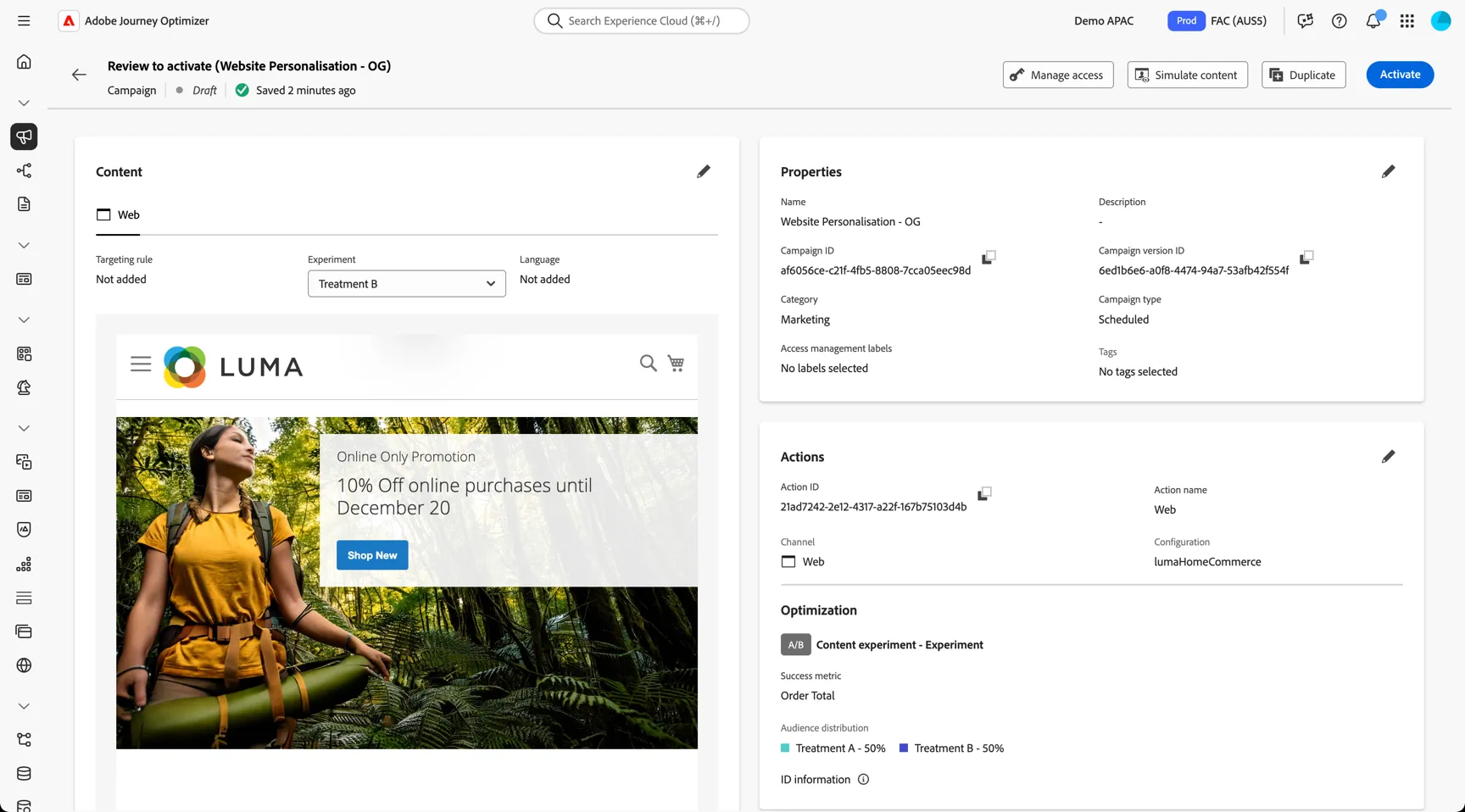
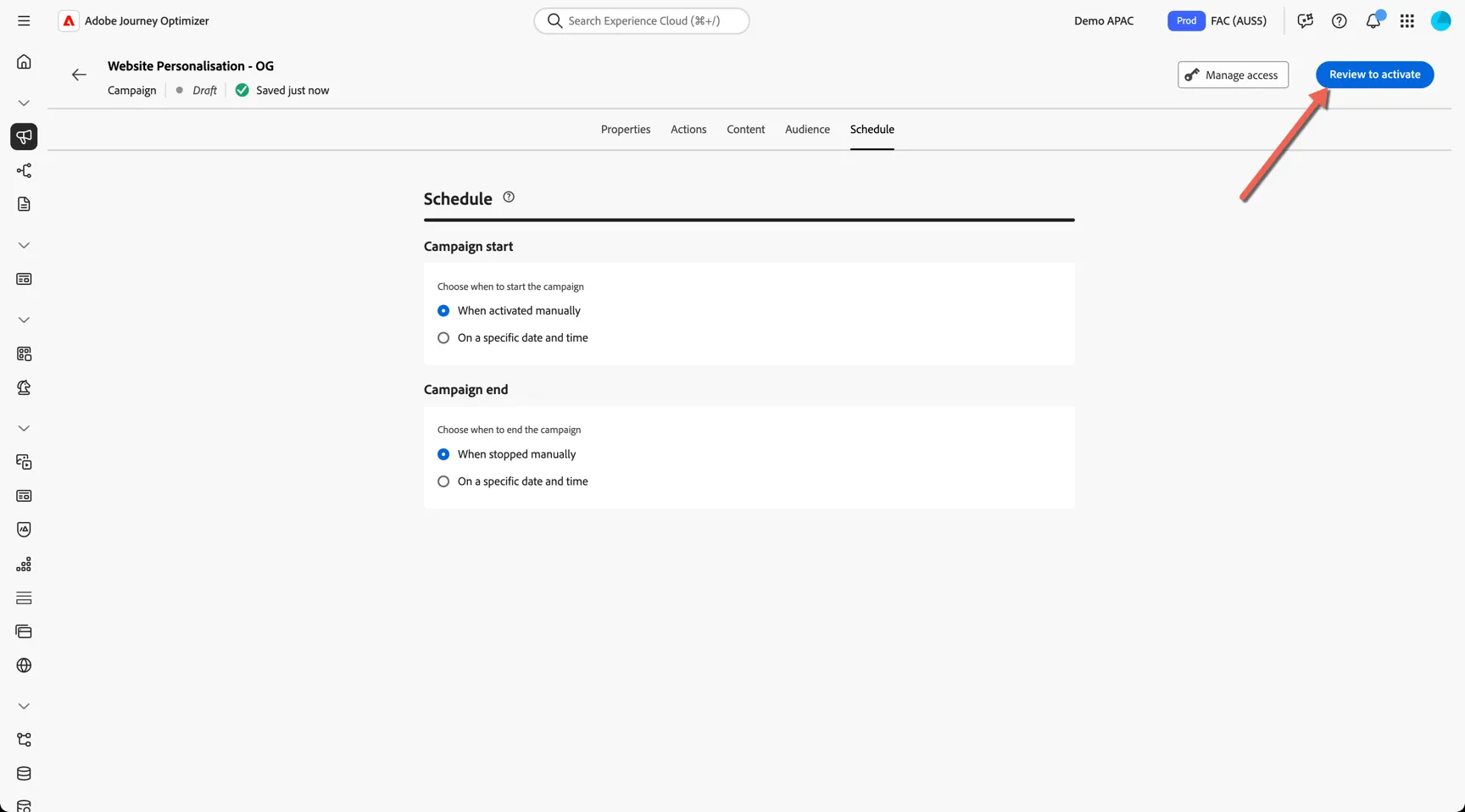
Your campaign is now ready to be activated, click on Review to activate
Congratulations! Your campaign is now ready.