Campaign Setup
1 min
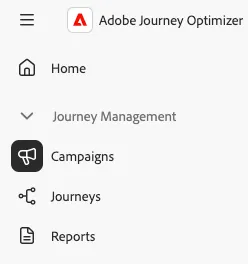
- Navigate to Campaigns by clicking on the option in the left side navigation panel
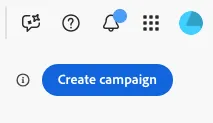
- Click the Create campaign button in the top right hand corner
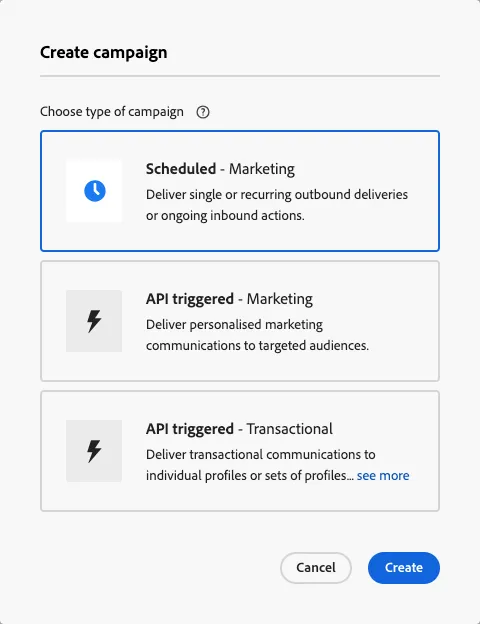
- Select Scheduled - Marketing campaign and click Create
- Name your campaign Credit Card ExD - <STATION NUMBER> and replace <STATION NUMBER> with your station number. Campaign names must be unique.

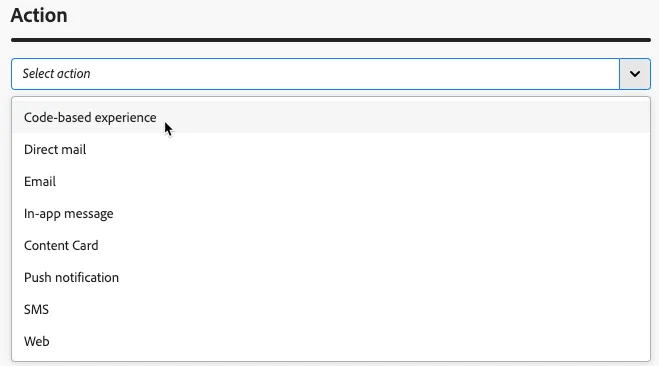
- Scroll down to the Action section and select the Code-based experience option from the dropdown
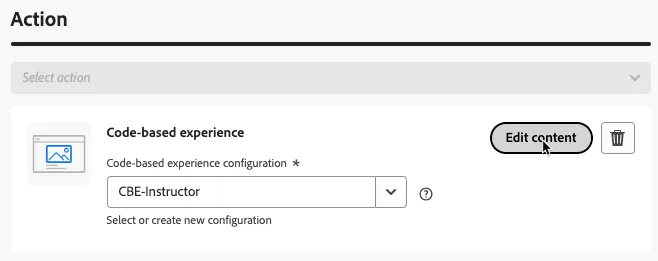
- Select the code-based experience configuration specific to your station (e.g. if you are sitting at station 01 your configuration will be named CBE-01). Click Edit content.
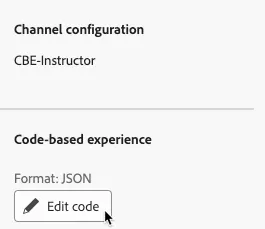
- On the right hand side, click the Edit code button to edit the code-based experience.
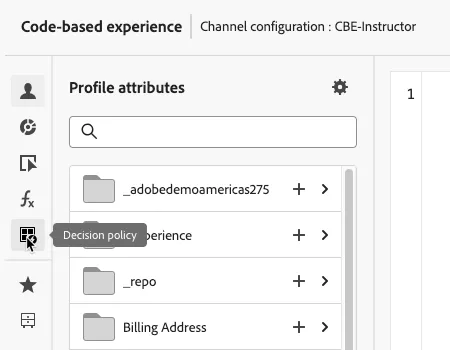
- A modal will pop up with an expression editor. On the left hand side, click the Decision Policy icon.
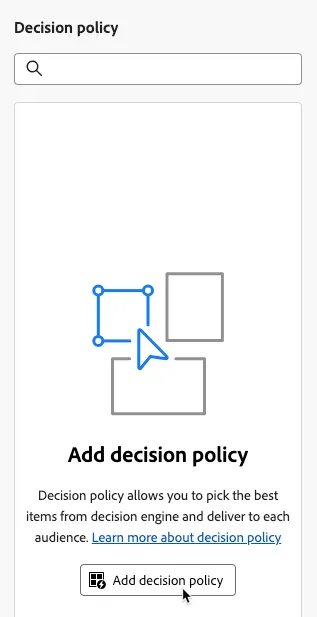
- Click the Add decision policy button.
- The Create new policy option should be auto selected, click Next.
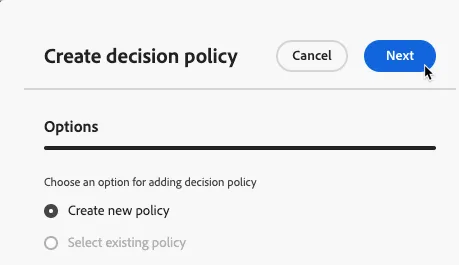
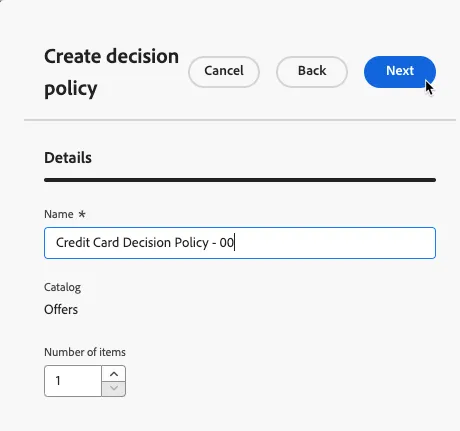
- Name your decision policy CC Decision Policy - <STATION NUMBER> and replace <STATION NUMBER> with your station number. Decision policy names must be unique. Click Next
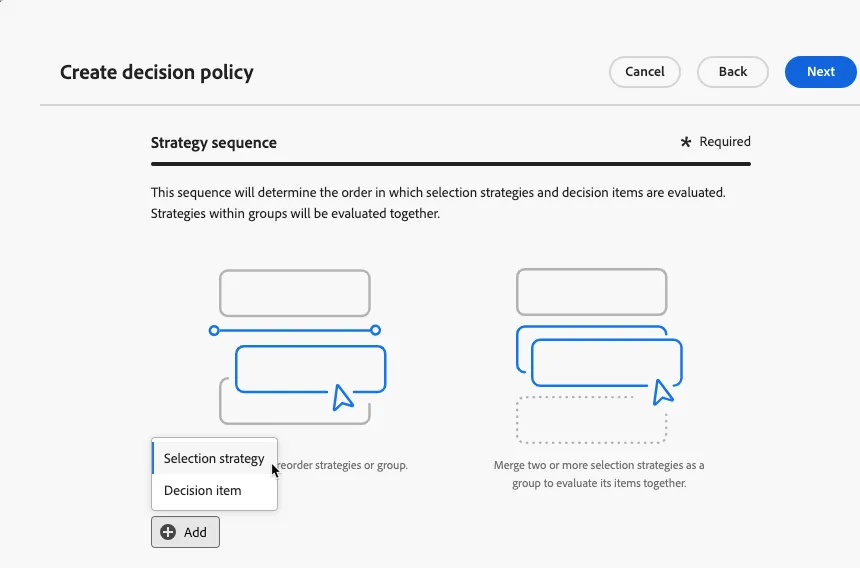
- At the bottom of the next modal, click the +Add button and select Selection Strategy from the picklist.
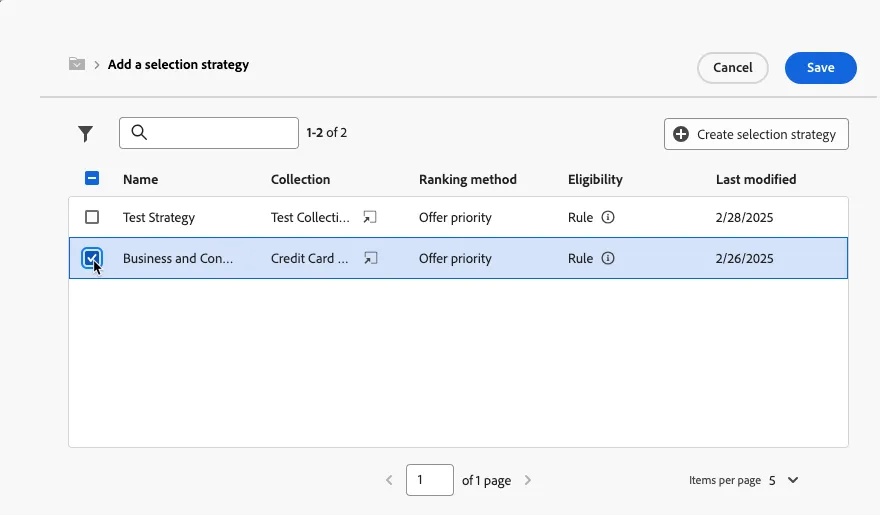
- Search for your selection strategy by entering your station number in the search bar. Check the box for your strategy and click Save.
- You should have a decision policy with 6 decision items available. Click Next.
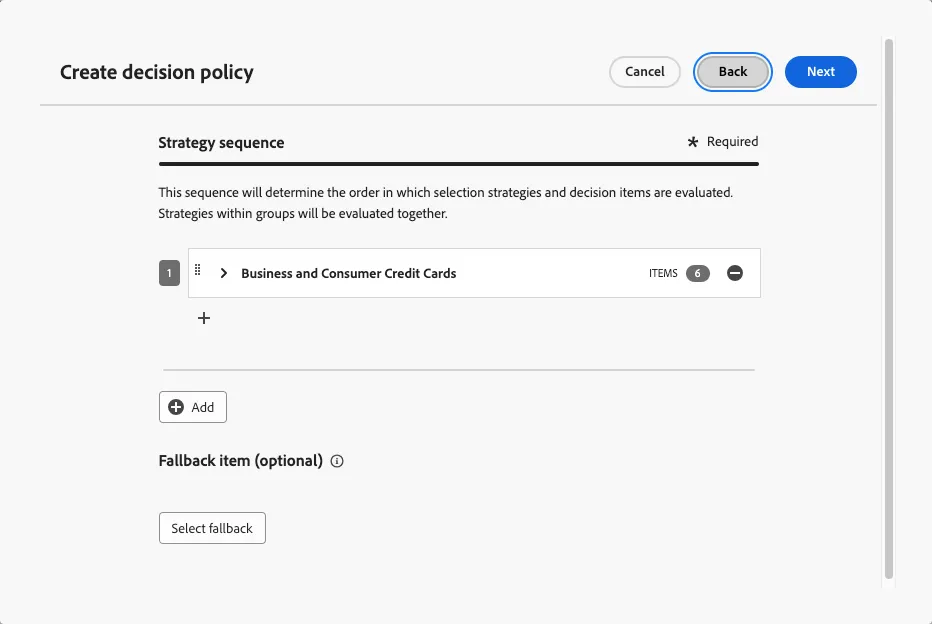
- Review for accuracy and click Save.
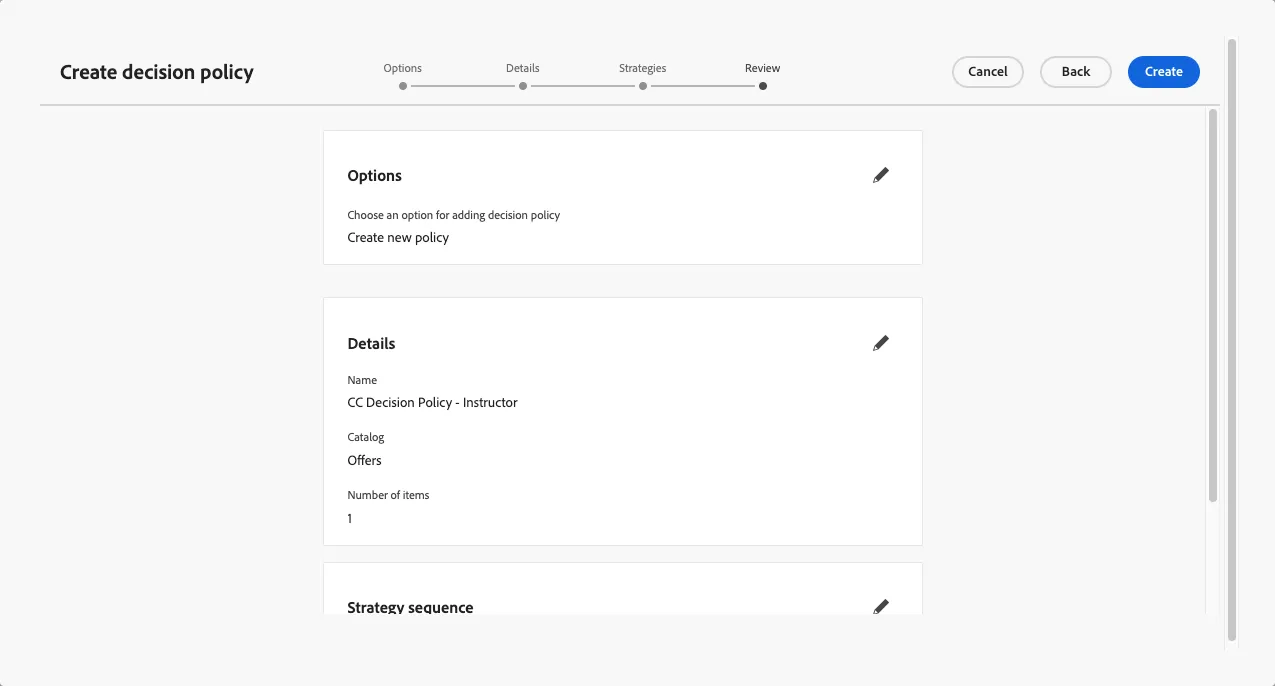
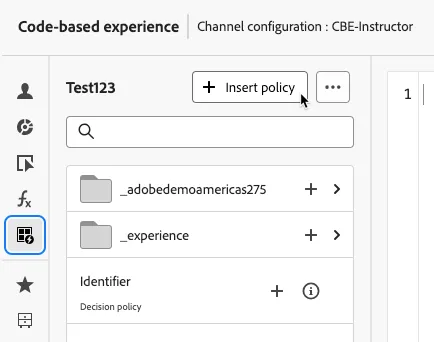
- In the expression editor, click the Decision Policy icon and insert your policy into the editor by clicking the + insert policy button.
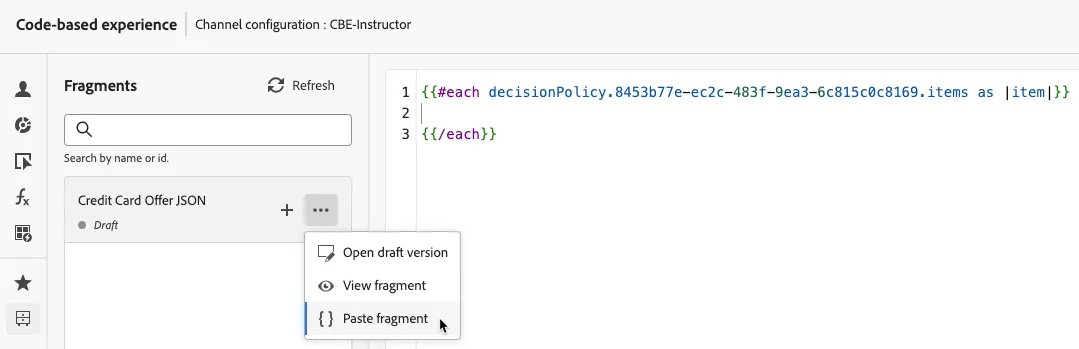
- Click on the Fragment Drawer icon. Place your cursor in the whitespace between the #each and /end tags. Select the Credit Card Offer JSON fragment, click the ellipses (...) button and select the Paste fragment option.
- For each key/value pair in the inserted JSON object, add the relevant decision policy attribute. To do this, click the Decision Policy icon and drill down into the offerMetadata object (_adobedemoamericas > offerMetadata) and clicking the + button for each attribute. This will insert the token into the expression editor.
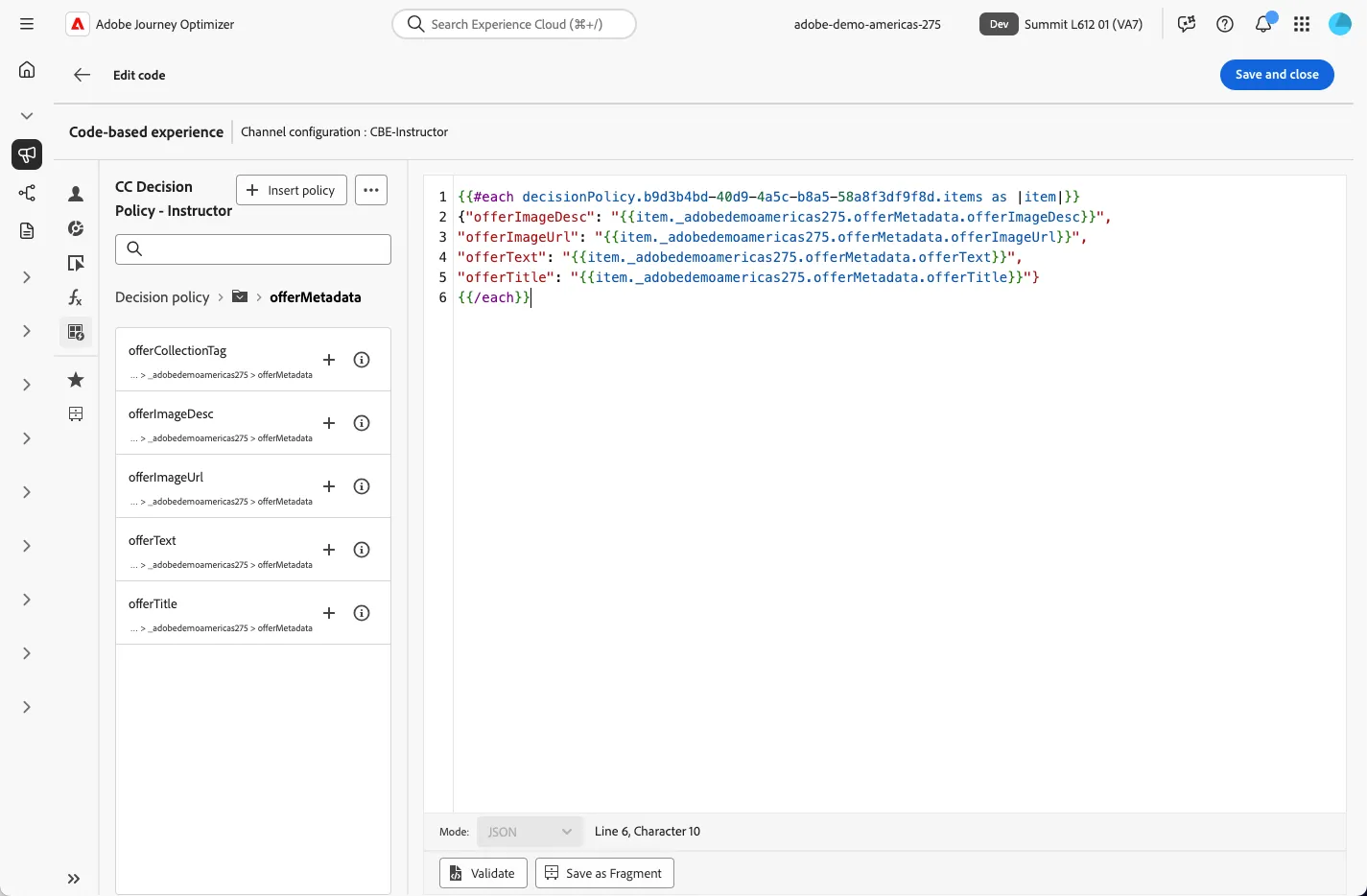
- Save and close the expression.
- Click the Review to activate button in the top right.