Creating the journey
In this exercise, you'll be creating the journey using all the components you've created in the previous exercises.
Journey overview
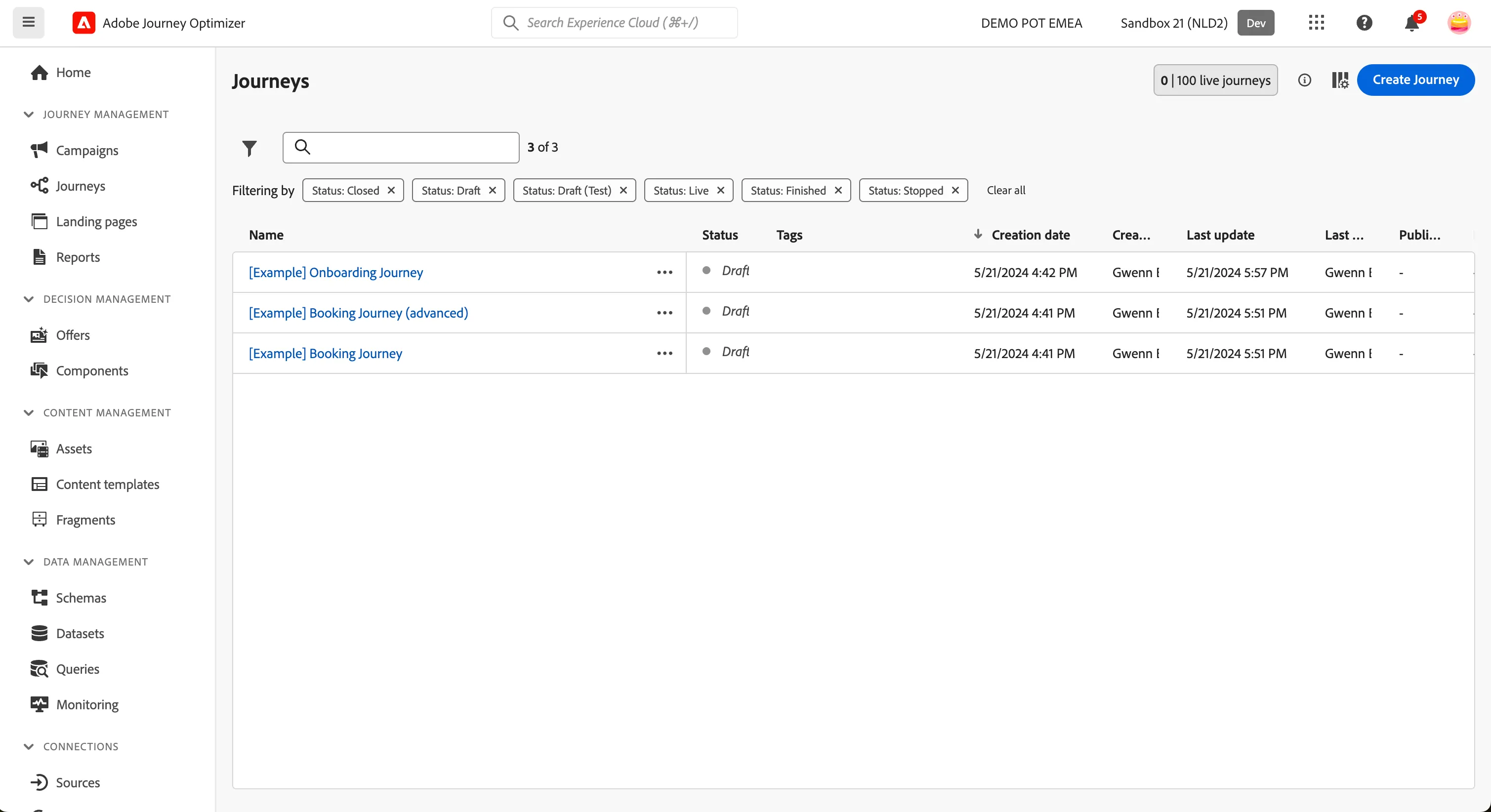
To get an overview of all journeys in Adobe Journey Optimizer:
- In the menu on the left side, under Journey Management, click on Journeys. You will see a overview with all existing journeys.
Creating a journey
We'll be creating a journey that will send an email confirmation to customers when they book a flight. If the customer is not a loyalty program member, we want to incentivise them to sign up.
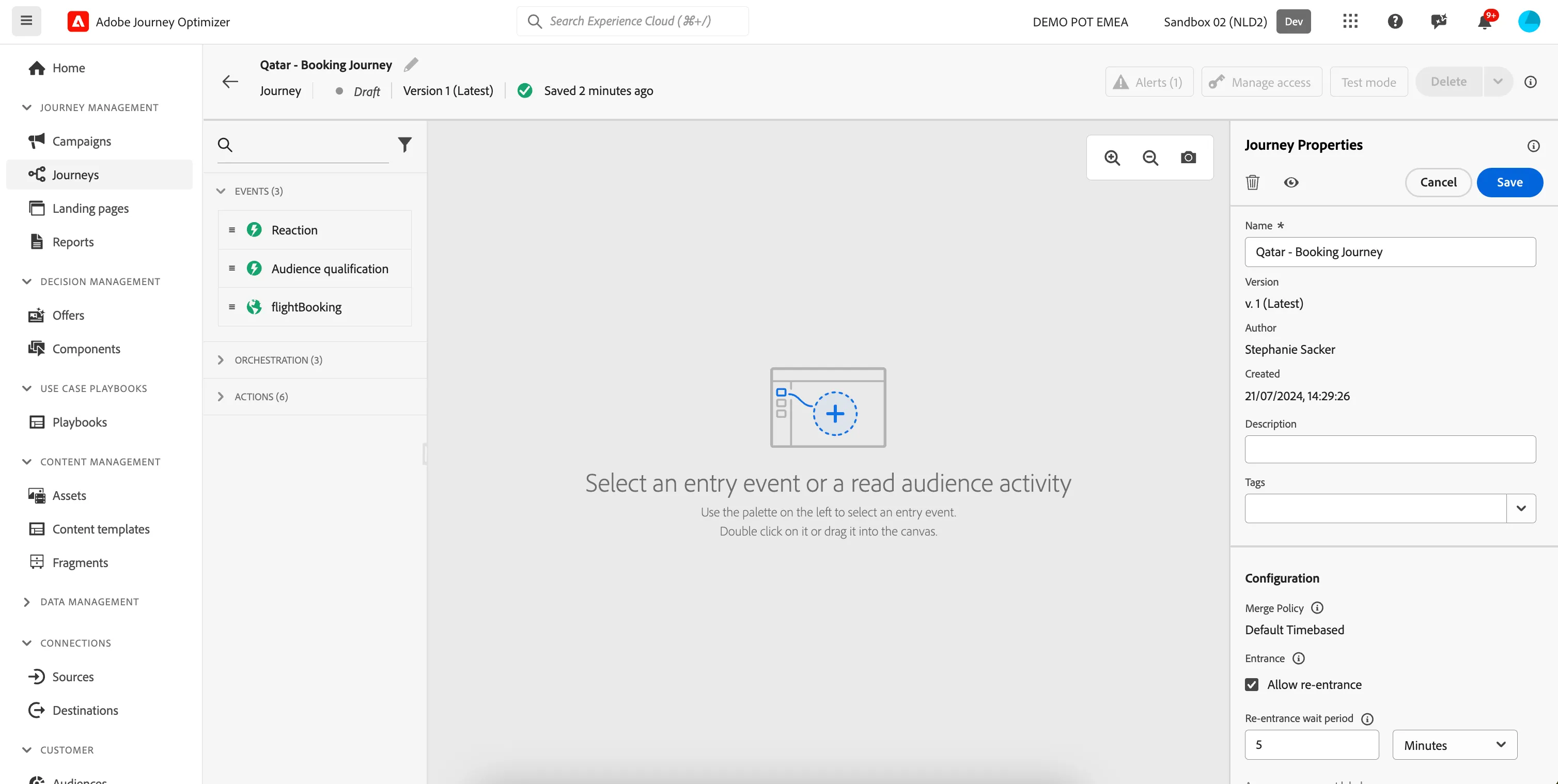
Click on Create Journey. You'll be taken to the Journey canvas with the journey properties opened.
- Set the name to [your name] - Delay Comfort Journey.
- For the other properties we'll keep the default values.
- Your screen should look like the image below. Click Save to save and close the properties.
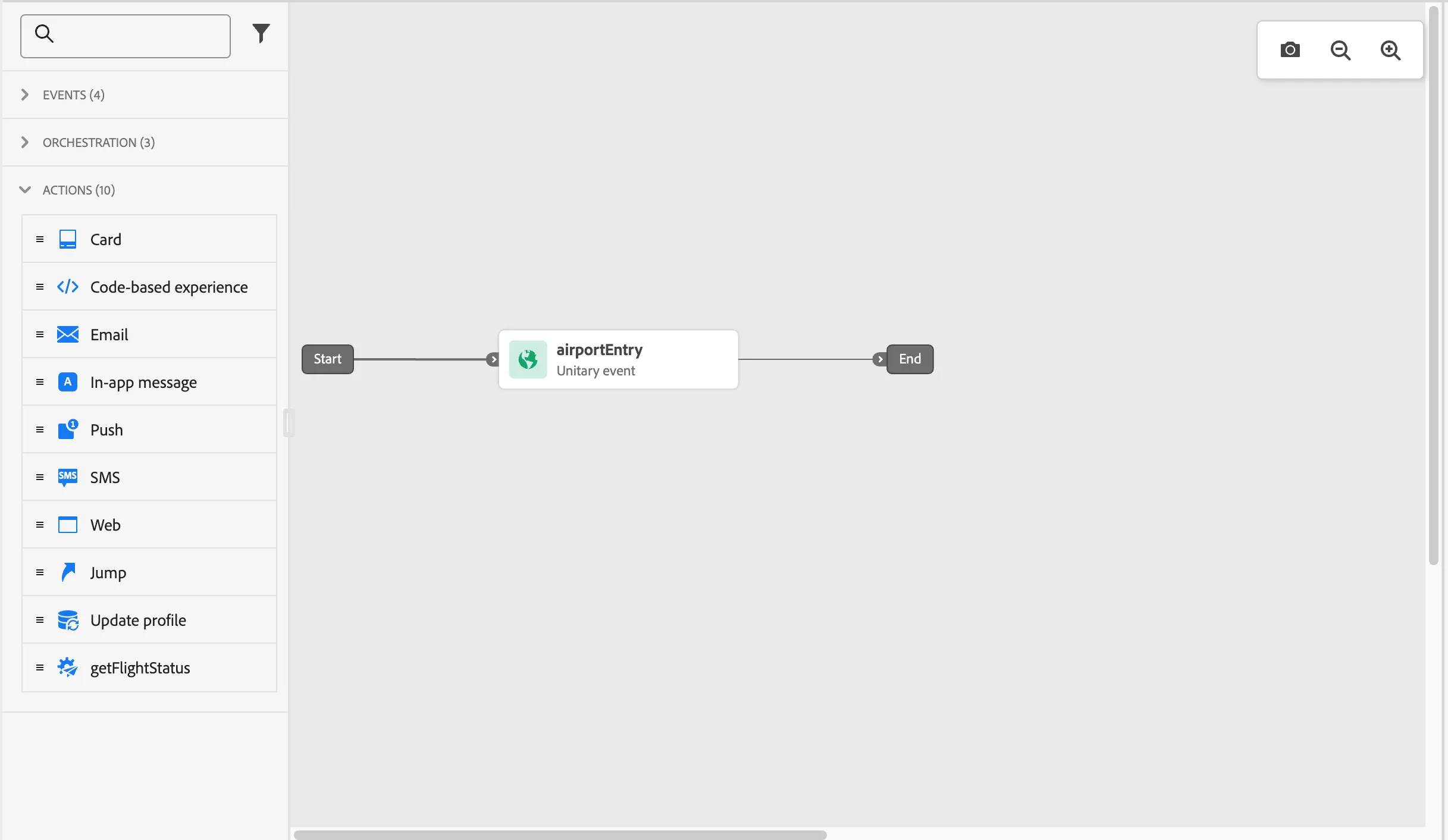
You're now in the journey canvas. This is where you'll be creating your journey's logic. In the left menu you have activities. There's three types of activities:
Events are the triggers that can start or continue your journey.
Orchestration is the logic of your journey. It looks at conditions, audiences, but can also be used to make your workflow wait or end.
Actions are the results of your journey. This can be messages, profiles updates or API calls.
Event trigger
- We're starting our workflow of with an event trigger. From the events tab, choose your created event (initalsAirportEntry) and drag it onto the canvas. If you did not create an event, use the airportEntry event.
- There's nothing we need to configure for this as we have already done this when we configured our airport entry event. Click Save to close the menu.
Custom Action configuration
We want to get the flight status from an external system.
- From the actions tab, choose initialsgetFlightStatus and drag it onto the empty circle on the canvas. If you did not create an action, use the getFlightStatus event.
- This should open up the configuration menu for the action. In the menu, query parameters section, click on the flightID edit button (pencil) to open up a popup.
- Expand Experience Platform > ProfileFieldGroup > Profile > _demopotemea > Latest Action > actionProduct and select it by enabling the checkbox. This will pass the current flightID of the customer from the profile attributes to the API endpoint to retrieve the flight status.
-
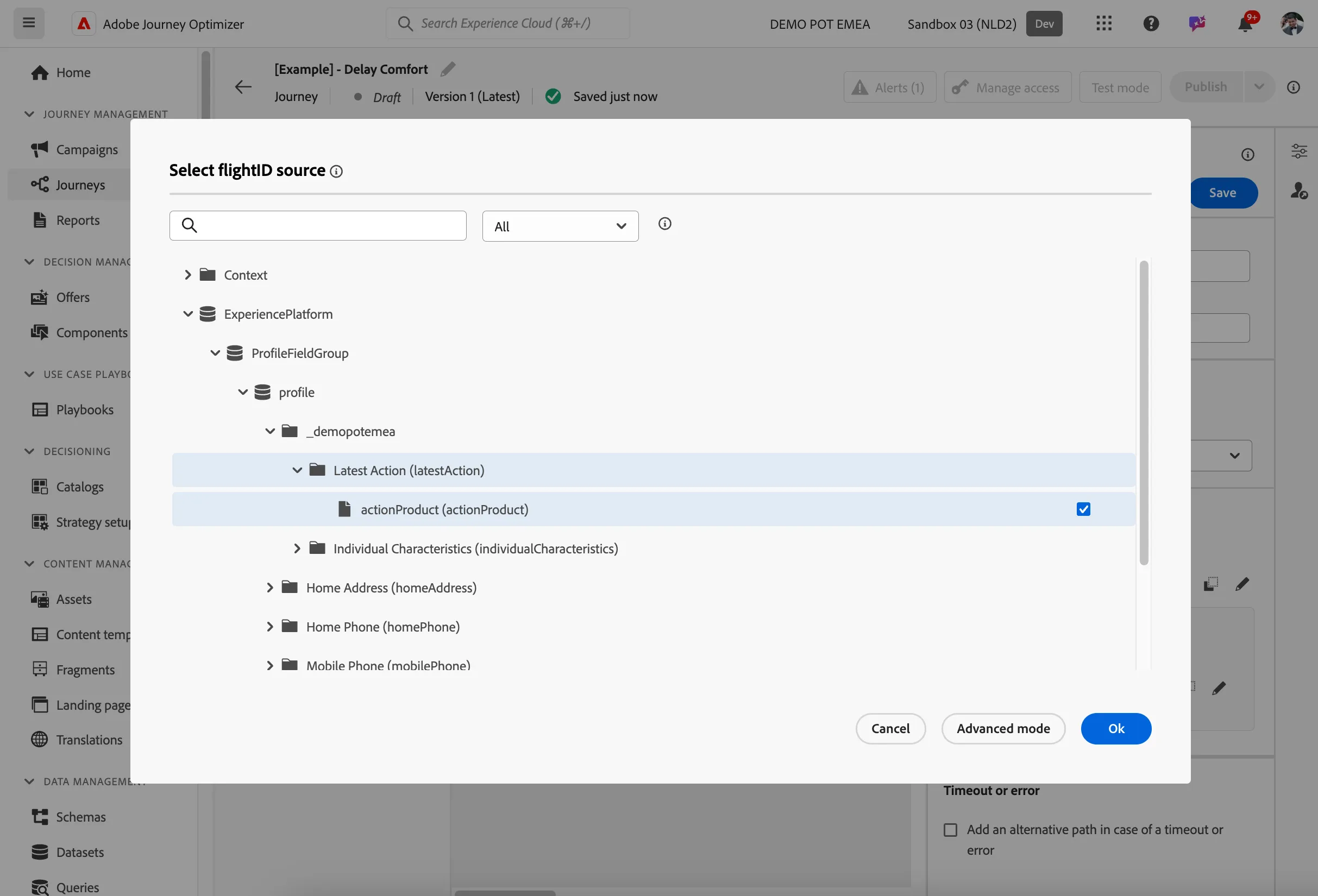
- Click OK to close the popup and see The actionProduct of latestAction in flightID field.
- Click on Save on the top to save action configuration.
Condition check - customer flight is delayed or not
We want to notify only the customers whose flights are delayed. Furthermore we want to sent an meal offer for customers whose flights are delayed for more than 2 hours. So we are going to create conditions.
- From the orchestration tab, choose Condition and drag it onto the empty circle on the canvas.
- Click on the activity to open the detailed view.
- Set the label to Is flight delayed?.
- Click on Path1 and change the label to Flight delayed < 60 minutes.
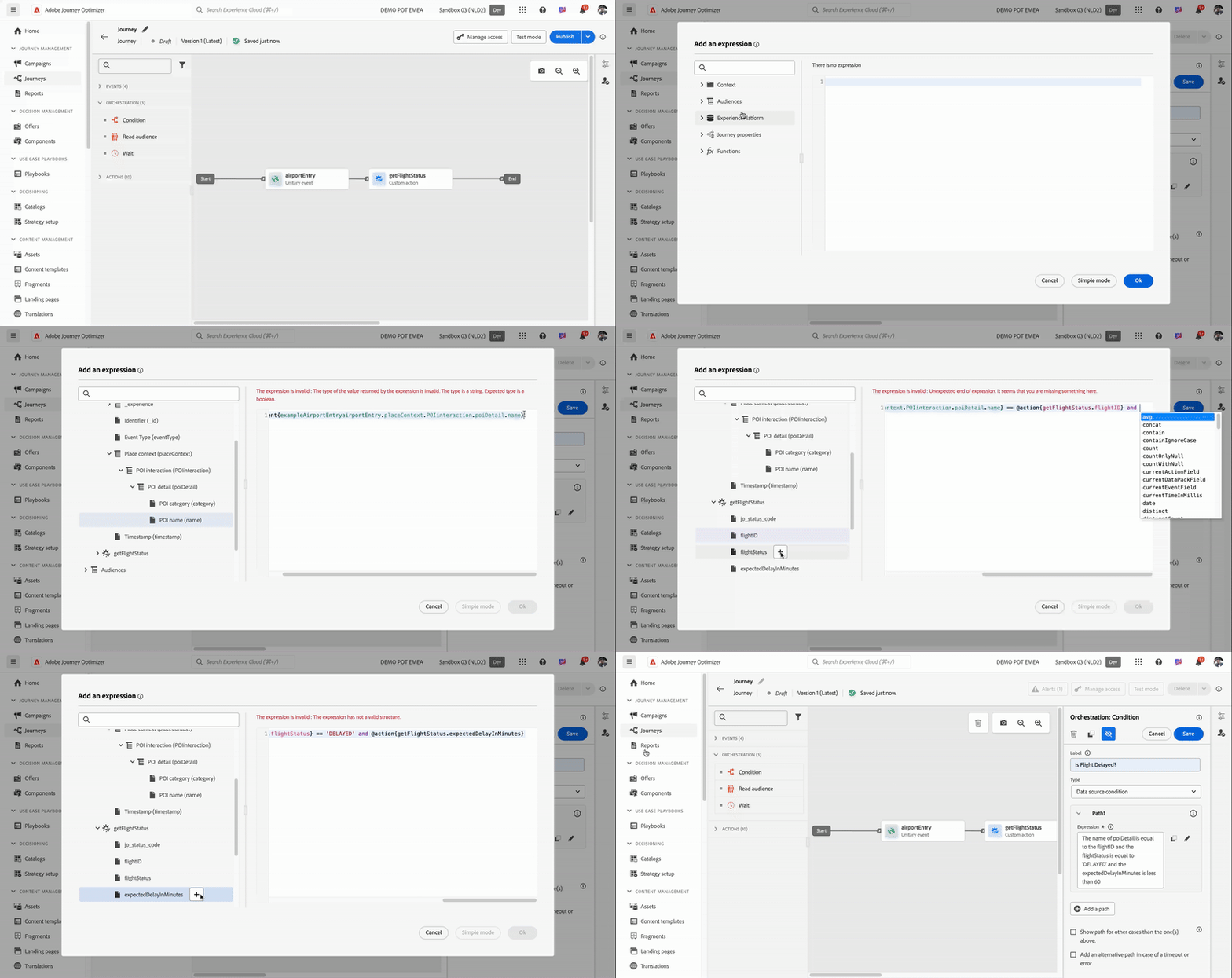
- Click on expression field to open a window.
- Click on Advanced mode button to enable all available options
- On the left side, open Context > airportEntry > Place context > POI interaction > POI detail > POI name and click on [+] on the right of the attribute to add it to the canvas.
- Type == after the attribute in the canvas to check the incoming location value is equal to API returned flightID
- On the left side, open Context > getFlightStatus > flightID and click on [+] on the right of the attribute to add it to the canvas.
- Now you have made a condition to check the name of the POI detail coming from the event is equal to the flightID coming from custom action
- Type and at the end of the expression so that we can add more conditions
- From the left side menu, open Context > getFlightStatus > flightStatus and click on [+] on the right of the attribute to add it to the canvas
- Type == 'DELAYED'after the attribute in the canvas to check the incoming flightStatus value is equal to 'DELAYED'
- Type and at the end of the expression so that we can add more conditions.
- From the left side menu, open Context > getFlightStatus > expectedDelayInMinutes and click on [+] on the right of the attribute to add it to the canvas
- Type <60after the attribute in the canvas to check the incoming expectedDelayInMinutes value is less than 60.
- Click Ok to close the editor.
- Now we have created the condition as the flightID is equal to the actionProduct of latestAction and that the flightStatus is equal to 'DELAYED' and that the expectedDelayInMinutes is less than 60
-
- Click on add a path button to add a second path for flights delayed for more than 60 minutes.
- Click on Path1 and change the label to Flight delayed > 60 minutes
- To create the expression, follow the steps above and in step 11, change the condition to more than 60 minutes.
- Now we have created the condition as the flightID is equal to the actionProduct of latestAction and that the flightStatus is equal to 'DELAYED' and that the expectedDelayInMinutes is greater than 60
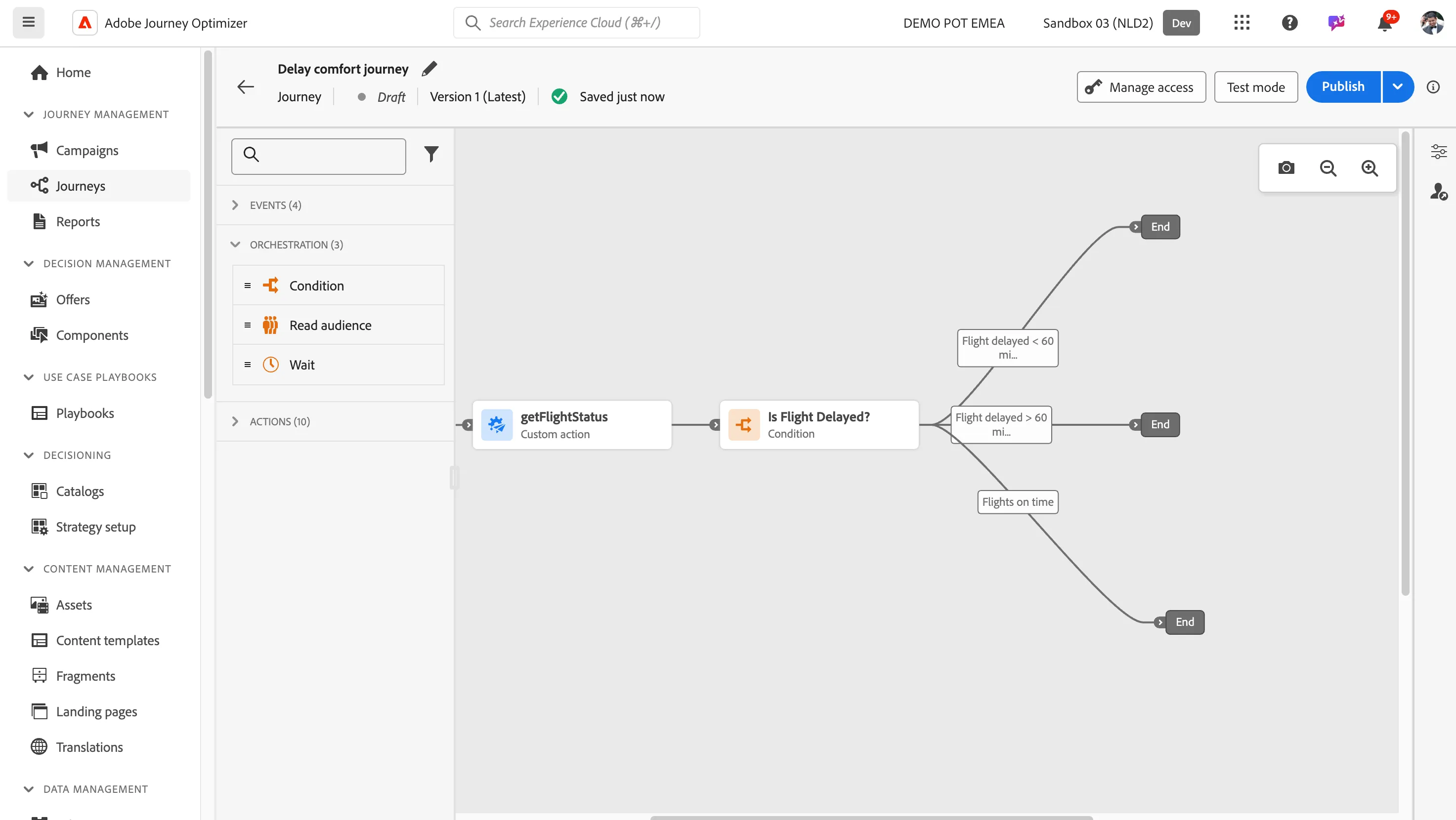
- Check Show path for other cases than one(s) above and set the label to Flight on time.
- In our journey we want to focus on the customer whose flights are delayed. Rearrange the paths so that the journey paths are aligned are delayed paths are on the top.
- Your screen should look like the image below. Click Save.
Email #1 - Delay comfort for flights delayed for more than 60 minutes
In the next steps you will be building the email for your journey.
- From the actions tab, choose Email and drag it onto the empty circle at the Flights delayed > 60 minutes path.
- Click on the activity to open the detailed view.
- Set the label to Send meal offer.
- Set the category to Transactional.
- Set the email surface to transactionalEmail.
- Click on Edit content to start designing your email.
- Click on to create a subject line. Set it to FIRSTNAME, Your flight booking is delayed!
- Remove the text FIRSTNAME and search for first name in the profile attributes.
- Find the field First name (... attributes > person > Full name) and click on the icon to add it to your subject line. It should now be{{profile.person.name.firstName}}, Your flight is delayed!
- Click Save.
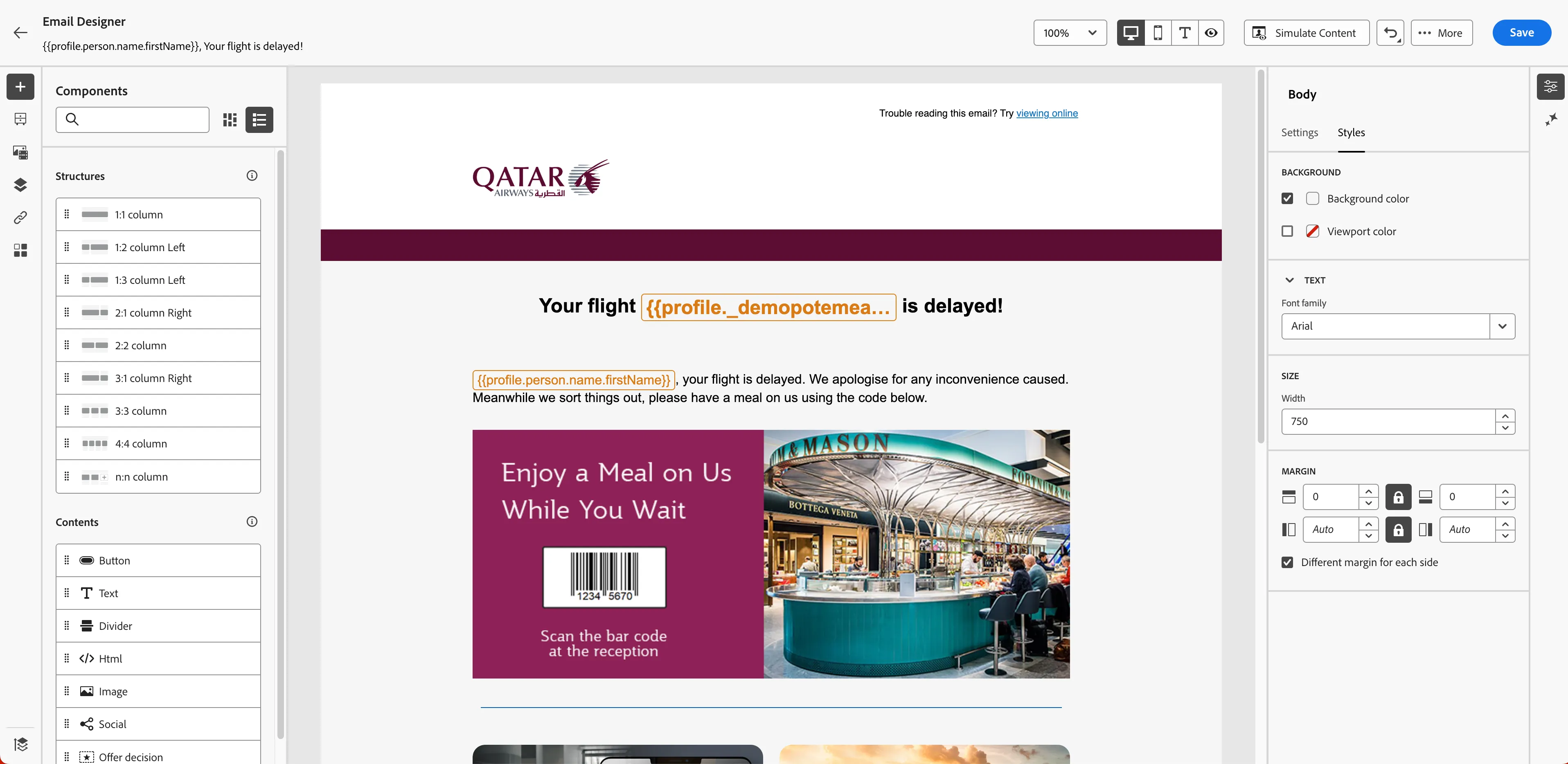
- Click on Edit email body. Under Saved templates, choose Qatar Airways - Delay Comfort with Meal offer. It will show you a preview of the template. Click on Use this template.
- The email designer will now open. It should look like the image below. Click Save in the top right. Navigate out of the Email designer by clicking the arrow on the top left of your screen. Then navigate out of the email overview by clicking on the arrow on the top left.
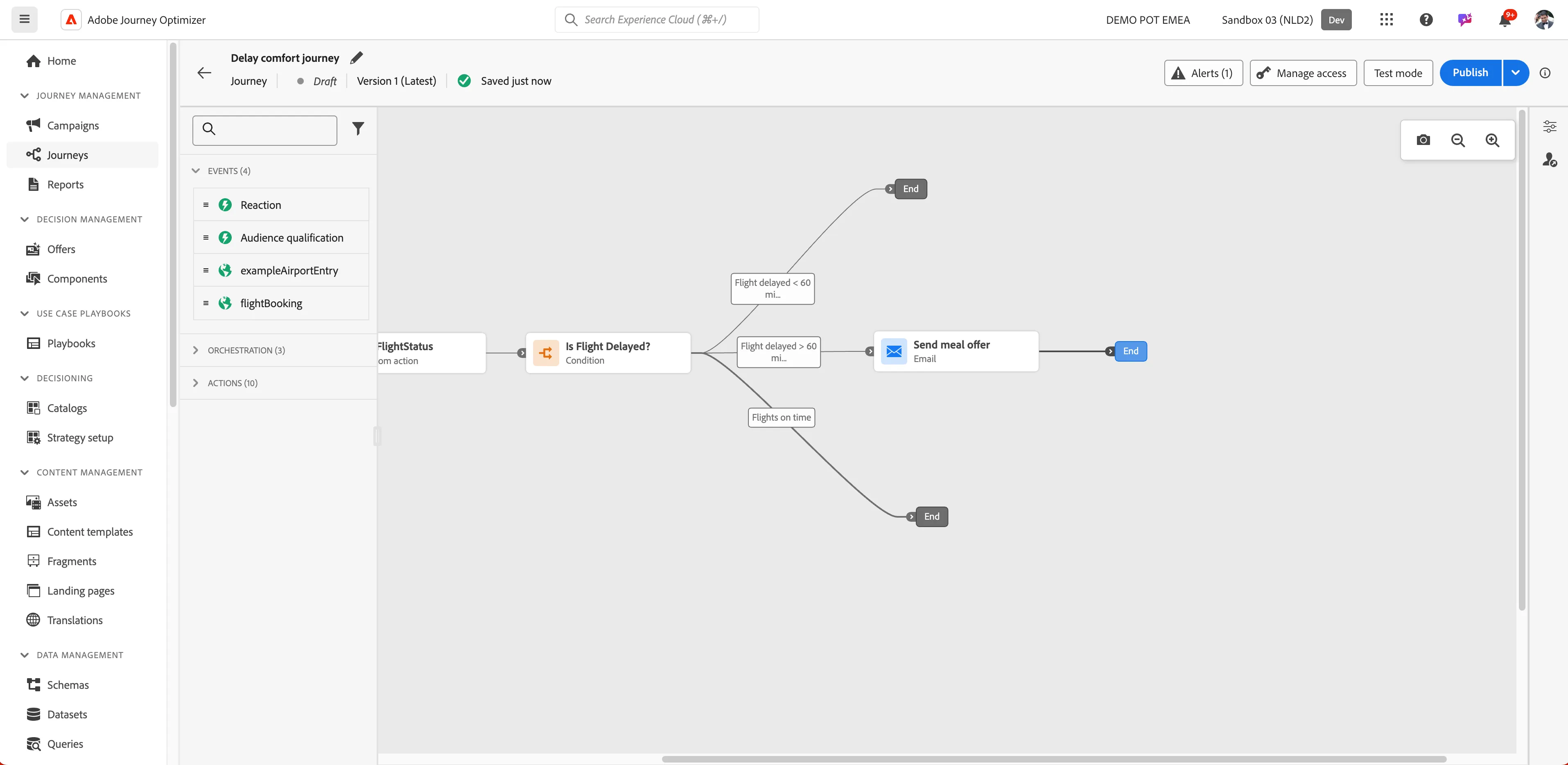
You will be taken back to the journey canvas.
Push #1 - Delay comfort for flights delayed for less than 60 minutes
- From the actions tab, choose Push and drag it onto the empty circle at the Flights delayed < 60 minutes path.
- Click on the activity to open the detailed view.
- Set the label to Notify the delay
- Set the category to Transactional.
- Set the surface to transactionalPush.
- Click on Edit content to start designing your email.
- Click on to create a Title line. Set it to FIRSTNAME, Your flight is delayed!
- Remove the text FIRSTNAME and search for first name in the profile attributes.
- Find the field First name (... attributes > person > Full name) and click on the icon to add it to your subject line. It should now be{{profile.person.name.firstName}}, Your flight is delayed!
- Click Save.
- Set the body to We will keep you updated and let you know when it's time to proceed to the gate
- Navigate out of the designer by clicking the arrow on the top left of your screen. Click on Save to save the push action details.
Push #2- Flights are on time
- From the actions tab, choose Push and drag it onto the empty circle at the Flights on time path.
- Click on the activity to open the detailed view.
- Set the label to Flight on time
- Set the category to Transactional.
- Set the surface to transactionalPush.
- Click on Edit content to start designing your email.
- Click on to create a Title line. Set it to FIRSTNAME, Your flight is on time.
- Remove the text FIRSTNAME and search for first name in the profile attributes.
- Find the field First name (... attributes > person > Full name) and click on the icon to add it to your subject line. It should now be{{profile.person.name.firstName}}, Your flight is on time!
- Click Save.
- Set the body to Please proceed to the gates when informed
- Navigate out of the designer by clicking the arrow on the top left of your screen. Click on Save to save the push action details.
- After doing everything your journey will look like this
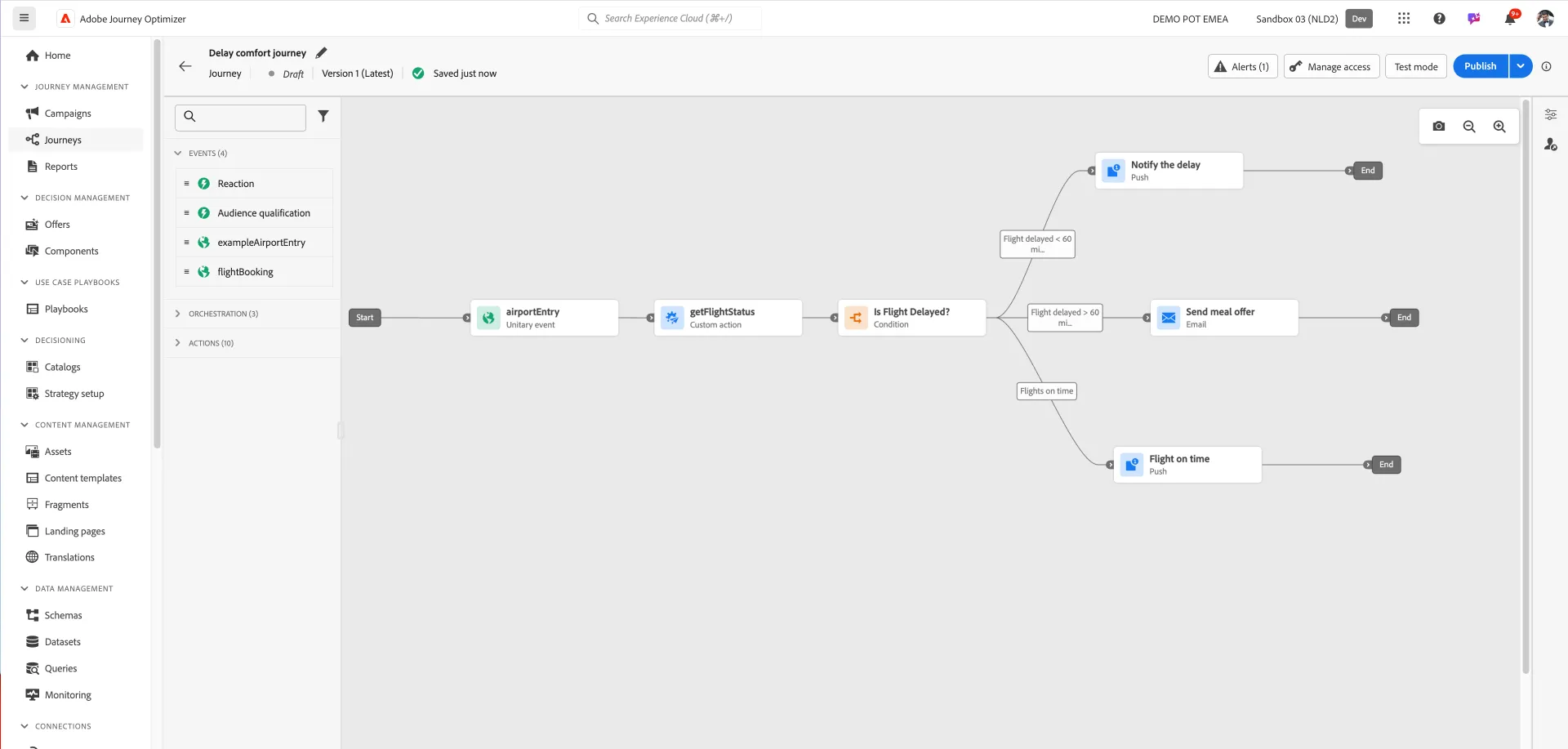
You have now successfully created the delay comfort journey using the Adobe Journey Optimizer. Next, we are going to test our journey using Test Mode.