Creating offers
Creating an offer
We'll be creating an offer for a free meal. Everyone whose flights are delayed will get a free meal and the dining restaurant will vary based on the type of booking.
If you do not want to create your own offers, you can reuse the offers aleady created and go straight to decision creation. Click on Decisions on the right side table of contents menu.
Click on + Create offer. Choose Personalized offer and click Next. The offer creation wizard will open, containing 4 steps. Details, representation, constraints and review.
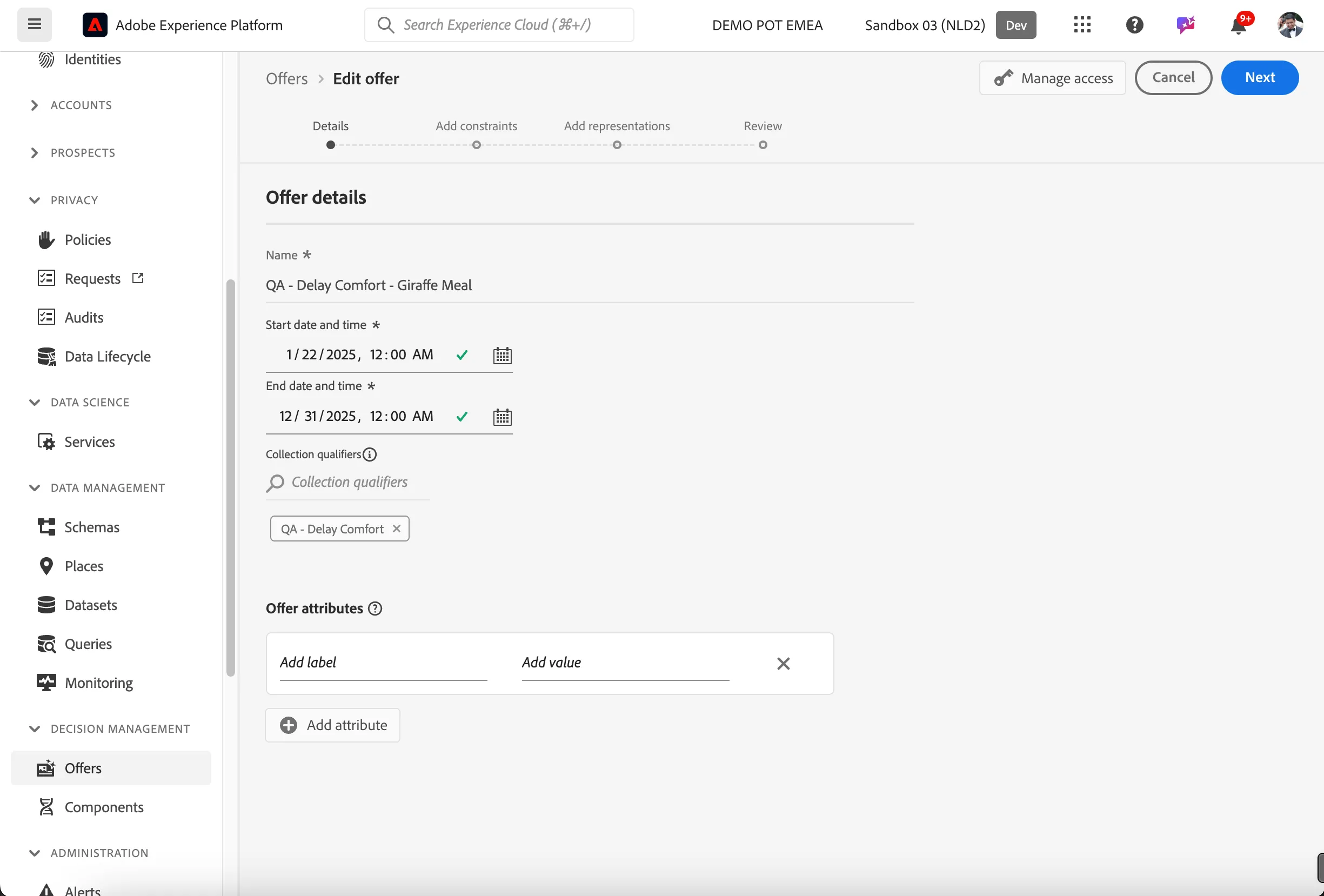
Offer details
- Set the name to [your name] - Delay Comfort - Giraffe meal.
- Set the start date to today's date.
- Set the end date to December 31st.
- Add the collection qualifiers QA - Delay Comfort .
- Your screen should look like the image below. Click Next.
Add constraints
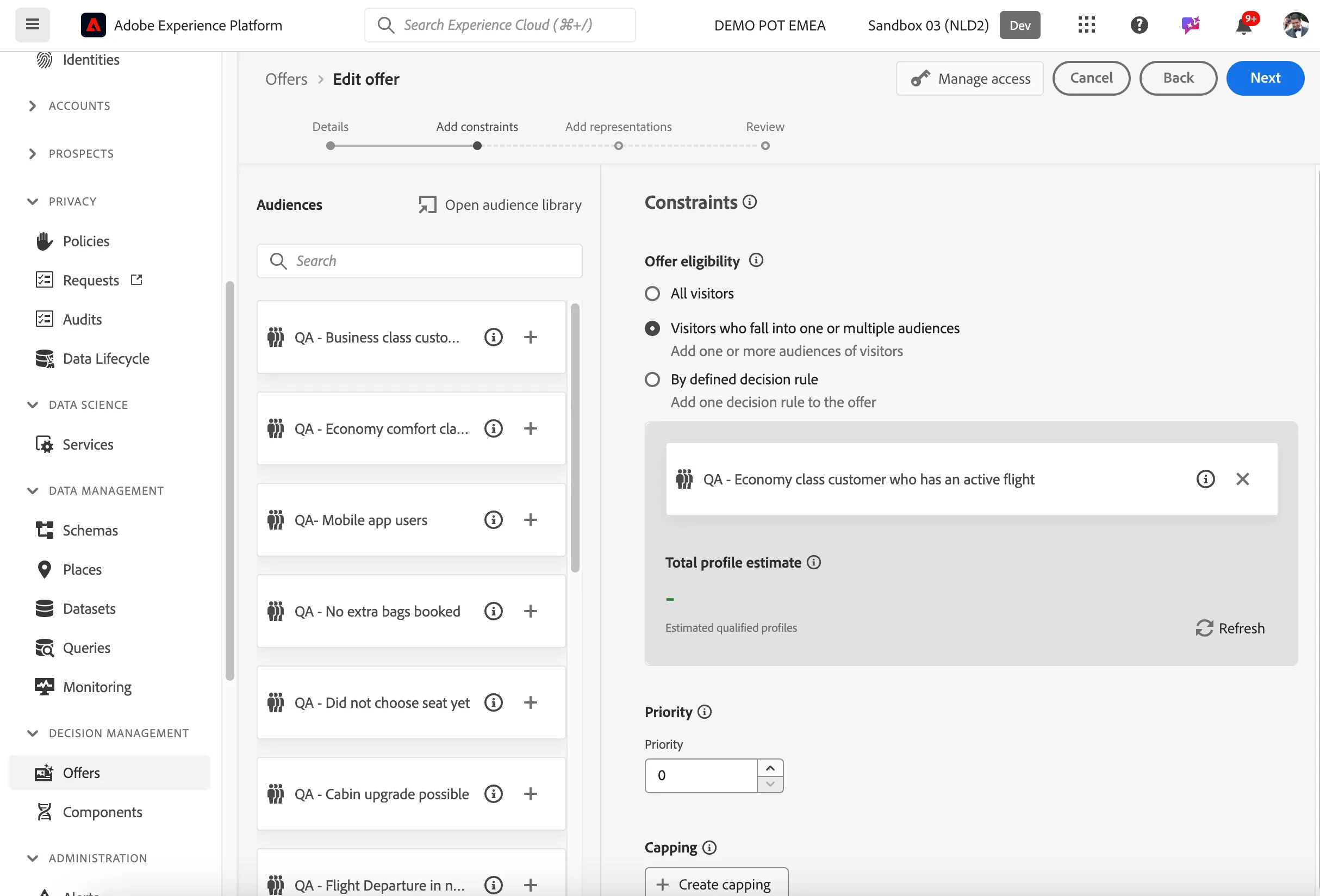
In this step you define what customers are eligible to receive this offer as well as the priority this offer has. In our use case we want all customers that have shown interest in equipment to be eligible to receive this offer.
- For offer eligibility choose Visitors who fall into one or multiple audiences.
- Find and drag the audience called QA - Economy class customer with an active flight onto the box under offer eligibility.
- Set the priority of the offer to 30. Priority is used whenever a profile is eligible for multiple offers, the offer with the higher priority will be selected.
- Turn off capping by clicking the toggle.
- Your screen should look like the image below. Click Next.
Add representations
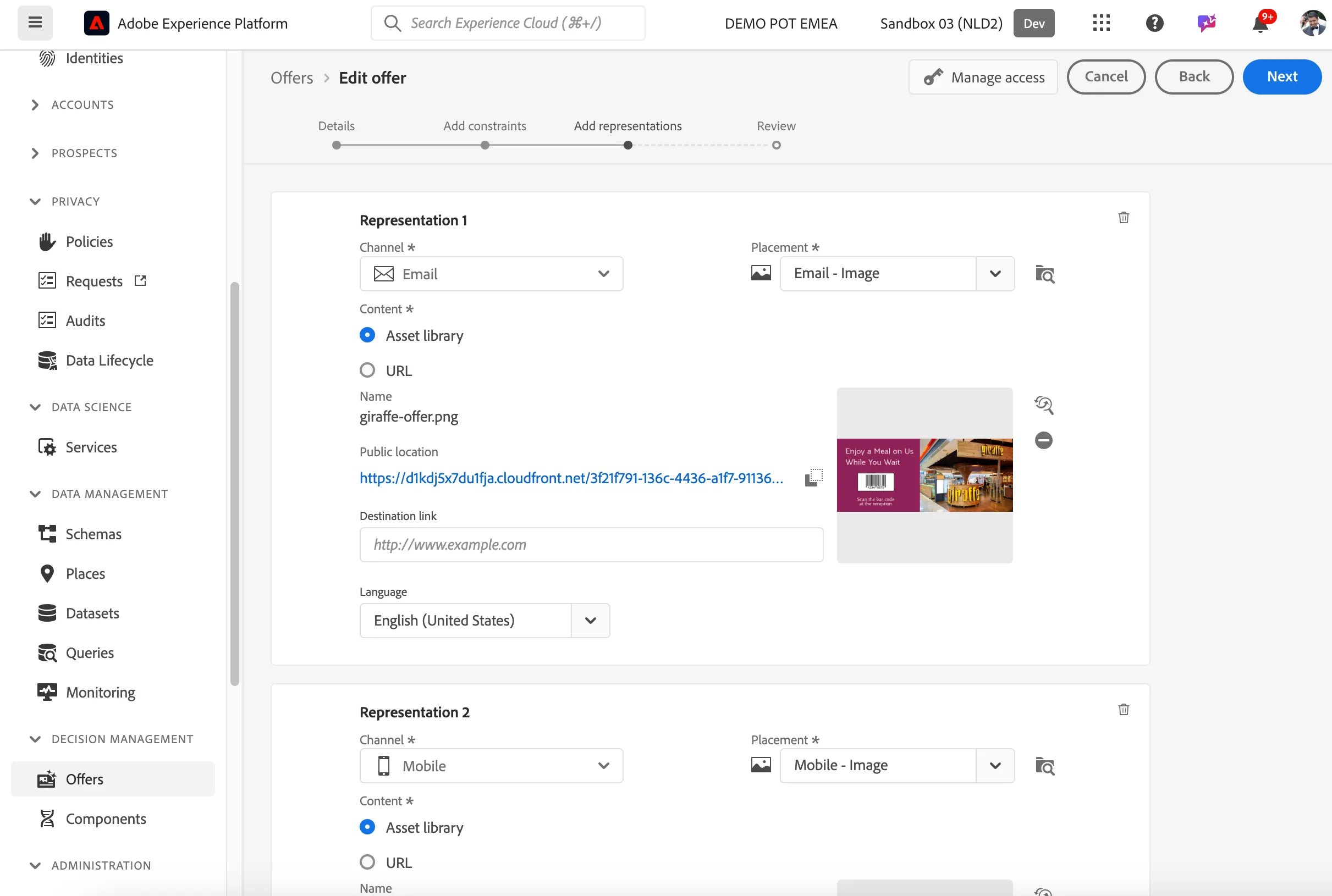
Representations are ways this offer can be displayed. This allows you to manage how the offer is presented to the customer on various channels. For our use case we'll only need an email image offer.
- For channel, choose Email.
- For placement, choose Email - Image.
- Pick an asset from the Asset library. Click on Browse. This will open Assets Essentials. Navigate to Bootcamp > Qatar Airways and select the asset giraffe-offer.png.
- Your screen should look like the image below. Click Next.
Review
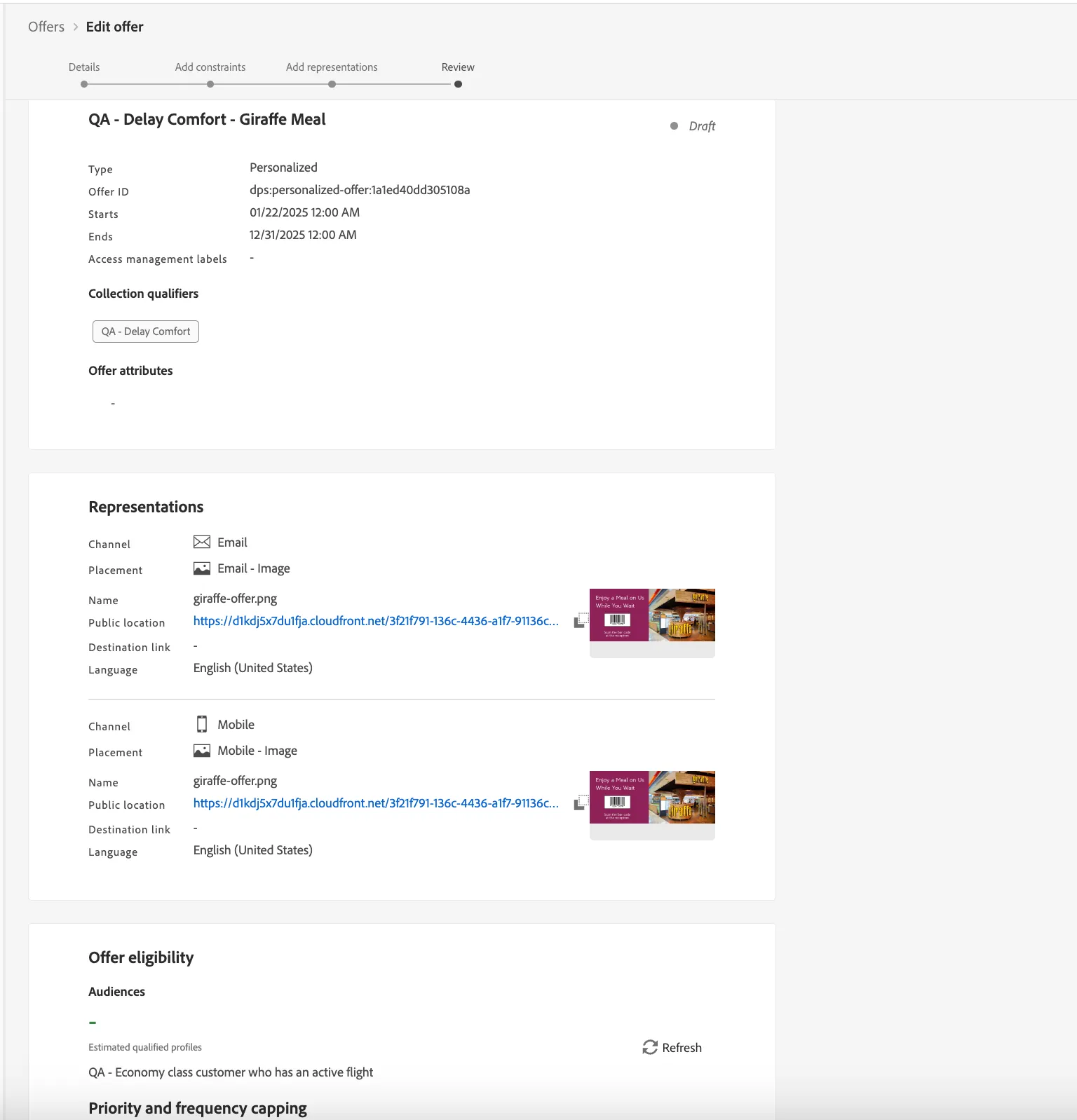
In the review step you'll see an overview of your offer. Check if it's correct and click on Finish. A window will show, choose Save and approve.
You will be taken to the Offer overview screen.
Repeat the same steps to create two more offers for below audience types.
Offer name | Audience | |
|---|---|---|
QA - Delay Comfort - Wagamama meal | QA - Economy comfort class customer with an active flight | |
QA - Delay Comfort - Fortnum&Mason meal | QA - Business class customer with an active flight | |
| | |
Collections
Collections are used to manage offers in logical groups and are required to build Offer Decisioning activities. Dynamic collections allow you to group offers based on qualifiers, while static collections allow you to manually curate the offers.
Click on Collections at the tab bar. You will see an overview of all collections.
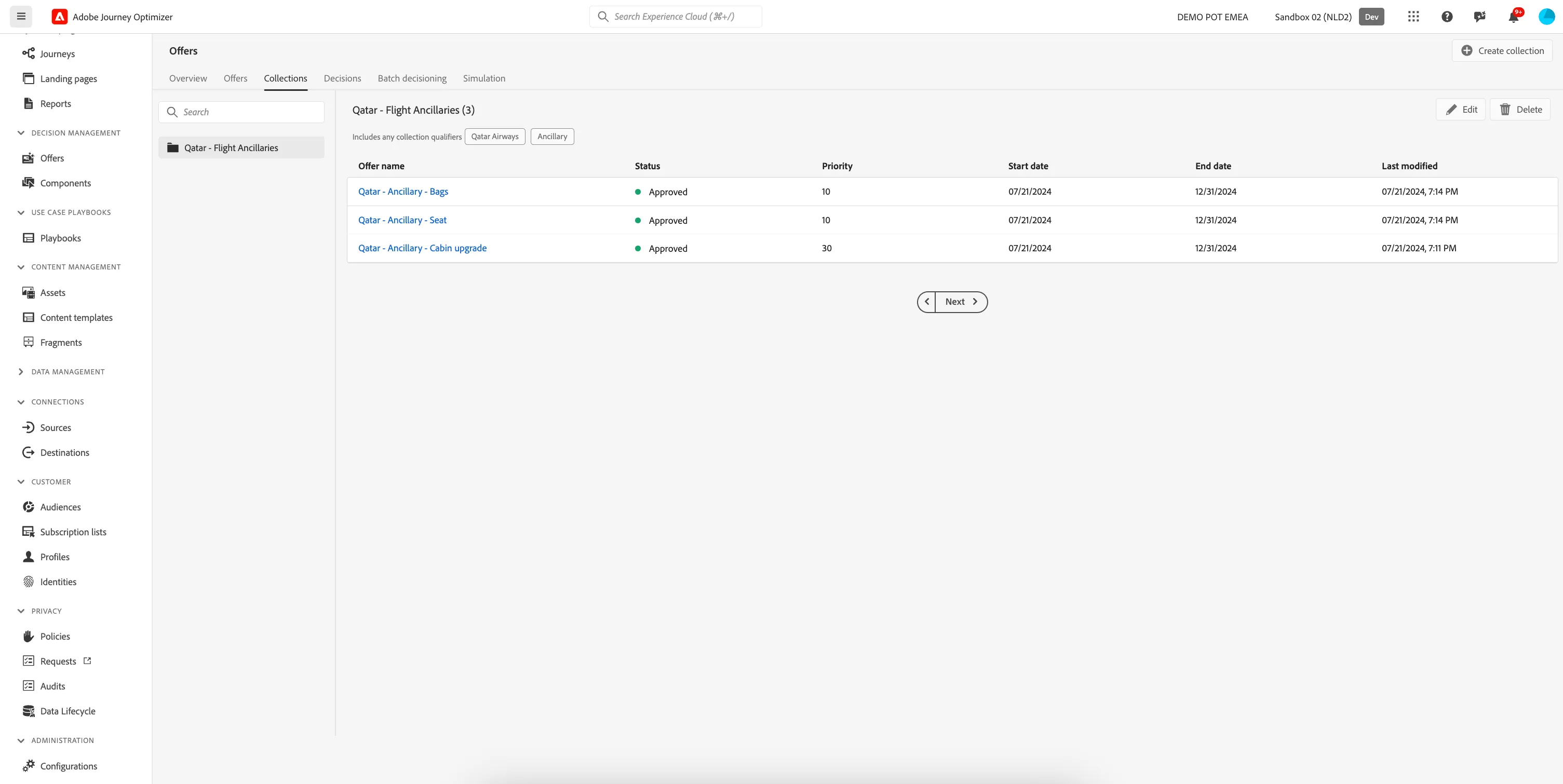
In our email, we want to include a personalized category offer. For this we'll need to create a collection to group all category offers.
- Click on + Create collection. A window will open. Enter [your name] - Delay Comfort as the name for your collection and select Create dynamic collection. Click Next to create the collection.
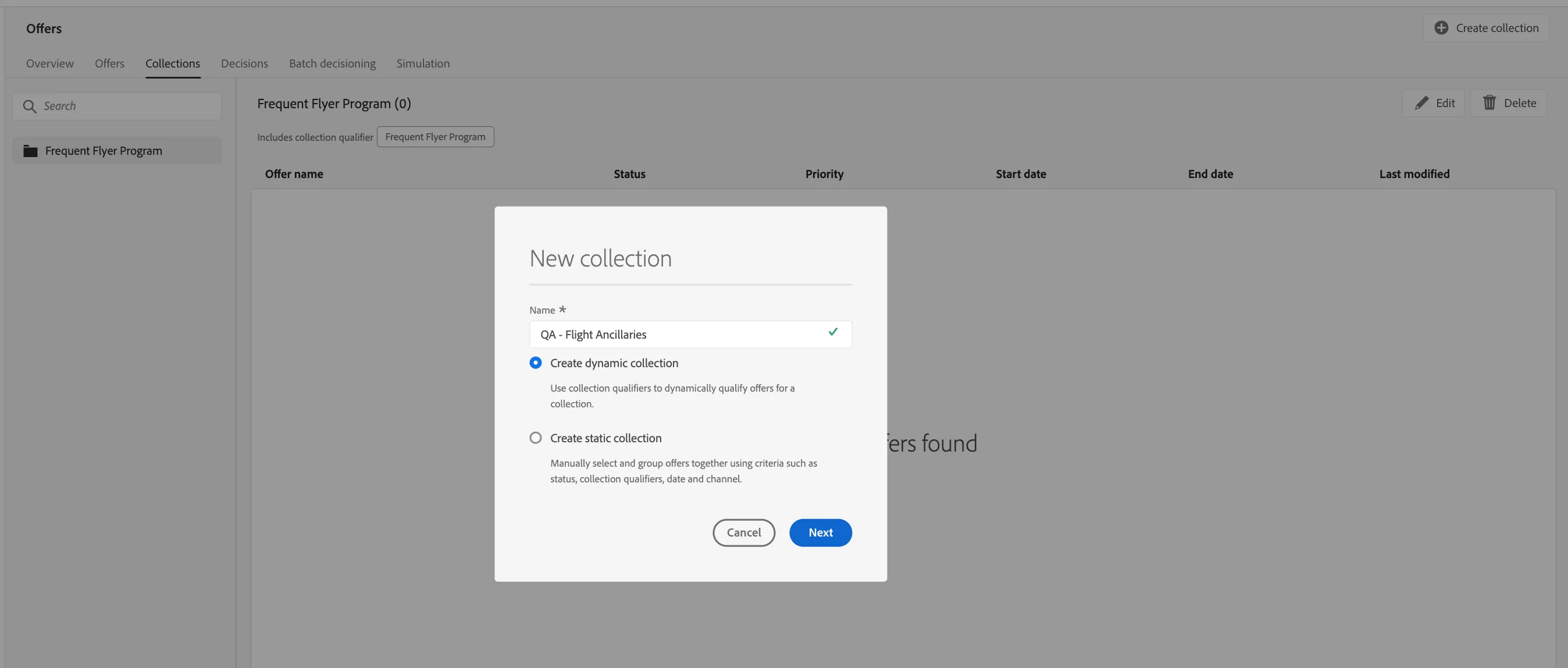
The window will close and you'll be in the collection. Here you can define what qualifiers need to be included in your dynamic collection.
- Change to Has all collection qualifiers. This means an offer needs to have all given qualifiers in order to be part of this collection.
- Now let's add qualifiers to the collection. Typing in the field will trigger a dropdown for you to select the qualifier. Add the qualifiers QA - Delay Comfort.
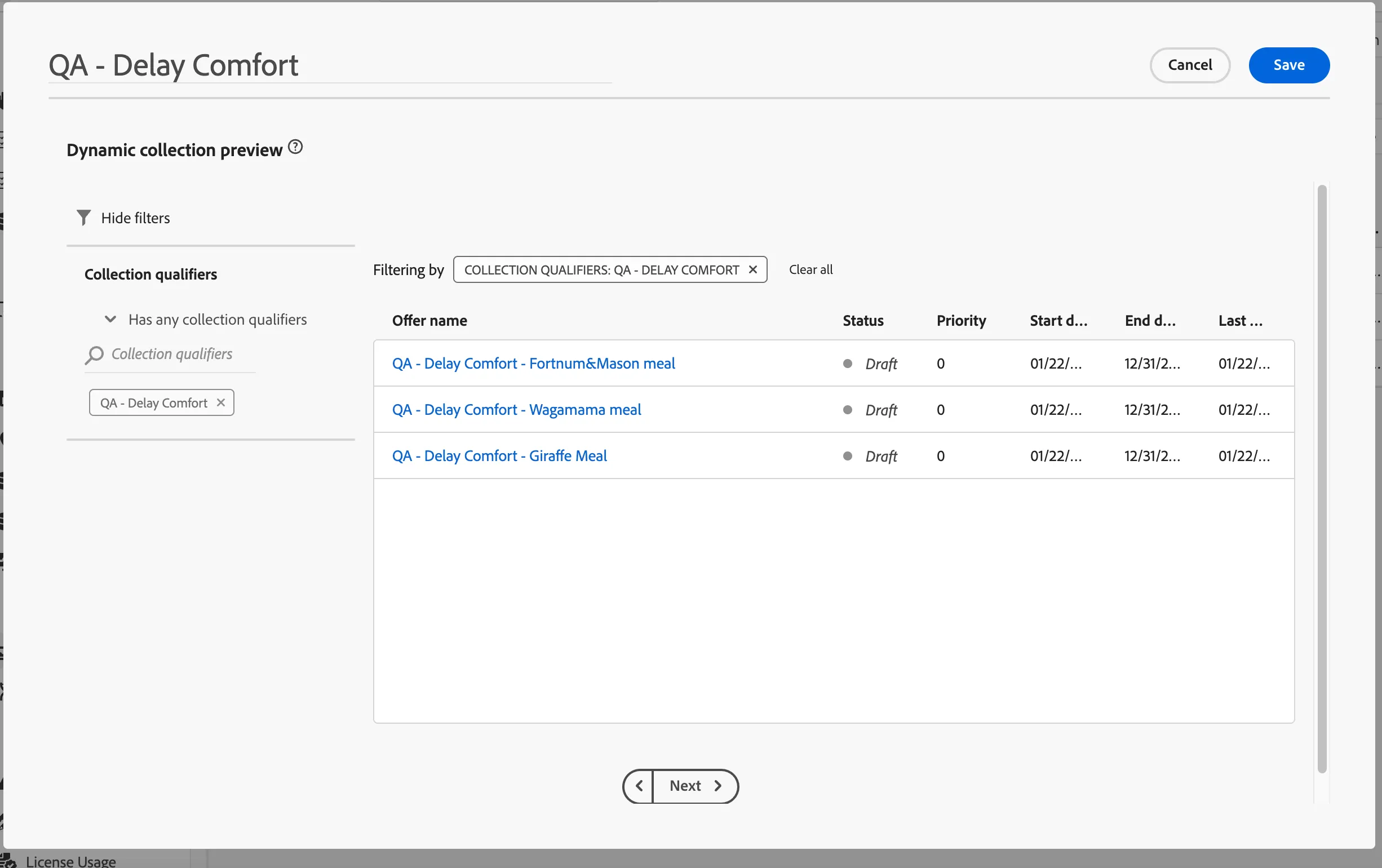
You see a lot more offers created during the bootcamp as everyone has used the same collection qualifiers.
Click on Save. You'll be taken to the Collections overview screen.
Decisions
Decisions are containers for your offers that will leverage the Offer Decision Engine in order to pick the best offer to deliver, depending on the target of the delivery.
Click on Decisions at the tab bar. You will see an overview of all decisions.
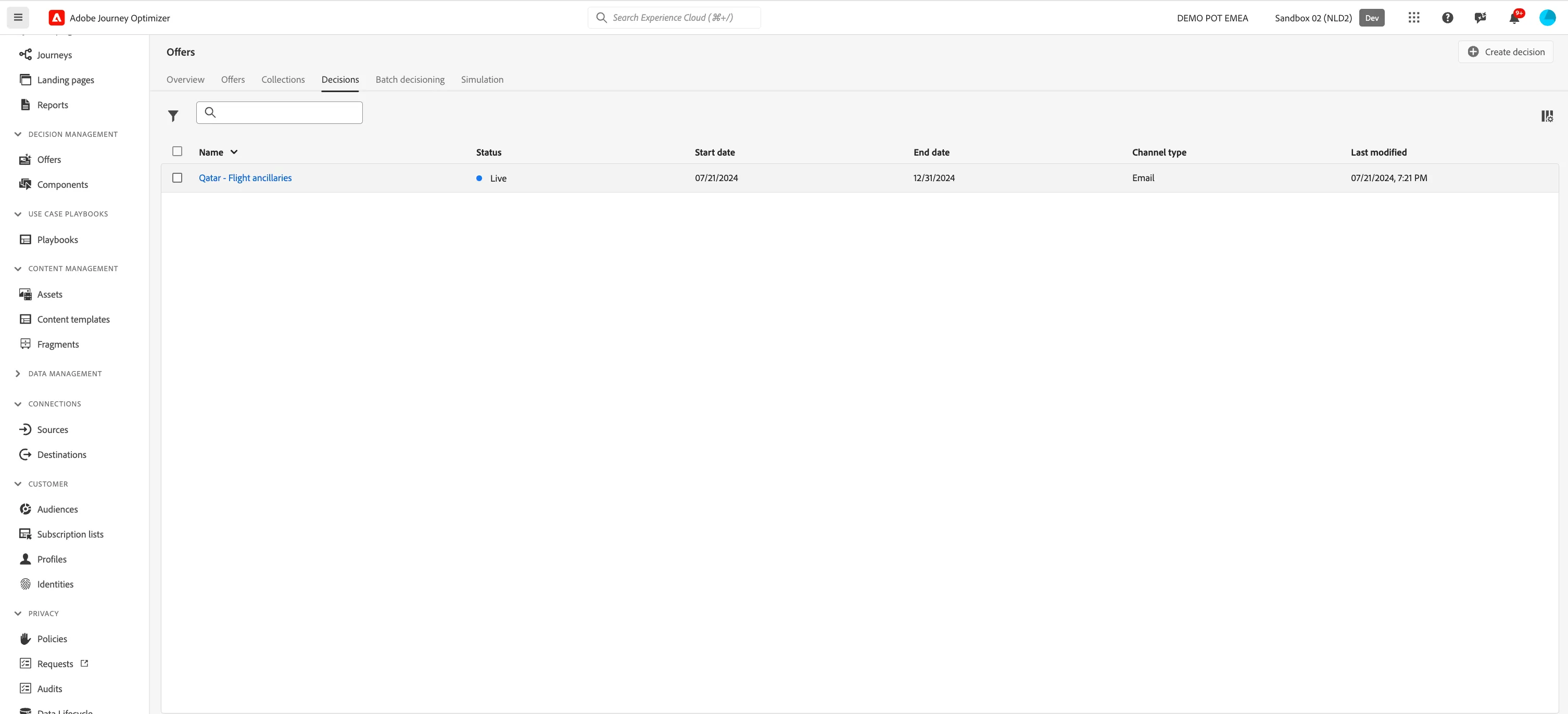
Click on + Create decision. The decision creation wizard will open, containing 4 steps. Details, decision scopes, fallback offer and review.
Decision details
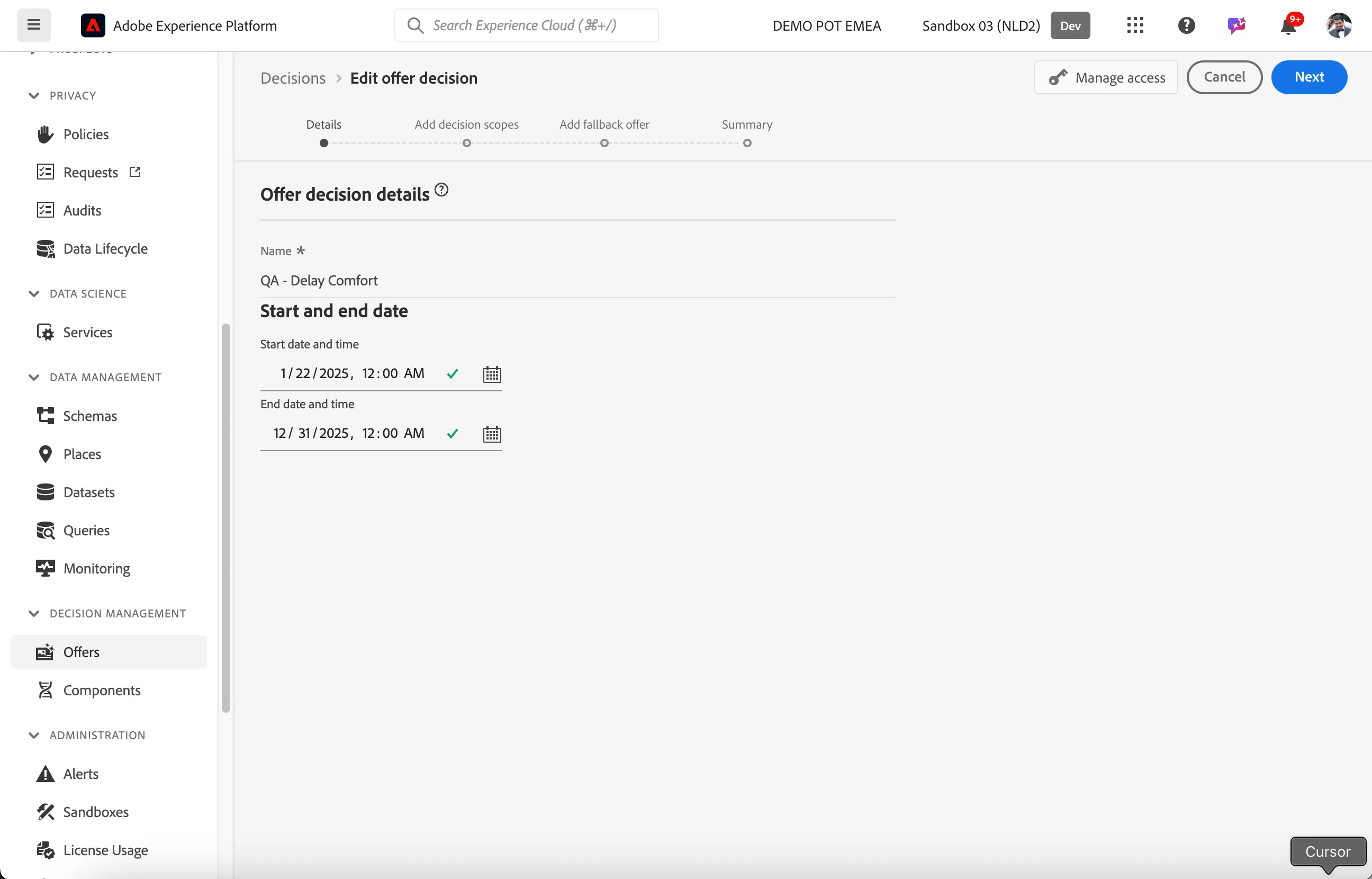
- Set the name to [your name] - Delay Comfort.
- Set the start date to today's date.
- Set the end date to December 31st.
- Your screen should look like the image below. Click Next.
Add decision scopes
In this step you can define the scope of your decision. You can define what placements an collections should be considered by the Offer Decisioning Engine.
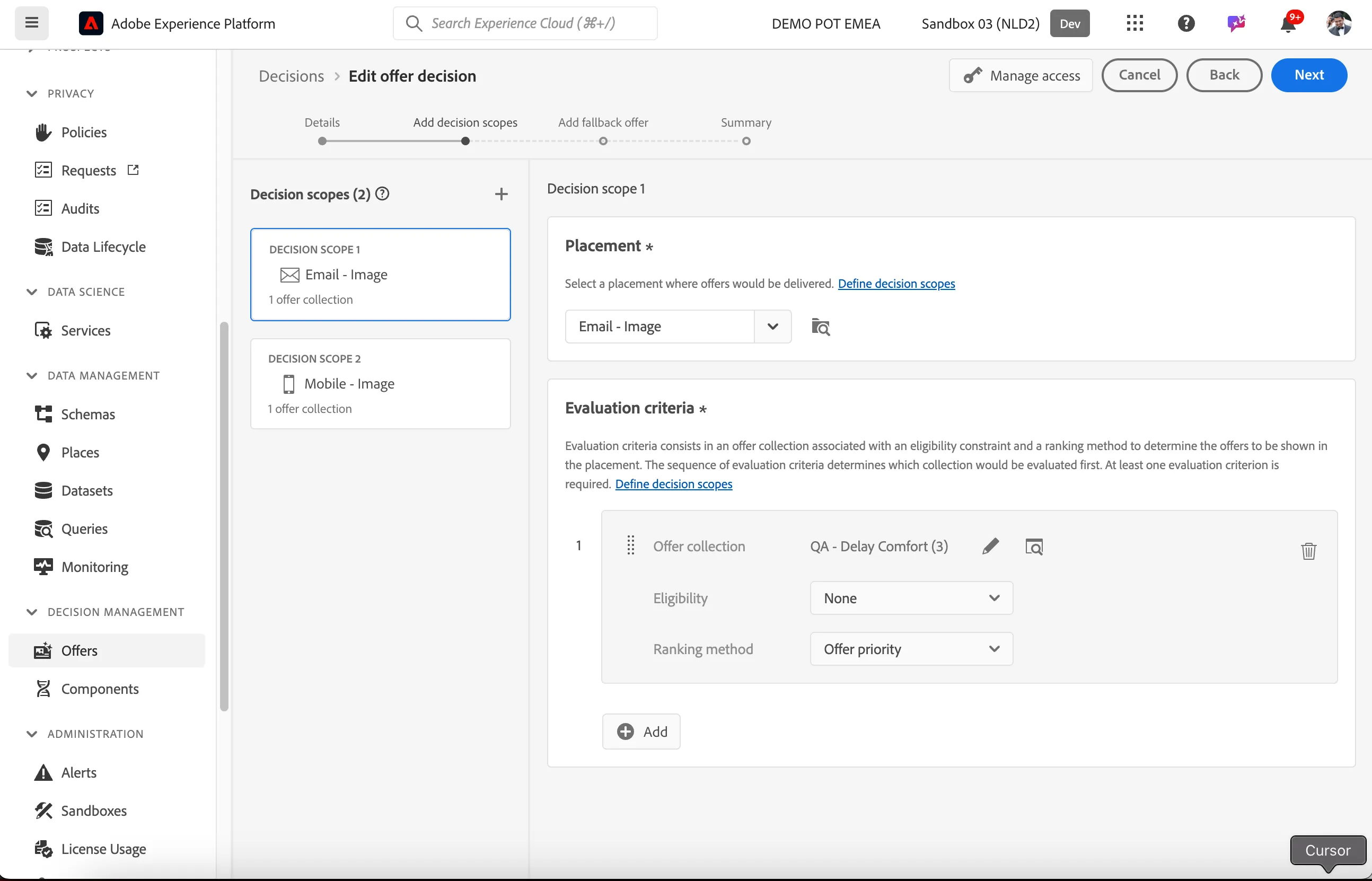
- Set the Placement to Email - Image.
- In Evaluation criteria, click + Add
- Pick your collection from the list and click Add. If you didn't create a collection, you can use QA - Delay Comfort.
- Leave the eligibility on None.You can additional eligibility rules here that will apply to every offer within the collection.
- Leave the ranking method on Offer priority.You can add more complex offer ranking here through the use of ranking formulas and AI models.
- Your screen should look like the image below. Click Next.
Add fallback offer
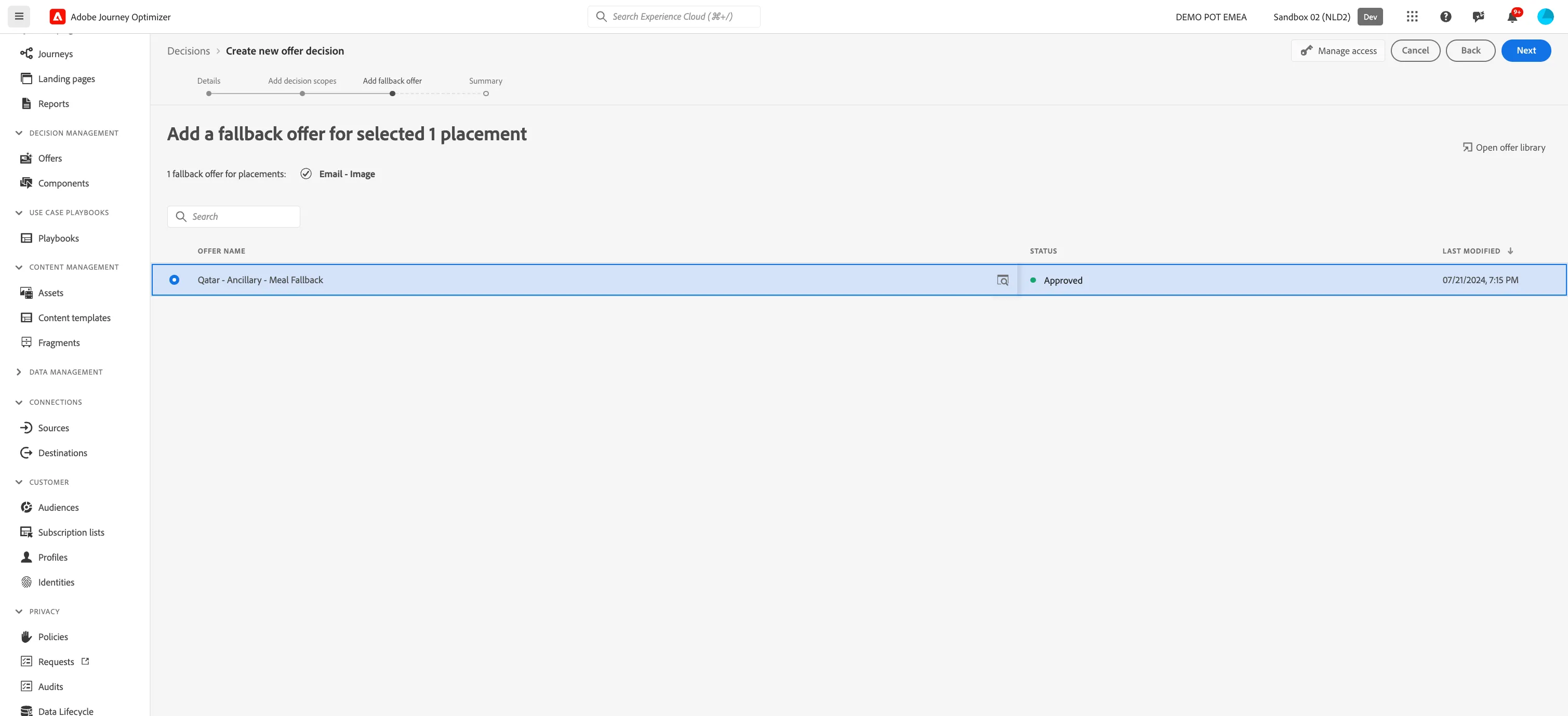
A fallback offer is an offer that can be displayed if the profile is not eligible to any of the offers within the scope. These are usually generic offers that will be relevant to anyone.
- Check the fallback offer QA - Delay Comfort - Snack and click Next.
Review
In the review step you'll see an overview of your decision. Check if it's correct and click on Finish. A window will show, choose Save and activate.
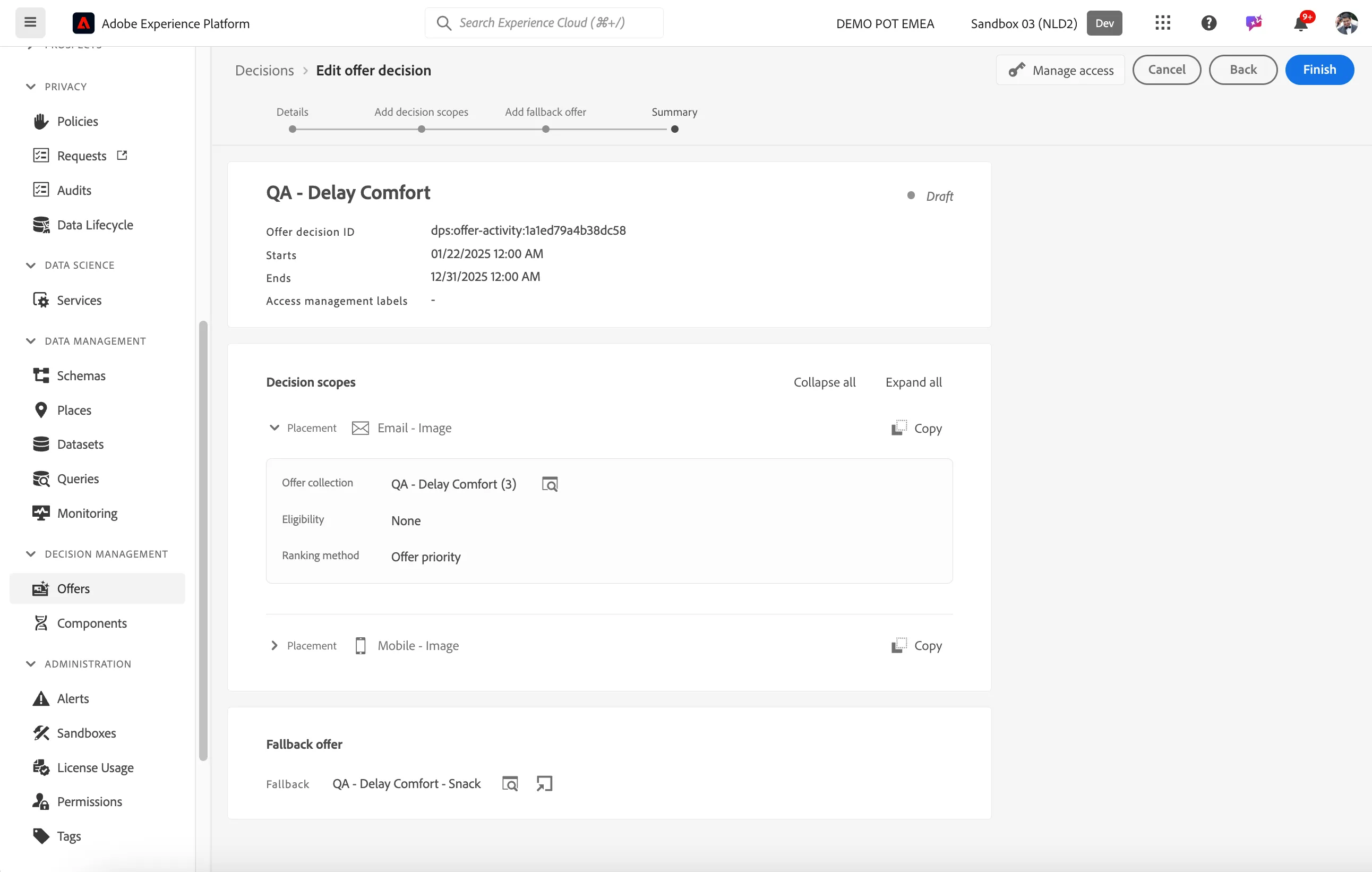
You will be taken to the Decision overview screen.
We have now successfully set up offers.