Creating audiences
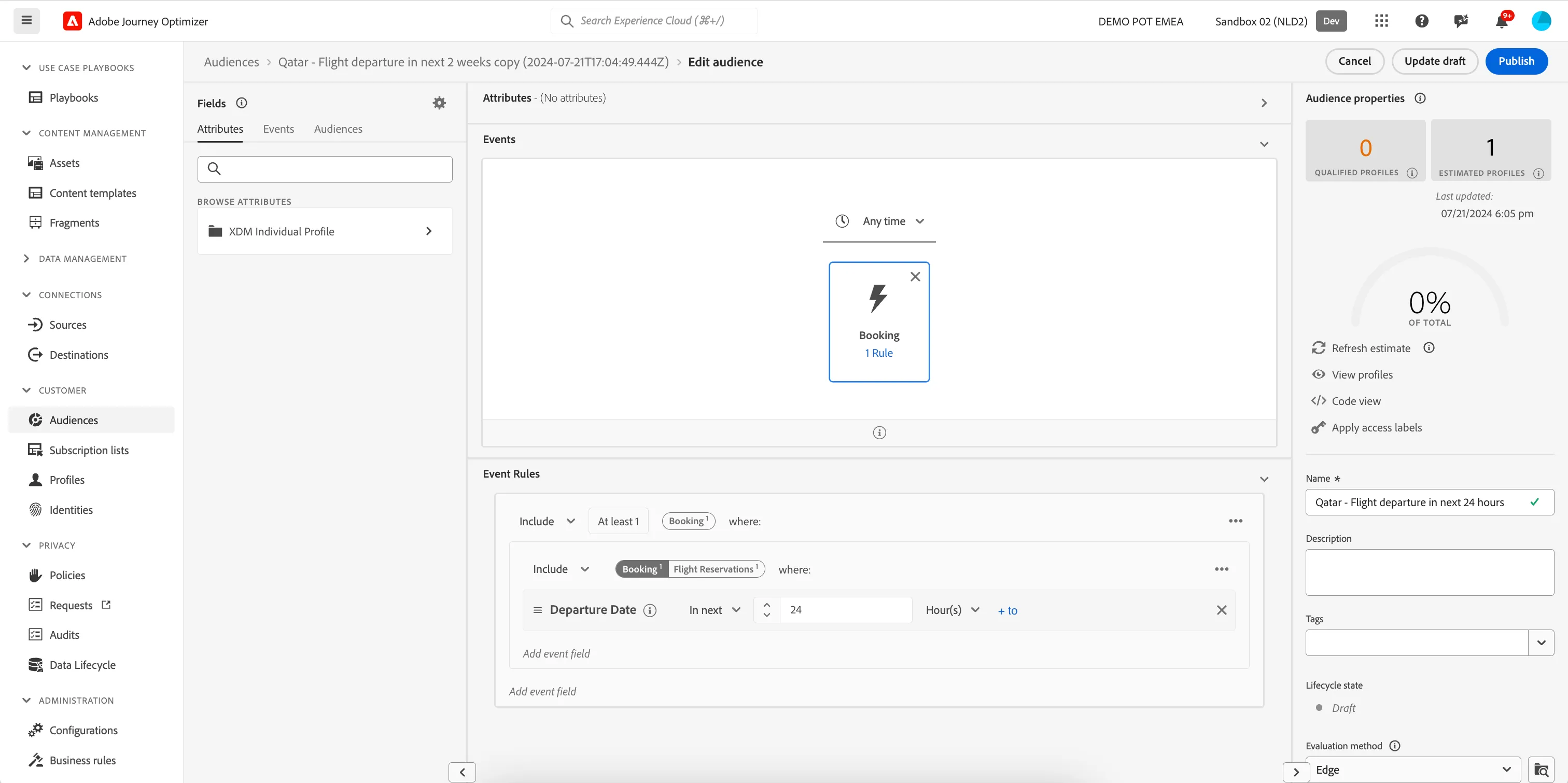
In this exercise we'll be creating two audiences that we can use in our journey.
Audience overview
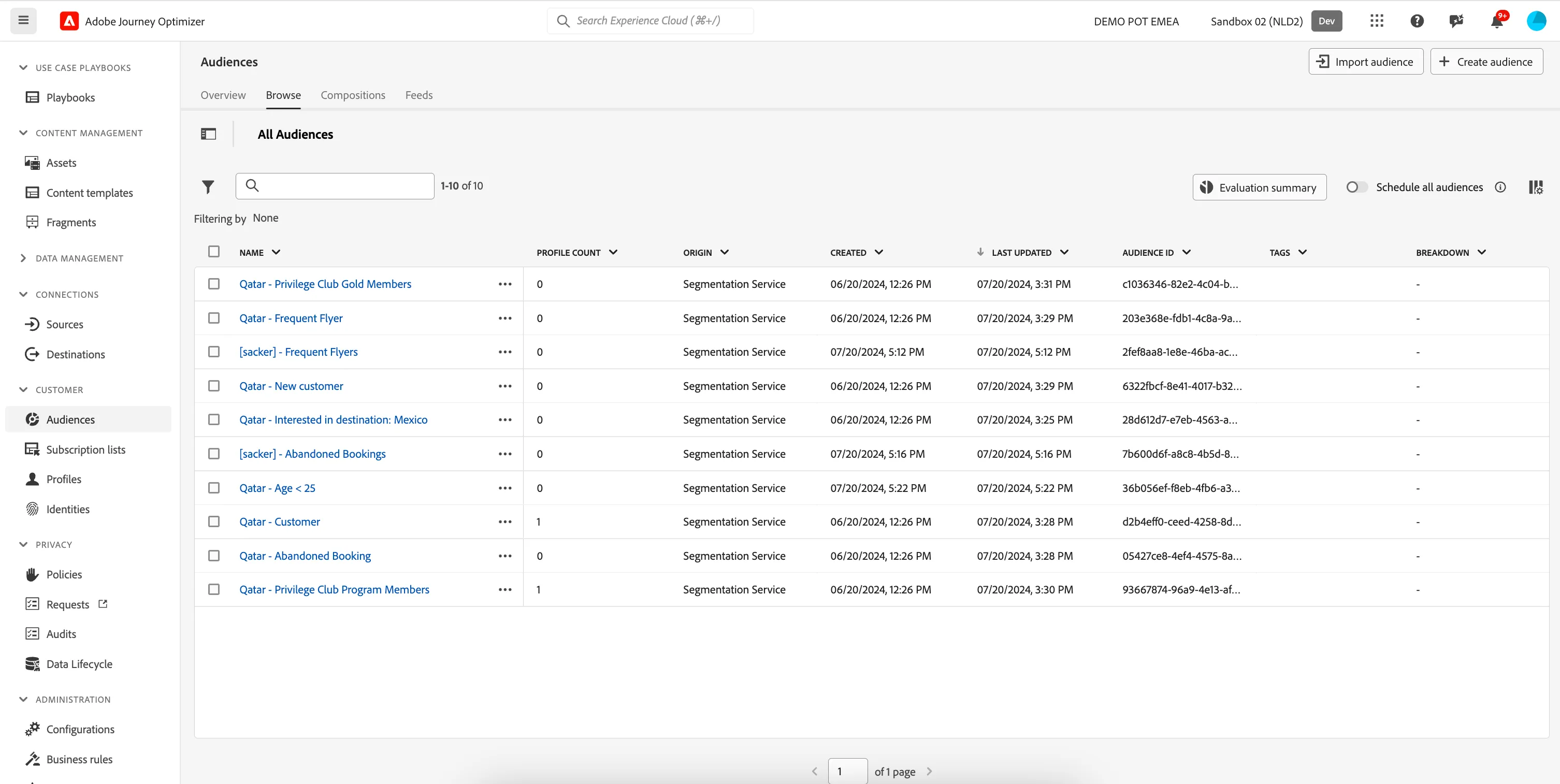
To get an overview of all audiences in Adobe Journey Optimizer:
- In the menu on the left side, under Customer, click on Audiences. You will see a overview with all existing audiences.
Audience #1 - Economy class customer with an active flight
First we'll be creating an audience that contains all customers that have an active flight booking in economy class.
If you do not want to create your own audience, you can reuse the audience aleady created for you QA - Economy class customer with an active flight. Feel free to skip this exercise and proceed to Creating offers.
- Click on Create audience. A pop-up will open, choose Build rule and click Create.You'll be taken to the Audience builder.
- Set the name to [your name] - Economy class customer with an active flight.
- Set the evaluation method to edge.
- In the Audiences tab, search for QA - Flight Departure in next 24 hours. Drag the audience to the rule pane to add all customers who has an active flight in next 24 hours.
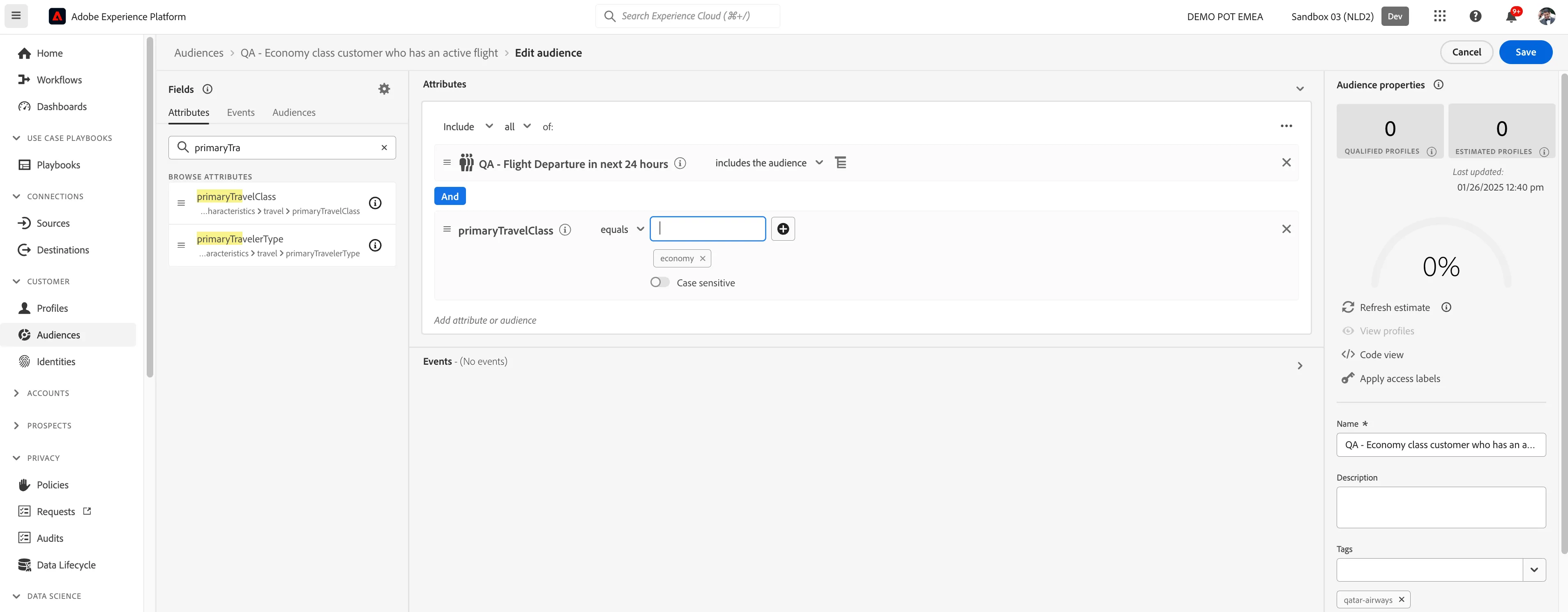
- In the Attributes tab, search for primaryTravelClass. Drag Individual Characteristics > travel > primaryTravelClass to Add attribute or audience space in the rule pane.
Type in economy by keeping the operator as equals and press Enter key to complete the condition.
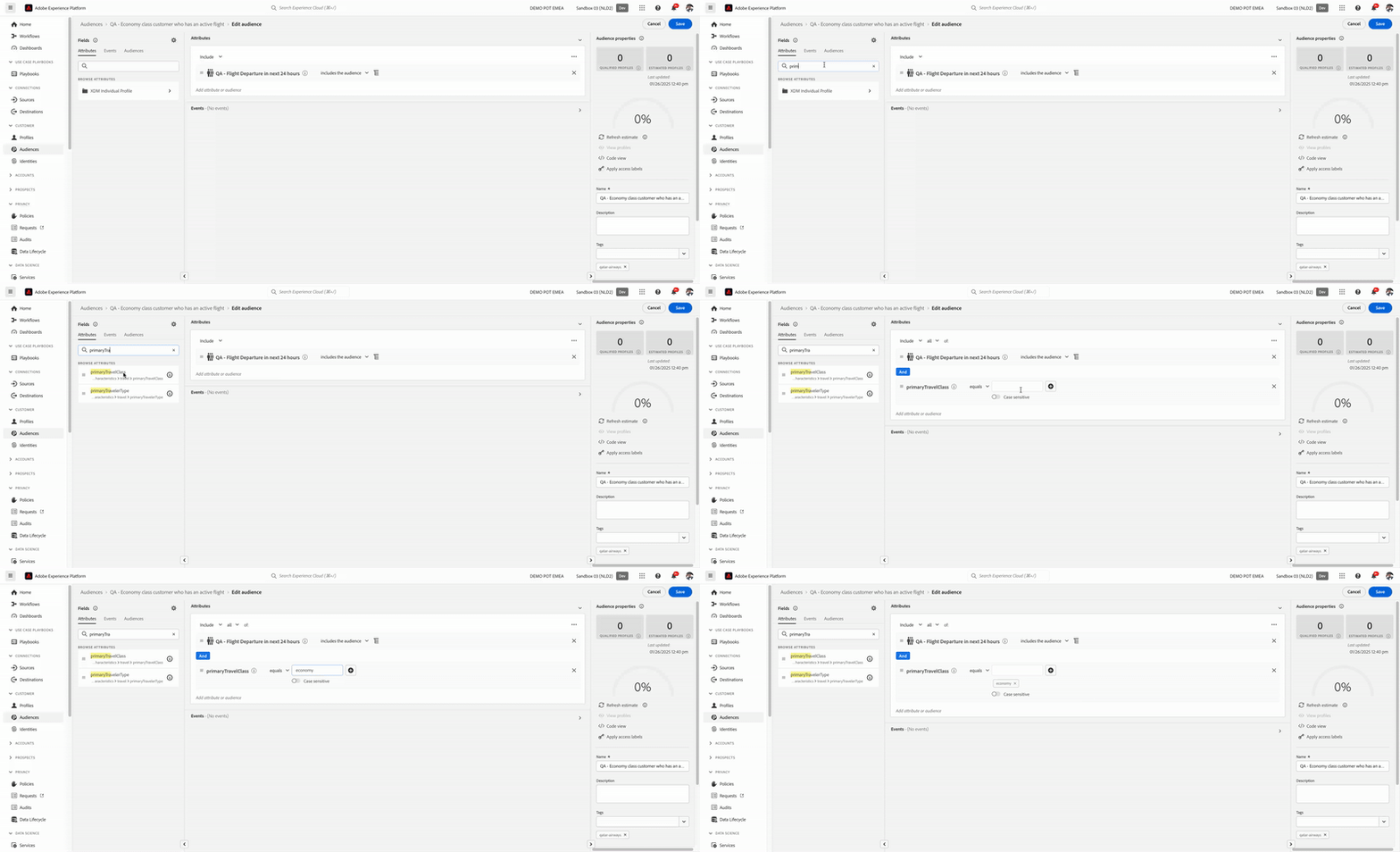
- Your screen should look like the image below. Click Publish to finish your audience.
Audience #2 - Economy comfort class customer with an active flight
First we'll be creating an audience that contains all customers that have an active flight booking in economy class.
If you do not want to create your own audience, you can reuse the audience aleady created for you QA - Economy comfort class customer with an active flight. Feel free to skip this exercise and proceed to Creating offers.
- Click on Create audience. A pop-up will open, choose Build rule and click Create.You'll be taken to the Audience builder.
- Set the name to [your name] - Economy comfort class customer with an active flight.
- Set the evaluation method to edge.
- In the Audiences tab, search for QA - Flight Departure in next 24 hours. Drag the audience to the rule pane to add all customers who has an active flight in next 24 hours.
- In the Attributes tab, search for primaryTravelClass. Drag Individual Characteristics > travel > primaryTravelClass to Add attribute or audience space in the rule pane.
- Type in economyComfort by keeping the operator as equals and press Enter key to complete the condition.
- Your screen should look like the image below. Click Publish to finish your audience.
Audience #3 - Business class customer with an active flight
First we'll be creating an audience that contains all customers that have an active flight booking in economy class.
If you do not want to create your own audience, you can reuse the audience aleady created for you QA - Business class customer with an active flight. Feel free to skip this exercise and proceed to Creating offers.
- Click on Create audience. A pop-up will open, choose Build rule and click Create.You'll be taken to the Audience builder.
- Set the name to [your name] - Business class customer with an active flight.
- Set the evaluation method to edge.
- In the Audiences tab, search for QA - Flight Departure in next 24 hours. Drag the audience to the rule pane to add all customers who has an active flight in next 24 hours.
- In the Attributes tab, search for primaryTravelClass. Drag Individual Characteristics > travel > primaryTravelClass to Add attribute or audience space in the rule pane.
- Type in business by keeping the operator as equals and press Enter key to complete the condition.
- Your screen should look like the image below. Click Publish to finish your audience.