Lab 1 - Unified Profile & Audiences
Learning Objectives
In this exercise you will learn how to view a real-time unified customer profile and understand how the different pieces of information collected about that customer are stitched together through the evolving Identity Graph.
You will learn about the different types of audiences that can be created through the rule-based audience builder, including real-time audiences based on streaming events being received from the website or other systems.
1.1 Visit the website
In this exercise you'll visit the website to browse some products before signing in as a known user and adding some products to your cart.
Using an incognito window, open the demo website at https://luma-com574.adobedemo.com/
You'll notice on the home page we have a banner optimization experiment running. You'll either see Treatment A or Treatment B.
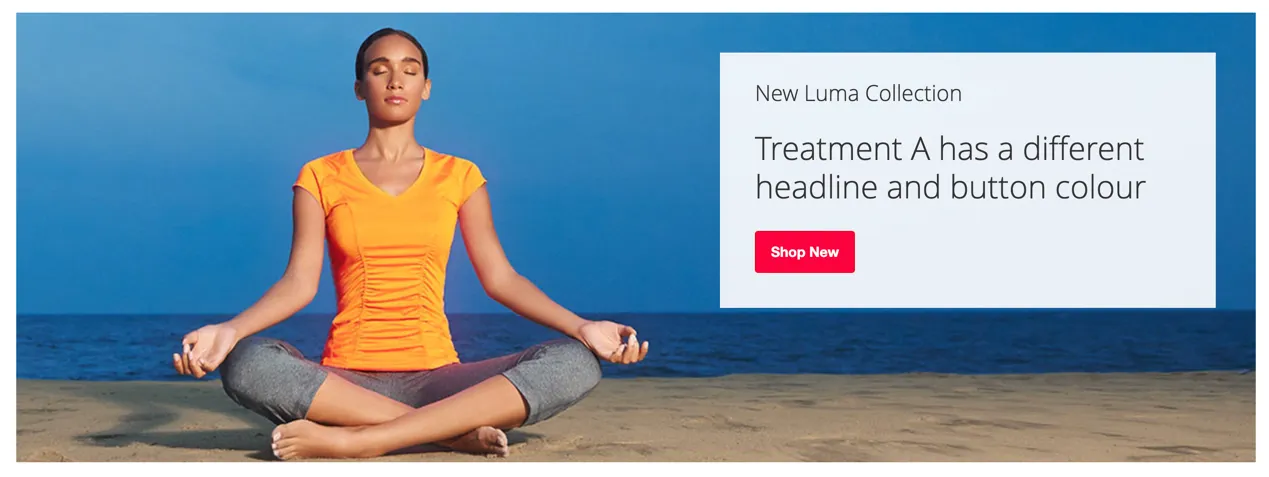
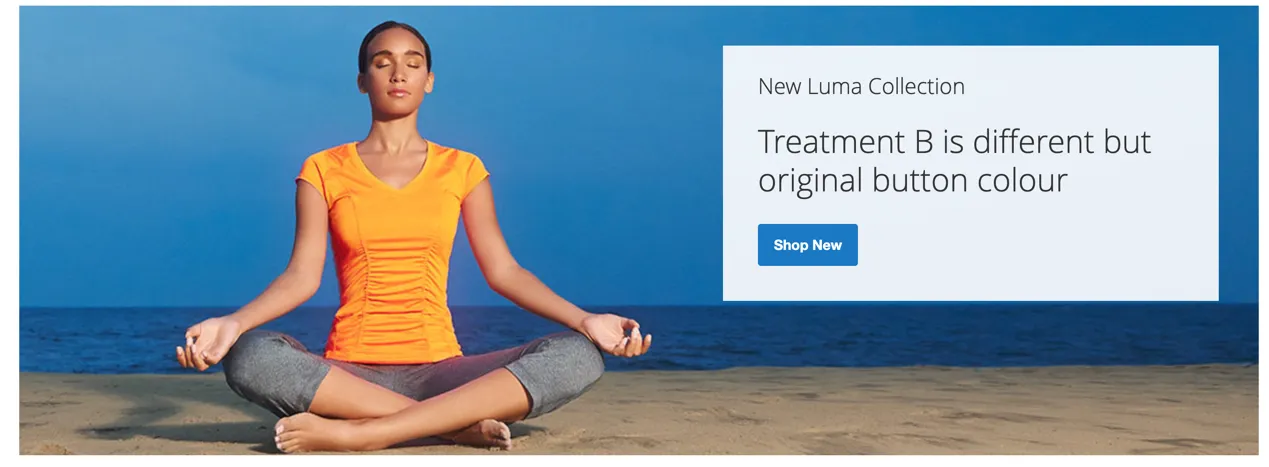
Click through and view some of the products under the mens pants category.
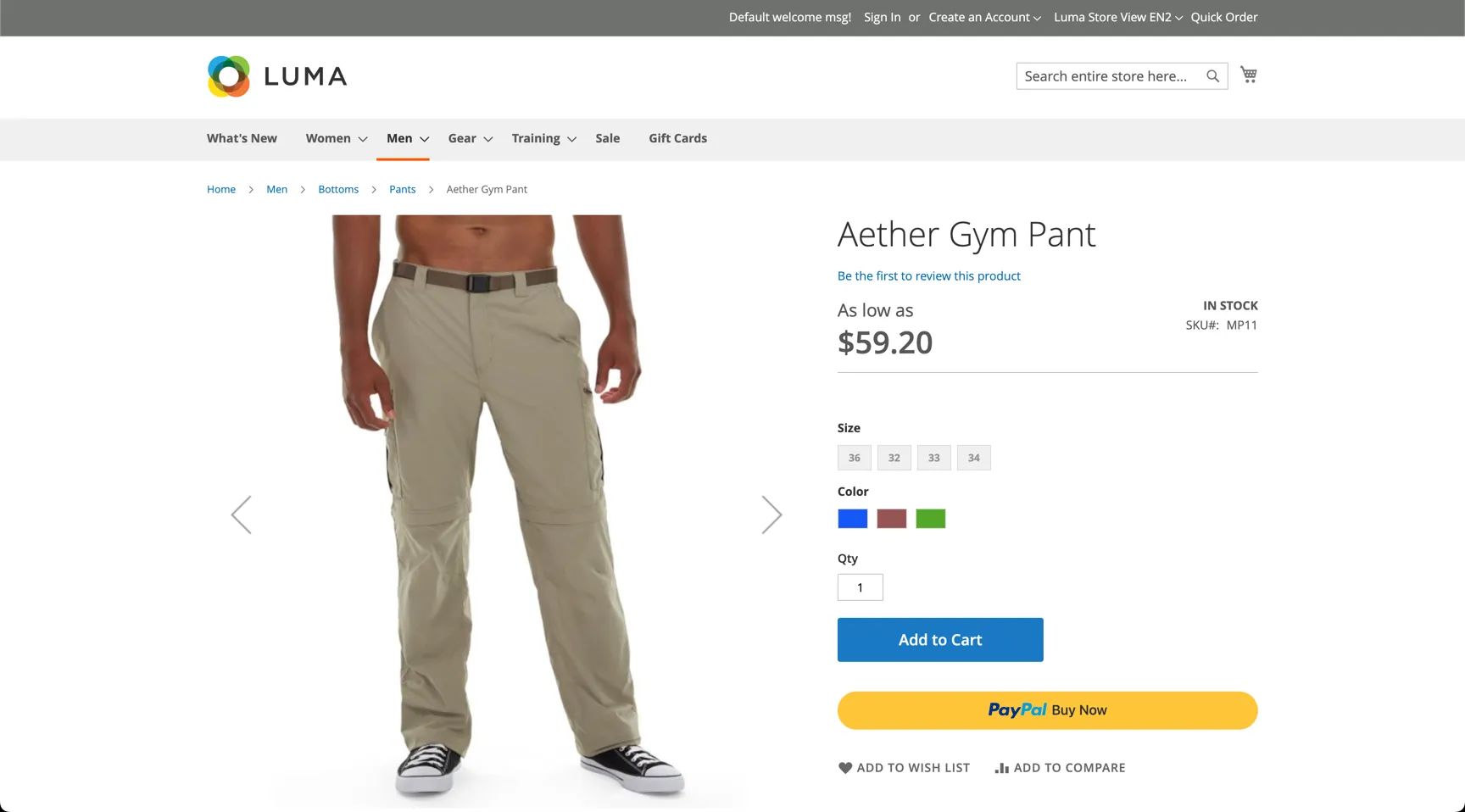
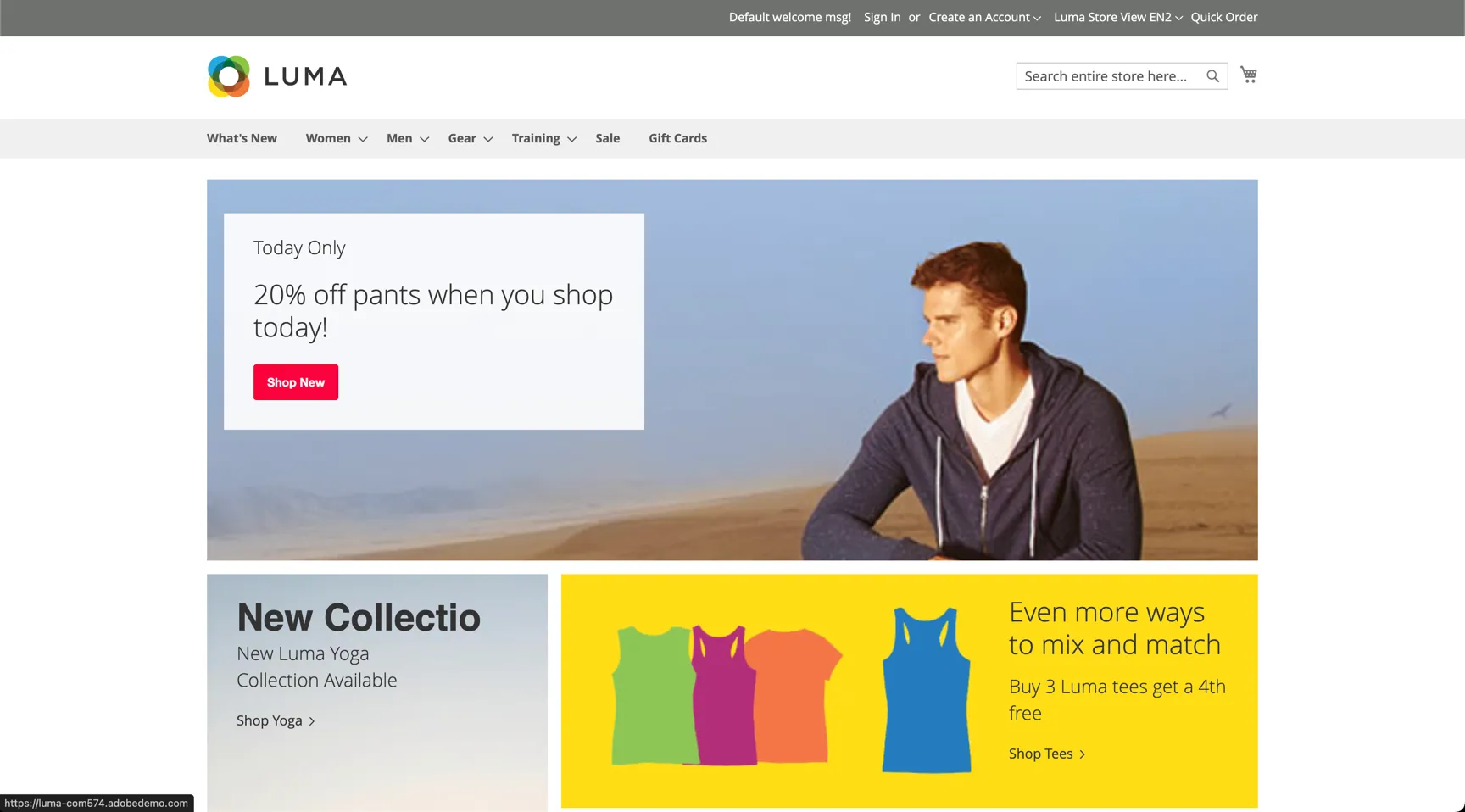
Every interaction you have on the site is being shared to Adobe Experience Platform in realtime via the SDK and these events can qualify you into an audience for personalisation whether you have identified yourself or not. Return to the home page, the experience will be updated in real time to promote the current Pants promotion rather than the new yoga collection.
Click to Sign In. Use one of the customer id's below to sign in.
Email Address | Password |
|---|---|
adobeTest123 | |
adobeTest123 | |
adobeTest123 | |
adobeTest123 | |
adobeTest123 | |
adobeTest123 | |
adobeTest123 | |
adobeTest123 | |
adobeTest123 | |
adobeTest123 |
Your anonymous profile will now stitch to the known profile.
1.2 View a Profile
Next we'll look up your customer profile in Adobe Journey Optimizer.
Adobe Experience Platform combines data from multiple sources into an actionable profile. Each profile consists of 4 key components:
- Attribute Data
- Event Data
- Audiences
- Identity
From the AJO home page, browse to Customer -> Profiles. The Overview dashboard shows insights on how many profiles exist in the sandbox along with the distribution of identities.
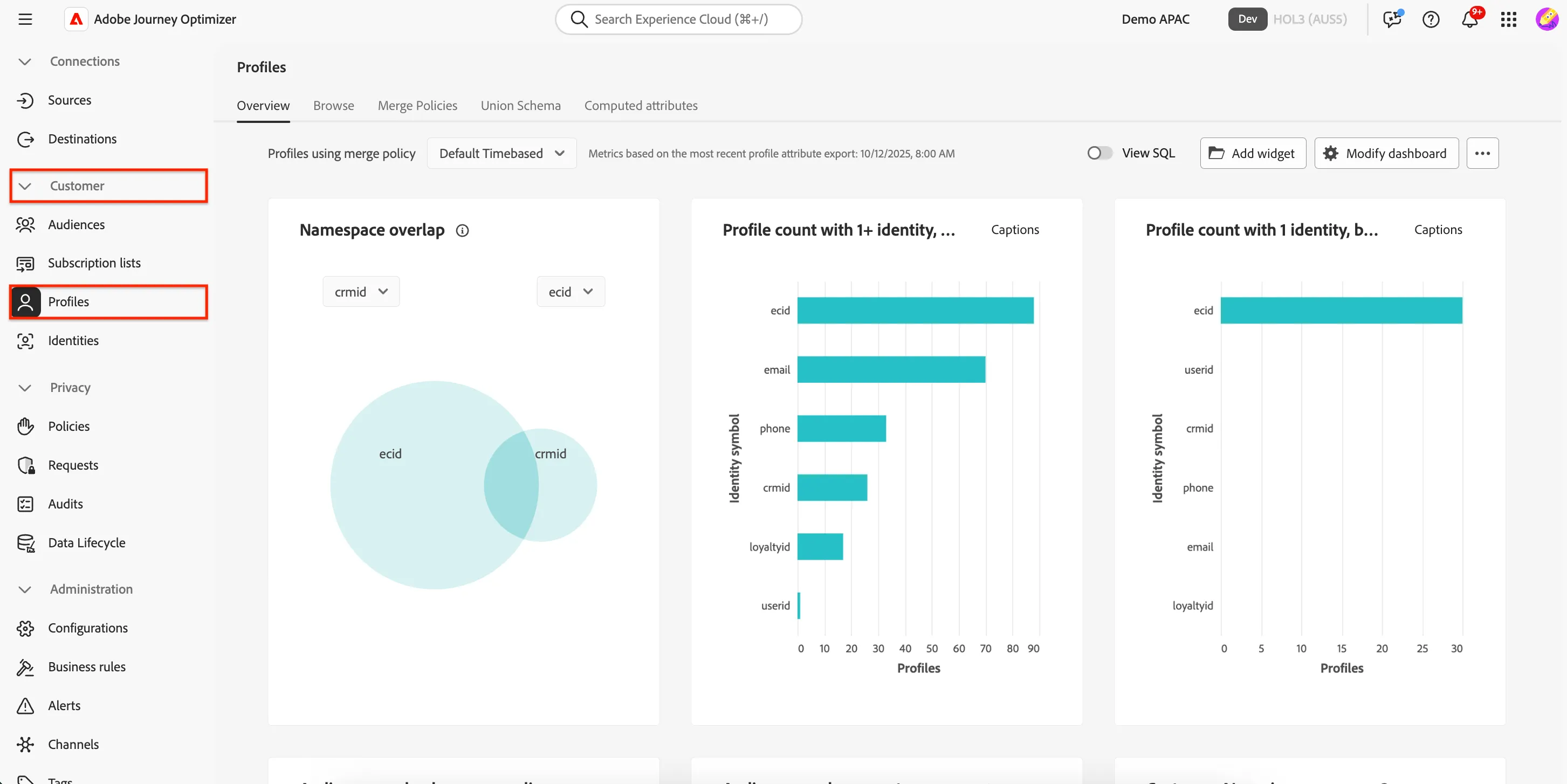
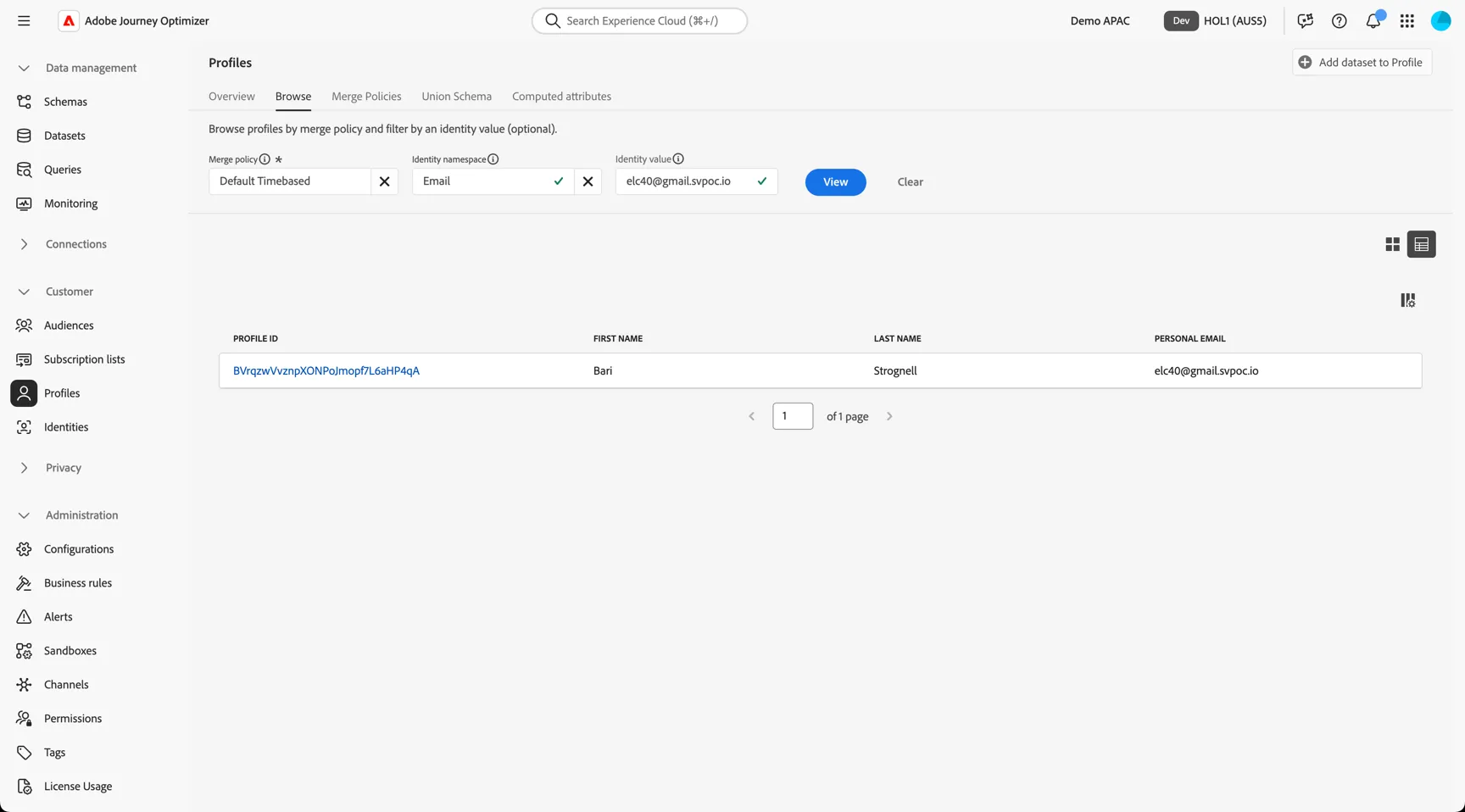
To lookup a specific profile, move to the Browse tab.
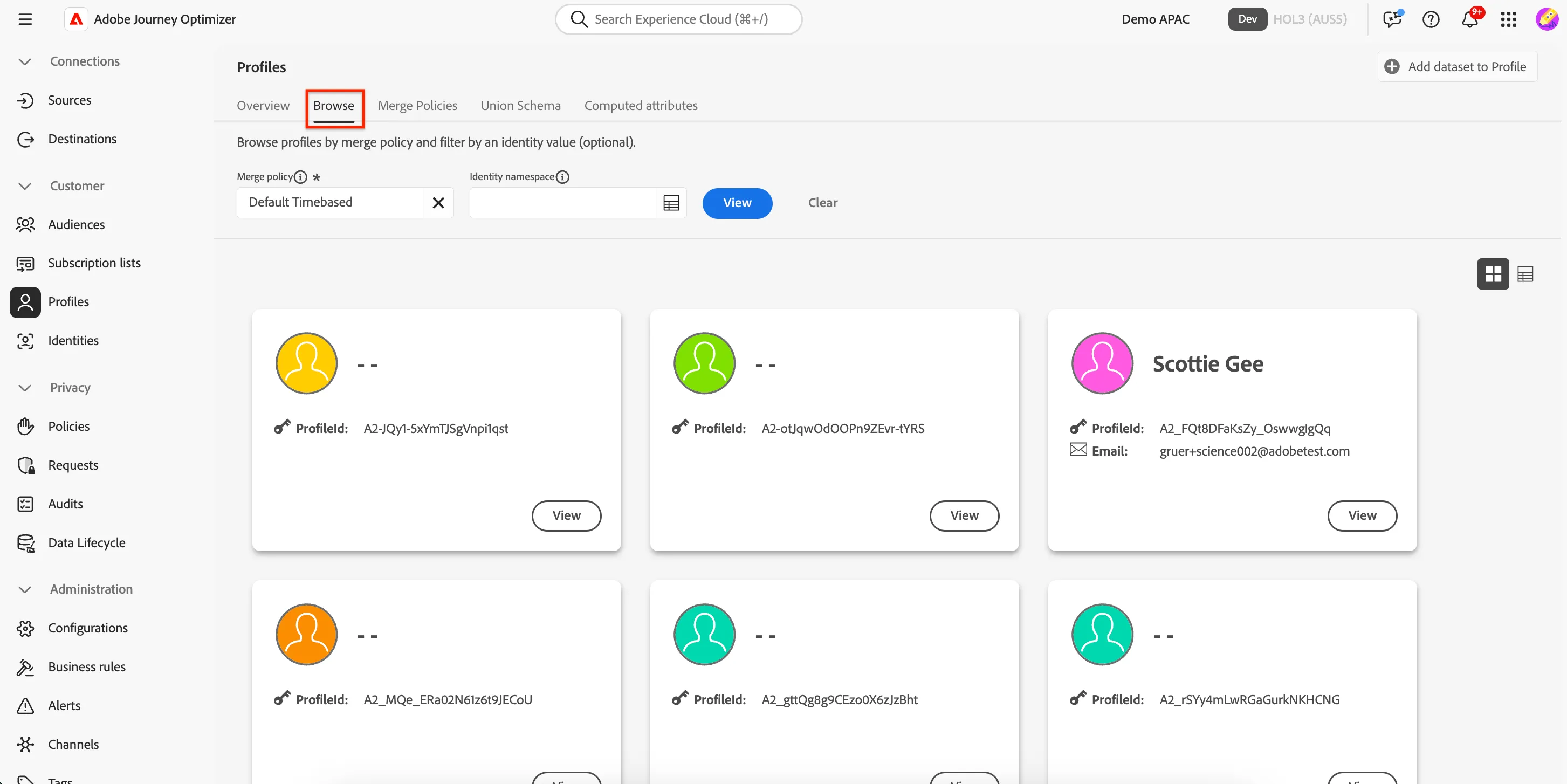
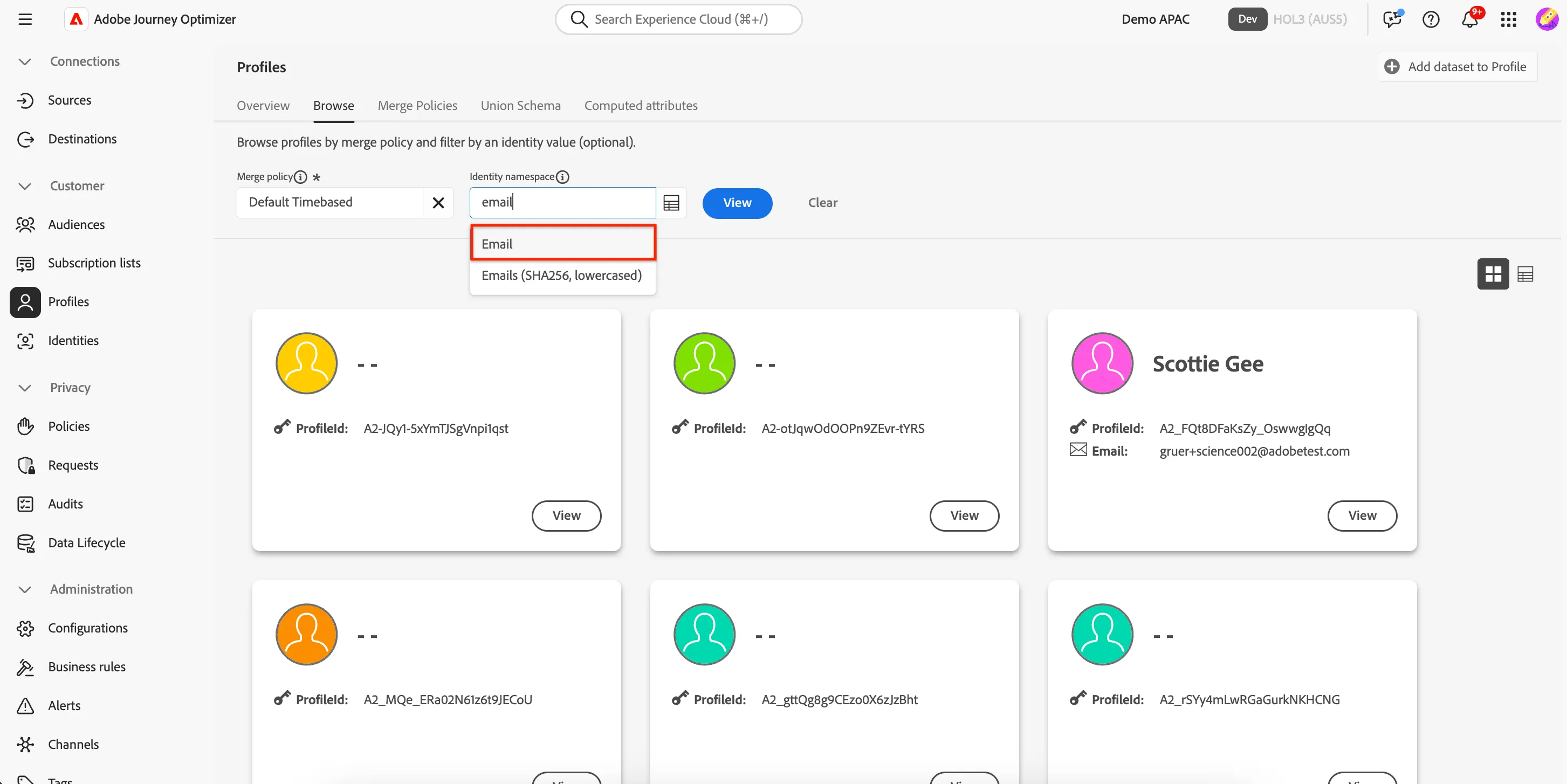
Profiles can be retrieved by any of the identities that are attached to that profile. Which identity namespaces are leveraged depends on your organisations requirements. For this exercise we will use Email to look up your profile.
Type Email in the Identity namespace field, select the first option, Email.
Type the email you used to login on the website into the Identity value field and click View, then View again on the profile card.
Remember this email as we'll use it in the next exercise as well.
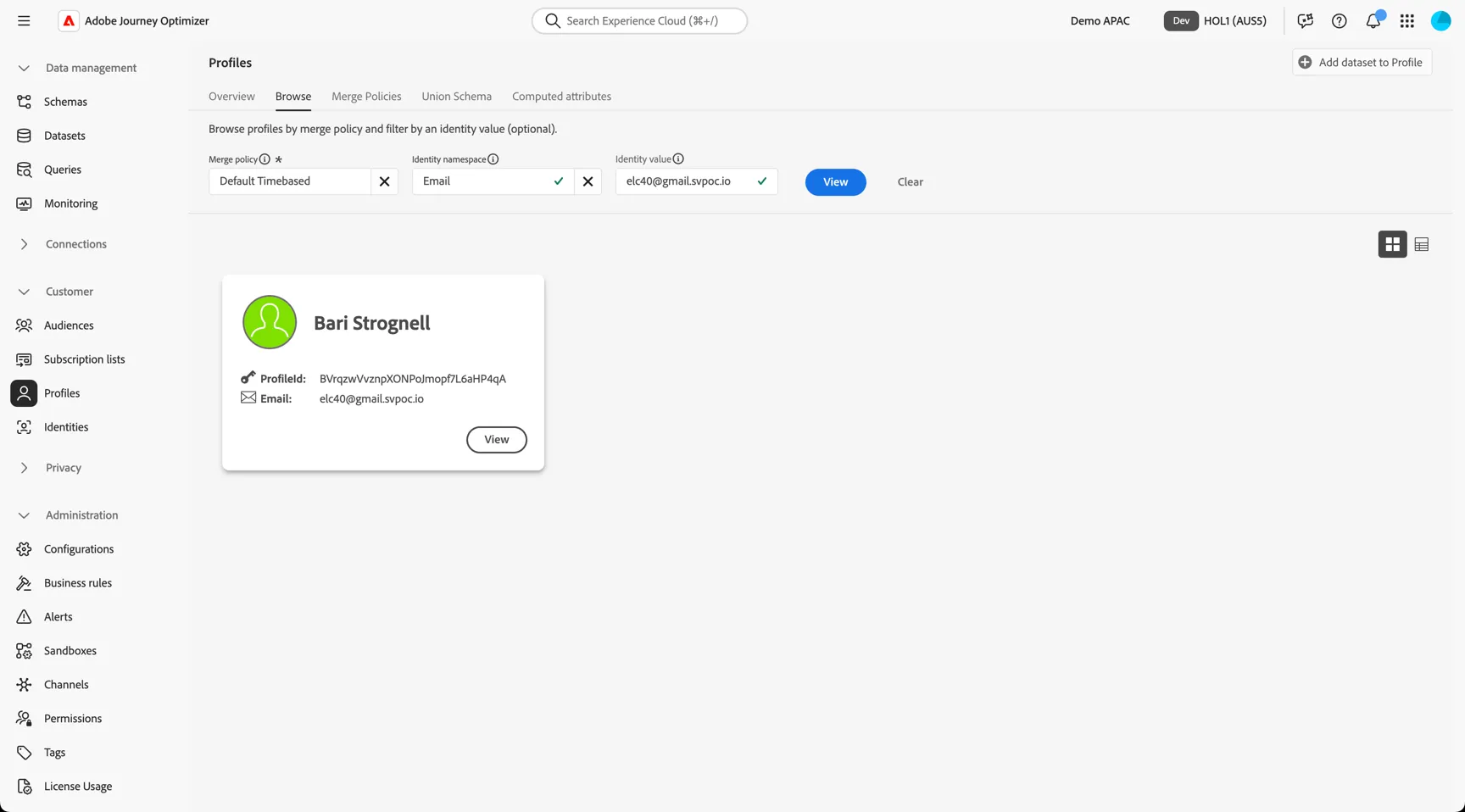
Note: you may not see the profile card. If this is the case you might be in the List View. If this is the case you can simply click on the PROFILE ID to view the profile details.
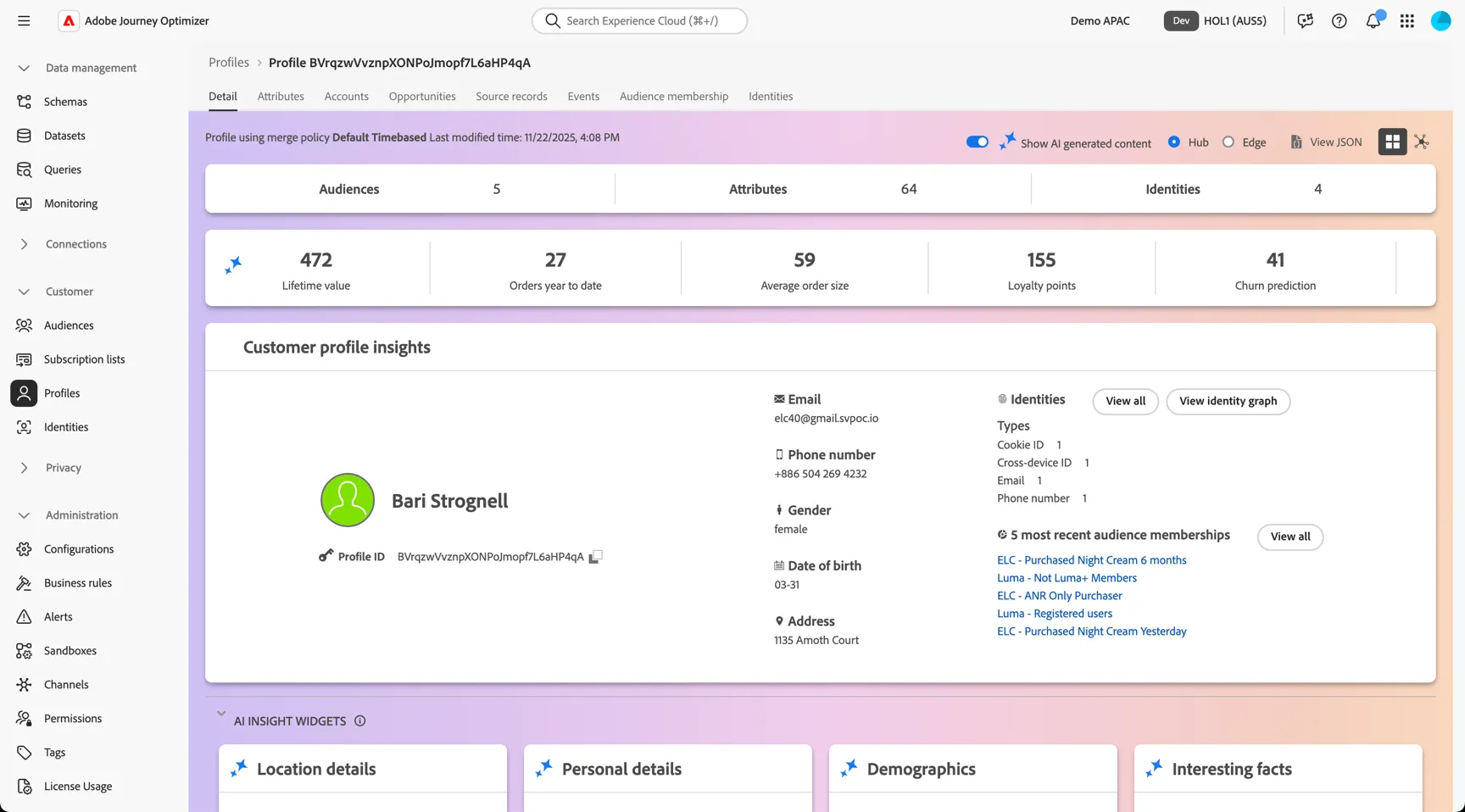
The Detail tab shows us some basic information about the profile, starting with some AI-generated insights.
Note: the profile data in the screenshots may not 100% match what you're seeing in this lab but should be fairly representative.
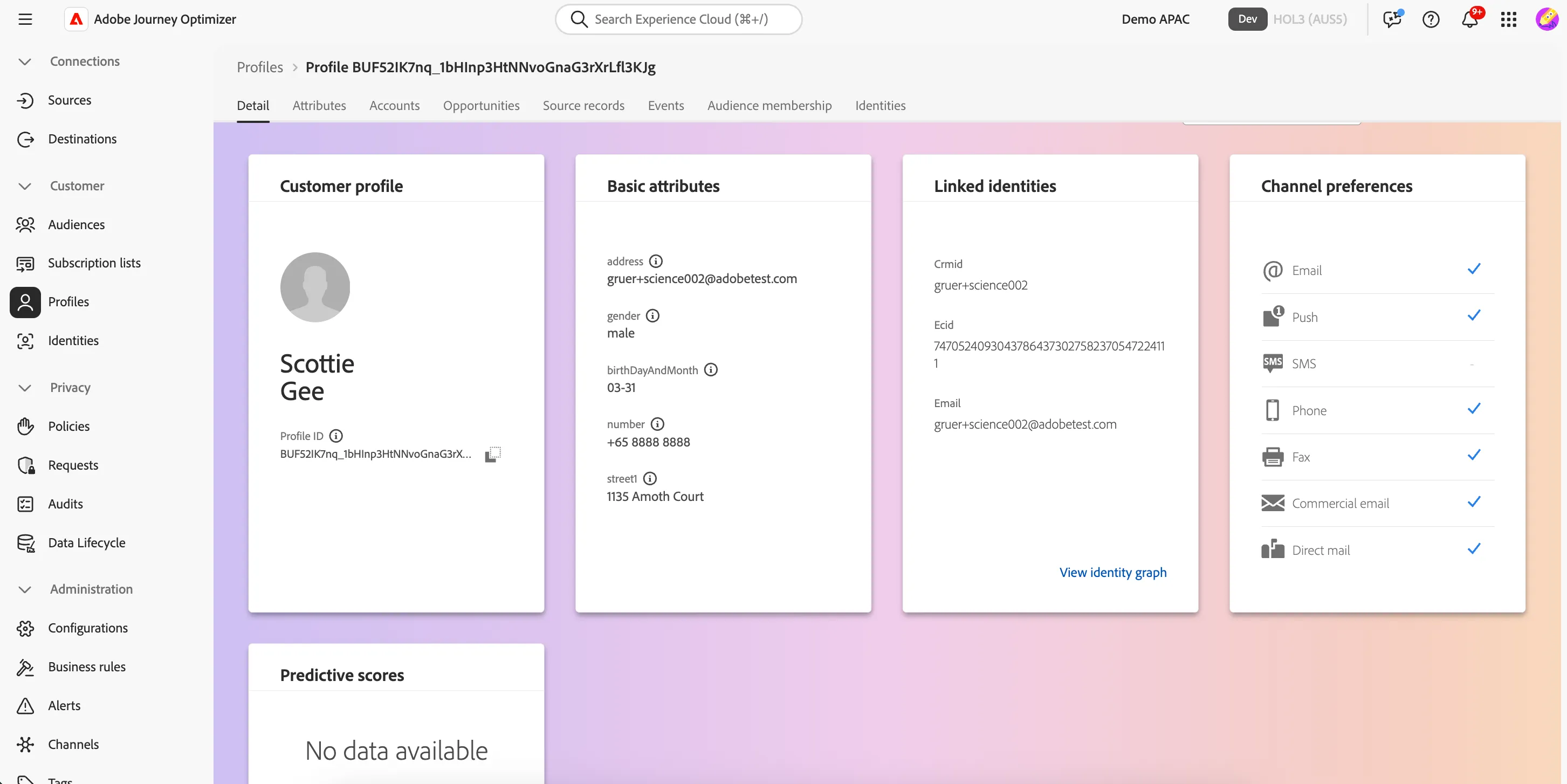
Below are some content cards and fields which can be customized according to business needs.
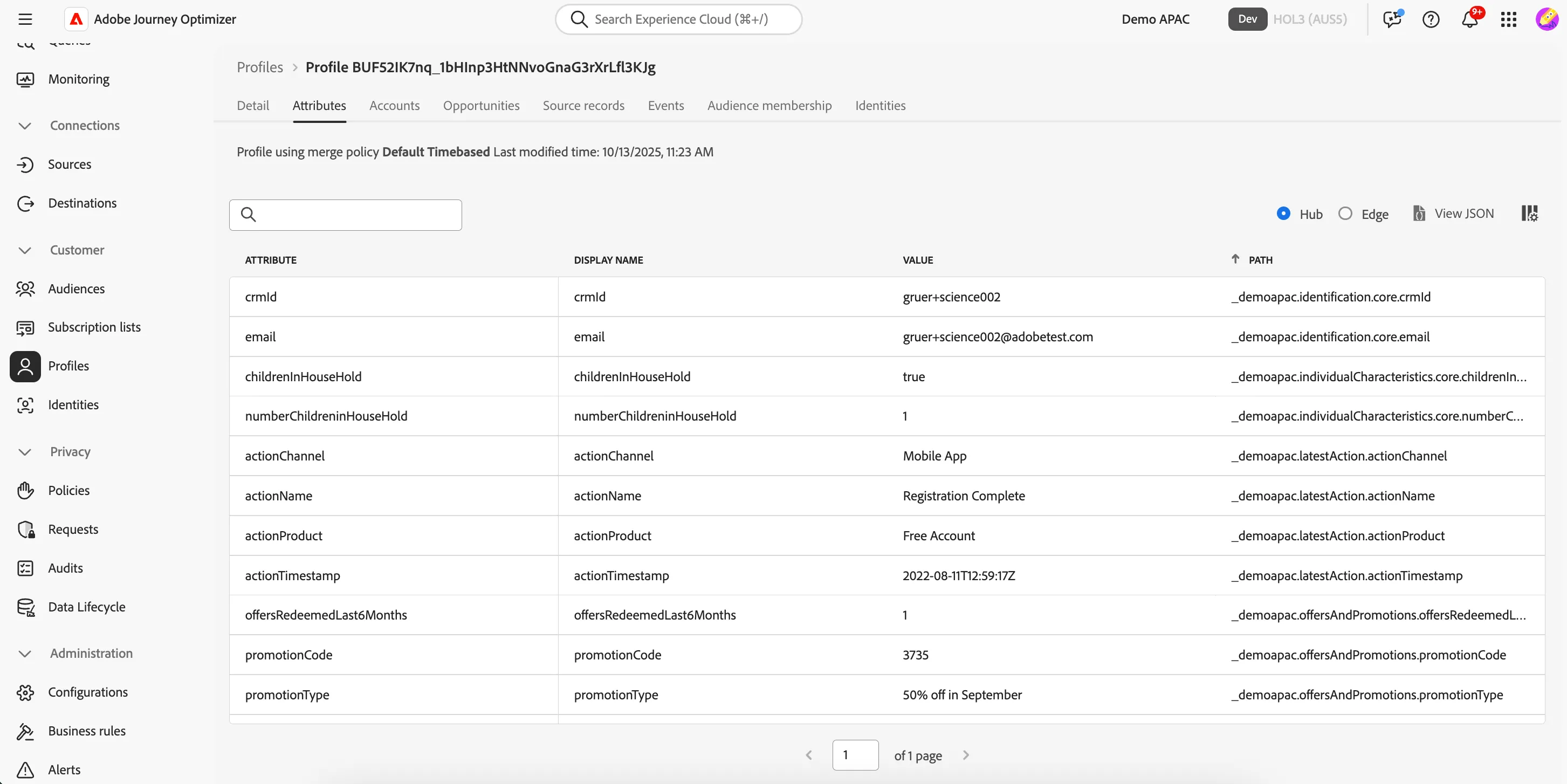
There are 2 main types of data collected against the profile, Attributes and Experience Events. Attributes tend to be fairly static, slower-moving data (sometimes called Record Data) while Experience Events represent point-in-time interactions a profile has had with your brand, whether that's viewing a web page, making a purchase, calling the call center or visiting a store (i.e. time series data).
Click on the Attributes tab to view the full list of attributes ingested for this profile. These attributes can come from different source systems. The platform will merge them in real-time.
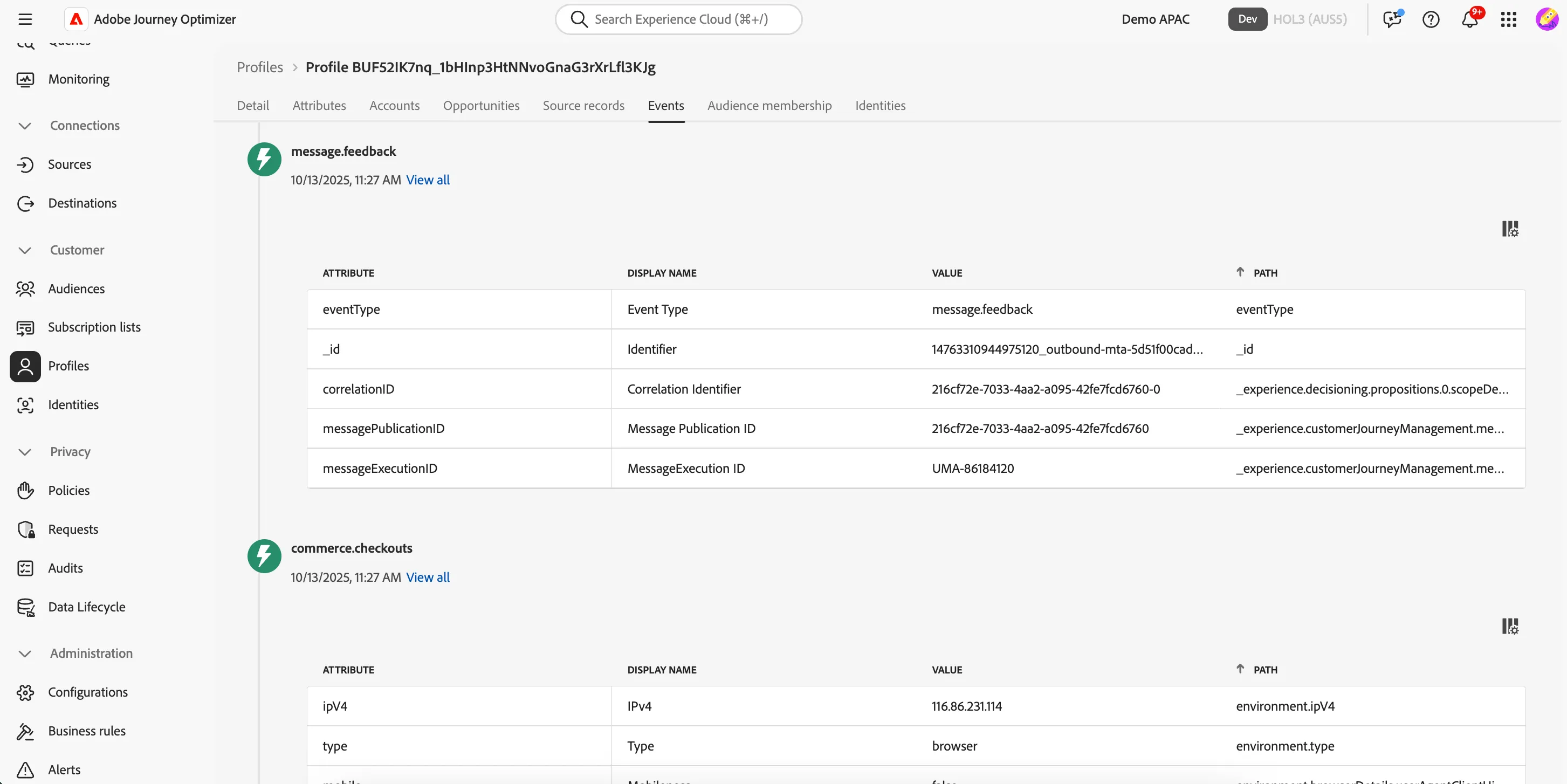
Click on the Events tab. Here you can see a chronological view of all the behavioural experience events coming from different source systems for this profile. These events are ingested in real-time from the sources like your website or mobile app.
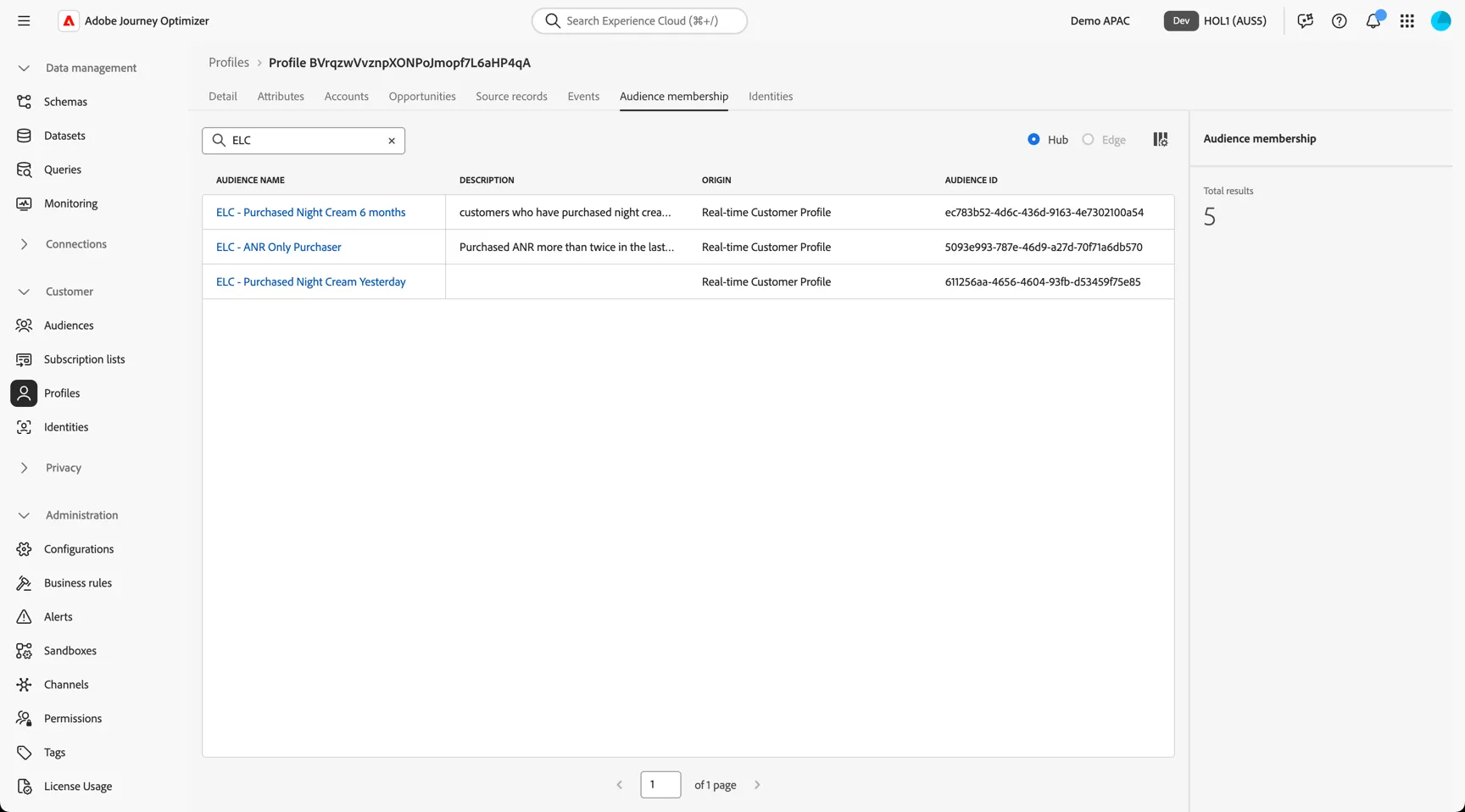
Move to the Audience membership tab. Here you can see which audiences the profile is currently a member of, this list will update as the profile moves in and out of audiences based on their attributes and behavior.
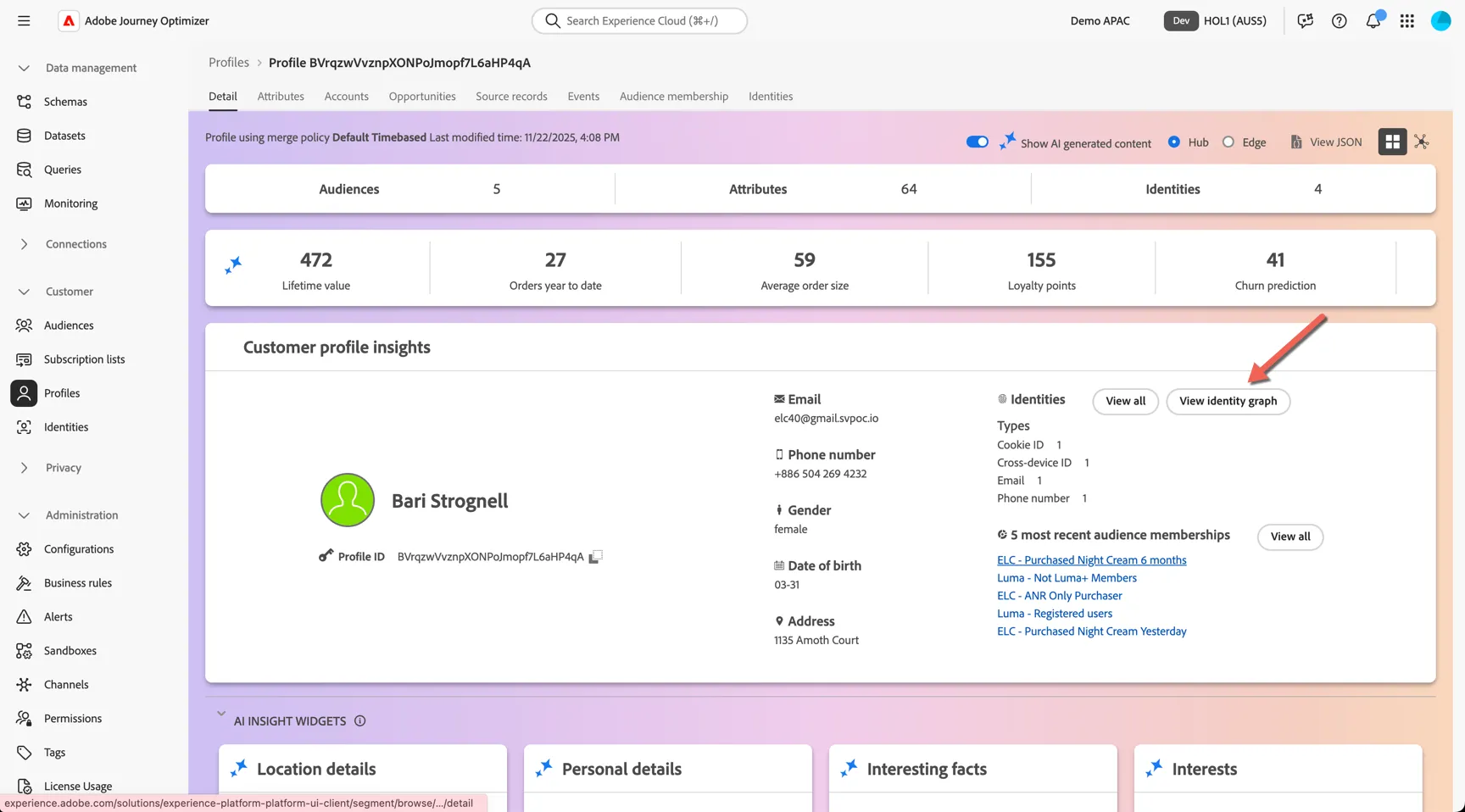
Lastly, return to the Details tab, scroll down to Linked Identities and click View Identity Graph.
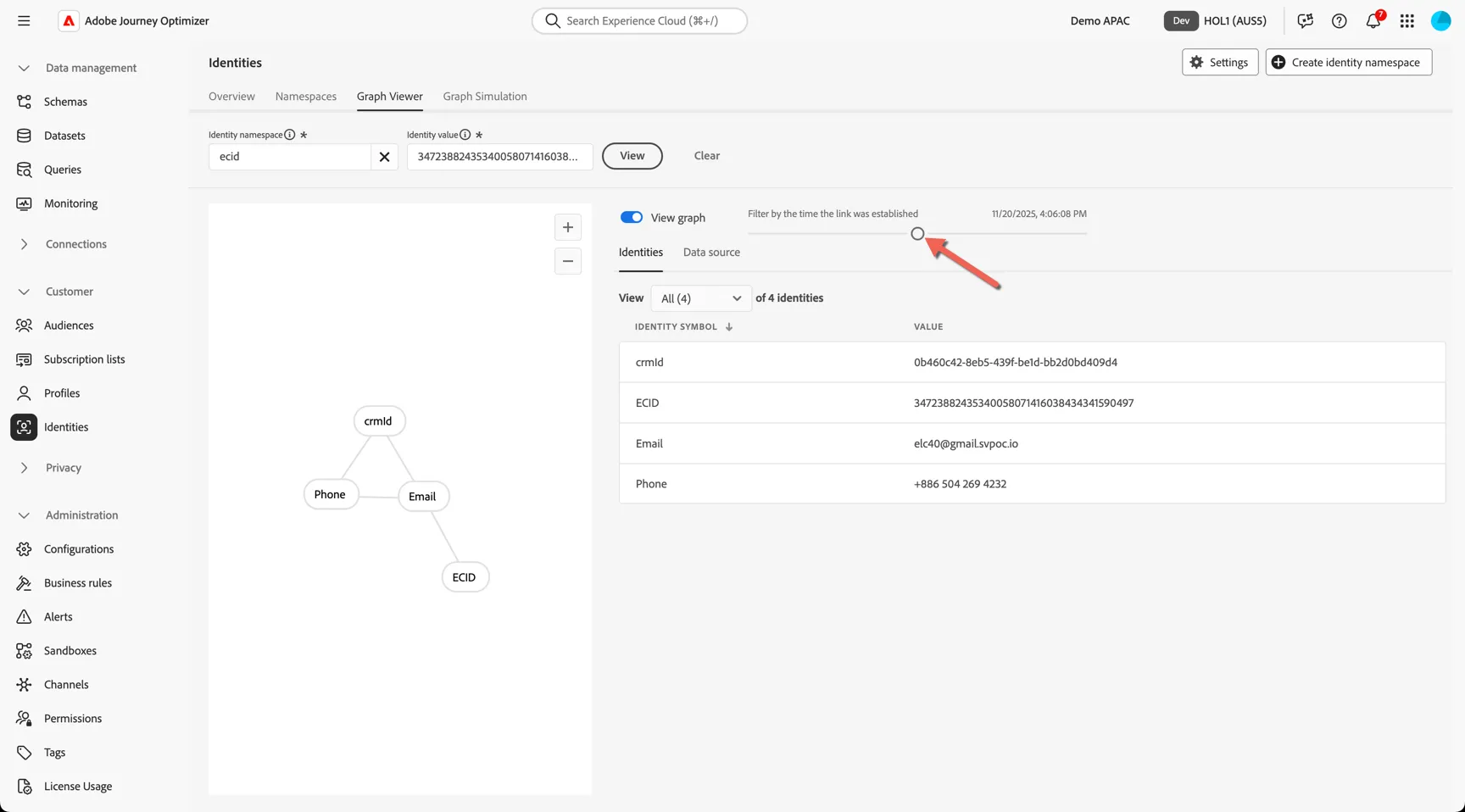
Here you can see a visualisation of the Identity Graph linking all of the different sources of information together to create our profile. You can see that there are multiple ECID's or Cookie ID's attached to the profile, this represents the different devices that the customer has identified themselves on, for example by logging in or providing their email address or another durable identifier. Multiple ECIDs could be desktop and mobile for example, or the customer using multiple browsers (or even clearing cookies).
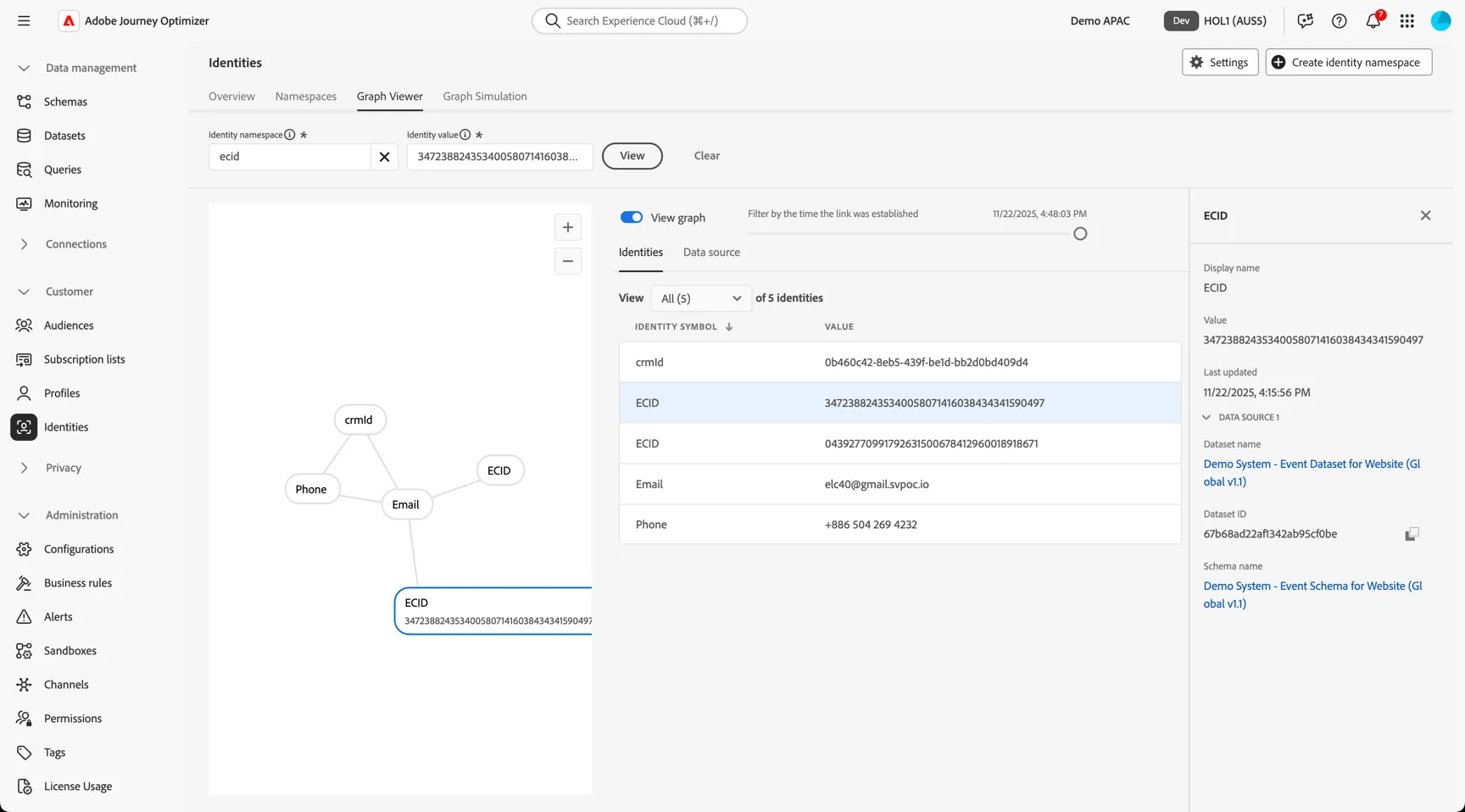
Use the slider to see how the graph grew as the profile interacted over time.
1.3 Create a simple audience
In this exercise we'll create an Email Engaged audience to use in the next lab. For this audience we'll use a pre-calculated attribute on our profile which stores the count of links clicked in the last month and select only profiles with a count greater than or equal to two.
Pre-calculated aggregates like this can be created directly through the UI using Adobe Real-time CDP's computed attributes.
Click on Customer -> Audiences and go to the Browse tab.
This is the Audience Portal where you'll find all of the centralised audiences, regardless of how they were created. The origin column indicates where the audience was created:
- Segmentation Service - rule based audiences using data onboarded to the real-time profile
- Federated Audience Composition - using data that lives in a remote data warehouse
- Customer Journey Analytics - audiences can be created directly from the dashboards built in CJA
- Custom Upload - directly from files
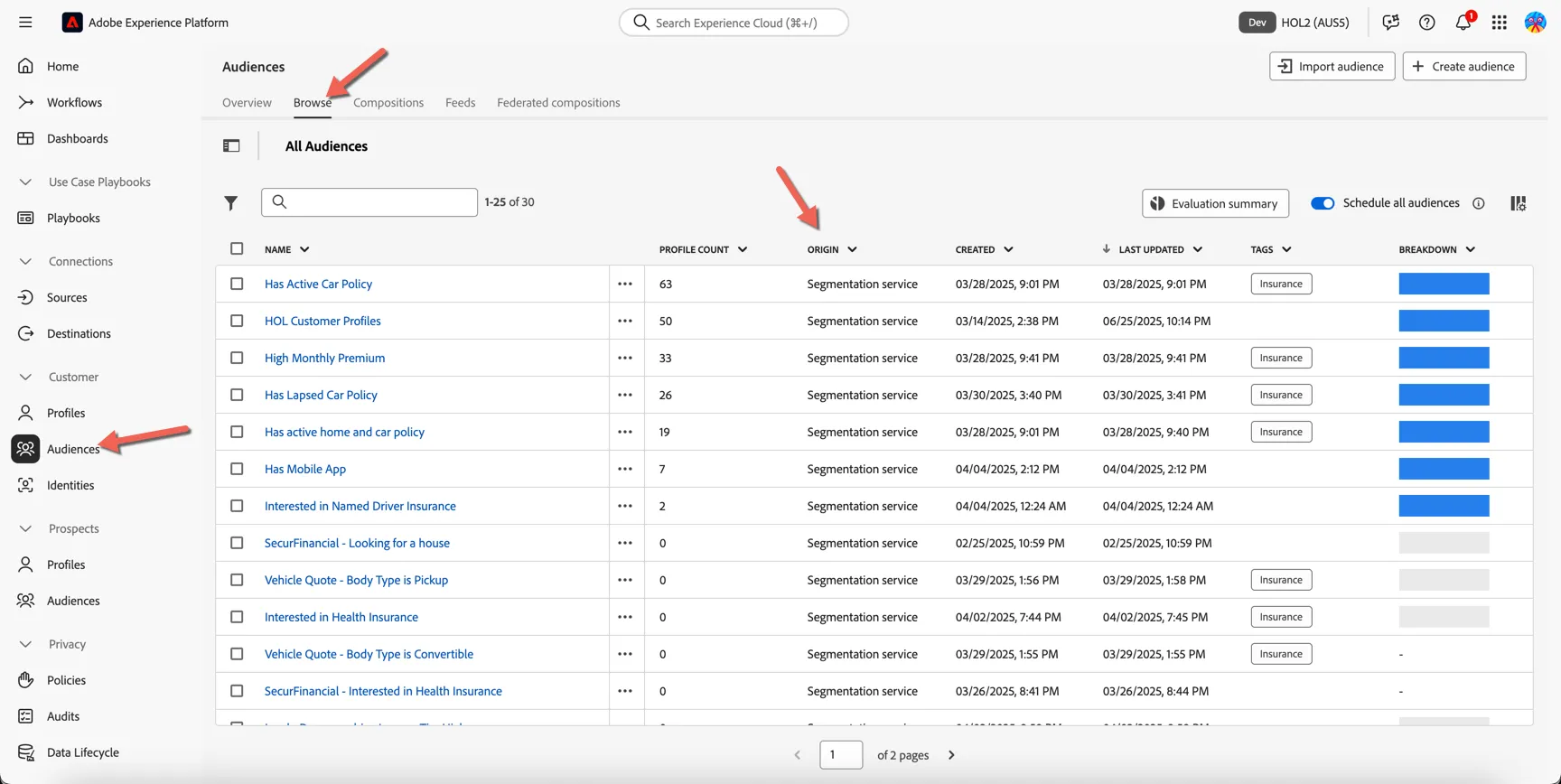
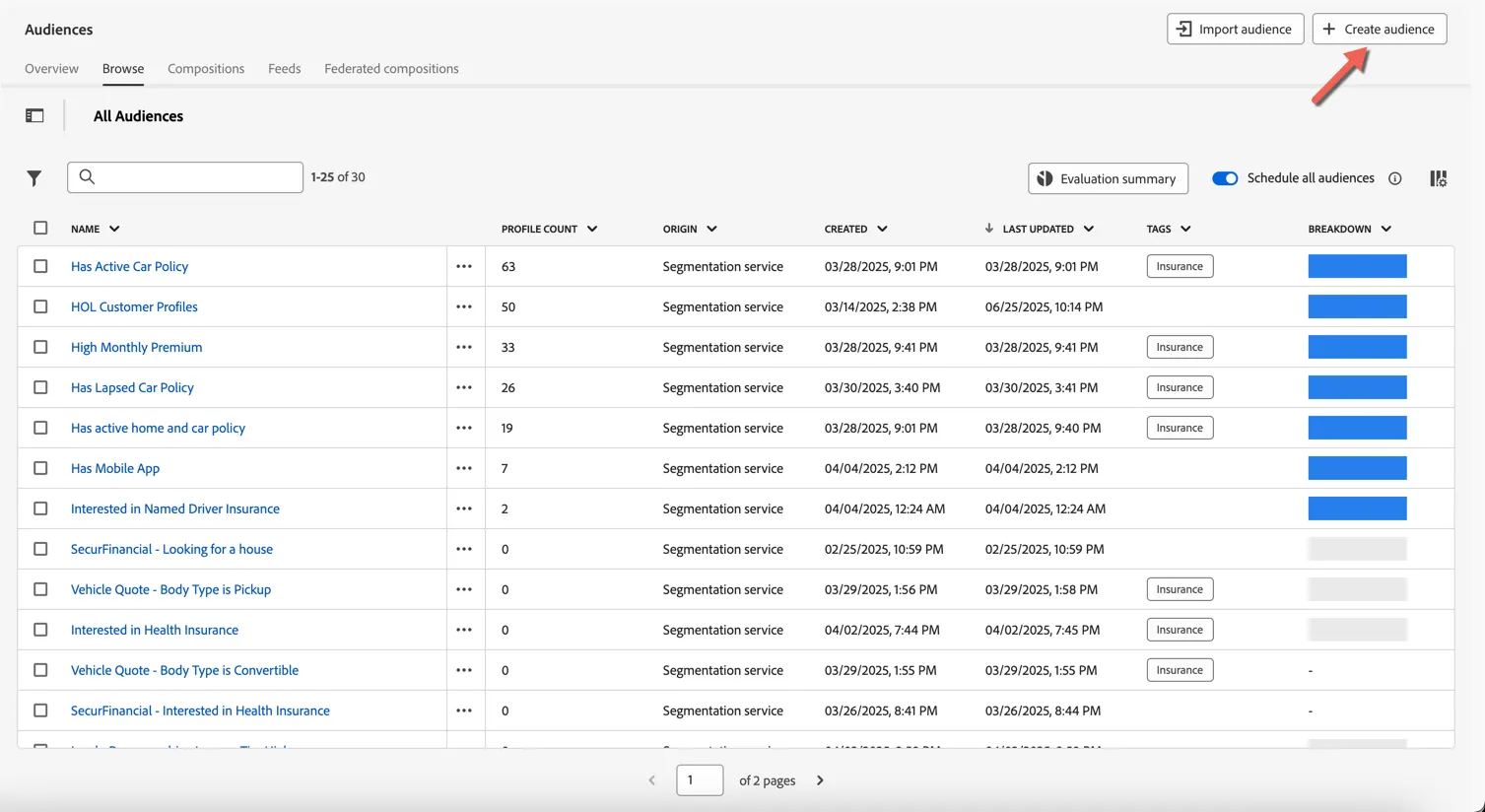
Click to Create Audience.
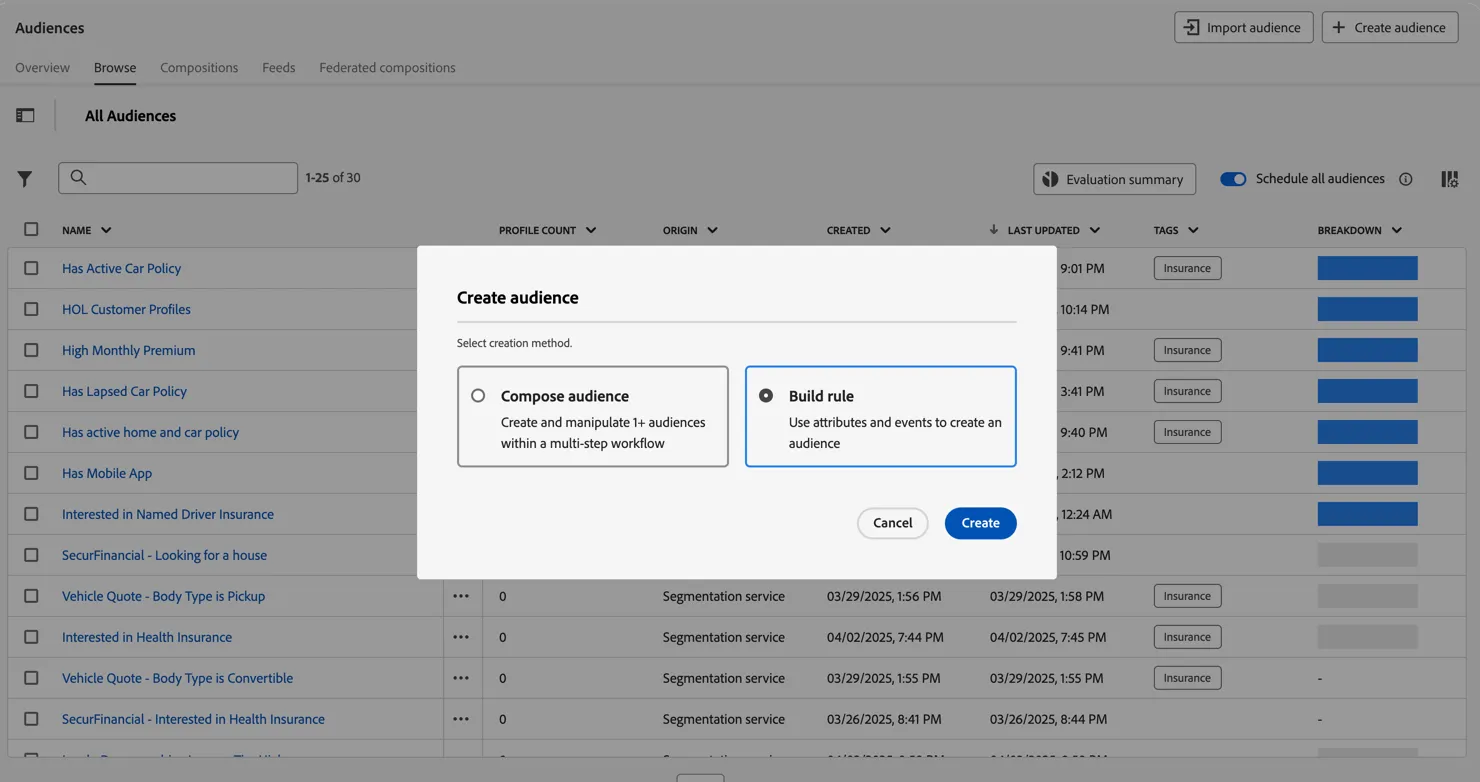
Change the option from compose audience to Build rule and click Create. We are going to create a new rule based audience using the attributes and events in our profile.
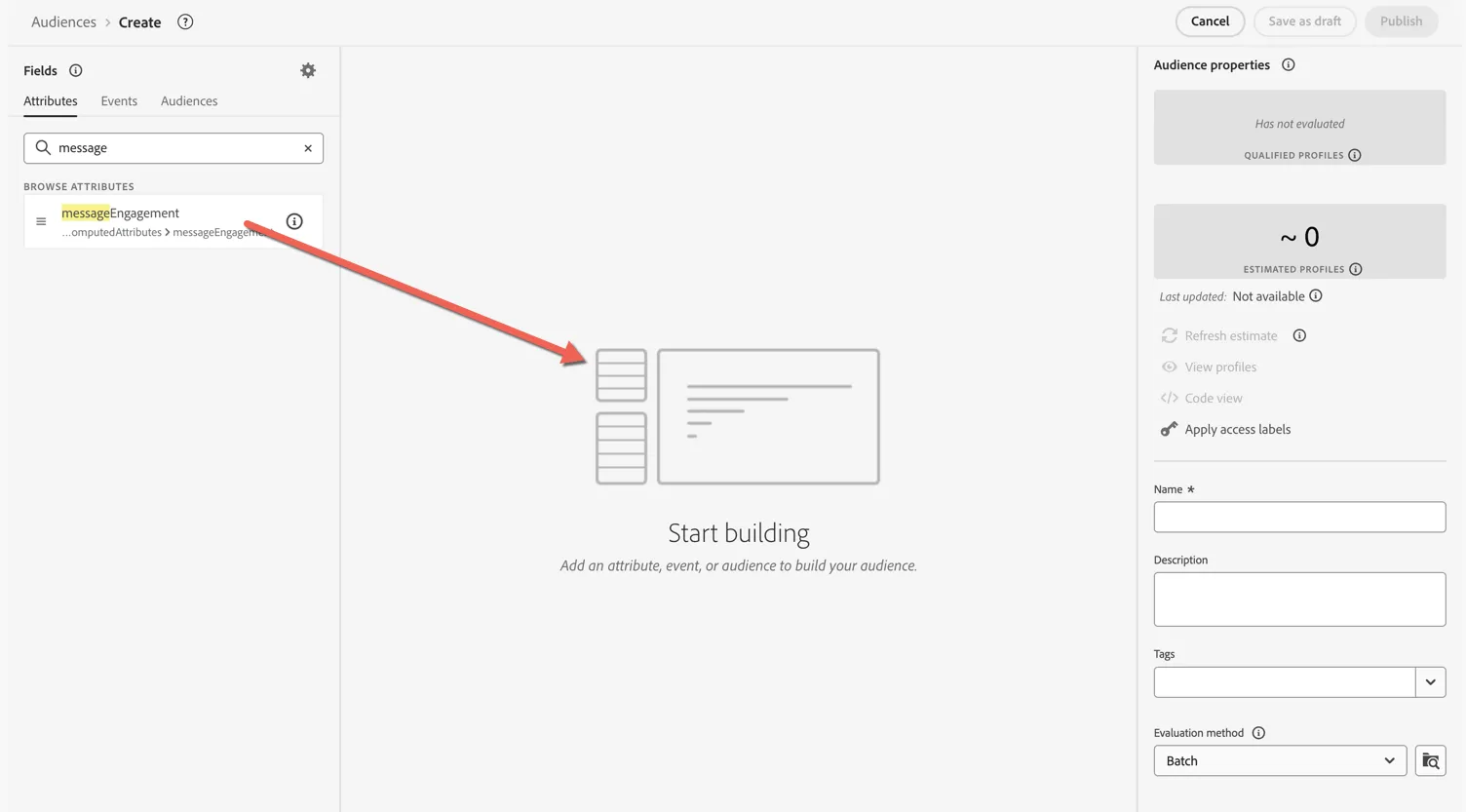
In the audience builder we can add attribute and event based rules. In the Attributes tab search for EmailEng. Then drag the EmailEngagement attribute into the canvas.
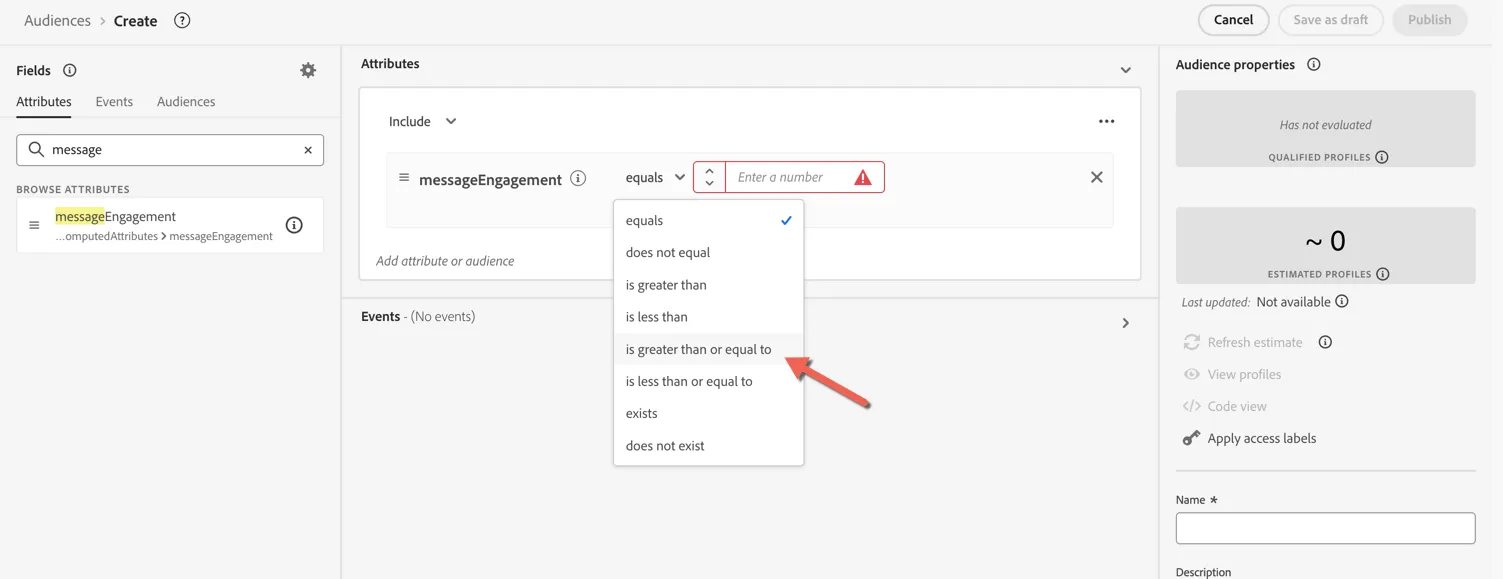
Update the operator to is greater than or equal to
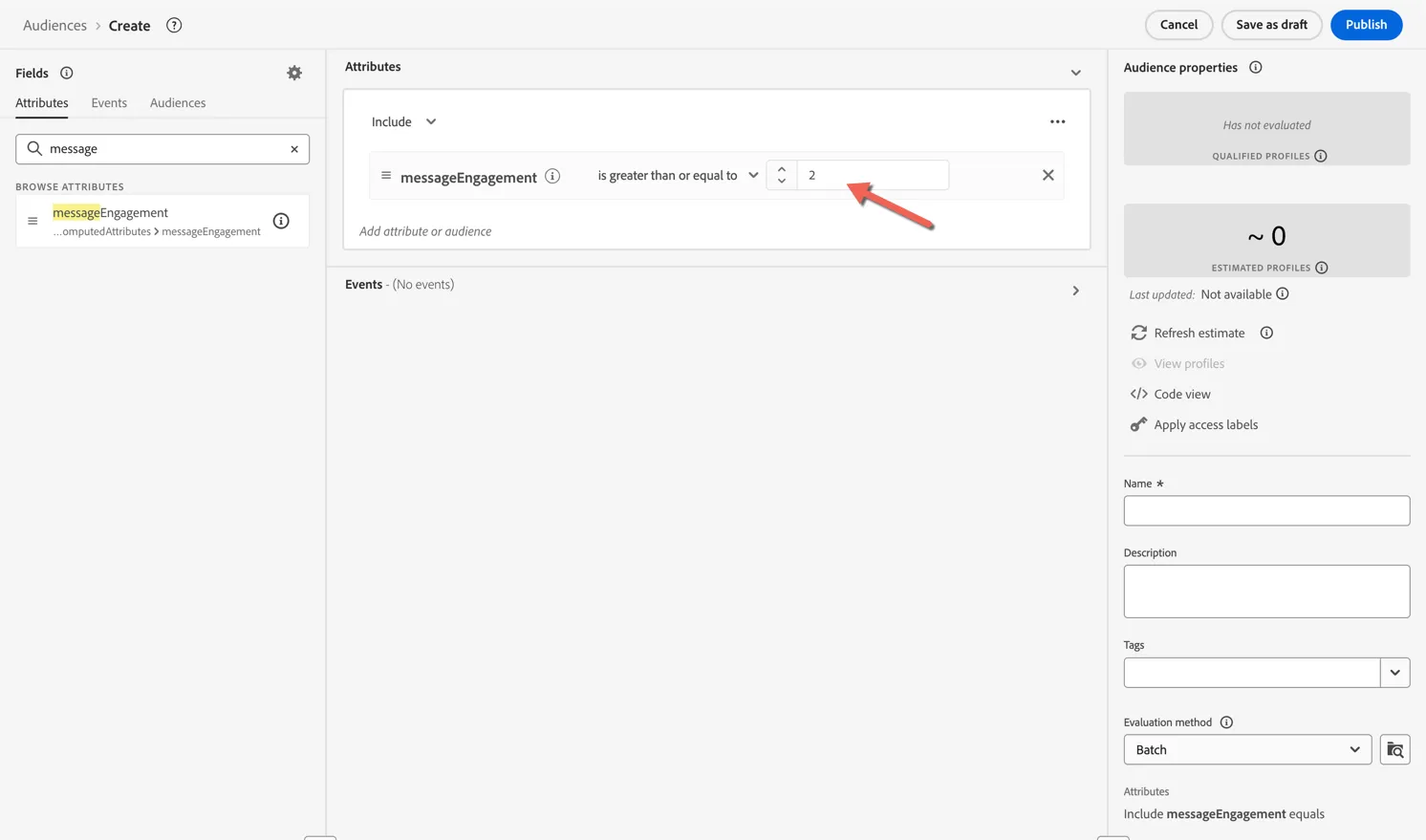
Set the value to 2.
We can now give the audience a name - append your initials so you know how to find it again!
Add a description for others and add the tag RAG for easier searching.
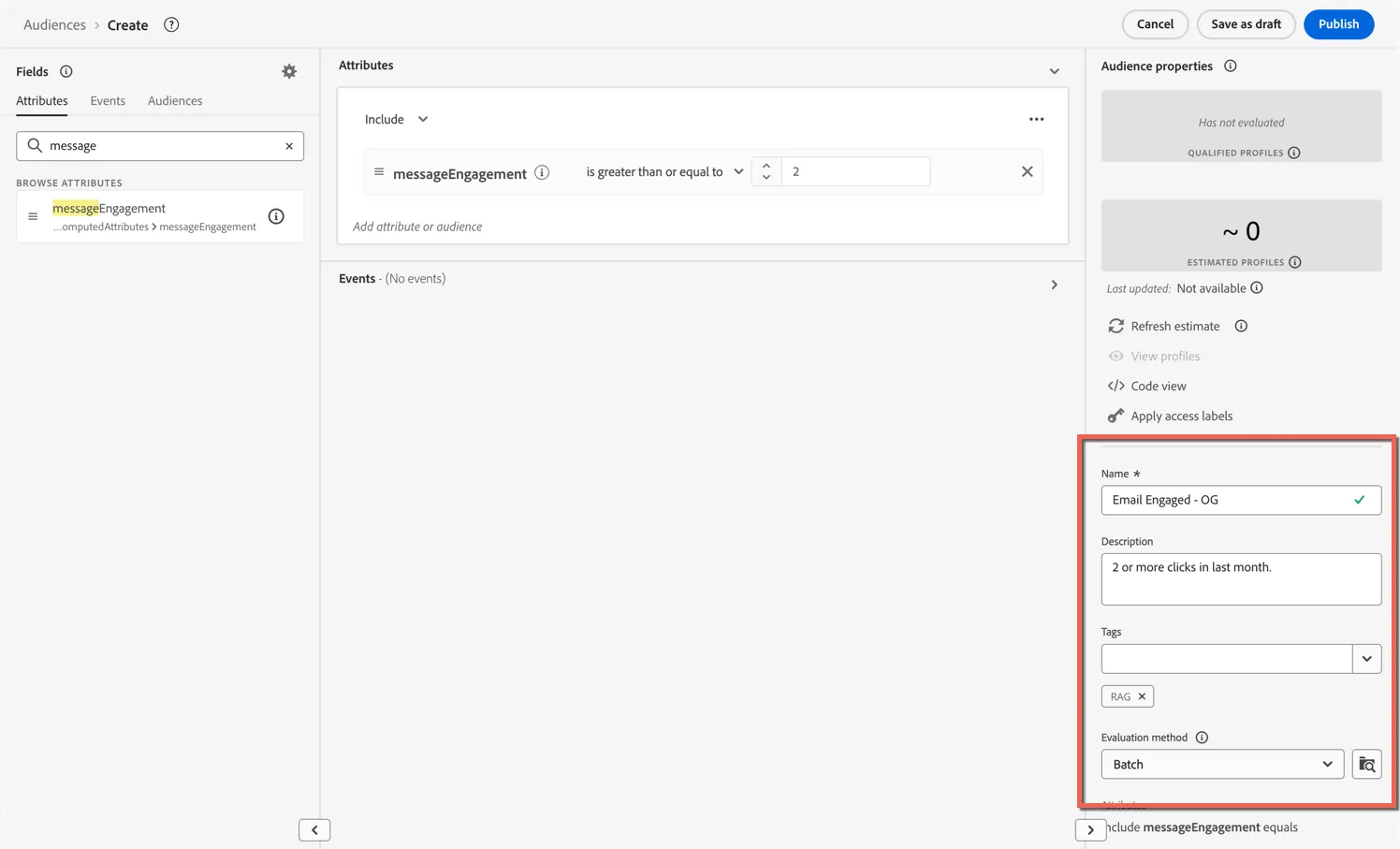
Click to Publish.
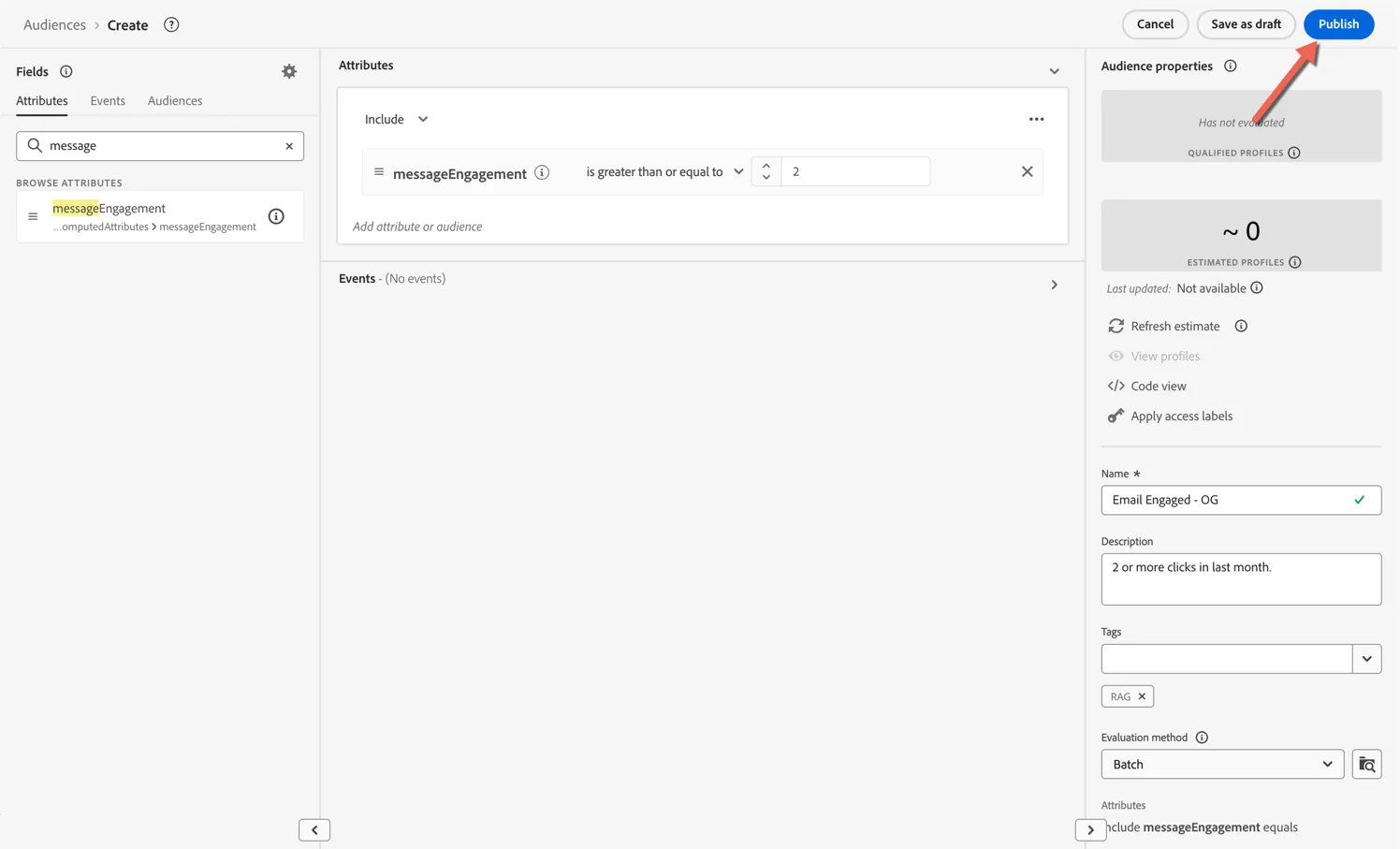
As a batch audience it will now be added to the nightly schedule and will calculate each night to ensure it has the most up to date content each day automatically removing customers who show less engagement and adding new customers who start engaging.
1.4 Create a real-time audience
In this exercise we'll recreate the real-time audience which was used to power the onsite experience you just had where the home page updated after you viewed pants.
Real-time - Interested in Pants audience definition
- Events: Product View event where product mainCategory contains Pants in the last 24 hours
Click to Create Audience.
Change the option from compose audience to Build rule and click Create. We are going to create a new rule based audience using the attributes and events in our profile.
For this audience we will leverage the events being recorded against our profiles instead of the attributes. On the Events tab search for product view and drag the Product Views event type into the canvas.
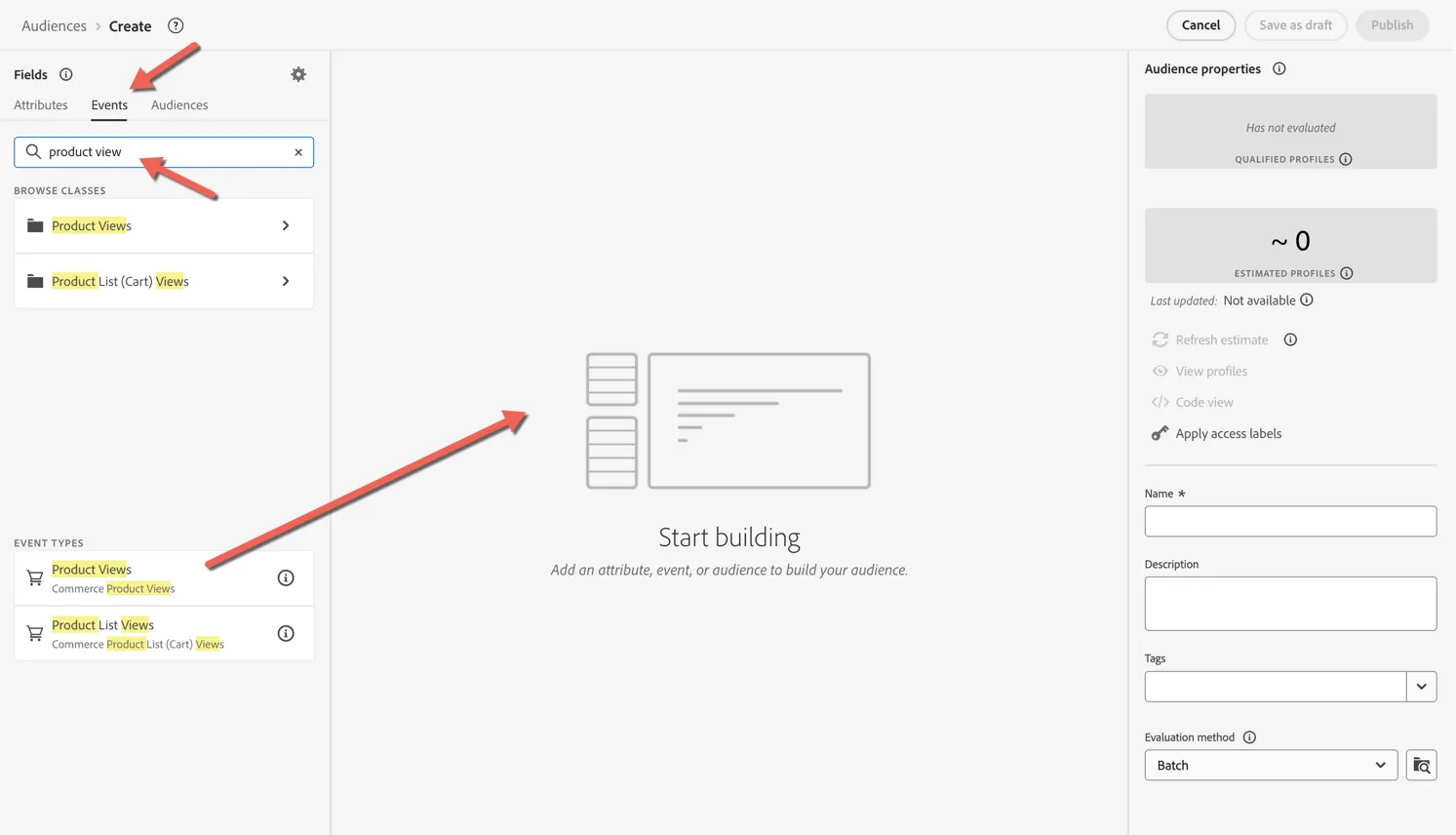
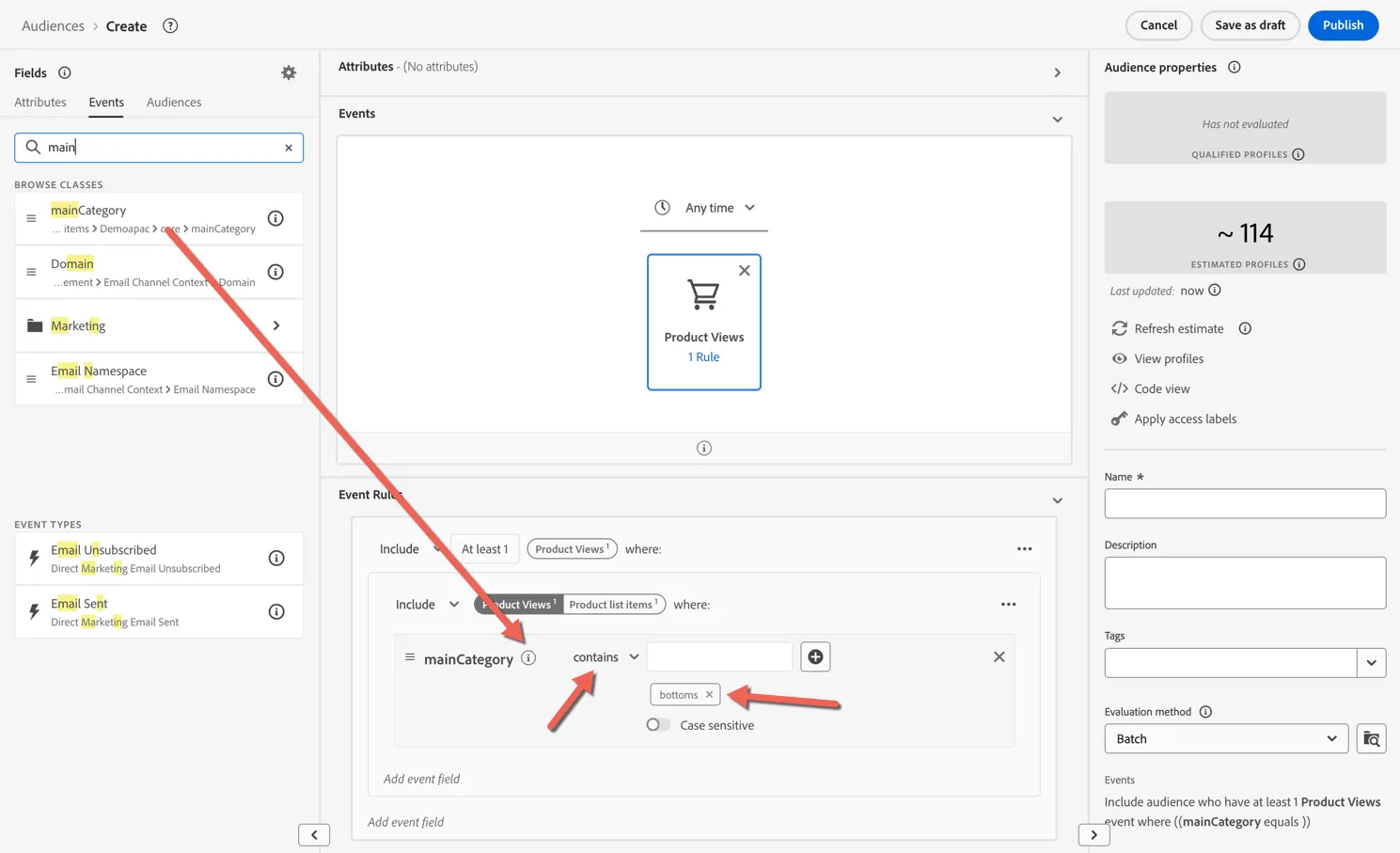
We want to filter the profiles we target to those who have viewed products in the pants category. We need to use some of the event metadata to do that. Search for mainCategory and drag it into the event rules area, set the operator to contains and add bottoms as a value.
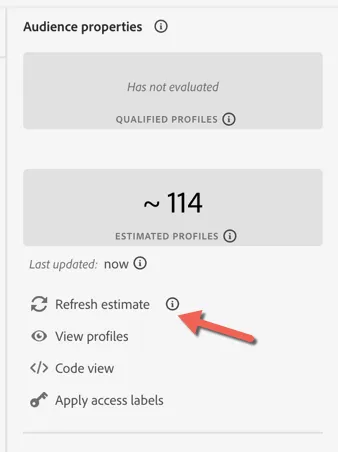
You can click on Refresh Estimate on the right at any time to get a count of how many profiles are likely to qualify.
Since this will be a real-time audience set the lookback window to the last 24 hours.
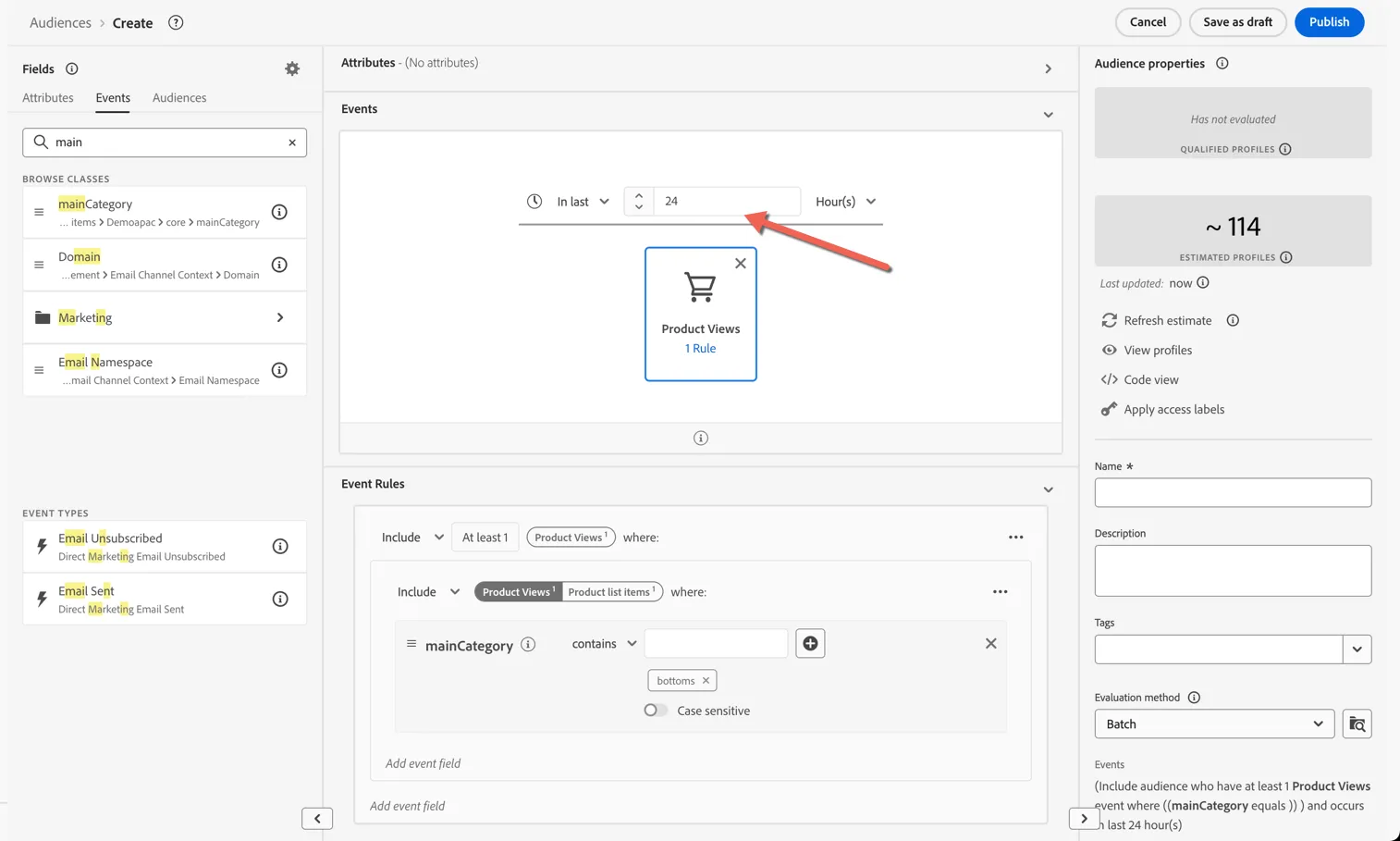
Give your audience a name - append your initials so you can recognise it later. We also need to change the Evaluation method from Batch to Edge.
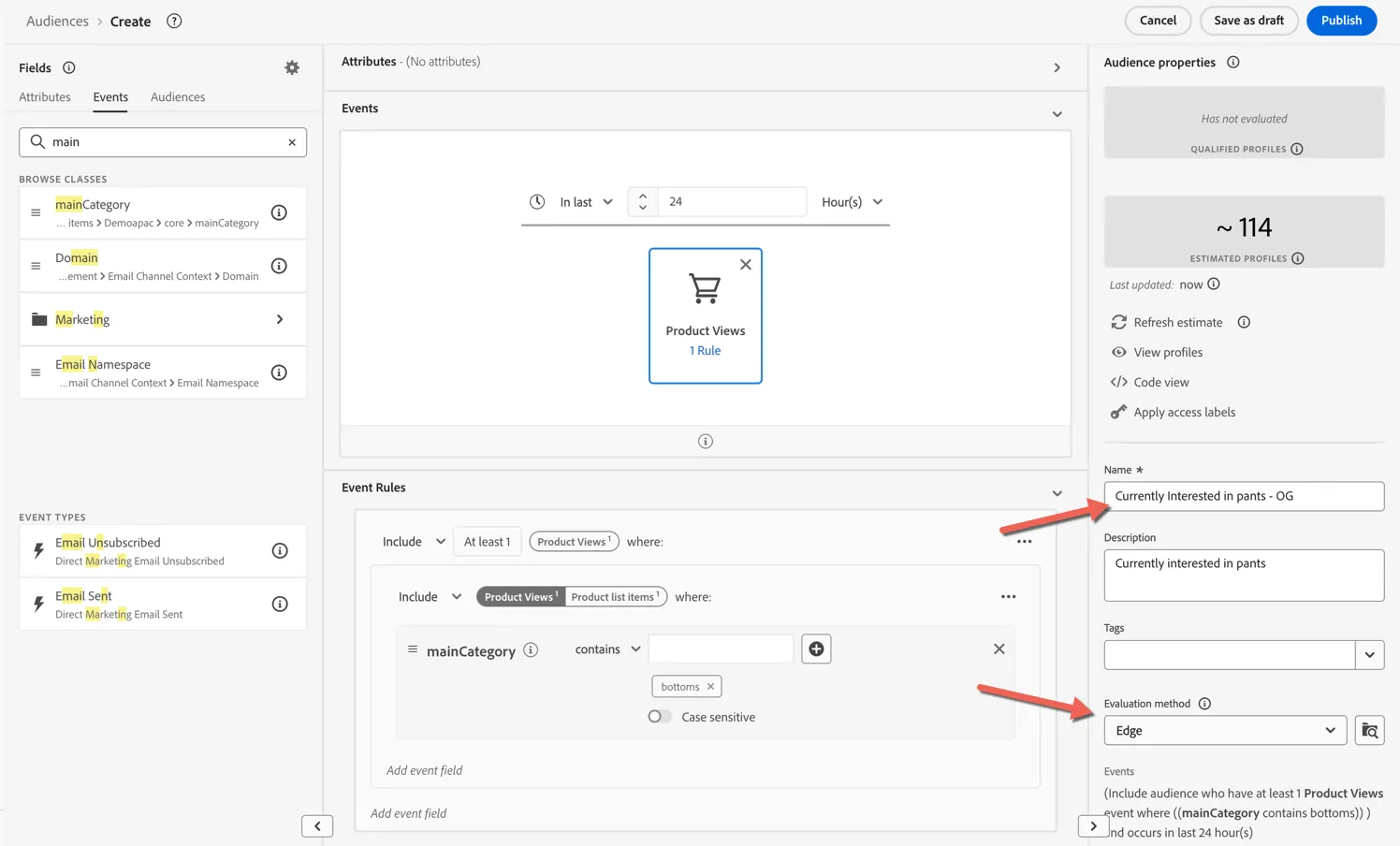
Congratulations! You've created a real-time audience that can be used for onsite personalisation or for triggering journey entries.
Bonus Exercise
Create an advanced audience
Let's take a look now at a more complex audience example. In exercise 1.3 we created an email engaged audience leveraging a pre-calculated aggregate field. This makes for easier segmentation but a pre-calculated aggregate might not always be available. In this exercise we'll recreate the same audience using the raw events and the segment builder's frequency options.
Click to Create Audience
Select Build rule
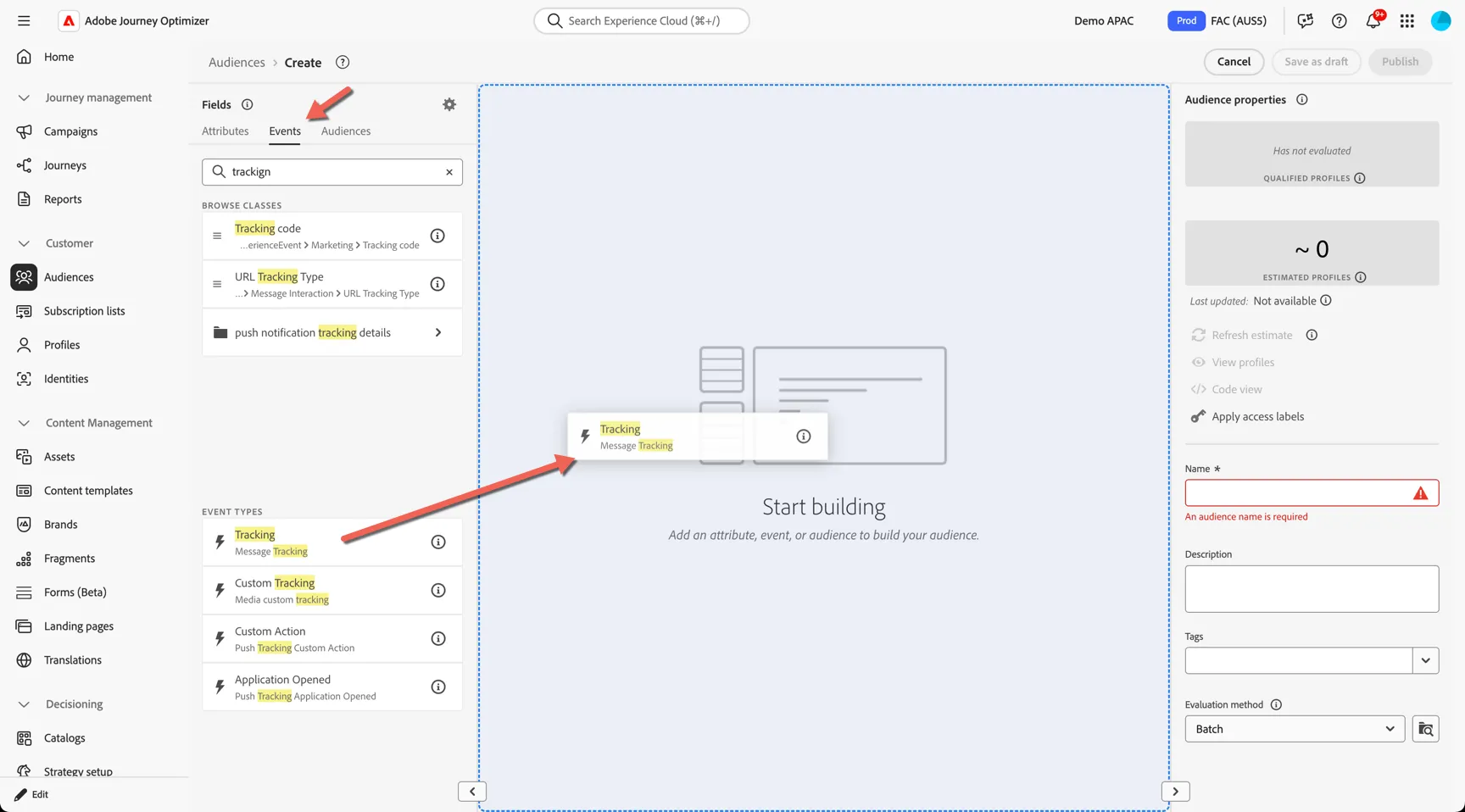
On the Events tab search for Tracking. Drag the Message Tracking Event Type onto the canvas.
Let's set the time range first, select in last 3 months.
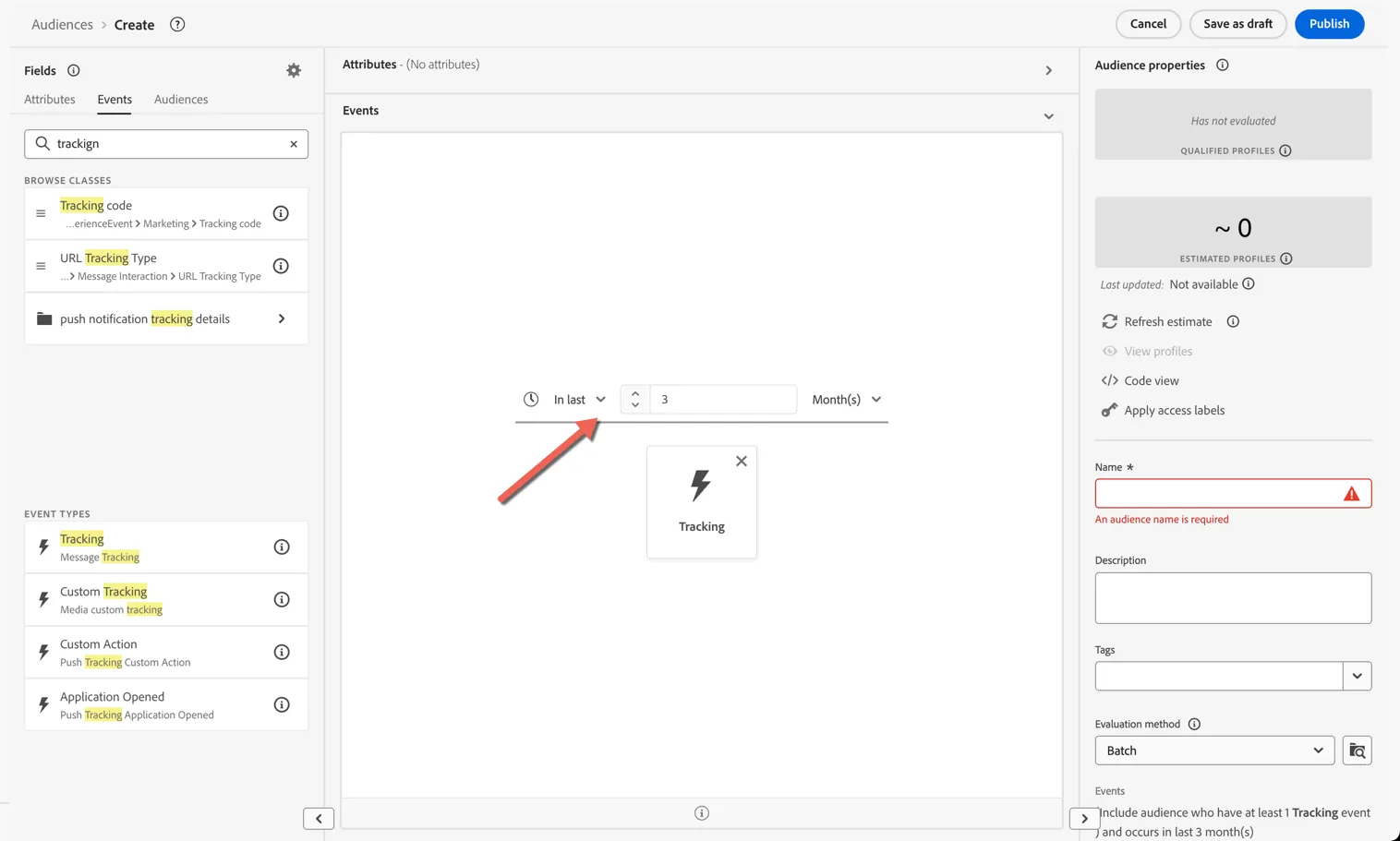
Now we'll define the frequency, ie. how many click events do customers need to have done to be considered engaged?
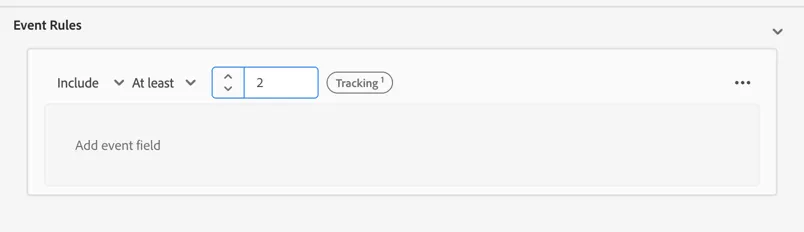
In the Event Rules, click where it says At least 1
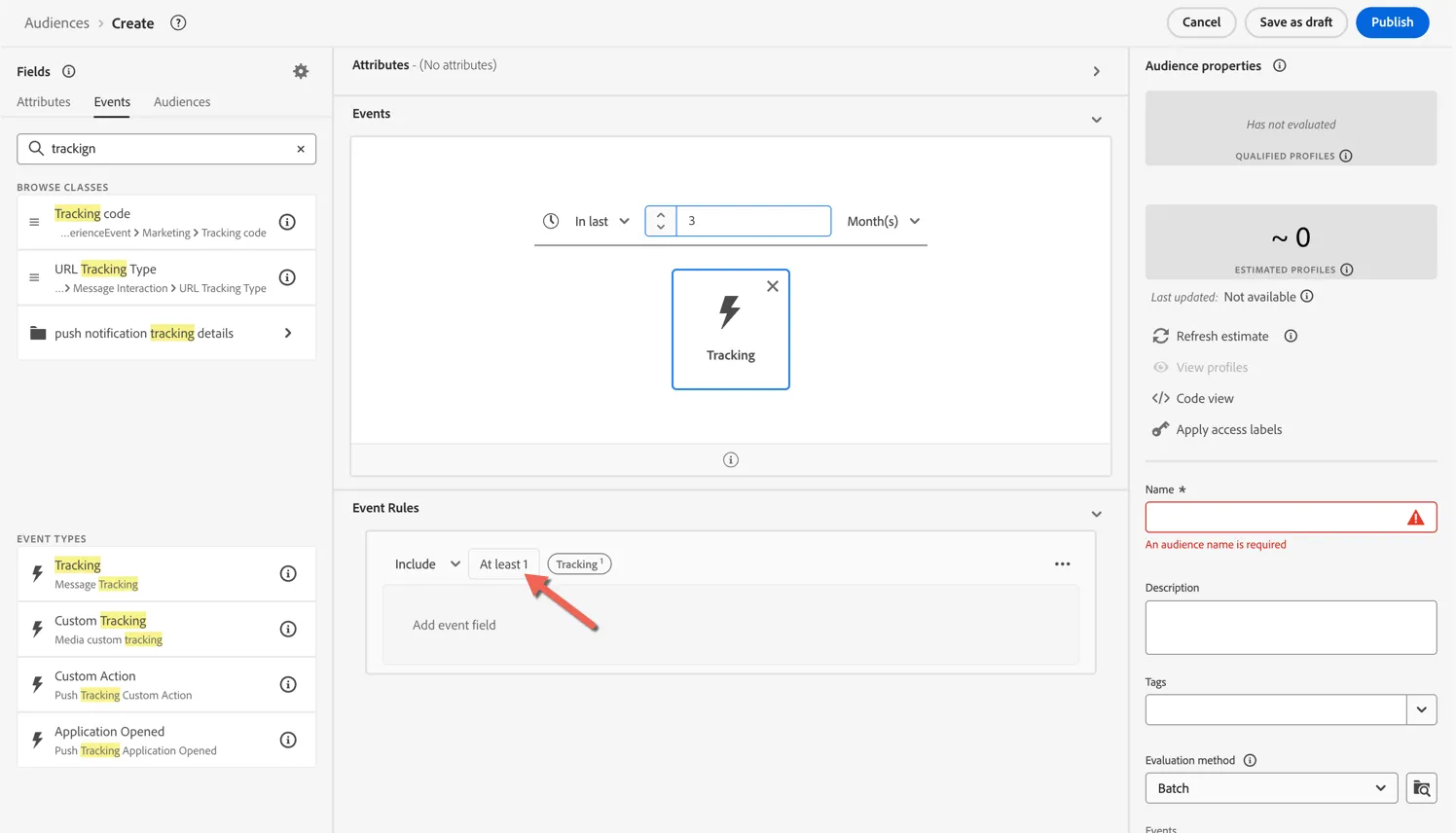
Change the value to At least 2.
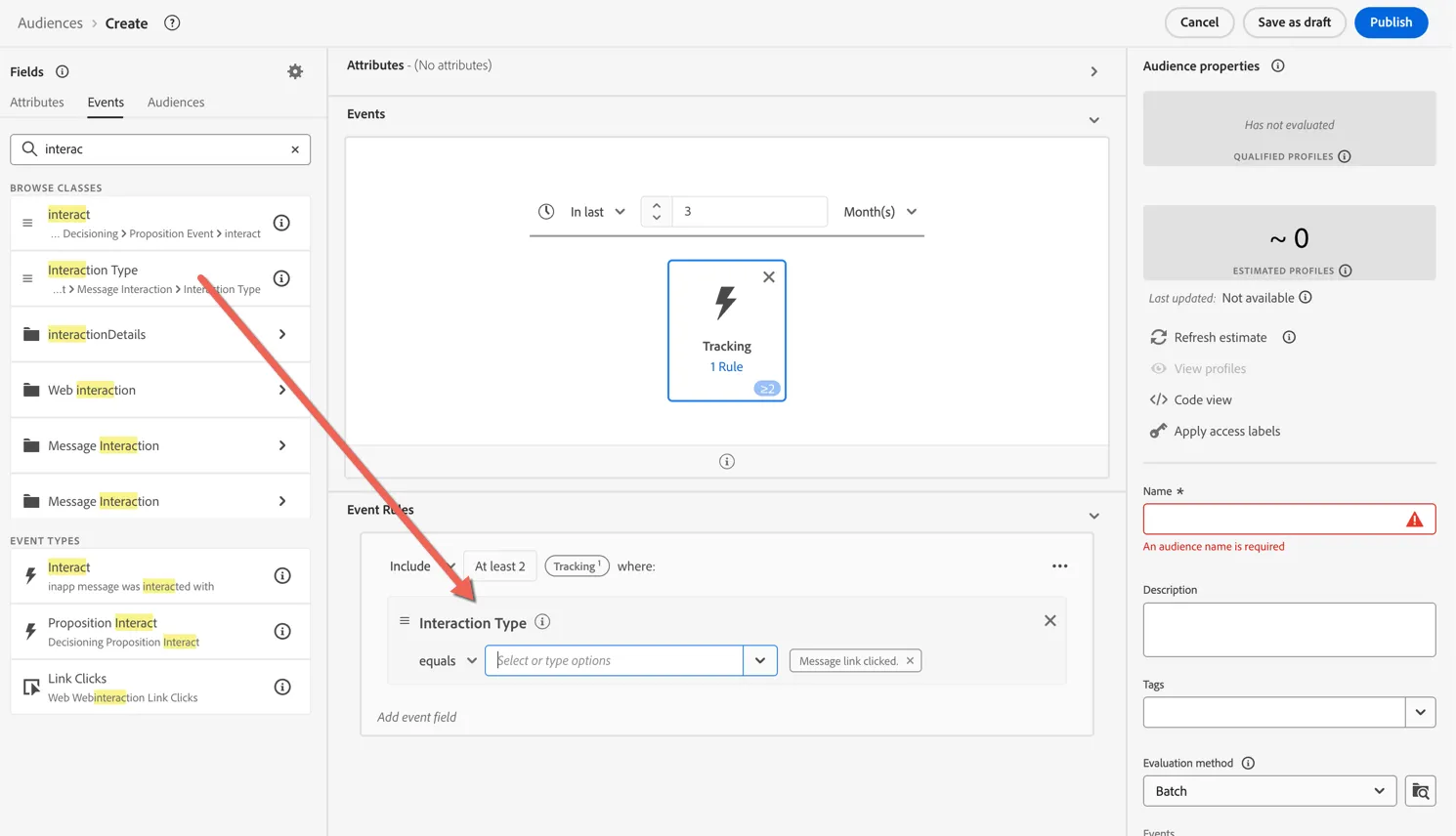
The message tracking event covers different types of interactions, so let's limit this audience to only link click interactions. Search for interaction and drag the Interaction Type into the event rules and select Message Link Clicked
Click on Refresh Estimate to get an idea on how many profiles will qualify.
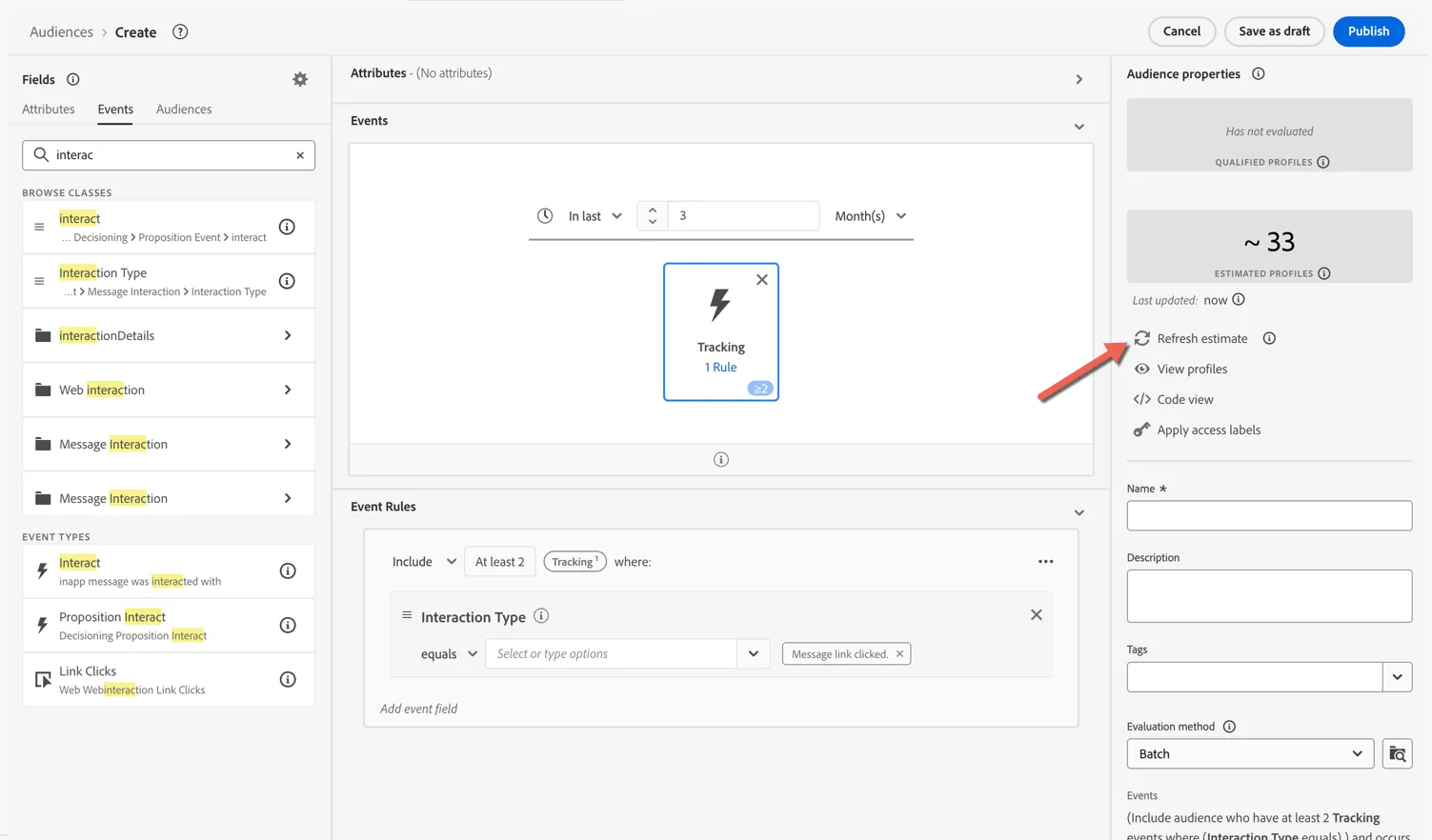
Your audience is now ready to be saved. Give it a name and append your initials to distinguish it from your colleagues. Click to Publish the audience.
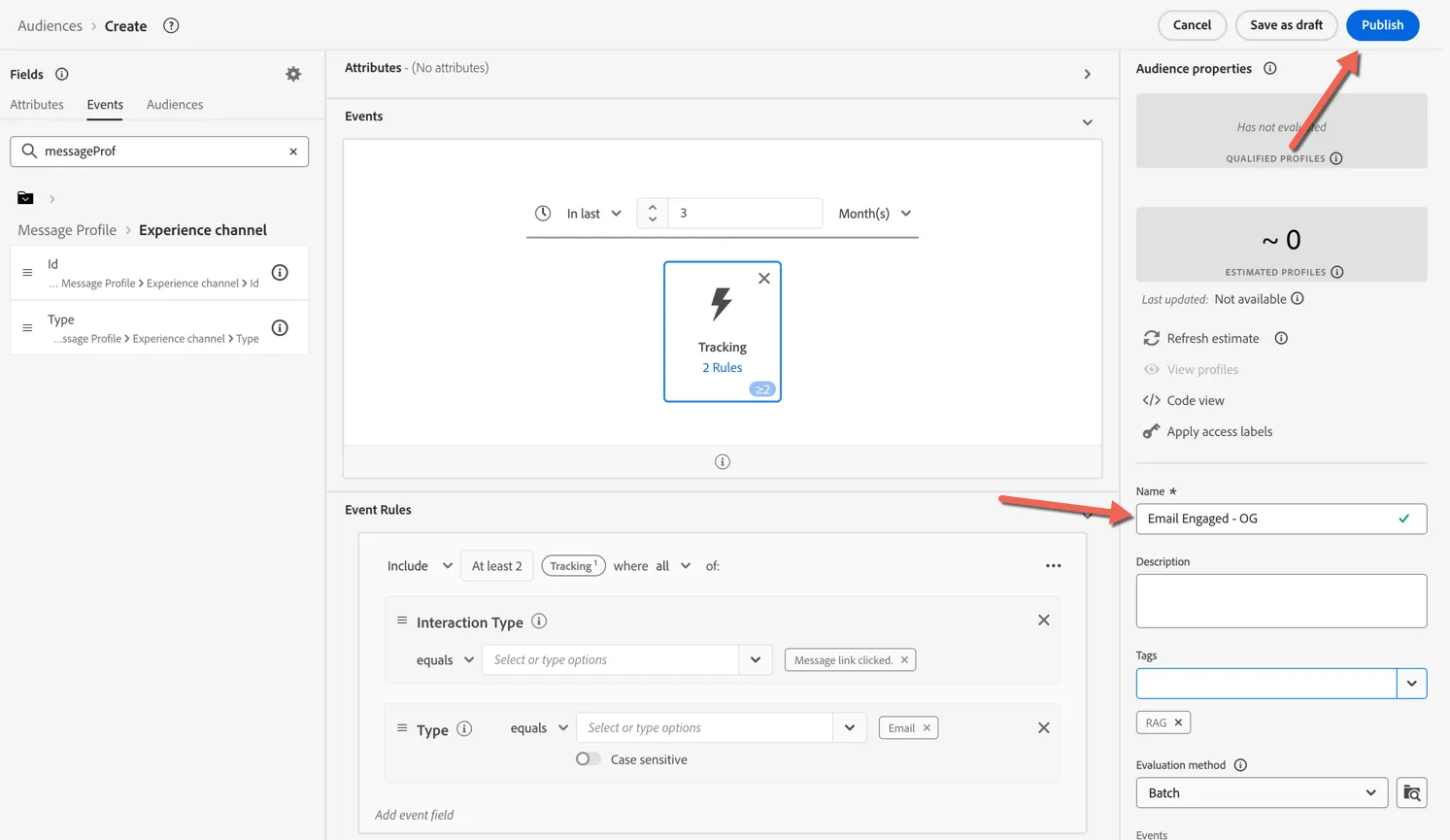
The audience builder is a powerful tool to help you create complex targeting using a simple drag and drop interface. In addition to frequency calculations, multiple events can be included within a single audience, if we place the events next to each other rather than above and below we can also understand when a customer does this, then that in a specific order, such as when a customer adds a product to their cart but does not complete the purchase within a specific timeframe.
Summary
Congratulations, you've completed the first lab! Next we'll use our audience to target a standalone email campaign.