Lab 3 - Melbourne Cup Campaign
Learning Objectives
In this exercise we'll launch a Melbourne Cup campaign across multiple channels, including Email, SMS and Social.
With Adobe's shared audience portal you can create your campaign audience once and activate across as many channels as needed.
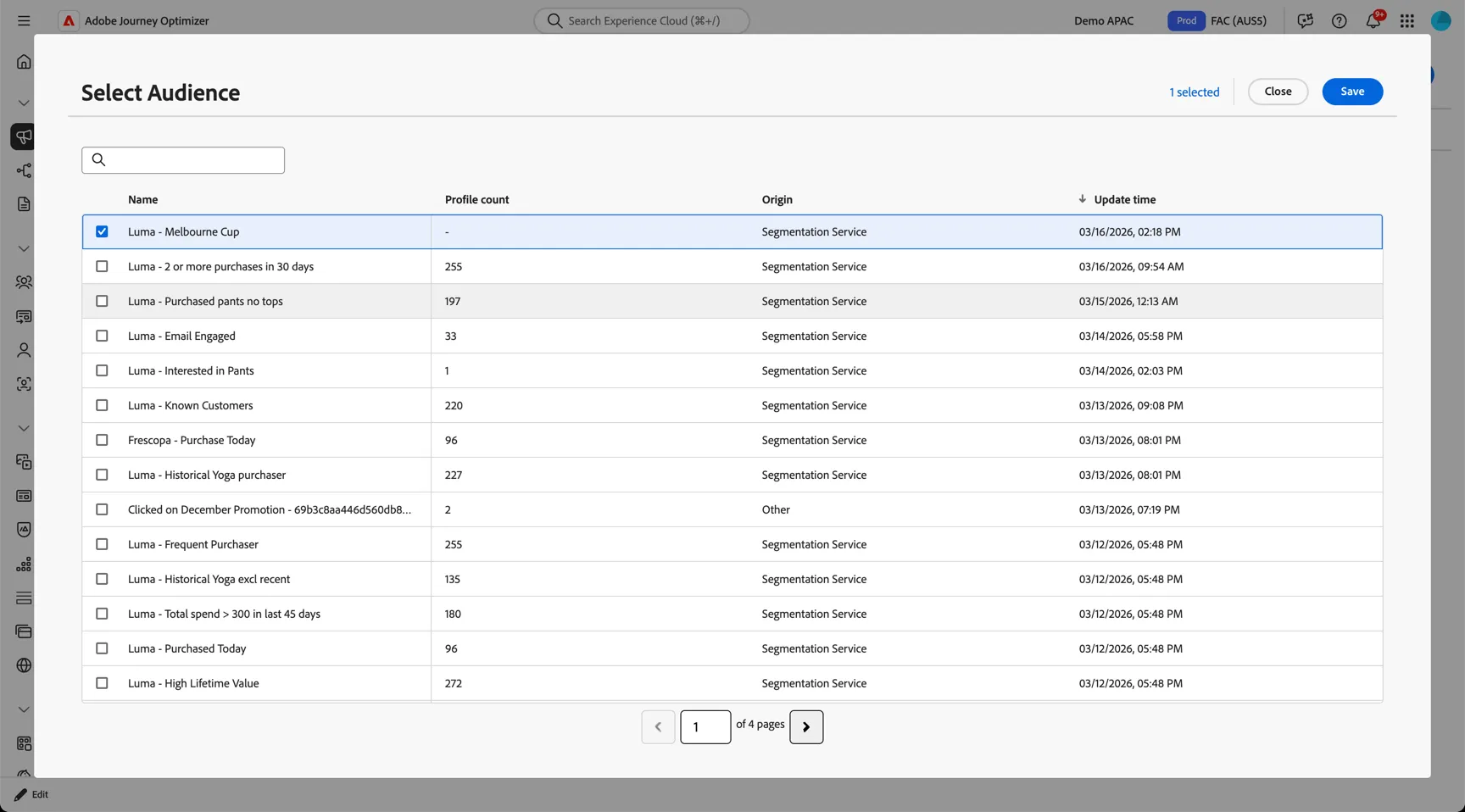
We'll assume for this exercise that the audience has already been created and calculated, we'll use the Luma - Melbourne Cup audience.
3.1 Activate audience to social
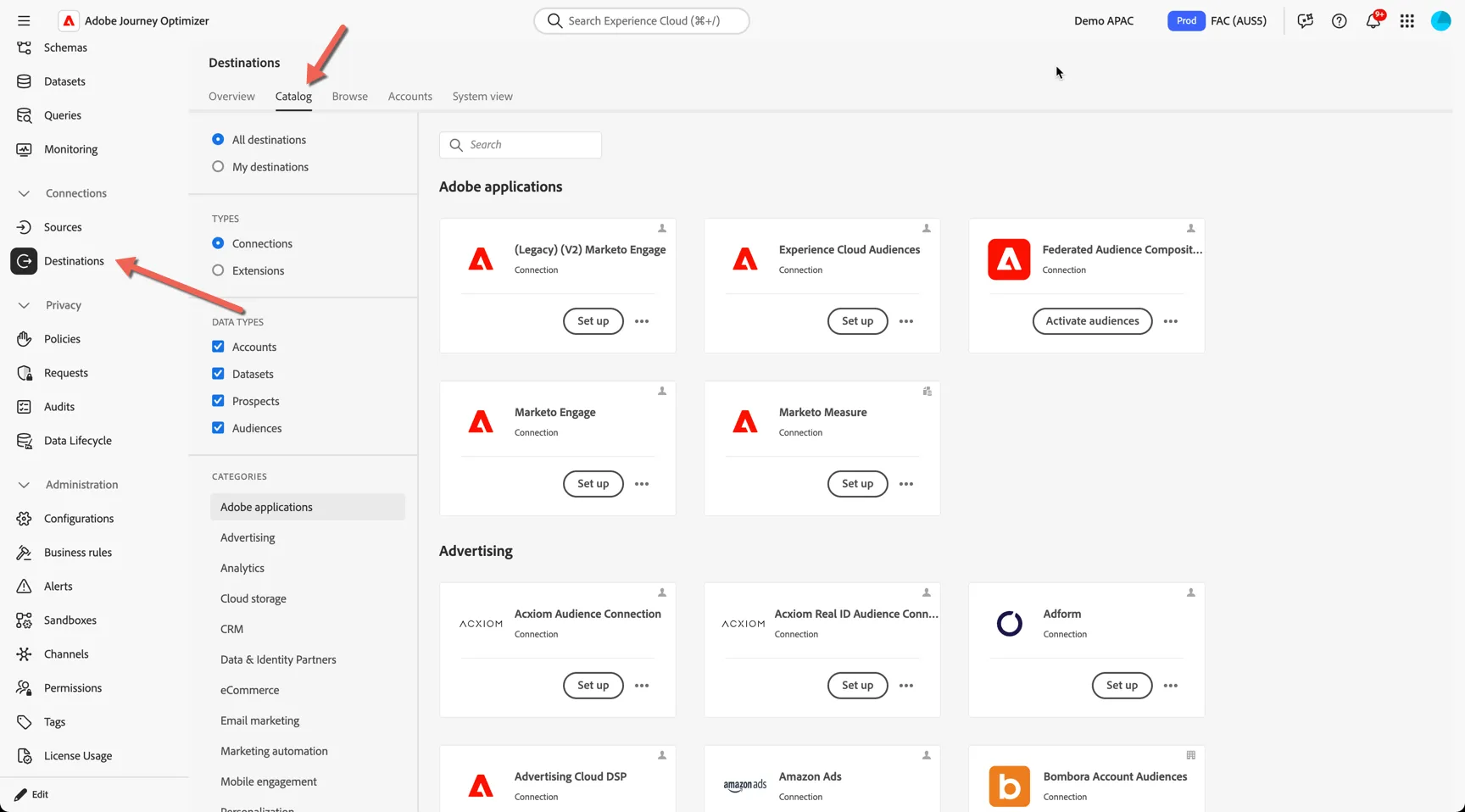
Navigate to Connections -> Destinations.
You can use destinations for audience targeting to reach and re-engage with your customers across paid and social properties like Facebook and Instagram.
The Catalog tab shows the list of available destinations. These are pre-built connectors.
The Browse tab shows the list of destinations already connected in this environment.
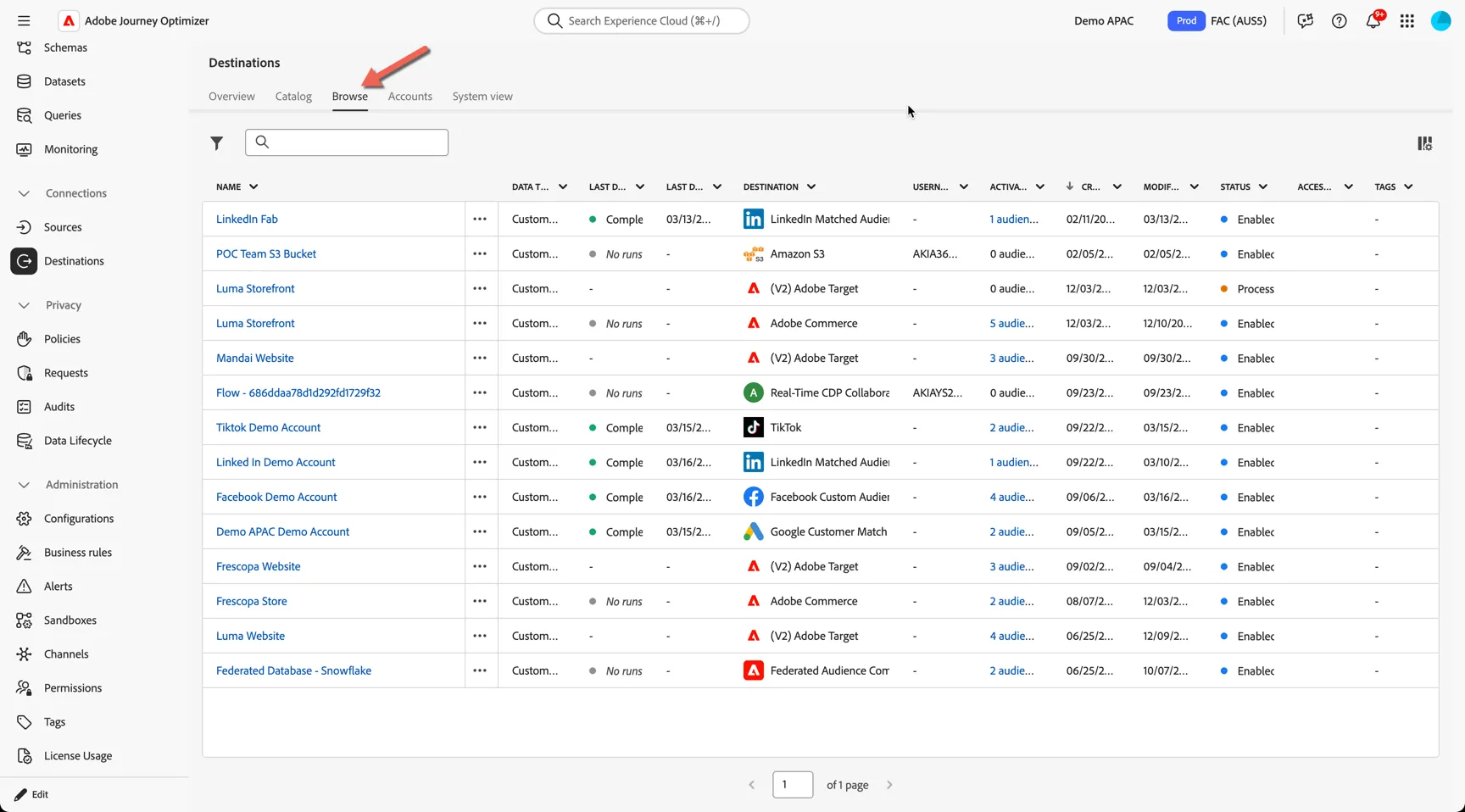
Paid media destinations require that no personally identifiable information (PII) is sent in clear text. Therefore, the audiences activated to these destinations needs to be keyed off hashed identifiers, such as email addresses or phone numbers.
Select either the TikTok, Google or Facebook destination and click on the 3 dots and select to Activate audiences
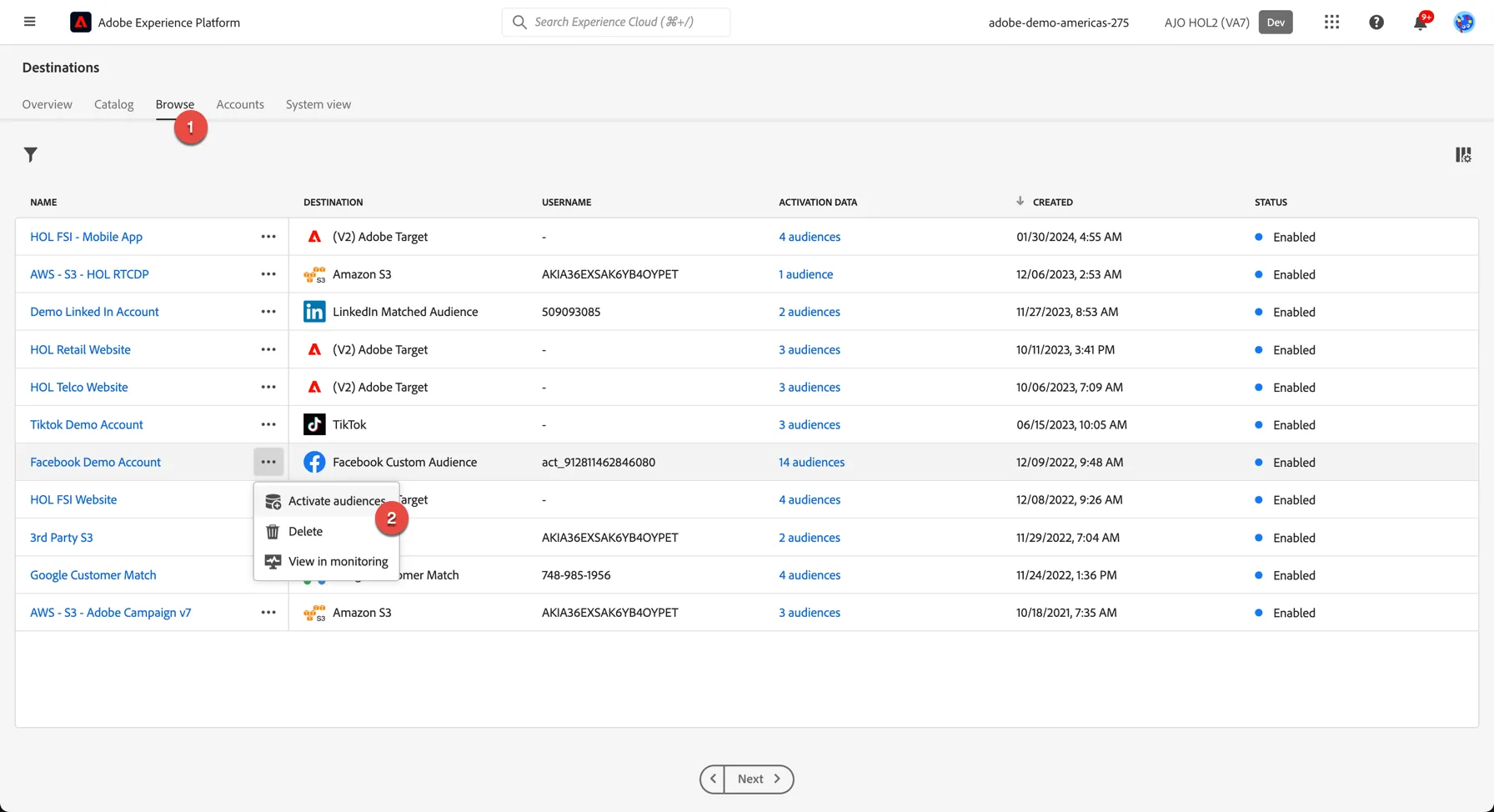
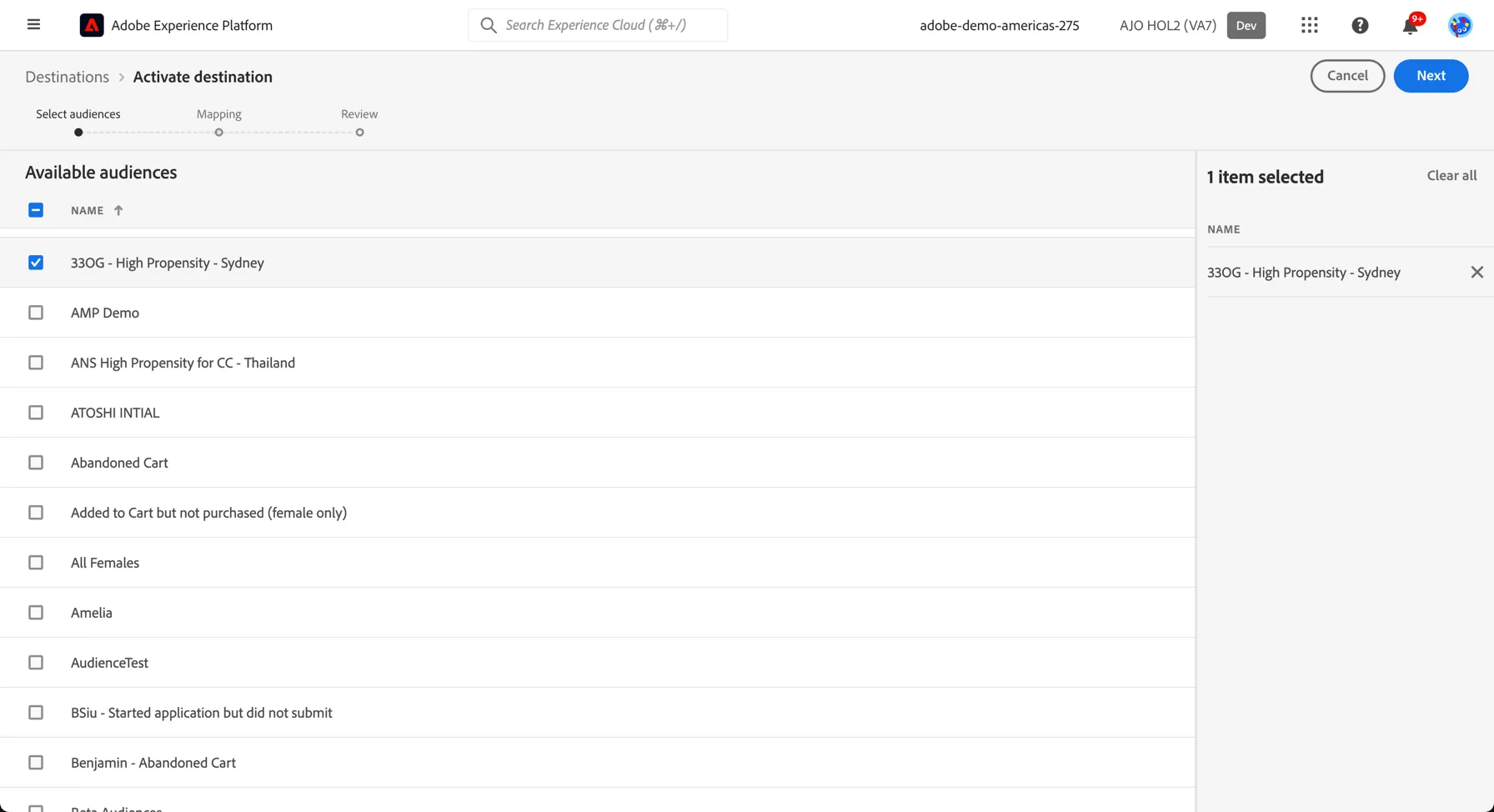
In the list of available segments, select the Luma - Melbourne Cup audience.
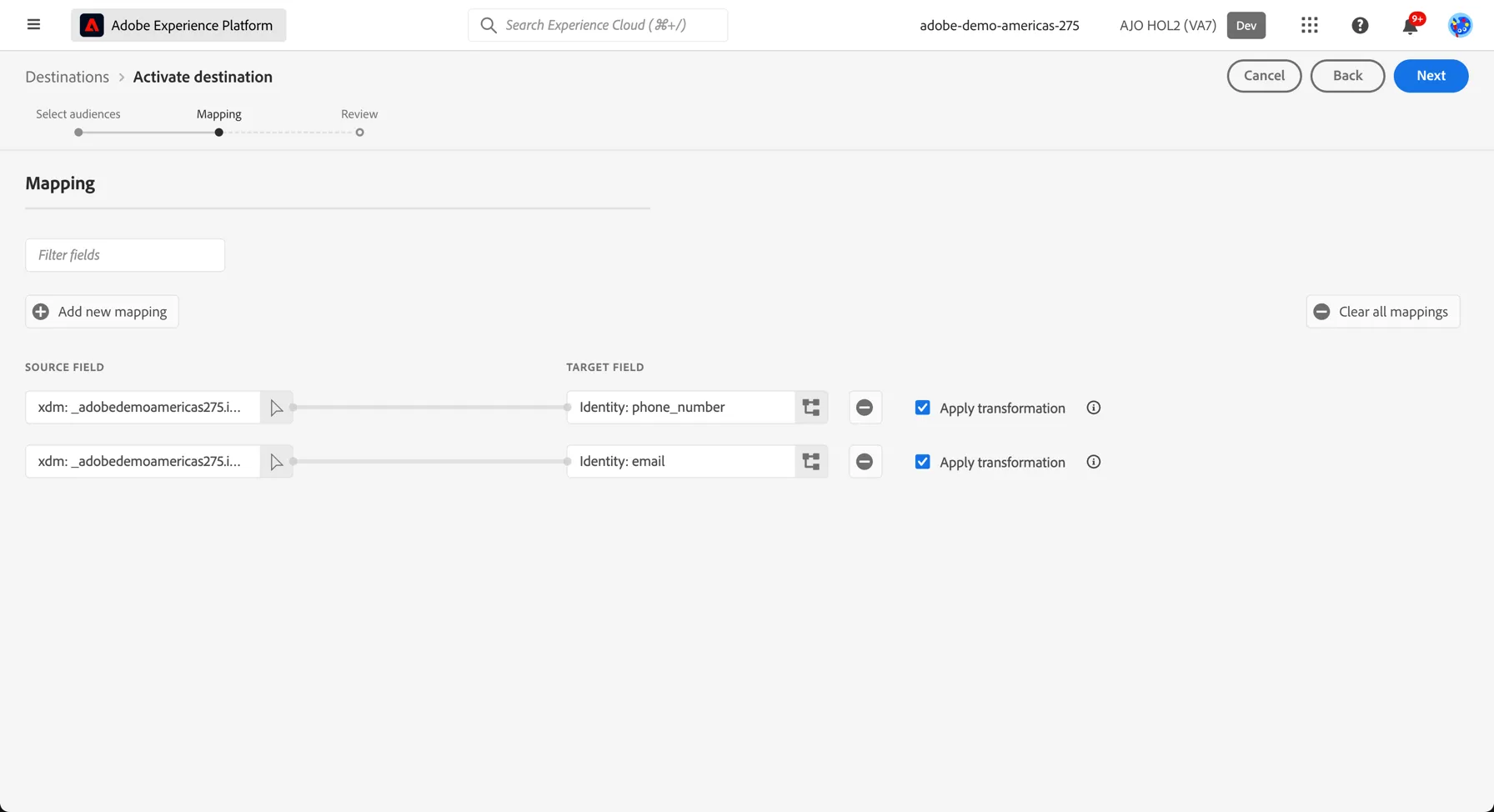
3. The mapping step only needs to be completed once, after that every segment will use the same set of mapping identifiers to match customers between Adobe Experience Platform and your destination. For Tiktok we use hashed email and phone number. Click Next to proceed to the next step.
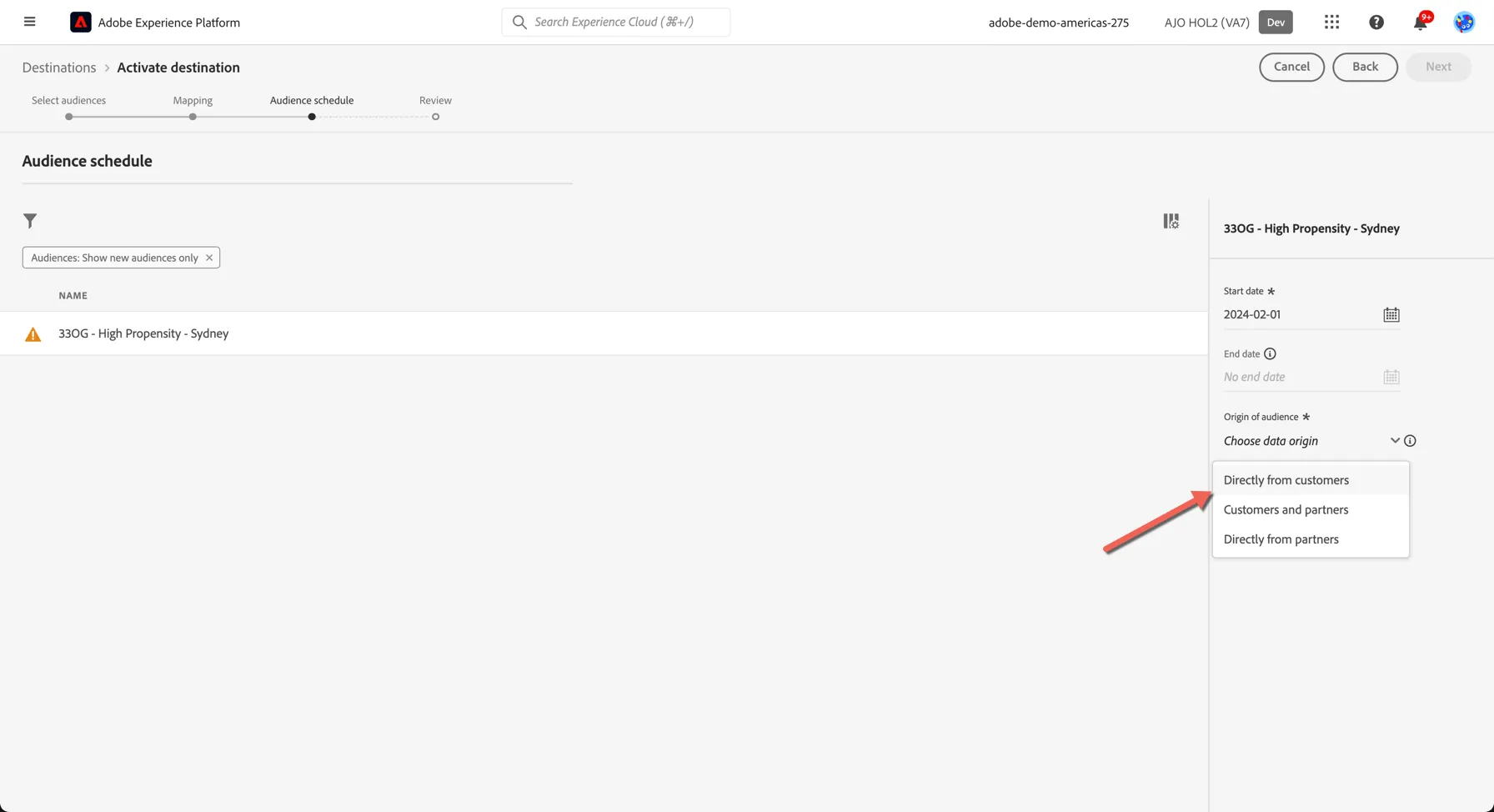
Meta requires that you declare where the audience data has come from, on the audience schedule step, select that the audience data has come directly from Your Customers.
Finally, on the Review page, click Finish.
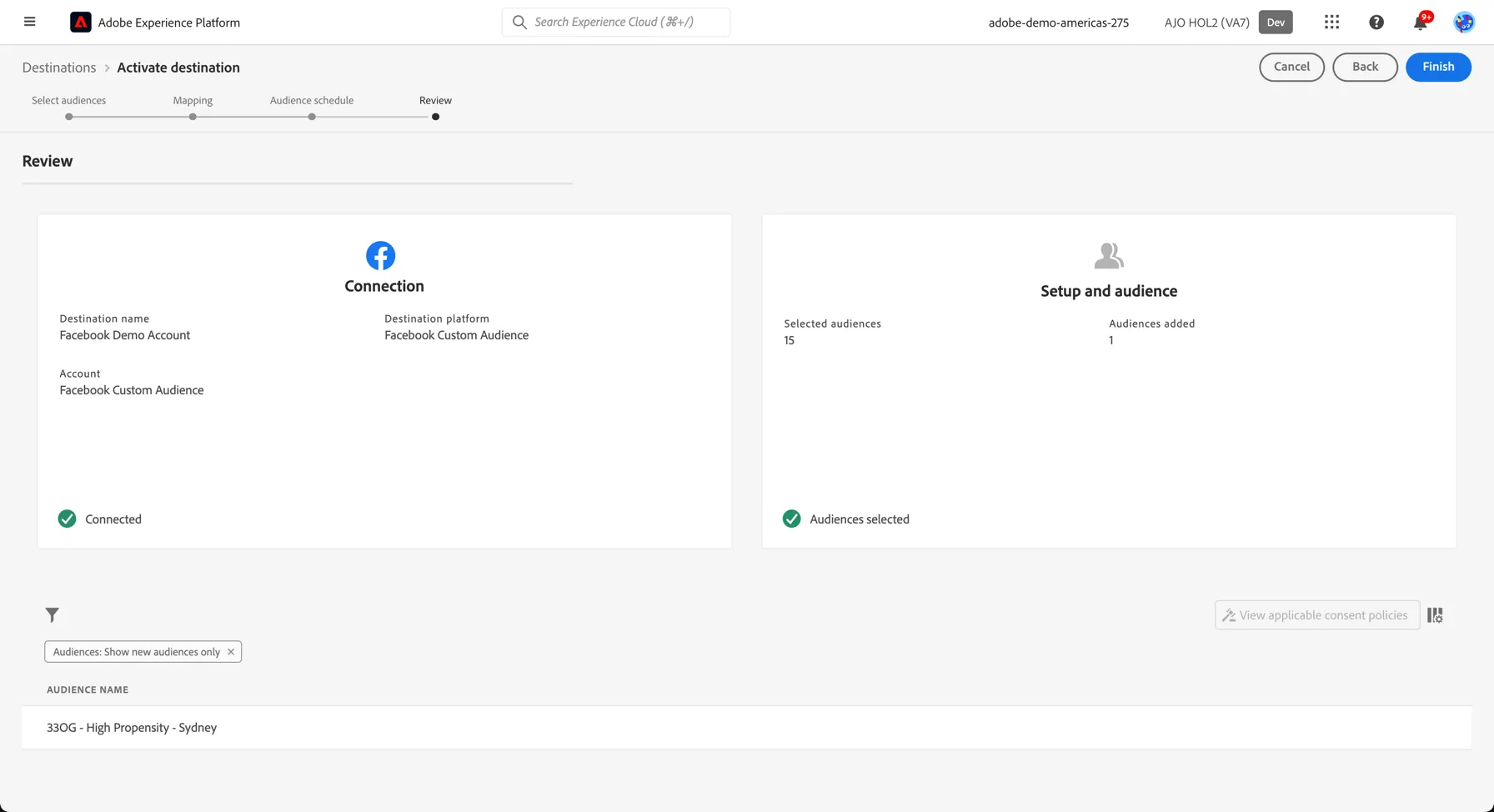
Your audience is now activated. A successful activation means that a custom audience would be created programmatically on the destination side. Segment membership in the audience would be added and removed as users are qualified or disqualified for the activated segments. Ie. As new customers enter the audience during the nightly batch they will be automatically added to the paid media campaign.
3.2 SMS Campaign
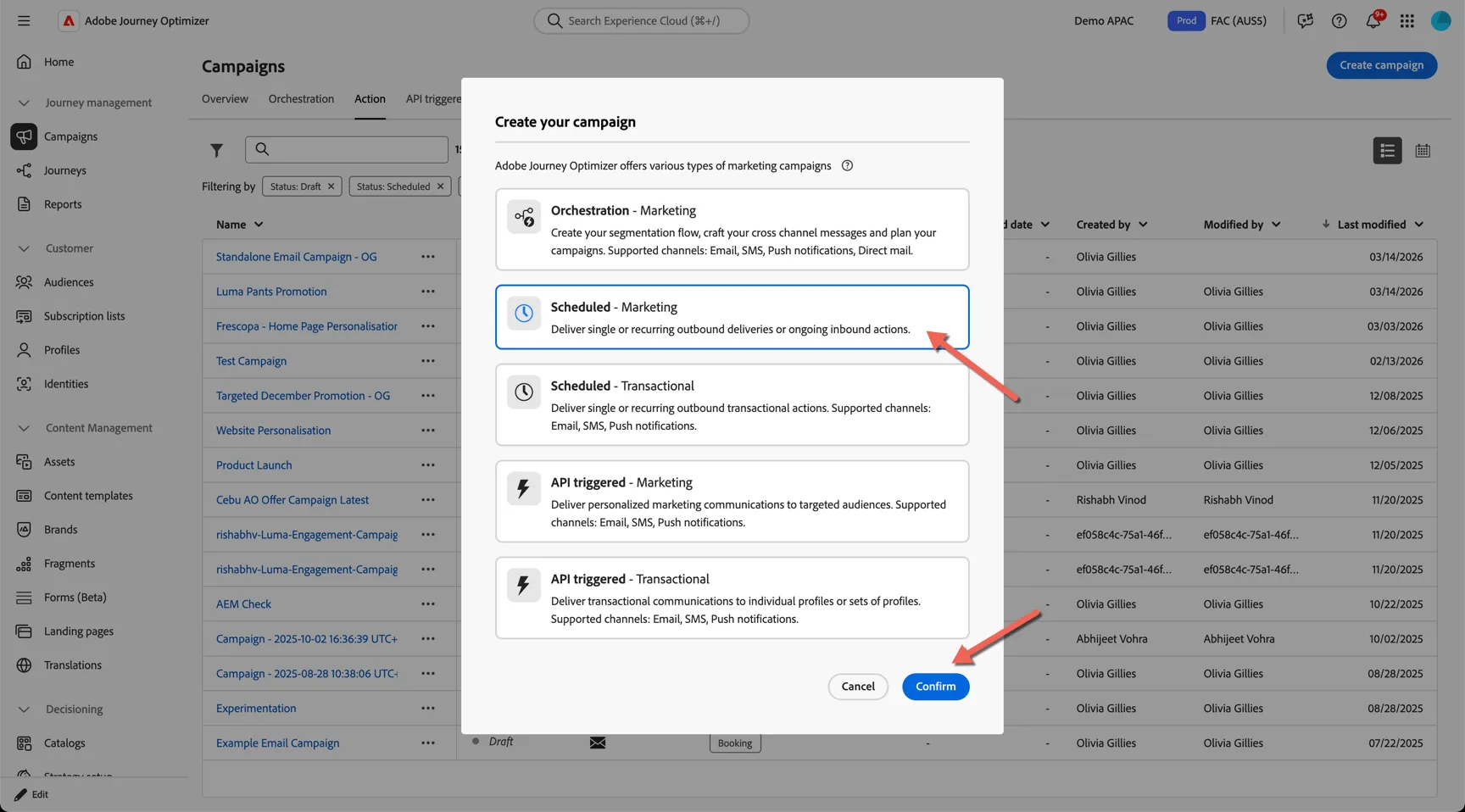
You can now use the same audience to target your SMS Campaign. Similar to the email campaign in Lab 2, browse to Campaigns and click to Create Campaign.
Select an Scheduled - Marketing campaign
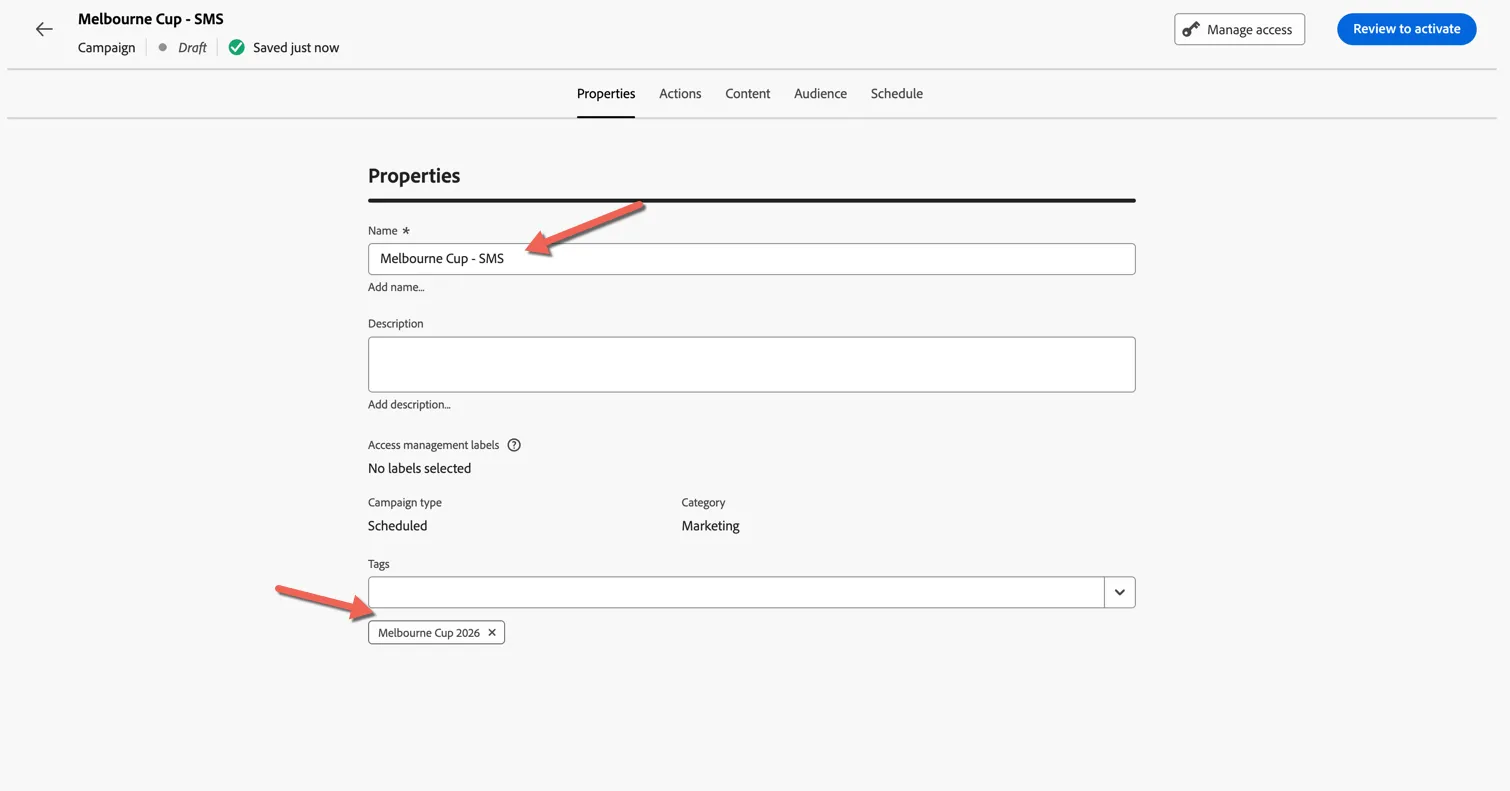
Give your campaign a Name - add your initials so you'll recognise it later.
Add the Melbourne Cup 2026 Tag.
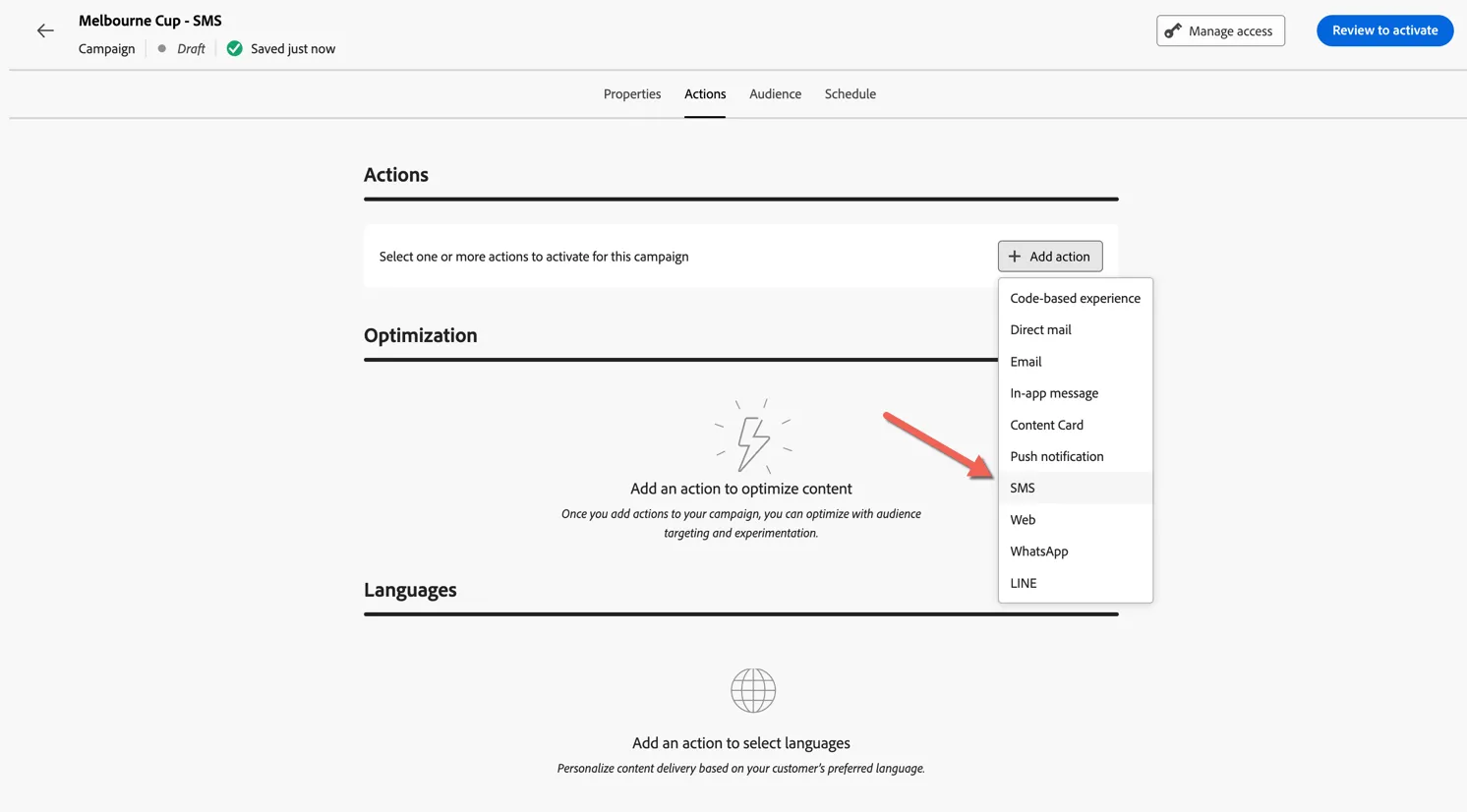
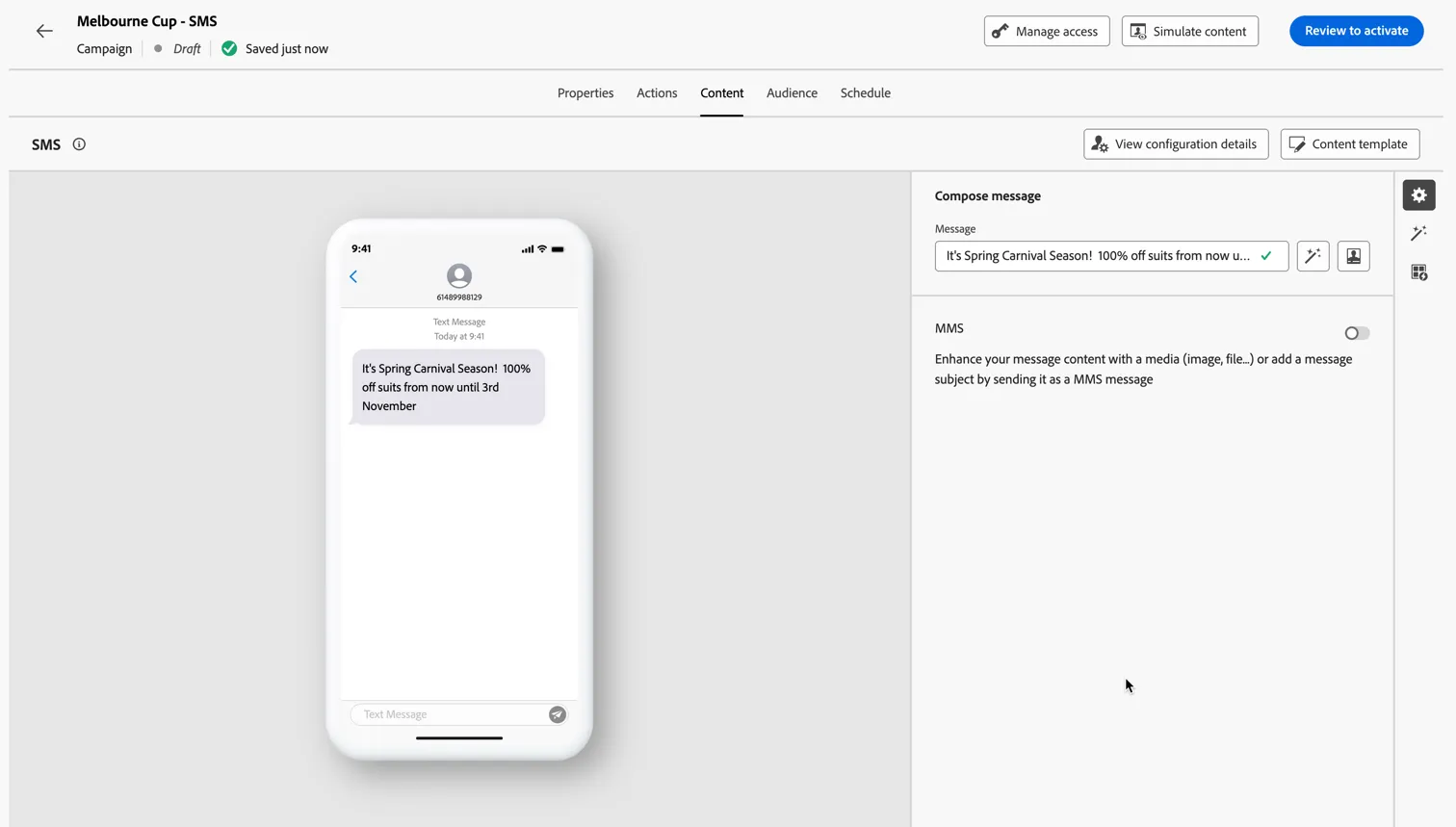
Add an SMS action.
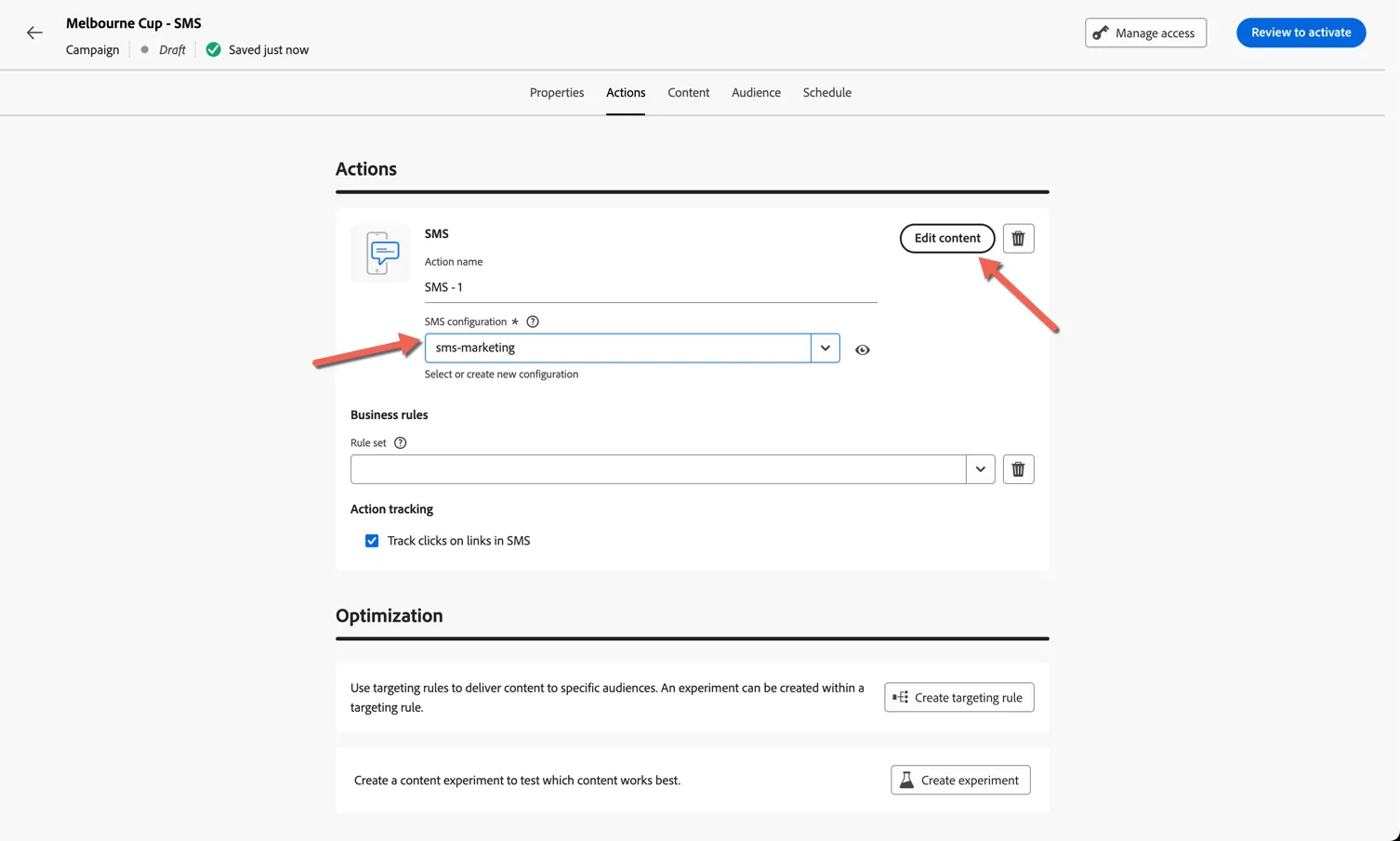
Set the SMS configuration to sms-marketing and click to Edit content.
Add your SMS Content, including any links that will be automatically shortened and tracked.
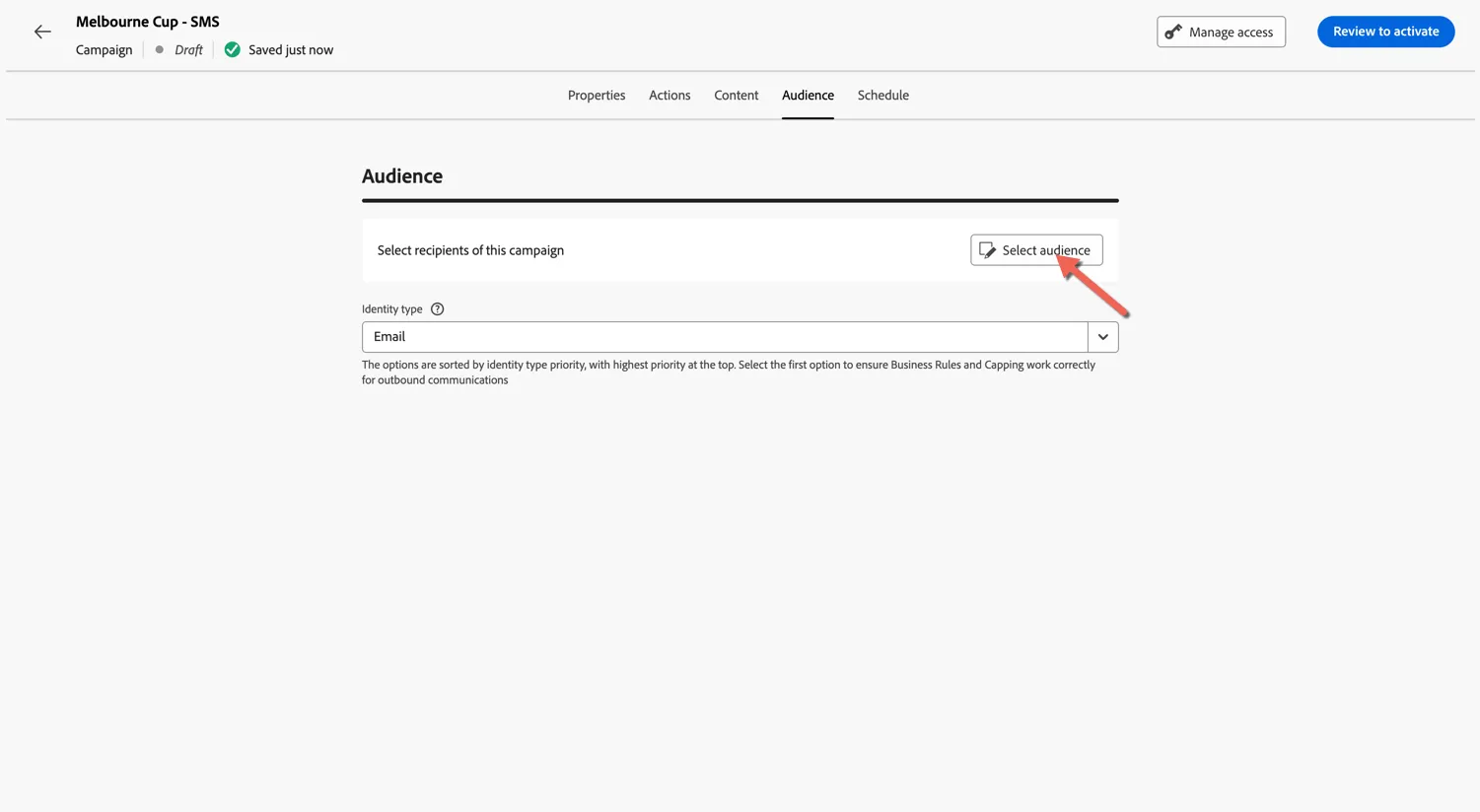
From the audience tab, click to Select audience
Select the same Melbourne cup audience.
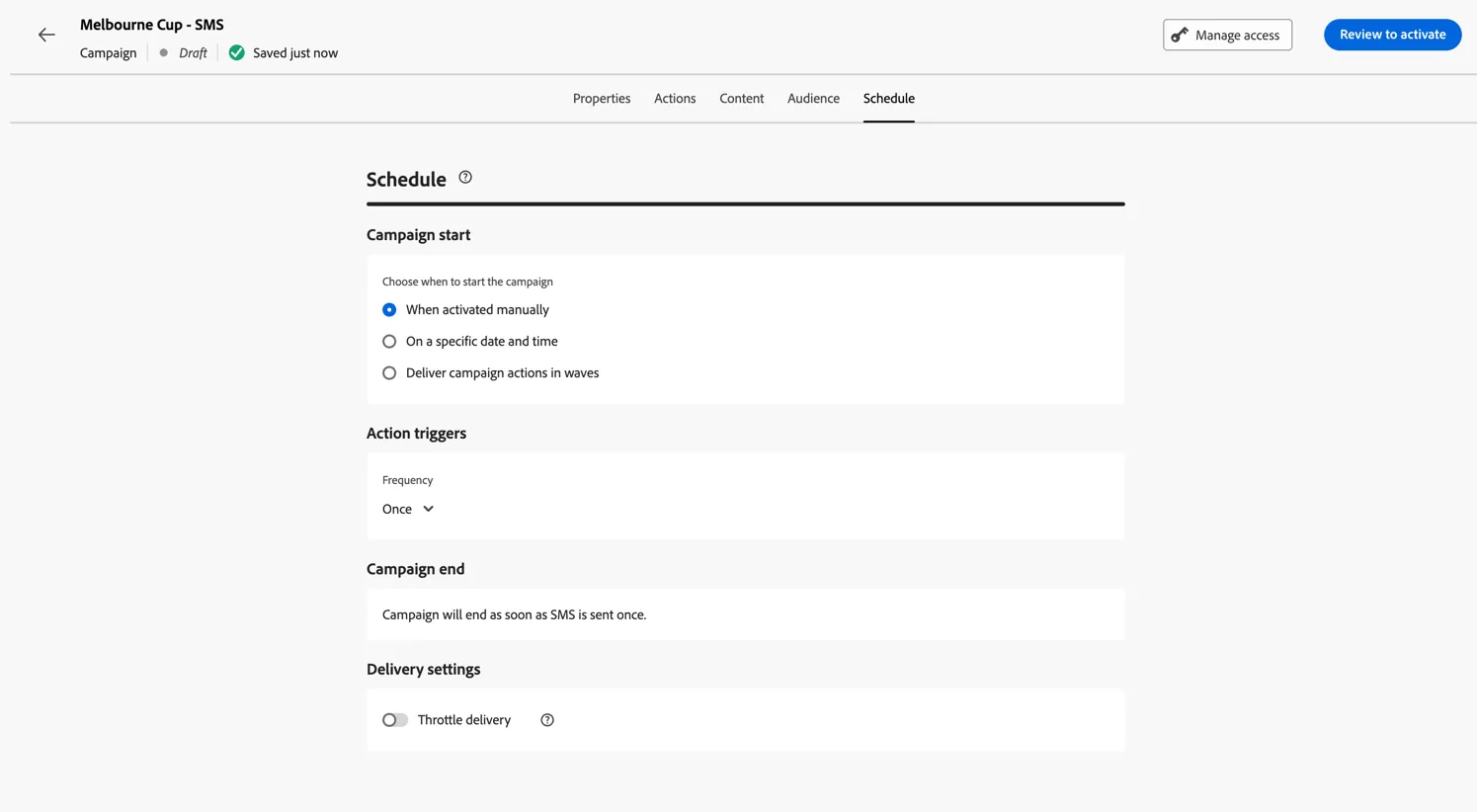
Complete the configuration with scheduling and you're ready to Review and Activate your campaign.
3.3 Reporting
When sending a delivery via multiple actions, you can report on each action separately using the same approach from Lab 2 or combine the actions using the global reports.
Navigate to Journeys -> Reporting
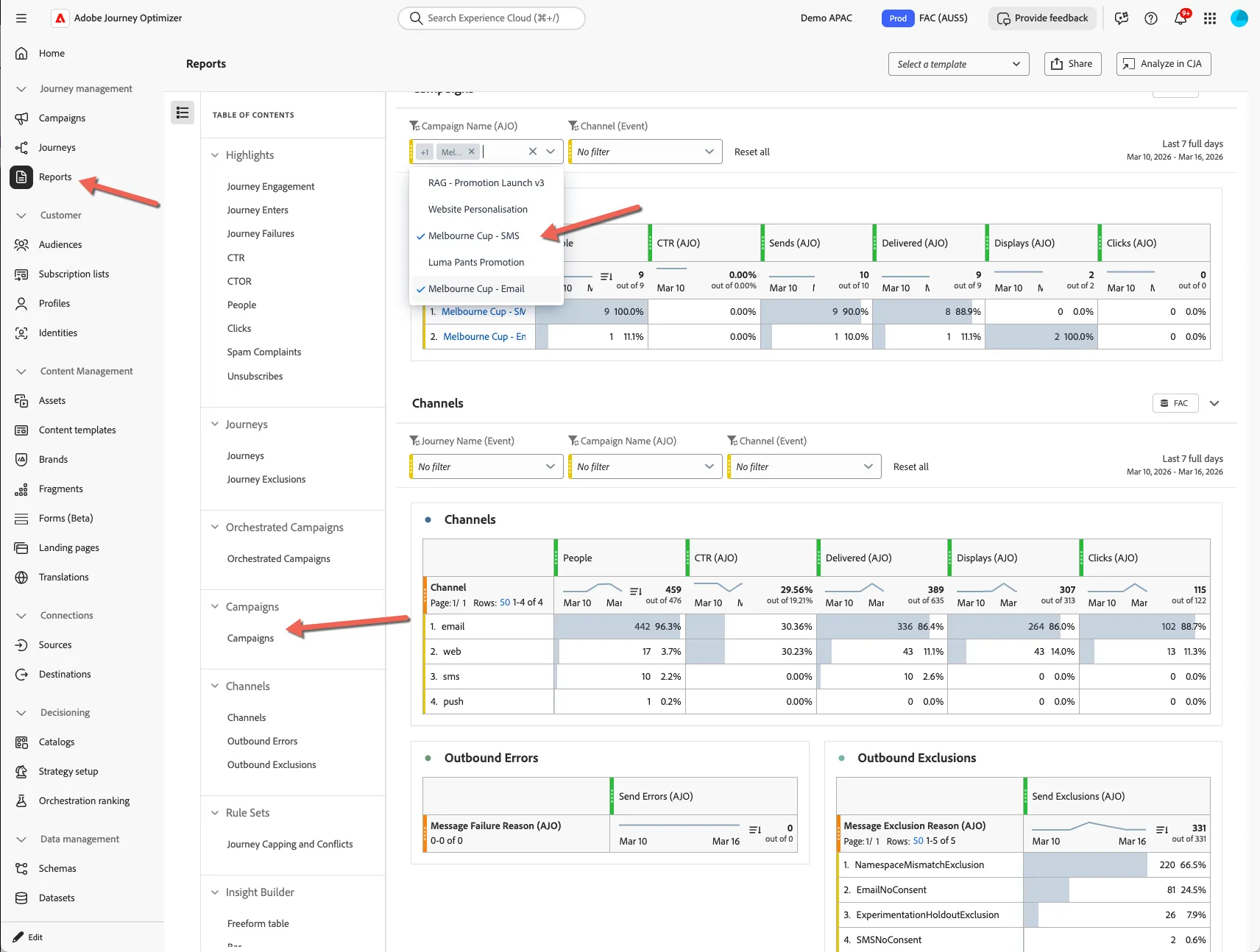
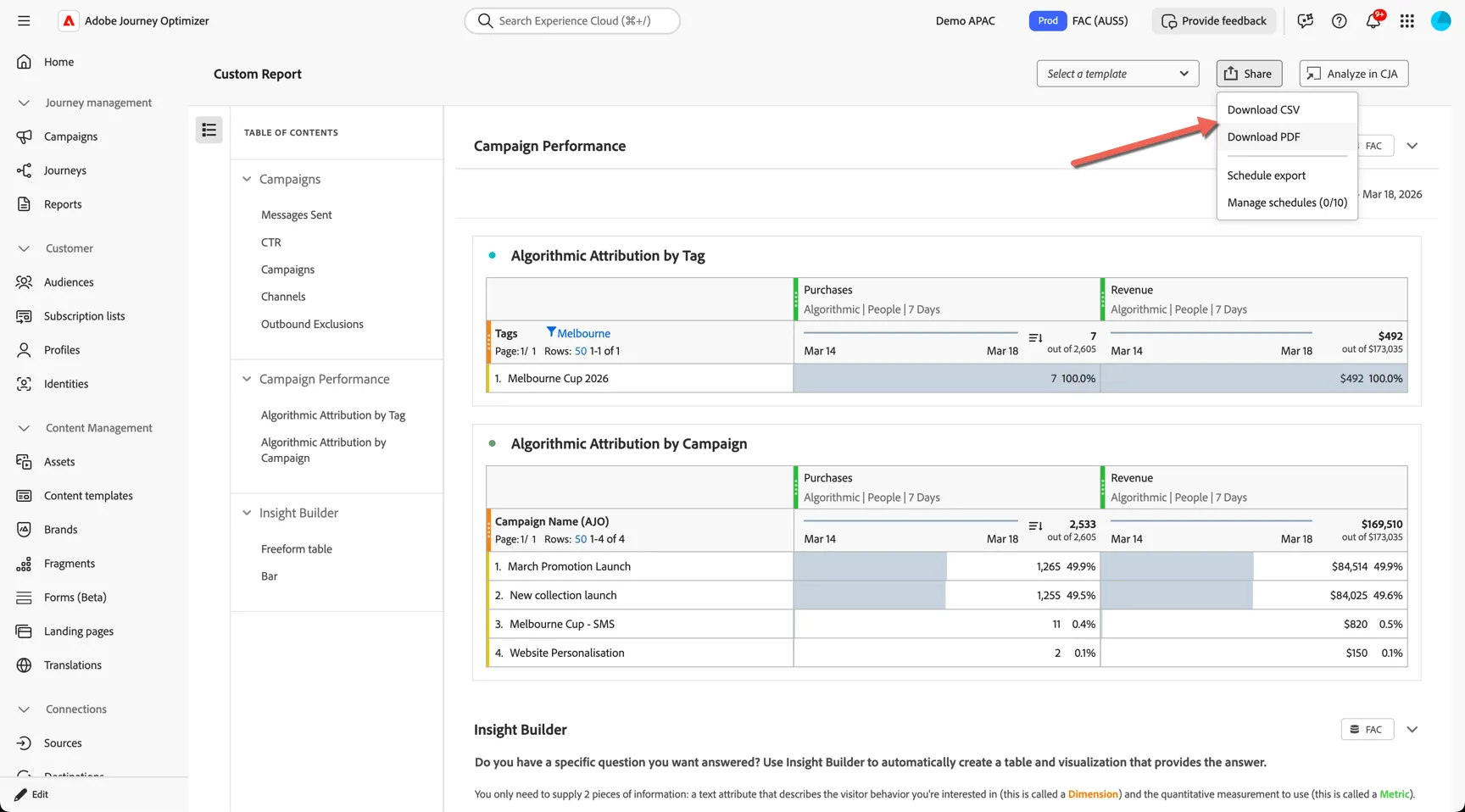
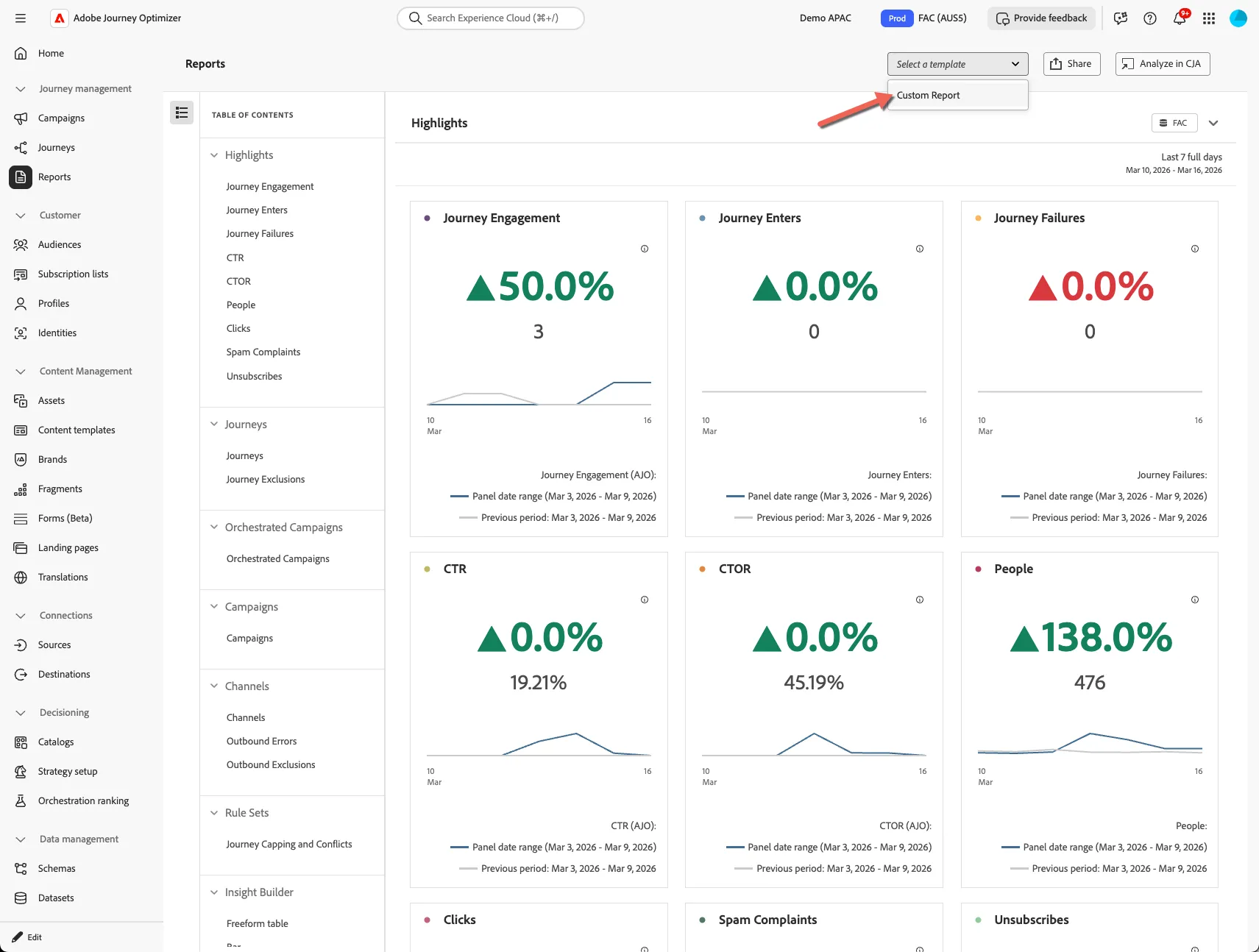
With Customer Journey Analytics we can again go one step further in our reporting and leverage the Tags applied to your campaign actions to report at the campaign, program or any level of filtering you would like. Change to the Custom Report template.
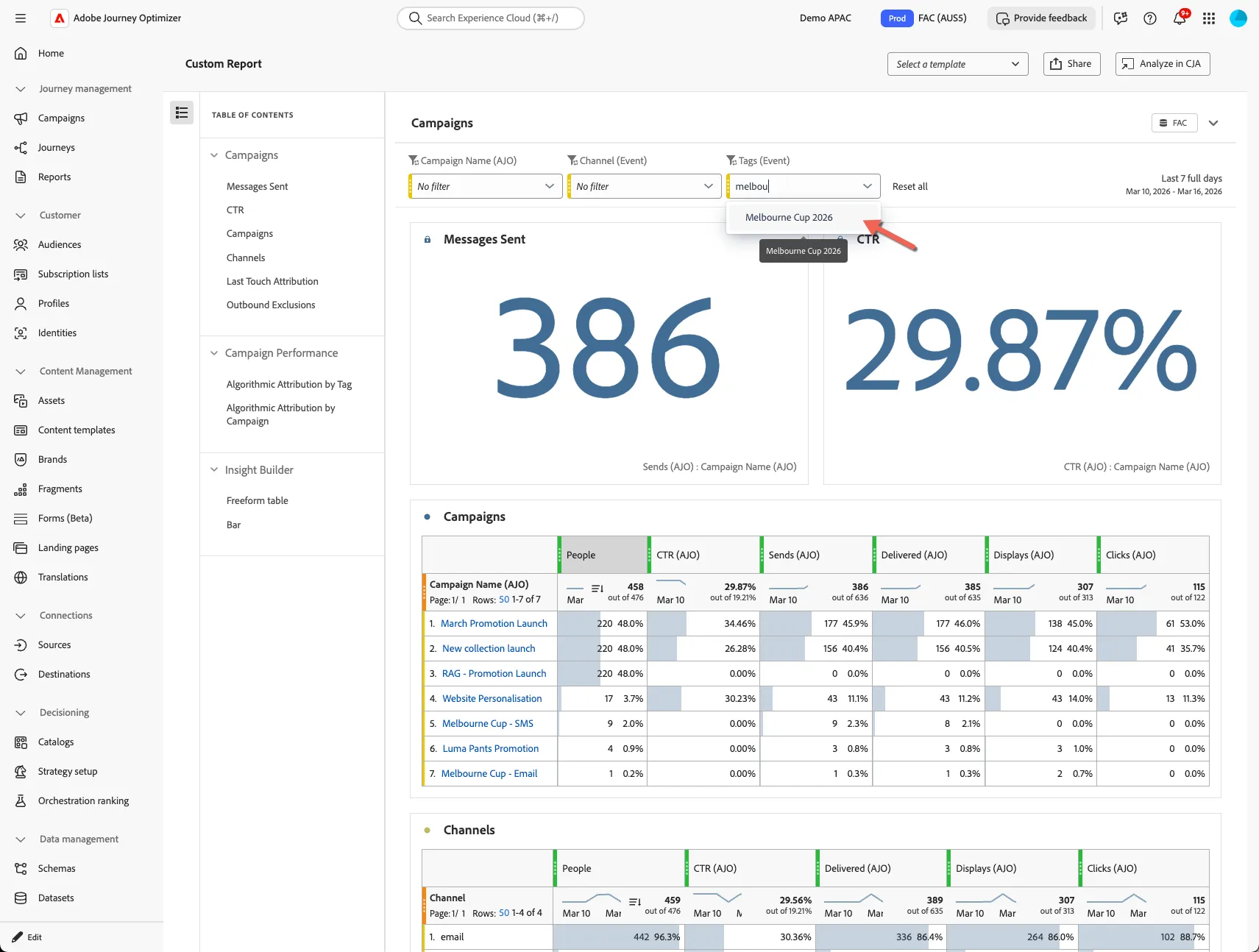
You can now filter the first panel by the tag applied to the campaign.
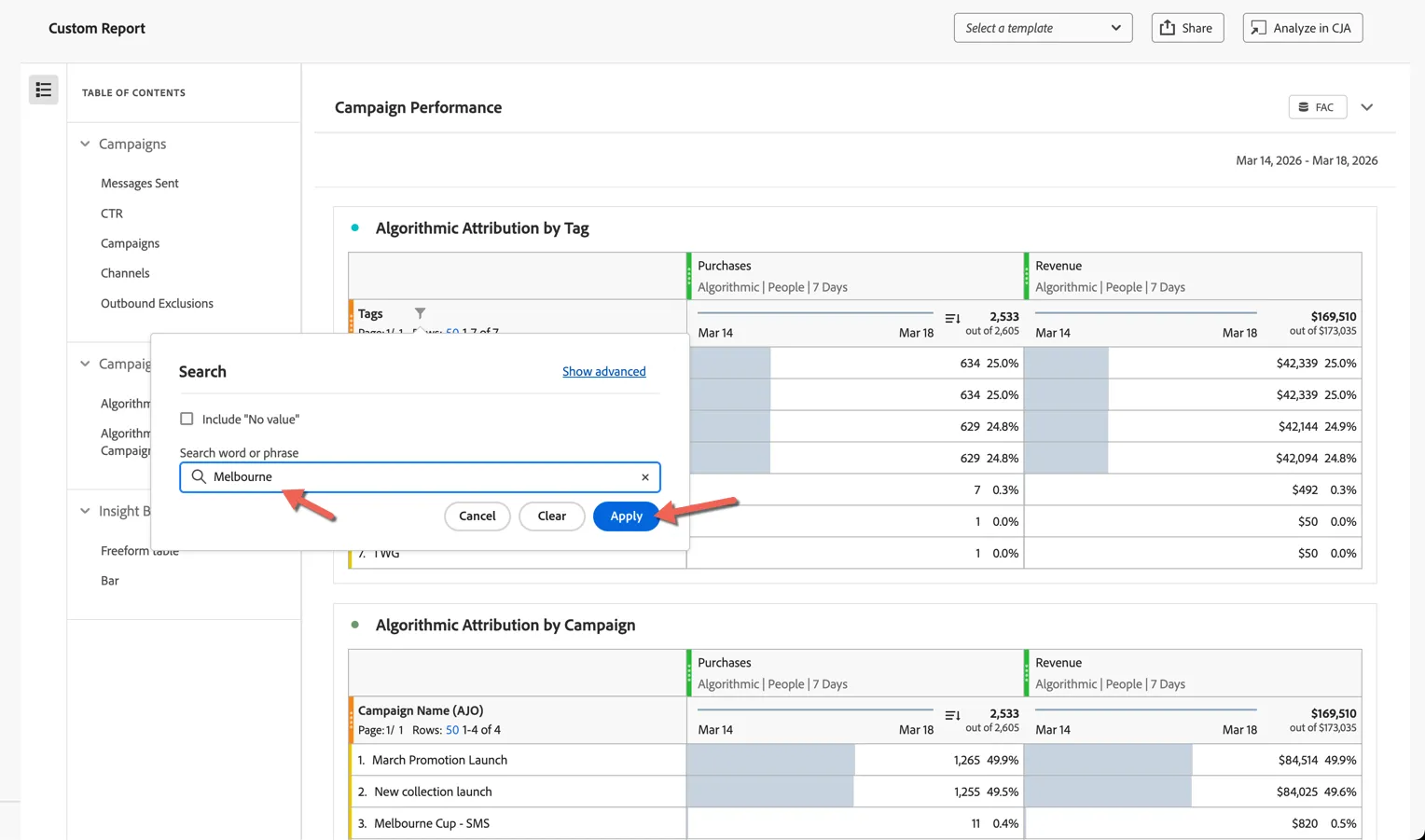
You can do the same in the campaign performance panel by filtering directly in the column names.
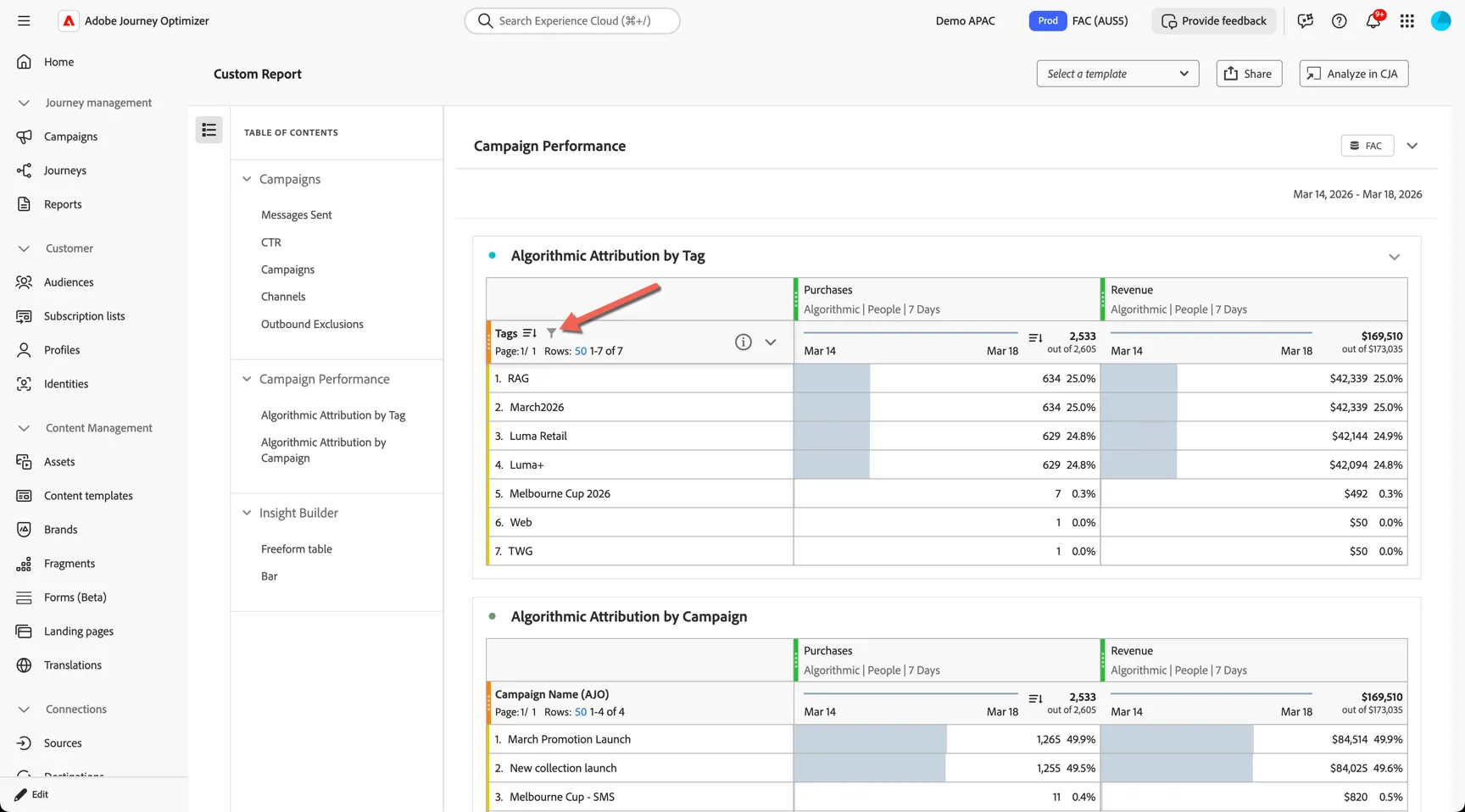
Type the tag name (or part thereof) and click Apply to filter the list.
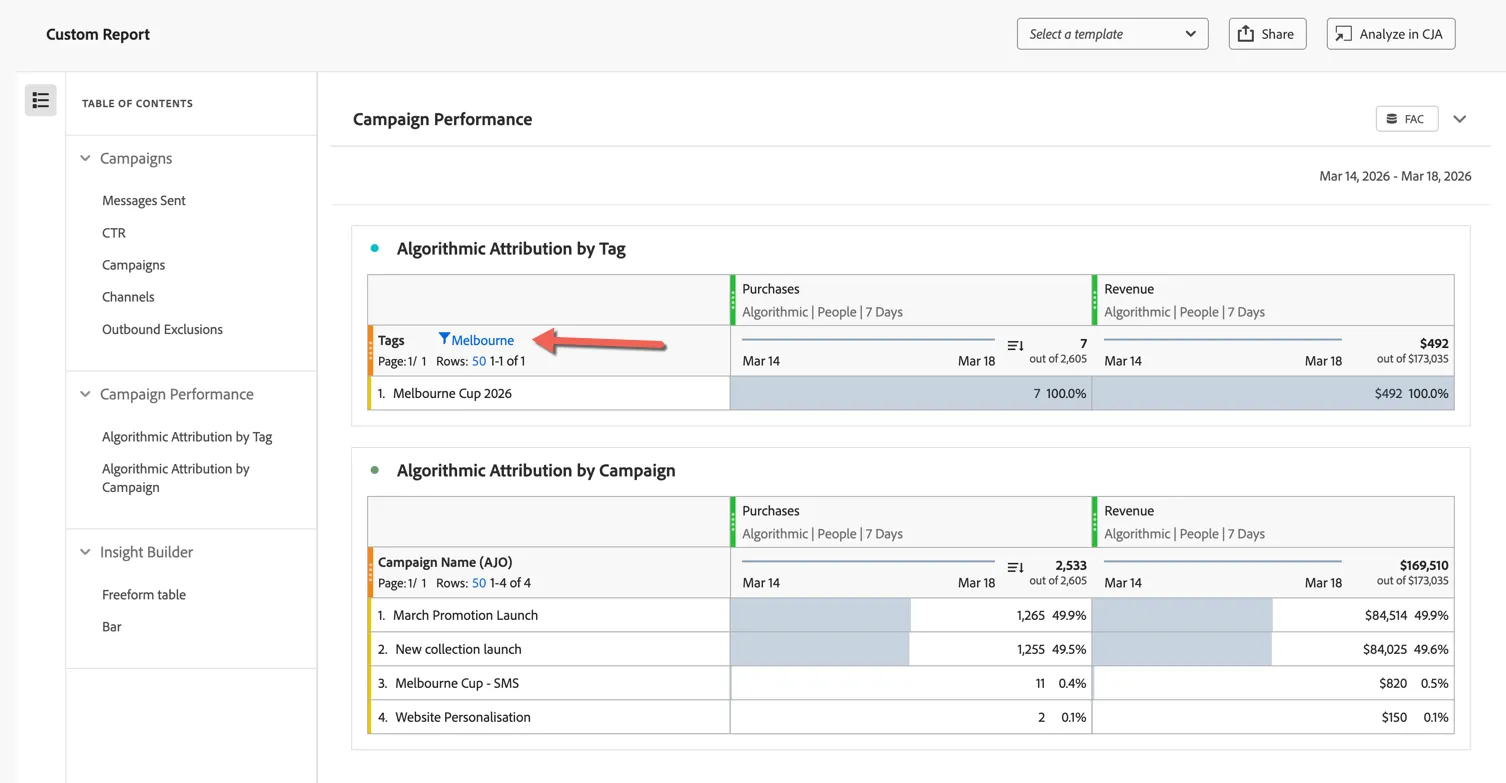
The list is now filtered
Don't forget you can download the report as a CSV or PDF or schedule it for export.