Lab 4 - Post Purchase Journey
Learning Objectives
In this Lab we'll create a post purchase journey to cross sell products based what the customer just purchased.
The journey will be triggered by the purchase event and will use dynamic content to select the right products to promote based on the products in the current purchase event.
If the customer does not click on the email for 1 day the journey will follow up with a push notification instead.
Re-entry criteria will restrict customers entering the journey more than once a week and exit criteria will ensure they are removed if a new purchase is made.
For paid media channels we'll use separate audiences since you'll need to define different audiences per category while journeys can use context to reduce the configuration effort.
4.1 Create a journey
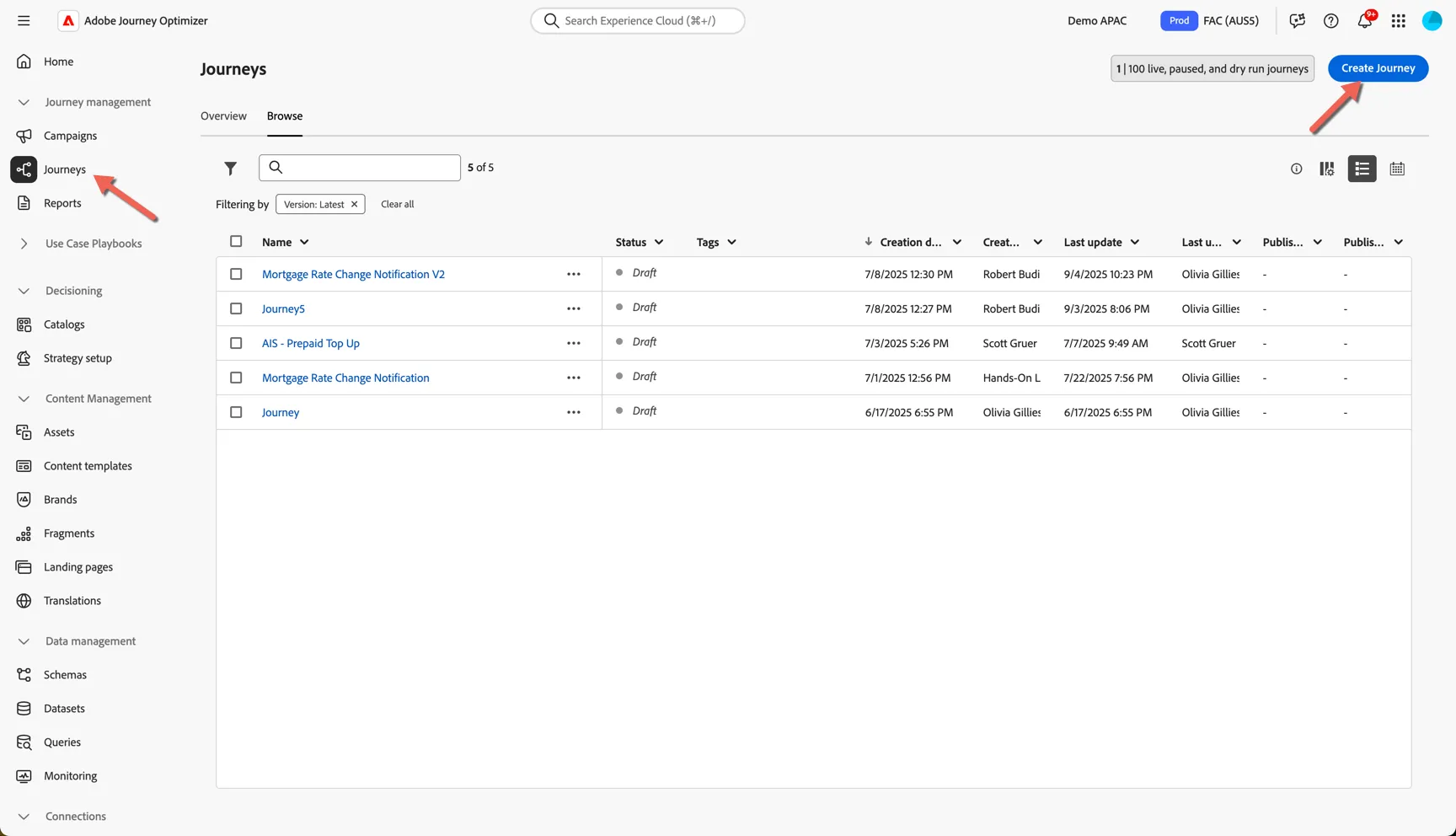
Navigate to Journey Management -> Journeys and click on Create Journey.
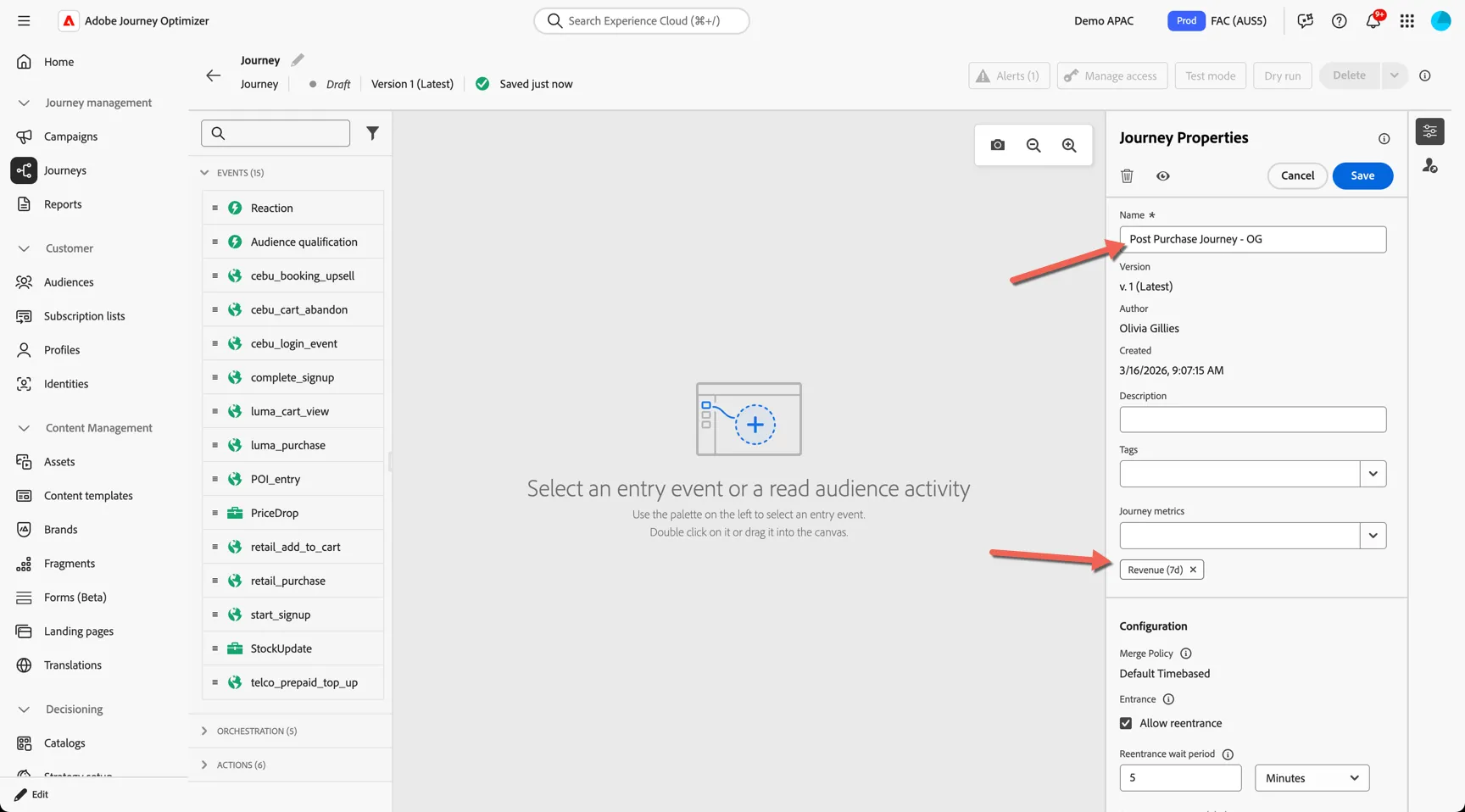
Give your journey a name, add your initials so you can recognise it from other lab participants. You can also set the success metric for the journey based on the objective.
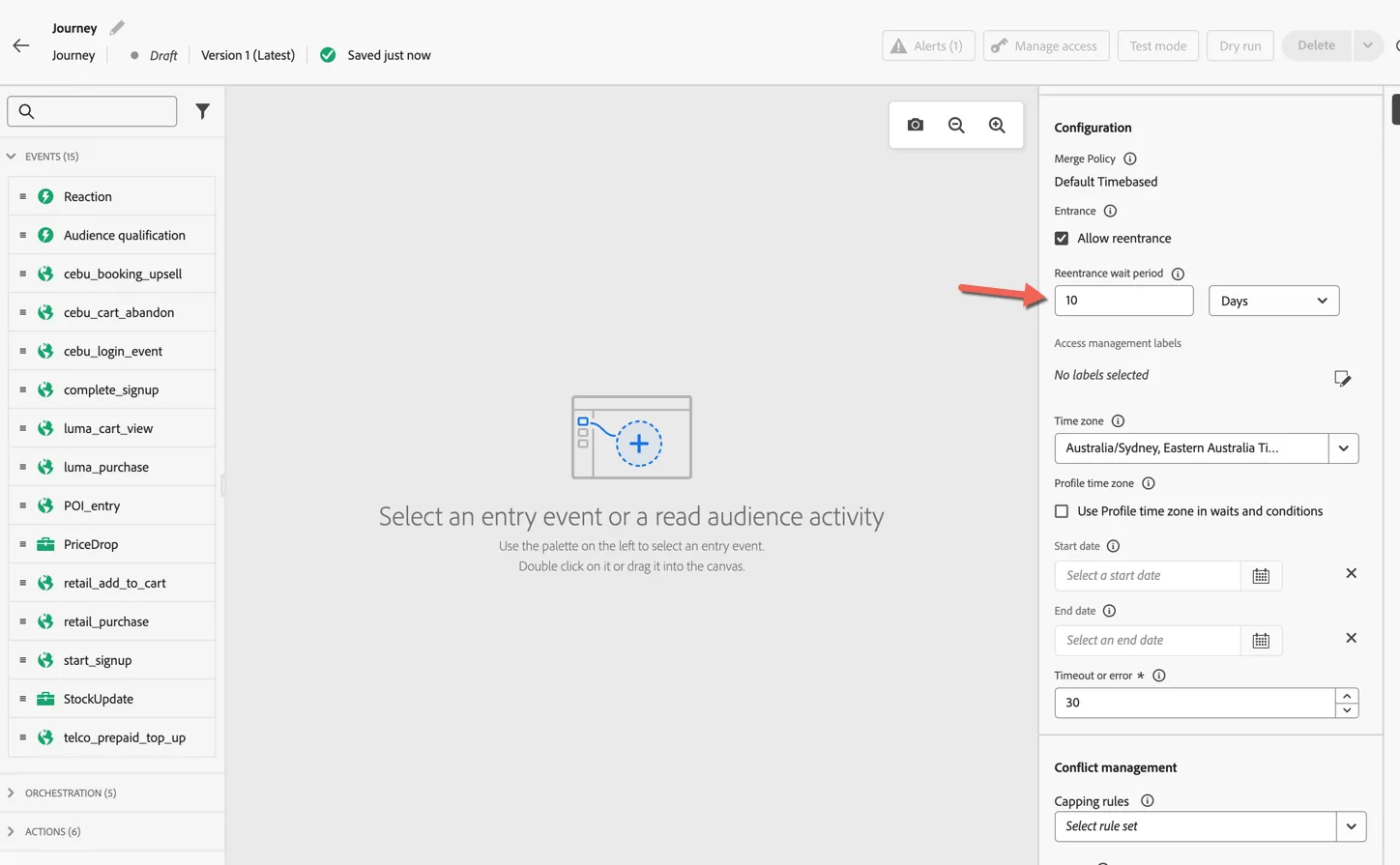
Scroll down to manage the re-entrance criteria. Chances are you don't want people to enter this journey every time they make a purchase - we can limit how frequently it can be entered here.
Save the properties and move to the Exit Criteria tab.
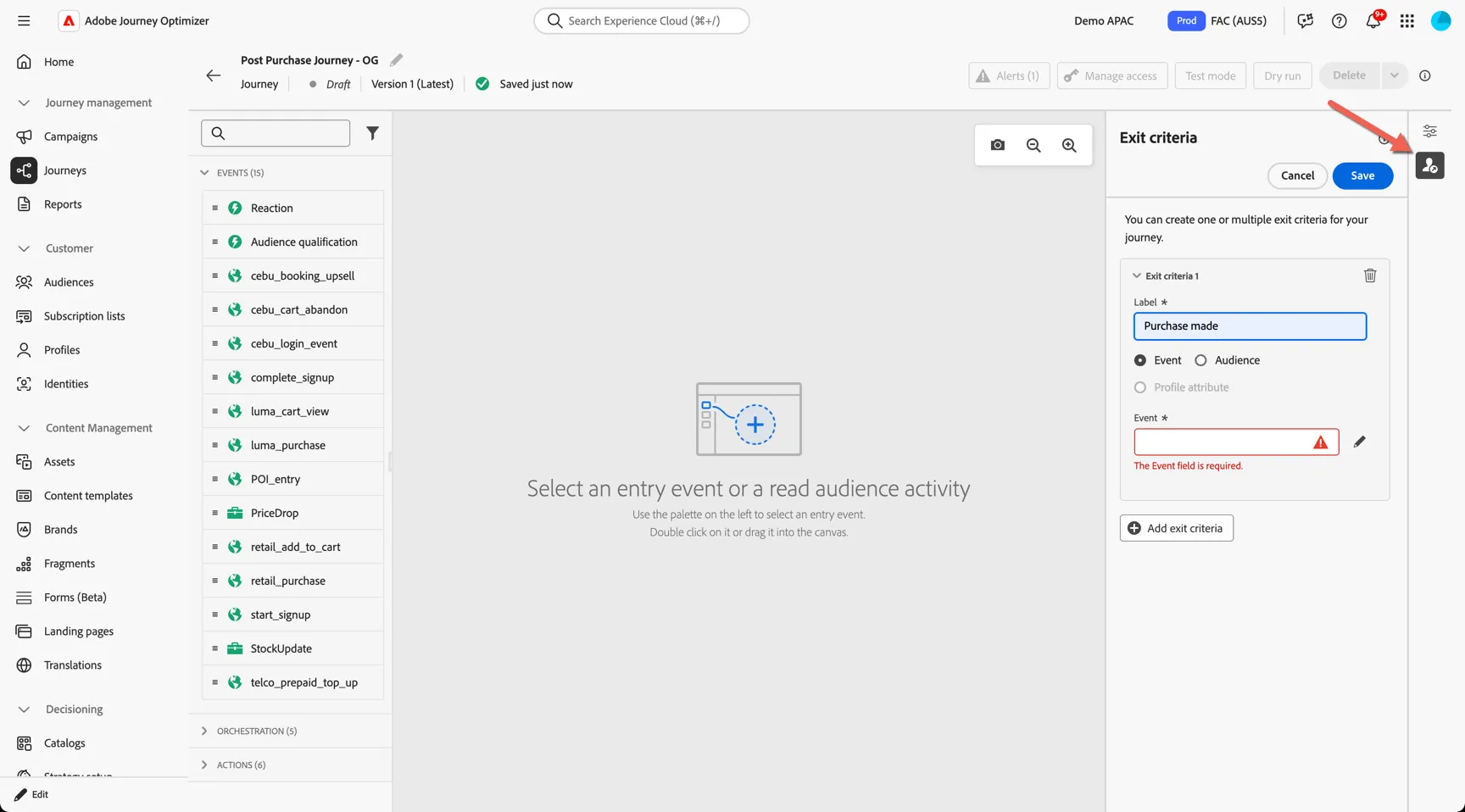
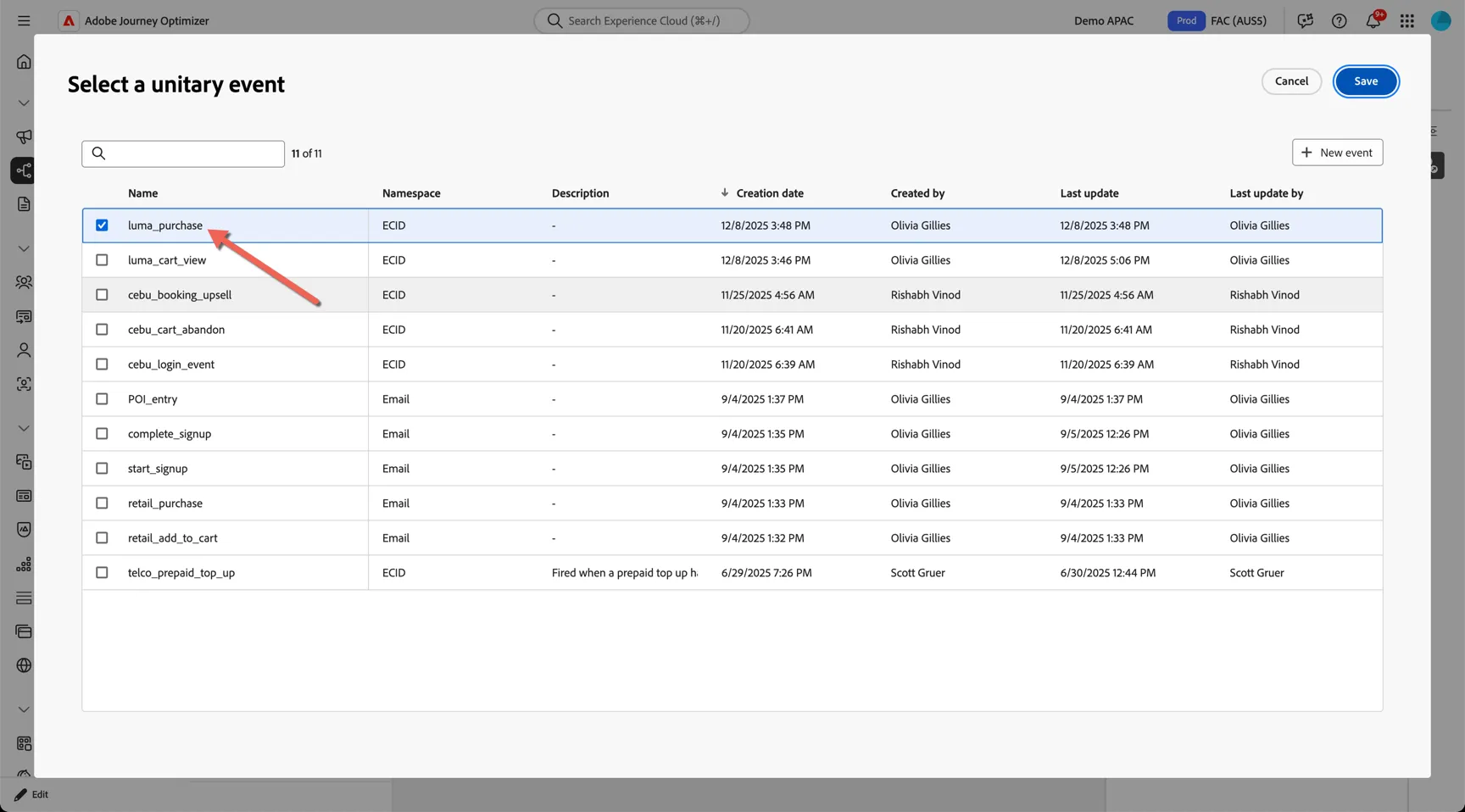
We can use either events or audience memberships to exit profiles from the journey after they've entered. Select the luma_purchase event to exit profiles when they make another purchase.
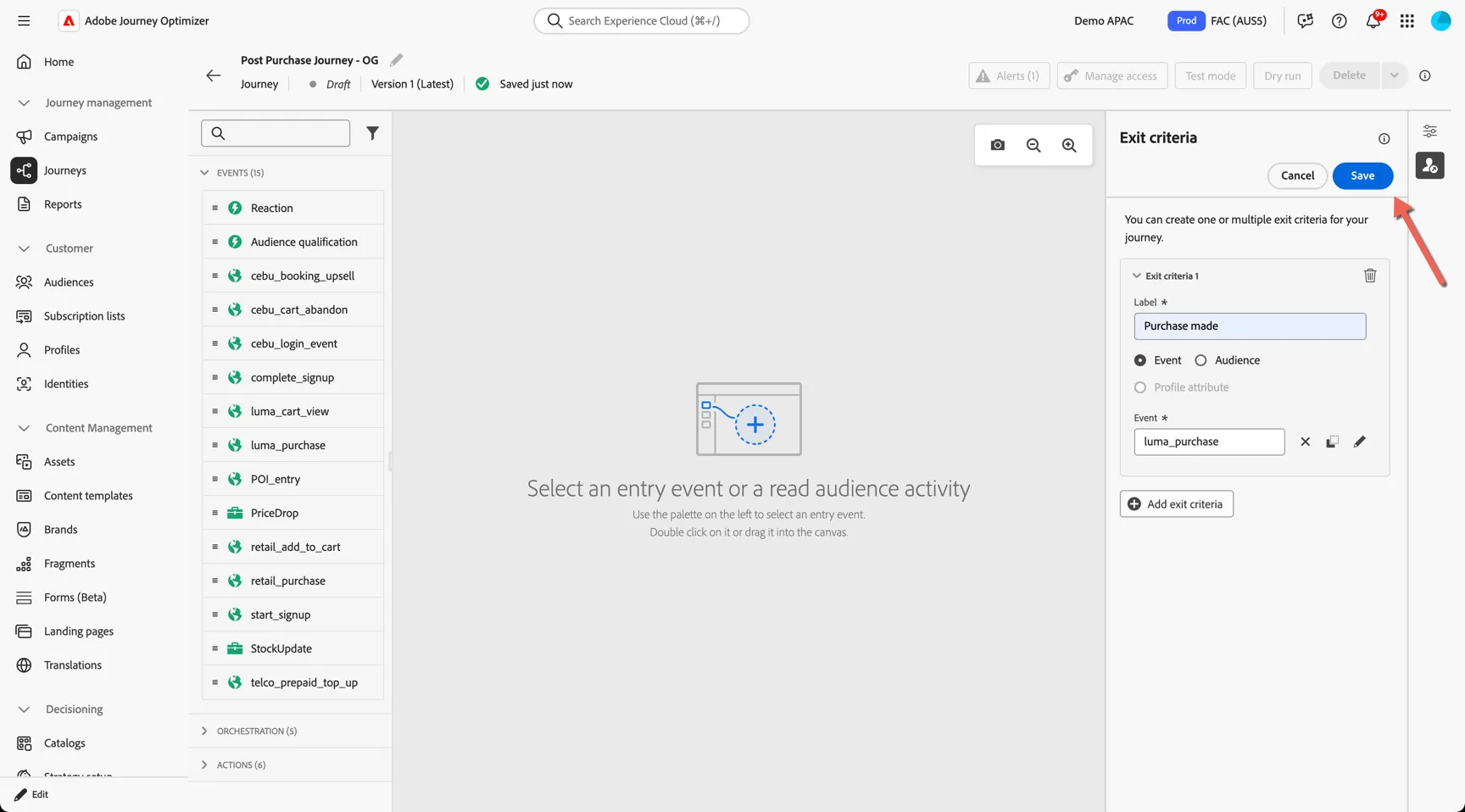
Save the exit criteria.
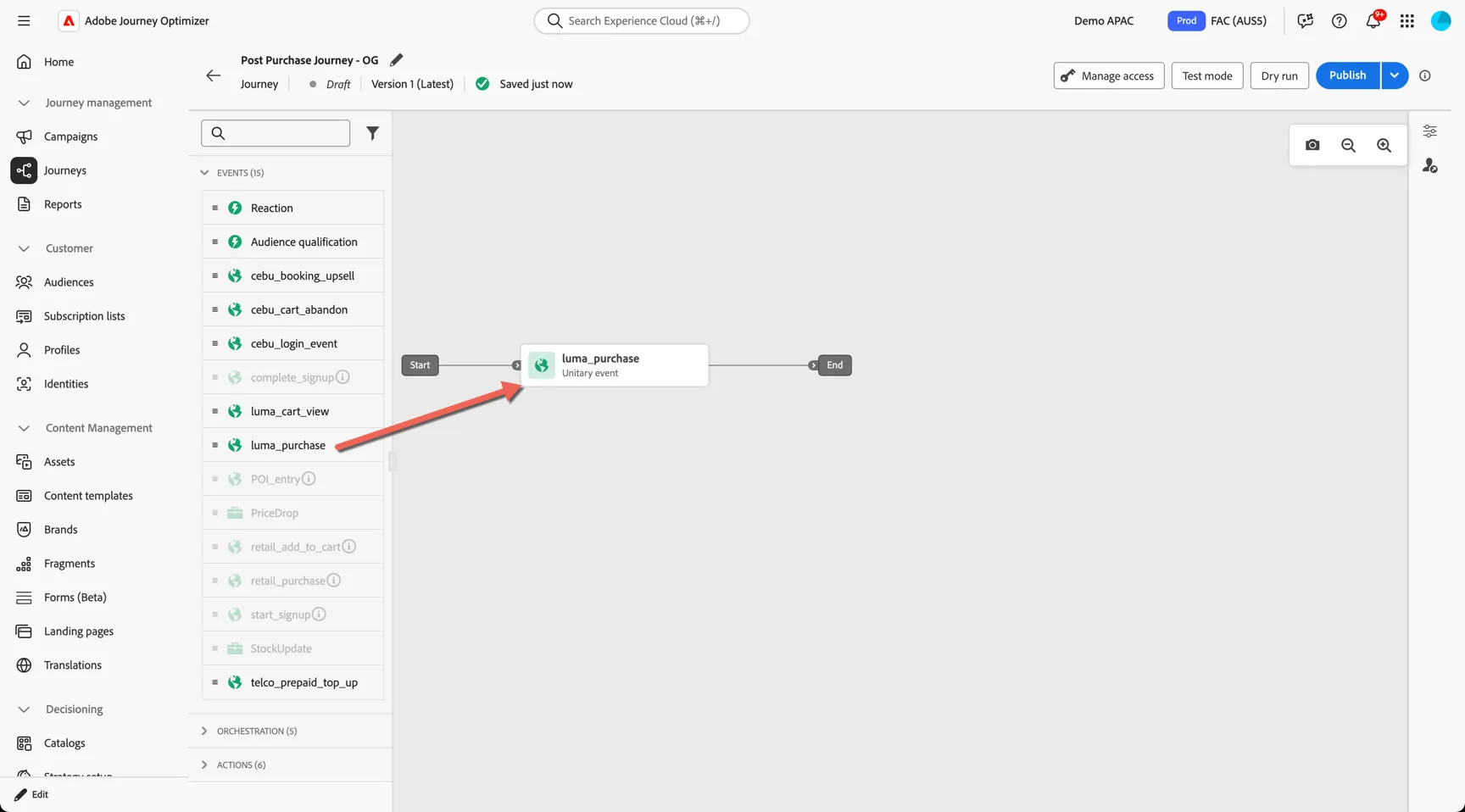
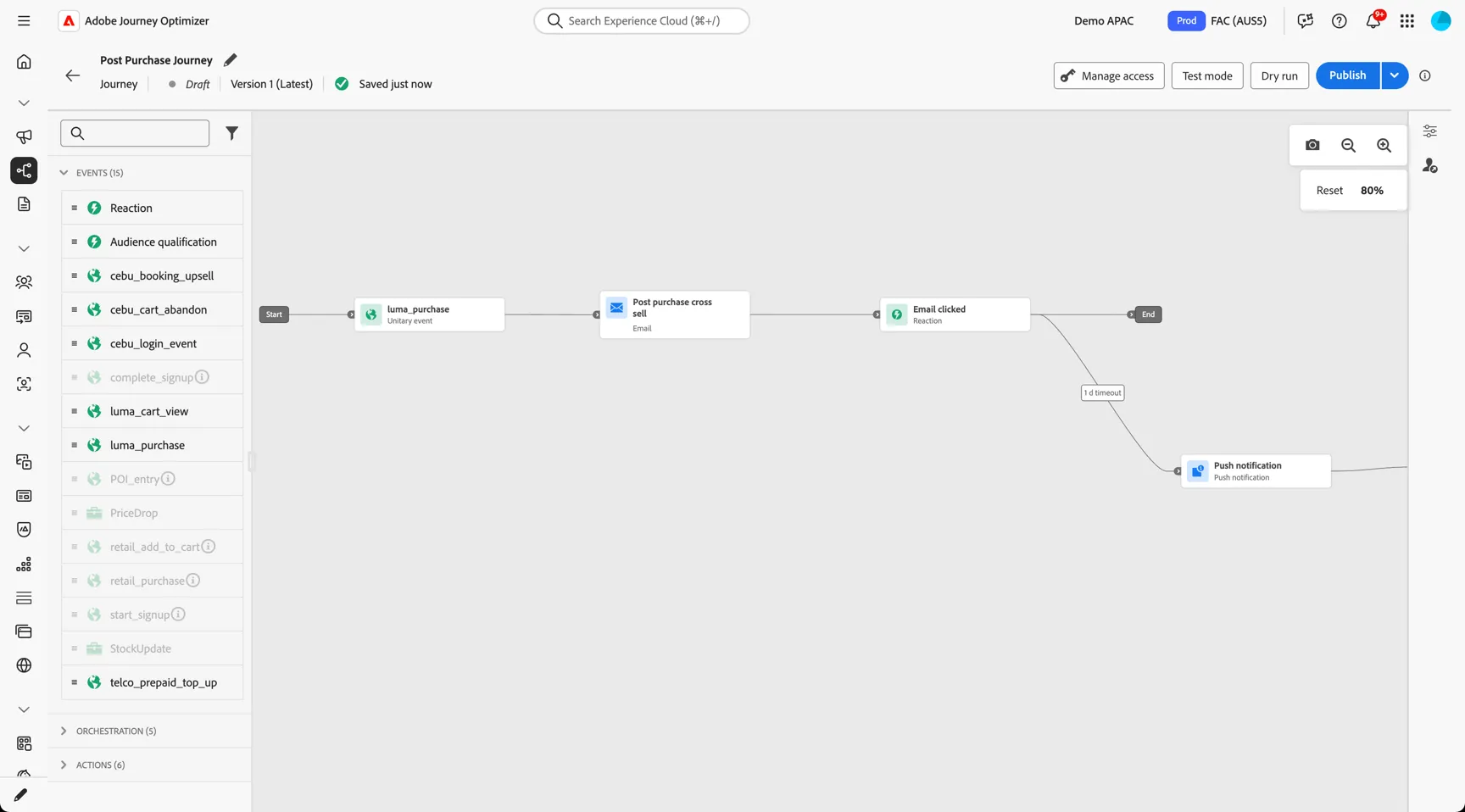
Now we'll add the journey logic. Journeys can be triggered from individual events or when a customer enters or exits a streaming audience. You can see the events that are configured as journey triggers in the left panel - this list is configurable and will depend on your implementation. Drag the luma_purchase event into the canvas.
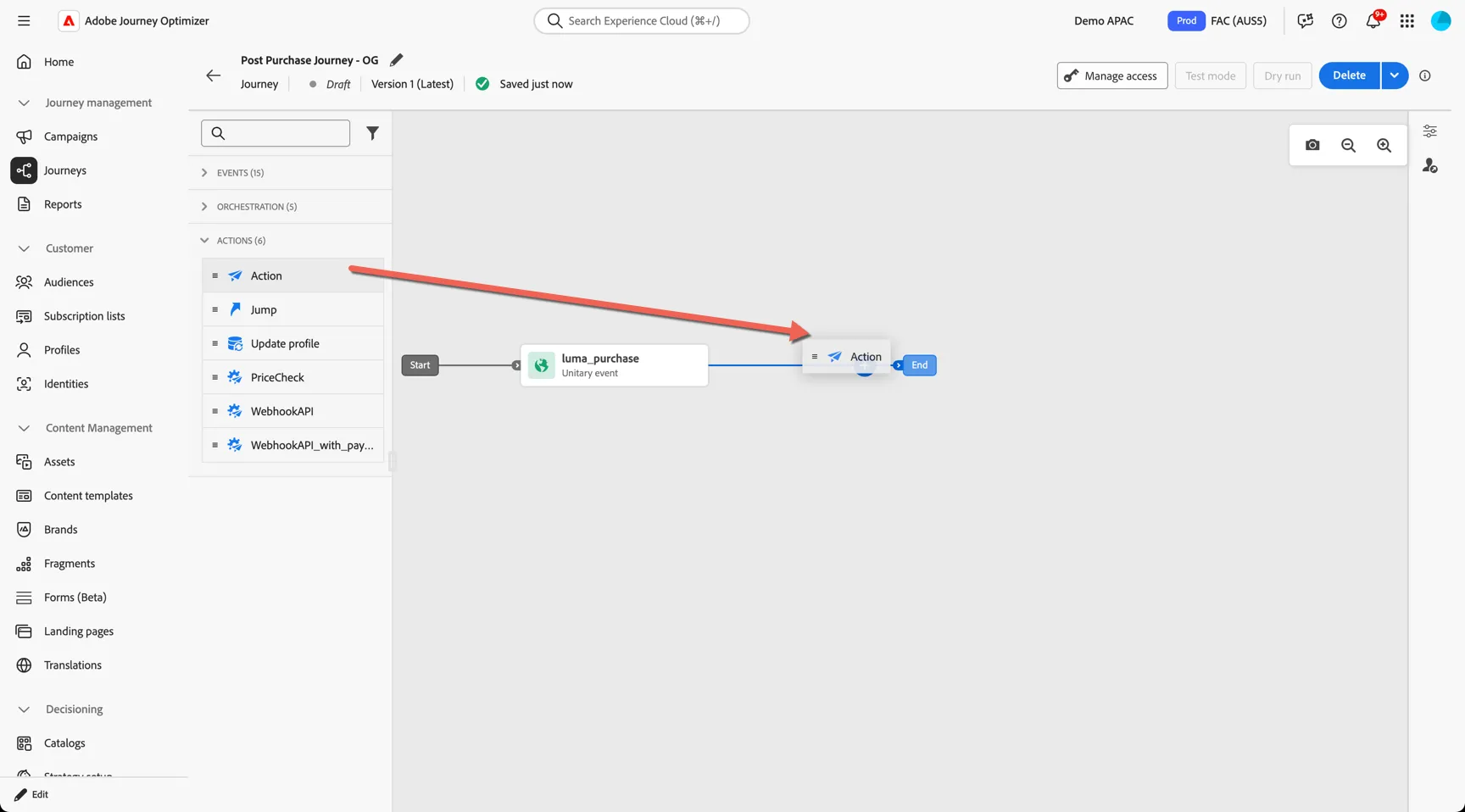
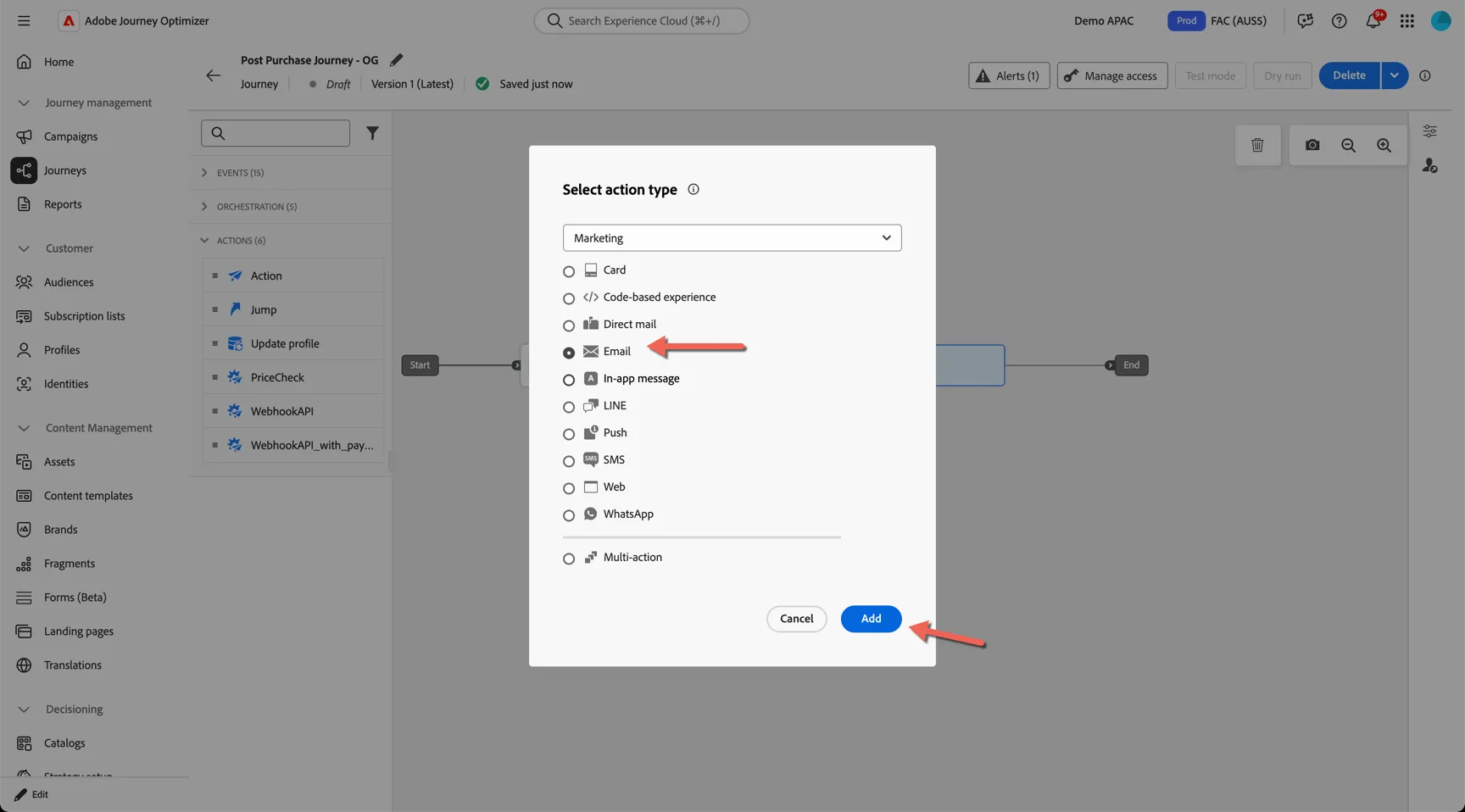
From the Actions panel, add an Action activity after the event.
Set the action type to Email.
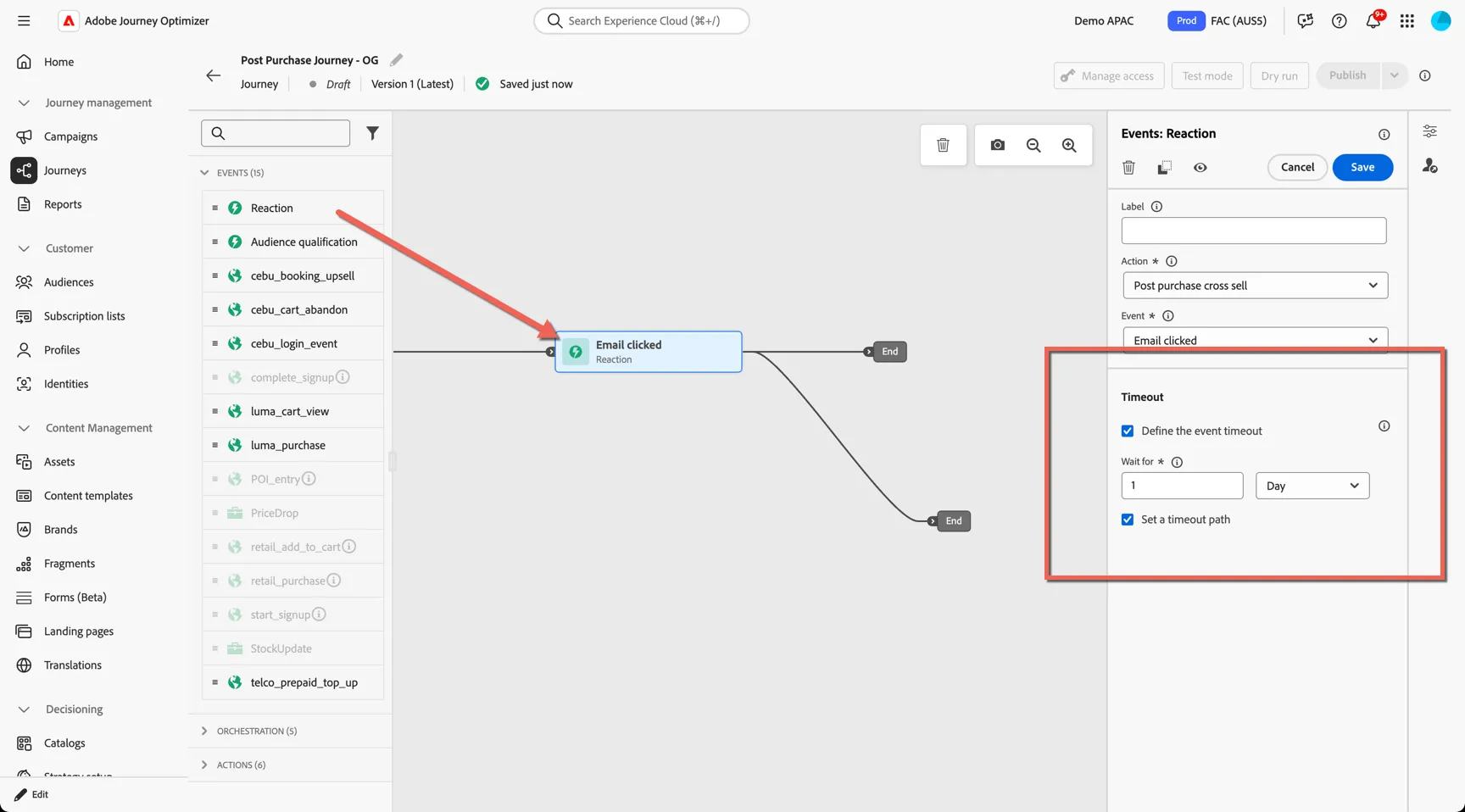
Drag a Reaction node from the Events panel and add it after your email. Add a Timeout condition. This will make the journey wait for 1 day, if the customer clicks on any links in the email they will follow the top path otherwise after 1 day they'll follow the timeout path.
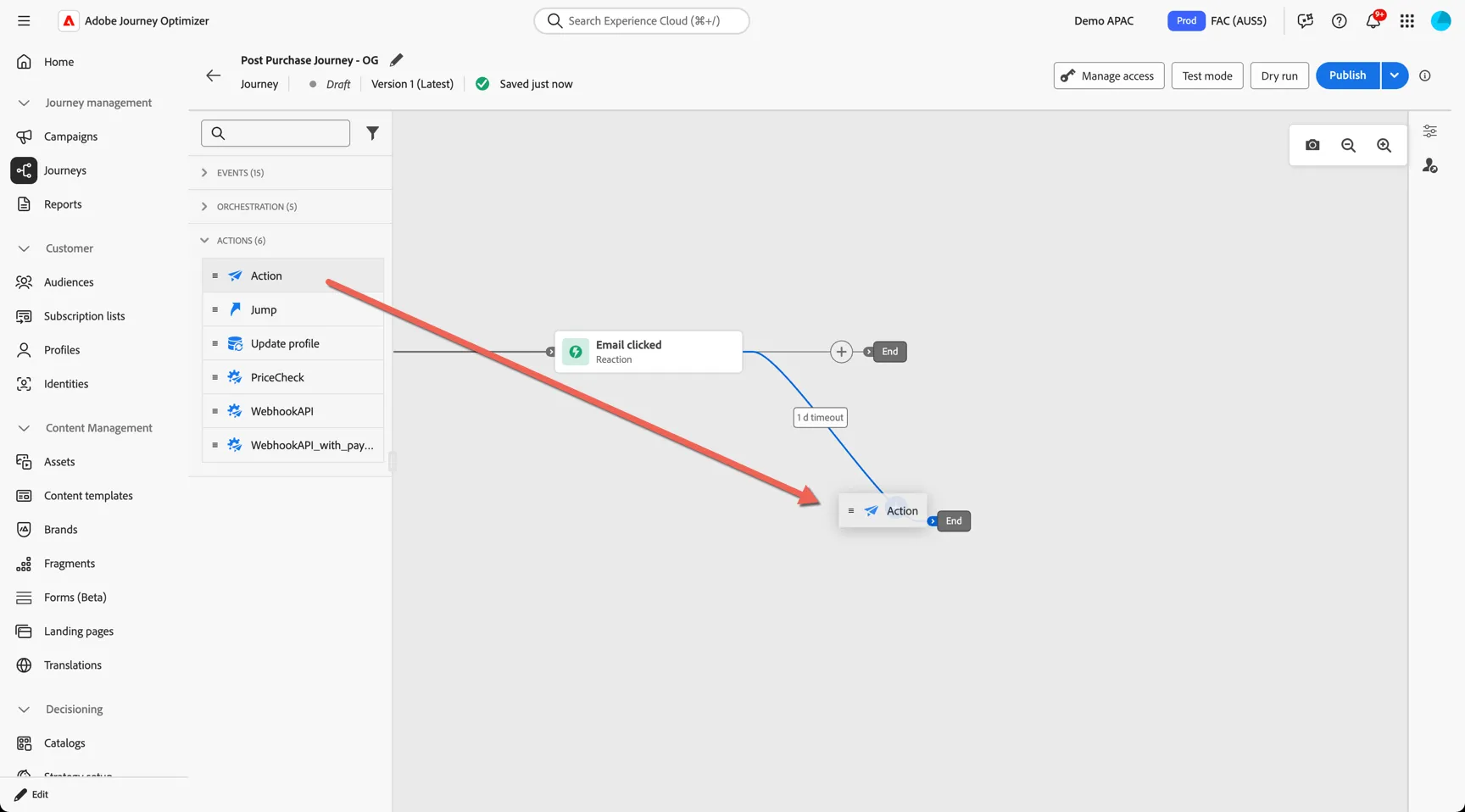
Lastly add another Action node to the timeout path.
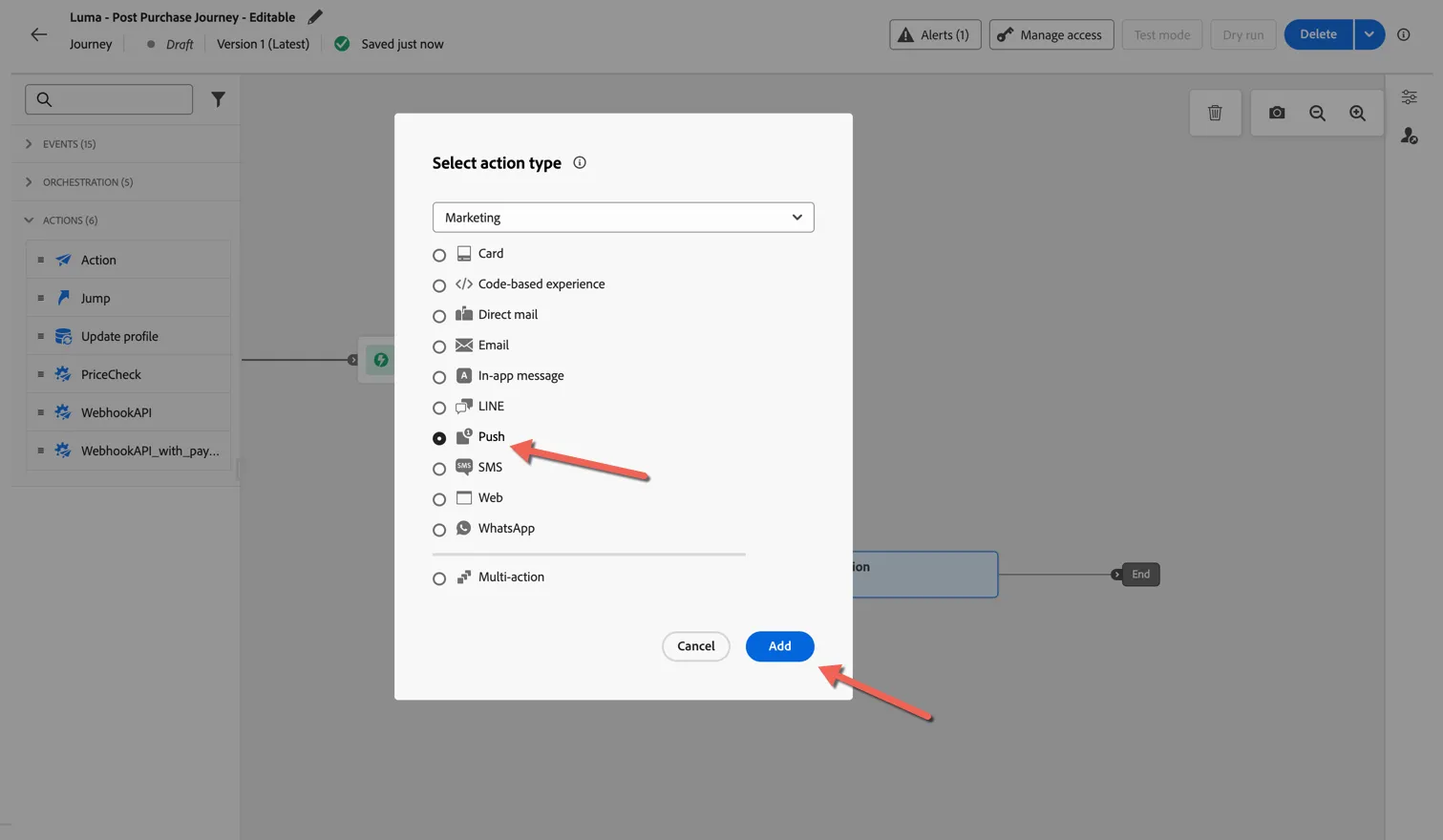
Set the action type to Push and click to Add.
Your journey logic is now complete.
Next we'll add the content.
4.2 Add Email Content
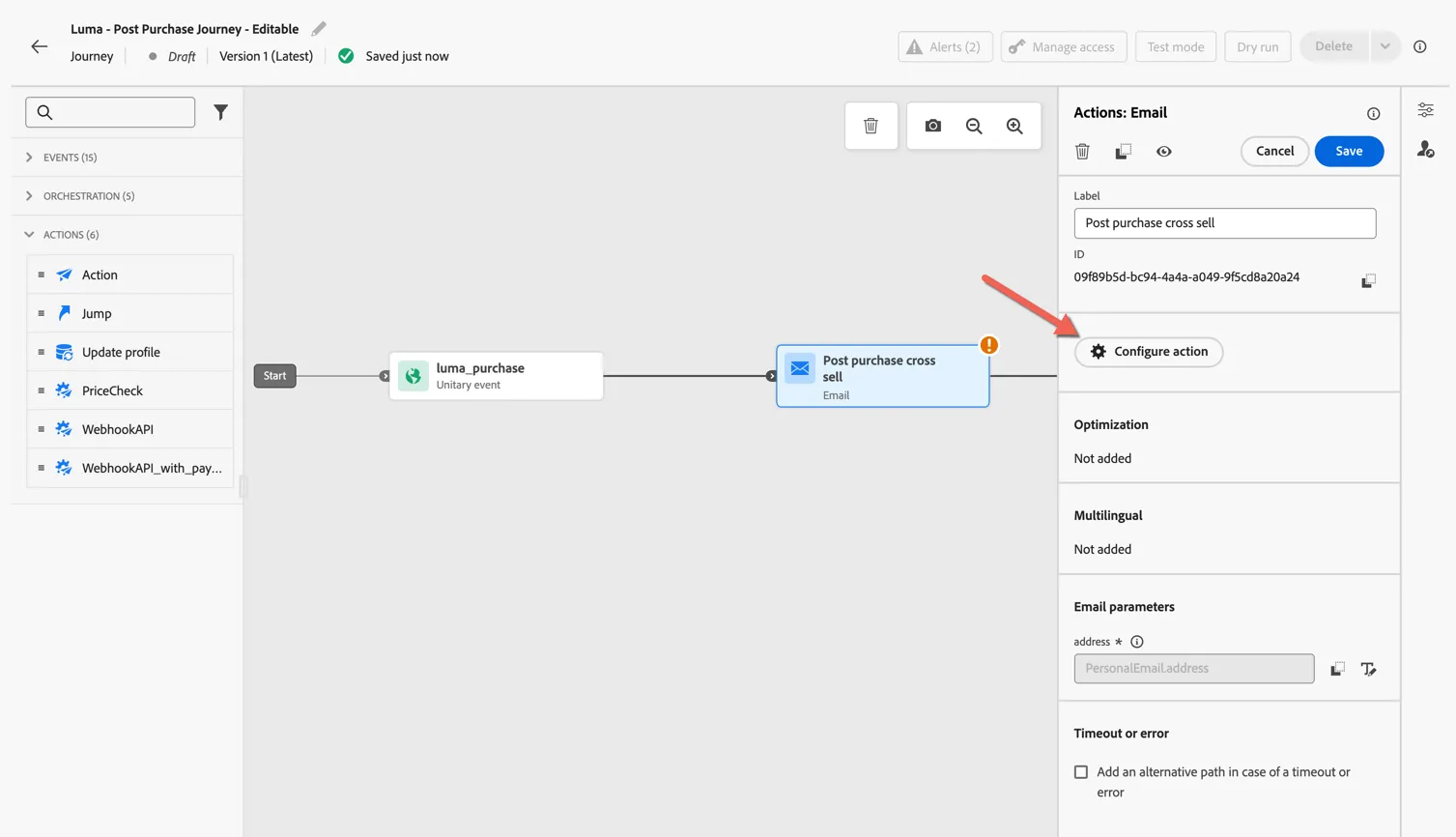
Select the email activity in your journey and click to Configure action.
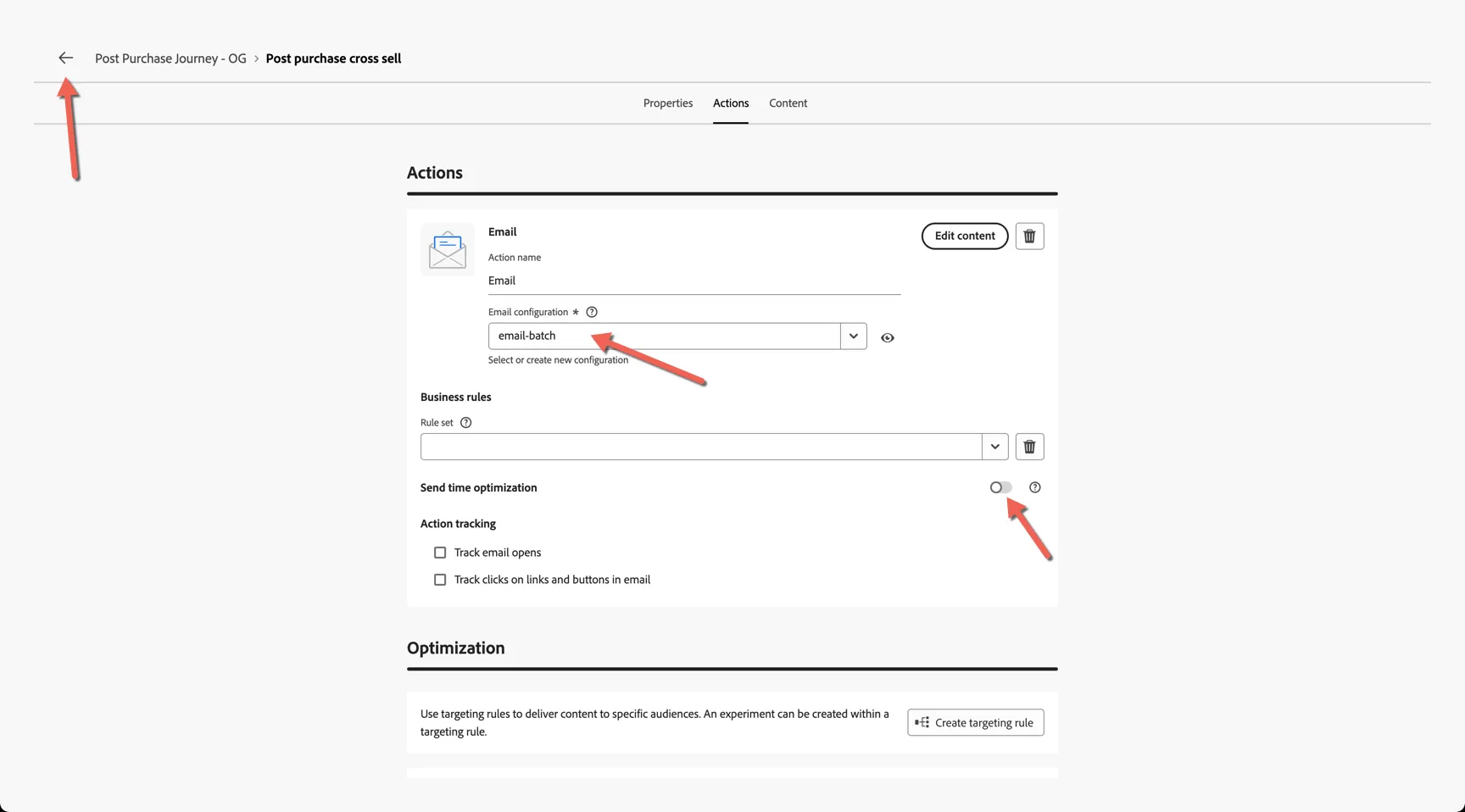
Set the email configuration to email-batch. Note that you can also use send time optimisation to send the message at the most appropriate time per customer.
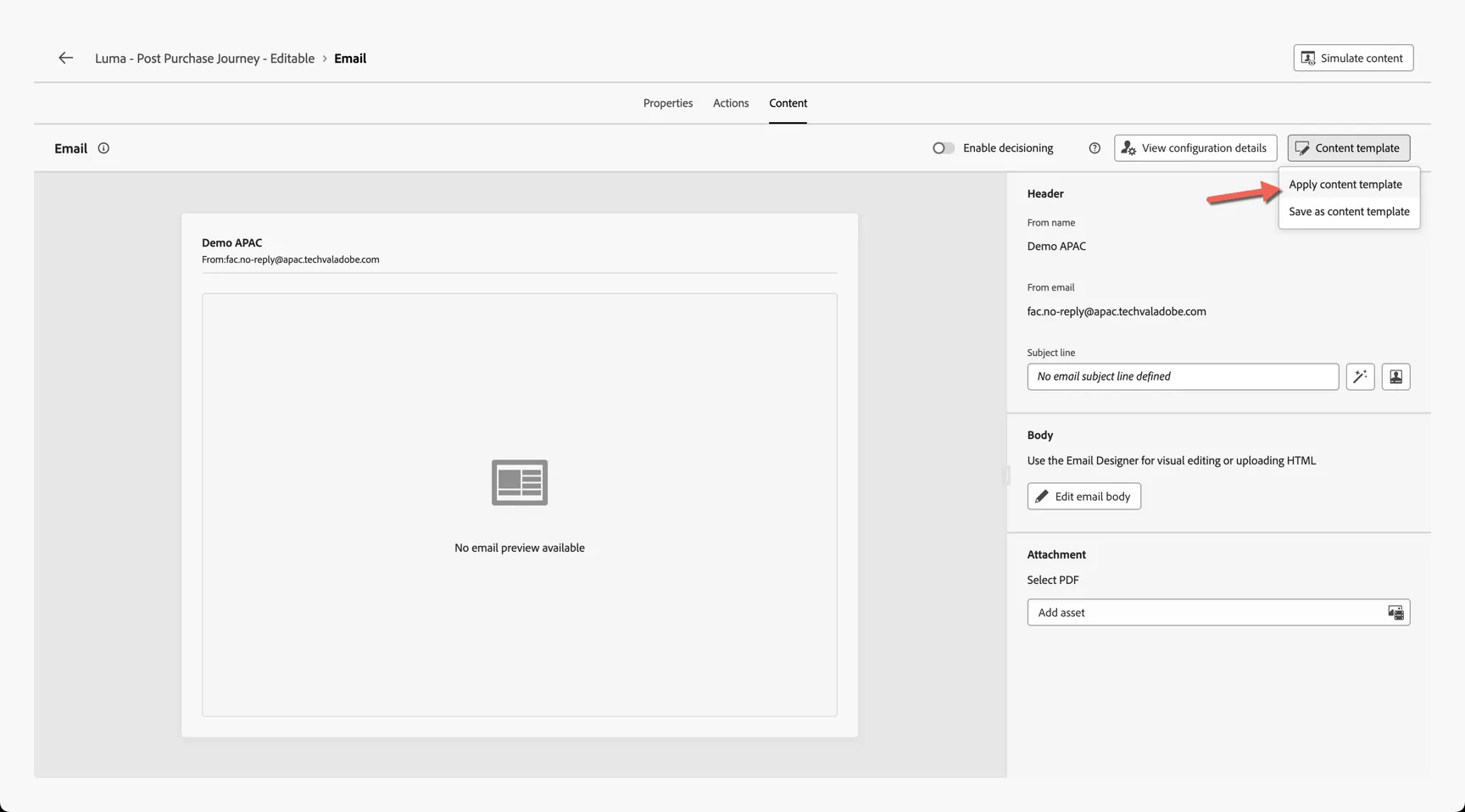
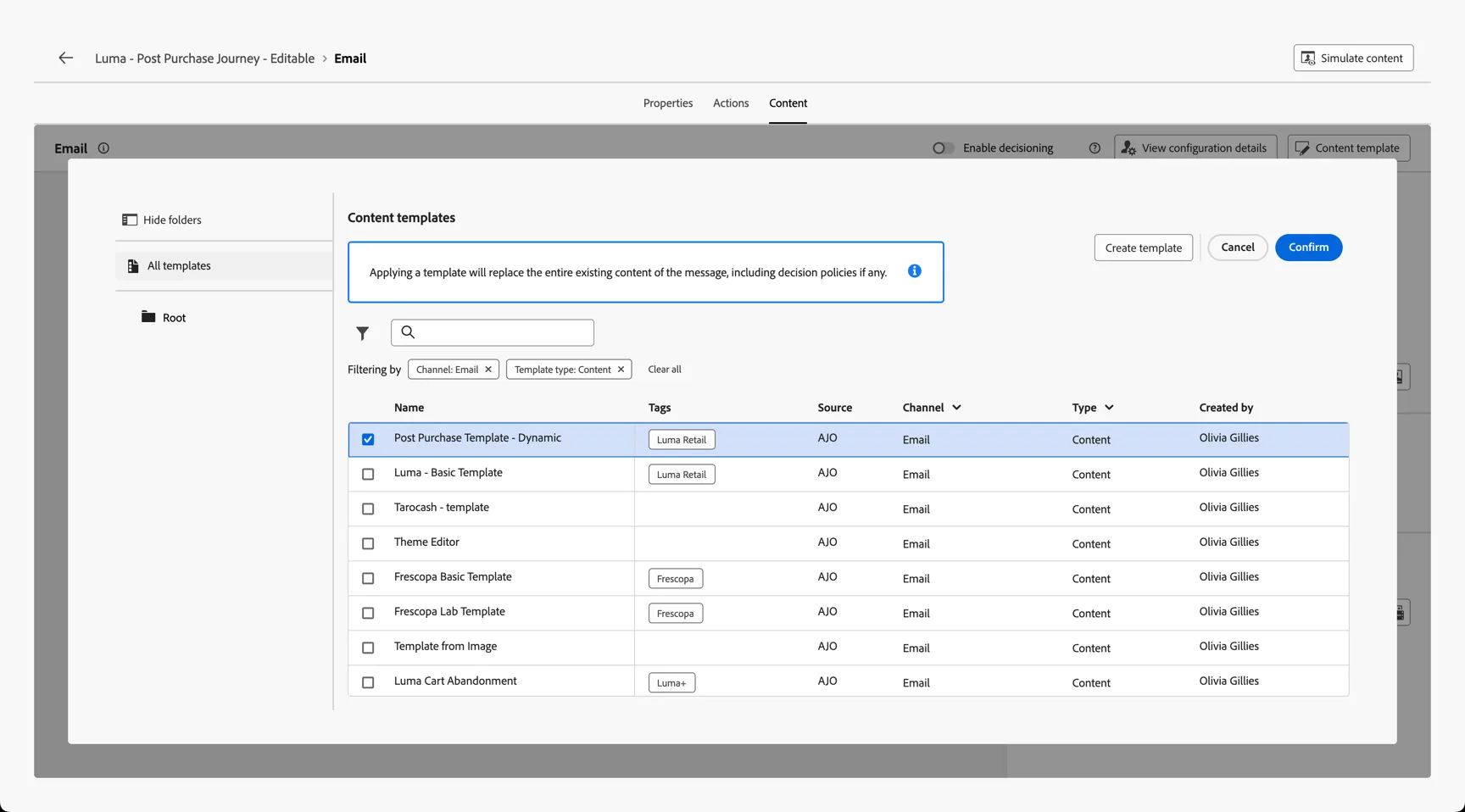
Click to Edit Content. In order to save time, we've pre-built a dynamic template for you, click to Apply content template.
Select the Post Purchase Template - Dynamic.
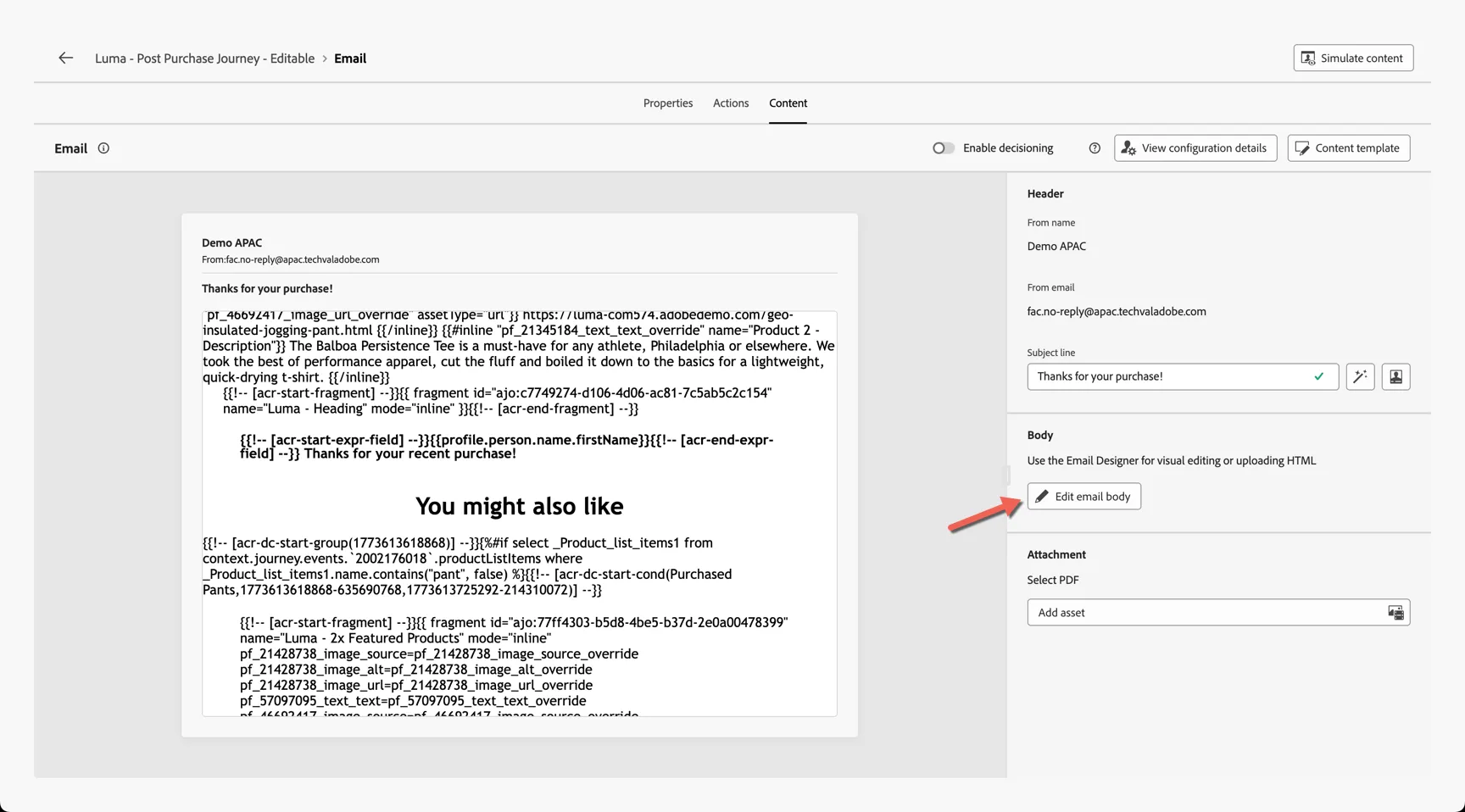
Click to Edit email body
We've used dynamic content to change which products are shown in the email depending on the cart details which came in with the purchase event. Click the block with the products in it. You'll notice the outline is orange, this indicates that the block has dynamic rules attached. The panel on the left will automatically change to Conditional Content.
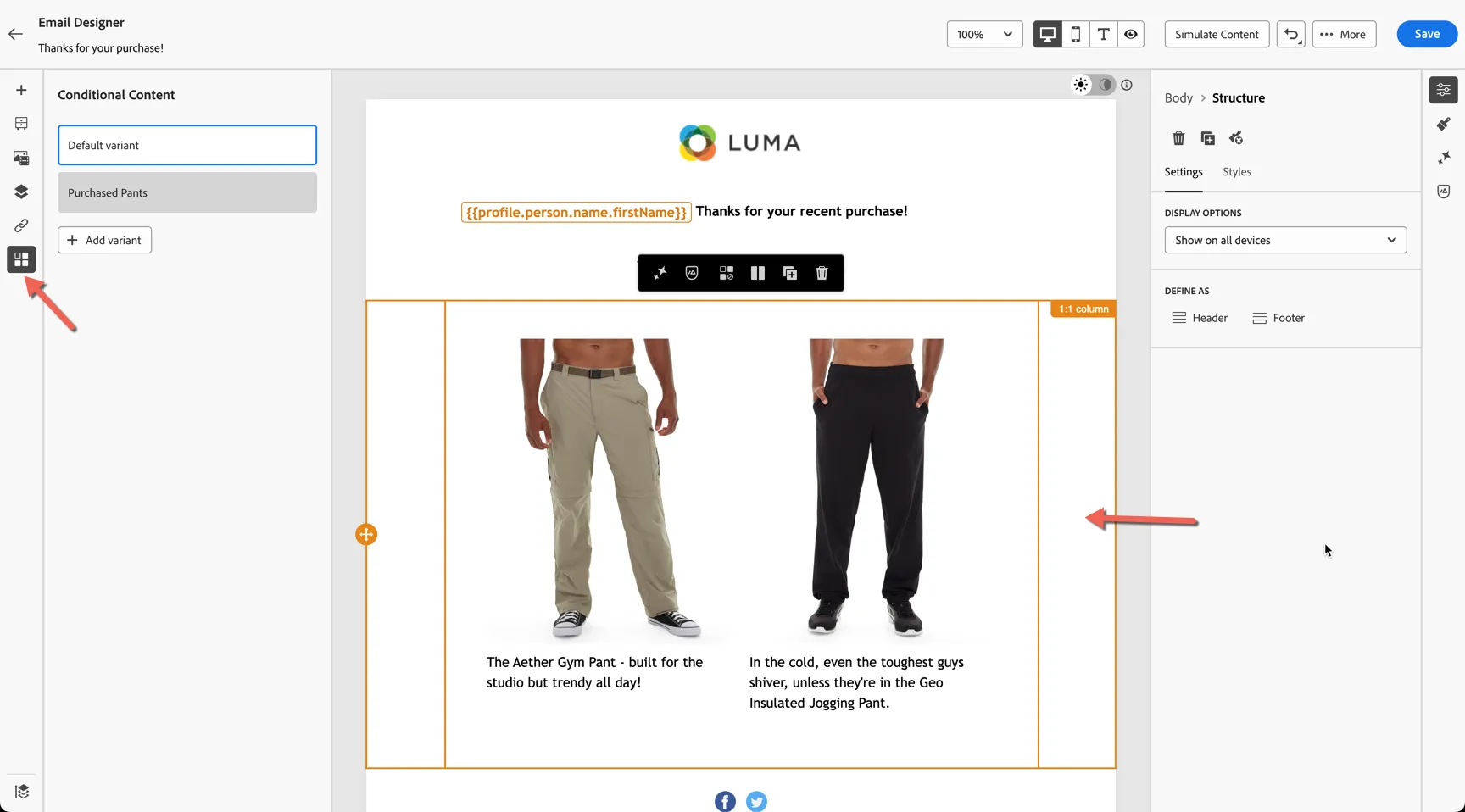
You can switch between the variations by clicking on the blocks. New variants can be added at any time. Select the Purchased Pants variant and click to edit the condition.
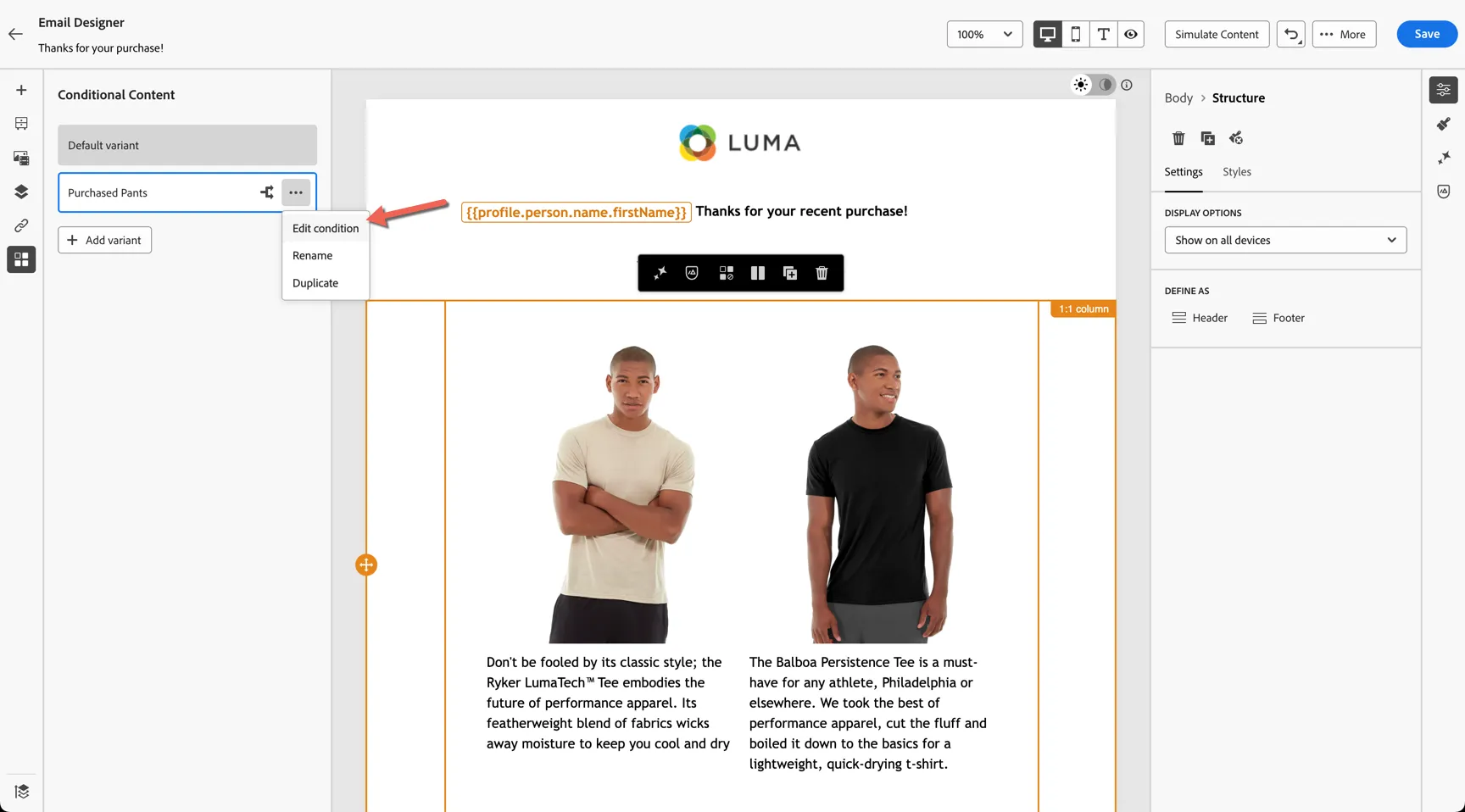
This opens the rule builder where you can see we have access to all of the profile attributes and audiences but also the Context of the journey. This means we can look up the products included in the luma_purchase event that triggered the journey entry.
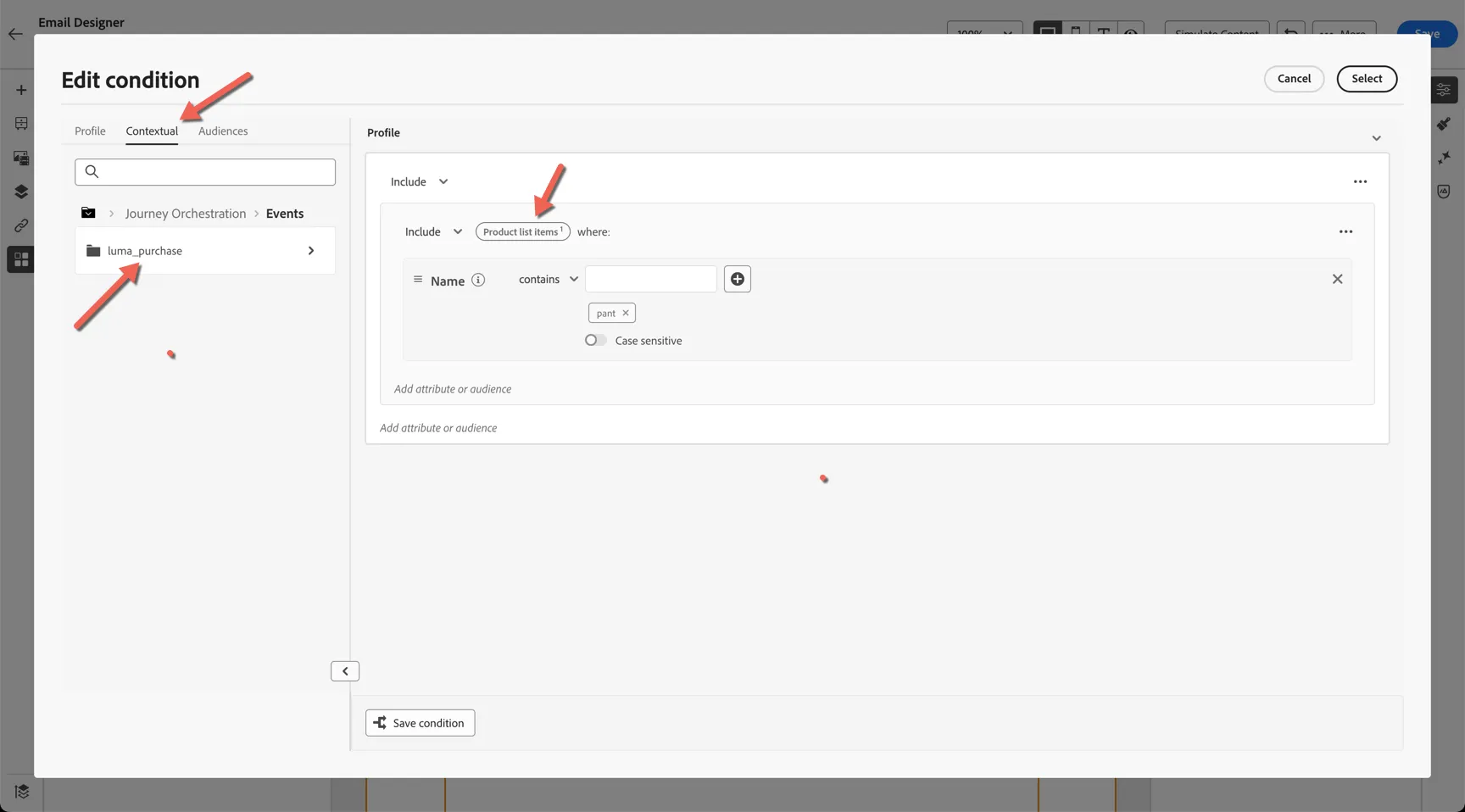
Conditional content blocks are a great way to personalise communications and ensure each customer receives the most relevant content based on their real time behaviour.
4.3 Add Push Content
Select the push action in your journey and click to configure the action.
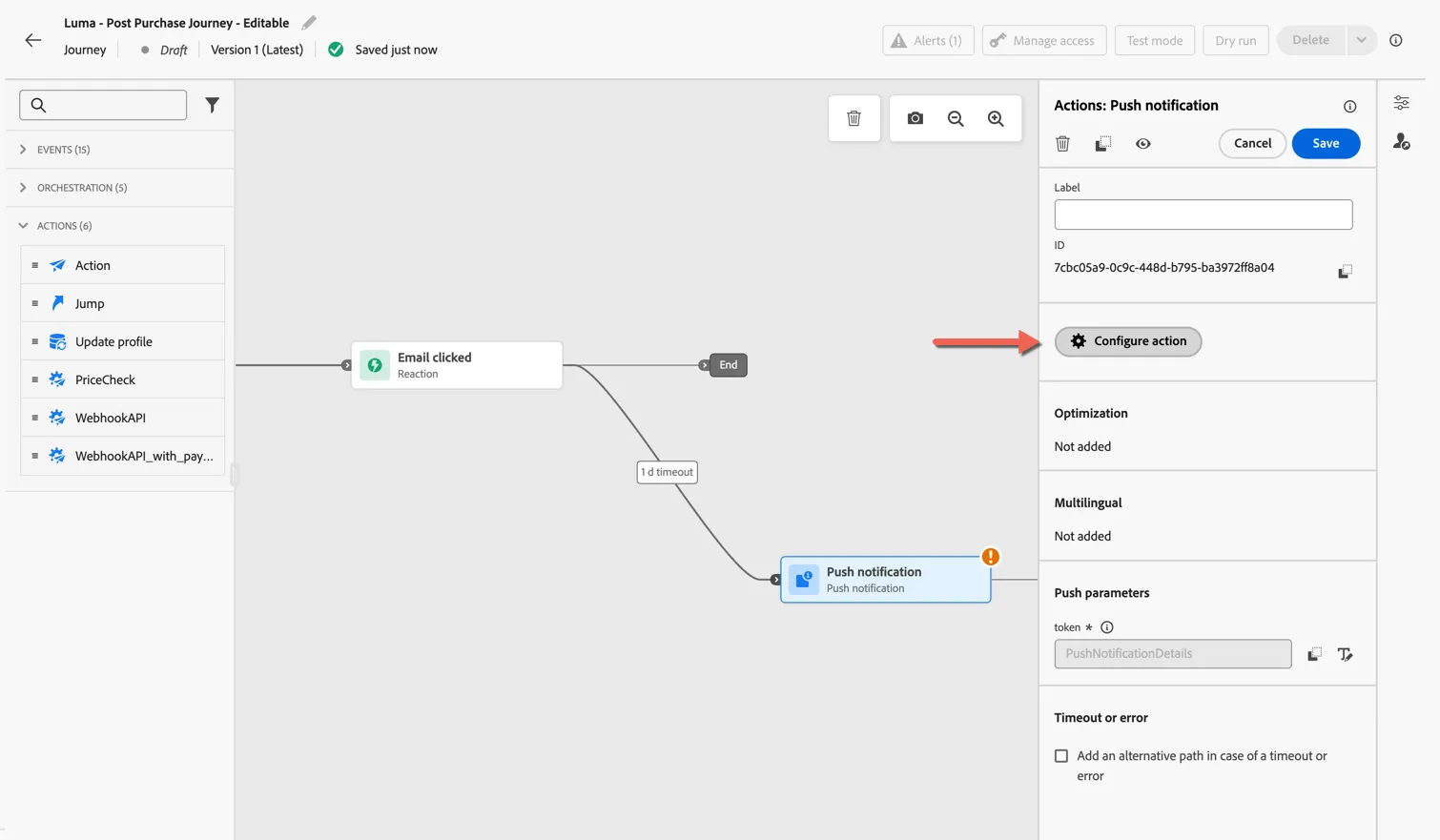
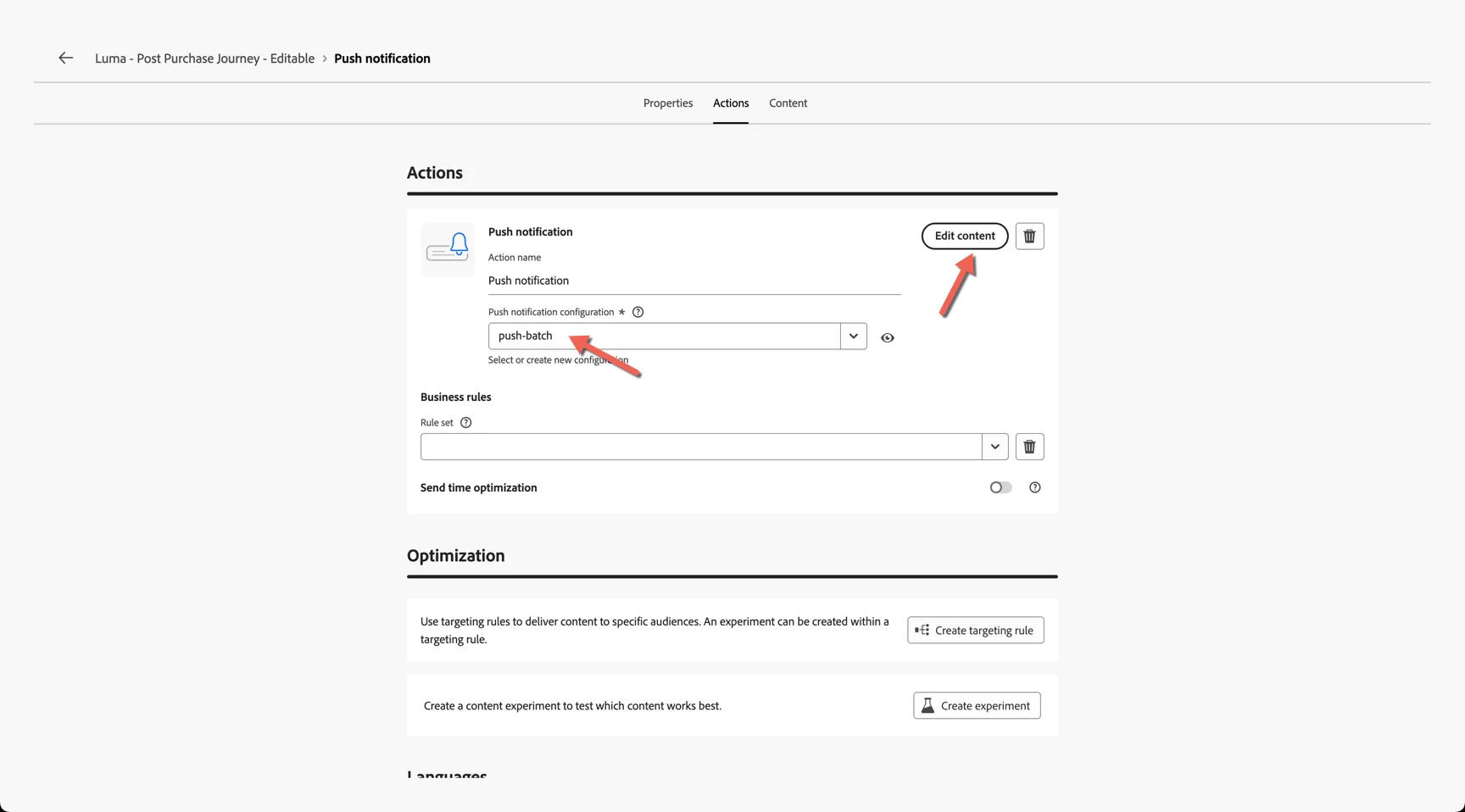
Select the push-batch configuration and click to Edit content.
Add a generic title then click to open the personalisation editor for the message body.
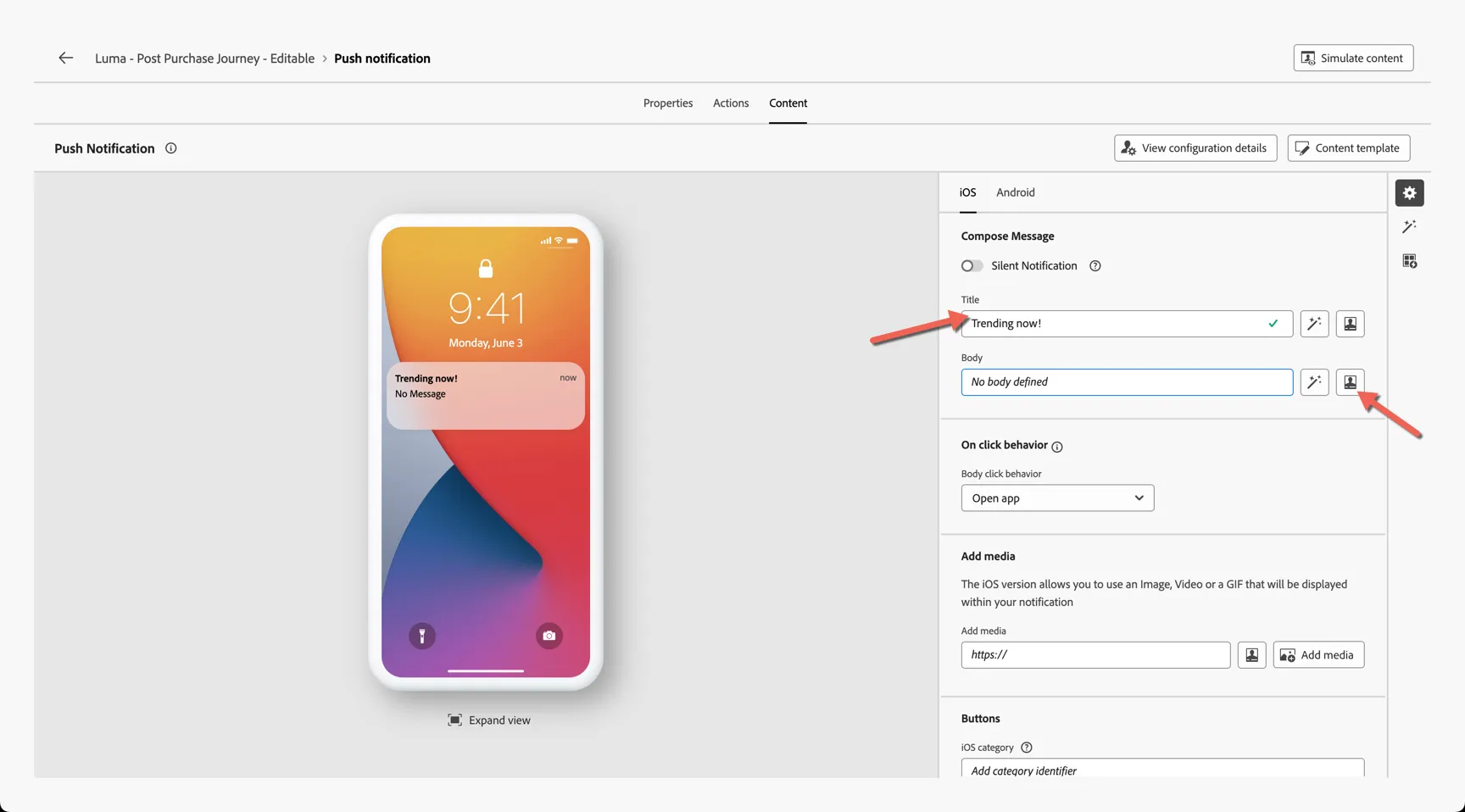
Our saved conditions are available to insert into the push message also. Click on conditions then use the + to inject the condition syntax into the content.
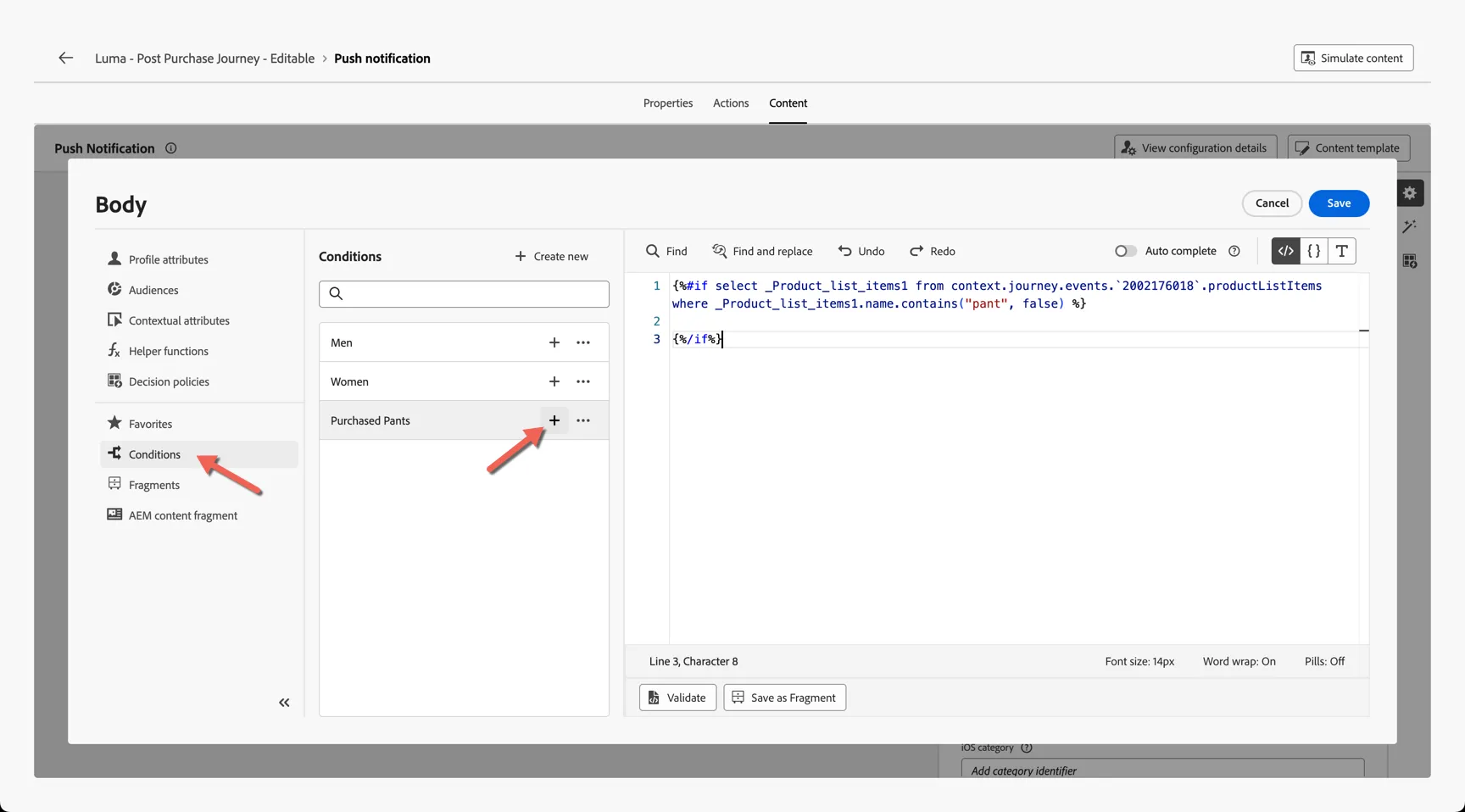
Add your message between the code blocks. You can use {%else%} to insert default content. For example:
Marvel Smart Linen shirts - built for summer dress codes
{%else%}
Elevate your professional wardrobe with our premium collection of men's dress pants and trousers.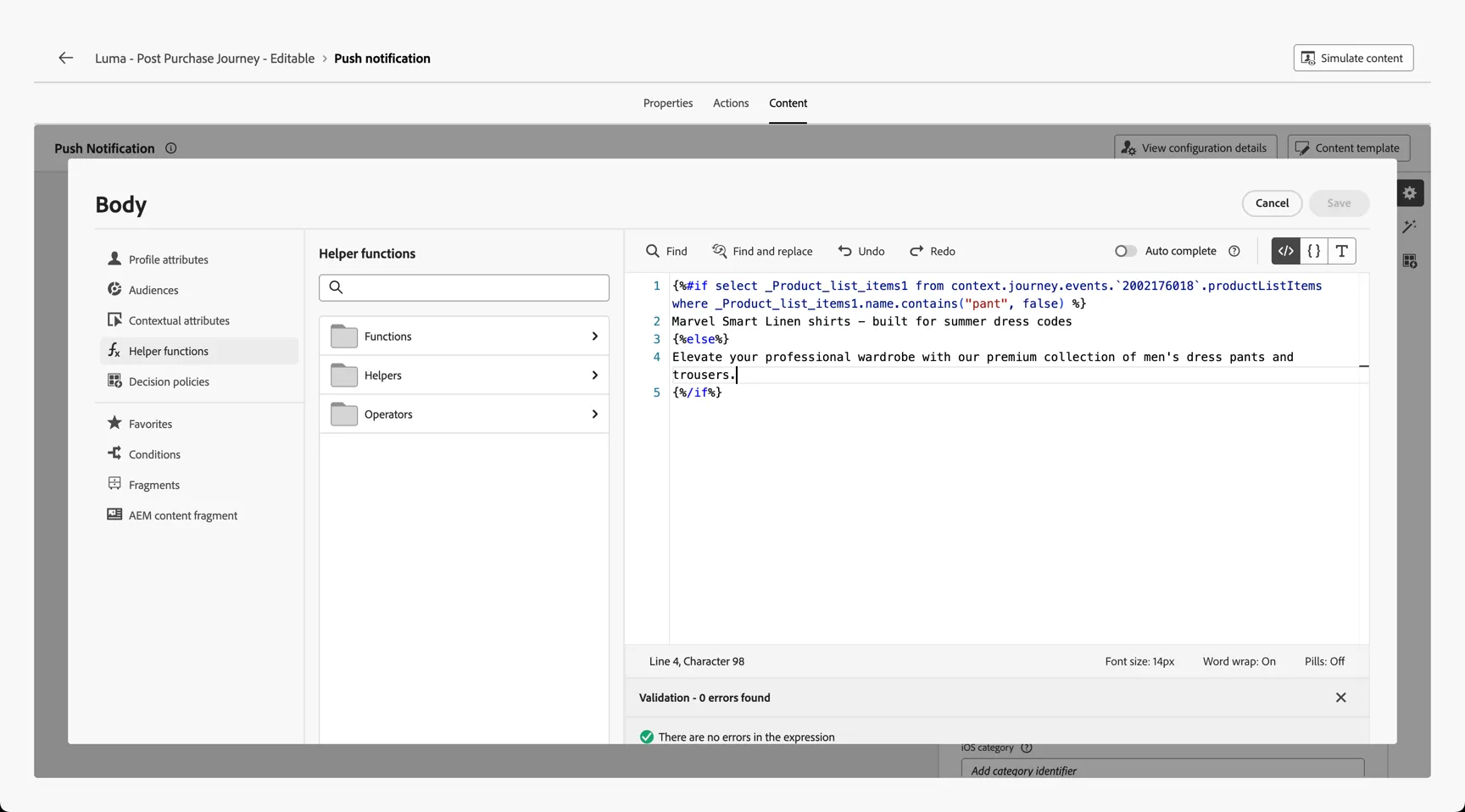
Your push message is now ready. Return to the journey using the arrow on the top left.
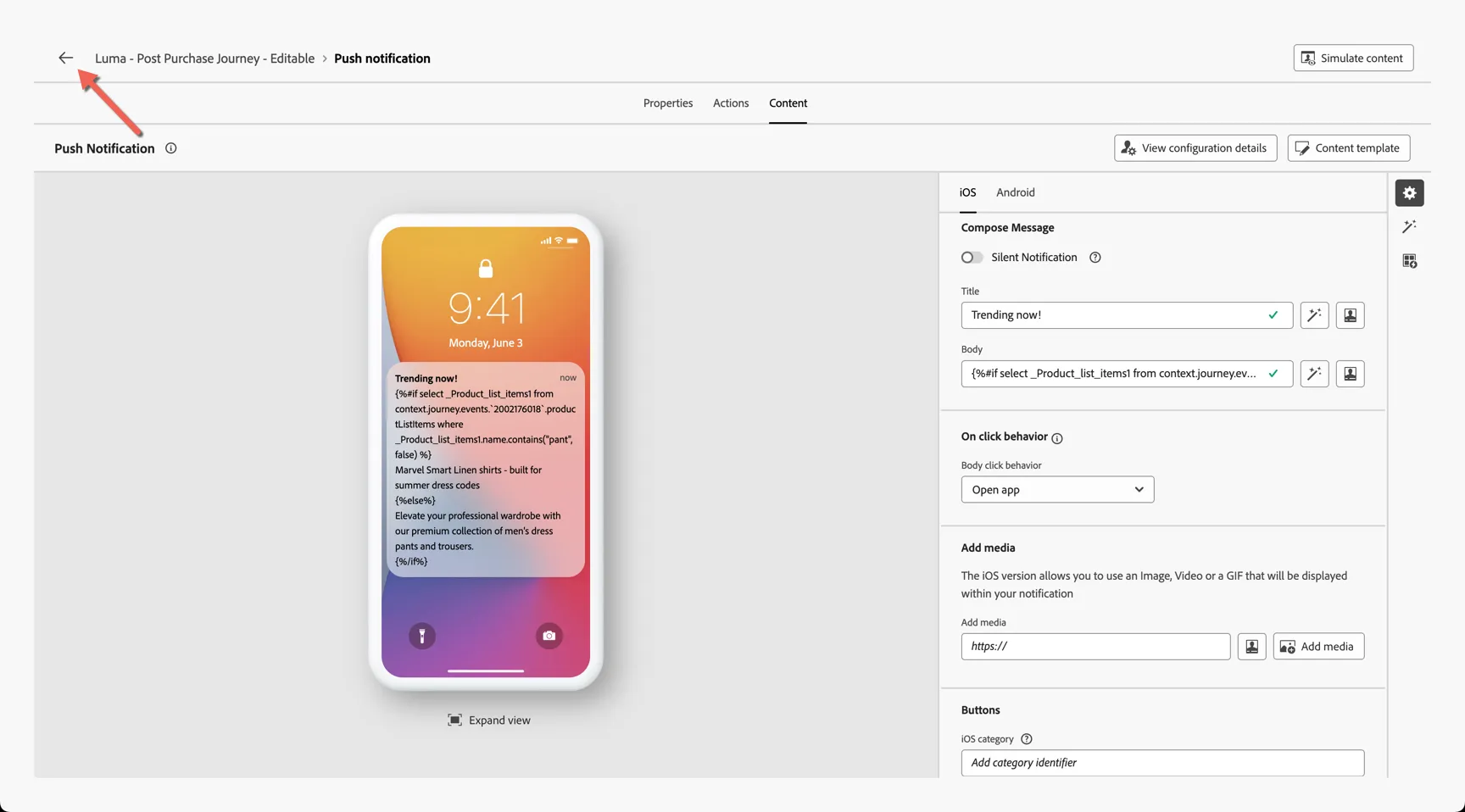
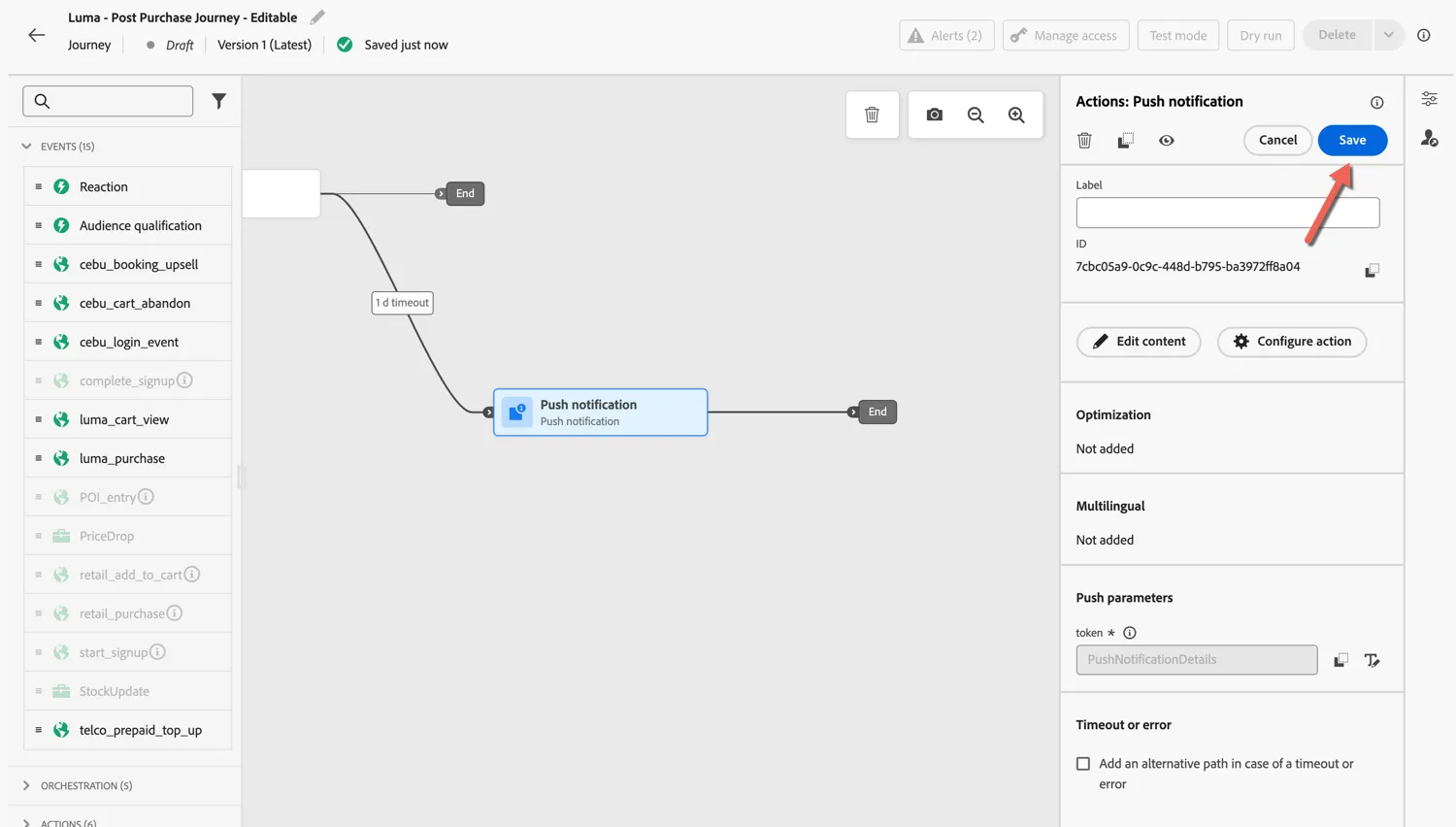
Save the activity and your journey is now complete.
4.4 Paid media targeting
For social and paid media we'll use a separate audience to manage the targeting, this is required since each product category will require their own audience. Context data is not available at the audience level.
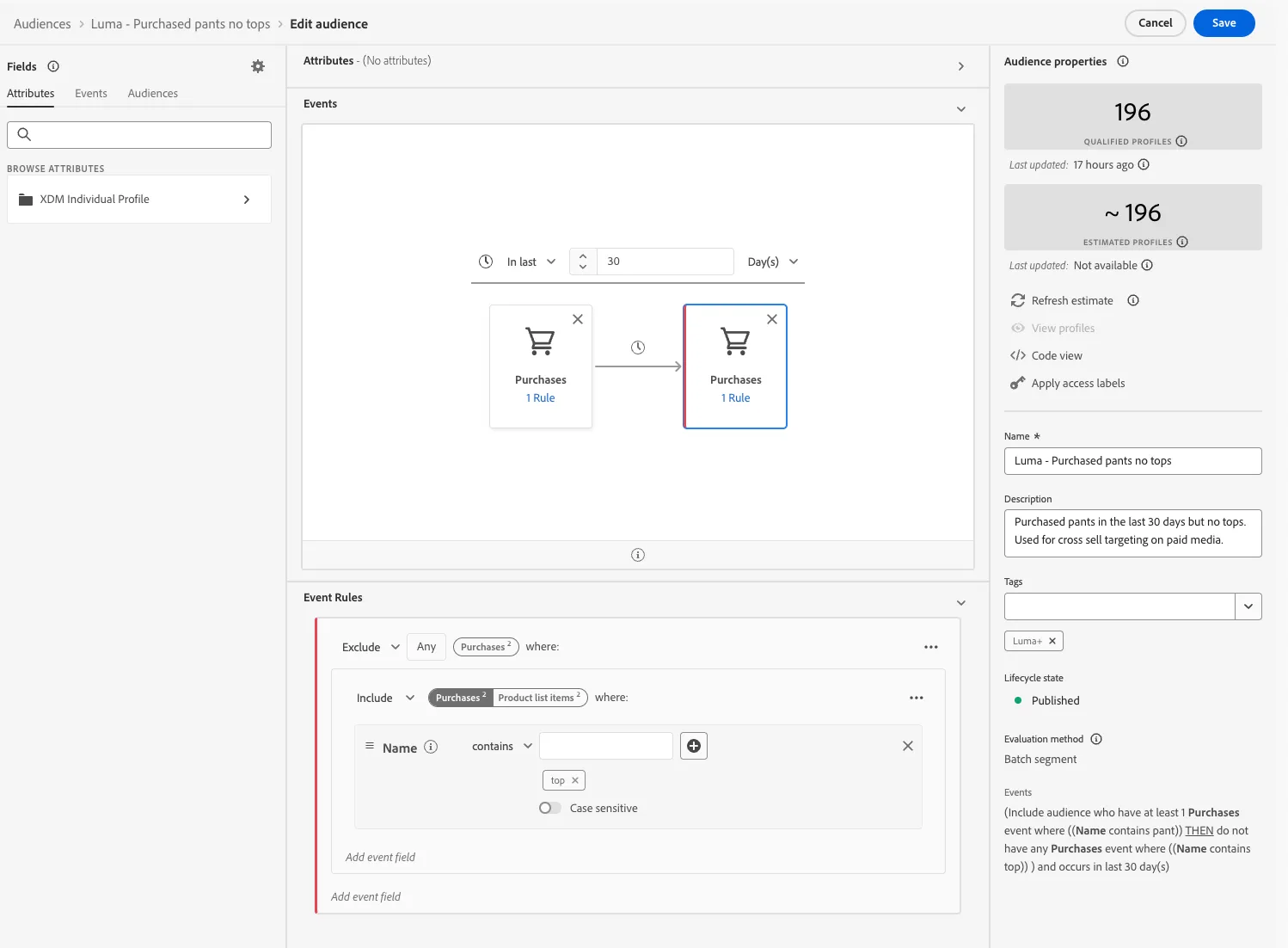
Adobe's sequential segmentation engine will allow you to easily create an audience which finds people who have completed a purchase event within a specific category but do not have a second purchase event in the cross sell category.
Click to view the Luma - Purchased pants no tops audience.
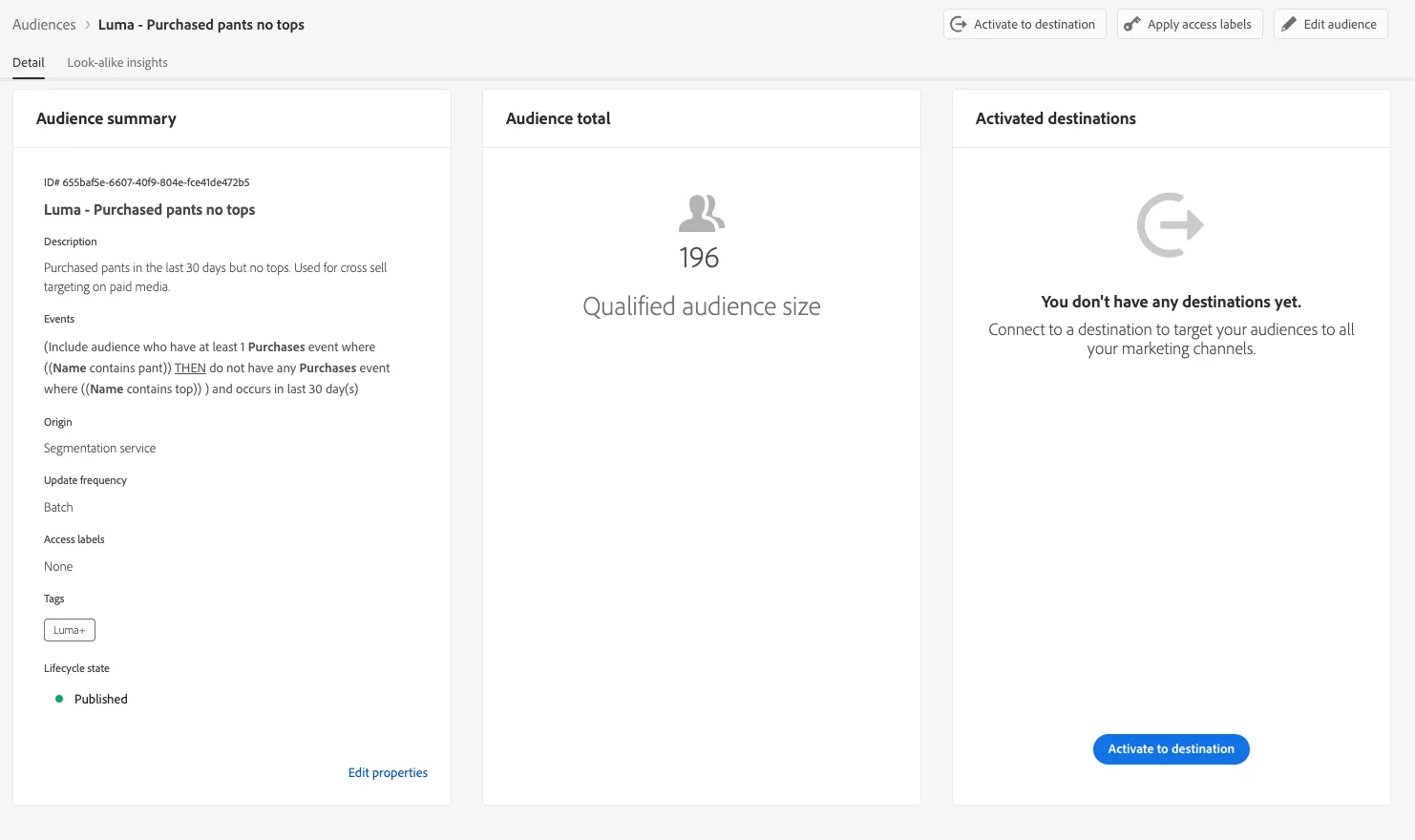
You can see the sequential logic defined within the audience builder.
This audience can be activated to paid media destinations the same as shown in Lab 3.
Bonus Exercise
Decisioning
Dynamic content is a great way to personalise communications but has limitations when it comes to scale. You don't want to create 50 variants in the email editor! This is where Adobe's Content Decisioning can help!
Using decisioning the content is chosen from a centralised catalogue based on business rules or predictive AI.
The centralised offer catalog can be found under Decisioning -> Catalogs.
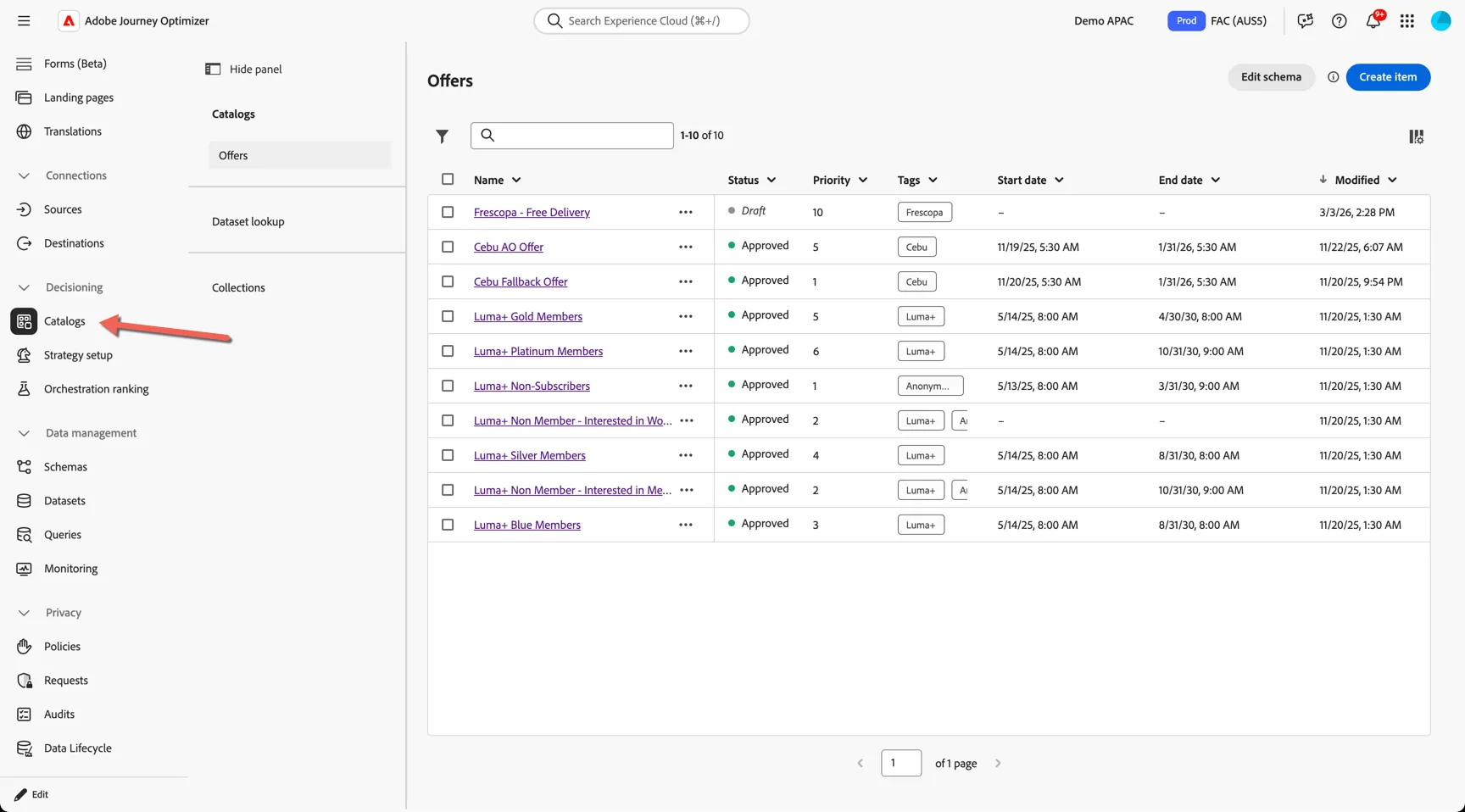
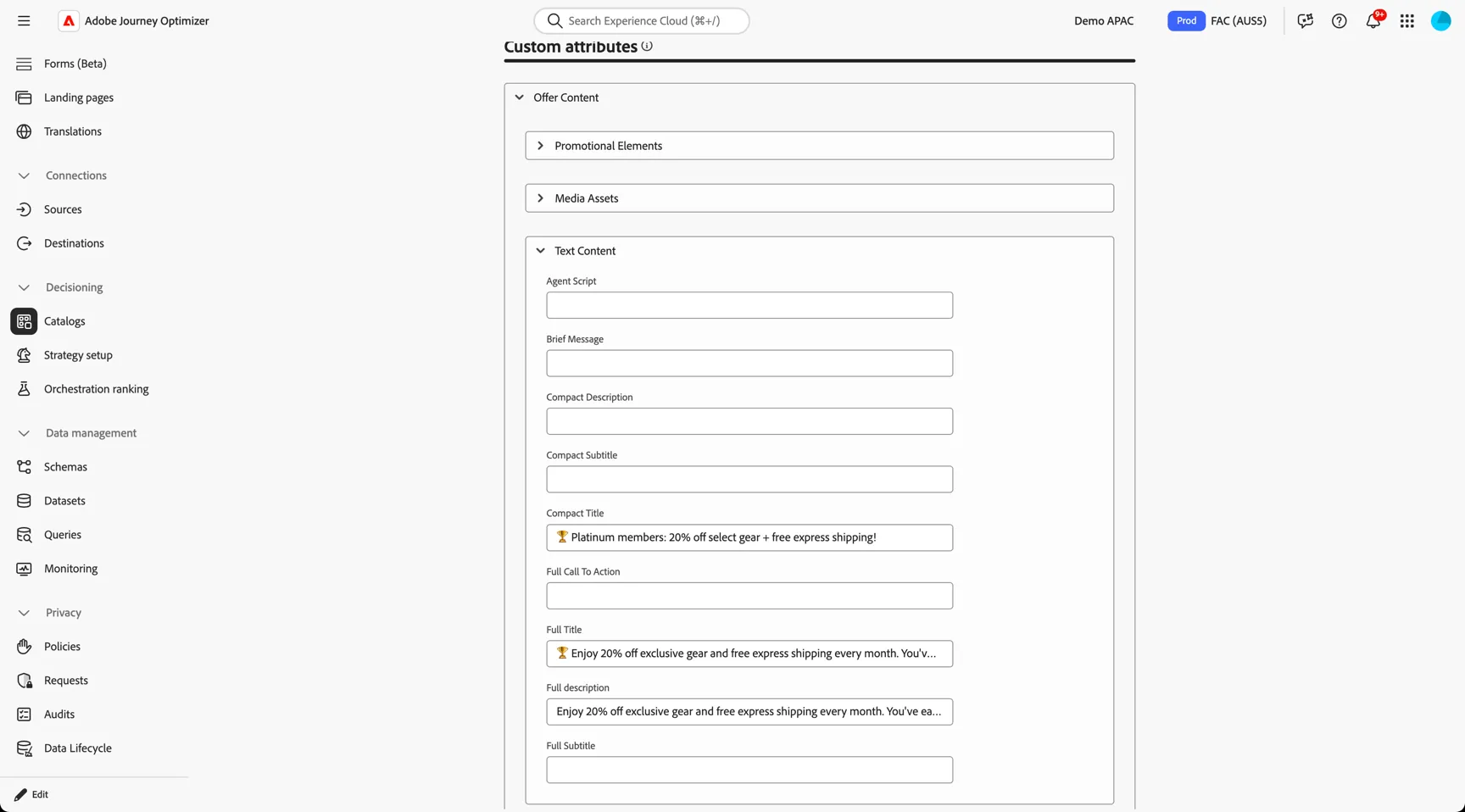
Offers are grouped into Collections which are then applied to Selection strategies. Each offer contains standard attributes like validity dates and tags but also supports custom attributes to hold the content of the offer.
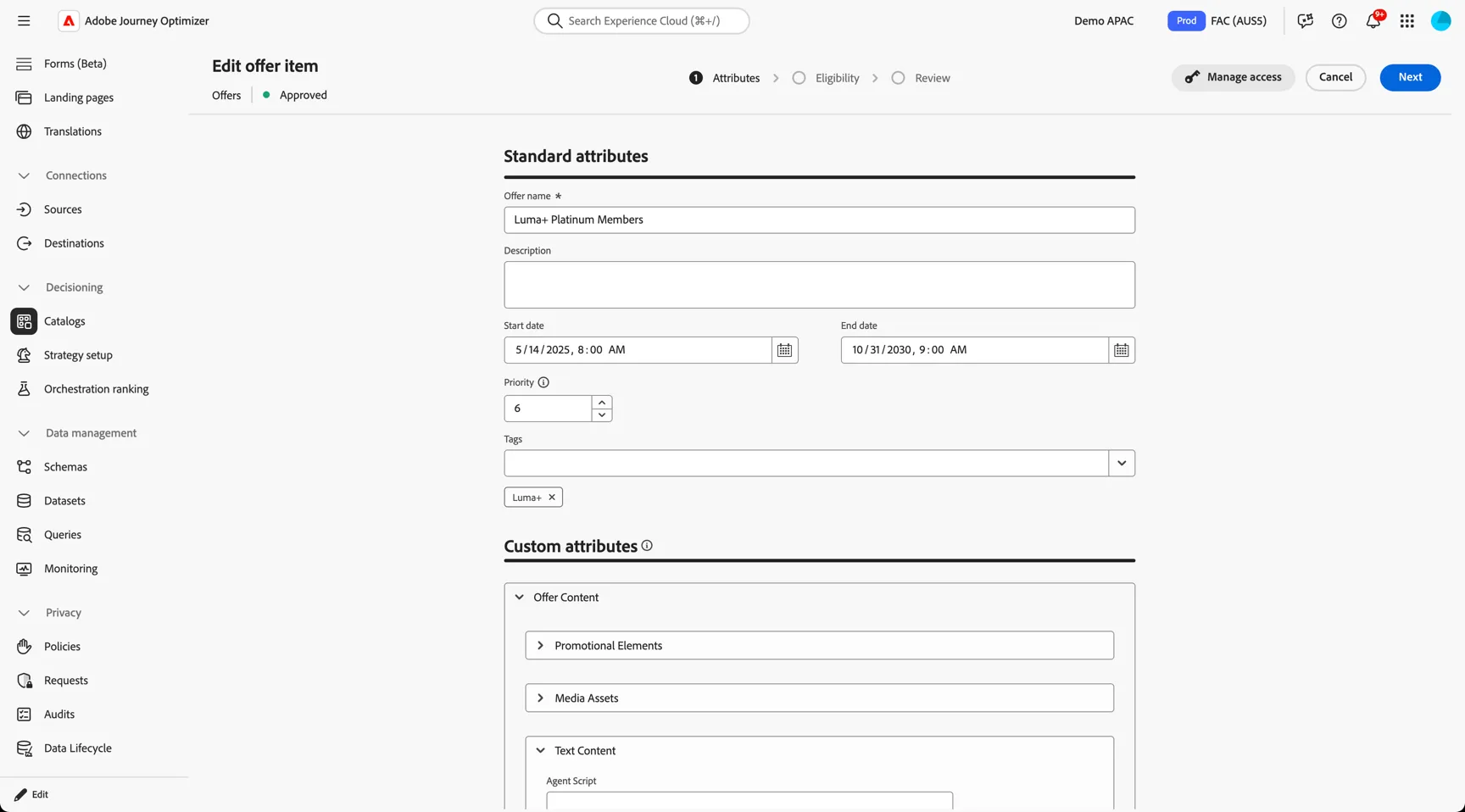
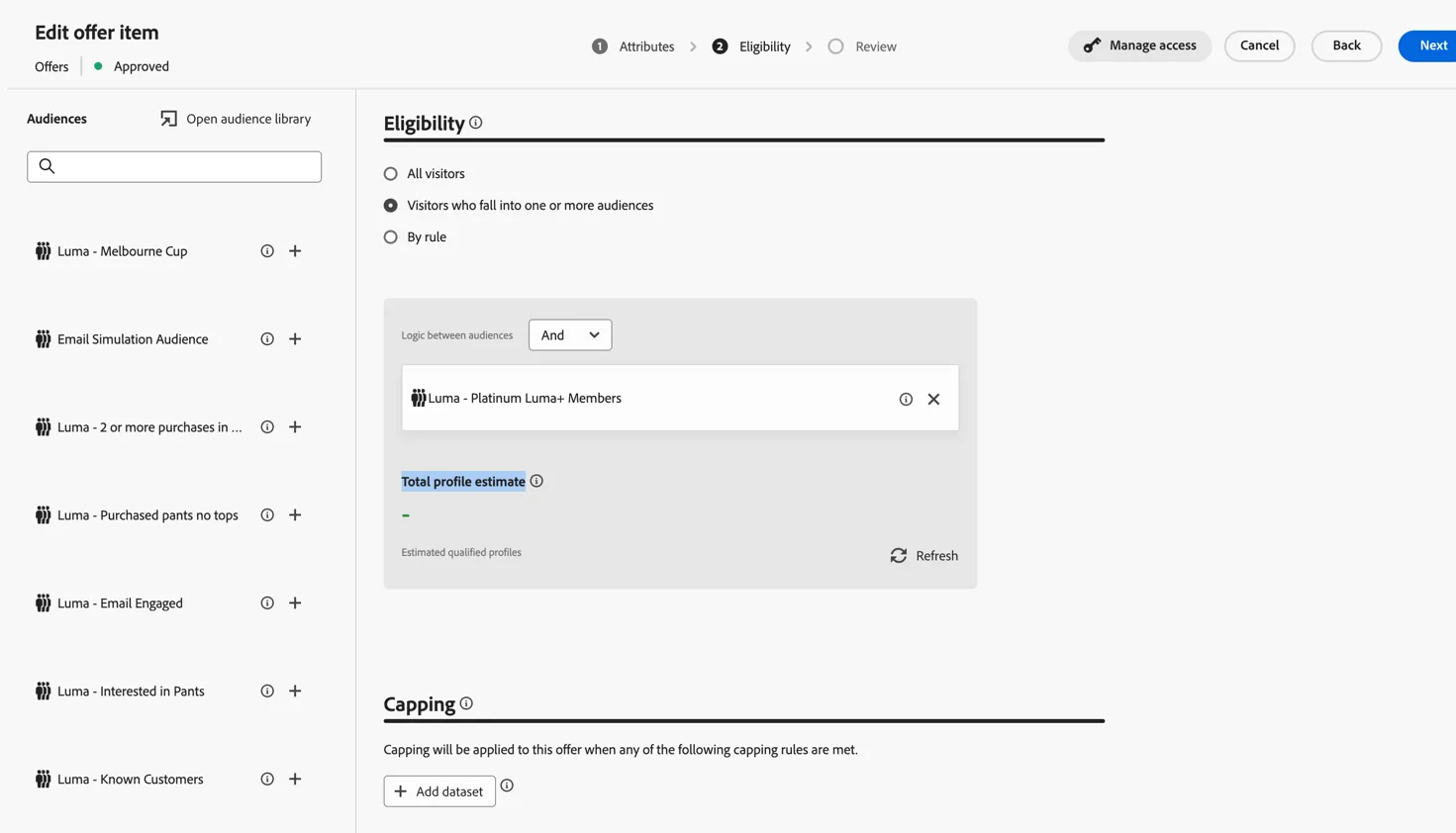
Eligibility conditions control which customers are allowed to receive each offer.
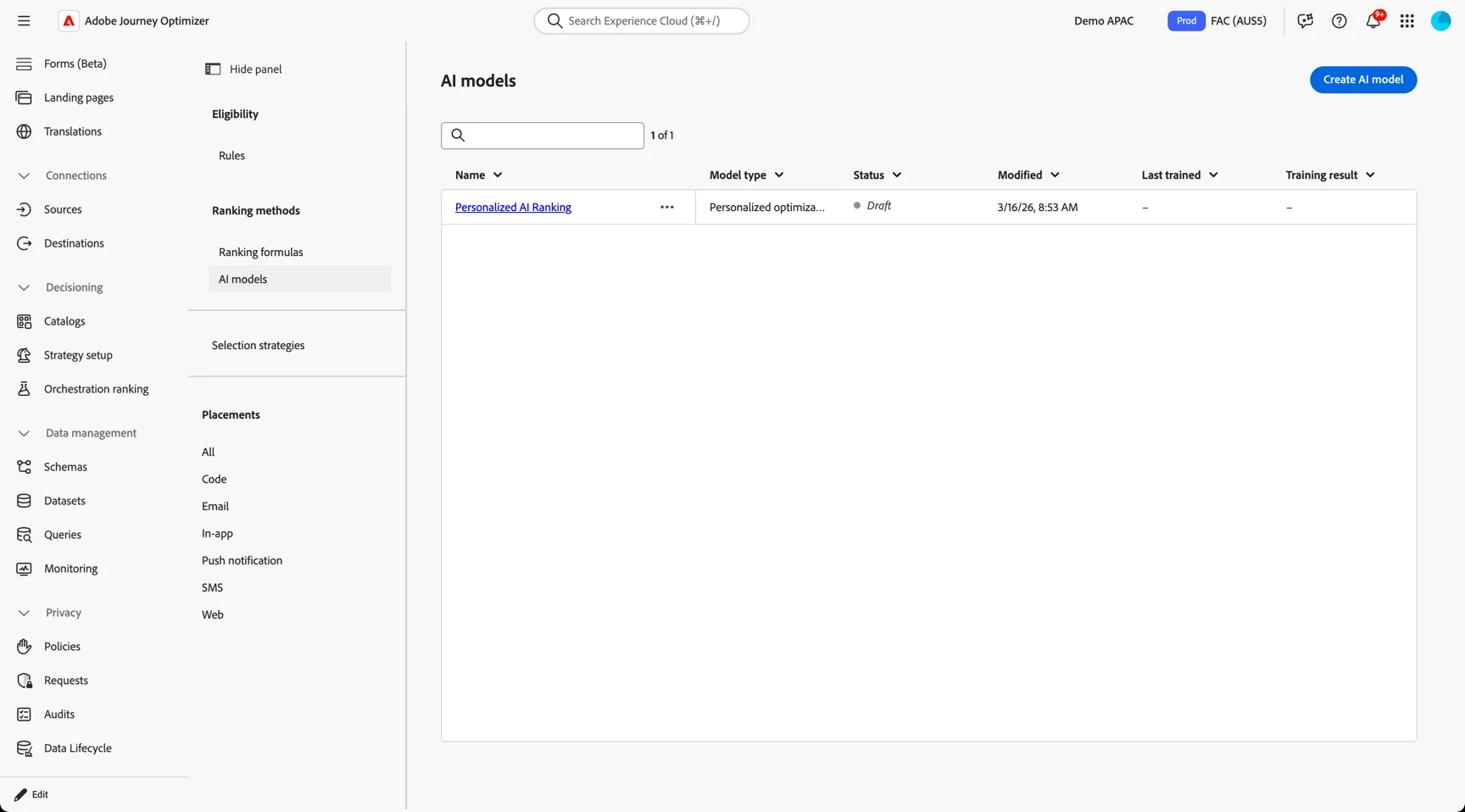
Offers are ranked by either a static priority value, a formula (expression) or AI. This ensures customers eligible for more than 1 offer are shown the most relevant to them.
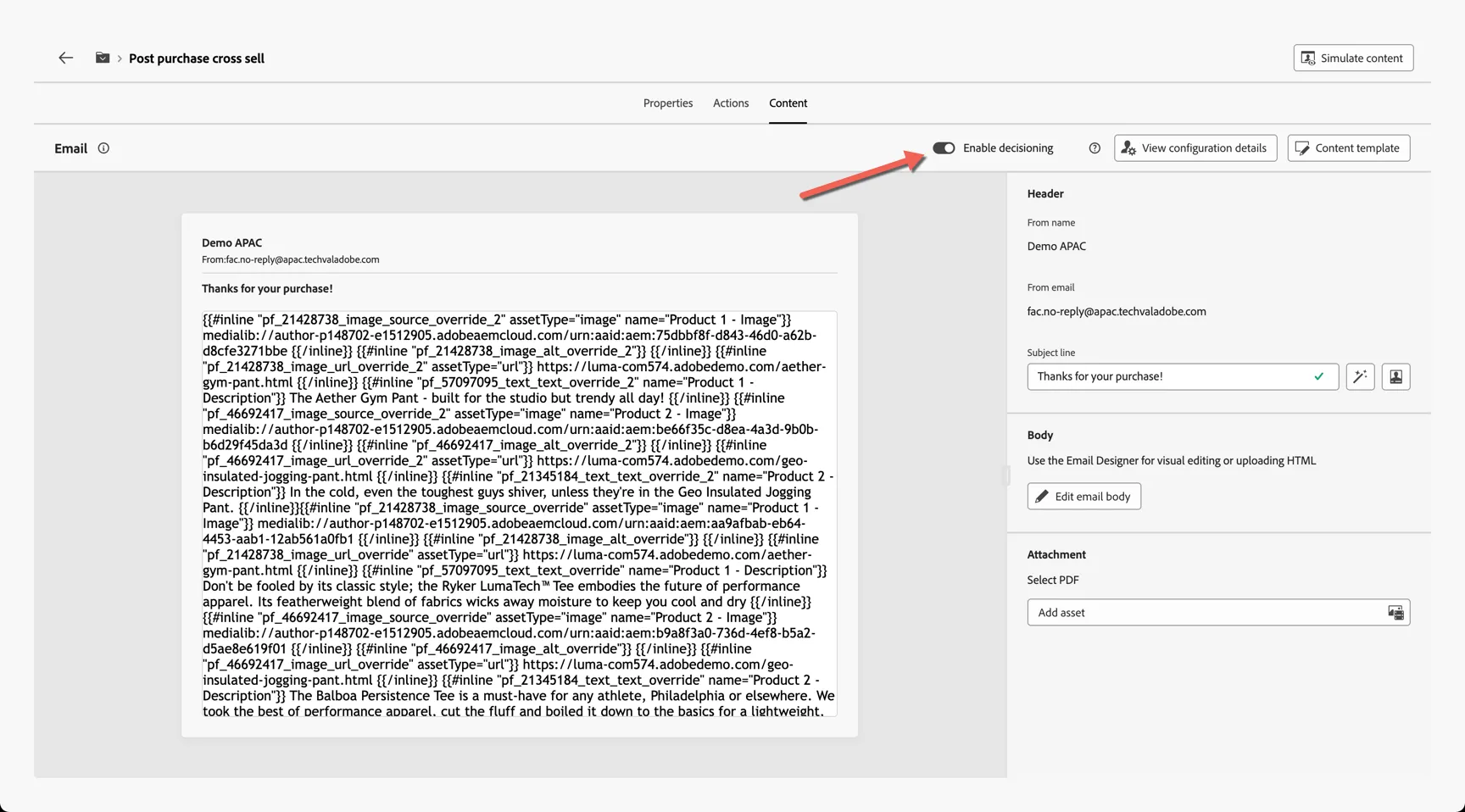
You can enable your email for decisioning by switching the toggle before opening the email designer.
Within the Email designer you can now add a Decision Policy to a content block.
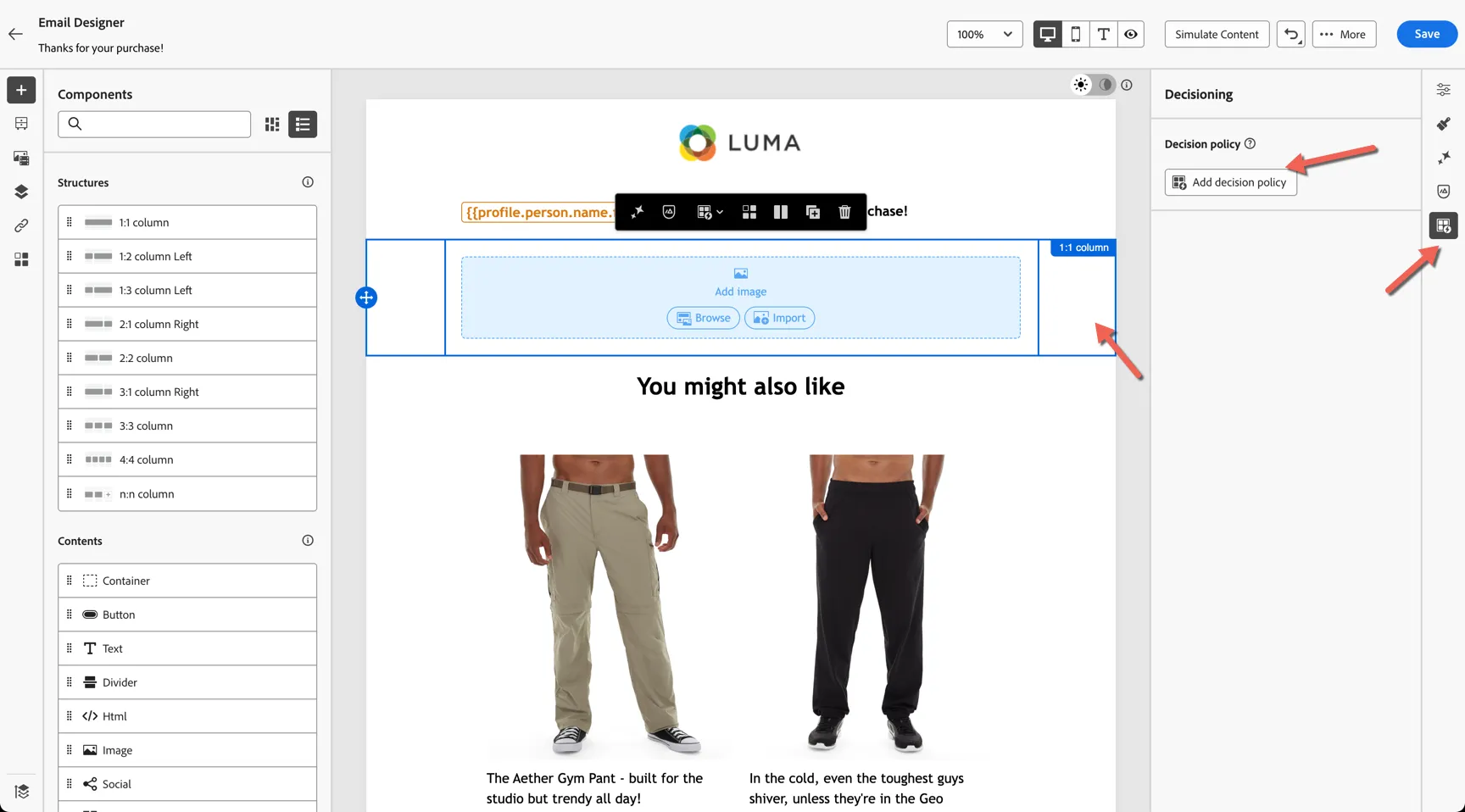
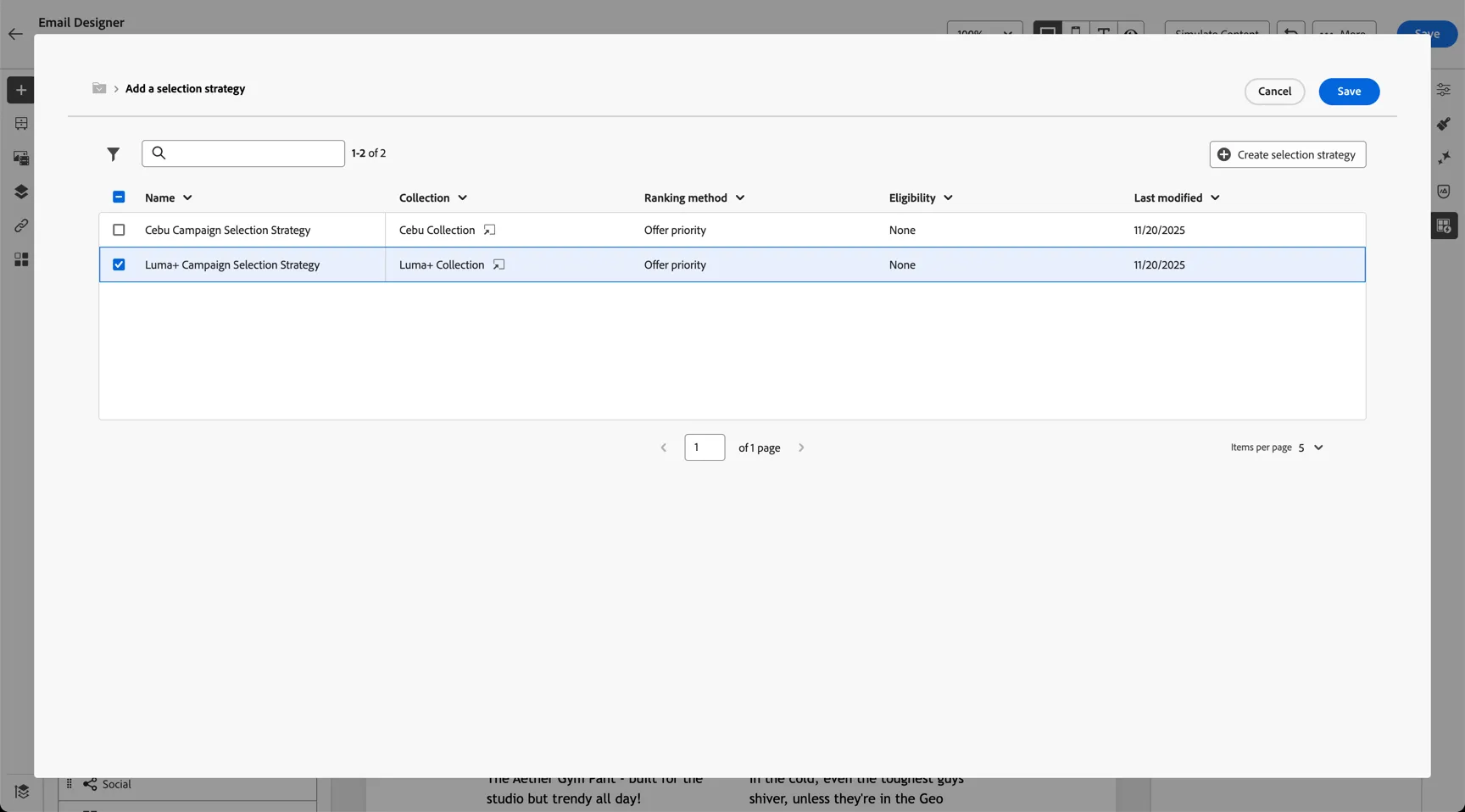
The policy defines the selection strategy to use and how many offers to return.
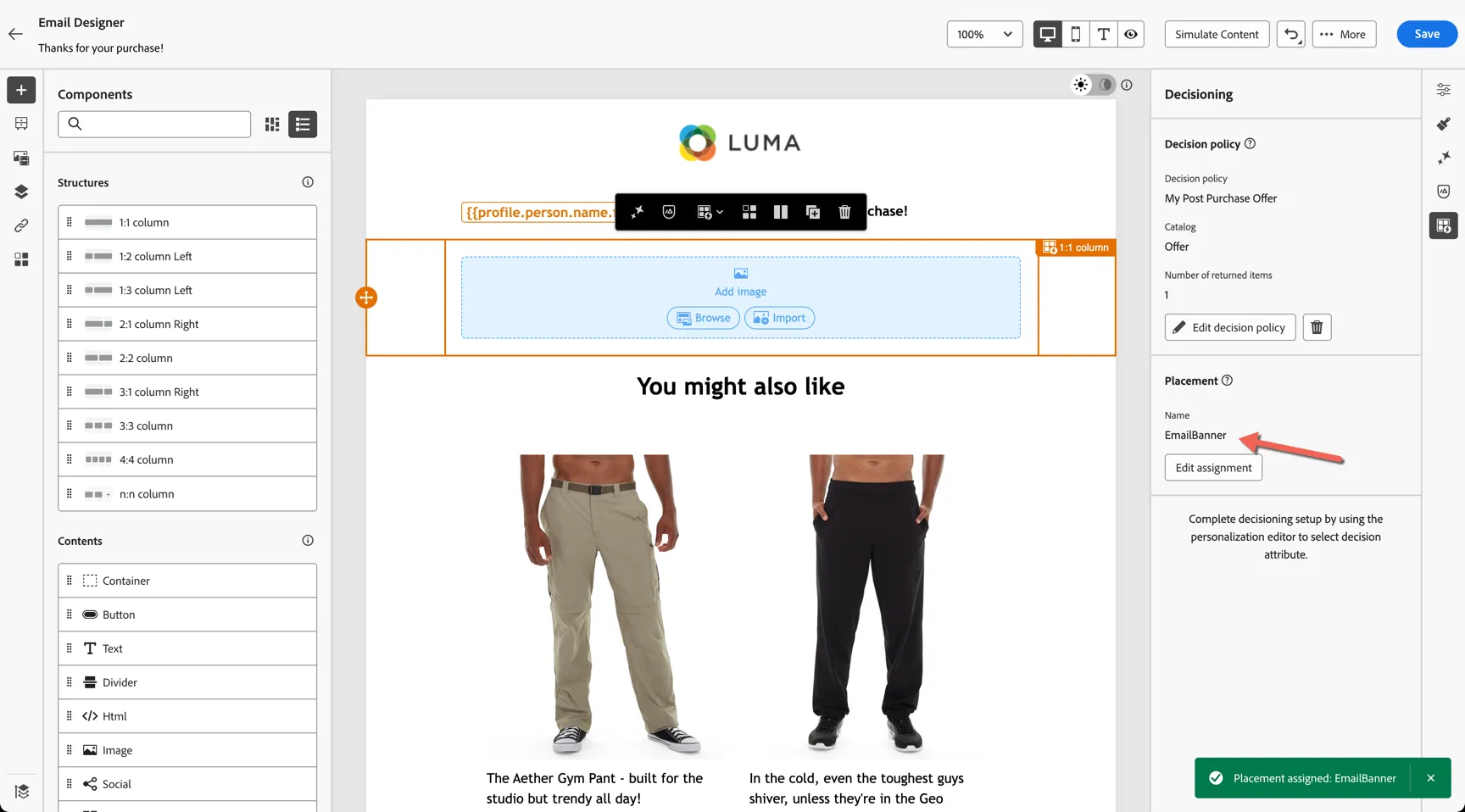
The Placement name helps to identify the block in reporting if multiple offer blocks are included in the same communication.
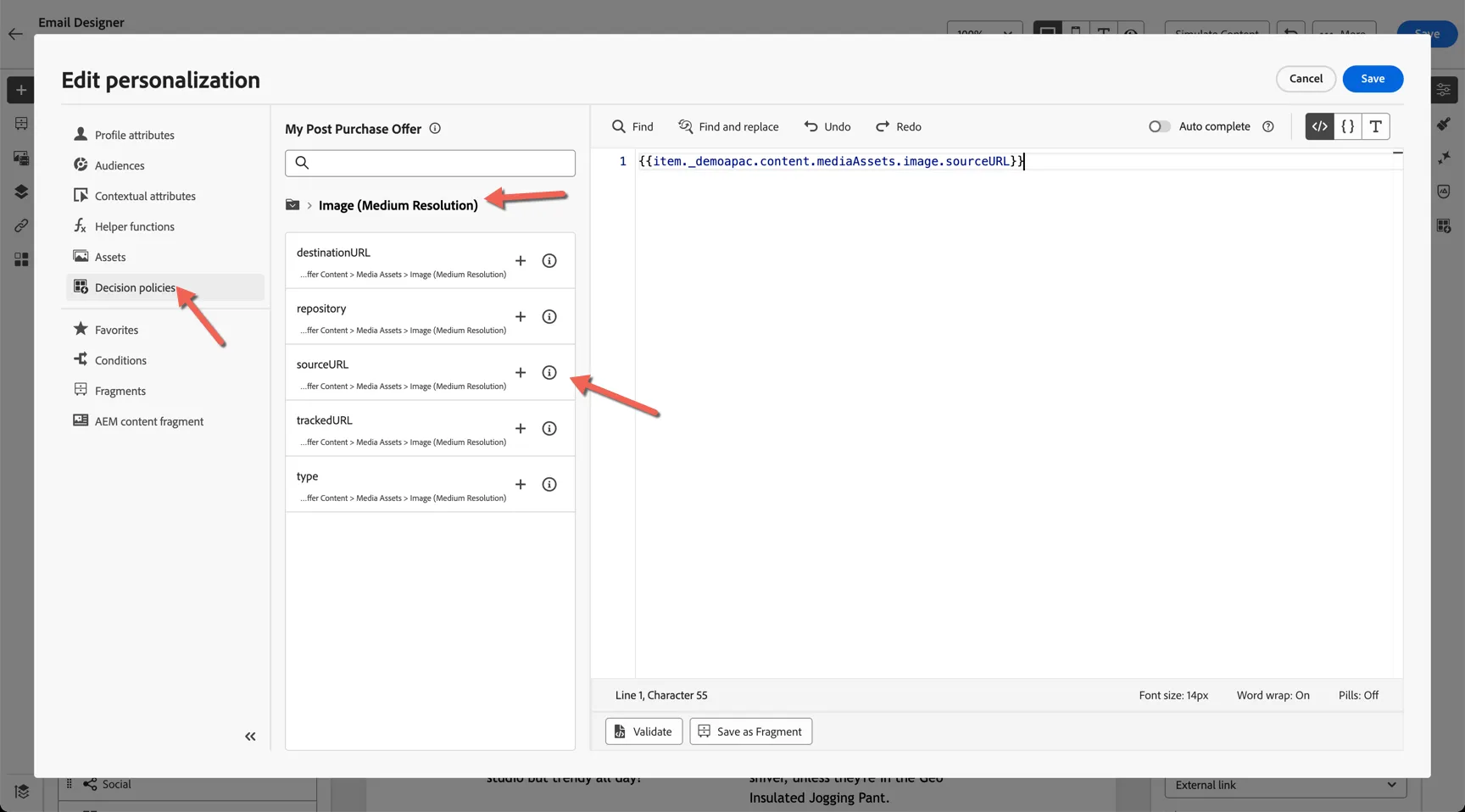
With the policy added you can now leverage the offer attributes to create your content. I'm using the medium resolution image url from my offer to populate the source field for this banner image.
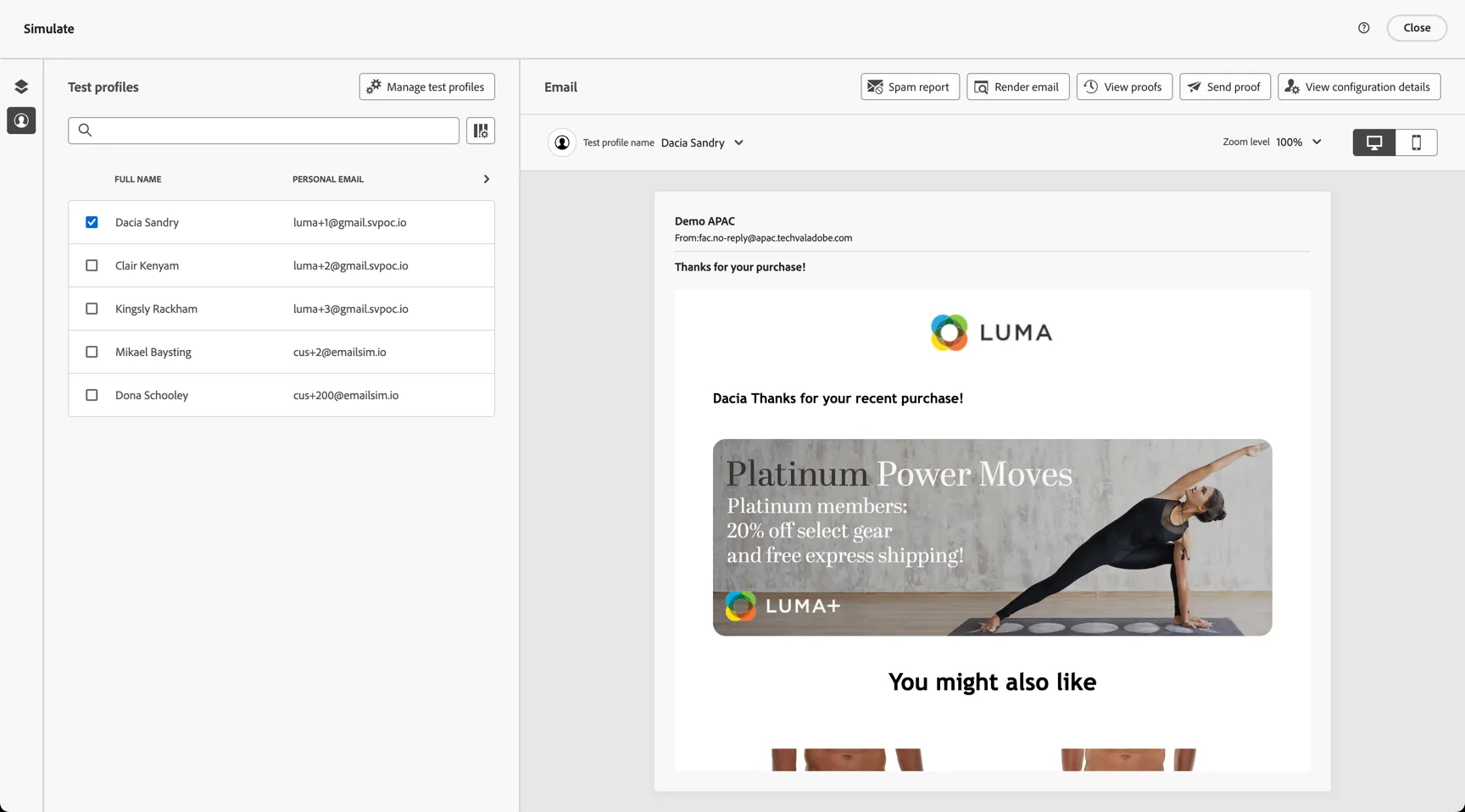
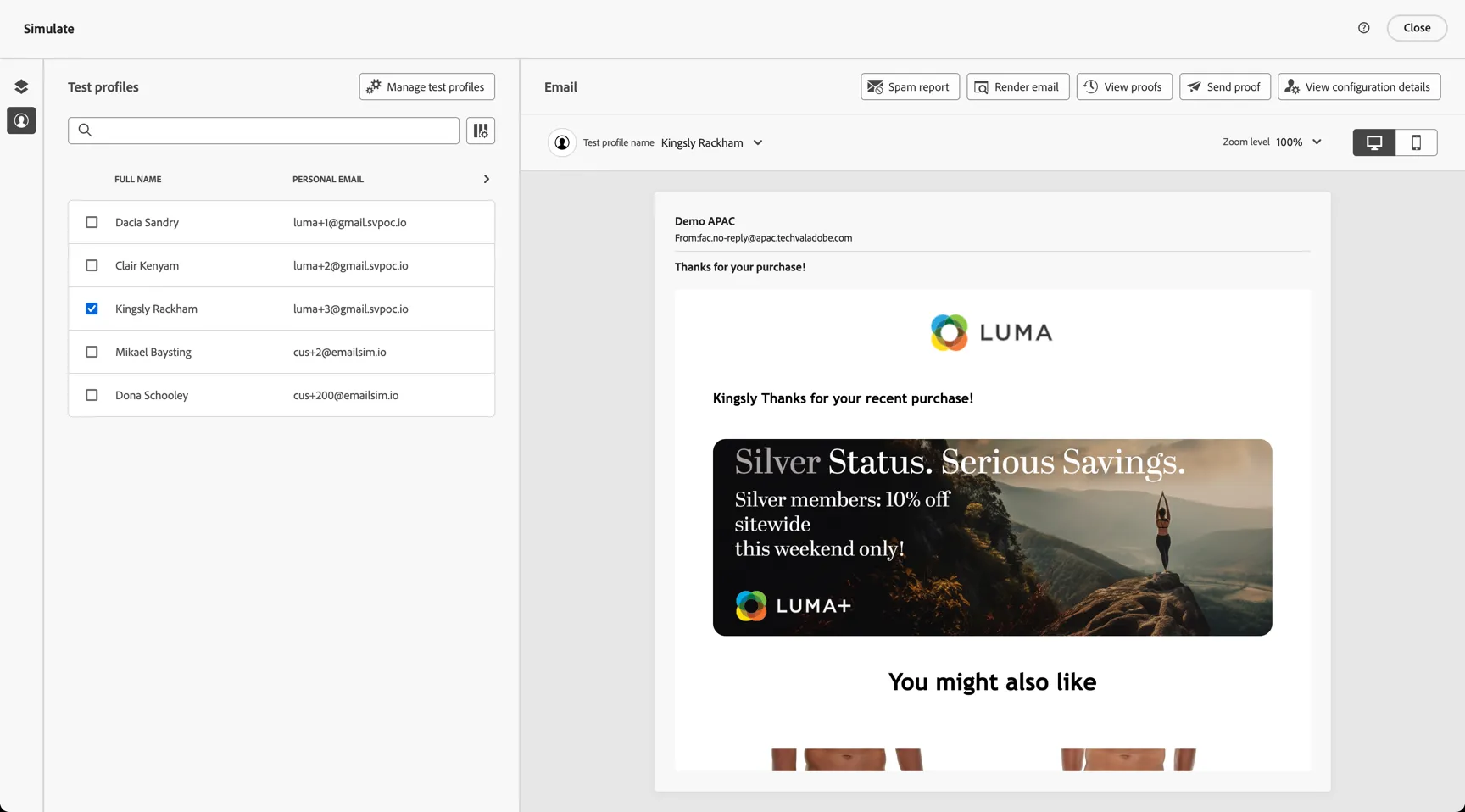
You can view the variations through the simulation view.
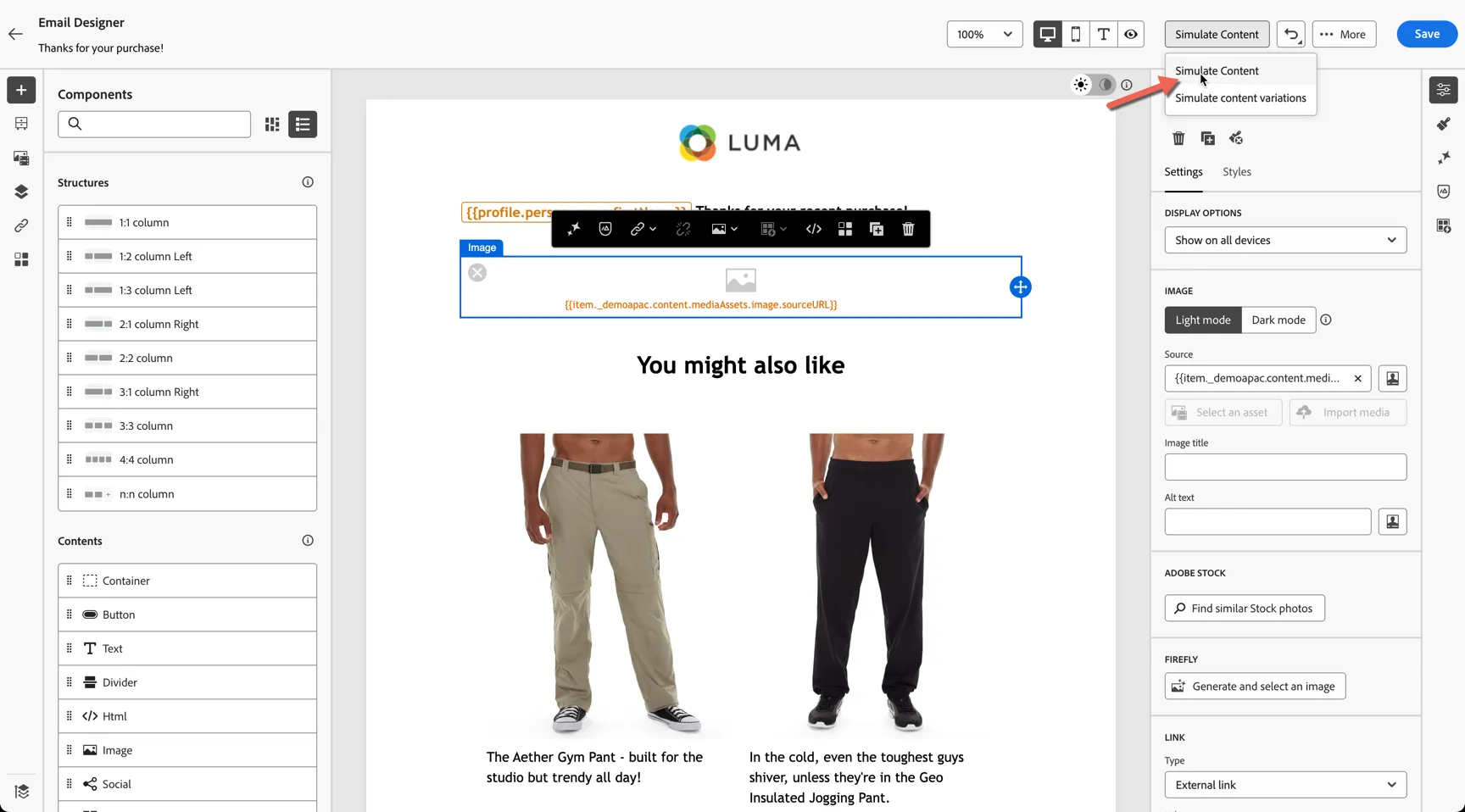
Different customers will receive different content according to the decisioning rules. As a campaign manager you only need to configure one block. You can also reuse the selection strategy in other messages and across channels to ensure consistency.
Summary
Real-time journeys in Adobe Journey Optimizer allow brands to react instantly to customer behaviours and signals, delivering timely, relevant messages at the exact moment intent is highest. By orchestrating experiences as events happen, marketers can reduce latency, increase engagement, and create more meaningful, contextual customer interactions across channels.
A centralized decisioning catalog provides a single source of truth for offers, eligibility rules, and constraints, ensuring consistent decisions across channels and journeys. By reusing and governing decisions in one place, teams can scale personalization faster, reduce duplication, and maintain control as use cases grow.