Lab 2 - Standalone Email Campaign
Learning Objectives
We're going to build a simple standalone email campaign. You'll learn how to leverage a pre-existing email template and update it using Adobe's email designer.
You'll learn how to add personalisation and additional content before simulating and sending a proof message for verification. Once testing is complete you can schedule the email for delivery.
Finally we'll take a quick look at the available reporting.
2.1 Assets
Adobe Journey Optimizer provides native integration with Adobe Experience Manager Cloud Service Assets. If you don't have an AEM Assets license already, a repository is provided out of the box with Journey Optimizer. If you add a full license later the new repository will automatically be available within AJO alongside the old repo.
In this exercise you will upload a banner image for use in our email, the asset repository also provides integrated access to Adobe Express so you can quick make image updates without needing to leave the UI!
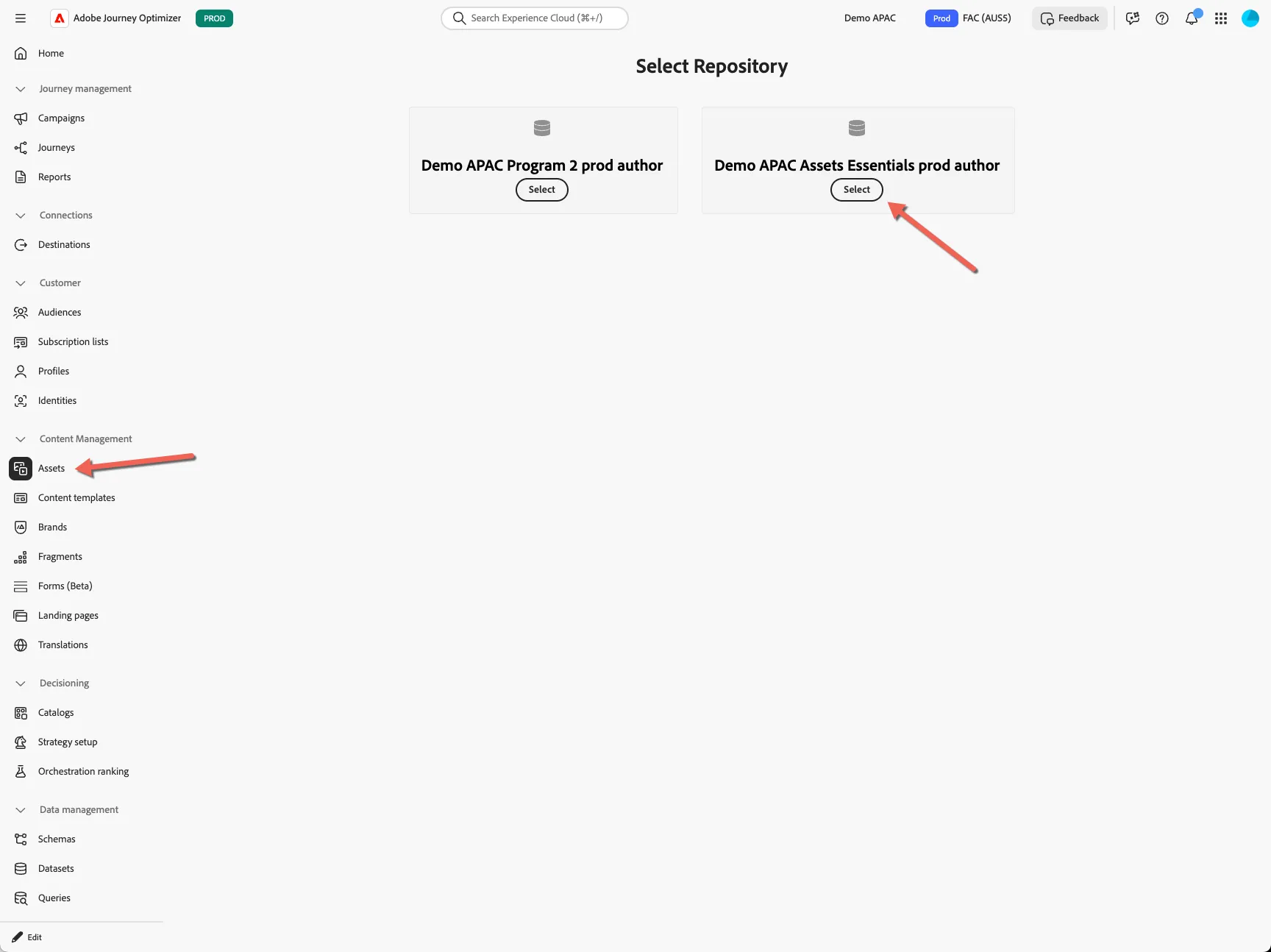
Navigate to Content Management -> Assets
Our lab environment has access to more than one repository, if prompted, select the Demo APAC Assets Essentials prod author repository.
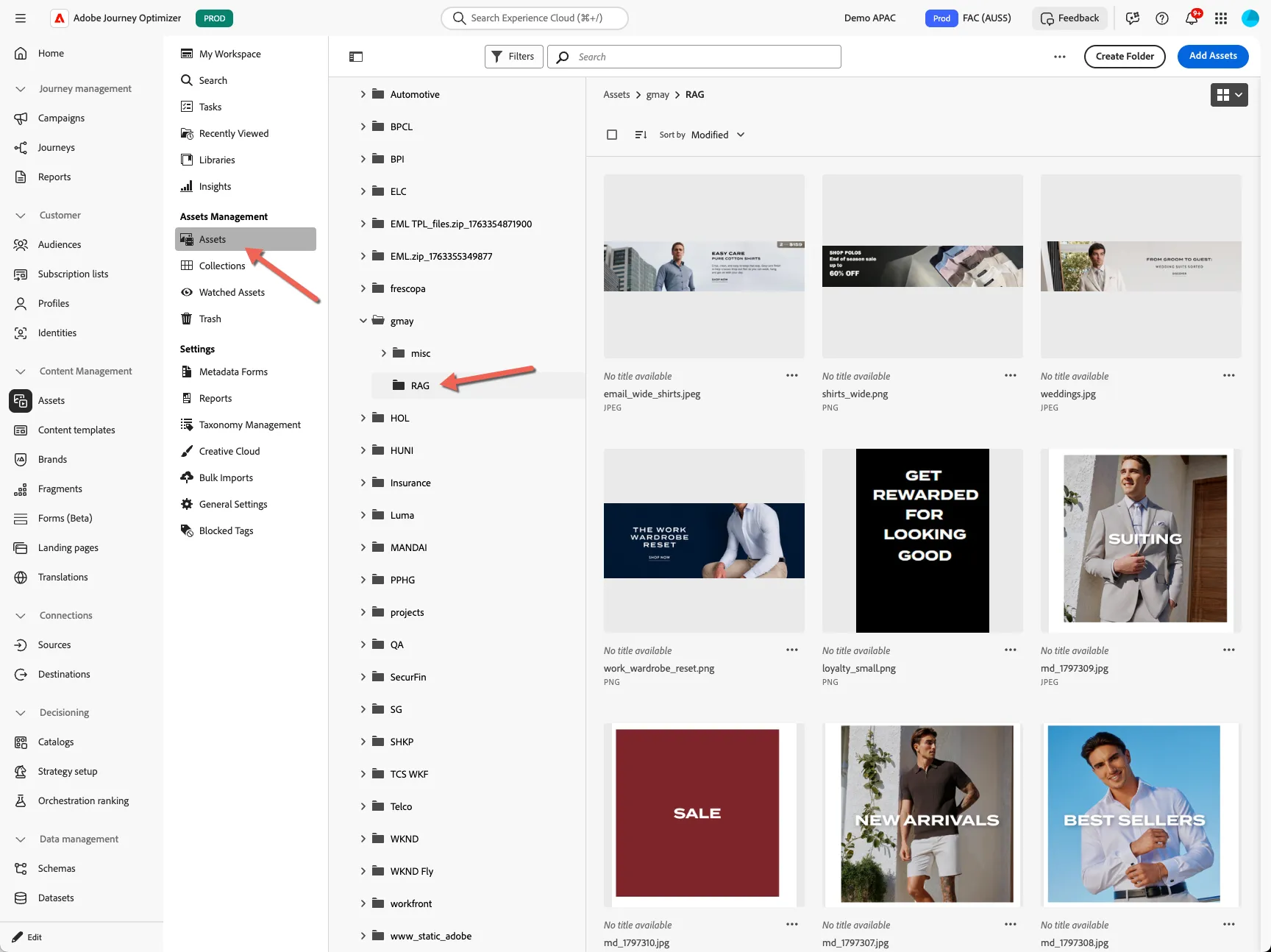
Click on the Assets menu and open the gmay/RAG folder. You can see a bunch of assets used for the previous demo.
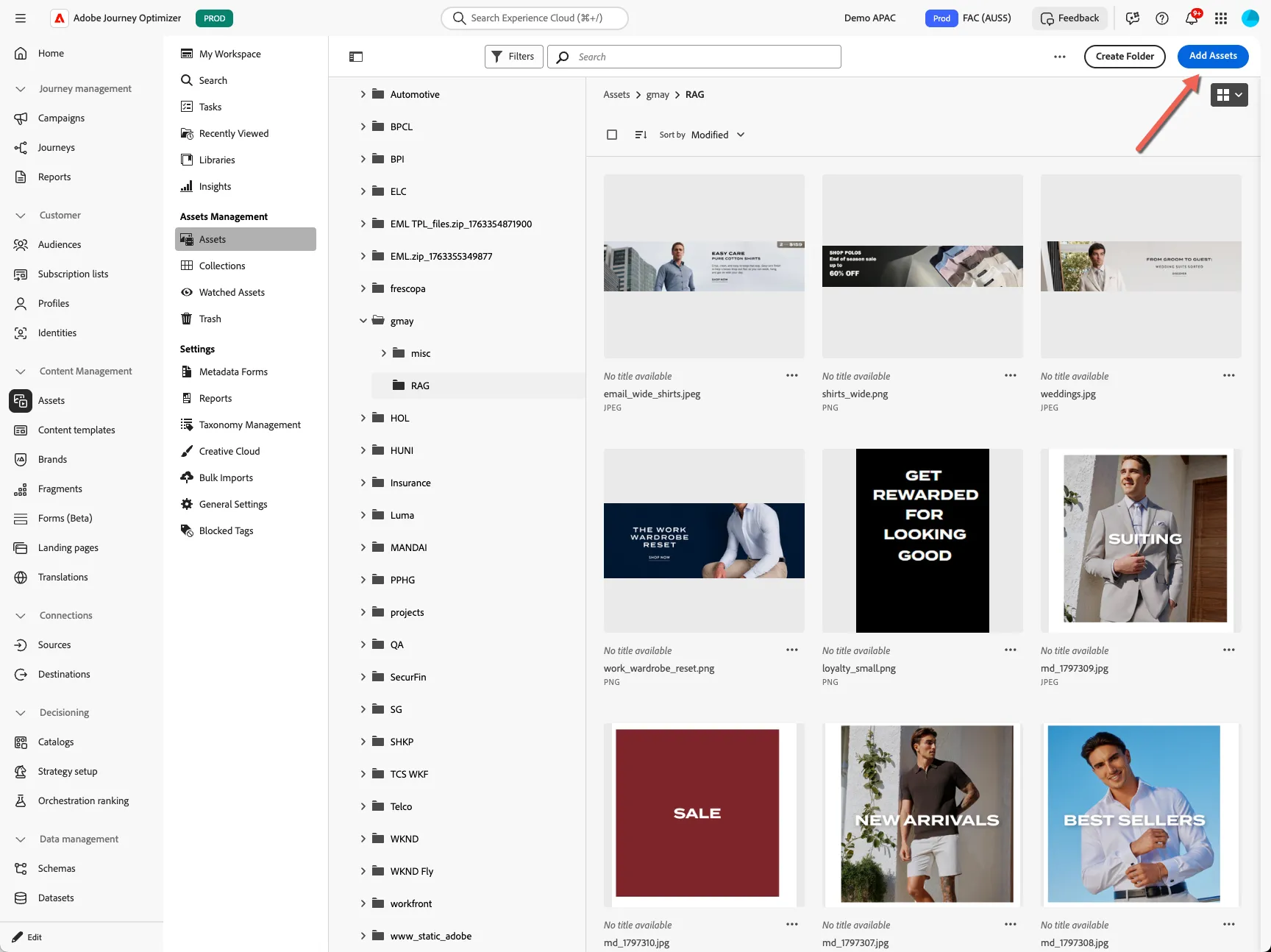
If you have an image available, you can upload it using the Add Assets button.
Select an asset and click to edit.
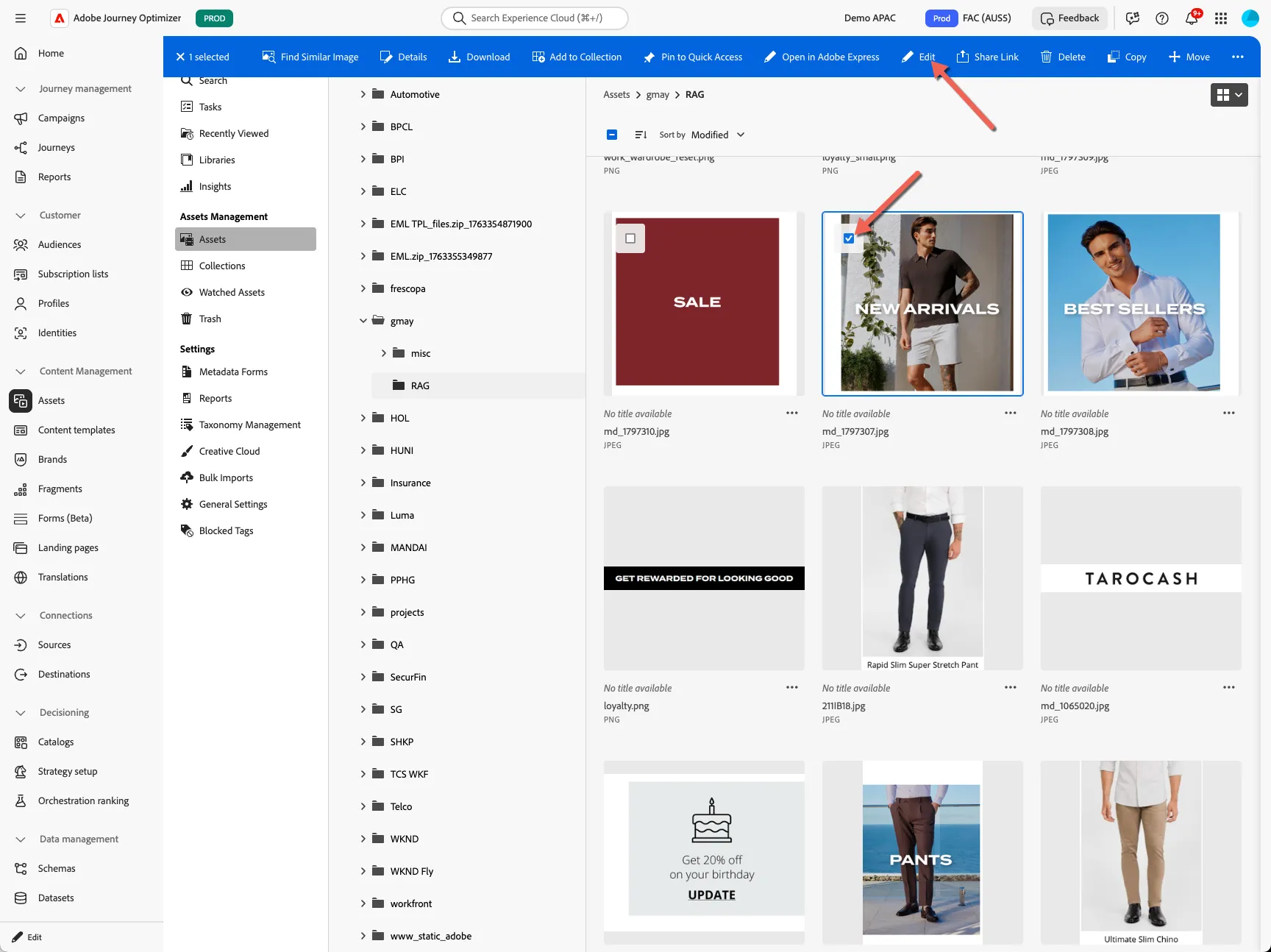
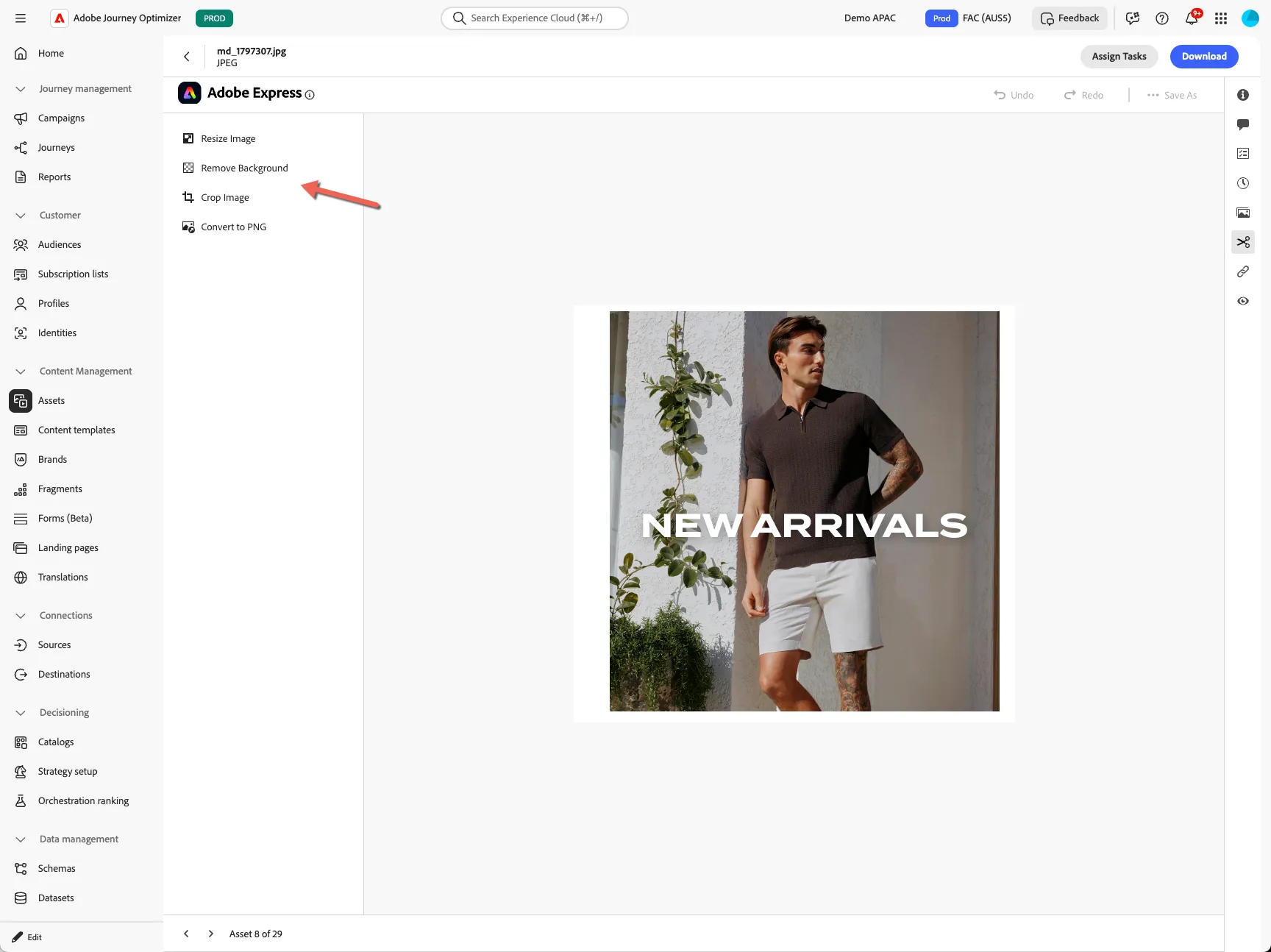
You are able to make quick edits to the image using the embedded Adobe Express editor. Super handy for those last minute updates.
2.2 Create Campaign
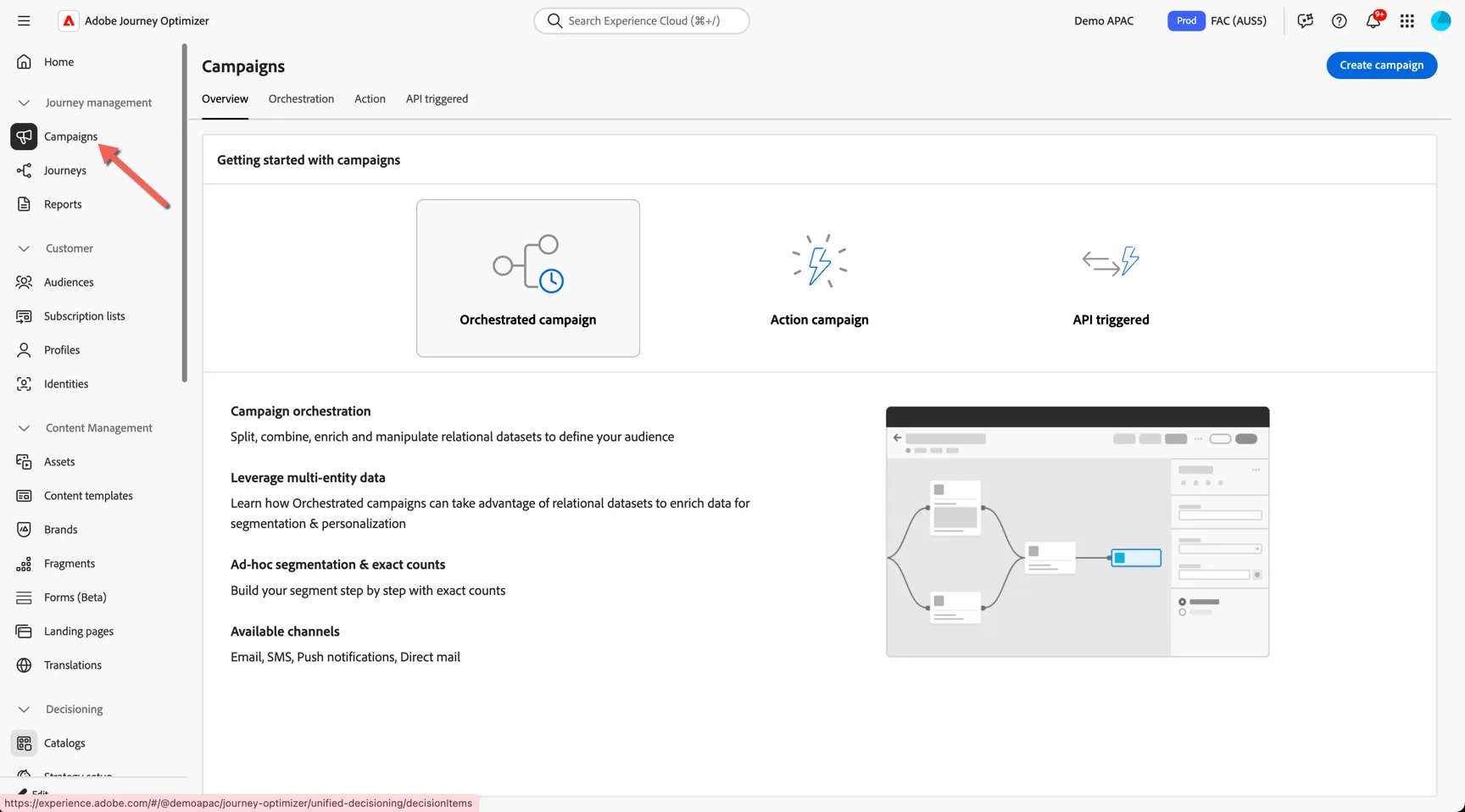
In this exercise we'll create the email campaign to send to our audience. Browse to Journey Management -> Campaigns
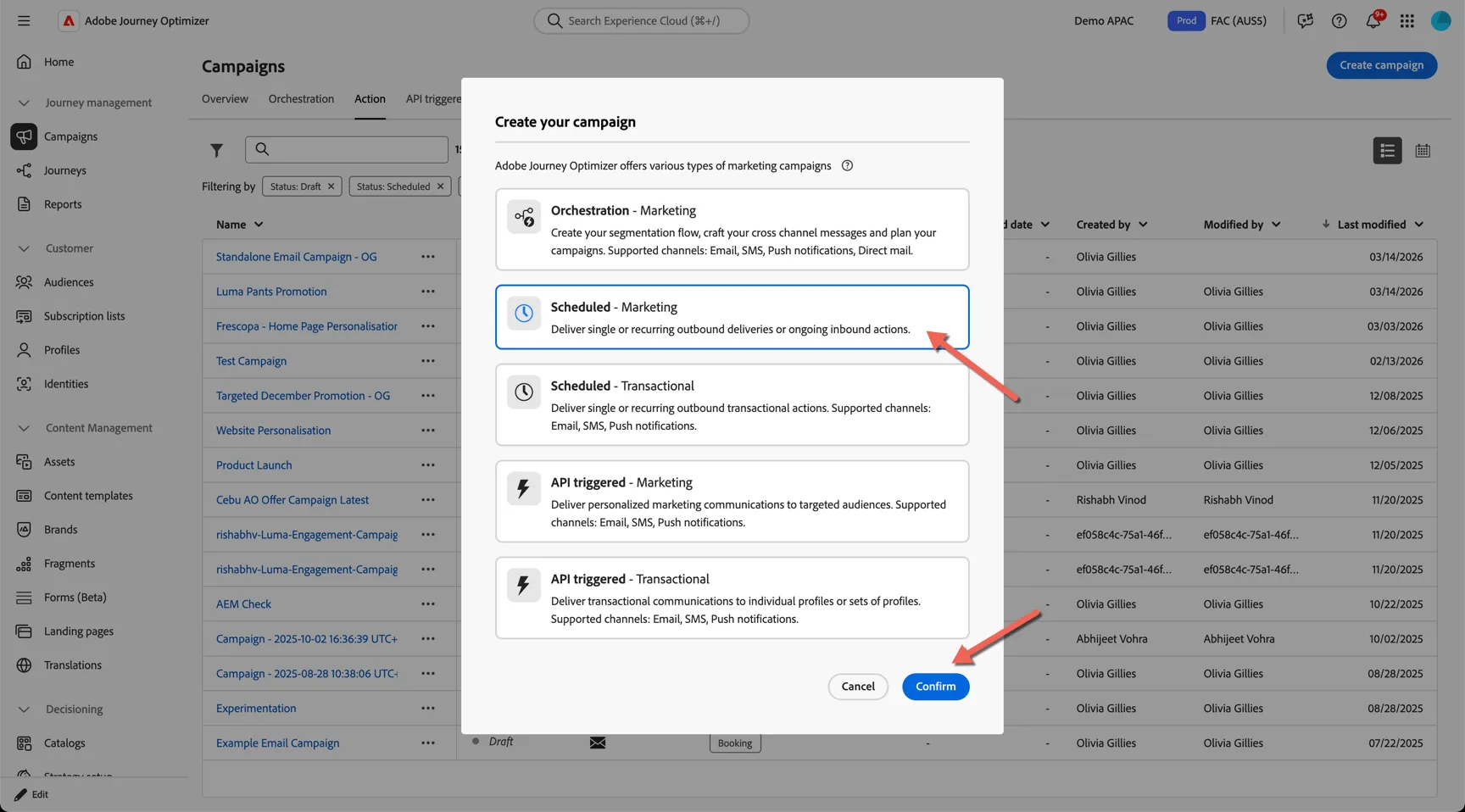
AJO supports different types of campaigns. Select scheduled marketing since this is a single channel once off send.
Give your campaign a name - append your initials so you can identify it later. Add some tags for easier management.
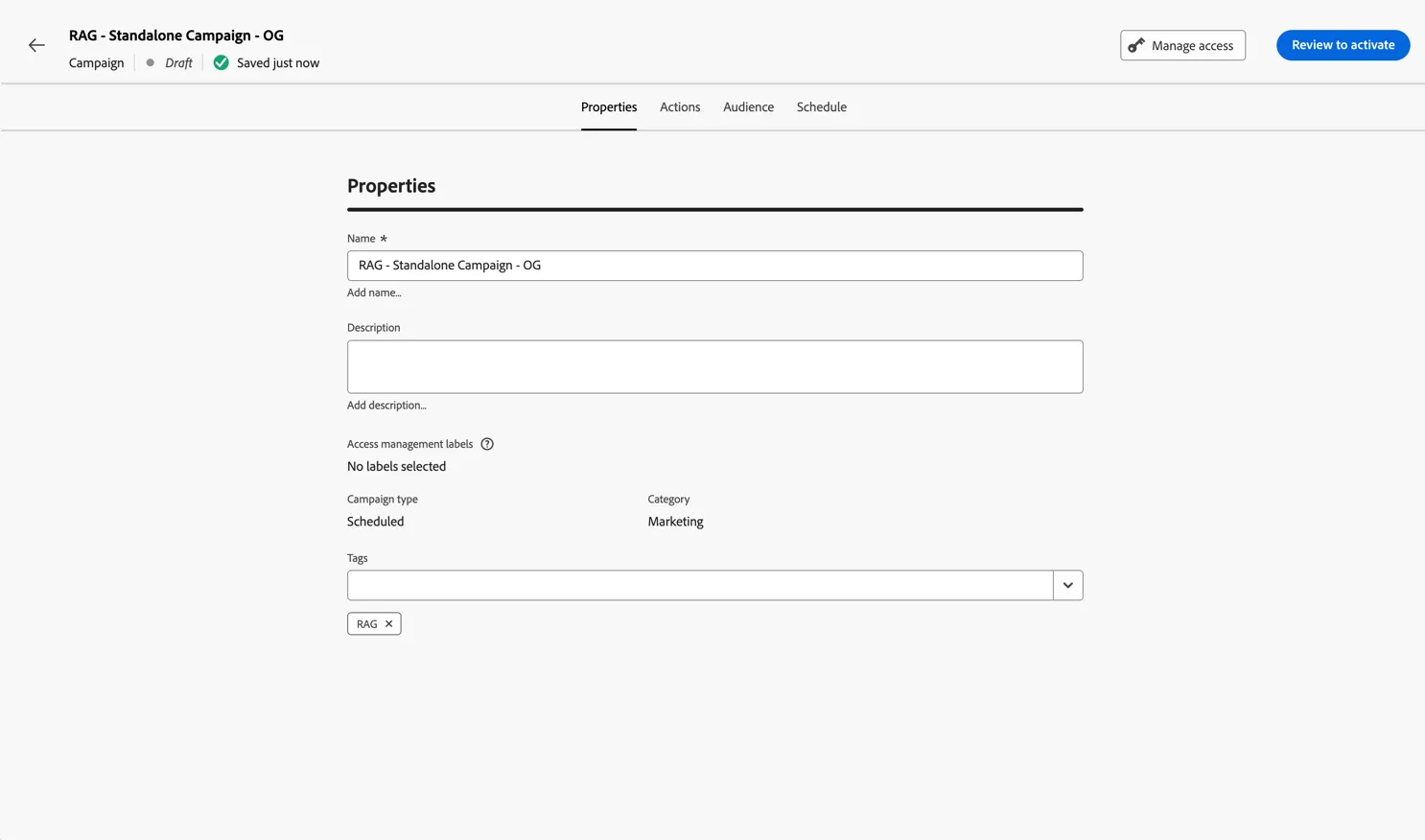
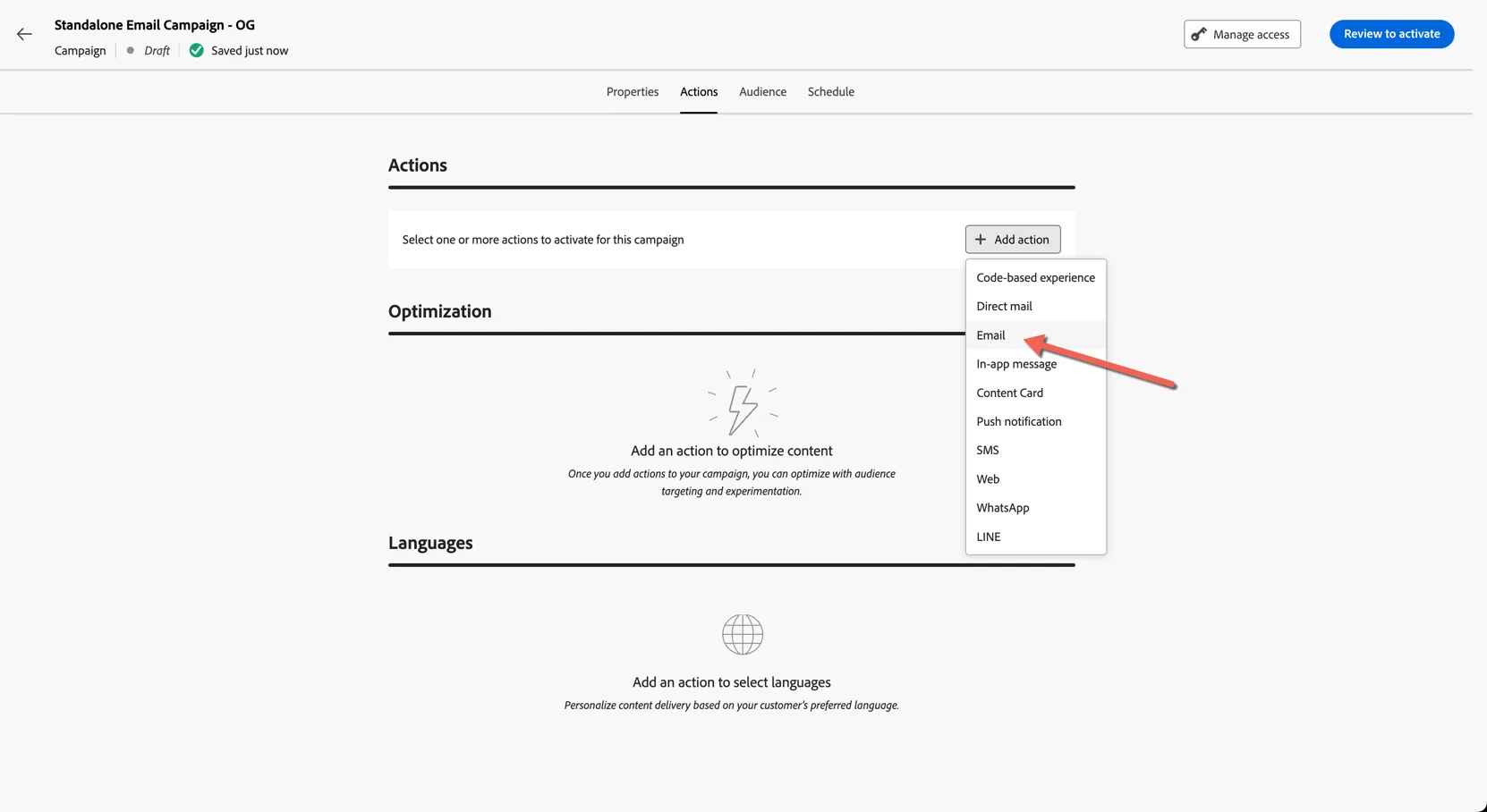
Move to the Actions tab and select Email action.
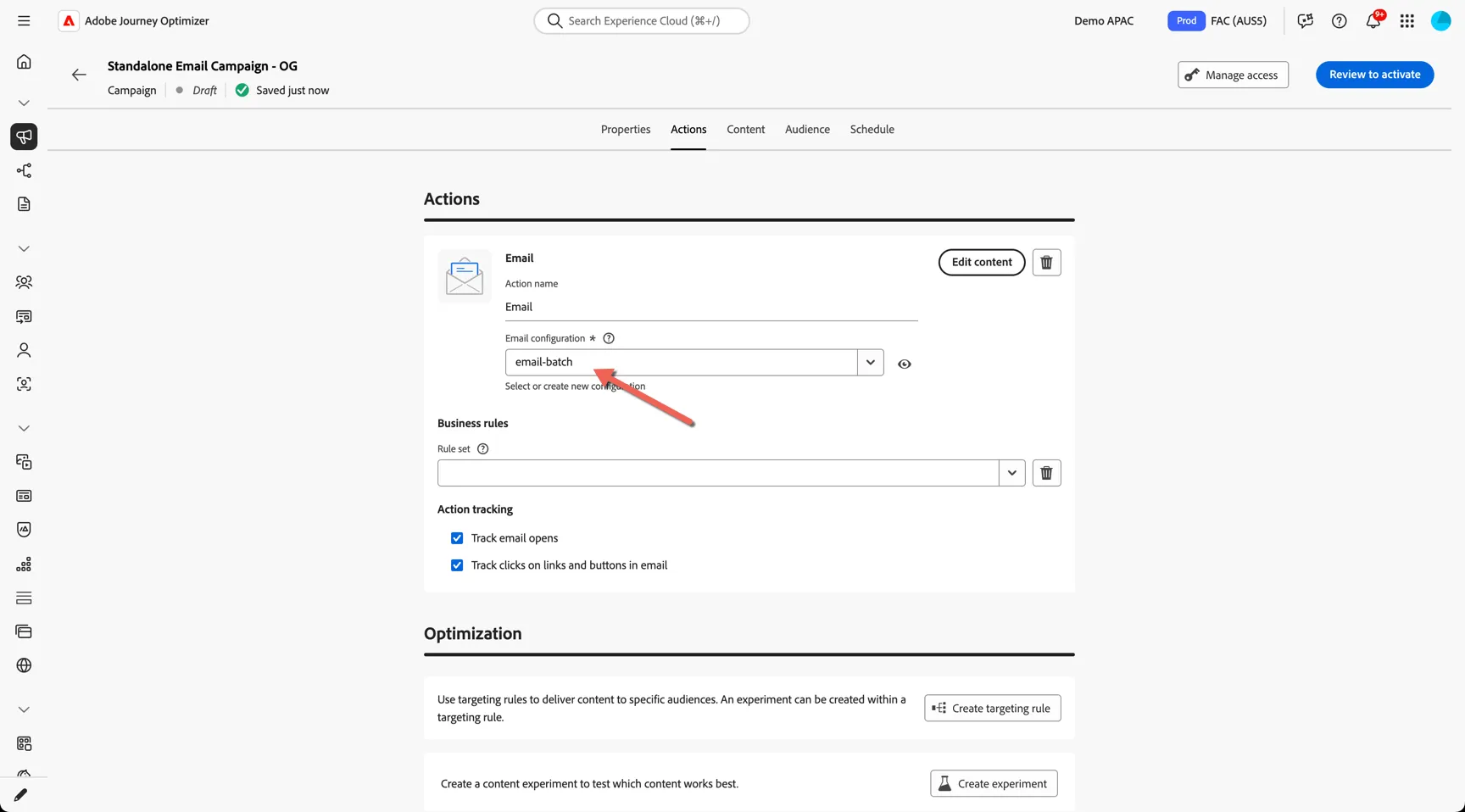
Select an email configuration - this controls the header of your email - eg. sender and reply addresses as well as things like seed lists which will be automatically appended.
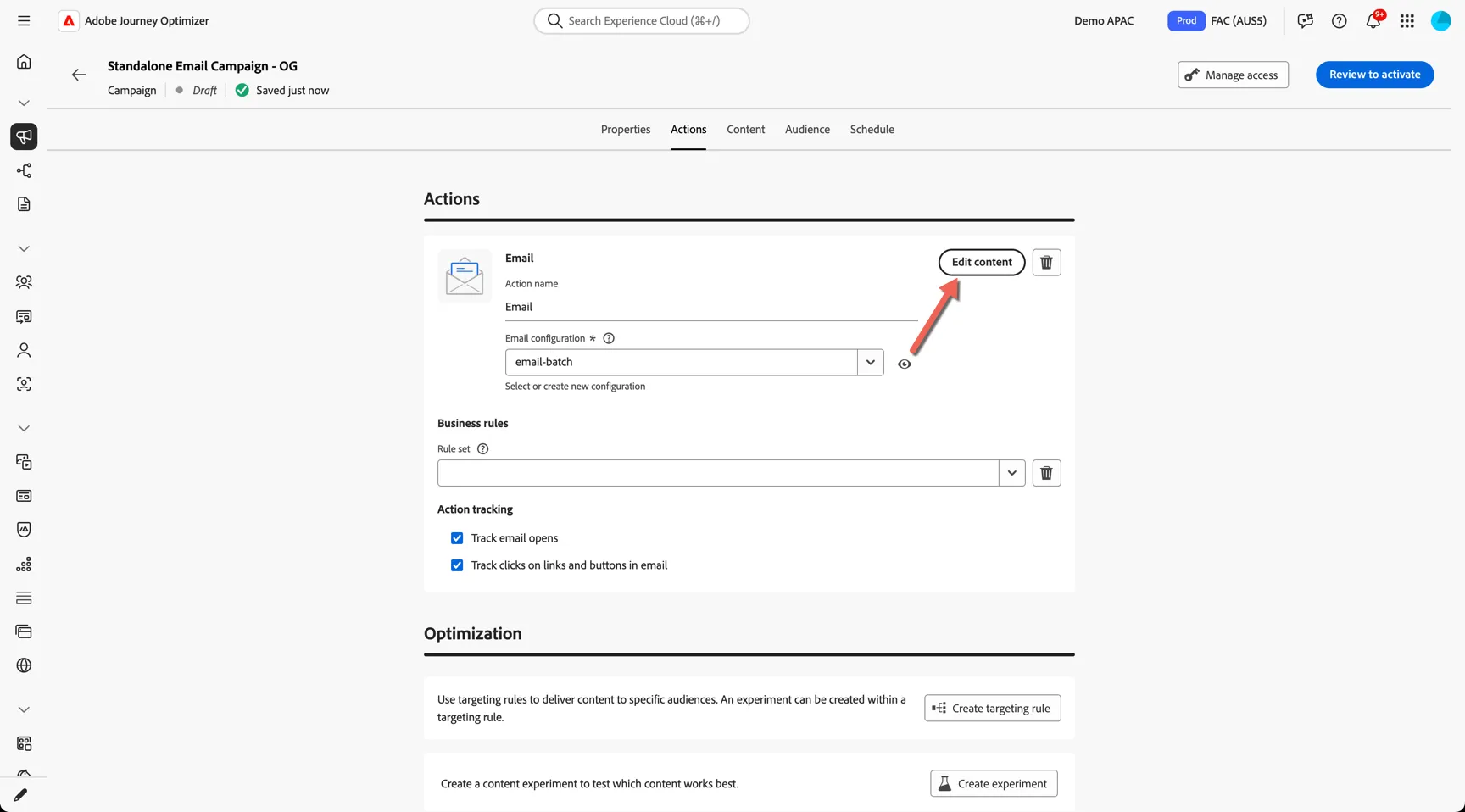
Click to Edit content
Give your email a subject line of your choosing - you can use the AI Assistant to generate one for your if you prefer!
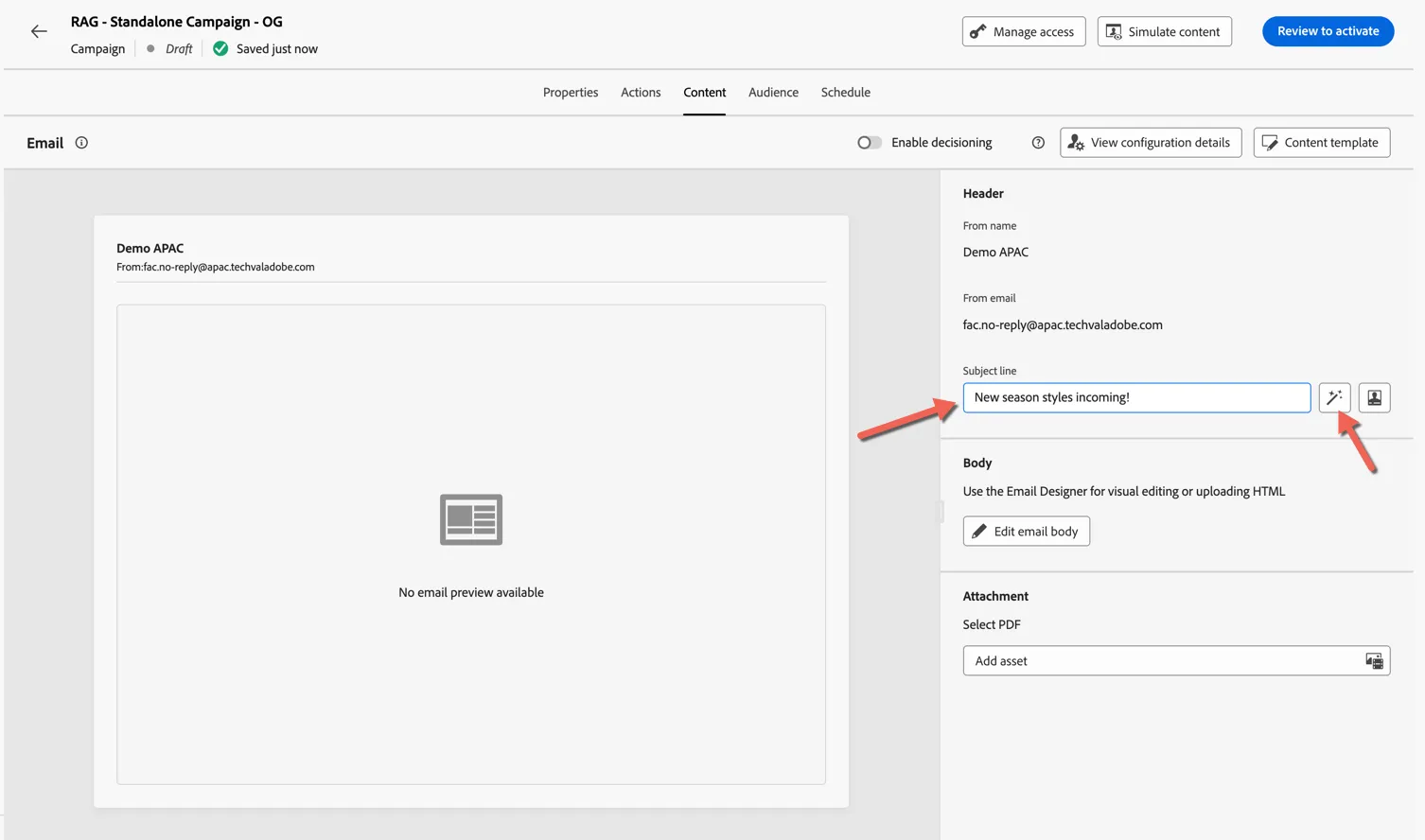
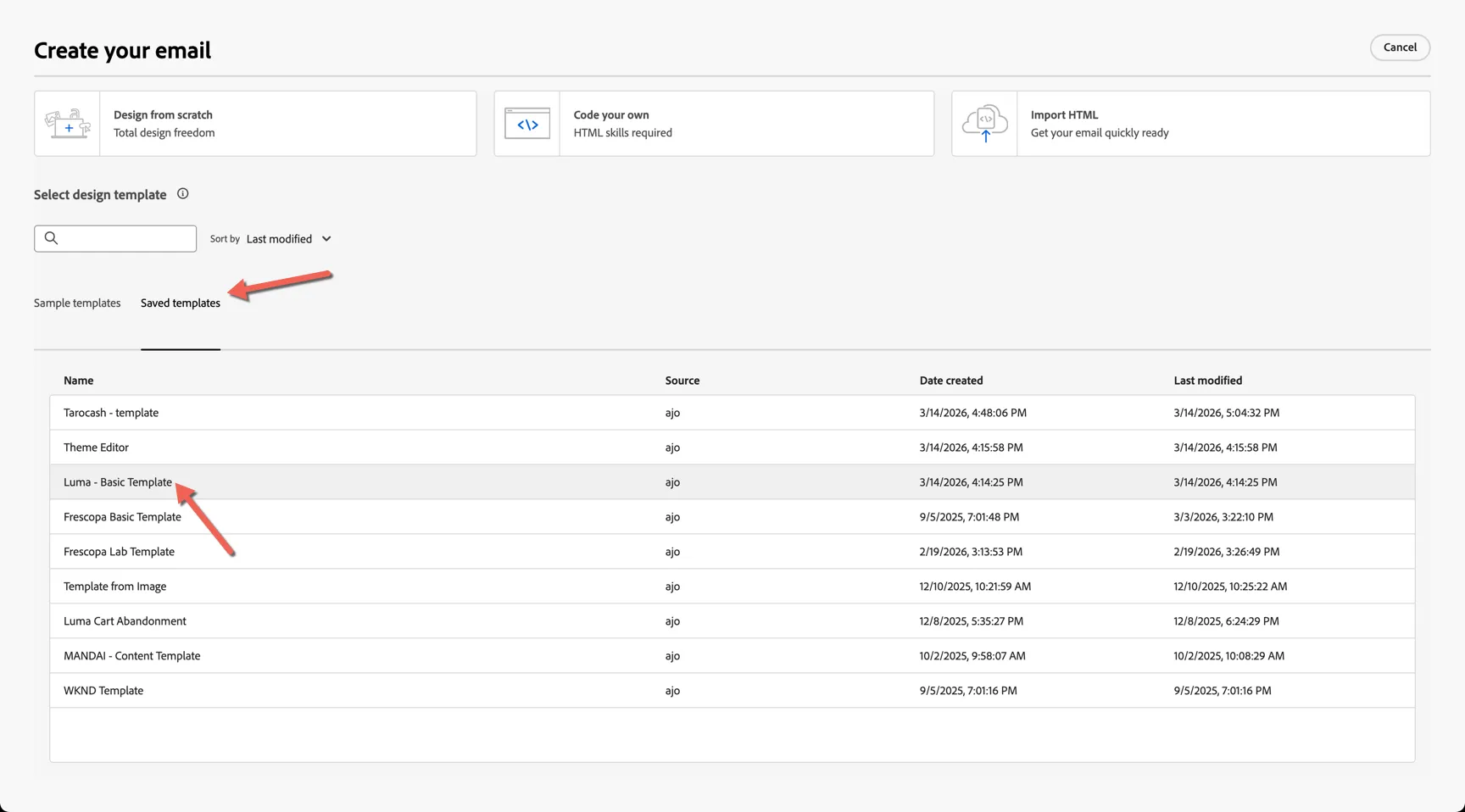
Click to Edit email body. The email designer allows users to create email content from scratch easily but for this exercise we'll start with a pre-built template. Click to Saved Templates and select the Luma - Basic Template or the Tarocash - template.
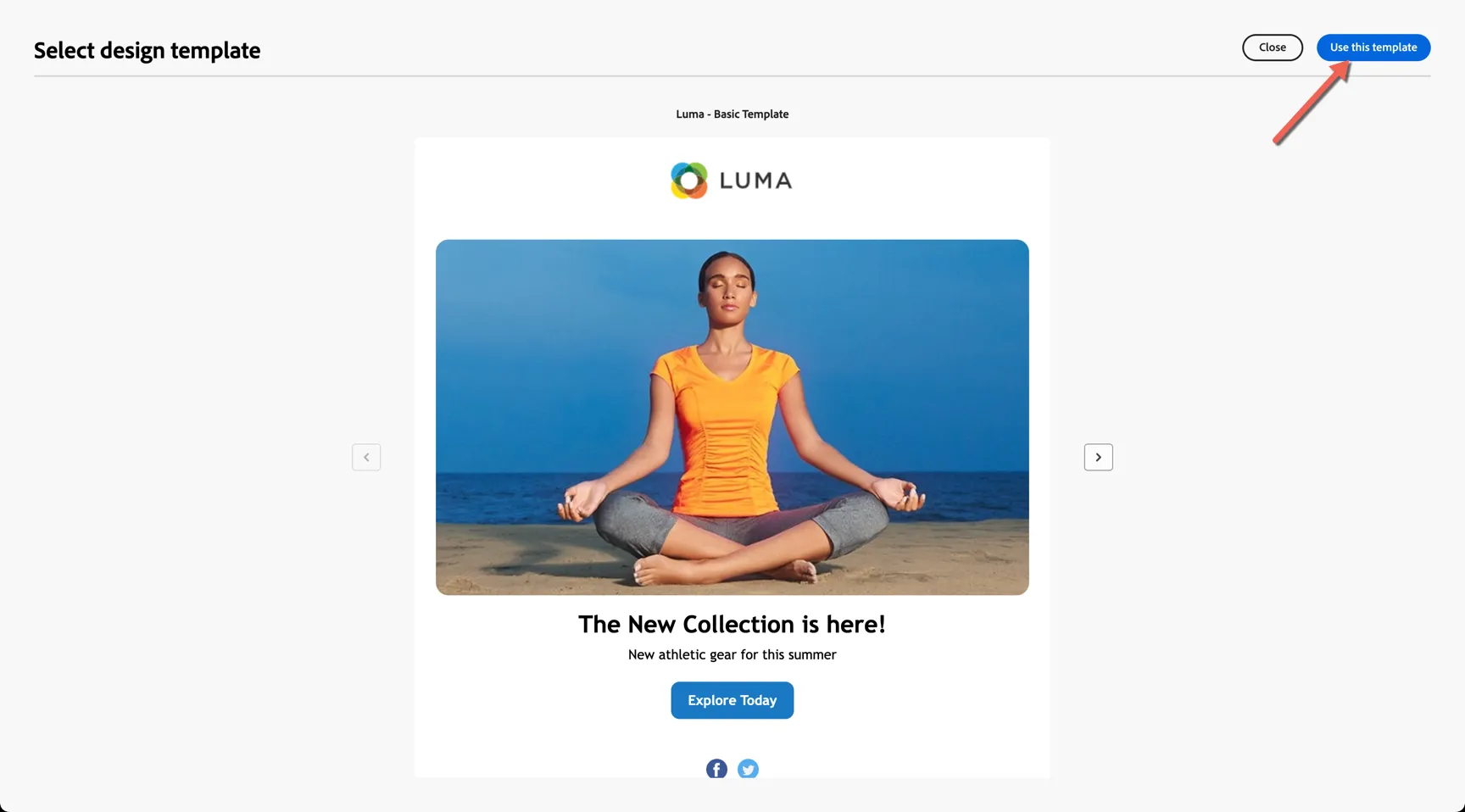
Click to use the template.
The template will open into the email designer.
2.3 Edit Content
The email designer is one of the most powerful features in Journey Optimizer and there is plenty we can do to modify the content without needing any technical skills.
For this exercise we'll make the following updates:
- Update the banner image using an asset from the built in asset repository
- Personalise the text with the customers first name
- Add a new section and header
- Add a featured products block
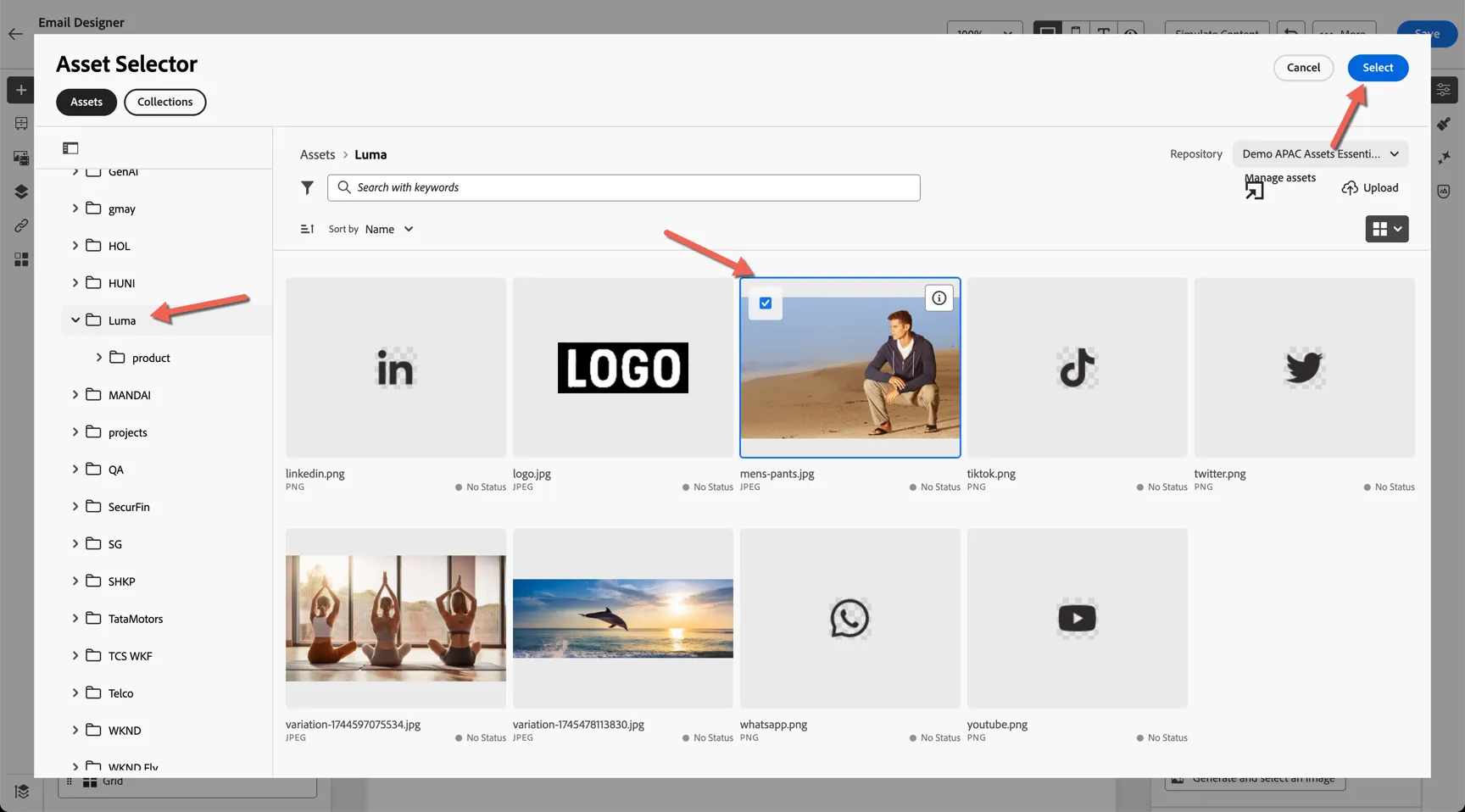
Click on the banner image, you'll see the properties on the right hand side. Click to Select an asset.
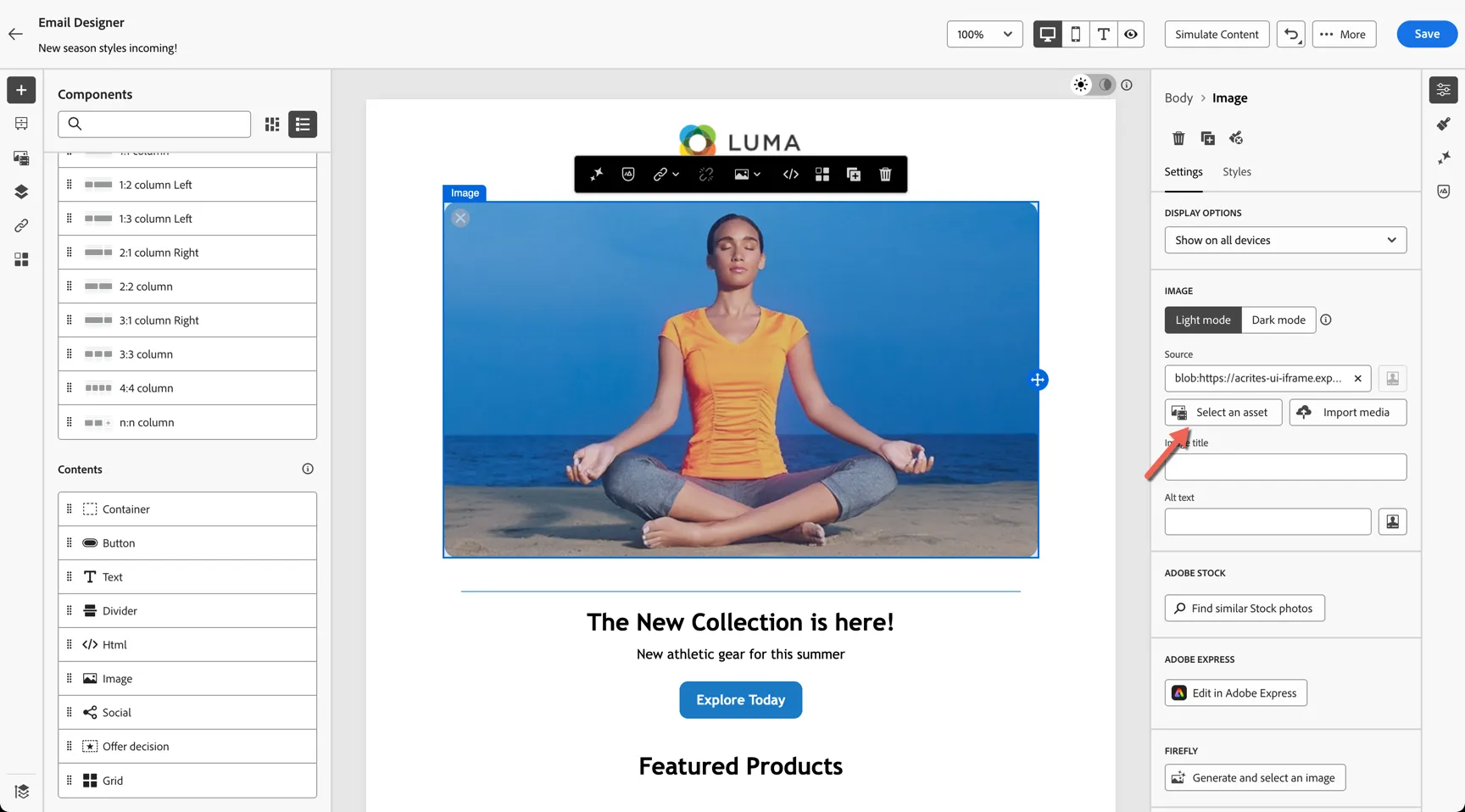
In the asset selector open the Luma folder and find the same image you saw on the website of the man squatting on the beach. Select it and click to Insert.
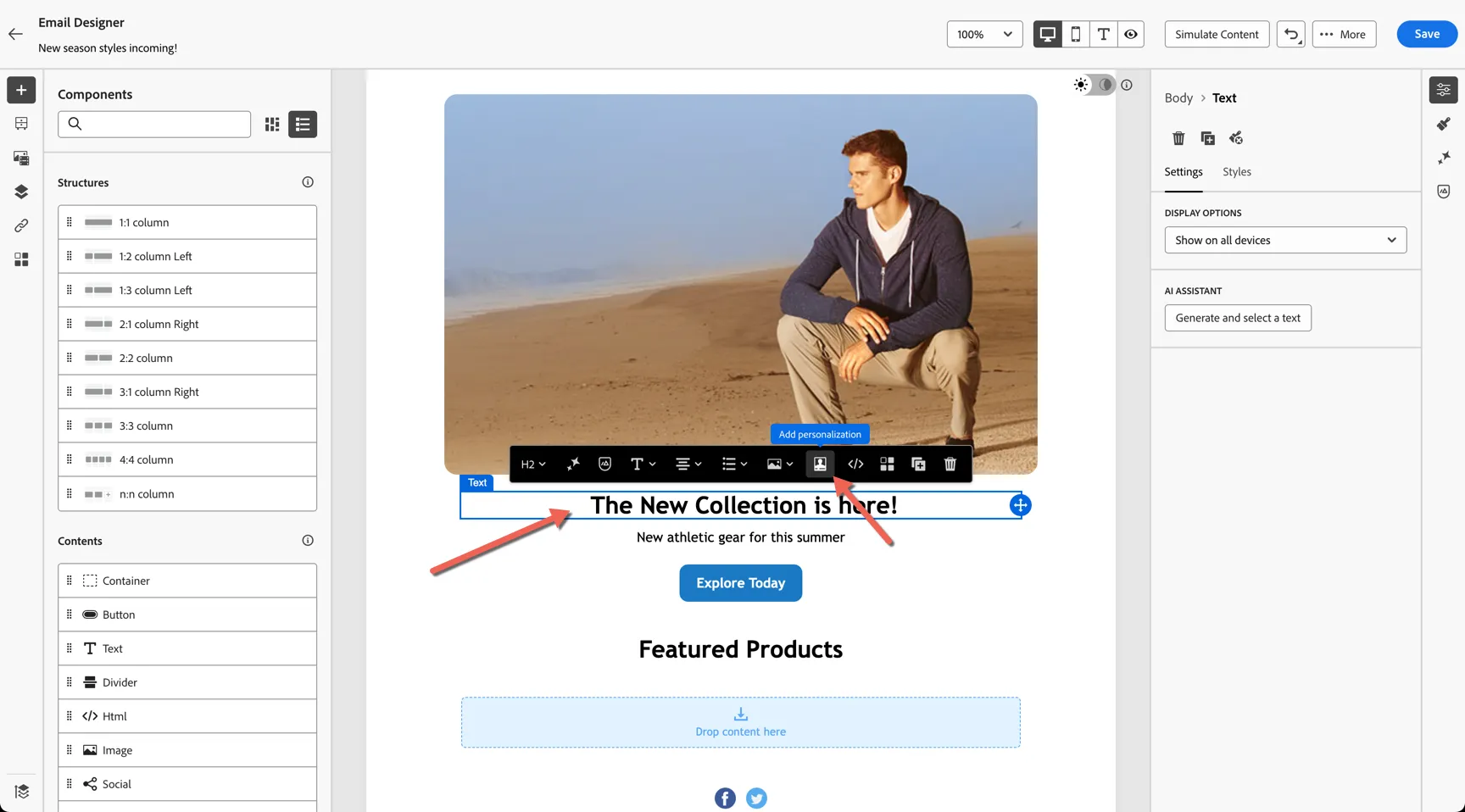
Click into the text heading underneath the banner. Place your cursor at the start and click to Add personalisation.
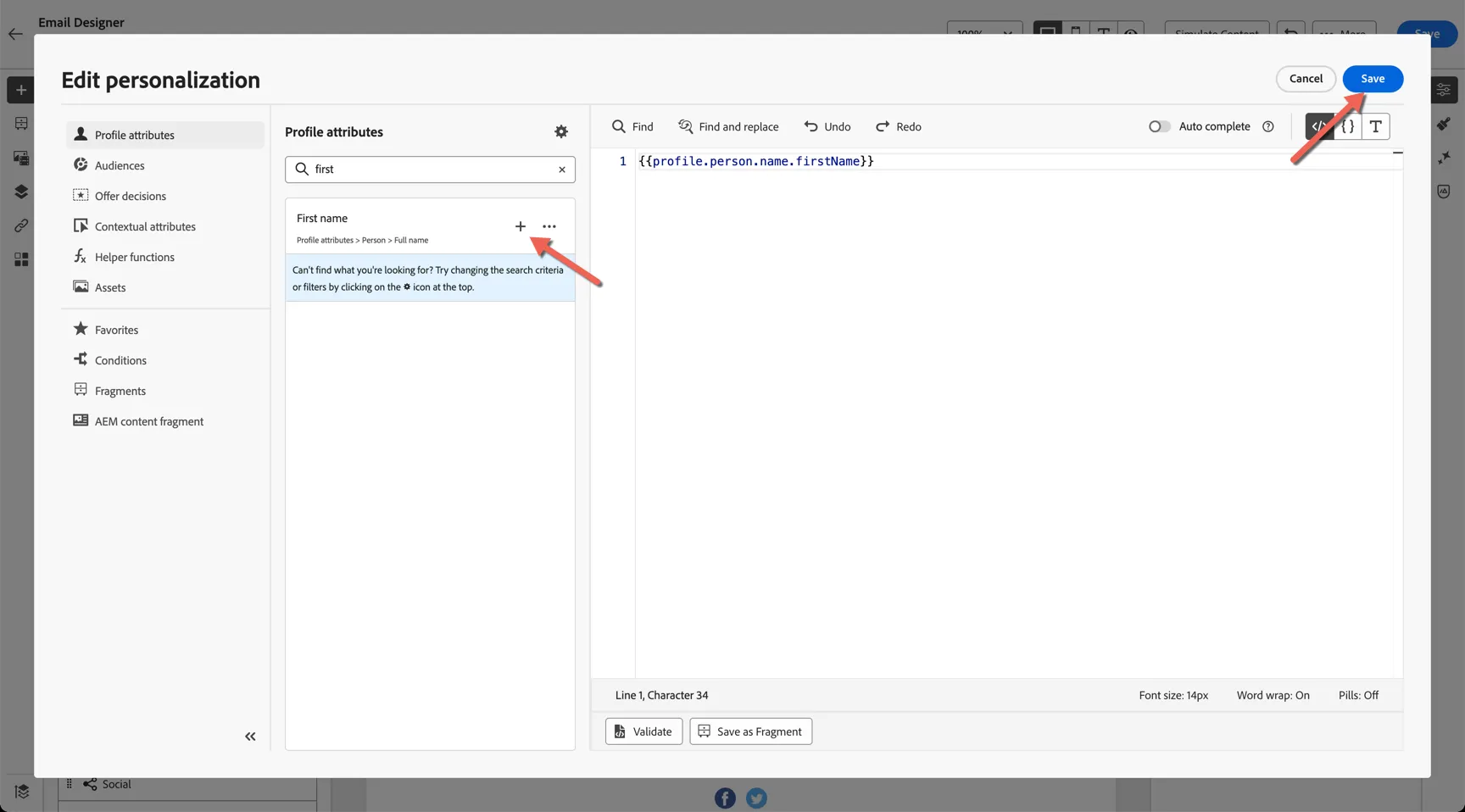
The personalisation editor allows you to insert any attribute from the customer profile. Search for first and click the plus next to First name to add the personalisation syntax. Click Save to insert this back into the email.
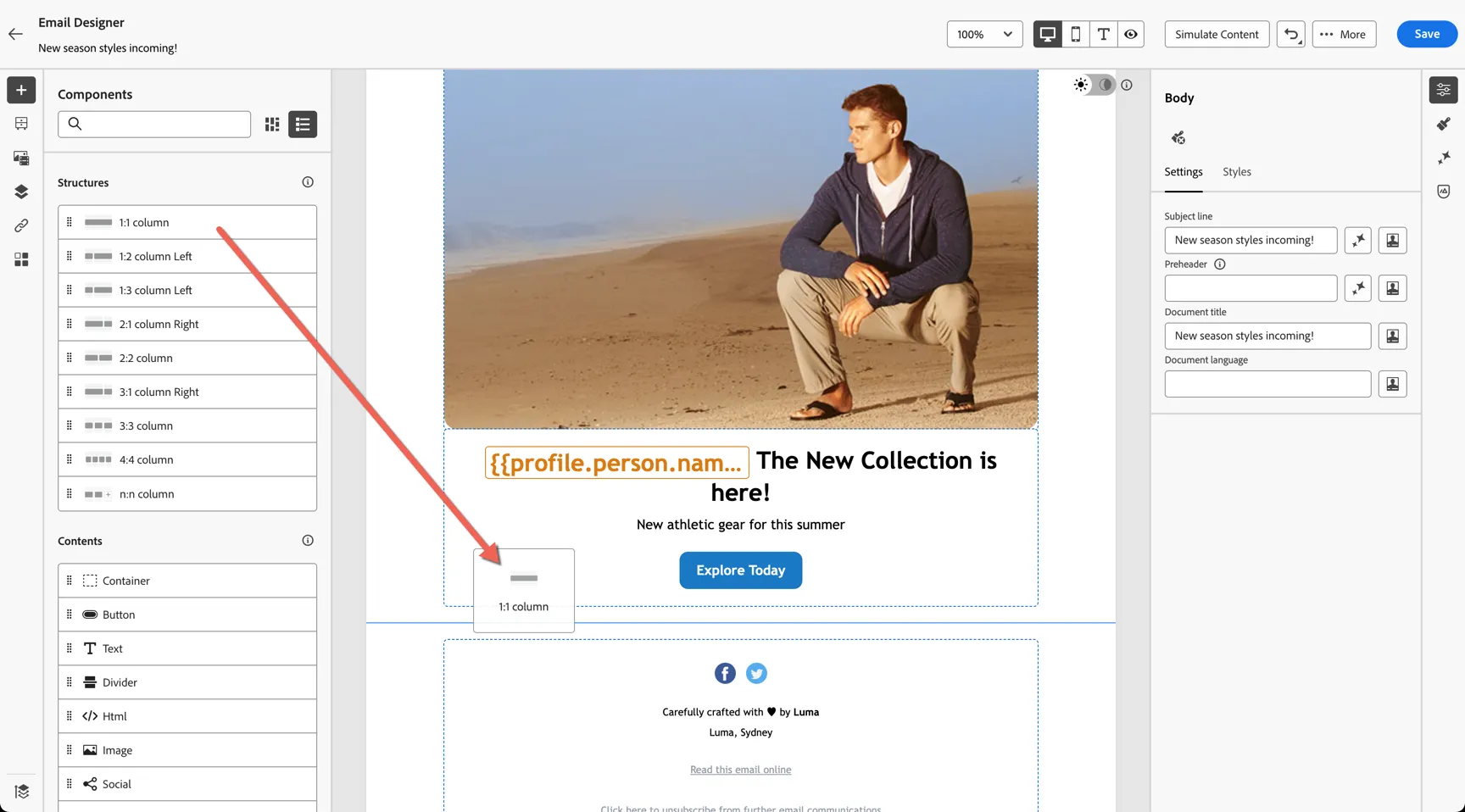
Next we'll add a whole new Featured Products block. Drag a 1:1 column structure into the content below the call to action button.
Drag a Text component and add it to the structure.
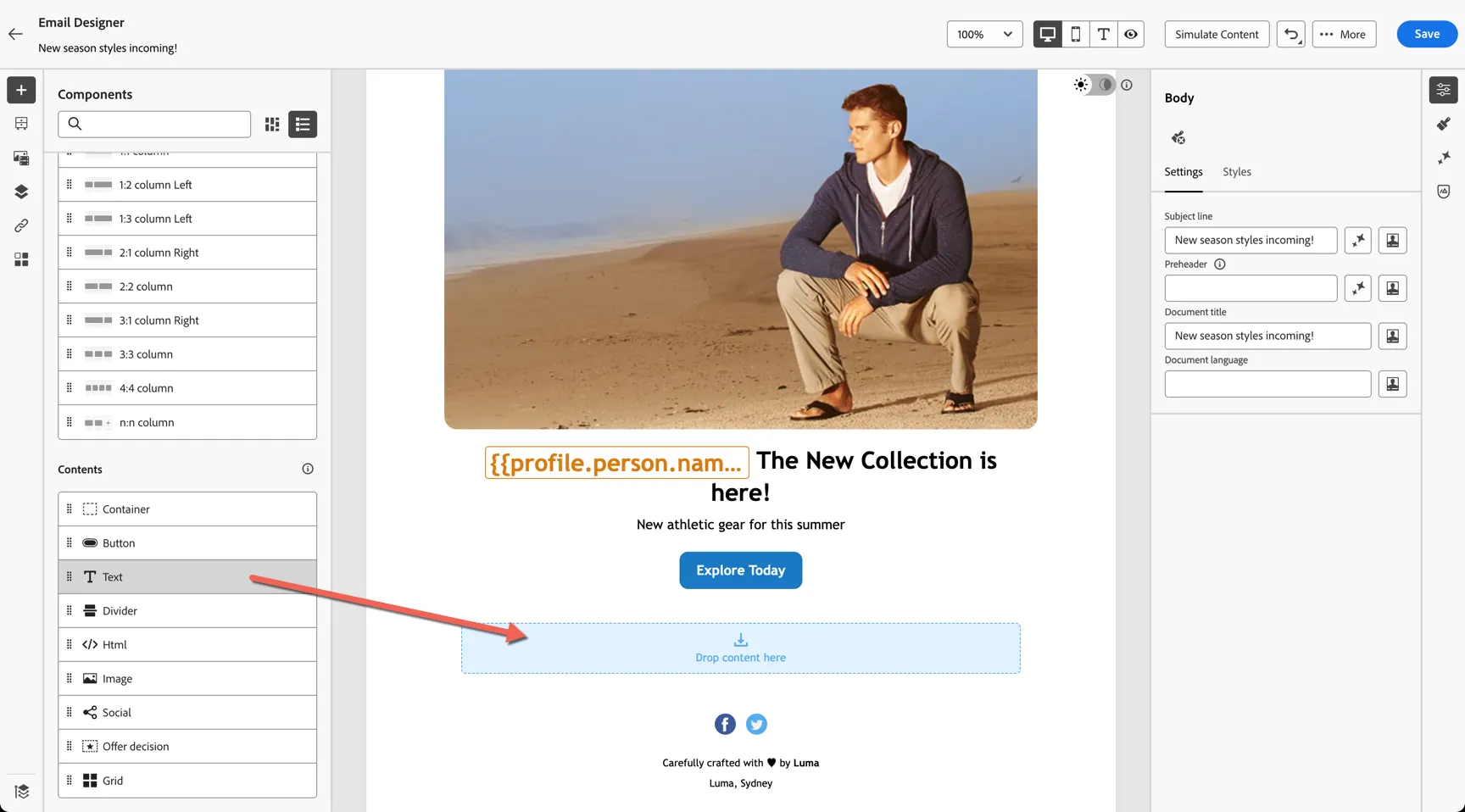
Update the text to Featured Products and change the style to a H2. The theme applied to the template will automatically reformat the title appropriately.
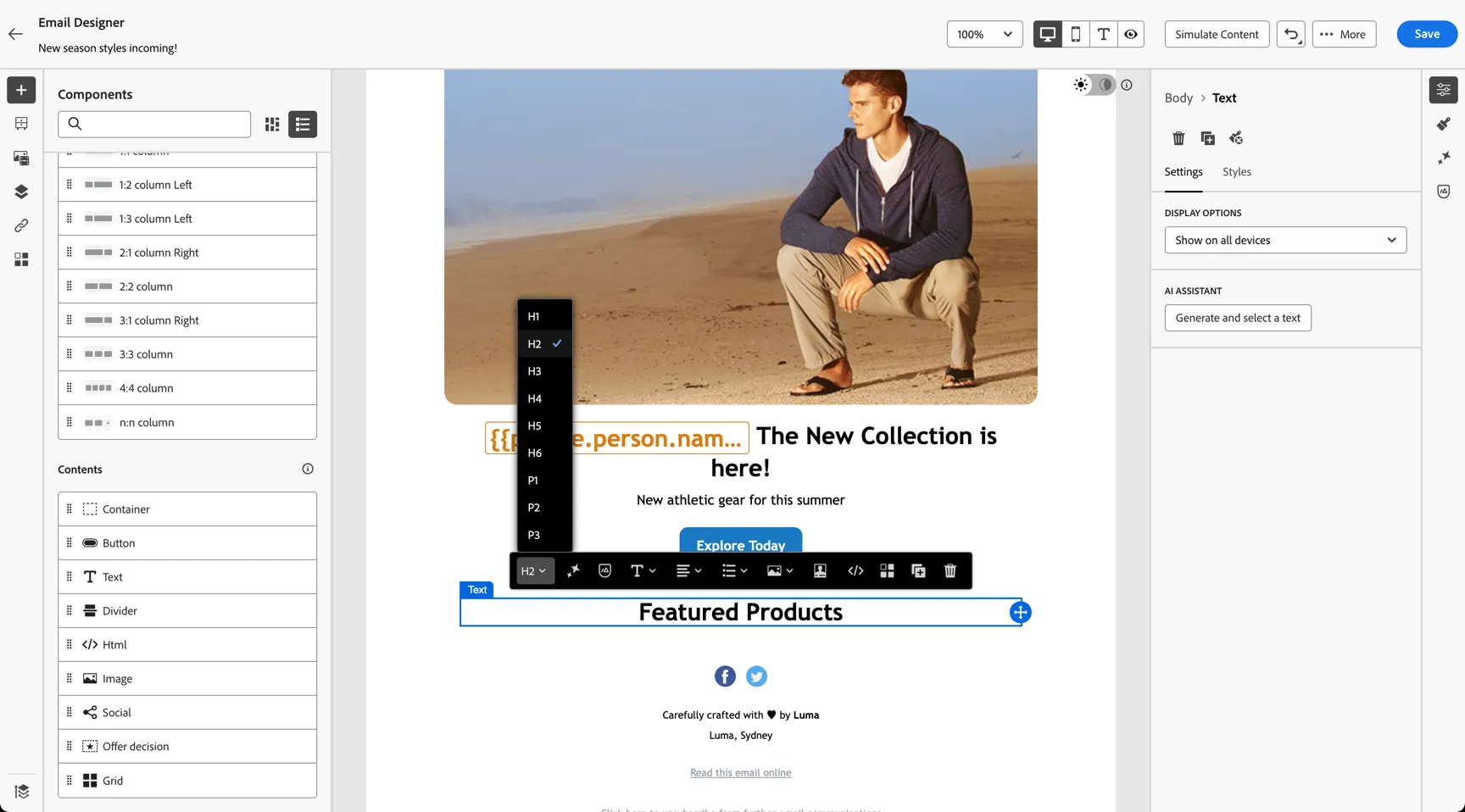
Now we're going to use a pre-built content fragment to insert a two column product block beneath the title. Open the Fragments panel from the left navigation.
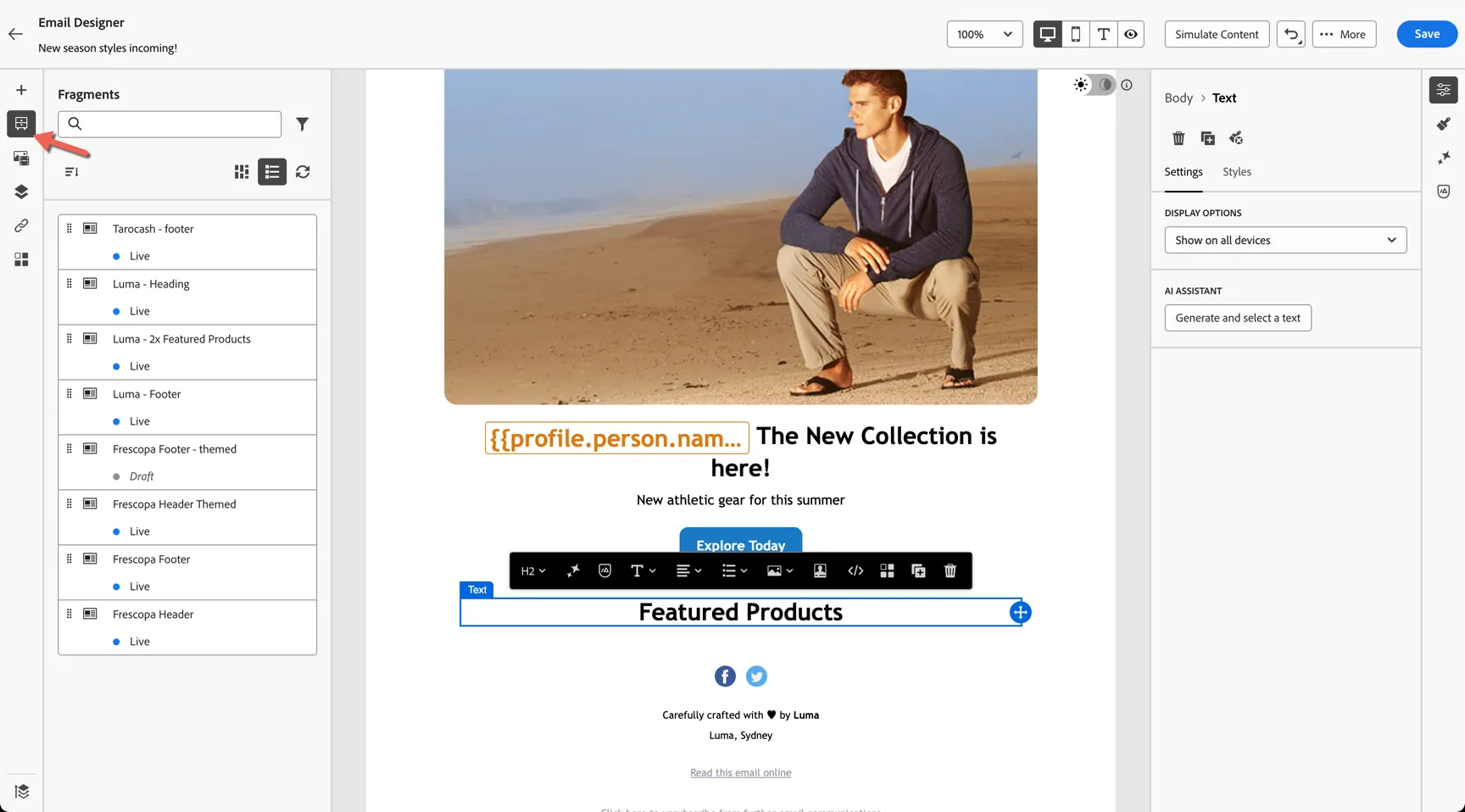
Fragments support content blocks which are shared across campaigns and allow common components to be easily updated from a single location, for example your standard header and footer.
In this case we're going to use what we call a customisable fragment. This allows the fragment to control the layout of the block but let's the user modify certain attributes within it. For example which product image is shown and what is said about it.
Drag the Luma - 2x Featured Products fragment and drop it below the featured products title in the same structural component.
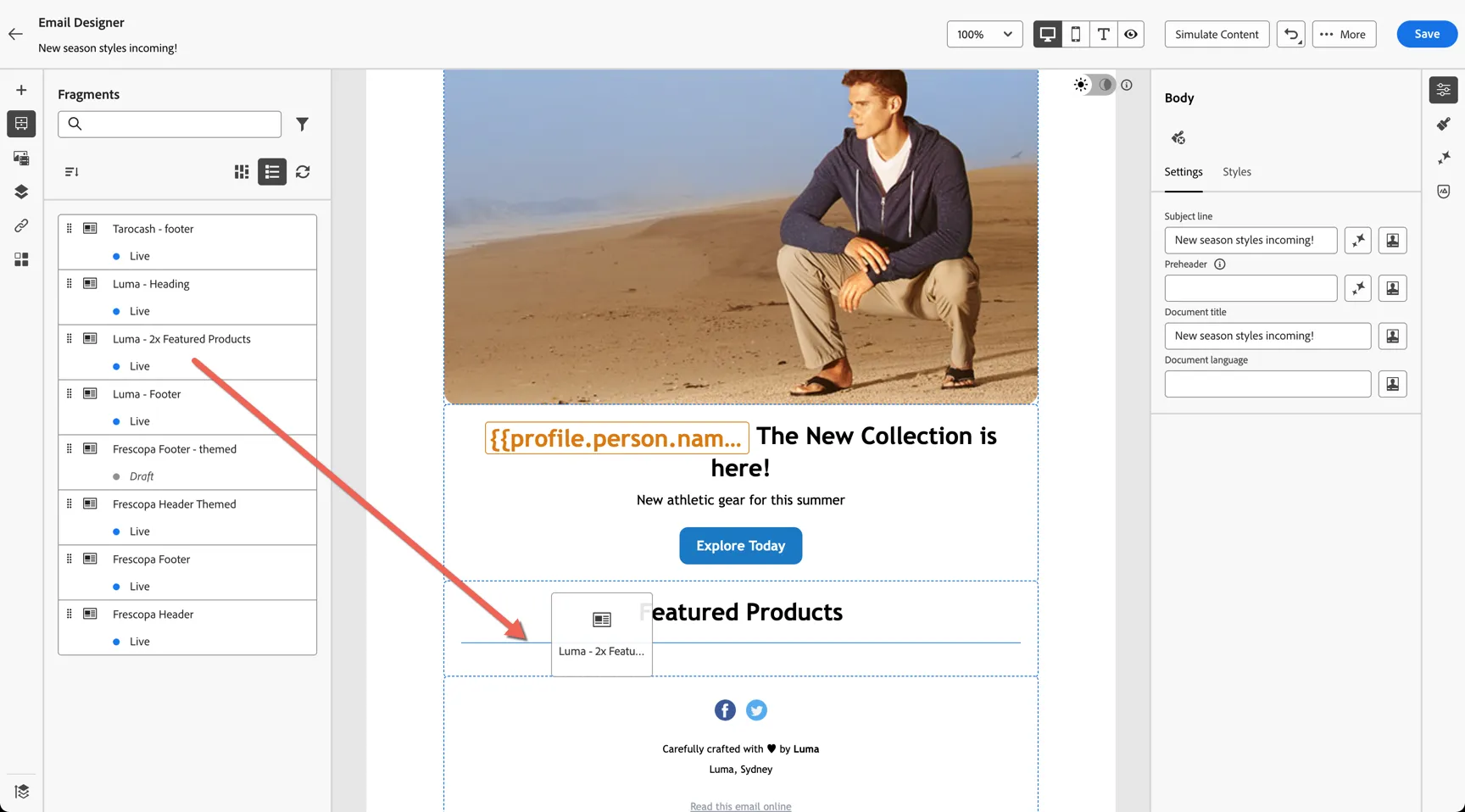
You can see the usual editor options are not available. Instead in the properties panel on the right we can see the fragment reference, and underneath that the fields that we are allowed to customise.
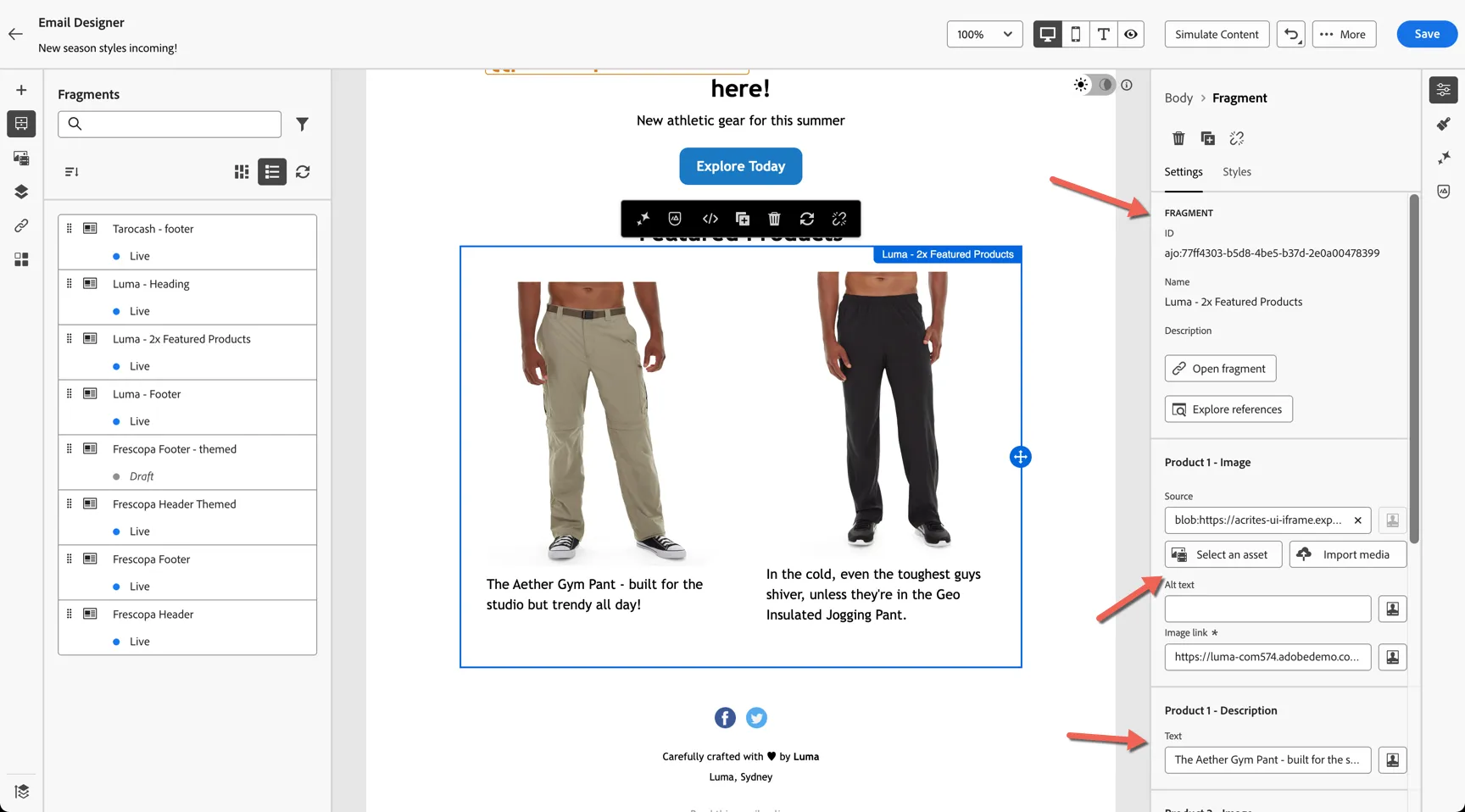
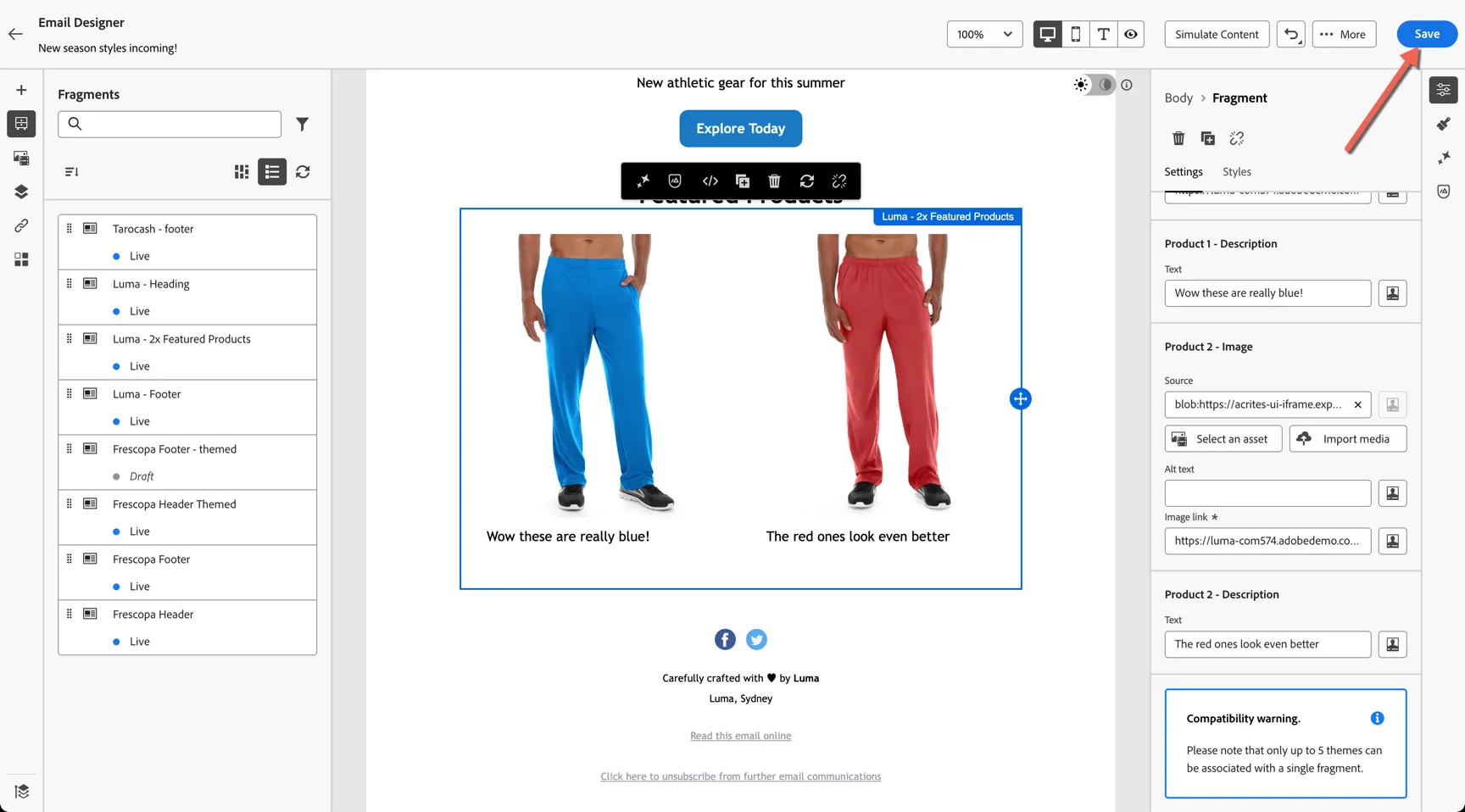
This gives editors the flexibility to update the content while ensuring their is no risk of them breaking the layout of the component. Once you're happy with the updates click to Save the content.
2.4 Check Brand Alignment
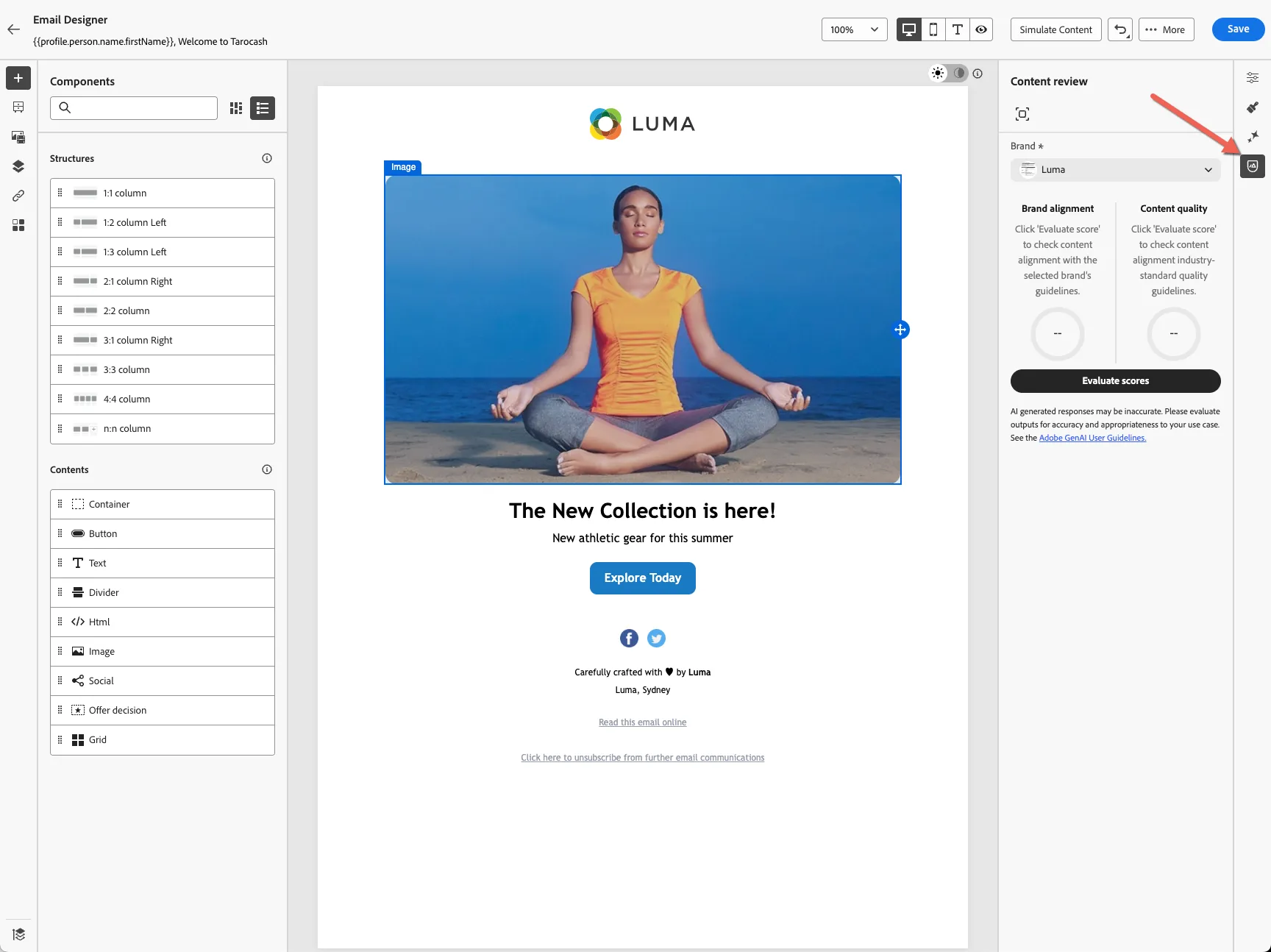
Generative AI can be used to validate your email content aligns to your predefined brand guidelines. From the right hand nav open the Brand Alignment panel.
Change the brand to Luma and click to Evaluate Scores.
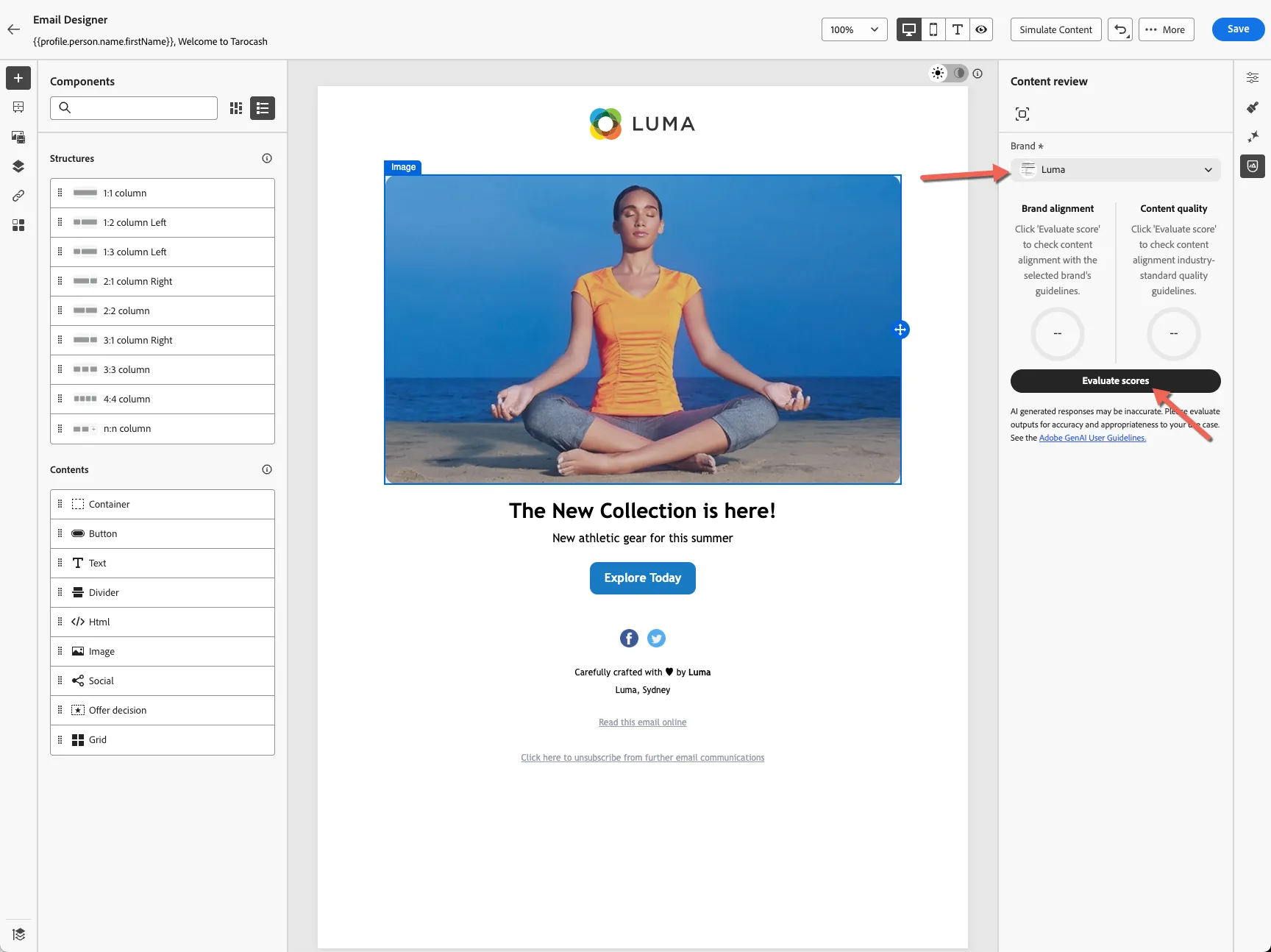
Your content will be scored based on writing style and visual content.
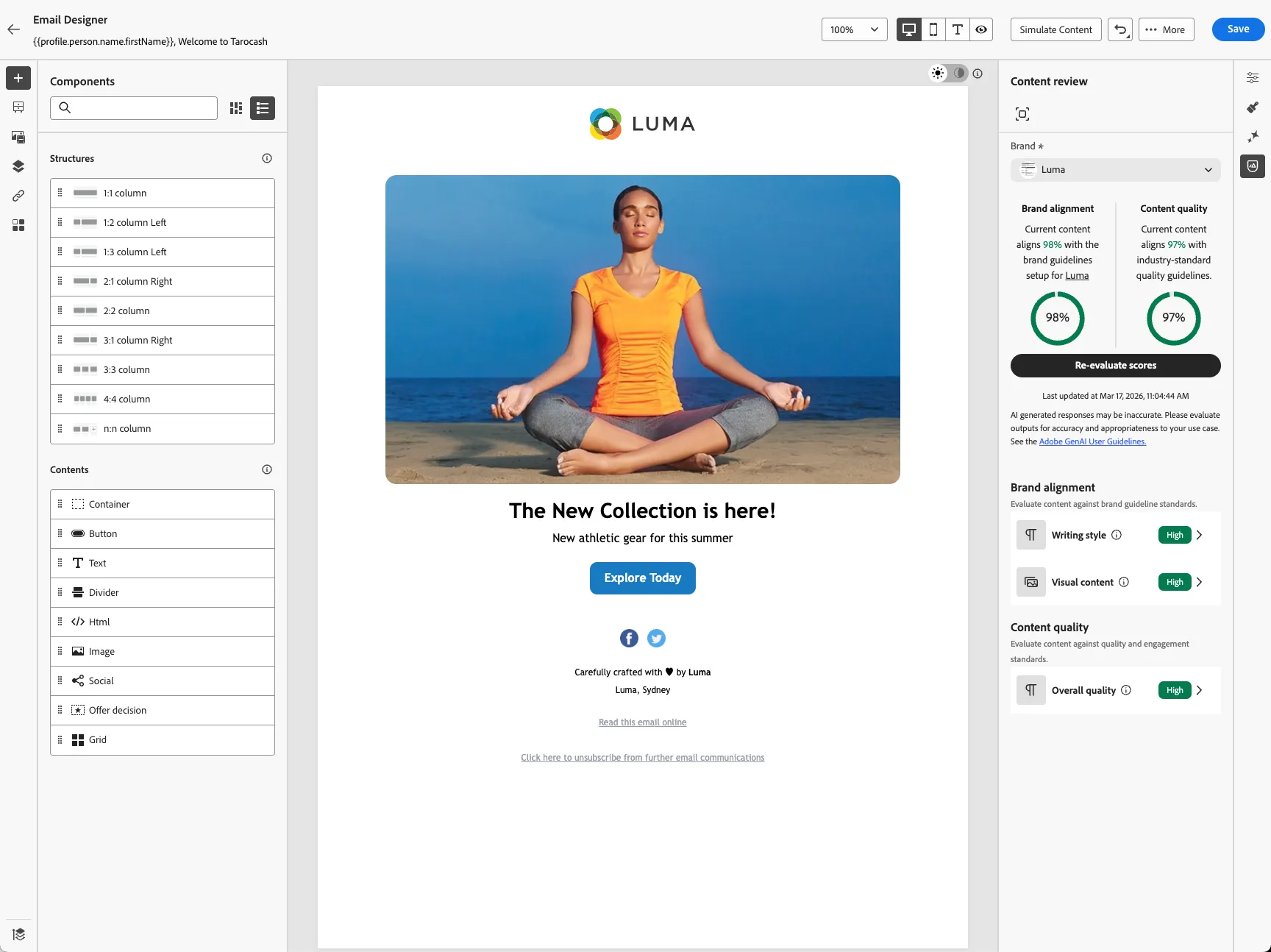
You can click on each category to view any recommendations provided.
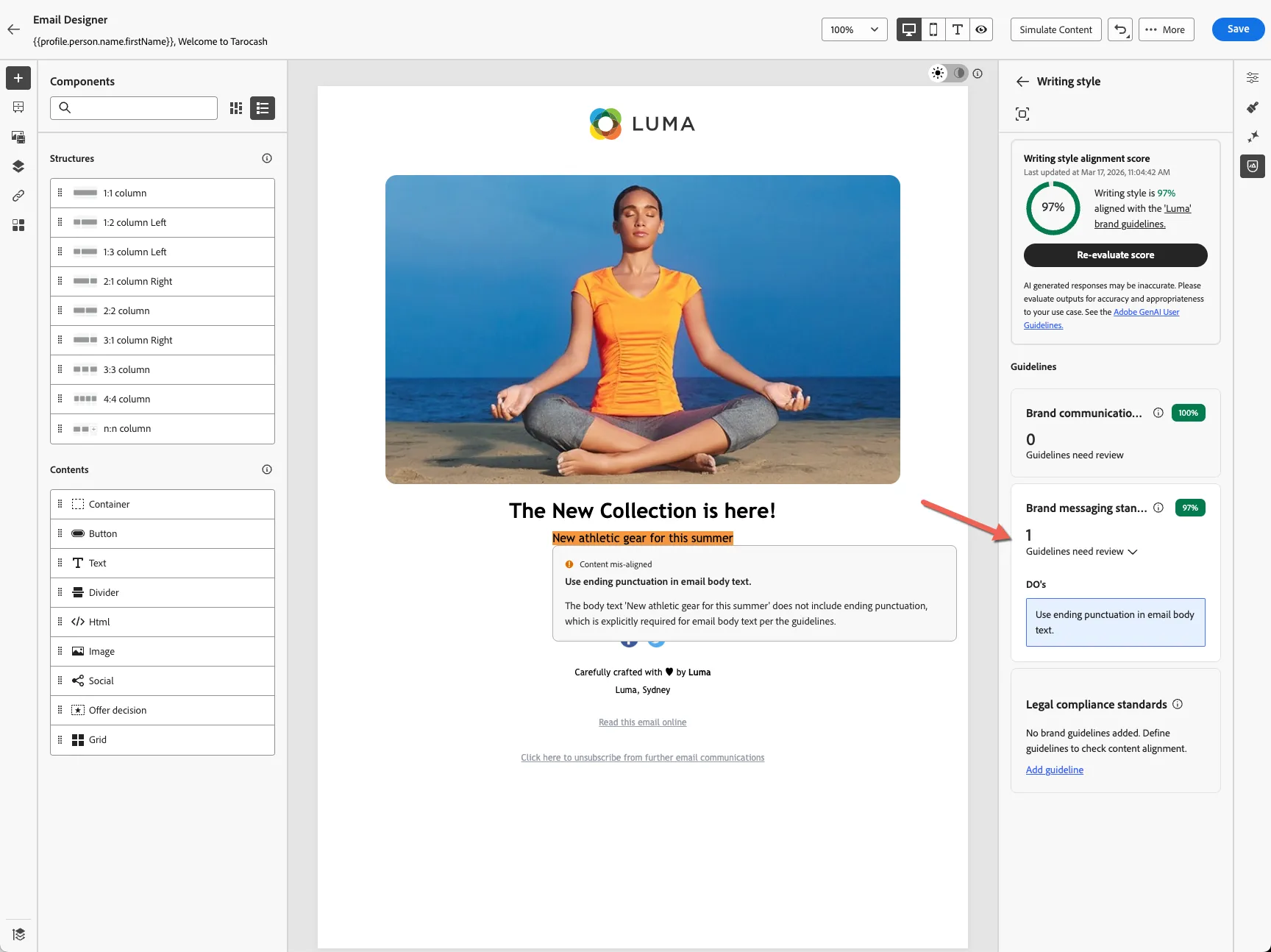
2.5 Simulate and Test
Once you're happy with the content we can simulate how it will look using test profiles and send proof messages or run rendering tests using litmus.
Click on the Simulate Content button at the top of the editor.
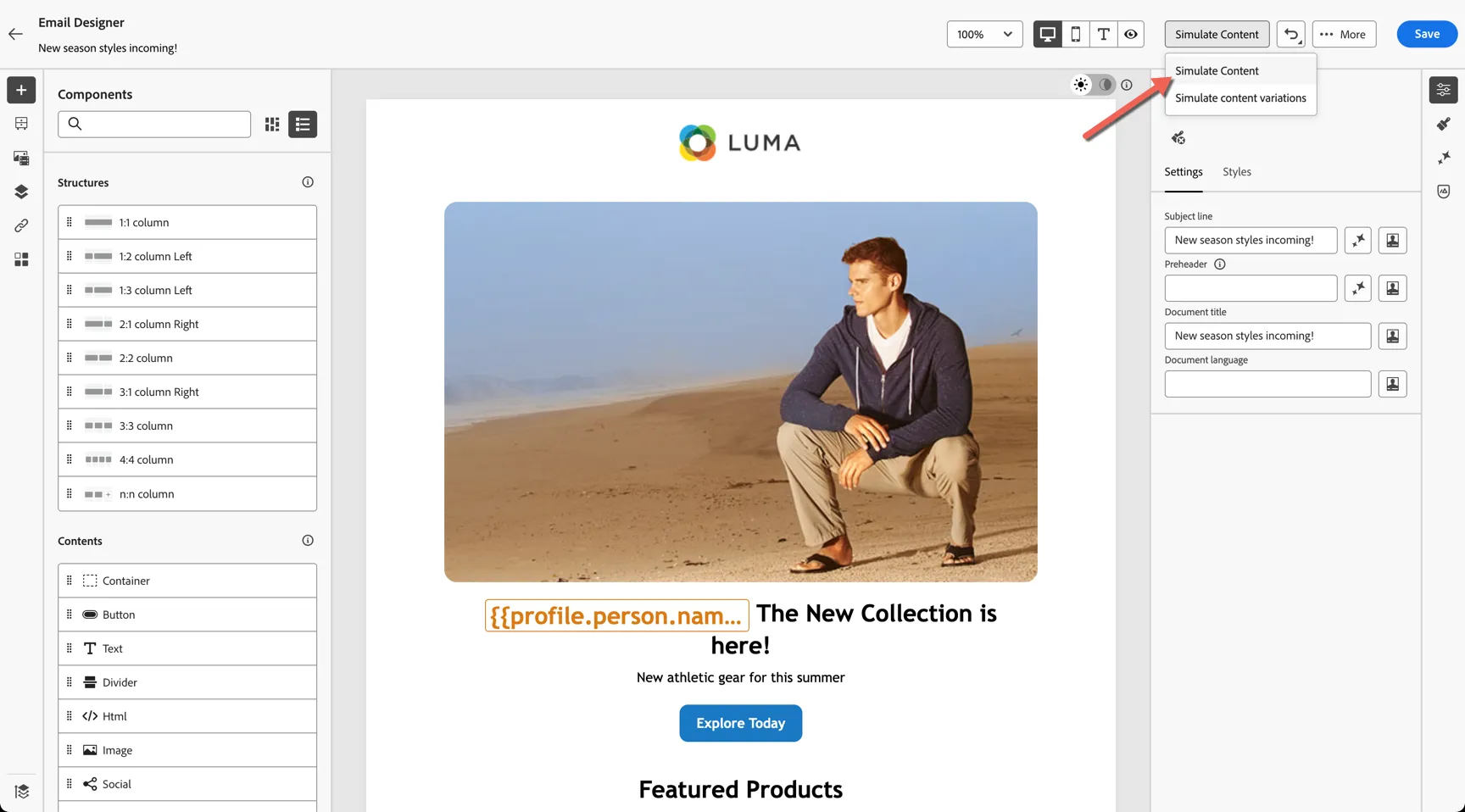
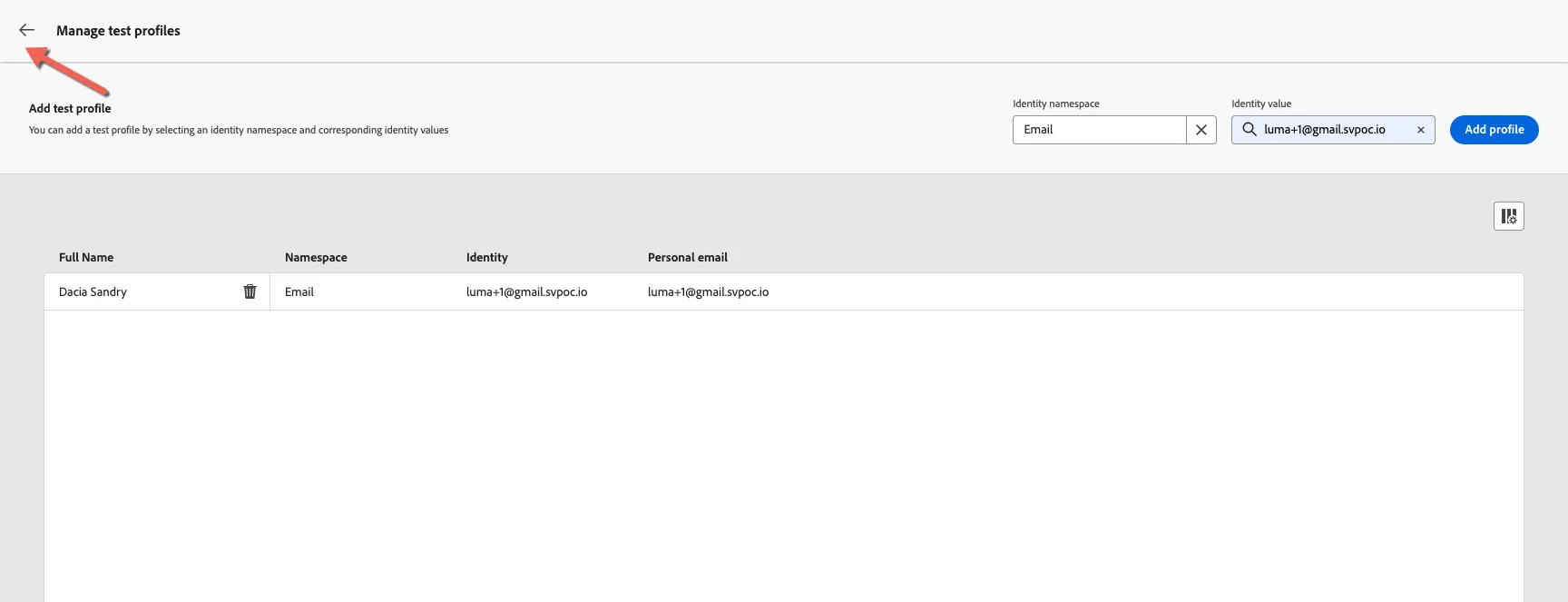
The simulator will load with a cached set of test profiles. Since this is the first time you've loaded it you'll need to select which profiles to add. Click to Manage Profiles
Select the Email namespace and search for your email from the first lab. eg. [email protected]. Click to Add profile.
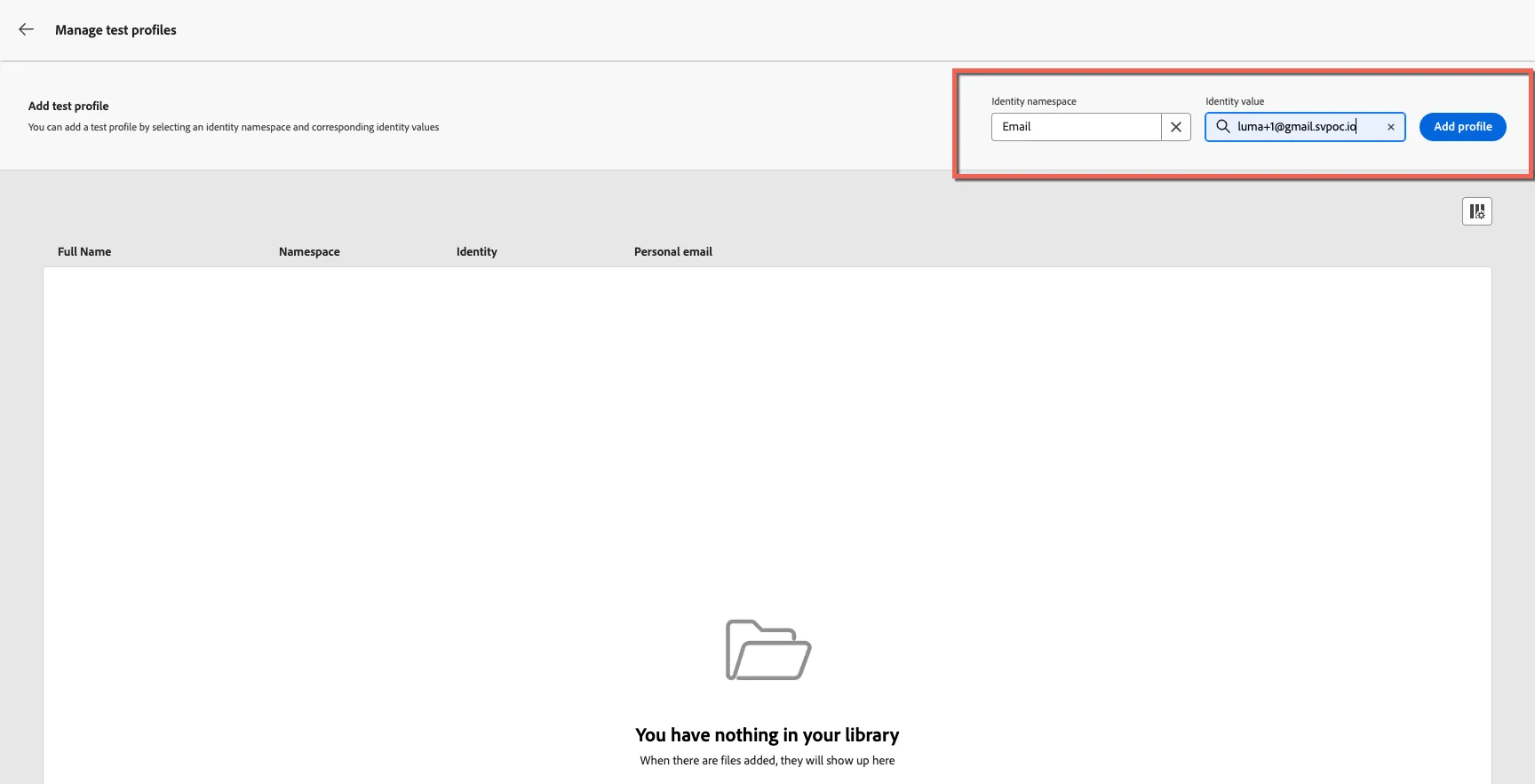
Once the profile appears in the list below, use the arrow to return to the simulator. You can add more than one profile to compare personalisation if necessary.
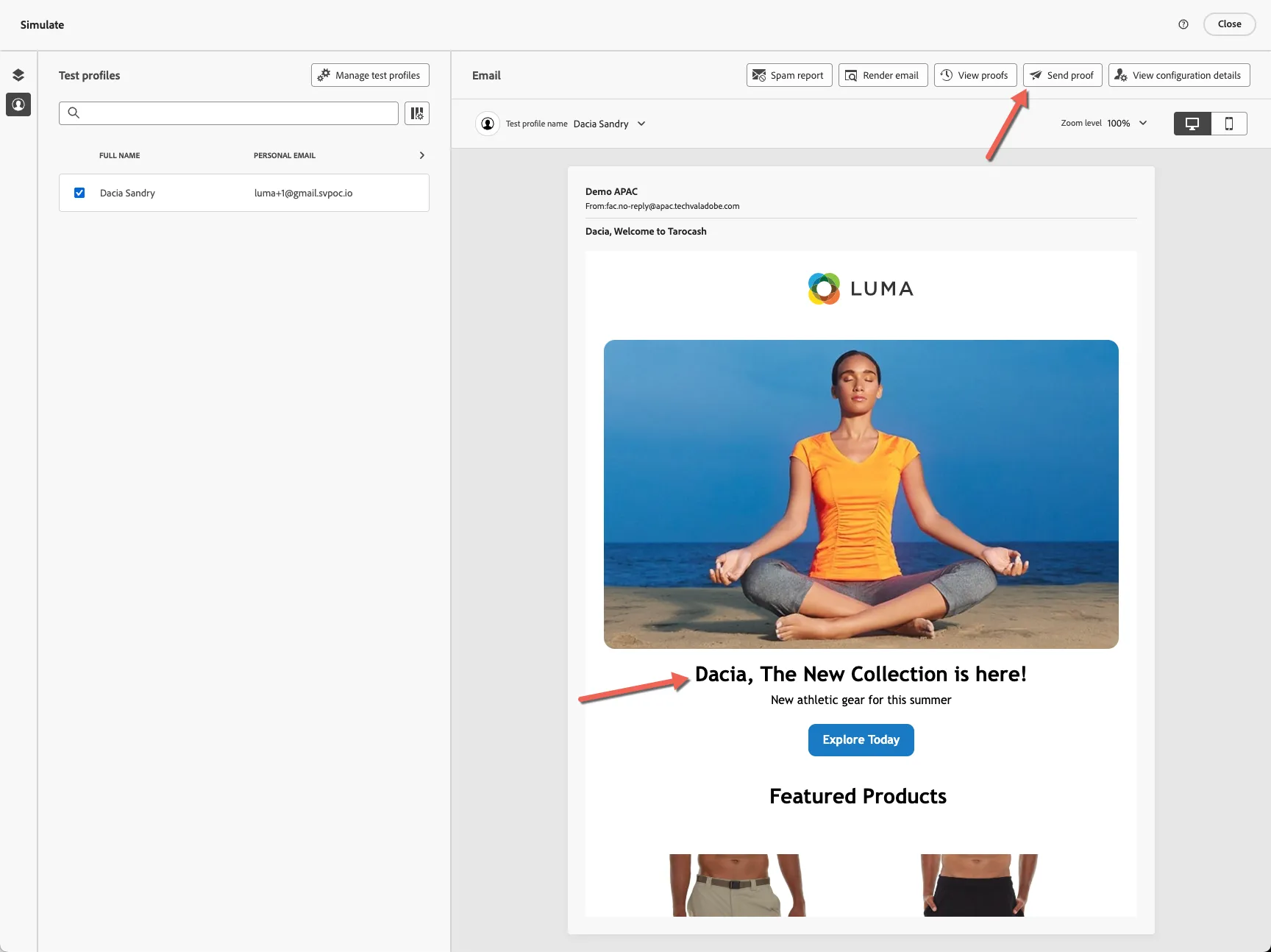
You can see the preview now shows the selected customers first name. Click to Send Proof.
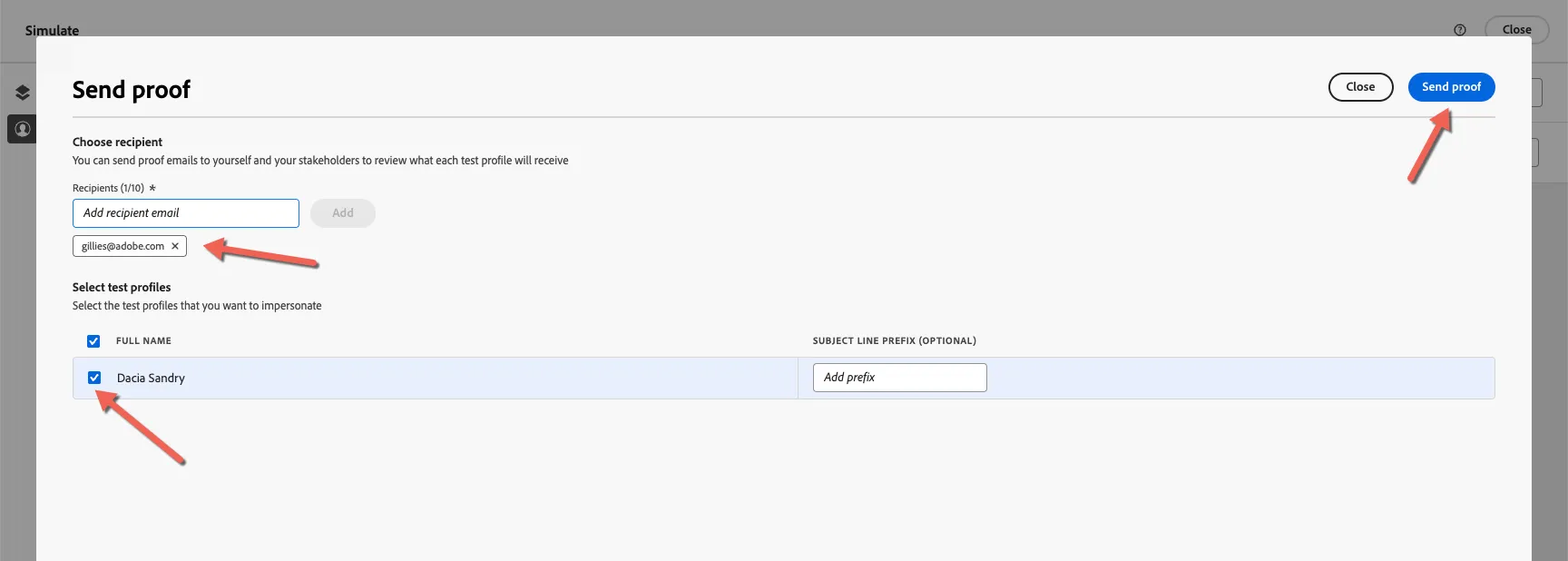
Select the test profile whose version you want to test. Add up to ten Recipient email addresses to receive the proof message. These do not need to exist in the system. Finally click to Send Proof.
2.5 Target Audience
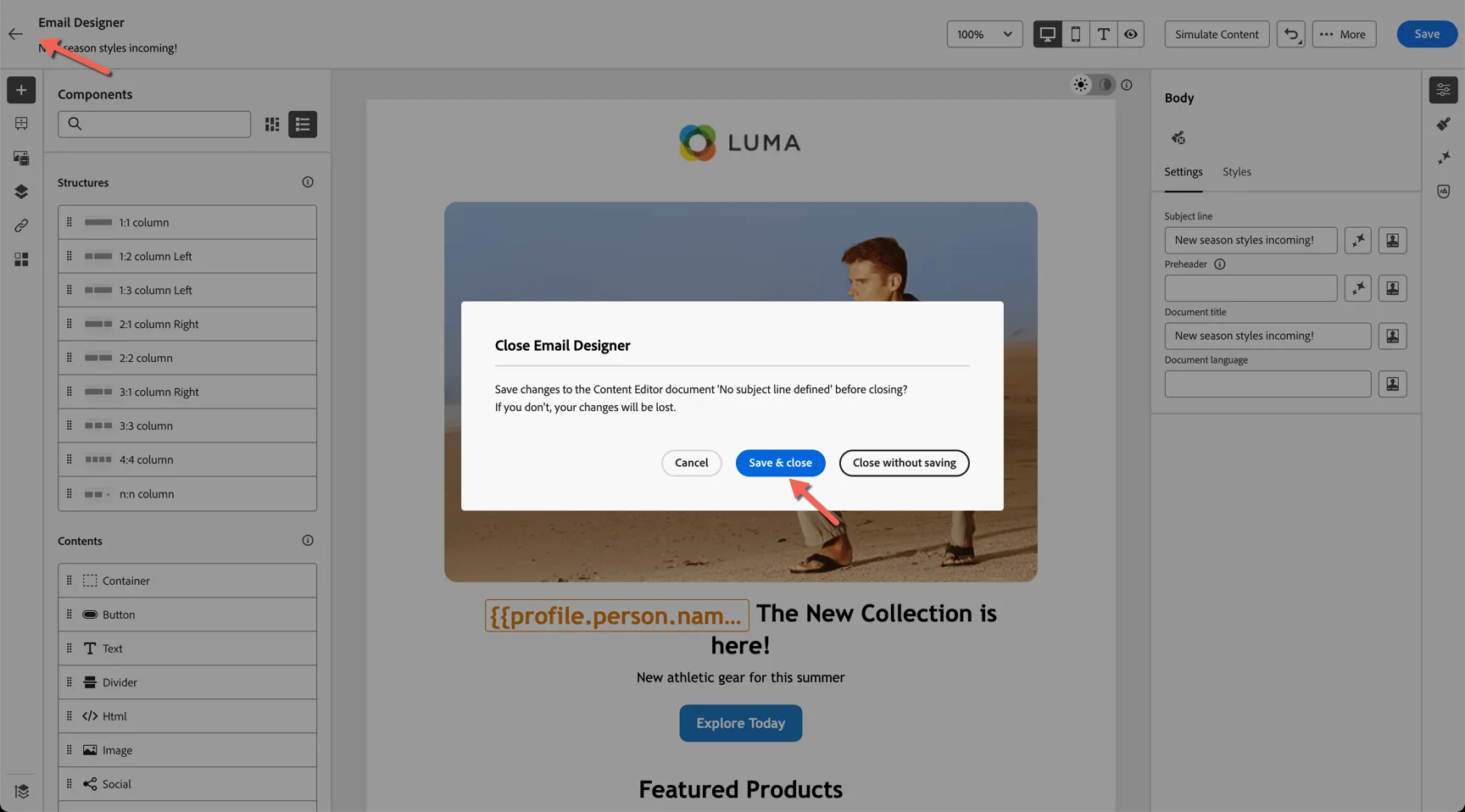
Return to the campaign editor by clicking the arrow on the top left of the email designer and select to save and close.
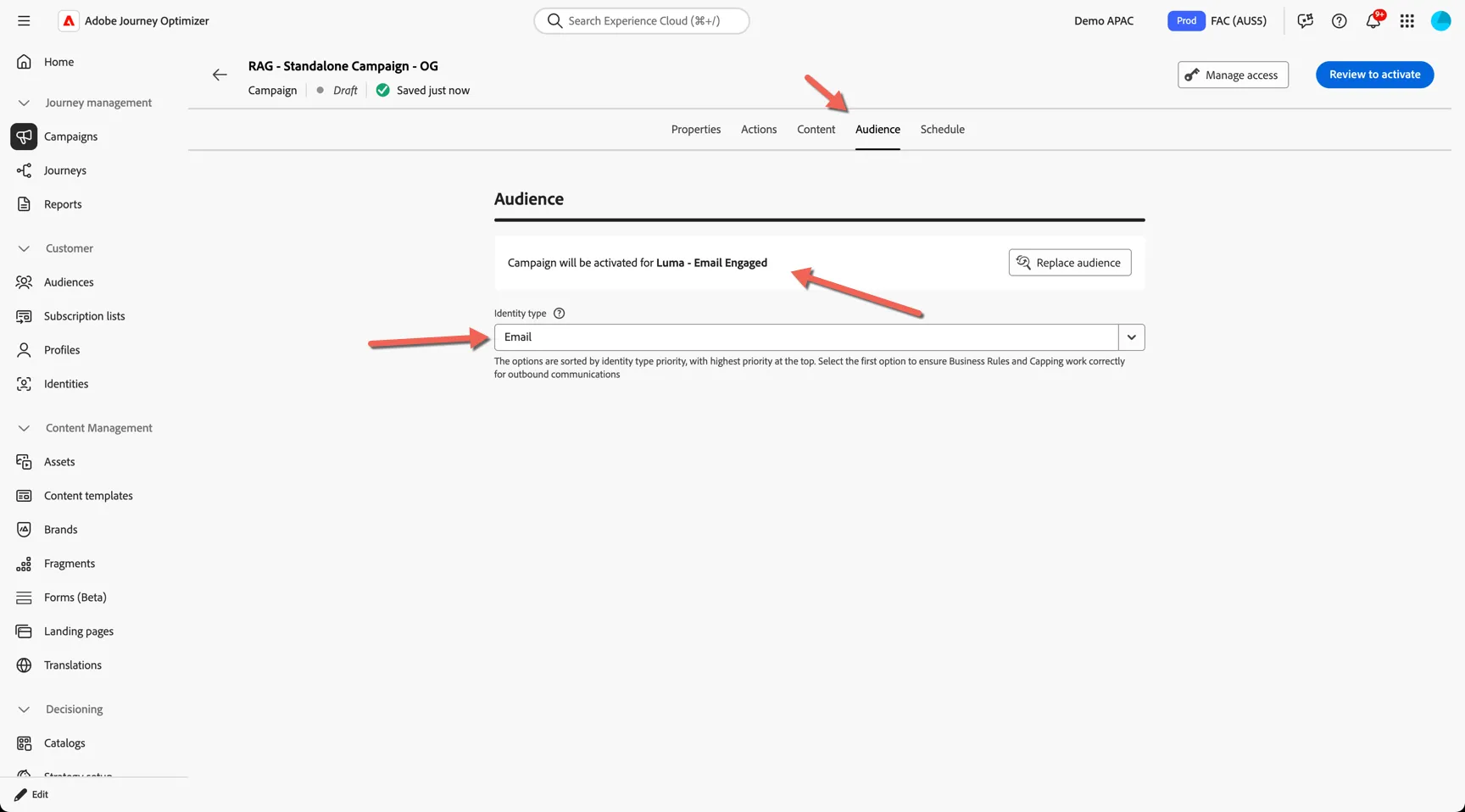
- On the Audience tab select the Luma - Email Engaged audience. Also change the identity namespace to Email.
2.6 Scheduling
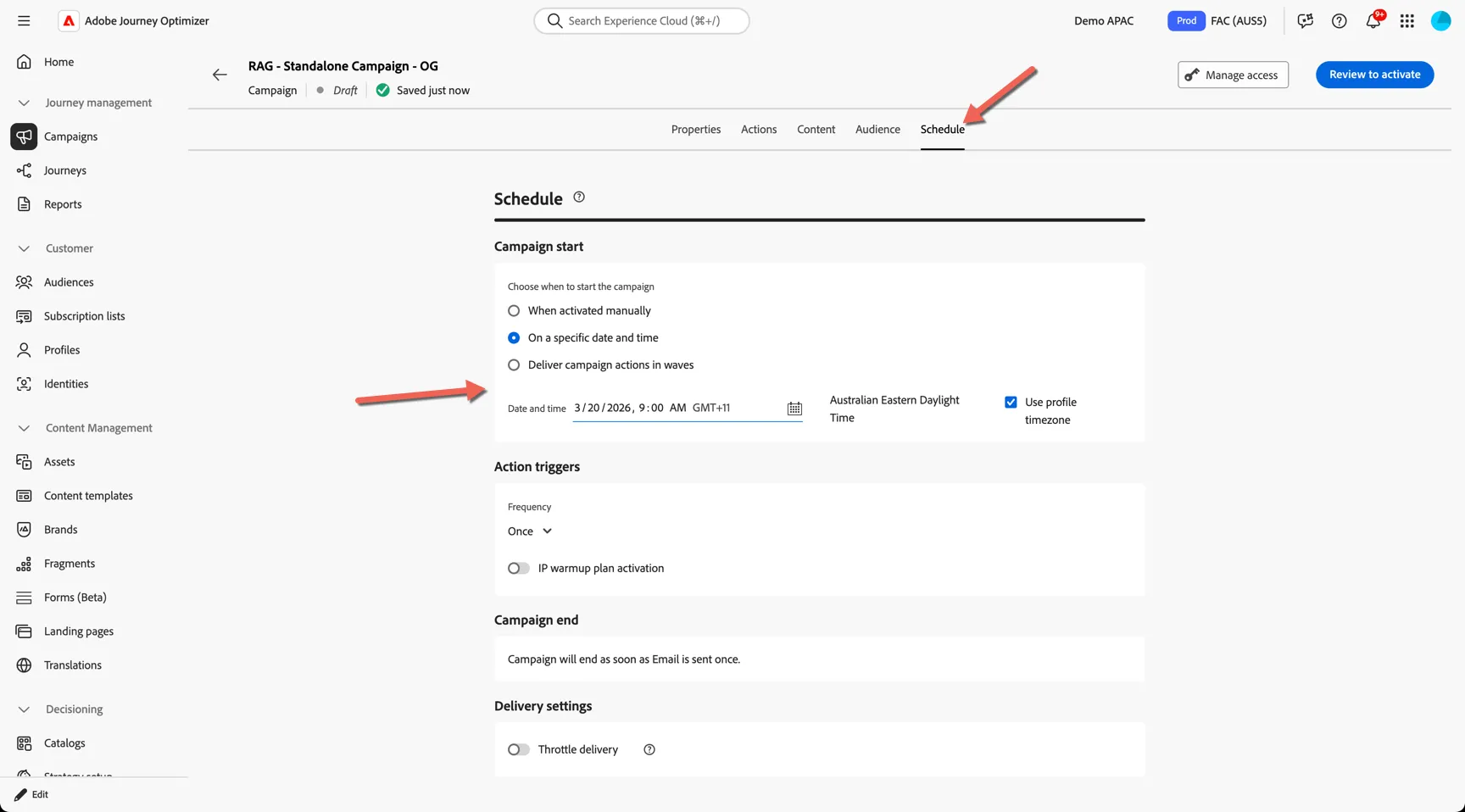
Move the the Schedule tab, this controls when the email will send. There are multiple options for scheduling and distributing the delivery if needed such as:
- Scheduling send time based on customer timezone
- Throttling the delivery by messages per second
- Splitting the delivery into waves executed hourly or daily
Set your send date and you are done!
Congratulations you've created your first email campaign. The last step is to Activate it. Activation can also be tied to an approval process requiring different team members to approve the campaign before it can be successfully activated.
2.7 Reporting
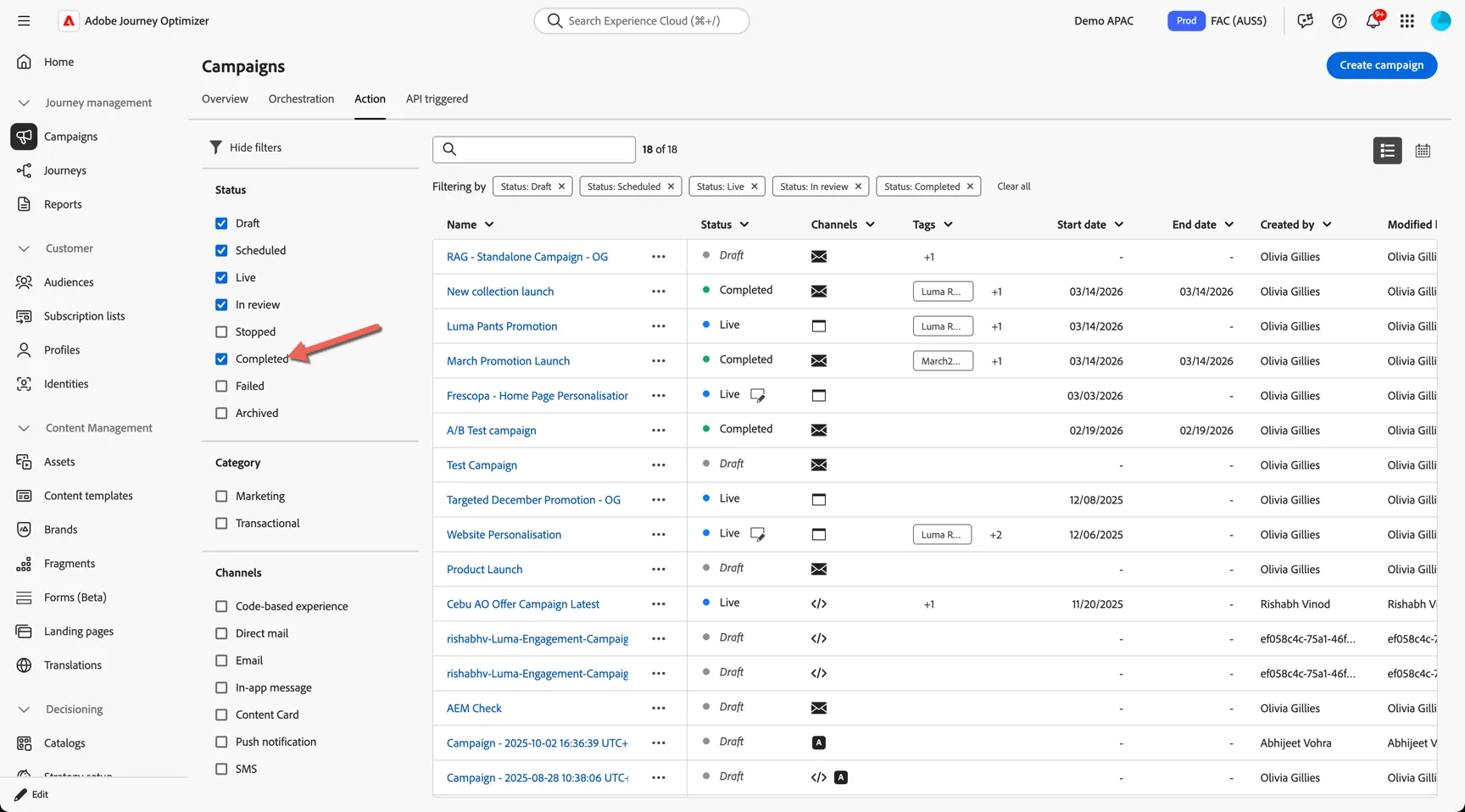
Let's take a quick look at an earlier campaign that was sent last week. From the Campaign Actions tab search for March Promotion Launch. Note: You might need to edit the view filters to show Completed campaigns.
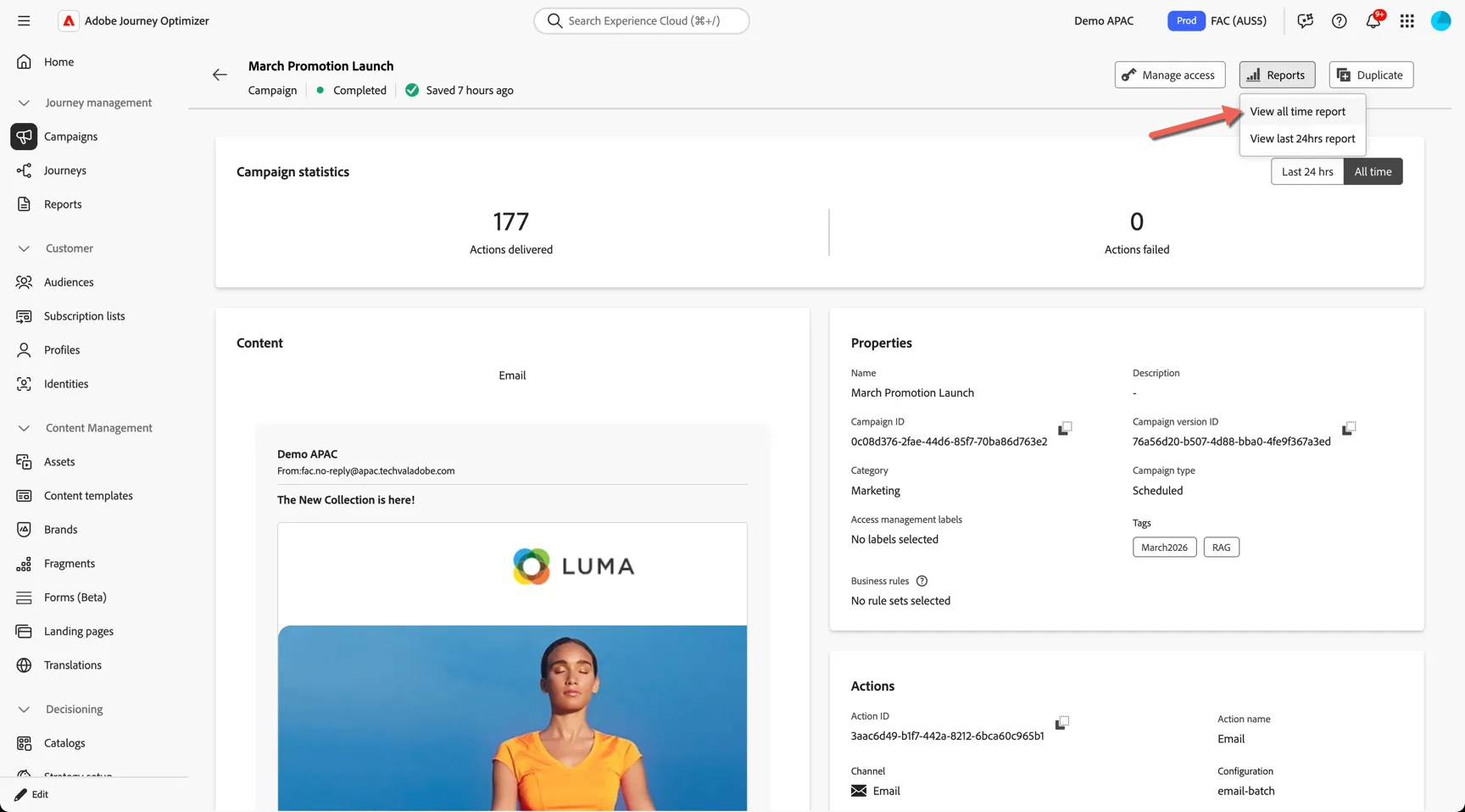
Open the campaign and click to view the all-time report.
This opens the default campaign report. You'll find all of the standard Email reporting metrics on this dashboard.
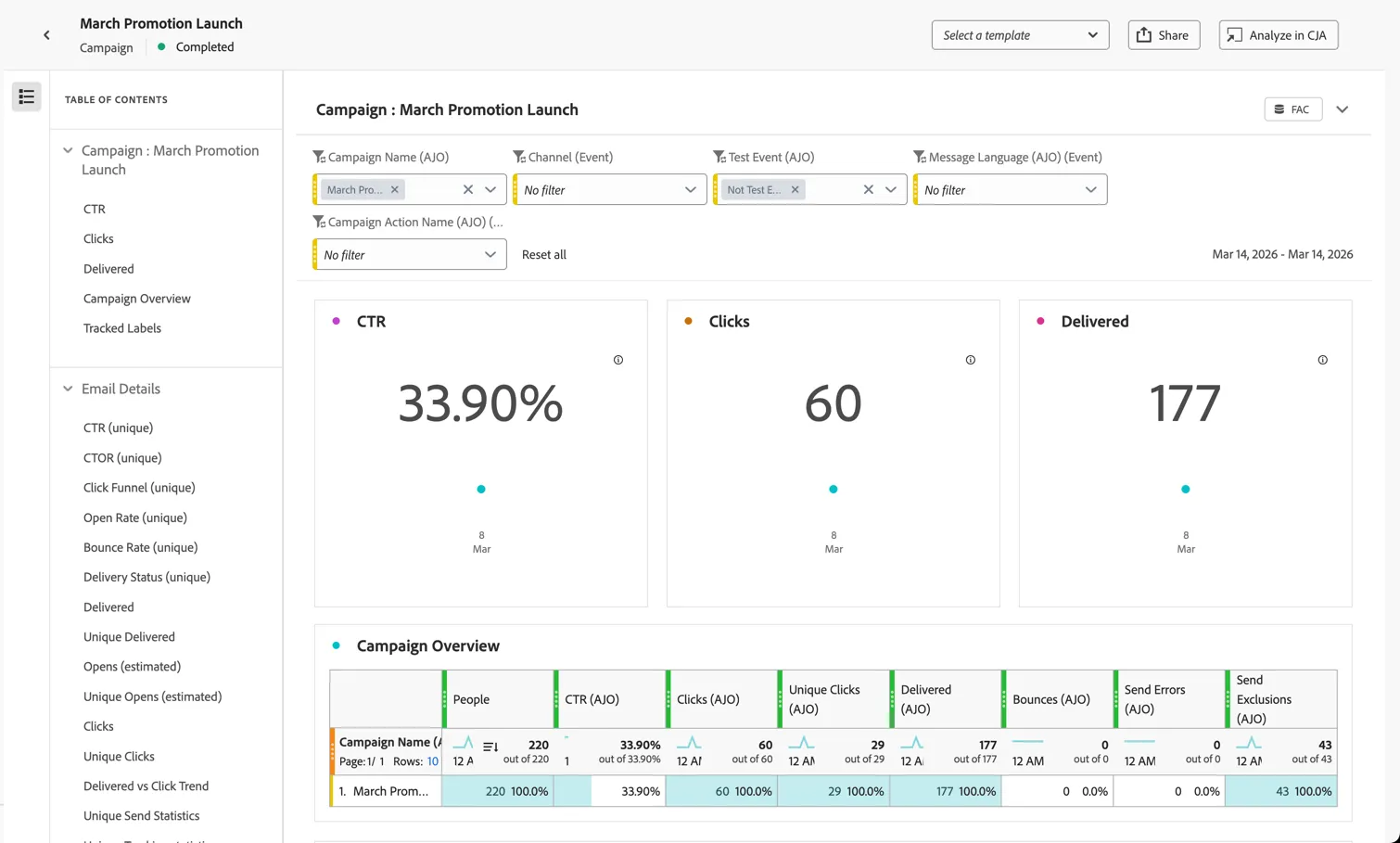
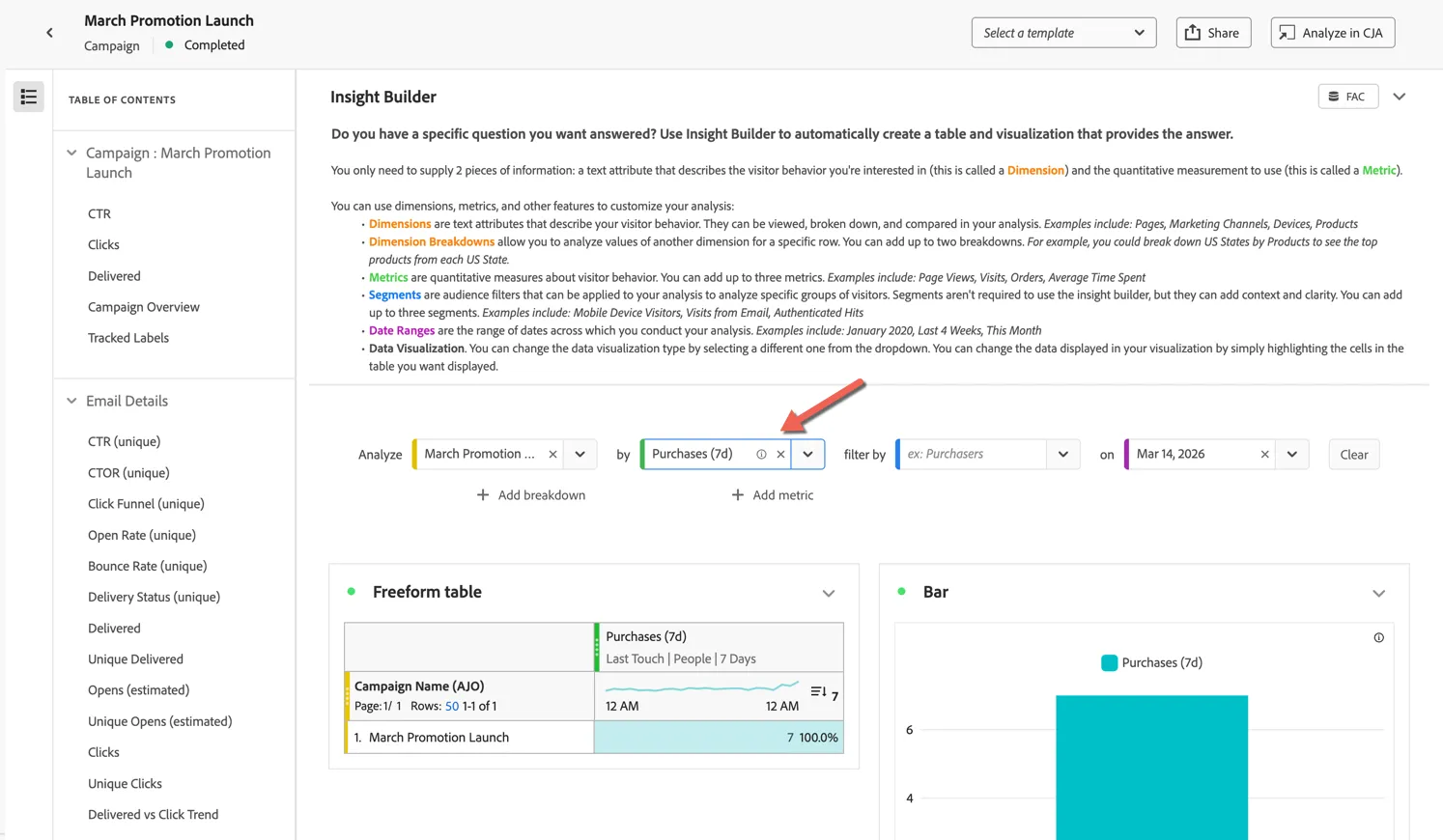
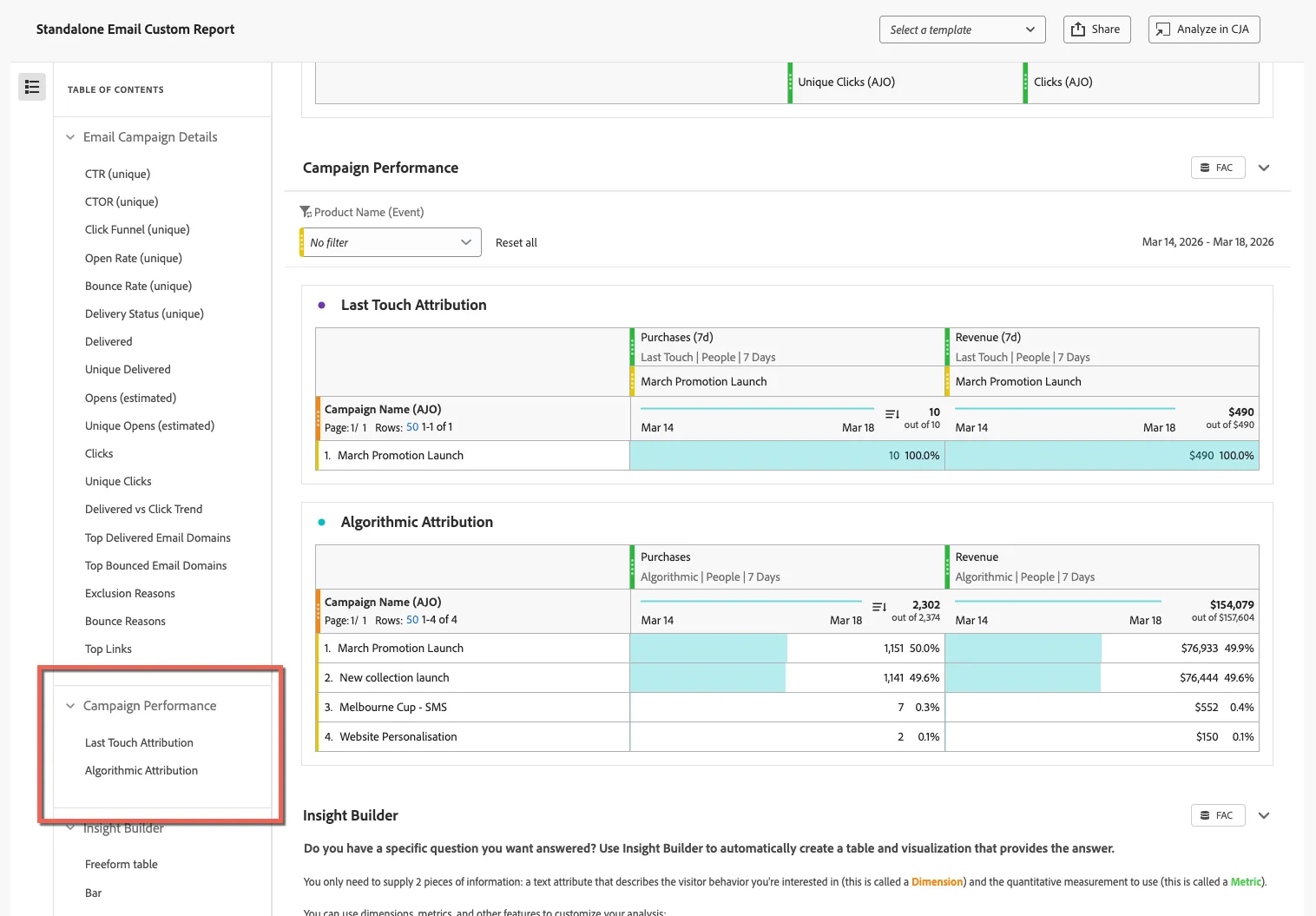
You can jump to different areas using the table of contents on the left. At the bottom of the dashboard you'll find the Insight Builder. It's here that you can add additional attribution metrics to your report such as purchases:
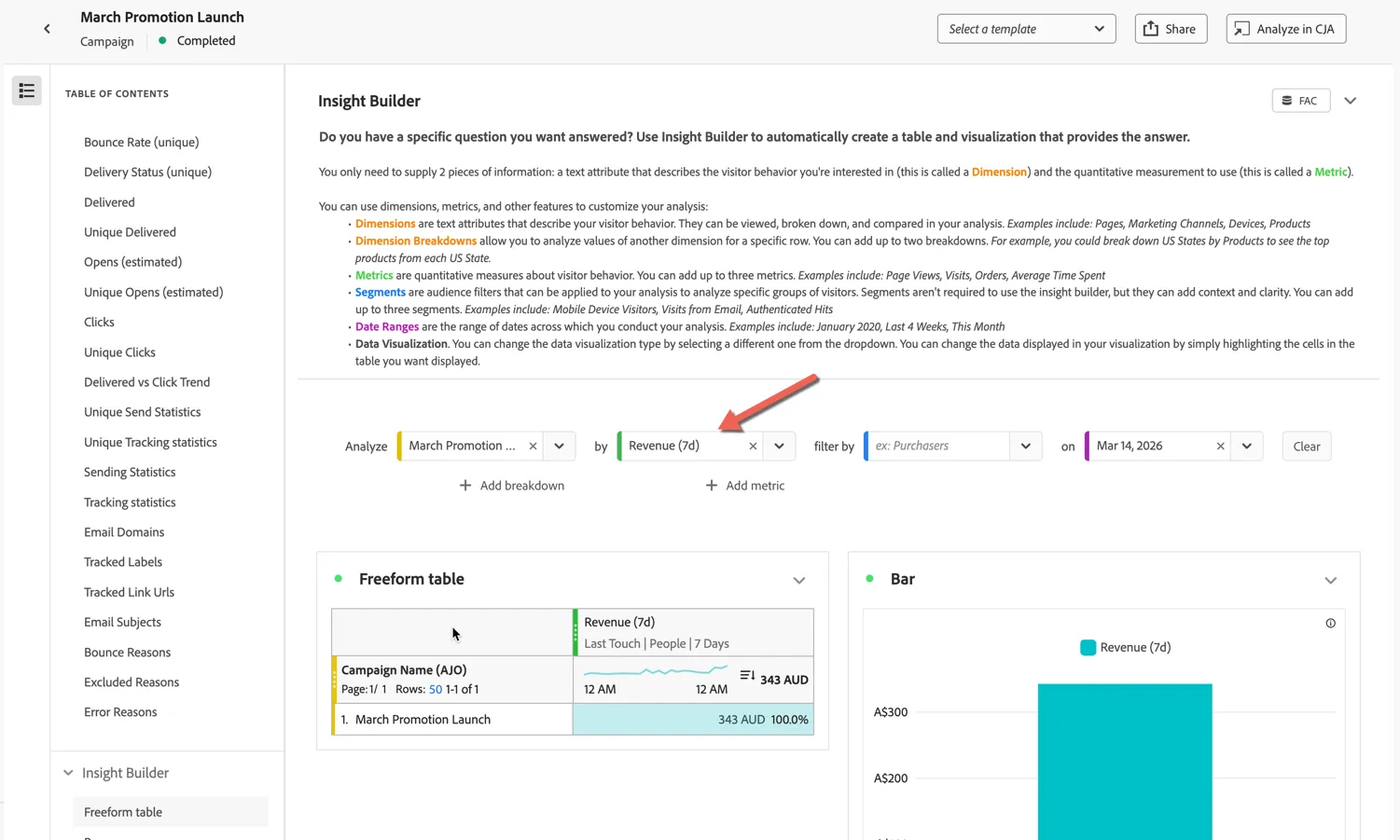
Custom versions of this report can be created within Customer Journey Analytics as templates which can be accessed directly from the Journey Optimizer UI. Use the drop down selector at the top of the report to pick the Standalone Email Custom Report
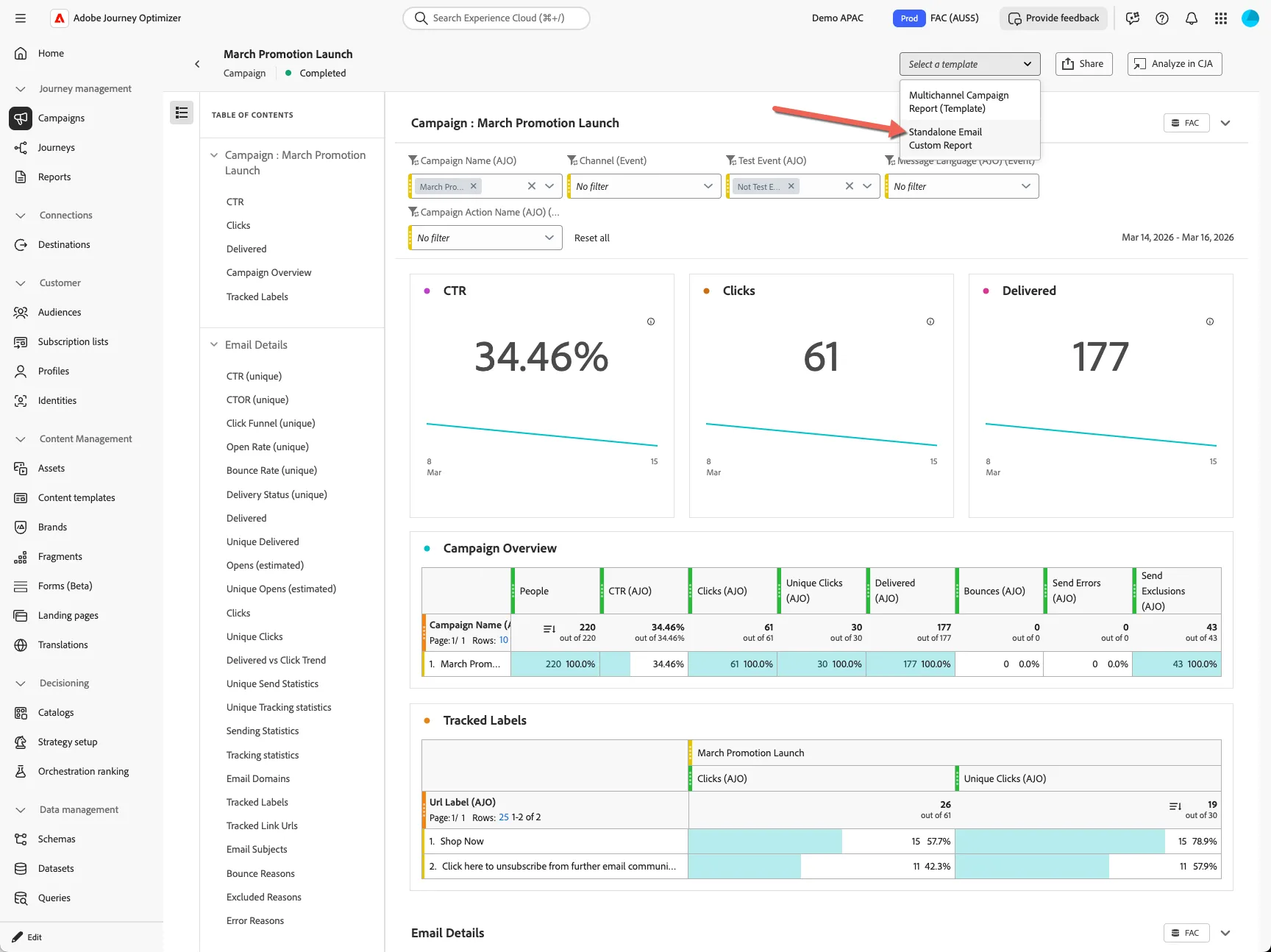
The custom report can have it's own unique layout and can expand the attribution reporting to cover multi-touch attribution which can significantly impact your revenue attribution per campaign if customers are likely to interact with more than one communication within the reporting window.
Bonus Exercise
Add Experimentation
Experimentation is an essential tool for Marketers because it removes guesswork, allowing you to validate subject lines, content, and CTAs based on real audience behaviour rather than assumptions. By testing and learning quickly, marketers can maximise impact, improve engagement, and generate insights that directly inform future campaigns.
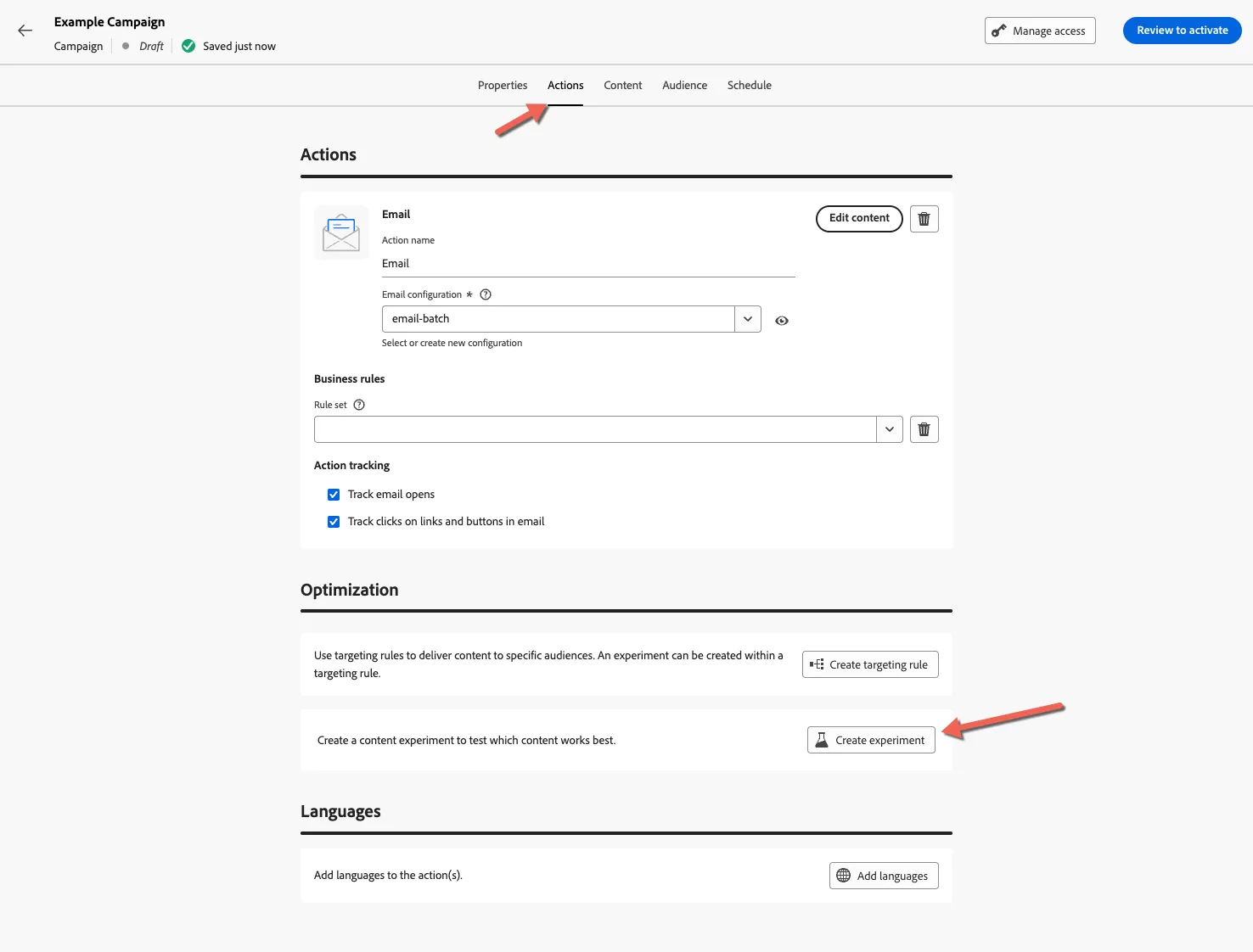
To add experimentation to your email return to the Action tab and click to Add Experiment
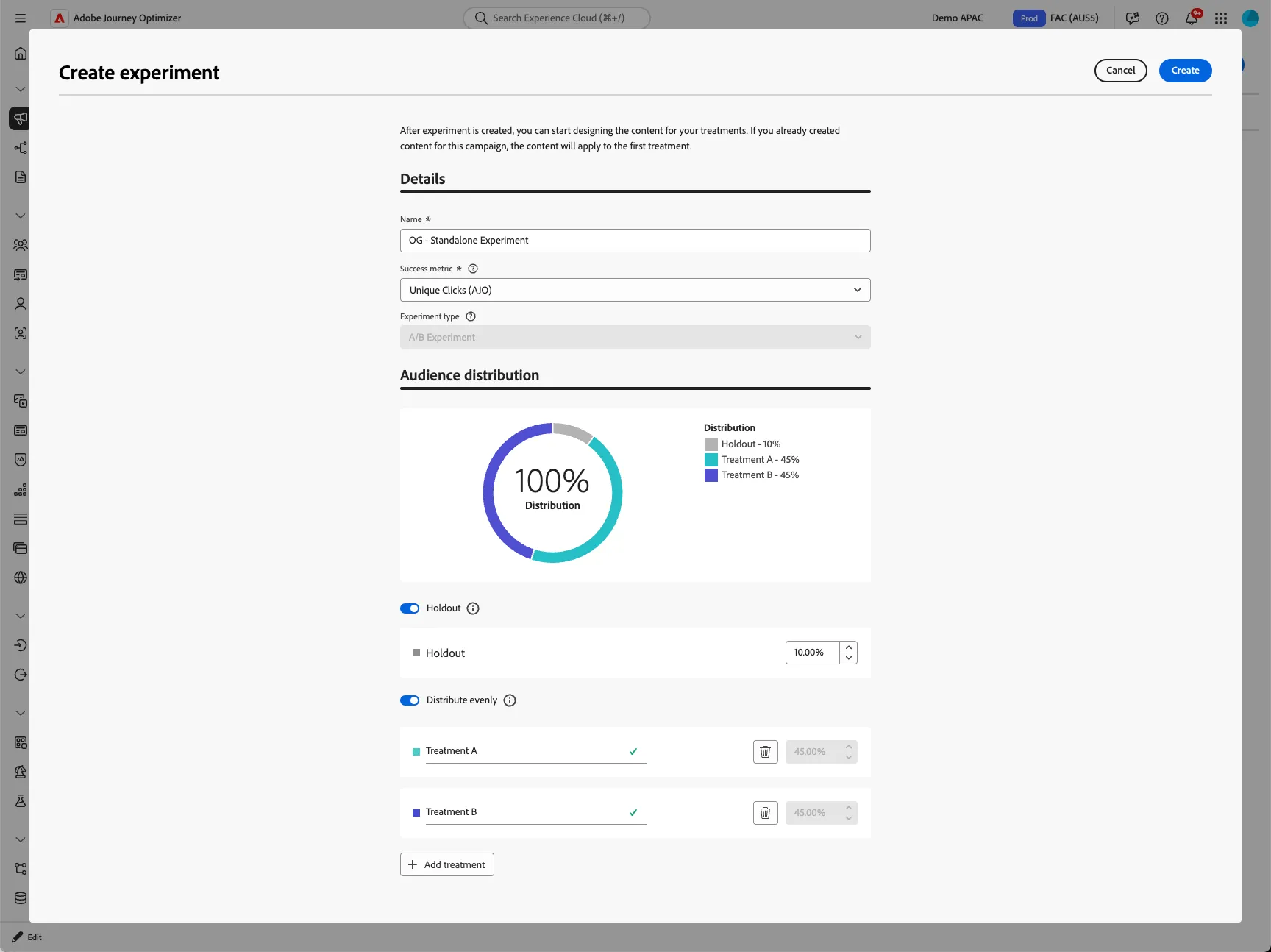
Here you can configure which metric to experiment on, and define the number of treatments including an optional control (holdout) group. Click Create to add the experiment once you're done.
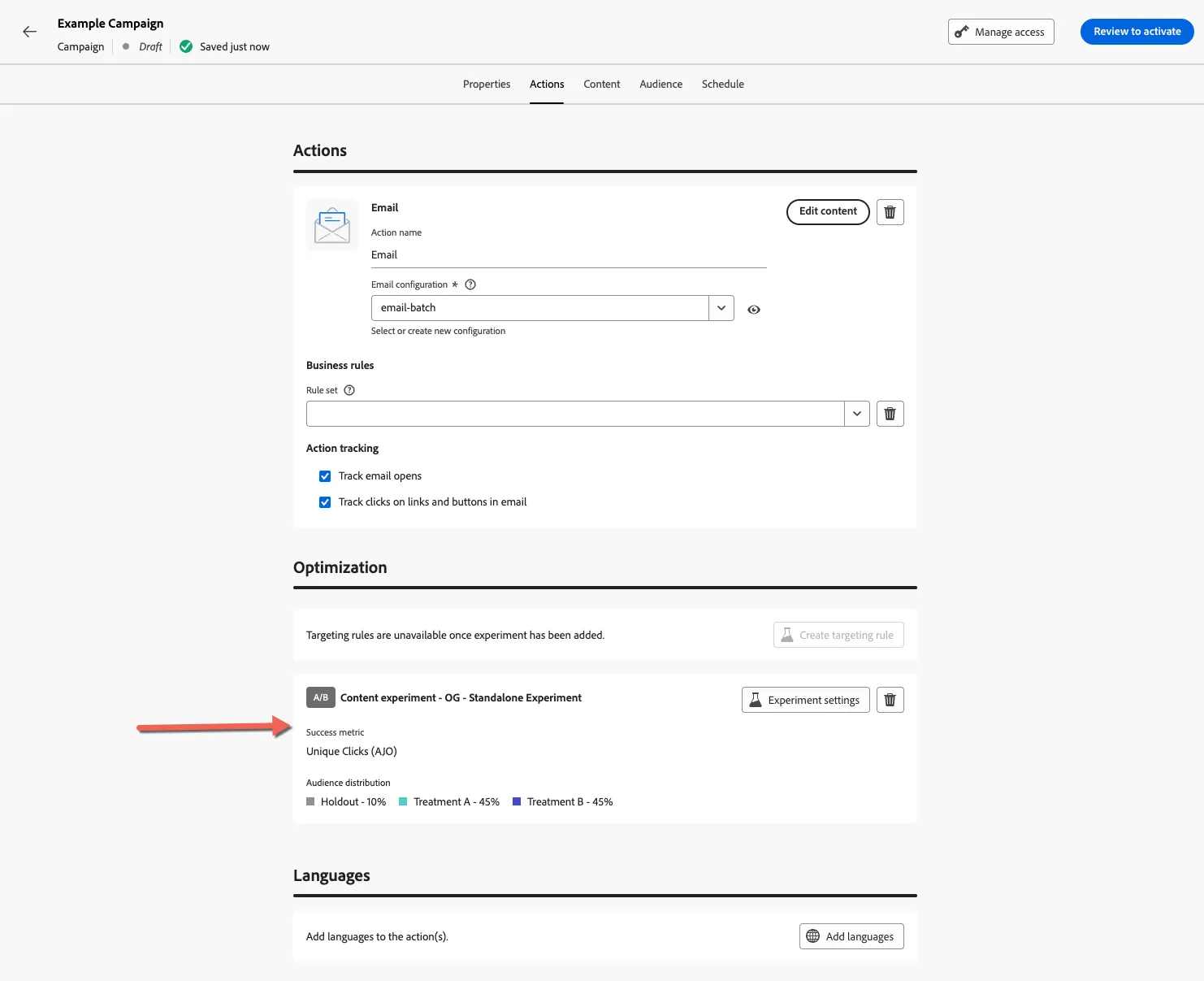
Your experiment details are now listed.
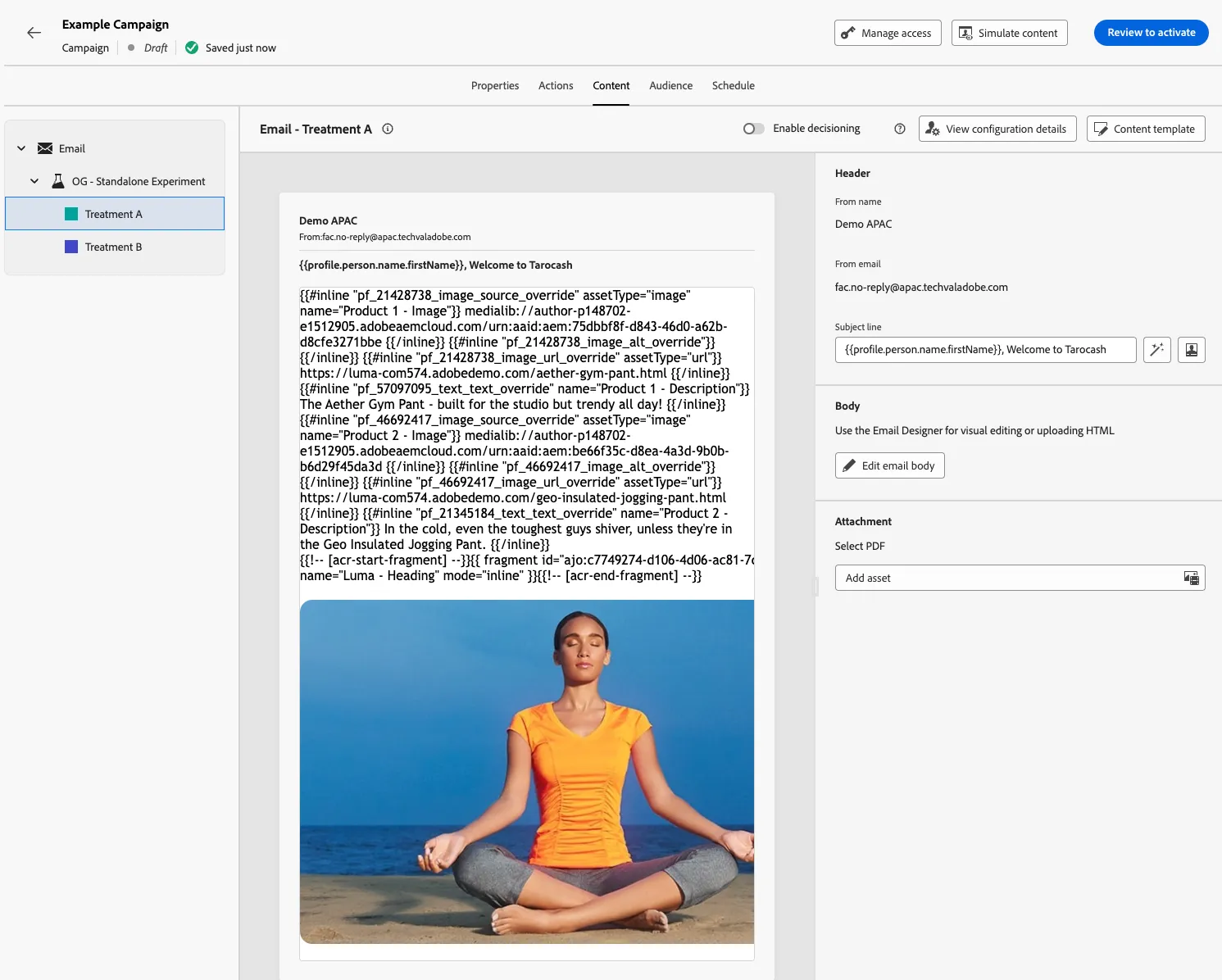
Return to the Content tab and you'll see you now have 2 treatment options. The first treatment will have your original email content, the second is ready to be added.