Send the personalised email
Our Journey so far:
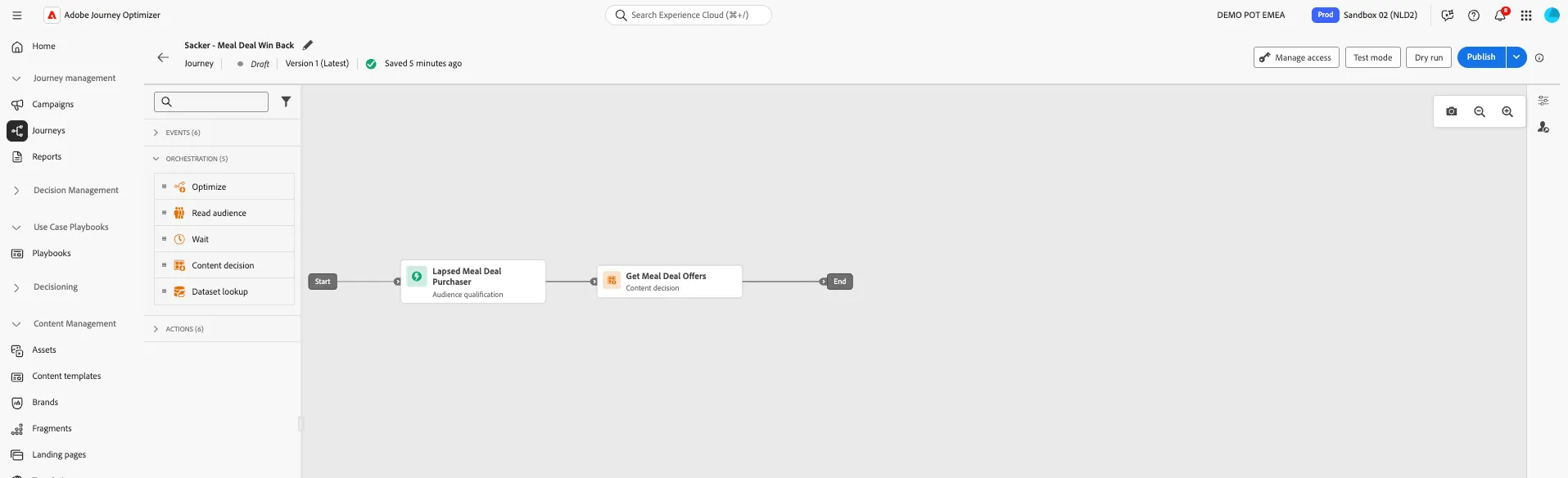
Exercise 3: Build a personalised email message
Purpose: To introduce the offer and bring the customer back into the Tesco experience.
In the next steps you will be building the email for your journey. You'll pick a fully completed template of the email so that you don't have to build anything at all, we'll just add our personalisation to the template.
Building the Email
- From the actions tab, choose Action and drag it onto the icon after the Content decision.
- Select the Action Type Email
- Click Add.
- Click on the activity to open the detailed view.
- Set the label to Meal Deal Offer Email.
- Select Configure action.
- In the Actions tab,
- Set the Email Configuration to marketingEmailMessages.
- Click Edit Content to start designing your email.
- IMPORTANT! Toggle Enable decisioning to on from the options top right.
- Enter a subject line: Quick lunch? We’ve got you covered
- Click on Edit email body. Under Saved templates, choose Meal Deal Template. It will show you a preview of the template. Click on Use this template.
- The email designer will now open. It should look like the image below. Click Save in the top right.
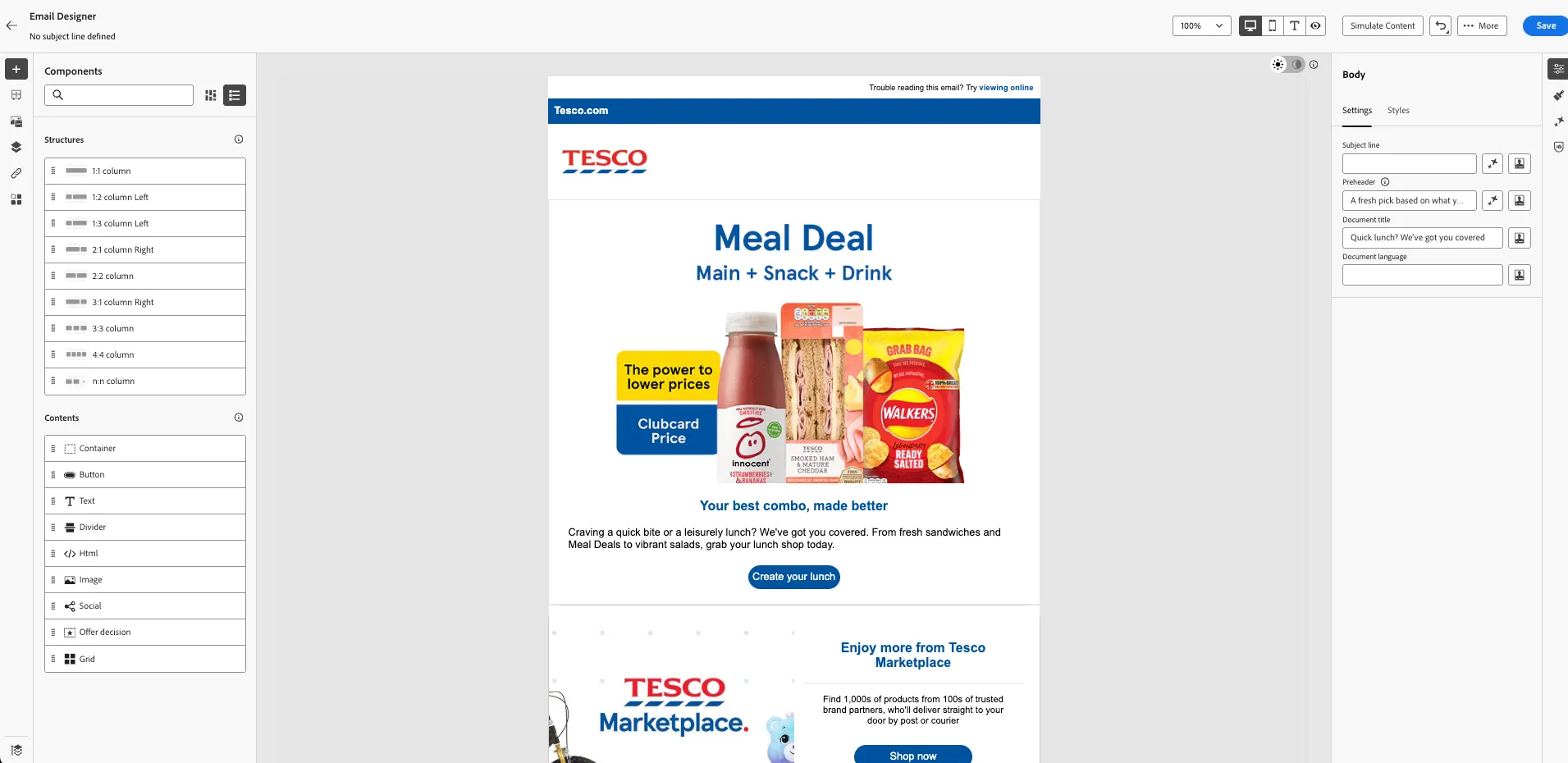
Configuring the email
We had most of the content prebuilt into the email using the template. Now lets customise the email for our journey with our personalised Meal Deal Offer.
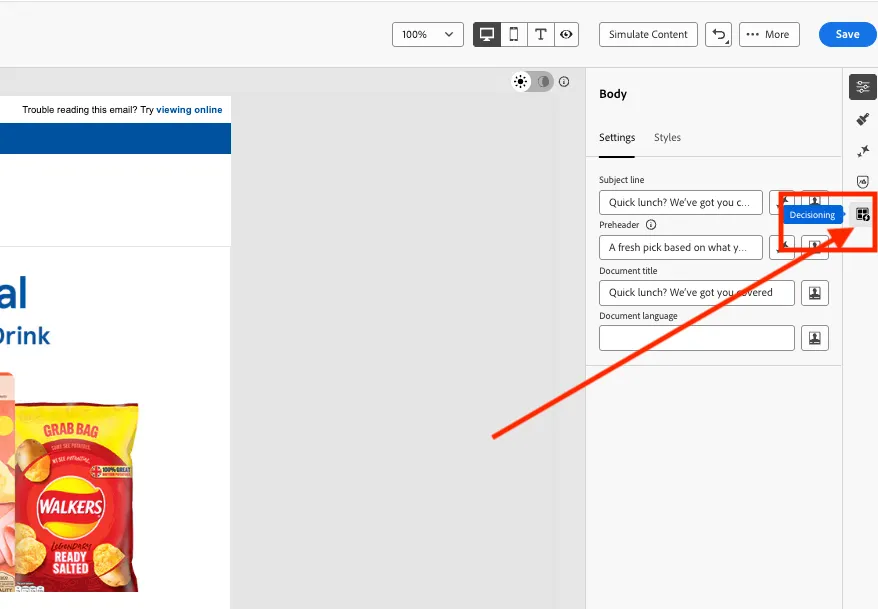
- Select the 1:1 column component that contains the default meal deal image
- Select the Decisioning icon from the right hand menu
- Select Add Decision Policy >Add new policy
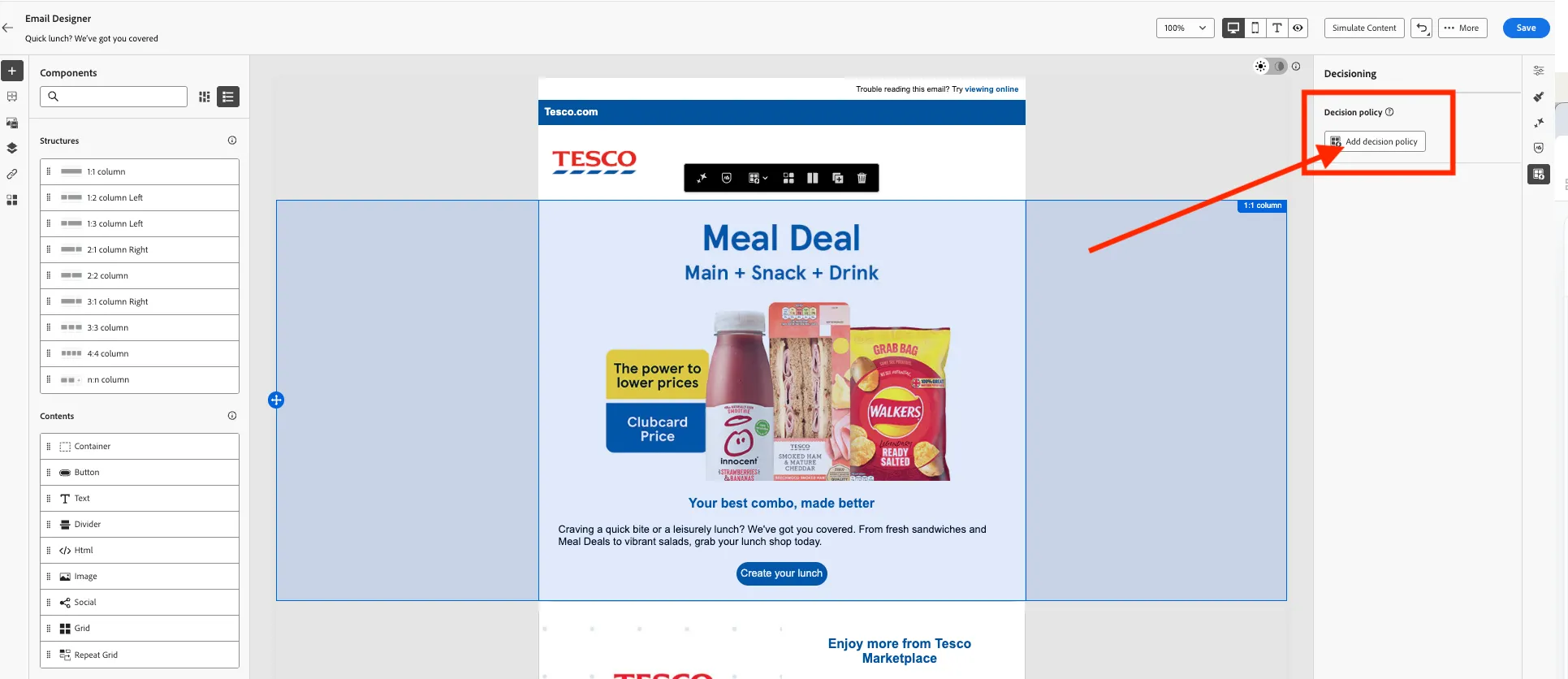
- Set the name of the decision policy to:Your name meal Deal Offer Decision
- Click Next.
- Under Strategy sequence, select +Add > Selection Strategy.
- Select the Meal Deal Win Back Selection Strategy from the list.
- Click Save to close the window.
- Click Next and review your decision policy.
- Click Create.
Since we are using this decision policy in an Email, we have to assign a Placement. A placement determines where returned items from the decision engine appear in a message.
- Click Assign Placement in the Decisioning panel.
- Check the email-1-1-column placement
- Click Assign.
We've now added our Decision policy to our email, now lets use it to personalise the main banner image.
- Select the main meal deal banner image
- From the image options, select the Add Personalisation icon, next to the image source to open the expression editor.
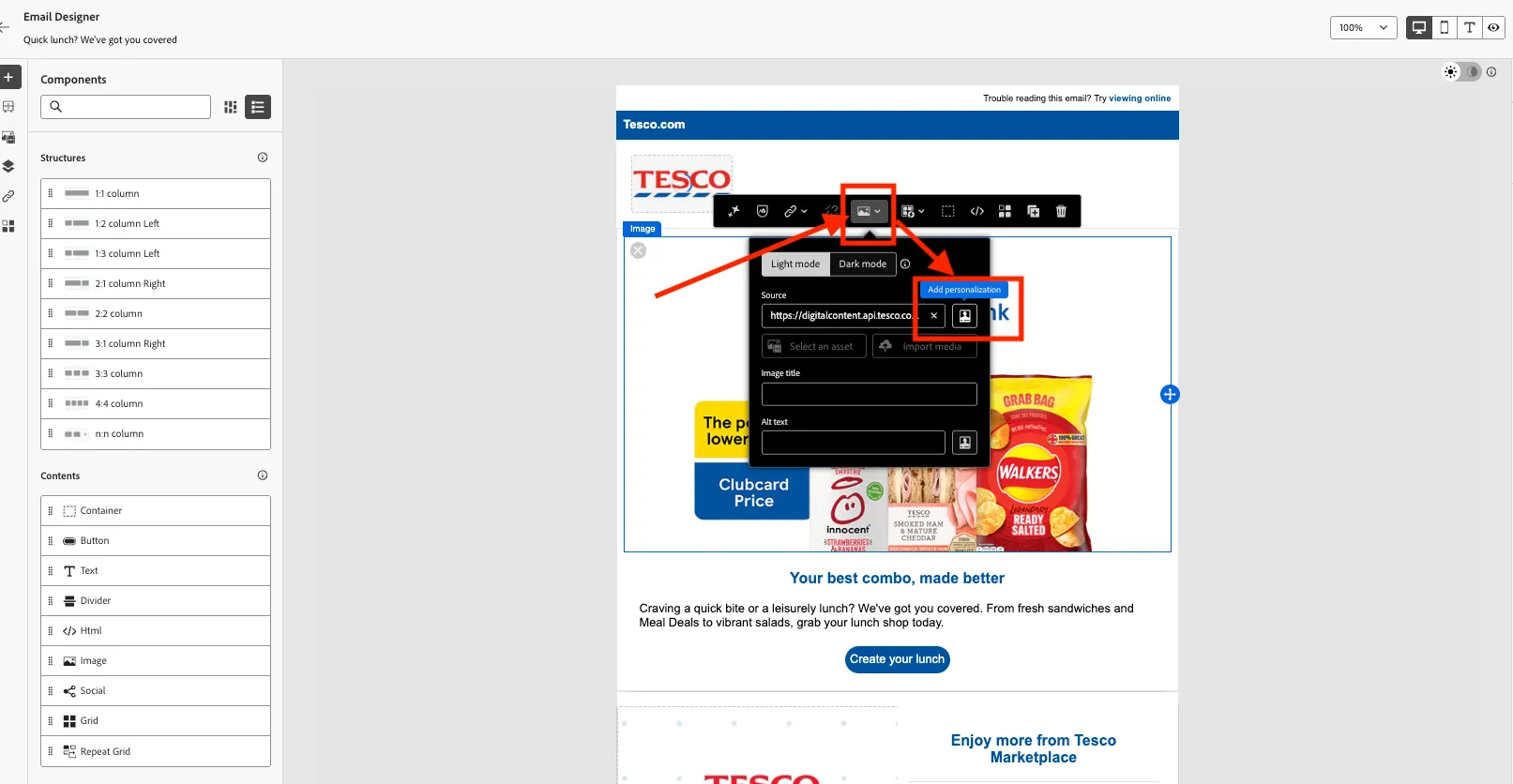
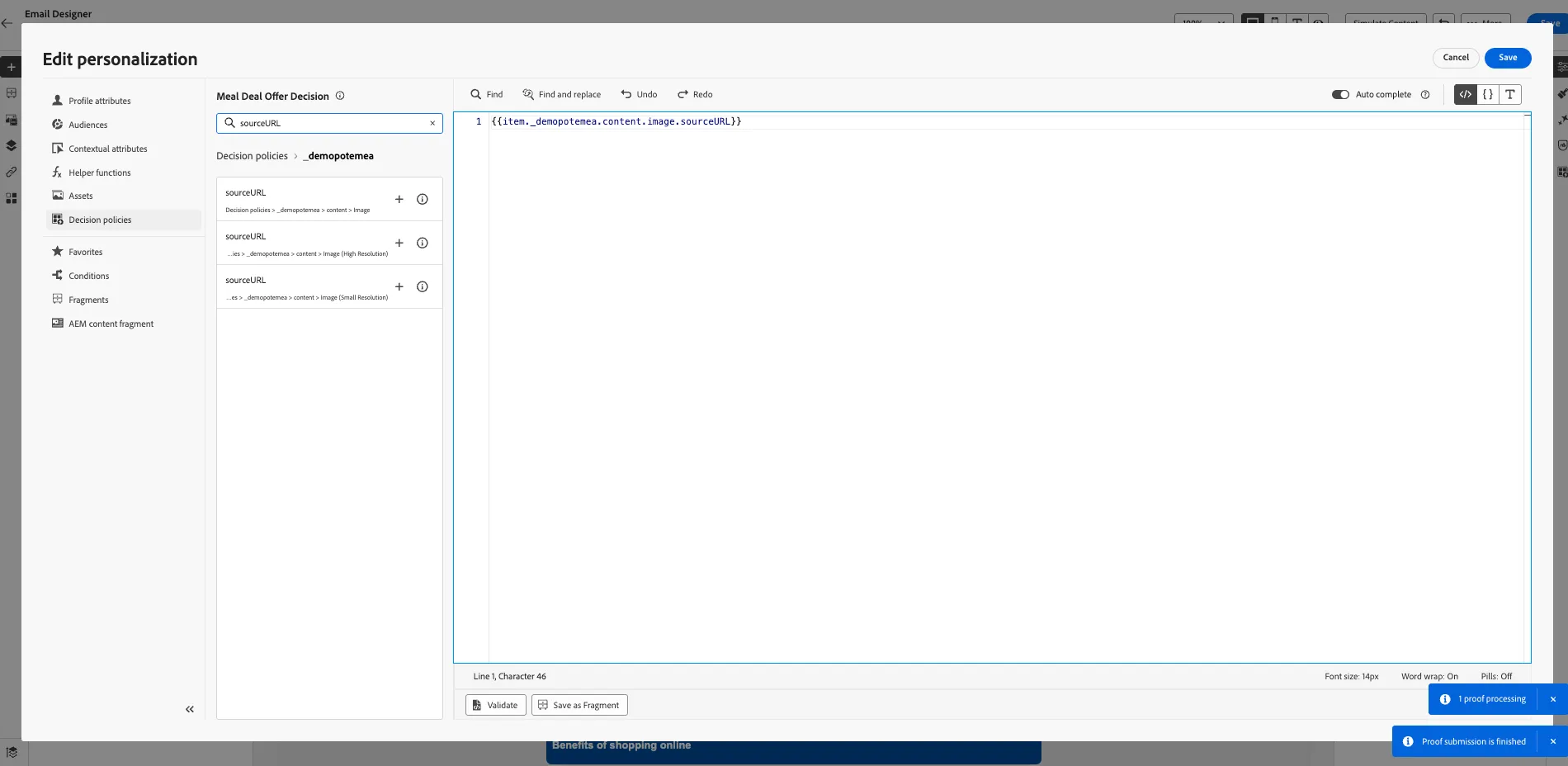
- In the expression editor, delete the existing URL.
- Select Decision policies from the left menu.
- From the Meal Deal Offer Decision policy you created, search for the sourceURL atttribute
- Click + > + Insert as attribute to add the first attribute in the list into the expression editor.
- You should see:
- Click Save.
Reminder! Now is a good time to Save your email (top, right Save button).
The personalization editor is the centerpiece of the personalization in Journey Optimizer. It is available in every context where you need to define personalization like emails, push and offers.
In the personalization editor interface, you can select, arrange, customize and validate all the data to create a customized personalization for your content.
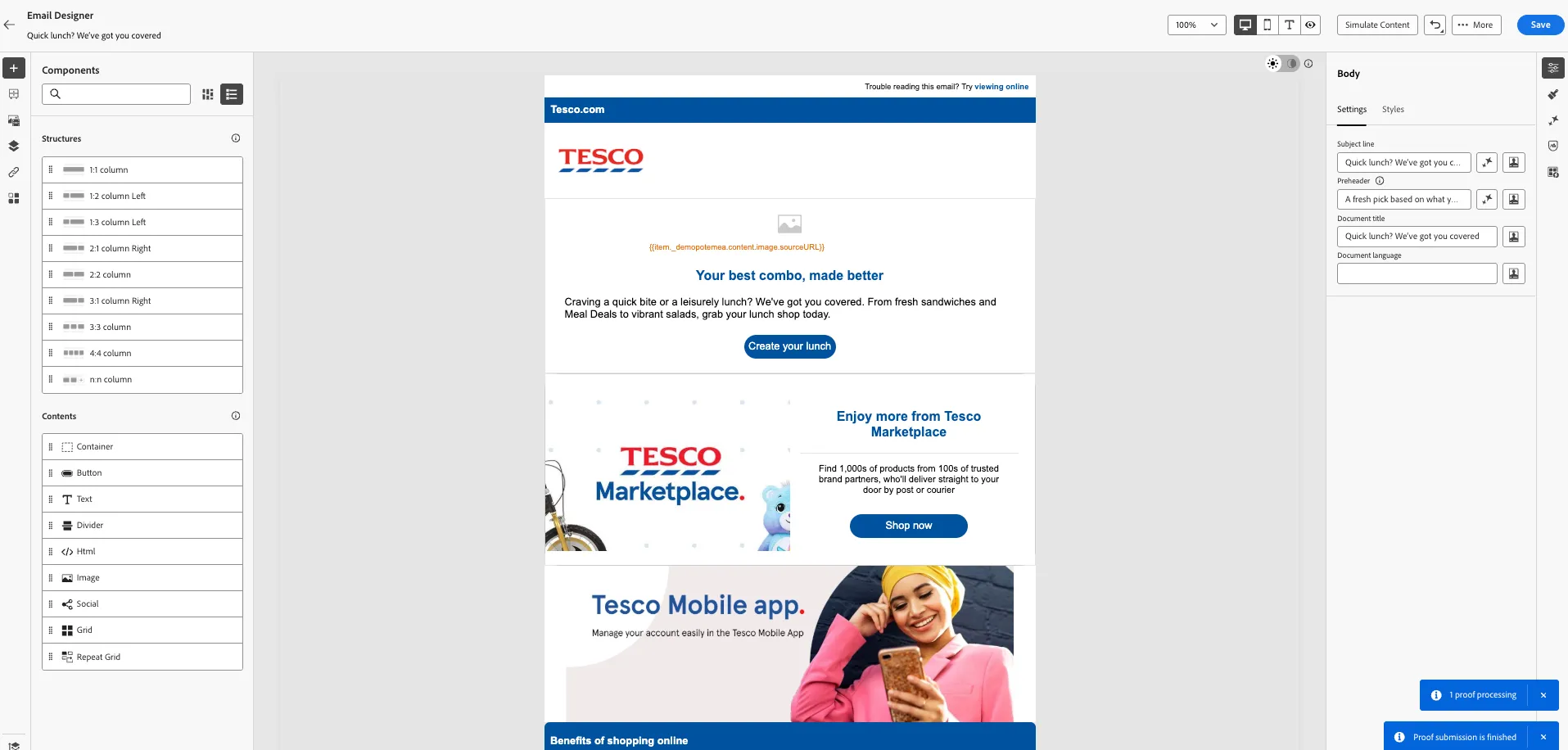
In this case, the Banner image source URL will be replaced dynamically with an image of the most suitable meal deal combination for each customer that receives the email.
To find out more information, visit Adobe Experience League.
[Optional] Simulate Email Content
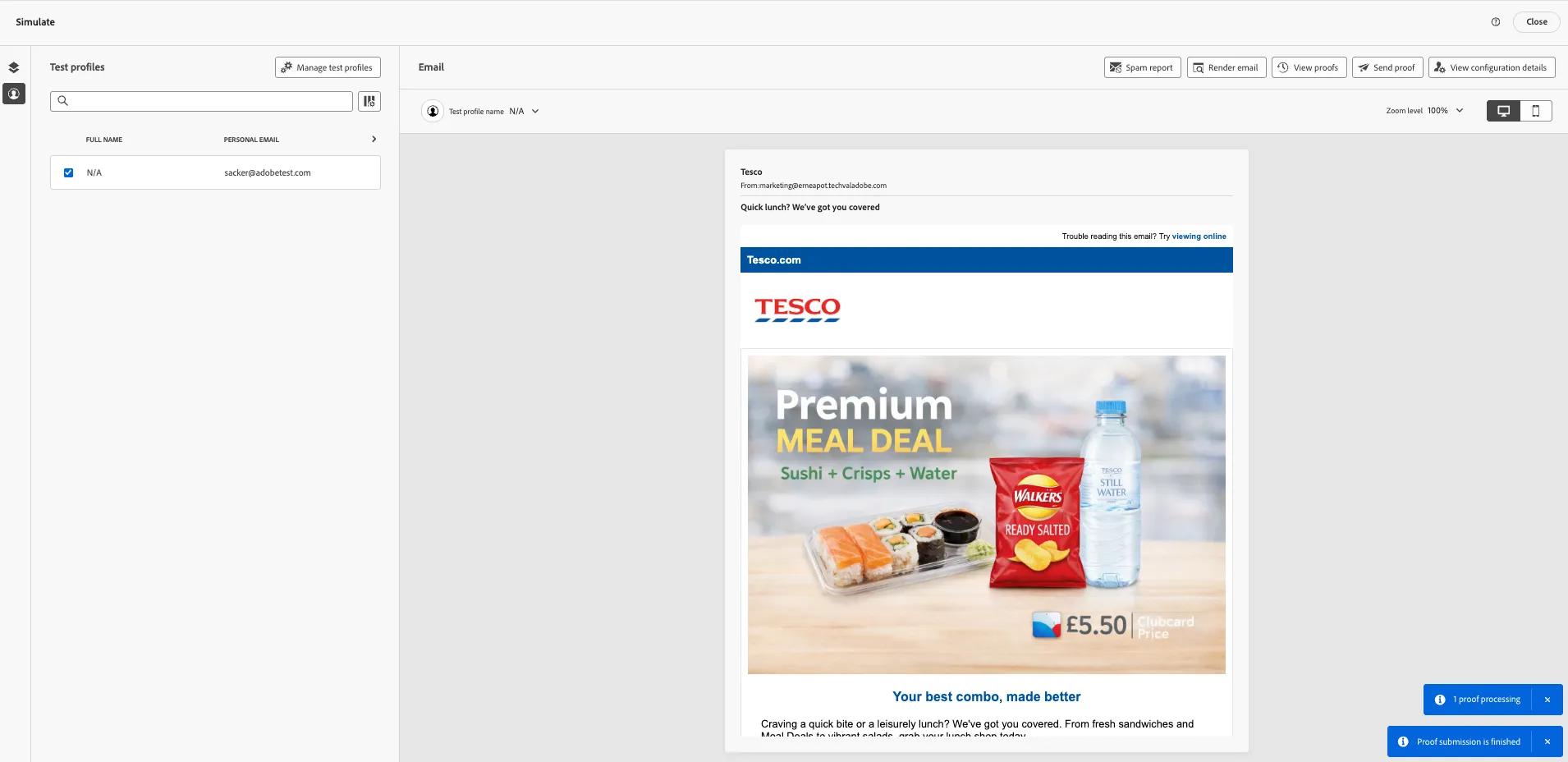
If you want to see how the Offer would render for a test profile with certain attributes, you can Simulate Content.
- Select Simulate Content > Simulate Content from the Email Designer
- Add a test profile that you want to simulate email content for.
- Note: You can use the emails you've been provided as part of this Lab
An example test profile rendering a Premium Sushi Meal Deal offer:
- Click Close to return to the Email Designer.
Your Email Designer should now look like:
- Click Save in the top right.
- Navigate out of the email designer by clicking the back arrow icon in the top left. You'll be taken to the messages overview for your journey.
- Navigate out of the messages overview by clicking the back < icon in the top left.
- You'll return to the Journey canvas. Click Save in the Actions: Email panel.
Your journey should now look like:
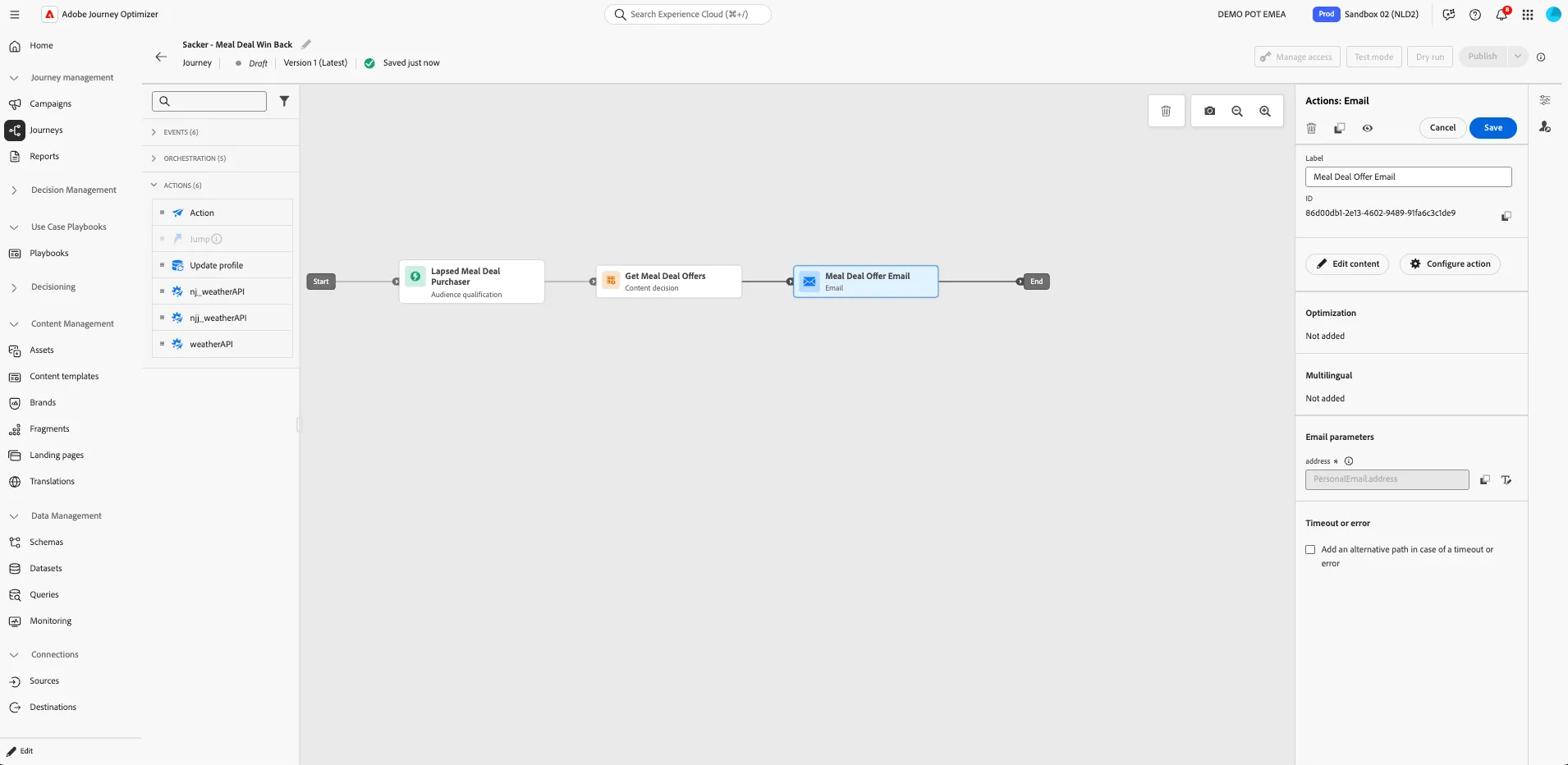
You've successfully composed a personalised Email Message to be sent to qualifying customers. You've used Decisioning to personalise your email with relevant offers.
Now lets show those same offers in the mobile app.