Update content on a page
Agent name: Content Production Agent
Agent capabilities: From updating a page or form to migrating entire sites, this agent dramatically reduces time-to-market and frees teams to focus on creativity, not coordination.
Documentation: Content Production Agent
Introduction
In this exercise, you'll use the Content Production Agent to update the hero banner on your homepage with a new image and copy, then review and publish the changes through AEM.
Now that we have identified the asset and copy for the banner update, we'll apply them directly to your webpage using the agent.
Each participant has their own homepage to avoid overwriting each other's work. Your homepage follows this format:
https://main--frescopa--nirmaljosehere.aem.page/bootcamp/userXX/home
Replace XX with your user number from your login email, which is in the format [email protected].
- Open your homepage in a new browser tab. It should look like the screen below.
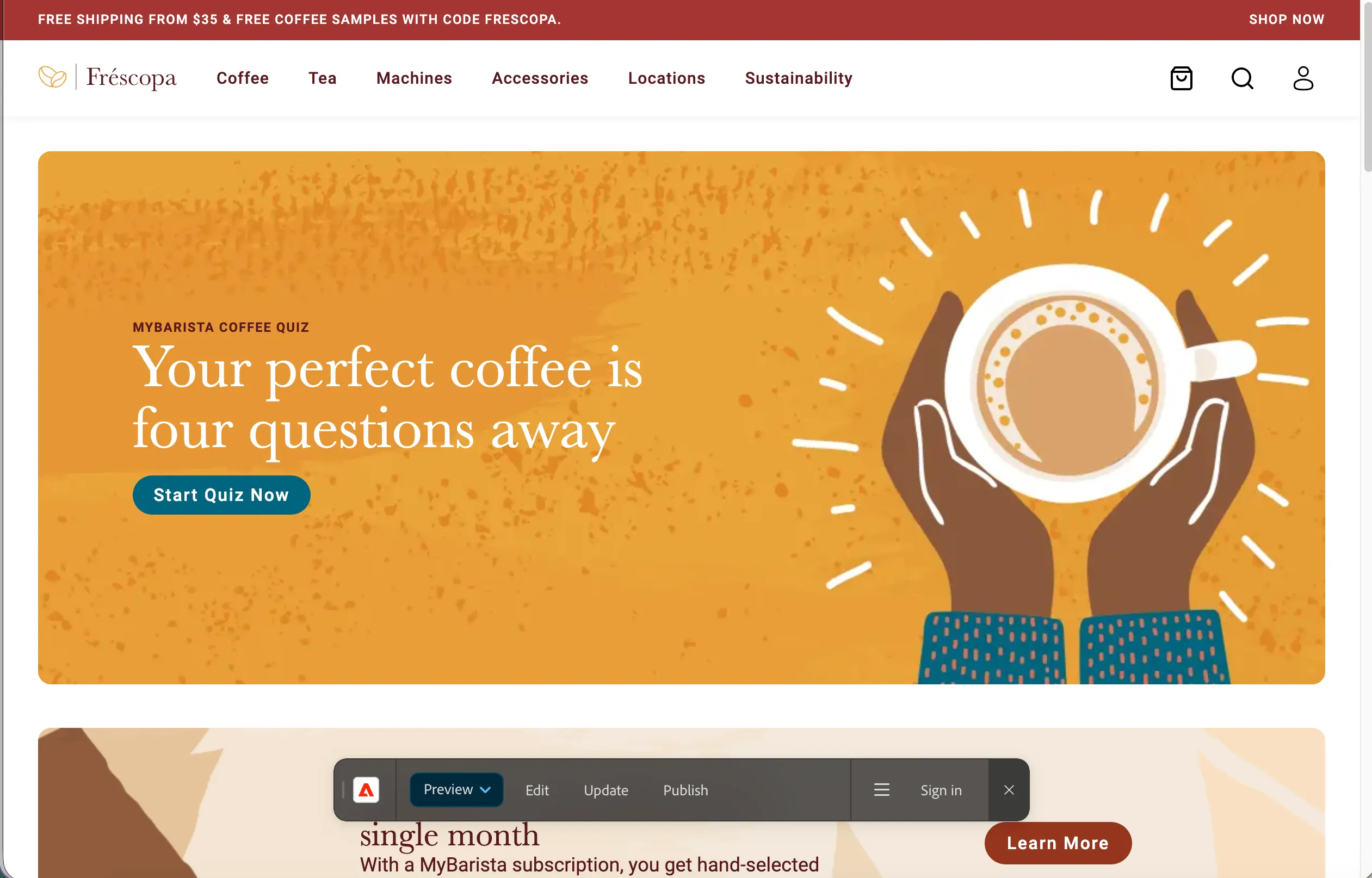
Update the banner
We'll now prompt the Content Production Agent to update the top teaser block on your homepage. Feel free to customise the image or copy to your preference.
- Go back to the AI Assistant.
- Type the prompt below into the AI Assistant, replacing the URL and user number with your own, and click the Send icon.
The Content Production Agent will analyse the request and determine what changes are needed. Once ready, it will ask for your permission before proceeding.
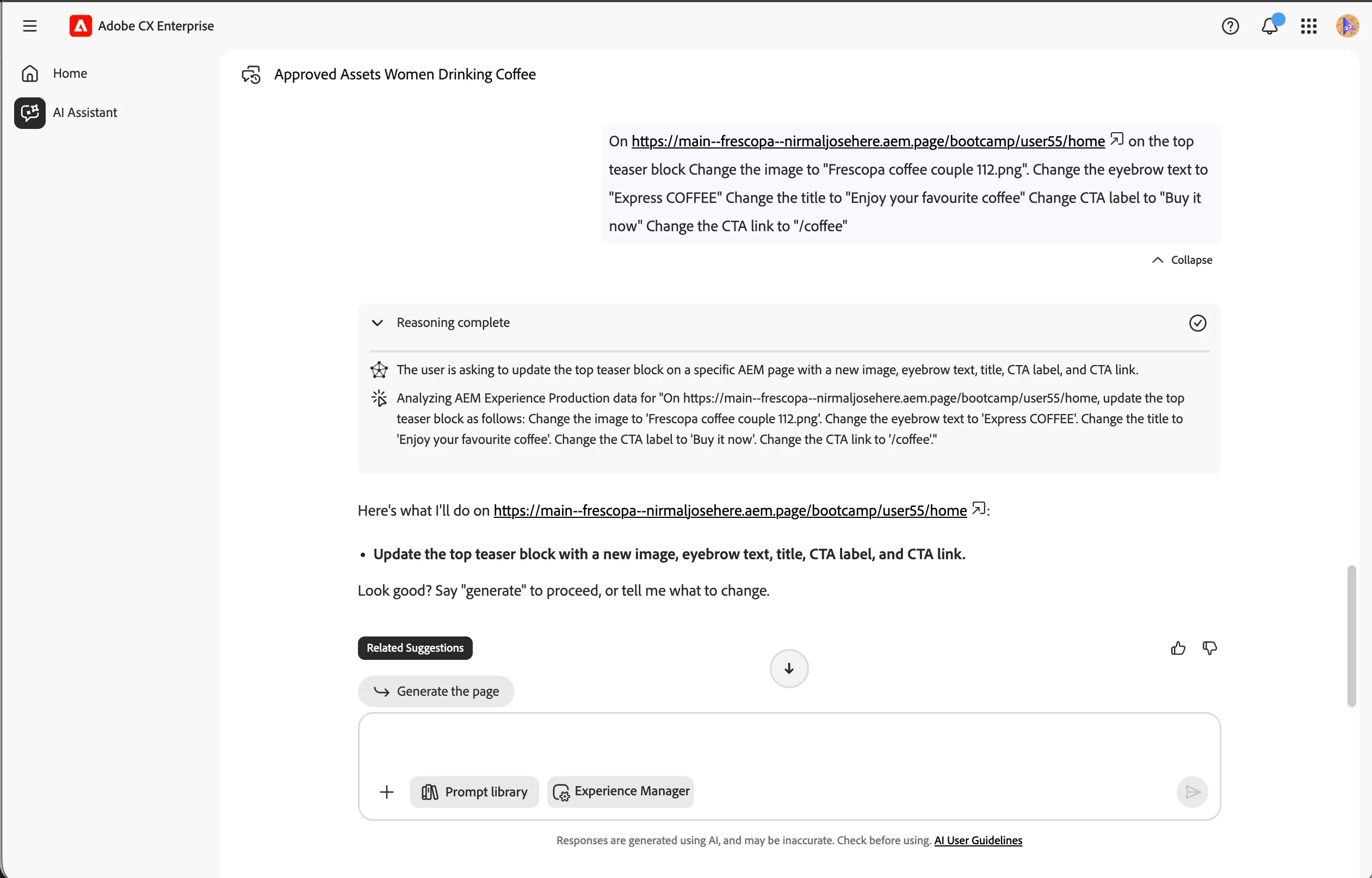
- Click the Generate the page action button, or type Generate in the chat and click the Send icon.
The agent will create a launch — a copied version of your page — and apply all requested changes within it. Once complete, it will provide a preview URL for you to review the updates.
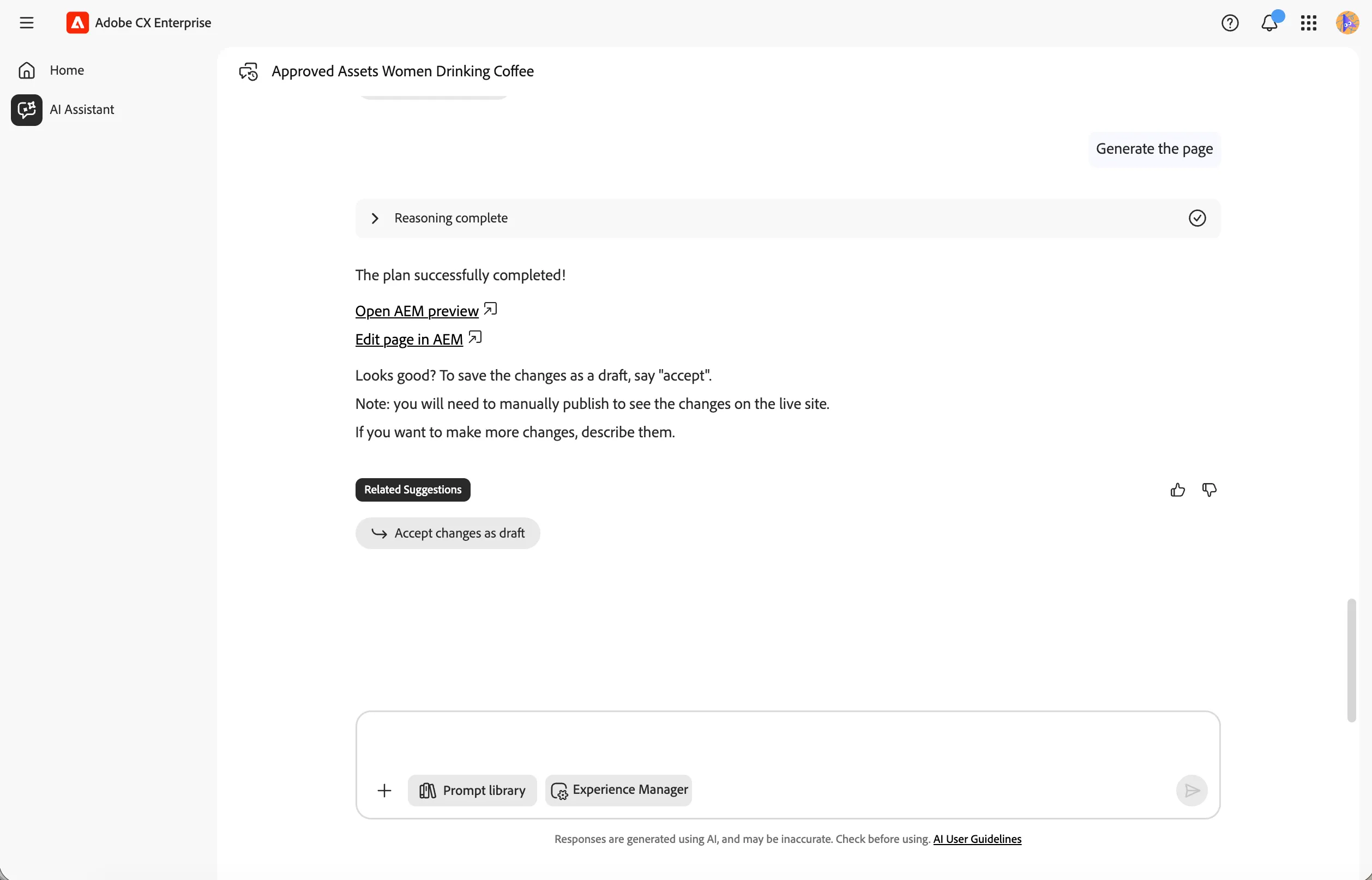
- Click Open AEM Preview to review the changes in preview.
- If you need to make further edits, click Edit page in AEM to open the authoring interface.
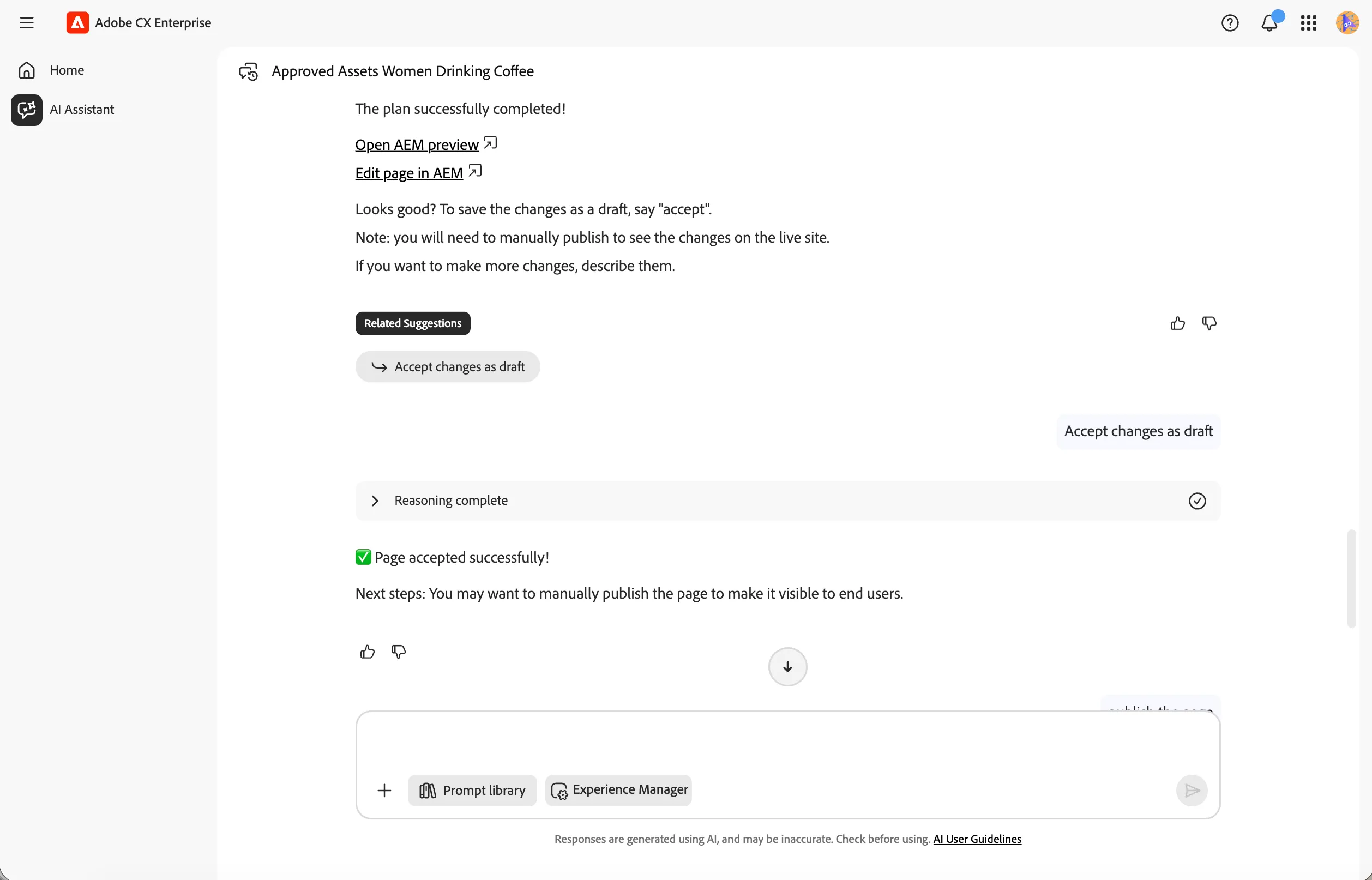
- Once you are happy with the changes, click the Accept changes as draft action button and click the Send icon.
This promotes the launch to your actual authoring page. This mechanism provides an additional layer of safety to your content update process.
Verify and publish the changes
Now that the Content Production Agent has applied the updates, let's verify the changes in AEM and publish the page.
- Navigate to Frescopa > English > bootcamp > User XX, replacing XX with your user number.
- Select the Home page by checking its checkbox.
- Click Edit in the top menu.
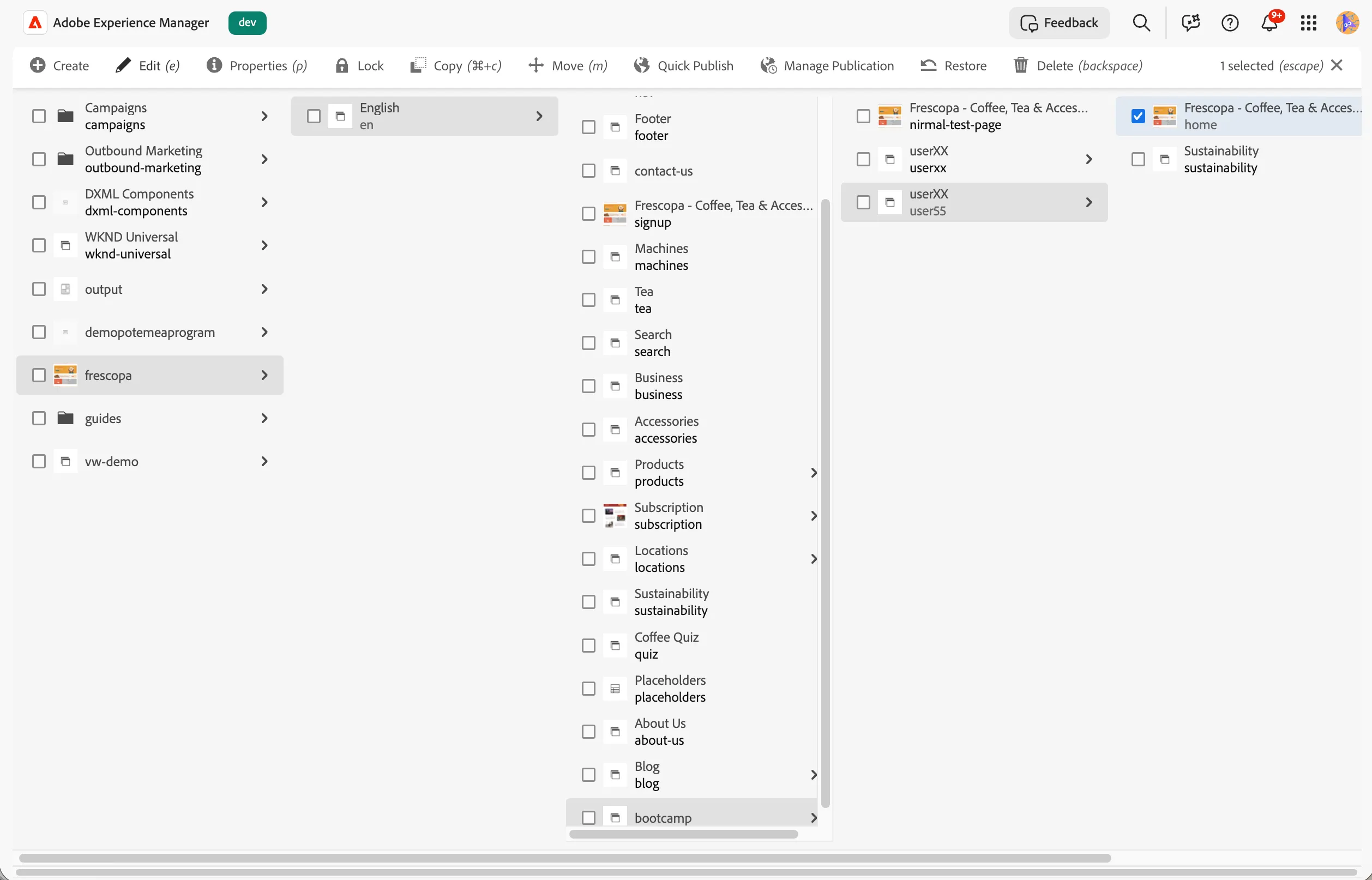
This will open your homepage in the Universal Editor — the WYSIWYG authoring interface for content authors.
- Click on the top teaser block.
- Select the teaser block from the breadcrumb. You should see all properties have been correctly updated by the agent in the relevant fields.
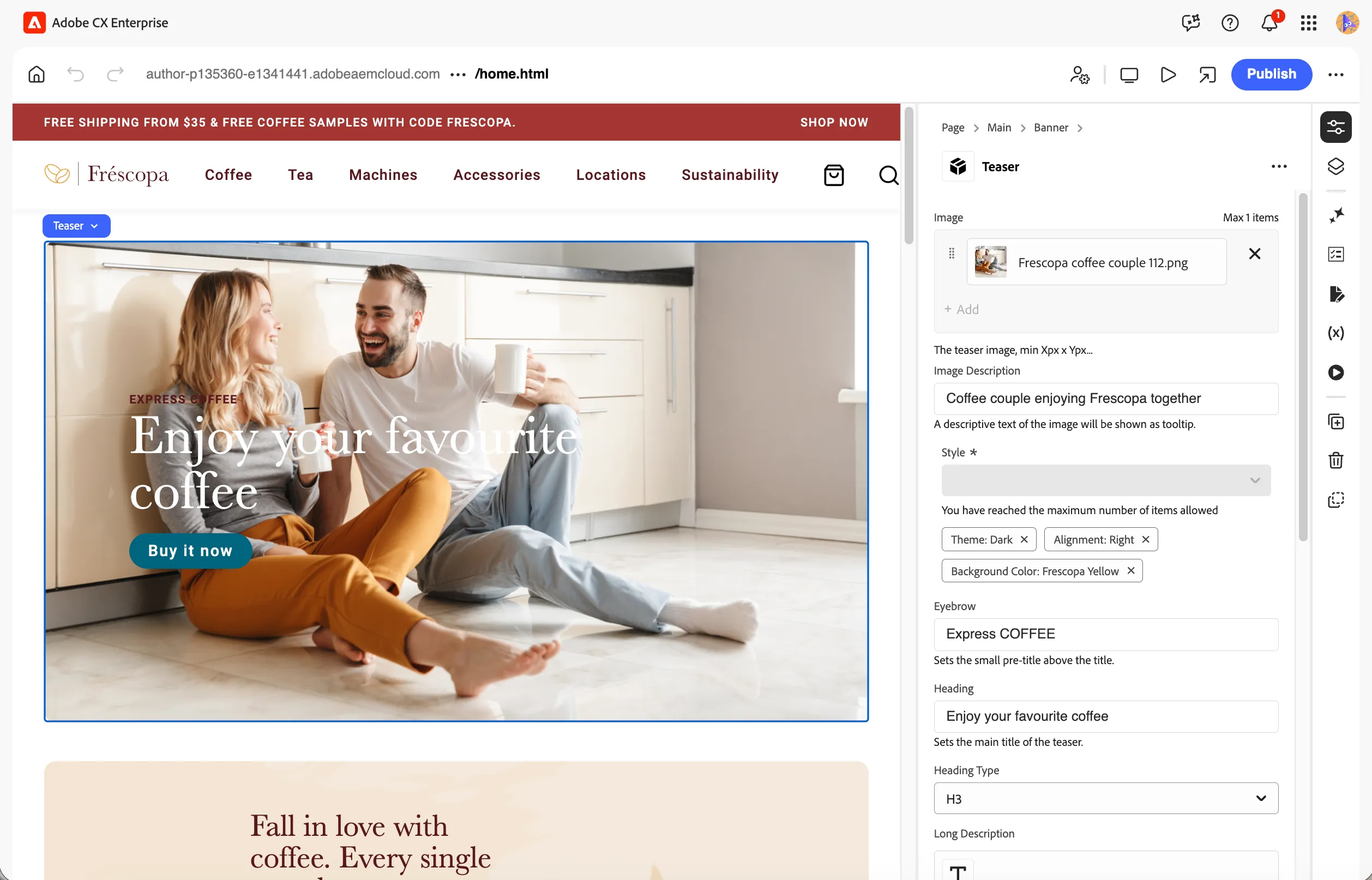
- Once you are happy with the changes, click the Publish button at the top.
- Select Live and click Publish. This will publish your changes to the live website URL.
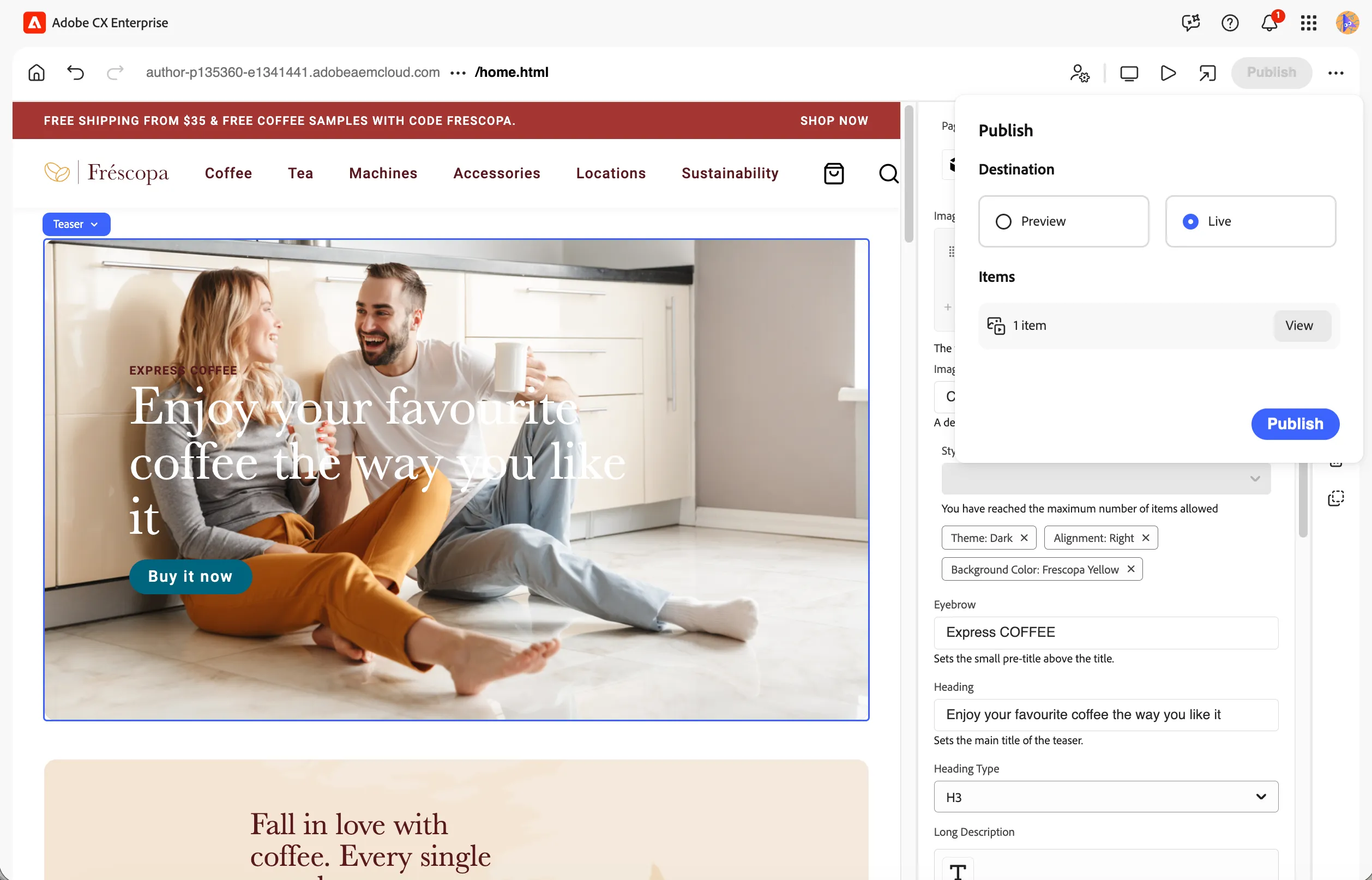
You have successfully used the Content Production Agent to update the hero banner on your homepage. The agent applied your changes via a launch, you reviewed and accepted them, and published the final result to the live website.