Import an email
Go to the Action section and click on the button Edit content
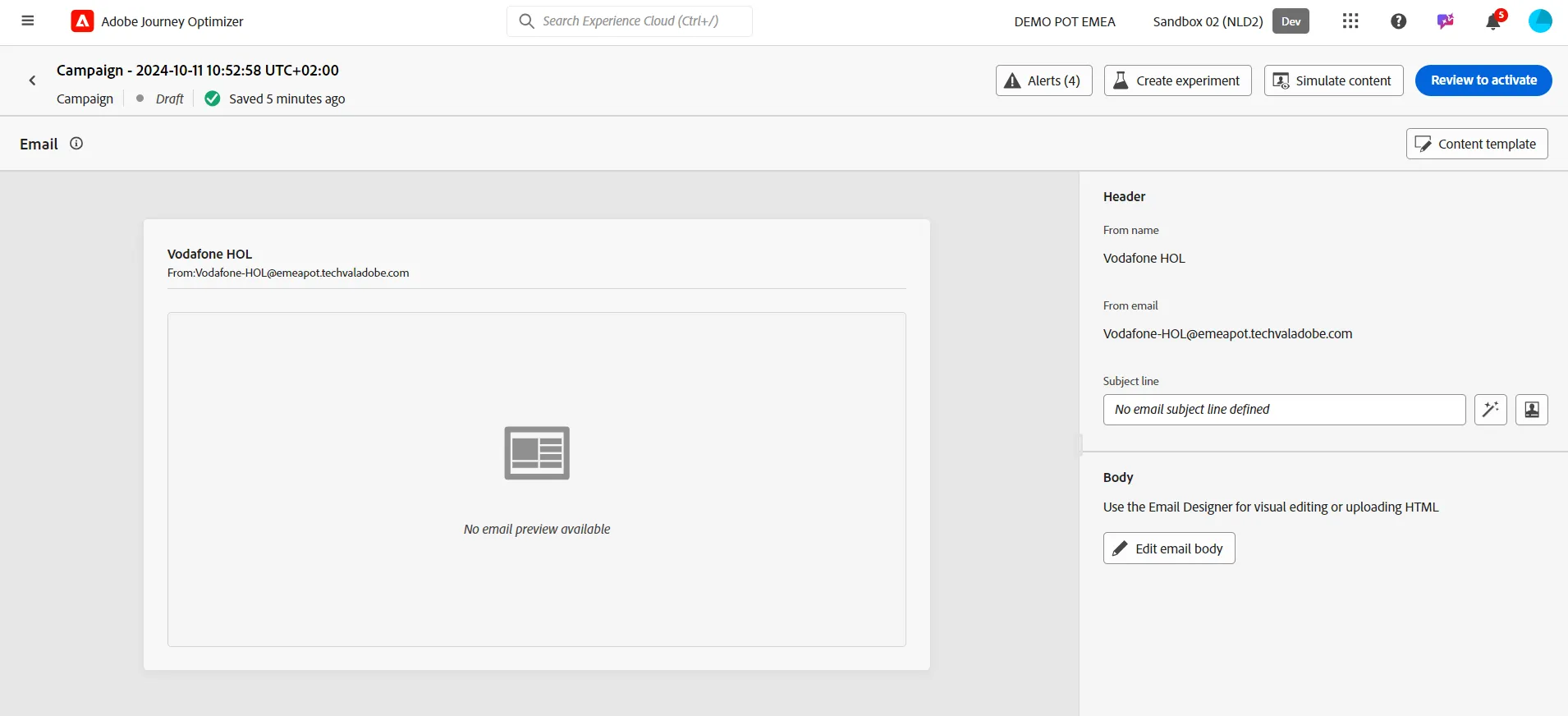
Click on the button Edit email body
Click on Import HTML

Import a zip file that has been created by an agency; this zip file contains the HTML email and pictures; upload the file below into your laptop and rename it with your prefix or last name.
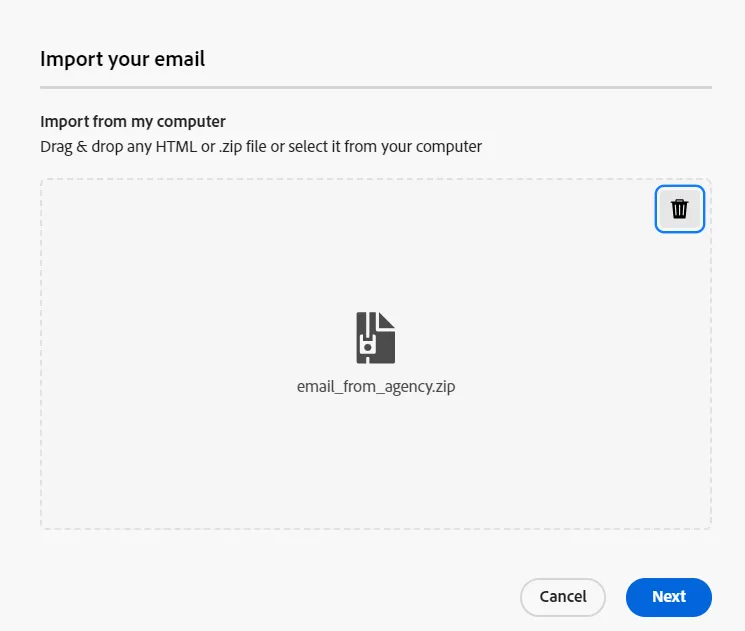
Go to the folder Demo Brands / CitiSignal and click on the Import button
After having imported the zip file, Adobe Journey Optimizer shows a blue notification which inform that "This HTML is not adapted to the editor. It will be edited in compatibility mode."
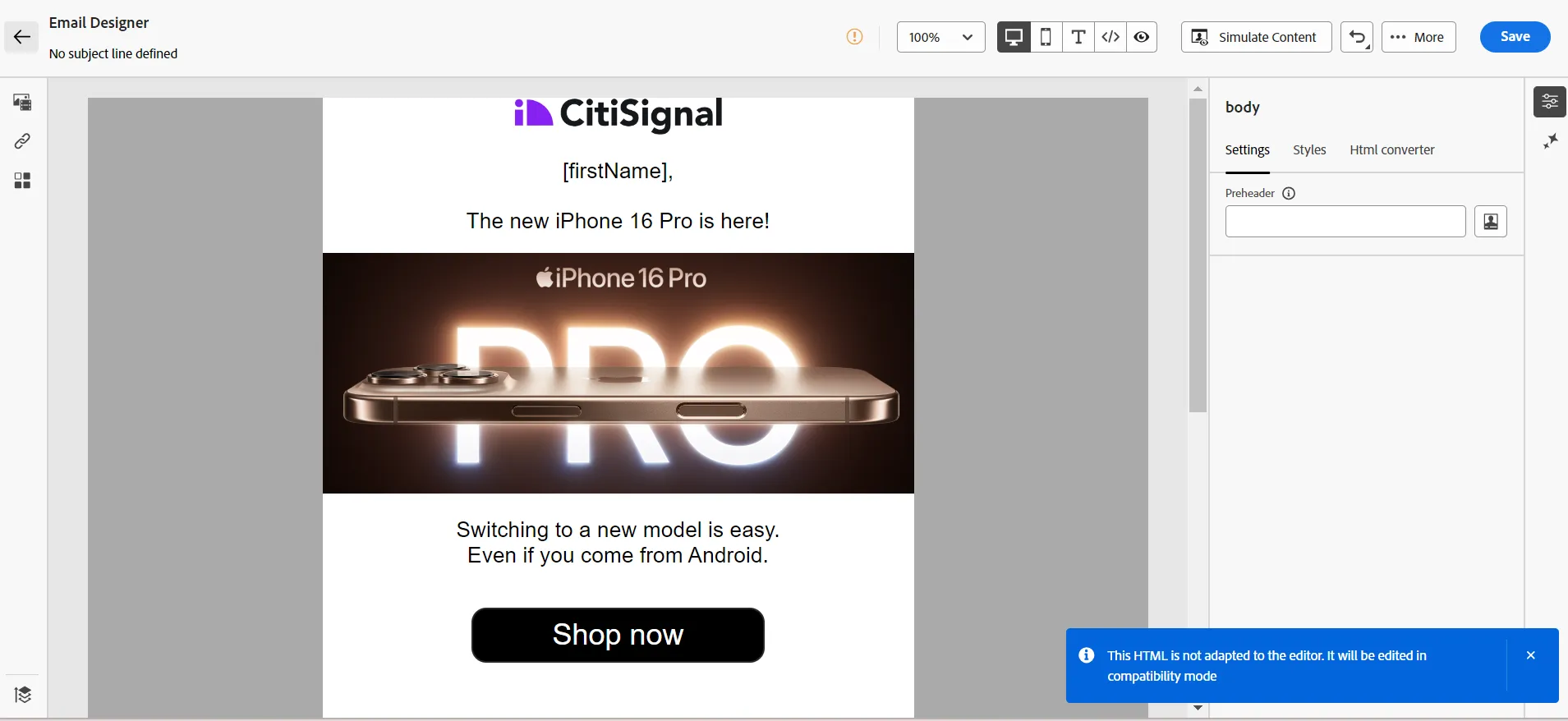
It's possible to deliver an email that is in compatibility mode. And it's better to transform it to Adobe Journey Optimizer internal format to let the user easily revamp it.
On the right, click on Html converter tab and click on the button Convert
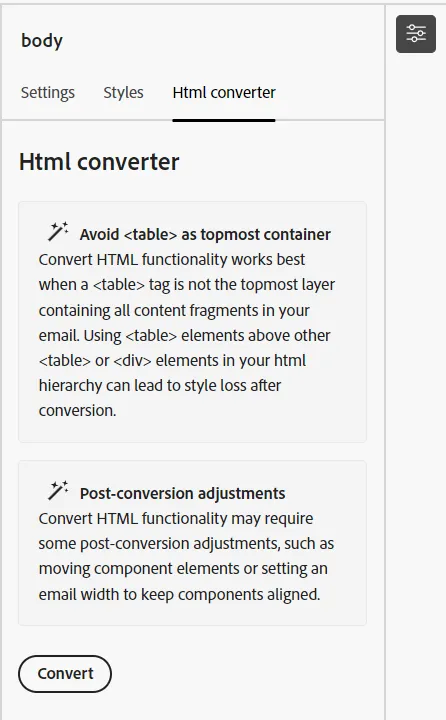
After having been converted, the left and right panel are available to let you edit easily the content:
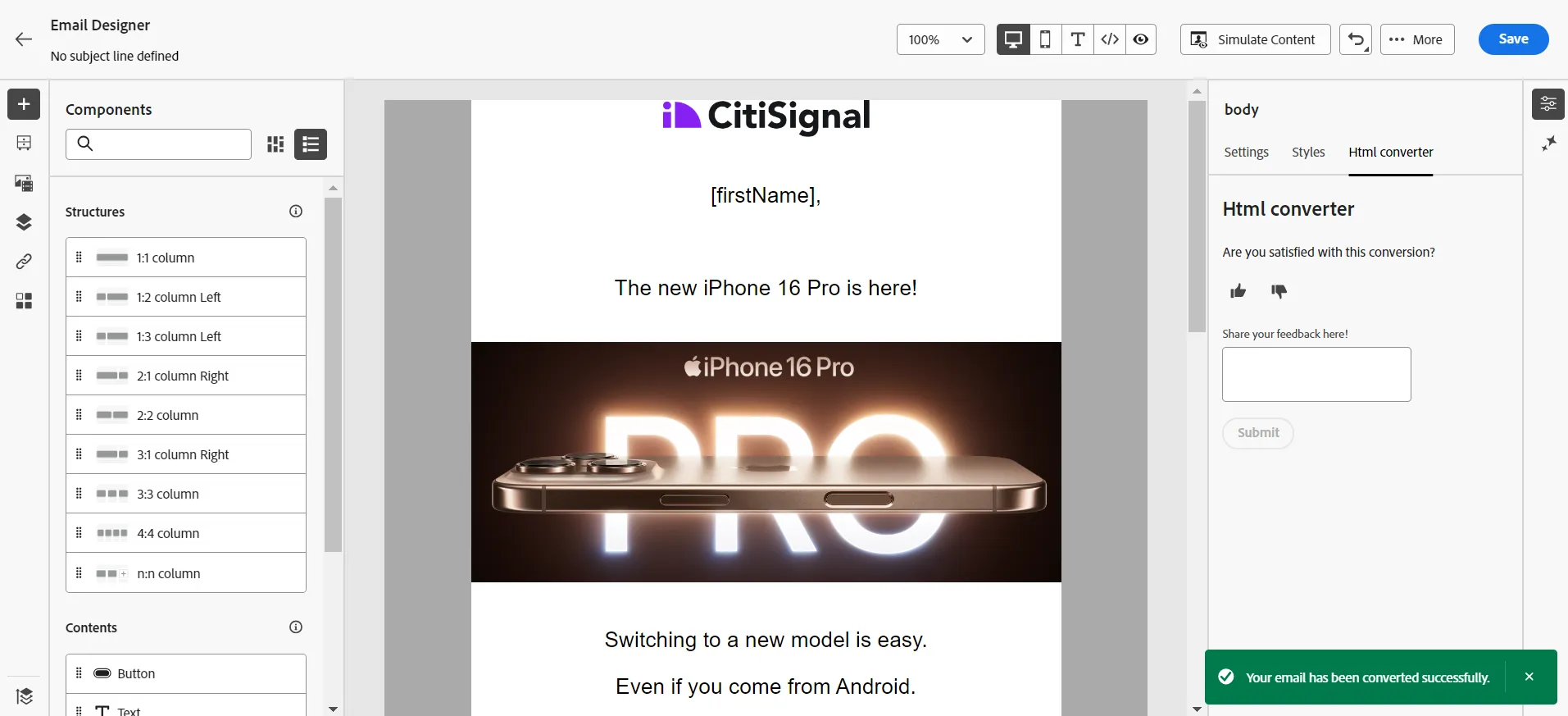
That's it, you have converted an HTML email provided by an agency to Adobe Journey Optimizer format!