Personalize the email
Go to the email and click on Edit email body
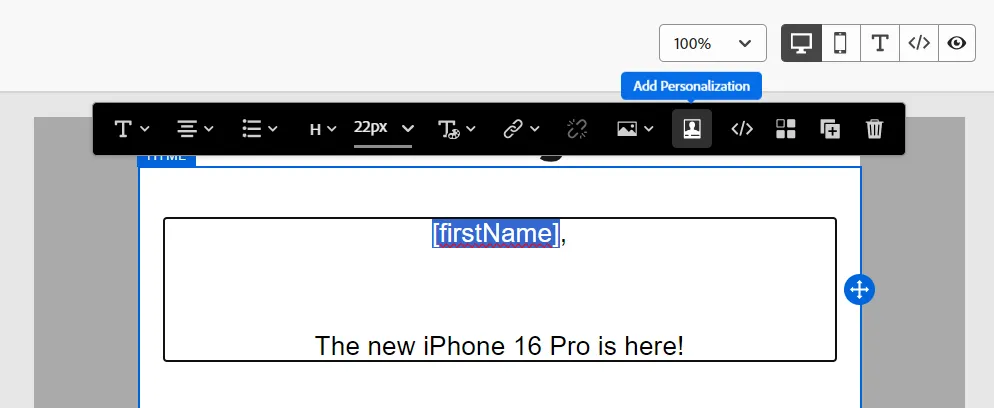
Add a personalization field. Select the content [First Name] click on the Profile icon from the contextual bar:
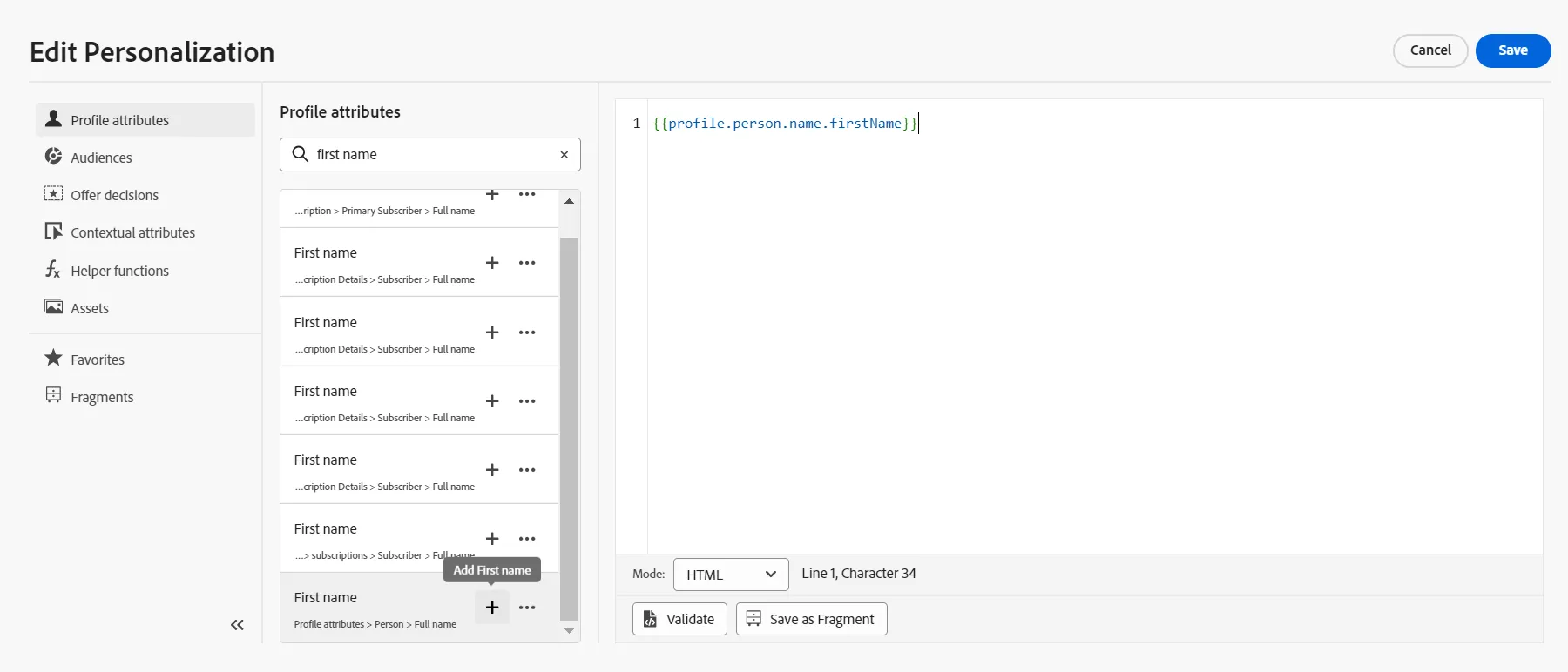
The Edit Personalization window let you add a data:
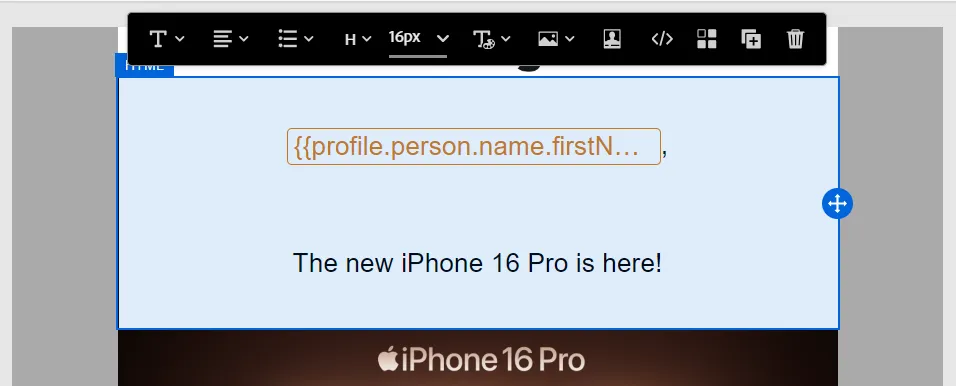
Click on the Save button and check that the personalization field has been added this way:
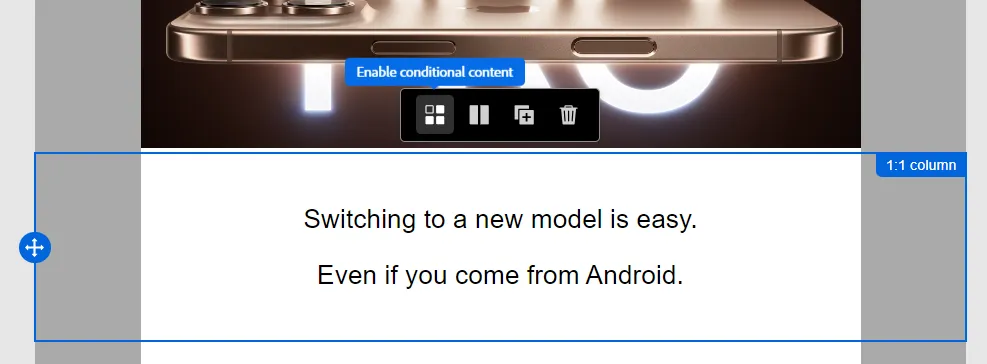
Now, select the next block, just after the picture; the border is blue when the block is selected. Move the mouse over the button titled Enable conditional context:
Click on this icon: the color border becomes orange and the left panel let you define many variants that will be displayed depending on conditions:
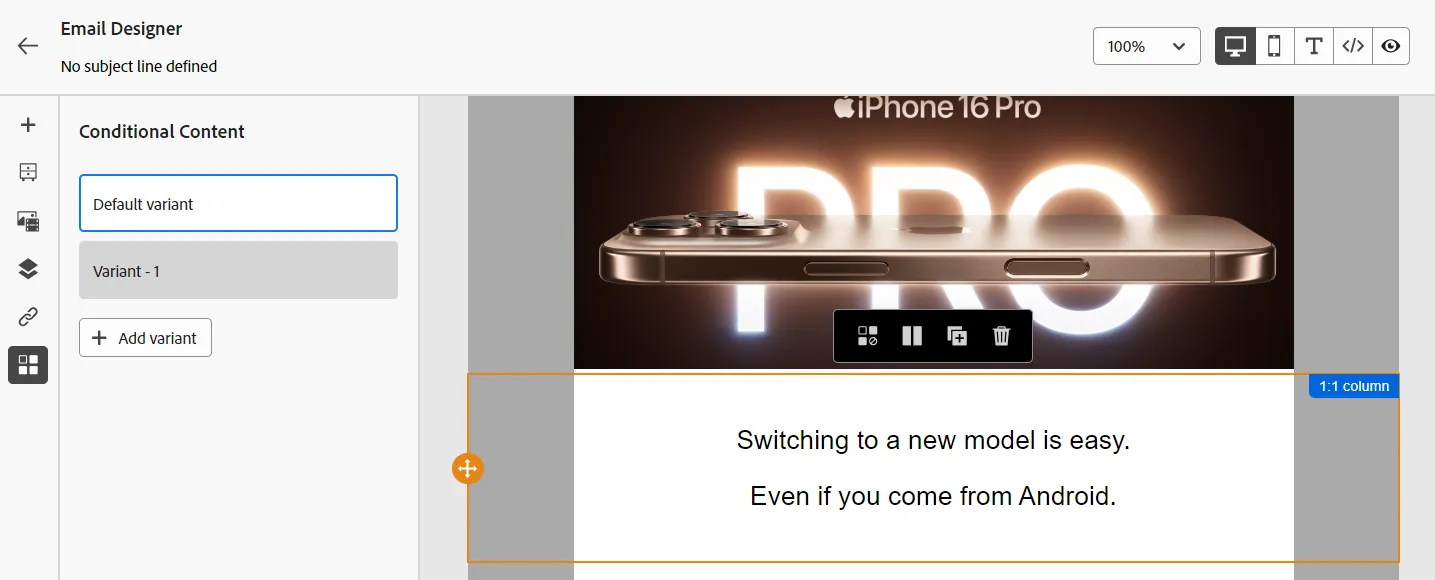
Click on Variant - 1 and add a few words like that:
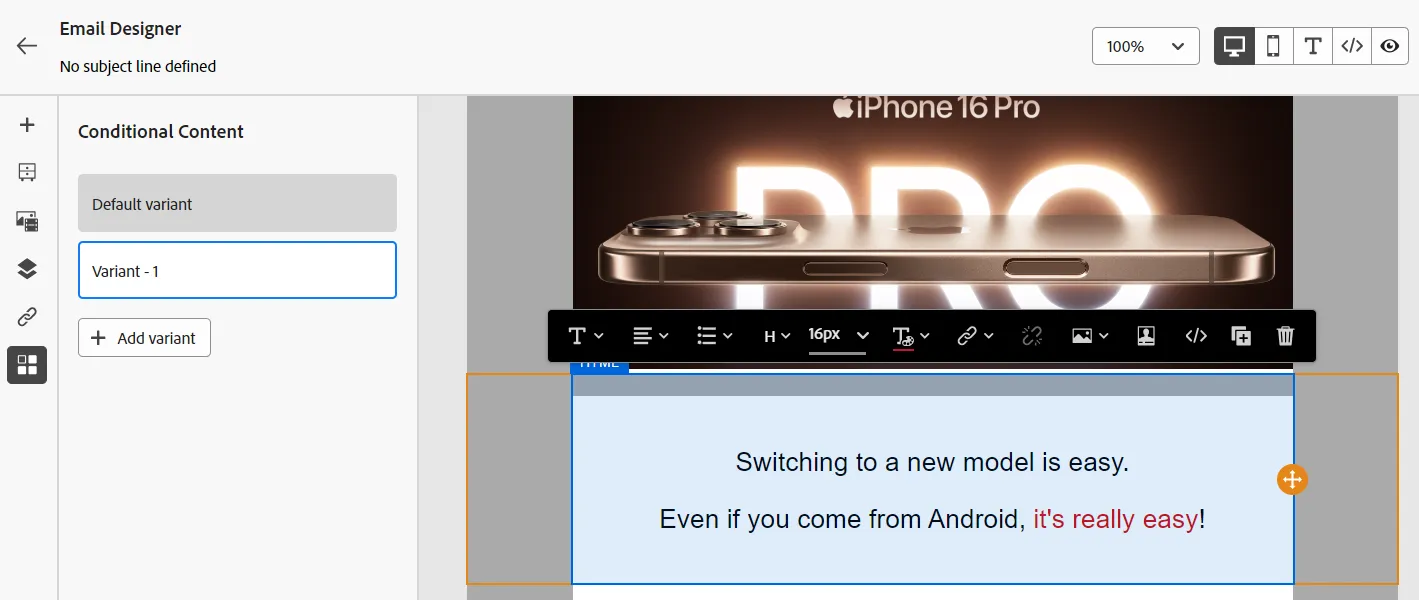
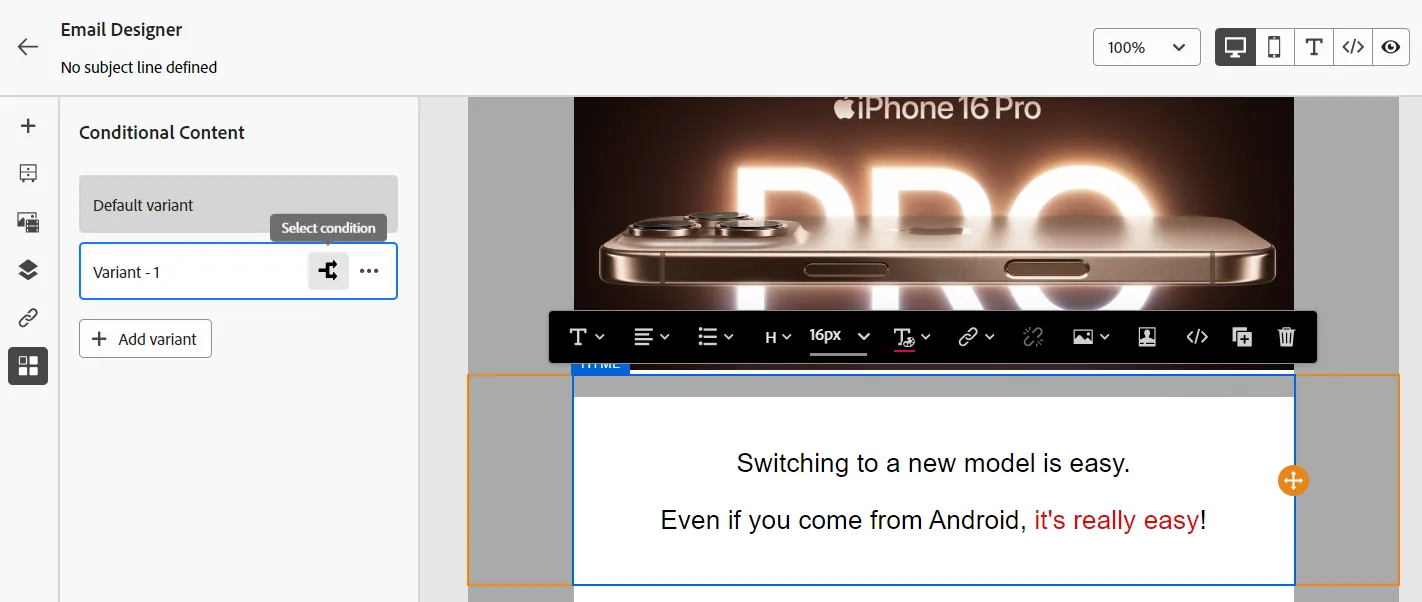
Mouve over the Select condition button in the Variant-1 box:
Click on it to launch this window:
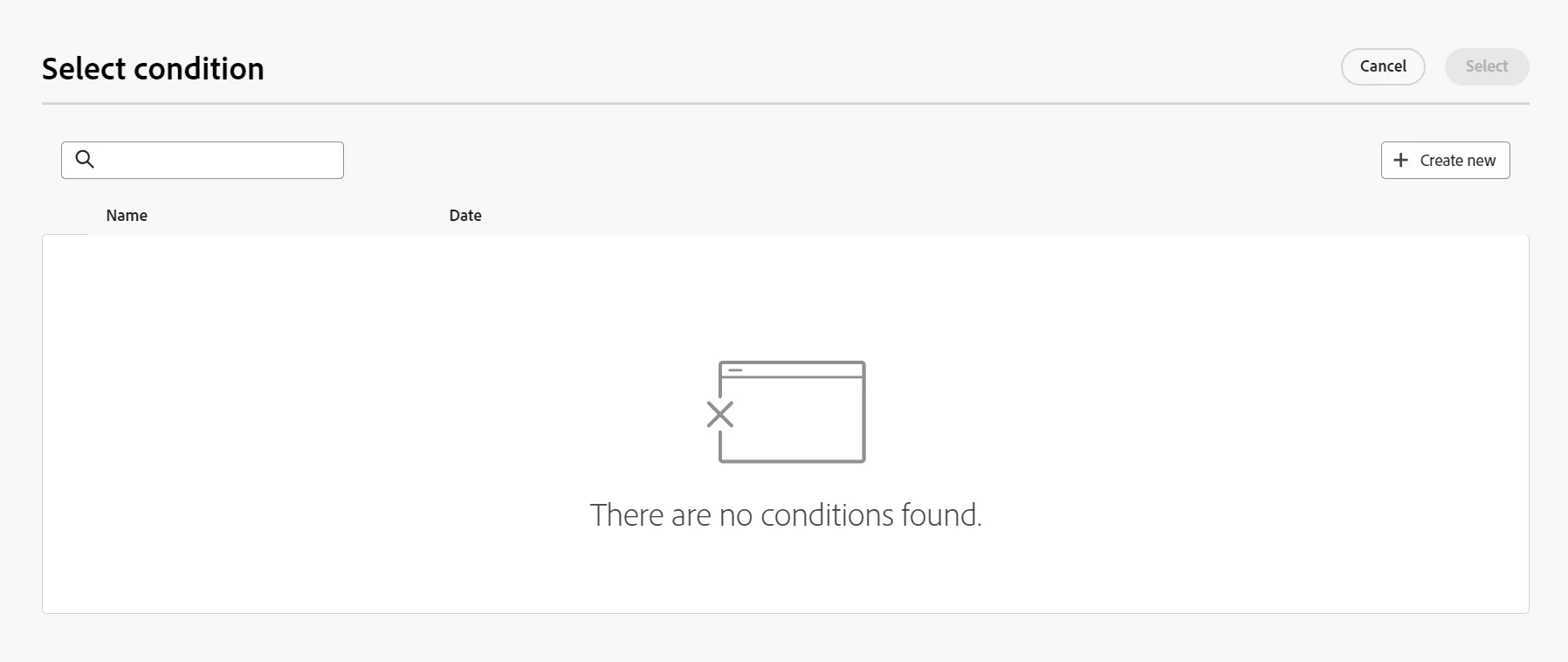
Click on the button + Create new
Search for age attribute:
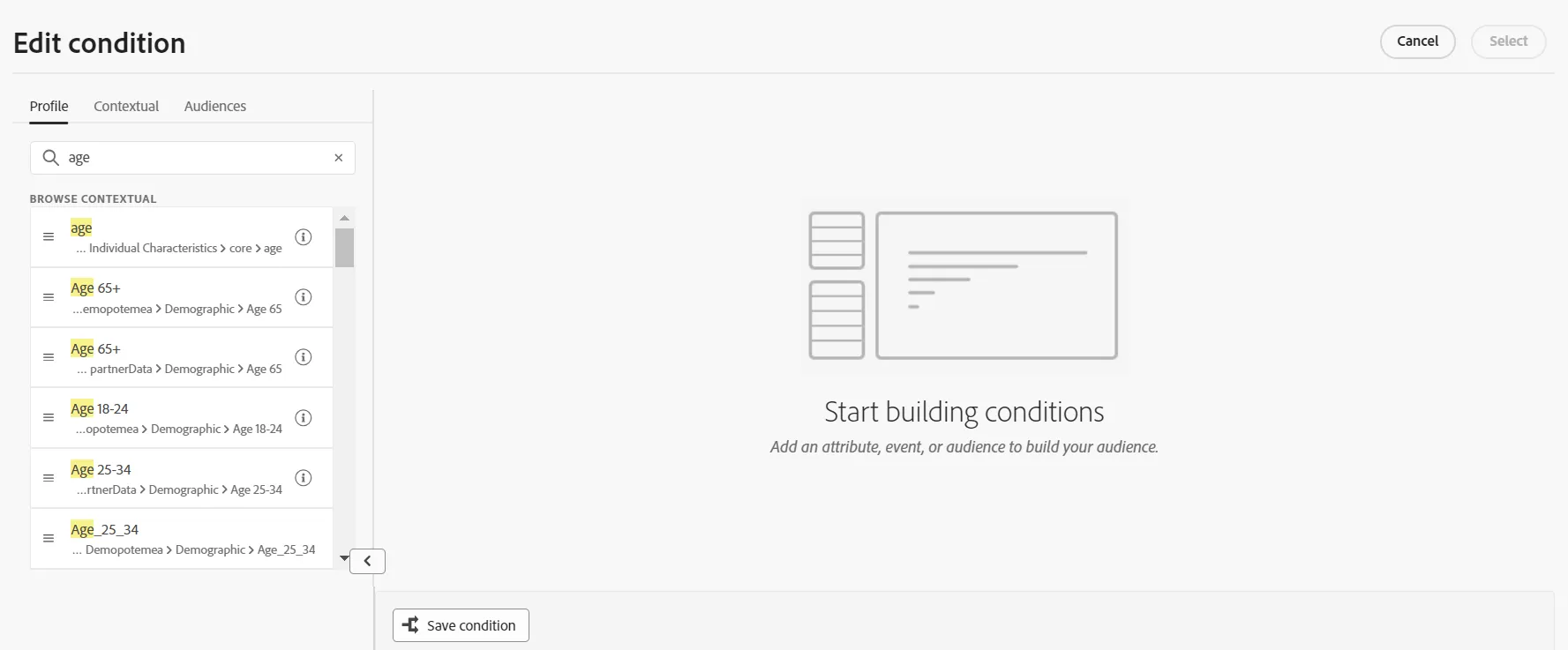
Drag&drop the age attribute into the canvas and define this condition:
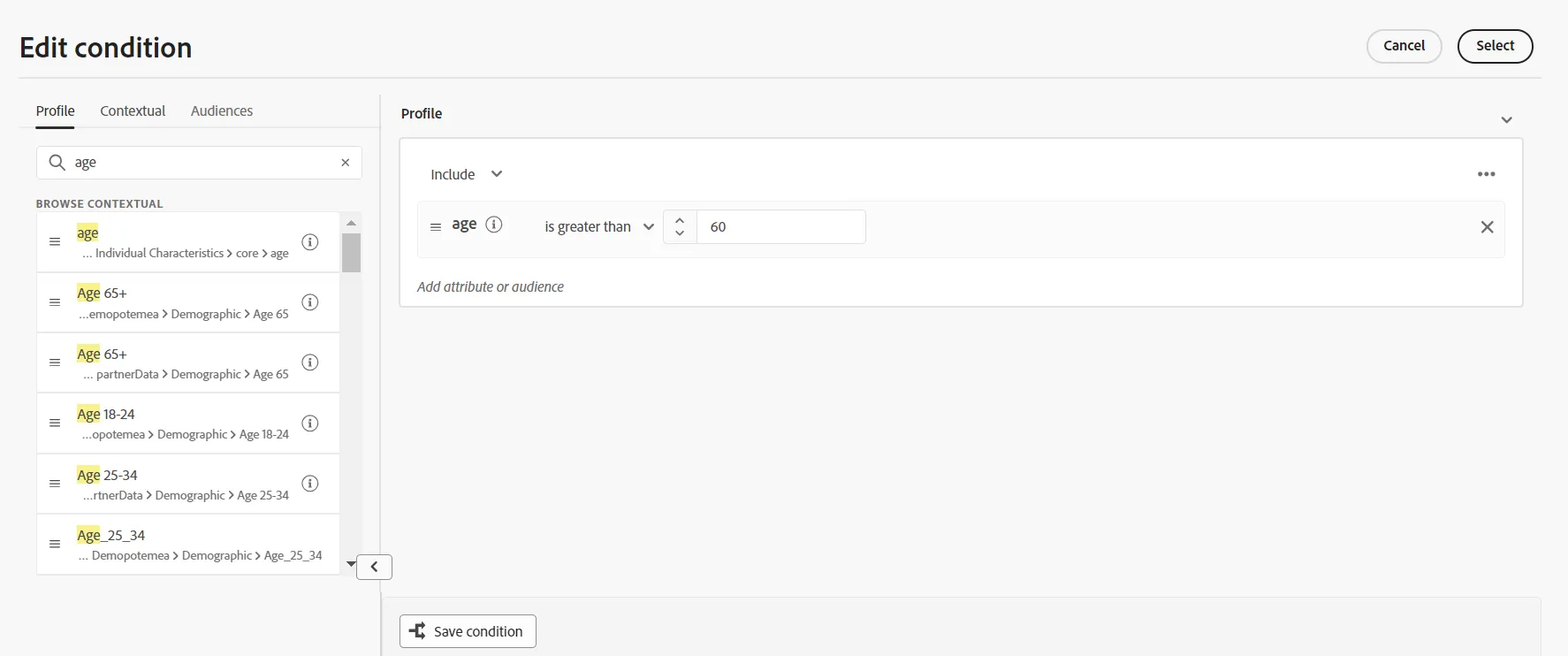
Click on Select
It means that the Variant-1 block will be displayed for profiles who qualify for the condition; the Default variant will be displayed for all others profiles.
Congratulations, the content has been personalized!