Basic Journey
4 min
This lab will walk through the steps to create a Basic Journey in Adobe Journey Optimizer.
NOTE: Some exercise steps may differ from lab presentation content.
Create a Journey
Navigate to Journeys
Click on “Create Journey”
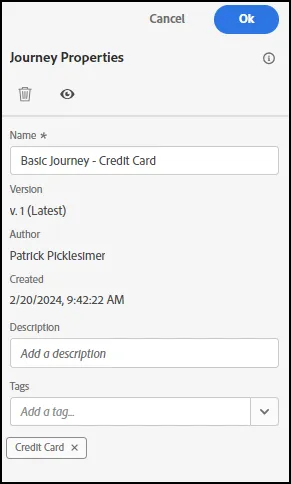
Provide a Name and Description. Unclick “Allow Re-Entrance.” Click Ok.
Define the Audience
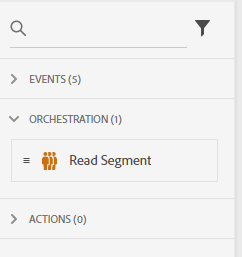
Under Orchestration Node, drag the “Read Segment” onto the Canvas.
Change the label to “High Income ”. Click on Select a Segment.
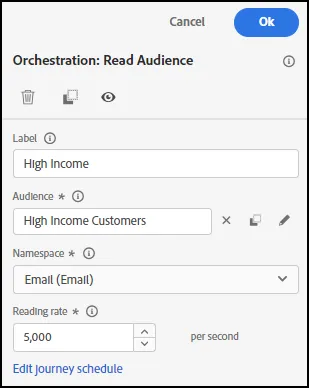
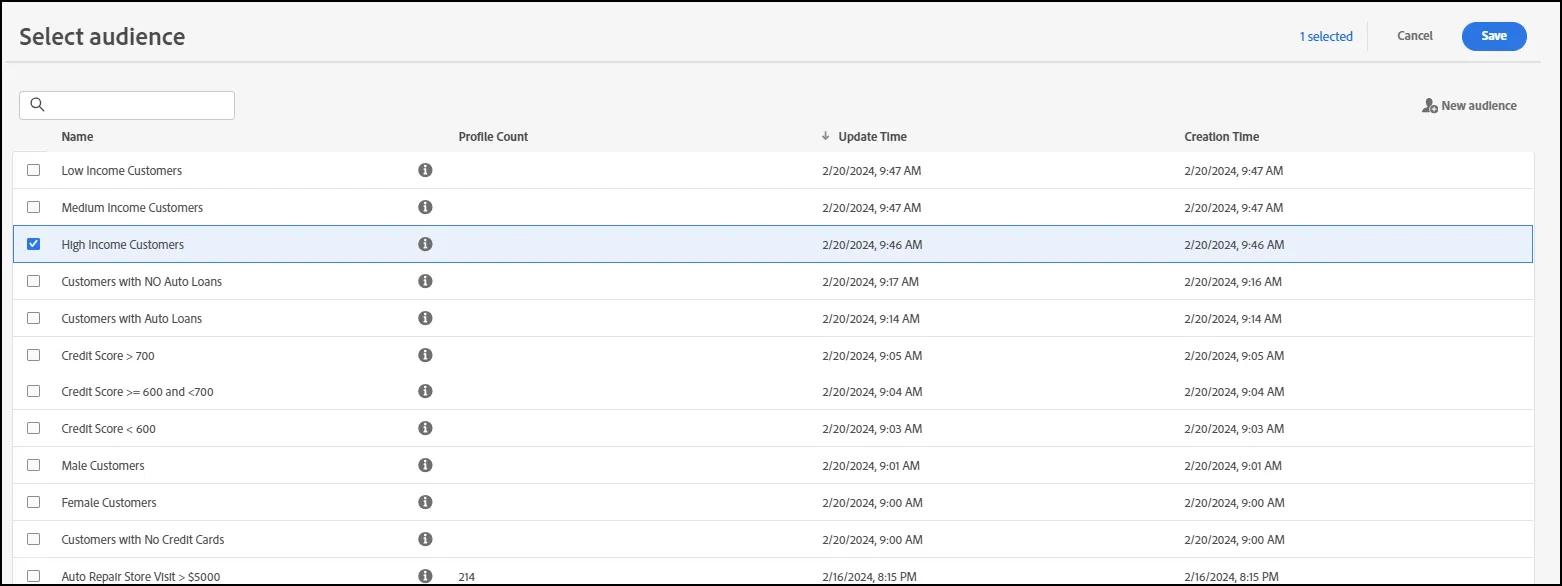
Select “High Income Customers”. Click Save.
Setup Branching
Under Orchestration Node, drag the “Condition” after the Read Segment.
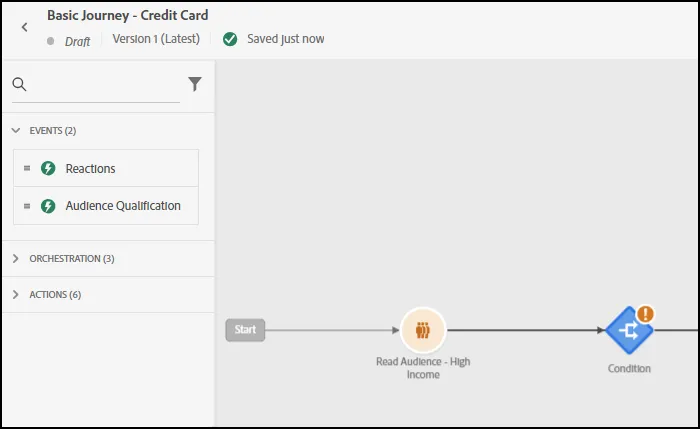
- Add the label “Credit Card Check”. Set Type to “Data Source Condition”.
- Click Path1 and rename as "No Credit Card".
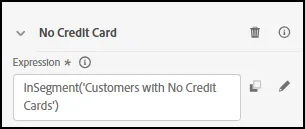
- Click on the Expression to define the Expression for the Condition Node. Select "Audiences" to be the "Customers with No Credit Cards" and drag it onto the canvas. Move the slider so the audience membership is showing false, as in the following screenshot:
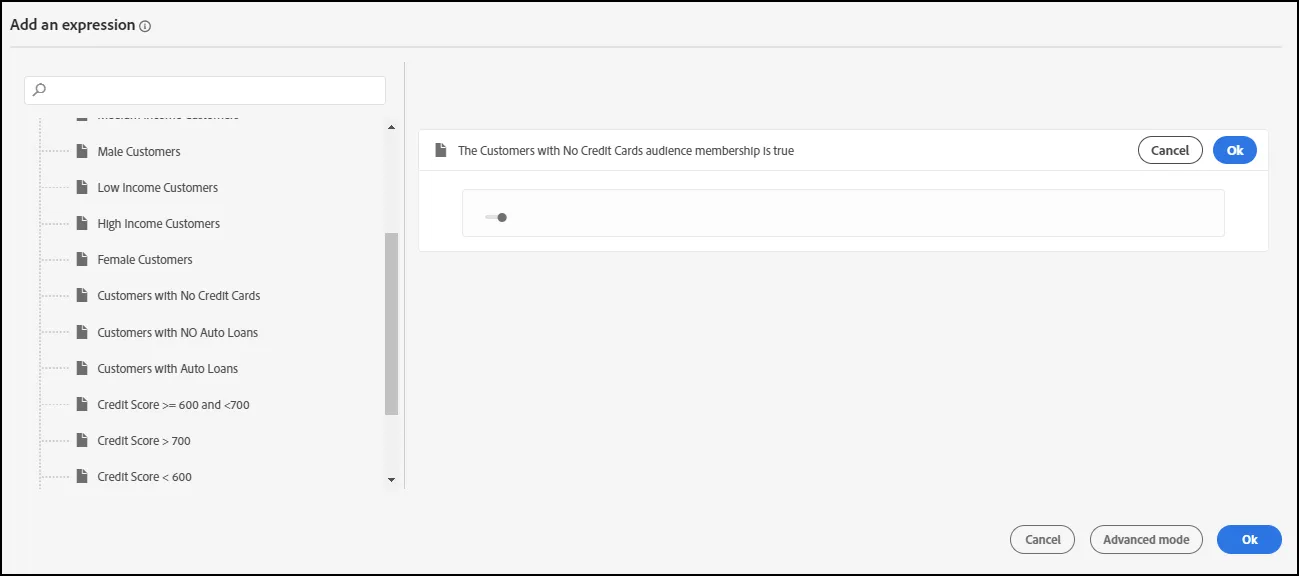
- Click OK to finish the expression.
- Your Condition Node should look as follows:
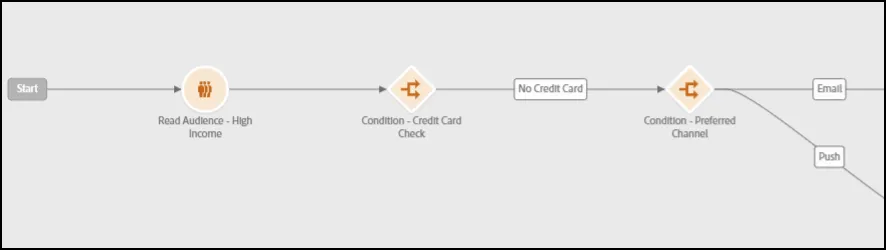
- Add a second condition node after the first. Label this one "Preferred Channel", as in the following screenshot:
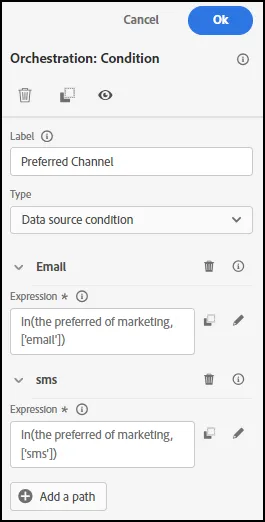
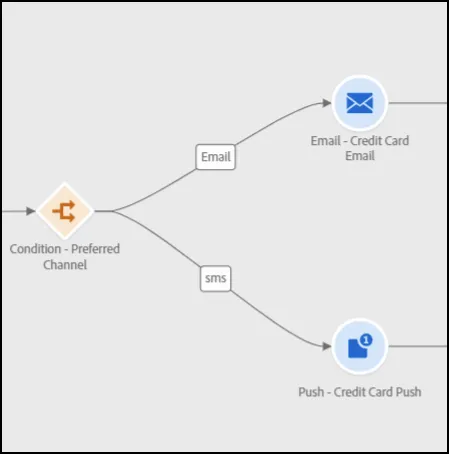
- For this Condition Node, we are going to have two paths - one for customers that prefer being contacted by email messages. The second path will be for customers that prefer being contacted by Push messages. Click the "Add a Path" button to add a second path on your canvas. Add a name for the first path as "Email". Add a name to the second path as "sms". Configure this node expression the same way you did the first condition node. It should appear as follows now:
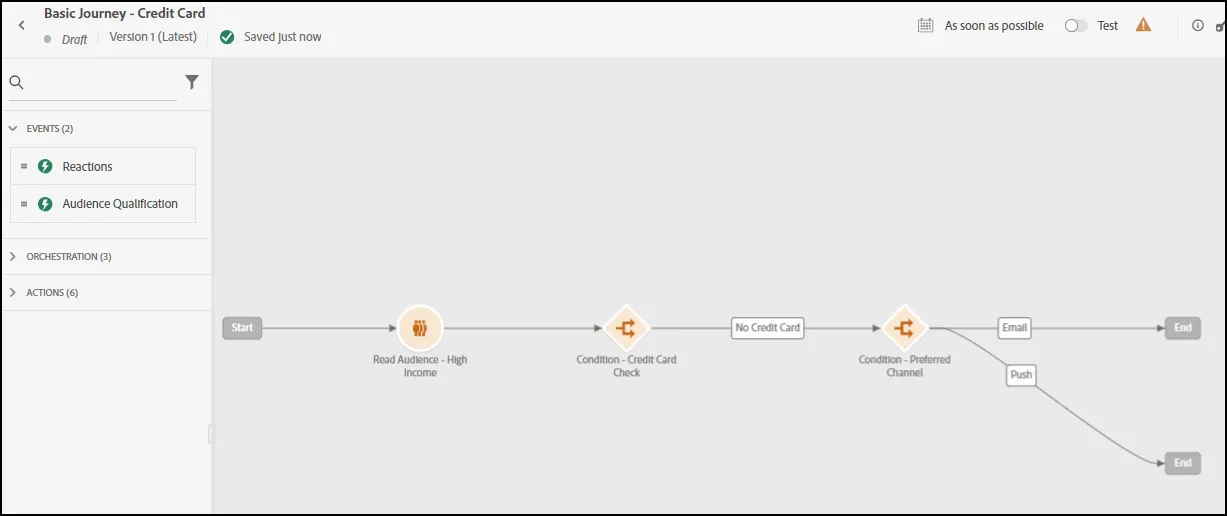
- Your journey should now appear as follows:
Add Messages to Your Journey:
Under Actions, drag the Email Action onto the Canvas on Email path and drag the Push Action onto the Push path.
- Next, we will design the Email and Push messages. Navigate to the Email Designer Lab from the navigation menu.