Push Message Designer
2 min
This lab will walk through the steps to create a Push Message in Adobe Journey Optimizer.
NOTE: Some exercise steps may differ from lab presentation content.
Create a New Push Message
Within the Basic Journey, click on Push action node. Notice the panel that opens to the right:
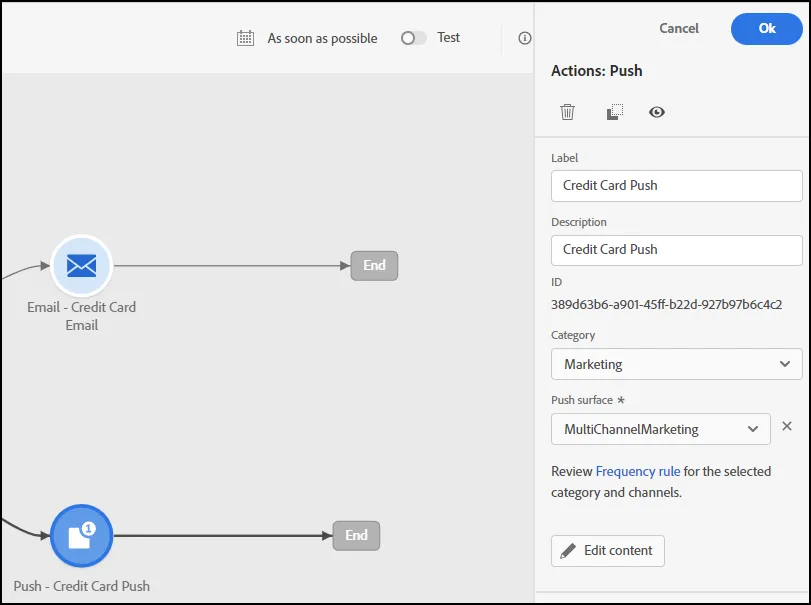
- Enter a Label and Description for the message.
- Select Marketing for Category and MultiChannelMarketing for the Push Surface.
Define the Push Message
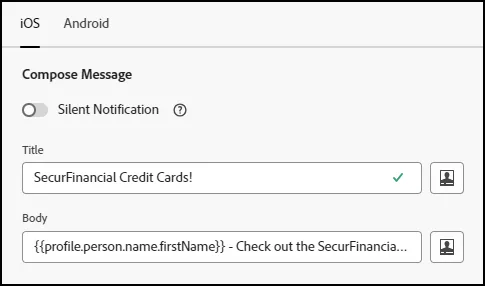
Add content for the "Title" and the "Body" sections of the message:
- Click on the drop down for "On Click Behavior". Select "Open App".
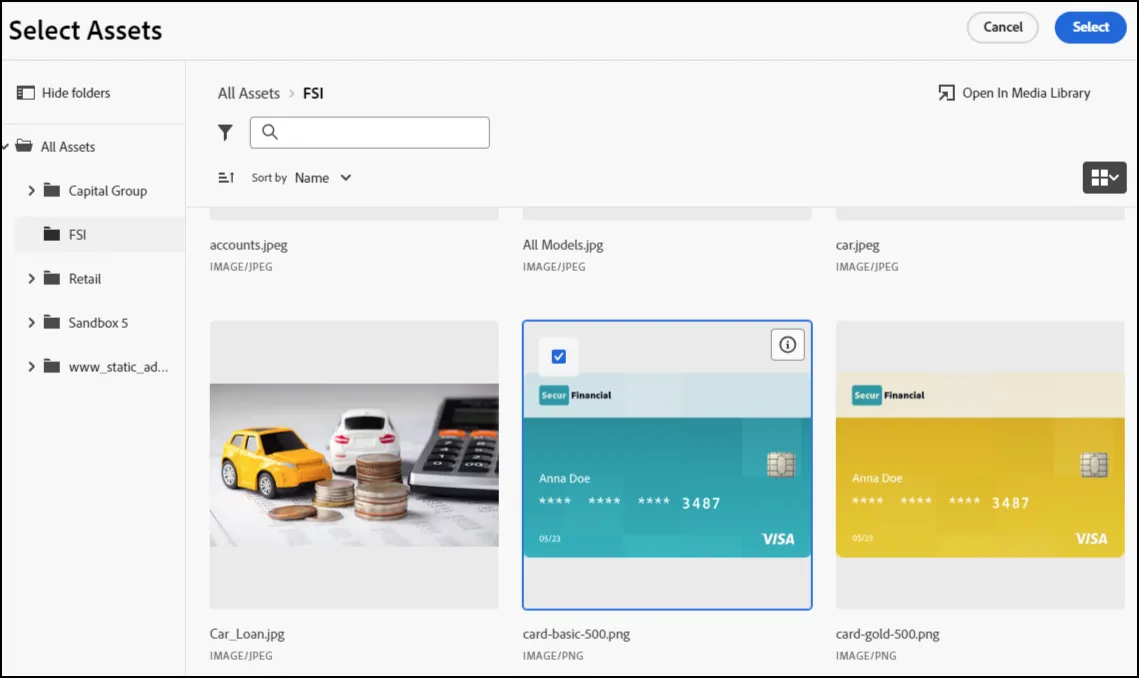
- Click on the "Add Media" button. Choose an appropriate image and click "Select":
- Your layout for the Push Message should appear similar to the following:
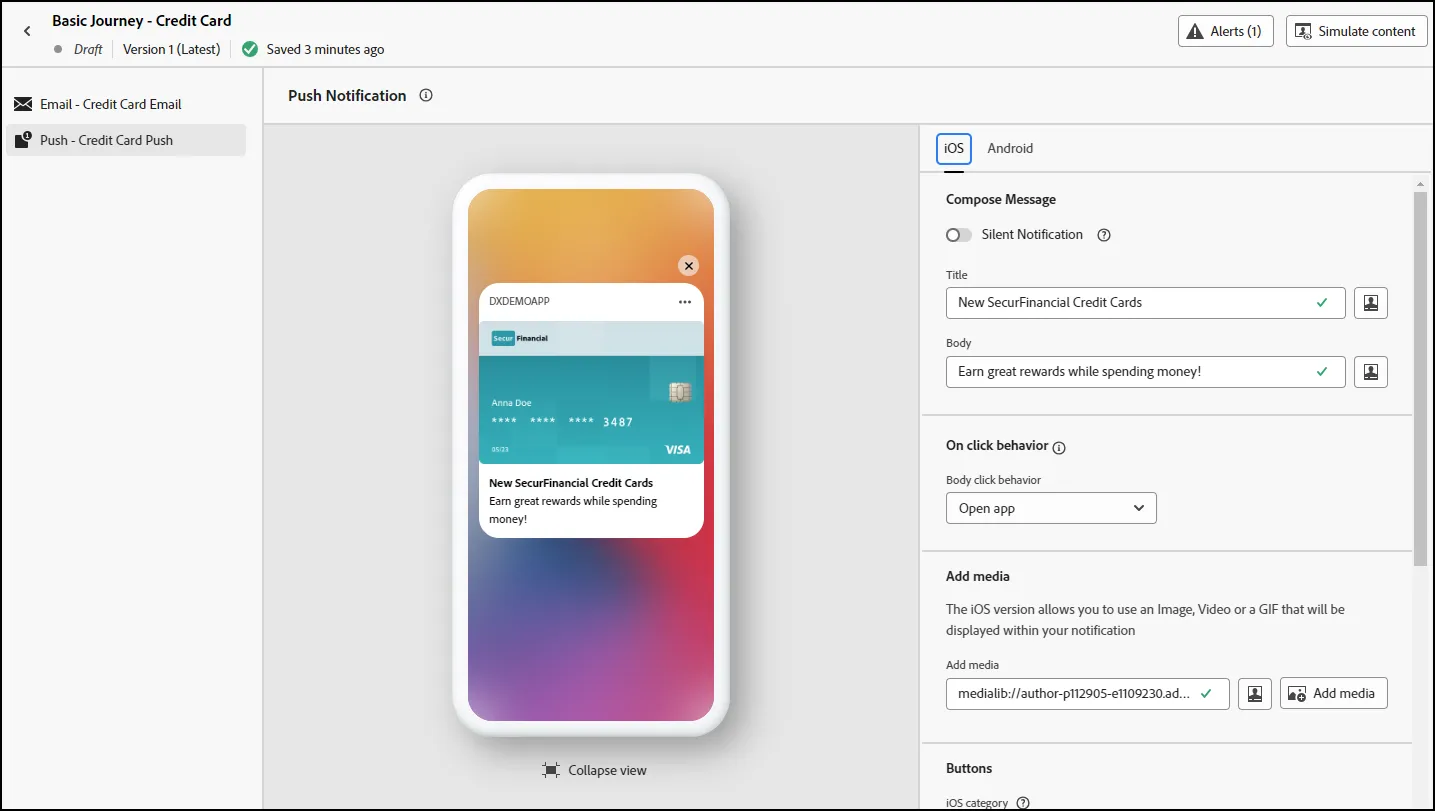
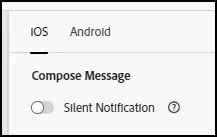
- Click on the "Android" tab and complete the layout for that message as well, if desired:
- End of Lab