Commerce Configuration
Shopping Cart Rules
Cart price rules in Adobe Commerce allow you to apply dynamic promotions to products based on defined conditions. These rules are commonly used to drive conversions, increase average order value and support targeted campaigns.
In this exercise, you will create a cart price rule that applies a 10% discount to a specific product. This rule will be used later in the lab to demonstrate how promotions are surfaced in the storefront experience.
Navigate to Cart Price Rules
- From the left-hand navigation, click Marketing
- Select Cart Price Rules
- Click Add New Rule

Configure Rule Information
- Enter a Rule Name (e.g. 10% Off {{PRODUCT_SKU}} Product)
- Set Status to Active
- Select a Customer Group (Select All)
- Expand the Conditions section
- Click the + icon
- Select Product Attribute Combination
- Leave the condition Blank
- Expand the Actions section
- Set Apply to Percent of product price discount
- Set Discount Amount to 10
- Extend the Labels Section
- Give the rule a name like Product Discount – {{LAB_NUMBER}} in the Default Rule Label for All Store Views field
- Click Save Rule
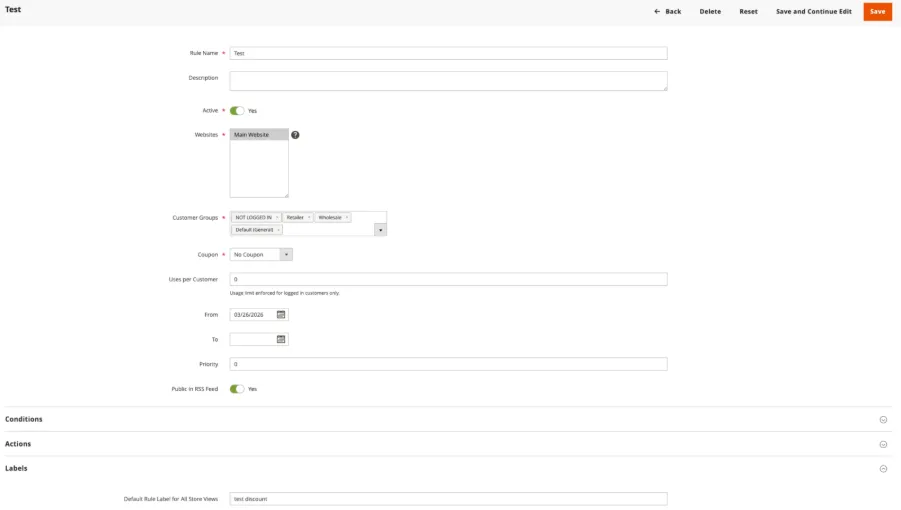
You have successfully created a cart price rule that applies a 10% discount to the specified product. When the product is added to the cart, the discount will be automatically applied.
Set Up AI Search, Merchandising and Product Recommendations
Navigate to Live Search
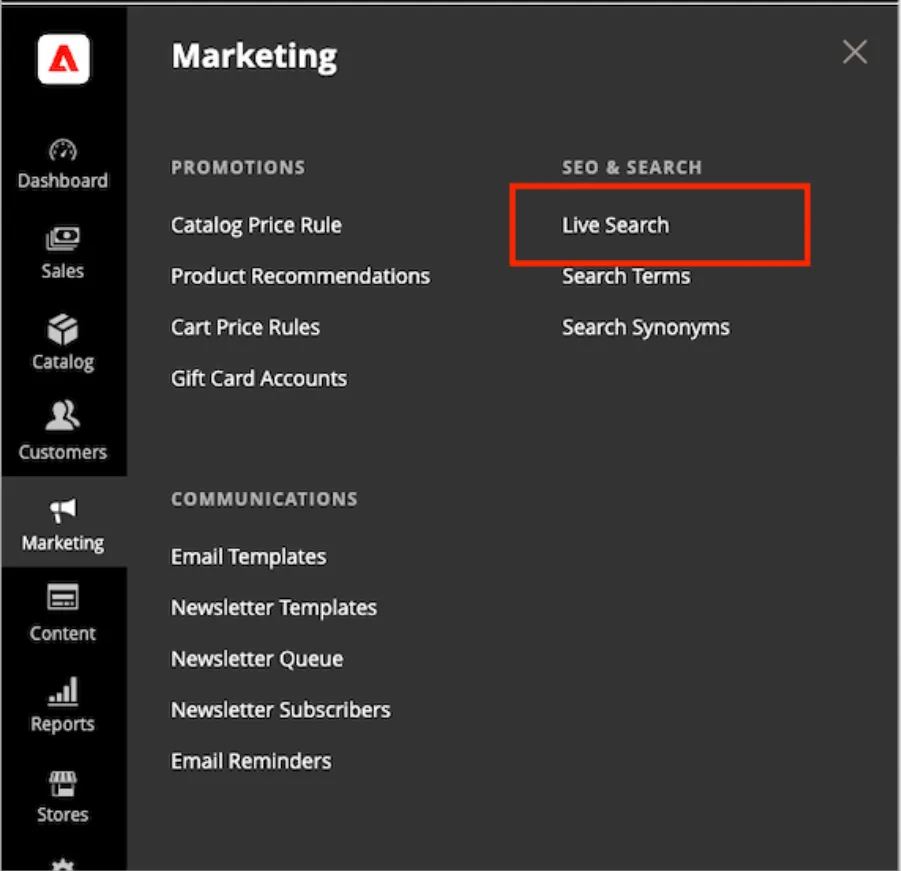
- From the left-hand navigation, click Marketing
- Select Live Search
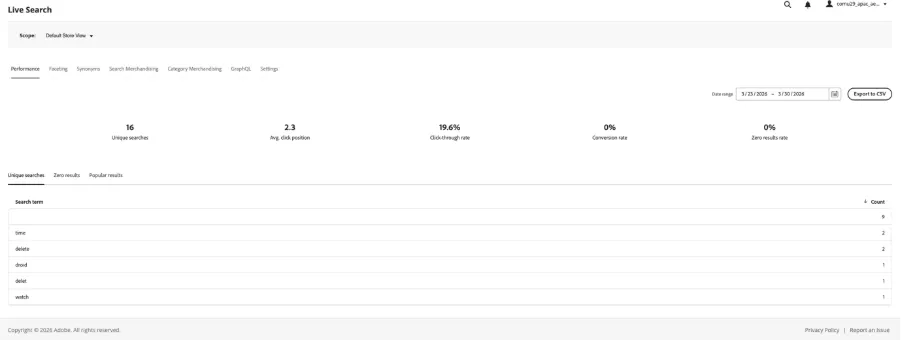
From the Search Home Page you can see metrics on how search is performing
Create a Search Rule
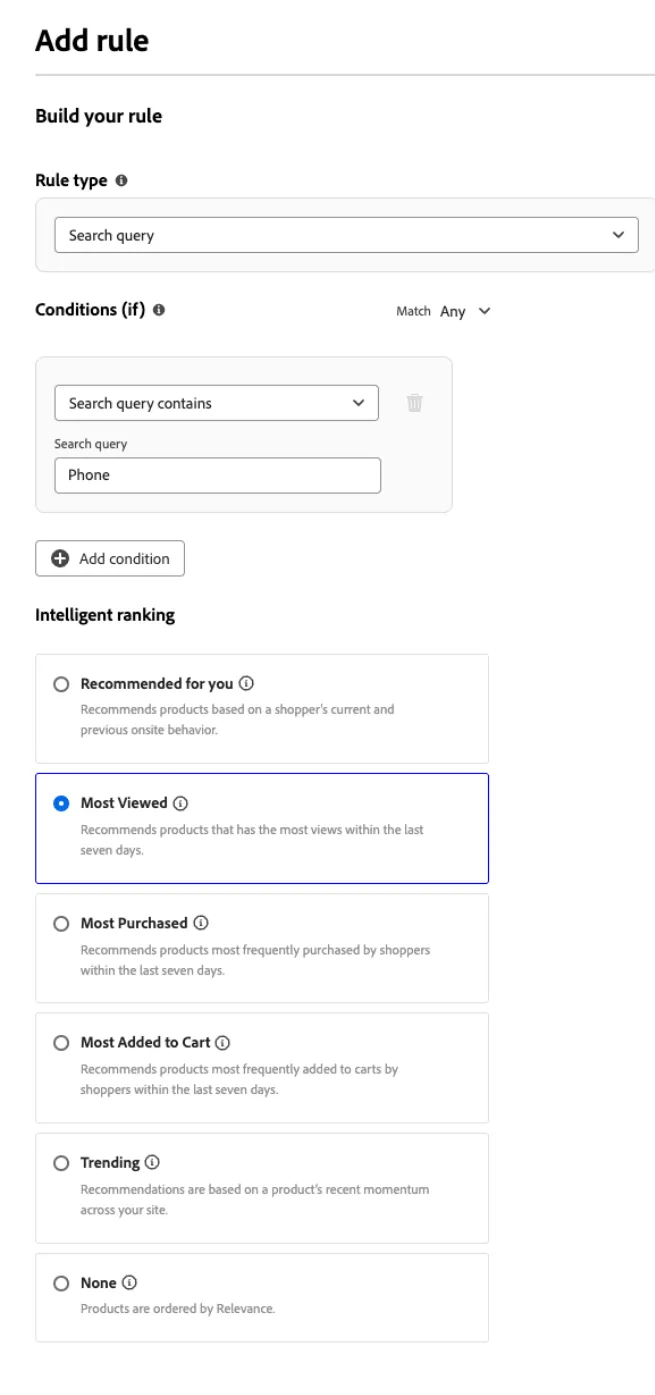
- Click Search Merchandising
- Click Add Rule
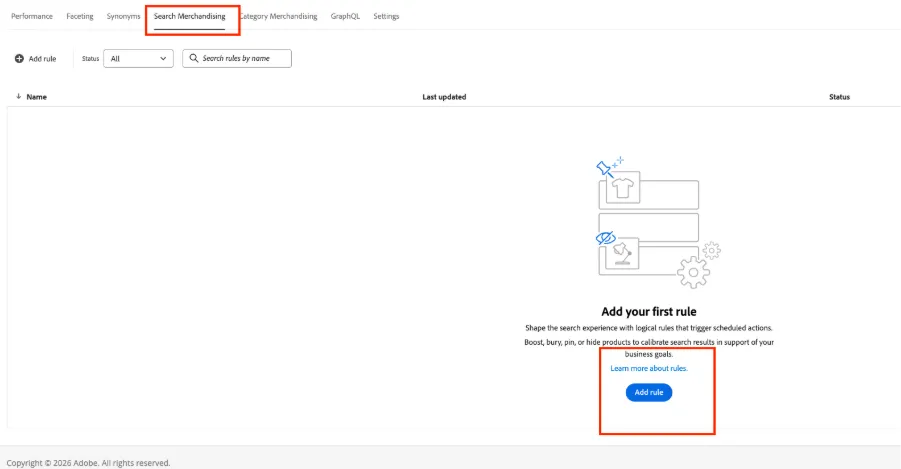
- Enter a Rule Name (e.g. Promote {{PRODUCT_SKU}})
- Define a Search Query Condition (e.g. the name of your product)
- Use the Most Viewed algorithm
- In the Manual Ranking section choose Boost
- Search for your {{PRODUCT_SKU}}
- In the details section give your rule a name Search Rule {{PRODUCT_SKU}}
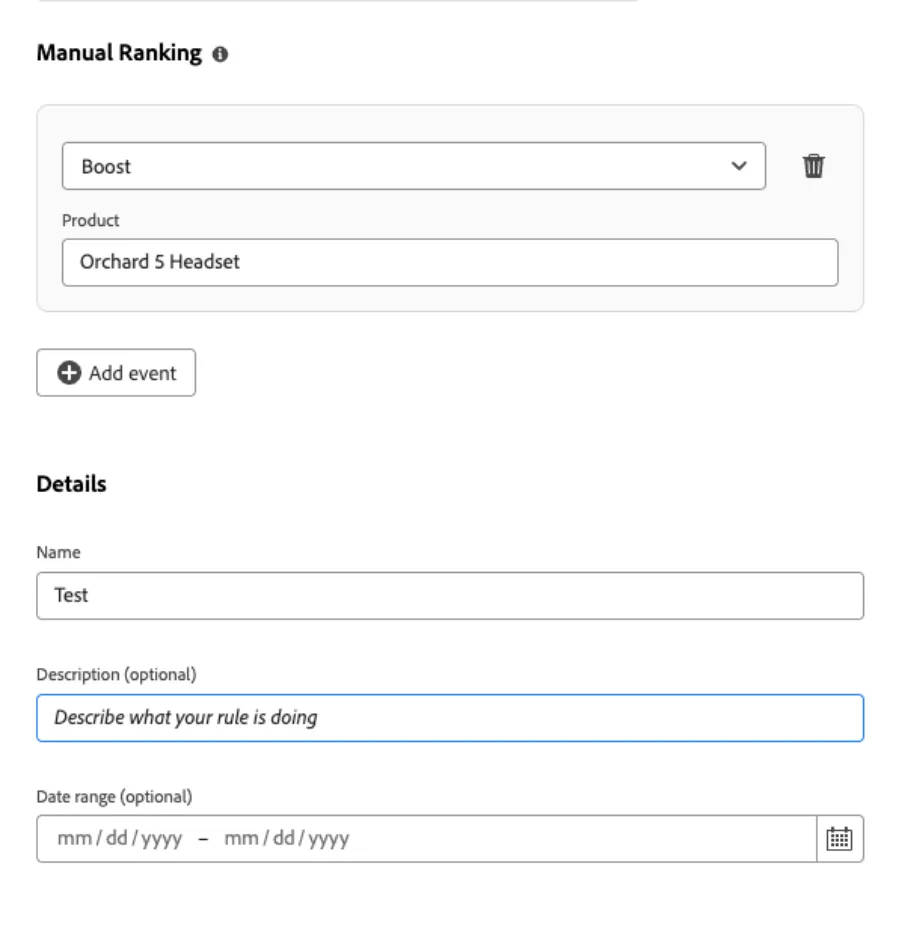
- Click Save and Publish in the top right had corner
Your product will now be prioritised in search results when customers search for the defined query.
Product Recommendations
Product Recommendations in Adobe Commerce use AI-driven models to surface relevant products based on shopper behaviour. These recommendations help increase engagement, drive cross-sell opportunities and improve conversion rates.
In this exercise, you will create a recommendation using a preconfigured model and include your lab product.
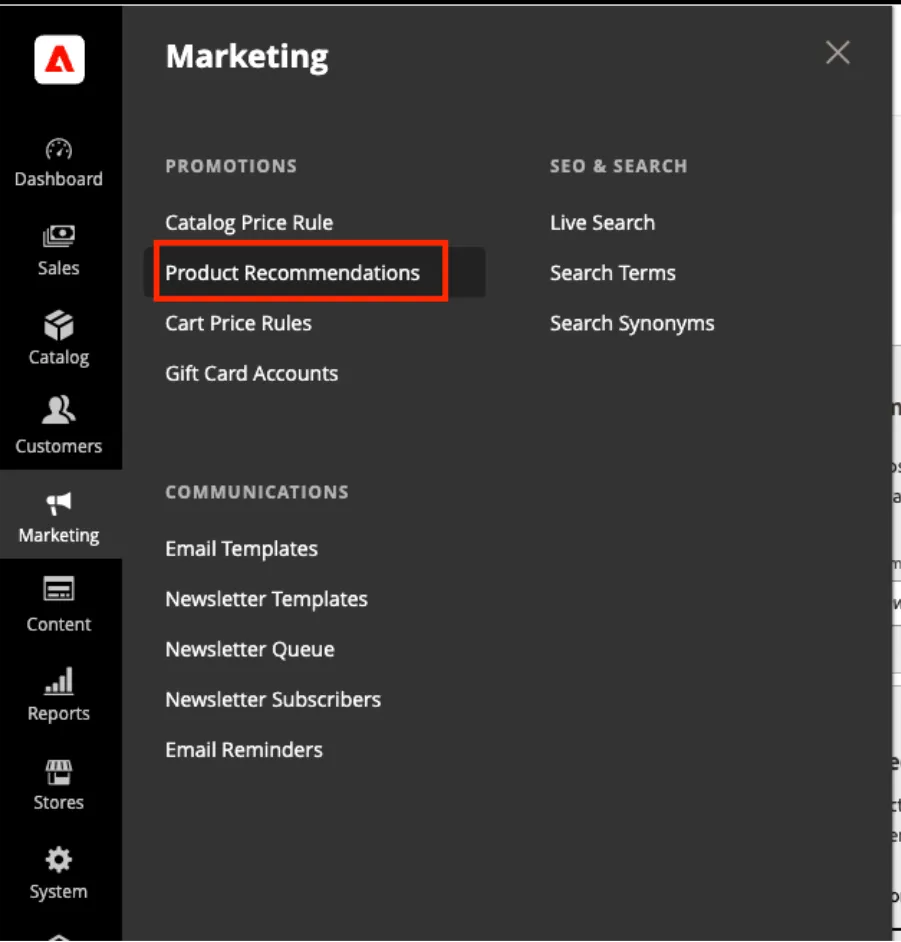
Navigate to Product Recommendations
- From the left-hand navigation, click Marketing
- Select Product Recommendations
Create a Recommendation
- Click Create Recommendation
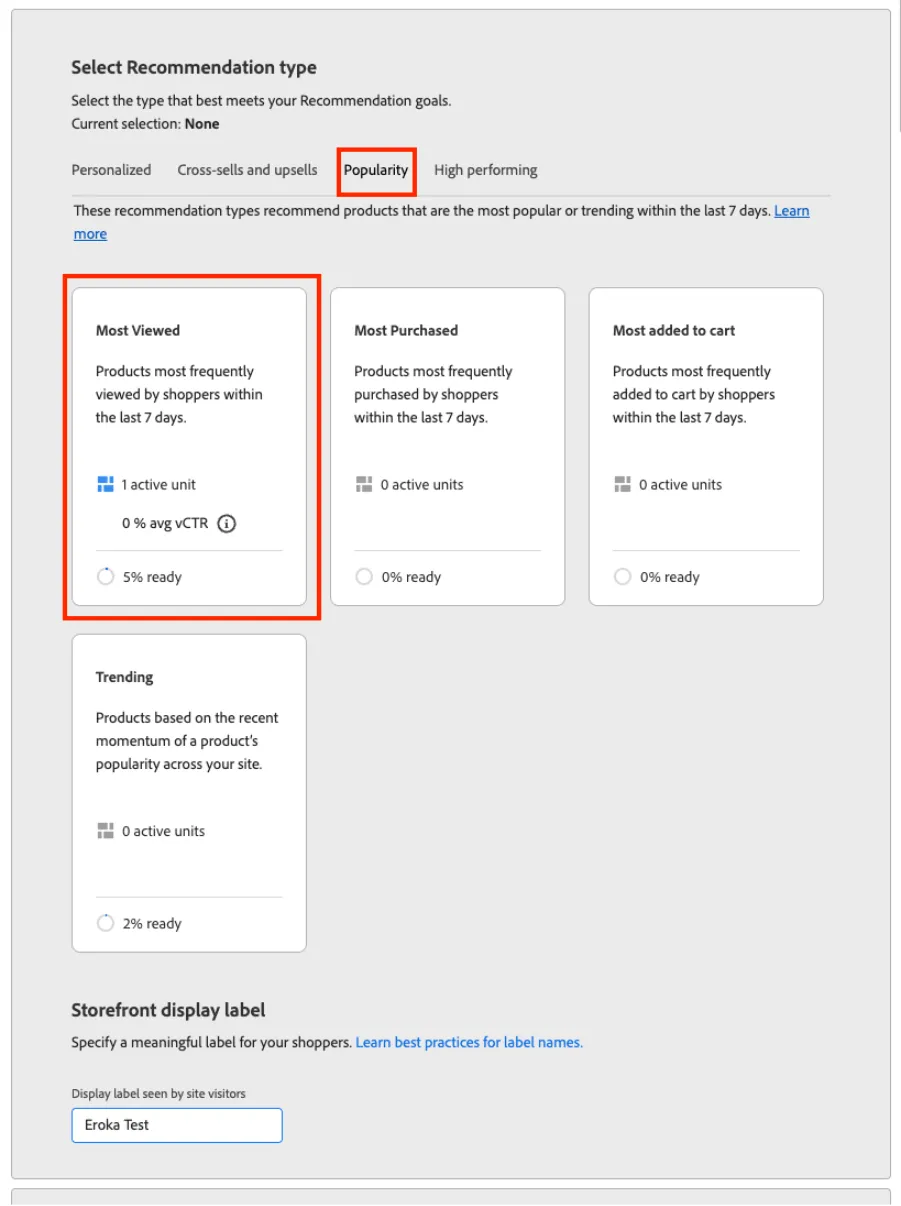
- Enter a Name (e.g. Recommendation {{LAB_NUMBER}})
- Click on the Popularity tab
- Select a Recommendation Type of Most Viewed
Activate the Recommendation
You can click on the Filter Products section to see inclusion and exclusion filters but for this exercise don’t save any.
- Click Activate
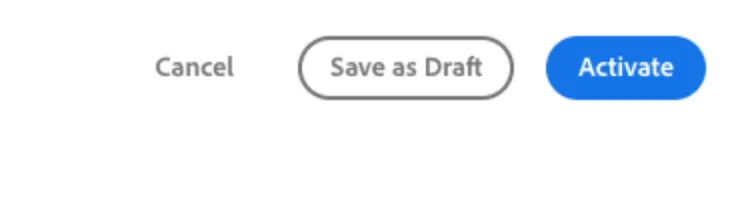
A product recommendation is created and ready to be displayed on the storefront using the selected recommendation model.
Capture recommendation ID
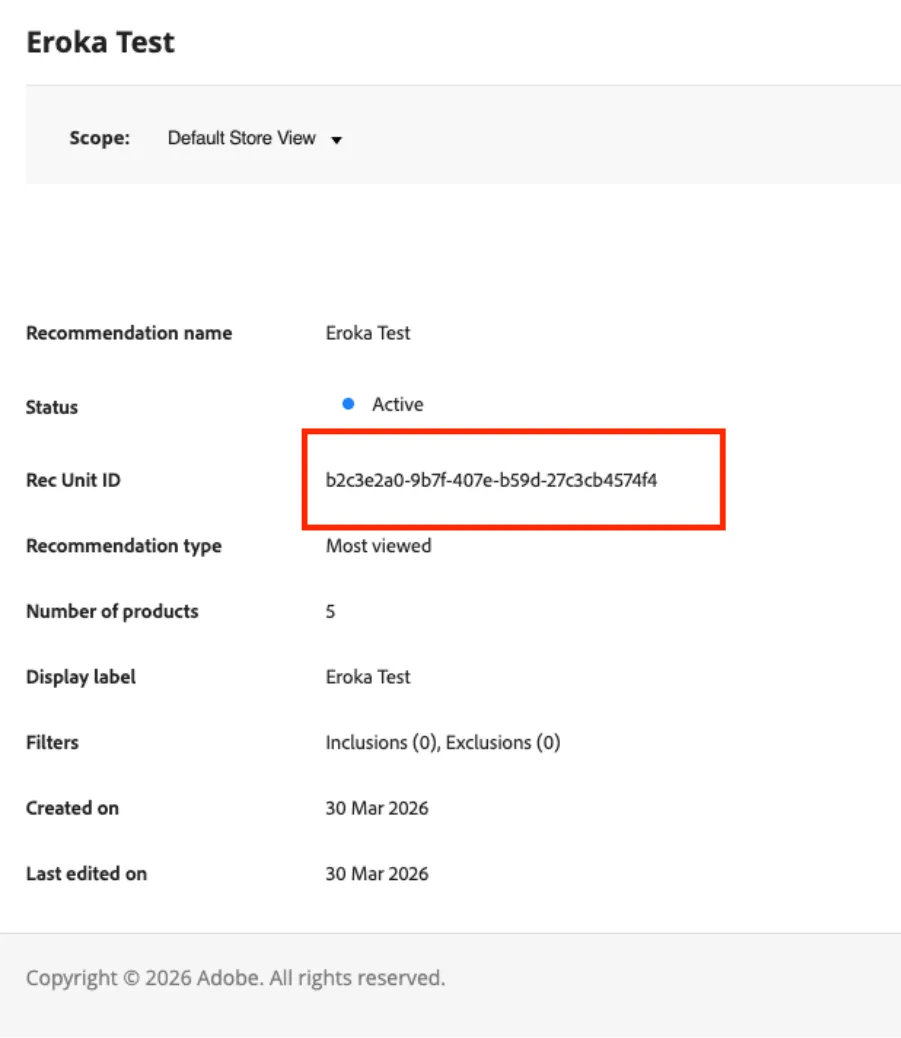
We need the recommendation id in order to display the recommendation on the storefront.
- On the recommendation summary page click on your recommendation
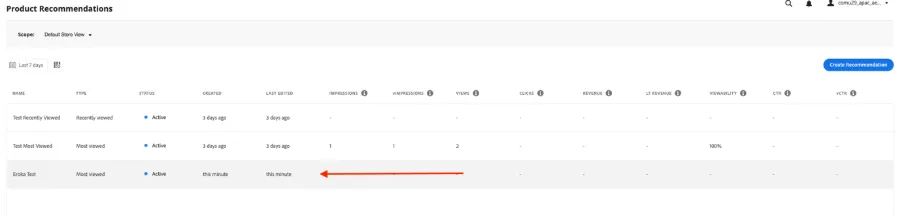
Copy the Recommendation unit ID and save it using the text box below.
Rec Unit ID | {{REC_UNIT_INPUT}} |
|---|
Summary
So far, you have configured the core building blocks of an Adobe Commerce as a Cloud experience. Starting with product creation, you established the foundation of your catalogue by defining key product attributes, pricing and imagery.
You then enhanced the product’s commercial impact by applying a targeted cart price rule, demonstrating how promotions can be used to drive conversion and influence purchasing behaviour.
Using Adobe Commerce SaaS services, you extended this further by:
- Boosting product visibility through Live Search
- Creating AI-driven product recommendations
Together, these capabilities illustrate how catalogue data, merchandising and intelligence services work in unison to shape the customer experience.
With these elements now in place, your product is fully configured and ready to be surfaced across the storefront.
What’s Next
In the next section, you will focus on storefront configuration, bringing your product to life by:
- Adding content to the homepage
- Displaying product recommendations
- Updating category presentation
This will demonstrate how backend configuration directly translates into engaging, personalised customer experiences.