Digital Asset Management
Product Visuals Powered by Adobe Experience Manager Assets is an advanced digital asset management (DAM) platform that goes beyond storing and organising digital assets. It dramatically improves the activation and delivery of content across an organisation’s digital ecosystem. This significantly reduces the overhead associated with content operations and empowers creatives and marketers alike to easily activate and deliver content across multiple channels.
Access AEM Assets
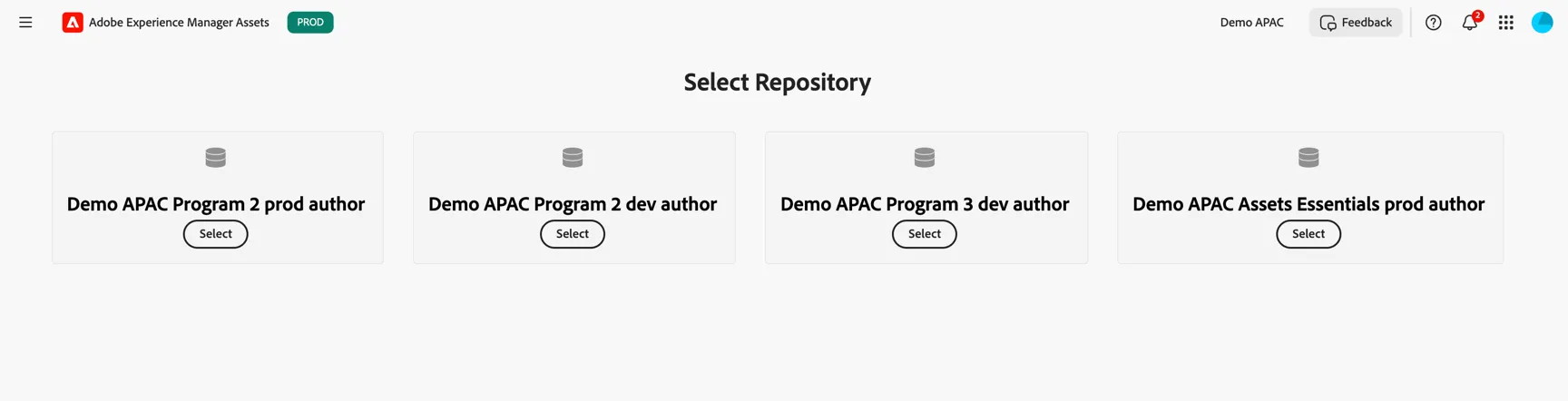
Open your asset repository in a new window {{REPO_URL}}
If needed, login using your lab credentials {{LOGIN_EMAIL}} and Password: accs@2026
If prompted to choose repositories select {{REPO_NAME}}
After successful login, the Assets workspace should appear
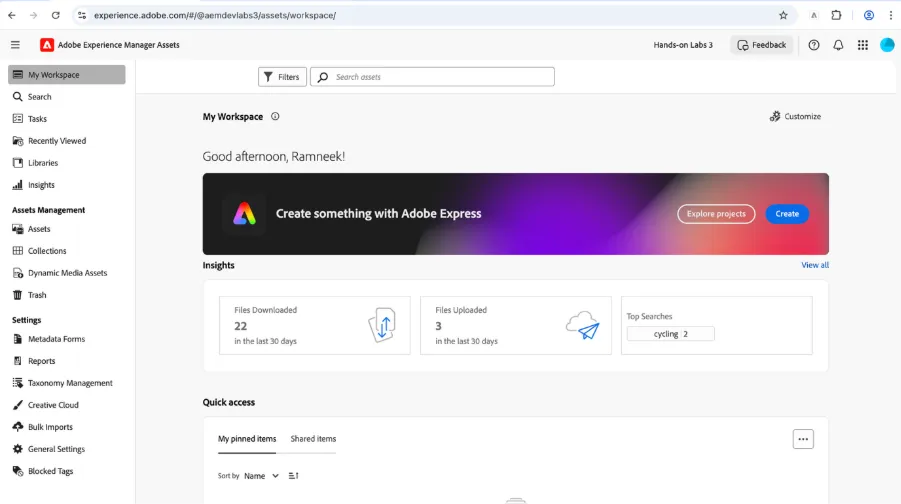
Using the left navigation, you can navigate to various sections.
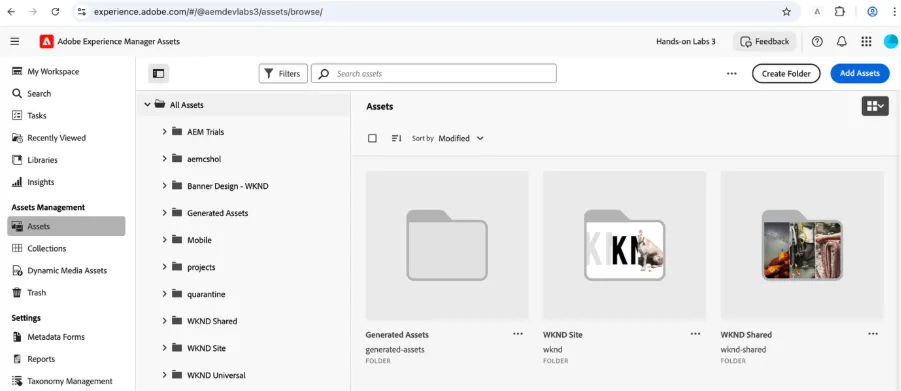
To explore the folder structure, click on “Assets” under “Asset Management” and which will present with a view to browse through different files and folders
Metadata Management
Let’s explore the metadata management capabilities of AEM Assets which helps with efficient organisation, searchability and governance of assets.
- Navigate to All Assets > CitiSignal > Products folder
- Click on your assigned product asset (The Product Asset is the name of the product you just created without the S and number at the end).
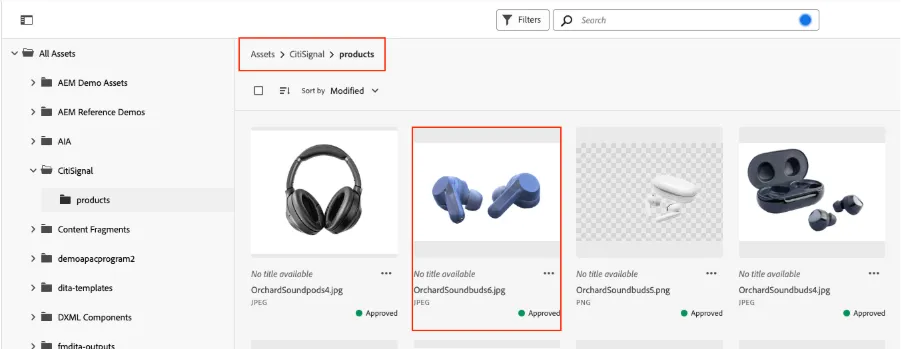
- Click on any asset to view the asset details.
- The asset metadata is displayed in the right pane
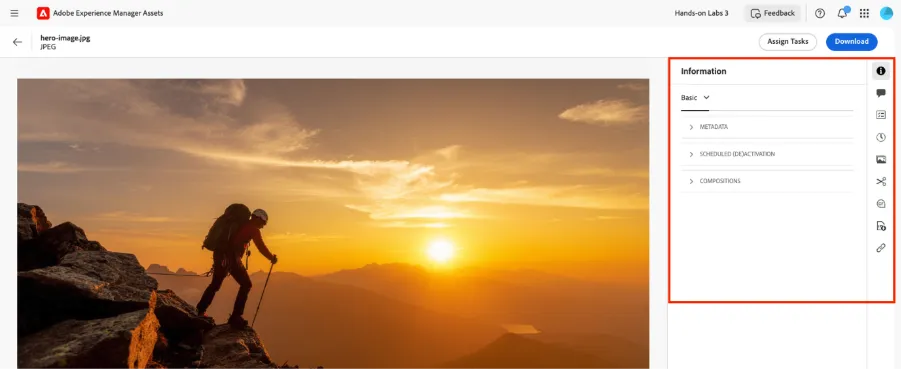
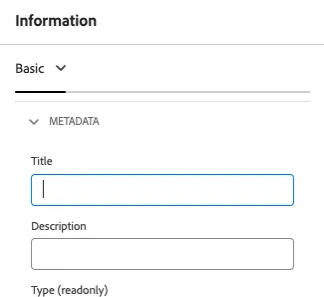
- Review the metadata under the “Basic” tab by clicking on the “Metadata” panel
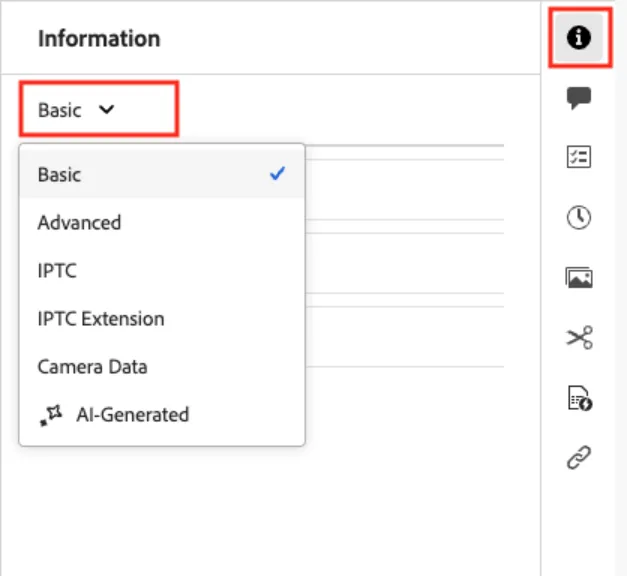
- The metadata can be organised in multiple panels. Click on the down arrow next to Basic tab to view all the available tabs
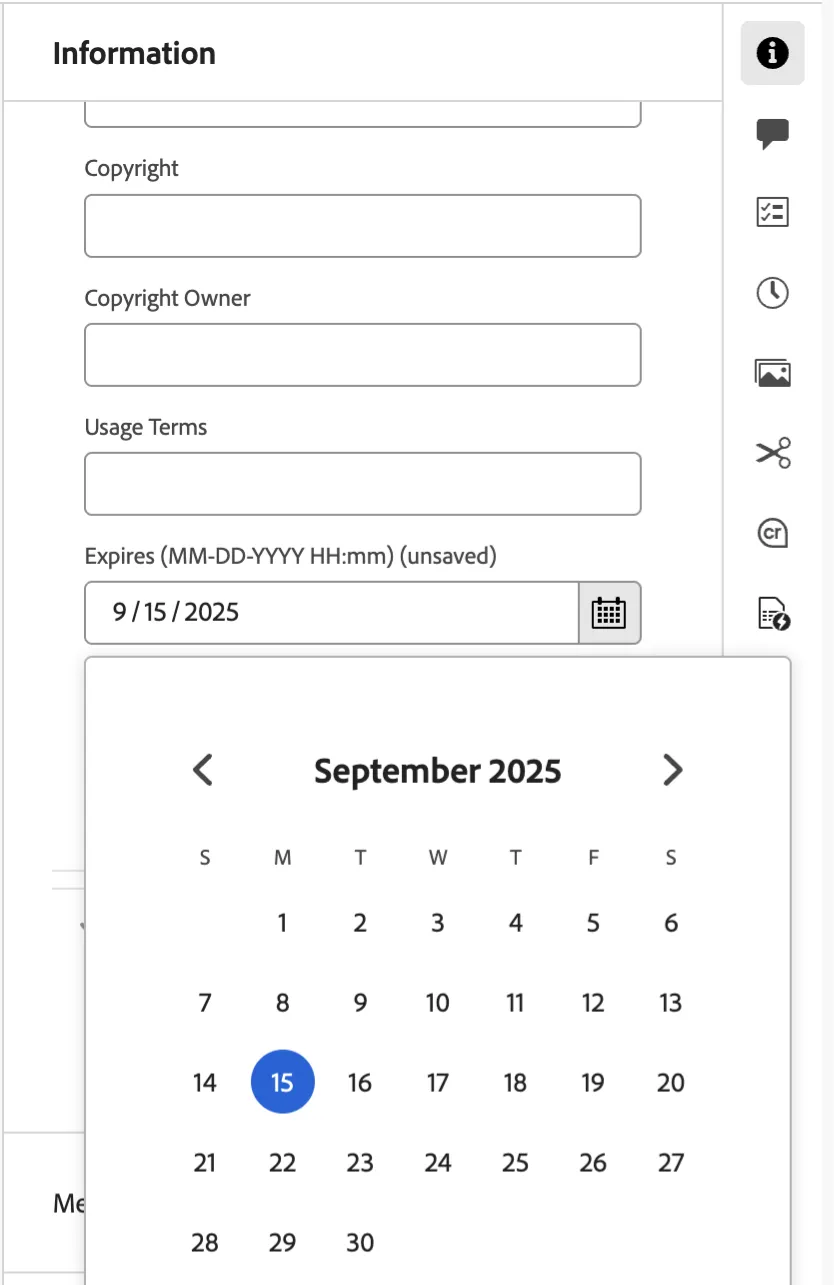
- Click on the “Advanced” tab and set an expiry date for this asset by picking a date for “Expires” field. This lets administrators manage the digital rights management for assets by enforcing the asset expiration date
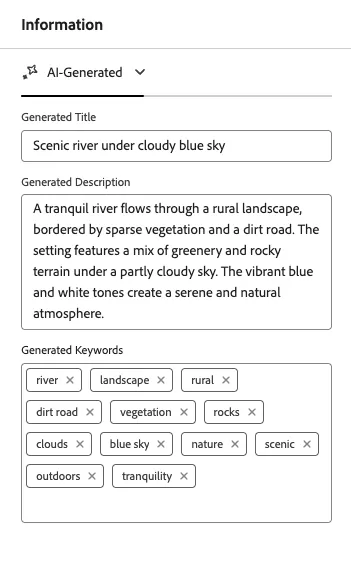
- Click on the “AI-Generated” tab to view the automatically generated valuable metadata fields for digital assets which helps in easy discovery and understanding of assets
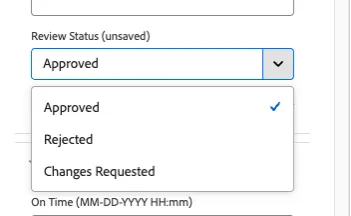
- Once you have reviewed the metadata fields, go back to the “Basic” tab and ensure the “Review Status” is “Approved”.
By setting the status to approved will make this asset available for activation in Commerce (more on this later)
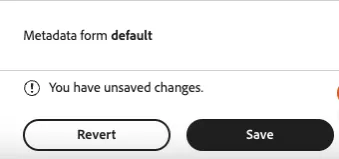
- Make sure to save your changes to the metadata fields before proceeding further
Asset Renditions
Renditions in Adobe Experience Manager Assets are customised versions of digital assets, such as images, designed for different devices and platforms to ensure optimal performance. AEM facilitates easy creation and management of these renditions, enhancing the user experience. You can create thumbnails, optimize images for web or mobile, add watermarks, view and download dynamic renditions or Smart Crop renditions, and do much more.
Static Renditions
Static renditions are pre-generated versions of digital assets, usually created during asset ingestion or modification. These renditions are optimized for specific purposes and platforms, such as web thumbnails, mobile-friendly formats for responsive design, or high-resolution versions for printing, ensuring an efficient and consistent experience.
Let’s look the static renditions created for our Adventure assets.
- Open your assigned Product Asset. Screen similar to below should appear
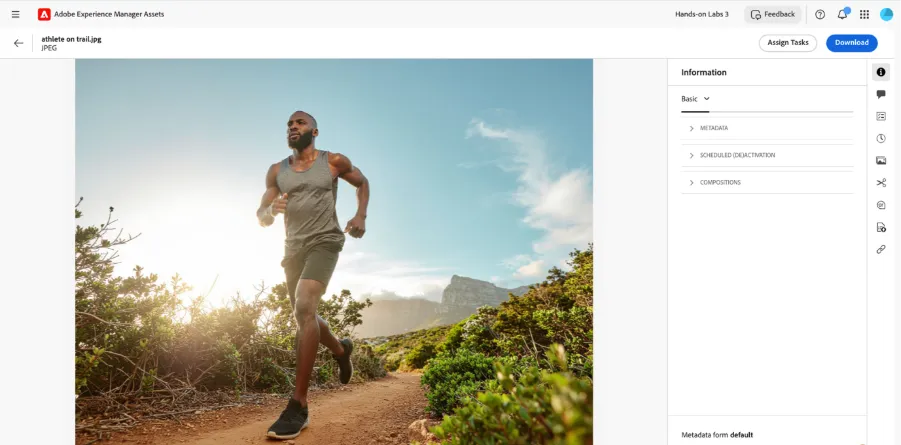
- Click on the “Renditions” in the right-rail
- Click on the various configured renditions (original, thumbnail, etc.) to preview the asset variations, the rendition can be downloaded by clicking on the download icon
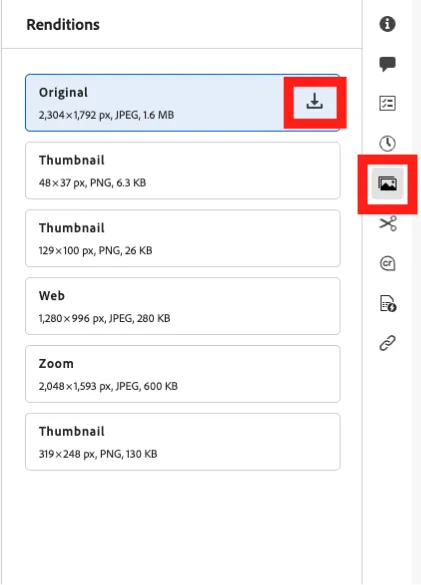
Dynamic Renditions
Dynamic renditions are customized versions of assets created in real-time to meet specific needs, such as resizing images based on device resolution or cropping to fit different aspect ratios.
These renditions enable organizations to deliver personalized and optimized experiences to diverse audience needs. Using Dynamic Media, you can view and download dynamic renditions in Experience Manager Assets.
- Use the same asset as above or pick another asset from the “Adventures” folder
- Click on the “Dynamic Media” in the right-rail. The Dynamic Media panel displays Dynamic Media Renditions and Smart Crop renditions.
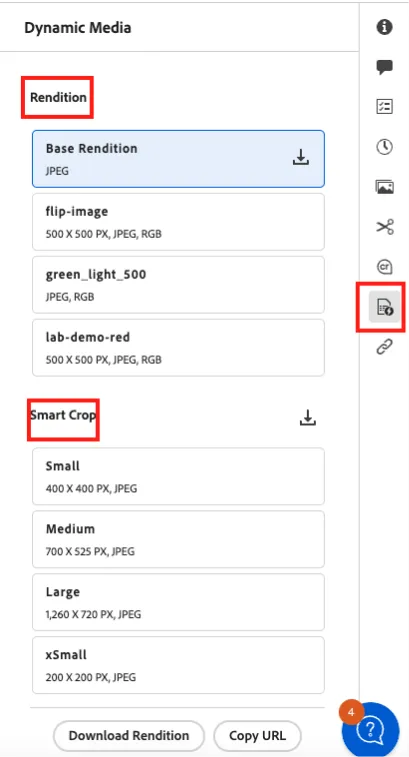
- Select any rendition (example Base Rendition) and click on “Copy URL” at the bottom.
- Open the copied URL in the browser to view the dynamic rendition.
- The rendition can also be downloaded using the “Download Rendition” button
- Select any Smart Crop rendition (example Small) to preview, notice automatic detection and cropping to the focal point. Click “Copy URL” button to copy the URL of the selected smart crop rendition.
- Open the copied URL in the browser to view the smart crop rendition
- To download all smart crop renditions, click on the download icon next to the “Smart Crop” title
You have now learnt how to access asset renditions using AEM Assets!
AEM Assets and Adobe Express
Adobe Experience Manager Assets is natively integrated with Adobe Express to effortlessly create and edit content.
- Navigate to Assets -> CitiSignal -> Products
- Select your product asset and click on “Open in Adobe Express” from the top navigation
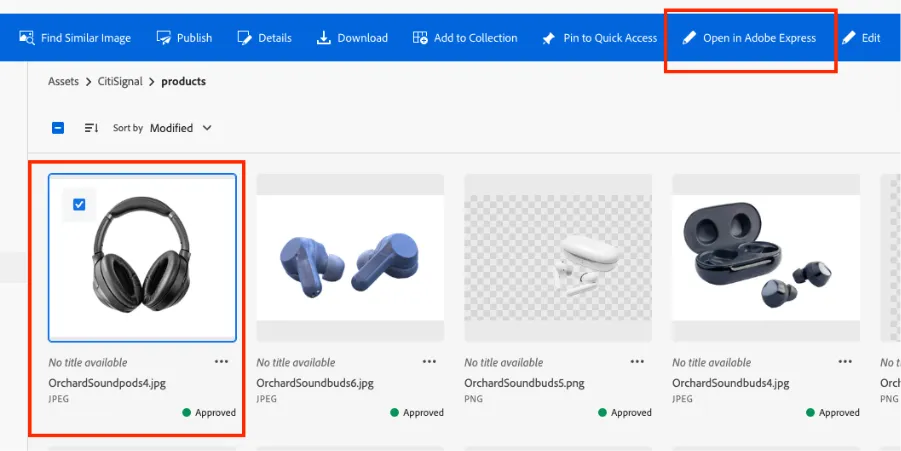
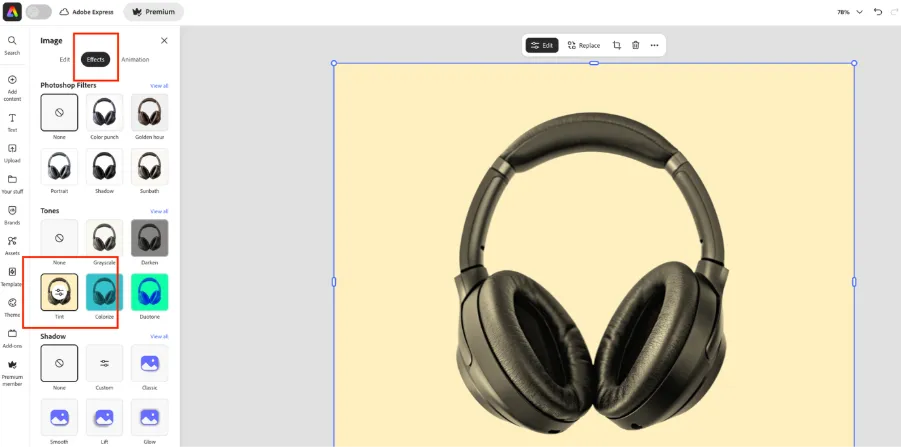
A new Adobe Express window should appear giving you the ability to make changes to the image. You can make edits to the image using any of the options available.
If the image is not immediately editable, click the asset then the EDIT button
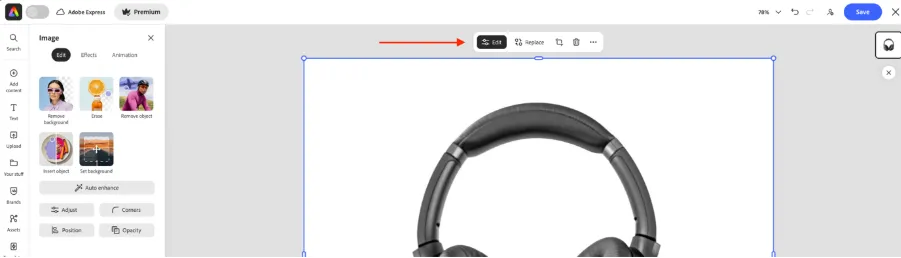
In the example below, the image effect was changed, by clicking on the Effects option and choosing Tint as the option. Feel free to make any other changes to this image once done click on the Save button in the right corner
A new window will appear with the options to save the updated image back to AEM Assets.
Use Save as a version
You have now successfully created a new image version using Adobe Express and saved it back to AEM Assets!