Lab: Creating an Offer
Create a Personalized Offer
Create an Offer
Click on “Offers” from the Left Menu
Click on Create Offer
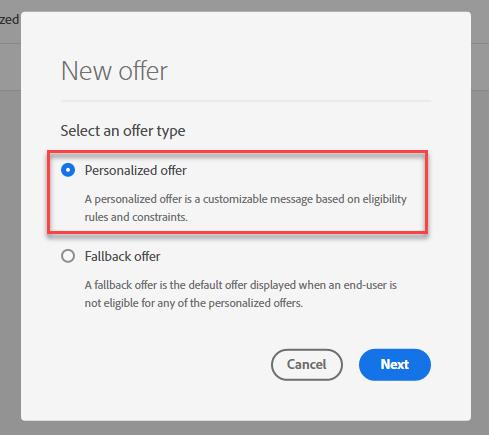
Select “Personalized Offer”
Define Offer Details
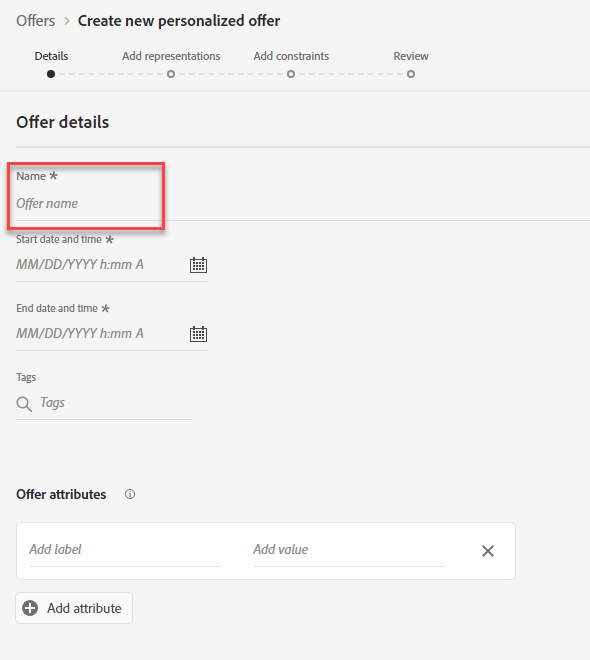
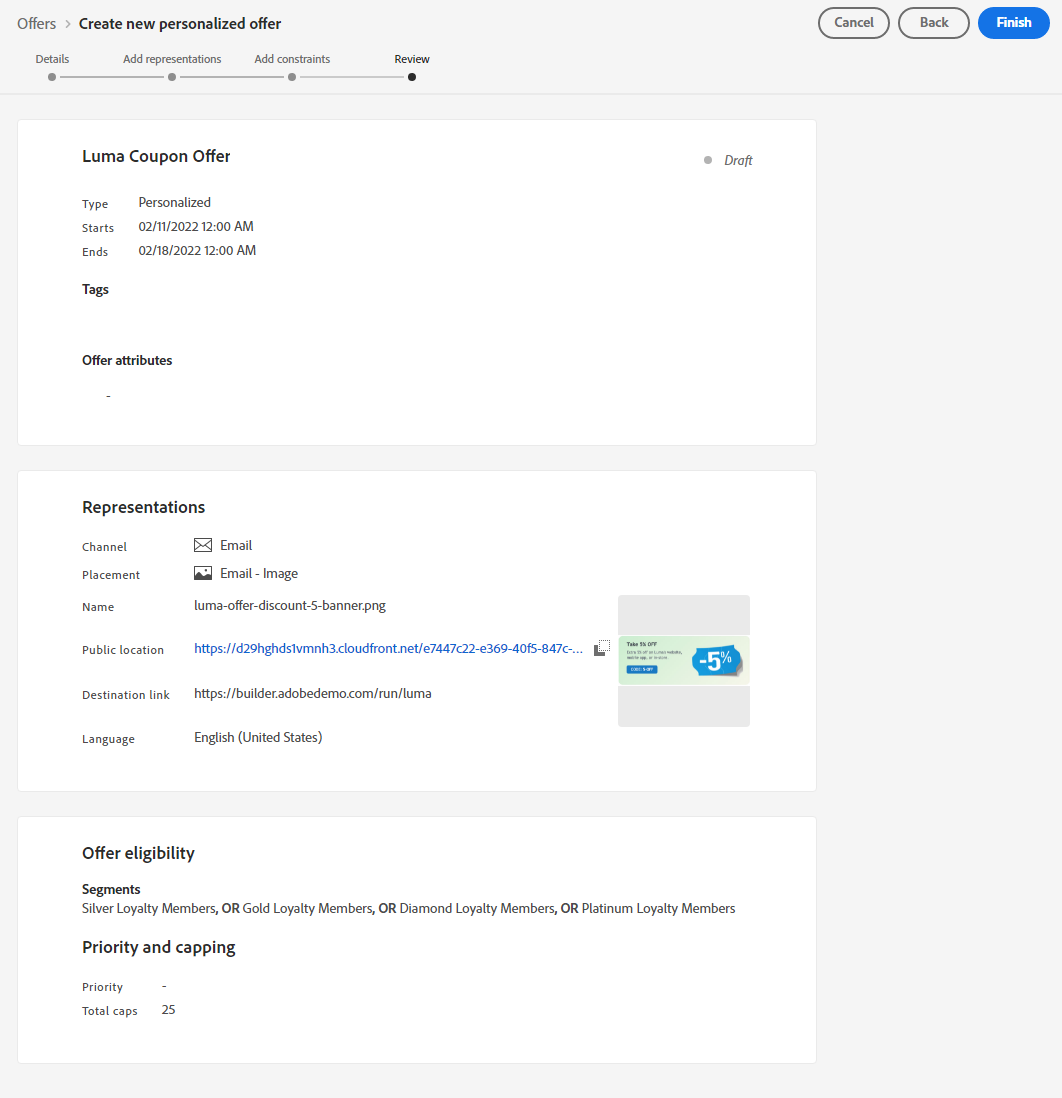
For name of Offer, type “Luma Coupon Offer”.
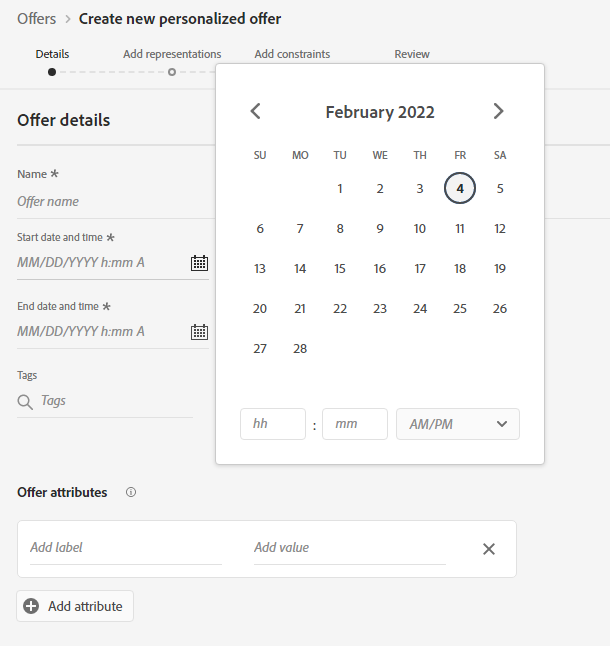
Populate the date ranges for Start and End Dates
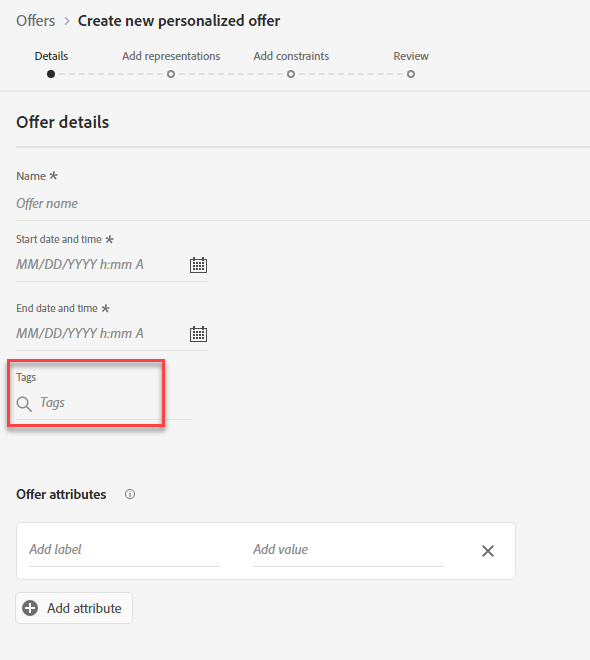
Add tags. – Example: Coupon. Click “Next”
Add Representations
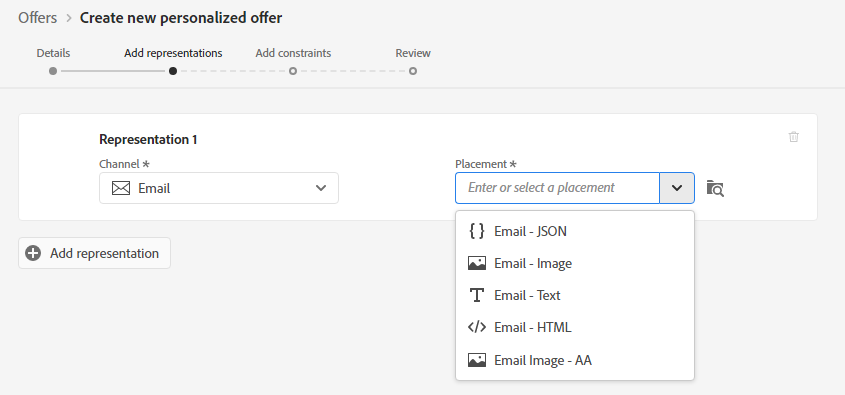
Select the Luma Brand Folder. Select Email as the Channel.
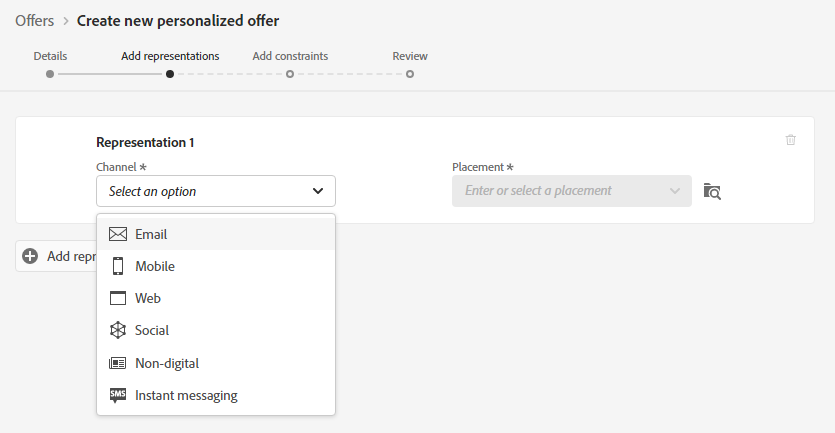
Select Email – Image as the Placement
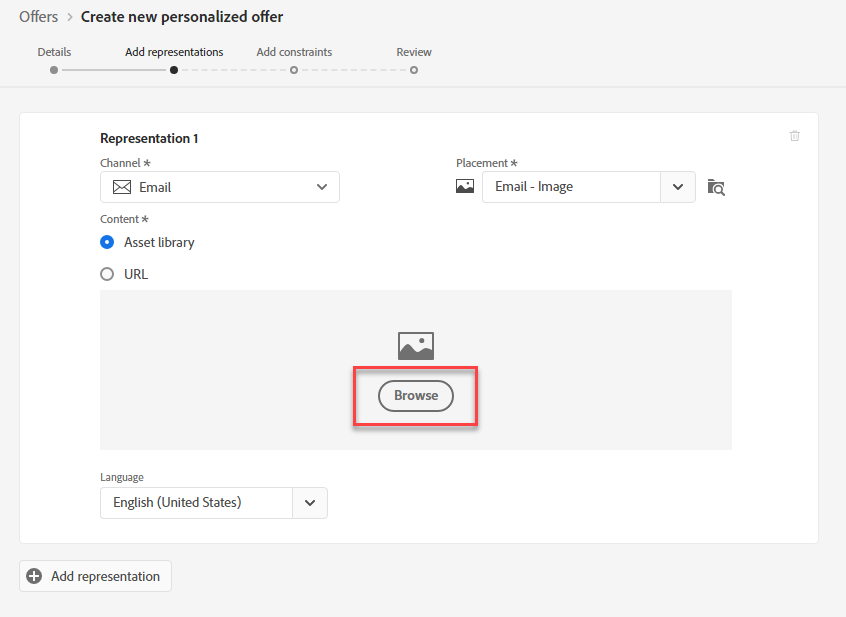
Click Browse
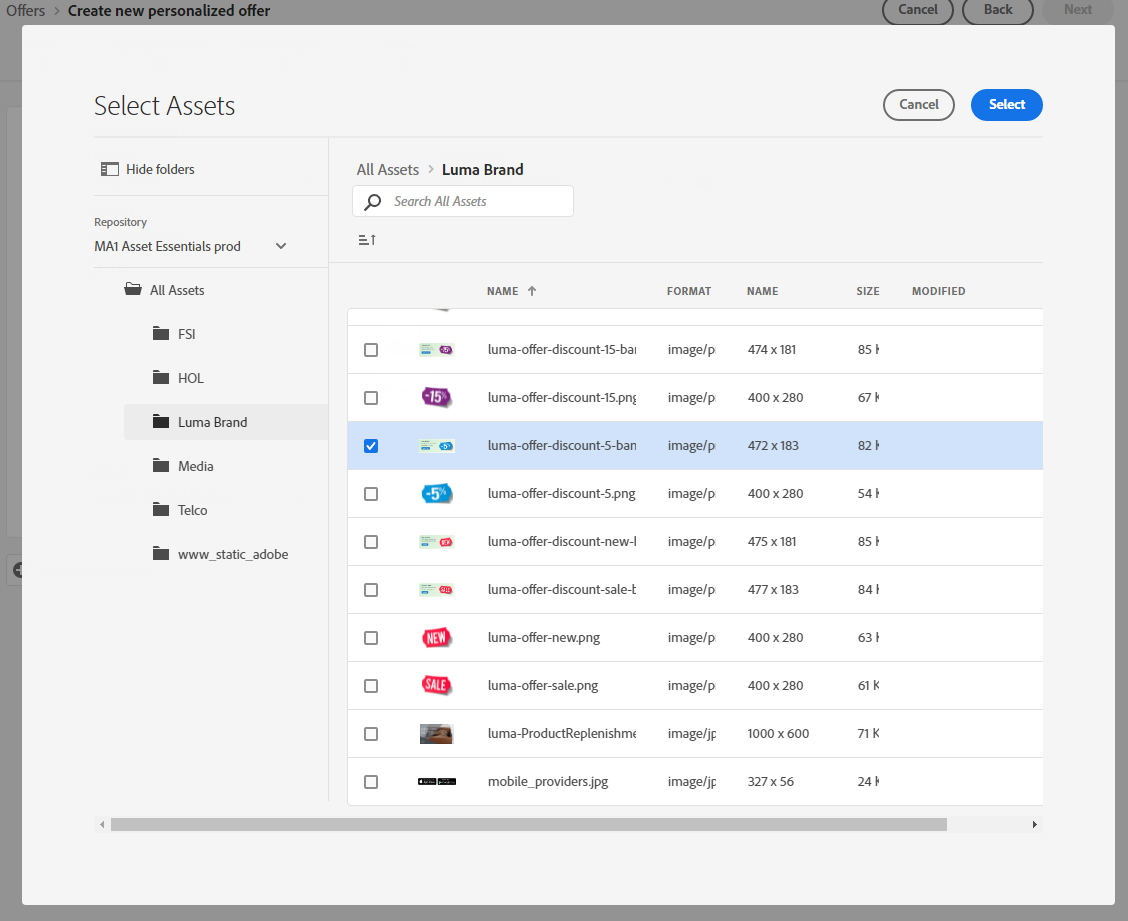
Search for "discount-5-banner". Select the 5% Coupon Image. Click Select.
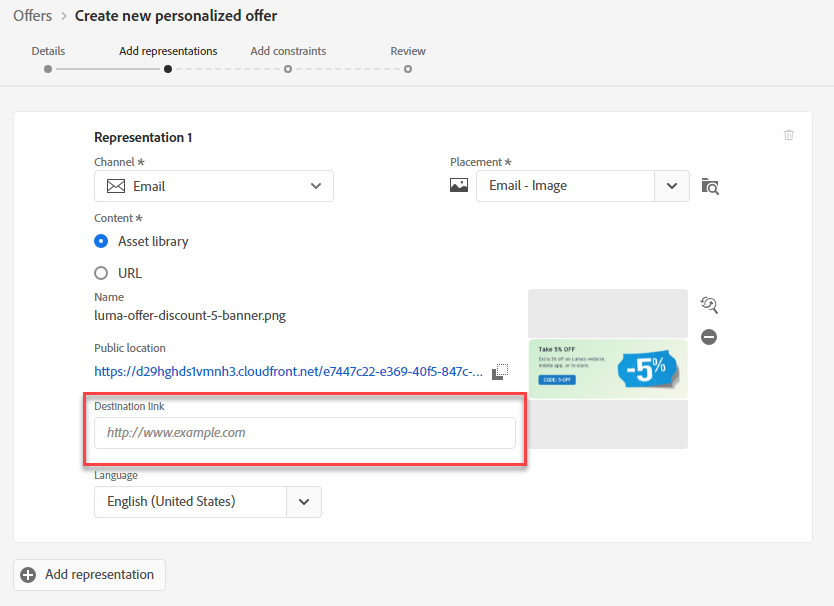
Provide the Destination Link: "https://builder.adobedemo.com/run/luma”. Click Next
Add Constraints
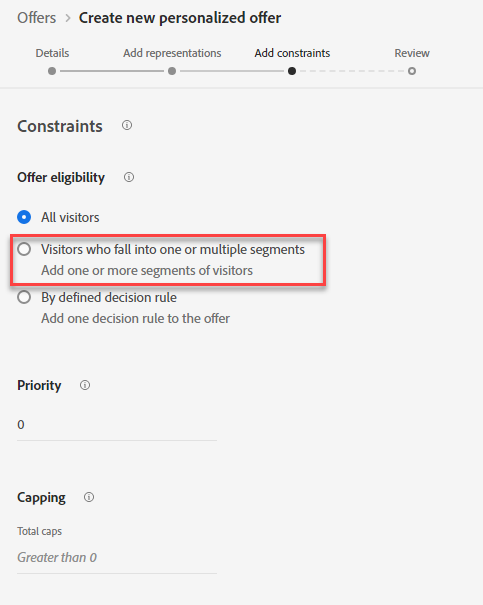
Set Offer Eligibility. Select Visitors who fall into one or multiple segments
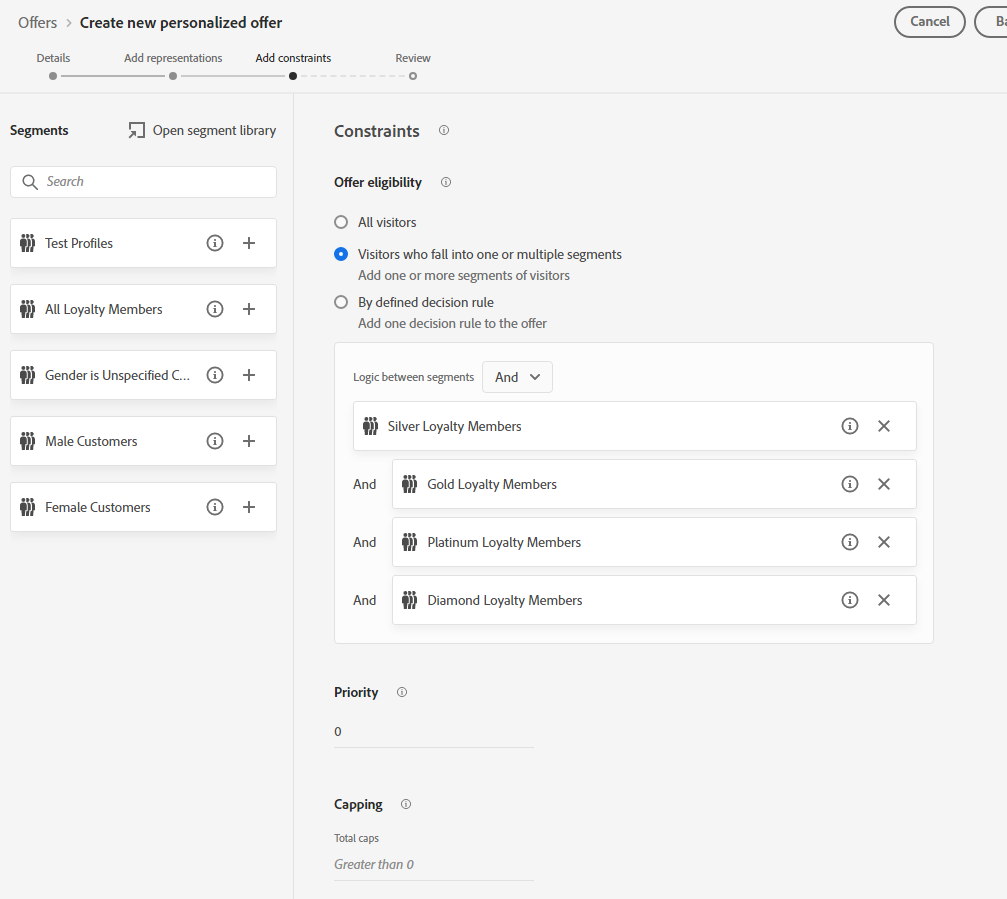
Drag on these segments: Silver Loyalty Members, Gold Loyalty Members, Platinum Loyalty Members, and Diamond Loyalty Members.
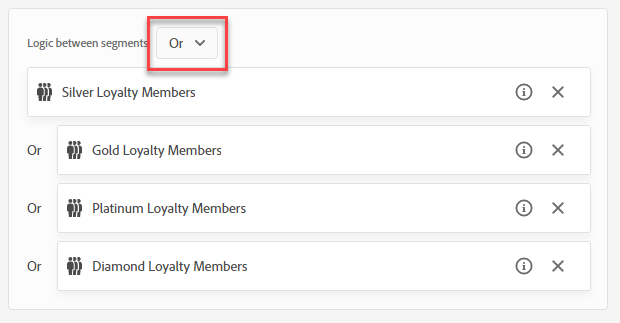
Set the Logic between segments as "Or"
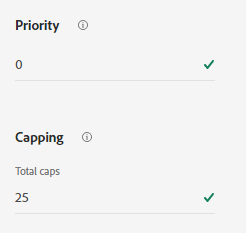
Set Priority: 0. Set Capping: 25. Click Next
Review your Offer Details. Click Finish and Save and Approve
Create a Fallback Offer
Create Offer
Click Create Offer
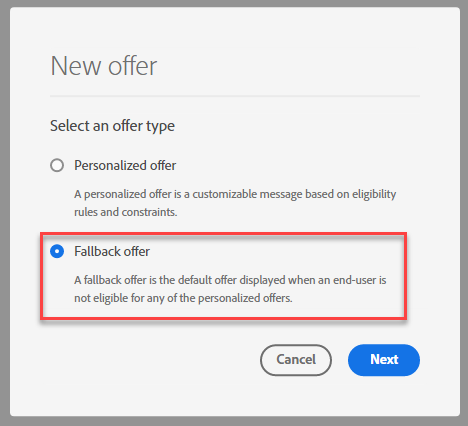
Select Fallback offer. Click Next
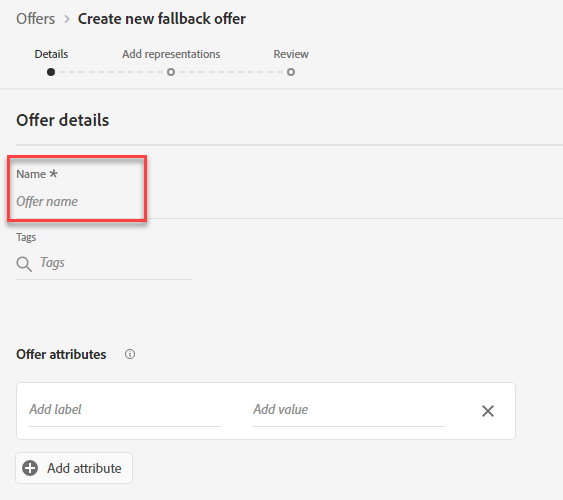
Name offer
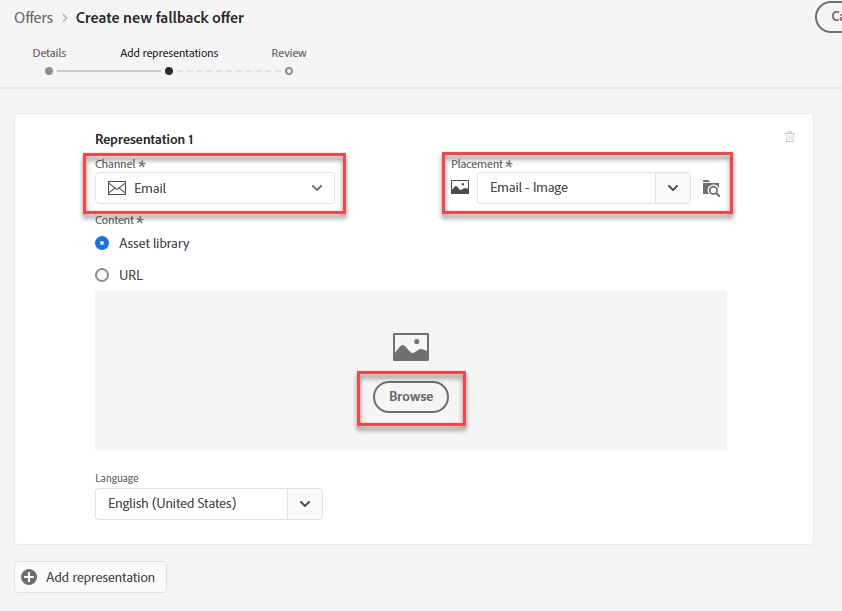
Add Representations
Select Email for Channel, and Email - Image for Placement. Click Browse
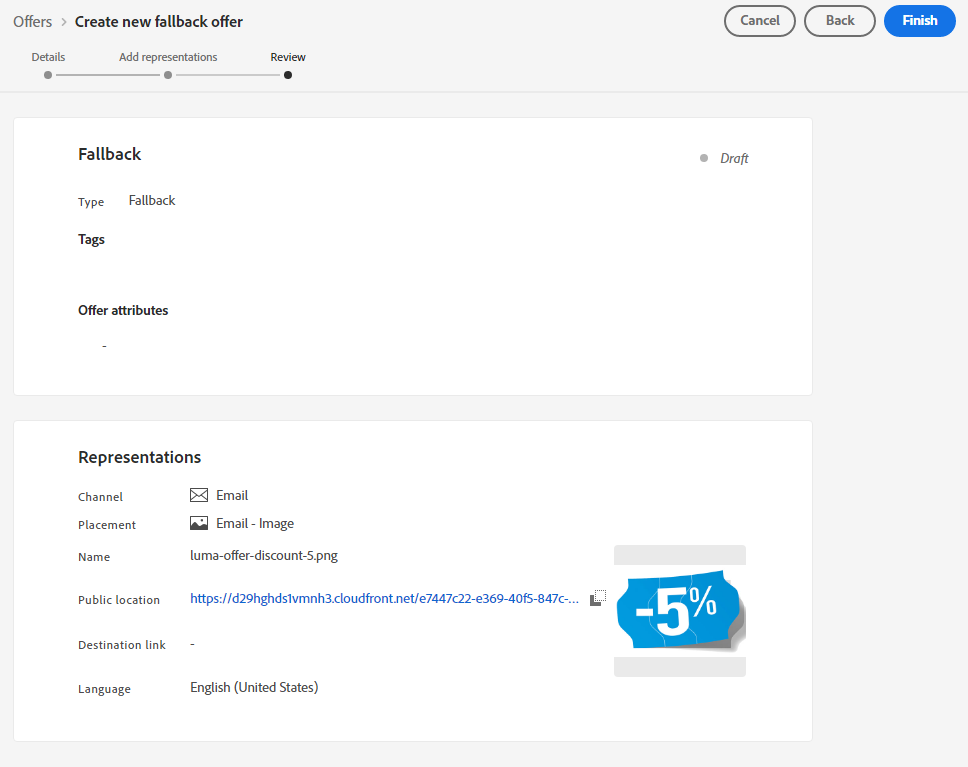
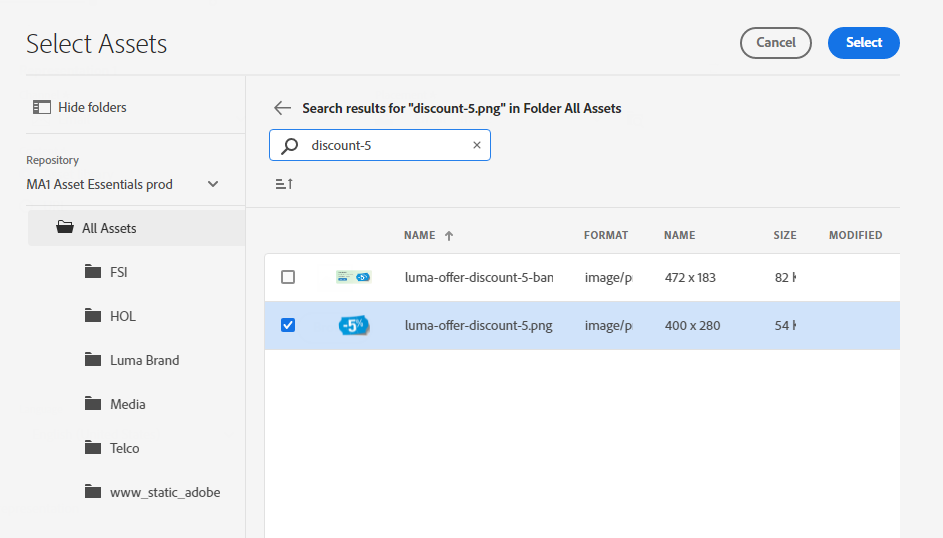
Search "discount-5", select "luma-offer-discount-5.png". Click Select
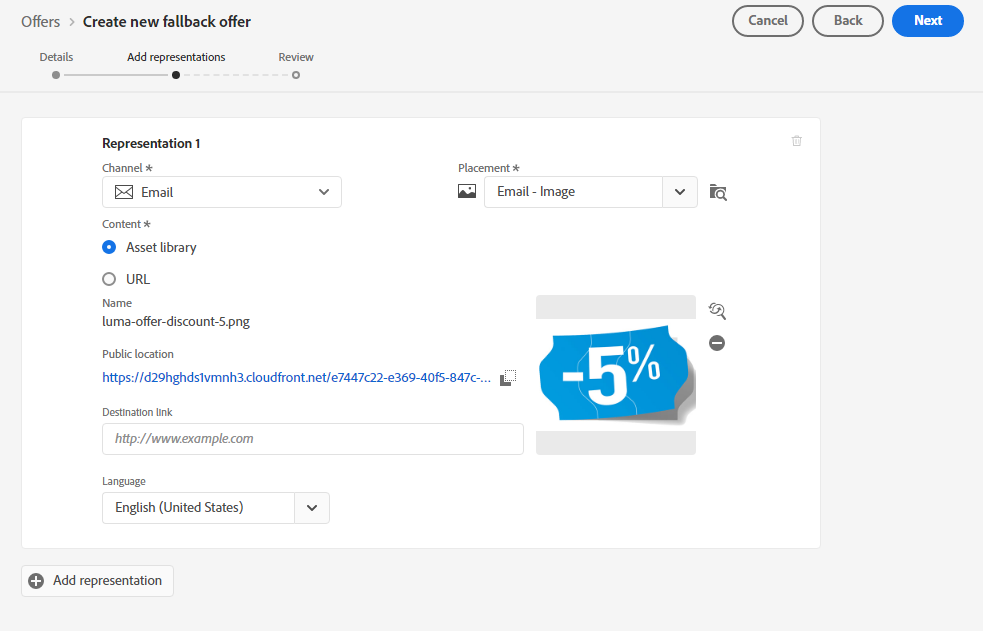
Review offer representation. Click Next
Review fallback offer. Click Finish