Lab: Segmentation
Create a real-time Edge Segment using Adobe Journey Optimizer
Segments in Adobe Journey Optimizer
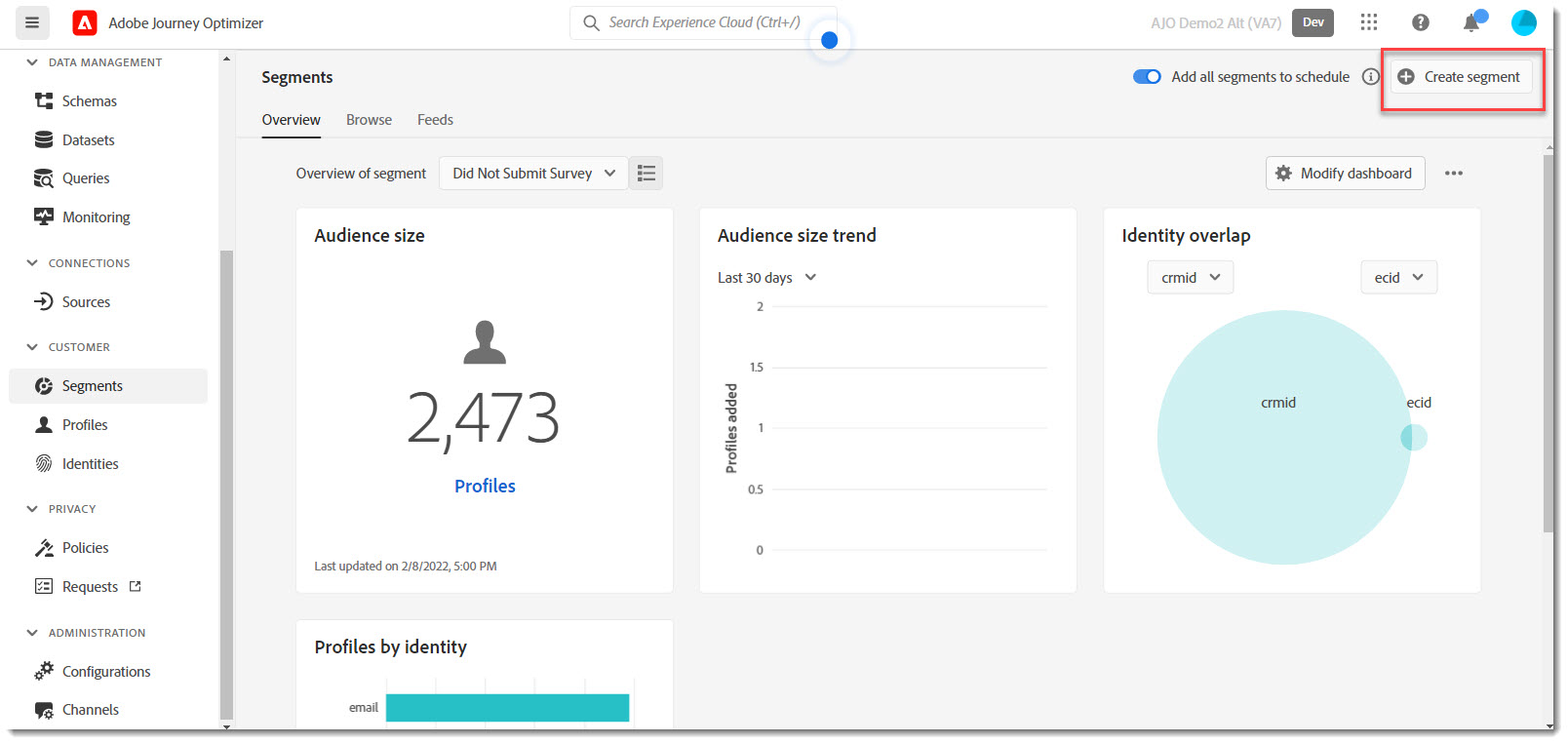
From the main menu, select Segments on the left navigation bar and choose "Create segment".
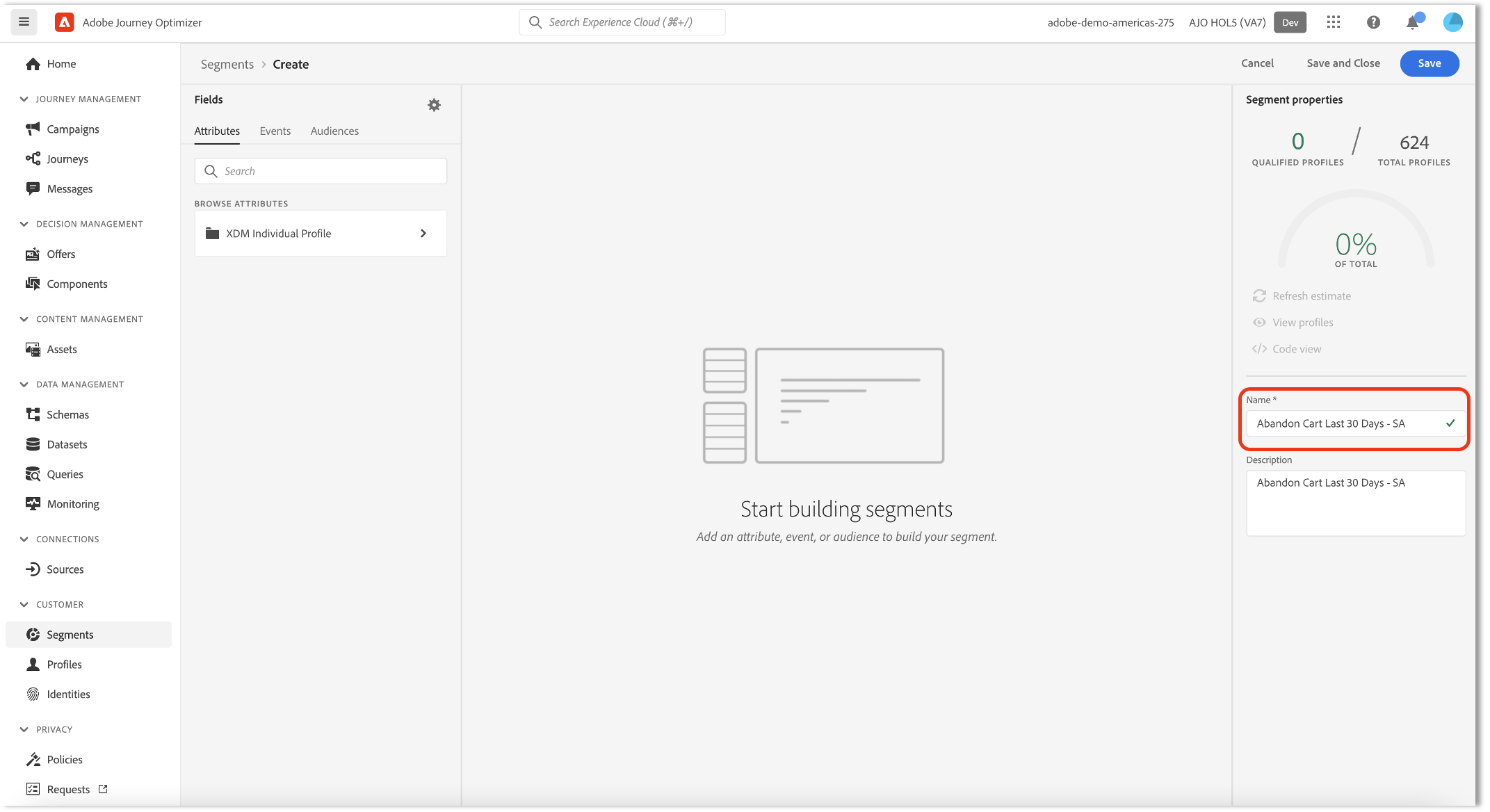
Name your Segment uniquely using the syntax
Abandon Cart Last 30 Days - <your initials>
.
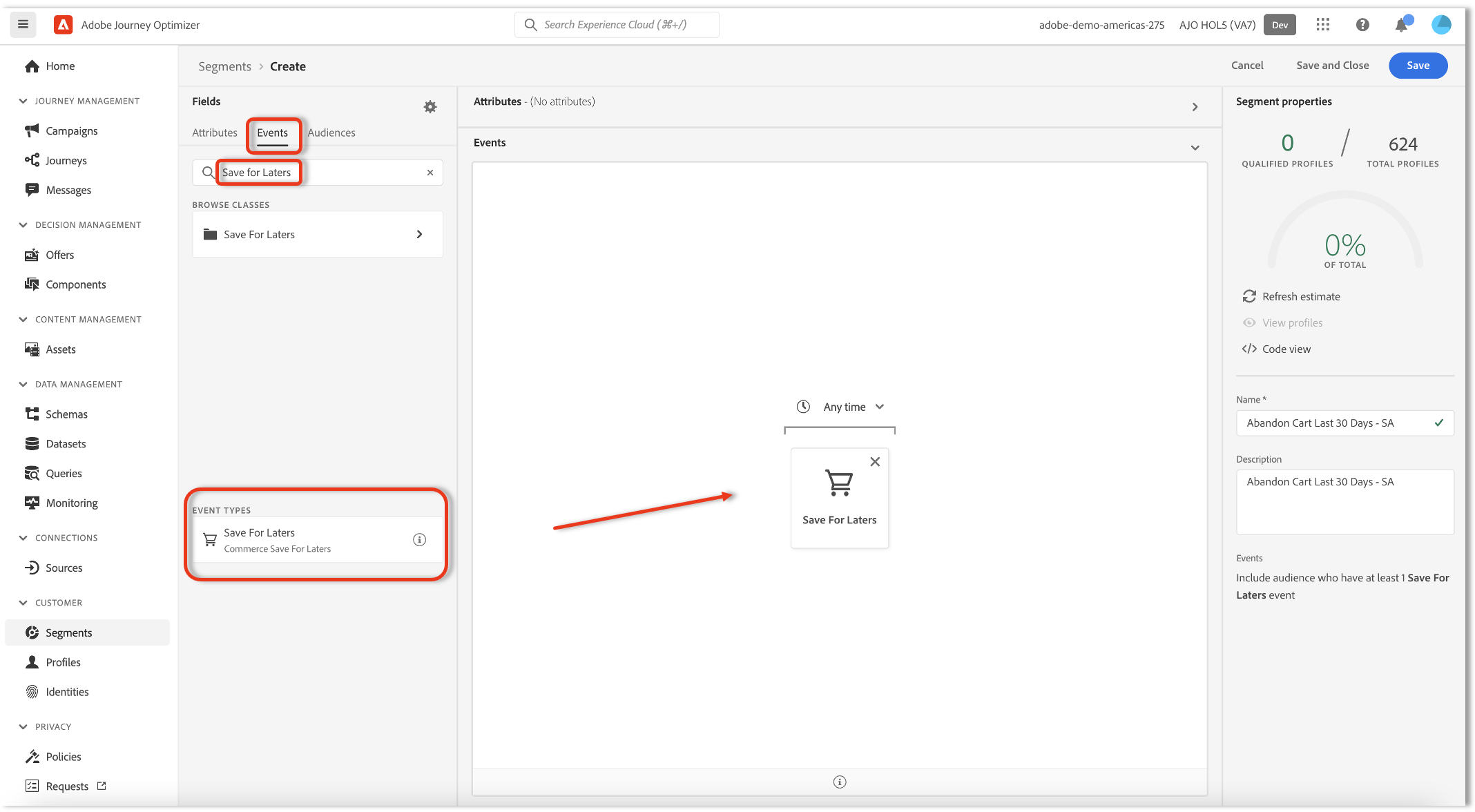
Enter in Event criteria using the editor. From the Events tab use the search feature entering "Save for Laters" as shown next to the search icon. Below, you'll see the "Save for Laters" event. Drag it onto the pallet and leave the time as "Any time".
From the Attributes tab, use the search feature by entering "email" and select the email address attribute by dragging it onto the canvas.
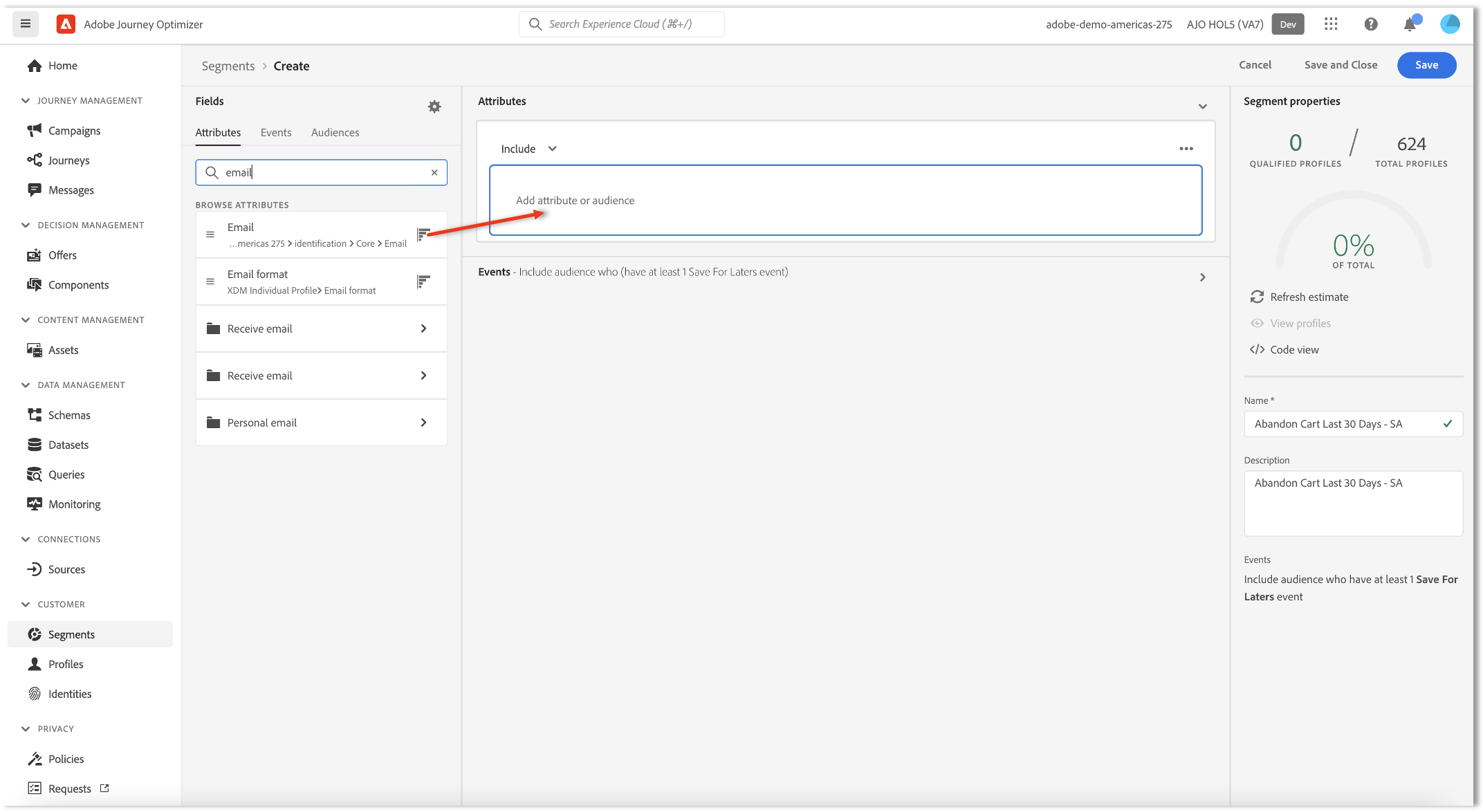
Enter your login user name as criteria for the identity email address. When you are complete your segment should appear as below. Click "Save and Close" when complete.
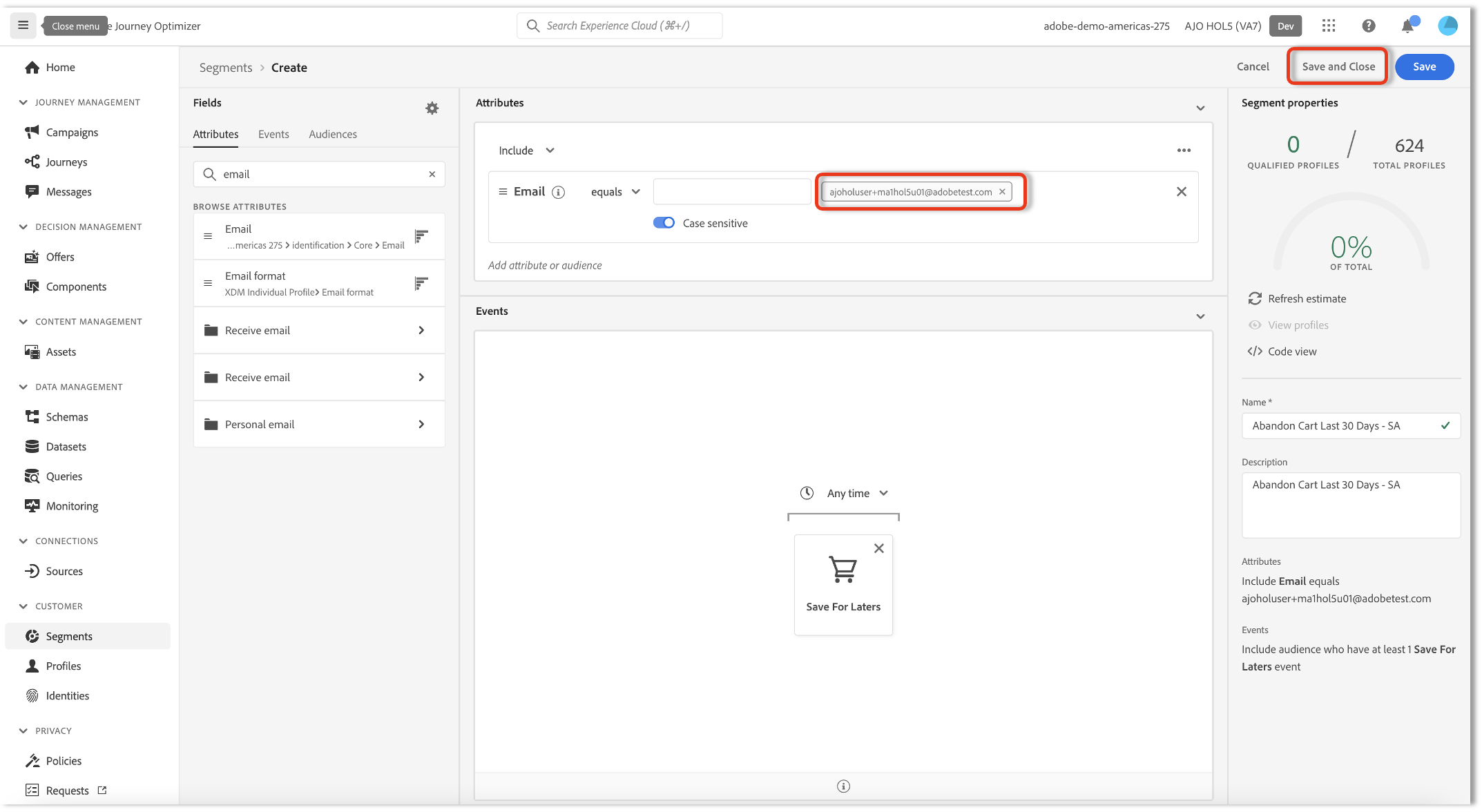
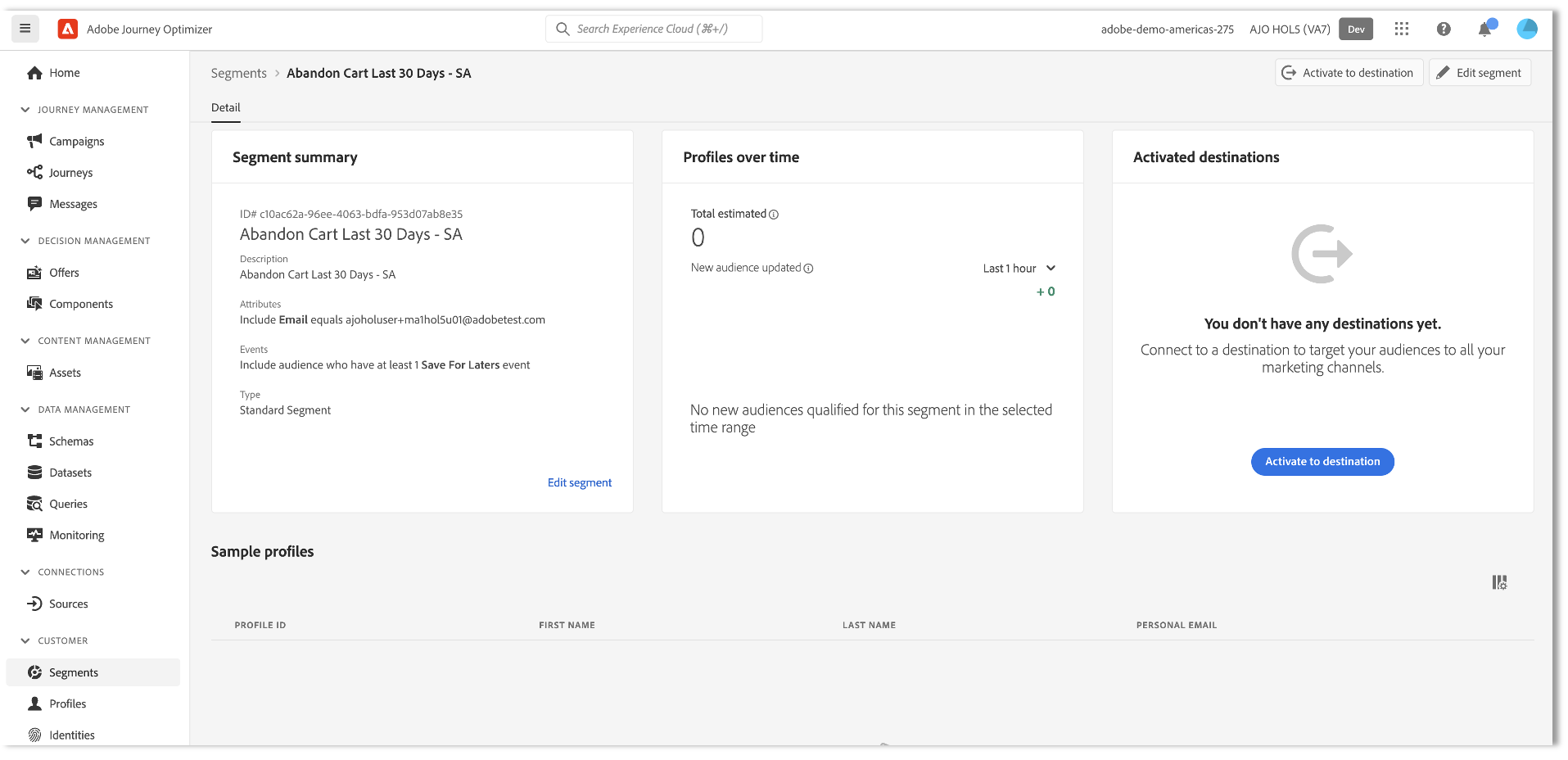
On the Summary Segment tab you can see details about your segment.