[Bonus] Create an audience with Audience Composition
Overview
With the Audience Composition capability, you can do so much more than just build audiences from rules! You have the power to combine, rank, enrich, and even split existing audiences to create new ones. For example, if you want to launch a campaign targeting Danske Bank's customers who may have had a less-than-stellar experience and are at a higher risk of churning, you can tailor it based on their loyalty tier. This is exactly where Audience Composition shines and makes a difference!
Audience definition
Danske Bank would like to target:
- clients with a low customer satisfaction score;
- that have an high churn risk (score higher than .6);
- and split them by loyalty tier:
- silver
- gold
- platinum
All the building blocks needed to create the audience are already available in AEP. There is no need to create additional elements.
Create a composition
To create an audience:
- click on Audiences, in the left rail menu;
- click on the button + Create audience, on the top right corner of the window
- select Compose audience and click on Create.
Now you can see the audience canvas: it provides a workspace to build and edit audiences, using blocks that are used to represent different actions:
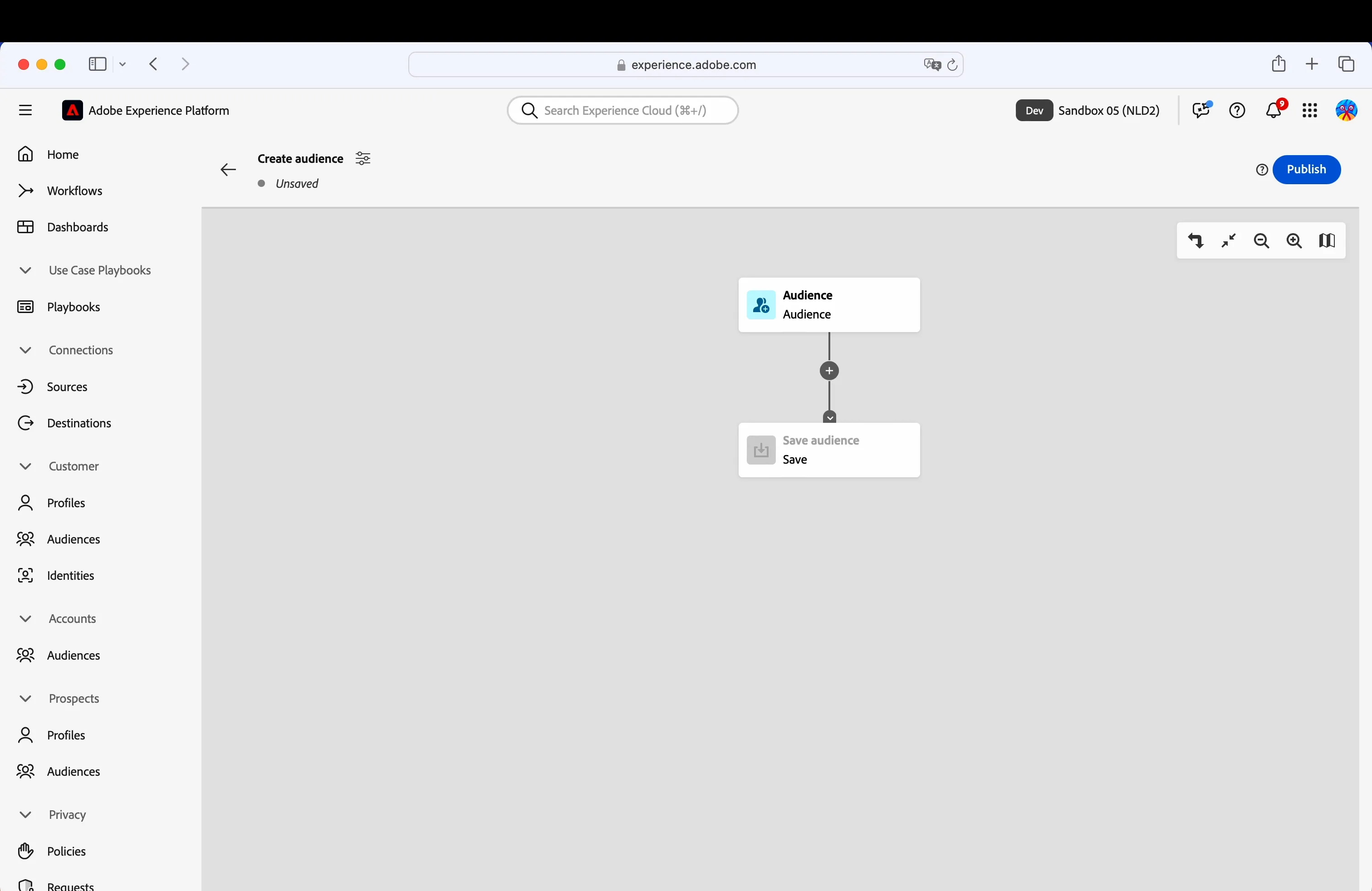
To begin our process, let us identify our primary target audiences.
- Click on the Audience box in the middle of the screen;
- click on the button + Add audience on the right rail menu that appeared;
- select 1 audience:
- [Danske Bank] Low customer satisfaction clients
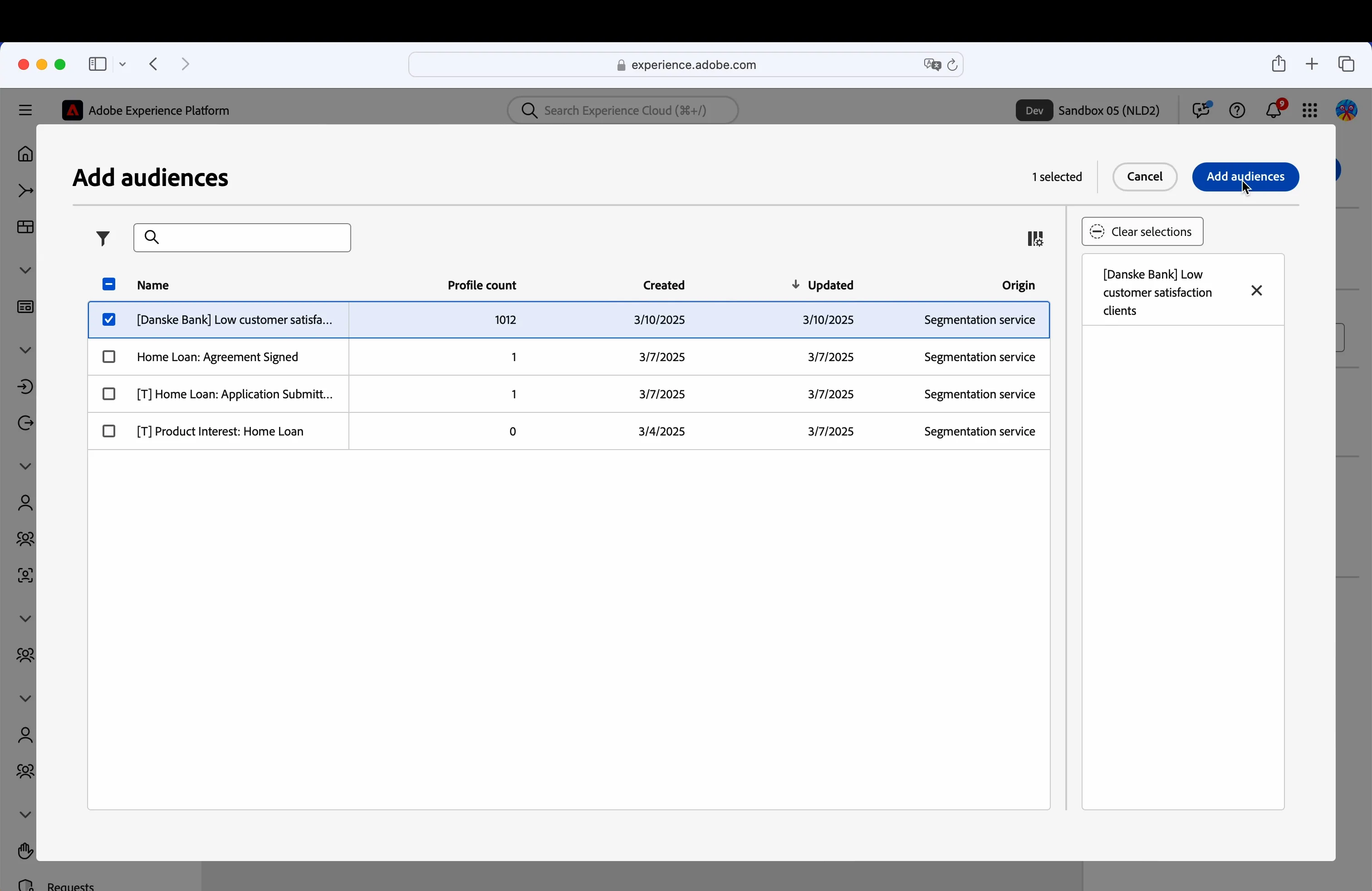
- click Add audiences;
The first step of the workflow is completed, we have included in the composition all the profiles that belongs to the audience.
Now we want to focus on the profiles that have an high churn risk, so we are going to exclude the profiles with a churn score lower that 0.6.
- Click on the + icon in the middle of the screen and select Exclude;
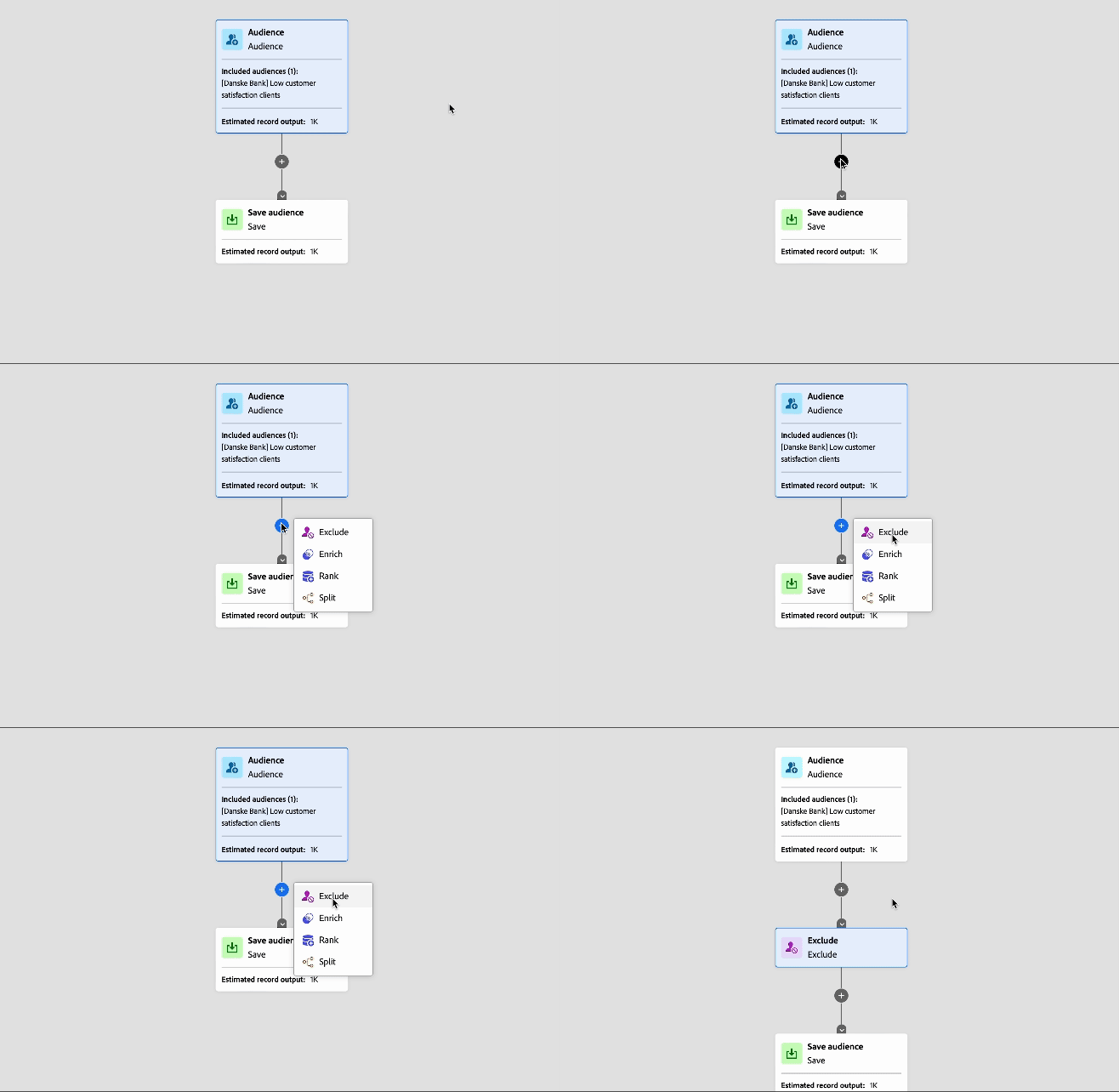
- in the right hand menu that appeared, click on the Type dropdown and select Exclude using attribute;
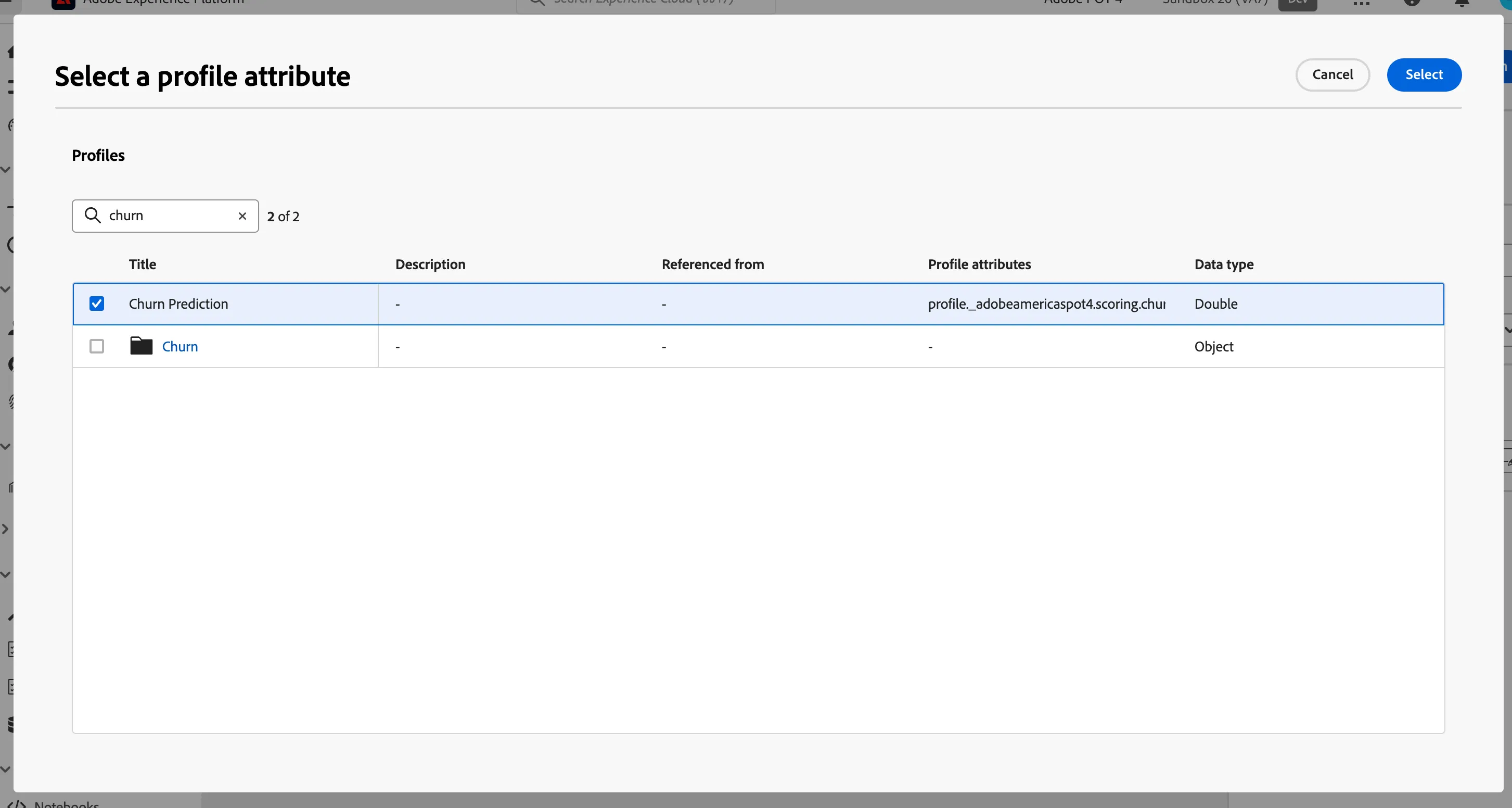
- click on the Attribute text field, in the Exclusion rule section;
- in the search field type Churn;
- select the Churn prediction attribute;
- click Select on the top right corner of the window.
- in the left hand menu, click on the Operator dropdown and select Less than;
- in the Excluded values text field type 0.6.
The canvas shoud look like this:
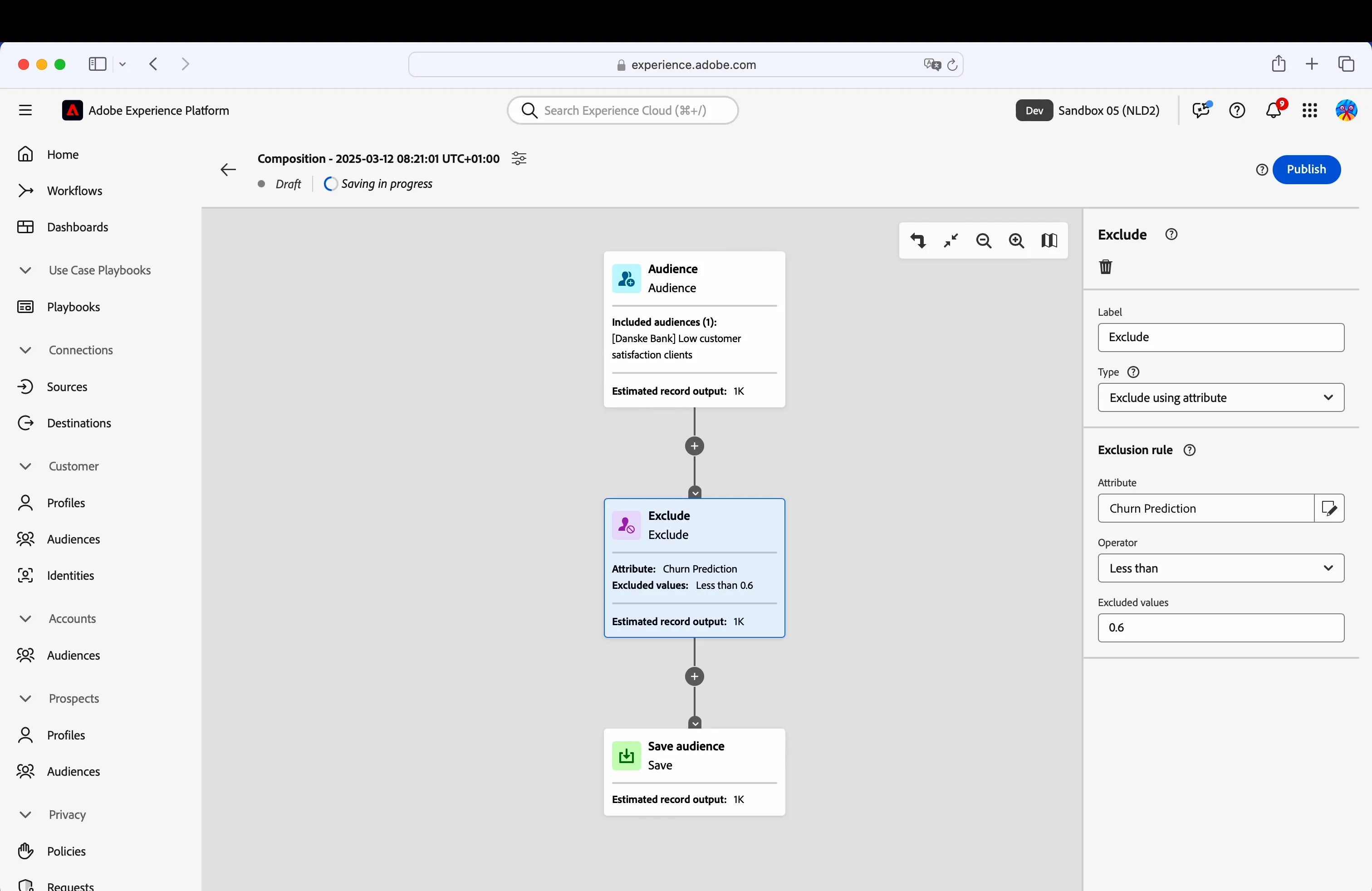
The second step of the workflow is completed, we have excluded all the profiles that have a low risk of churn.
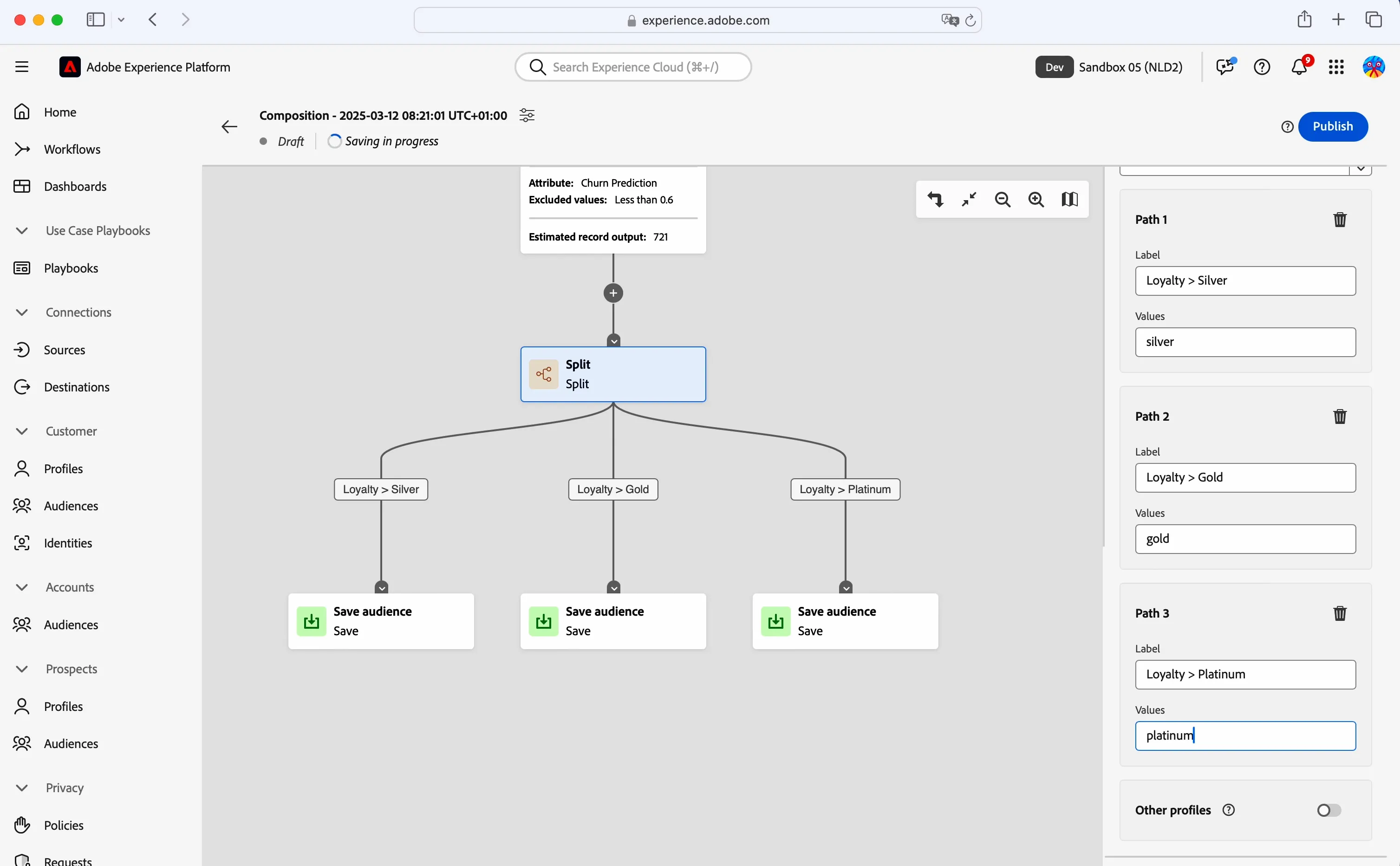
Now we want to create 3 different audiences based on the loyalty tier; for this we use the Split function.
- Click on the + icon below the Exclude box and select Split;
- in the right hand menu that appeared, click on the Type dropdown and select Attribute split;
- click on the Attribute text field;
- in the search field type tier;
- select the Tier attribute;
- click Select on the top right corner of the window.
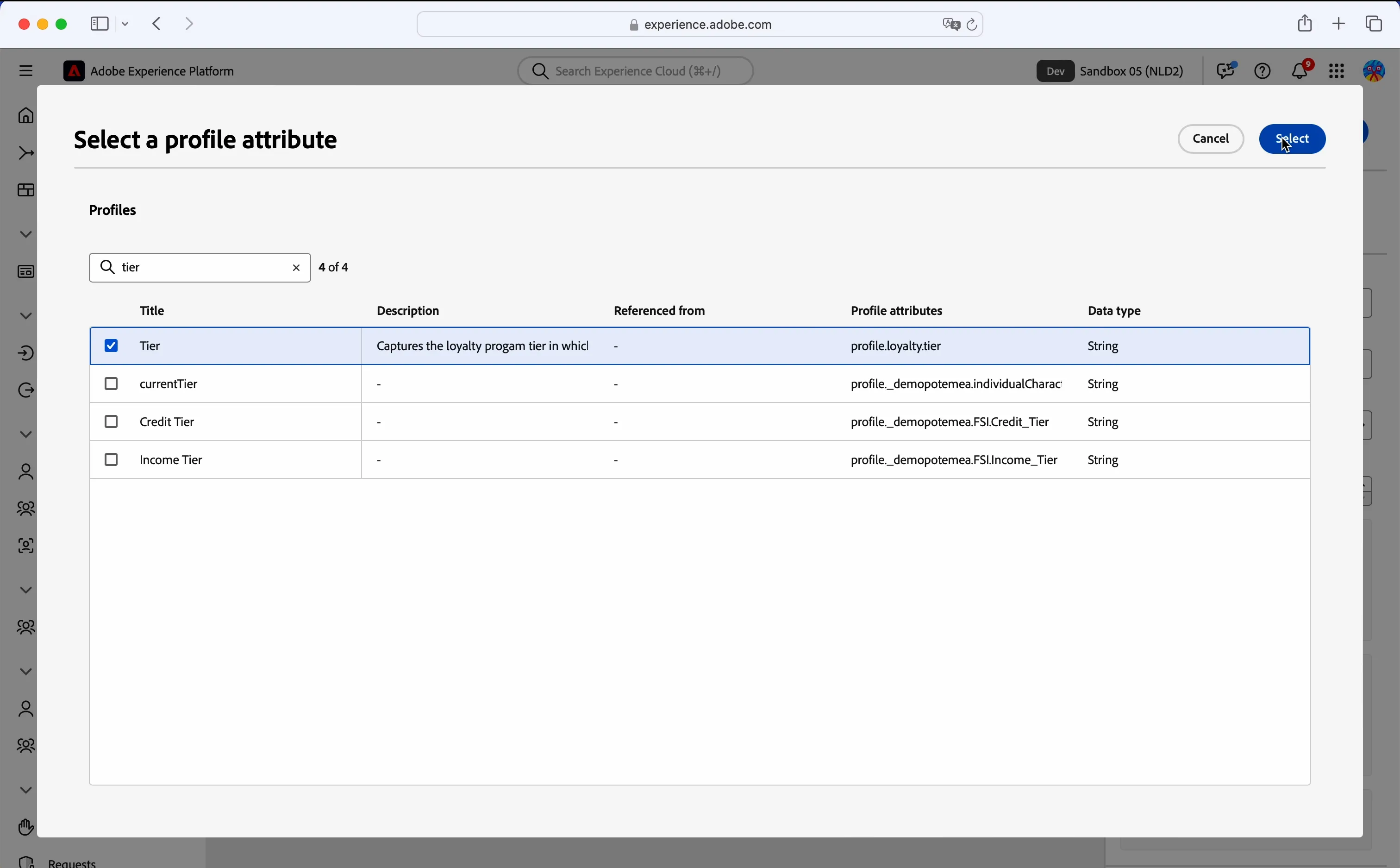
- on the right hand menu, set Number of paths to 3;
- in the Path 1 box, in the Label field type "Loyalty > Silver";
- in the Values field type "silver".
Same process for Path 2:
- in the Path 2 box, in the Label field type "Loyalty > Gold";
- in the Values field type "gold".
One more time:
- in the Path 3 box, in the Label field type "Loyalty > Platinum";
- in the Values field type "platinum".
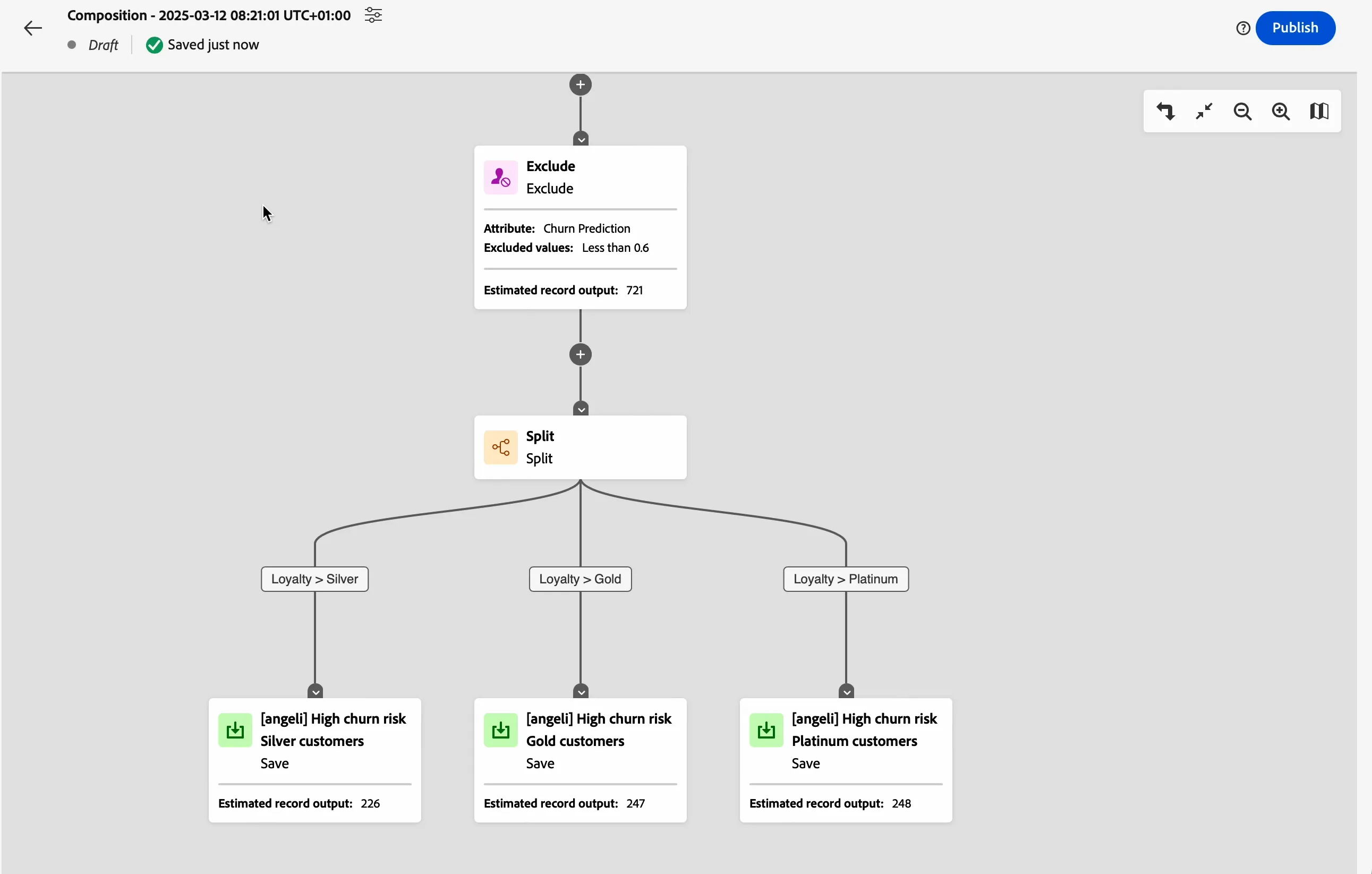
As a final step, we need to save the audiences:
- click on the Save audience box in the "Loyalty > Silver" branch;
- in the Save name field type [your name] High churn risk Silver customers
- e.g. [angeli]High churn risk Silver customers
- in the Description field type something more descriptive like: "Silver Loyalty customers with a low customerSatisfaction score and high churn risk.";
Descriptions are essential as they assist users in comprehending the underlying logic of the composition, even without the necessity of grasping all the technical details.
Repeat the same steps for the other branches:
- click on the Save audience box in the "Loyalty > Gold" branch;
- in the Save name field type [your name] High churn risk Gold customers
- e.g. [angeli]High churn risk Gold customers
- in the Description field type something more descriptive like: "Gold Loyalty customers with a low customerSatisfaction score and high churn risk.".
One more time:
- click on the Save audience box in the "Loyalty > Platinum" branch;
- in the Save name field type [your name] High churn risk Platinum customers
- e.g. [angeli]High churn risk Platinum customers
- in the Description field type something more descriptive like: "Platinum Loyalty customers with a low customerSatisfaction score and high churn risk.".
The canvas should look like this:
Save and publish the composition
The composition is automatically saved every time you make a change, with a standard name like "Composition - [timestamp]"
Let's change the name of the composition:
- click on the icon beside the title on the top left corner of the canvas
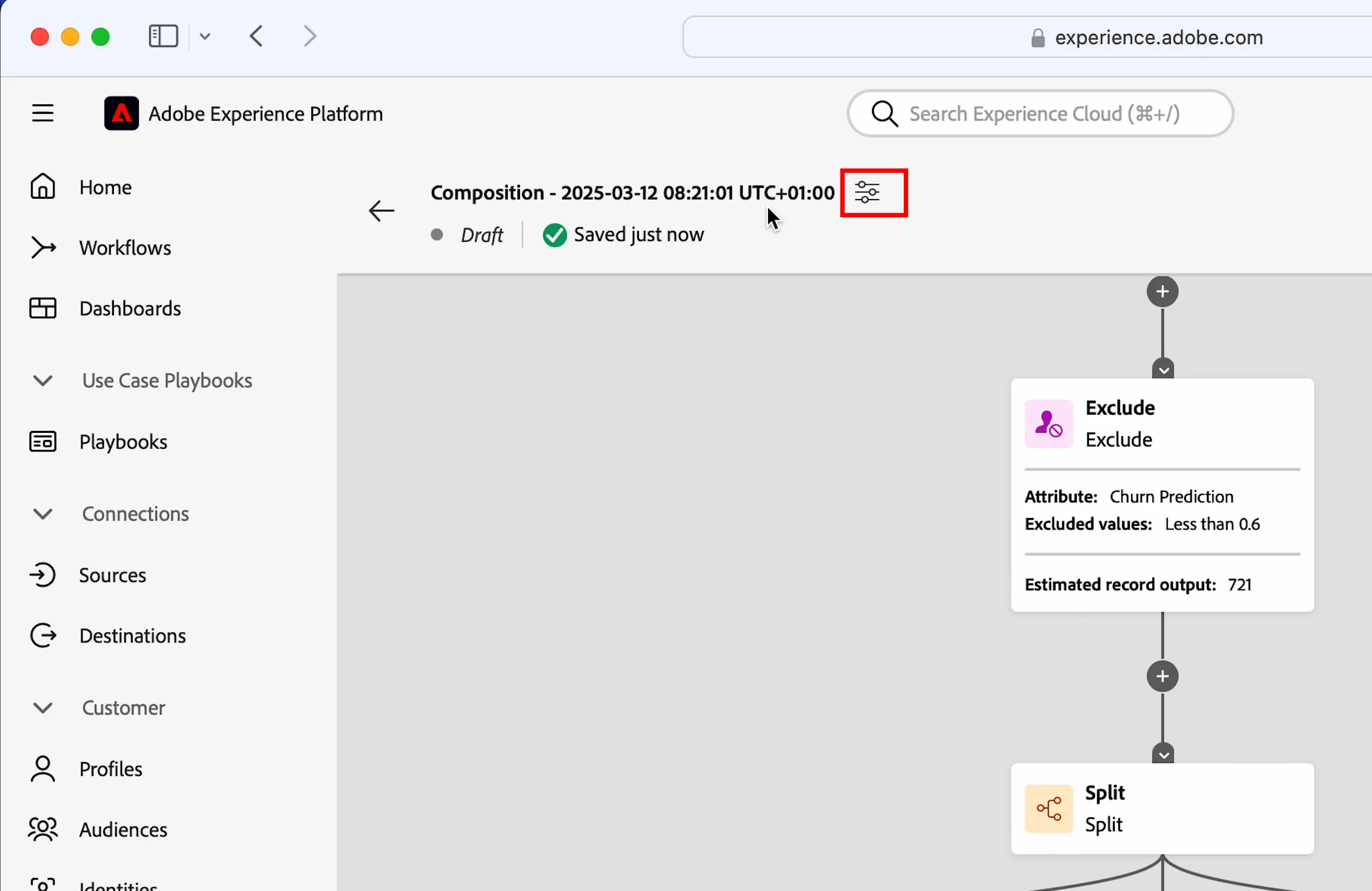
- in the Title field type something like [your name] - High churn risk customers
- e.g. [angeli] - High churn risk customers
- click Save.
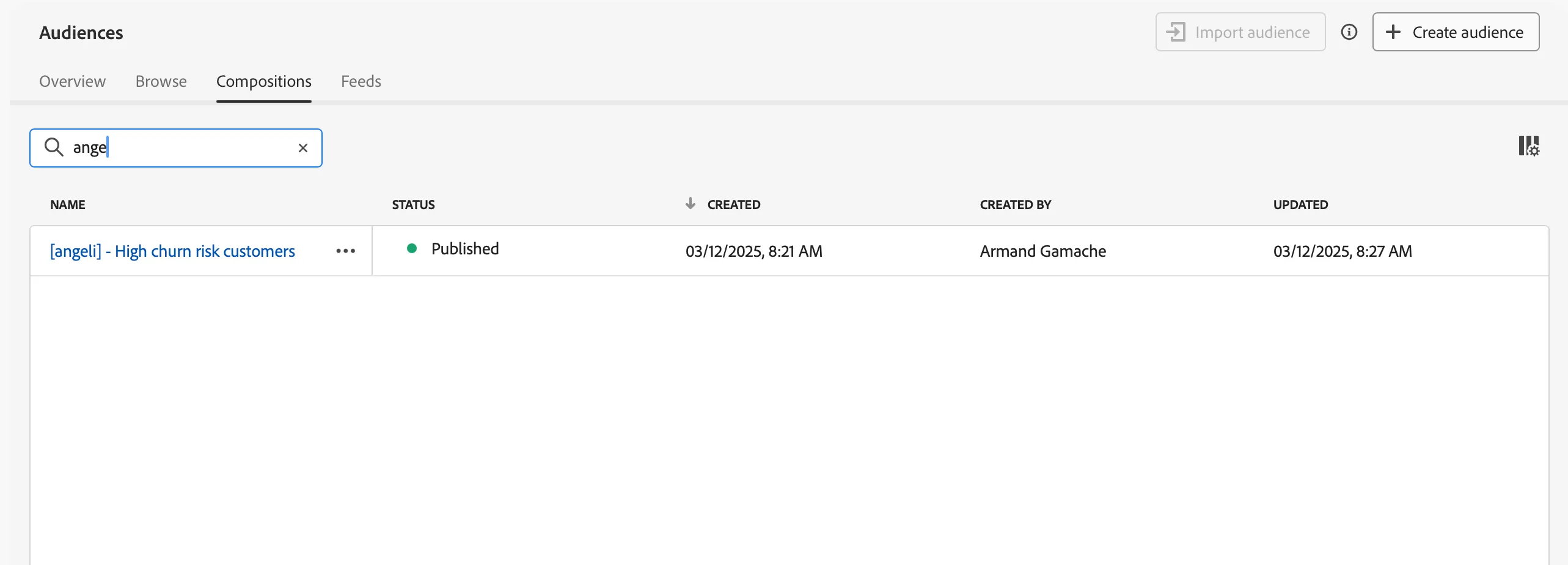
This is the name you'll see in the Compositions list.
Currently, the composition is inactive as it is still in draft status.
To check out the audiences we've generated, we just need to publish the composition:
- click on the Publish button on the top right corner of the page.
Now the composition is published. If you click on the arrow icon beside the composition title, you land on the composition list and you see the Published label in the status column.
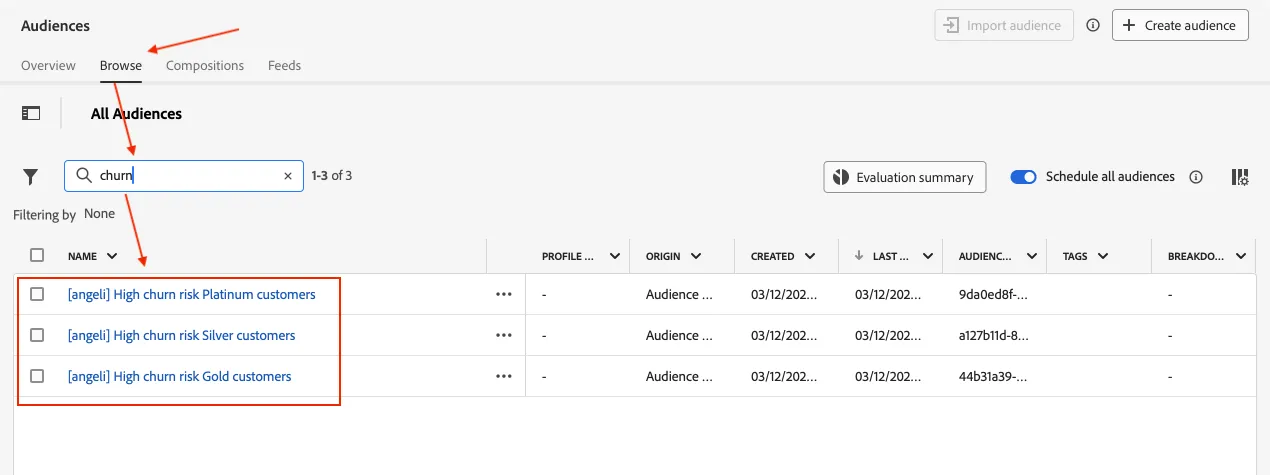
The output of the composition are 3 audiences. Click Browse tab to see the list of audiences. In the search box type "churn" and you can see 3 new audiences where the origin is "Audience Composition".
Now you can activate the audiences to the destinations to personalise the customer experience.