Create an Audience for Acquisition
In this exercise, you’ll create an Audience by making use of Adobe Experience Platform’s Audience Builder.
Audience Overview
To log into the Adobe Experience Platform, check the Welcome! section.
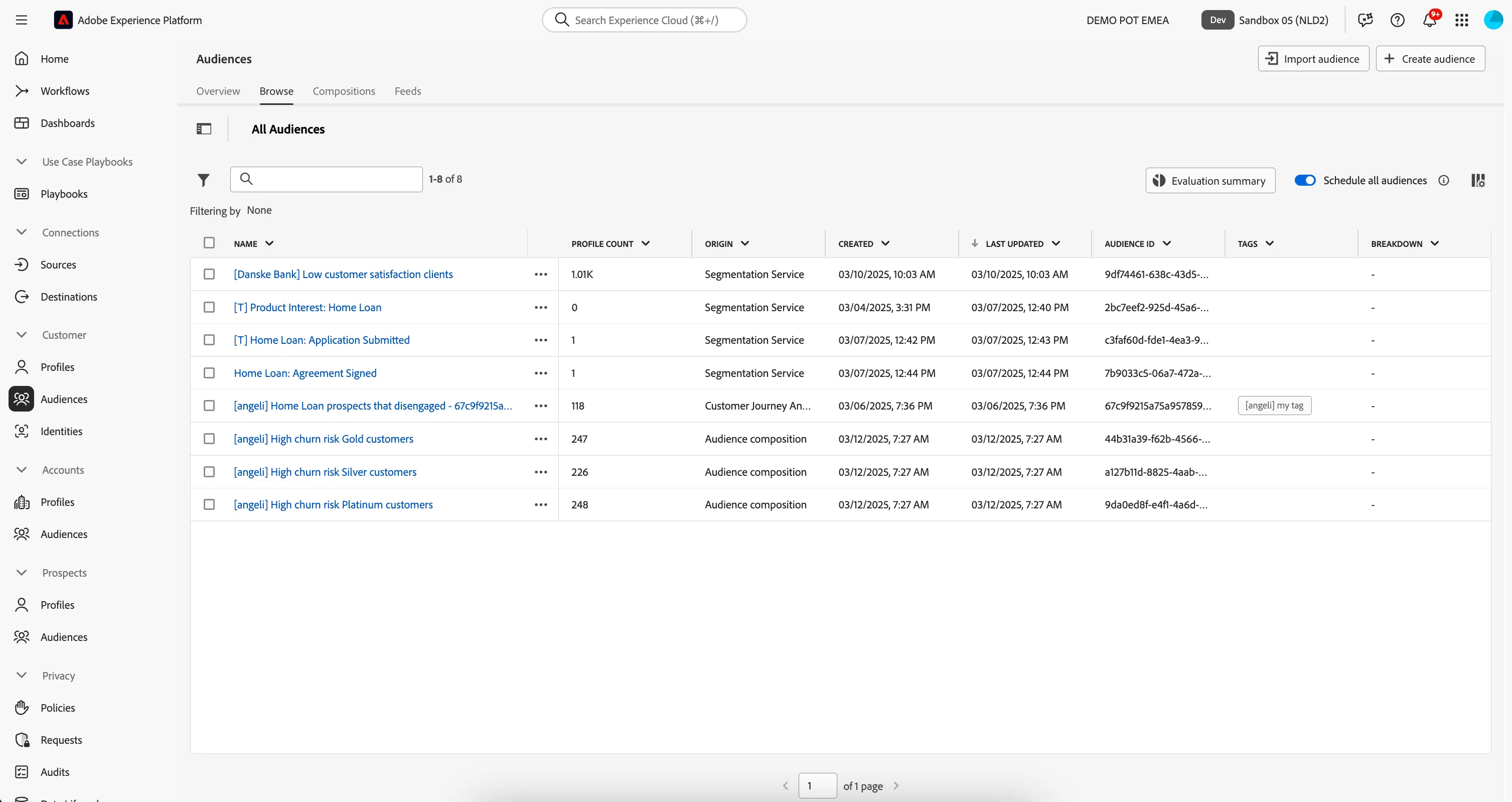
To get an overview of available audiences in Adobe Experience Platform:
- In the menu on the left side, click on Audiences. You will see a dashboard overview with information on a specific audience.
- Click on Browse at the tab bar. You will see an overview of all existing Audiences.
Create an Audience for first-time buyers interested in home loans
We want to create a rule that will select all customer profiles that have viewed the Home Loan product page on the Website. We also want to ensure we exclude the customer profiles that already have a Home Loan.
We consider these customers to be potential buyers and want to personalise content to them across channels.
- Click on + Create Audience. This will open the Create Audience popup.
- Select Build Rule as the create method. This will open the Rule Builder. You will immediately notice the Attributes tab selected underneath Fields. As well as the XDM Individual Profile selector under BROWSE ATTRIBUTES.
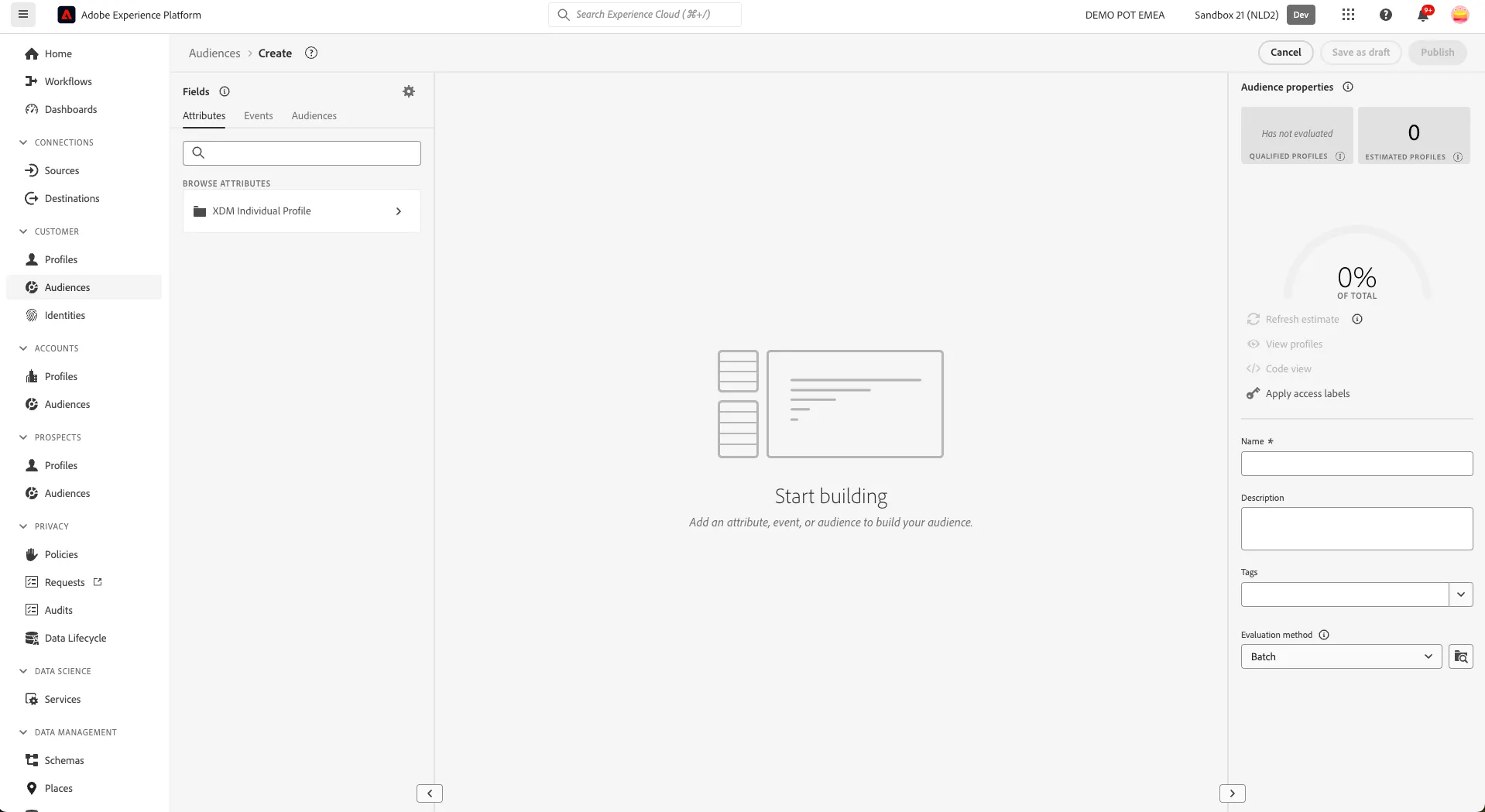
Since XDM is the language that powers the experience business, XDM is also the foundation for the audience builder. All data that is ingested in AEP should be mapped against XDM, and as such, all data becomes part of the same data model regardless of where that data comes from. This gives you a big advantage when building audiences, as from this one audience builder UI, you can combine data from any origin in the same workflow.
Audiences can be sent to Destinations like Meta, Google, AWS, or any of the Adobe solutions for activation.
Let's build an audience for our First-time buyers:
- Select the Events tab in the Fields section.
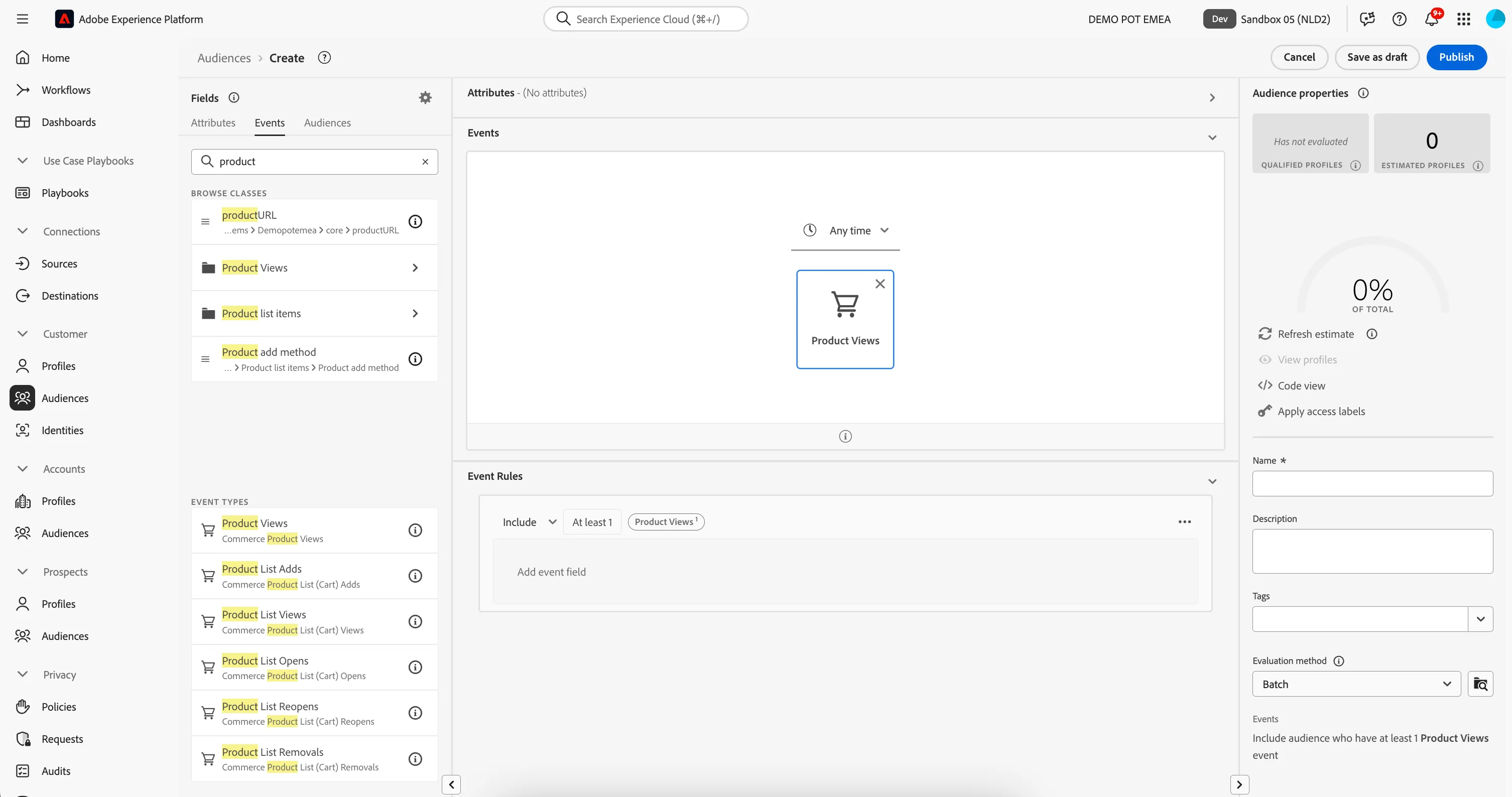
- In the text search field, type product. You will see a Product View event listed under Event Types.
- Drag the Product View event type onto the canvas where it says Start building.
- Click on the Product View event box to open the Event Rule.
Your screen should look like:
At each step in defining your audience, you can get an estimate of the audience's population:
- Click on Refresh Estimates, on the right-hand panel
You will then see an estimation of your current audience size. This is very helpful for a business user, so that they can see the impact of certain attributes on the resulting audience size.
IMPORTANT: the sandbox you're using for the exercise have been reset before the workshop, so Refresh Estimate will likely return 0.
For more details on how estimate works, see the documentation.
So far, you’ve only used the UI to build your audience, but there’s also a code-option to build a audience.
When building an audience, you’re actually composing a Profile Query Language (PQL) query. To visualise the PQL code,
- Click on the Code View switcher in the upper right corner of the Audience builder.
- Click on Segment Builder view to return back to the UI.
So far your audience will select all customer profiles who have viewed at least one product at any time. Now we will restrict this further to target the profiles who have viewed the home loan product page spcifically, in the last week.
- Select the Events tab in the Fields section.
- In the text search field, type product. You will see a Product list items folder listed under Browse Classes.
- Expand the Product List Items folder, you will see a product Name field.
- Drag the Name field into the Event Rules, where it says Add Event Field.
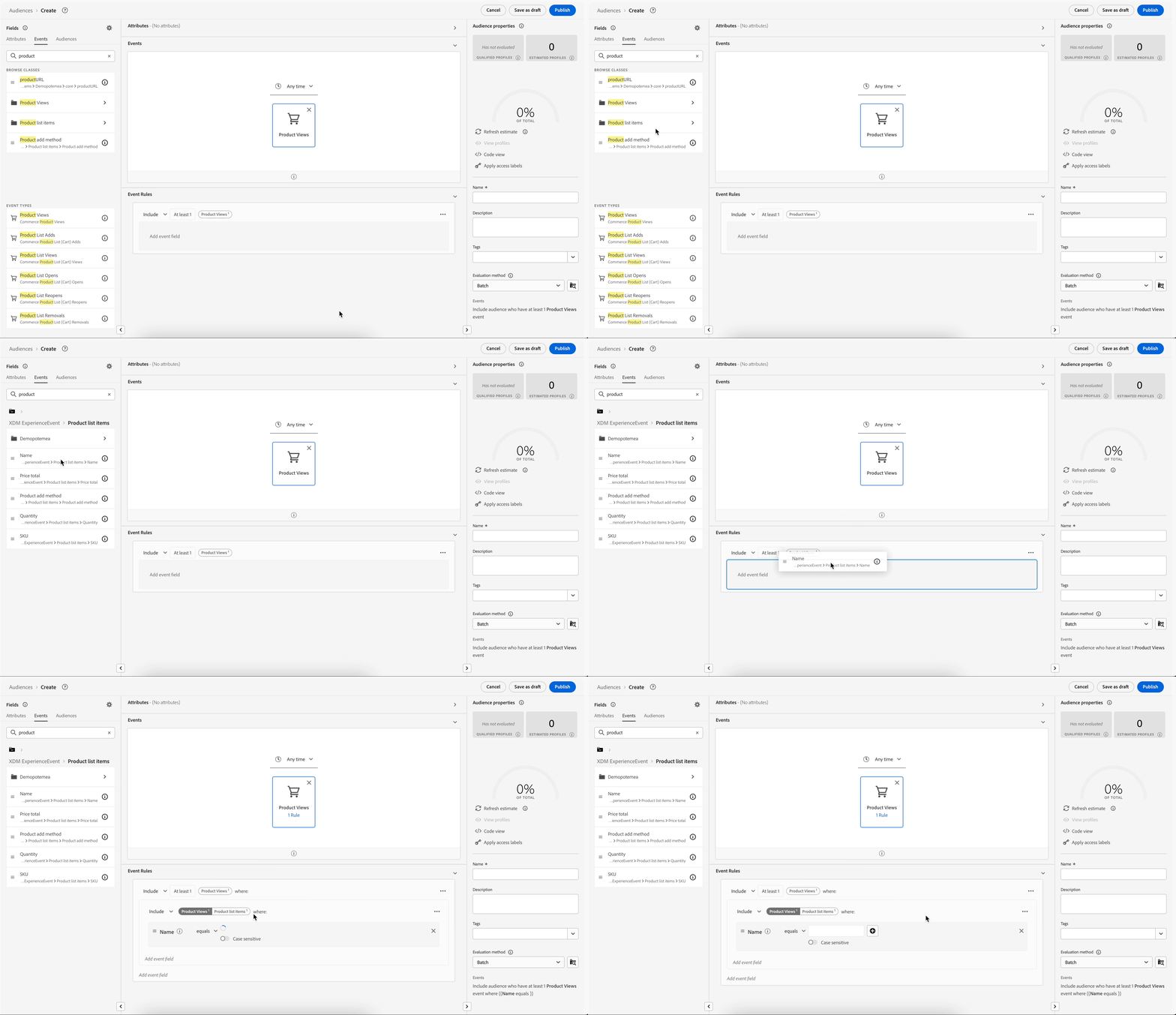
- In the Event Rule, in the Name condition, type home loan into the text field.
- We also want to specify the time period in which the home loan product view must occur in order to be considered a potential buyer. In the Events panel, change the Any time drop down to In last 1 Week(s)
Your Audience rule should now look like:
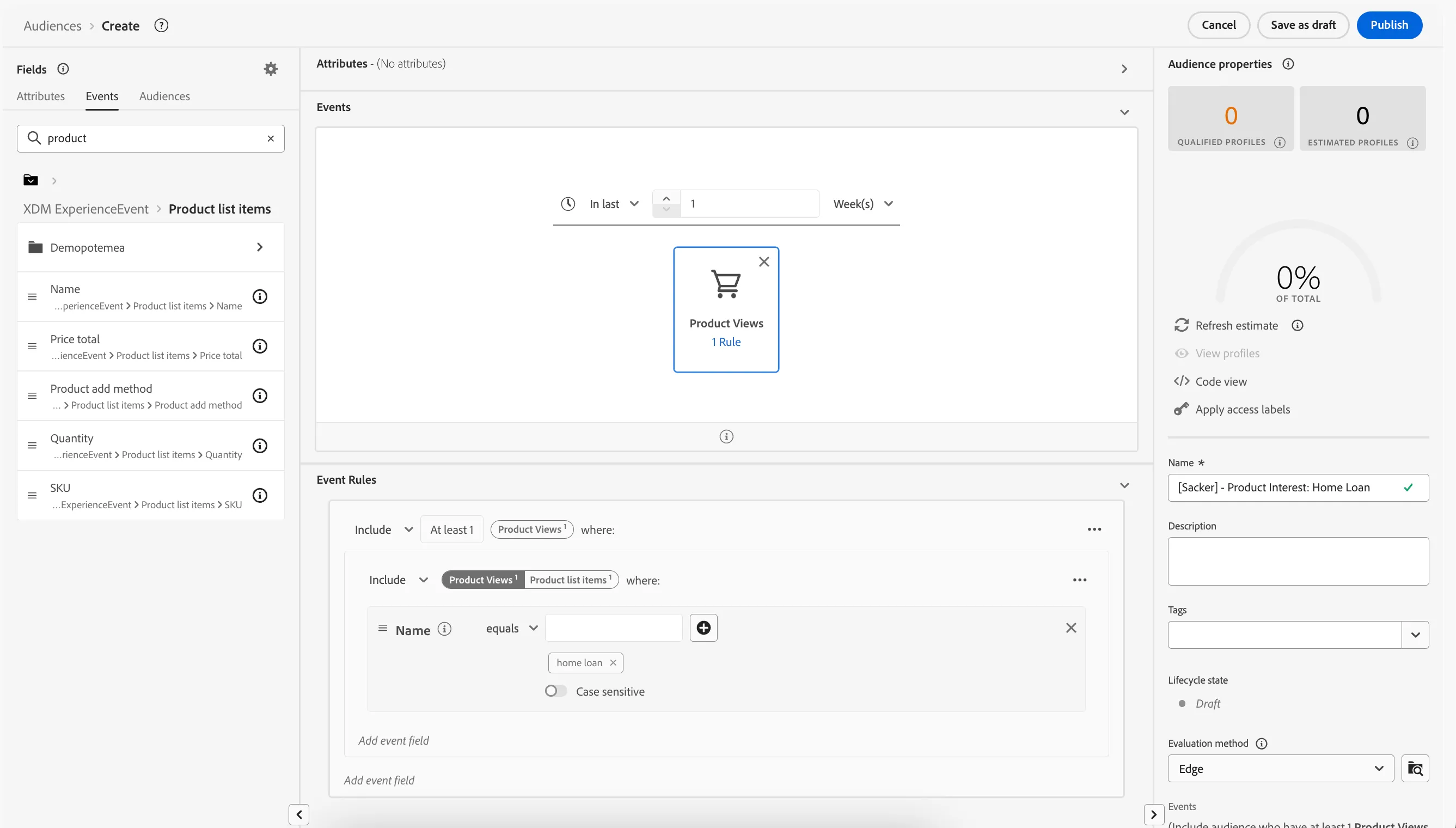
So far your audience will select all customer profiles who have viewed a home loan product in the last week. Now we will restrict this further to exclude the customer profiles that already have a Home Loan.
- Select the Attributes tab in the Fields section.
- In the text search field, type mortgage. You will see a mortgageHolder attribute listed under Browse Attributes.
- Drag the mortgageHolder attribute onto the canvas into the Attributes rule.
- Change the drop down value to equals false
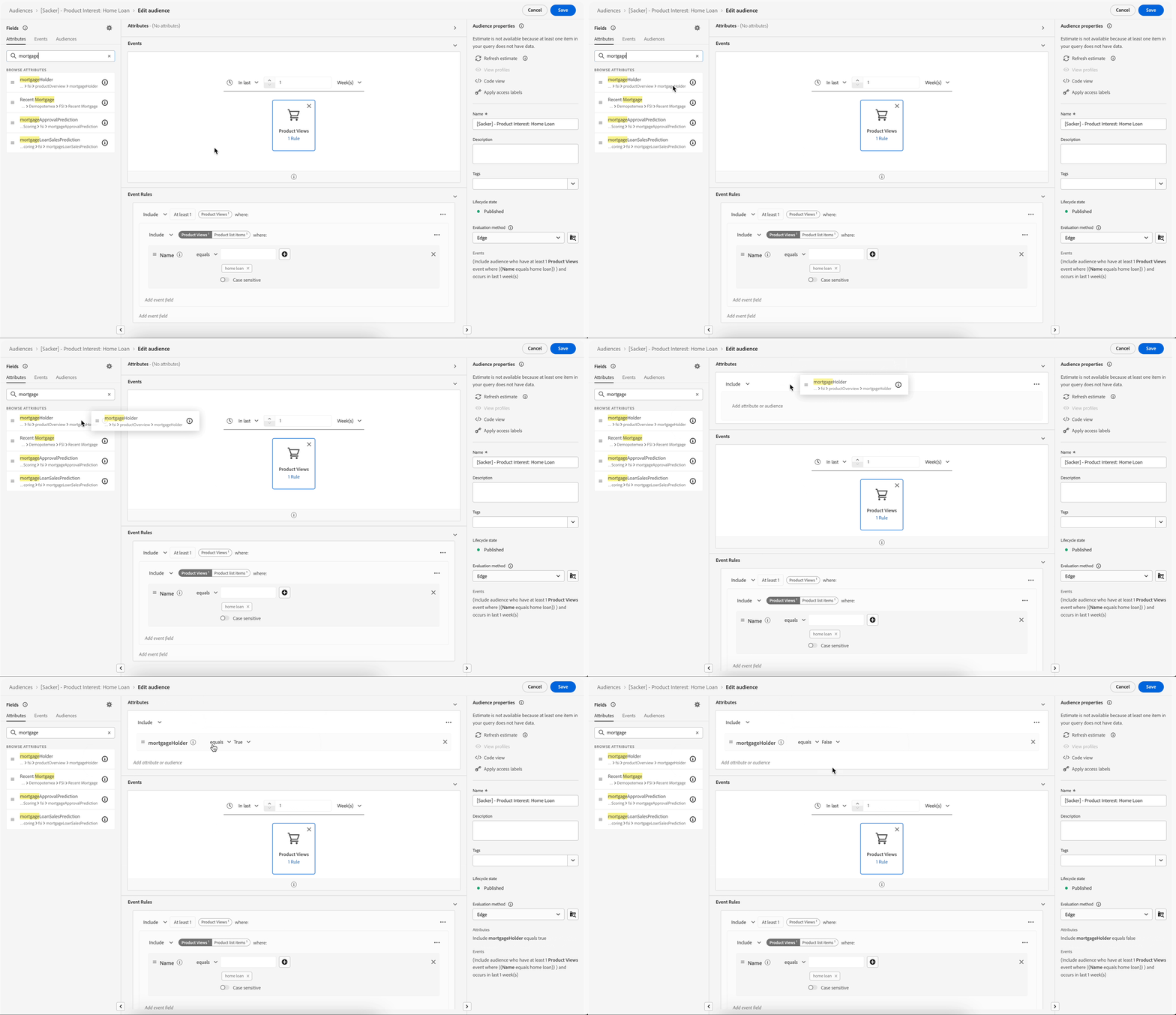
Your final rule should look like:
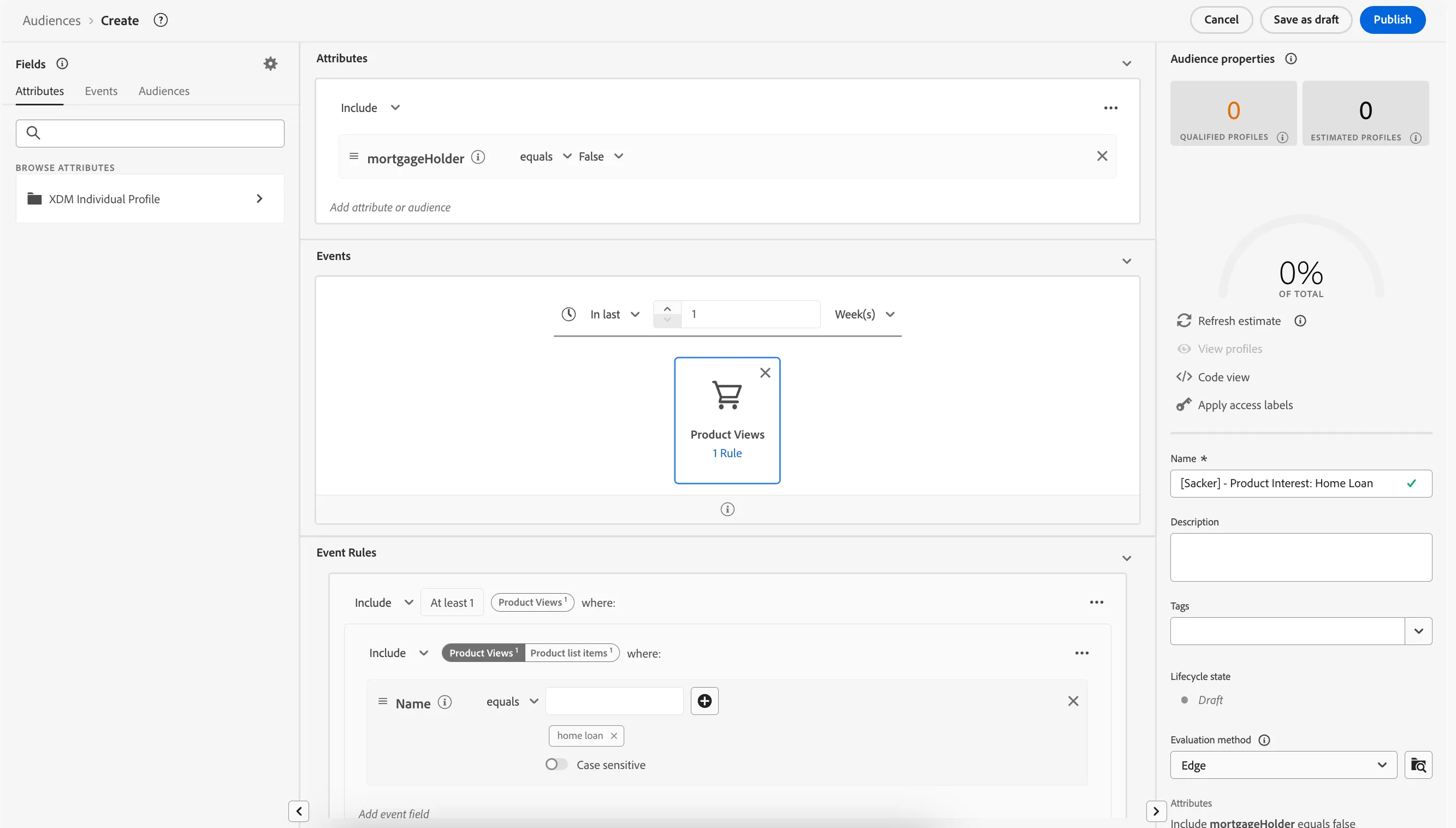
Let's publish our audience.
- Enter a Name for your audience using the following naming convention, e.g. [your name] - Product Interest: Home Loan.
- (optional) Enter a Description.
- Select Edge* from the Evaluation method dropdown list. You can read more about evaluation methods here.
- Click on Publish.
You will be taken to the Audience summary screen, outlining your audience definition.
You have now successfully created an audience using the Adobe Experience Platform Audience Builder.