Creating the journey
In this exercise, you'll be creating and testing a journey using all the components you've created in the previous exercises.
Journey overview
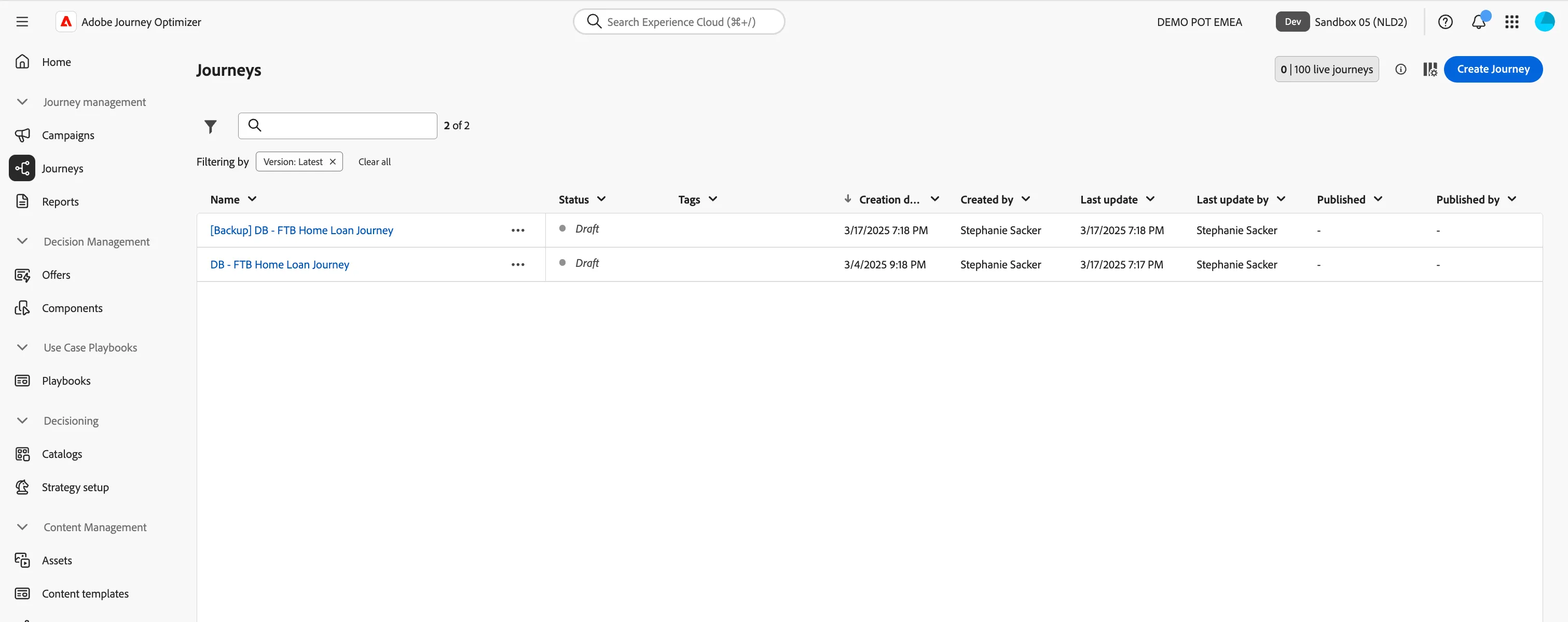
To get an overview of all journeys in Adobe Journey Optimizer:
- In the menu on the left side, under Journey Management, click on Journeys. You will see a overview with all existing journeys.
Creating a journey
We'll be creating a journey that will send an onboarding email to potential home loan customers when they submit an initial application, asking them to sign their documents. We will contact them on their preferred channel. We will follow up with an outbound call if after 7 days they still haven't signed.
Click on Create Journey. You'll be taken to the Journey canvas with the journey properties opened.
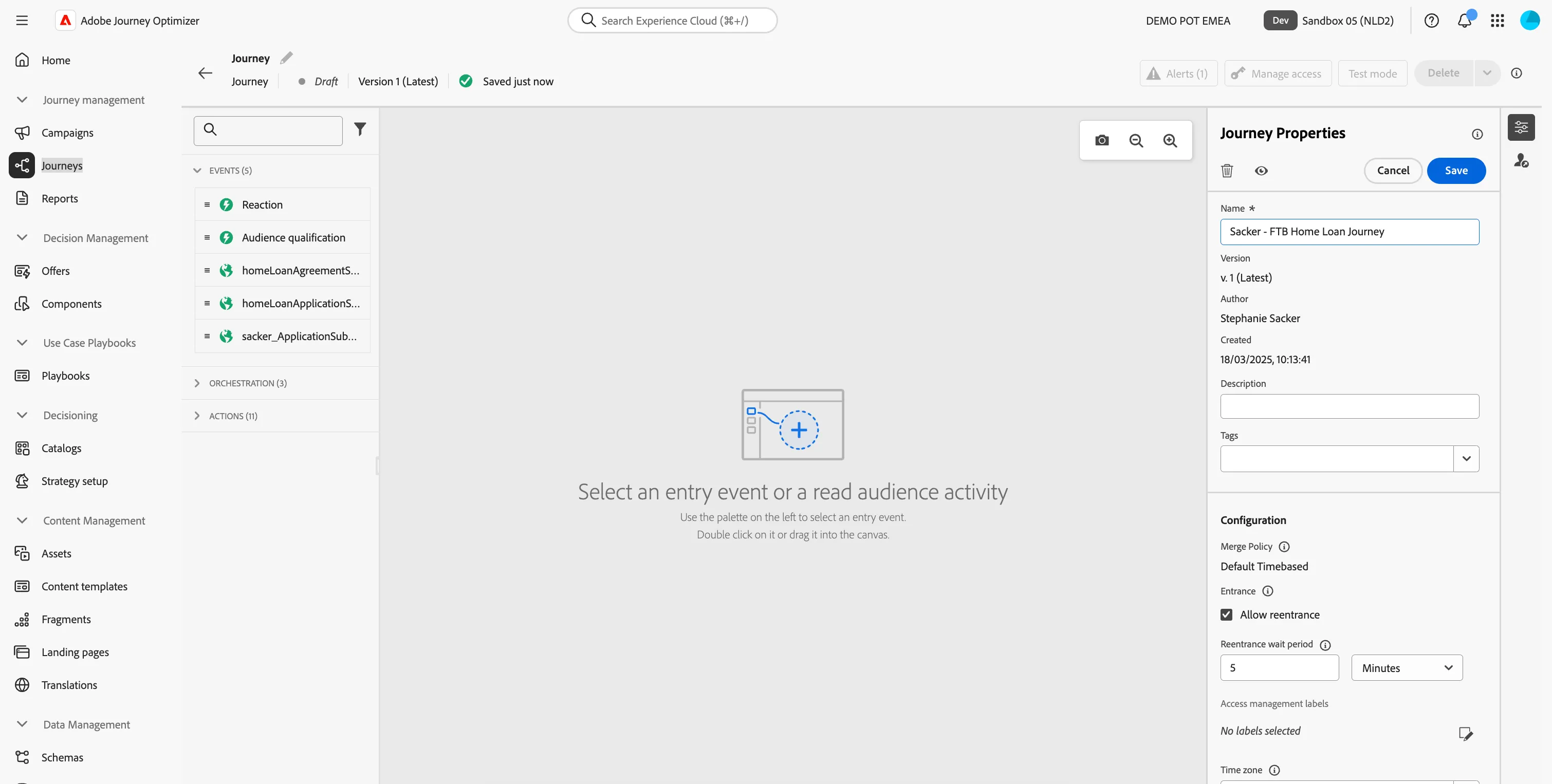
- Set the name to [your name] - FTB Home Loan Journey.
- For the other properties we'll keep the default values.
- Your screen should look like the image below. Click Save to save and close the properties.
You're now in the journey canvas. This is where you'll be creating your journey's logic. In the left menu you have activities. There's three types of activities:
Events are the triggers that can start or continue your journey.
Orchestration is the logic of your journey. It looks at conditions, audiences, but can also be used to make your workflow wait or end.
Actions are the results of your journey. This can be messages, profiles updates or API calls.
Event trigger - Mortgage application submitted
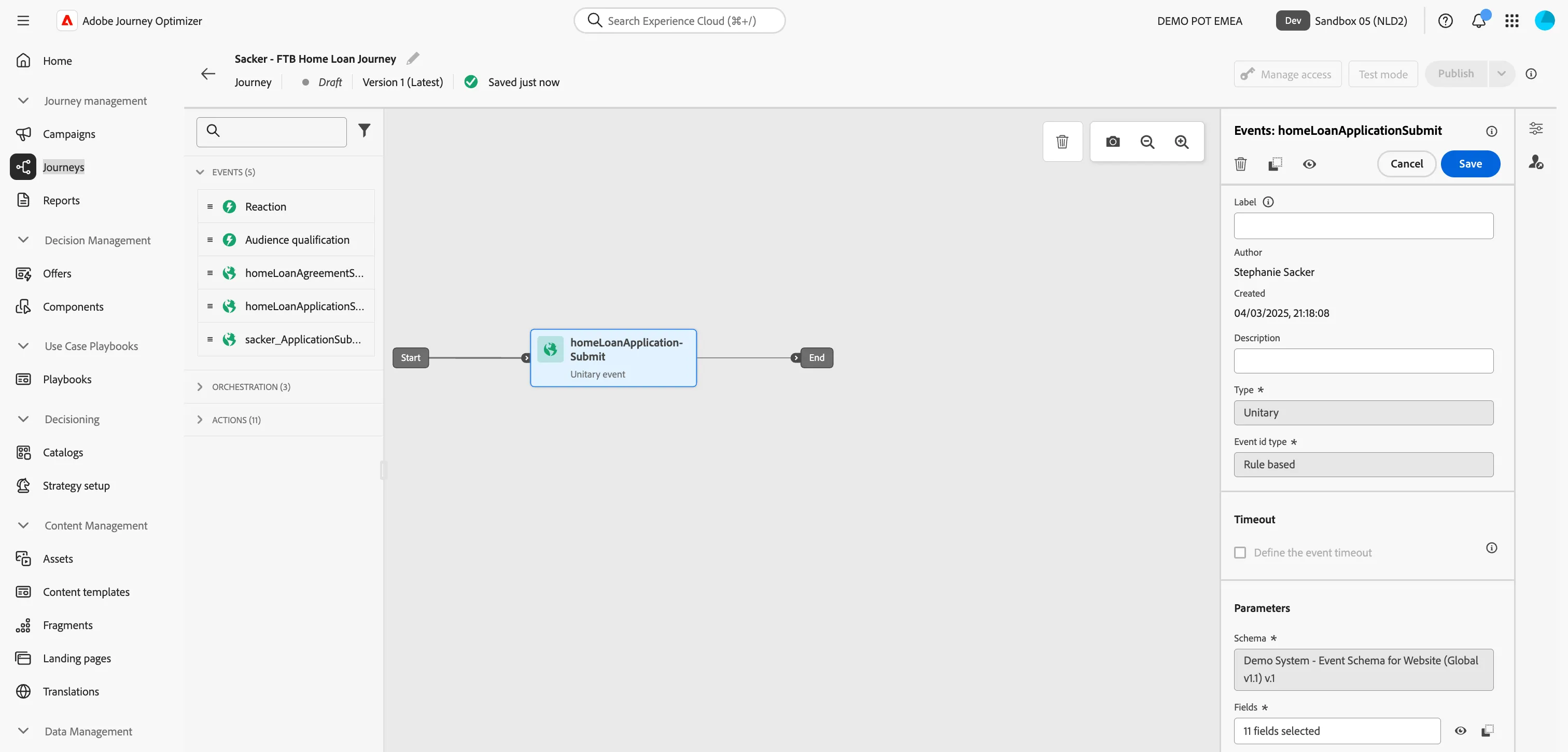
- We're starting our workflow of with an event trigger. From the events tab, choose homeLoanApplicationSubmit and drag it onto the canvas.
- Note: This is the same as the event you configured in a previous exercise, please use this and not your own as it becomes important later when building the email content.
- There's nothing we need to configure for this as we have already done this when we configured our event. Click Save to close the menu.
Add a Condition
When the customer submits a home loan application, the first thing we want to check is which channel the customer prefers to receive their communication. We want to make sure we communicate via the channel they have submitted as their preferred channel.
- From the orchestration tab, choose Condition and drag it onto the empty circle on the canvas.
- Click on the activity to open the detailed view.
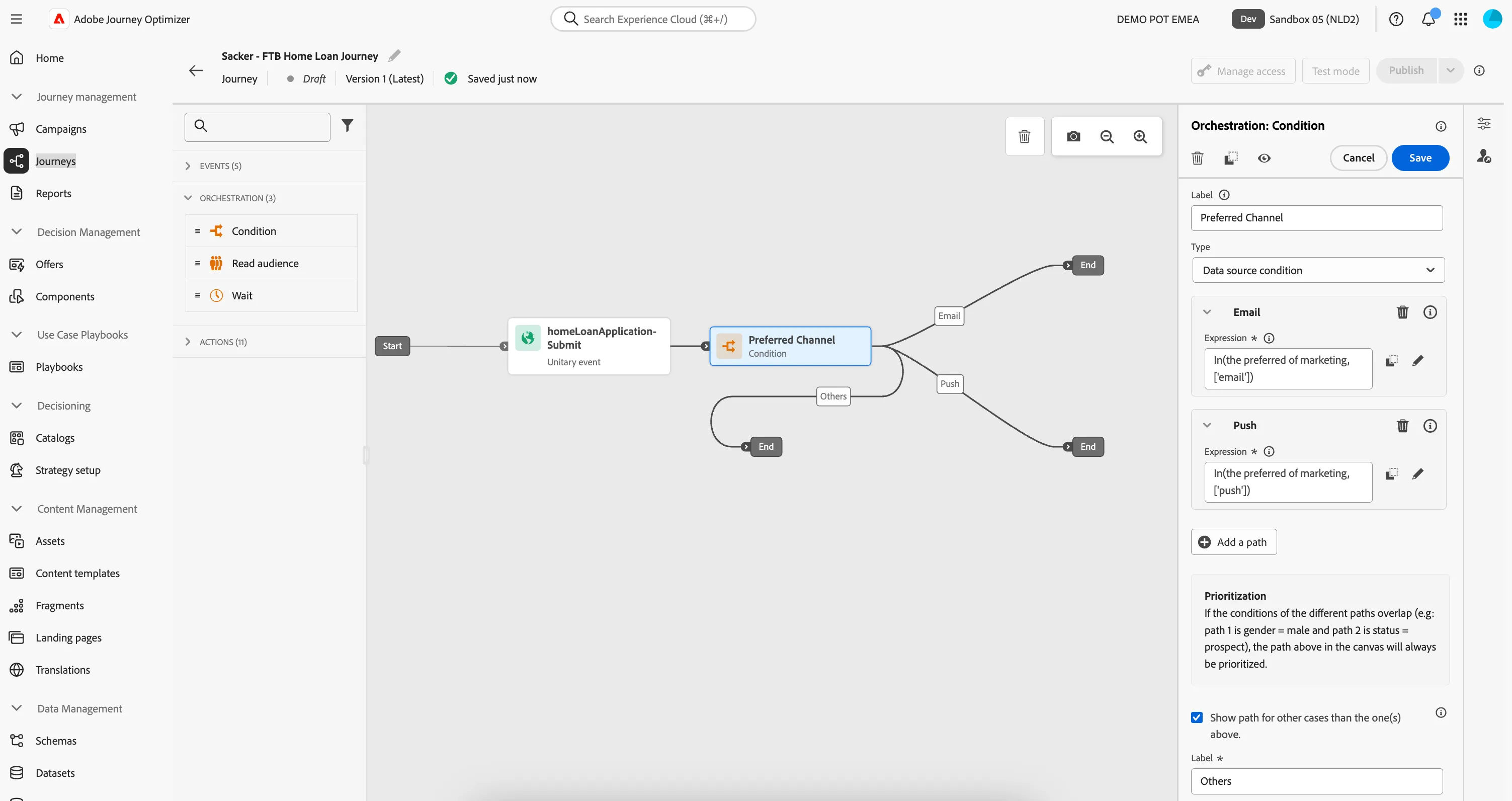
- Set the label to Preferred Channel.
- Click on Path1 and change the label to Email.
- Click on Add an expression to open a window.
- On the left side, open ExperiencePlatform > ProfileFieldGroup > Profile > Consents and Preferences.
- Drag Preferred Channel (preferred) to the right side and select the email checkbox. Click Ok in the top right corner of the white box, and then Ok again to save the condition and close the expression editor.
- Click + Add a path to add a path in the case that their preferred channel is Push.
- Click on Path1 and change the label to Push.
- Click on Add an expression to open a window.
- On the left side, open ExperiencePlatform > ProfileFieldGroup > Profile > Consents and Preferences.
- Drag Preferred Channel (preferred) to the right side and select the push checkbox. Click Ok in the top right corner of the white box, and then Ok again to save the condition and close the expression editor.
- Check Show path for other cases than one(s) above and leave the label as Others.
- Your screen should look like the image below. You can reposition the paths on the canvas by clicking and dragging to move them. Click Save.
Email - Application Confirmation
In the next steps you will be building the email for your journey.
- Designing the Email: You'll pick a fully completed template of the basic email so that you don't have to build anything at all.
Note: You must use the example homeLoanApplicationSubmit event in your journey. If you used your own custom event, replace it before continuing.
Building the Email
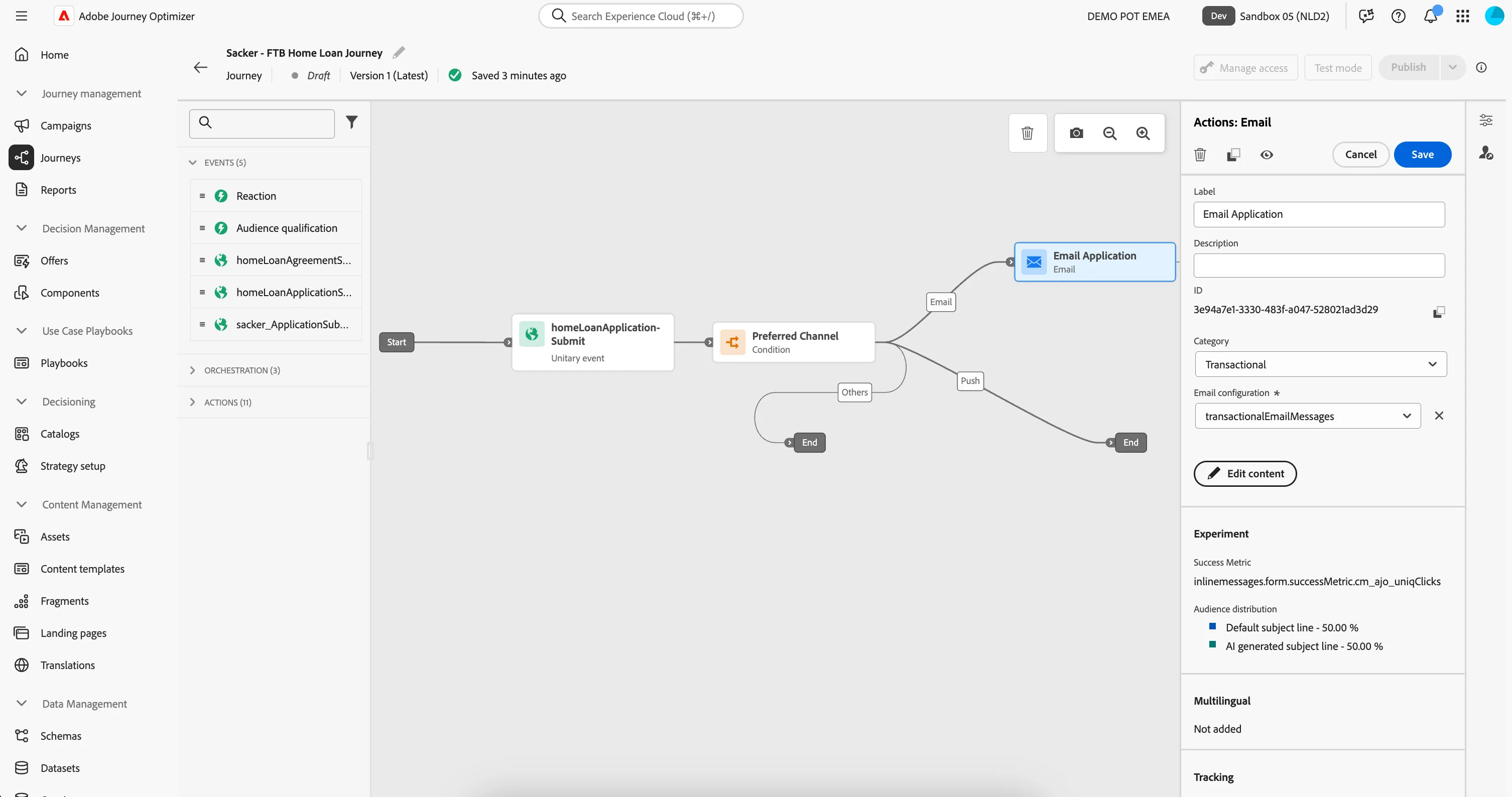
- From the actions tab, choose Email and drag it onto the empty circle at the Email-path.
- Click on the activity to open the detailed view.
- Set the label to Application Confirmation.
- Set the category to Transactional.
- Set the email surface to transactionalEmailMessages.
- Click on Edit content to start designing your email.
- Click on to create a subject line. Set it to FIRSTNAME, Thank you for your application!
- Remove the text FIRSTNAME and search for first name in the profile attributes.
- Find the field First name (... attributes > person > Full name) and click on the icon to add it to your subject line. It should now be{{profile.person.name.firstName}}, Thank you for your application
- Click Save.
- Click on Edit email body. Under Saved templates, choose [T] Danske Bank - Email Template. It will show you a preview of the template. Click on Use this template.
- The email designer will now open. It should look like the image below. Click Save in the top right.
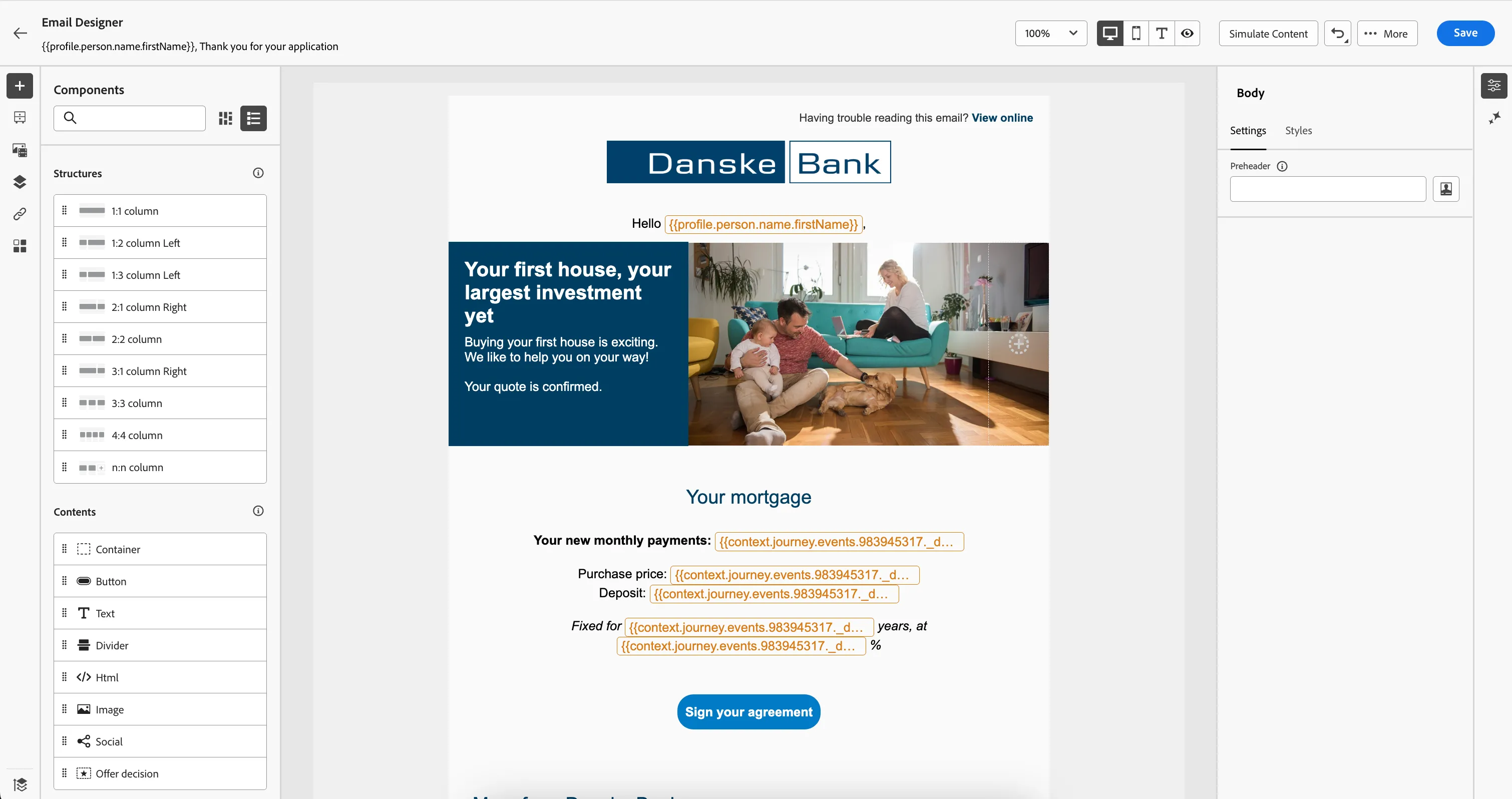
The Email Designer
In the left menu you have components.
Structure components are the building blocks of your email, they will determine the layout of your email.
Content components are the different forms of content that you can place inside your structure components, like text, buttons and images.
You'll also notice there are personalised fields added into the email copy. These are references to a customers Profile Attributes or the context data sent with the event, and are populated dynamically in the resulting email to each customer that qualifies to receive the Email message.
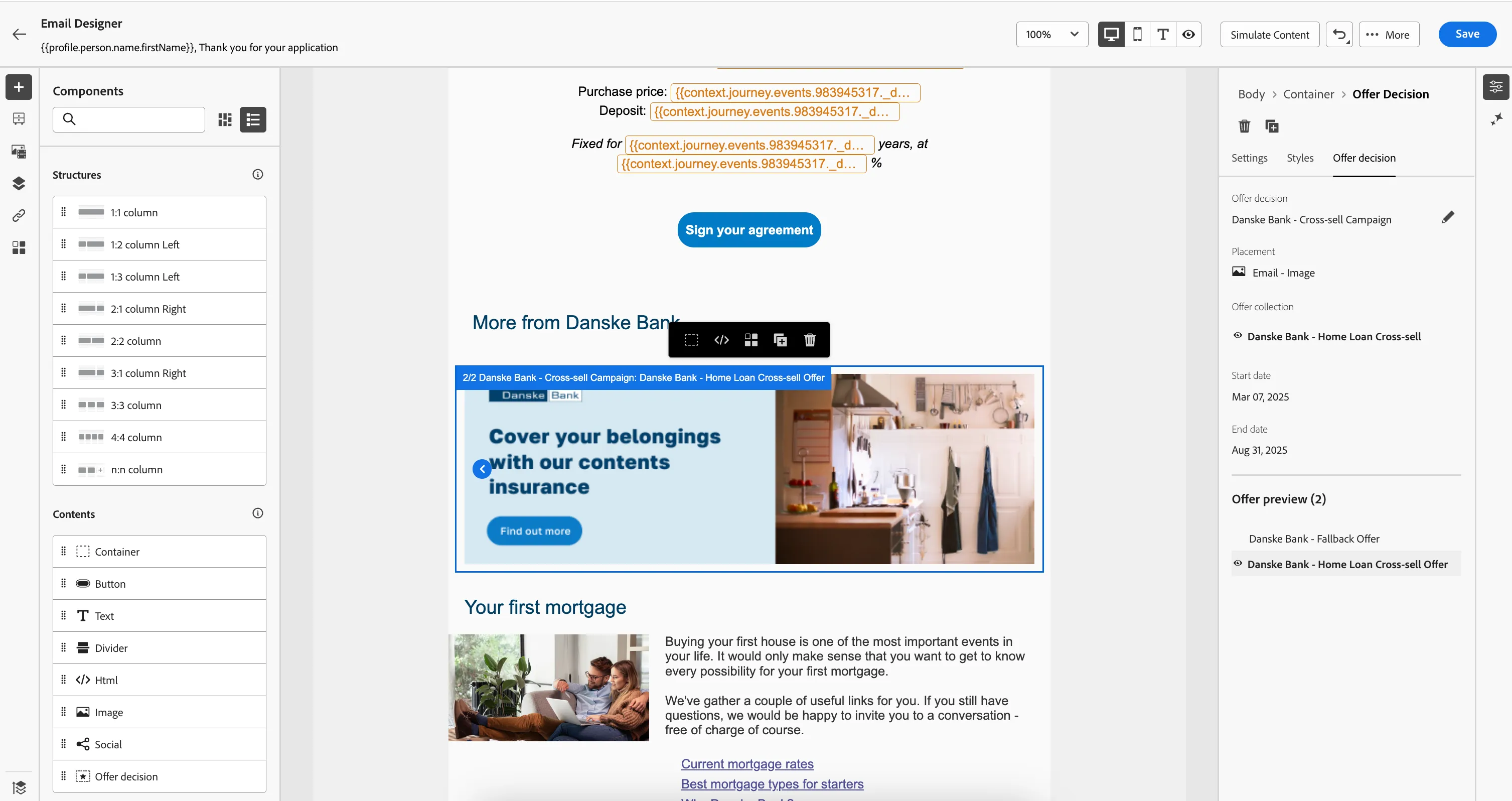
- Now let's add a personalized offer to the email. Scroll down and you will see the text "Drag a new component here." From the content components drag an Offer decision onto the email, into this empty component.
- Click Add, a pop-up window will open.
- In the top left, click Select Offer decision.
- From the Placements drop down, choose Email - Image
- Check the [your name] - Cross-sell campaign offer decision and click on Add in the top right of the window. If you didn't create the decision, you can use Danske Bank - Cross-sell campaign.
- Under Offer preview, you can see the potential offers customers could receive.
- Your screen should look like the image below:
- Click Save in the top right. Then navigate out of the email designer by clicking on the arrow in the top left. You'll be taken to the messages overview for your journey.
Now we will explore some the Experimentation & Gen AI capabilities in the Email designer.
Creating a content experiment
As part of our drive to increase the conversion rates of our emails, we want to run an A/B Experiment to see what subject line leads to a higher open-rate. In Adobe Journey Optimizer we call this a Content experiment.
- In the top right, click on Create experiment. A window will open.
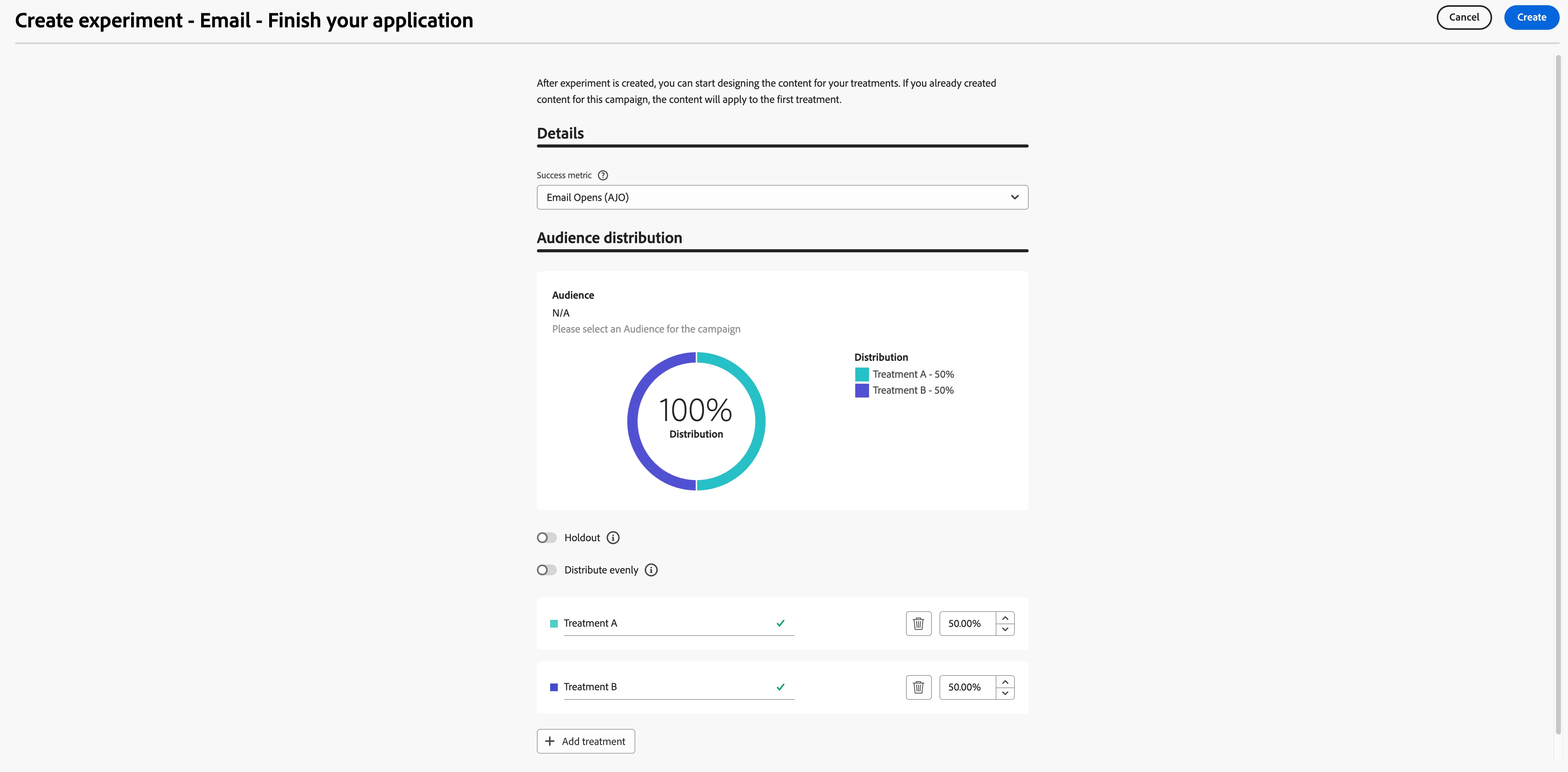
- Set the success metric to Email Opens (AJO).
- Leave the holdout off, this is the default setting. Enabling this will allow you to add a percentage of the audience to a control group, receiving none of the content treatments.
- Leave distribute evenly on, this is the default setting. Disabling this will allow you to customly distribute the incoming audience over your treatments.
- Click Add treatment to add a second treatment to your experiment.
Your settings should now look like this:
- Click Create in the top right.
- Notice how the interface changed and now displays your treatments on the left menu.
- The email content for Treatment B is empty. However, we'd want this to be the same as Treatment A as we are only testing how the subject line affects the open rate. Click on the -icon for Treatment B and click Delete. You'll be prompted to confirm the delete, click Delete to remove Treatment B.
- To create a copy of Treatment A click on the -icon for Treatment A and click Duplicate. You'll be prompted to provide a name for the new treatment. Set the name to AI generated subject line.
- Rename Treatment A to Default subject line,by clicking on the icon for Treatment A and clicking Rename.
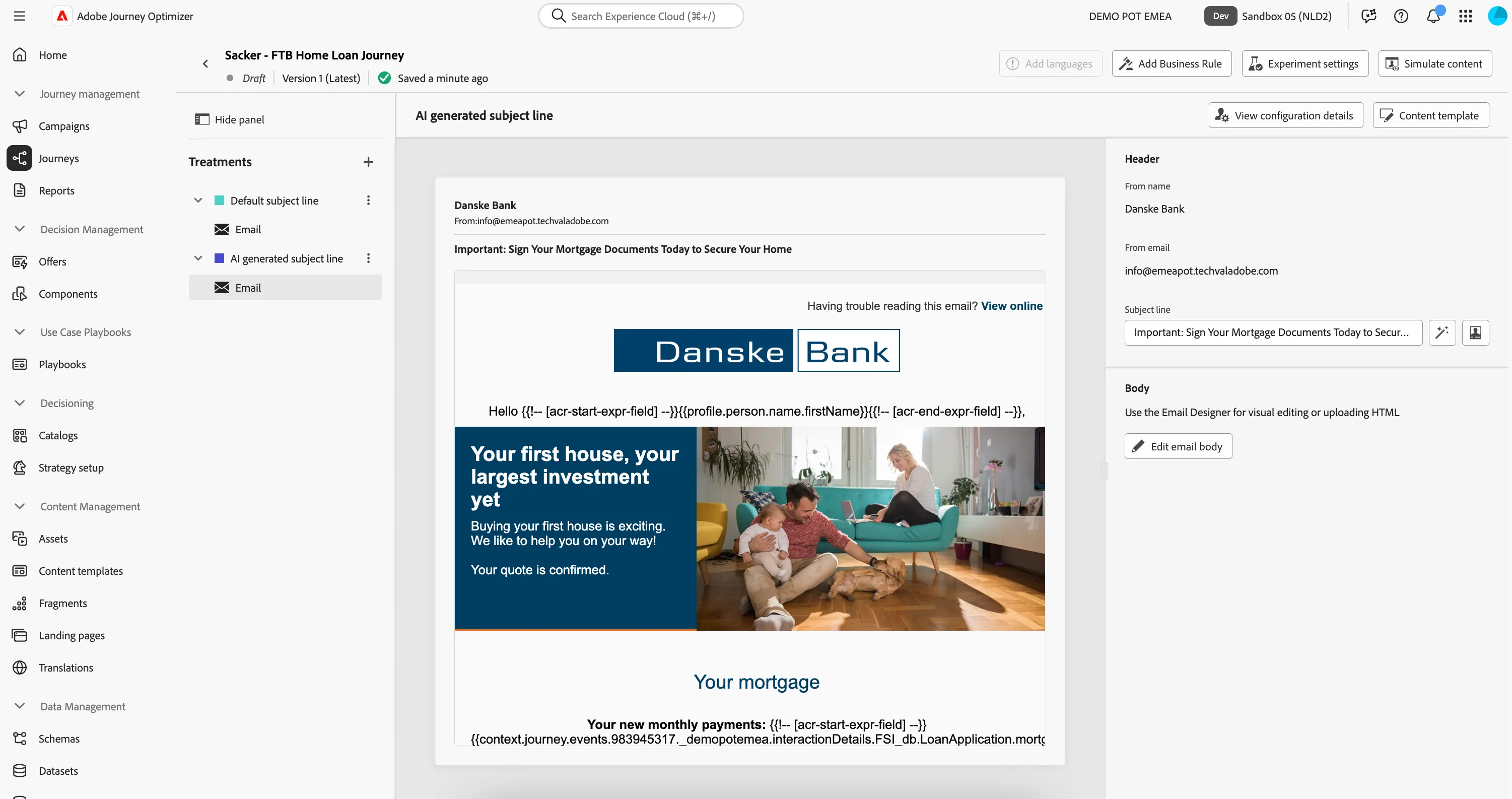
- Select the email for the AI generated subject line. On the right side you'll see the current subject line, which was duplicated from the original email we created.
- Click on the -icon to edit text with AI Assistant. A window will open.
- You're now in the AI Assistant interface. You can write a prompt and set various settings like communication style, language and tone.
- The more descriptive you are, the better the prompt will work. Try the following prompt: Generate a subject line of at least 8 words to ask the customer to sign their mortgage documents as they showed interest in getting a mortgage for their home and click Generate.
- The AI Assistant will provide you with several variations.
- Feel free to add more instructions to the prompt and play around with the tone to find a result you like!
When you find your perfect subject line, select it and click Select in the top right corner.
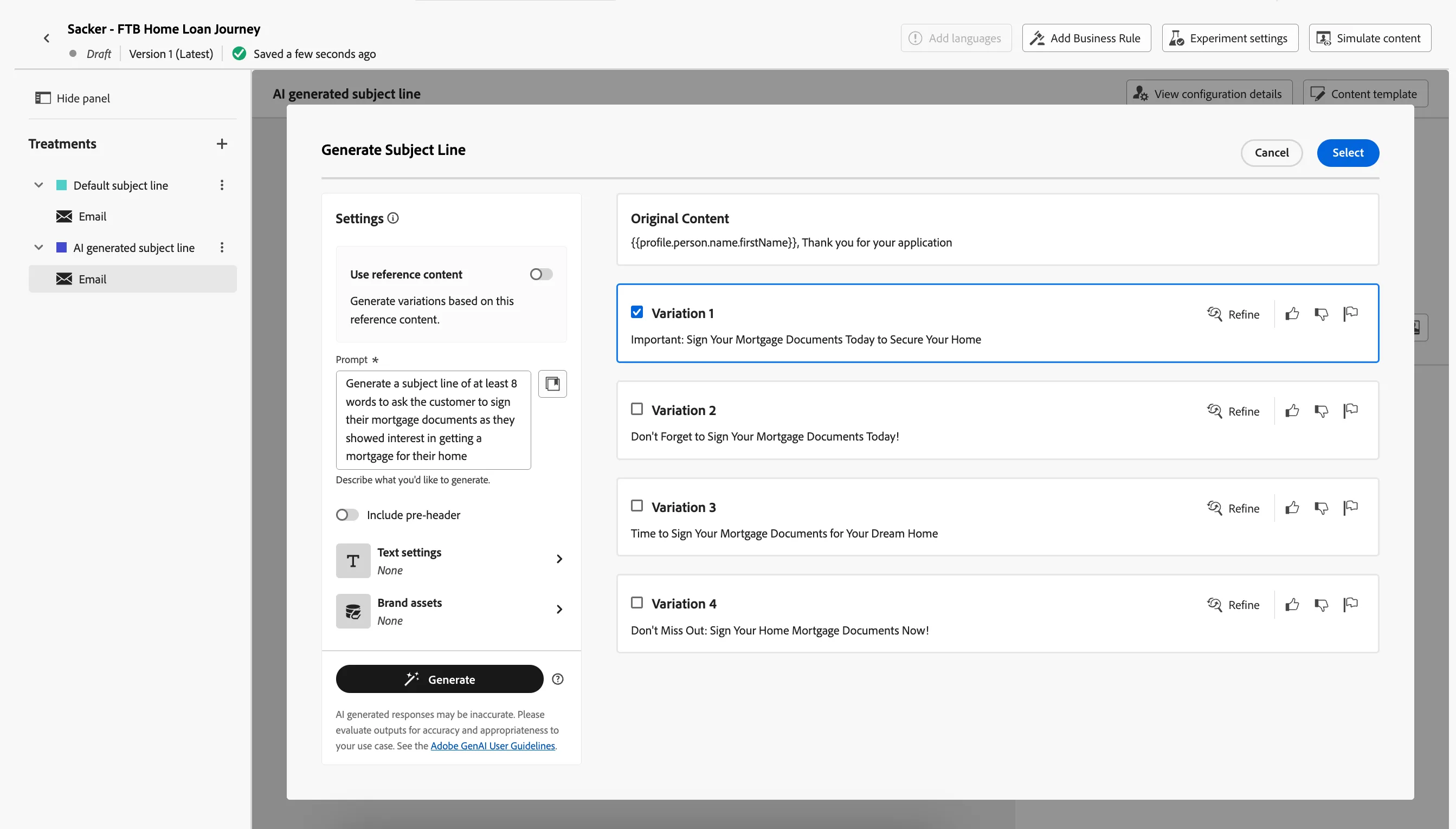
- We now succesfully set up a content experiment for a subject line open rate test using AI to generate a subject line! Your screen should look like the image below.
Navigate out of the email overview by clicking on the arrow on the top left. You will be taken back to the journey canvas.
Push - Application Confirmation
To draw our prospects into the app we're going to follow with a push-notification. This pushes a short message to the profile's smartphone that they can easily interact with. When they click on the push they'll be taken to the mobile app directly.
- From the actions tab, choose Push and drag it onto the empty circle on the canvas following the Push path after the condition.
- Click on the activity to open the detailed view.
- Set the label to Mortgage Application.
- Set the category to Transactional. This should already be pre-populated, since the previous message was a marketing message.
- Set the push configuration to pushMessages.
- Click on Edit content to start designing your push.
- if you don't see the properties panel on the right, click on Properties, at the bottom of the page, then:
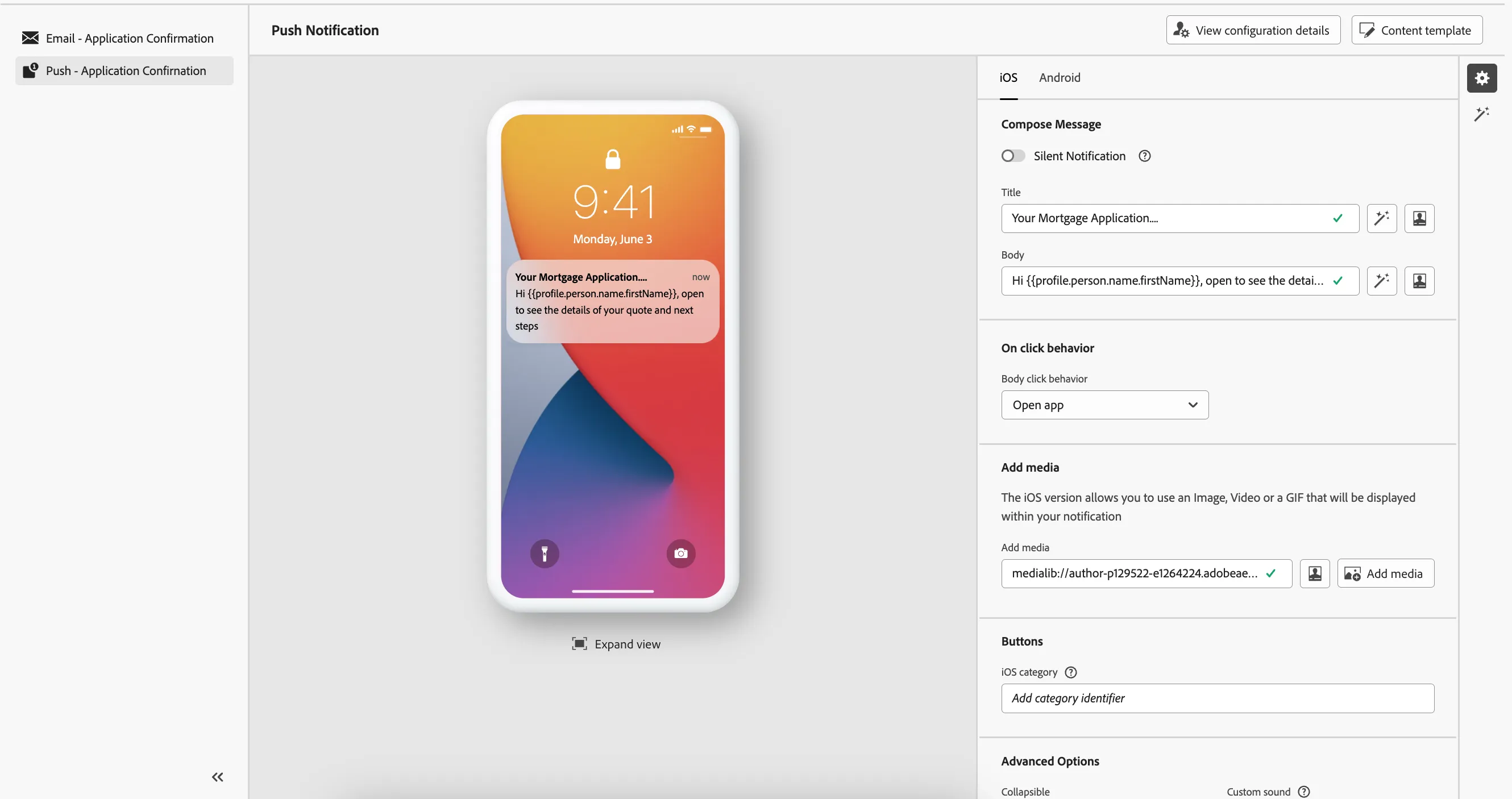
- Set the title to Your mortgage application....
- Select and remove the text FIRSTNAME.
- In Profile attributes, search for first name. Click on the icon to add First name (Profile attributes > Person > Full name) to your expression. It should read: Hi {{profile.person.name.firstName}}, open to see the details of your application and next steps.
- Click Save.
Your screen should look like the image below:
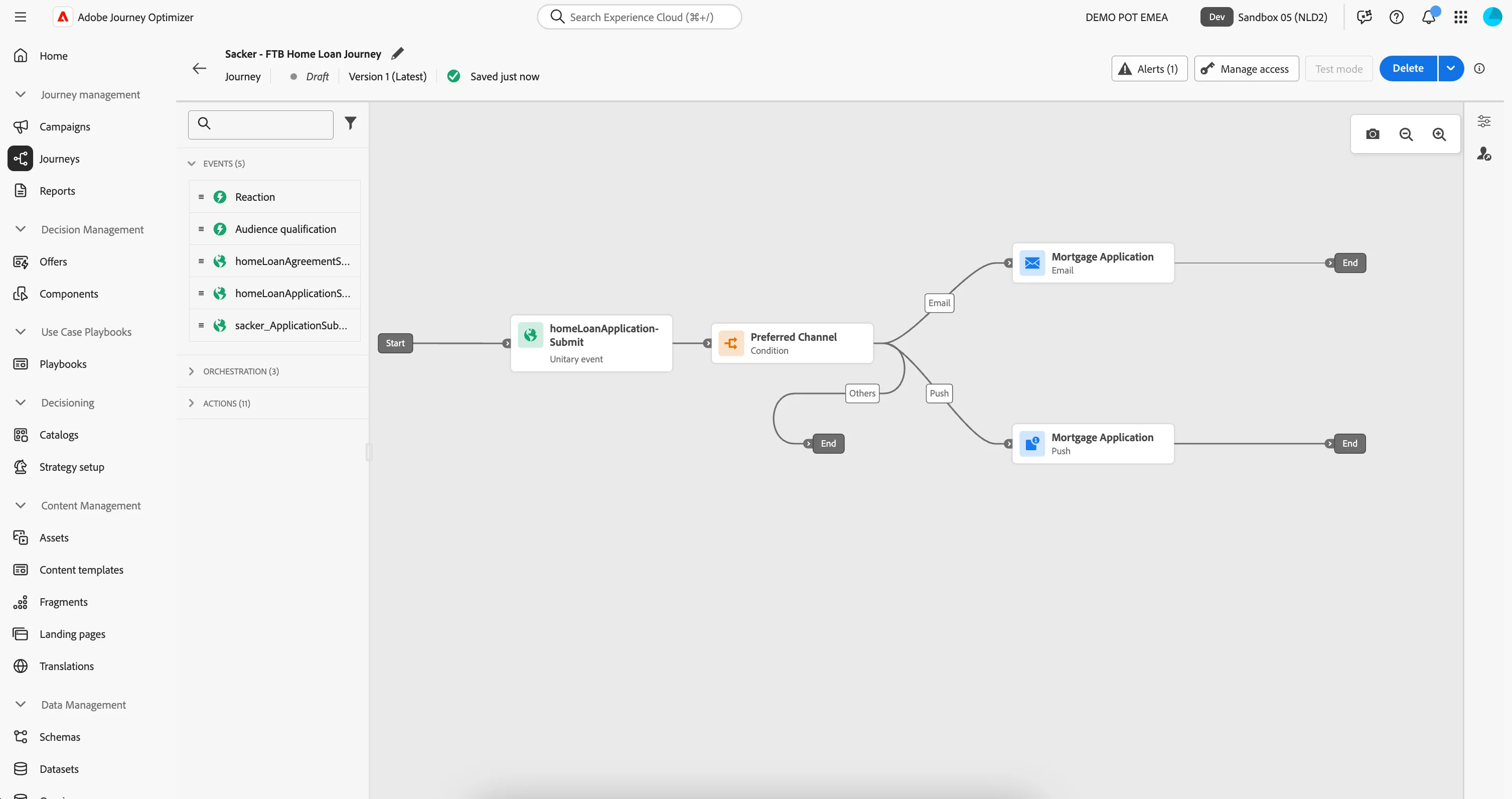
- Navigate out of the designer by clicking the arrow in the top left. Your screen should now look like the image below. Click Save to close the in-app message detail panel.
Event trigger - Mortgage Documents signed
Next, we want to monitor if the prospects finish their mortgage application by signing the required documents sent in the email communication. If they don't complete the process in the next 7 days, we'll want to notify their local branch or call center in hope that we can re-engage them.
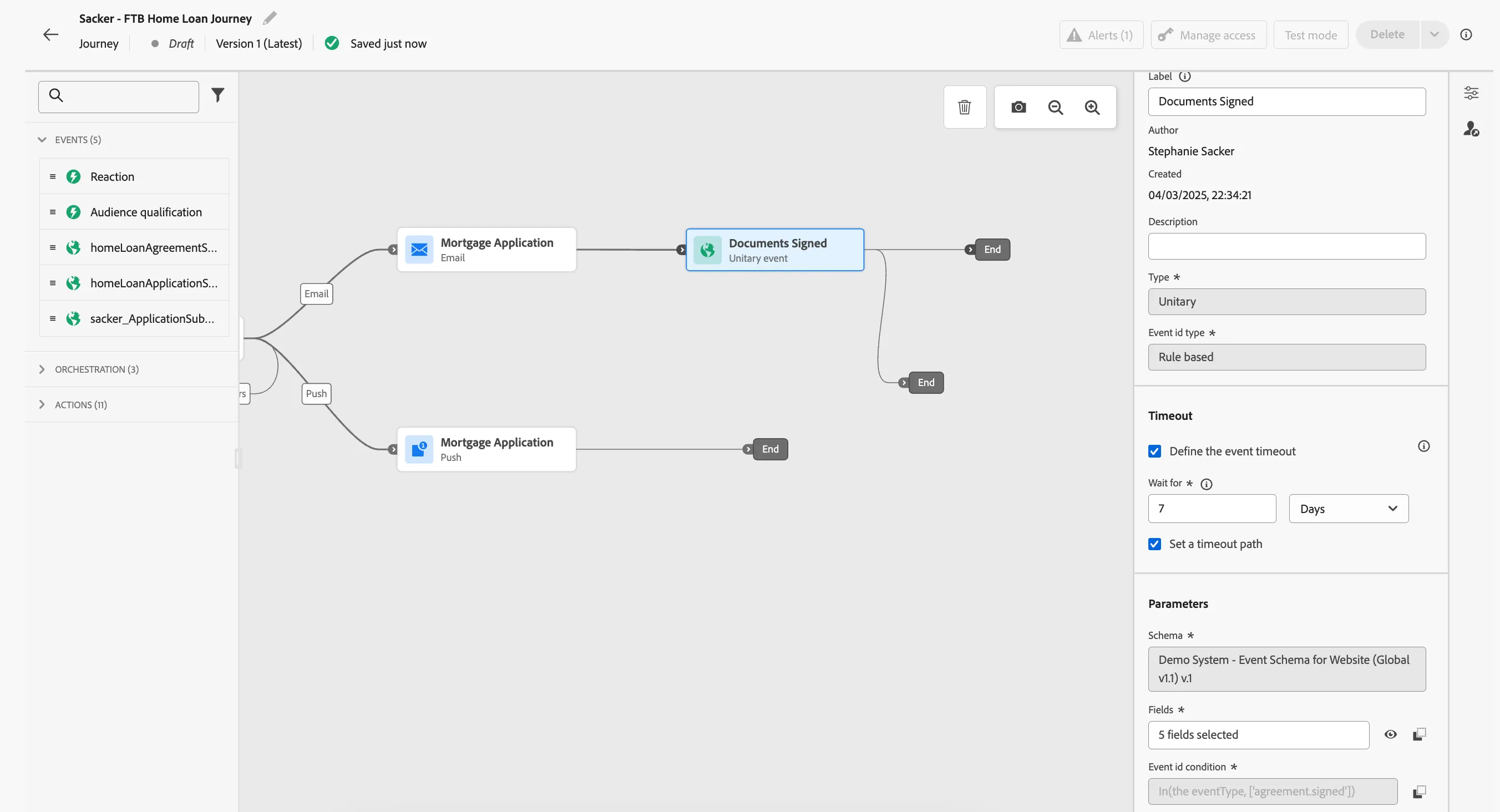
- From the events tab, choose homeLoanAgreementSigned and drag it onto the empty circle on the canvas after the Email path.
- Set the Label to Documents Signed.
- Check Define the event timeout and set it to Wait for 7 Days. Make sure Set a timeout path is checked.
- Your screen should look like the image below. Click Save.
We also want to connect the Push journey path to this document signed event.
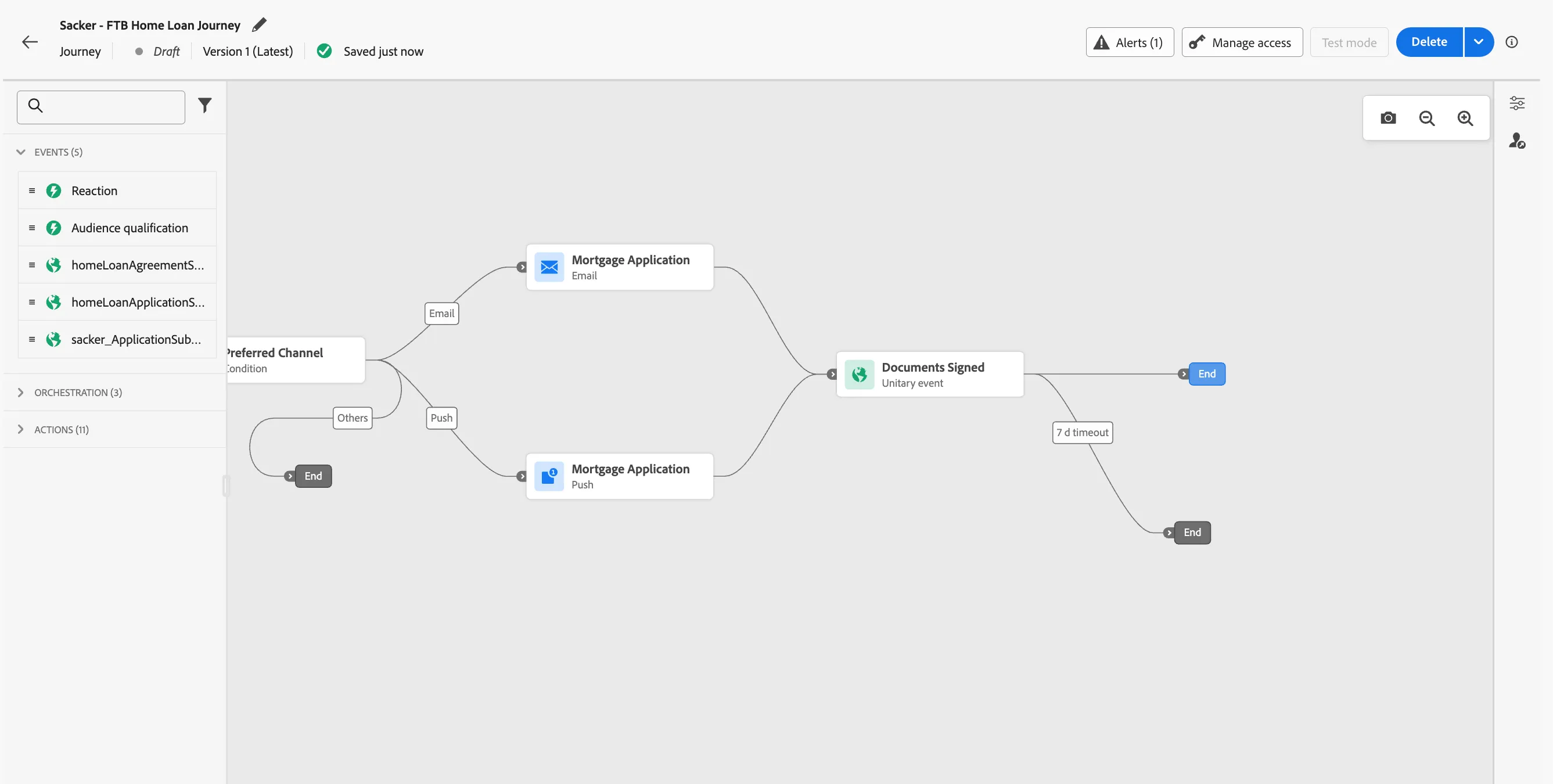
- Select the Document Signed Event and drag it over the End of the Push path until the + appears, this will connect the 2 paths.
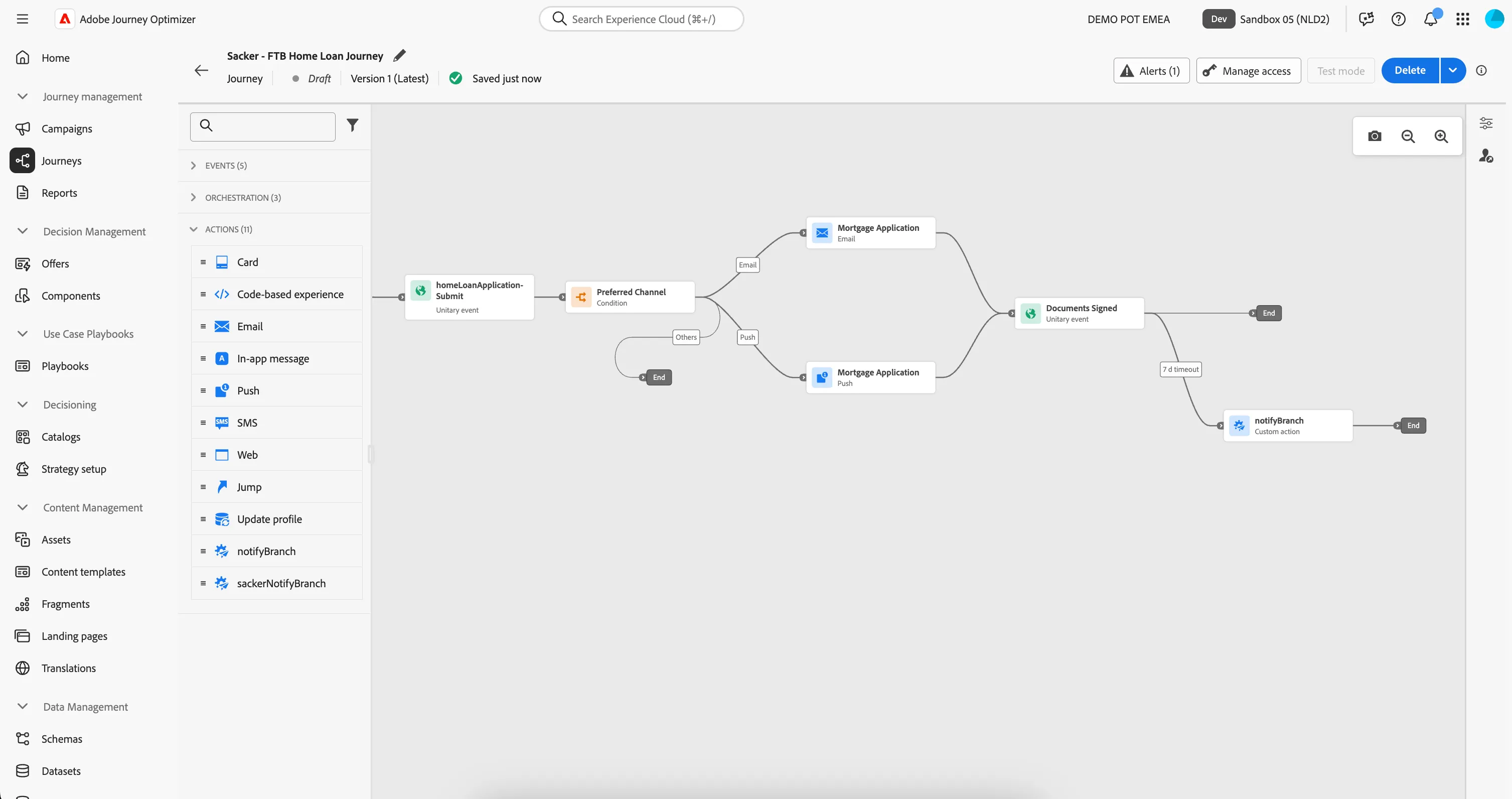
Your journey canvas should now look like:
Adding a Custom Action
We want to Add a Custom Action to our Journey after the 7 Day Timeout path. If the customer doesn't complete the home loan process in the next 7 days, we'll want to notify their local branch or call center in hope that we can re-engage them.
- From the actions tab, choose yourNameNotifyBranch and drag it onto the empty circle on the canvas. If you did not create an action, use the notifyBranch event.
- This should open up the configuration menu for the action. In the menu, request parameters section, click on the Email Address edit button (pencil) to open up a popup.
- Expand Experience Platform > ProfileFieldGroup > Profile > Personal Email > Address and select it by enabling the checkbox. This will pass the customer's Email Address from the profile attributes to the API endpoint.
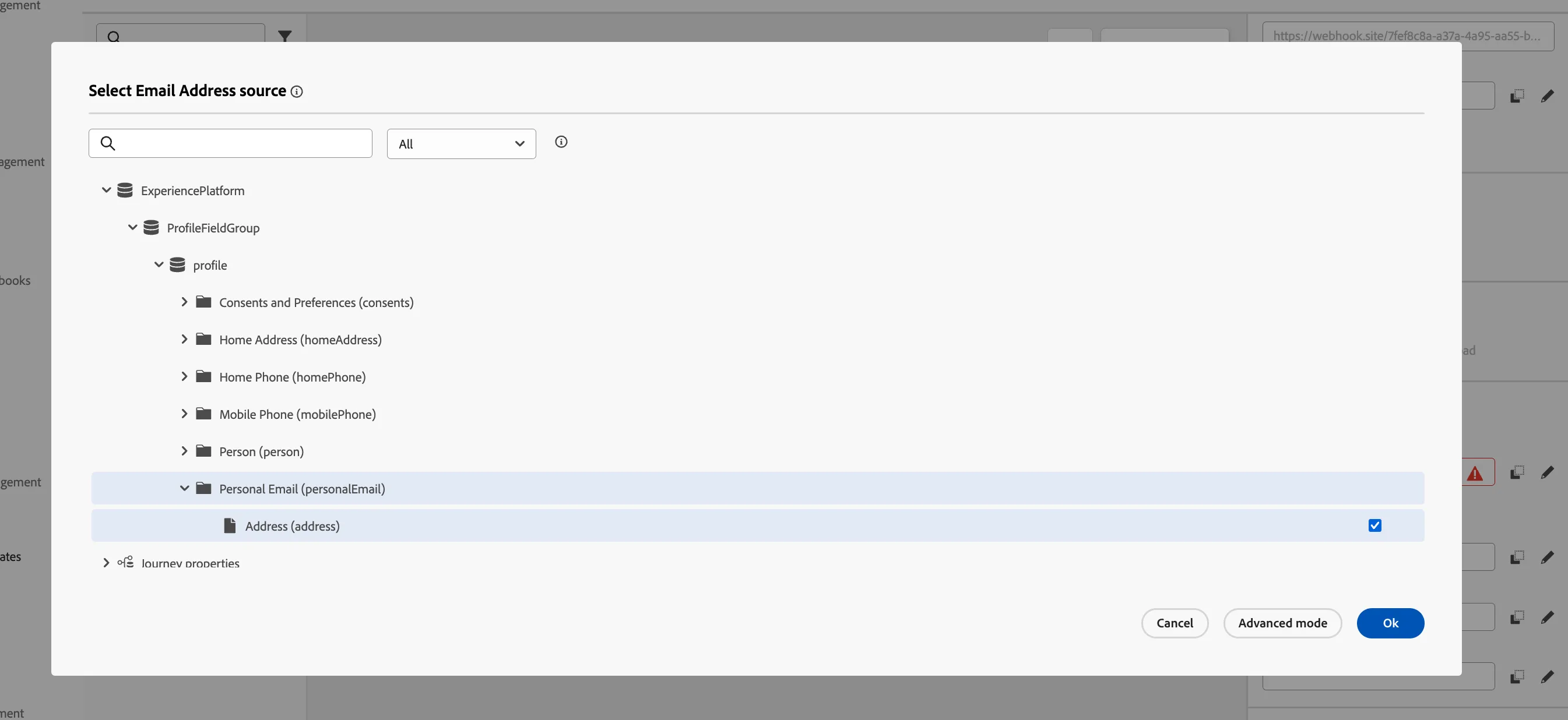
- Click OK to close the popup and see The address of personalEmail in Email Address field.
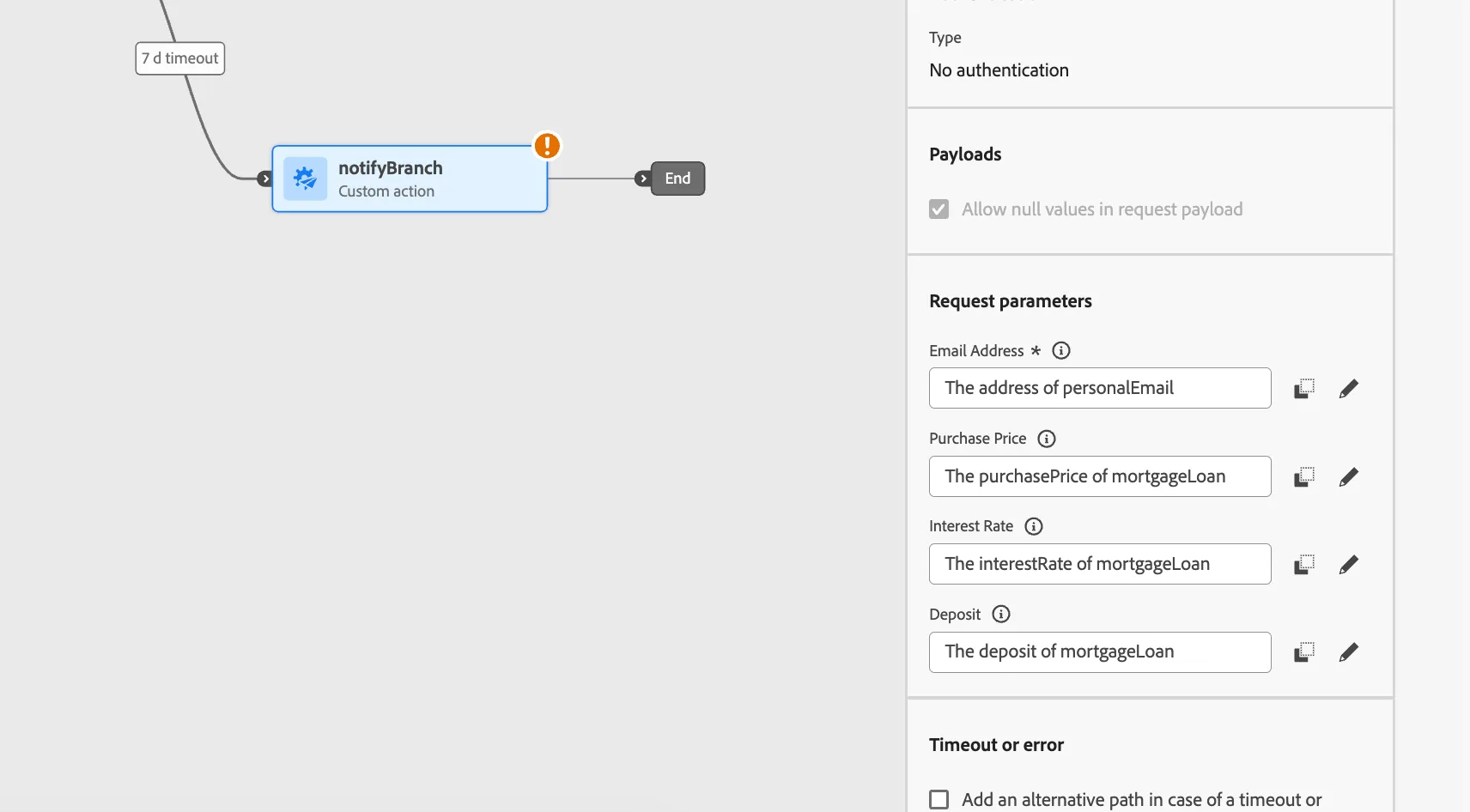
We will now do the same for the Purchase Price, Interest Rate, and Deposit Parameters. Only these will be populated with contextual data sent with the original trigger event, rather than profile attributes. Map the following:
- Click on the Purchase Price edit button (pencil) to open up a popup.
- Expand Context > homeLoanApplicationSubmit > _demopotemea > interactionDetails > FSI > Loan Application > Mortgage Loan > Purchase Price and select it by enabling the checkbox.
- Click on the Interest Rate edit button (pencil) to open up a popup.
- Expand Context > homeLoanApplicationSubmit > _demopotemea > interactionDetails > FSI > Loan Application > Mortgage Loan > Interest Rate and select it by enabling the checkbox.
- Click on the Deposit edit button (pencil) to open up a popup.
- Expand Context > homeLoanApplicationSubmit > _demopotemea > interactionDetails > FSI > Loan Application > Mortgage Loan > Deposit and select it by enabling the checkbox.
You should have the below request parameters mapped:
- Click on Save on the top to save the action configuration.
Your journey should now look like:
Adding an exit criteria
There's many ways a prospect can request a mortgage and some of them do not use the mortgage application form. For example, a person could walk into a bank branch and request a conversation or they could call the call center to plan an appointment.
In these cases, we wouldn't want them to receive any further communication from this journey. This is where Exit criteria come into play. With this feature you can define real-time triggers that cause the profile to be removed from the journey.
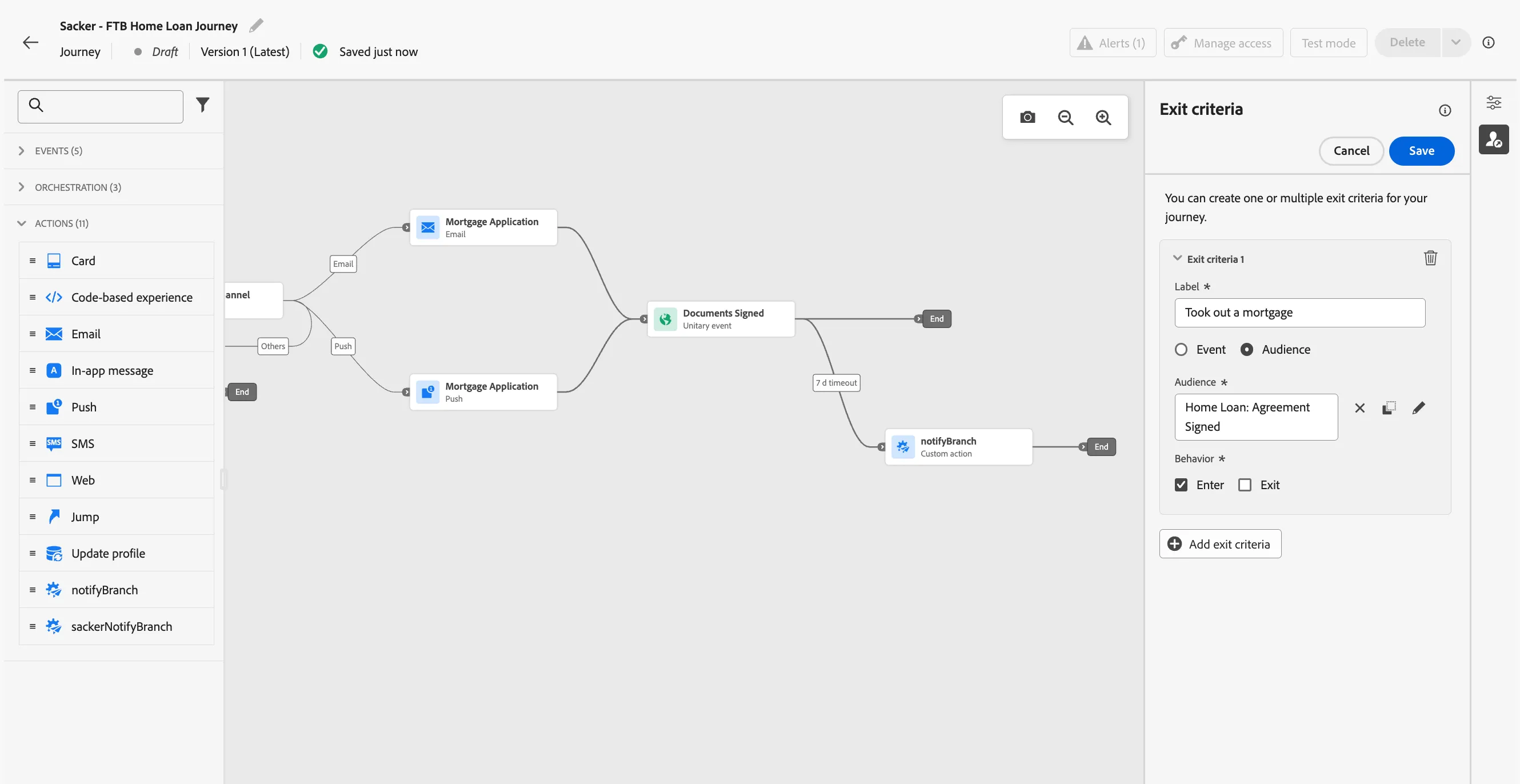
- On the right side of the canvas you'll find a small vertical hotbar. Click on the -icon to Show exit criteria.
- Click on Add exit criteria.
- Set the label to Took out a mortgage.
- Choose Audience as the exit criteria.
- Click on the Audience input field or on the -icon. A window will open
- Select the audience Home Loan Agreement Signed and click Save.
- Set the behavior to Enter, this is the default value.
- Click Save.
You have now successfully created the application journey using the Adobe Journey Optimizer. Next, we are going to test our journey using Test Mode.