Configuring an event
To log into the Adobe Experience Platform, and open Adobe Journey Optimizer, check the Welcome! section.
Event overview
What is an Event?
Events allow you to trigger your journeys unitarily to send messages, in real-time, to the individual flowing into the journey.
In the event configuration, you configure the events expected in the journeys. The incoming events’ data is normalized following Adobe Experience Data Model (XDM). Events come from Streaming Ingestion APIs for authenticated and unauthenticated events (such as Adobe Mobile SDK events). Learn more
To get an overview of all events in Adobe Journey Optimizer:
- In the menu on the left side, under Administration, click on Configurations. You will see a set of tiles. Click on Manage in the Events tile to get an overview with all existing events.
Configuring an event
We'll be configuring an event that we can use in our journey. The event should trigger whenever a customer submits a Home Loan Application/Quote on the website.
If you do not want to configure your own event, you can reuse an event that has aleady been created for you, homeLoanApplicationSubmit.
Feel free to skip this exercise and proceed to Creating Offers.
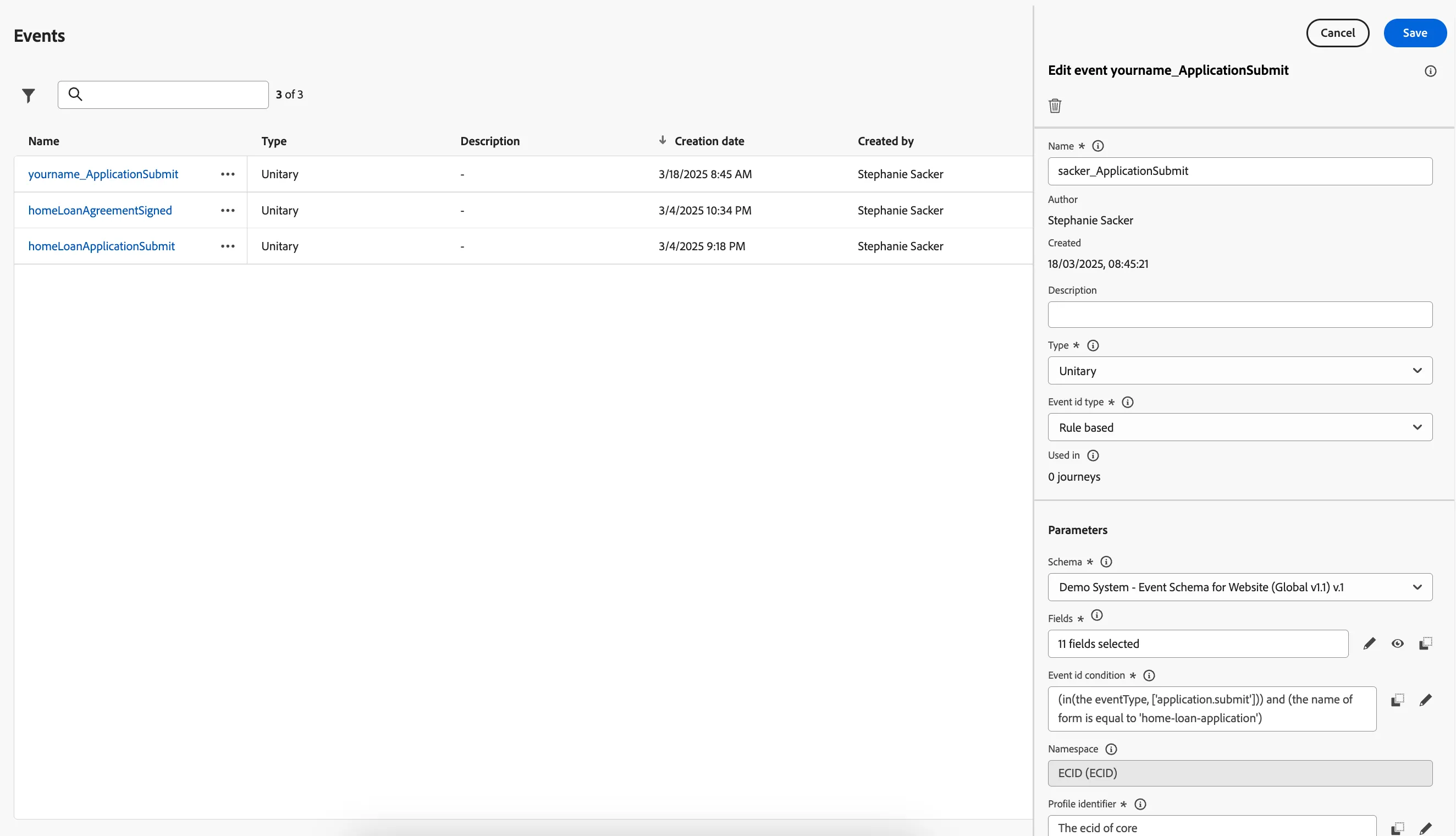
To configure a new event, click Create Event. A menu will open on the right side.
- Set the name to yourname_ApplicationSubmit.
- For schema, click on Select a schema and choose Demo System - Event Schema for Website (Global v1.1) v.1 in the dropdown.
- For fields, click on 4 fields selected, a pop-up window will open. In this window we can select the data fields we want to have available for the event.
- Scroll down (or use the search field) to find Event Type (eventType) and check the checkbox
- Scroll down to the folder interactionDetails, expand this folder, then expand the FSI > Loan Application > Mortgage Loan folders.
- Check the following fields within the Mortgage Loan folder:
- Deposit (deposit)
- Interest Rate (interestRate)
- Monthly Payment (monthlyPayment)
- Purchase Price (purchasePrice)
- Term (term)
- Return to the folder interactionDetails, expand this folder, this time expand the Core > Form folders.
- Check the Name (name) field from within the Form folder.
- Click Ok.
- The window will close and you should now see 11 fields selected.
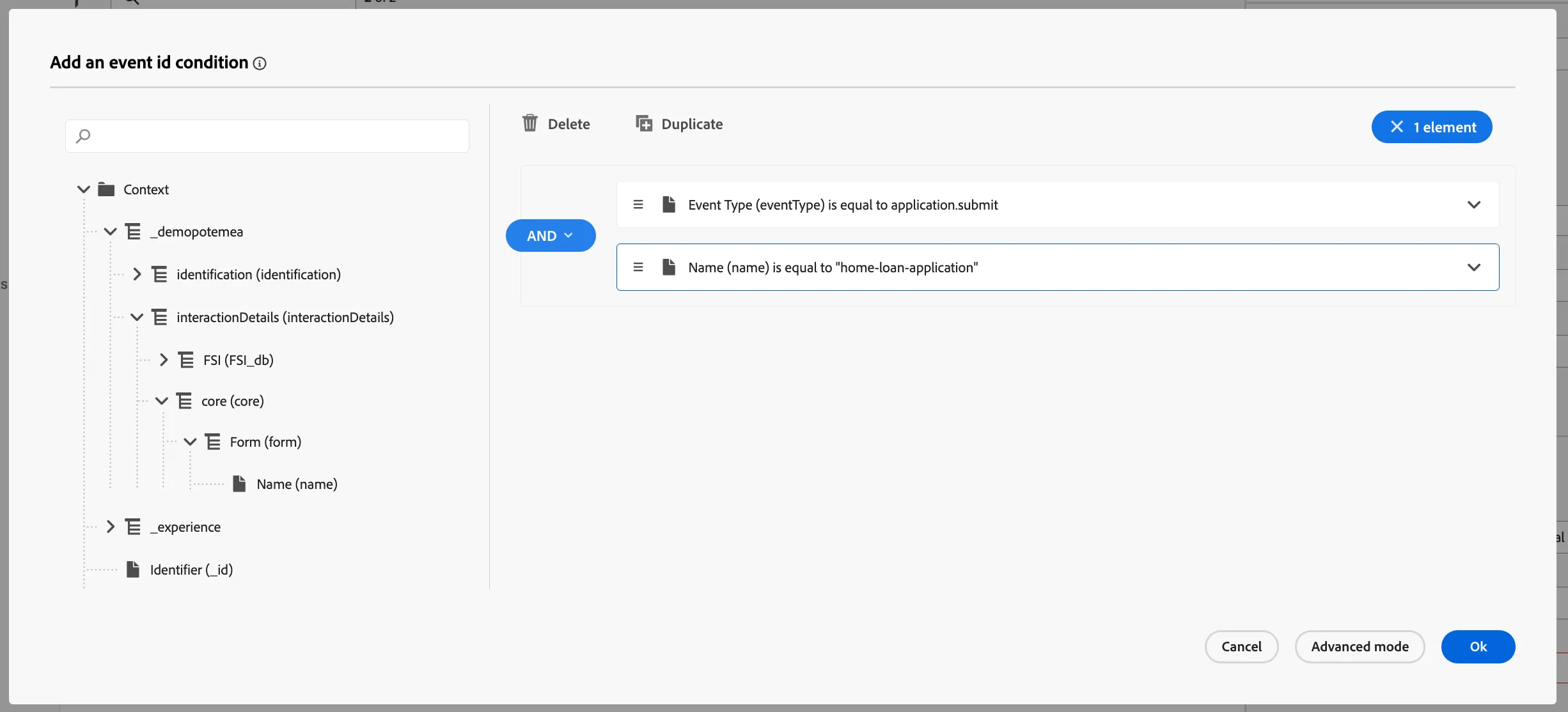
- For the event ID condition, click on Add a condition. Another pop-up window will open.
- Drag the Event Type (eventType) from the left menu onto the right side.
- You'll be prompted to choose a value. Look for application.submit. Check this value then scroll back up and click Ok.
- Expand the the _demopotemea > interactionDetails > core > Form node in the left menu, and drag the Name (name) onto the right side, under the Event Type condition.
- Set the condition as: Name (name) is equal to home-loan-application
- Click Ok to save and close the pop-up window.
Your condition should look like:
- Check if the namespace is set to ECID (ECID).
- Check if the profile identifier is set to The ecid of core. If this is not set, select Context > _demopotemea > identification > core > ecid.
- Your screen should look like the image below. Click Save.
You have successfully created an Event to be used as the trigger in our Acquisition Journey!