[Tech] Configuring a custom action
Actions overview
To get an overview of all actions in Adobe Journey Optimizer:
- In the menu on the left side, under Administration, click on Configurations. You will see a set of tiles. Click on Manage in the Actions tile to get an overview with all existing custom actions.
Configuring a custom action
We'll be configuring a custom action to notify the customer's local branch to reach out to the customer via direct communication, such as by phone. In our case, the customer has submitted their home loan application, received the documents to sign, but still have not signed them. We want to let the branch know to reach out if they still haven't signed their documents after 1 week.
If you do not want to configure your own custom action, you can reuse the custom action notifyBranch that has aleady been created for you. Feel free to skip this exercise and proceed to Creating the journey.
To configure a new action, click Create Action. A menu will open on the right side.
- Set the name to yourName_NotifyBranch.
- Keep Action type as Custom.
- Keep Channel as Other.
- Keep required marketing action as none.
- In the Endpoint configuration section:
- Enter URL as https://webhook.site/e8bd3957-17c5-45e2-8087-648e39282b92 (This is a fake API endpoint created to send the product and notification to the call centre/branch, it sends the payload to a demo webhook)
- Select the Method as POST
- In the Headers section, ensure there are two headers that are available by default:
- Header 1 with Label as Content-Type and Value as application/json
- Header 2 with Label as Charset and Value as UTF-8
- Leave the Query parameters section empty.
- Keep Authentication type as No authentication .
On the payload section, click on the pencil button to open a popup to paste the response payload.
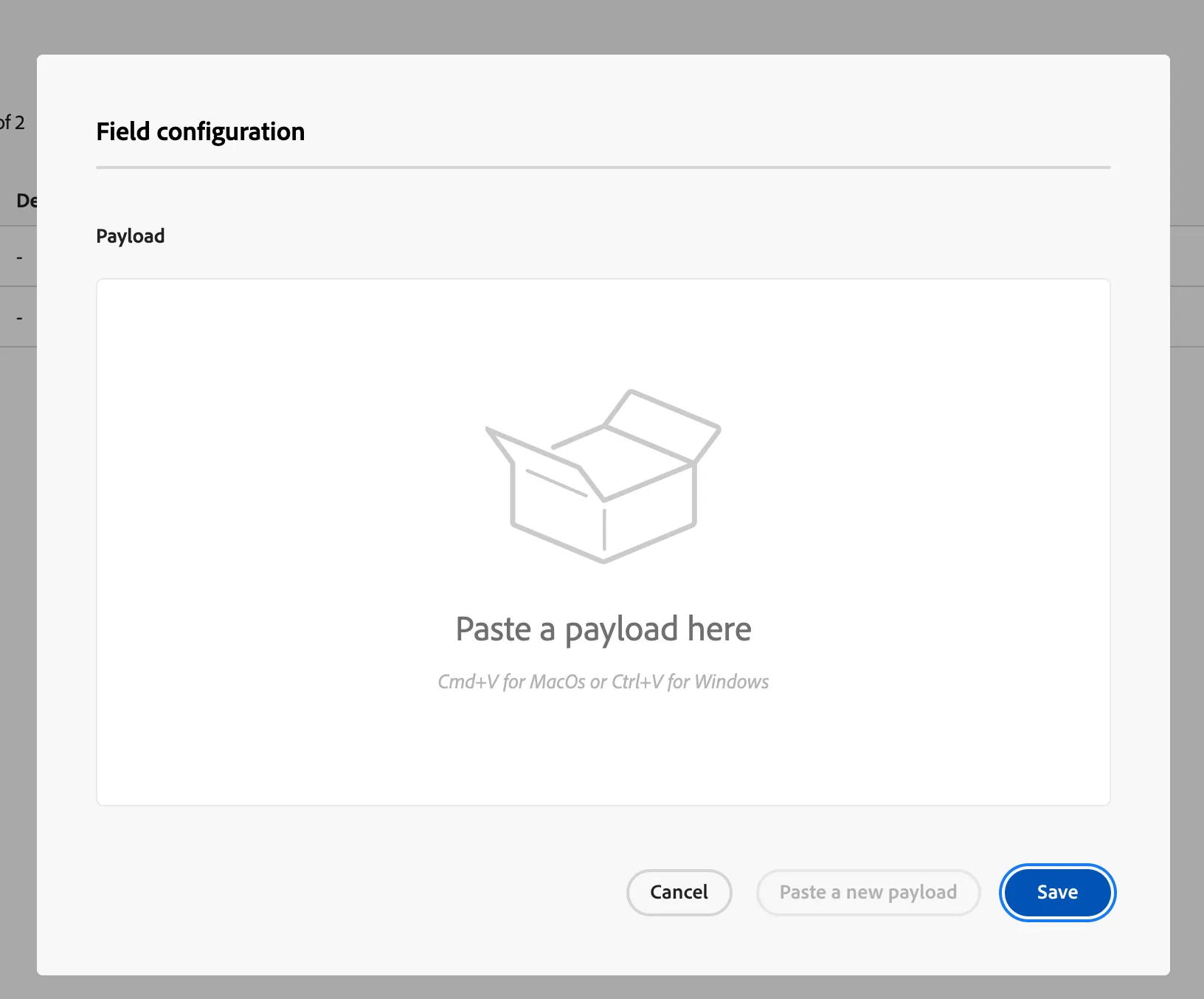
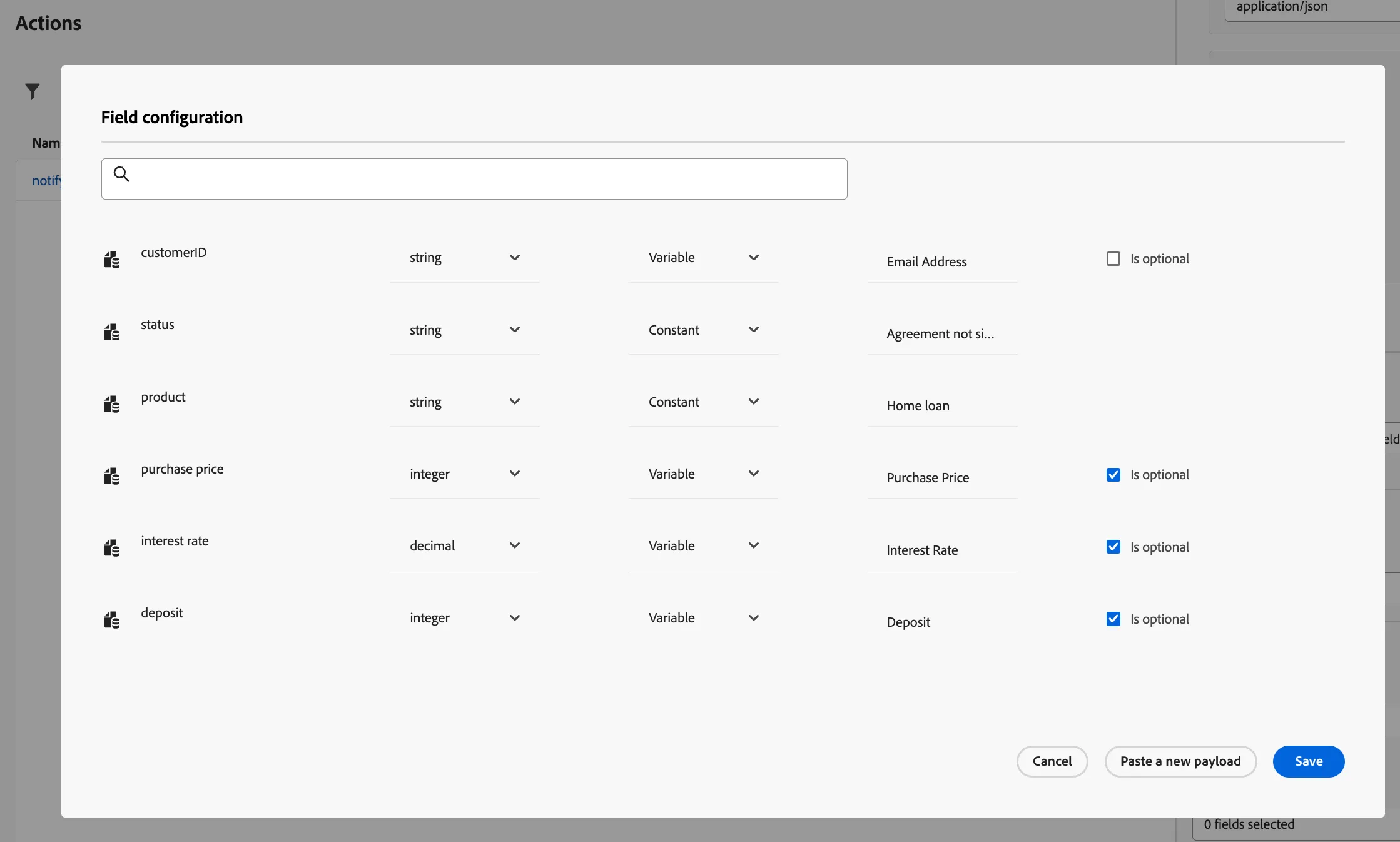
- Paste the below response: { "customerID": { "toBeMapped": true, "dataType": "string", "label": "Email Address" }, "status": "Agreement not signed", "product": "Home loan", "purchase price": { "optionalMapping": true, "toBeMapped": true, "dataType": "integer", "label": "Purchase Price" }, "interest rate": { "optionalMapping": true, "toBeMapped": true, "dataType": "decimal", "label": "Interest Rate" }, "deposit": { "optionalMapping": true, "toBeMapped": true, "dataType": "integer", "label": "Deposit" } }
The payload should auto detect the datatypes of the attributes as below. Click on Save to continue.
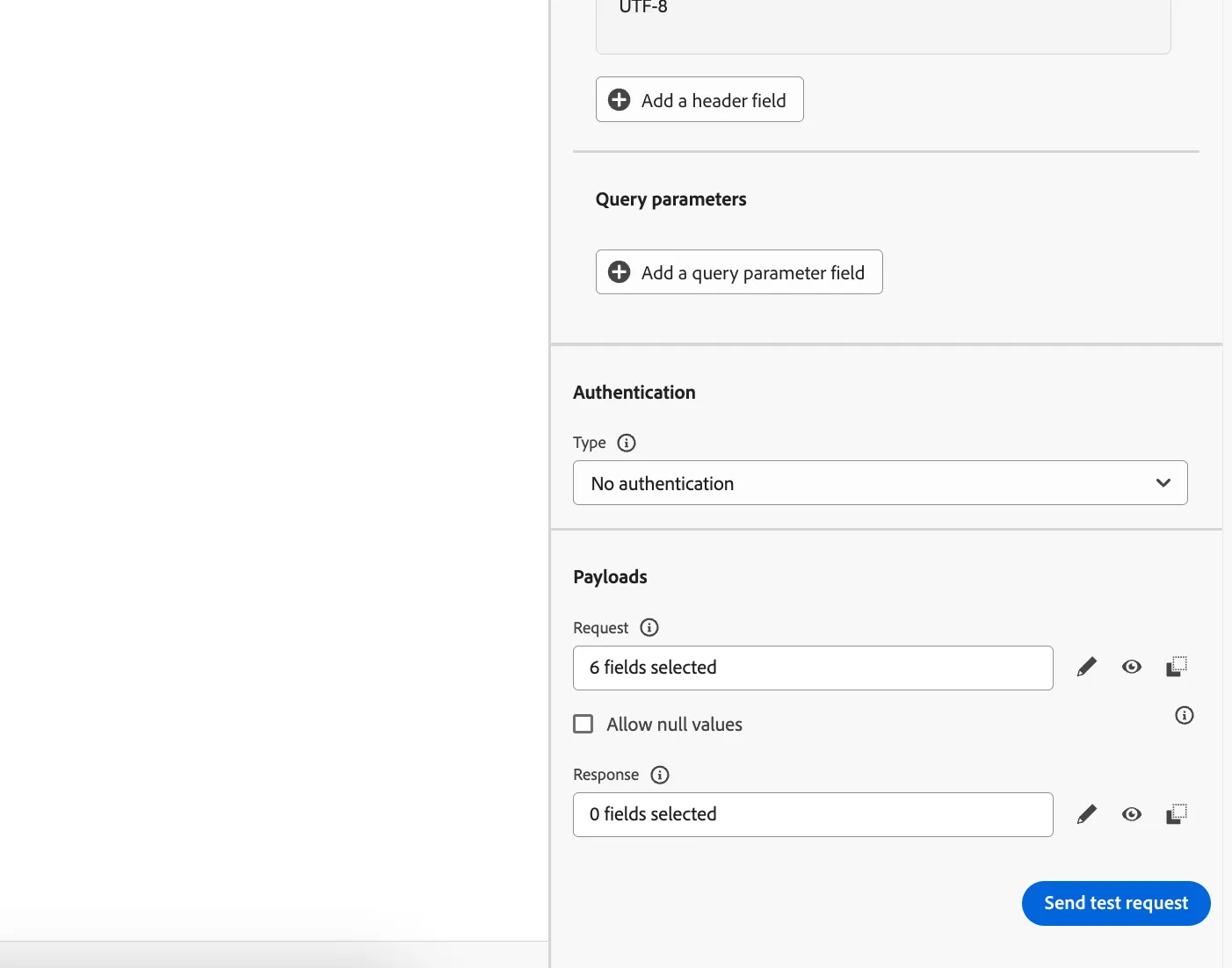
- Now the response field should say 6 fields selected:
-
Scroll all the way to top and click on Save.
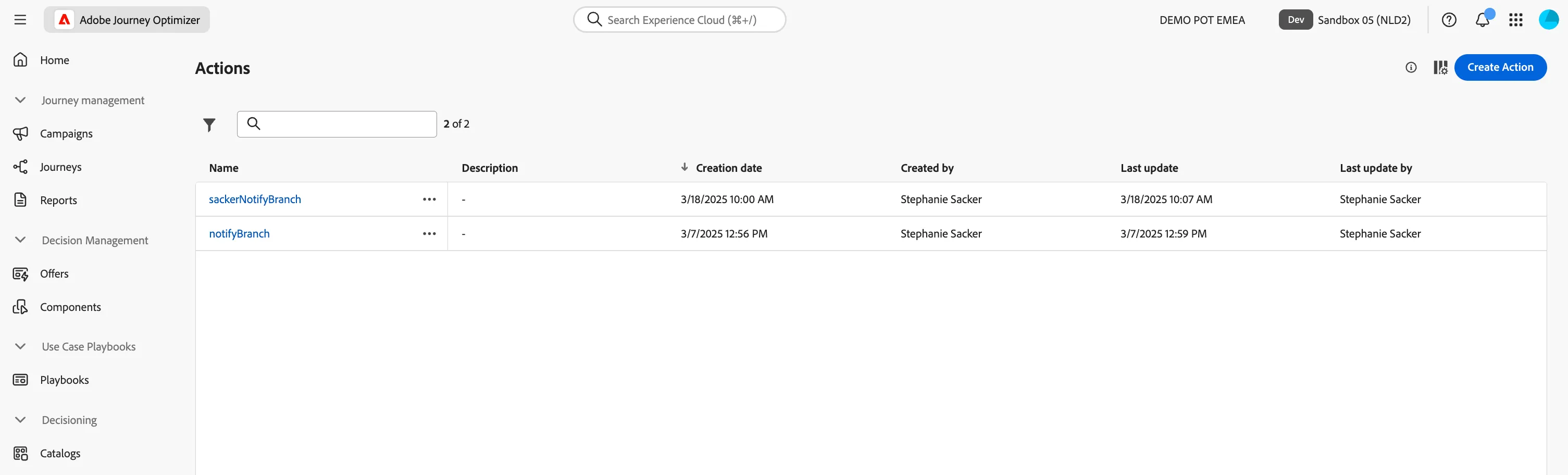
You have now successfully created the custom action to send data to an external endpoint! This can be used to integrate with any system that needs to receive real-time notifications.